



eSim activity

Baku, Azerbaijan
4.8 (125 reviews)
Virtual eSIM
Instant Confirmation
Mobile Voucher

Available Options

Data in total · 1 day · 500MB · Data only

eSIM
Price on request

eSIM compatible devices

  • If you encounter any service disruption such as unable to connect to internet, slow speed, APN settings or any other service disruption after inserting the card, please contact the operator's customer service at: eSIM Description

  • eSIM FAQ

  • test

test step1

test

  • test

test step2

test

  • 700

700

  • 500

500

Additional Information

  • eSIM compatible devices

  • eSIM FAQ

  • show on APP

  • The connection speed depends on your reception coverage and the local tele company. No refund will be issued for any speed drop

Select This Option

Data in total · 11 days · 5GB · Data only

eSIM
Price on request

Additional Information

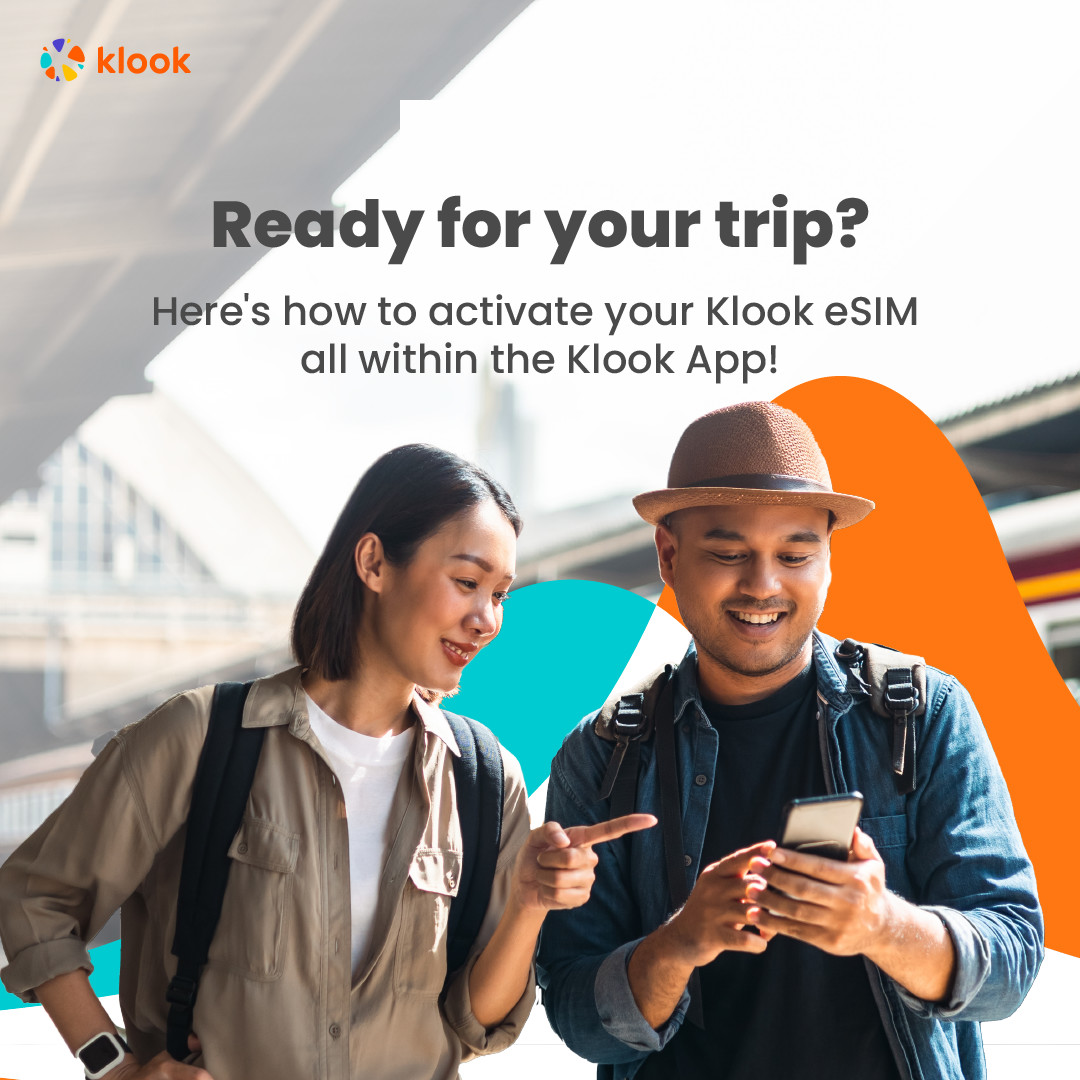
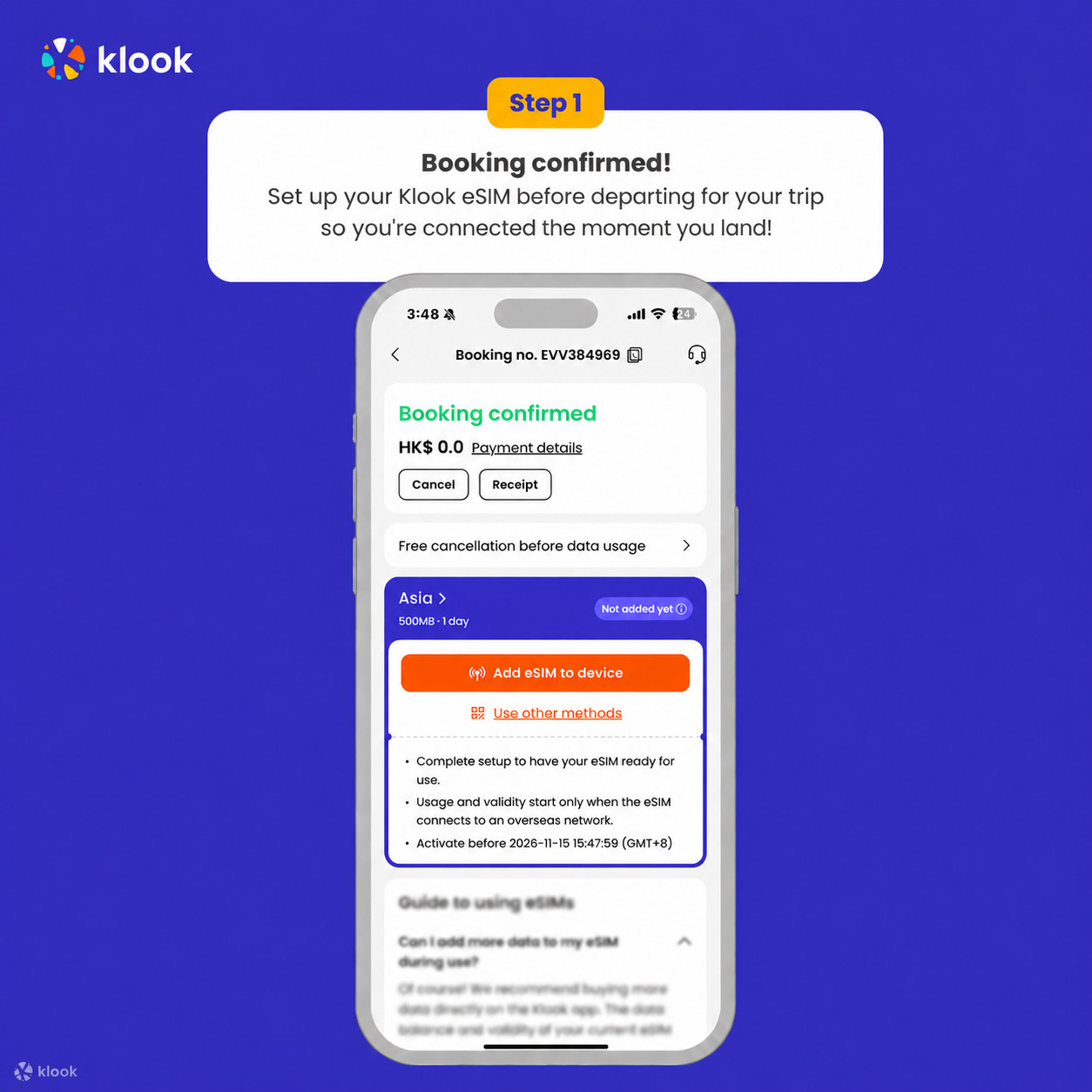
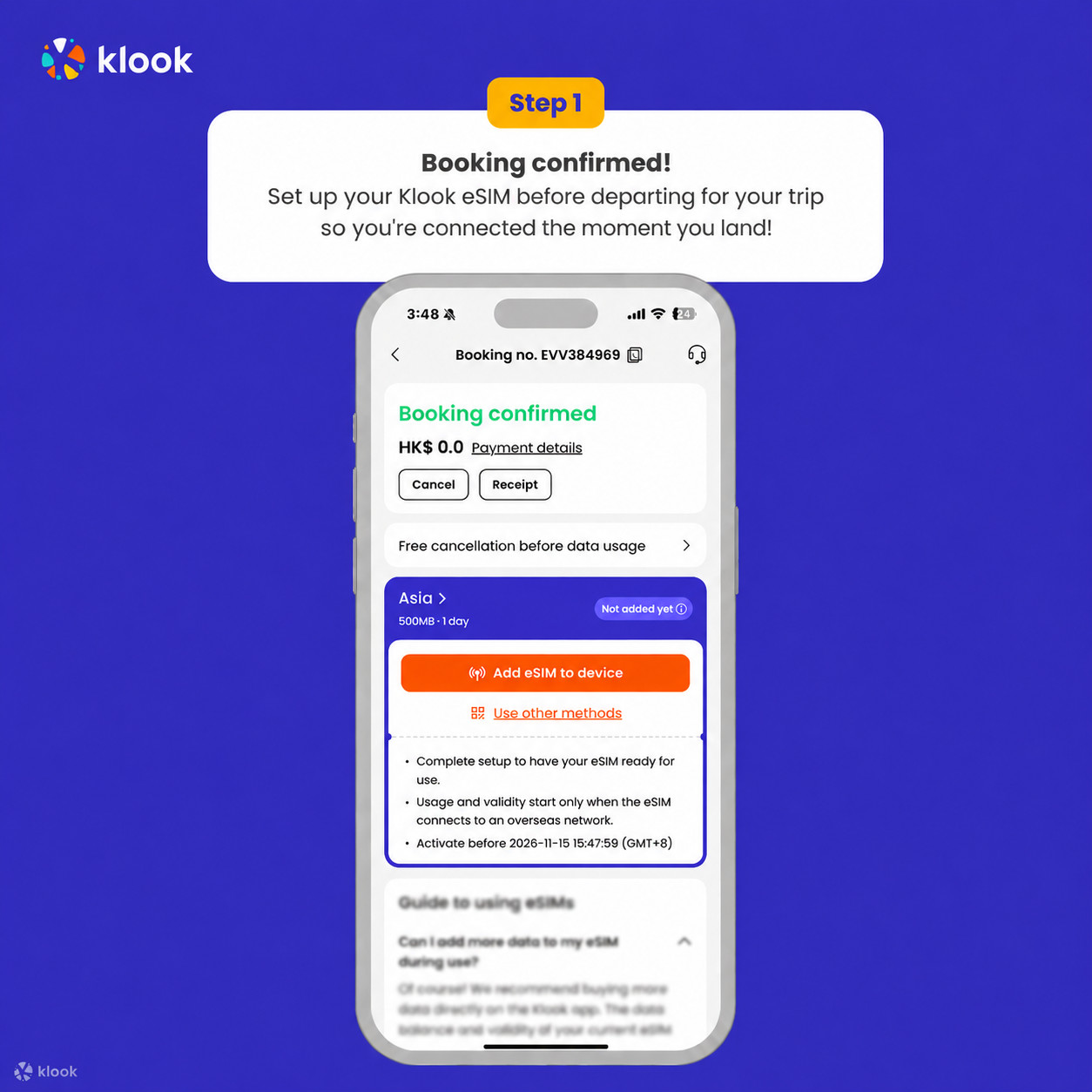
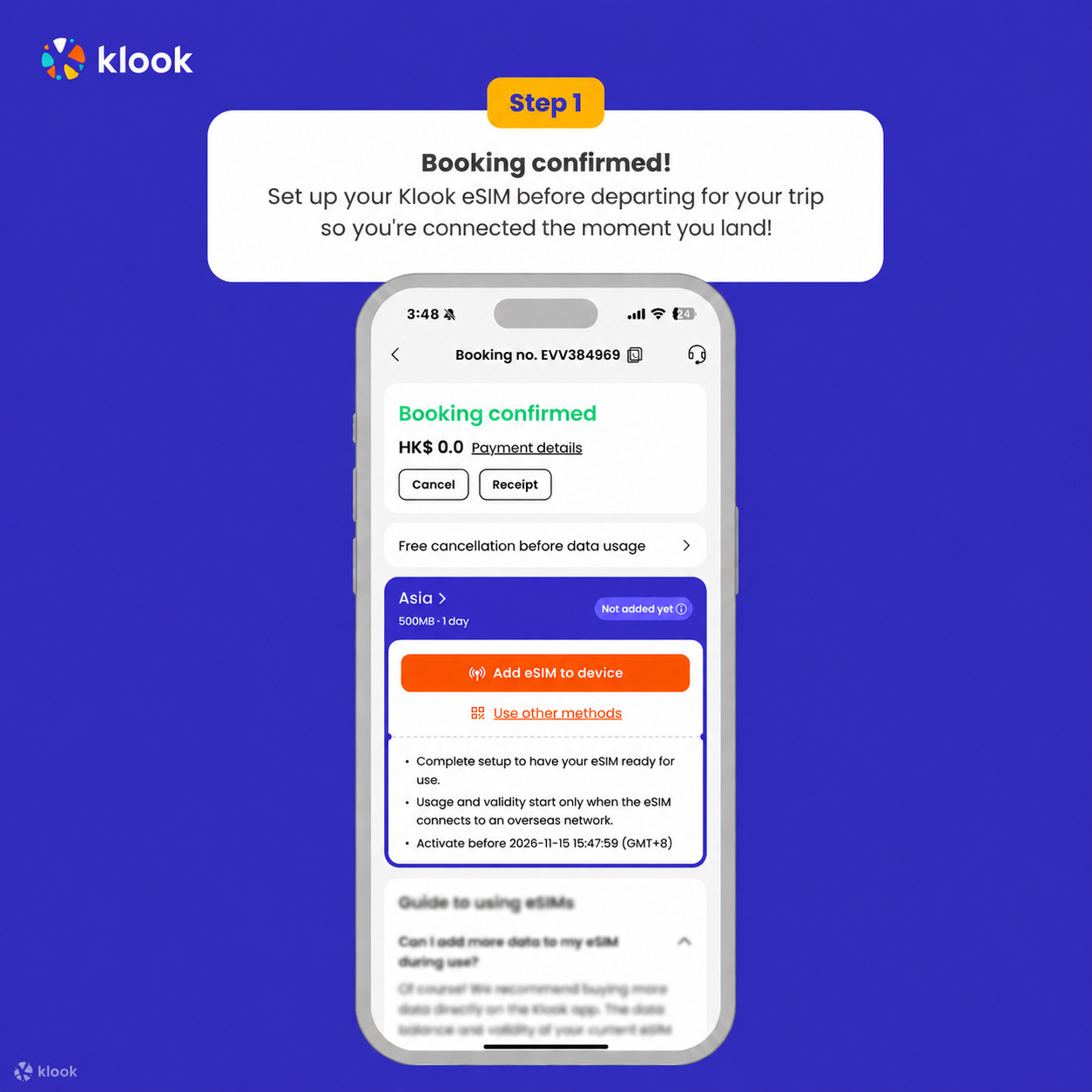
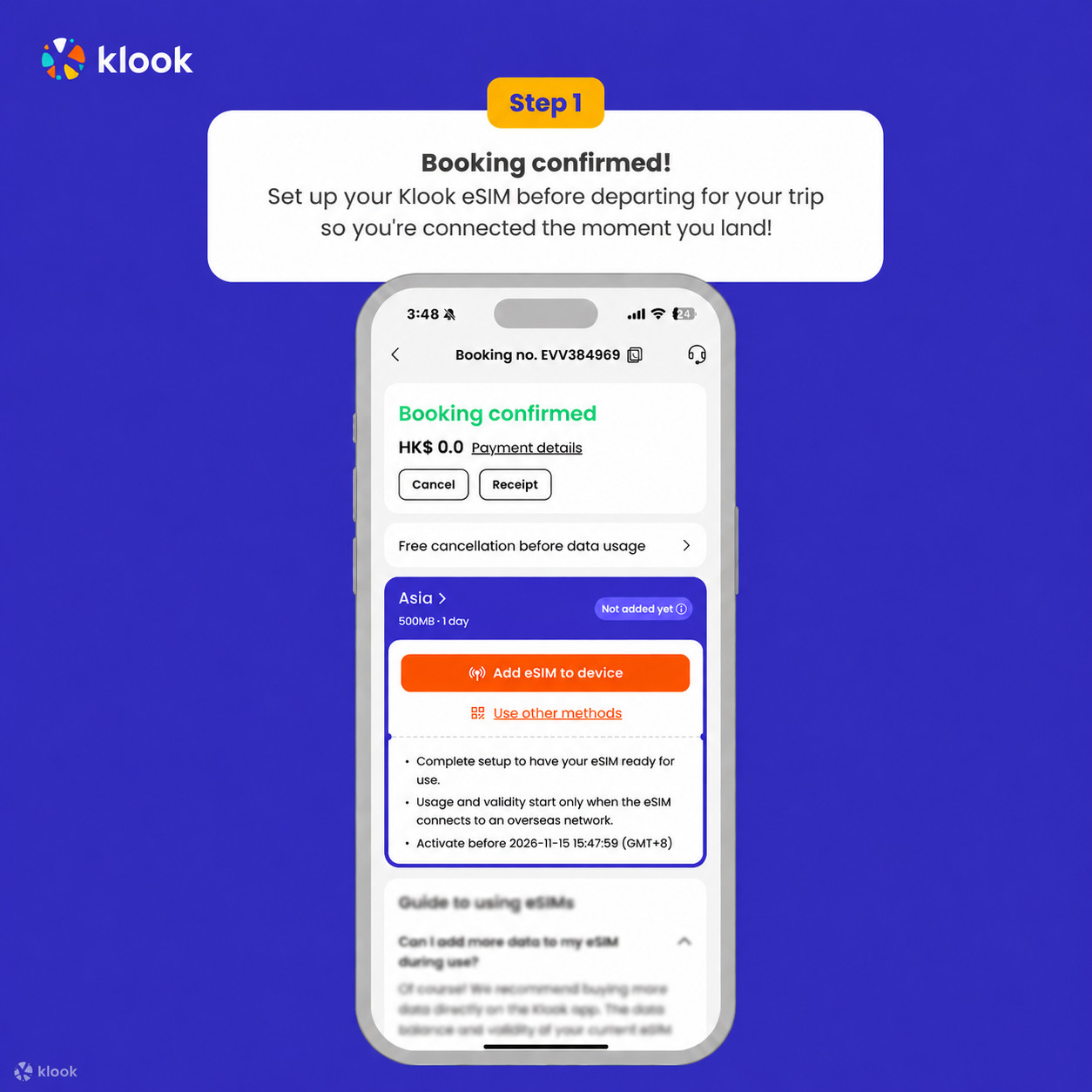
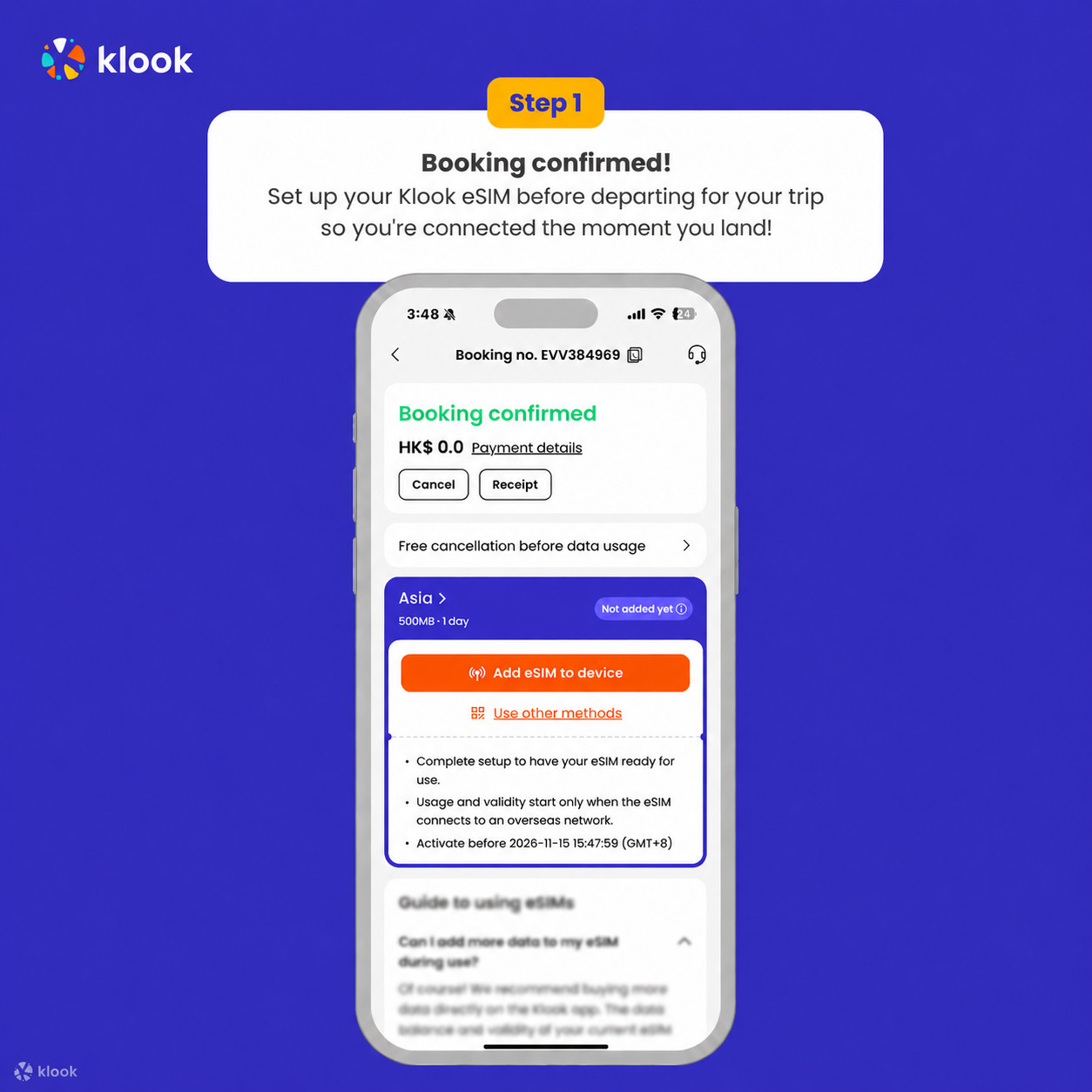
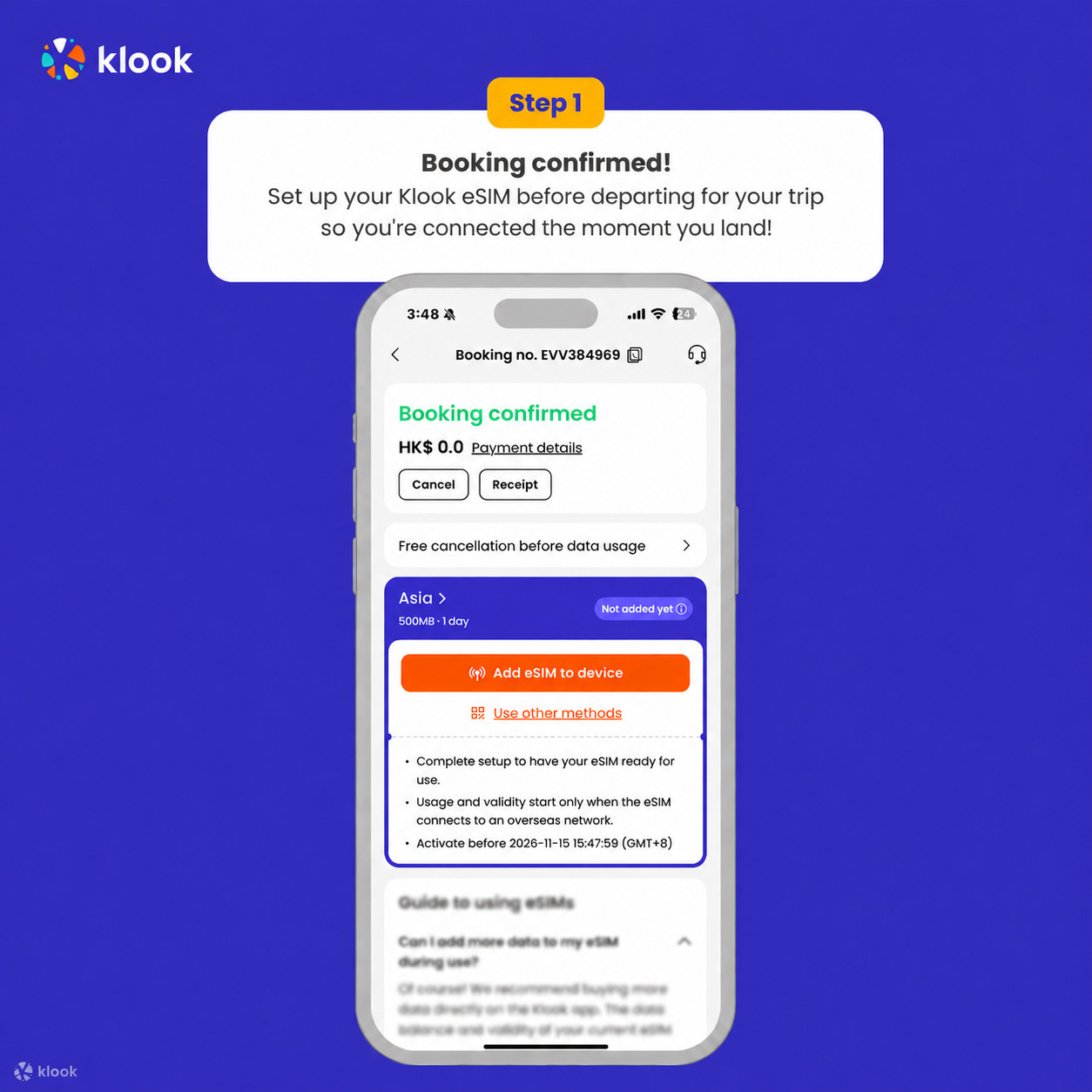
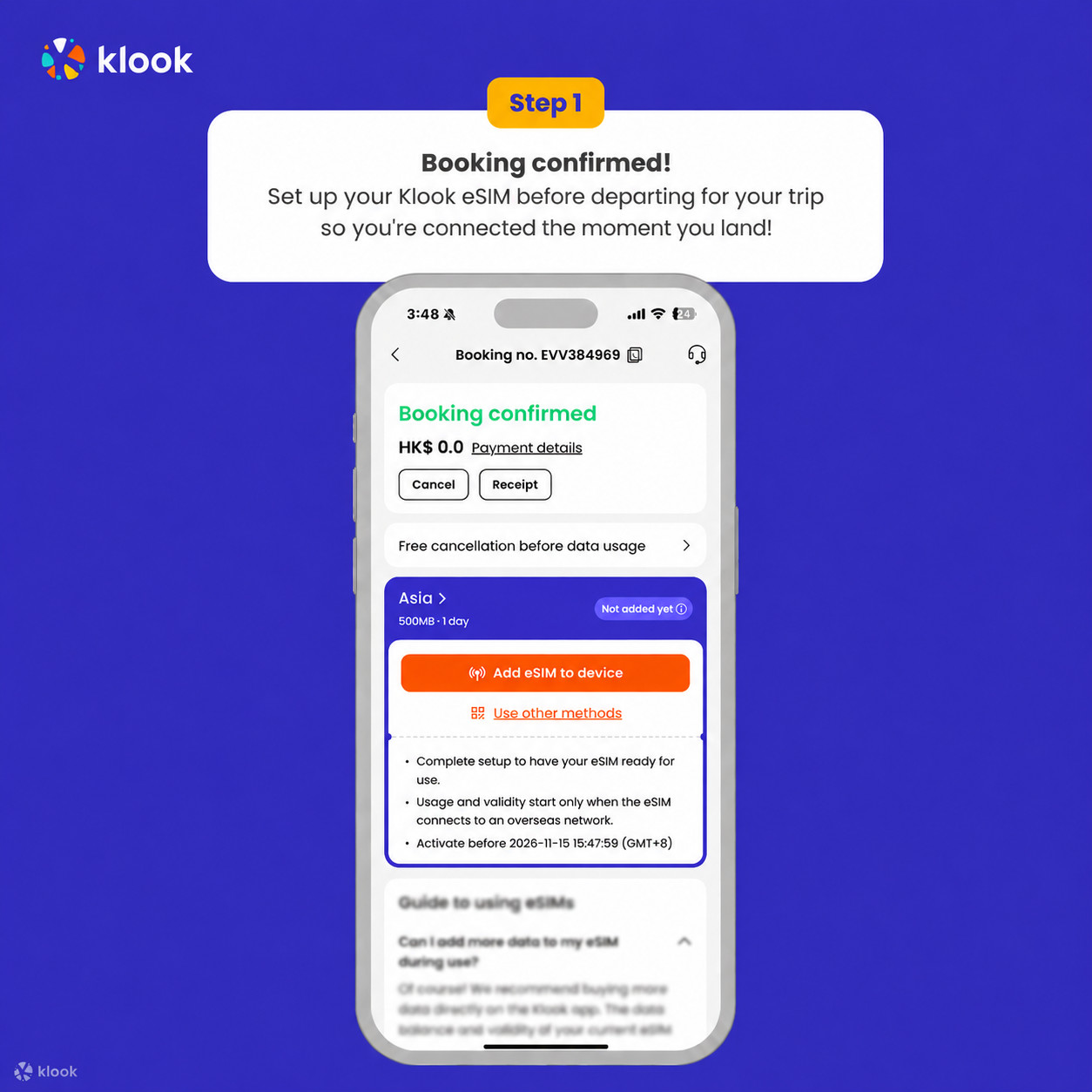
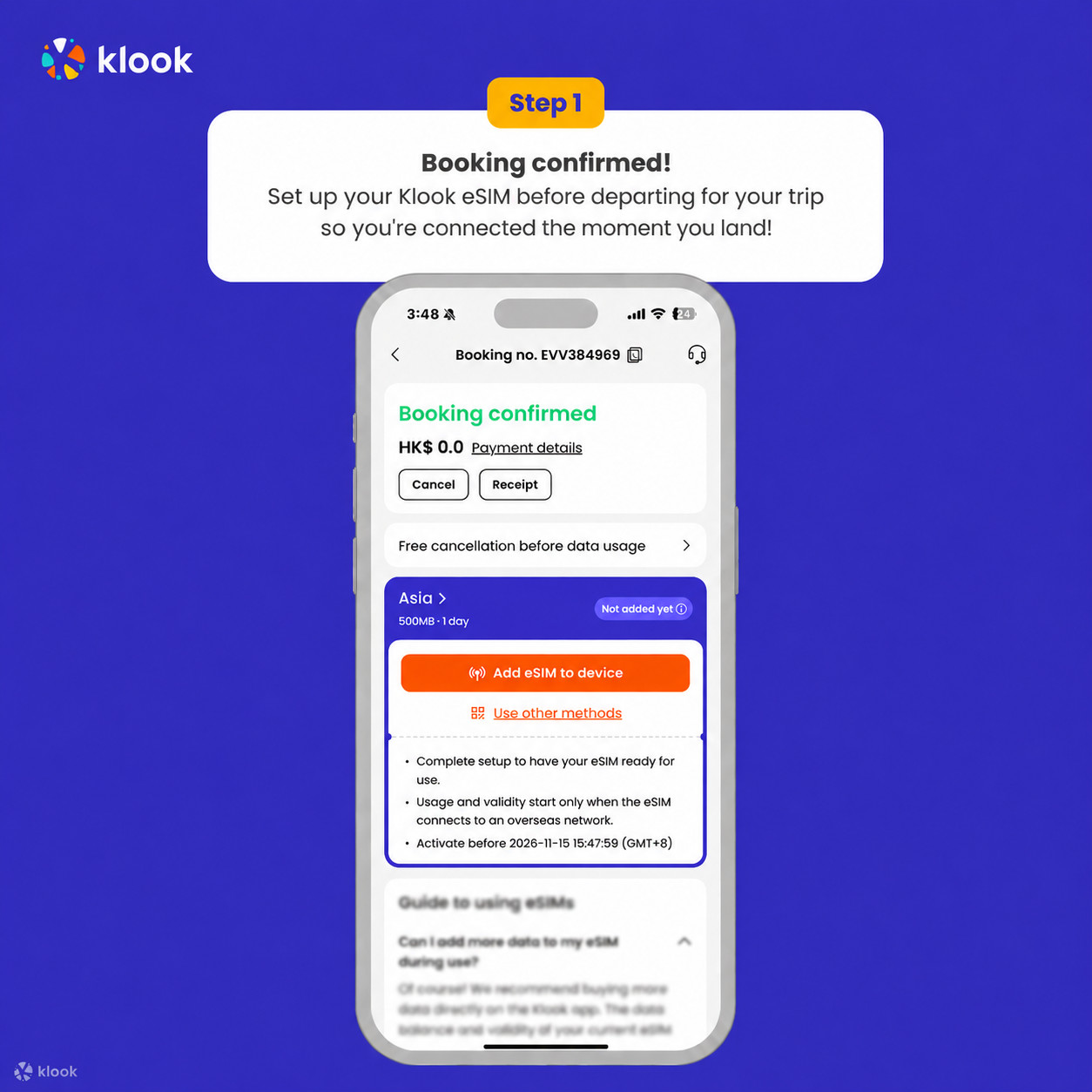
  • Activate your Klook eSIM before travel

Activate your eSIM before travel

Activate your Klook eSIM before travel

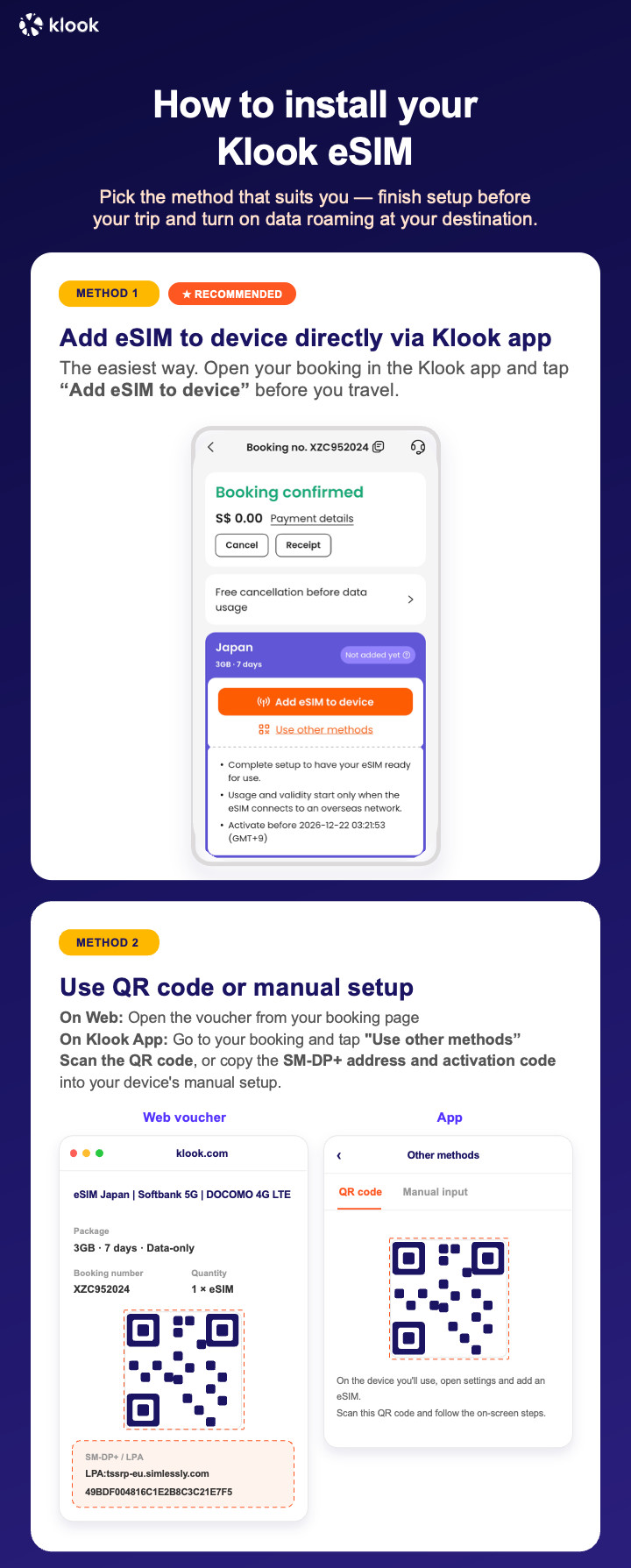
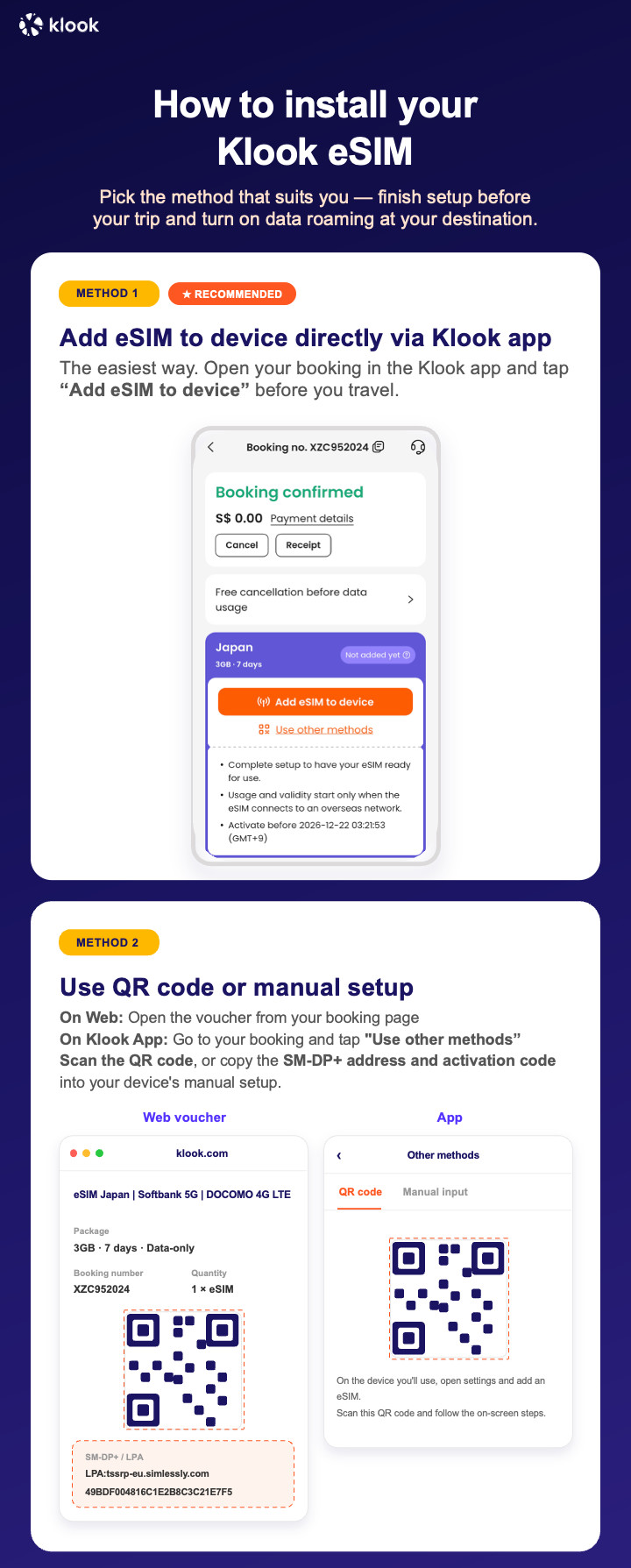
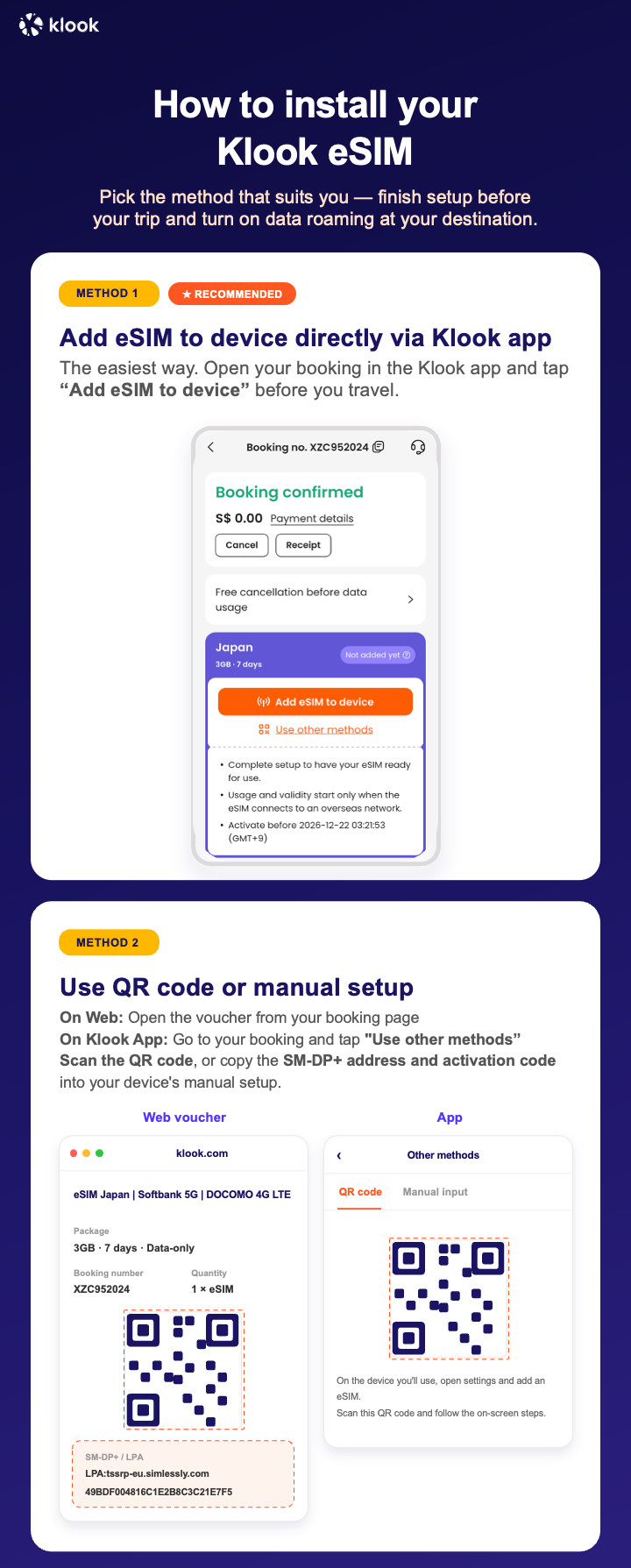
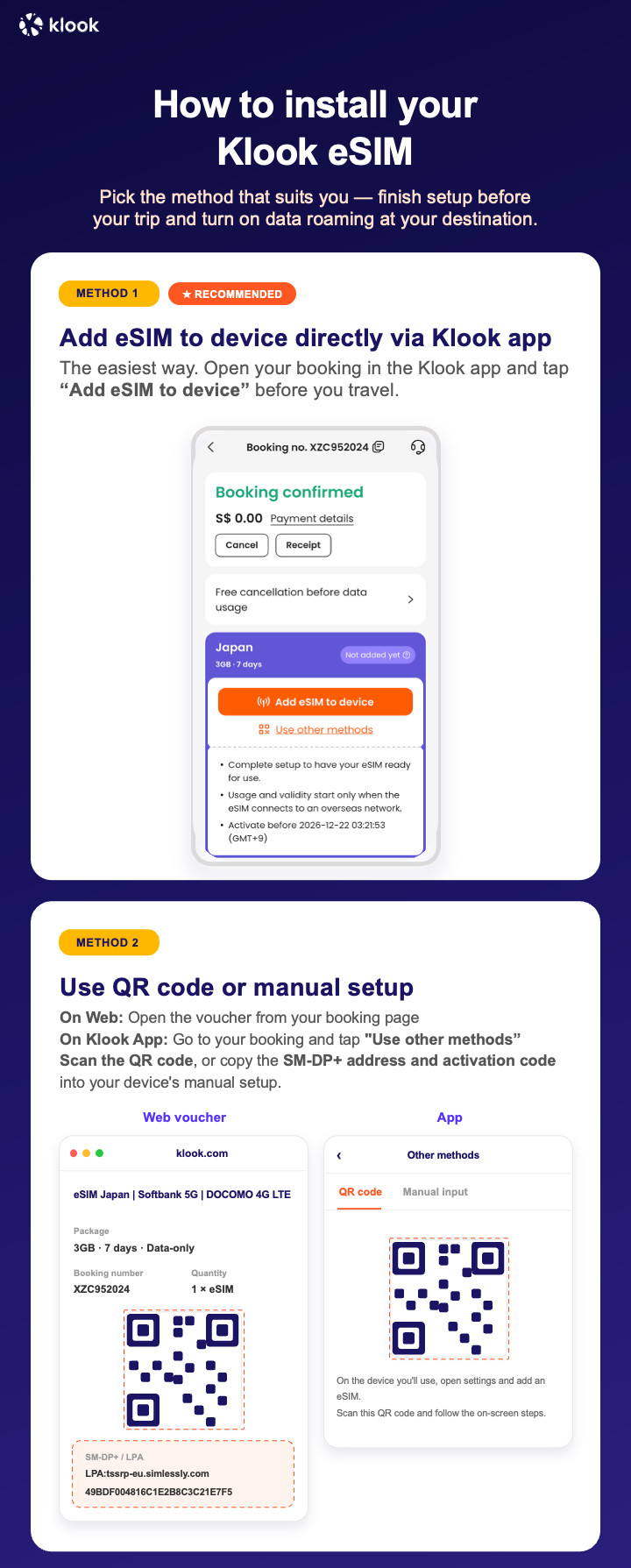
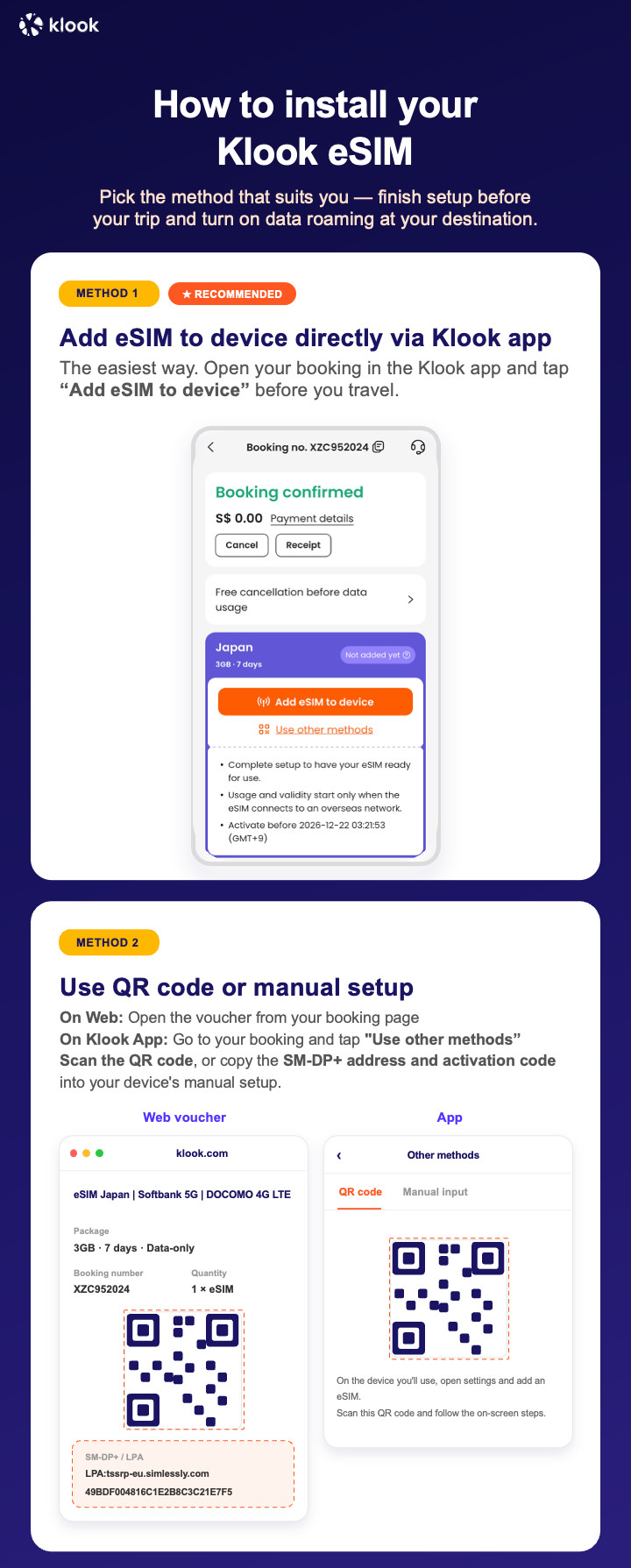
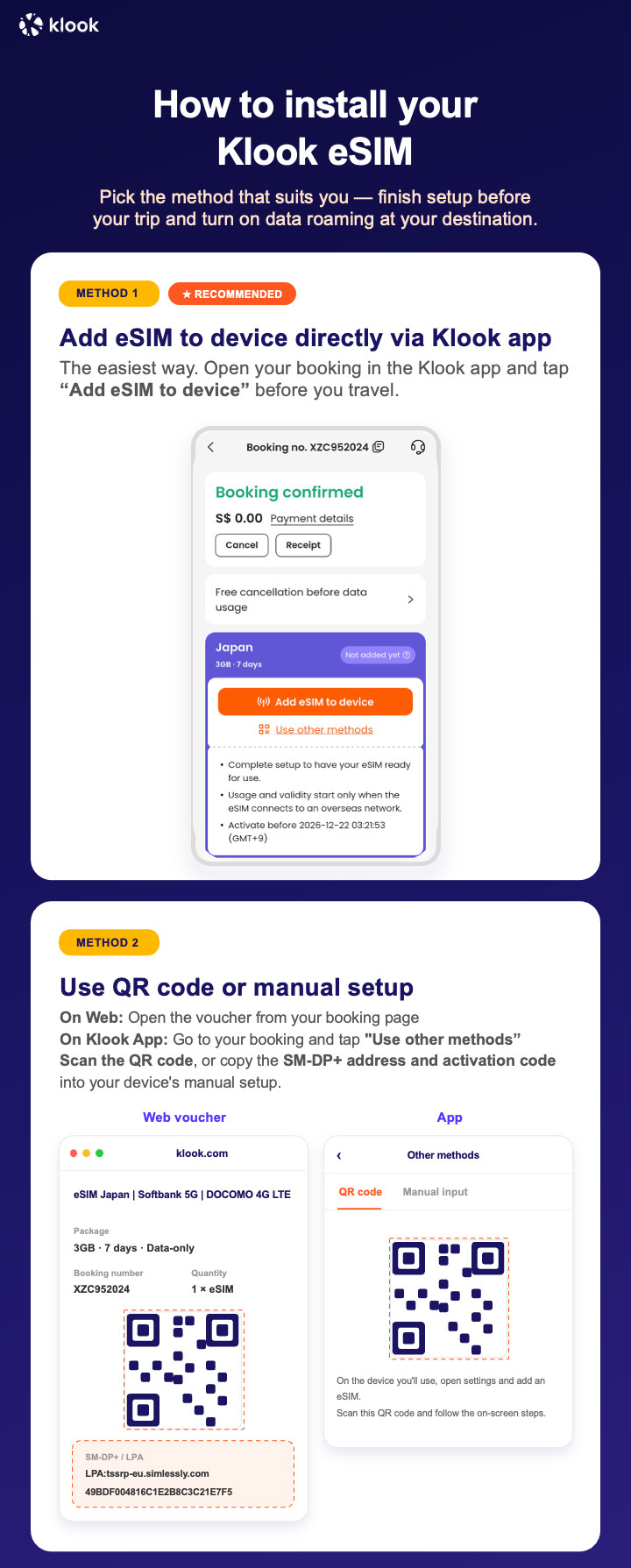
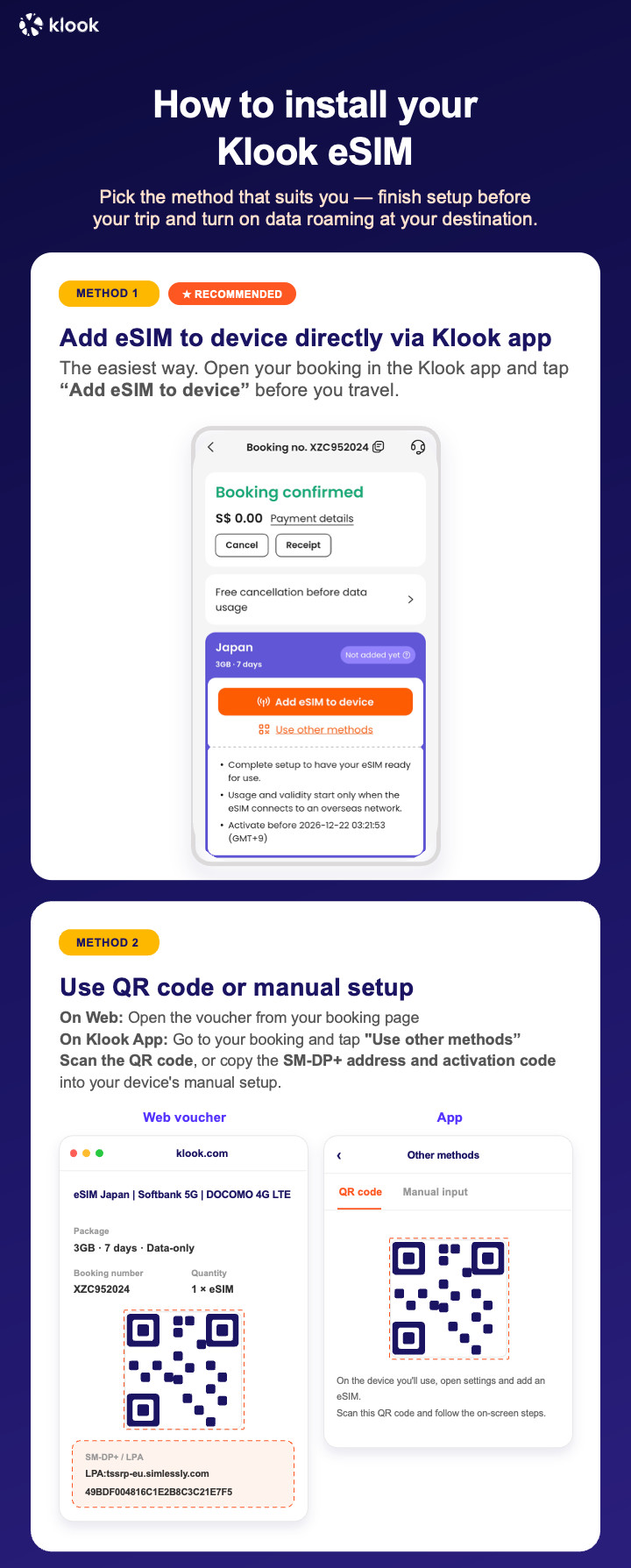
  • Klook eSIM installation methods

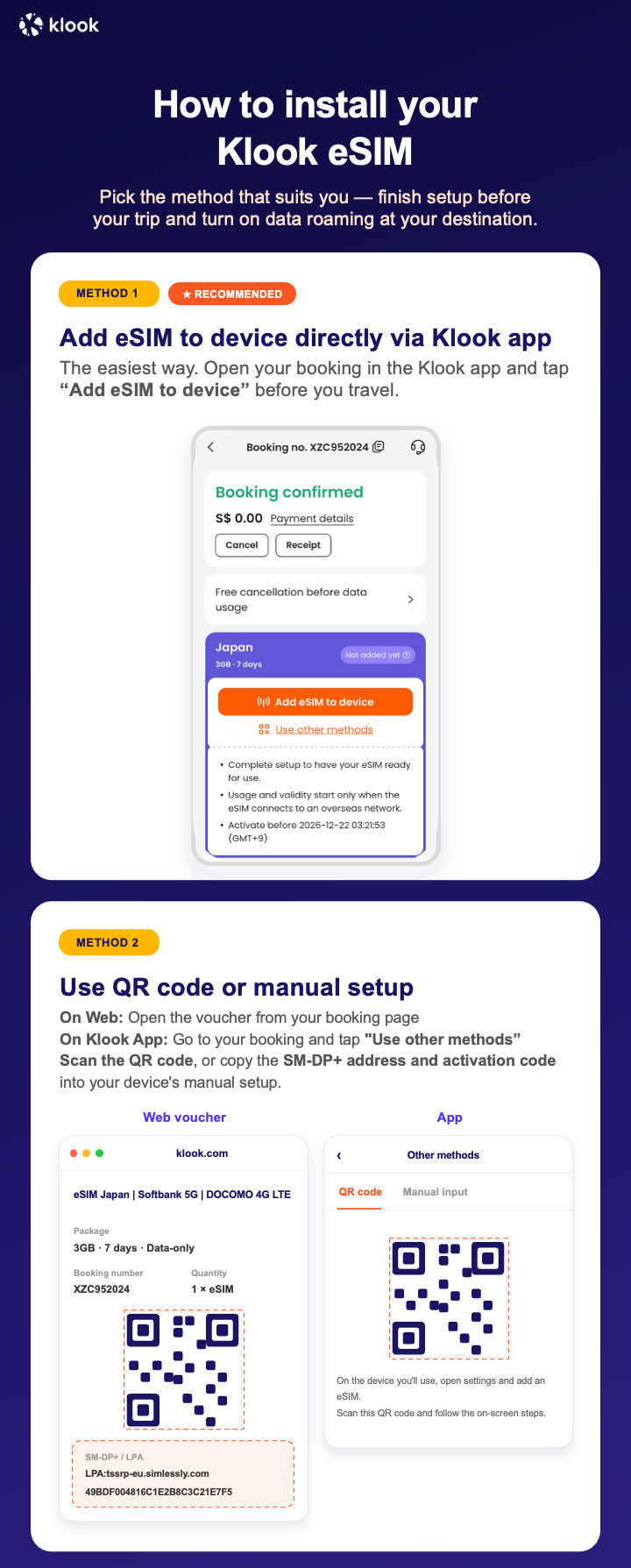
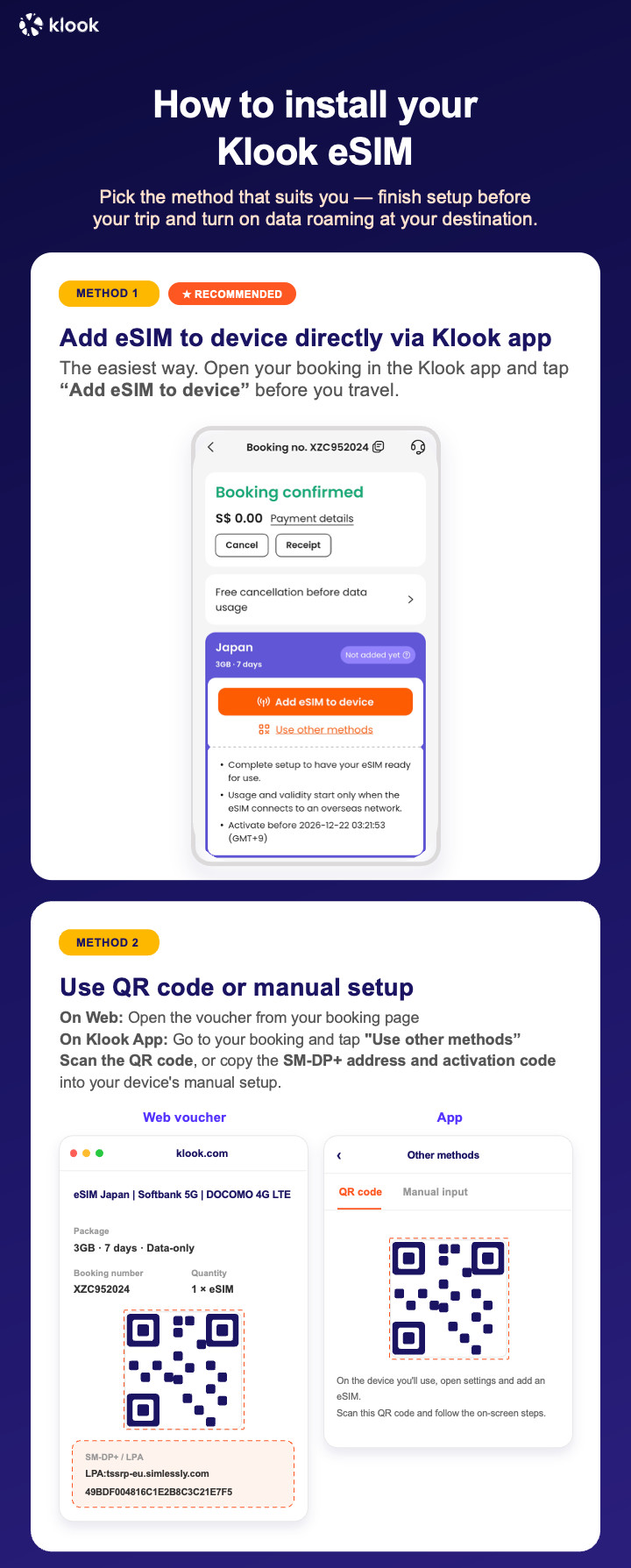
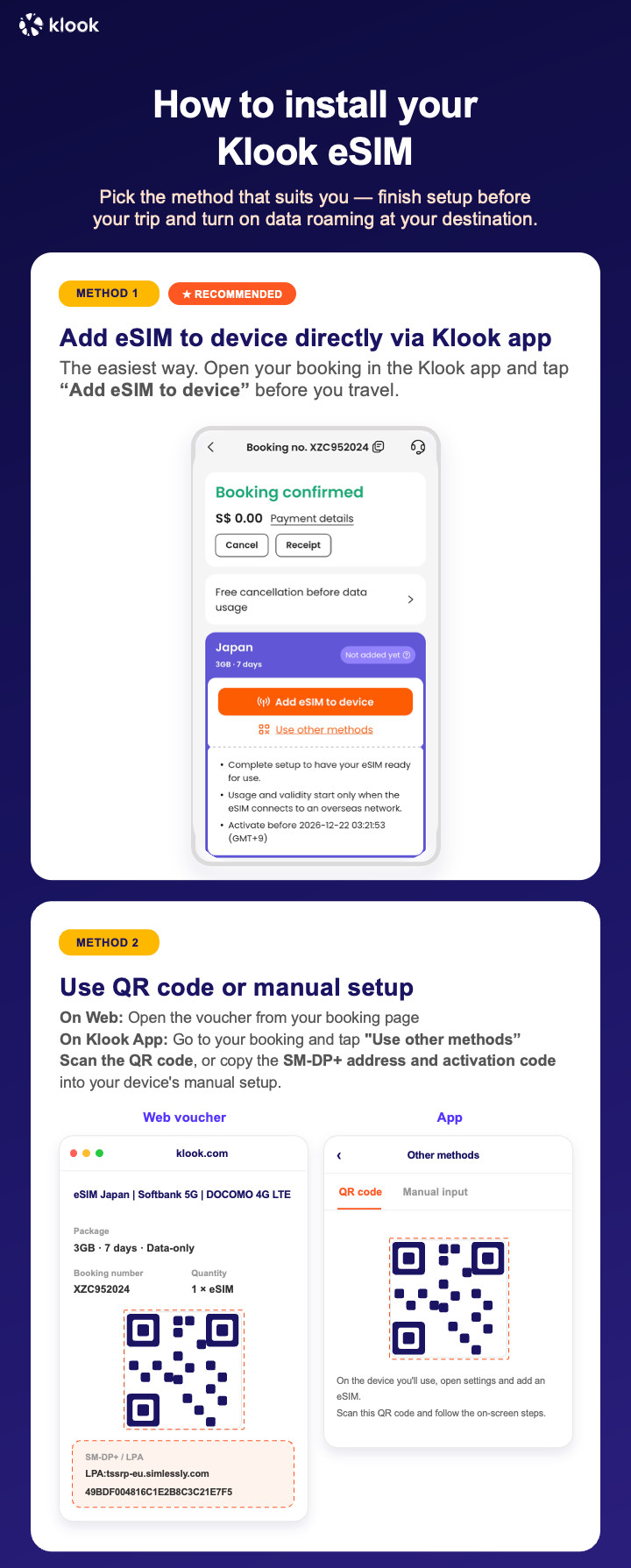
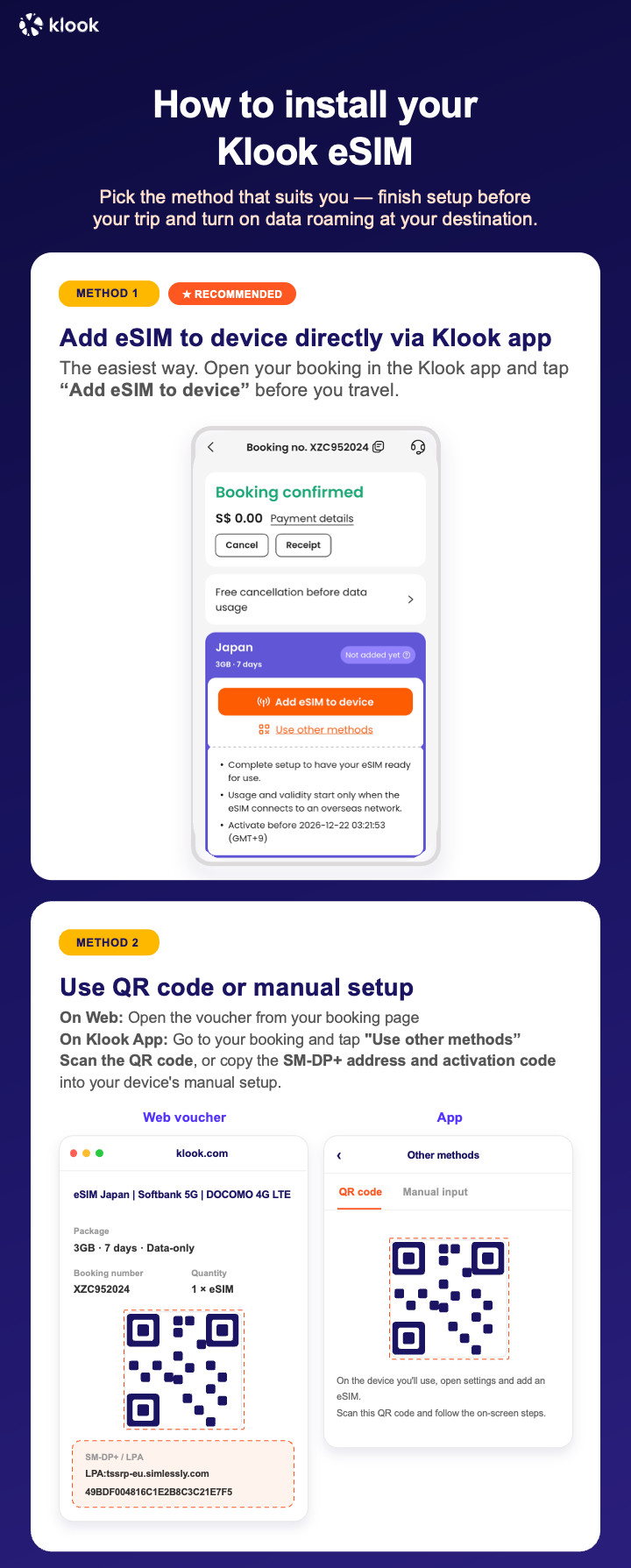
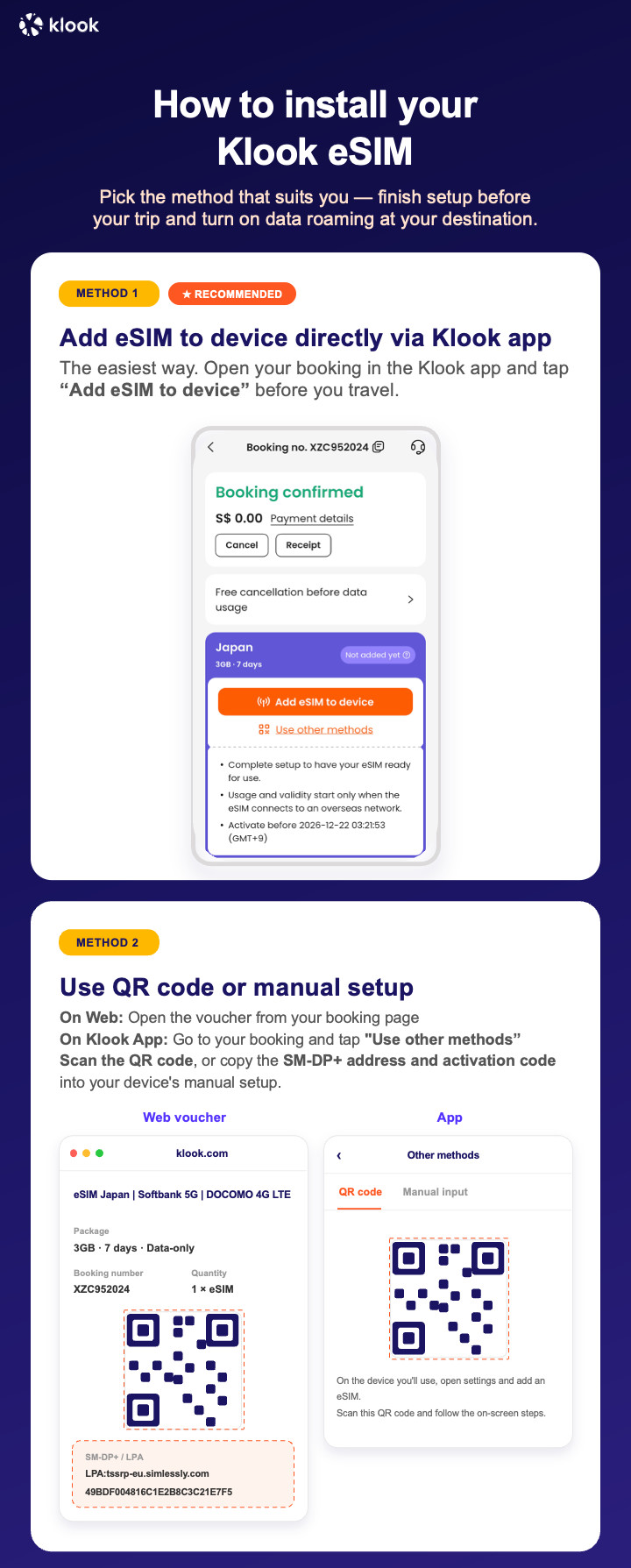
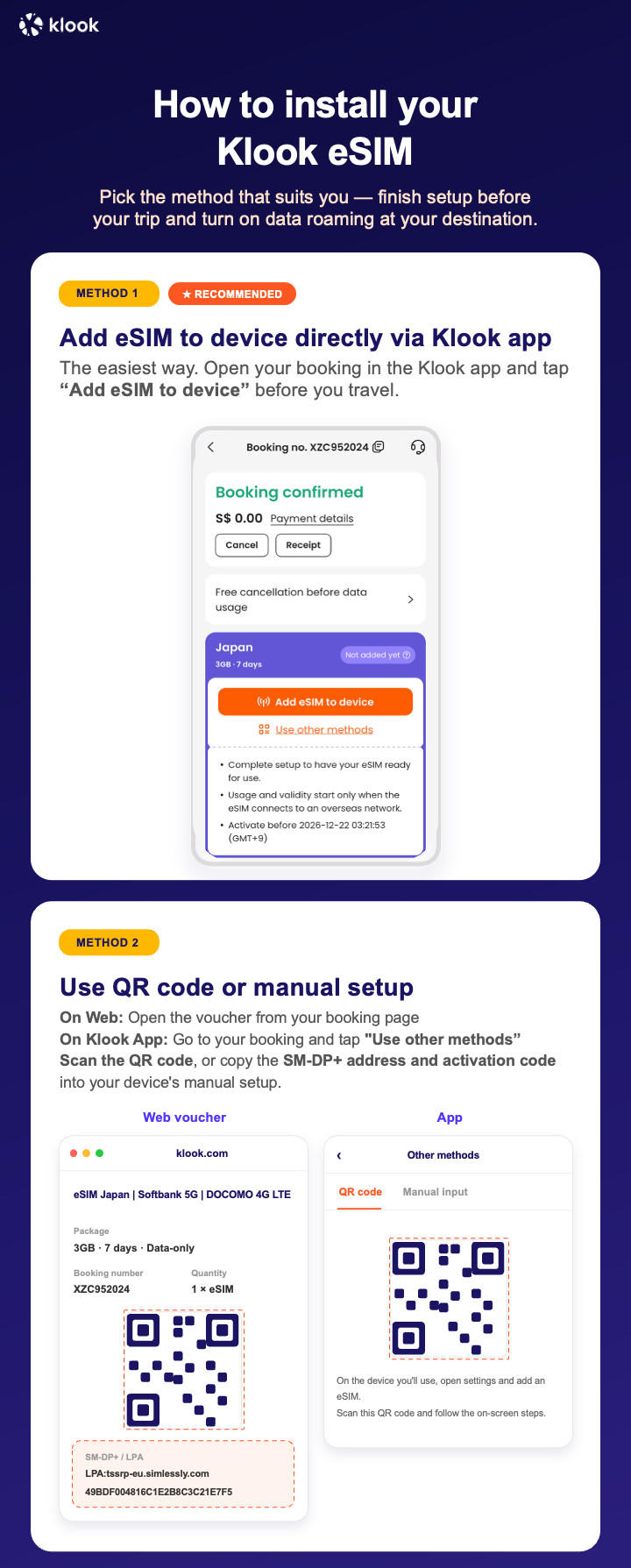
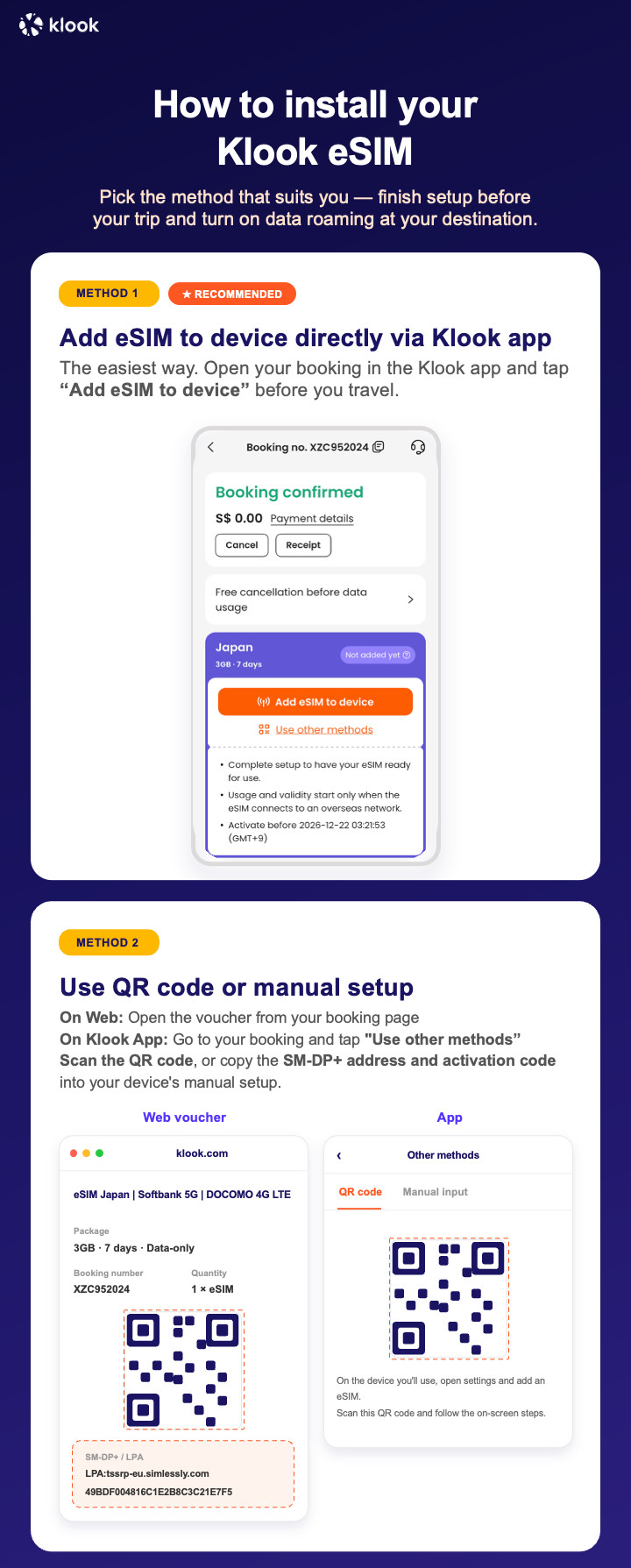
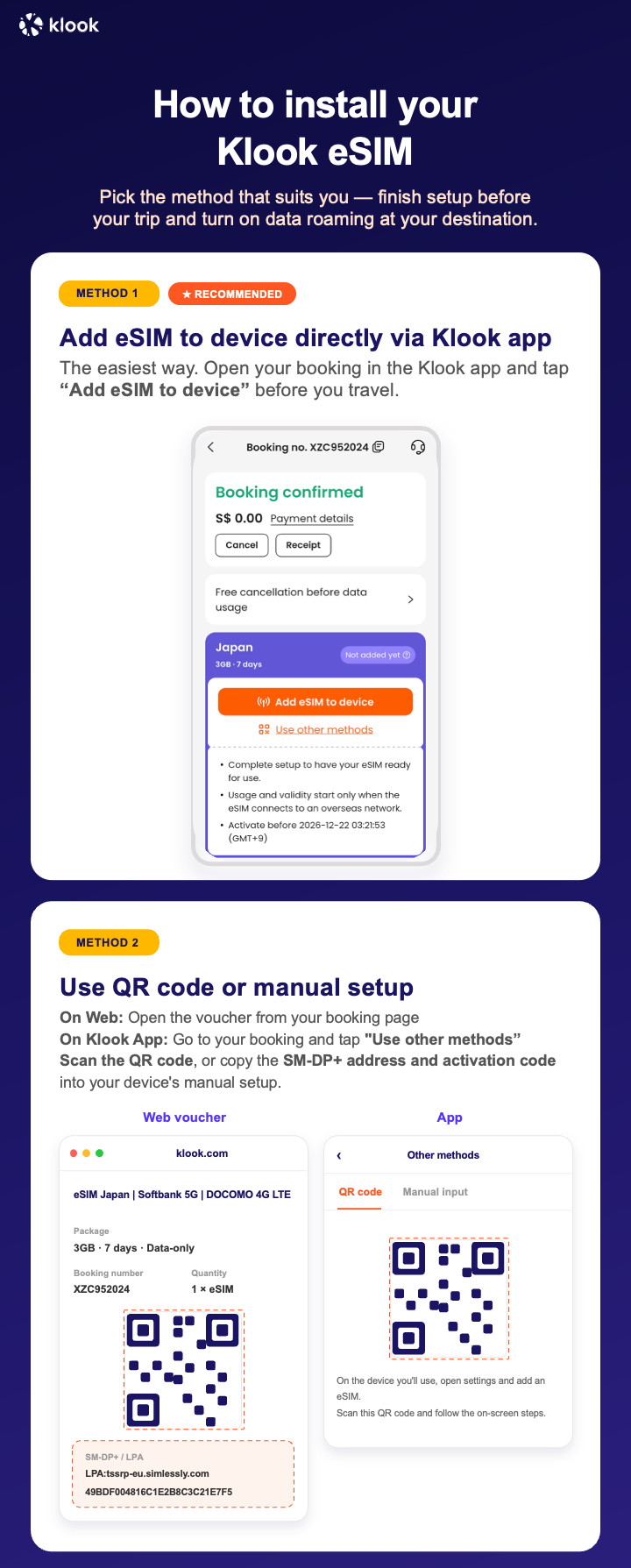
Activate your eSIM via Klook in-app activation, scanning the QR code, or entering the SMDP+ details manually

Klook eSIM installation methods

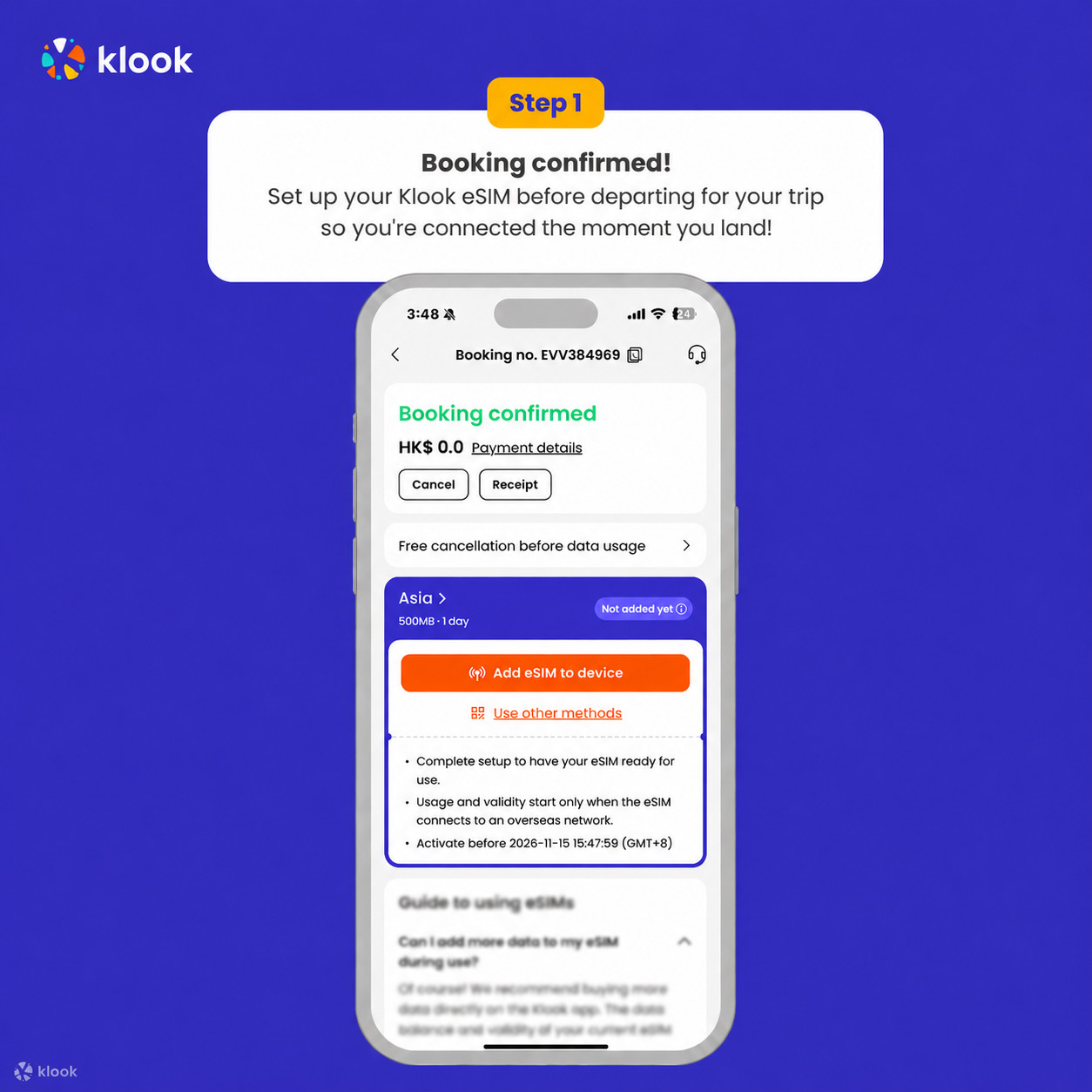
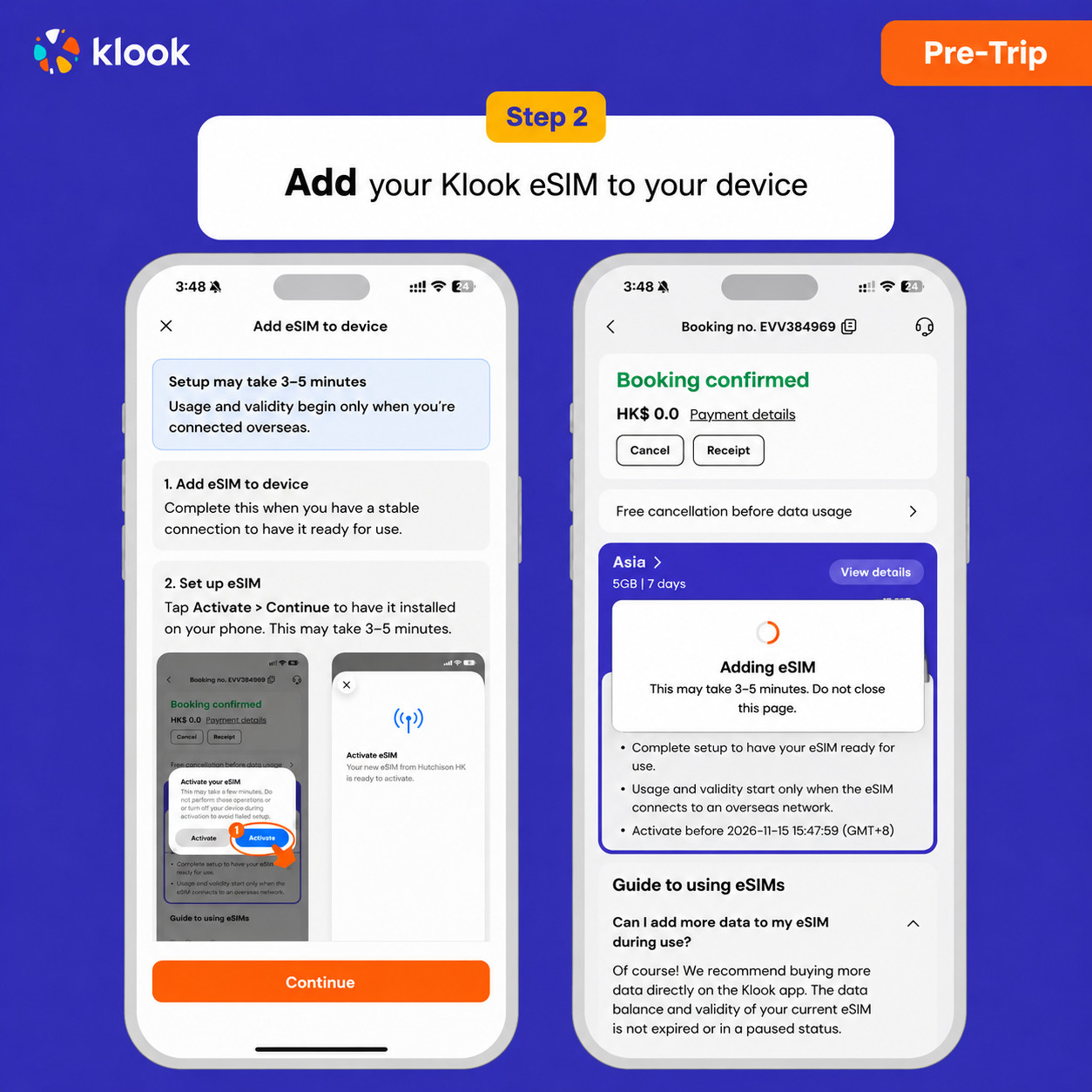
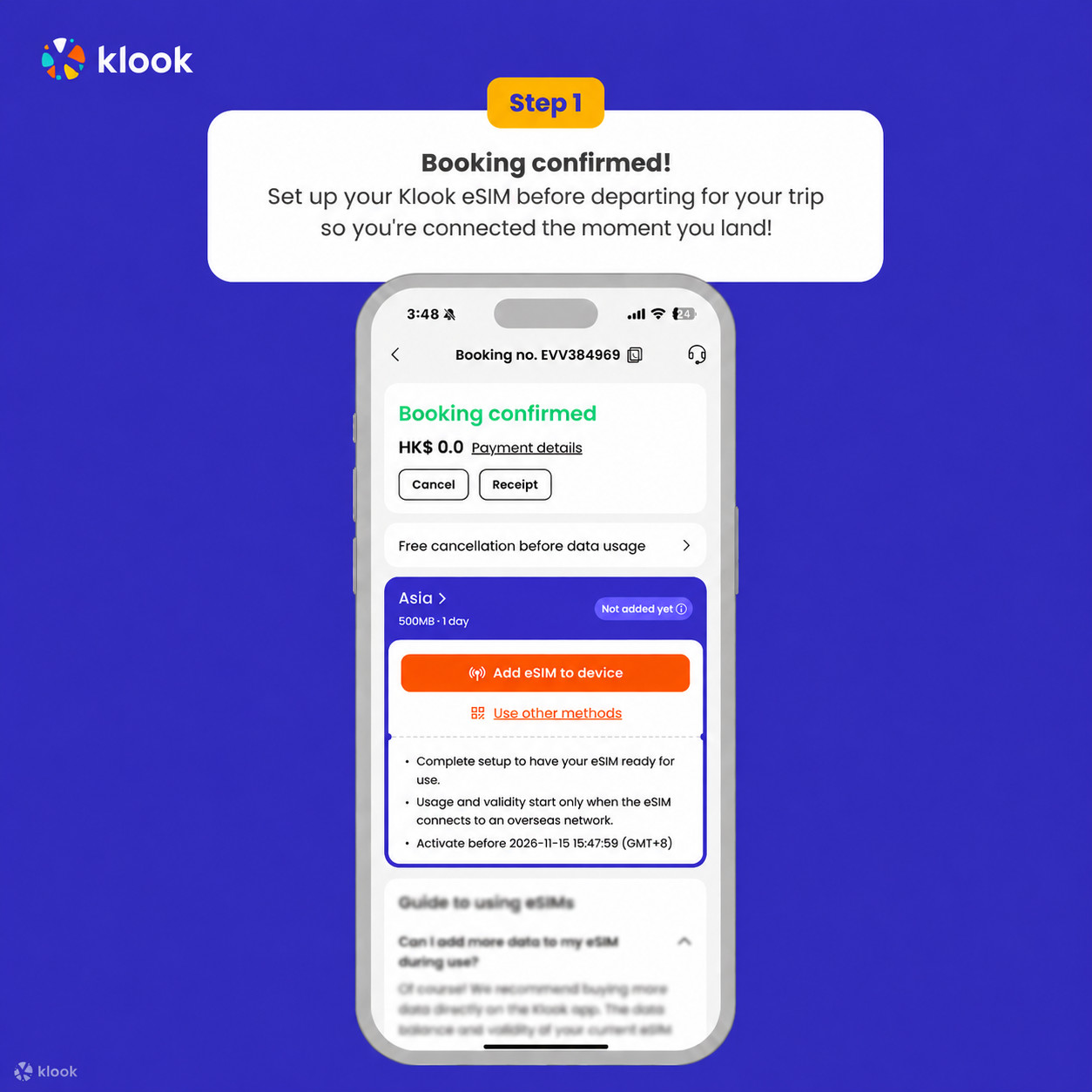
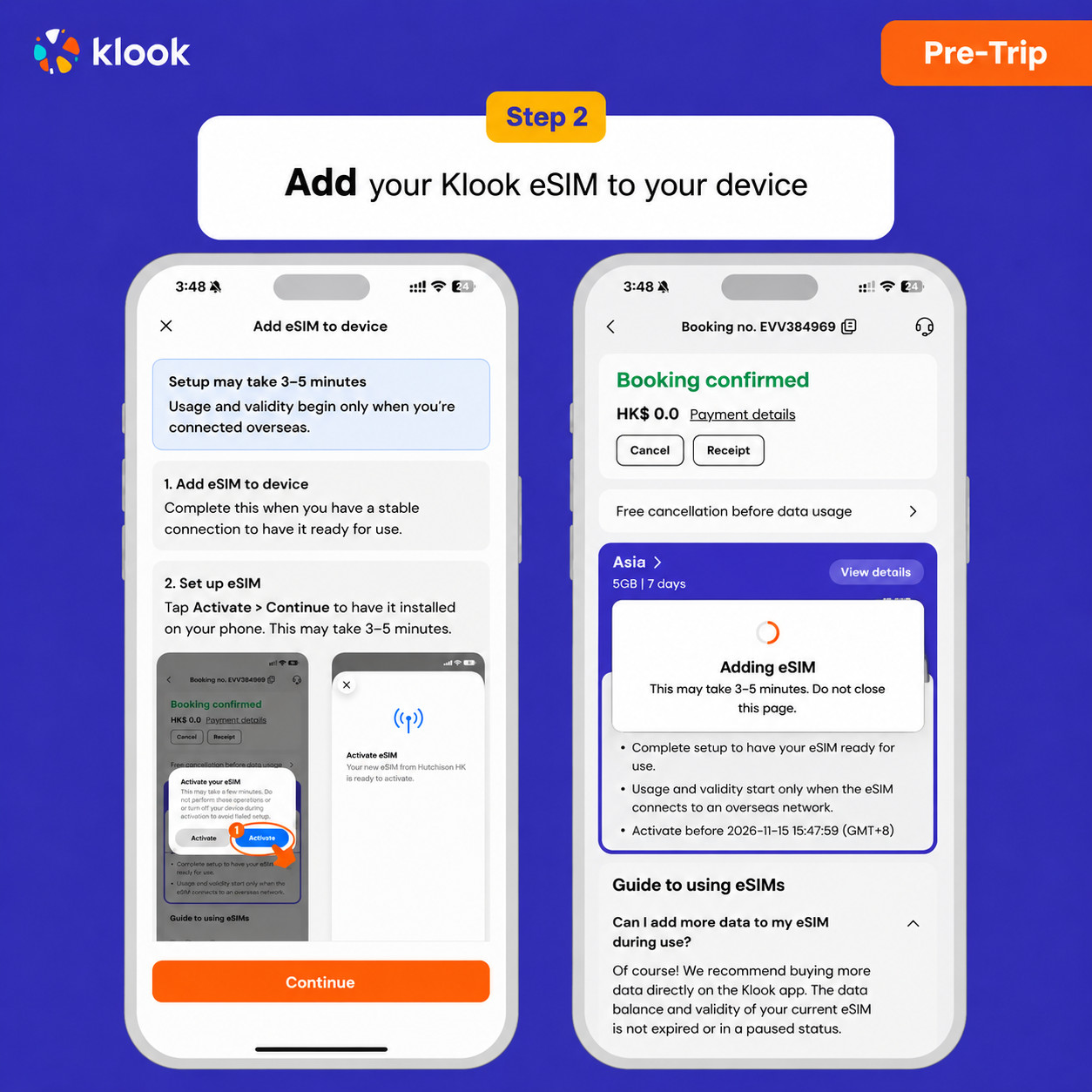
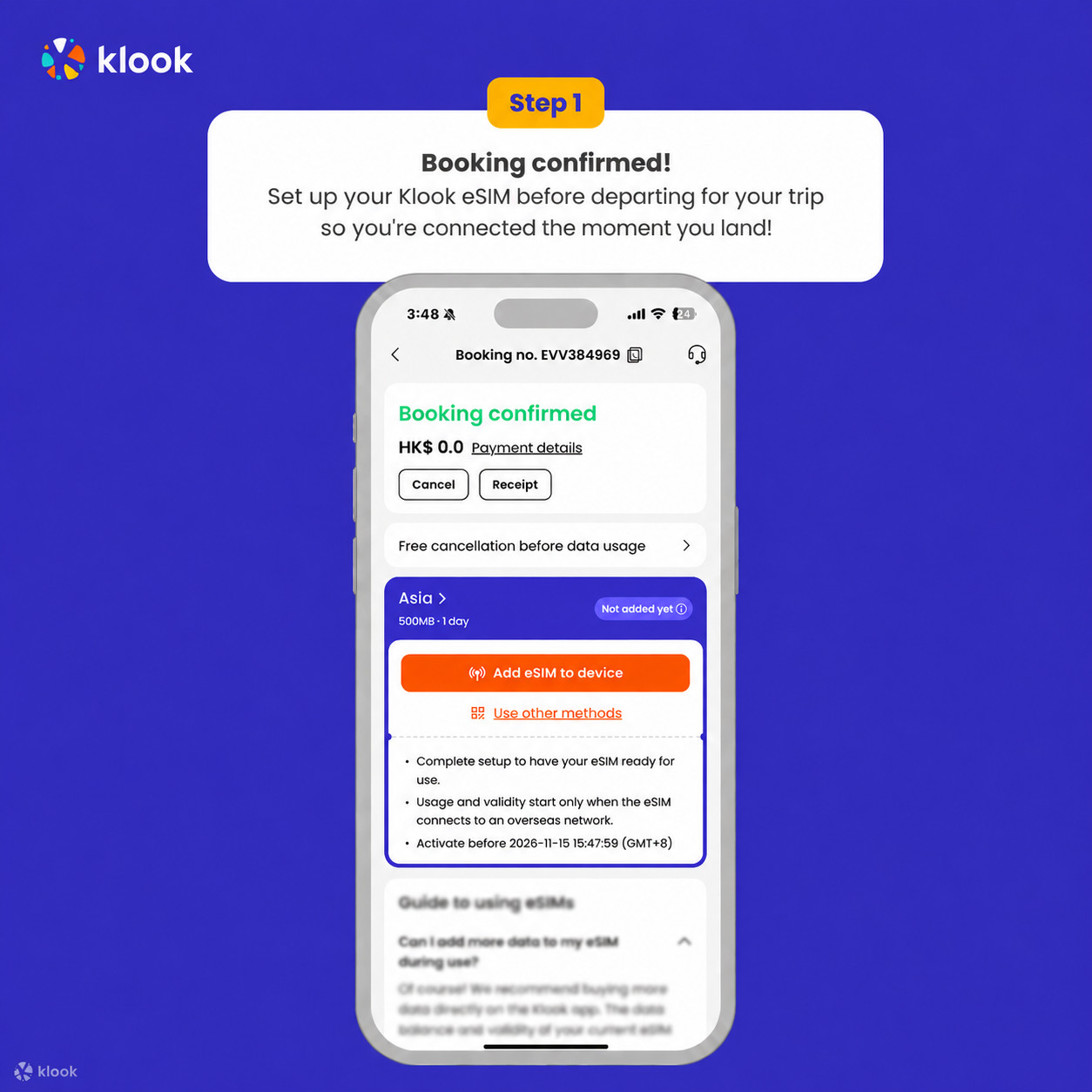
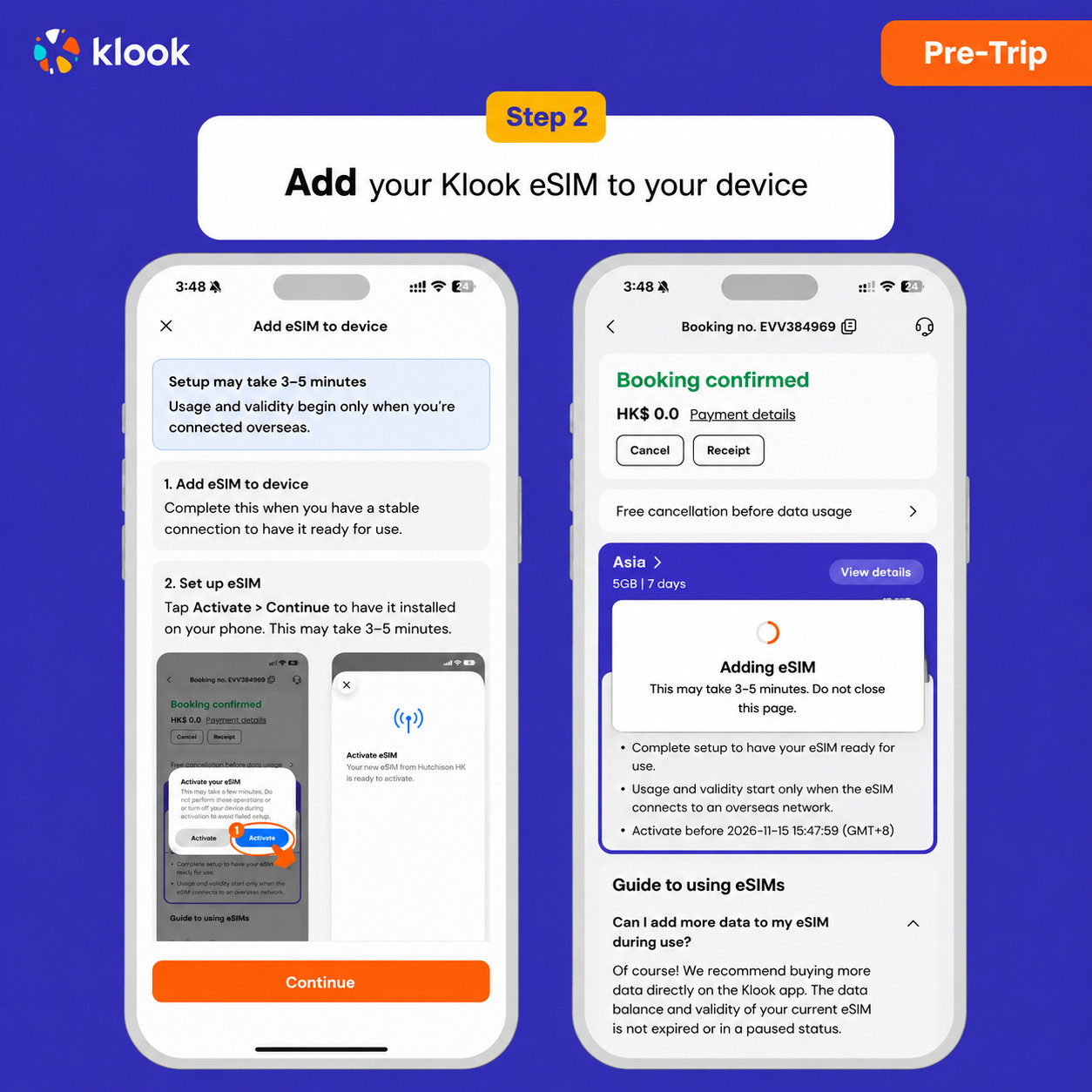
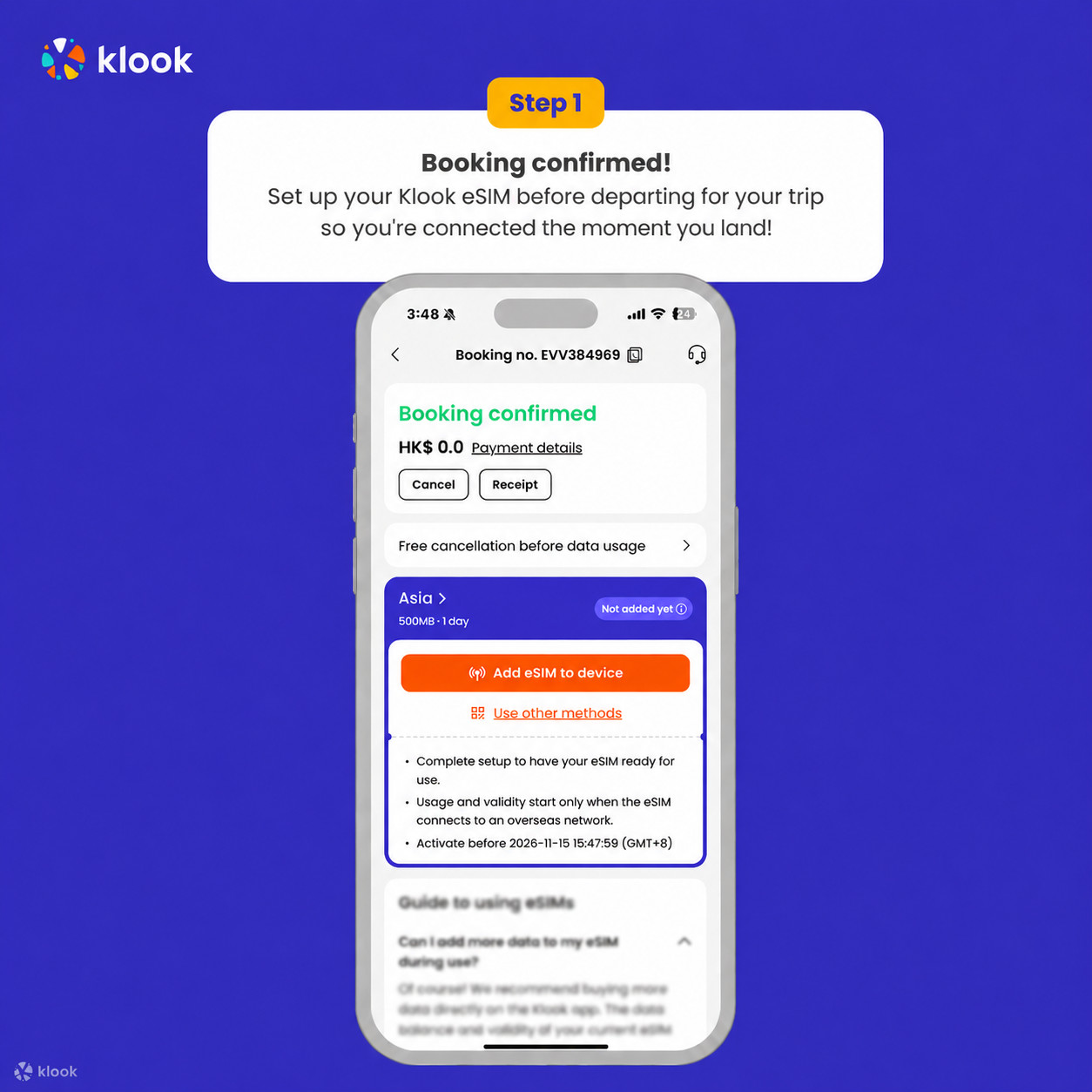
  • Klook eSIM In-app activation

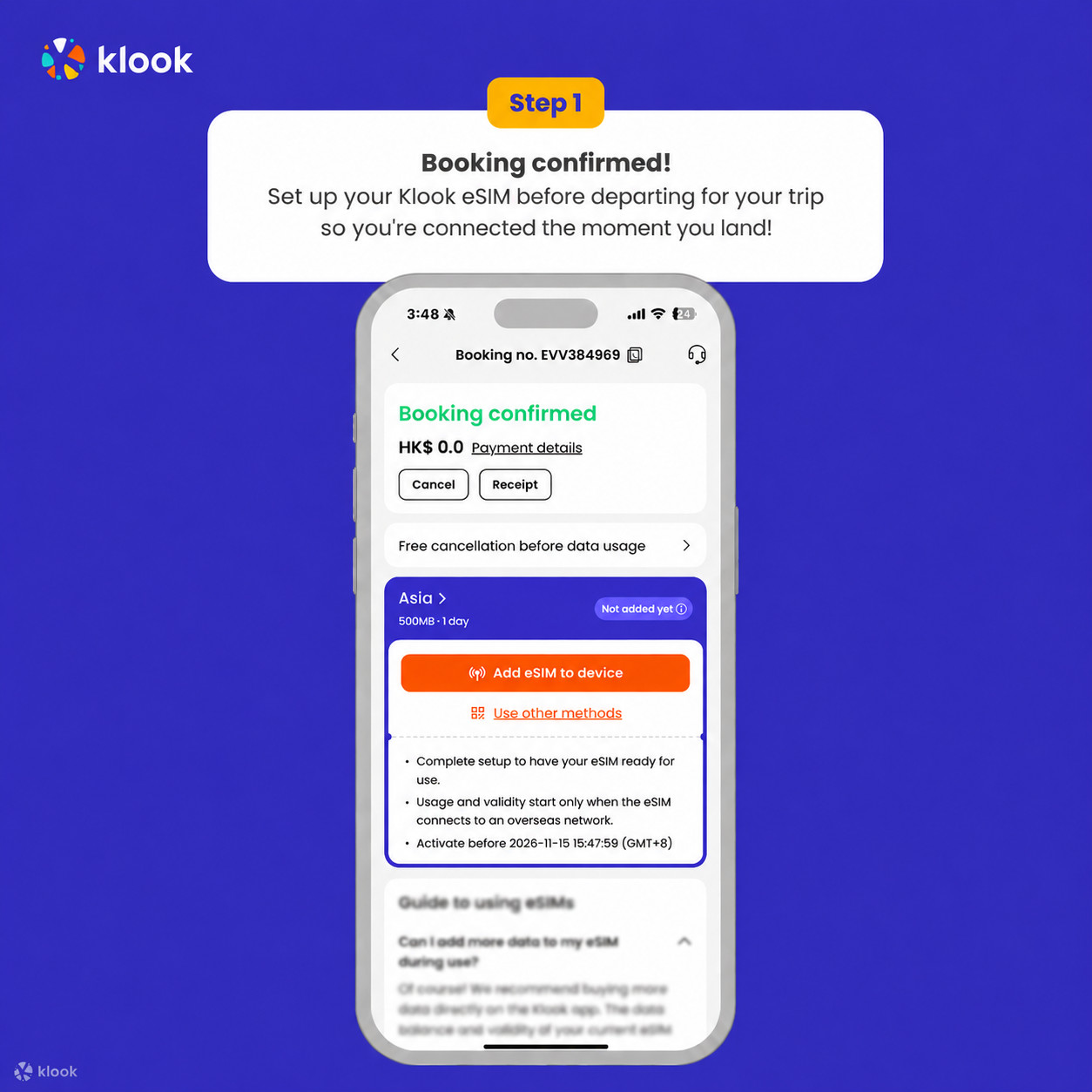
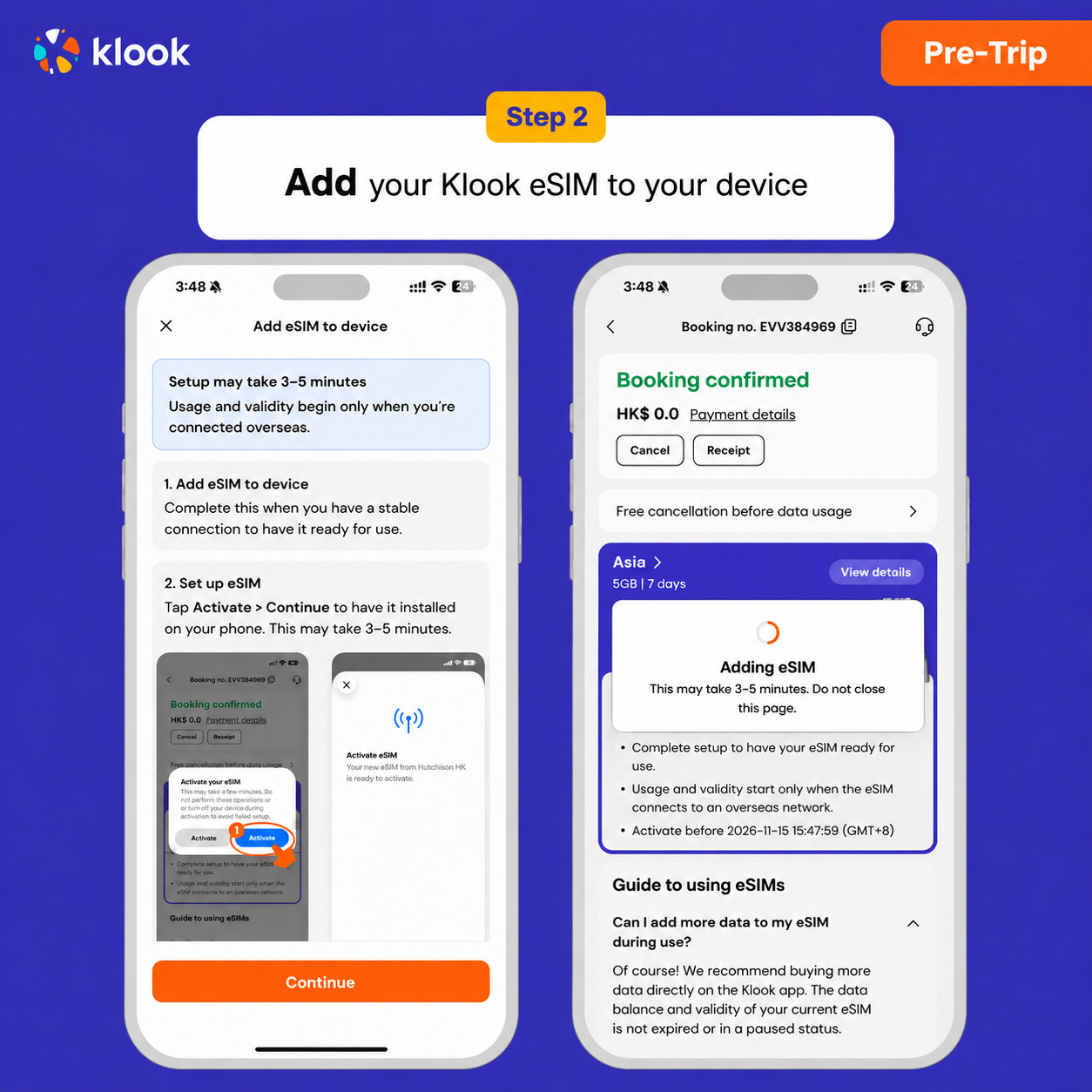
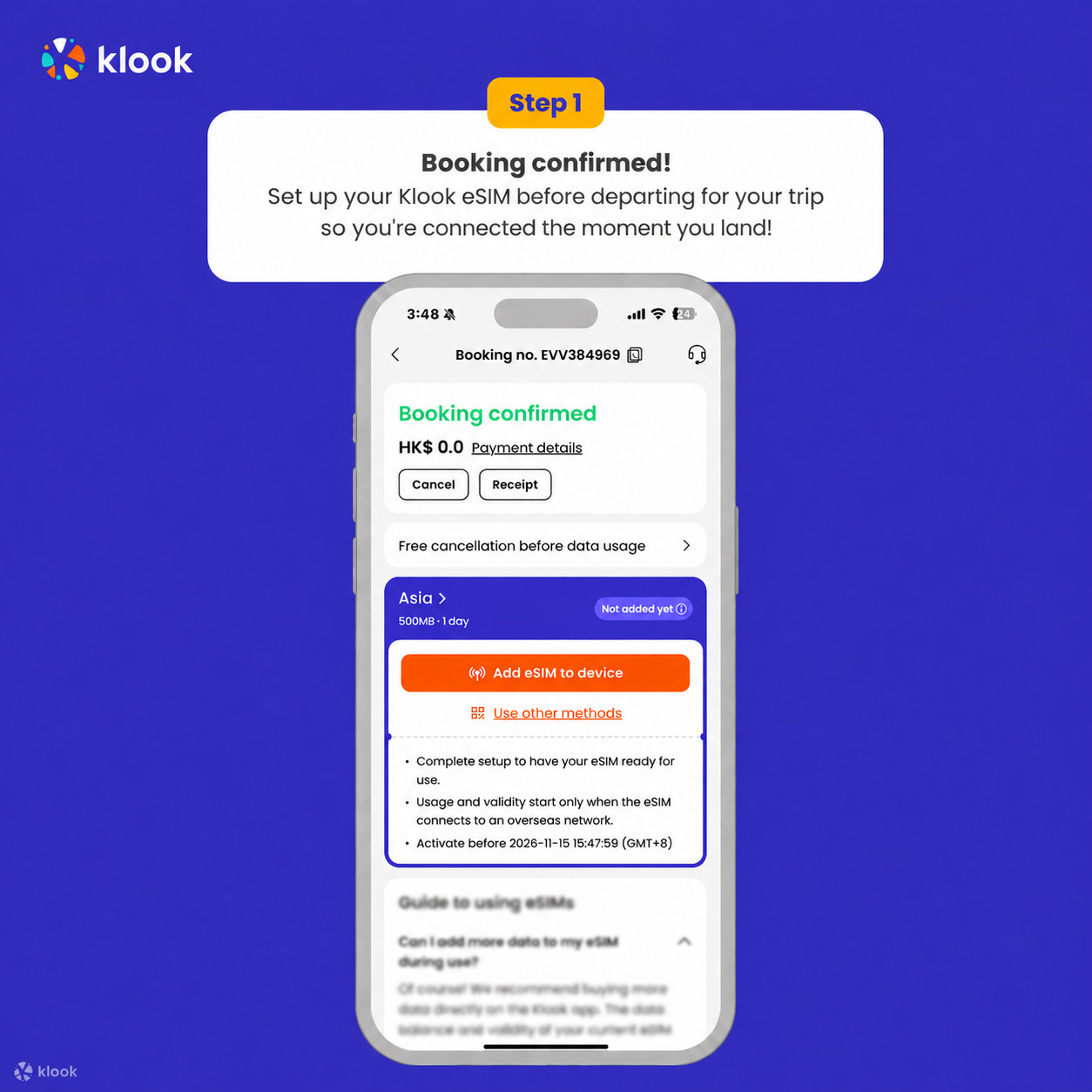
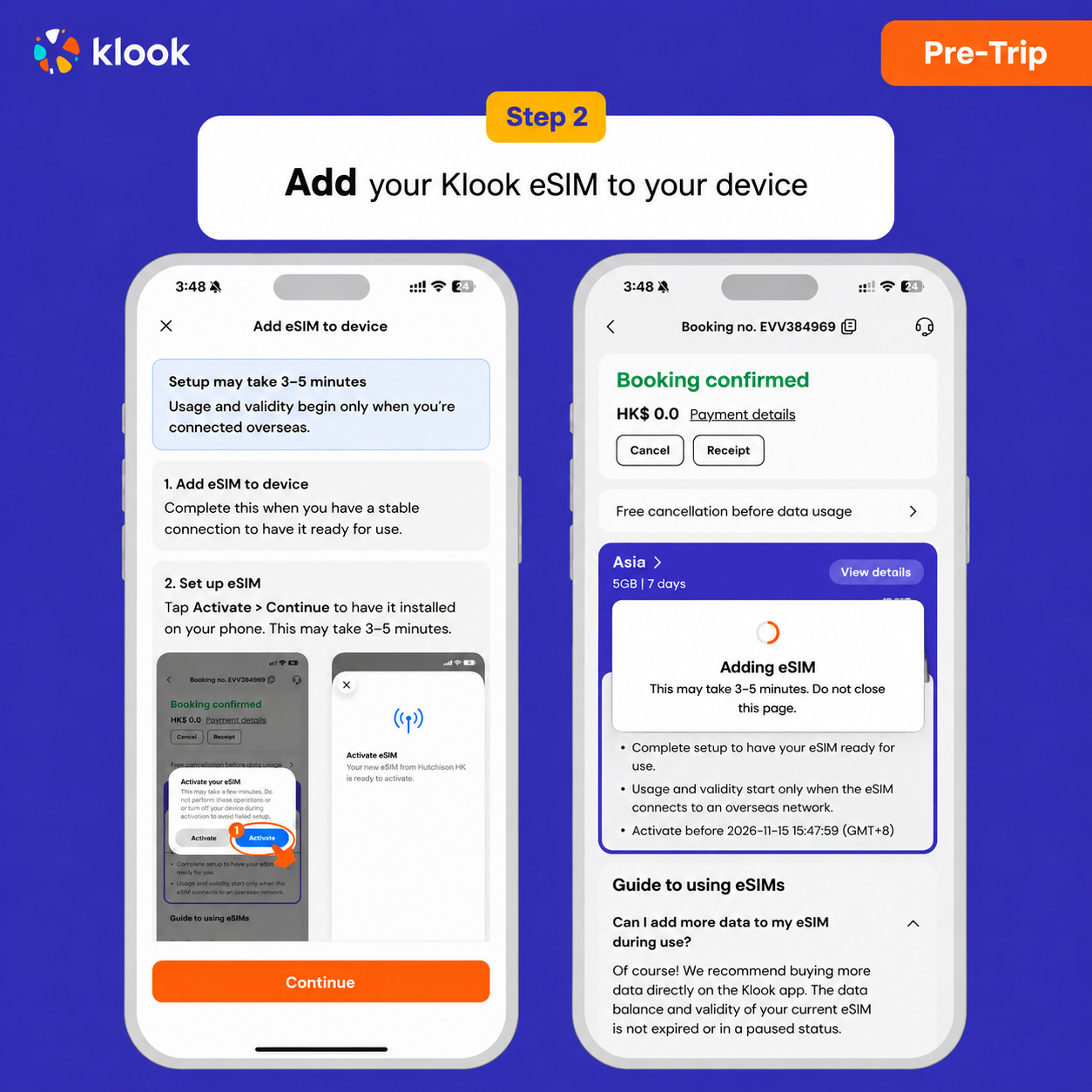
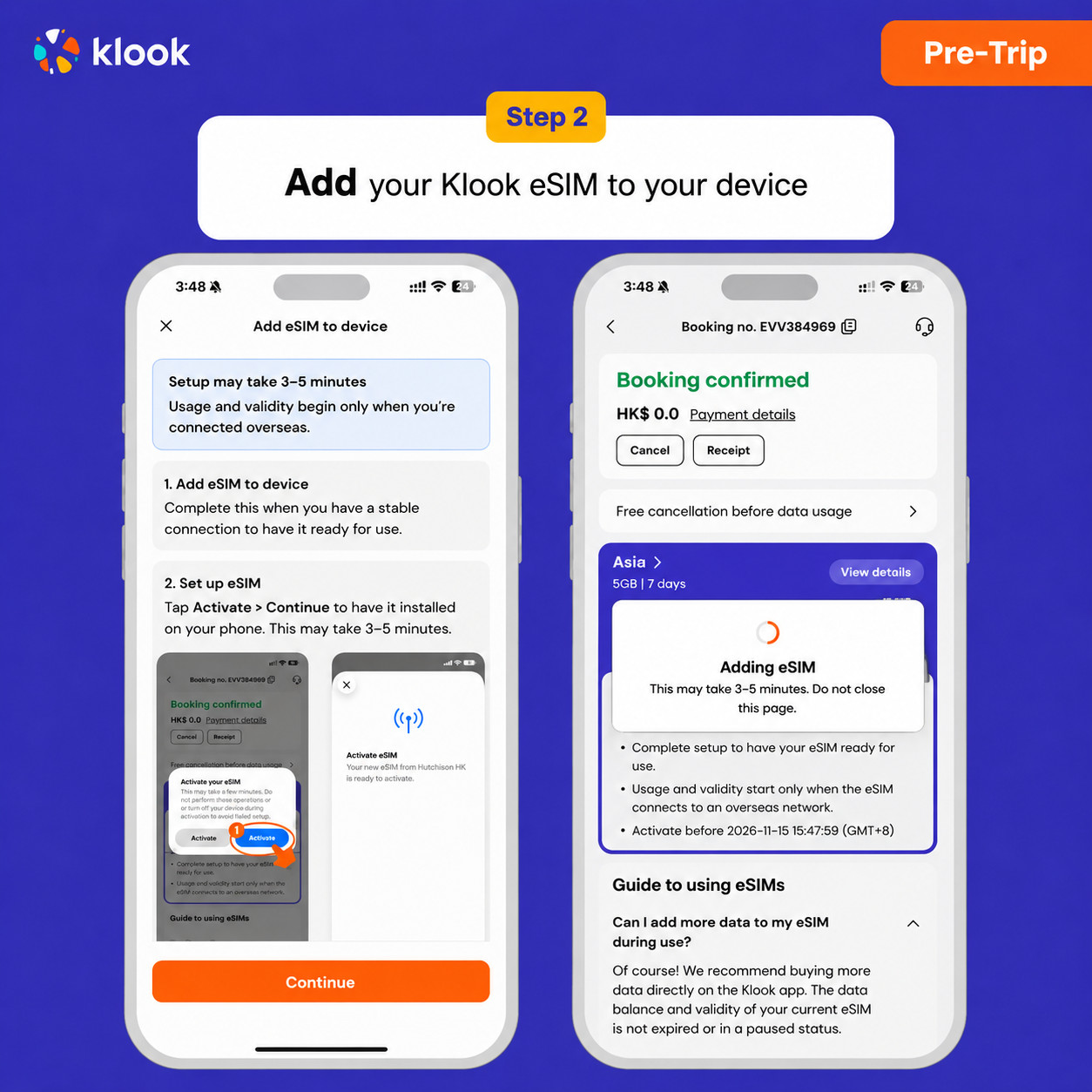
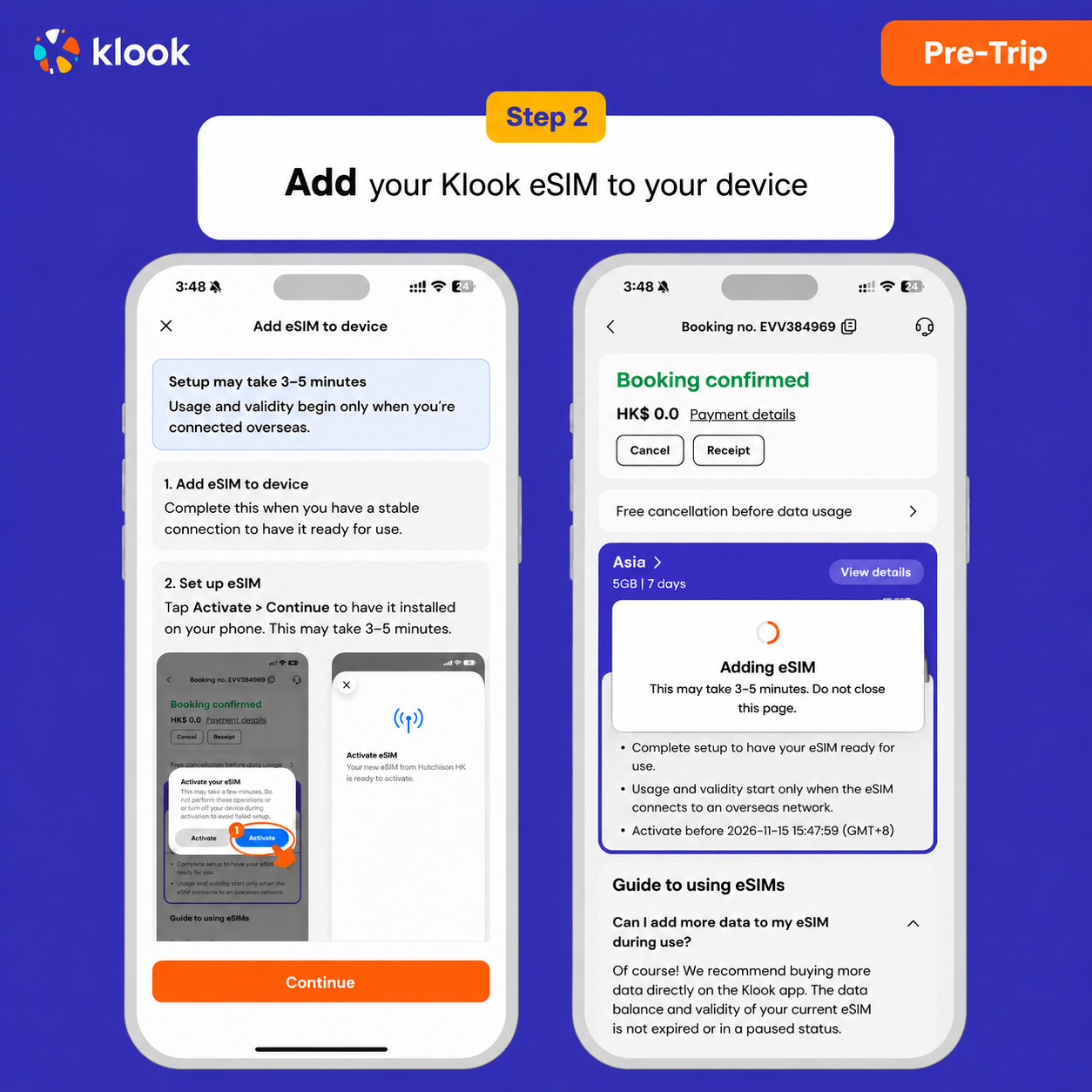
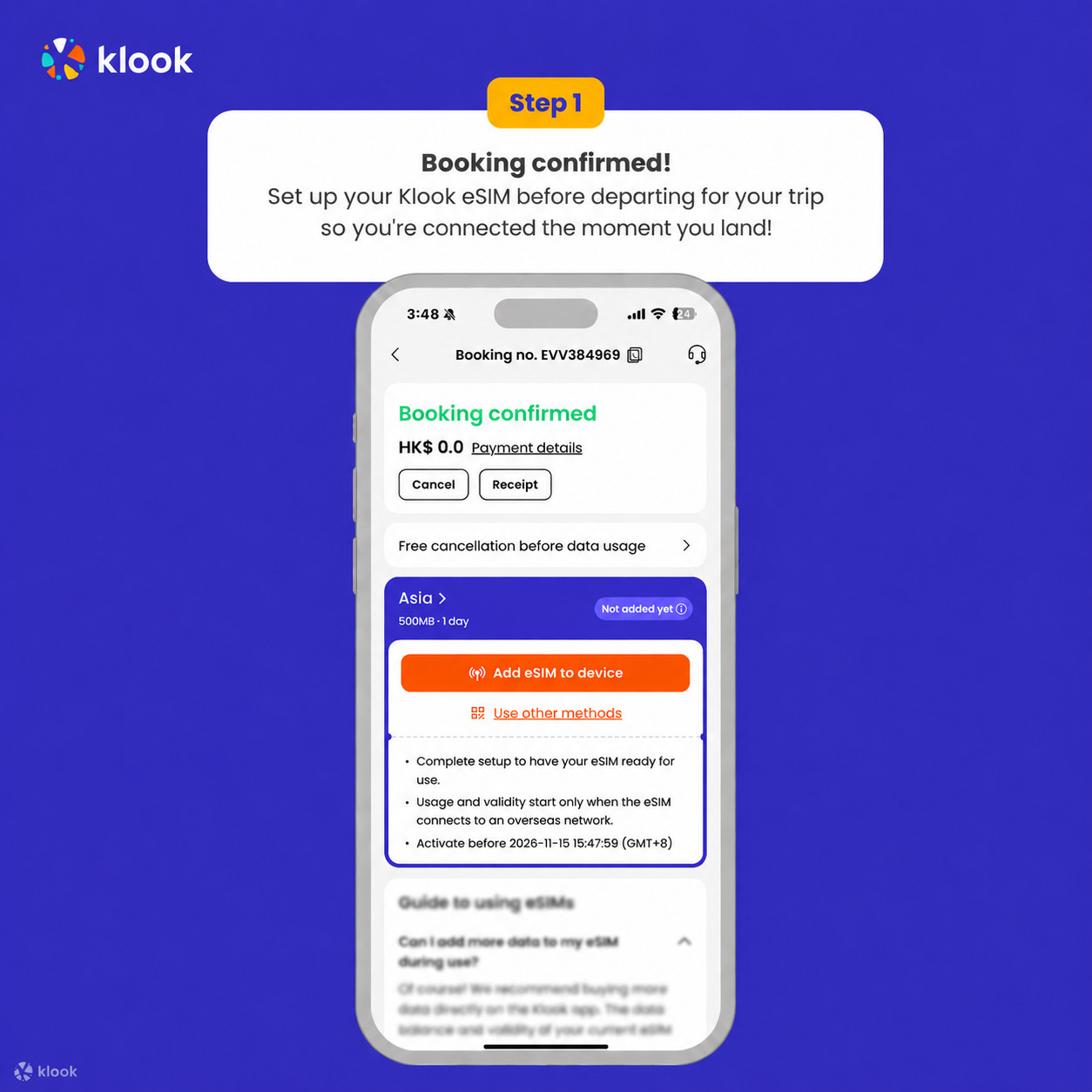
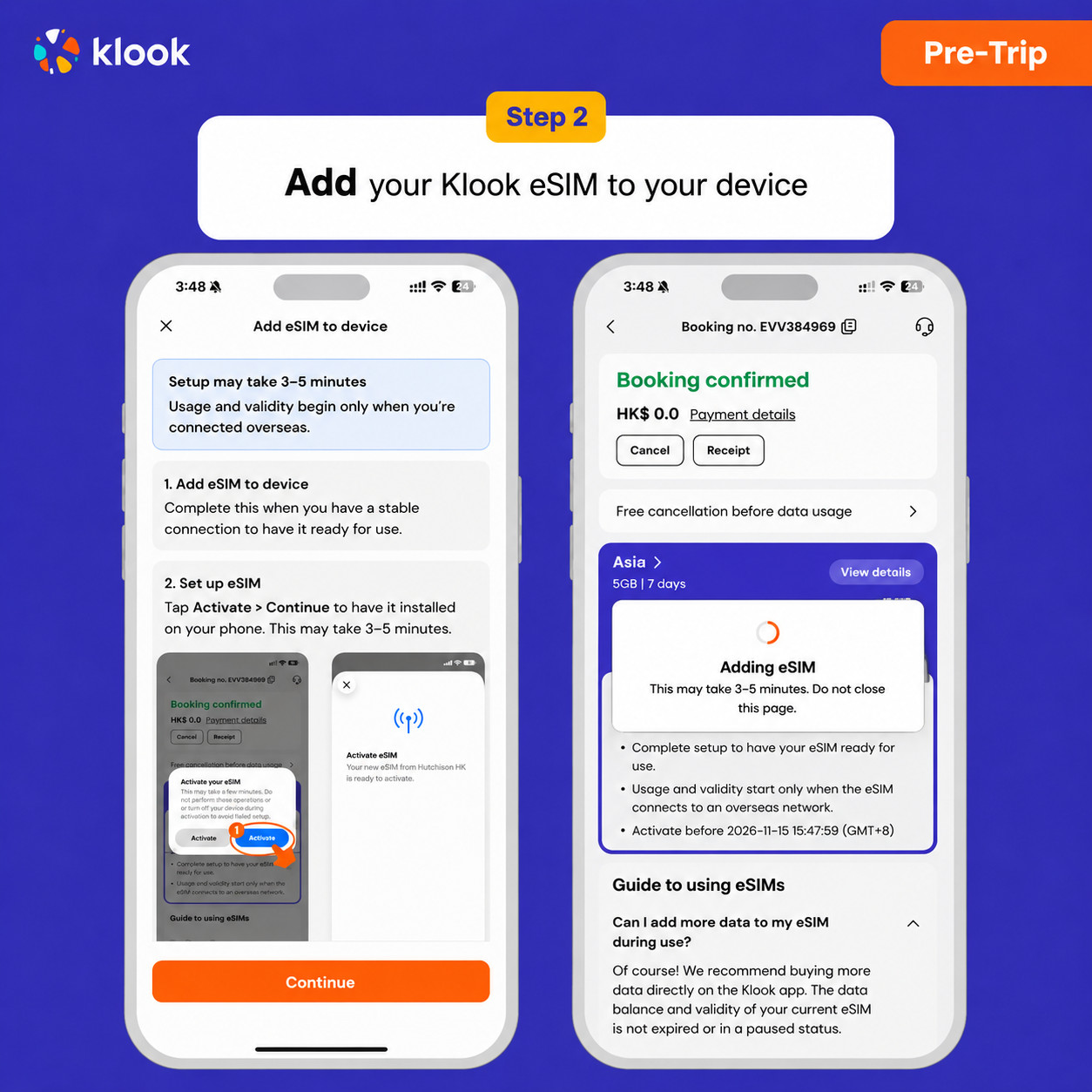
Click Add eSIM to device on your booking to start the installation. Don't worry, data and validity will only commence when you reach your destination

Klook eSIM In-app activation

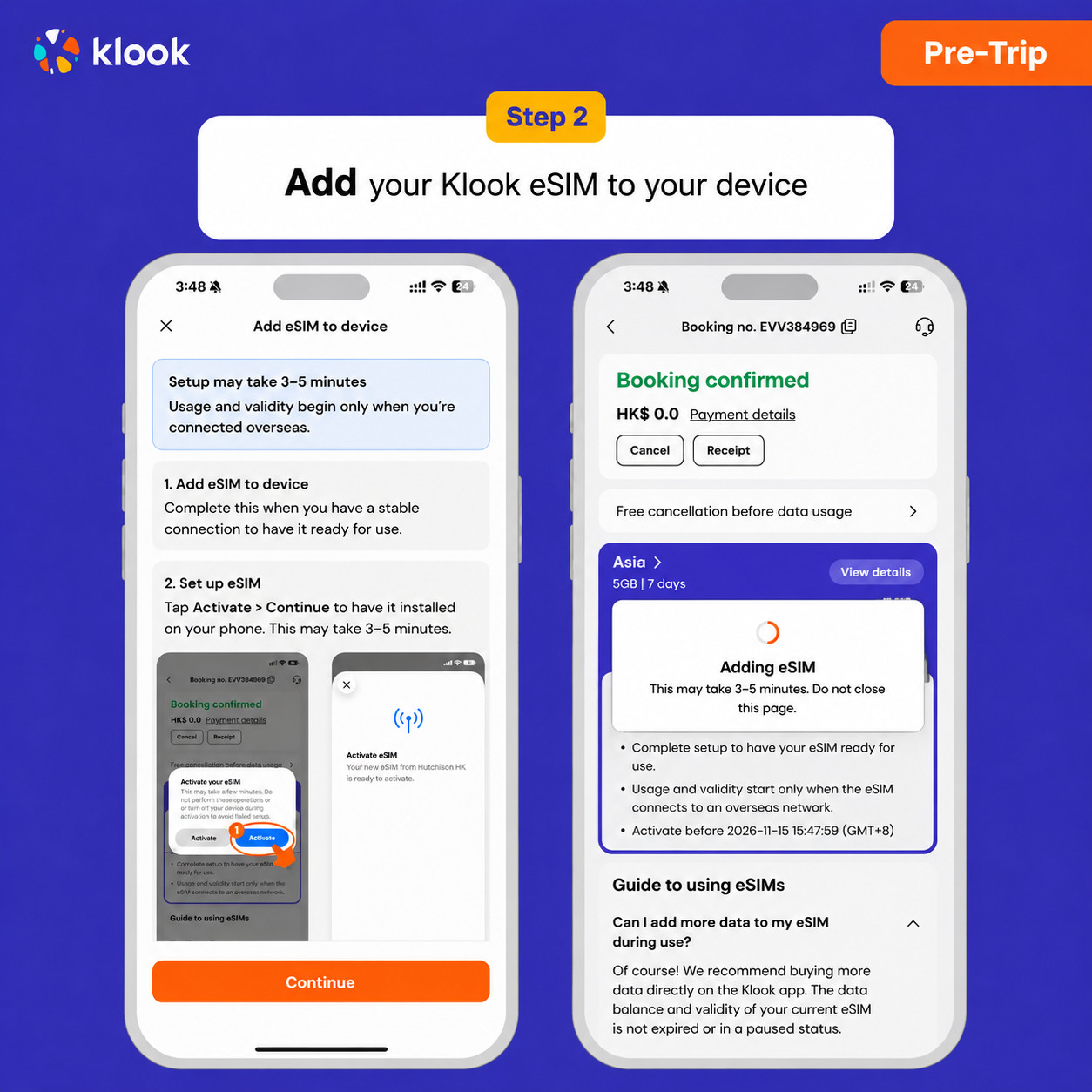
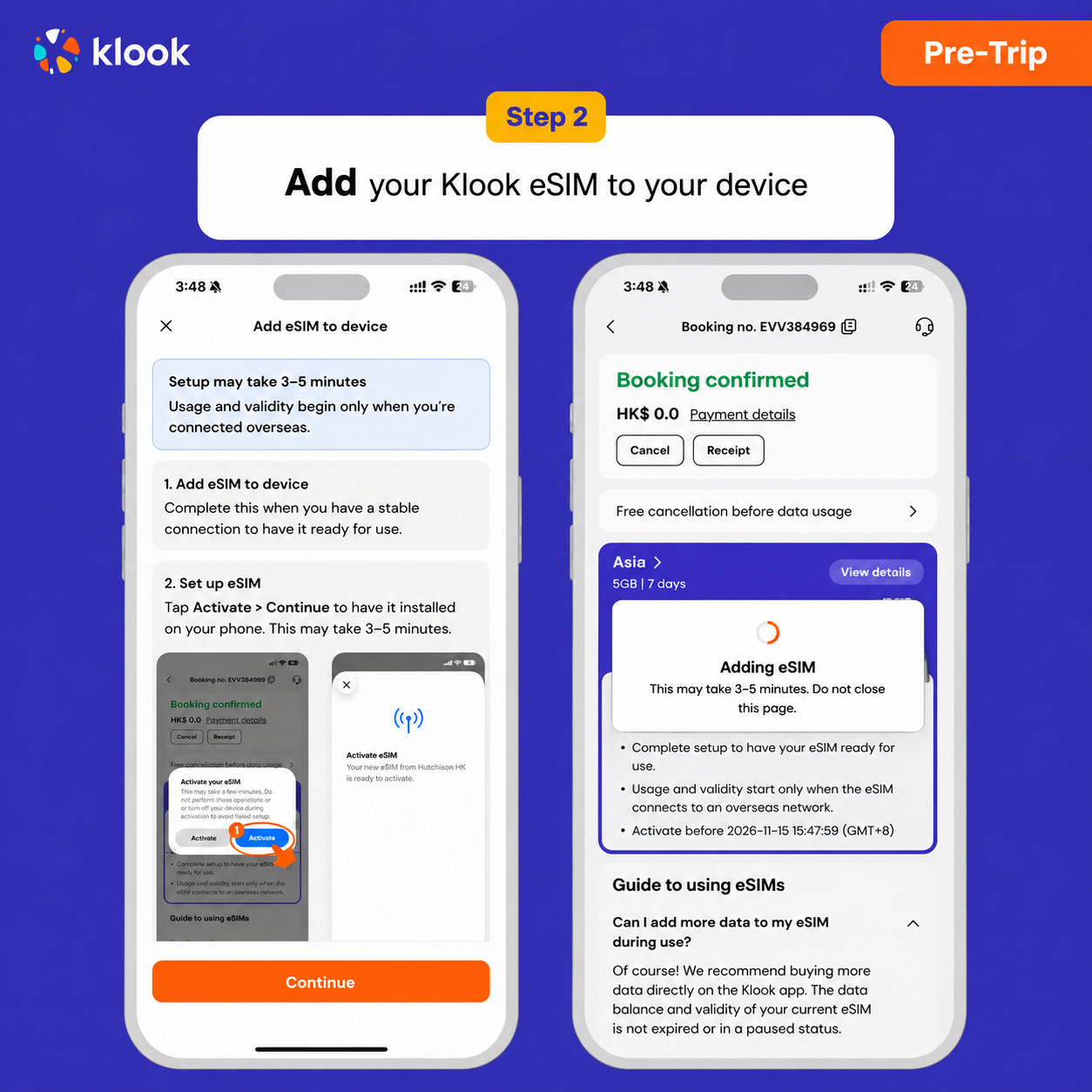
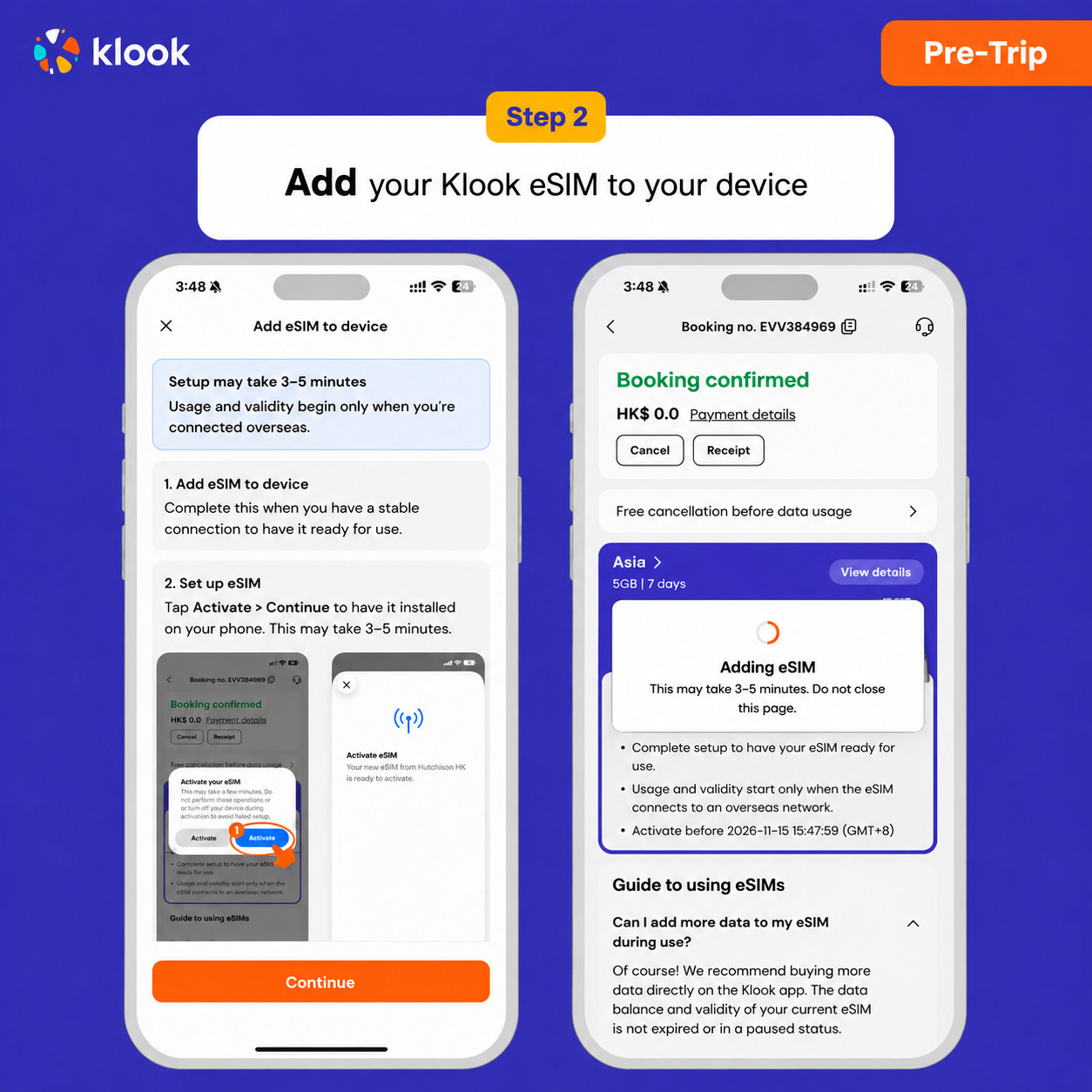
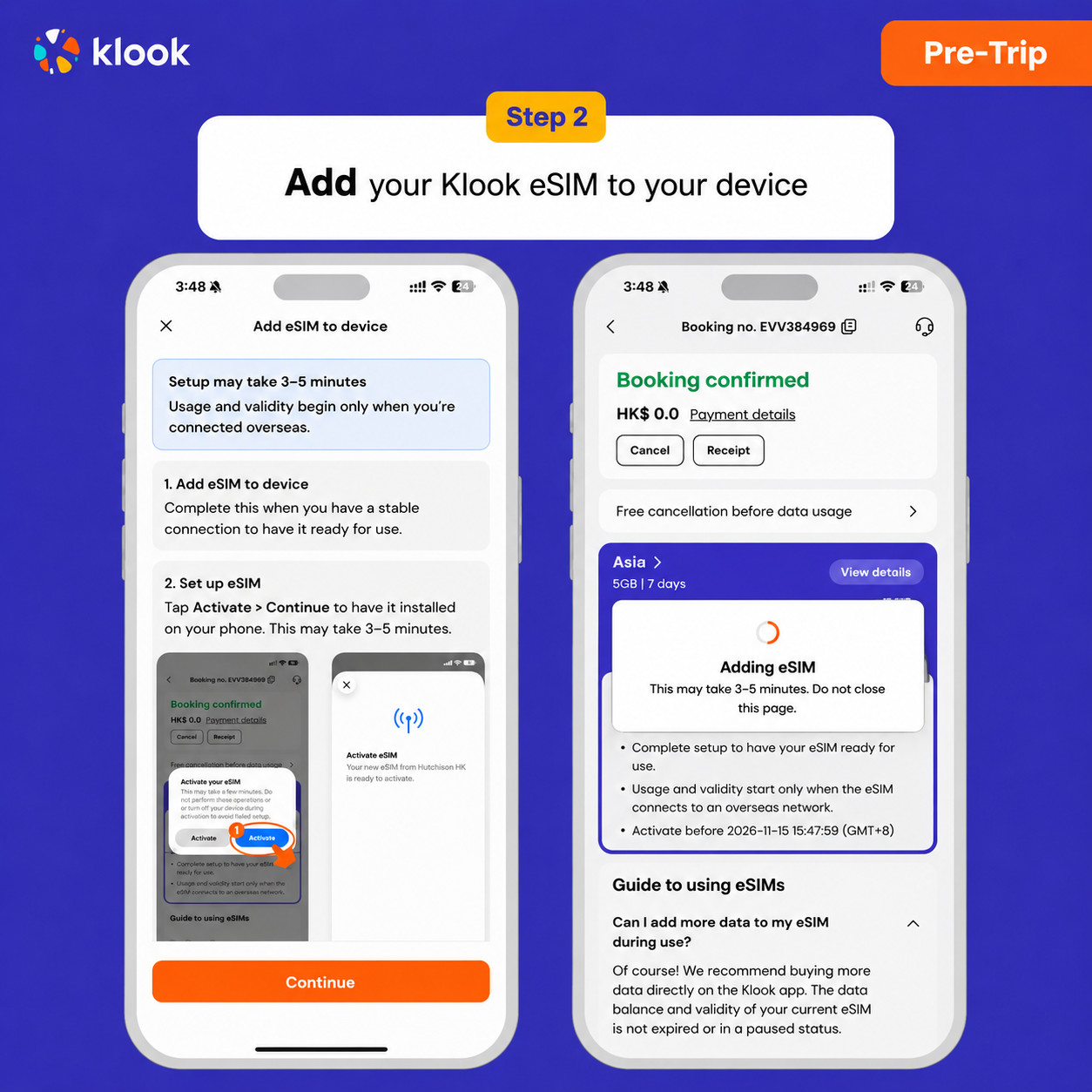
  • Klook eSIM In-app activation

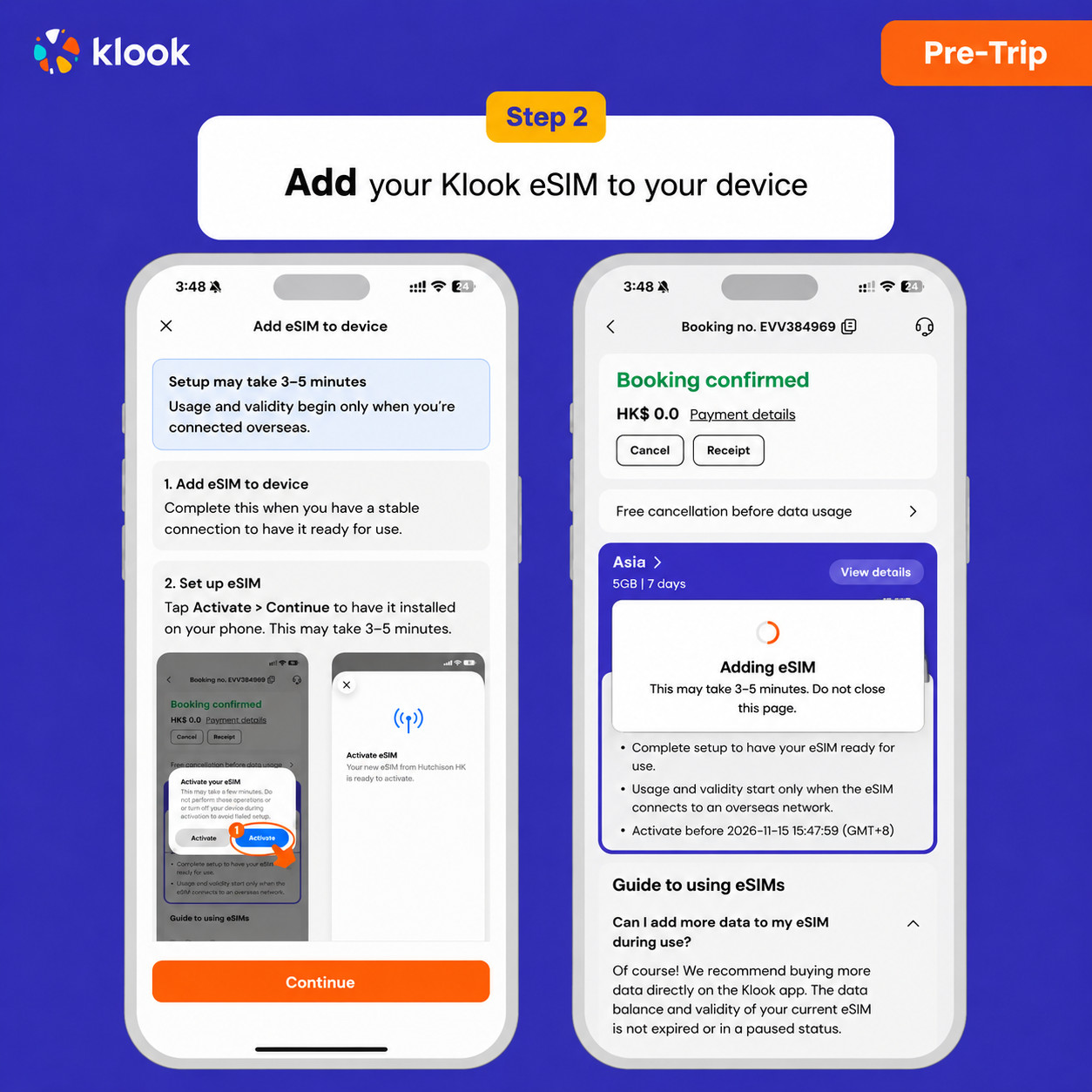
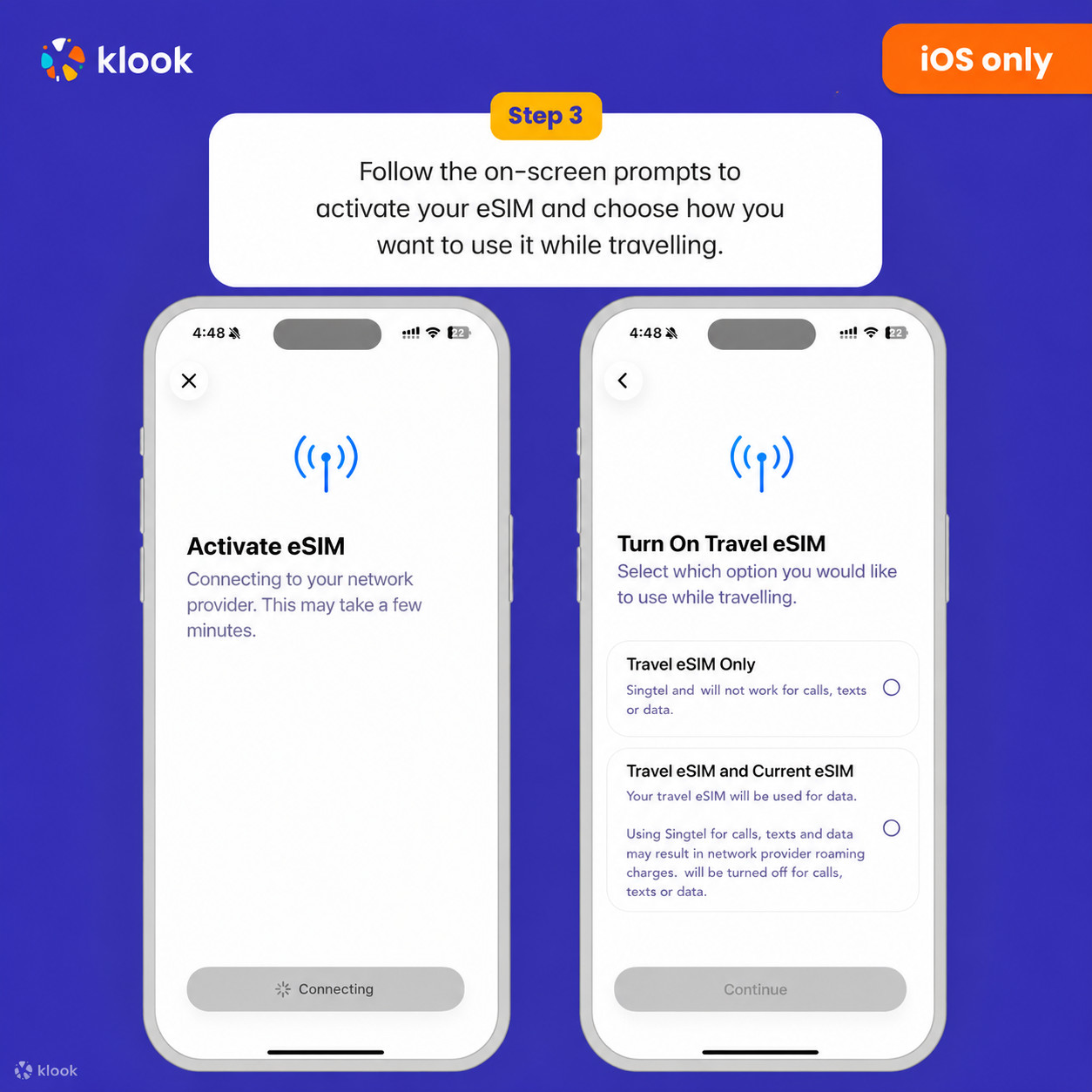
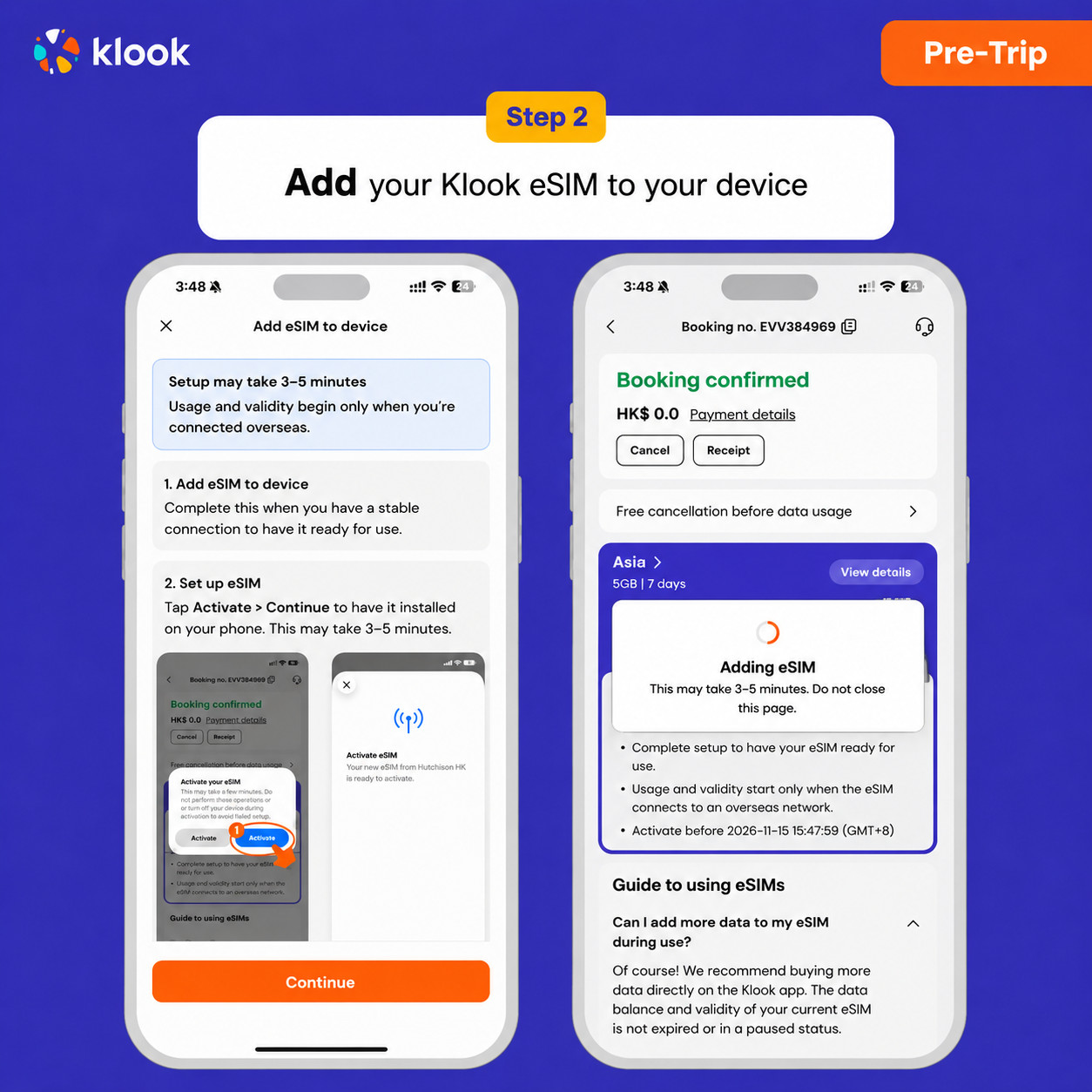
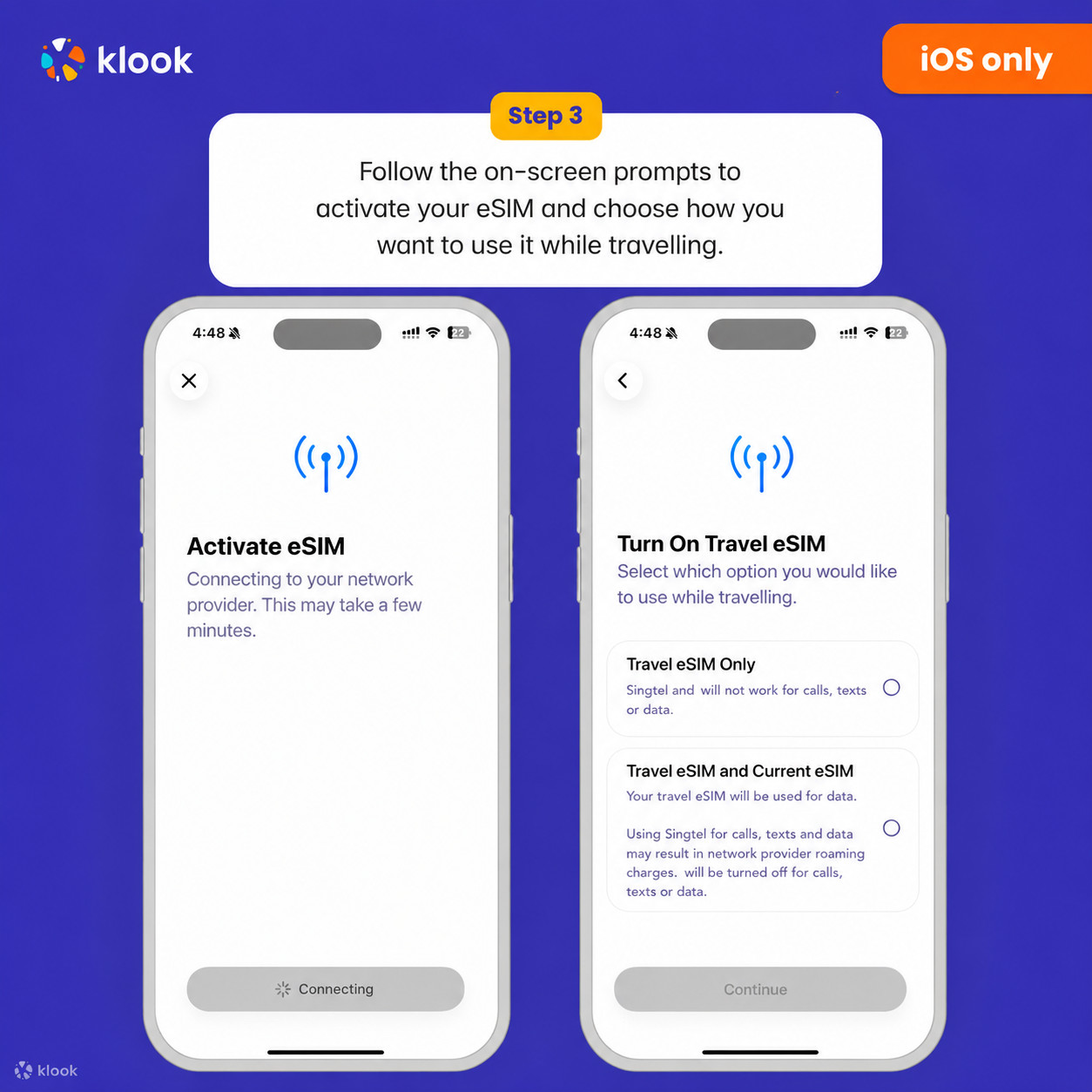
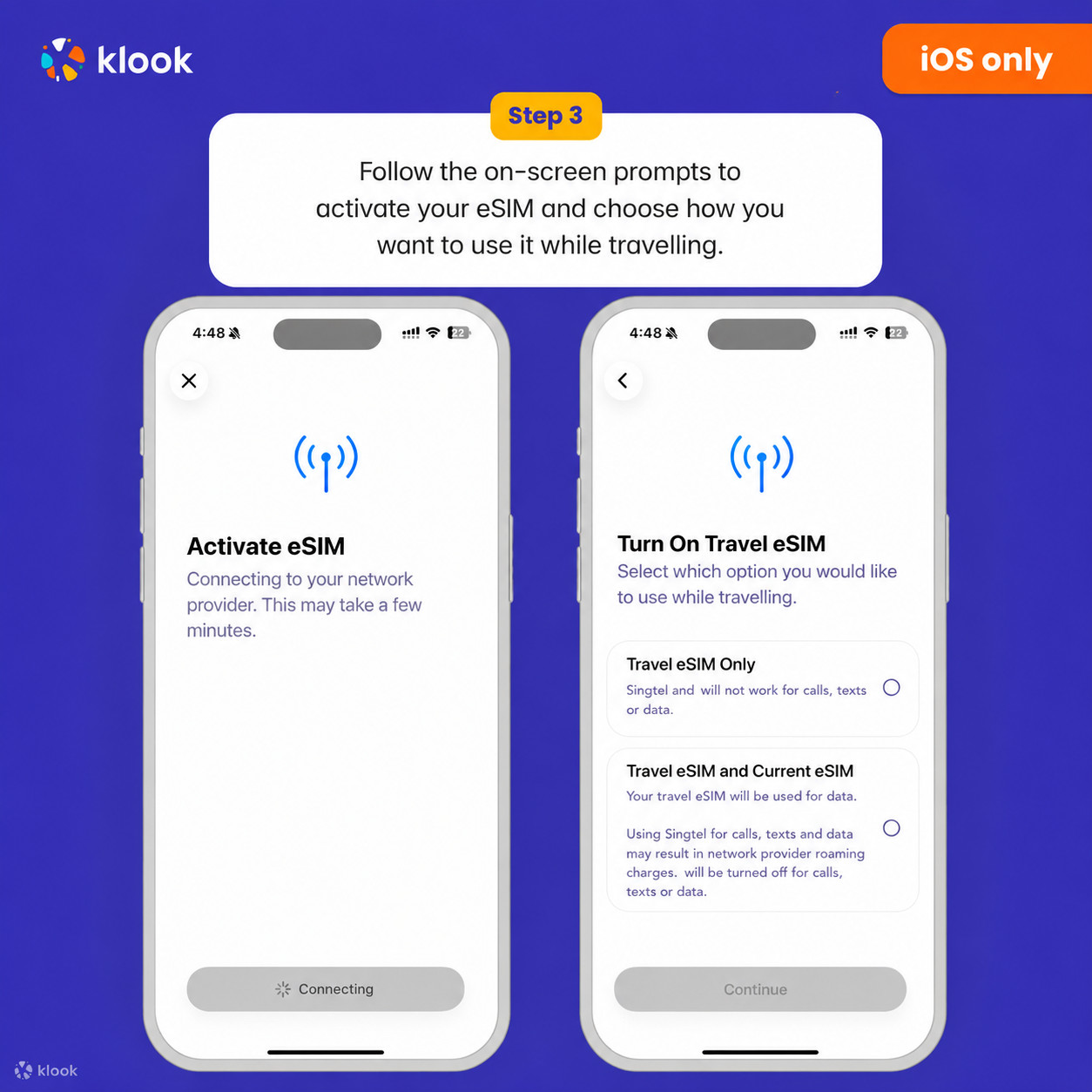
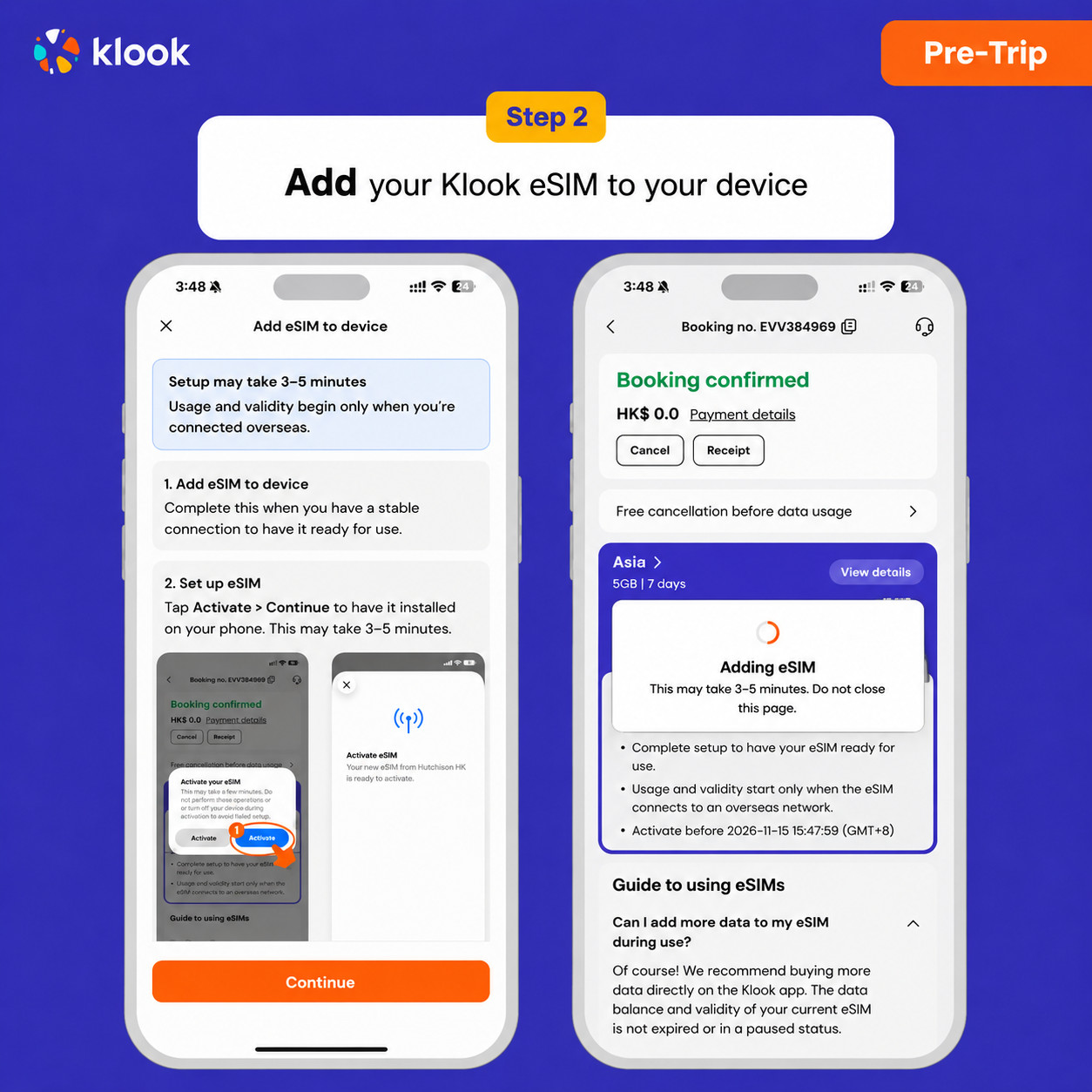
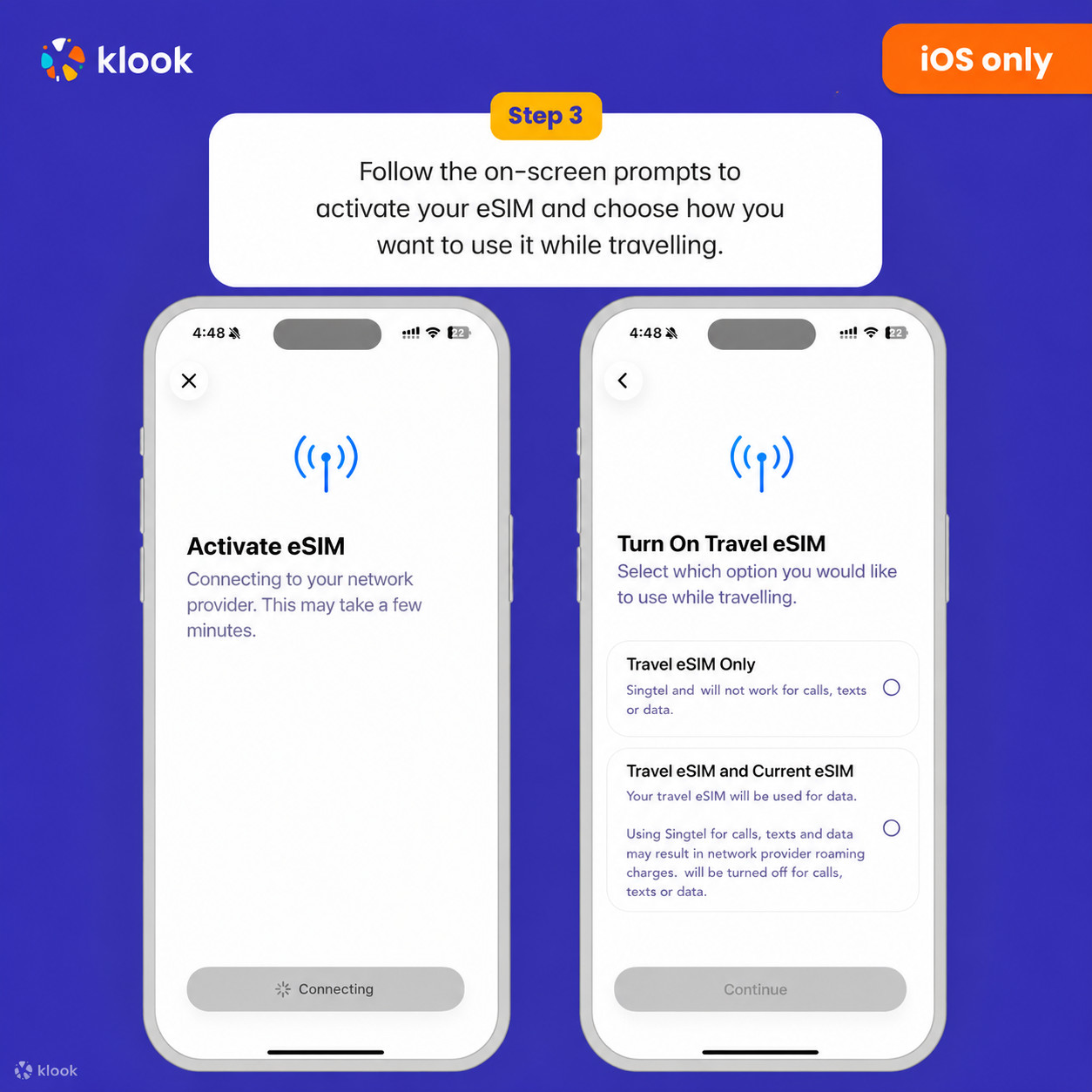
Installation of your eSIM will start automatically

Klook eSIM In-app activation

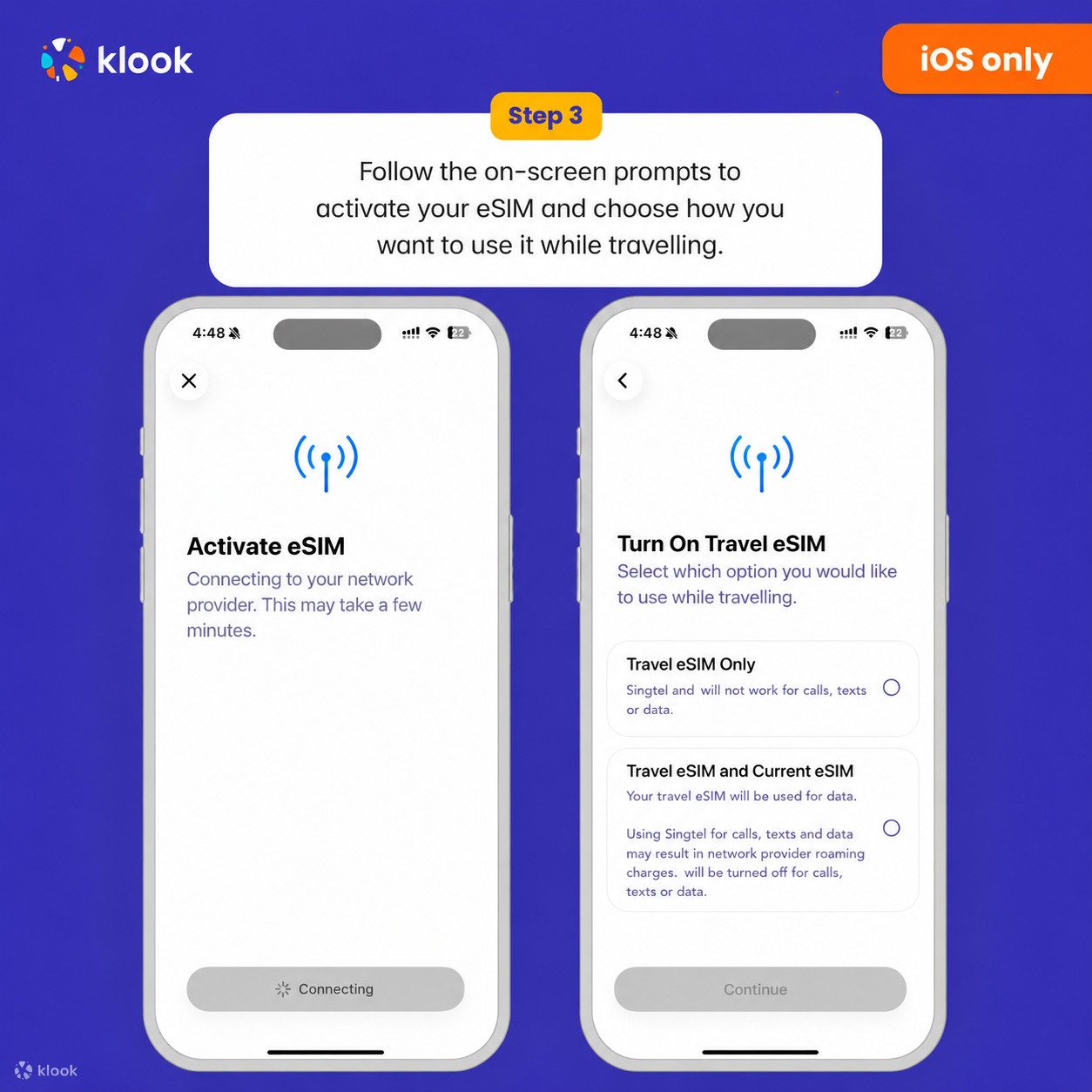
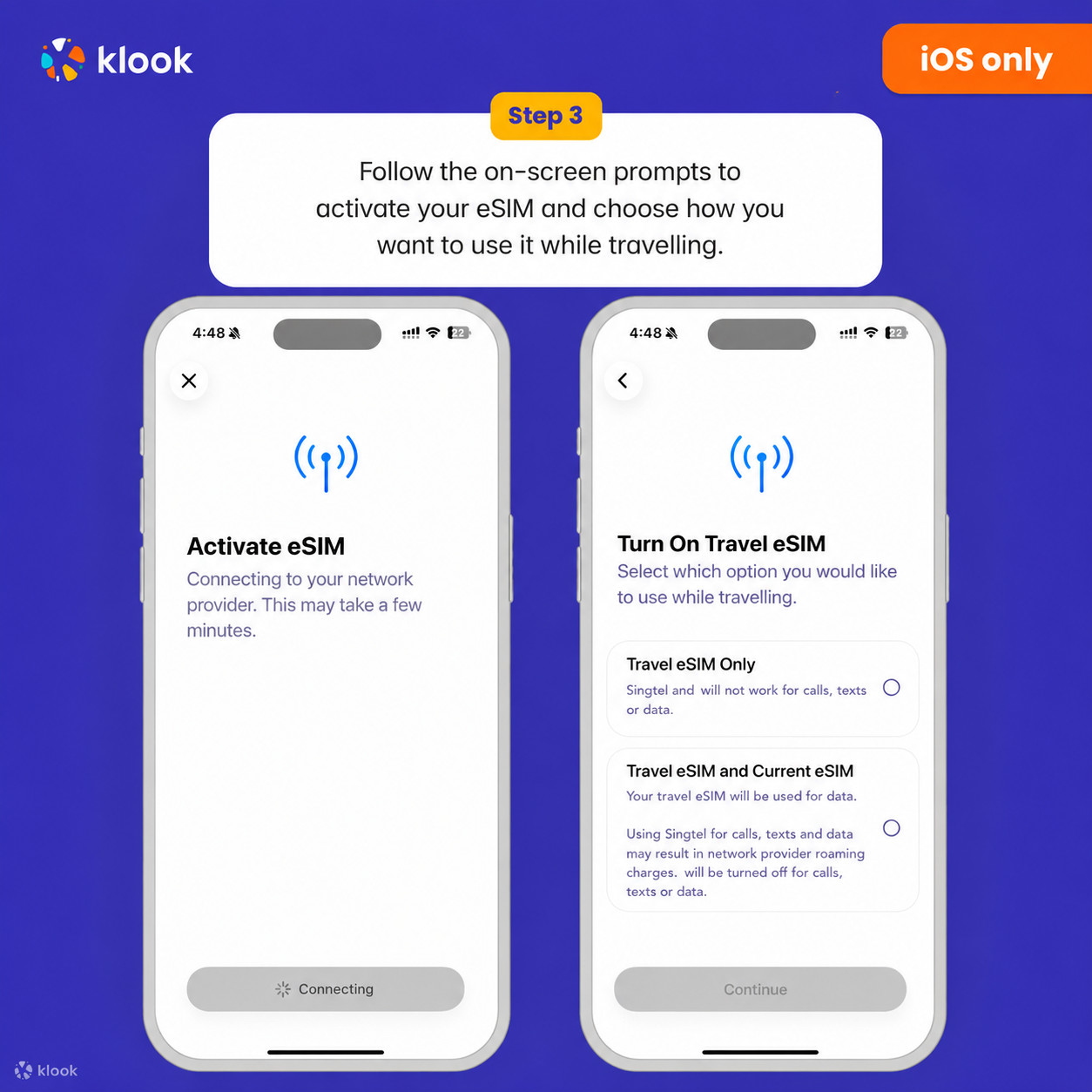
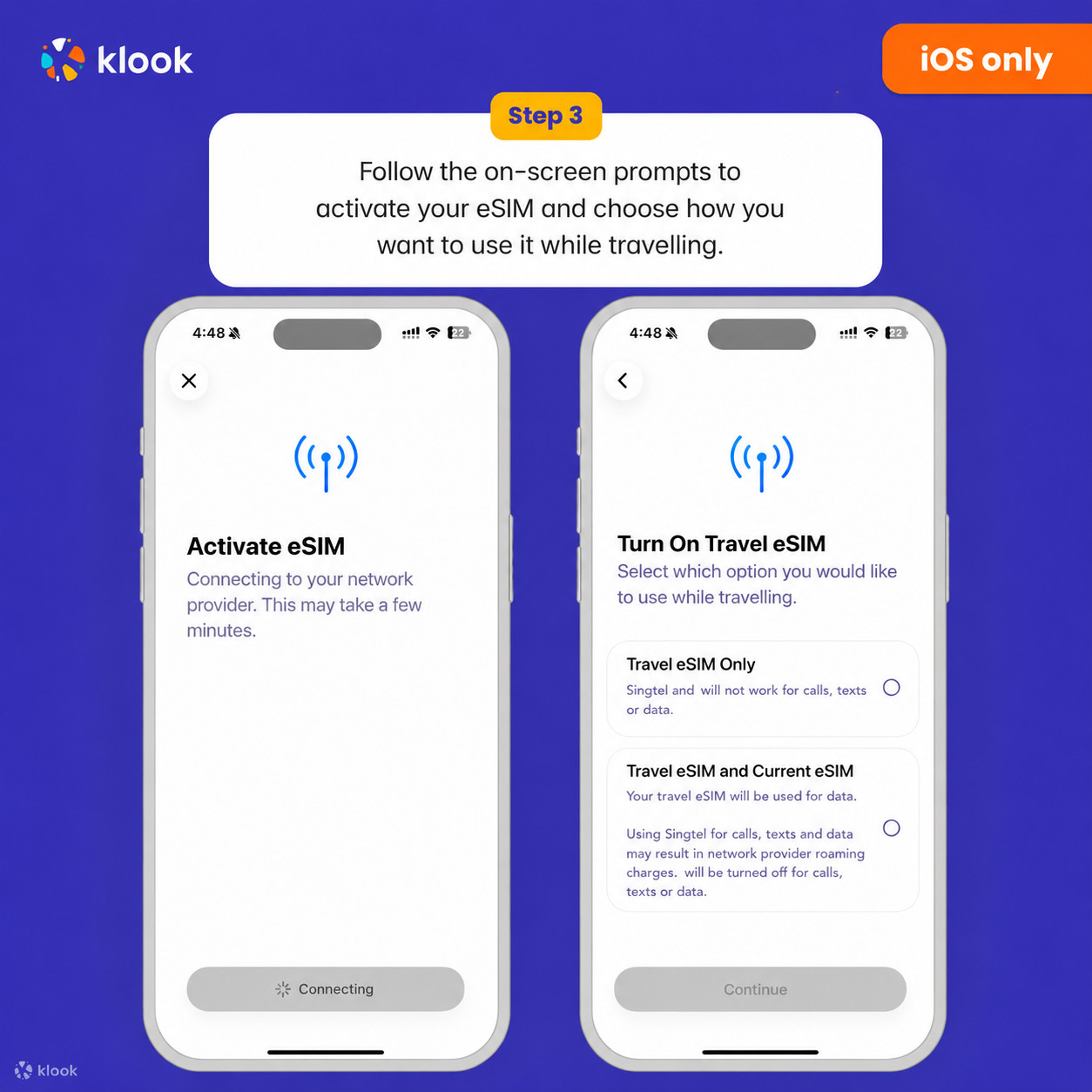
  • Klook eSIM iOS installation

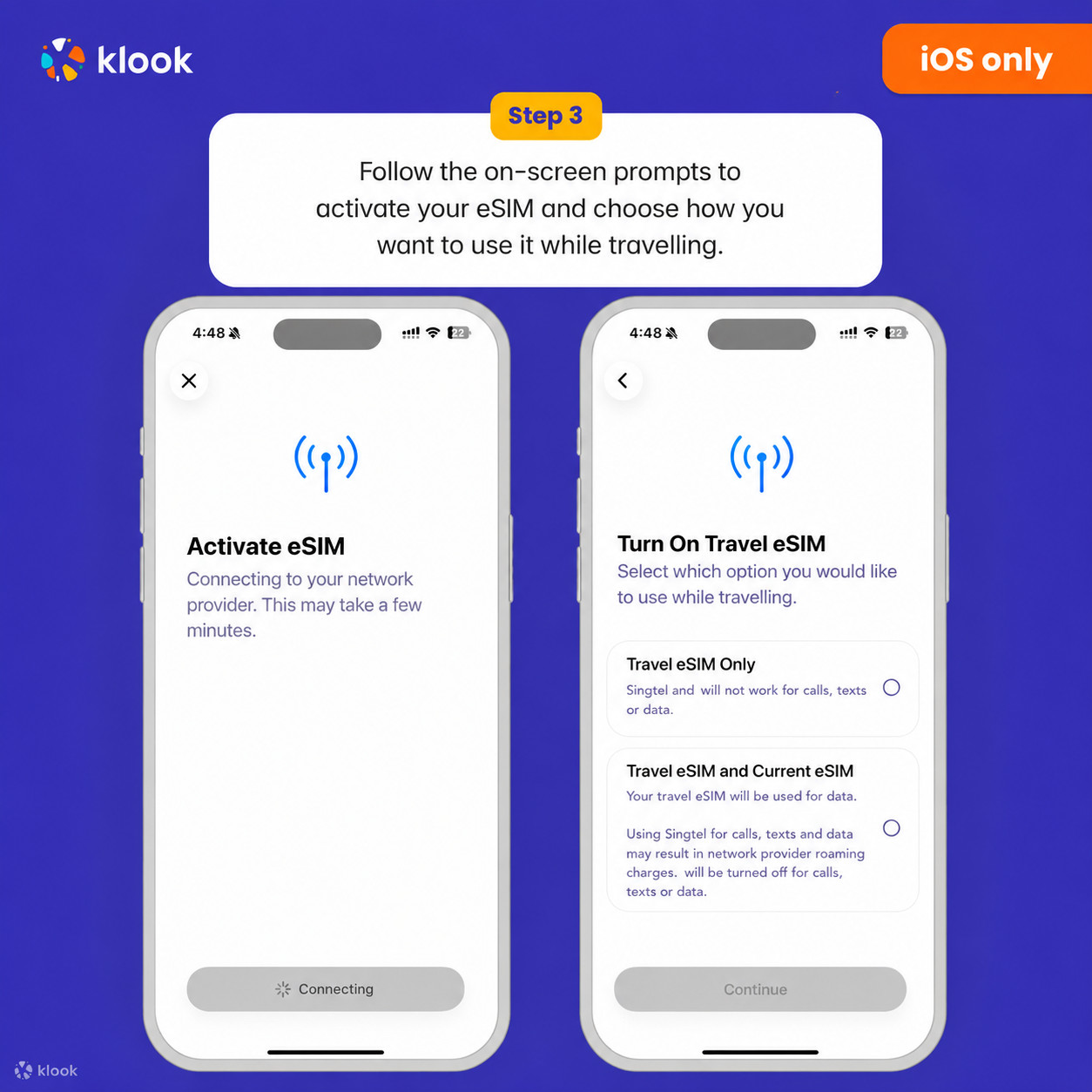
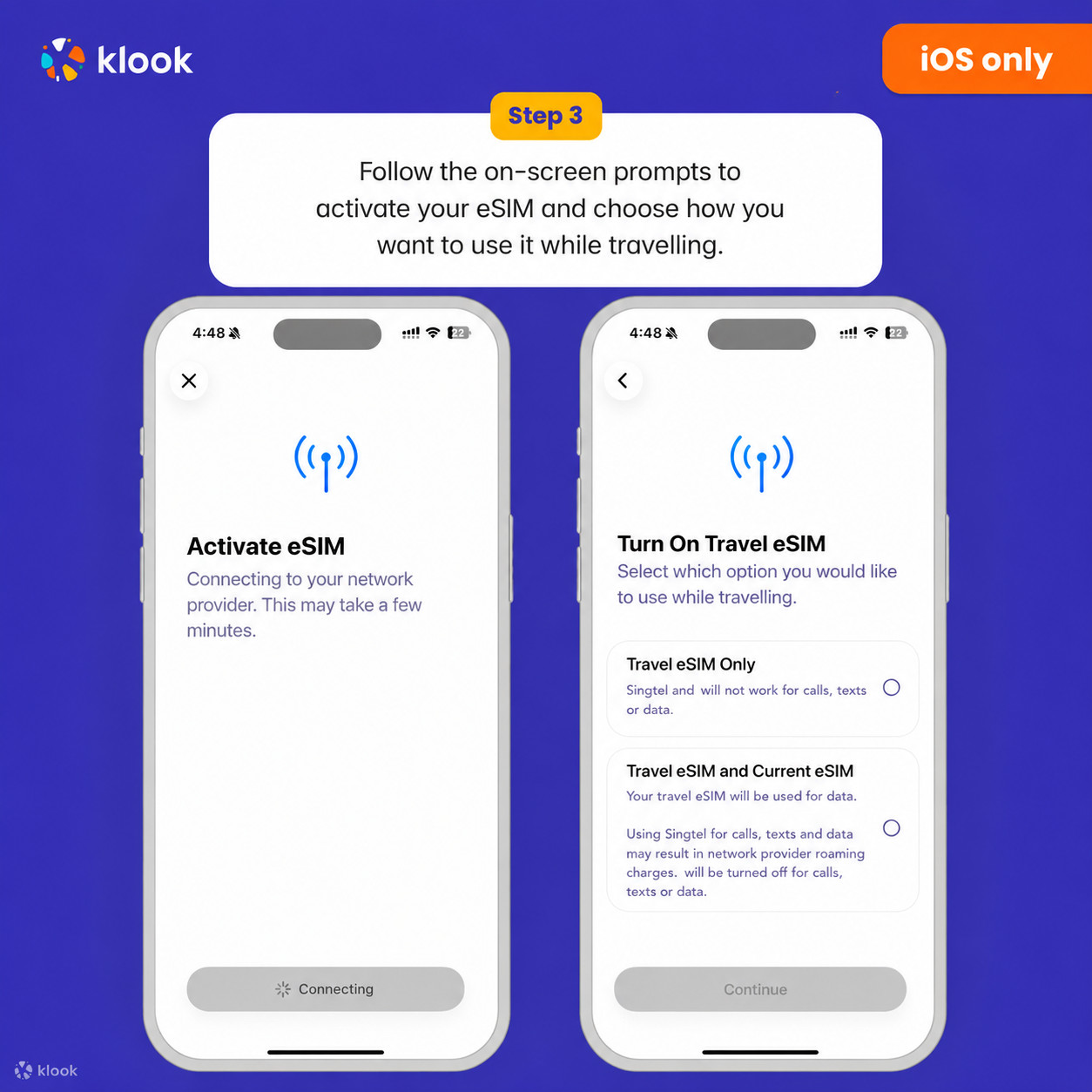
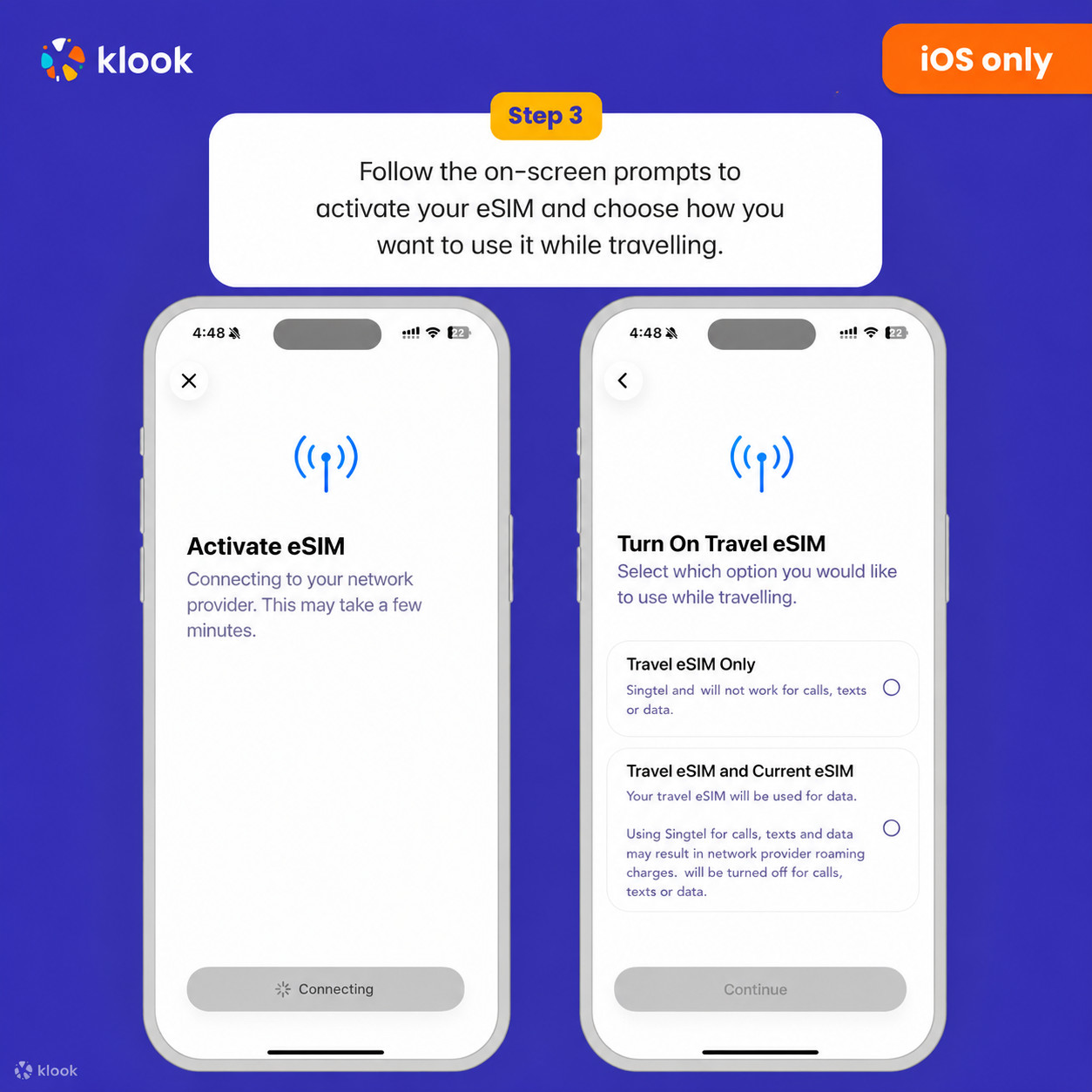
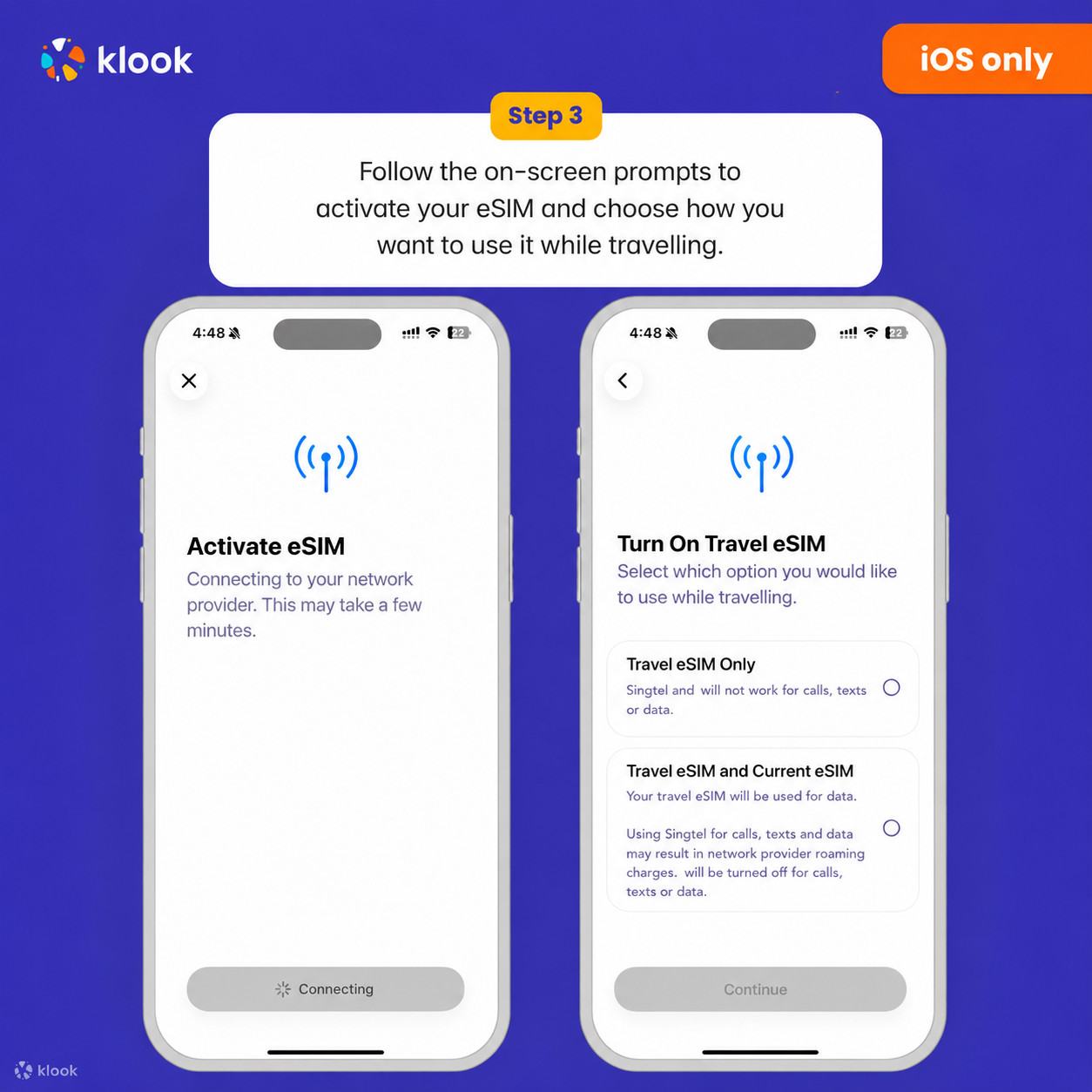
Set up your Klook eSIM for travel on iOS

Klook eSIM iOS installation

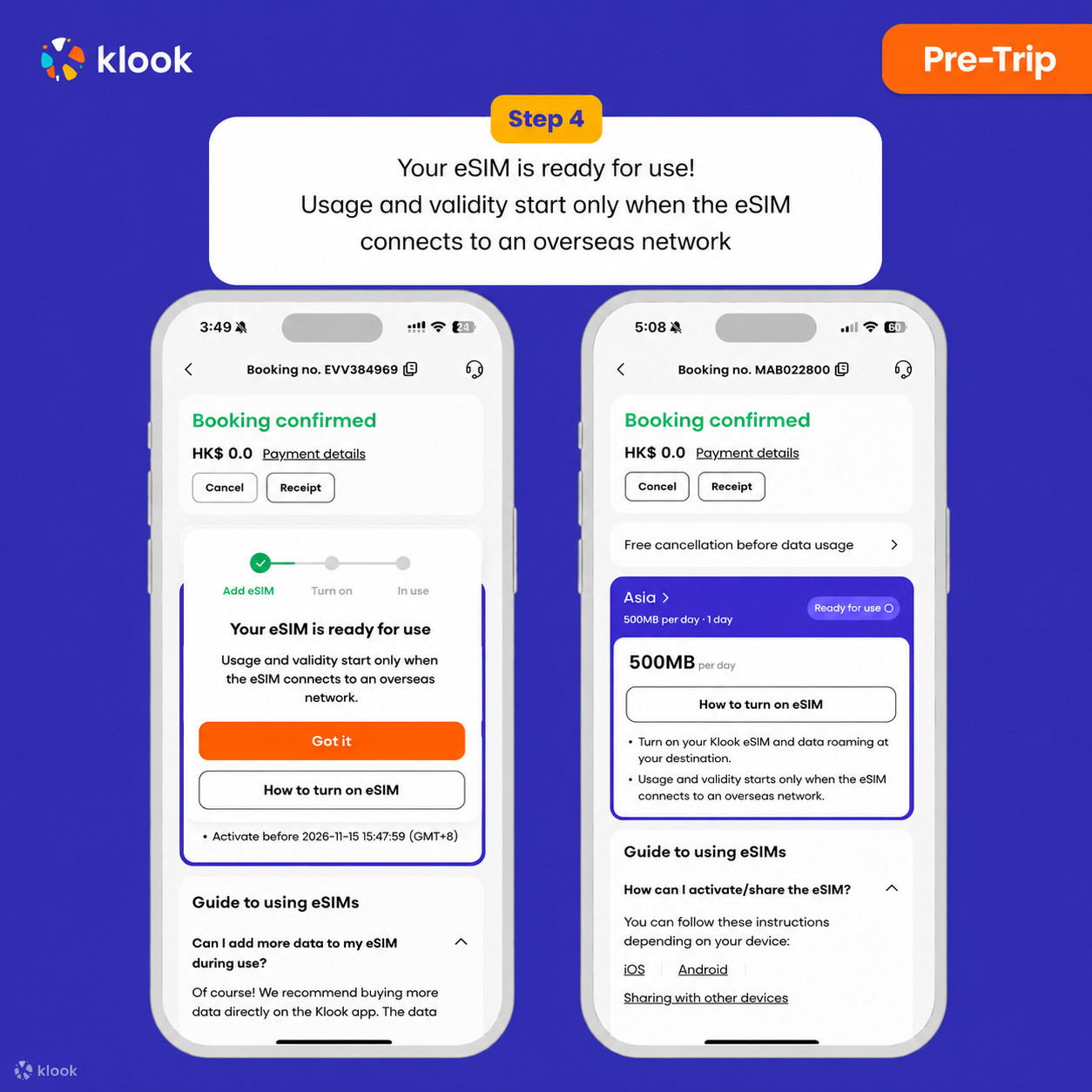
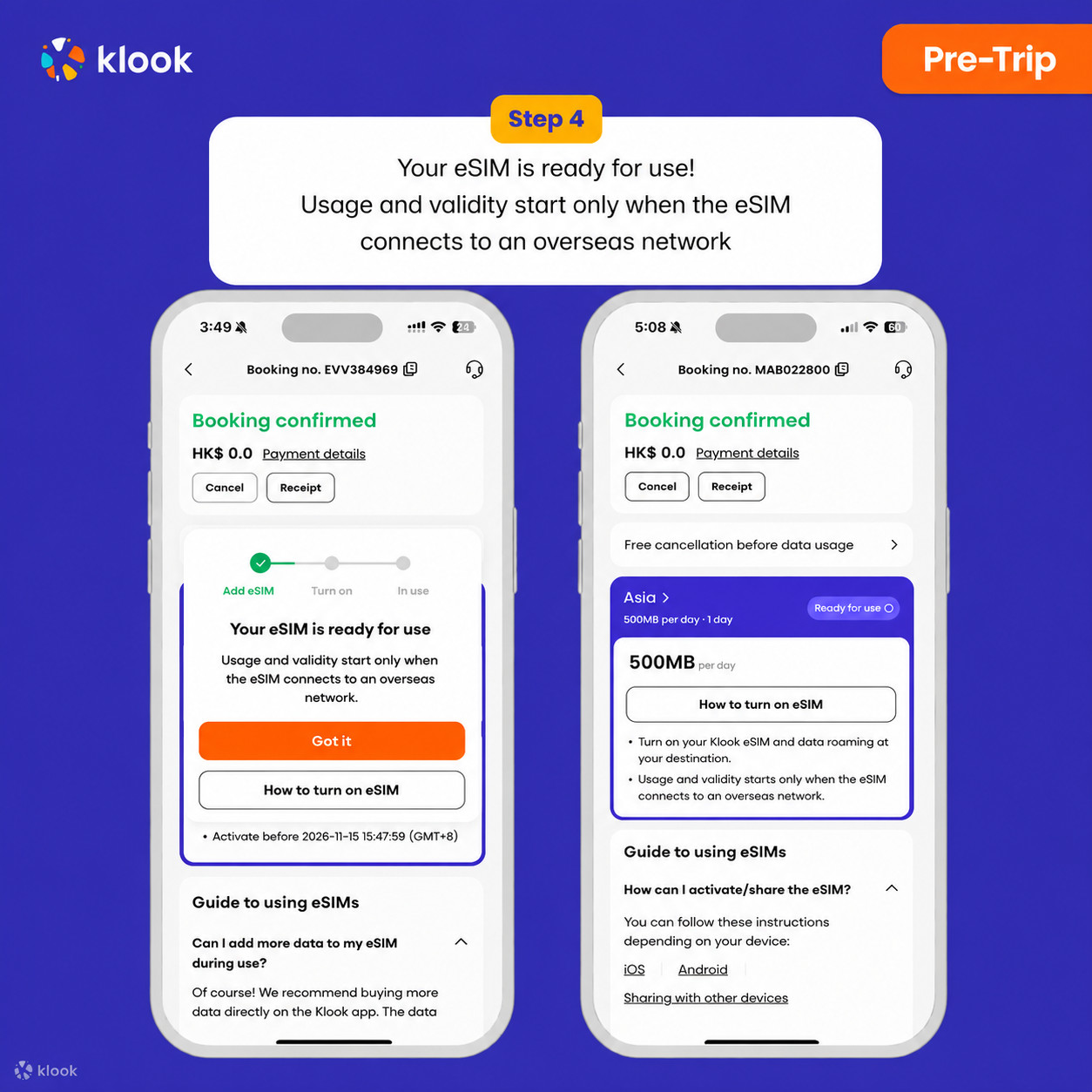
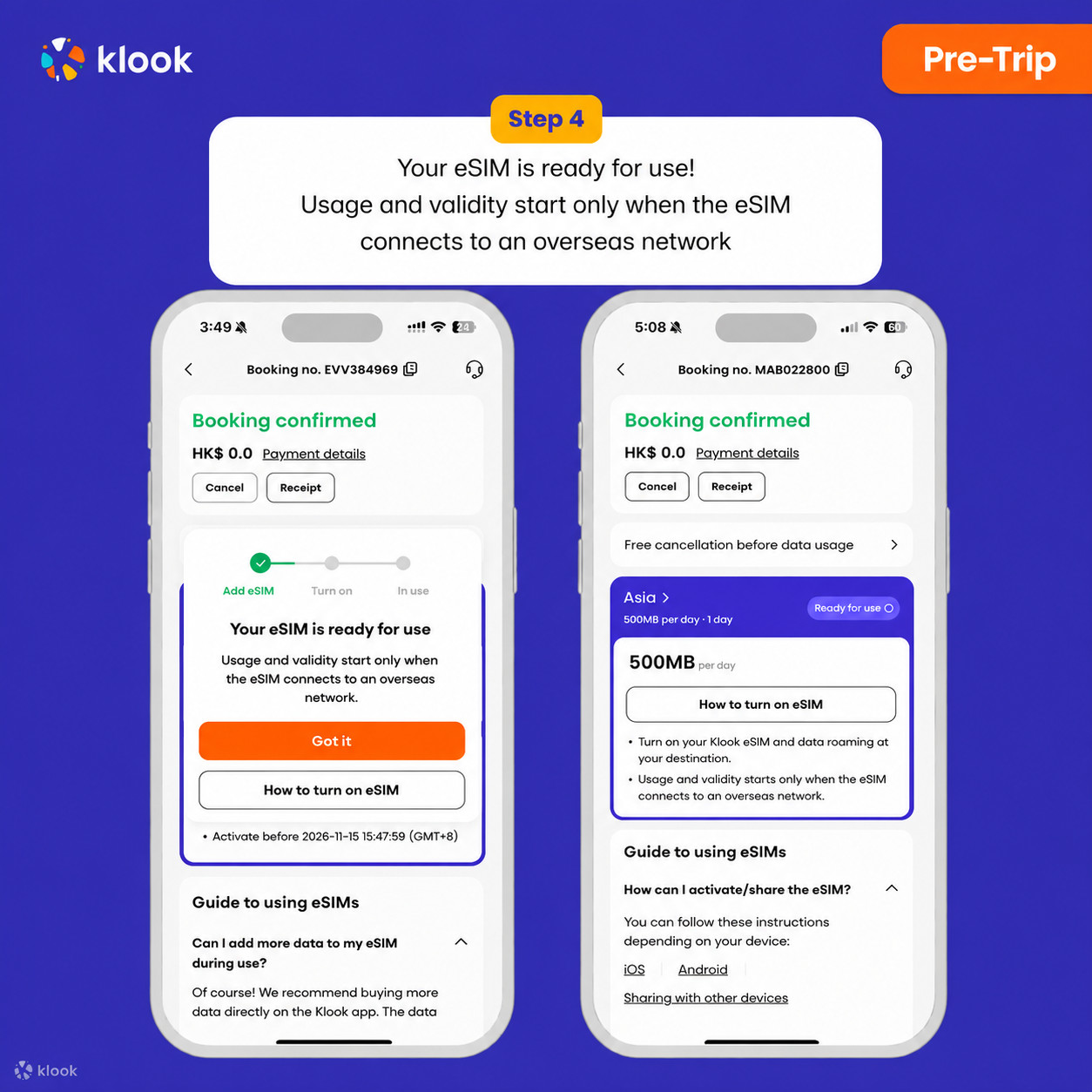
  • Klook eSIM installed

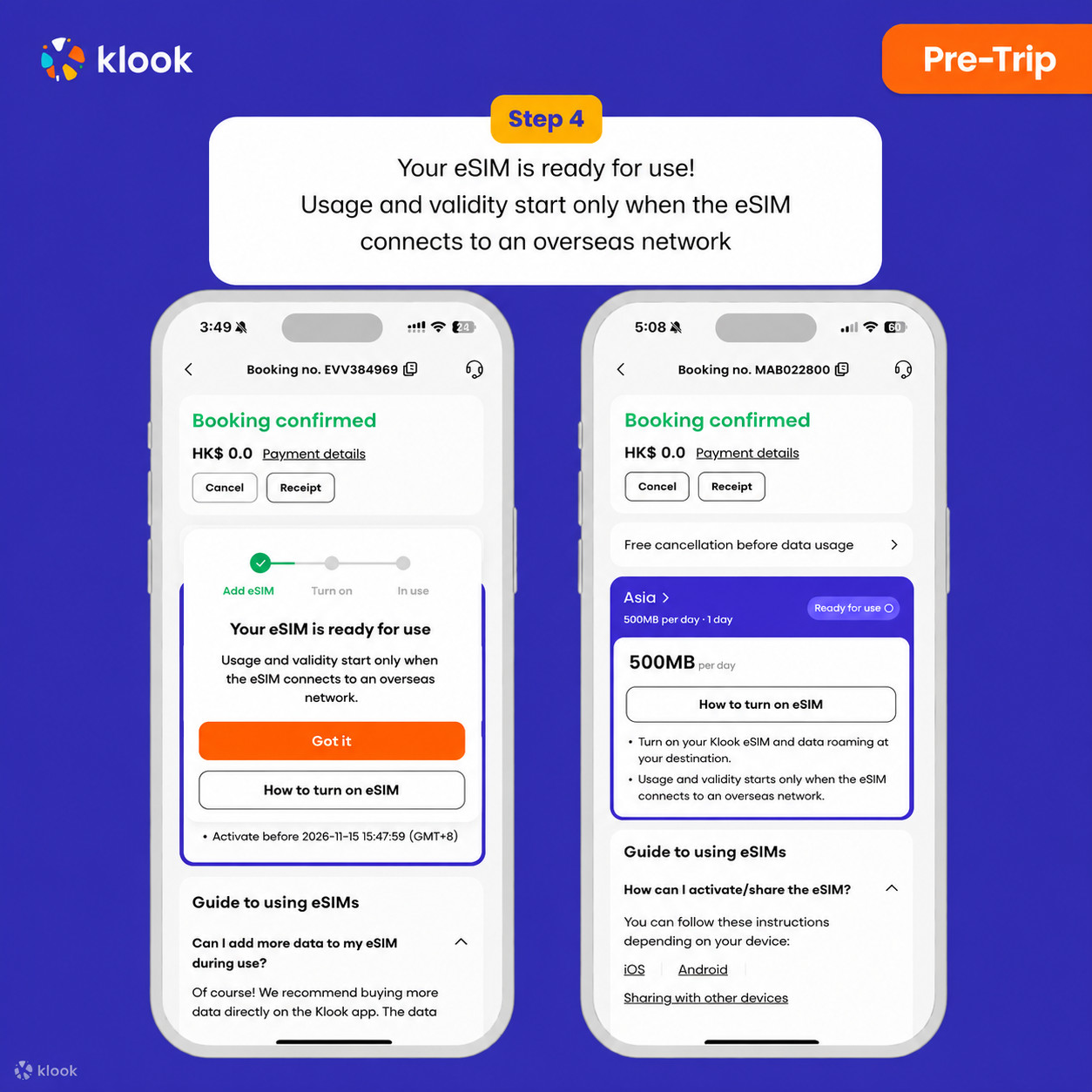
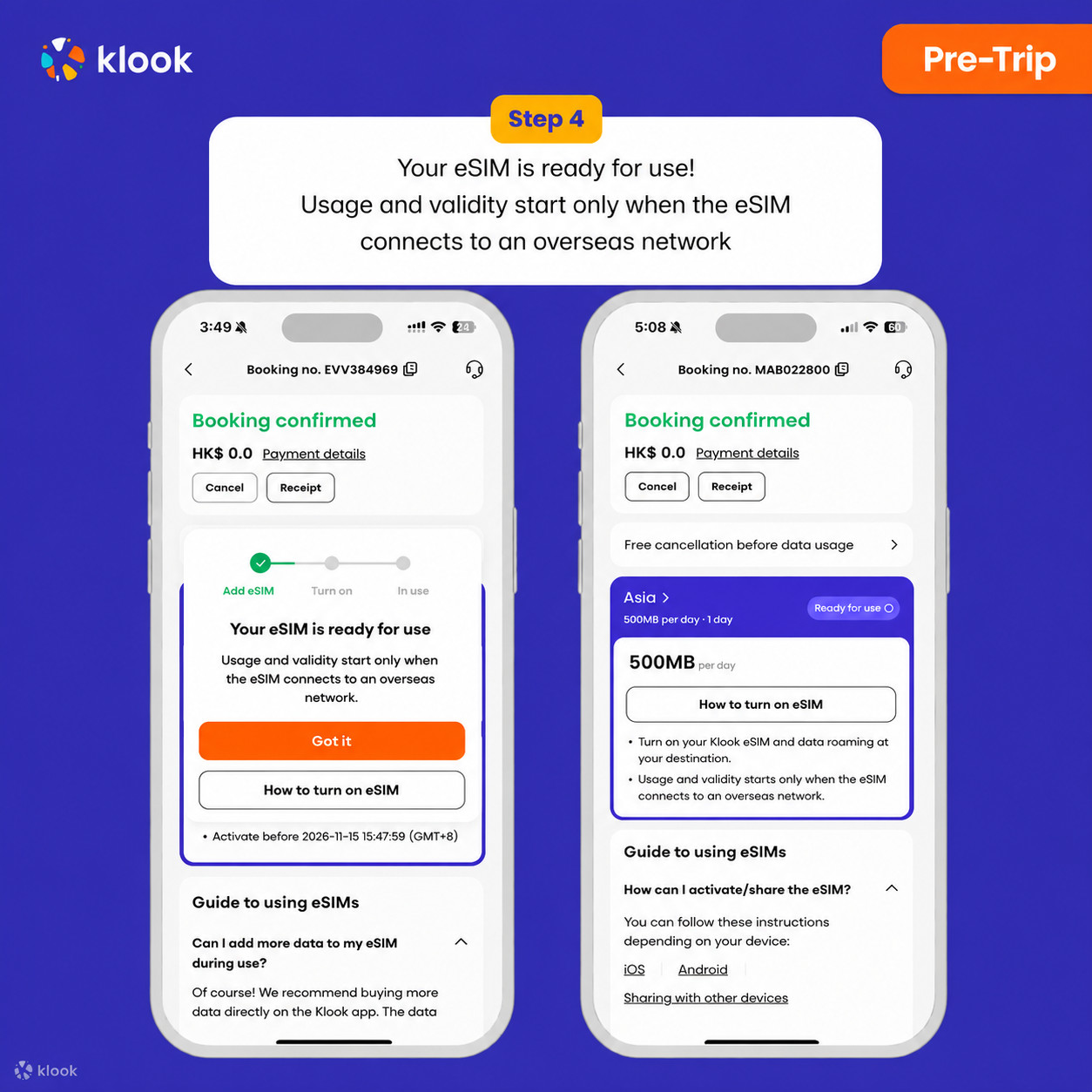
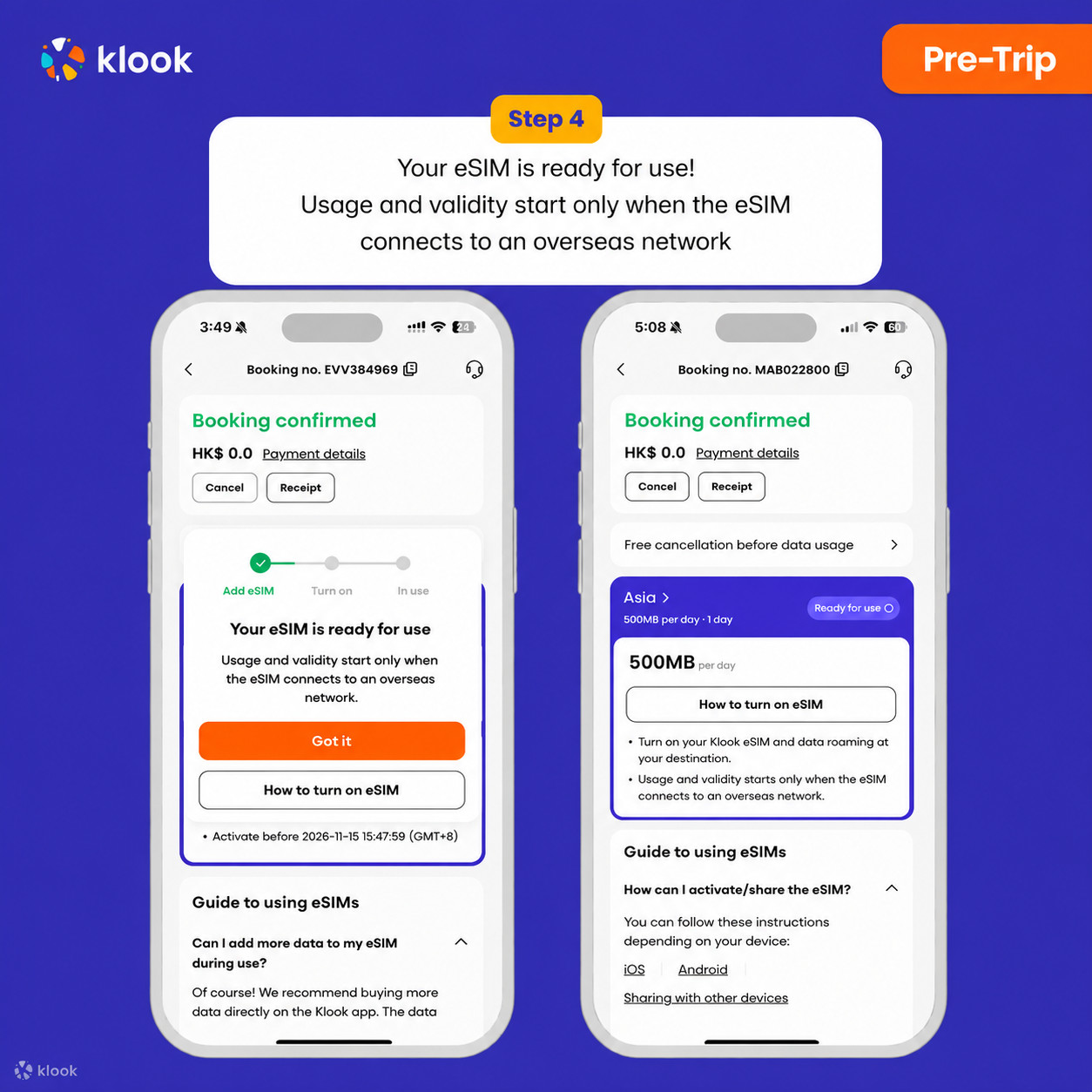
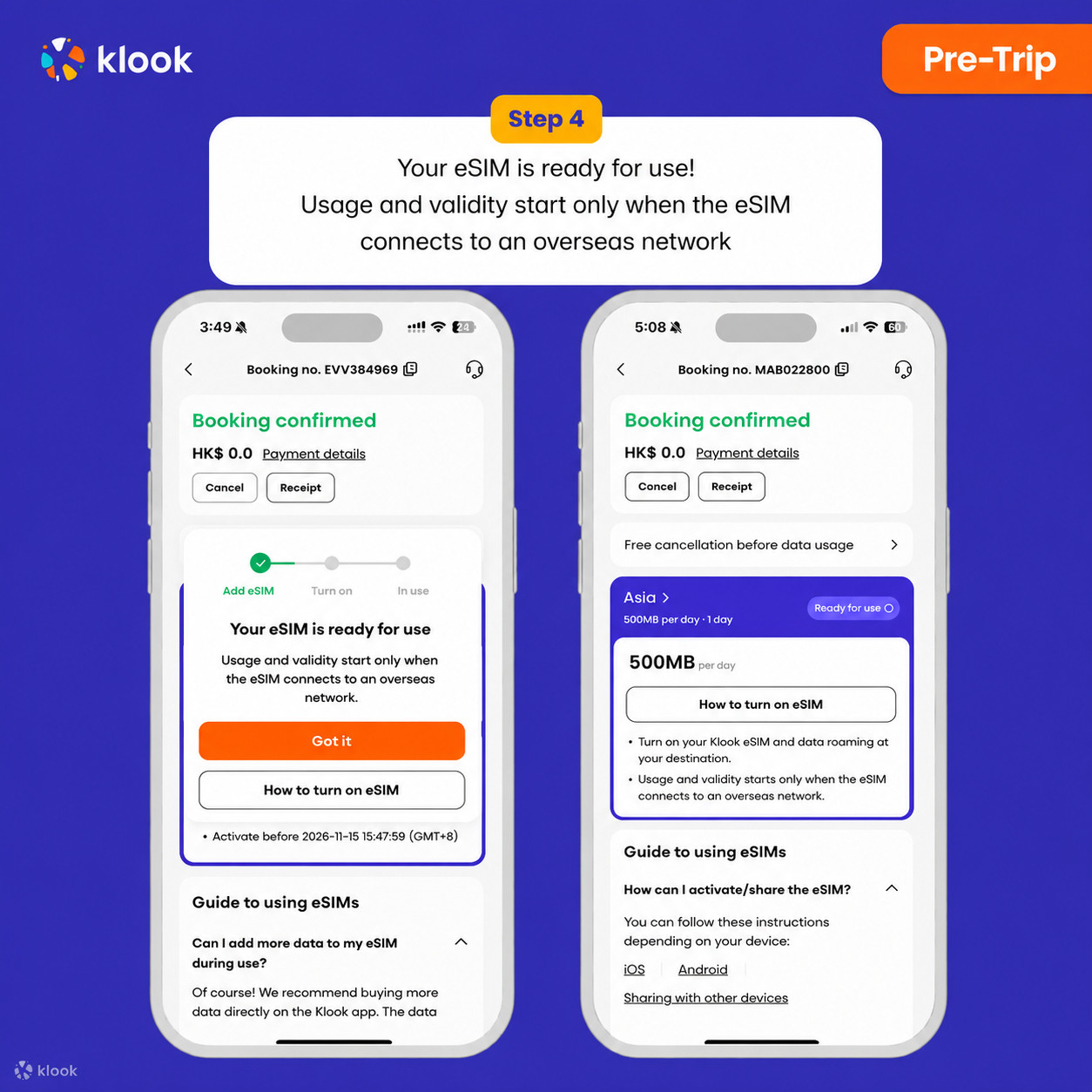
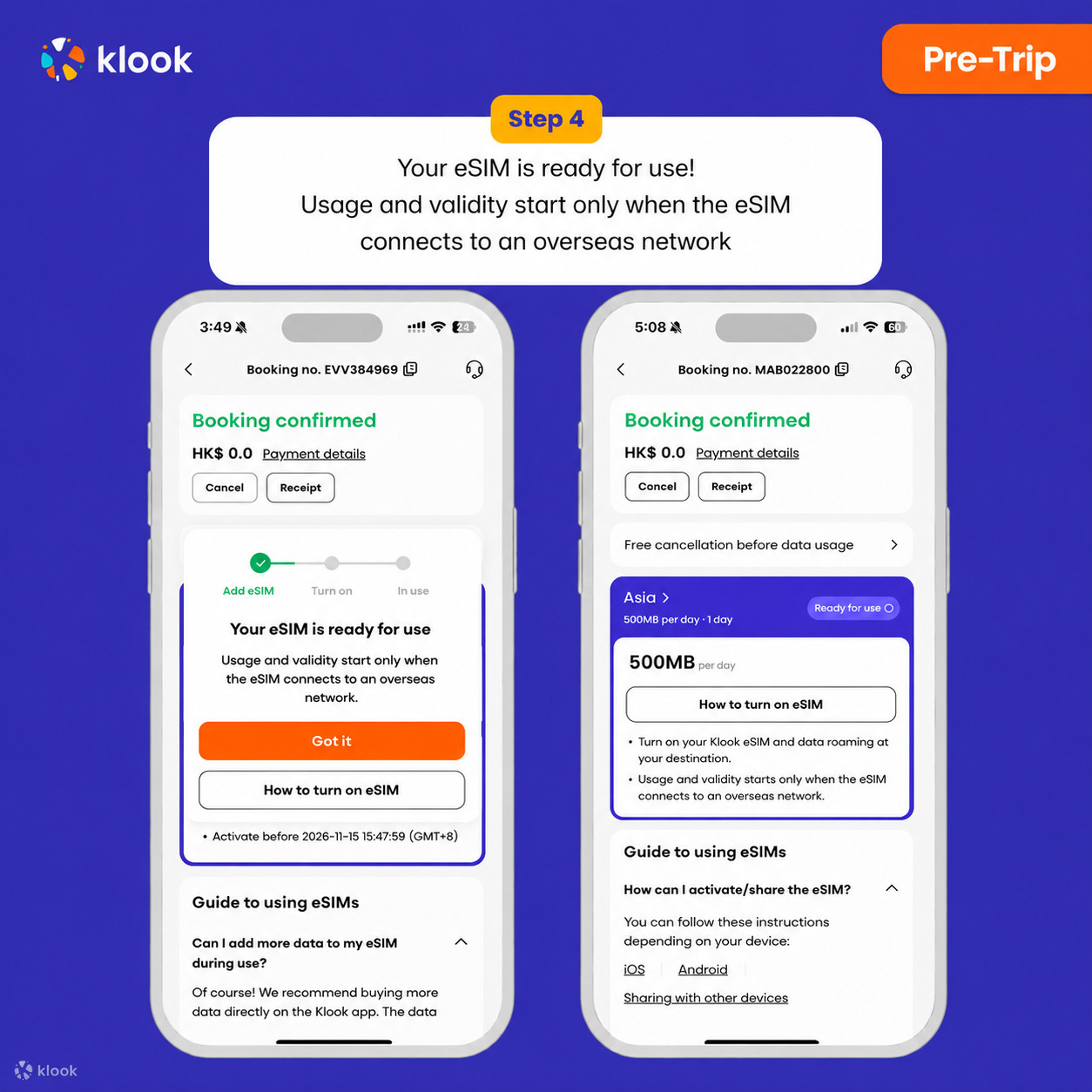
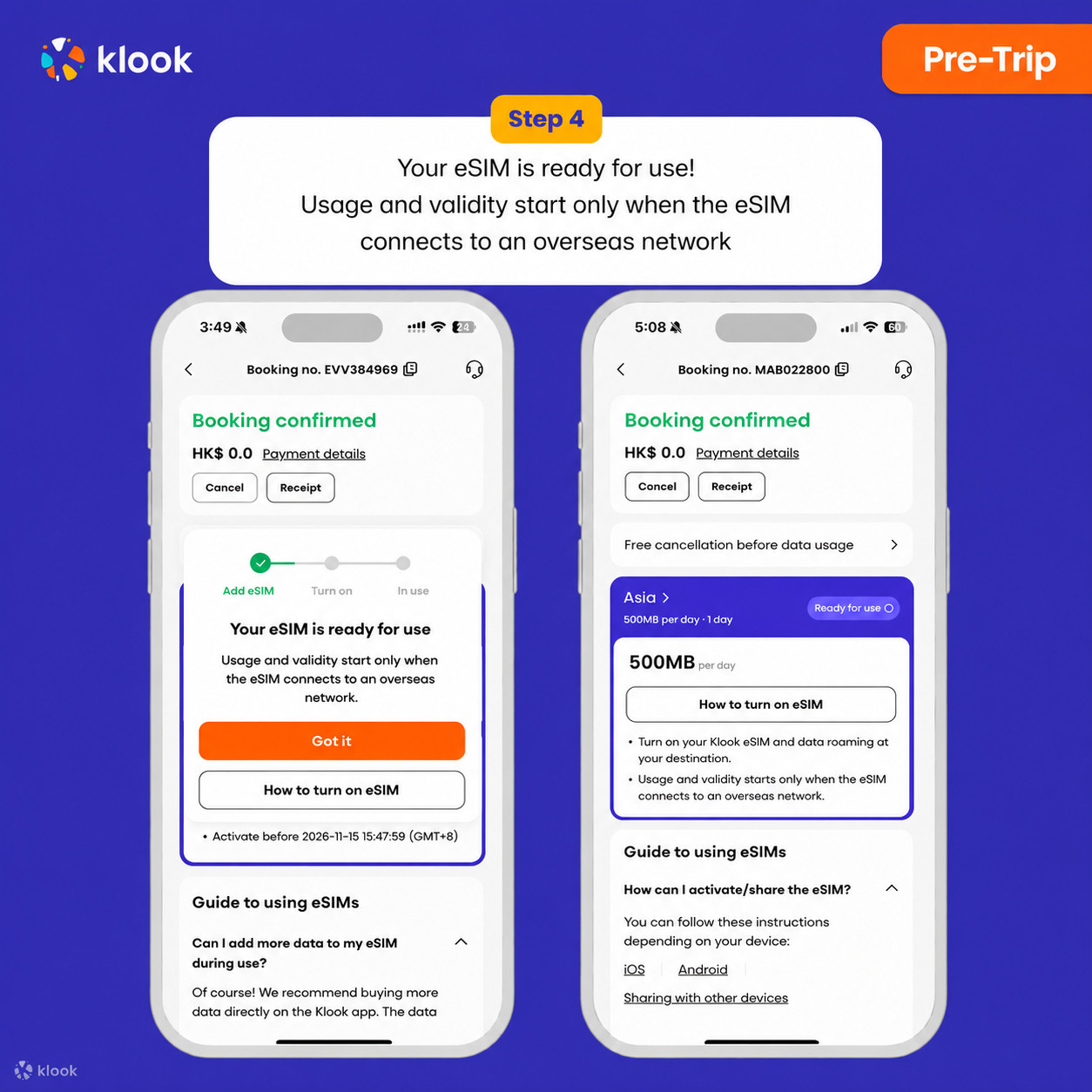
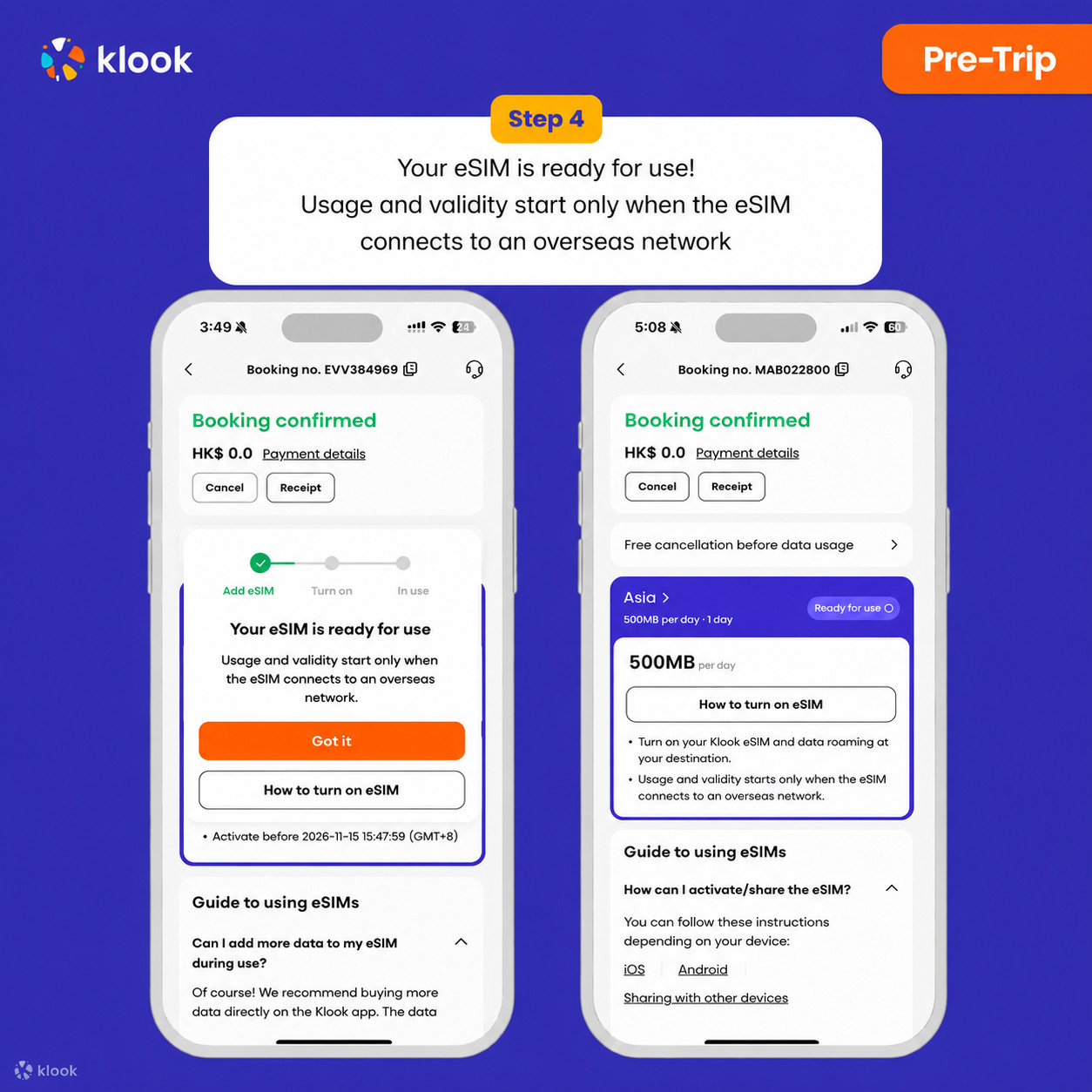
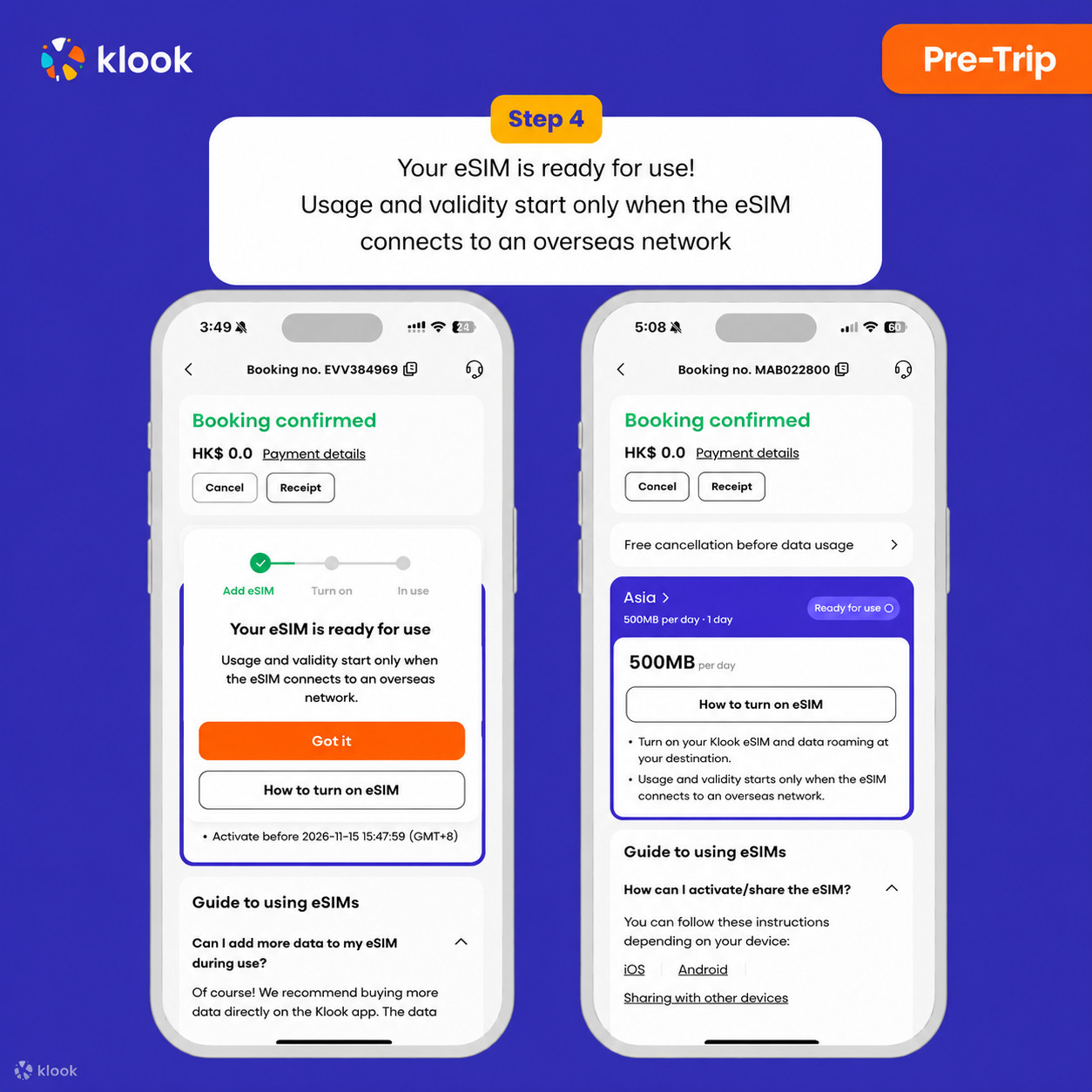
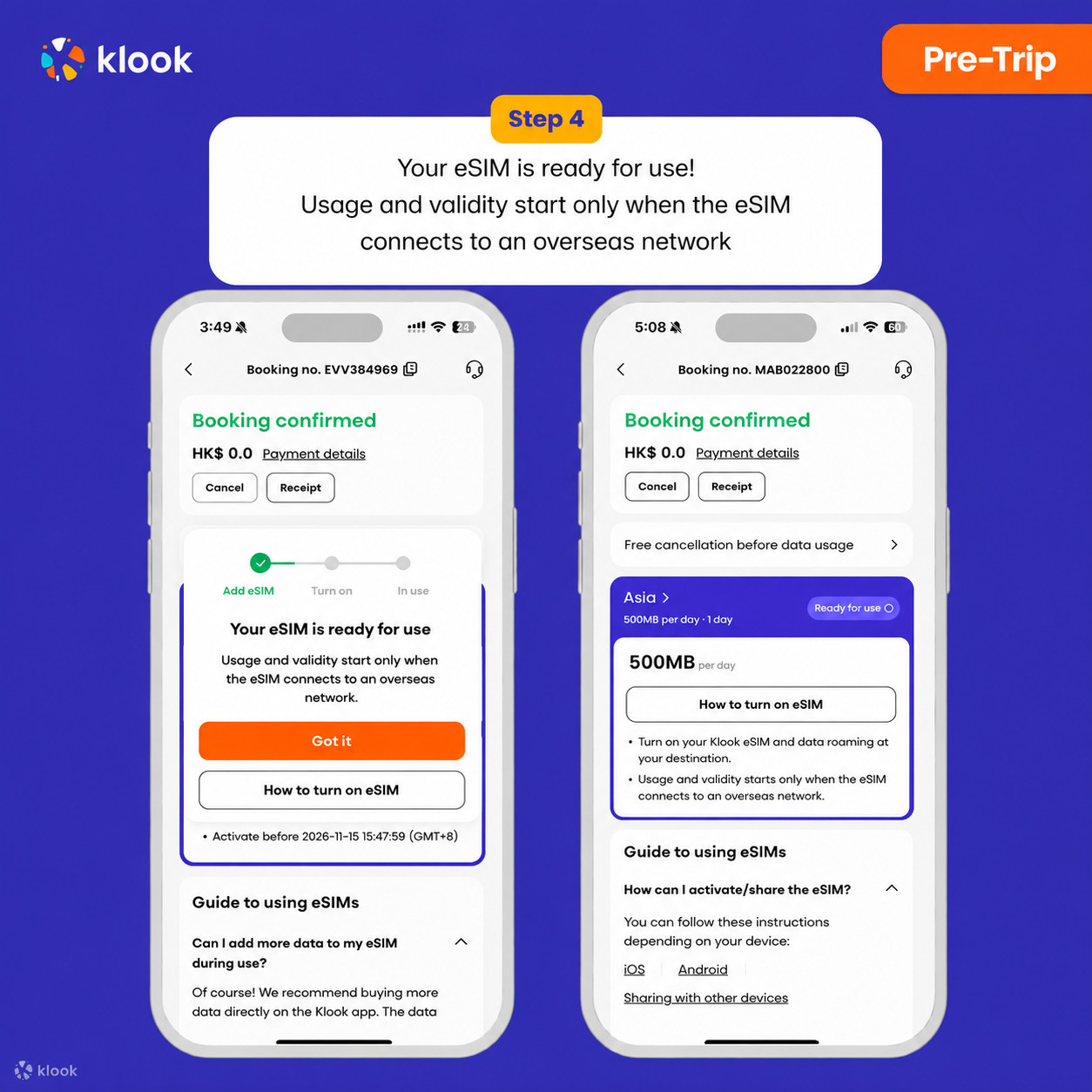
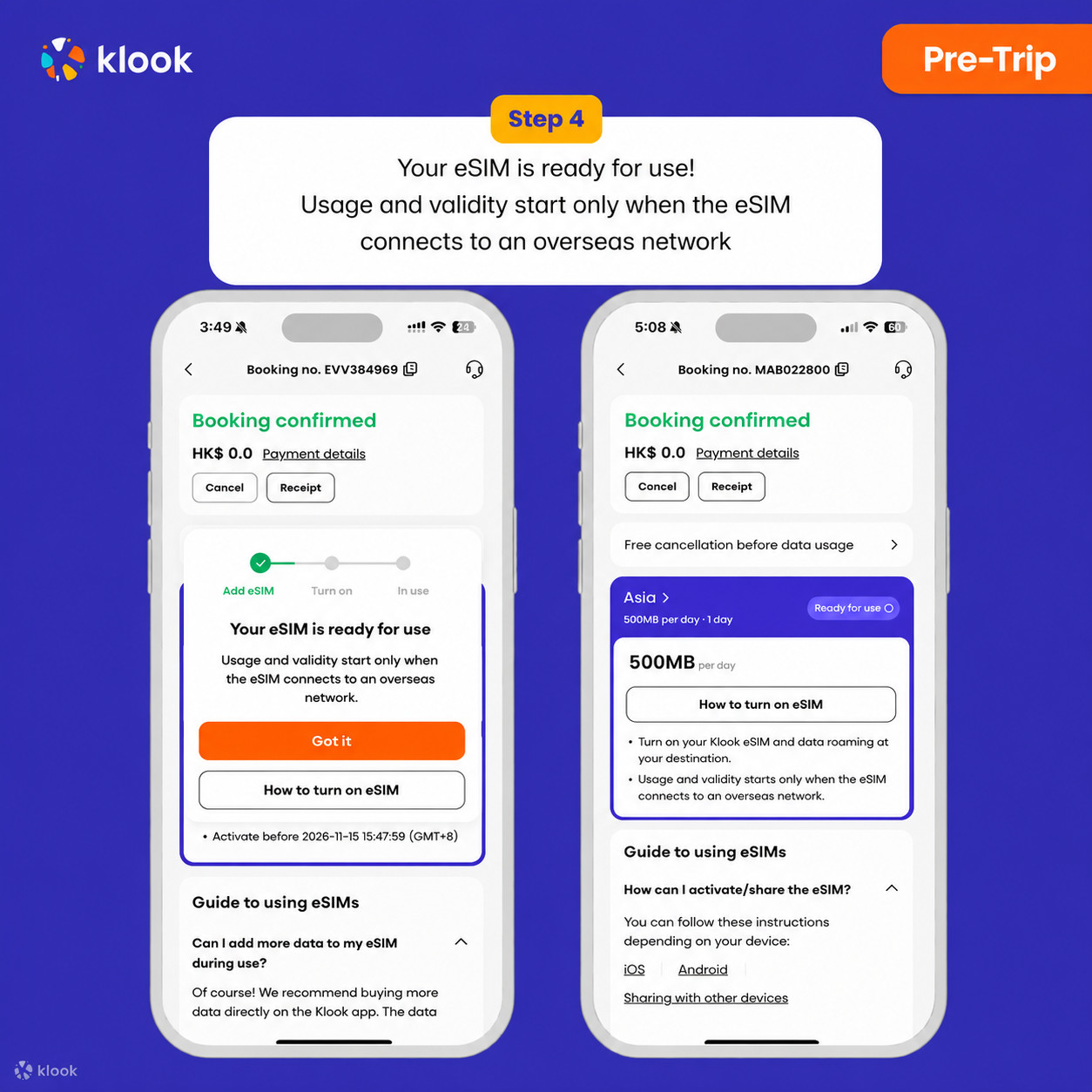
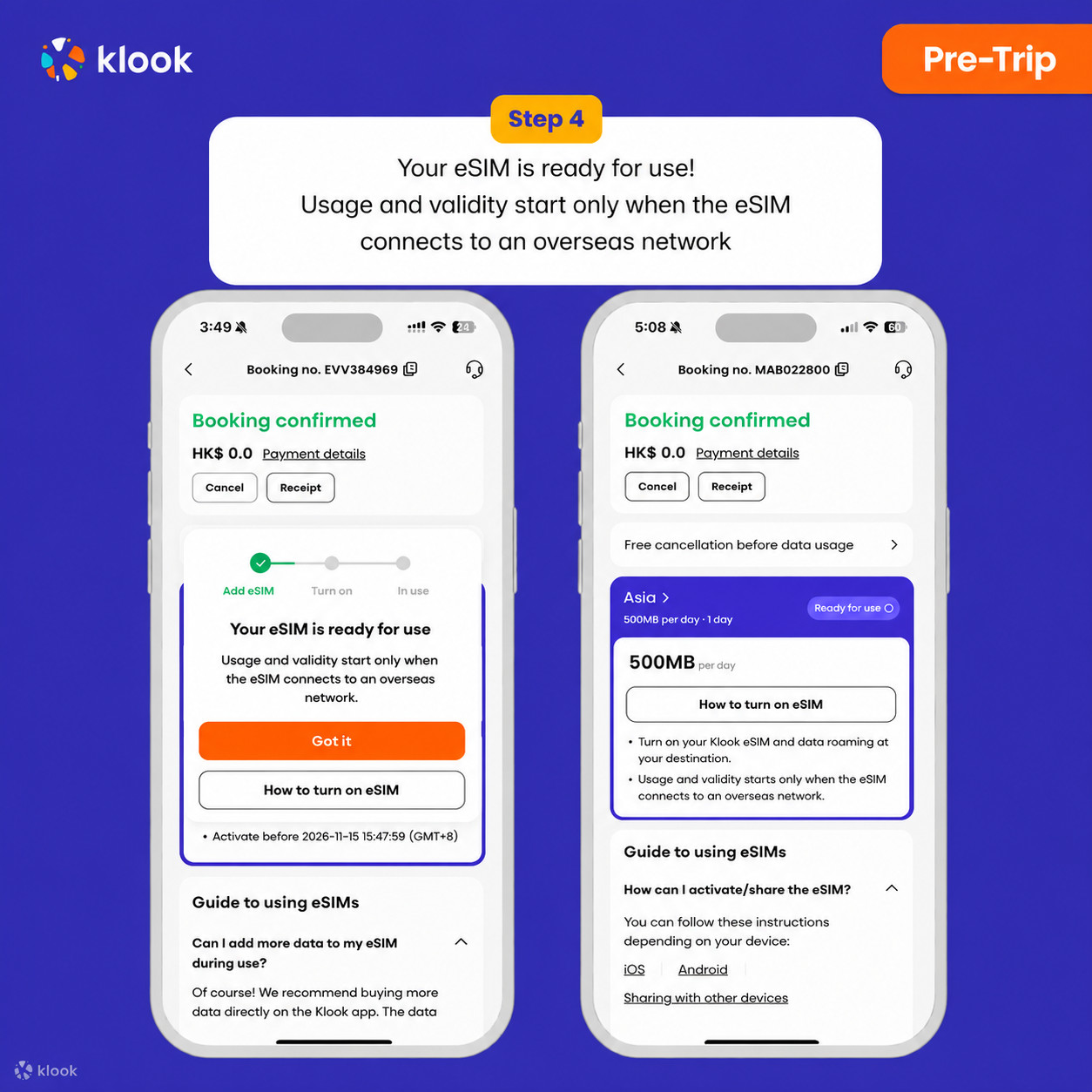
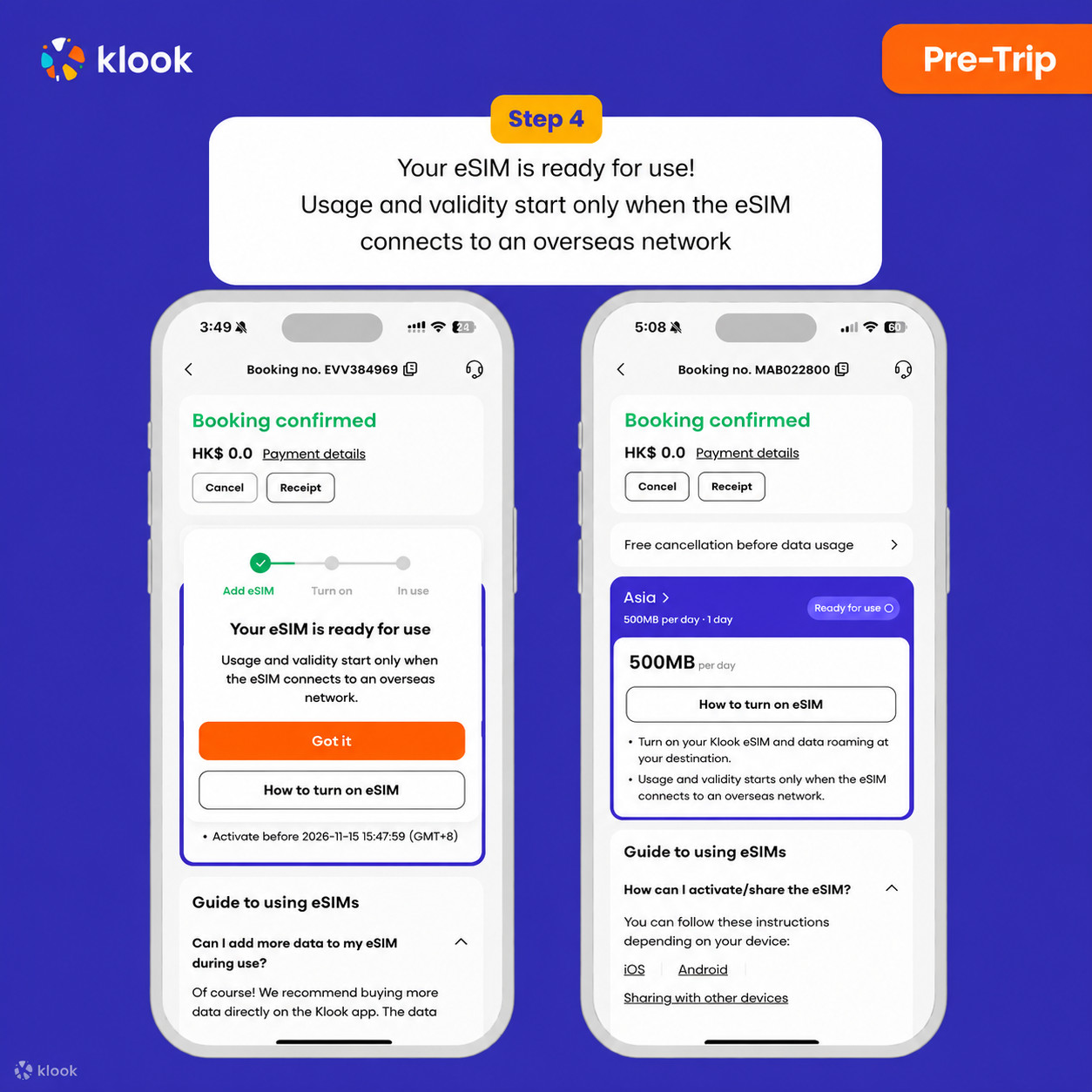
Your eSIM is ready for use! Usage and validity start only when the eSIM connects to an overseas network

Klook eSIM installed

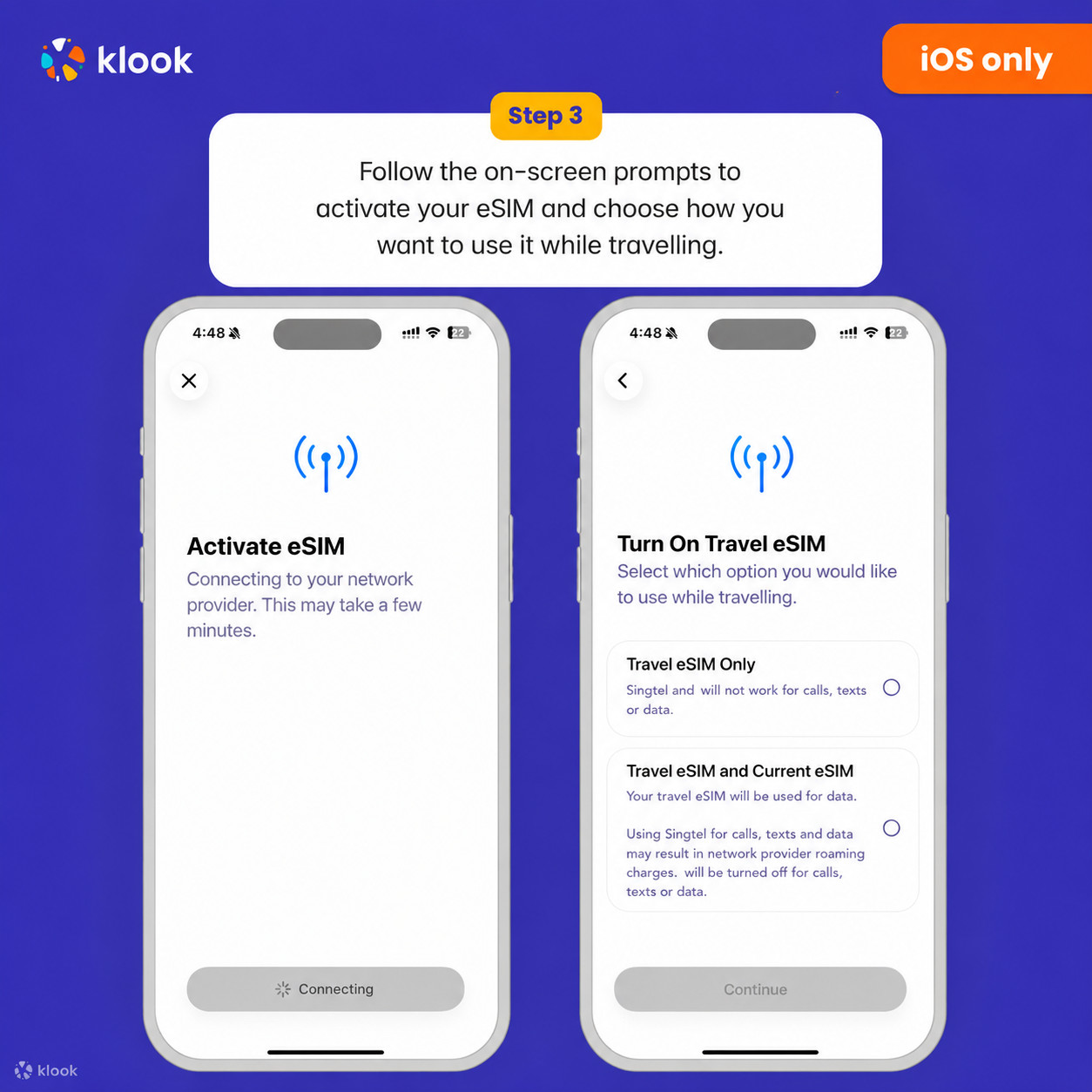
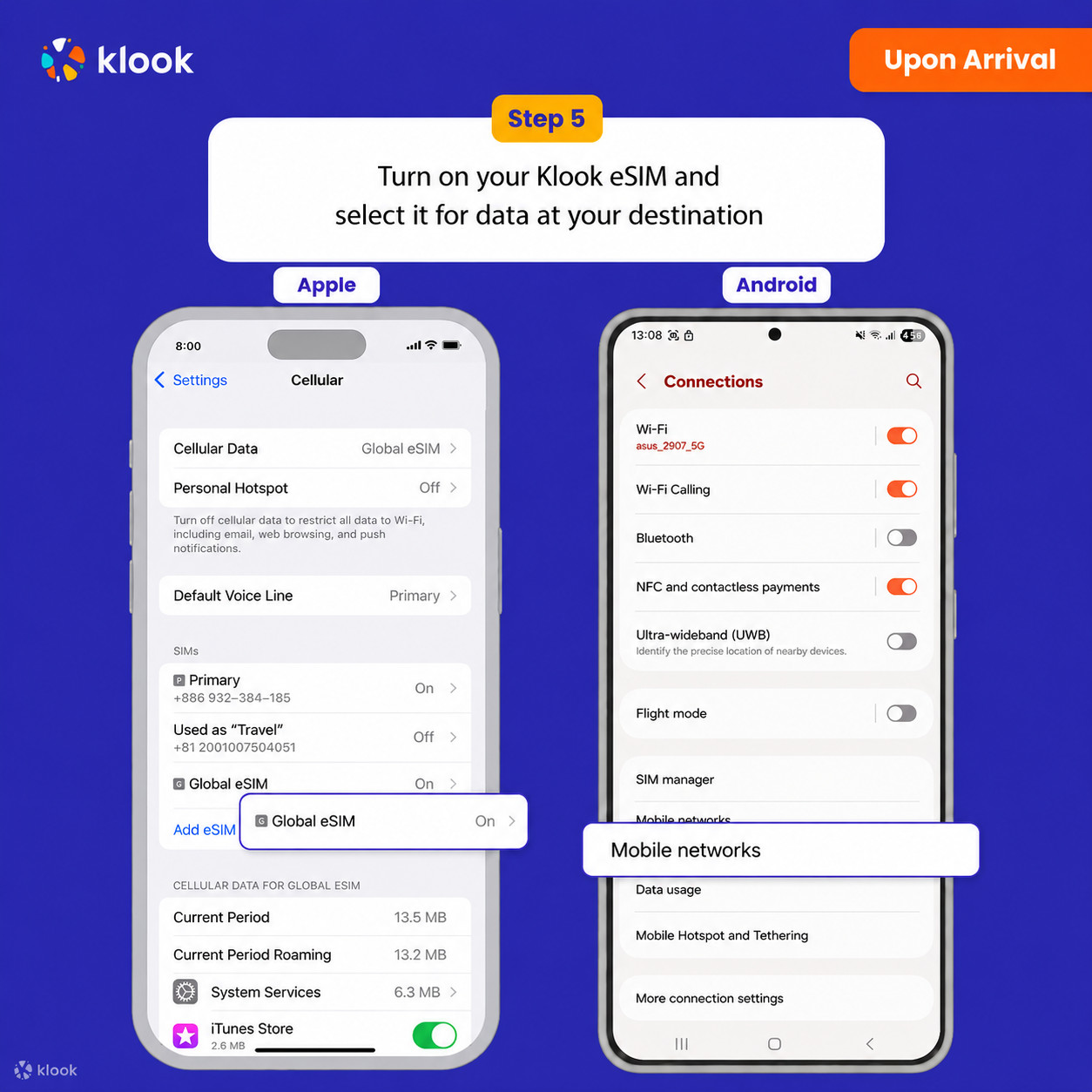
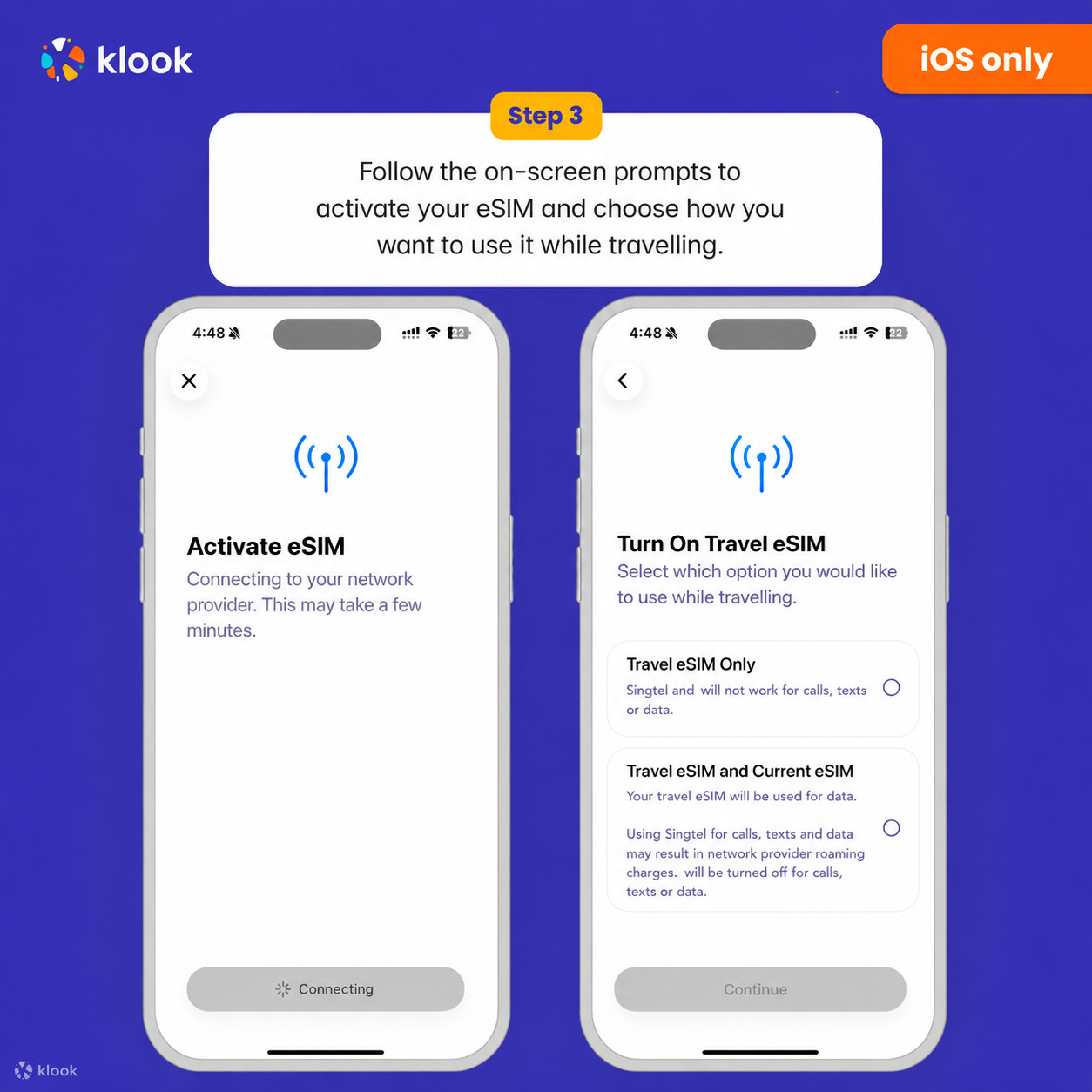
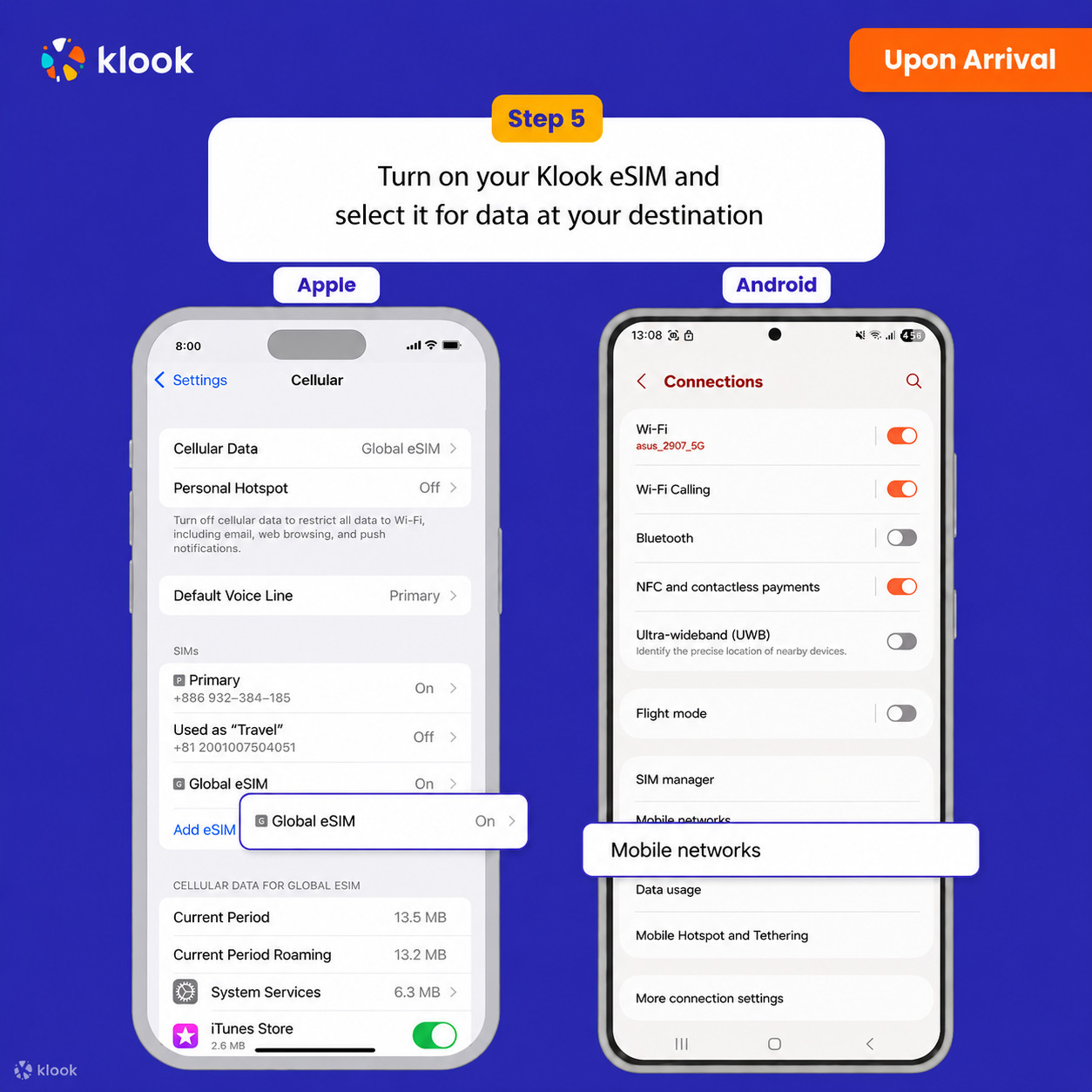
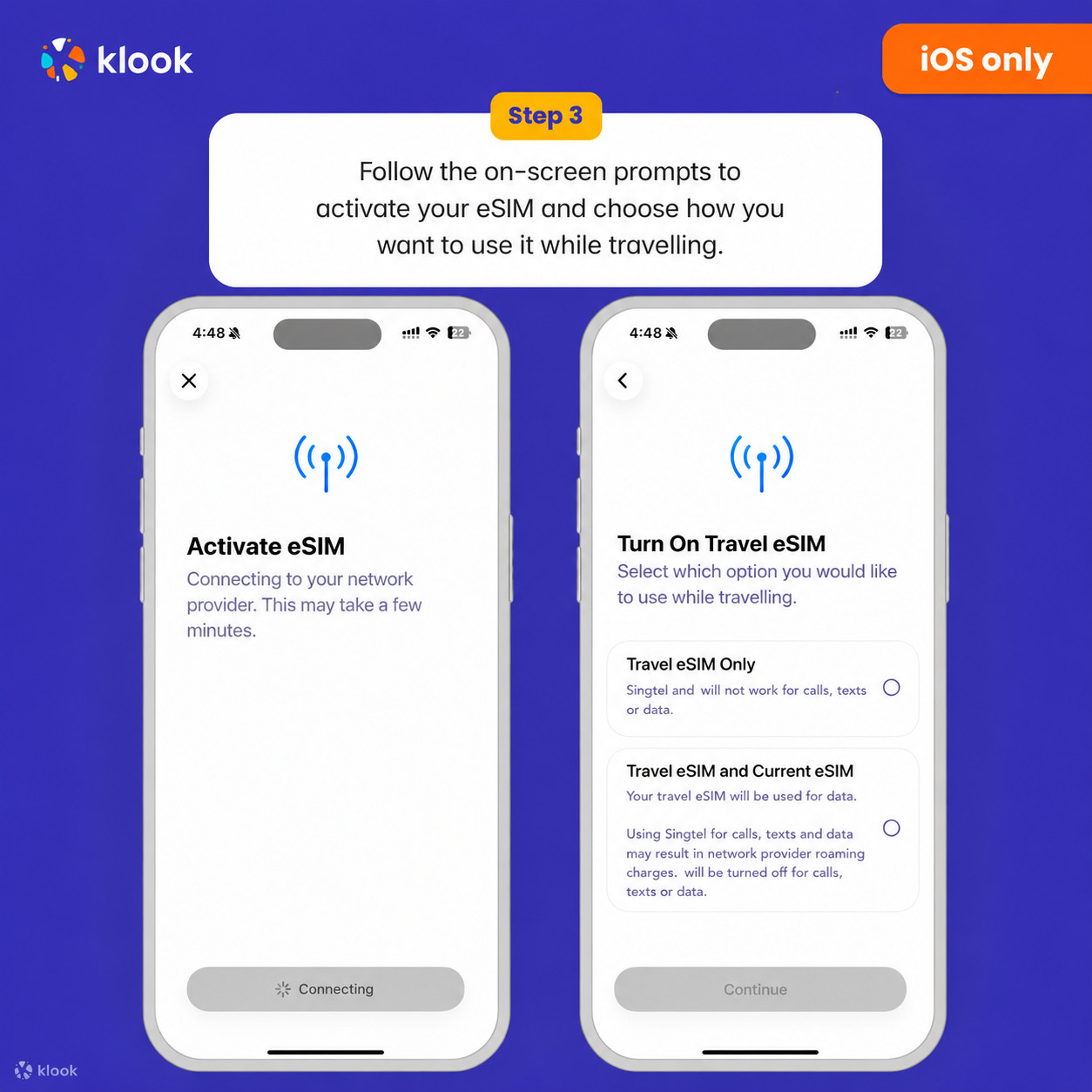
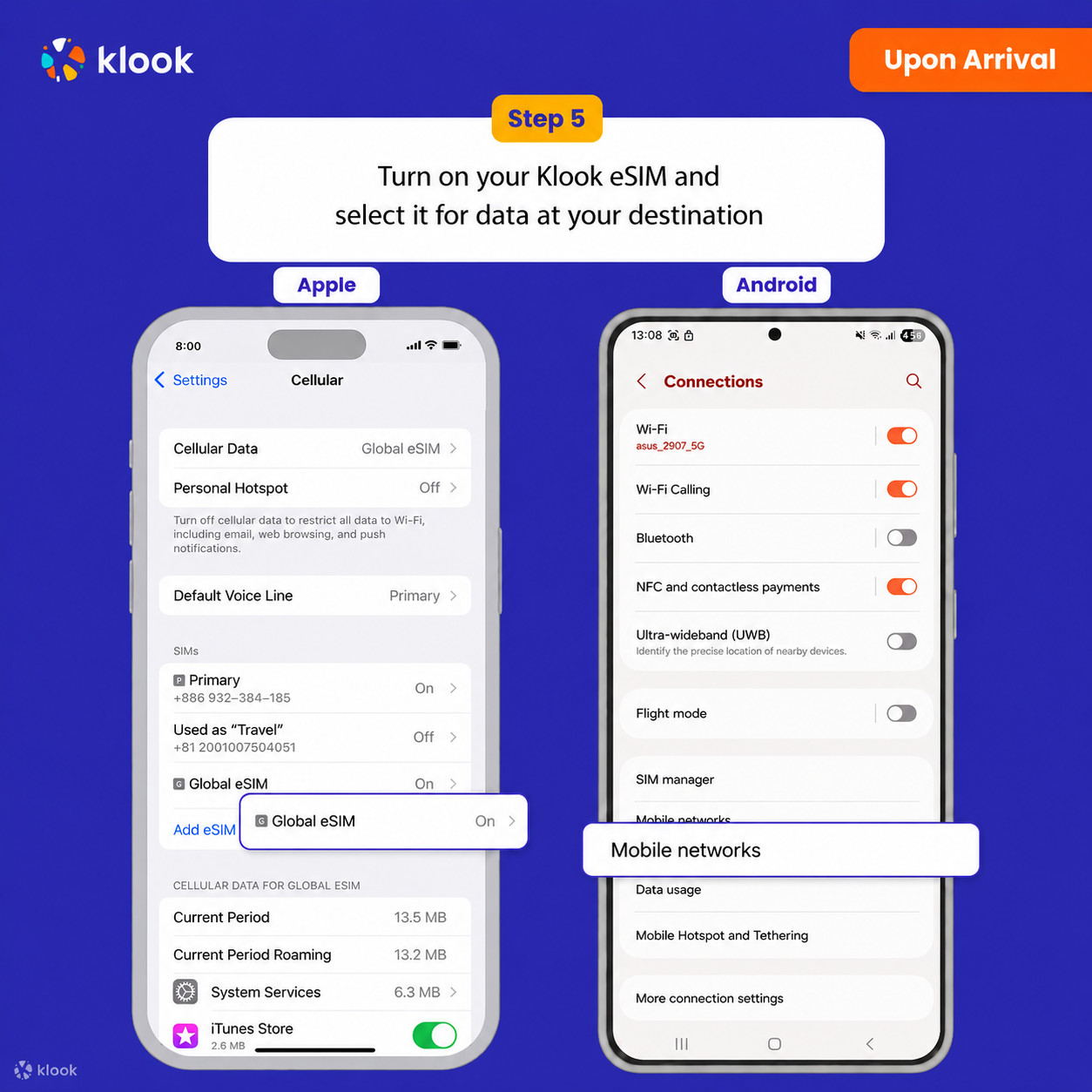
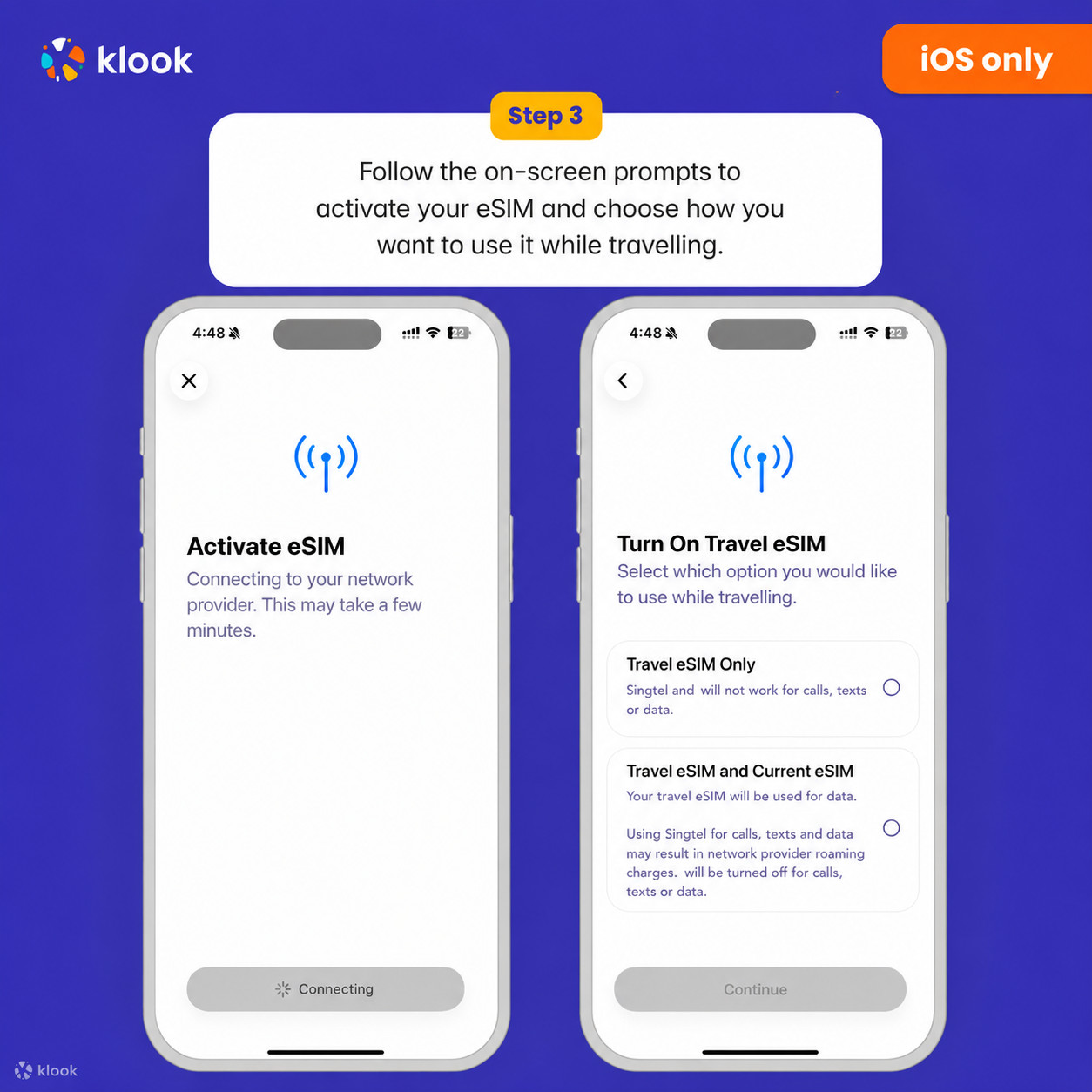
  • Turn on Klook eSIM

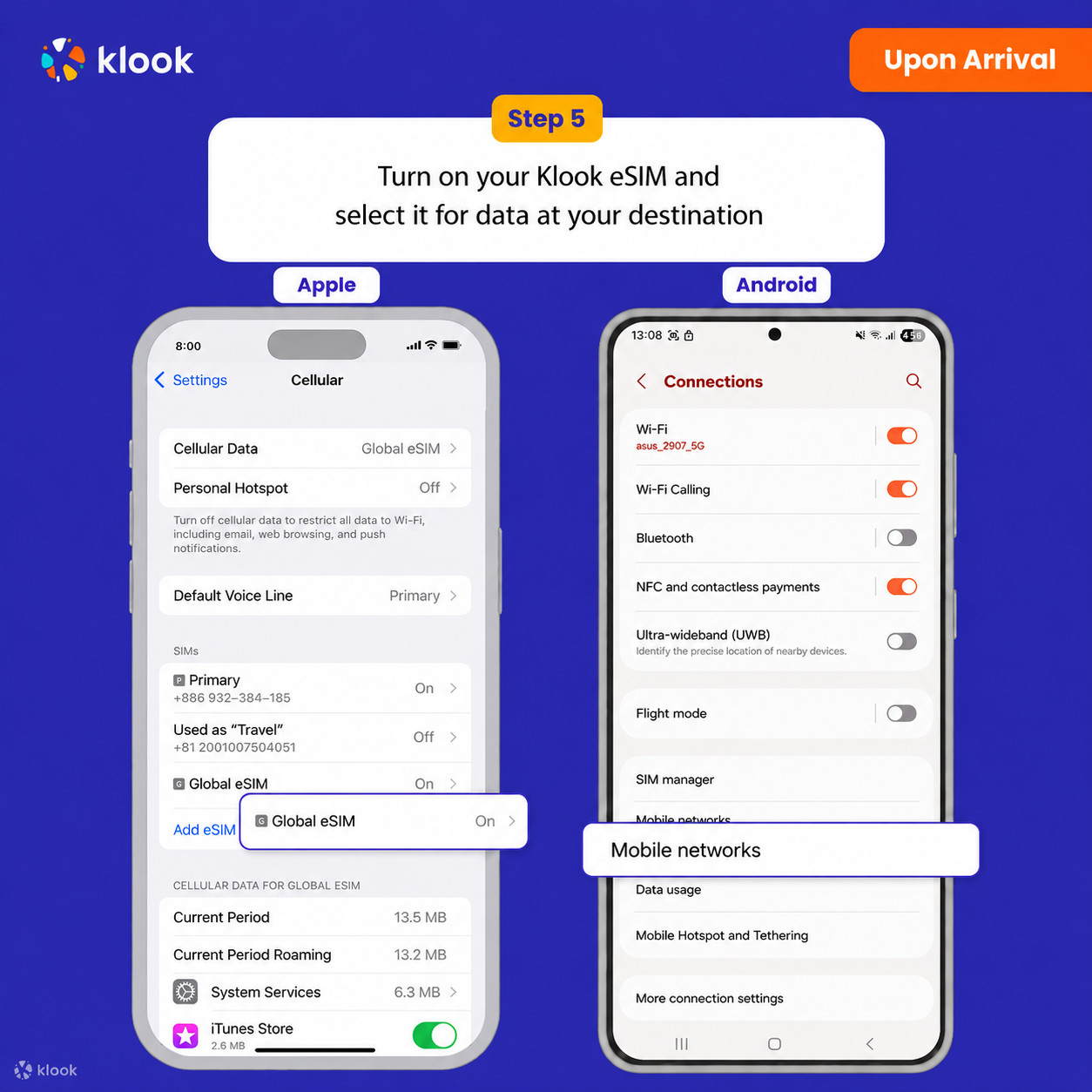
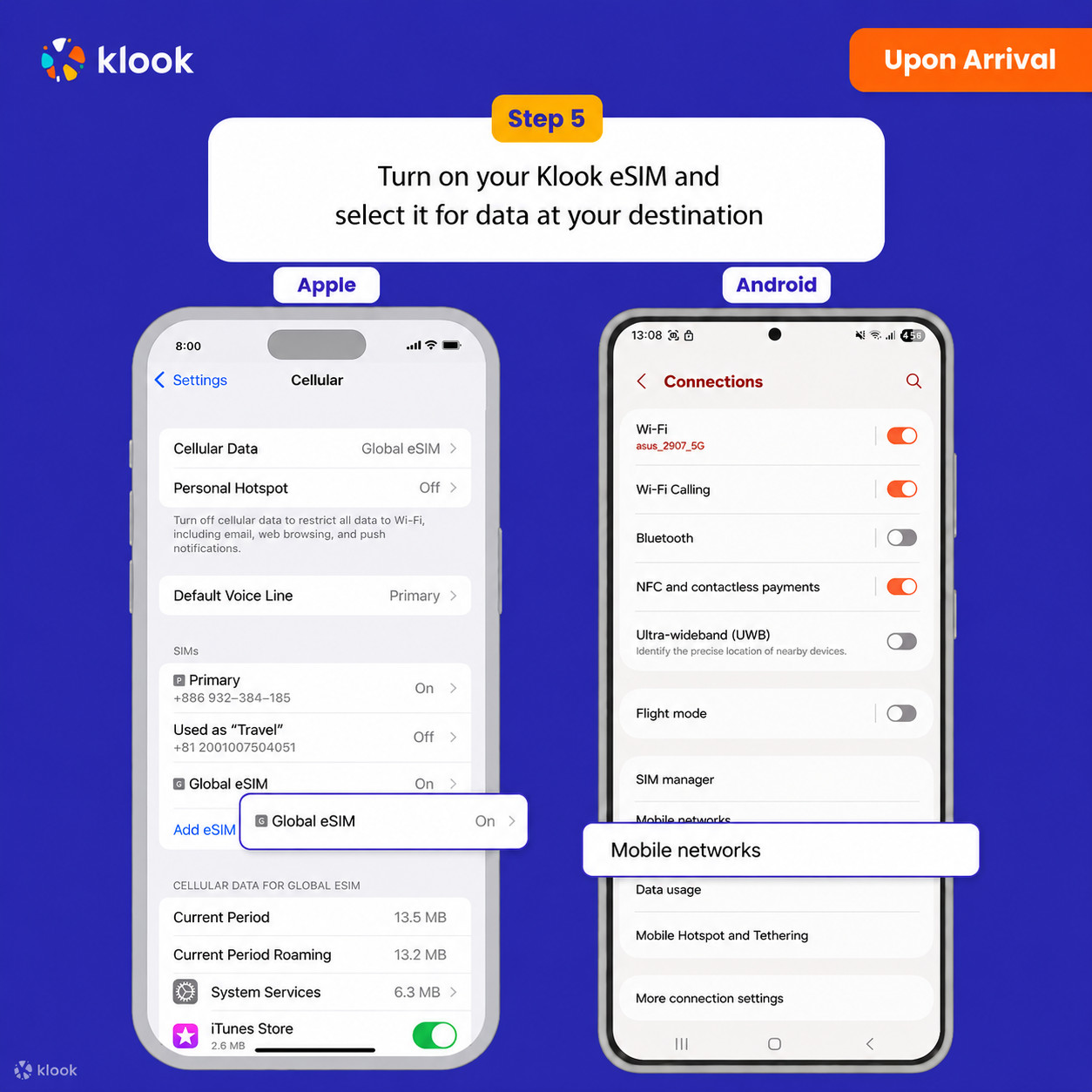
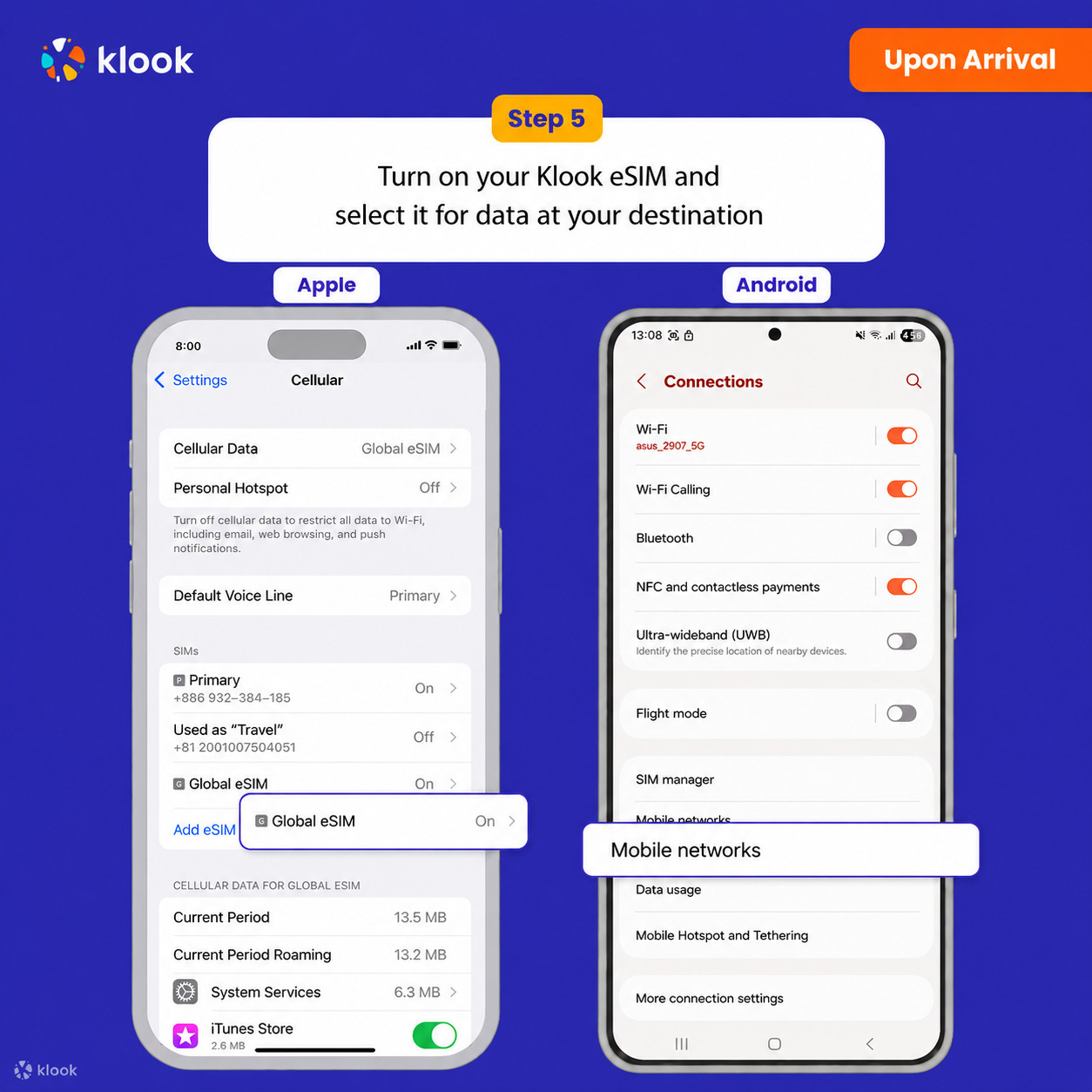
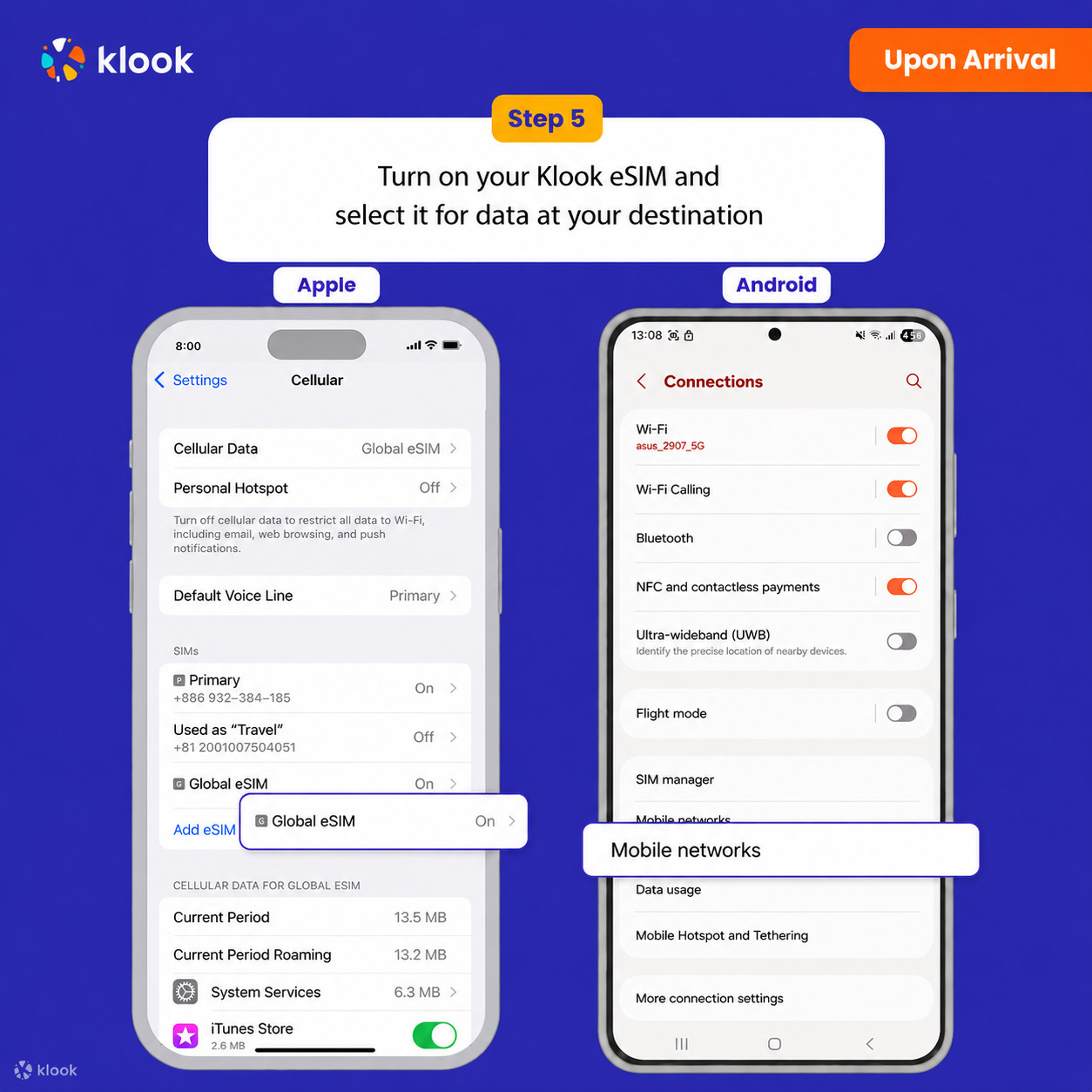
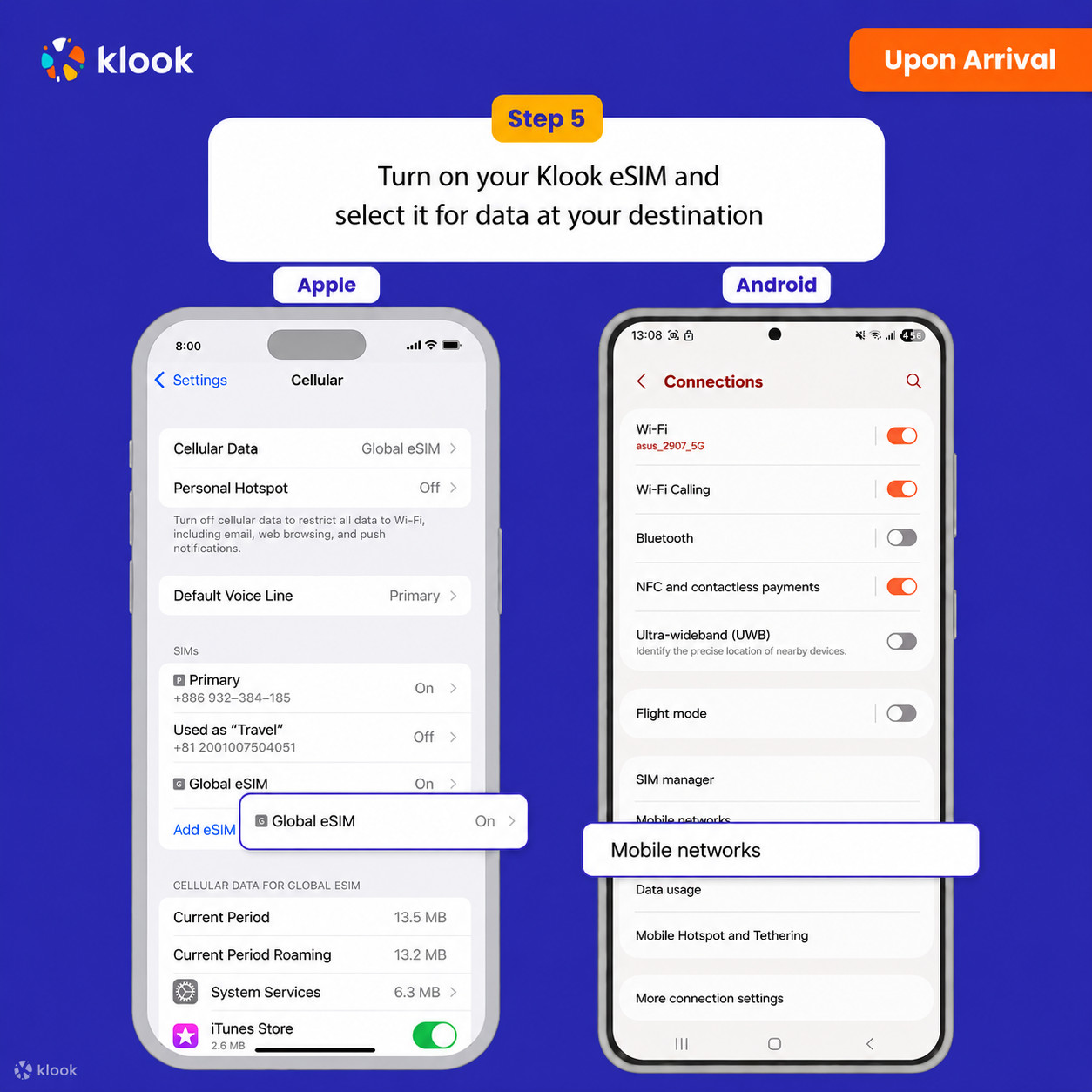
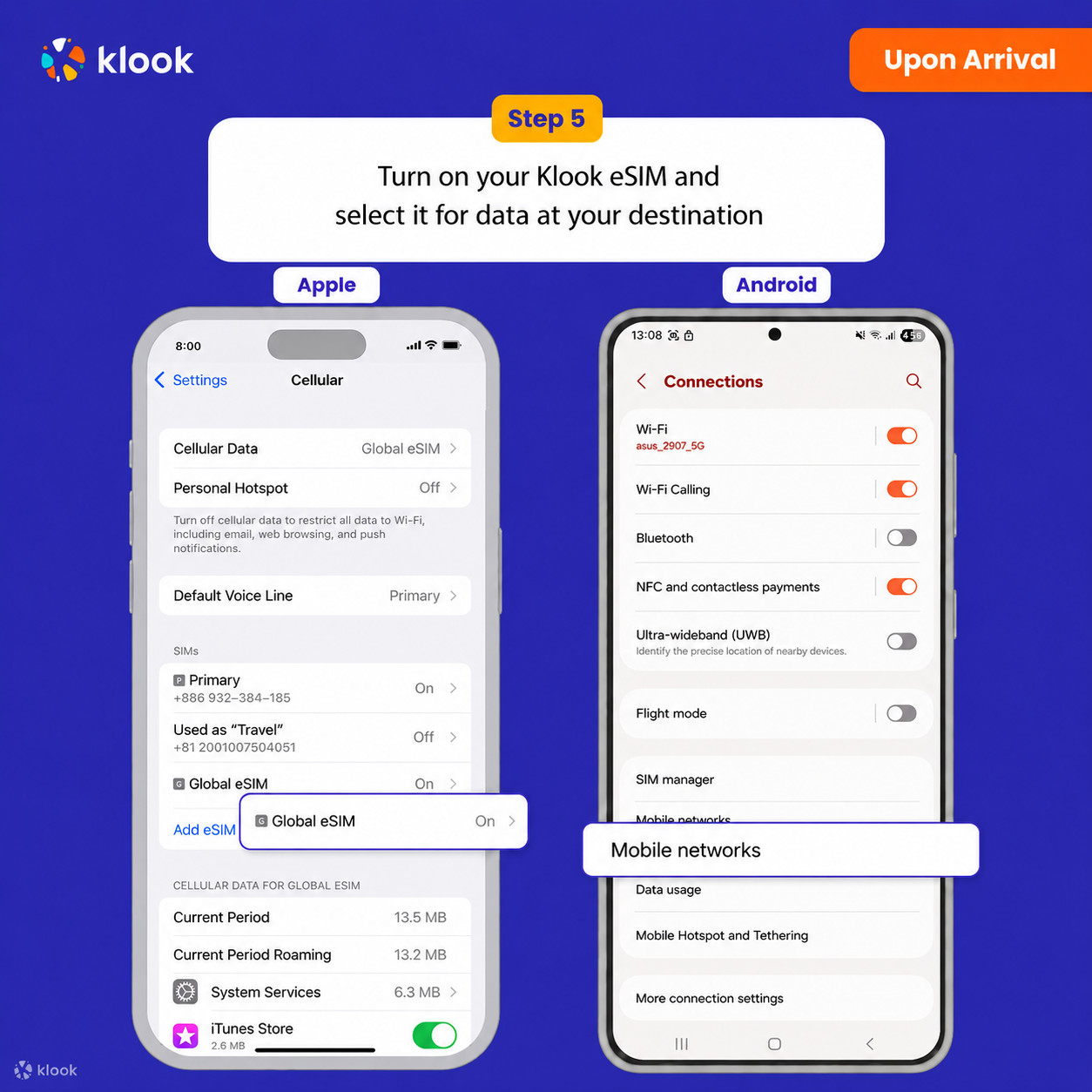
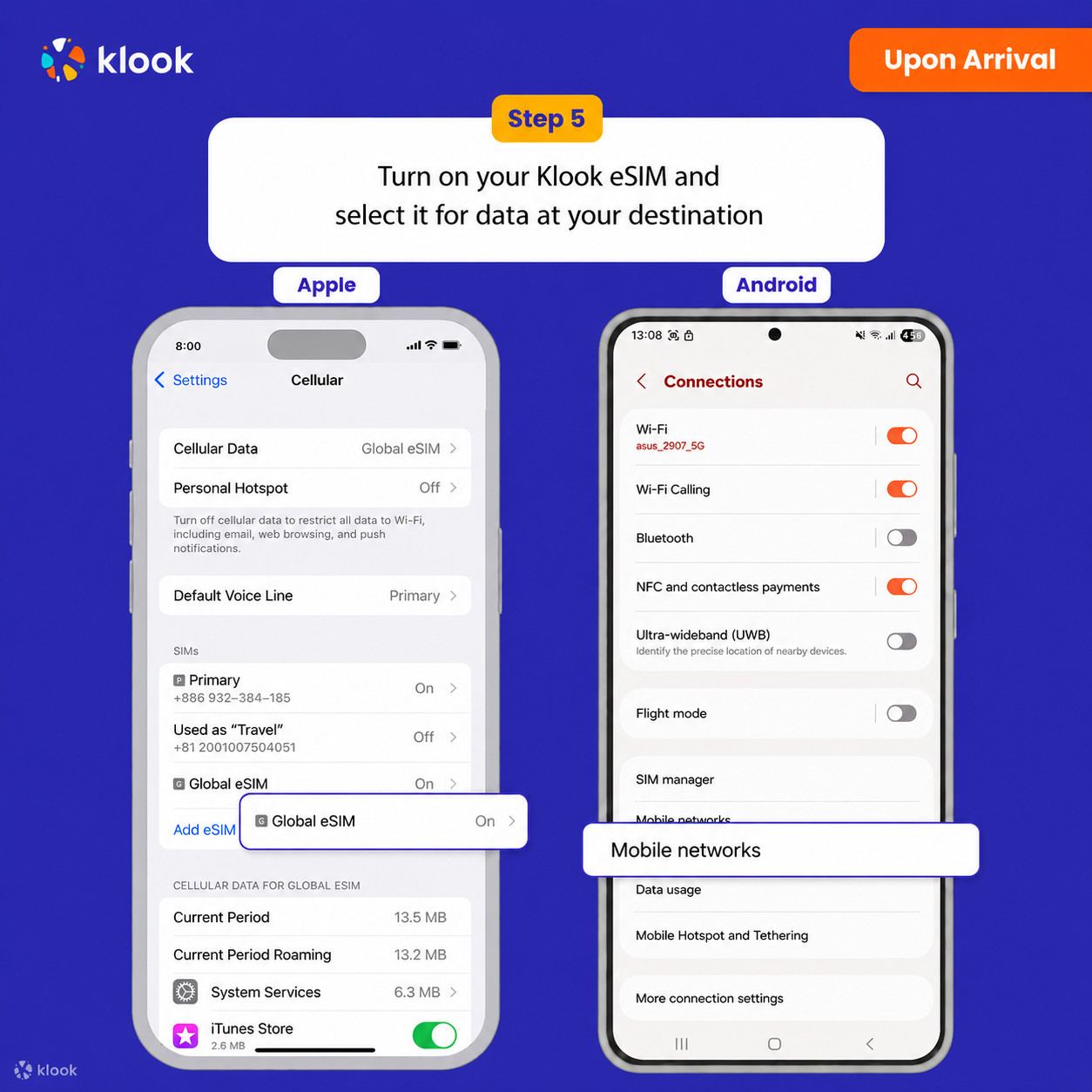
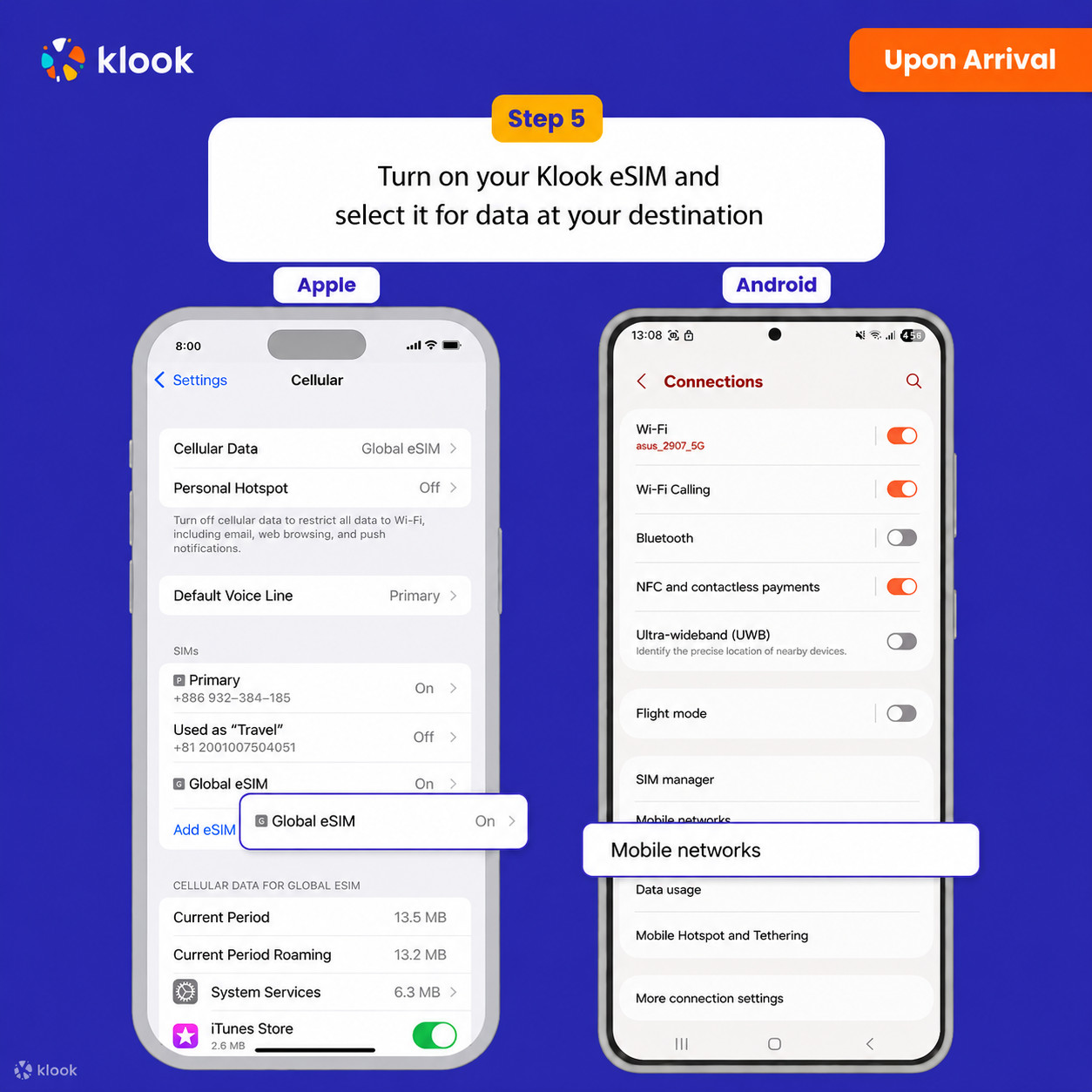
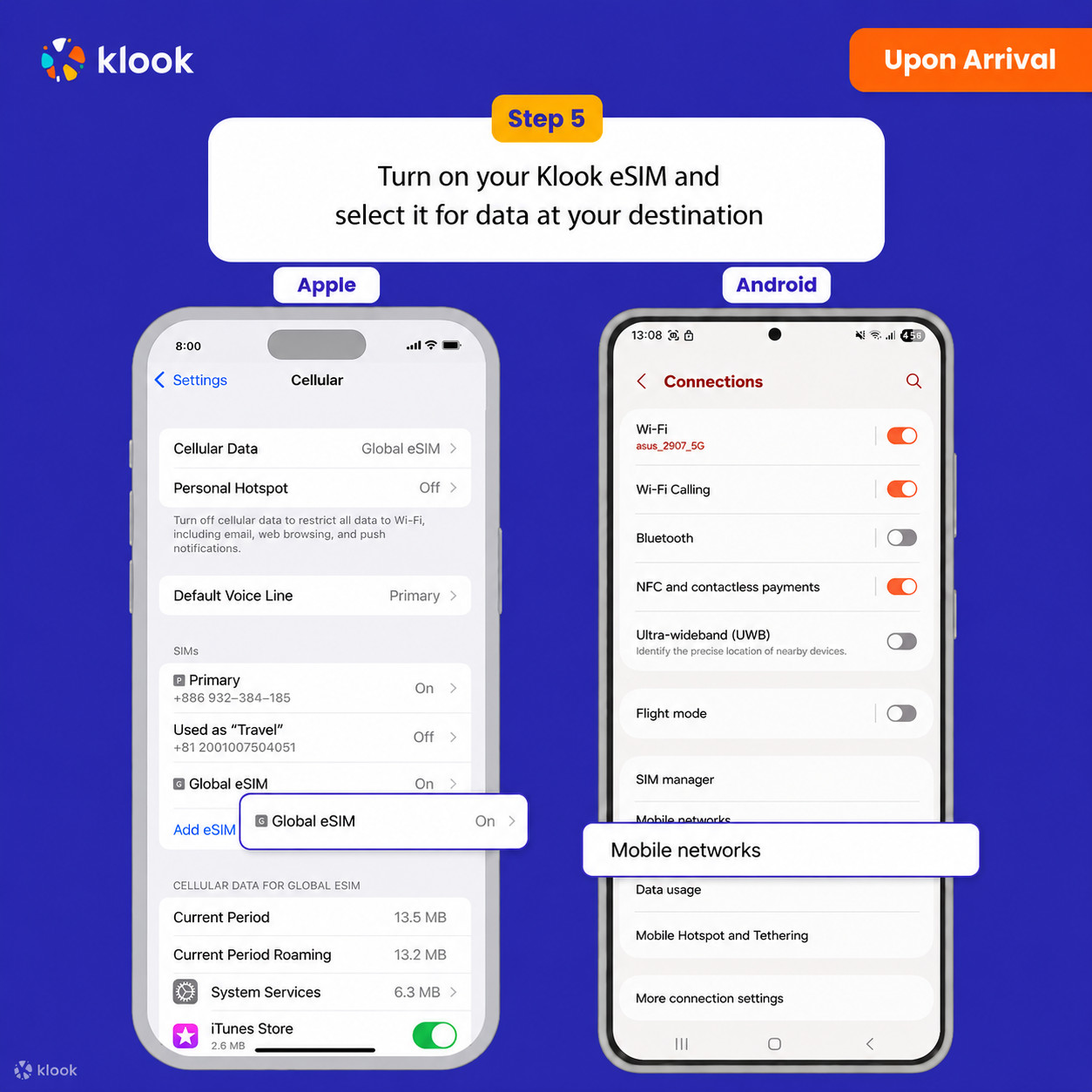
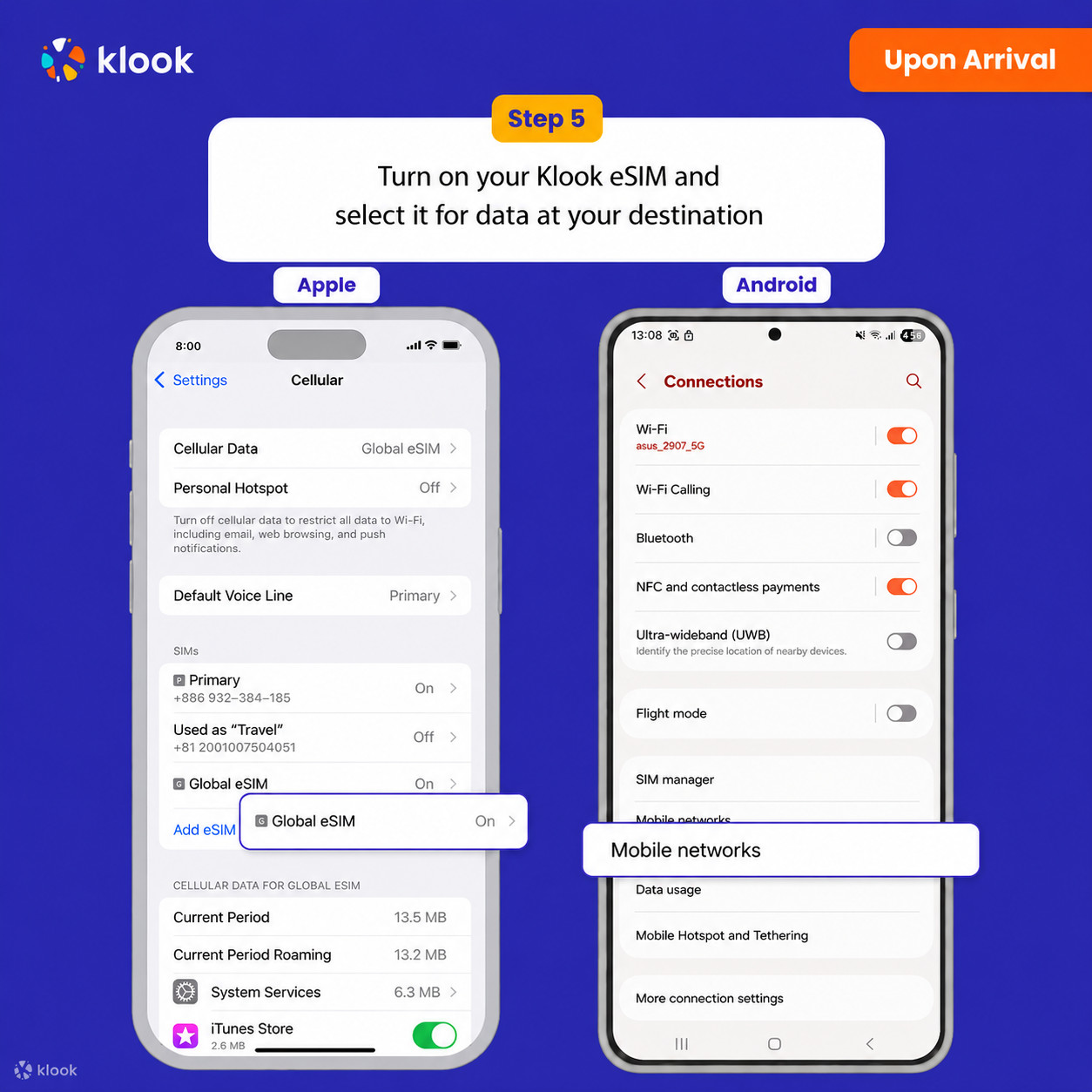
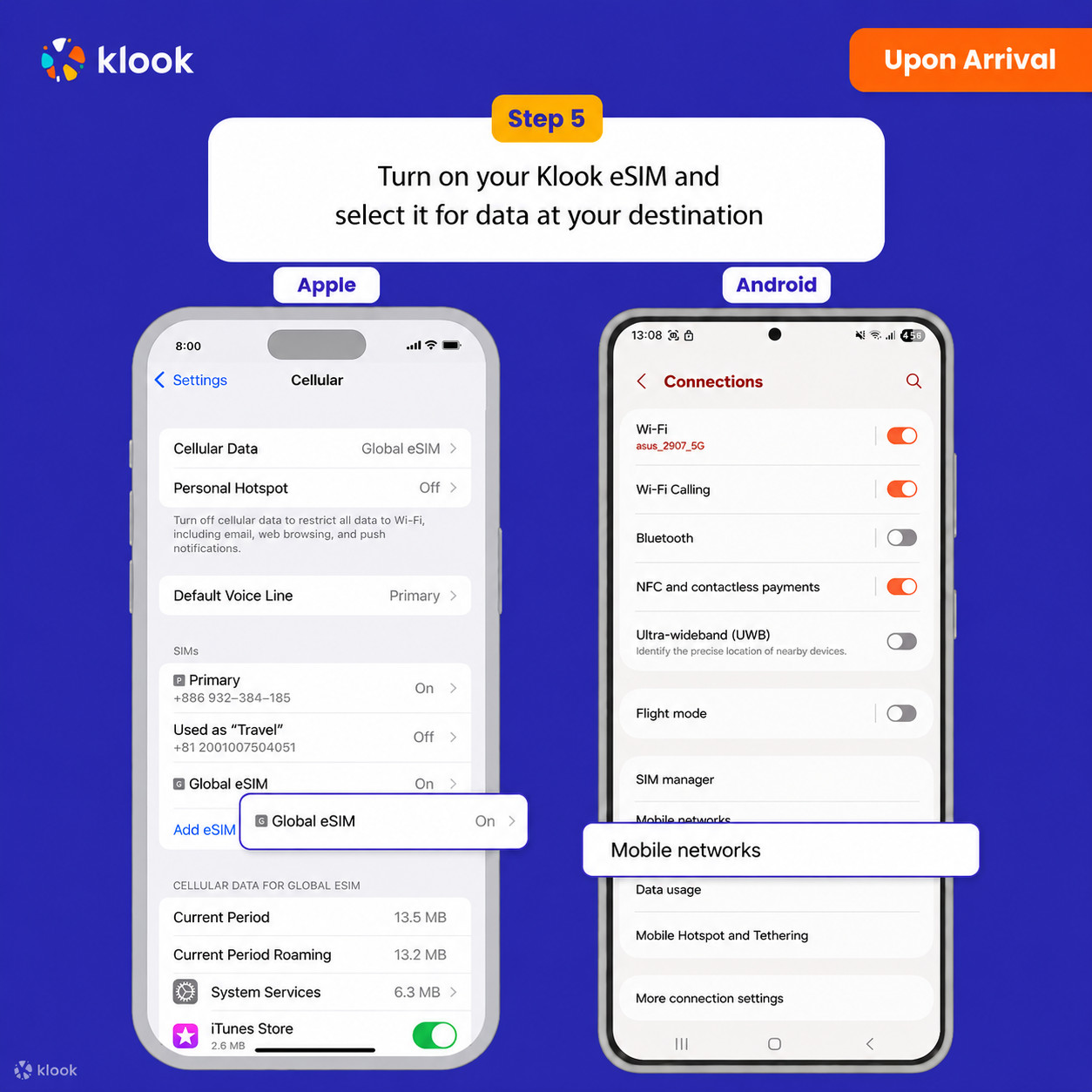
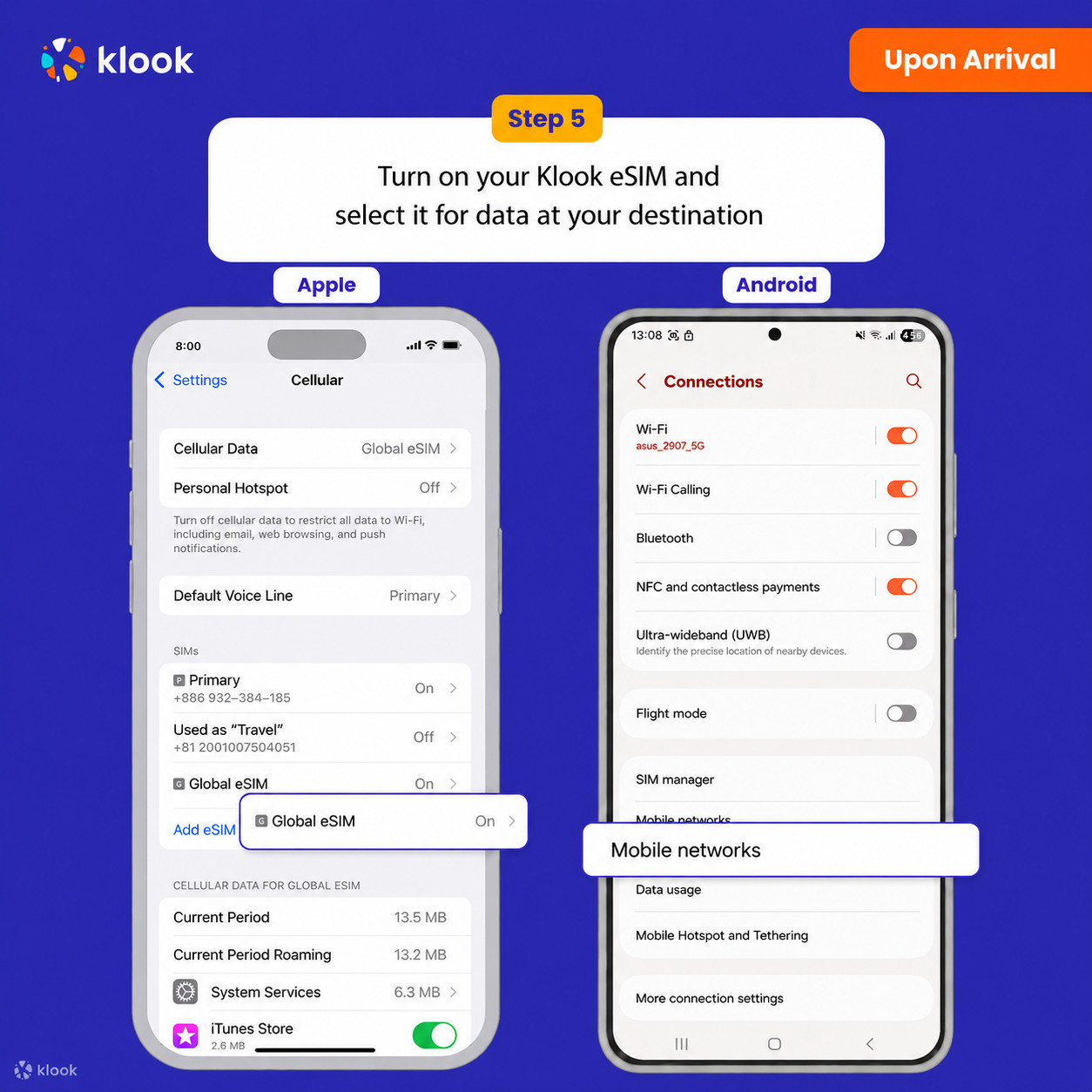
Turn on Klook eSIM and select Klook eSIM for mobile data

Turn on Klook eSIM

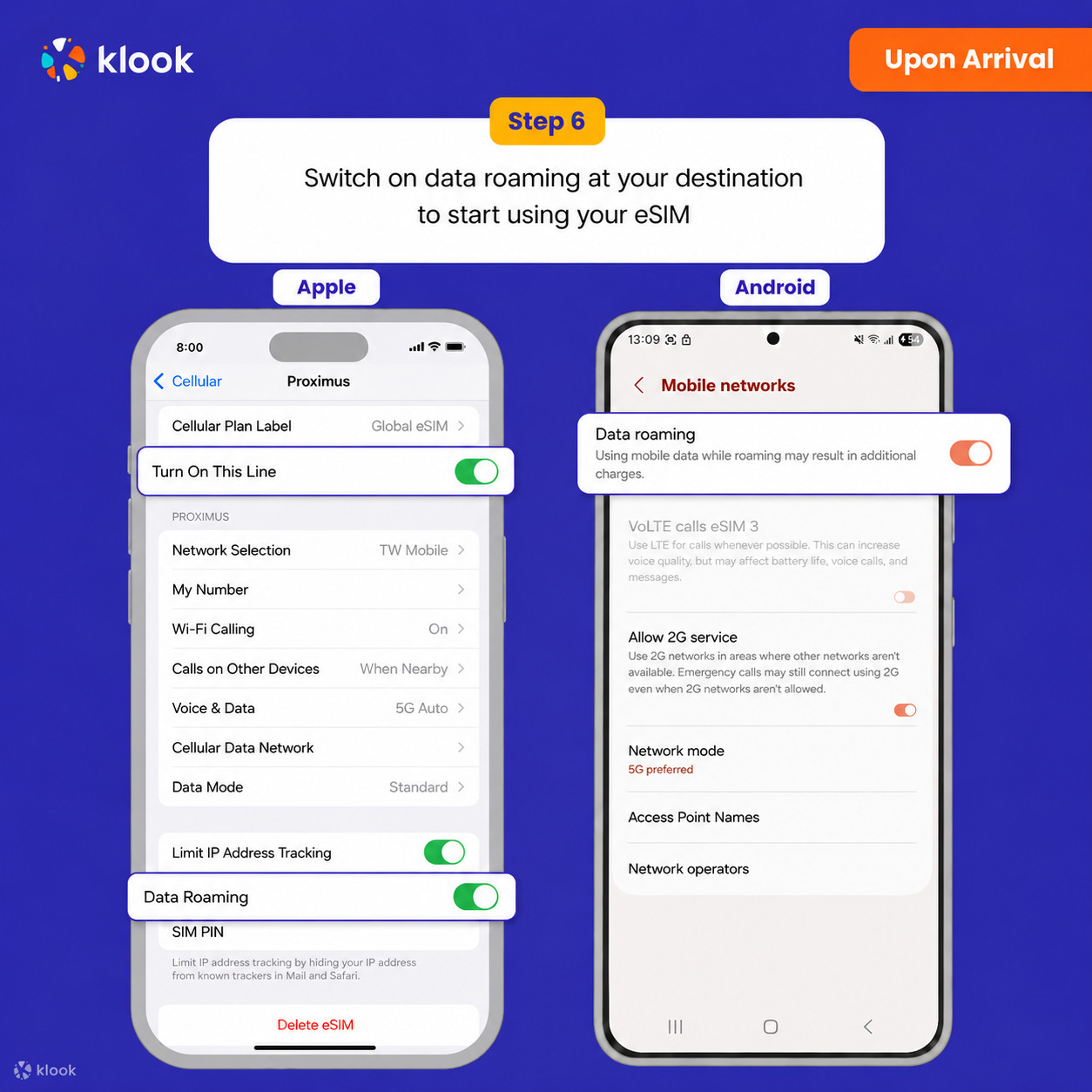
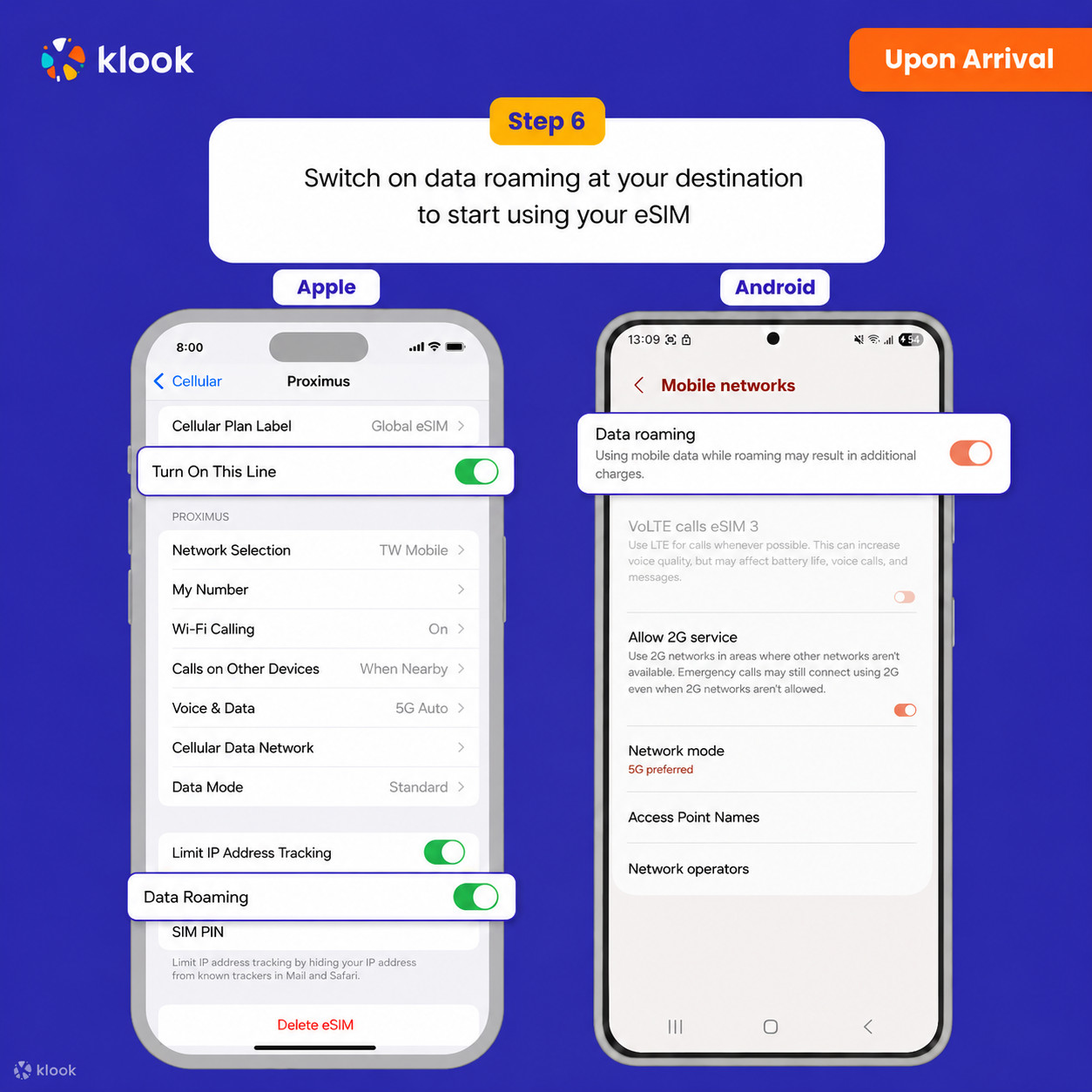
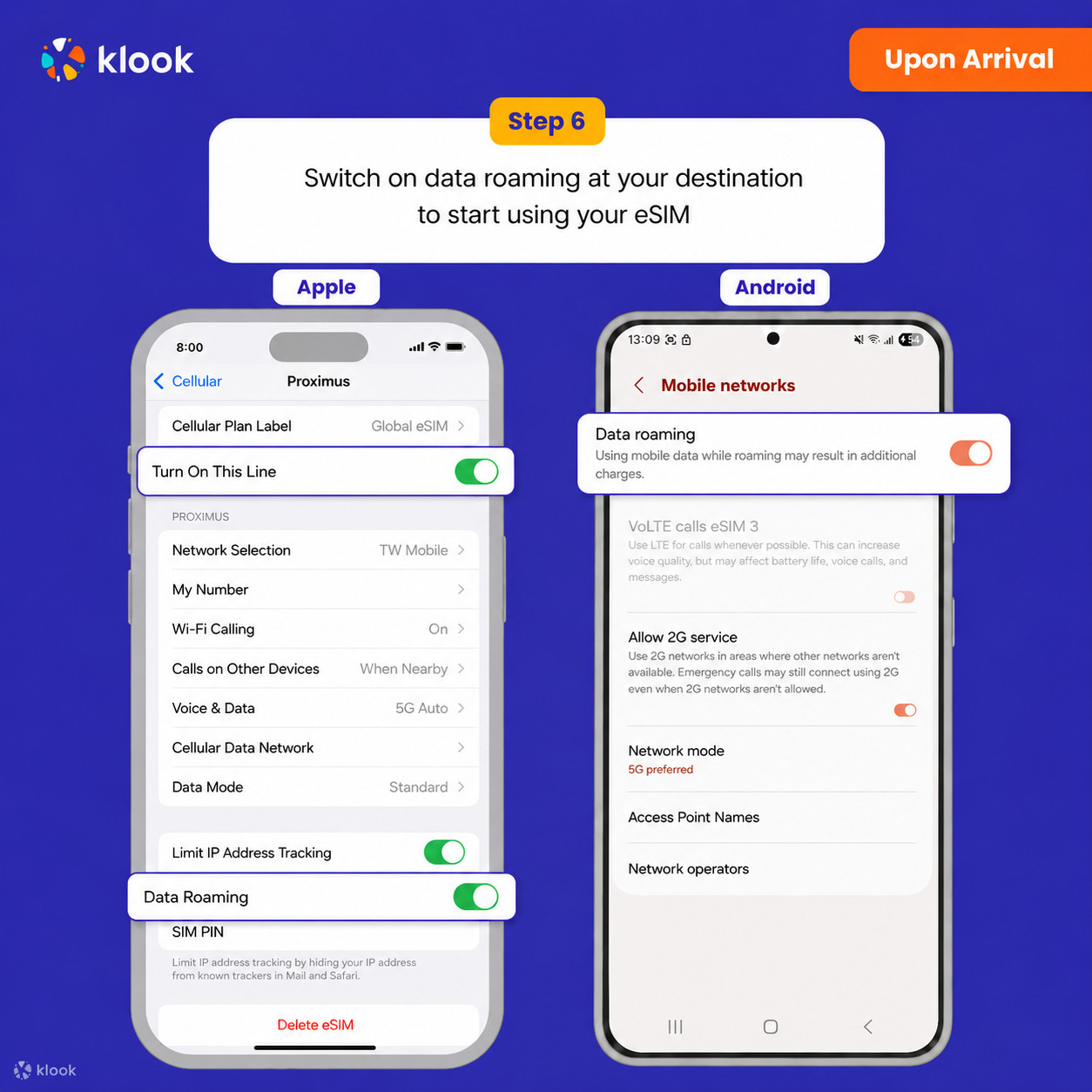
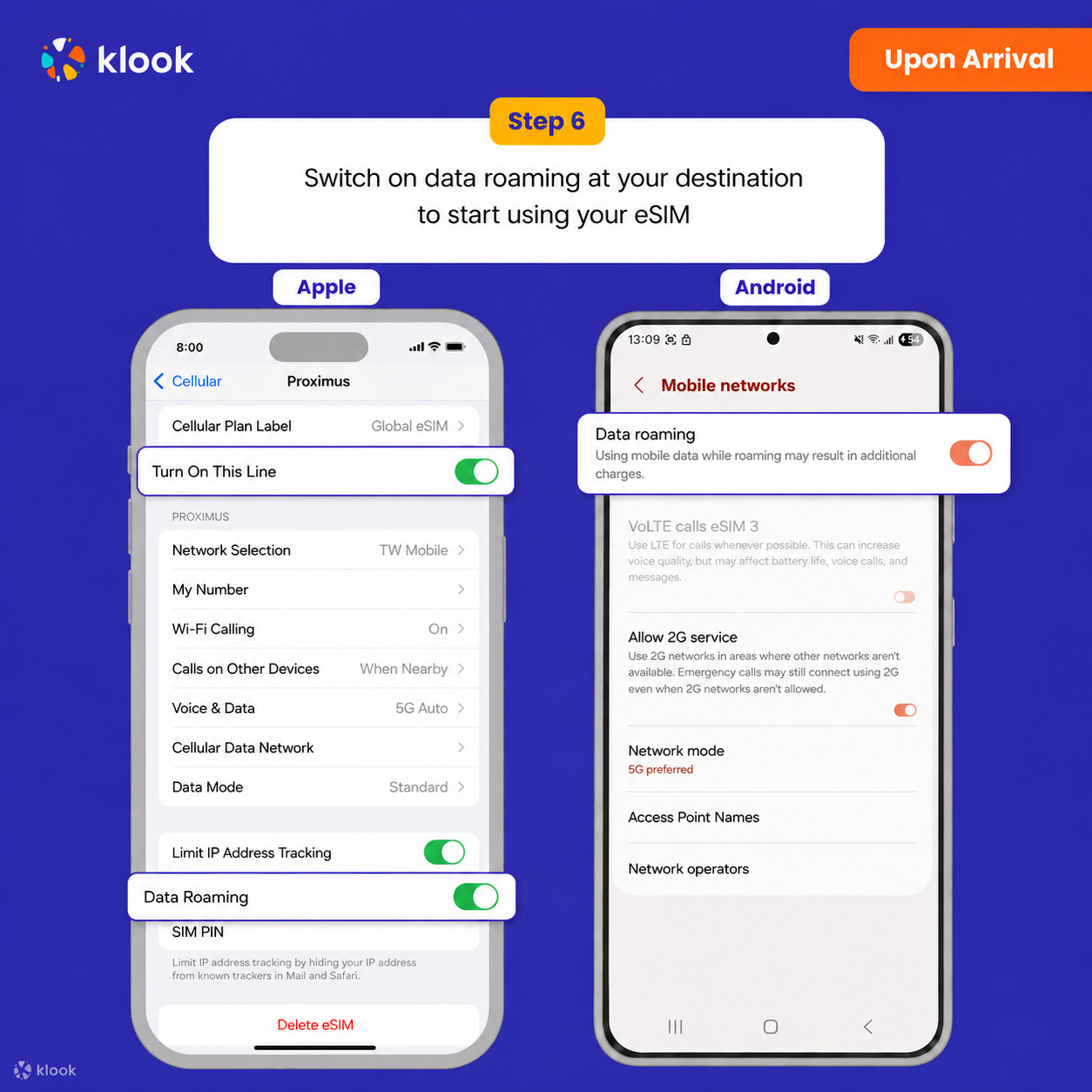
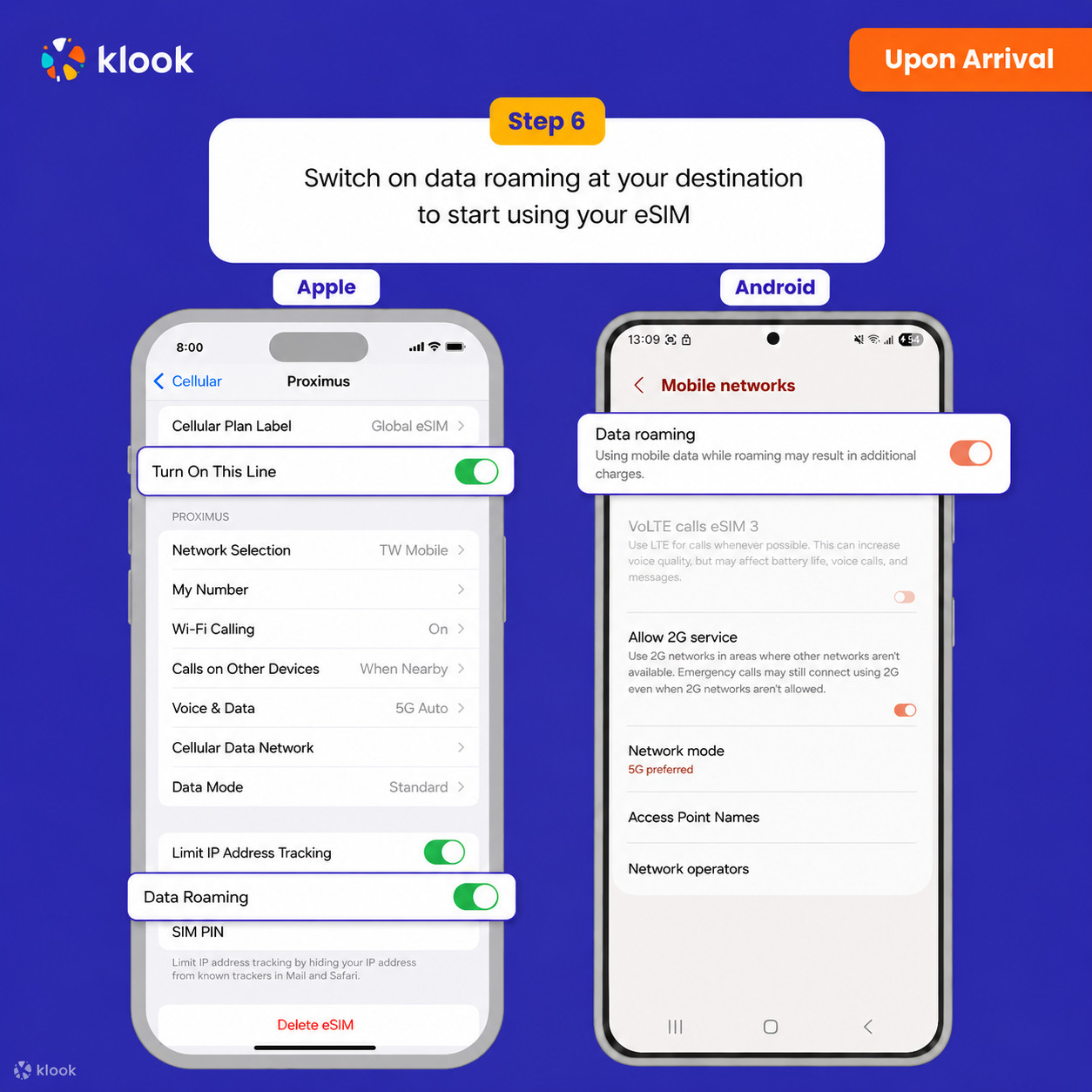
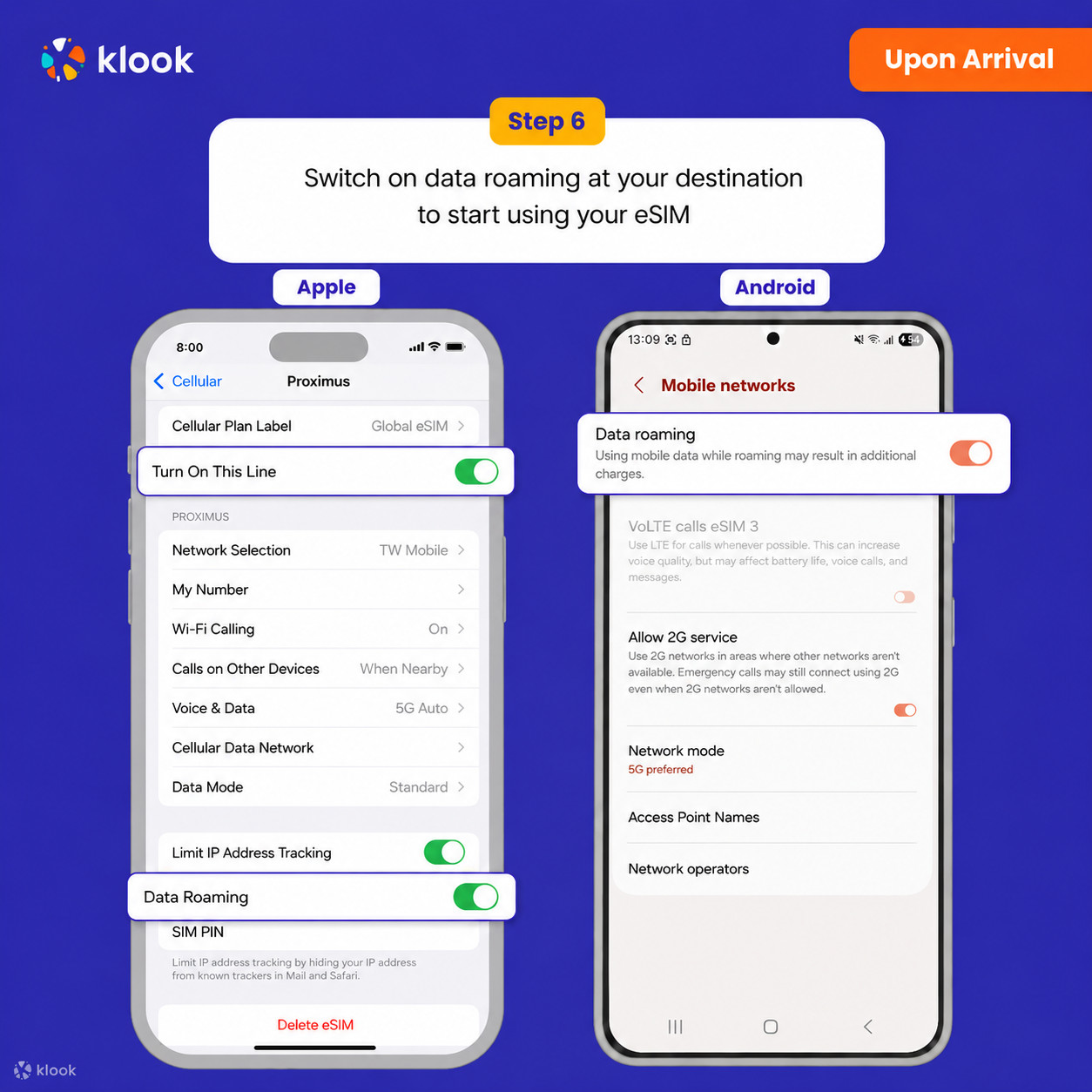
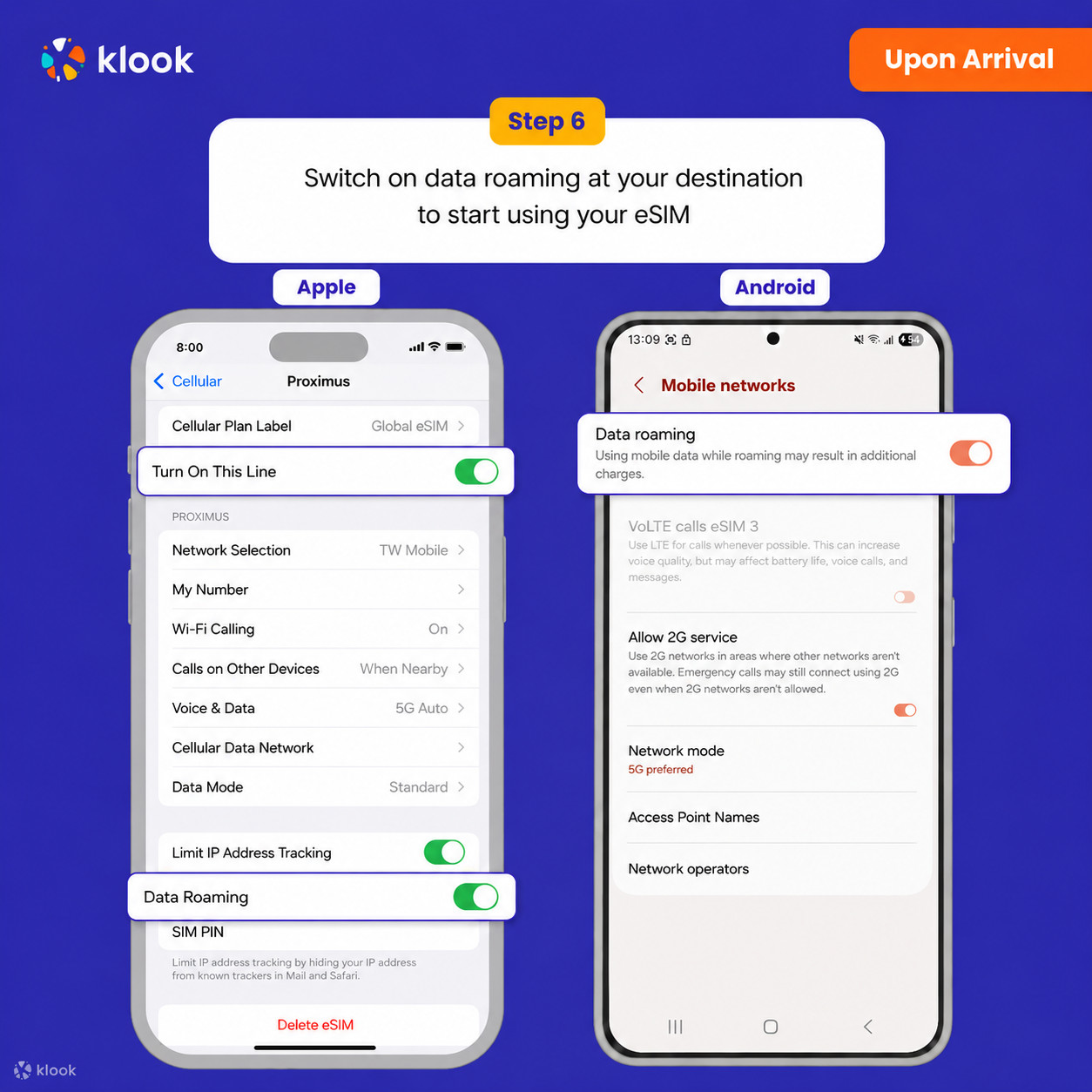
  • Turn on Data roaming

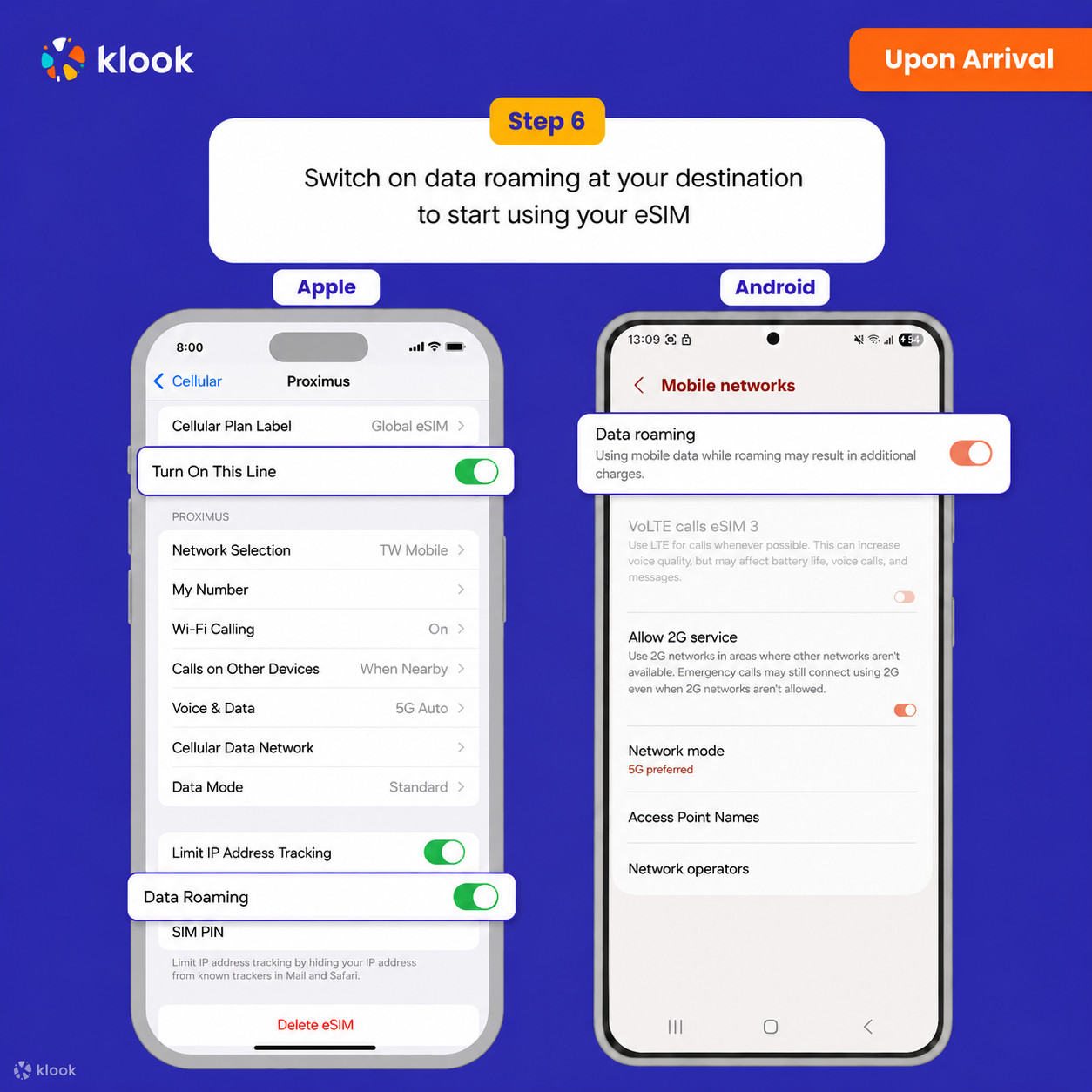
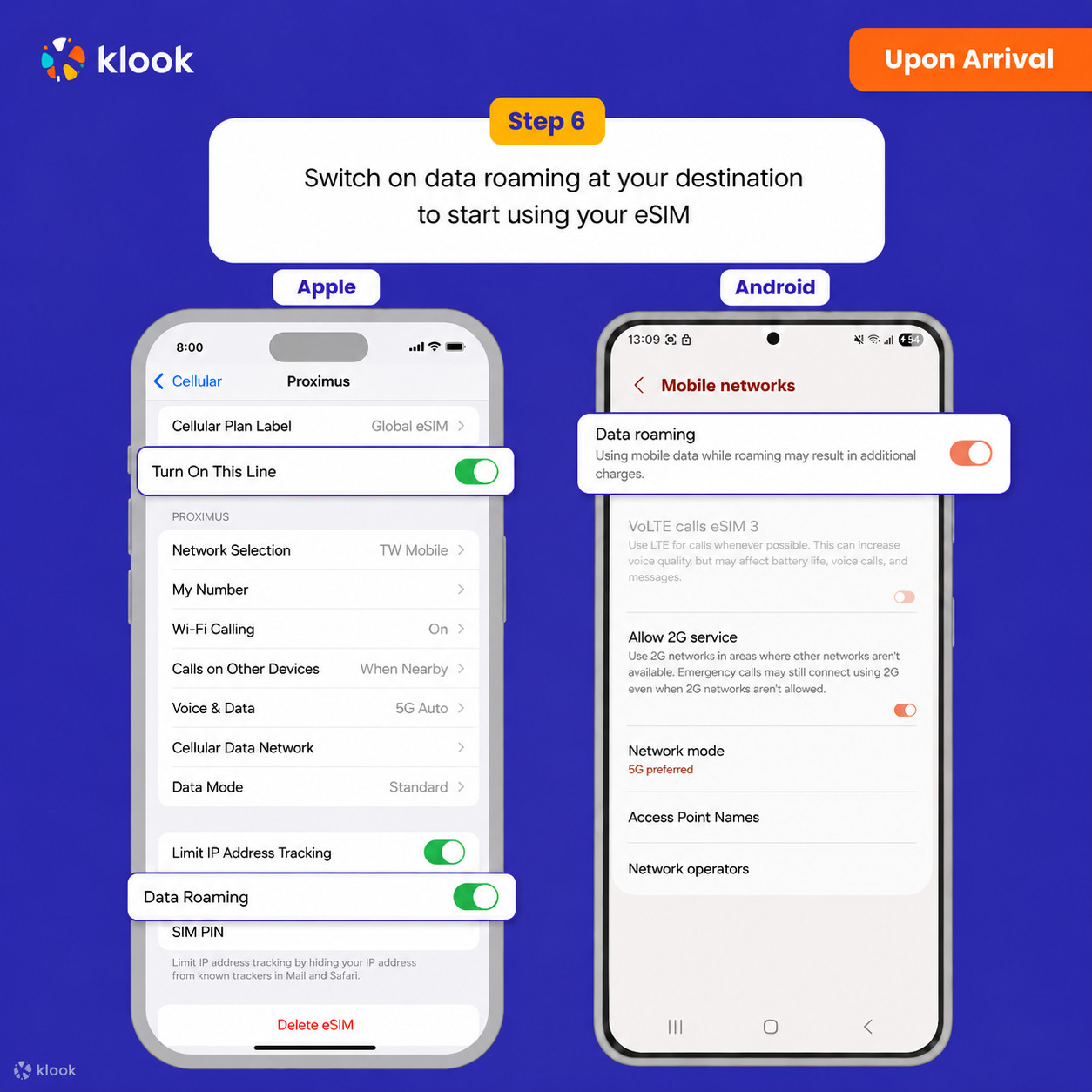
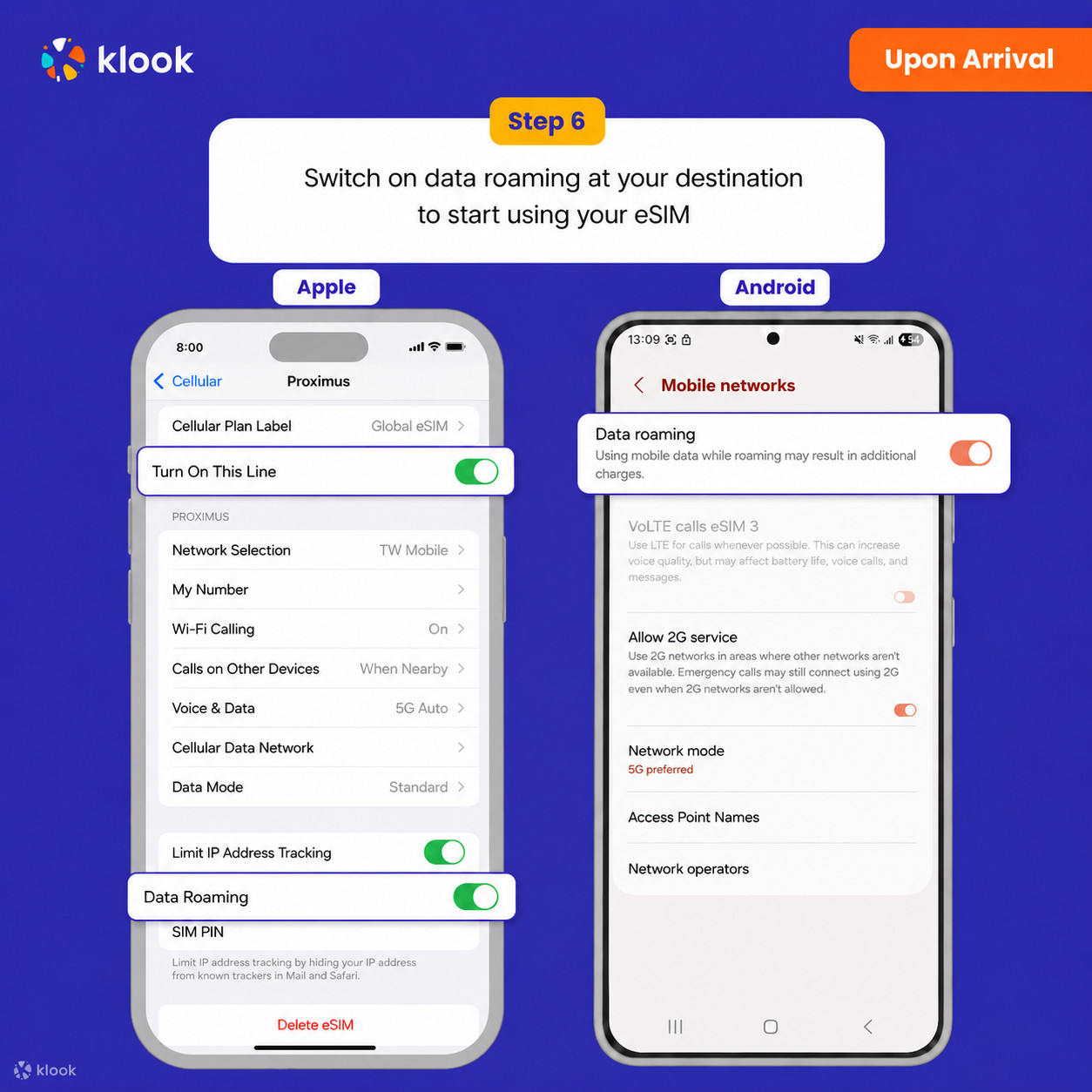
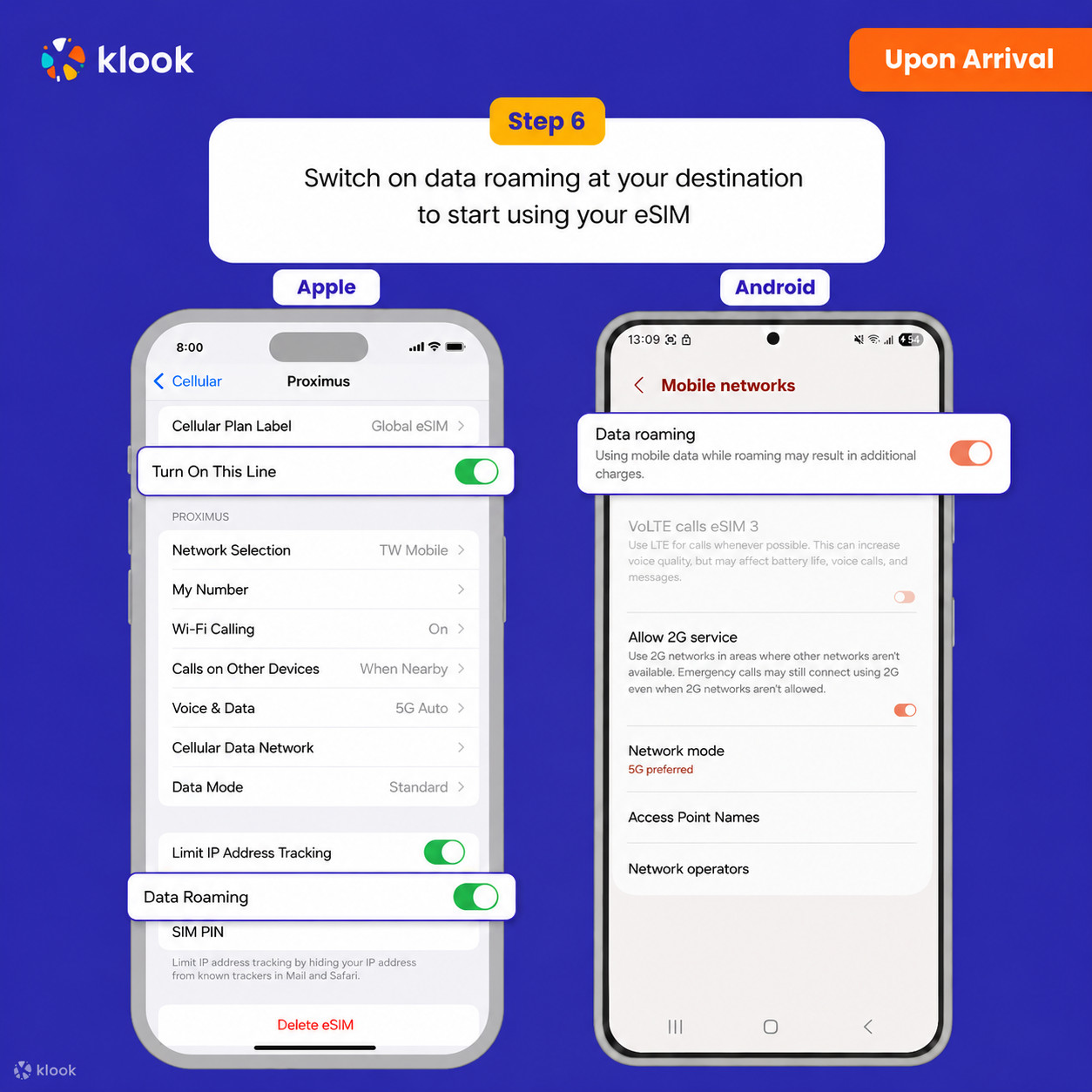
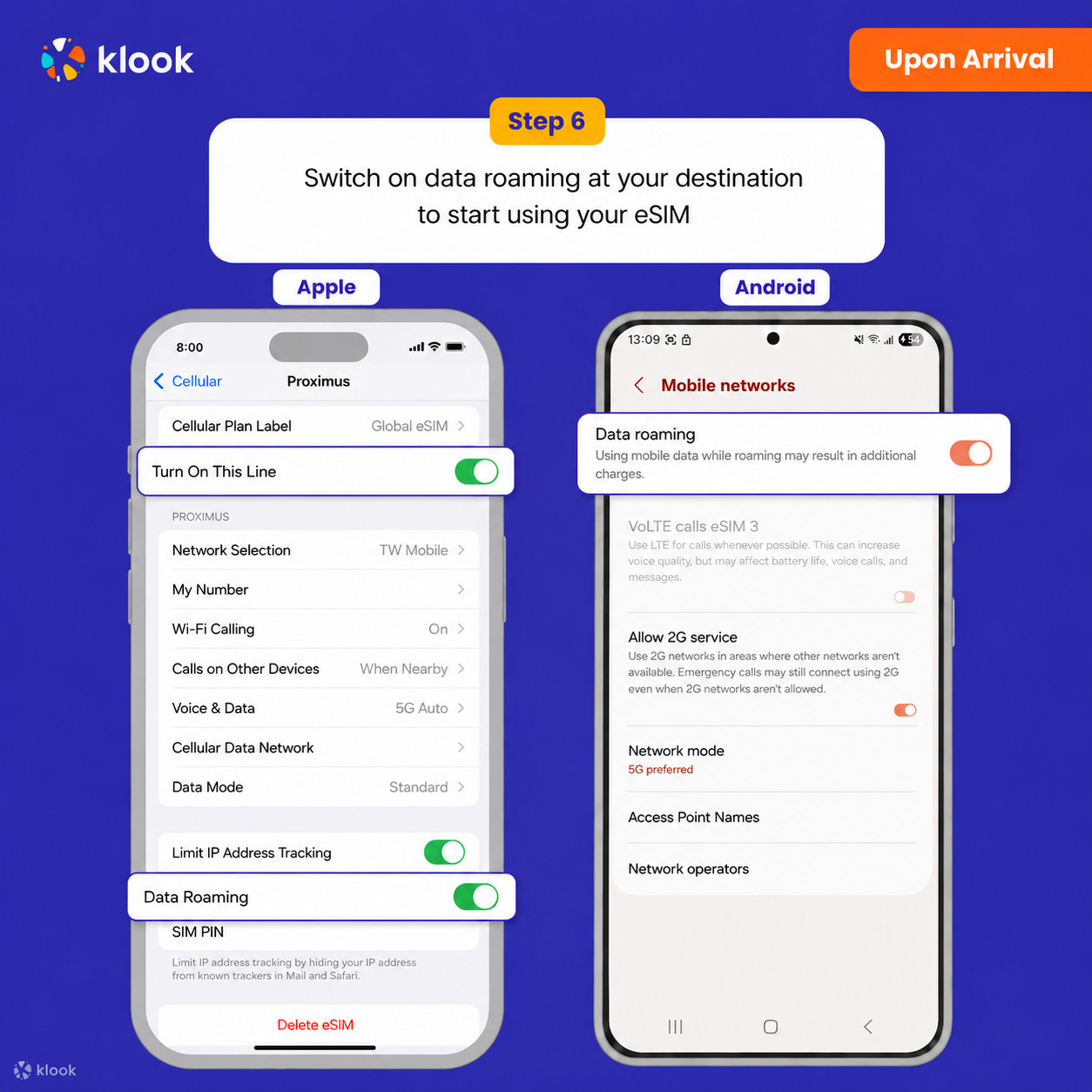
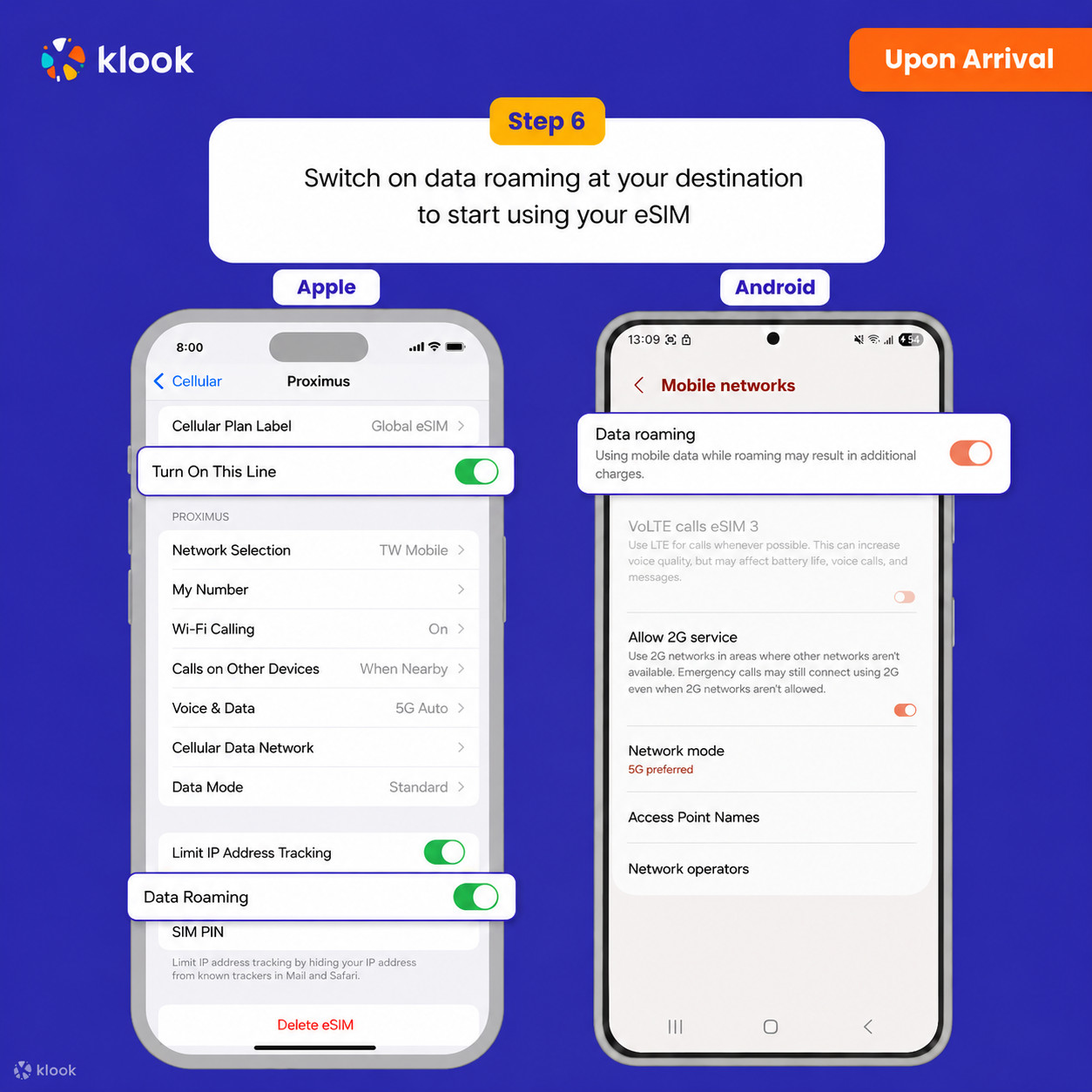
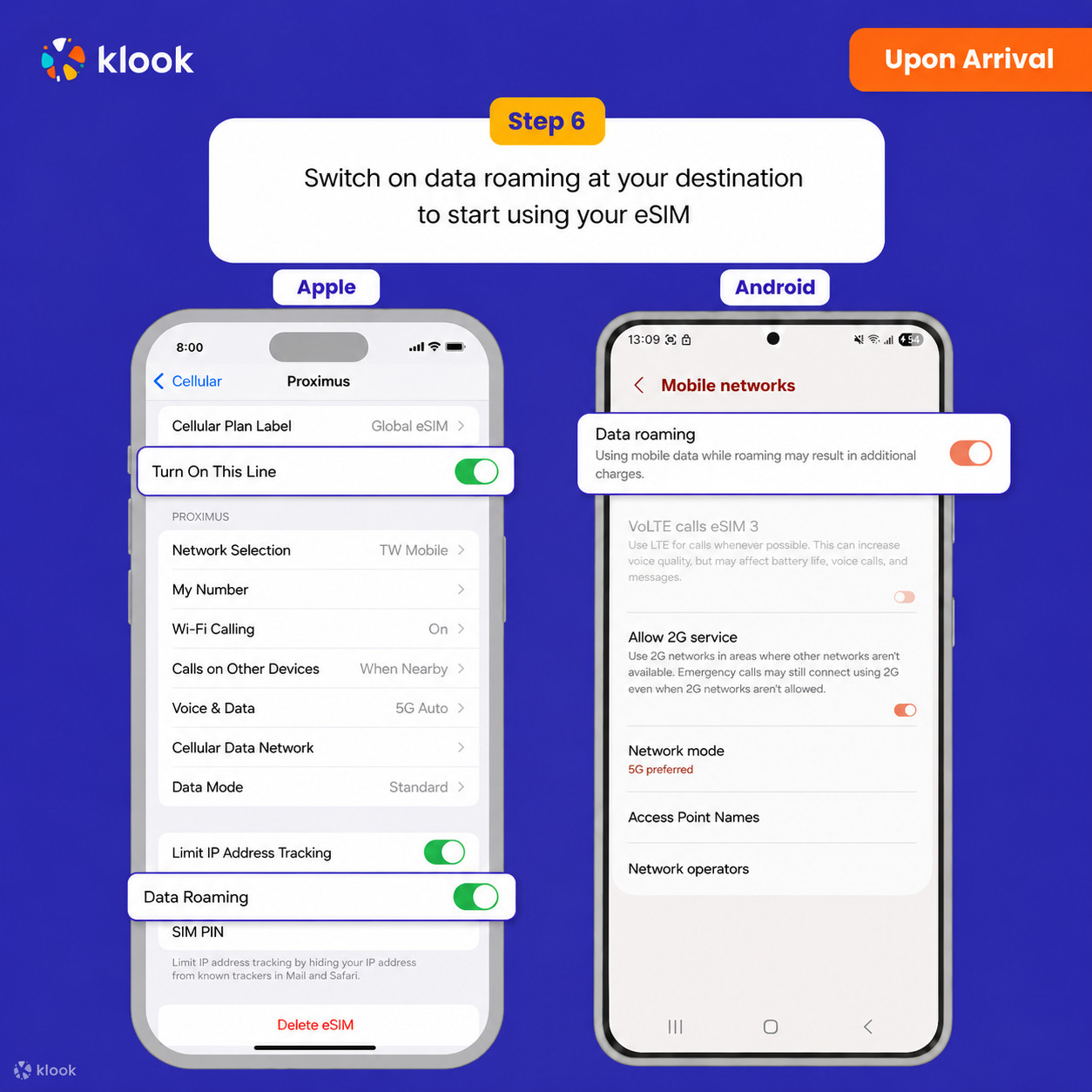
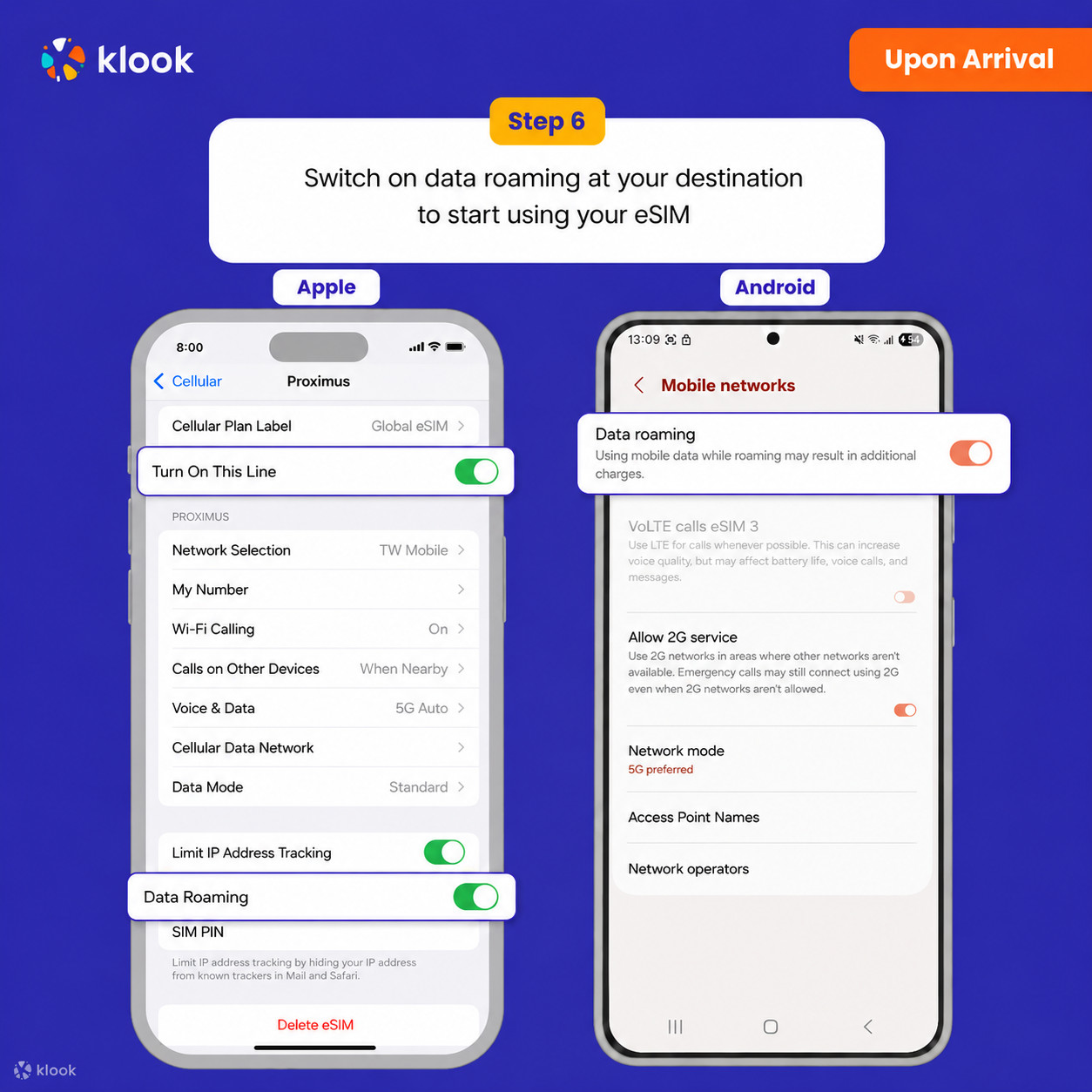
Switch on data roaming at your destination to start using your eSIM

Turn on Data roaming

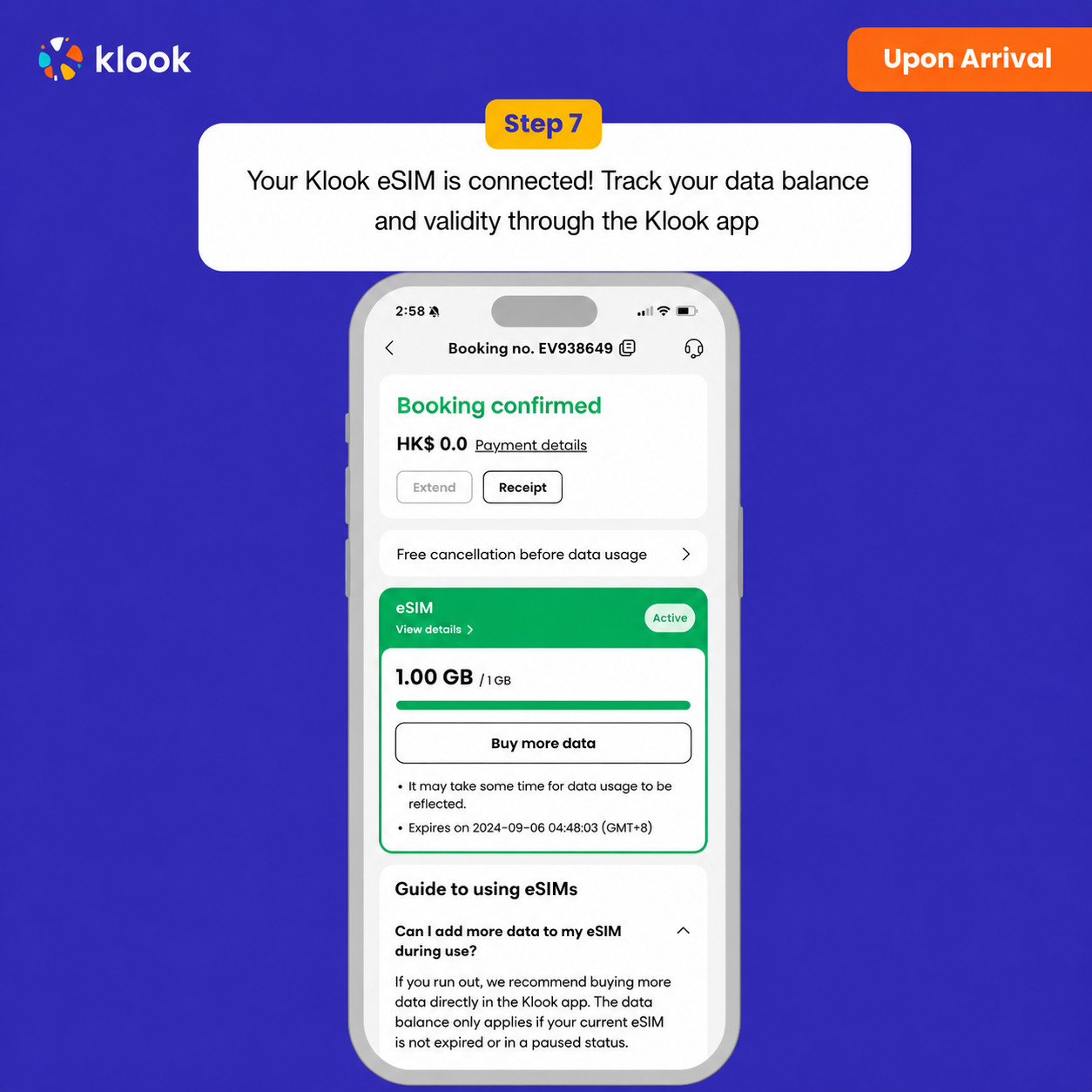
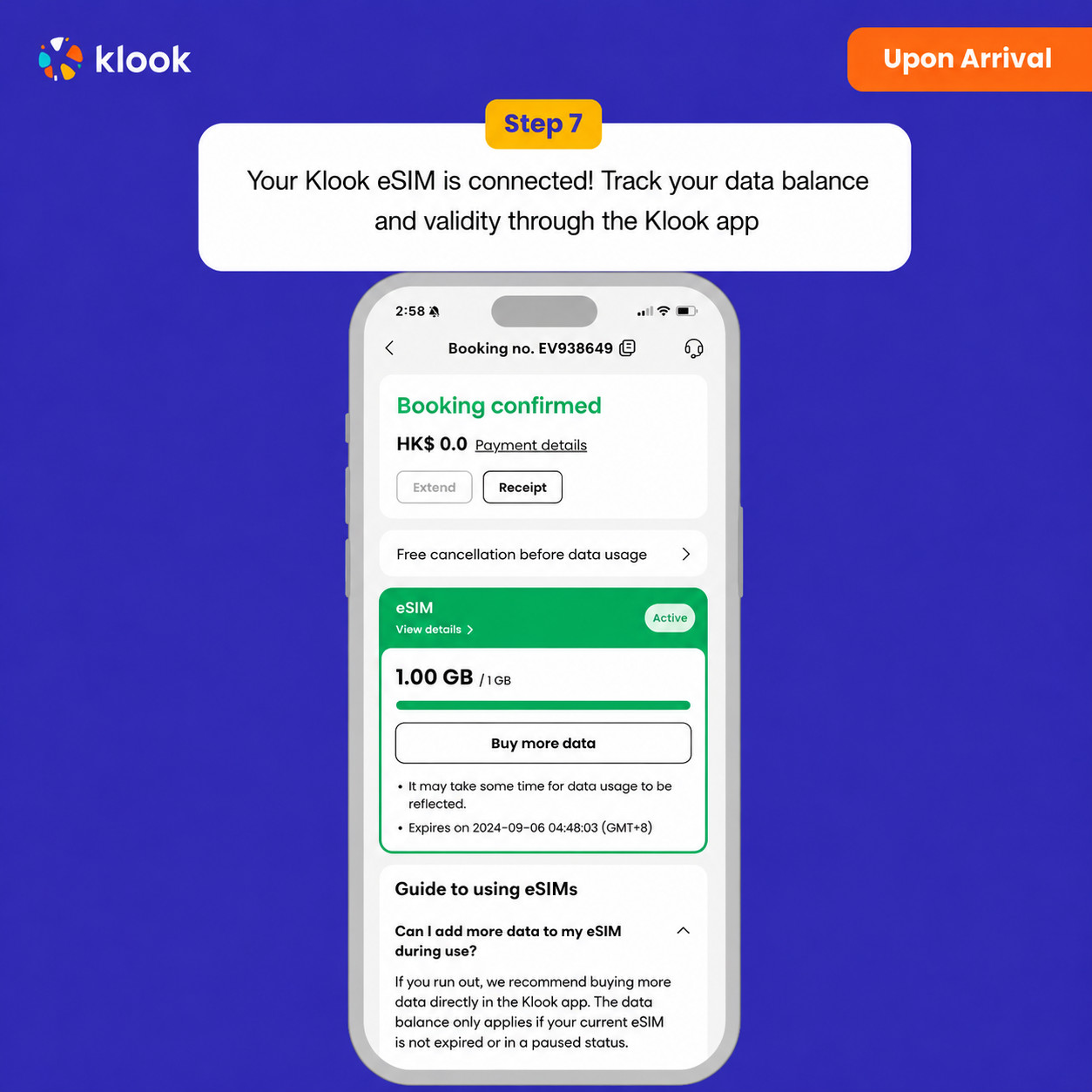
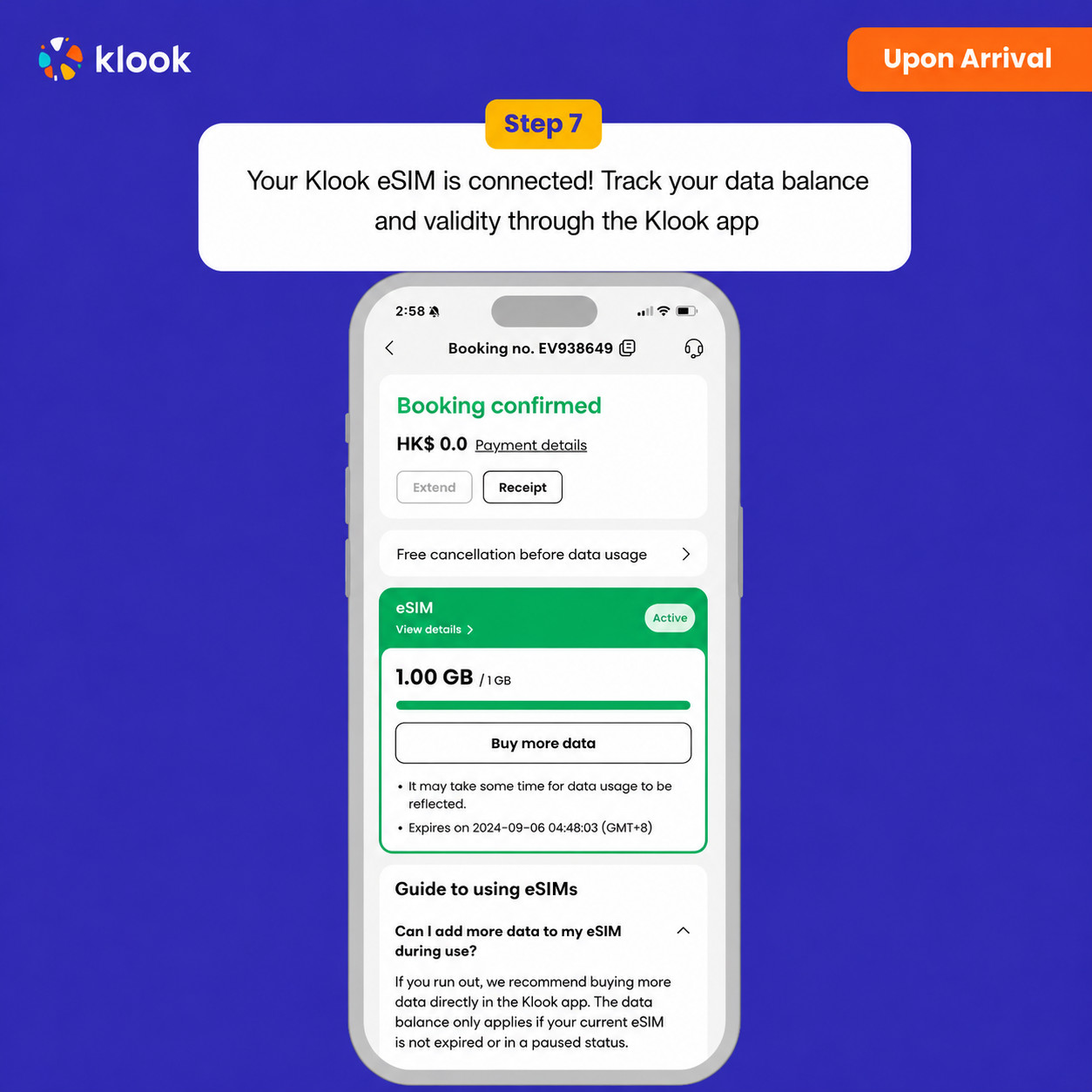
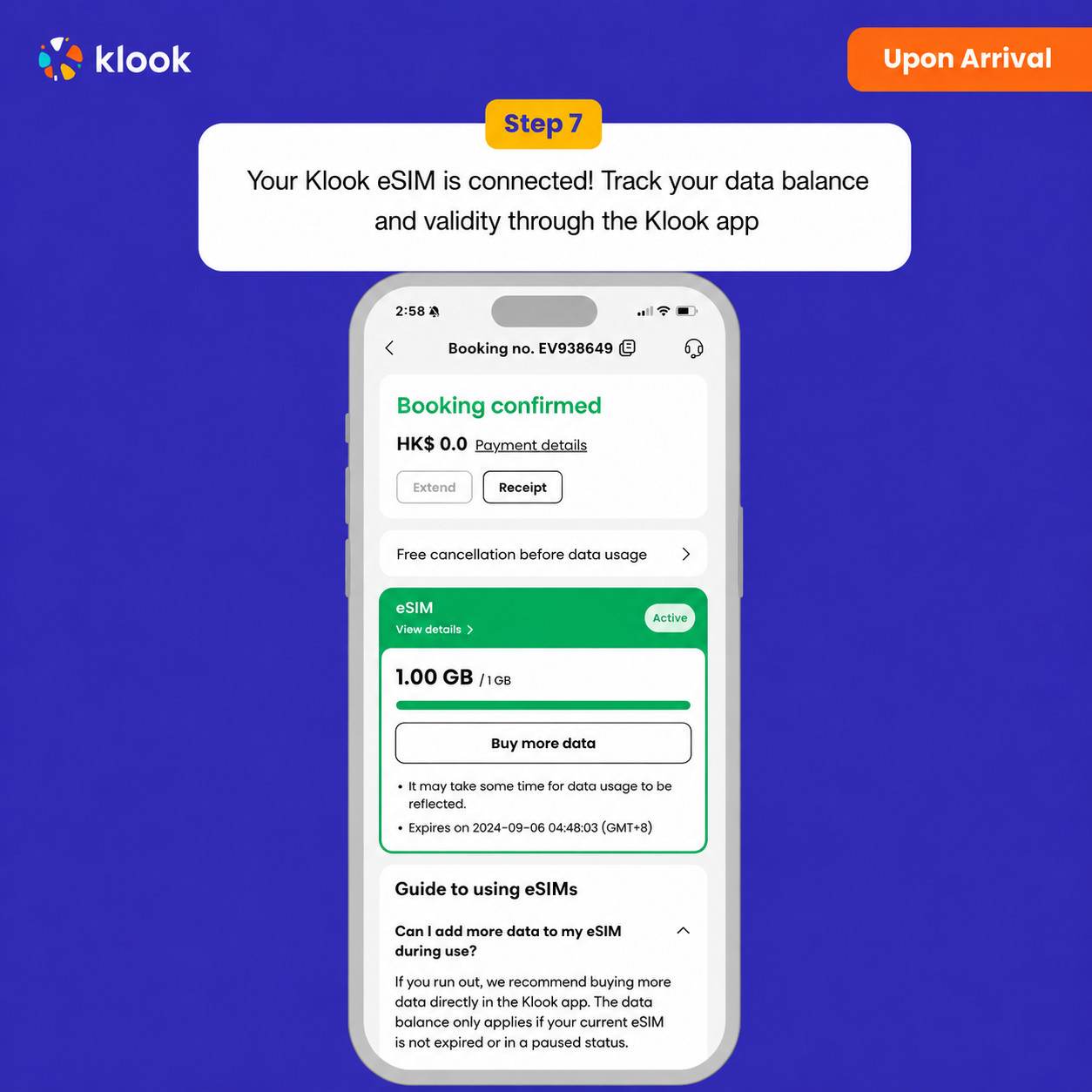
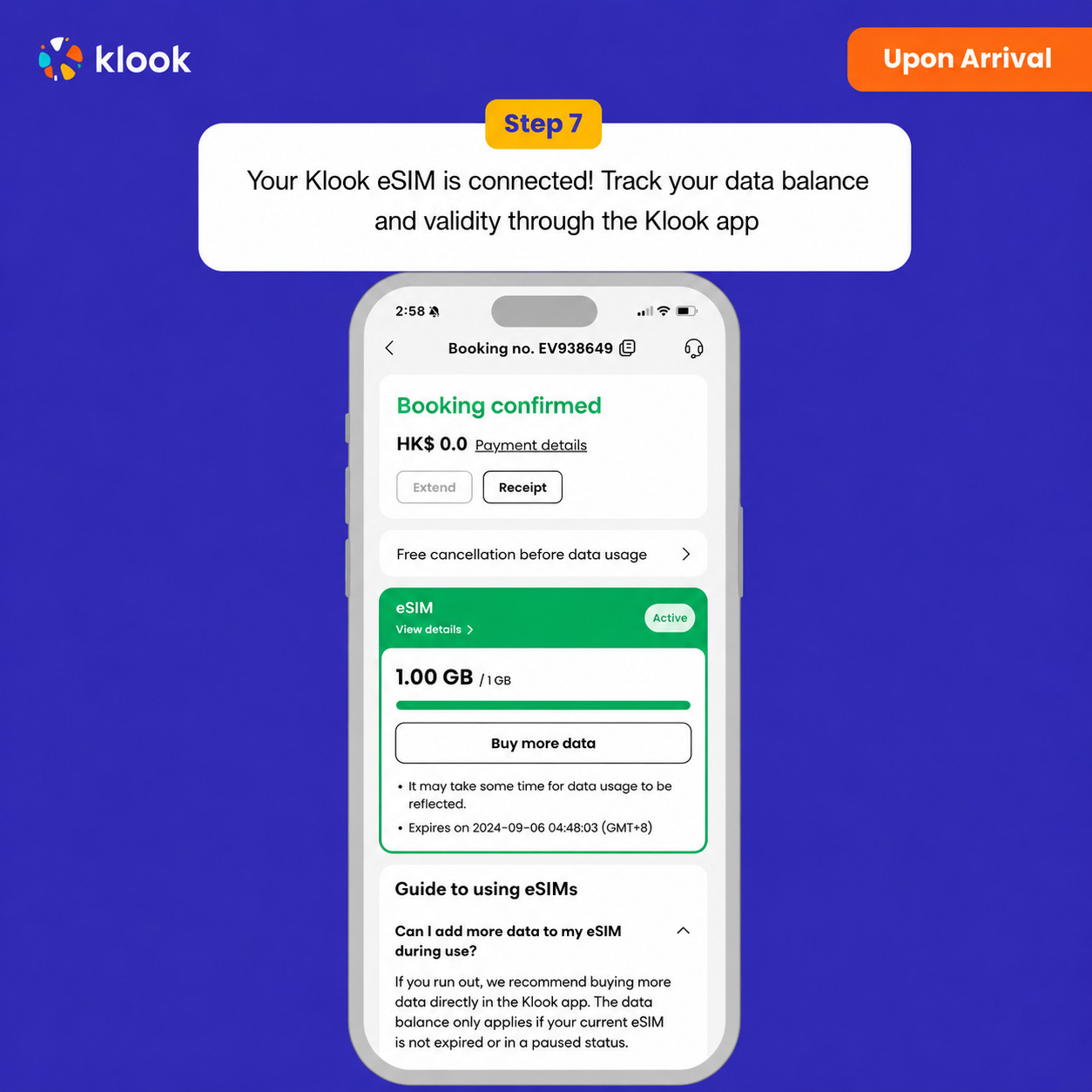
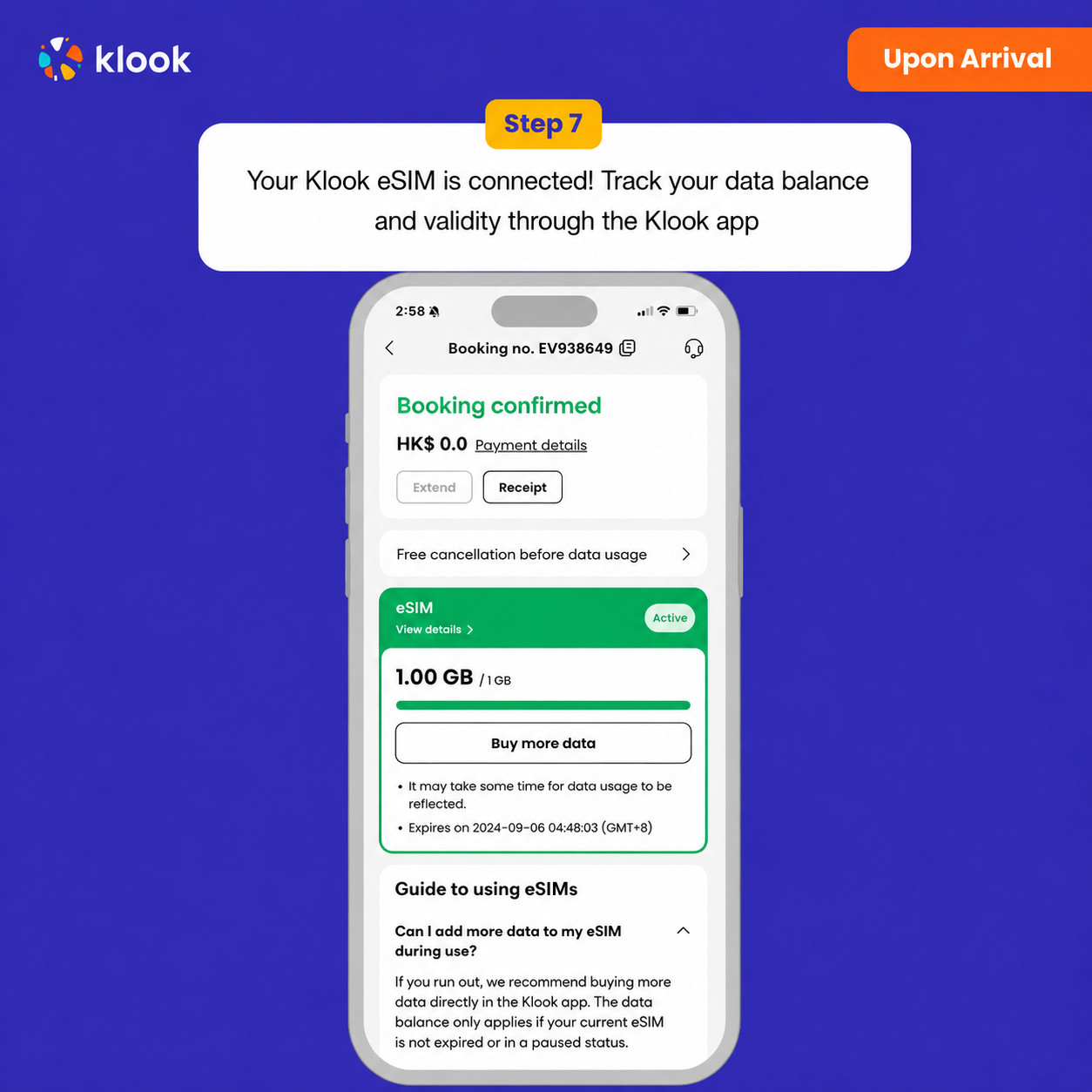
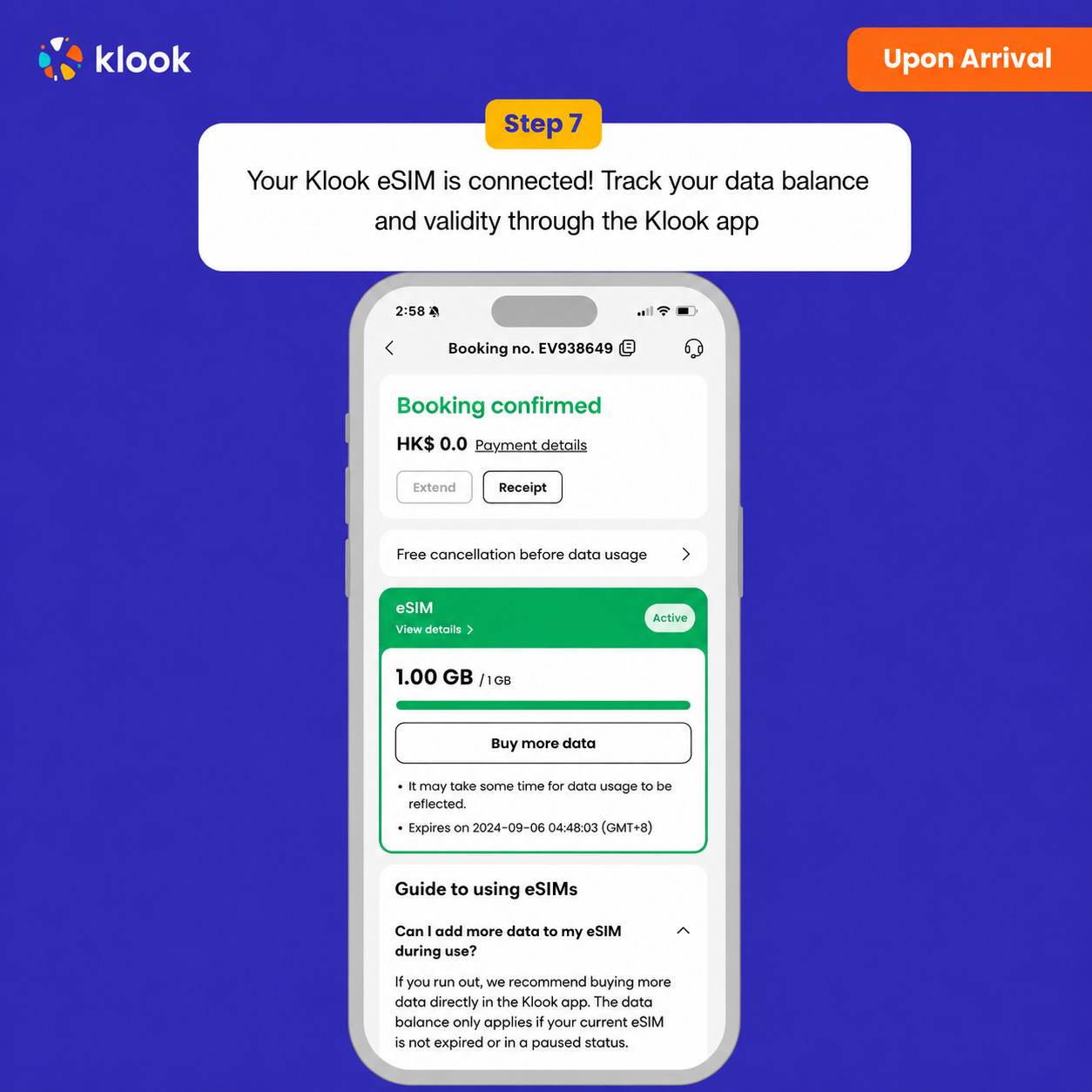
  • Klook eSIM connected

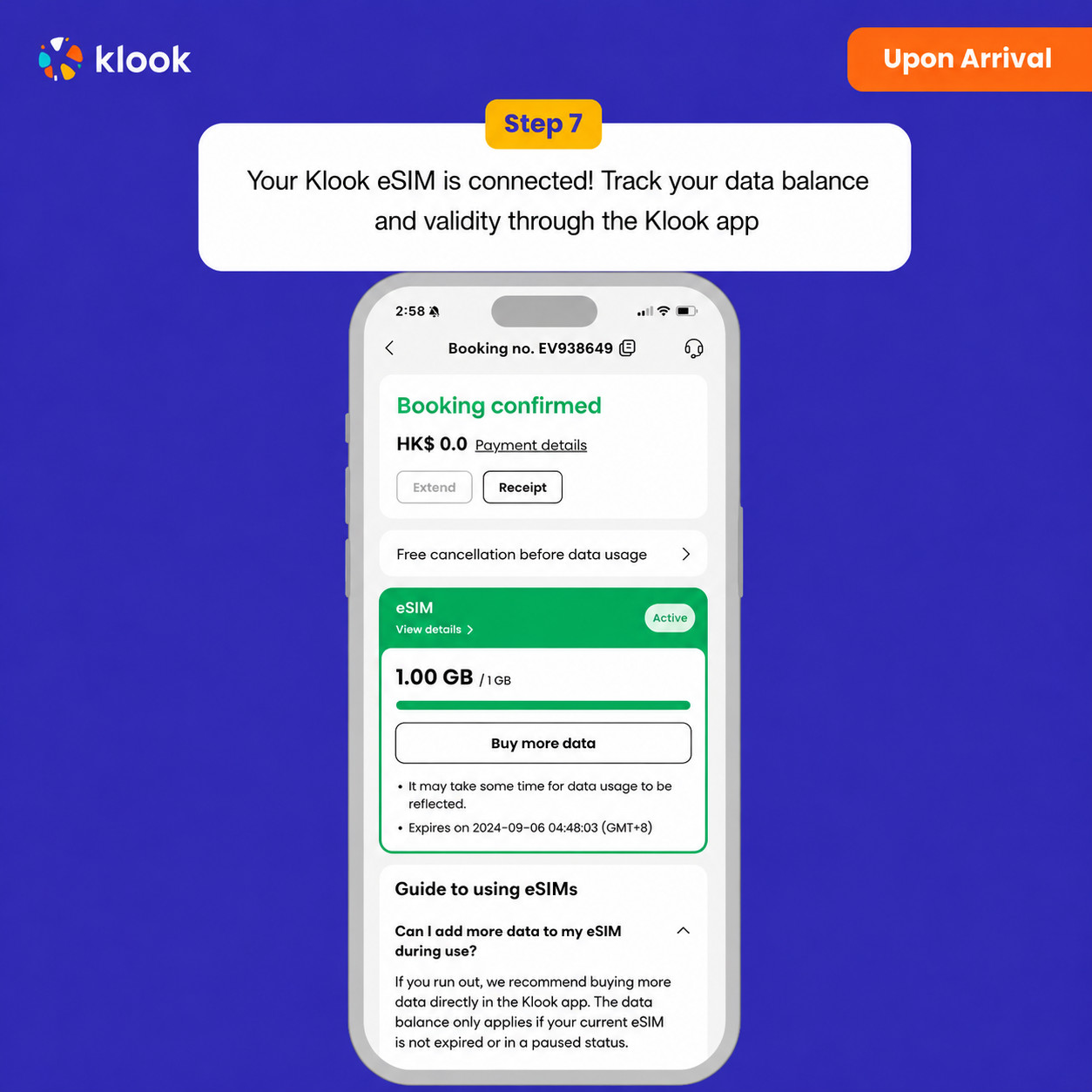
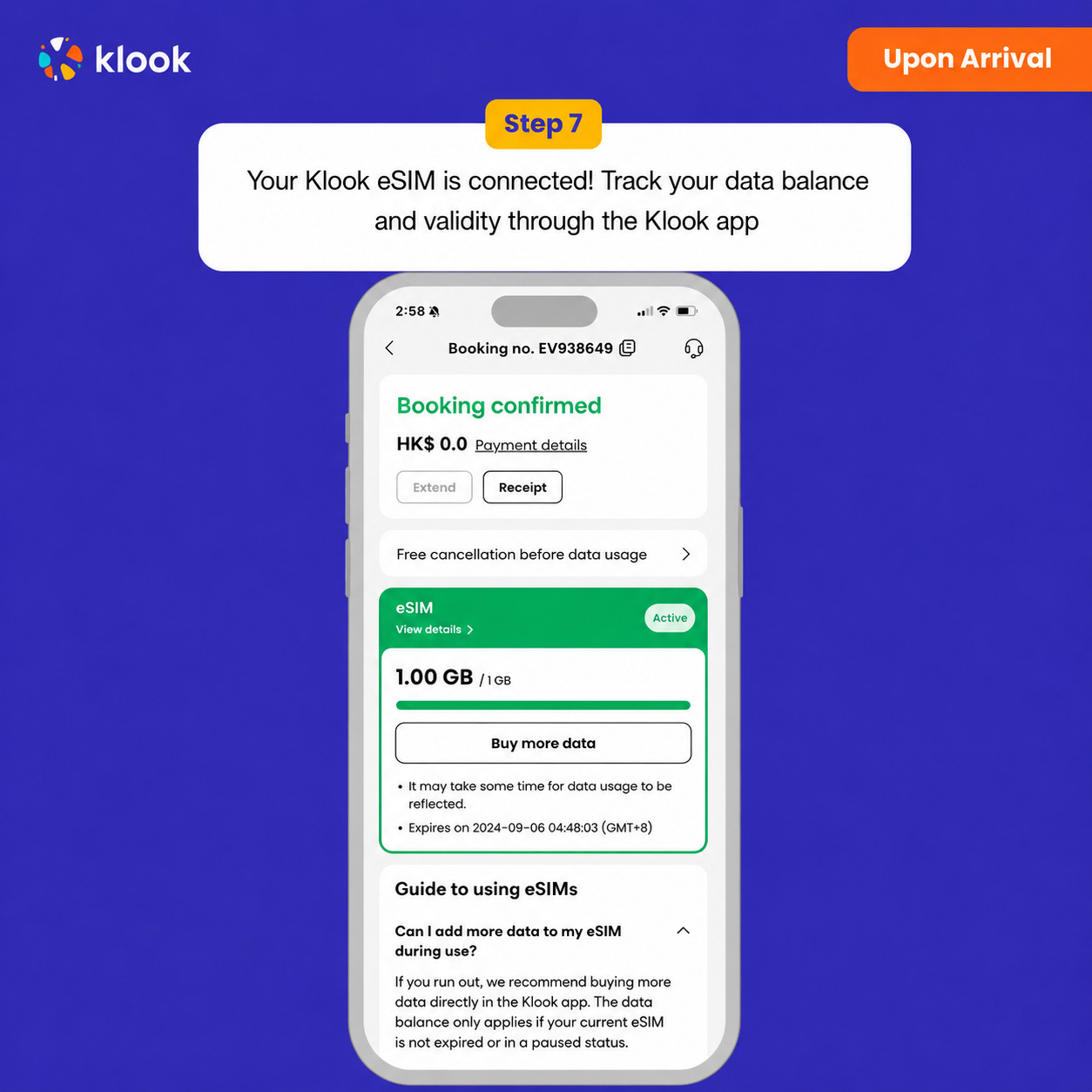
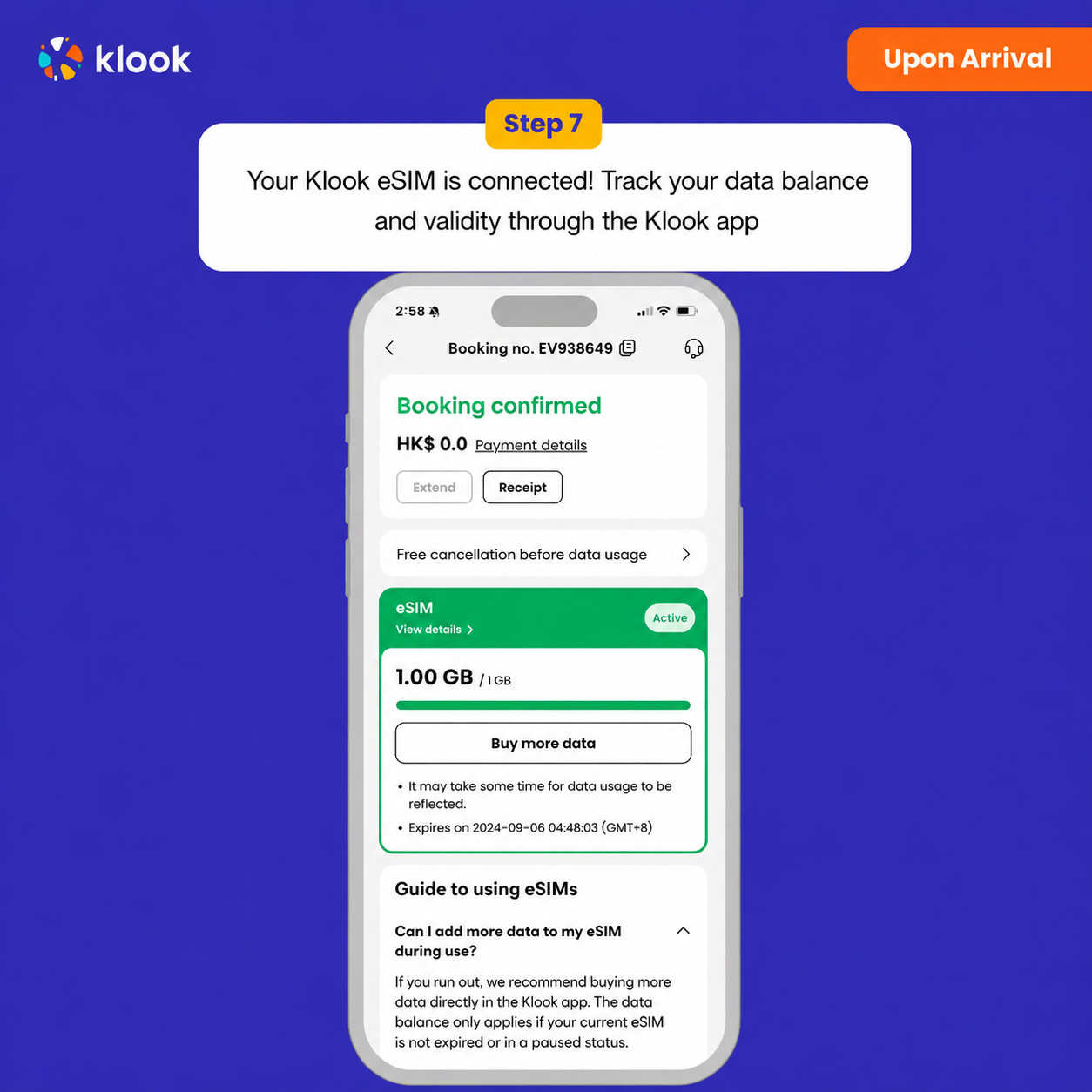
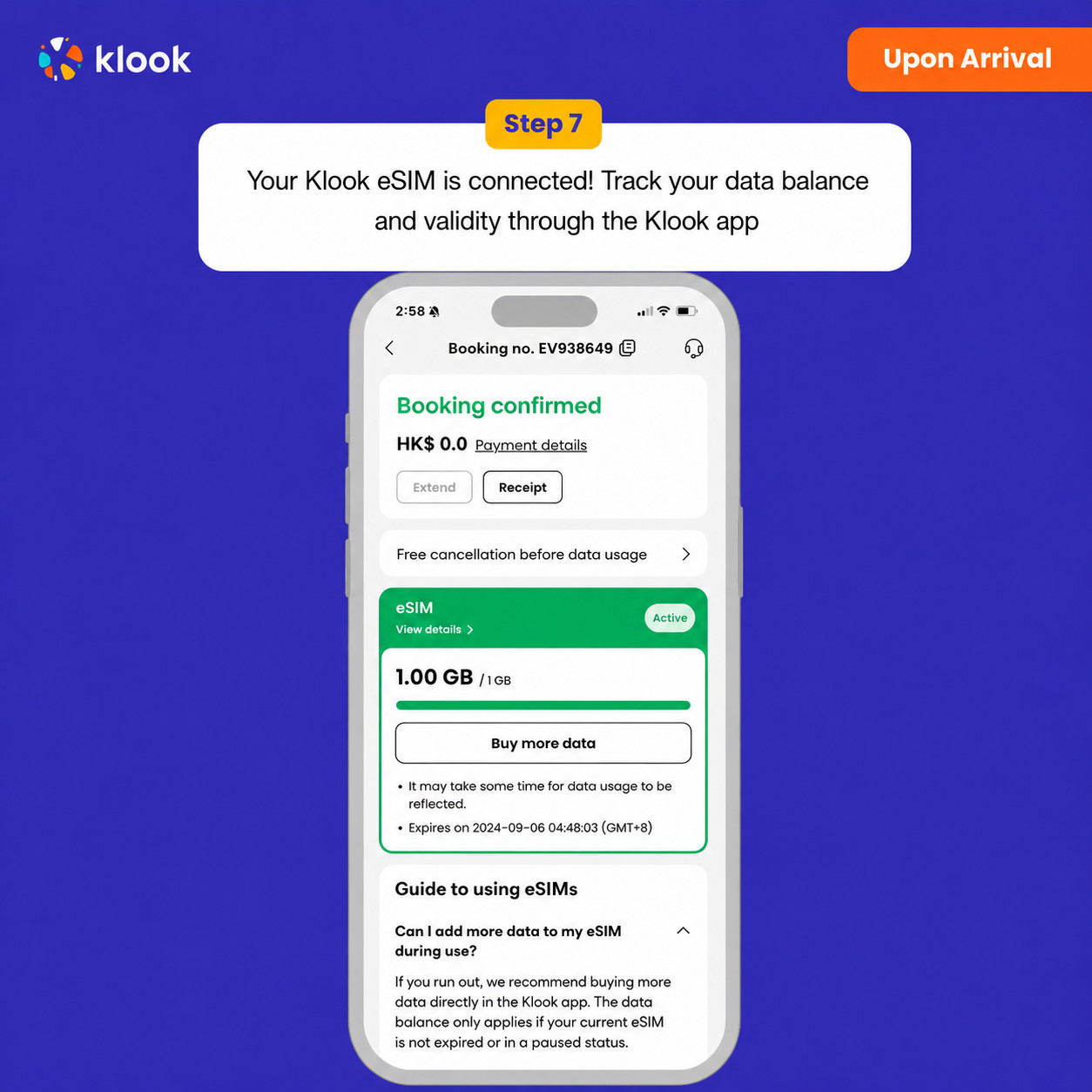
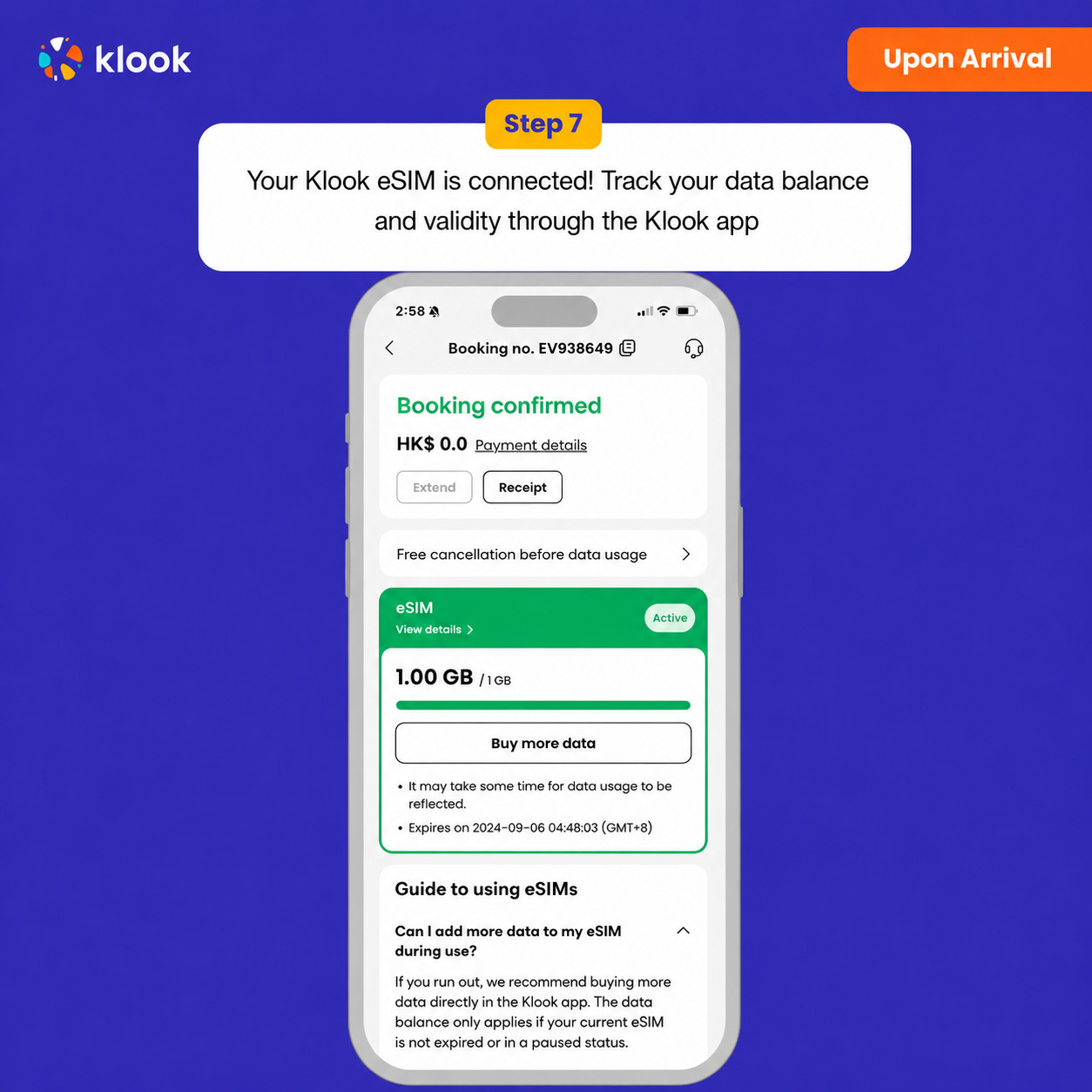
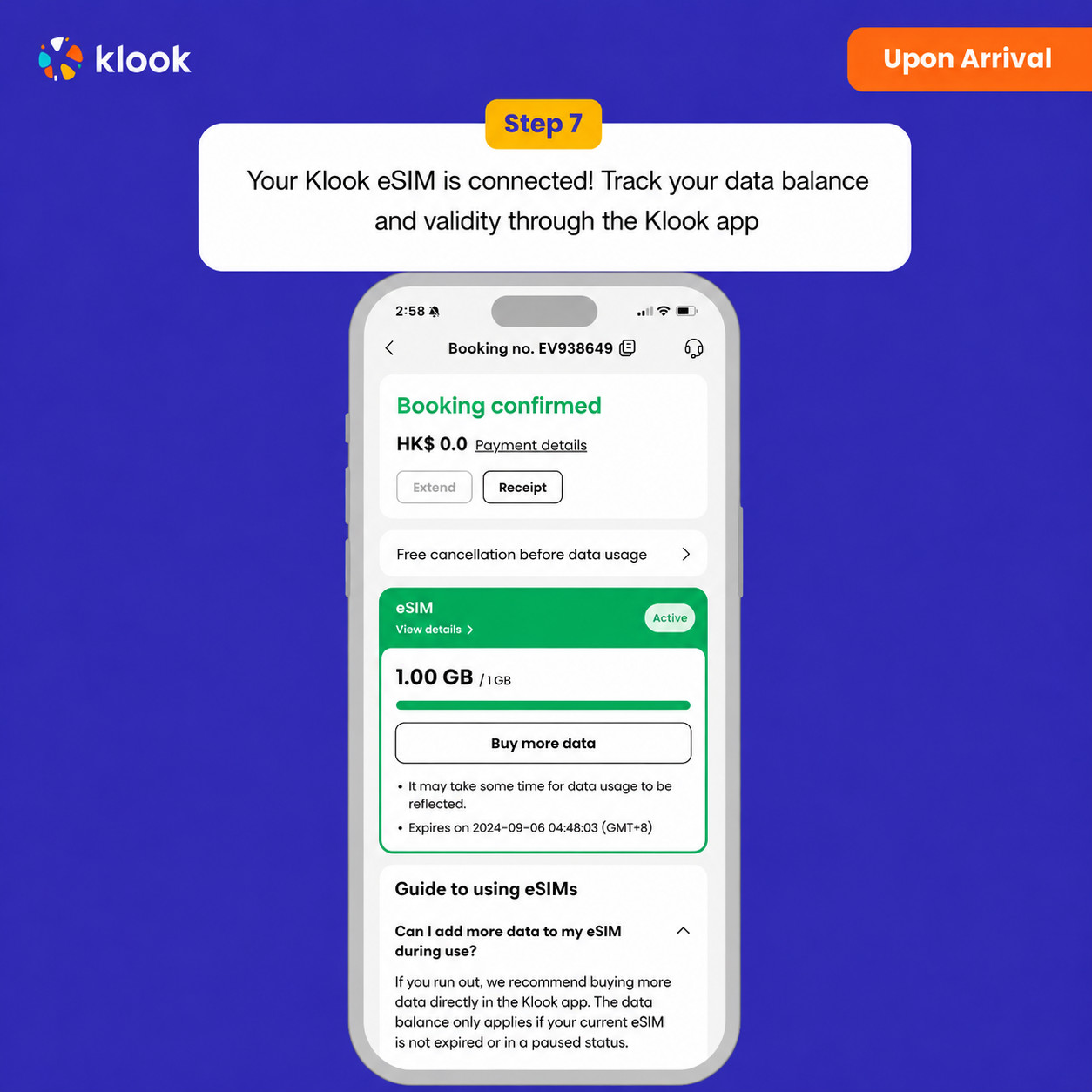
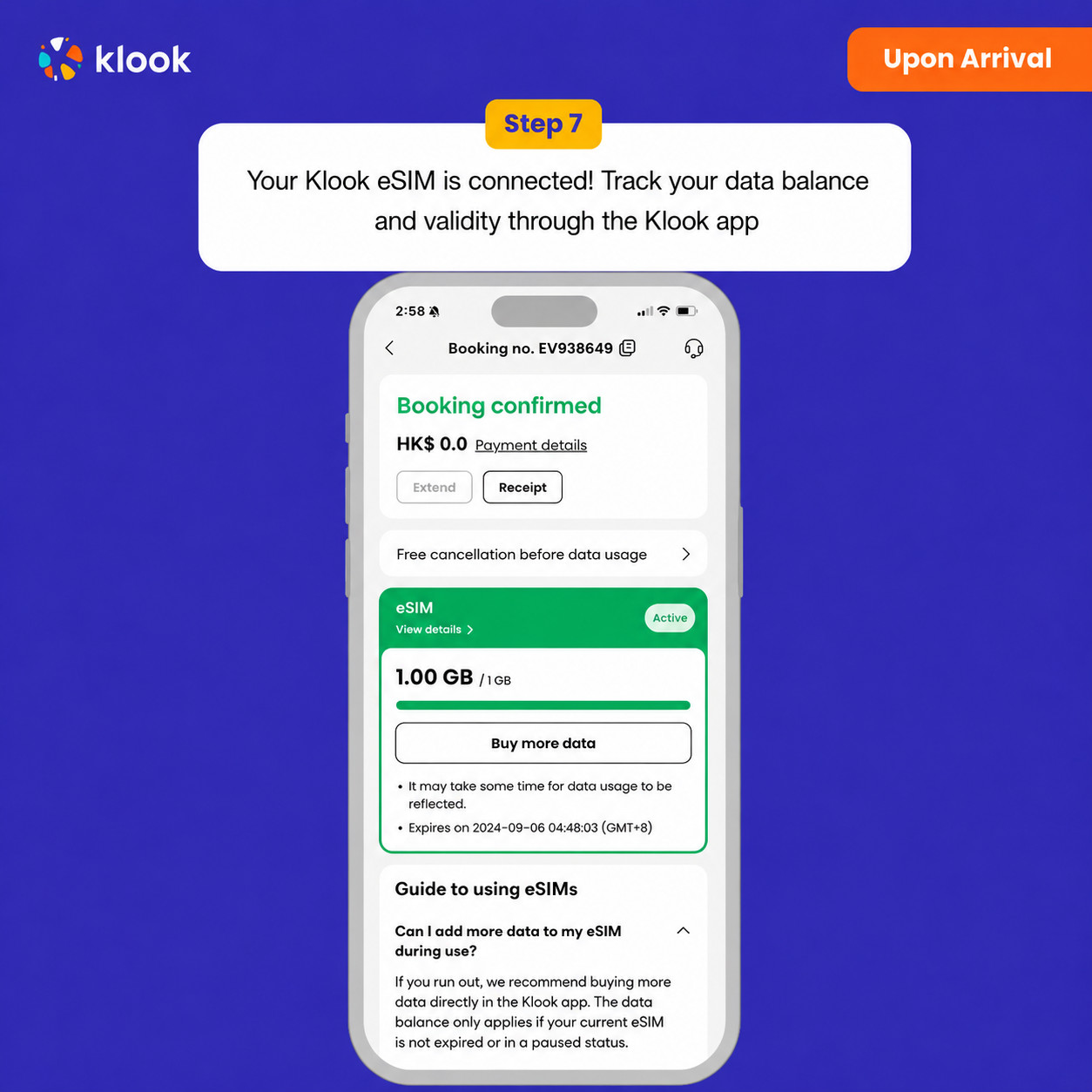
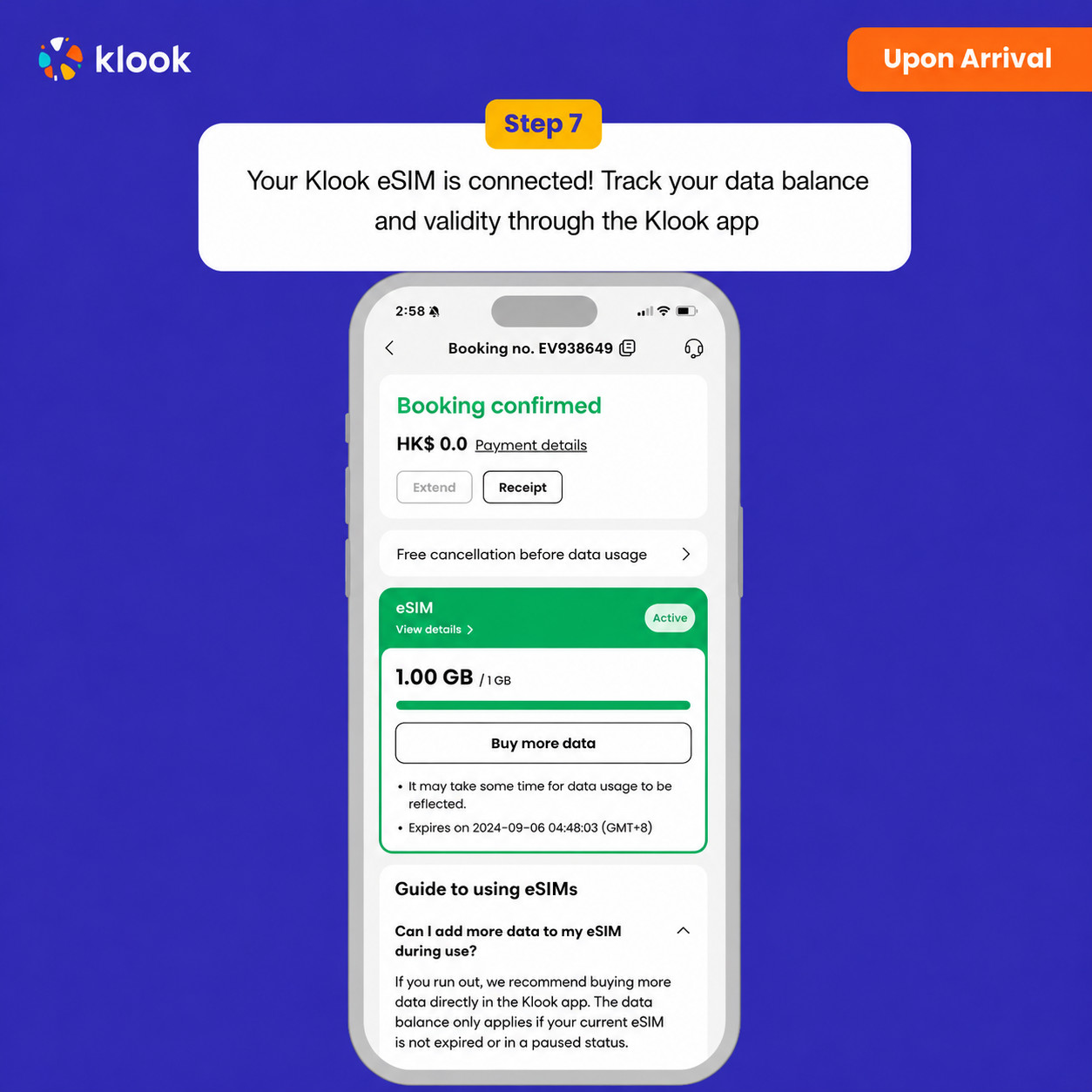
Your klook esim is connected! Track your data balance and validity through the Klook app

Klook eSIM connected

Activate your eSIM Android / iOS

  • Your eSIM plan will begin upon connection to the destination mobile network, according to the time connected. For example, if you activate your 3-day plan at 10:00, it will end 3 days later at 10:00.

Confirmation policy

  • You'll get confirmation within minutes. If you don't see any confirmation, reach out to our customer support.

Select This Option

Data in total · 11 days · 10GB · Data only

eSIM
205 700 UZS
≈$17

Additional Information

  • Activate your Klook eSIM before travel

Activate your eSIM before travel

Activate your Klook eSIM before travel

  • Klook eSIM installation methods

Activate your eSIM via Klook in-app activation, scanning the QR code, or entering the SMDP+ details manually

Klook eSIM installation methods

  • Klook eSIM In-app activation

Click Add eSIM to device on your booking to start the installation. Don't worry, data and validity will only commence when you reach your destination

Klook eSIM In-app activation

  • Klook eSIM In-app activation

Installation of your eSIM will start automatically

Klook eSIM In-app activation

  • Klook eSIM iOS installation

Set up your Klook eSIM for travel on iOS

Klook eSIM iOS installation

  • Klook eSIM installed

Your eSIM is ready for use! Usage and validity start only when the eSIM connects to an overseas network

Klook eSIM installed

  • Turn on Klook eSIM

Turn on Klook eSIM and select Klook eSIM for mobile data

Turn on Klook eSIM

  • Turn on Data roaming

Switch on data roaming at your destination to start using your eSIM

Turn on Data roaming

  • Klook eSIM connected

Your klook esim is connected! Track your data balance and validity through the Klook app

Klook eSIM connected

Activate your eSIM Android / iOS

  • Your eSIM plan will begin upon connection to the destination mobile network, according to the time connected. For example, if you activate your 3-day plan at 10:00, it will end 3 days later at 10:00.

Confirmation policy

  • You'll get confirmation within minutes. If you don't see any confirmation, reach out to our customer support.

Select This Option

Data in total · 15 days · 500MB · Data only

eSIM
12 100 UZS
≈$1

Additional Information

Activate your eSIM Android / iOS

  • Your eSIM plan will begin upon connection to the destination mobile network, according to the time connected. For example, if you activate your 3-day plan at 10:00, it will end 3 days later at 10:00.

  • Activate your Klook eSIM before travel

Activate your eSIM before travel

Activate your Klook eSIM before travel

  • Klook eSIM installation methods

Activate your eSIM via Klook in-app activation, scanning the QR code, or entering the SMDP+ details manually

Klook eSIM installation methods

  • Klook eSIM In-app activation

Click Add eSIM to device on your booking to start the installation. Don't worry, data and validity will only commence when you reach your destination

Klook eSIM In-app activation

  • Klook eSIM In-app activation

Installation of your eSIM will start automatically

Klook eSIM In-app activation

  • Klook eSIM iOS installation

Set up your Klook eSIM for travel on iOS

Klook eSIM iOS installation

  • Klook eSIM installed

Your eSIM is ready for use! Usage and validity start only when the eSIM connects to an overseas network

Klook eSIM installed

  • Turn on Klook eSIM

Turn on Klook eSIM and select Klook eSIM for mobile data

Turn on Klook eSIM

  • Turn on Data roaming

Switch on data roaming at your destination to start using your eSIM

Turn on Data roaming

  • Klook eSIM connected

Your klook esim is connected! Track your data balance and validity through the Klook app

Klook eSIM connected

Confirmation policy

  • You'll get confirmation within minutes. If you don't see any confirmation, reach out to our customer support.

Select This Option

Data in total · 15 days · 1GB · Data only

eSIM
36 300 UZS
≈$3

  • Activate your Klook eSIM before travel

Activate your eSIM before travel

Activate your Klook eSIM before travel

  • Klook eSIM installation methods

Activate your eSIM via Klook in-app activation, scanning the QR code, or entering the SMDP+ details manually

Klook eSIM installation methods

  • Klook eSIM In-app activation

Click Add eSIM to device on your booking to start the installation. Don't worry, data and validity will only commence when you reach your destination

Klook eSIM In-app activation

  • Klook eSIM In-app activation

Installation of your eSIM will start automatically

Klook eSIM In-app activation

  • Klook eSIM iOS installation

Set up your Klook eSIM for travel on iOS

Klook eSIM iOS installation

  • Klook eSIM installed

Your eSIM is ready for use! Usage and validity start only when the eSIM connects to an overseas network

Klook eSIM installed

  • Turn on Klook eSIM

Turn on Klook eSIM and select Klook eSIM for mobile data

Turn on Klook eSIM

  • Turn on Data roaming

Switch on data roaming at your destination to start using your eSIM

Turn on Data roaming

  • Klook eSIM connected

Your klook esim is connected! Track your data balance and validity through the Klook app

Klook eSIM connected

Additional Information

Activate your eSIM Android / iOS

  • Your eSIM plan will begin upon connection to the destination mobile network, according to the time connected. For example, if you activate your 3-day plan at 10:00, it will end 3 days later at 10:00.

Confirmation policy

  • You'll get confirmation within minutes. If you don't see any confirmation, reach out to our customer support.

Select This Option

Data in total · 15 days · 3GB · Data only

eSIM
72 600 UZS
≈$6

Additional Information

  • Activate your Klook eSIM before travel

Activate your eSIM before travel

Activate your Klook eSIM before travel

  • Klook eSIM installation methods

Activate your eSIM via Klook in-app activation, scanning the QR code, or entering the SMDP+ details manually

Klook eSIM installation methods

  • Klook eSIM In-app activation

Click Add eSIM to device on your booking to start the installation. Don't worry, data and validity will only commence when you reach your destination

Klook eSIM In-app activation

  • Klook eSIM In-app activation

Installation of your eSIM will start automatically

Klook eSIM In-app activation

  • Klook eSIM iOS installation

Set up your Klook eSIM for travel on iOS

Klook eSIM iOS installation

  • Klook eSIM installed

Your eSIM is ready for use! Usage and validity start only when the eSIM connects to an overseas network

Klook eSIM installed

  • Turn on Klook eSIM

Turn on Klook eSIM and select Klook eSIM for mobile data

Turn on Klook eSIM

  • Turn on Data roaming

Switch on data roaming at your destination to start using your eSIM

Turn on Data roaming

  • Klook eSIM connected

Your klook esim is connected! Track your data balance and validity through the Klook app

Klook eSIM connected

Activate your eSIM Android / iOS

  • Your eSIM plan will begin upon connection to the destination mobile network, according to the time connected. For example, if you activate your 3-day plan at 10:00, it will end 3 days later at 10:00.

Confirmation policy

  • You'll get confirmation within minutes. If you don't see any confirmation, reach out to our customer support.

Select This Option

Data in total · 15 days · 5GB · Data only

eSIM
121 000 UZS
≈$10

Additional Information

Activate your eSIM Android / iOS

  • Your eSIM plan will begin upon connection to the destination mobile network, according to the time connected. For example, if you activate your 3-day plan at 10:00, it will end 3 days later at 10:00.

  • Activate your Klook eSIM before travel

Activate your eSIM before travel

Activate your Klook eSIM before travel

  • Klook eSIM installation methods

Activate your eSIM via Klook in-app activation, scanning the QR code, or entering the SMDP+ details manually

Klook eSIM installation methods

  • Klook eSIM In-app activation

Click Add eSIM to device on your booking to start the installation. Don't worry, data and validity will only commence when you reach your destination

Klook eSIM In-app activation

  • Klook eSIM In-app activation

Installation of your eSIM will start automatically

Klook eSIM In-app activation

  • Klook eSIM iOS installation

Set up your Klook eSIM for travel on iOS

Klook eSIM iOS installation

  • Klook eSIM installed

Your eSIM is ready for use! Usage and validity start only when the eSIM connects to an overseas network

Klook eSIM installed

  • Turn on Klook eSIM

Turn on Klook eSIM and select Klook eSIM for mobile data

Turn on Klook eSIM

  • Turn on Data roaming

Switch on data roaming at your destination to start using your eSIM

Turn on Data roaming

  • Klook eSIM connected

Your klook esim is connected! Track your data balance and validity through the Klook app

Klook eSIM connected

Confirmation policy

  • You'll get confirmation within minutes. If you don't see any confirmation, reach out to our customer support.

Select This Option

Data in total · 15 days · 10GB · Data only

eSIM
217 800 UZS
≈$18

Additional Information

  • Activate your Klook eSIM before travel

Activate your eSIM before travel

Activate your Klook eSIM before travel

  • Klook eSIM installation methods

Activate your eSIM via Klook in-app activation, scanning the QR code, or entering the SMDP+ details manually

Klook eSIM installation methods

  • Klook eSIM In-app activation

Click Add eSIM to device on your booking to start the installation. Don't worry, data and validity will only commence when you reach your destination

Klook eSIM In-app activation

  • Klook eSIM In-app activation

Installation of your eSIM will start automatically

Klook eSIM In-app activation

  • Klook eSIM iOS installation

Set up your Klook eSIM for travel on iOS

Klook eSIM iOS installation

  • Klook eSIM installed

Your eSIM is ready for use! Usage and validity start only when the eSIM connects to an overseas network

Klook eSIM installed

  • Turn on Klook eSIM

Turn on Klook eSIM and select Klook eSIM for mobile data

Turn on Klook eSIM

  • Turn on Data roaming

Switch on data roaming at your destination to start using your eSIM

Turn on Data roaming

  • Klook eSIM connected

Your klook esim is connected! Track your data balance and validity through the Klook app

Klook eSIM connected

Activate your eSIM Android / iOS

  • Your eSIM plan will begin upon connection to the destination mobile network, according to the time connected. For example, if you activate your 3-day plan at 10:00, it will end 3 days later at 10:00.

Confirmation policy

  • You'll get confirmation within minutes. If you don't see any confirmation, reach out to our customer support.

Select This Option

Data in total · 15 days · 20GB · Data only

eSIM
350 900 UZS
≈$29

Additional Information

Activate your eSIM Android / iOS

  • Your eSIM plan will begin upon connection to the destination mobile network, according to the time connected. For example, if you activate your 3-day plan at 10:00, it will end 3 days later at 10:00.

  • Activate your Klook eSIM before travel

Activate your eSIM before travel

Activate your Klook eSIM before travel

  • Klook eSIM installation methods

Activate your eSIM via Klook in-app activation, scanning the QR code, or entering the SMDP+ details manually

Klook eSIM installation methods

  • Klook eSIM In-app activation

Click Add eSIM to device on your booking to start the installation. Don't worry, data and validity will only commence when you reach your destination

Klook eSIM In-app activation

  • Klook eSIM In-app activation

Installation of your eSIM will start automatically

Klook eSIM In-app activation

  • Klook eSIM iOS installation

Set up your Klook eSIM for travel on iOS

Klook eSIM iOS installation

  • Klook eSIM installed

Your eSIM is ready for use! Usage and validity start only when the eSIM connects to an overseas network

Klook eSIM installed

  • Turn on Klook eSIM

Turn on Klook eSIM and select Klook eSIM for mobile data

Turn on Klook eSIM

  • Turn on Data roaming

Switch on data roaming at your destination to start using your eSIM

Turn on Data roaming

  • Klook eSIM connected

Your klook esim is connected! Track your data balance and validity through the Klook app

Klook eSIM connected

Confirmation policy

  • You'll get confirmation within minutes. If you don't see any confirmation, reach out to our customer support.

Select This Option

Data in total · 16 days · 500MB · Data only

eSIM
12 100 UZS
≈$1

  • Activate your Klook eSIM before travel

Activate your eSIM before travel

Activate your Klook eSIM before travel

  • Klook eSIM installation methods

Activate your eSIM via Klook in-app activation, scanning the QR code, or entering the SMDP+ details manually

Klook eSIM installation methods

  • Klook eSIM In-app activation

Click Add eSIM to device on your booking to start the installation. Don't worry, data and validity will only commence when you reach your destination

Klook eSIM In-app activation

  • Klook eSIM In-app activation

Installation of your eSIM will start automatically

Klook eSIM In-app activation

  • Klook eSIM iOS installation

Set up your Klook eSIM for travel on iOS

Klook eSIM iOS installation

  • Klook eSIM installed

Your eSIM is ready for use! Usage and validity start only when the eSIM connects to an overseas network

Klook eSIM installed

  • Turn on Klook eSIM

Turn on Klook eSIM and select Klook eSIM for mobile data

Turn on Klook eSIM

  • Turn on Data roaming

Switch on data roaming at your destination to start using your eSIM

Turn on Data roaming

  • Klook eSIM connected

Your klook esim is connected! Track your data balance and validity through the Klook app

Klook eSIM connected

Additional Information

Activate your eSIM Android / iOS

  • Your eSIM plan will begin upon connection to the destination mobile network, according to the time connected. For example, if you activate your 3-day plan at 10:00, it will end 3 days later at 10:00.

Confirmation policy

  • You'll get confirmation within minutes. If you don't see any confirmation, reach out to our customer support.

Select This Option

Data in total · 16 days · 1GB · Data only

eSIM
36 300 UZS
≈$3

Additional Information

  • Activate your Klook eSIM before travel

Activate your eSIM before travel

Activate your Klook eSIM before travel

  • Klook eSIM installation methods

Activate your eSIM via Klook in-app activation, scanning the QR code, or entering the SMDP+ details manually

Klook eSIM installation methods

  • Klook eSIM In-app activation

Click Add eSIM to device on your booking to start the installation. Don't worry, data and validity will only commence when you reach your destination

Klook eSIM In-app activation

  • Klook eSIM In-app activation

Installation of your eSIM will start automatically

Klook eSIM In-app activation

  • Klook eSIM iOS installation

Set up your Klook eSIM for travel on iOS

Klook eSIM iOS installation

  • Klook eSIM installed

Your eSIM is ready for use! Usage and validity start only when the eSIM connects to an overseas network

Klook eSIM installed

  • Turn on Klook eSIM

Turn on Klook eSIM and select Klook eSIM for mobile data

Turn on Klook eSIM

  • Turn on Data roaming

Switch on data roaming at your destination to start using your eSIM

Turn on Data roaming

  • Klook eSIM connected

Your klook esim is connected! Track your data balance and validity through the Klook app

Klook eSIM connected

Activate your eSIM Android / iOS

  • Your eSIM plan will begin upon connection to the destination mobile network, according to the time connected. For example, if you activate your 3-day plan at 10:00, it will end 3 days later at 10:00.

Confirmation policy

  • You'll get confirmation within minutes. If you don't see any confirmation, reach out to our customer support.

Select This Option

Data in total · 16 days · 3GB · Data only

eSIM
72 600 UZS
≈$6

Additional Information

Activate your eSIM Android / iOS

  • Your eSIM plan will begin upon connection to the destination mobile network, according to the time connected. For example, if you activate your 3-day plan at 10:00, it will end 3 days later at 10:00.

  • Activate your Klook eSIM before travel

Activate your eSIM before travel

Activate your Klook eSIM before travel

  • Klook eSIM installation methods

Activate your eSIM via Klook in-app activation, scanning the QR code, or entering the SMDP+ details manually

Klook eSIM installation methods

  • Klook eSIM In-app activation

Click Add eSIM to device on your booking to start the installation. Don't worry, data and validity will only commence when you reach your destination

Klook eSIM In-app activation

  • Klook eSIM In-app activation

Installation of your eSIM will start automatically

Klook eSIM In-app activation

  • Klook eSIM iOS installation

Set up your Klook eSIM for travel on iOS

Klook eSIM iOS installation

  • Klook eSIM installed

Your eSIM is ready for use! Usage and validity start only when the eSIM connects to an overseas network

Klook eSIM installed

  • Turn on Klook eSIM

Turn on Klook eSIM and select Klook eSIM for mobile data

Turn on Klook eSIM

  • Turn on Data roaming

Switch on data roaming at your destination to start using your eSIM

Turn on Data roaming

  • Klook eSIM connected

Your klook esim is connected! Track your data balance and validity through the Klook app

Klook eSIM connected

Confirmation policy

  • You'll get confirmation within minutes. If you don't see any confirmation, reach out to our customer support.

Select This Option

Data in total · 16 days · 5GB · Data only

eSIM
121 000 UZS
≈$10

Additional Information

  • Activate your Klook eSIM before travel

Activate your eSIM before travel

Activate your Klook eSIM before travel

  • Klook eSIM installation methods

Activate your eSIM via Klook in-app activation, scanning the QR code, or entering the SMDP+ details manually

Klook eSIM installation methods

  • Klook eSIM In-app activation

Click Add eSIM to device on your booking to start the installation. Don't worry, data and validity will only commence when you reach your destination

Klook eSIM In-app activation

  • Klook eSIM In-app activation

Installation of your eSIM will start automatically

Klook eSIM In-app activation

  • Klook eSIM iOS installation

Set up your Klook eSIM for travel on iOS

Klook eSIM iOS installation

  • Klook eSIM installed

Your eSIM is ready for use! Usage and validity start only when the eSIM connects to an overseas network

Klook eSIM installed

  • Turn on Klook eSIM

Turn on Klook eSIM and select Klook eSIM for mobile data

Turn on Klook eSIM

  • Turn on Data roaming

Switch on data roaming at your destination to start using your eSIM

Turn on Data roaming

  • Klook eSIM connected

Your klook esim is connected! Track your data balance and validity through the Klook app

Klook eSIM connected

Activate your eSIM Android / iOS

  • Your eSIM plan will begin upon connection to the destination mobile network, according to the time connected. For example, if you activate your 3-day plan at 10:00, it will end 3 days later at 10:00.

Confirmation policy

  • You'll get confirmation within minutes. If you don't see any confirmation, reach out to our customer support.

Select This Option

Data in total · 16 days · 10GB · Data only

eSIM
217 800 UZS
≈$18

Additional Information

Activate your eSIM Android / iOS

  • Your eSIM plan will begin upon connection to the destination mobile network, according to the time connected. For example, if you activate your 3-day plan at 10:00, it will end 3 days later at 10:00.

  • Activate your Klook eSIM before travel

Activate your eSIM before travel

Activate your Klook eSIM before travel

  • Klook eSIM installation methods

Activate your eSIM via Klook in-app activation, scanning the QR code, or entering the SMDP+ details manually

Klook eSIM installation methods

  • Klook eSIM In-app activation

Click Add eSIM to device on your booking to start the installation. Don't worry, data and validity will only commence when you reach your destination

Klook eSIM In-app activation

  • Klook eSIM In-app activation

Installation of your eSIM will start automatically

Klook eSIM In-app activation

  • Klook eSIM iOS installation

Set up your Klook eSIM for travel on iOS

Klook eSIM iOS installation

  • Klook eSIM installed

Your eSIM is ready for use! Usage and validity start only when the eSIM connects to an overseas network

Klook eSIM installed

  • Turn on Klook eSIM

Turn on Klook eSIM and select Klook eSIM for mobile data

Turn on Klook eSIM

  • Turn on Data roaming

Switch on data roaming at your destination to start using your eSIM

Turn on Data roaming

  • Klook eSIM connected

Your klook esim is connected! Track your data balance and validity through the Klook app

Klook eSIM connected

Confirmation policy

  • You'll get confirmation within minutes. If you don't see any confirmation, reach out to our customer support.

Select This Option

Data in total · 16 days · 20GB · Data only

eSIM
350 900 UZS
≈$29

Additional Information

Activate your eSIM Android / iOS

  • Your eSIM plan will begin upon connection to the destination mobile network, according to the time connected. For example, if you activate your 3-day plan at 10:00, it will end 3 days later at 10:00.

  • Activate your Klook eSIM before travel

Activate your eSIM before travel

Activate your Klook eSIM before travel

  • Klook eSIM installation methods

Activate your eSIM via Klook in-app activation, scanning the QR code, or entering the SMDP+ details manually

Klook eSIM installation methods

  • Klook eSIM In-app activation

Click Add eSIM to device on your booking to start the installation. Don't worry, data and validity will only commence when you reach your destination

Klook eSIM In-app activation

  • Klook eSIM In-app activation

Installation of your eSIM will start automatically

Klook eSIM In-app activation

  • Klook eSIM iOS installation

Set up your Klook eSIM for travel on iOS

Klook eSIM iOS installation

  • Klook eSIM installed

Your eSIM is ready for use! Usage and validity start only when the eSIM connects to an overseas network

Klook eSIM installed

  • Turn on Klook eSIM

Turn on Klook eSIM and select Klook eSIM for mobile data

Turn on Klook eSIM

  • Turn on Data roaming

Switch on data roaming at your destination to start using your eSIM

Turn on Data roaming

  • Klook eSIM connected

Your klook esim is connected! Track your data balance and validity through the Klook app

Klook eSIM connected

Confirmation policy

  • You'll get confirmation within minutes. If you don't see any confirmation, reach out to our customer support.

Select This Option

Data in total · 16 days · 50GB · Data only

eSIM
689 700 UZS
≈$57

Additional Information

Activate your eSIM Android / iOS

  • Your eSIM plan will begin upon connection to the destination mobile network, according to the time connected. For example, if you activate your 3-day plan at 10:00, it will end 3 days later at 10:00.

  • Activate your Klook eSIM before travel

Activate your eSIM before travel

Activate your Klook eSIM before travel

  • Klook eSIM installation methods

Activate your eSIM via Klook in-app activation, scanning the QR code, or entering the SMDP+ details manually

Klook eSIM installation methods

  • Klook eSIM In-app activation

Click Add eSIM to device on your booking to start the installation. Don't worry, data and validity will only commence when you reach your destination

Klook eSIM In-app activation

  • Klook eSIM In-app activation

Installation of your eSIM will start automatically

Klook eSIM In-app activation

  • Klook eSIM iOS installation

Set up your Klook eSIM for travel on iOS

Klook eSIM iOS installation

  • Klook eSIM installed

Your eSIM is ready for use! Usage and validity start only when the eSIM connects to an overseas network

Klook eSIM installed

  • Turn on Klook eSIM

Turn on Klook eSIM and select Klook eSIM for mobile data

Turn on Klook eSIM

  • Turn on Data roaming

Switch on data roaming at your destination to start using your eSIM

Turn on Data roaming

  • Klook eSIM connected

Your klook esim is connected! Track your data balance and validity through the Klook app

Klook eSIM connected

Confirmation policy

  • You'll get confirmation within minutes. If you don't see any confirmation, reach out to our customer support.

Select This Option
From
12 100 UZS per person
≈$1
Cashback up to 605 so'm
Select Option & Book

Choose from available options above

Secure payment
Instant Confirmation

Similar Activities