eSIM South Africa | Vodacom

Cape Town, South Africa
4.9 (108 reviews)
Virtual eSIM
Instant Confirmation
Mobile Voucher

Available Options

Data per day · 5 days · Unlimited · Data only

eSIM
592 900 UZS
≈$49

Confirmation policy

  • You'll get confirmation within minutes. If you don't see any confirmation, reach out to our customer support.

Additional Information

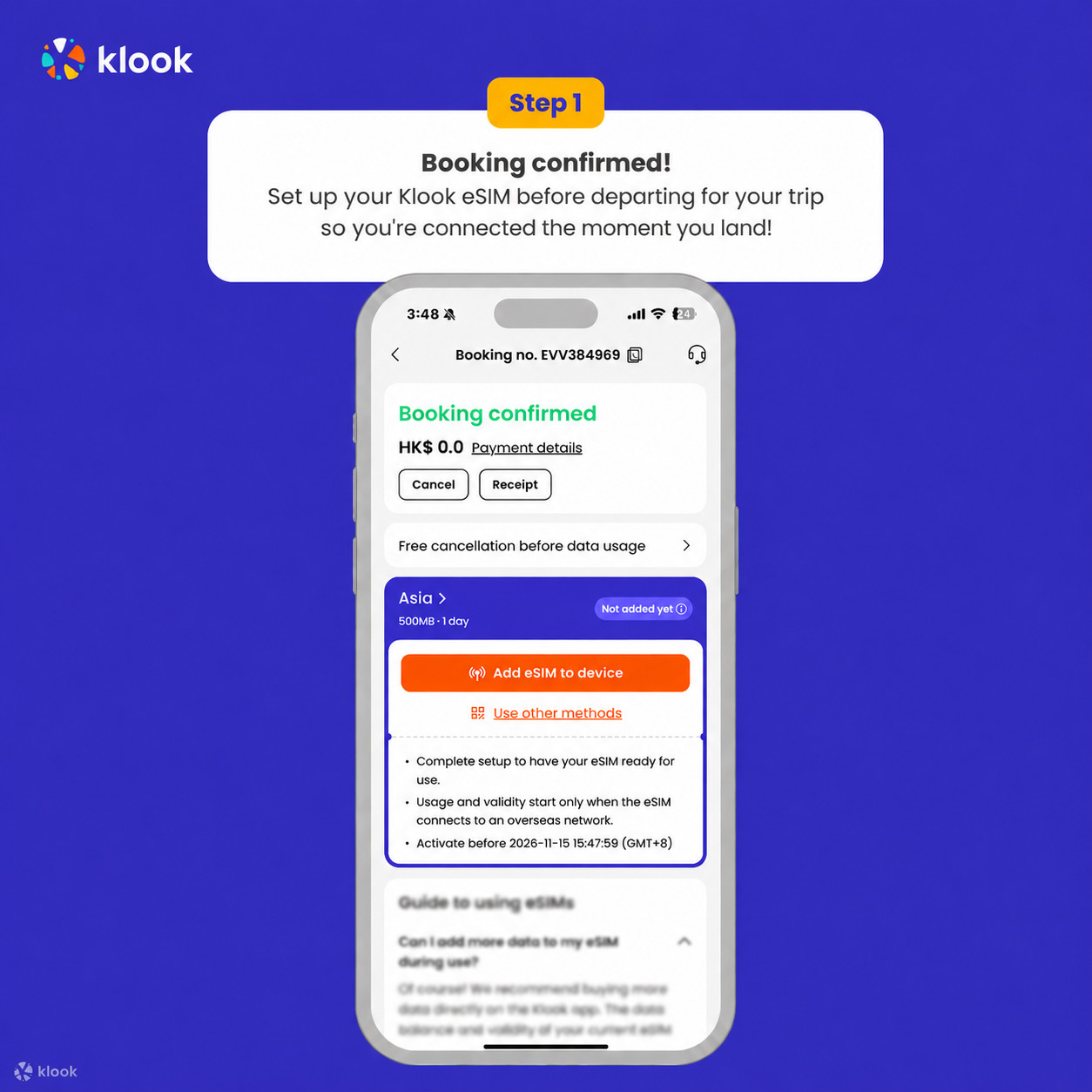
  • Activate your Klook eSIM before travel

Activate your eSIM before travel

Activate your Klook eSIM before travel

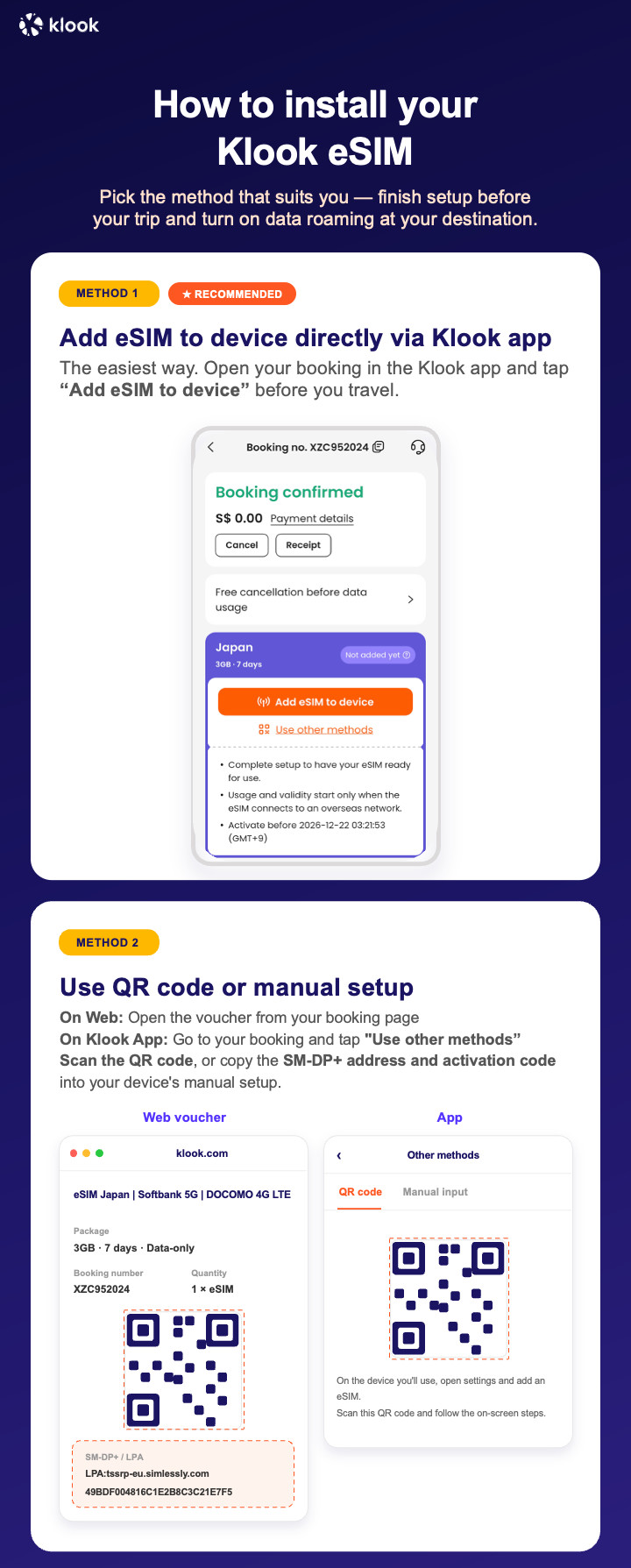
  • Klook eSIM installation methods

Activate your eSIM via Klook in-app activation, scanning the QR code, or entering the SMDP+ details manually

Klook eSIM installation methods

  • Klook eSIM In-app activation

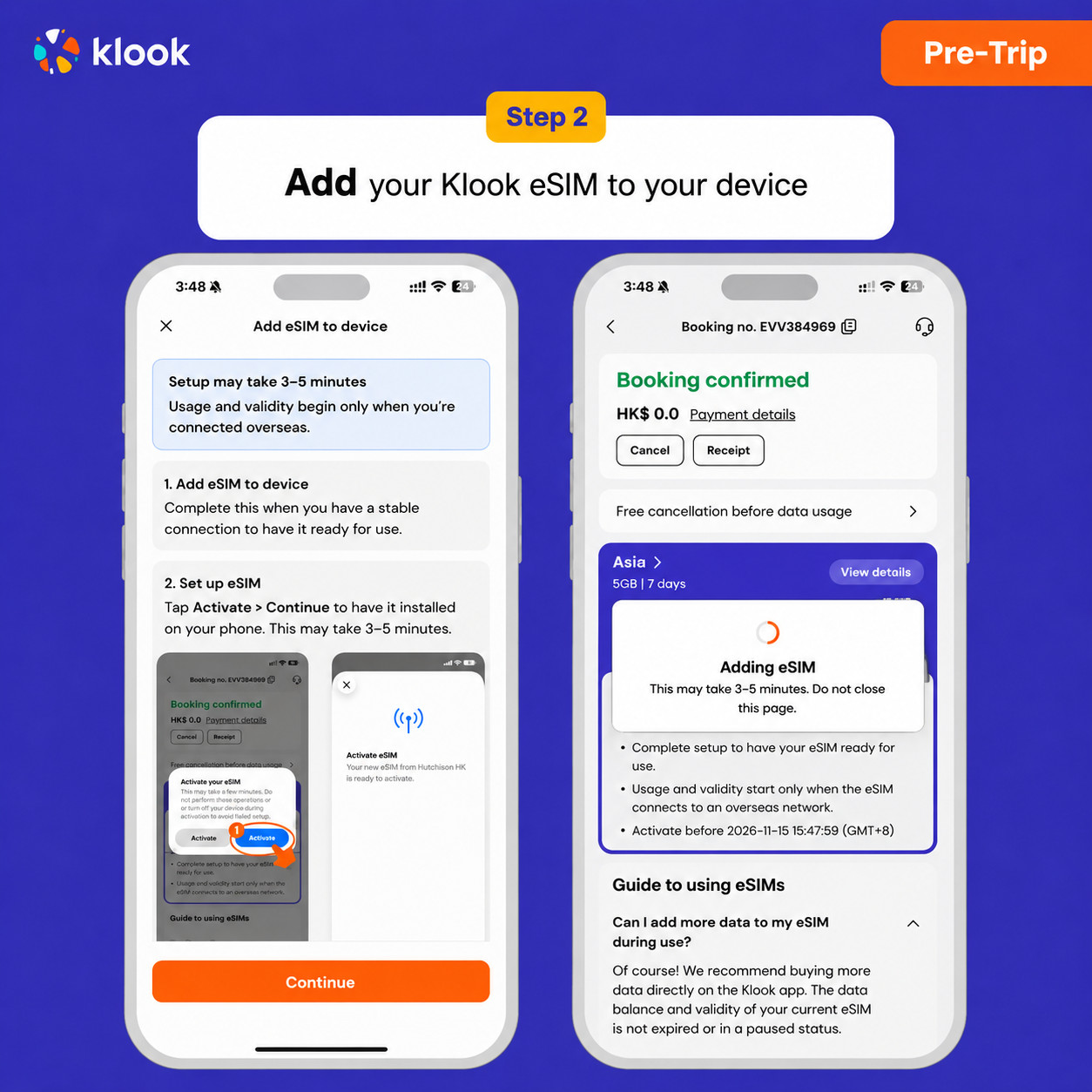
Click Add eSIM to device on your booking to start the installation. Don't worry, data and validity will only commence when you reach your destination

Klook eSIM In-app activation

  • Klook eSIM In-app activation

Installation of your eSIM will start automatically

Klook eSIM In-app activation

  • Klook eSIM iOS installation

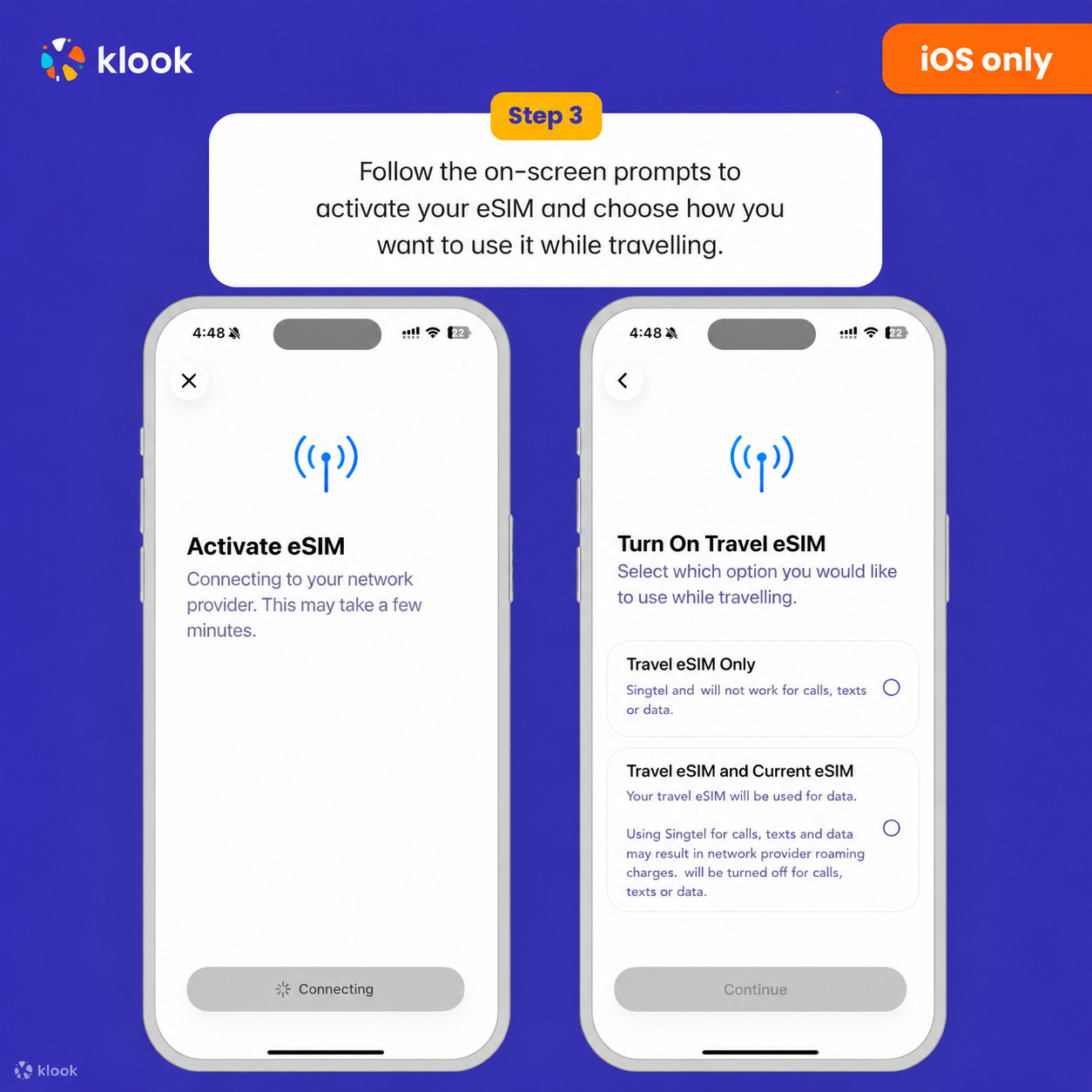
Set up your Klook eSIM for travel on iOS

Klook eSIM iOS installation

  • Klook eSIM installed

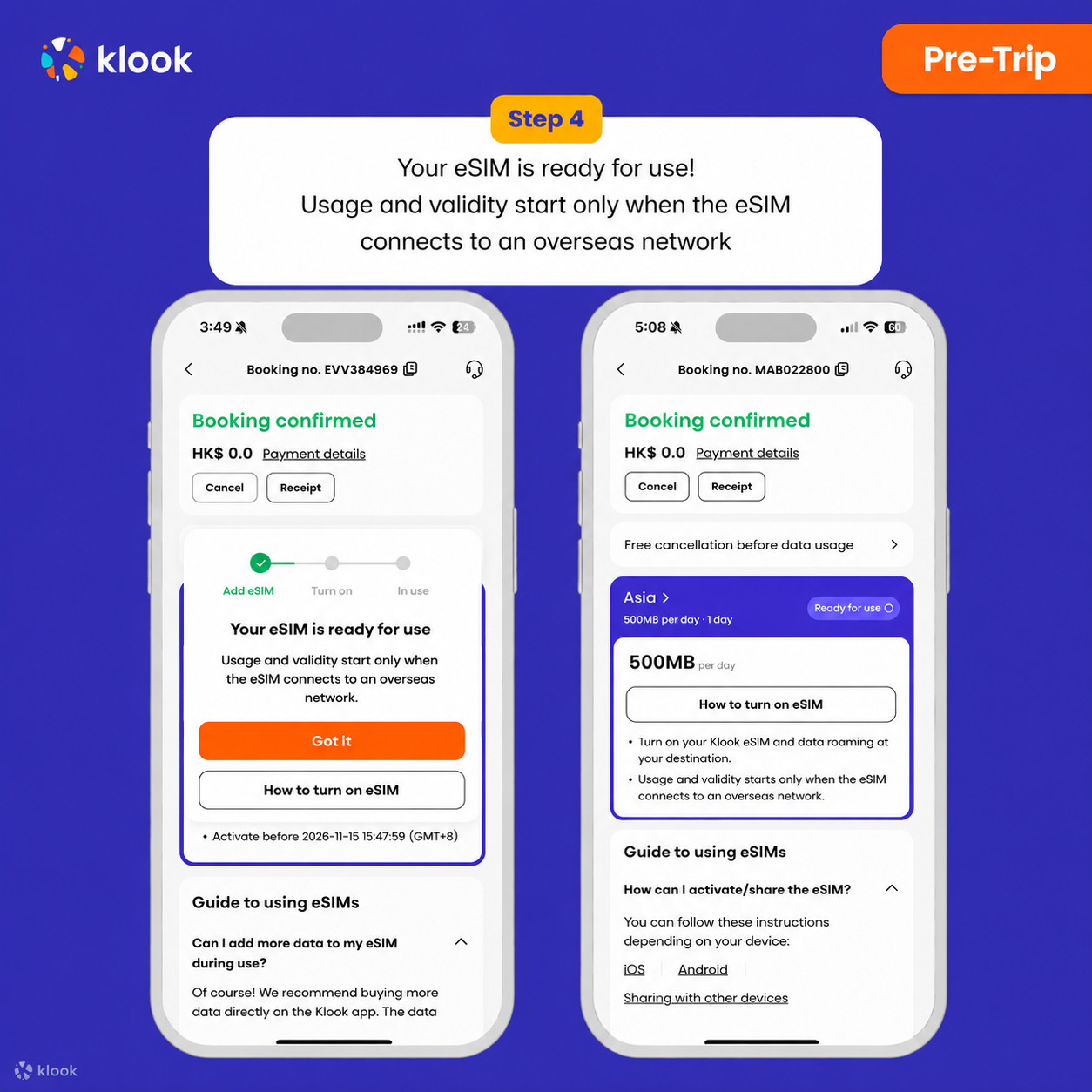
Your eSIM is ready for use! Usage and validity start only when the eSIM connects to an overseas network

Klook eSIM installed

  • Turn on Klook eSIM

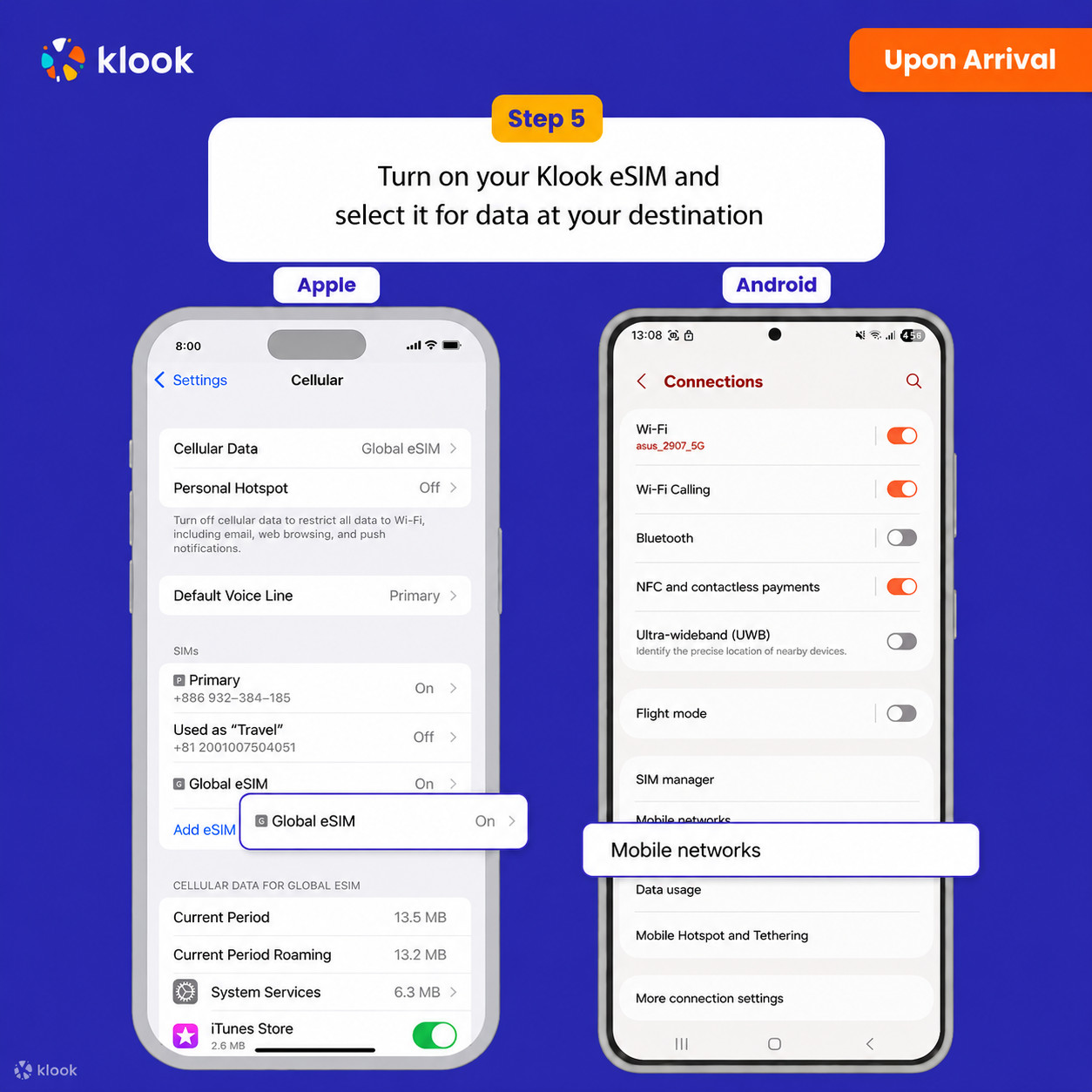
Turn on Klook eSIM and select Klook eSIM for mobile data

Turn on Klook eSIM

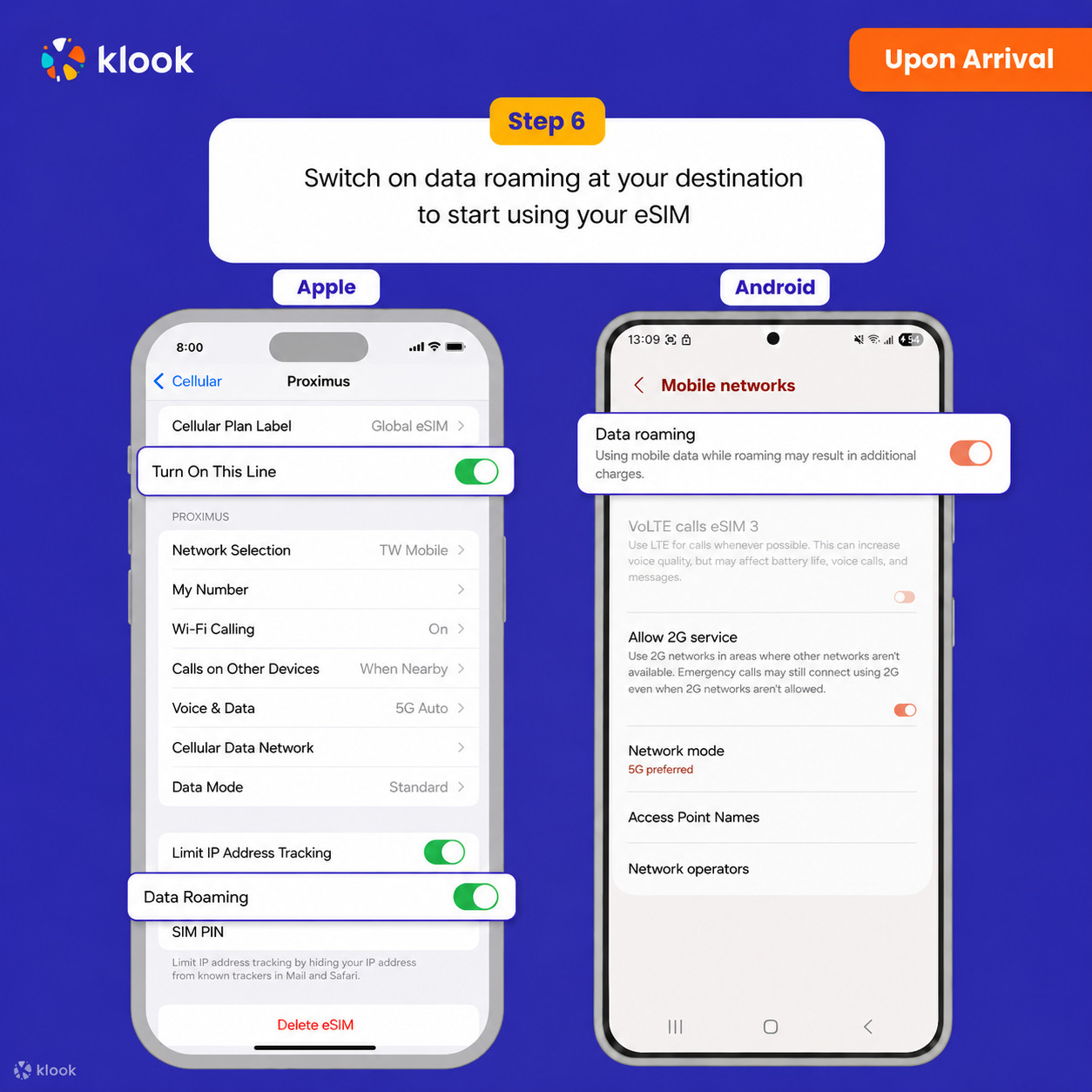
  • Turn on Data roaming

Switch on data roaming at your destination to start using your eSIM

Turn on Data roaming

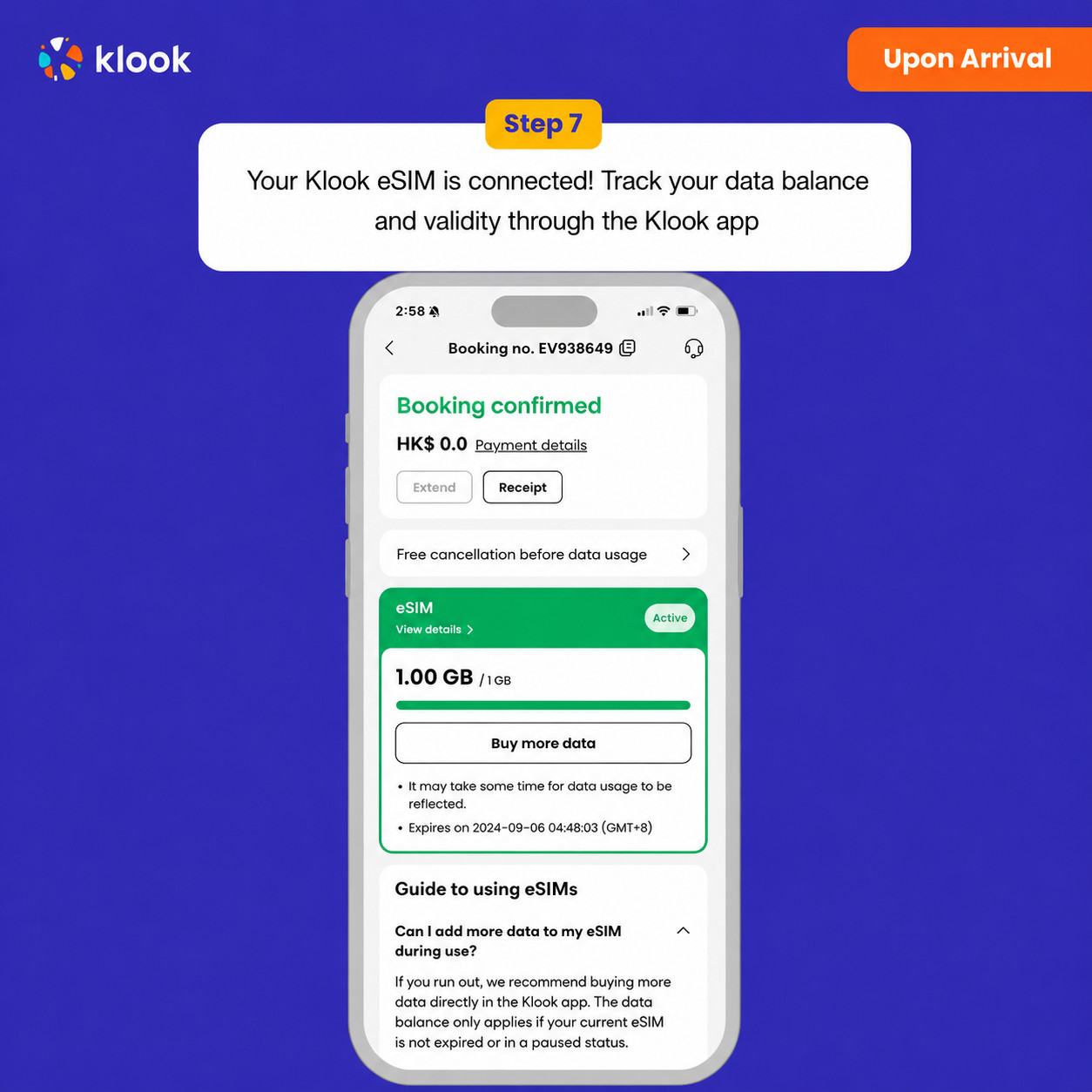
  • Klook eSIM connected

Your klook esim is connected! Track your data balance and validity through the Klook app

Klook eSIM connected

Activate your eSIM Android / iOS

  • Your eSIM plan will begin upon connection to the destination mobile network, according to the time connected. For example, if you activate your 3-day plan at 10:00, it will end 3 days later at 10:00.

  • Kindly follow the link below to proceed with your eSIM activation. Android version iOS version

Select This Option

Data per day · 7 days · 1GB · Data only

eSIM
145 200 UZS
≈$12

Confirmation policy

  • You'll get confirmation within minutes. If you don't see any confirmation, reach out to our customer support.

Additional Information

Activate your eSIM Android / iOS

  • Your eSIM plan will begin upon connection to the destination mobile network, according to the time connected. For example, if you activate your 3-day plan at 10:00, it will end 3 days later at 10:00.

  • Kindly follow the link below to proceed with your eSIM activation. Android version iOS version

  • Activate your Klook eSIM before travel

Activate your eSIM before travel

Activate your Klook eSIM before travel

  • Klook eSIM installation methods

Activate your eSIM via Klook in-app activation, scanning the QR code, or entering the SMDP+ details manually

Klook eSIM installation methods

  • Klook eSIM In-app activation

Click Add eSIM to device on your booking to start the installation. Don't worry, data and validity will only commence when you reach your destination

Klook eSIM In-app activation

  • Klook eSIM In-app activation

Installation of your eSIM will start automatically

Klook eSIM In-app activation

  • Klook eSIM iOS installation

Set up your Klook eSIM for travel on iOS

Klook eSIM iOS installation

  • Klook eSIM installed

Your eSIM is ready for use! Usage and validity start only when the eSIM connects to an overseas network

Klook eSIM installed

  • Turn on Klook eSIM

Turn on Klook eSIM and select Klook eSIM for mobile data

Turn on Klook eSIM

  • Turn on Data roaming

Switch on data roaming at your destination to start using your eSIM

Turn on Data roaming

  • Klook eSIM connected

Your klook esim is connected! Track your data balance and validity through the Klook app

Klook eSIM connected

Select This Option

Data per day · 8 days · 1GB · Data only

eSIM
169 400 UZS
≈$14

Confirmation policy

  • You'll get confirmation within minutes. If you don't see any confirmation, reach out to our customer support.

Activate your eSIM Android / iOS

  • Your eSIM plan will begin upon connection to the destination mobile network, according to the time connected. For example, if you activate your 3-day plan at 10:00, it will end 3 days later at 10:00.

  • Kindly follow the link below to proceed with your eSIM activation. Android version iOS version

  • Activate your Klook eSIM before travel

Activate your eSIM before travel

Activate your Klook eSIM before travel

  • Klook eSIM installation methods

Activate your eSIM via Klook in-app activation, scanning the QR code, or entering the SMDP+ details manually

Klook eSIM installation methods

  • Klook eSIM In-app activation

Click Add eSIM to device on your booking to start the installation. Don't worry, data and validity will only commence when you reach your destination

Klook eSIM In-app activation

  • Klook eSIM In-app activation

Installation of your eSIM will start automatically

Klook eSIM In-app activation

  • Klook eSIM iOS installation

Set up your Klook eSIM for travel on iOS

Klook eSIM iOS installation

  • Klook eSIM installed

Your eSIM is ready for use! Usage and validity start only when the eSIM connects to an overseas network

Klook eSIM installed

  • Turn on Klook eSIM

Turn on Klook eSIM and select Klook eSIM for mobile data

Turn on Klook eSIM

  • Turn on Data roaming

Switch on data roaming at your destination to start using your eSIM

Turn on Data roaming

  • Klook eSIM connected

Your klook esim is connected! Track your data balance and validity through the Klook app

Klook eSIM connected

Additional Information

Select This Option

Data per day · 8 days · Unlimited · Data only

eSIM
943 800 UZS
≈$78

Confirmation policy

  • You'll get confirmation within minutes. If you don't see any confirmation, reach out to our customer support.
Additional Information

  • Activate your Klook eSIM before travel

Activate your eSIM before travel

Activate your Klook eSIM before travel

  • Klook eSIM installation methods

Activate your eSIM via Klook in-app activation, scanning the QR code, or entering the SMDP+ details manually

Klook eSIM installation methods

  • Klook eSIM In-app activation

Click Add eSIM to device on your booking to start the installation. Don't worry, data and validity will only commence when you reach your destination

Klook eSIM In-app activation

  • Klook eSIM In-app activation

Installation of your eSIM will start automatically

Klook eSIM In-app activation

  • Klook eSIM iOS installation

Set up your Klook eSIM for travel on iOS

Klook eSIM iOS installation

  • Klook eSIM installed

Your eSIM is ready for use! Usage and validity start only when the eSIM connects to an overseas network

Klook eSIM installed

  • Turn on Klook eSIM

Turn on Klook eSIM and select Klook eSIM for mobile data

Turn on Klook eSIM

  • Turn on Data roaming

Switch on data roaming at your destination to start using your eSIM

Turn on Data roaming

  • Klook eSIM connected

Your klook esim is connected! Track your data balance and validity through the Klook app

Klook eSIM connected

Activate your eSIM Android / iOS

  • Your eSIM plan will begin upon connection to the destination mobile network, according to the time connected. For example, if you activate your 3-day plan at 10:00, it will end 3 days later at 10:00.

  • Kindly follow the link below to proceed with your eSIM activation. Android version iOS version

Select This Option

Data per day · 10 days · 1GB · Data only

eSIM
205 700 UZS
≈$17

Confirmation policy

  • You'll get confirmation within minutes. If you don't see any confirmation, reach out to our customer support.
Additional Information

  • Activate your Klook eSIM before travel

Activate your eSIM before travel

Activate your Klook eSIM before travel

  • Klook eSIM installation methods

Activate your eSIM via Klook in-app activation, scanning the QR code, or entering the SMDP+ details manually

Klook eSIM installation methods

  • Klook eSIM In-app activation

Click Add eSIM to device on your booking to start the installation. Don't worry, data and validity will only commence when you reach your destination

Klook eSIM In-app activation

  • Klook eSIM In-app activation

Installation of your eSIM will start automatically

Klook eSIM In-app activation

  • Klook eSIM iOS installation

Set up your Klook eSIM for travel on iOS

Klook eSIM iOS installation

  • Klook eSIM installed

Your eSIM is ready for use! Usage and validity start only when the eSIM connects to an overseas network

Klook eSIM installed

  • Turn on Klook eSIM

Turn on Klook eSIM and select Klook eSIM for mobile data

Turn on Klook eSIM

  • Turn on Data roaming

Switch on data roaming at your destination to start using your eSIM

Turn on Data roaming

  • Klook eSIM connected

Your klook esim is connected! Track your data balance and validity through the Klook app

Klook eSIM connected

Activate your eSIM Android / iOS

  • Your eSIM plan will begin upon connection to the destination mobile network, according to the time connected. For example, if you activate your 3-day plan at 10:00, it will end 3 days later at 10:00.

  • Kindly follow the link below to proceed with your eSIM activation. Android version iOS version

Select This Option

Data per day · 10 days · Unlimited · Data only

eSIM
1 173 700 UZS
≈$97

Confirmation policy

  • You'll get confirmation within minutes. If you don't see any confirmation, reach out to our customer support.
Additional Information

  • Activate your Klook eSIM before travel

Activate your eSIM before travel

Activate your Klook eSIM before travel

  • Klook eSIM installation methods

Activate your eSIM via Klook in-app activation, scanning the QR code, or entering the SMDP+ details manually

Klook eSIM installation methods

  • Klook eSIM In-app activation

Click Add eSIM to device on your booking to start the installation. Don't worry, data and validity will only commence when you reach your destination

Klook eSIM In-app activation

  • Klook eSIM In-app activation

Installation of your eSIM will start automatically

Klook eSIM In-app activation

  • Klook eSIM iOS installation

Set up your Klook eSIM for travel on iOS

Klook eSIM iOS installation

  • Klook eSIM installed

Your eSIM is ready for use! Usage and validity start only when the eSIM connects to an overseas network

Klook eSIM installed

  • Turn on Klook eSIM

Turn on Klook eSIM and select Klook eSIM for mobile data

Turn on Klook eSIM

  • Turn on Data roaming

Switch on data roaming at your destination to start using your eSIM

Turn on Data roaming

  • Klook eSIM connected

Your klook esim is connected! Track your data balance and validity through the Klook app

Klook eSIM connected

Activate your eSIM Android / iOS

  • Your eSIM plan will begin upon connection to the destination mobile network, according to the time connected. For example, if you activate your 3-day plan at 10:00, it will end 3 days later at 10:00.

  • Kindly follow the link below to proceed with your eSIM activation. Android version iOS version

Select This Option

Data per day · 15 days · 1GB · Data only

eSIM
314 600 UZS
≈$26

Additional Information

  • Activate your Klook eSIM before travel

Activate your eSIM before travel

Activate your Klook eSIM before travel

  • Klook eSIM installation methods

Activate your eSIM via Klook in-app activation, scanning the QR code, or entering the SMDP+ details manually

Klook eSIM installation methods

  • Klook eSIM In-app activation

Click Add eSIM to device on your booking to start the installation. Don't worry, data and validity will only commence when you reach your destination

Klook eSIM In-app activation

  • Klook eSIM In-app activation

Installation of your eSIM will start automatically

Klook eSIM In-app activation

  • Klook eSIM iOS installation

Set up your Klook eSIM for travel on iOS

Klook eSIM iOS installation

  • Klook eSIM installed

Your eSIM is ready for use! Usage and validity start only when the eSIM connects to an overseas network

Klook eSIM installed

  • Turn on Klook eSIM

Turn on Klook eSIM and select Klook eSIM for mobile data

Turn on Klook eSIM

  • Turn on Data roaming

Switch on data roaming at your destination to start using your eSIM

Turn on Data roaming

  • Klook eSIM connected

Your klook esim is connected! Track your data balance and validity through the Klook app

Klook eSIM connected

Activate your eSIM Android / iOS

  • Your eSIM plan will begin upon connection to the destination mobile network, according to the time connected. For example, if you activate your 3-day plan at 10:00, it will end 3 days later at 10:00.

  • Kindly follow the link below to proceed with your eSIM activation. Android version iOS version

Confirmation policy

  • You'll get confirmation within minutes. If you don't see any confirmation, reach out to our customer support.
Select This Option

Data per day · 15 days · Unlimited · Data only

eSIM
1 633 500 UZS
≈$135

Confirmation policy

  • You'll get confirmation within minutes. If you don't see any confirmation, reach out to our customer support.
Additional Information

Activate your eSIM Android / iOS

  • Your eSIM plan will begin upon connection to the destination mobile network, according to the time connected. For example, if you activate your 3-day plan at 10:00, it will end 3 days later at 10:00.

  • Kindly follow the link below to proceed with your eSIM activation. Android version iOS version

  • Activate your Klook eSIM before travel

Activate your eSIM before travel

Activate your Klook eSIM before travel

  • Klook eSIM installation methods

Activate your eSIM via Klook in-app activation, scanning the QR code, or entering the SMDP+ details manually

Klook eSIM installation methods

  • Klook eSIM In-app activation

Click Add eSIM to device on your booking to start the installation. Don't worry, data and validity will only commence when you reach your destination

Klook eSIM In-app activation

  • Klook eSIM In-app activation

Installation of your eSIM will start automatically

Klook eSIM In-app activation

  • Klook eSIM iOS installation

Set up your Klook eSIM for travel on iOS

Klook eSIM iOS installation

  • Klook eSIM installed

Your eSIM is ready for use! Usage and validity start only when the eSIM connects to an overseas network

Klook eSIM installed

  • Turn on Klook eSIM

Turn on Klook eSIM and select Klook eSIM for mobile data

Turn on Klook eSIM

  • Turn on Data roaming

Switch on data roaming at your destination to start using your eSIM

Turn on Data roaming

  • Klook eSIM connected

Your klook esim is connected! Track your data balance and validity through the Klook app

Klook eSIM connected

Select This Option

Data in total · 30 days · 20GB · Data only

eSIM
338 800 UZS
≈$28

Confirmation policy

  • You'll get confirmation within minutes. If you don't see any confirmation, reach out to our customer support.
Additional Information

  • Activate your Klook eSIM before travel

Activate your eSIM before travel

Activate your Klook eSIM before travel

  • Klook eSIM installation methods

Activate your eSIM via Klook in-app activation, scanning the QR code, or entering the SMDP+ details manually

Klook eSIM installation methods

  • Klook eSIM In-app activation

Click Add eSIM to device on your booking to start the installation. Don't worry, data and validity will only commence when you reach your destination

Klook eSIM In-app activation

  • Klook eSIM In-app activation

Installation of your eSIM will start automatically

Klook eSIM In-app activation

  • Klook eSIM iOS installation

Set up your Klook eSIM for travel on iOS

Klook eSIM iOS installation

  • Klook eSIM installed

Your eSIM is ready for use! Usage and validity start only when the eSIM connects to an overseas network

Klook eSIM installed

  • Turn on Klook eSIM

Turn on Klook eSIM and select Klook eSIM for mobile data

Turn on Klook eSIM

  • Turn on Data roaming

Switch on data roaming at your destination to start using your eSIM

Turn on Data roaming

  • Klook eSIM connected

Your klook esim is connected! Track your data balance and validity through the Klook app

Klook eSIM connected

Activate your eSIM Android / iOS

  • Your eSIM plan will begin upon connection to the destination mobile network, according to the time connected. For example, if you activate your 3-day plan at 10:00, it will end 3 days later at 10:00.

  • Kindly follow the link below to proceed with your eSIM activation. Android version iOS version

Select This Option

Data in total · 1 day · 3GB · Data only

eSIM
48 400 UZS
≈$4

  • Activate your Klook eSIM before travel

Activate your eSIM before travel

Activate your Klook eSIM before travel

  • Klook eSIM installation methods

Activate your eSIM via Klook in-app activation, scanning the QR code, or entering the SMDP+ details manually

Klook eSIM installation methods

  • Klook eSIM In-app activation

Click Add eSIM to device on your booking to start the installation. Don't worry, data and validity will only commence when you reach your destination

Klook eSIM In-app activation

  • Klook eSIM In-app activation

Installation of your eSIM will start automatically

Klook eSIM In-app activation

  • Klook eSIM iOS installation

Set up your Klook eSIM for travel on iOS

Klook eSIM iOS installation

  • Klook eSIM installed

Your eSIM is ready for use! Usage and validity start only when the eSIM connects to an overseas network

Klook eSIM installed

  • Turn on Klook eSIM

Turn on Klook eSIM and select Klook eSIM for mobile data

Turn on Klook eSIM

  • Turn on Data roaming

Switch on data roaming at your destination to start using your eSIM

Turn on Data roaming

  • Klook eSIM connected

Your klook esim is connected! Track your data balance and validity through the Klook app

Klook eSIM connected

Additional Information

Activate your eSIM Android / iOS

  • Your eSIM plan will begin upon connection to the destination mobile network, according to the time connected. For example, if you activate your 3-day plan at 10:00, it will end 3 days later at 10:00.

  • Kindly follow the link below to proceed with your eSIM activation. Android version iOS version

Confirmation policy

  • You'll get confirmation within minutes. If you don't see any confirmation, reach out to our customer support.
Select This Option

Data per day · 2 days · Unlimited · Data only

eSIM
242 000 UZS
≈$20

Additional Information

  • Activate your Klook eSIM before travel

Activate your eSIM before travel

Activate your Klook eSIM before travel

  • Klook eSIM installation methods

Activate your eSIM via Klook in-app activation, scanning the QR code, or entering the SMDP+ details manually

Klook eSIM installation methods

  • Klook eSIM In-app activation

Click Add eSIM to device on your booking to start the installation. Don't worry, data and validity will only commence when you reach your destination

Klook eSIM In-app activation

  • Klook eSIM In-app activation

Installation of your eSIM will start automatically

Klook eSIM In-app activation

  • Klook eSIM iOS installation

Set up your Klook eSIM for travel on iOS

Klook eSIM iOS installation

  • Klook eSIM installed

Your eSIM is ready for use! Usage and validity start only when the eSIM connects to an overseas network

Klook eSIM installed

  • Turn on Klook eSIM

Turn on Klook eSIM and select Klook eSIM for mobile data

Turn on Klook eSIM

  • Turn on Data roaming

Switch on data roaming at your destination to start using your eSIM

Turn on Data roaming

  • Klook eSIM connected

Your klook esim is connected! Track your data balance and validity through the Klook app

Klook eSIM connected

Activate your eSIM Android / iOS

  • Your eSIM plan will begin upon connection to the destination mobile network, according to the time connected. For example, if you activate your 3-day plan at 10:00, it will end 3 days later at 10:00.

  • Kindly follow the link below to proceed with your eSIM activation. Android version iOS version

Confirmation policy

  • You'll get confirmation within minutes. If you don't see any confirmation, reach out to our customer support.
Select This Option

Data per day · 2 days · 3GB · Data only

eSIM
84 700 UZS
≈$7

Additional Information

  • Activate your Klook eSIM before travel

Activate your eSIM before travel

Activate your Klook eSIM before travel

  • Klook eSIM installation methods

Activate your eSIM via Klook in-app activation, scanning the QR code, or entering the SMDP+ details manually

Klook eSIM installation methods

  • Klook eSIM In-app activation

Click Add eSIM to device on your booking to start the installation. Don't worry, data and validity will only commence when you reach your destination

Klook eSIM In-app activation

  • Klook eSIM In-app activation

Installation of your eSIM will start automatically

Klook eSIM In-app activation

  • Klook eSIM iOS installation

Set up your Klook eSIM for travel on iOS

Klook eSIM iOS installation

  • Klook eSIM installed

Your eSIM is ready for use! Usage and validity start only when the eSIM connects to an overseas network

Klook eSIM installed

  • Turn on Klook eSIM

Turn on Klook eSIM and select Klook eSIM for mobile data

Turn on Klook eSIM

  • Turn on Data roaming

Switch on data roaming at your destination to start using your eSIM

Turn on Data roaming

  • Klook eSIM connected

Your klook esim is connected! Track your data balance and validity through the Klook app

Klook eSIM connected

Activate your eSIM Android / iOS

  • Your eSIM plan will begin upon connection to the destination mobile network, according to the time connected. For example, if you activate your 3-day plan at 10:00, it will end 3 days later at 10:00.

  • Kindly follow the link below to proceed with your eSIM activation. Android version iOS version

Confirmation policy

  • You'll get confirmation within minutes. If you don't see any confirmation, reach out to our customer support.
Select This Option

Data in total · 3 days · 1GB · Data only

eSIM
24 200 UZS
≈$2

Additional Information

  • Activate your Klook eSIM before travel

Activate your eSIM before travel

Activate your Klook eSIM before travel

  • Klook eSIM installation methods

Activate your eSIM via Klook in-app activation, scanning the QR code, or entering the SMDP+ details manually

Klook eSIM installation methods

  • Klook eSIM In-app activation

Click Add eSIM to device on your booking to start the installation. Don't worry, data and validity will only commence when you reach your destination

Klook eSIM In-app activation

  • Klook eSIM In-app activation

Installation of your eSIM will start automatically

Klook eSIM In-app activation

  • Klook eSIM iOS installation

Set up your Klook eSIM for travel on iOS

Klook eSIM iOS installation

  • Klook eSIM installed

Your eSIM is ready for use! Usage and validity start only when the eSIM connects to an overseas network

Klook eSIM installed

  • Turn on Klook eSIM

Turn on Klook eSIM and select Klook eSIM for mobile data

Turn on Klook eSIM

  • Turn on Data roaming

Switch on data roaming at your destination to start using your eSIM

Turn on Data roaming

  • Klook eSIM connected

Your klook esim is connected! Track your data balance and validity through the Klook app

Klook eSIM connected

Activate your eSIM Android / iOS

  • Your eSIM plan will begin upon connection to the destination mobile network, according to the time connected. For example, if you activate your 3-day plan at 10:00, it will end 3 days later at 10:00.

  • Kindly follow the link below to proceed with your eSIM activation. Android version iOS version

Confirmation policy

  • You'll get confirmation within minutes. If you don't see any confirmation, reach out to our customer support.
Select This Option

Data per day · 3 days · 3GB · Data only

eSIM
121 000 UZS
≈$10

Additional Information

  • Activate your Klook eSIM before travel

Activate your eSIM before travel

Activate your Klook eSIM before travel

  • Klook eSIM installation methods

Activate your eSIM via Klook in-app activation, scanning the QR code, or entering the SMDP+ details manually

Klook eSIM installation methods

  • Klook eSIM In-app activation

Click Add eSIM to device on your booking to start the installation. Don't worry, data and validity will only commence when you reach your destination

Klook eSIM In-app activation

  • Klook eSIM In-app activation

Installation of your eSIM will start automatically

Klook eSIM In-app activation

  • Klook eSIM iOS installation

Set up your Klook eSIM for travel on iOS

Klook eSIM iOS installation

  • Klook eSIM installed

Your eSIM is ready for use! Usage and validity start only when the eSIM connects to an overseas network

Klook eSIM installed

  • Turn on Klook eSIM

Turn on Klook eSIM and select Klook eSIM for mobile data

Turn on Klook eSIM

  • Turn on Data roaming

Switch on data roaming at your destination to start using your eSIM

Turn on Data roaming

  • Klook eSIM connected

Your klook esim is connected! Track your data balance and validity through the Klook app

Klook eSIM connected

Activate your eSIM Android / iOS

  • Your eSIM plan will begin upon connection to the destination mobile network, according to the time connected. For example, if you activate your 3-day plan at 10:00, it will end 3 days later at 10:00.

  • Kindly follow the link below to proceed with your eSIM activation. Android version iOS version

Confirmation policy

  • You'll get confirmation within minutes. If you don't see any confirmation, reach out to our customer support.
Select This Option

Data in total · 3 days · 3GB · Data only

eSIM
60 500 UZS
≈$5

Additional Information

  • Activate your Klook eSIM before travel

Activate your eSIM before travel

Activate your Klook eSIM before travel

  • Klook eSIM installation methods

Activate your eSIM via Klook in-app activation, scanning the QR code, or entering the SMDP+ details manually

Klook eSIM installation methods

  • Klook eSIM In-app activation

Click Add eSIM to device on your booking to start the installation. Don't worry, data and validity will only commence when you reach your destination

Klook eSIM In-app activation

  • Klook eSIM In-app activation

Installation of your eSIM will start automatically

Klook eSIM In-app activation

  • Klook eSIM iOS installation

Set up your Klook eSIM for travel on iOS

Klook eSIM iOS installation

  • Klook eSIM installed

Your eSIM is ready for use! Usage and validity start only when the eSIM connects to an overseas network

Klook eSIM installed

  • Turn on Klook eSIM

Turn on Klook eSIM and select Klook eSIM for mobile data

Turn on Klook eSIM

  • Turn on Data roaming

Switch on data roaming at your destination to start using your eSIM

Turn on Data roaming

  • Klook eSIM connected

Your klook esim is connected! Track your data balance and validity through the Klook app

Klook eSIM connected

Activate your eSIM Android / iOS

  • Your eSIM plan will begin upon connection to the destination mobile network, according to the time connected. For example, if you activate your 3-day plan at 10:00, it will end 3 days later at 10:00.

  • Kindly follow the link below to proceed with your eSIM activation. Android version iOS version

Confirmation policy

  • You'll get confirmation within minutes. If you don't see any confirmation, reach out to our customer support.

Select This Option

Data in total · 3 days · 5GB · Data only

eSIM
121 000 UZS
≈$10

Additional Information

Activate your eSIM Android / iOS

  • Your eSIM plan will begin upon connection to the destination mobile network, according to the time connected. For example, if you activate your 3-day plan at 10:00, it will end 3 days later at 10:00.

  • Kindly follow the link below to proceed with your eSIM activation. Android version iOS version

  • Activate your Klook eSIM before travel

Activate your eSIM before travel

Activate your Klook eSIM before travel

  • Klook eSIM installation methods

Activate your eSIM via Klook in-app activation, scanning the QR code, or entering the SMDP+ details manually

Klook eSIM installation methods

  • Klook eSIM In-app activation

Click Add eSIM to device on your booking to start the installation. Don't worry, data and validity will only commence when you reach your destination

Klook eSIM In-app activation

  • Klook eSIM In-app activation

Installation of your eSIM will start automatically

Klook eSIM In-app activation

  • Klook eSIM iOS installation

Set up your Klook eSIM for travel on iOS

Klook eSIM iOS installation

  • Klook eSIM installed

Your eSIM is ready for use! Usage and validity start only when the eSIM connects to an overseas network

Klook eSIM installed

  • Turn on Klook eSIM

Turn on Klook eSIM and select Klook eSIM for mobile data

Turn on Klook eSIM

  • Turn on Data roaming

Switch on data roaming at your destination to start using your eSIM

Turn on Data roaming

  • Klook eSIM connected

Your klook esim is connected! Track your data balance and validity through the Klook app

Klook eSIM connected

Confirmation policy

  • You'll get confirmation within minutes. If you don't see any confirmation, reach out to our customer support.

Select This Option

Data in total · 7 days · 3GB · Data only

eSIM
72 600 UZS
≈$6

Additional Information

Activate your eSIM Android / iOS

  • Your eSIM plan will begin upon connection to the destination mobile network, according to the time connected. For example, if you activate your 3-day plan at 10:00, it will end 3 days later at 10:00.

  • Kindly follow the link below to proceed with your eSIM activation. Android version iOS version

  • Activate your Klook eSIM before travel

Activate your eSIM before travel

Activate your Klook eSIM before travel

  • Klook eSIM installation methods

Activate your eSIM via Klook in-app activation, scanning the QR code, or entering the SMDP+ details manually

Klook eSIM installation methods

  • Klook eSIM In-app activation

Click Add eSIM to device on your booking to start the installation. Don't worry, data and validity will only commence when you reach your destination

Klook eSIM In-app activation

  • Klook eSIM In-app activation

Installation of your eSIM will start automatically

Klook eSIM In-app activation

  • Klook eSIM iOS installation

Set up your Klook eSIM for travel on iOS

Klook eSIM iOS installation

  • Klook eSIM installed

Your eSIM is ready for use! Usage and validity start only when the eSIM connects to an overseas network

Klook eSIM installed

  • Turn on Klook eSIM

Turn on Klook eSIM and select Klook eSIM for mobile data

Turn on Klook eSIM

  • Turn on Data roaming

Switch on data roaming at your destination to start using your eSIM

Turn on Data roaming

  • Klook eSIM connected

Your klook esim is connected! Track your data balance and validity through the Klook app

Klook eSIM connected

Confirmation policy

  • You'll get confirmation within minutes. If you don't see any confirmation, reach out to our customer support.

Select This Option

Data in total · 7 days · 10GB · Data only

eSIM
157 300 UZS
≈$13

Additional Information

Activate your eSIM Android / iOS

  • Your eSIM plan will begin upon connection to the destination mobile network, according to the time connected. For example, if you activate your 3-day plan at 10:00, it will end 3 days later at 10:00.

  • Kindly follow the link below to proceed with your eSIM activation. Android version iOS version

  • Activate your Klook eSIM before travel

Activate your eSIM before travel

Activate your Klook eSIM before travel

  • Klook eSIM installation methods

Activate your eSIM via Klook in-app activation, scanning the QR code, or entering the SMDP+ details manually

Klook eSIM installation methods

  • Klook eSIM In-app activation

Click Add eSIM to device on your booking to start the installation. Don't worry, data and validity will only commence when you reach your destination

Klook eSIM In-app activation

  • Klook eSIM In-app activation

Installation of your eSIM will start automatically

Klook eSIM In-app activation

  • Klook eSIM iOS installation

Set up your Klook eSIM for travel on iOS

Klook eSIM iOS installation

  • Klook eSIM installed

Your eSIM is ready for use! Usage and validity start only when the eSIM connects to an overseas network

Klook eSIM installed

  • Turn on Klook eSIM

Turn on Klook eSIM and select Klook eSIM for mobile data

Turn on Klook eSIM

  • Turn on Data roaming

Switch on data roaming at your destination to start using your eSIM

Turn on Data roaming

  • Klook eSIM connected

Your klook esim is connected! Track your data balance and validity through the Klook app

Klook eSIM connected

Confirmation policy

  • You'll get confirmation within minutes. If you don't see any confirmation, reach out to our customer support.

Select This Option

Data per day · 15 days · 3GB · Data only

eSIM
592 900 UZS
≈$49

Confirmation policy

  • You'll get confirmation within minutes. If you don't see any confirmation, reach out to our customer support.

Additional Information

Activate your eSIM Android / iOS

  • Your eSIM plan will begin upon connection to the destination mobile network, according to the time connected. For example, if you activate your 3-day plan at 10:00, it will end 3 days later at 10:00.

  • Kindly follow the link below to proceed with your eSIM activation. Android version iOS version

  • Activate your Klook eSIM before travel

Activate your eSIM before travel

Activate your Klook eSIM before travel

  • Klook eSIM installation methods

Activate your eSIM via Klook in-app activation, scanning the QR code, or entering the SMDP+ details manually

Klook eSIM installation methods

  • Klook eSIM In-app activation

Click Add eSIM to device on your booking to start the installation. Don't worry, data and validity will only commence when you reach your destination

Klook eSIM In-app activation

  • Klook eSIM In-app activation

Installation of your eSIM will start automatically

Klook eSIM In-app activation

  • Klook eSIM iOS installation

Set up your Klook eSIM for travel on iOS

Klook eSIM iOS installation

  • Klook eSIM installed

Your eSIM is ready for use! Usage and validity start only when the eSIM connects to an overseas network

Klook eSIM installed

  • Turn on Klook eSIM

Turn on Klook eSIM and select Klook eSIM for mobile data

Turn on Klook eSIM

  • Turn on Data roaming

Switch on data roaming at your destination to start using your eSIM

Turn on Data roaming

  • Klook eSIM connected

Your klook esim is connected! Track your data balance and validity through the Klook app

Klook eSIM connected

Select This Option

Data in total · 15 days · 5GB · Data only

eSIM
96 800 UZS
≈$8

Confirmation policy

  • You'll get confirmation within minutes. If you don't see any confirmation, reach out to our customer support.

  • Activate your Klook eSIM before travel

Activate your eSIM before travel

Activate your Klook eSIM before travel

  • Klook eSIM installation methods

Activate your eSIM via Klook in-app activation, scanning the QR code, or entering the SMDP+ details manually

Klook eSIM installation methods

  • Klook eSIM In-app activation

Click Add eSIM to device on your booking to start the installation. Don't worry, data and validity will only commence when you reach your destination

Klook eSIM In-app activation

  • Klook eSIM In-app activation

Installation of your eSIM will start automatically

Klook eSIM In-app activation

  • Klook eSIM iOS installation

Set up your Klook eSIM for travel on iOS

Klook eSIM iOS installation

  • Klook eSIM installed

Your eSIM is ready for use! Usage and validity start only when the eSIM connects to an overseas network

Klook eSIM installed

  • Turn on Klook eSIM

Turn on Klook eSIM and select Klook eSIM for mobile data

Turn on Klook eSIM

  • Turn on Data roaming

Switch on data roaming at your destination to start using your eSIM

Turn on Data roaming

  • Klook eSIM connected

Your klook esim is connected! Track your data balance and validity through the Klook app

Klook eSIM connected

Additional Information

Activate your eSIM Android / iOS

  • Your eSIM plan will begin upon connection to the destination mobile network, according to the time connected. For example, if you activate your 3-day plan at 10:00, it will end 3 days later at 10:00.

  • Kindly follow the link below to proceed with your eSIM activation. Android version iOS version

Select This Option

Data in total · 30 days · 50GB · Data only

eSIM
435 600 UZS
≈$36

  • Activate your Klook eSIM before travel

Activate your eSIM before travel

Activate your Klook eSIM before travel

  • Klook eSIM installation methods

Activate your eSIM via Klook in-app activation, scanning the QR code, or entering the SMDP+ details manually

Klook eSIM installation methods

  • Klook eSIM In-app activation

Click Add eSIM to device on your booking to start the installation. Don't worry, data and validity will only commence when you reach your destination

Klook eSIM In-app activation

  • Klook eSIM In-app activation

Installation of your eSIM will start automatically

Klook eSIM In-app activation

  • Klook eSIM iOS installation

Set up your Klook eSIM for travel on iOS

Klook eSIM iOS installation

  • Klook eSIM installed

Your eSIM is ready for use! Usage and validity start only when the eSIM connects to an overseas network

Klook eSIM installed

  • Turn on Klook eSIM

Turn on Klook eSIM and select Klook eSIM for mobile data

Turn on Klook eSIM

  • Turn on Data roaming

Switch on data roaming at your destination to start using your eSIM

Turn on Data roaming

  • Klook eSIM connected

Your klook esim is connected! Track your data balance and validity through the Klook app

Klook eSIM connected

Additional Information

Activate your eSIM Android / iOS

  • Your eSIM plan will begin upon connection to the destination mobile network, according to the time connected. For example, if you activate your 3-day plan at 10:00, it will end 3 days later at 10:00.

  • Kindly follow the link below to proceed with your eSIM activation. Android version iOS version

Confirmation policy

  • You'll get confirmation within minutes. If you don't see any confirmation, reach out to our customer support.

Select This Option

Data per day · 4 days · Unlimited · Data only

eSIM
471 900 UZS
≈$39

Additional Information

Activate your eSIM Android / iOS

  • Your eSIM plan will begin upon connection to the destination mobile network, according to the time connected. For example, if you activate your 3-day plan at 10:00, it will end 3 days later at 10:00.

  • Activate your Klook eSIM before travel

Activate your eSIM before travel

Activate your Klook eSIM before travel

  • Klook eSIM installation methods

Activate your eSIM via Klook in-app activation, scanning the QR code, or entering the SMDP+ details manually

Klook eSIM installation methods

  • Klook eSIM In-app activation

Click Add eSIM to device on your booking to start the installation. Don't worry, data and validity will only commence when you reach your destination

Klook eSIM In-app activation

  • Klook eSIM In-app activation

Installation of your eSIM will start automatically

Klook eSIM In-app activation

  • Klook eSIM iOS installation

Set up your Klook eSIM for travel on iOS

Klook eSIM iOS installation

  • Klook eSIM installed

Your eSIM is ready for use! Usage and validity start only when the eSIM connects to an overseas network

Klook eSIM installed

  • Turn on Klook eSIM

Turn on Klook eSIM and select Klook eSIM for mobile data

Turn on Klook eSIM

  • Turn on Data roaming

Switch on data roaming at your destination to start using your eSIM

Turn on Data roaming

  • Klook eSIM connected

Your klook esim is connected! Track your data balance and validity through the Klook app

Klook eSIM connected

Confirmation policy

  • You'll get confirmation within minutes. If you don't see any confirmation, reach out to our customer support.

Select This Option

Data per day · 16 days · Unlimited · Data only

eSIM
1 742 400 UZS
≈$144

Confirmation policy

  • You'll get confirmation within minutes. If you don't see any confirmation, reach out to our customer support.

Activate your eSIM Android / iOS

  • Your eSIM plan will begin upon connection to the destination mobile network, according to the time connected. For example, if you activate your 3-day plan at 10:00, it will end 3 days later at 10:00.

Additional Information

  • Activate your Klook eSIM before travel

Activate your eSIM before travel

Activate your Klook eSIM before travel

  • Klook eSIM installation methods

Activate your eSIM via Klook in-app activation, scanning the QR code, or entering the SMDP+ details manually

Klook eSIM installation methods

  • Klook eSIM In-app activation

Click Add eSIM to device on your booking to start the installation. Don't worry, data and validity will only commence when you reach your destination

Klook eSIM In-app activation

  • Klook eSIM In-app activation

Installation of your eSIM will start automatically

Klook eSIM In-app activation

  • Klook eSIM iOS installation

Set up your Klook eSIM for travel on iOS

Klook eSIM iOS installation

  • Klook eSIM installed

Your eSIM is ready for use! Usage and validity start only when the eSIM connects to an overseas network

Klook eSIM installed

  • Turn on Klook eSIM

Turn on Klook eSIM and select Klook eSIM for mobile data

Turn on Klook eSIM

  • Turn on Data roaming

Switch on data roaming at your destination to start using your eSIM

Turn on Data roaming

  • Klook eSIM connected

Your klook esim is connected! Track your data balance and validity through the Klook app

Klook eSIM connected

Select This Option

Data per day · 17 days · Unlimited · Data only

eSIM
1 851 300 UZS
≈$153

Additional Information

Activate your eSIM Android / iOS

  • Your eSIM plan will begin upon connection to the destination mobile network, according to the time connected. For example, if you activate your 3-day plan at 10:00, it will end 3 days later at 10:00.

  • Activate your Klook eSIM before travel

Activate your eSIM before travel

Activate your Klook eSIM before travel

  • Klook eSIM installation methods

Activate your eSIM via Klook in-app activation, scanning the QR code, or entering the SMDP+ details manually

Klook eSIM installation methods

  • Klook eSIM In-app activation

Click Add eSIM to device on your booking to start the installation. Don't worry, data and validity will only commence when you reach your destination

Klook eSIM In-app activation

  • Klook eSIM In-app activation

Installation of your eSIM will start automatically

Klook eSIM In-app activation

  • Klook eSIM iOS installation

Set up your Klook eSIM for travel on iOS

Klook eSIM iOS installation

  • Klook eSIM installed

Your eSIM is ready for use! Usage and validity start only when the eSIM connects to an overseas network

Klook eSIM installed

  • Turn on Klook eSIM

Turn on Klook eSIM and select Klook eSIM for mobile data

Turn on Klook eSIM

  • Turn on Data roaming

Switch on data roaming at your destination to start using your eSIM

Turn on Data roaming

  • Klook eSIM connected

Your klook esim is connected! Track your data balance and validity through the Klook app

Klook eSIM connected

Confirmation policy

  • You'll get confirmation within minutes. If you don't see any confirmation, reach out to our customer support.

Select This Option

Data per day · 11 days · Unlimited · Data only

eSIM
1 294 700 UZS
≈$107

Additional Information

Activate your eSIM Android / iOS

  • Your eSIM plan will begin upon connection to the destination mobile network, according to the time connected. For example, if you activate your 3-day plan at 10:00, it will end 3 days later at 10:00.

  • Activate your Klook eSIM before travel

Activate your eSIM before travel

Activate your Klook eSIM before travel

  • Klook eSIM installation methods

Activate your eSIM via Klook in-app activation, scanning the QR code, or entering the SMDP+ details manually

Klook eSIM installation methods

  • Klook eSIM In-app activation

Click Add eSIM to device on your booking to start the installation. Don't worry, data and validity will only commence when you reach your destination

Klook eSIM In-app activation

  • Klook eSIM In-app activation

Installation of your eSIM will start automatically

Klook eSIM In-app activation

  • Klook eSIM iOS installation

Set up your Klook eSIM for travel on iOS

Klook eSIM iOS installation

  • Klook eSIM installed

Your eSIM is ready for use! Usage and validity start only when the eSIM connects to an overseas network

Klook eSIM installed

  • Turn on Klook eSIM

Turn on Klook eSIM and select Klook eSIM for mobile data

Turn on Klook eSIM

  • Turn on Data roaming

Switch on data roaming at your destination to start using your eSIM

Turn on Data roaming

  • Klook eSIM connected

Your klook esim is connected! Track your data balance and validity through the Klook app

Klook eSIM connected

Confirmation policy

  • You'll get confirmation within minutes. If you don't see any confirmation, reach out to our customer support.

Select This Option

Data per day · 13 days · Unlimited · Data only

eSIM
1 536 700 UZS
≈$127

Activate your eSIM Android / iOS

  • Your eSIM plan will begin upon connection to the destination mobile network, according to the time connected. For example, if you activate your 3-day plan at 10:00, it will end 3 days later at 10:00.

  • Activate your Klook eSIM before travel

Activate your eSIM before travel

Activate your Klook eSIM before travel

  • Klook eSIM installation methods

Activate your eSIM via Klook in-app activation, scanning the QR code, or entering the SMDP+ details manually

Klook eSIM installation methods

  • Klook eSIM In-app activation

Click Add eSIM to device on your booking to start the installation. Don't worry, data and validity will only commence when you reach your destination

Klook eSIM In-app activation

  • Klook eSIM In-app activation

Installation of your eSIM will start automatically

Klook eSIM In-app activation

  • Klook eSIM iOS installation

Set up your Klook eSIM for travel on iOS

Klook eSIM iOS installation

  • Klook eSIM installed

Your eSIM is ready for use! Usage and validity start only when the eSIM connects to an overseas network

Klook eSIM installed

  • Turn on Klook eSIM

Turn on Klook eSIM and select Klook eSIM for mobile data

Turn on Klook eSIM

  • Turn on Data roaming

Switch on data roaming at your destination to start using your eSIM

Turn on Data roaming

  • Klook eSIM connected

Your klook esim is connected! Track your data balance and validity through the Klook app

Klook eSIM connected

Additional Information

Confirmation policy

  • You'll get confirmation within minutes. If you don't see any confirmation, reach out to our customer support.

Select This Option

Data per day · 23 days · Unlimited · Data only

eSIM
2 492 600 UZS
≈$206

Additional Information

Activate your eSIM Android / iOS

  • Your eSIM plan will begin upon connection to the destination mobile network, according to the time connected. For example, if you activate your 3-day plan at 10:00, it will end 3 days later at 10:00.

  • Activate your Klook eSIM before travel

Activate your eSIM before travel

Activate your Klook eSIM before travel

  • Klook eSIM installation methods

Activate your eSIM via Klook in-app activation, scanning the QR code, or entering the SMDP+ details manually

Klook eSIM installation methods

  • Klook eSIM In-app activation

Click Add eSIM to device on your booking to start the installation. Don't worry, data and validity will only commence when you reach your destination

Klook eSIM In-app activation

  • Klook eSIM In-app activation

Installation of your eSIM will start automatically

Klook eSIM In-app activation

  • Klook eSIM iOS installation

Set up your Klook eSIM for travel on iOS

Klook eSIM iOS installation

  • Klook eSIM installed

Your eSIM is ready for use! Usage and validity start only when the eSIM connects to an overseas network

Klook eSIM installed

  • Turn on Klook eSIM

Turn on Klook eSIM and select Klook eSIM for mobile data

Turn on Klook eSIM

  • Turn on Data roaming

Switch on data roaming at your destination to start using your eSIM

Turn on Data roaming

  • Klook eSIM connected

Your klook esim is connected! Track your data balance and validity through the Klook app

Klook eSIM connected

Confirmation policy

  • You'll get confirmation within minutes. If you don't see any confirmation, reach out to our customer support.

Select This Option

Data per day · 25 days · Unlimited · Data only

eSIM
2 710 400 UZS
≈$224

Confirmation policy

  • You'll get confirmation within minutes. If you don't see any confirmation, reach out to our customer support.

Additional Information

Activate your eSIM Android / iOS

  • Your eSIM plan will begin upon connection to the destination mobile network, according to the time connected. For example, if you activate your 3-day plan at 10:00, it will end 3 days later at 10:00.

  • Activate your Klook eSIM before travel

Activate your eSIM before travel

Activate your Klook eSIM before travel

  • Klook eSIM installation methods

Activate your eSIM via Klook in-app activation, scanning the QR code, or entering the SMDP+ details manually

Klook eSIM installation methods

  • Klook eSIM In-app activation

Click Add eSIM to device on your booking to start the installation. Don't worry, data and validity will only commence when you reach your destination

Klook eSIM In-app activation

  • Klook eSIM In-app activation

Installation of your eSIM will start automatically

Klook eSIM In-app activation

  • Klook eSIM iOS installation

Set up your Klook eSIM for travel on iOS

Klook eSIM iOS installation

  • Klook eSIM installed

Your eSIM is ready for use! Usage and validity start only when the eSIM connects to an overseas network

Klook eSIM installed

  • Turn on Klook eSIM

Turn on Klook eSIM and select Klook eSIM for mobile data

Turn on Klook eSIM

  • Turn on Data roaming

Switch on data roaming at your destination to start using your eSIM

Turn on Data roaming

  • Klook eSIM connected

Your klook esim is connected! Track your data balance and validity through the Klook app

Klook eSIM connected

Select This Option

Data per day · 6 days · 1GB · Data only

eSIM
133 100 UZS
≈$11

Additional Information

  • Activate your Klook eSIM before travel

Activate your eSIM before travel

Activate your Klook eSIM before travel

  • Klook eSIM installation methods

Activate your eSIM via Klook in-app activation, scanning the QR code, or entering the SMDP+ details manually

Klook eSIM installation methods

  • Klook eSIM In-app activation

Click Add eSIM to device on your booking to start the installation. Don't worry, data and validity will only commence when you reach your destination

Klook eSIM In-app activation

  • Klook eSIM In-app activation

Installation of your eSIM will start automatically

Klook eSIM In-app activation

  • Klook eSIM iOS installation

Set up your Klook eSIM for travel on iOS

Klook eSIM iOS installation

  • Klook eSIM installed

Your eSIM is ready for use! Usage and validity start only when the eSIM connects to an overseas network

Klook eSIM installed

  • Turn on Klook eSIM

Turn on Klook eSIM and select Klook eSIM for mobile data

Turn on Klook eSIM

  • Turn on Data roaming

Switch on data roaming at your destination to start using your eSIM

Turn on Data roaming

  • Klook eSIM connected

Your klook esim is connected! Track your data balance and validity through the Klook app

Klook eSIM connected

Activate your eSIM Android / iOS

  • Your eSIM plan will begin upon connection to the destination mobile network, according to the time connected. For example, if you activate your 3-day plan at 10:00, it will end 3 days later at 10:00.

Confirmation policy

  • You'll get confirmation within minutes. If you don't see any confirmation, reach out to our customer support.

Select This Option

Data per day · 6 days · 3GB · Data only

eSIM
242 000 UZS
≈$20

Confirmation policy

  • You'll get confirmation within minutes. If you don't see any confirmation, reach out to our customer support.

  • Activate your Klook eSIM before travel

Activate your eSIM before travel

Activate your Klook eSIM before travel

  • Klook eSIM installation methods

Activate your eSIM via Klook in-app activation, scanning the QR code, or entering the SMDP+ details manually

Klook eSIM installation methods

  • Klook eSIM In-app activation

Click Add eSIM to device on your booking to start the installation. Don't worry, data and validity will only commence when you reach your destination

Klook eSIM In-app activation

  • Klook eSIM In-app activation

Installation of your eSIM will start automatically

Klook eSIM In-app activation

  • Klook eSIM iOS installation

Set up your Klook eSIM for travel on iOS

Klook eSIM iOS installation

  • Klook eSIM installed

Your eSIM is ready for use! Usage and validity start only when the eSIM connects to an overseas network

Klook eSIM installed

  • Turn on Klook eSIM

Turn on Klook eSIM and select Klook eSIM for mobile data

Turn on Klook eSIM

  • Turn on Data roaming

Switch on data roaming at your destination to start using your eSIM

Turn on Data roaming

  • Klook eSIM connected

Your klook esim is connected! Track your data balance and validity through the Klook app

Klook eSIM connected

Additional Information

Activate your eSIM Android / iOS

  • Your eSIM plan will begin upon connection to the destination mobile network, according to the time connected. For example, if you activate your 3-day plan at 10:00, it will end 3 days later at 10:00.

Select This Option

Data per day · 9 days · 3GB · Data only

eSIM
363 000 UZS
≈$30

Confirmation policy

  • You'll get confirmation within minutes. If you don't see any confirmation, reach out to our customer support.

Additional Information

  • Activate your Klook eSIM before travel

Activate your eSIM before travel

Activate your Klook eSIM before travel

  • Klook eSIM installation methods

Activate your eSIM via Klook in-app activation, scanning the QR code, or entering the SMDP+ details manually

Klook eSIM installation methods

  • Klook eSIM In-app activation

Click Add eSIM to device on your booking to start the installation. Don't worry, data and validity will only commence when you reach your destination

Klook eSIM In-app activation

  • Klook eSIM In-app activation

Installation of your eSIM will start automatically

Klook eSIM In-app activation

  • Klook eSIM iOS installation

Set up your Klook eSIM for travel on iOS

Klook eSIM iOS installation

  • Klook eSIM installed

Your eSIM is ready for use! Usage and validity start only when the eSIM connects to an overseas network

Klook eSIM installed

  • Turn on Klook eSIM

Turn on Klook eSIM and select Klook eSIM for mobile data

Turn on Klook eSIM

  • Turn on Data roaming

Switch on data roaming at your destination to start using your eSIM

Turn on Data roaming

  • Klook eSIM connected

Your klook esim is connected! Track your data balance and validity through the Klook app

Klook eSIM connected

Activate your eSIM Android / iOS

  • Your eSIM plan will begin upon connection to the destination mobile network, according to the time connected. For example, if you activate your 3-day plan at 10:00, it will end 3 days later at 10:00.

Select This Option

Data per day · 11 days · 1GB · Data only

eSIM
229 900 UZS
≈$19

Additional Information

  • Activate your Klook eSIM before travel

Activate your eSIM before travel

Activate your Klook eSIM before travel

  • Klook eSIM installation methods

Activate your eSIM via Klook in-app activation, scanning the QR code, or entering the SMDP+ details manually

Klook eSIM installation methods

  • Klook eSIM In-app activation

Click Add eSIM to device on your booking to start the installation. Don't worry, data and validity will only commence when you reach your destination

Klook eSIM In-app activation

  • Klook eSIM In-app activation

Installation of your eSIM will start automatically

Klook eSIM In-app activation

  • Klook eSIM iOS installation

Set up your Klook eSIM for travel on iOS

Klook eSIM iOS installation

  • Klook eSIM installed

Your eSIM is ready for use! Usage and validity start only when the eSIM connects to an overseas network

Klook eSIM installed

  • Turn on Klook eSIM

Turn on Klook eSIM and select Klook eSIM for mobile data

Turn on Klook eSIM

  • Turn on Data roaming

Switch on data roaming at your destination to start using your eSIM

Turn on Data roaming

  • Klook eSIM connected

Your klook esim is connected! Track your data balance and validity through the Klook app

Klook eSIM connected

Activate your eSIM Android / iOS

  • Your eSIM plan will begin upon connection to the destination mobile network, according to the time connected. For example, if you activate your 3-day plan at 10:00, it will end 3 days later at 10:00.

Confirmation policy

  • You'll get confirmation within minutes. If you don't see any confirmation, reach out to our customer support.

Select This Option

Data per day · 12 days · 1GB · Data only

eSIM
254 100 UZS
≈$21

Confirmation policy

  • You'll get confirmation within minutes. If you don't see any confirmation, reach out to our customer support.

Additional Information

  • Activate your Klook eSIM before travel

Activate your eSIM before travel

Activate your Klook eSIM before travel

  • Klook eSIM installation methods

Activate your eSIM via Klook in-app activation, scanning the QR code, or entering the SMDP+ details manually

Klook eSIM installation methods

  • Klook eSIM In-app activation

Click Add eSIM to device on your booking to start the installation. Don't worry, data and validity will only commence when you reach your destination

Klook eSIM In-app activation

  • Klook eSIM In-app activation

Installation of your eSIM will start automatically

Klook eSIM In-app activation

  • Klook eSIM iOS installation

Set up your Klook eSIM for travel on iOS

Klook eSIM iOS installation

  • Klook eSIM installed

Your eSIM is ready for use! Usage and validity start only when the eSIM connects to an overseas network

Klook eSIM installed

  • Turn on Klook eSIM

Turn on Klook eSIM and select Klook eSIM for mobile data

Turn on Klook eSIM

  • Turn on Data roaming

Switch on data roaming at your destination to start using your eSIM

Turn on Data roaming

  • Klook eSIM connected

Your klook esim is connected! Track your data balance and validity through the Klook app

Klook eSIM connected

Activate your eSIM Android / iOS

  • Your eSIM plan will begin upon connection to the destination mobile network, according to the time connected. For example, if you activate your 3-day plan at 10:00, it will end 3 days later at 10:00.

Select This Option

Data per day · 12 days · 3GB · Data only

eSIM
471 900 UZS
≈$39

Confirmation policy

  • You'll get confirmation within minutes. If you don't see any confirmation, reach out to our customer support.

Additional Information

Activate your eSIM Android / iOS

  • Your eSIM plan will begin upon connection to the destination mobile network, according to the time connected. For example, if you activate your 3-day plan at 10:00, it will end 3 days later at 10:00.

  • Activate your Klook eSIM before travel

Activate your eSIM before travel

Activate your Klook eSIM before travel

  • Klook eSIM installation methods

Activate your eSIM via Klook in-app activation, scanning the QR code, or entering the SMDP+ details manually

Klook eSIM installation methods

  • Klook eSIM In-app activation

Click Add eSIM to device on your booking to start the installation. Don't worry, data and validity will only commence when you reach your destination

Klook eSIM In-app activation

  • Klook eSIM In-app activation

Installation of your eSIM will start automatically

Klook eSIM In-app activation

  • Klook eSIM iOS installation

Set up your Klook eSIM for travel on iOS

Klook eSIM iOS installation

  • Klook eSIM installed

Your eSIM is ready for use! Usage and validity start only when the eSIM connects to an overseas network

Klook eSIM installed

  • Turn on Klook eSIM

Turn on Klook eSIM and select Klook eSIM for mobile data

Turn on Klook eSIM

  • Turn on Data roaming

Switch on data roaming at your destination to start using your eSIM

Turn on Data roaming

  • Klook eSIM connected

Your klook esim is connected! Track your data balance and validity through the Klook app

Klook eSIM connected

Select This Option

Data per day · 14 days · 3GB · Data only

eSIM
556 600 UZS
≈$46

Confirmation policy

  • You'll get confirmation within minutes. If you don't see any confirmation, reach out to our customer support.

Additional Information

  • Activate your Klook eSIM before travel

Activate your eSIM before travel

Activate your Klook eSIM before travel

  • Klook eSIM installation methods

Activate your eSIM via Klook in-app activation, scanning the QR code, or entering the SMDP+ details manually

Klook eSIM installation methods

  • Klook eSIM In-app activation

Click Add eSIM to device on your booking to start the installation. Don't worry, data and validity will only commence when you reach your destination

Klook eSIM In-app activation

  • Klook eSIM In-app activation

Installation of your eSIM will start automatically

Klook eSIM In-app activation

  • Klook eSIM iOS installation

Set up your Klook eSIM for travel on iOS

Klook eSIM iOS installation

  • Klook eSIM installed

Your eSIM is ready for use! Usage and validity start only when the eSIM connects to an overseas network

Klook eSIM installed

  • Turn on Klook eSIM

Turn on Klook eSIM and select Klook eSIM for mobile data

Turn on Klook eSIM

  • Turn on Data roaming

Switch on data roaming at your destination to start using your eSIM

Turn on Data roaming

  • Klook eSIM connected

Your klook esim is connected! Track your data balance and validity through the Klook app

Klook eSIM connected

Activate your eSIM Android / iOS

  • Your eSIM plan will begin upon connection to the destination mobile network, according to the time connected. For example, if you activate your 3-day plan at 10:00, it will end 3 days later at 10:00.

Select This Option

Data per day · 16 days · 3GB · Data only

eSIM
629 200 UZS
≈$52

Additional Information

  • Activate your Klook eSIM before travel

Activate your eSIM before travel

Activate your Klook eSIM before travel

  • Klook eSIM installation methods

Activate your eSIM via Klook in-app activation, scanning the QR code, or entering the SMDP+ details manually

Klook eSIM installation methods

  • Klook eSIM In-app activation

Click Add eSIM to device on your booking to start the installation. Don't worry, data and validity will only commence when you reach your destination

Klook eSIM In-app activation

  • Klook eSIM In-app activation

Installation of your eSIM will start automatically

Klook eSIM In-app activation

  • Klook eSIM iOS installation

Set up your Klook eSIM for travel on iOS

Klook eSIM iOS installation

  • Klook eSIM installed

Your eSIM is ready for use! Usage and validity start only when the eSIM connects to an overseas network

Klook eSIM installed

  • Turn on Klook eSIM

Turn on Klook eSIM and select Klook eSIM for mobile data

Turn on Klook eSIM

  • Turn on Data roaming

Switch on data roaming at your destination to start using your eSIM

Turn on Data roaming

  • Klook eSIM connected

Your klook esim is connected! Track your data balance and validity through the Klook app

Klook eSIM connected

Activate your eSIM Android / iOS

  • Your eSIM plan will begin upon connection to the destination mobile network, according to the time connected. For example, if you activate your 3-day plan at 10:00, it will end 3 days later at 10:00.

Confirmation policy

  • You'll get confirmation within minutes. If you don't see any confirmation, reach out to our customer support.

Select This Option

Data per day · 17 days · 1GB · Data only

eSIM
350 900 UZS
≈$29

Activate your eSIM Android / iOS

  • Your eSIM plan will begin upon connection to the destination mobile network, according to the time connected. For example, if you activate your 3-day plan at 10:00, it will end 3 days later at 10:00.

  • Activate your Klook eSIM before travel

Activate your eSIM before travel

Activate your Klook eSIM before travel

  • Klook eSIM installation methods

Activate your eSIM via Klook in-app activation, scanning the QR code, or entering the SMDP+ details manually

Klook eSIM installation methods

  • Klook eSIM In-app activation

Click Add eSIM to device on your booking to start the installation. Don't worry, data and validity will only commence when you reach your destination

Klook eSIM In-app activation

  • Klook eSIM In-app activation

Installation of your eSIM will start automatically

Klook eSIM In-app activation

  • Klook eSIM iOS installation

Set up your Klook eSIM for travel on iOS

Klook eSIM iOS installation

  • Klook eSIM installed

Your eSIM is ready for use! Usage and validity start only when the eSIM connects to an overseas network

Klook eSIM installed

  • Turn on Klook eSIM

Turn on Klook eSIM and select Klook eSIM for mobile data

Turn on Klook eSIM

  • Turn on Data roaming

Switch on data roaming at your destination to start using your eSIM

Turn on Data roaming

  • Klook eSIM connected

Your klook esim is connected! Track your data balance and validity through the Klook app

Klook eSIM connected

Additional Information

Confirmation policy

  • You'll get confirmation within minutes. If you don't see any confirmation, reach out to our customer support.

Select This Option

Data per day · 17 days · 3GB · Data only

eSIM
677 600 UZS
≈$56

Additional Information

  • Activate your Klook eSIM before travel

Activate your eSIM before travel

Activate your Klook eSIM before travel

  • Klook eSIM installation methods

Activate your eSIM via Klook in-app activation, scanning the QR code, or entering the SMDP+ details manually

Klook eSIM installation methods

  • Klook eSIM In-app activation

Click Add eSIM to device on your booking to start the installation. Don't worry, data and validity will only commence when you reach your destination

Klook eSIM In-app activation

  • Klook eSIM In-app activation

Installation of your eSIM will start automatically

Klook eSIM In-app activation

  • Klook eSIM iOS installation

Set up your Klook eSIM for travel on iOS

Klook eSIM iOS installation

  • Klook eSIM installed

Your eSIM is ready for use! Usage and validity start only when the eSIM connects to an overseas network

Klook eSIM installed

  • Turn on Klook eSIM

Turn on Klook eSIM and select Klook eSIM for mobile data

Turn on Klook eSIM

  • Turn on Data roaming

Switch on data roaming at your destination to start using your eSIM

Turn on Data roaming

  • Klook eSIM connected

Your klook esim is connected! Track your data balance and validity through the Klook app

Klook eSIM connected

Activate your eSIM Android / iOS

  • Your eSIM plan will begin upon connection to the destination mobile network, according to the time connected. For example, if you activate your 3-day plan at 10:00, it will end 3 days later at 10:00.

Confirmation policy

  • You'll get confirmation within minutes. If you don't see any confirmation, reach out to our customer support.

Select This Option

Data per day · 21 days · 1GB · Data only

eSIM
435 600 UZS
≈$36

Confirmation policy

  • You'll get confirmation within minutes. If you don't see any confirmation, reach out to our customer support.

Additional Information

  • Activate your Klook eSIM before travel

Activate your eSIM before travel

Activate your Klook eSIM before travel

  • Klook eSIM installation methods

Activate your eSIM via Klook in-app activation, scanning the QR code, or entering the SMDP+ details manually

Klook eSIM installation methods

  • Klook eSIM In-app activation

Click Add eSIM to device on your booking to start the installation. Don't worry, data and validity will only commence when you reach your destination

Klook eSIM In-app activation

  • Klook eSIM In-app activation

Installation of your eSIM will start automatically

Klook eSIM In-app activation

  • Klook eSIM iOS installation

Set up your Klook eSIM for travel on iOS

Klook eSIM iOS installation

  • Klook eSIM installed

Your eSIM is ready for use! Usage and validity start only when the eSIM connects to an overseas network

Klook eSIM installed

  • Turn on Klook eSIM

Turn on Klook eSIM and select Klook eSIM for mobile data

Turn on Klook eSIM

  • Turn on Data roaming

Switch on data roaming at your destination to start using your eSIM

Turn on Data roaming

  • Klook eSIM connected

Your klook esim is connected! Track your data balance and validity through the Klook app

Klook eSIM connected

Activate your eSIM Android / iOS

  • Your eSIM plan will begin upon connection to the destination mobile network, according to the time connected. For example, if you activate your 3-day plan at 10:00, it will end 3 days later at 10:00.

Select This Option

Data per day · 21 days · 3GB · Data only

eSIM
834 900 UZS
≈$69

Confirmation policy

  • You'll get confirmation within minutes. If you don't see any confirmation, reach out to our customer support.

Additional Information

Activate your eSIM Android / iOS

  • Your eSIM plan will begin upon connection to the destination mobile network, according to the time connected. For example, if you activate your 3-day plan at 10:00, it will end 3 days later at 10:00.

  • Activate your Klook eSIM before travel

Activate your eSIM before travel

Activate your Klook eSIM before travel

  • Klook eSIM installation methods

Activate your eSIM via Klook in-app activation, scanning the QR code, or entering the SMDP+ details manually

Klook eSIM installation methods

  • Klook eSIM In-app activation

Click Add eSIM to device on your booking to start the installation. Don't worry, data and validity will only commence when you reach your destination

Klook eSIM In-app activation

  • Klook eSIM In-app activation

Installation of your eSIM will start automatically

Klook eSIM In-app activation

  • Klook eSIM iOS installation

Set up your Klook eSIM for travel on iOS

Klook eSIM iOS installation

  • Klook eSIM installed

Your eSIM is ready for use! Usage and validity start only when the eSIM connects to an overseas network

Klook eSIM installed

  • Turn on Klook eSIM

Turn on Klook eSIM and select Klook eSIM for mobile data

Turn on Klook eSIM

  • Turn on Data roaming

Switch on data roaming at your destination to start using your eSIM

Turn on Data roaming

  • Klook eSIM connected

Your klook esim is connected! Track your data balance and validity through the Klook app

Klook eSIM connected

Select This Option

Data per day · 22 days · 3GB · Data only

eSIM
871 200 UZS
≈$72

Confirmation policy

  • You'll get confirmation within minutes. If you don't see any confirmation, reach out to our customer support.

Additional Information

  • Activate your Klook eSIM before travel

Activate your eSIM before travel

Activate your Klook eSIM before travel

  • Klook eSIM installation methods

Activate your eSIM via Klook in-app activation, scanning the QR code, or entering the SMDP+ details manually

Klook eSIM installation methods

  • Klook eSIM In-app activation

Click Add eSIM to device on your booking to start the installation. Don't worry, data and validity will only commence when you reach your destination

Klook eSIM In-app activation

  • Klook eSIM In-app activation

Installation of your eSIM will start automatically

Klook eSIM In-app activation

  • Klook eSIM iOS installation

Set up your Klook eSIM for travel on iOS

Klook eSIM iOS installation

  • Klook eSIM installed

Your eSIM is ready for use! Usage and validity start only when the eSIM connects to an overseas network

Klook eSIM installed

  • Turn on Klook eSIM

Turn on Klook eSIM and select Klook eSIM for mobile data

Turn on Klook eSIM

  • Turn on Data roaming

Switch on data roaming at your destination to start using your eSIM

Turn on Data roaming

  • Klook eSIM connected

Your klook esim is connected! Track your data balance and validity through the Klook app

Klook eSIM connected

Activate your eSIM Android / iOS

  • Your eSIM plan will begin upon connection to the destination mobile network, according to the time connected. For example, if you activate your 3-day plan at 10:00, it will end 3 days later at 10:00.

Select This Option

Data per day · 23 days · 1GB · Data only

eSIM
471 900 UZS
≈$39

  • Activate your Klook eSIM before travel

Activate your eSIM before travel

Activate your Klook eSIM before travel

  • Klook eSIM installation methods

Activate your eSIM via Klook in-app activation, scanning the QR code, or entering the SMDP+ details manually

Klook eSIM installation methods

  • Klook eSIM In-app activation

Click Add eSIM to device on your booking to start the installation. Don't worry, data and validity will only commence when you reach your destination

Klook eSIM In-app activation

  • Klook eSIM In-app activation

Installation of your eSIM will start automatically

Klook eSIM In-app activation

  • Klook eSIM iOS installation

Set up your Klook eSIM for travel on iOS

Klook eSIM iOS installation

  • Klook eSIM installed

Your eSIM is ready for use! Usage and validity start only when the eSIM connects to an overseas network

Klook eSIM installed

  • Turn on Klook eSIM

Turn on Klook eSIM and select Klook eSIM for mobile data

Turn on Klook eSIM

  • Turn on Data roaming

Switch on data roaming at your destination to start using your eSIM

Turn on Data roaming

  • Klook eSIM connected

Your klook esim is connected! Track your data balance and validity through the Klook app

Klook eSIM connected

Additional Information

Activate your eSIM Android / iOS

  • Your eSIM plan will begin upon connection to the destination mobile network, according to the time connected. For example, if you activate your 3-day plan at 10:00, it will end 3 days later at 10:00.

Confirmation policy

  • You'll get confirmation within minutes. If you don't see any confirmation, reach out to our customer support.

Select This Option

Data per day · 25 days · 1GB · Data only

eSIM
520 300 UZS
≈$43

Additional Information

Activate your eSIM Android / iOS

  • Your eSIM plan will begin upon connection to the destination mobile network, according to the time connected. For example, if you activate your 3-day plan at 10:00, it will end 3 days later at 10:00.

  • Activate your Klook eSIM before travel

Activate your eSIM before travel

Activate your Klook eSIM before travel

  • Klook eSIM installation methods

Activate your eSIM via Klook in-app activation, scanning the QR code, or entering the SMDP+ details manually

Klook eSIM installation methods

  • Klook eSIM In-app activation

Click Add eSIM to device on your booking to start the installation. Don't worry, data and validity will only commence when you reach your destination

Klook eSIM In-app activation

  • Klook eSIM In-app activation

Installation of your eSIM will start automatically

Klook eSIM In-app activation

  • Klook eSIM iOS installation

Set up your Klook eSIM for travel on iOS

Klook eSIM iOS installation

  • Klook eSIM installed

Your eSIM is ready for use! Usage and validity start only when the eSIM connects to an overseas network

Klook eSIM installed

  • Turn on Klook eSIM

Turn on Klook eSIM and select Klook eSIM for mobile data

Turn on Klook eSIM

  • Turn on Data roaming

Switch on data roaming at your destination to start using your eSIM

Turn on Data roaming

  • Klook eSIM connected

Your klook esim is connected! Track your data balance and validity through the Klook app

Klook eSIM connected

Confirmation policy

  • You'll get confirmation within minutes. If you don't see any confirmation, reach out to our customer support.

Select This Option

Data per day · 27 days · 3GB · Data only

eSIM
1 064 800 UZS
≈$88

Additional Information

  • Activate your Klook eSIM before travel

Activate your eSIM before travel

Activate your Klook eSIM before travel

  • Klook eSIM installation methods

Activate your eSIM via Klook in-app activation, scanning the QR code, or entering the SMDP+ details manually

Klook eSIM installation methods

  • Klook eSIM In-app activation

Click Add eSIM to device on your booking to start the installation. Don't worry, data and validity will only commence when you reach your destination

Klook eSIM In-app activation

  • Klook eSIM In-app activation

Installation of your eSIM will start automatically

Klook eSIM In-app activation

  • Klook eSIM iOS installation

Set up your Klook eSIM for travel on iOS

Klook eSIM iOS installation

  • Klook eSIM installed

Your eSIM is ready for use! Usage and validity start only when the eSIM connects to an overseas network

Klook eSIM installed

  • Turn on Klook eSIM

Turn on Klook eSIM and select Klook eSIM for mobile data

Turn on Klook eSIM

  • Turn on Data roaming

Switch on data roaming at your destination to start using your eSIM

Turn on Data roaming

  • Klook eSIM connected

Your klook esim is connected! Track your data balance and validity through the Klook app

Klook eSIM connected

Activate your eSIM Android / iOS

  • Your eSIM plan will begin upon connection to the destination mobile network, according to the time connected. For example, if you activate your 3-day plan at 10:00, it will end 3 days later at 10:00.

Confirmation policy

  • You'll get confirmation within minutes. If you don't see any confirmation, reach out to our customer support.

Select This Option

Data per day · 28 days · 1GB · Data only

eSIM
580 800 UZS
≈$48

Additional Information

  • Activate your Klook eSIM before travel

Activate your eSIM before travel

Activate your Klook eSIM before travel

  • Klook eSIM installation methods

Activate your eSIM via Klook in-app activation, scanning the QR code, or entering the SMDP+ details manually

Klook eSIM installation methods

  • Klook eSIM In-app activation

Click Add eSIM to device on your booking to start the installation. Don't worry, data and validity will only commence when you reach your destination

Klook eSIM In-app activation

  • Klook eSIM In-app activation

Installation of your eSIM will start automatically

Klook eSIM In-app activation

  • Klook eSIM iOS installation

Set up your Klook eSIM for travel on iOS

Klook eSIM iOS installation

  • Klook eSIM installed

Your eSIM is ready for use! Usage and validity start only when the eSIM connects to an overseas network

Klook eSIM installed

  • Turn on Klook eSIM

Turn on Klook eSIM and select Klook eSIM for mobile data

Turn on Klook eSIM

  • Turn on Data roaming

Switch on data roaming at your destination to start using your eSIM

Turn on Data roaming

  • Klook eSIM connected

Your klook esim is connected! Track your data balance and validity through the Klook app

Klook eSIM connected

Activate your eSIM Android / iOS

  • Your eSIM plan will begin upon connection to the destination mobile network, according to the time connected. For example, if you activate your 3-day plan at 10:00, it will end 3 days later at 10:00.

Confirmation policy

  • You'll get confirmation within minutes. If you don't see any confirmation, reach out to our customer support.

Select This Option

Data per day · 28 days · 3GB · Data only

eSIM
1 101 100 UZS
≈$91

Additional Information

Activate your eSIM Android / iOS

  • Your eSIM plan will begin upon connection to the destination mobile network, according to the time connected. For example, if you activate your 3-day plan at 10:00, it will end 3 days later at 10:00.

  • Activate your Klook eSIM before travel

Activate your eSIM before travel

Activate your Klook eSIM before travel

  • Klook eSIM installation methods

Activate your eSIM via Klook in-app activation, scanning the QR code, or entering the SMDP+ details manually

Klook eSIM installation methods

  • Klook eSIM In-app activation

Click Add eSIM to device on your booking to start the installation. Don't worry, data and validity will only commence when you reach your destination

Klook eSIM In-app activation

  • Klook eSIM In-app activation

Installation of your eSIM will start automatically

Klook eSIM In-app activation

  • Klook eSIM iOS installation

Set up your Klook eSIM for travel on iOS

Klook eSIM iOS installation

  • Klook eSIM installed

Your eSIM is ready for use! Usage and validity start only when the eSIM connects to an overseas network

Klook eSIM installed

  • Turn on Klook eSIM

Turn on Klook eSIM and select Klook eSIM for mobile data

Turn on Klook eSIM

  • Turn on Data roaming

Switch on data roaming at your destination to start using your eSIM

Turn on Data roaming

  • Klook eSIM connected

Your klook esim is connected! Track your data balance and validity through the Klook app

Klook eSIM connected

Confirmation policy

  • You'll get confirmation within minutes. If you don't see any confirmation, reach out to our customer support.

Select This Option

Data per day · 29 days · 1GB · Data only

eSIM
592 900 UZS
≈$49

Additional Information

  • Activate your Klook eSIM before travel

Activate your eSIM before travel

Activate your Klook eSIM before travel

  • Klook eSIM installation methods

Activate your eSIM via Klook in-app activation, scanning the QR code, or entering the SMDP+ details manually

Klook eSIM installation methods

  • Klook eSIM In-app activation

Click Add eSIM to device on your booking to start the installation. Don't worry, data and validity will only commence when you reach your destination

Klook eSIM In-app activation

  • Klook eSIM In-app activation

Installation of your eSIM will start automatically

Klook eSIM In-app activation

  • Klook eSIM iOS installation

Set up your Klook eSIM for travel on iOS

Klook eSIM iOS installation

  • Klook eSIM installed

Your eSIM is ready for use! Usage and validity start only when the eSIM connects to an overseas network

Klook eSIM installed

  • Turn on Klook eSIM

Turn on Klook eSIM and select Klook eSIM for mobile data

Turn on Klook eSIM

  • Turn on Data roaming

Switch on data roaming at your destination to start using your eSIM

Turn on Data roaming

  • Klook eSIM connected

Your klook esim is connected! Track your data balance and validity through the Klook app

Klook eSIM connected

Activate your eSIM Android / iOS

  • Your eSIM plan will begin upon connection to the destination mobile network, according to the time connected. For example, if you activate your 3-day plan at 10:00, it will end 3 days later at 10:00.

Confirmation policy

  • You'll get confirmation within minutes. If you don't see any confirmation, reach out to our customer support.

Select This Option

Data per day · 29 days · 3GB · Data only

eSIM
1 137 400 UZS
≈$94

Additional Information

Activate your eSIM Android / iOS

  • Your eSIM plan will begin upon connection to the destination mobile network, according to the time connected. For example, if you activate your 3-day plan at 10:00, it will end 3 days later at 10:00.

  • Activate your Klook eSIM before travel

Activate your eSIM before travel

Activate your Klook eSIM before travel

  • Klook eSIM installation methods

Activate your eSIM via Klook in-app activation, scanning the QR code, or entering the SMDP+ details manually

Klook eSIM installation methods

  • Klook eSIM In-app activation

Click Add eSIM to device on your booking to start the installation. Don't worry, data and validity will only commence when you reach your destination

Klook eSIM In-app activation

  • Klook eSIM In-app activation

Installation of your eSIM will start automatically

Klook eSIM In-app activation

  • Klook eSIM iOS installation

Set up your Klook eSIM for travel on iOS

Klook eSIM iOS installation

  • Klook eSIM installed

Your eSIM is ready for use! Usage and validity start only when the eSIM connects to an overseas network

Klook eSIM installed

  • Turn on Klook eSIM

Turn on Klook eSIM and select Klook eSIM for mobile data

Turn on Klook eSIM

  • Turn on Data roaming

Switch on data roaming at your destination to start using your eSIM

Turn on Data roaming

  • Klook eSIM connected

Your klook esim is connected! Track your data balance and validity through the Klook app

Klook eSIM connected

Confirmation policy

  • You'll get confirmation within minutes. If you don't see any confirmation, reach out to our customer support.

Select This Option

Data in total · 2 days · 500MB · Data only

eSIM
12 100 UZS
≈$1

Additional Information

Activate your eSIM Android / iOS

  • Your eSIM plan will begin upon connection to the destination mobile network, according to the time connected. For example, if you activate your 3-day plan at 10:00, it will end 3 days later at 10:00.

  • Activate your Klook eSIM before travel

Activate your eSIM before travel

Activate your Klook eSIM before travel

  • Klook eSIM installation methods

Activate your eSIM via Klook in-app activation, scanning the QR code, or entering the SMDP+ details manually

Klook eSIM installation methods

  • Klook eSIM In-app activation

Click Add eSIM to device on your booking to start the installation. Don't worry, data and validity will only commence when you reach your destination

Klook eSIM In-app activation

  • Klook eSIM In-app activation

Installation of your eSIM will start automatically

Klook eSIM In-app activation

  • Klook eSIM iOS installation

Set up your Klook eSIM for travel on iOS

Klook eSIM iOS installation

  • Klook eSIM installed

Your eSIM is ready for use! Usage and validity start only when the eSIM connects to an overseas network

Klook eSIM installed

  • Turn on Klook eSIM

Turn on Klook eSIM and select Klook eSIM for mobile data

Turn on Klook eSIM

  • Turn on Data roaming

Switch on data roaming at your destination to start using your eSIM

Turn on Data roaming

  • Klook eSIM connected

Your klook esim is connected! Track your data balance and validity through the Klook app

Klook eSIM connected

Confirmation policy

  • You'll get confirmation within minutes. If you don't see any confirmation, reach out to our customer support.

Select This Option

Data in total · 2 days · 3GB · Data only

eSIM
48 400 UZS
≈$4

  • Activate your Klook eSIM before travel

Activate your eSIM before travel

Activate your Klook eSIM before travel

  • Klook eSIM installation methods

Activate your eSIM via Klook in-app activation, scanning the QR code, or entering the SMDP+ details manually

Klook eSIM installation methods

  • Klook eSIM In-app activation

Click Add eSIM to device on your booking to start the installation. Don't worry, data and validity will only commence when you reach your destination

Klook eSIM In-app activation

  • Klook eSIM In-app activation

Installation of your eSIM will start automatically

Klook eSIM In-app activation

  • Klook eSIM iOS installation

Set up your Klook eSIM for travel on iOS

Klook eSIM iOS installation

  • Klook eSIM installed

Your eSIM is ready for use! Usage and validity start only when the eSIM connects to an overseas network

Klook eSIM installed

  • Turn on Klook eSIM

Turn on Klook eSIM and select Klook eSIM for mobile data

Turn on Klook eSIM

  • Turn on Data roaming

Switch on data roaming at your destination to start using your eSIM

Turn on Data roaming

  • Klook eSIM connected

Your klook esim is connected! Track your data balance and validity through the Klook app

Klook eSIM connected

Additional Information

Activate your eSIM Android / iOS

  • Your eSIM plan will begin upon connection to the destination mobile network, according to the time connected. For example, if you activate your 3-day plan at 10:00, it will end 3 days later at 10:00.

Confirmation policy

  • You'll get confirmation within minutes. If you don't see any confirmation, reach out to our customer support.

Select This Option

Data in total · 2 days · 10GB · Data only

eSIM
96 800 UZS
≈$8

Additional Information

Activate your eSIM Android / iOS

  • Your eSIM plan will begin upon connection to the destination mobile network, according to the time connected. For example, if you activate your 3-day plan at 10:00, it will end 3 days later at 10:00.

  • Activate your Klook eSIM before travel

Activate your eSIM before travel

Activate your Klook eSIM before travel

  • Klook eSIM installation methods

Activate your eSIM via Klook in-app activation, scanning the QR code, or entering the SMDP+ details manually

Klook eSIM installation methods

  • Klook eSIM In-app activation

Click Add eSIM to device on your booking to start the installation. Don't worry, data and validity will only commence when you reach your destination

Klook eSIM In-app activation

  • Klook eSIM In-app activation

Installation of your eSIM will start automatically

Klook eSIM In-app activation

  • Klook eSIM iOS installation

Set up your Klook eSIM for travel on iOS

Klook eSIM iOS installation

  • Klook eSIM installed

Your eSIM is ready for use! Usage and validity start only when the eSIM connects to an overseas network

Klook eSIM installed

  • Turn on Klook eSIM

Turn on Klook eSIM and select Klook eSIM for mobile data

Turn on Klook eSIM

  • Turn on Data roaming

Switch on data roaming at your destination to start using your eSIM

Turn on Data roaming

  • Klook eSIM connected

Your klook esim is connected! Track your data balance and validity through the Klook app

Klook eSIM connected

Confirmation policy

  • You'll get confirmation within minutes. If you don't see any confirmation, reach out to our customer support.

Select This Option

Data in total · 5 days · 3GB · Data only

eSIM
48 400 UZS
≈$4

Activate your eSIM Android / iOS

  • Your eSIM plan will begin upon connection to the destination mobile network, according to the time connected. For example, if you activate your 3-day plan at 10:00, it will end 3 days later at 10:00.

  • Activate your Klook eSIM before travel

Activate your eSIM before travel

Activate your Klook eSIM before travel

  • Klook eSIM installation methods

Activate your eSIM via Klook in-app activation, scanning the QR code, or entering the SMDP+ details manually

Klook eSIM installation methods

  • Klook eSIM In-app activation

Click Add eSIM to device on your booking to start the installation. Don't worry, data and validity will only commence when you reach your destination

Klook eSIM In-app activation

  • Klook eSIM In-app activation

Installation of your eSIM will start automatically

Klook eSIM In-app activation

  • Klook eSIM iOS installation

Set up your Klook eSIM for travel on iOS

Klook eSIM iOS installation

  • Klook eSIM installed

Your eSIM is ready for use! Usage and validity start only when the eSIM connects to an overseas network

Klook eSIM installed

  • Turn on Klook eSIM

Turn on Klook eSIM and select Klook eSIM for mobile data

Turn on Klook eSIM

  • Turn on Data roaming

Switch on data roaming at your destination to start using your eSIM

Turn on Data roaming

  • Klook eSIM connected

Your klook esim is connected! Track your data balance and validity through the Klook app

Klook eSIM connected

Additional Information

Confirmation policy

  • You'll get confirmation within minutes. If you don't see any confirmation, reach out to our customer support.

Select This Option

Data in total · 5 days · 20GB · Data only

eSIM
181 500 UZS
≈$15

Activate your eSIM Android / iOS

  • Your eSIM plan will begin upon connection to the destination mobile network, according to the time connected. For example, if you activate your 3-day plan at 10:00, it will end 3 days later at 10:00.

  • Activate your Klook eSIM before travel

Activate your eSIM before travel

Activate your Klook eSIM before travel

  • Klook eSIM installation methods

Activate your eSIM via Klook in-app activation, scanning the QR code, or entering the SMDP+ details manually

Klook eSIM installation methods

  • Klook eSIM In-app activation

Click Add eSIM to device on your booking to start the installation. Don't worry, data and validity will only commence when you reach your destination

Klook eSIM In-app activation

  • Klook eSIM In-app activation

Installation of your eSIM will start automatically

Klook eSIM In-app activation

  • Klook eSIM iOS installation

Set up your Klook eSIM for travel on iOS

Klook eSIM iOS installation

  • Klook eSIM installed

Your eSIM is ready for use! Usage and validity start only when the eSIM connects to an overseas network

Klook eSIM installed

  • Turn on Klook eSIM

Turn on Klook eSIM and select Klook eSIM for mobile data

Turn on Klook eSIM

  • Turn on Data roaming

Switch on data roaming at your destination to start using your eSIM

Turn on Data roaming

  • Klook eSIM connected

Your klook esim is connected! Track your data balance and validity through the Klook app

Klook eSIM connected

Additional Information

Confirmation policy

  • You'll get confirmation within minutes. If you don't see any confirmation, reach out to our customer support.

Select This Option

Data in total · 7 days · 20GB · Data only

eSIM
181 500 UZS
≈$15

Additional Information

Activate your eSIM Android / iOS

  • Your eSIM plan will begin upon connection to the destination mobile network, according to the time connected. For example, if you activate your 3-day plan at 10:00, it will end 3 days later at 10:00.

  • Activate your Klook eSIM before travel

Activate your eSIM before travel

Activate your Klook eSIM before travel

  • Klook eSIM installation methods

Activate your eSIM via Klook in-app activation, scanning the QR code, or entering the SMDP+ details manually

Klook eSIM installation methods

  • Klook eSIM In-app activation

Click Add eSIM to device on your booking to start the installation. Don't worry, data and validity will only commence when you reach your destination

Klook eSIM In-app activation

  • Klook eSIM In-app activation

Installation of your eSIM will start automatically

Klook eSIM In-app activation

  • Klook eSIM iOS installation

Set up your Klook eSIM for travel on iOS

Klook eSIM iOS installation

  • Klook eSIM installed

Your eSIM is ready for use! Usage and validity start only when the eSIM connects to an overseas network

Klook eSIM installed

  • Turn on Klook eSIM

Turn on Klook eSIM and select Klook eSIM for mobile data

Turn on Klook eSIM

  • Turn on Data roaming

Switch on data roaming at your destination to start using your eSIM

Turn on Data roaming

  • Klook eSIM connected

Your klook esim is connected! Track your data balance and validity through the Klook app

Klook eSIM connected

Confirmation policy

  • You'll get confirmation within minutes. If you don't see any confirmation, reach out to our customer support.

Select This Option

Data in total · 10 days · 10GB · Data only

eSIM
96 800 UZS
≈$8

Confirmation policy

  • You'll get confirmation within minutes. If you don't see any confirmation, reach out to our customer support.

Additional Information

Activate your eSIM Android / iOS

  • Your eSIM plan will begin upon connection to the destination mobile network, according to the time connected. For example, if you activate your 3-day plan at 10:00, it will end 3 days later at 10:00.

  • Activate your Klook eSIM before travel

Activate your eSIM before travel

Activate your Klook eSIM before travel

  • Klook eSIM installation methods

Activate your eSIM via Klook in-app activation, scanning the QR code, or entering the SMDP+ details manually

Klook eSIM installation methods

  • Klook eSIM In-app activation

Click Add eSIM to device on your booking to start the installation. Don't worry, data and validity will only commence when you reach your destination

Klook eSIM In-app activation

  • Klook eSIM In-app activation

Installation of your eSIM will start automatically

Klook eSIM In-app activation

  • Klook eSIM iOS installation

Set up your Klook eSIM for travel on iOS

Klook eSIM iOS installation

  • Klook eSIM installed

Your eSIM is ready for use! Usage and validity start only when the eSIM connects to an overseas network

Klook eSIM installed

  • Turn on Klook eSIM

Turn on Klook eSIM and select Klook eSIM for mobile data

Turn on Klook eSIM

  • Turn on Data roaming

Switch on data roaming at your destination to start using your eSIM

Turn on Data roaming

  • Klook eSIM connected

Your klook esim is connected! Track your data balance and validity through the Klook app

Klook eSIM connected

Select This Option

Data in total · 10 days · 20GB · Data only

eSIM
181 500 UZS
≈$15

Confirmation policy

  • You'll get confirmation within minutes. If you don't see any confirmation, reach out to our customer support.

Additional Information

Activate your eSIM Android / iOS

  • Your eSIM plan will begin upon connection to the destination mobile network, according to the time connected. For example, if you activate your 3-day plan at 10:00, it will end 3 days later at 10:00.

  • Activate your Klook eSIM before travel

Activate your eSIM before travel

Activate your Klook eSIM before travel

  • Klook eSIM installation methods

Activate your eSIM via Klook in-app activation, scanning the QR code, or entering the SMDP+ details manually

Klook eSIM installation methods

  • Klook eSIM In-app activation

Click Add eSIM to device on your booking to start the installation. Don't worry, data and validity will only commence when you reach your destination

Klook eSIM In-app activation

  • Klook eSIM In-app activation

Installation of your eSIM will start automatically

Klook eSIM In-app activation

  • Klook eSIM iOS installation

Set up your Klook eSIM for travel on iOS

Klook eSIM iOS installation

  • Klook eSIM installed

Your eSIM is ready for use! Usage and validity start only when the eSIM connects to an overseas network

Klook eSIM installed

  • Turn on Klook eSIM

Turn on Klook eSIM and select Klook eSIM for mobile data

Turn on Klook eSIM

  • Turn on Data roaming

Switch on data roaming at your destination to start using your eSIM

Turn on Data roaming

  • Klook eSIM connected

Your klook esim is connected! Track your data balance and validity through the Klook app

Klook eSIM connected

Select This Option

Data in total · 15 days · 50GB · Data only

eSIM
375 100 UZS
≈$31

Additional Information

Activate your eSIM Android / iOS

  • Your eSIM plan will begin upon connection to the destination mobile network, according to the time connected. For example, if you activate your 3-day plan at 10:00, it will end 3 days later at 10:00.

  • Activate your Klook eSIM before travel

Activate your eSIM before travel

Activate your Klook eSIM before travel

  • Klook eSIM installation methods

Activate your eSIM via Klook in-app activation, scanning the QR code, or entering the SMDP+ details manually

Klook eSIM installation methods

  • Klook eSIM In-app activation

Click Add eSIM to device on your booking to start the installation. Don't worry, data and validity will only commence when you reach your destination

Klook eSIM In-app activation

  • Klook eSIM In-app activation

Installation of your eSIM will start automatically

Klook eSIM In-app activation

  • Klook eSIM iOS installation

Set up your Klook eSIM for travel on iOS

Klook eSIM iOS installation

  • Klook eSIM installed

Your eSIM is ready for use! Usage and validity start only when the eSIM connects to an overseas network

Klook eSIM installed

  • Turn on Klook eSIM

Turn on Klook eSIM and select Klook eSIM for mobile data

Turn on Klook eSIM

  • Turn on Data roaming

Switch on data roaming at your destination to start using your eSIM

Turn on Data roaming

  • Klook eSIM connected

Your klook esim is connected! Track your data balance and validity through the Klook app

Klook eSIM connected

Confirmation policy

  • You'll get confirmation within minutes. If you don't see any confirmation, reach out to our customer support.

Select This Option

Data in total · 20 days · 5GB · Data only

eSIM
72 600 UZS
≈$6

Additional Information

  • Activate your Klook eSIM before travel

Activate your eSIM before travel

Activate your Klook eSIM before travel

  • Klook eSIM installation methods

Activate your eSIM via Klook in-app activation, scanning the QR code, or entering the SMDP+ details manually

Klook eSIM installation methods

  • Klook eSIM In-app activation

Click Add eSIM to device on your booking to start the installation. Don't worry, data and validity will only commence when you reach your destination

Klook eSIM In-app activation

  • Klook eSIM In-app activation

Installation of your eSIM will start automatically

Klook eSIM In-app activation

  • Klook eSIM iOS installation

Set up your Klook eSIM for travel on iOS

Klook eSIM iOS installation

  • Klook eSIM installed

Your eSIM is ready for use! Usage and validity start only when the eSIM connects to an overseas network

Klook eSIM installed

  • Turn on Klook eSIM

Turn on Klook eSIM and select Klook eSIM for mobile data

Turn on Klook eSIM

  • Turn on Data roaming

Switch on data roaming at your destination to start using your eSIM

Turn on Data roaming

  • Klook eSIM connected

Your klook esim is connected! Track your data balance and validity through the Klook app

Klook eSIM connected

Activate your eSIM Android / iOS

  • Your eSIM plan will begin upon connection to the destination mobile network, according to the time connected. For example, if you activate your 3-day plan at 10:00, it will end 3 days later at 10:00.

Confirmation policy

  • You'll get confirmation within minutes. If you don't see any confirmation, reach out to our customer support.

Select This Option

Data in total · 20 days · 10GB · Data only

eSIM
108 900 UZS
≈$9

Additional Information

Activate your eSIM Android / iOS

  • Your eSIM plan will begin upon connection to the destination mobile network, according to the time connected. For example, if you activate your 3-day plan at 10:00, it will end 3 days later at 10:00.

  • Activate your Klook eSIM before travel

Activate your eSIM before travel

Activate your Klook eSIM before travel

  • Klook eSIM installation methods

Activate your eSIM via Klook in-app activation, scanning the QR code, or entering the SMDP+ details manually

Klook eSIM installation methods

  • Klook eSIM In-app activation

Click Add eSIM to device on your booking to start the installation. Don't worry, data and validity will only commence when you reach your destination

Klook eSIM In-app activation

  • Klook eSIM In-app activation

Installation of your eSIM will start automatically

Klook eSIM In-app activation

  • Klook eSIM iOS installation

Set up your Klook eSIM for travel on iOS

Klook eSIM iOS installation

  • Klook eSIM installed

Your eSIM is ready for use! Usage and validity start only when the eSIM connects to an overseas network

Klook eSIM installed

  • Turn on Klook eSIM

Turn on Klook eSIM and select Klook eSIM for mobile data

Turn on Klook eSIM

  • Turn on Data roaming

Switch on data roaming at your destination to start using your eSIM

Turn on Data roaming

  • Klook eSIM connected

Your klook esim is connected! Track your data balance and validity through the Klook app

Klook eSIM connected

Confirmation policy

  • You'll get confirmation within minutes. If you don't see any confirmation, reach out to our customer support.

Select This Option

Data in total · 25 days · 5GB · Data only

eSIM
84 700 UZS
≈$7

Additional Information

  • Activate your Klook eSIM before travel

Activate your eSIM before travel

Activate your Klook eSIM before travel

  • Klook eSIM installation methods

Activate your eSIM via Klook in-app activation, scanning the QR code, or entering the SMDP+ details manually

Klook eSIM installation methods

  • Klook eSIM In-app activation

Click Add eSIM to device on your booking to start the installation. Don't worry, data and validity will only commence when you reach your destination

Klook eSIM In-app activation

  • Klook eSIM In-app activation

Installation of your eSIM will start automatically

Klook eSIM In-app activation

  • Klook eSIM iOS installation

Set up your Klook eSIM for travel on iOS

Klook eSIM iOS installation

  • Klook eSIM installed

Your eSIM is ready for use! Usage and validity start only when the eSIM connects to an overseas network

Klook eSIM installed

  • Turn on Klook eSIM

Turn on Klook eSIM and select Klook eSIM for mobile data

Turn on Klook eSIM

  • Turn on Data roaming

Switch on data roaming at your destination to start using your eSIM

Turn on Data roaming

  • Klook eSIM connected

Your klook esim is connected! Track your data balance and validity through the Klook app

Klook eSIM connected

Activate your eSIM Android / iOS

  • Your eSIM plan will begin upon connection to the destination mobile network, according to the time connected. For example, if you activate your 3-day plan at 10:00, it will end 3 days later at 10:00.

Confirmation policy

  • You'll get confirmation within minutes. If you don't see any confirmation, reach out to our customer support.

Select This Option

Data in total · 25 days · 10GB · Data only

eSIM
108 900 UZS
≈$9

Additional Information

Activate your eSIM Android / iOS

  • Your eSIM plan will begin upon connection to the destination mobile network, according to the time connected. For example, if you activate your 3-day plan at 10:00, it will end 3 days later at 10:00.

  • Activate your Klook eSIM before travel

Activate your eSIM before travel

Activate your Klook eSIM before travel

  • Klook eSIM installation methods

Activate your eSIM via Klook in-app activation, scanning the QR code, or entering the SMDP+ details manually

Klook eSIM installation methods

  • Klook eSIM In-app activation

Click Add eSIM to device on your booking to start the installation. Don't worry, data and validity will only commence when you reach your destination

Klook eSIM In-app activation

  • Klook eSIM In-app activation

Installation of your eSIM will start automatically

Klook eSIM In-app activation

  • Klook eSIM iOS installation

Set up your Klook eSIM for travel on iOS

Klook eSIM iOS installation

  • Klook eSIM installed

Your eSIM is ready for use! Usage and validity start only when the eSIM connects to an overseas network

Klook eSIM installed

  • Turn on Klook eSIM

Turn on Klook eSIM and select Klook eSIM for mobile data

Turn on Klook eSIM

  • Turn on Data roaming

Switch on data roaming at your destination to start using your eSIM

Turn on Data roaming

  • Klook eSIM connected

Your klook esim is connected! Track your data balance and validity through the Klook app

Klook eSIM connected

Confirmation policy

  • You'll get confirmation within minutes. If you don't see any confirmation, reach out to our customer support.

Select This Option

Data in total · 25 days · 20GB · Data only

eSIM
217 800 UZS
≈$18

Activate your eSIM Android / iOS

  • Your eSIM plan will begin upon connection to the destination mobile network, according to the time connected. For example, if you activate your 3-day plan at 10:00, it will end 3 days later at 10:00.

  • Activate your Klook eSIM before travel

Activate your eSIM before travel

Activate your Klook eSIM before travel

  • Klook eSIM installation methods

Activate your eSIM via Klook in-app activation, scanning the QR code, or entering the SMDP+ details manually

Klook eSIM installation methods

  • Klook eSIM In-app activation

Click Add eSIM to device on your booking to start the installation. Don't worry, data and validity will only commence when you reach your destination

Klook eSIM In-app activation

  • Klook eSIM In-app activation

Installation of your eSIM will start automatically

Klook eSIM In-app activation

  • Klook eSIM iOS installation

Set up your Klook eSIM for travel on iOS

Klook eSIM iOS installation

  • Klook eSIM installed

Your eSIM is ready for use! Usage and validity start only when the eSIM connects to an overseas network

Klook eSIM installed

  • Turn on Klook eSIM

Turn on Klook eSIM and select Klook eSIM for mobile data

Turn on Klook eSIM

  • Turn on Data roaming

Switch on data roaming at your destination to start using your eSIM

Turn on Data roaming

  • Klook eSIM connected

Your klook esim is connected! Track your data balance and validity through the Klook app

Klook eSIM connected

Additional Information

Confirmation policy

  • You'll get confirmation within minutes. If you don't see any confirmation, reach out to our customer support.

Select This Option

Data in total · 25 days · 50GB · Data only

eSIM
423 500 UZS
≈$35

Additional Information

  • Activate your Klook eSIM before travel

Activate your eSIM before travel

Activate your Klook eSIM before travel

  • Klook eSIM installation methods

Activate your eSIM via Klook in-app activation, scanning the QR code, or entering the SMDP+ details manually

Klook eSIM installation methods

  • Klook eSIM In-app activation

Click Add eSIM to device on your booking to start the installation. Don't worry, data and validity will only commence when you reach your destination

Klook eSIM In-app activation

  • Klook eSIM In-app activation

Installation of your eSIM will start automatically

Klook eSIM In-app activation

  • Klook eSIM iOS installation

Set up your Klook eSIM for travel on iOS

Klook eSIM iOS installation

  • Klook eSIM installed

Your eSIM is ready for use! Usage and validity start only when the eSIM connects to an overseas network

Klook eSIM installed

  • Turn on Klook eSIM

Turn on Klook eSIM and select Klook eSIM for mobile data

Turn on Klook eSIM

  • Turn on Data roaming

Switch on data roaming at your destination to start using your eSIM

Turn on Data roaming

  • Klook eSIM connected

Your klook esim is connected! Track your data balance and validity through the Klook app

Klook eSIM connected

Activate your eSIM Android / iOS

  • Your eSIM plan will begin upon connection to the destination mobile network, according to the time connected. For example, if you activate your 3-day plan at 10:00, it will end 3 days later at 10:00.

Confirmation policy

  • You'll get confirmation within minutes. If you don't see any confirmation, reach out to our customer support.

Select This Option

Data in total · 1 day · 500MB · Data only

eSIM
12 100 UZS
≈$1

Additional Information

  • Activate your Klook eSIM before travel

Activate your eSIM before travel

Activate your Klook eSIM before travel

  • Klook eSIM installation methods

Activate your eSIM via Klook in-app activation, scanning the QR code, or entering the SMDP+ details manually

Klook eSIM installation methods

  • Klook eSIM In-app activation

Click Add eSIM to device on your booking to start the installation. Don't worry, data and validity will only commence when you reach your destination

Klook eSIM In-app activation

  • Klook eSIM In-app activation

Installation of your eSIM will start automatically

Klook eSIM In-app activation

  • Klook eSIM iOS installation

Set up your Klook eSIM for travel on iOS

Klook eSIM iOS installation

  • Klook eSIM installed

Your eSIM is ready for use! Usage and validity start only when the eSIM connects to an overseas network

Klook eSIM installed

  • Turn on Klook eSIM

Turn on Klook eSIM and select Klook eSIM for mobile data

Turn on Klook eSIM

  • Turn on Data roaming

Switch on data roaming at your destination to start using your eSIM

Turn on Data roaming

  • Klook eSIM connected

Your klook esim is connected! Track your data balance and validity through the Klook app

Klook eSIM connected

Activate your eSIM Android / iOS

  • Your eSIM plan will begin upon connection to the destination mobile network, according to the time connected. For example, if you activate your 3-day plan at 10:00, it will end 3 days later at 10:00.

  • Kindly follow the link below to proceed with your eSIM activation. Android version iOS version

Confirmation policy

  • You'll get confirmation within minutes. If you don't see any confirmation, reach out to our customer support.

Select This Option

Data per day · 3 days · 1GB · Data only

eSIM
72 600 UZS
≈$6

Additional Information

  • Activate your Klook eSIM before travel

Activate your eSIM before travel

Activate your Klook eSIM before travel

  • Klook eSIM installation methods

Activate your eSIM via Klook in-app activation, scanning the QR code, or entering the SMDP+ details manually

Klook eSIM installation methods

  • Klook eSIM In-app activation

Click Add eSIM to device on your booking to start the installation. Don't worry, data and validity will only commence when you reach your destination

Klook eSIM In-app activation

  • Klook eSIM In-app activation

Installation of your eSIM will start automatically

Klook eSIM In-app activation

  • Klook eSIM iOS installation

Set up your Klook eSIM for travel on iOS

Klook eSIM iOS installation

  • Klook eSIM installed

Your eSIM is ready for use! Usage and validity start only when the eSIM connects to an overseas network

Klook eSIM installed

  • Turn on Klook eSIM

Turn on Klook eSIM and select Klook eSIM for mobile data

Turn on Klook eSIM

  • Turn on Data roaming

Switch on data roaming at your destination to start using your eSIM

Turn on Data roaming

  • Klook eSIM connected

Your klook esim is connected! Track your data balance and validity through the Klook app

Klook eSIM connected

Activate your eSIM Android / iOS

  • Your eSIM plan will begin upon connection to the destination mobile network, according to the time connected. For example, if you activate your 3-day plan at 10:00, it will end 3 days later at 10:00.

  • Kindly follow the link below to proceed with your eSIM activation. Android version iOS version

Confirmation policy

  • You'll get confirmation within minutes. If you don't see any confirmation, reach out to our customer support.

Select This Option

Data per day · 3 days · Unlimited · Data only

eSIM
363 000 UZS
≈$30

Confirmation policy

  • You'll get confirmation within minutes. If you don't see any confirmation, reach out to our customer support.

Activate your eSIM Android / iOS

  • Your eSIM plan will begin upon connection to the destination mobile network, according to the time connected. For example, if you activate your 3-day plan at 10:00, it will end 3 days later at 10:00.

  • Kindly follow the link below to proceed with your eSIM activation. Android version iOS version

Additional Information

  • Activate your Klook eSIM before travel

Activate your eSIM before travel

Activate your Klook eSIM before travel

  • Klook eSIM installation methods

Activate your eSIM via Klook in-app activation, scanning the QR code, or entering the SMDP+ details manually

Klook eSIM installation methods

  • Klook eSIM In-app activation

Click Add eSIM to device on your booking to start the installation. Don't worry, data and validity will only commence when you reach your destination

Klook eSIM In-app activation

  • Klook eSIM In-app activation

Installation of your eSIM will start automatically

Klook eSIM In-app activation

  • Klook eSIM iOS installation

Set up your Klook eSIM for travel on iOS

Klook eSIM iOS installation

  • Klook eSIM installed

Your eSIM is ready for use! Usage and validity start only when the eSIM connects to an overseas network

Klook eSIM installed

  • Turn on Klook eSIM

Turn on Klook eSIM and select Klook eSIM for mobile data

Turn on Klook eSIM

  • Turn on Data roaming

Switch on data roaming at your destination to start using your eSIM

Turn on Data roaming

  • Klook eSIM connected

Your klook esim is connected! Track your data balance and validity through the Klook app

Klook eSIM connected

Select This Option

Data per day · 30 days · 1GB · Data only

eSIM
617 100 UZS
≈$51

Confirmation policy

  • You'll get confirmation within minutes. If you don't see any confirmation, reach out to our customer support.

Additional Information

  • Activate your Klook eSIM before travel

Activate your eSIM before travel

Activate your Klook eSIM before travel

  • Klook eSIM installation methods

Activate your eSIM via Klook in-app activation, scanning the QR code, or entering the SMDP+ details manually

Klook eSIM installation methods

  • Klook eSIM In-app activation

Click Add eSIM to device on your booking to start the installation. Don't worry, data and validity will only commence when you reach your destination

Klook eSIM In-app activation

  • Klook eSIM In-app activation

Installation of your eSIM will start automatically

Klook eSIM In-app activation

  • Klook eSIM iOS installation

Set up your Klook eSIM for travel on iOS

Klook eSIM iOS installation

  • Klook eSIM installed

Your eSIM is ready for use! Usage and validity start only when the eSIM connects to an overseas network

Klook eSIM installed

  • Turn on Klook eSIM

Turn on Klook eSIM and select Klook eSIM for mobile data

Turn on Klook eSIM

  • Turn on Data roaming

Switch on data roaming at your destination to start using your eSIM

Turn on Data roaming

  • Klook eSIM connected

Your klook esim is connected! Track your data balance and validity through the Klook app

Klook eSIM connected

Activate your eSIM Android / iOS

  • Your eSIM plan will begin upon connection to the destination mobile network, according to the time connected. For example, if you activate your 3-day plan at 10:00, it will end 3 days later at 10:00.

  • Kindly follow the link below to proceed with your eSIM activation. Android version iOS version

Select This Option

Data per day · 30 days · Unlimited · Data only

eSIM
3 025 000 UZS
≈$250

Activate your eSIM Android / iOS

  • Your eSIM plan will begin upon connection to the destination mobile network, according to the time connected. For example, if you activate your 3-day plan at 10:00, it will end 3 days later at 10:00.

  • Kindly follow the link below to proceed with your eSIM activation. Android version iOS version

  • Activate your Klook eSIM before travel

Activate your eSIM before travel

Activate your Klook eSIM before travel

  • Klook eSIM installation methods

Activate your eSIM via Klook in-app activation, scanning the QR code, or entering the SMDP+ details manually

Klook eSIM installation methods

  • Klook eSIM In-app activation

Click Add eSIM to device on your booking to start the installation. Don't worry, data and validity will only commence when you reach your destination

Klook eSIM In-app activation

  • Klook eSIM In-app activation

Installation of your eSIM will start automatically

Klook eSIM In-app activation

  • Klook eSIM iOS installation

Set up your Klook eSIM for travel on iOS

Klook eSIM iOS installation

  • Klook eSIM installed

Your eSIM is ready for use! Usage and validity start only when the eSIM connects to an overseas network

Klook eSIM installed

  • Turn on Klook eSIM

Turn on Klook eSIM and select Klook eSIM for mobile data

Turn on Klook eSIM

  • Turn on Data roaming

Switch on data roaming at your destination to start using your eSIM

Turn on Data roaming

  • Klook eSIM connected

Your klook esim is connected! Track your data balance and validity through the Klook app

Klook eSIM connected

Additional Information

Confirmation policy

  • You'll get confirmation within minutes. If you don't see any confirmation, reach out to our customer support.

Select This Option

Data in total · 1 day · 1GB · Data only

eSIM
24 200 UZS
≈$2

Confirmation policy

  • You'll get confirmation within minutes. If you don't see any confirmation, reach out to our customer support.

Additional Information

  • Activate your Klook eSIM before travel

Activate your eSIM before travel

Activate your Klook eSIM before travel

  • Klook eSIM installation methods

Activate your eSIM via Klook in-app activation, scanning the QR code, or entering the SMDP+ details manually

Klook eSIM installation methods

  • Klook eSIM In-app activation

Click Add eSIM to device on your booking to start the installation. Don't worry, data and validity will only commence when you reach your destination

Klook eSIM In-app activation

  • Klook eSIM In-app activation

Installation of your eSIM will start automatically

Klook eSIM In-app activation

  • Klook eSIM iOS installation

Set up your Klook eSIM for travel on iOS

Klook eSIM iOS installation

  • Klook eSIM installed

Your eSIM is ready for use! Usage and validity start only when the eSIM connects to an overseas network

Klook eSIM installed

  • Turn on Klook eSIM

Turn on Klook eSIM and select Klook eSIM for mobile data

Turn on Klook eSIM

  • Turn on Data roaming

Switch on data roaming at your destination to start using your eSIM

Turn on Data roaming

  • Klook eSIM connected

Your klook esim is connected! Track your data balance and validity through the Klook app

Klook eSIM connected

Activate your eSIM Android / iOS

  • Your eSIM plan will begin upon connection to the destination mobile network, according to the time connected. For example, if you activate your 3-day plan at 10:00, it will end 3 days later at 10:00.

  • Kindly follow the link below to proceed with your eSIM activation. Android version iOS version

Select This Option

Data per day · 2 days · 1GB · Data only

eSIM
48 400 UZS
≈$4

  • Activate your Klook eSIM before travel

Activate your eSIM before travel

Activate your Klook eSIM before travel

  • Klook eSIM installation methods

Activate your eSIM via Klook in-app activation, scanning the QR code, or entering the SMDP+ details manually

Klook eSIM installation methods

  • Klook eSIM In-app activation

Click Add eSIM to device on your booking to start the installation. Don't worry, data and validity will only commence when you reach your destination

Klook eSIM In-app activation

  • Klook eSIM In-app activation

Installation of your eSIM will start automatically

Klook eSIM In-app activation

  • Klook eSIM iOS installation

Set up your Klook eSIM for travel on iOS

Klook eSIM iOS installation

  • Klook eSIM installed

Your eSIM is ready for use! Usage and validity start only when the eSIM connects to an overseas network

Klook eSIM installed

  • Turn on Klook eSIM

Turn on Klook eSIM and select Klook eSIM for mobile data

Turn on Klook eSIM

  • Turn on Data roaming

Switch on data roaming at your destination to start using your eSIM

Turn on Data roaming

  • Klook eSIM connected

Your klook esim is connected! Track your data balance and validity through the Klook app

Klook eSIM connected

Additional Information

Activate your eSIM Android / iOS

  • Your eSIM plan will begin upon connection to the destination mobile network, according to the time connected. For example, if you activate your 3-day plan at 10:00, it will end 3 days later at 10:00.

  • Kindly follow the link below to proceed with your eSIM activation. Android version iOS version

Confirmation policy

  • You'll get confirmation within minutes. If you don't see any confirmation, reach out to our customer support.

Select This Option

Data per day · 5 days · 3GB · Data only

eSIM
205 700 UZS
≈$17

Additional Information

Activate your eSIM Android / iOS

  • Your eSIM plan will begin upon connection to the destination mobile network, according to the time connected. For example, if you activate your 3-day plan at 10:00, it will end 3 days later at 10:00.

  • Kindly follow the link below to proceed with your eSIM activation. Android version iOS version

  • Activate your Klook eSIM before travel

Activate your eSIM before travel

Activate your Klook eSIM before travel

  • Klook eSIM installation methods

Activate your eSIM via Klook in-app activation, scanning the QR code, or entering the SMDP+ details manually

Klook eSIM installation methods

  • Klook eSIM In-app activation

Click Add eSIM to device on your booking to start the installation. Don't worry, data and validity will only commence when you reach your destination

Klook eSIM In-app activation

  • Klook eSIM In-app activation

Installation of your eSIM will start automatically

Klook eSIM In-app activation

  • Klook eSIM iOS installation

Set up your Klook eSIM for travel on iOS

Klook eSIM iOS installation

  • Klook eSIM installed

Your eSIM is ready for use! Usage and validity start only when the eSIM connects to an overseas network

Klook eSIM installed

  • Turn on Klook eSIM

Turn on Klook eSIM and select Klook eSIM for mobile data

Turn on Klook eSIM

  • Turn on Data roaming

Switch on data roaming at your destination to start using your eSIM

Turn on Data roaming

  • Klook eSIM connected

Your klook esim is connected! Track your data balance and validity through the Klook app

Klook eSIM connected

Confirmation policy

  • You'll get confirmation within minutes. If you don't see any confirmation, reach out to our customer support.

Select This Option

Data per day · 7 days · 3GB · Data only

eSIM
278 300 UZS
≈$23

Additional Information

  • Activate your Klook eSIM before travel

Activate your eSIM before travel

Activate your Klook eSIM before travel

  • Klook eSIM installation methods

Activate your eSIM via Klook in-app activation, scanning the QR code, or entering the SMDP+ details manually

Klook eSIM installation methods

  • Klook eSIM In-app activation

Click Add eSIM to device on your booking to start the installation. Don't worry, data and validity will only commence when you reach your destination

Klook eSIM In-app activation

  • Klook eSIM In-app activation

Installation of your eSIM will start automatically

Klook eSIM In-app activation

  • Klook eSIM iOS installation

Set up your Klook eSIM for travel on iOS

Klook eSIM iOS installation

  • Klook eSIM installed

Your eSIM is ready for use! Usage and validity start only when the eSIM connects to an overseas network

Klook eSIM installed

  • Turn on Klook eSIM

Turn on Klook eSIM and select Klook eSIM for mobile data

Turn on Klook eSIM

  • Turn on Data roaming

Switch on data roaming at your destination to start using your eSIM

Turn on Data roaming

  • Klook eSIM connected

Your klook esim is connected! Track your data balance and validity through the Klook app

Klook eSIM connected

Activate your eSIM Android / iOS

  • Your eSIM plan will begin upon connection to the destination mobile network, according to the time connected. For example, if you activate your 3-day plan at 10:00, it will end 3 days later at 10:00.

  • Kindly follow the link below to proceed with your eSIM activation. Android version iOS version

Confirmation policy

  • You'll get confirmation within minutes. If you don't see any confirmation, reach out to our customer support.

Select This Option

Data in total · 15 days · 10GB · Data only

eSIM
181 500 UZS
≈$15

Additional Information

  • Activate your Klook eSIM before travel

Activate your eSIM before travel

Activate your Klook eSIM before travel

  • Klook eSIM installation methods

Activate your eSIM via Klook in-app activation, scanning the QR code, or entering the SMDP+ details manually

Klook eSIM installation methods

  • Klook eSIM In-app activation

Click Add eSIM to device on your booking to start the installation. Don't worry, data and validity will only commence when you reach your destination

Klook eSIM In-app activation

  • Klook eSIM In-app activation

Installation of your eSIM will start automatically

Klook eSIM In-app activation

  • Klook eSIM iOS installation

Set up your Klook eSIM for travel on iOS

Klook eSIM iOS installation

  • Klook eSIM installed

Your eSIM is ready for use! Usage and validity start only when the eSIM connects to an overseas network

Klook eSIM installed

  • Turn on Klook eSIM

Turn on Klook eSIM and select Klook eSIM for mobile data

Turn on Klook eSIM

  • Turn on Data roaming

Switch on data roaming at your destination to start using your eSIM

Turn on Data roaming

  • Klook eSIM connected

Your klook esim is connected! Track your data balance and validity through the Klook app

Klook eSIM connected

Activate your eSIM Android / iOS

  • Your eSIM plan will begin upon connection to the destination mobile network, according to the time connected. For example, if you activate your 3-day plan at 10:00, it will end 3 days later at 10:00.

  • Kindly follow the link below to proceed with your eSIM activation. Android version iOS version

Confirmation policy

  • You'll get confirmation within minutes. If you don't see any confirmation, reach out to our customer support.

Select This Option

Data per day · 30 days · 3GB · Data only

eSIM
1 185 800 UZS
≈$98

Confirmation policy

  • You'll get confirmation within minutes. If you don't see any confirmation, reach out to our customer support.

Additional Information

  • Activate your Klook eSIM before travel

Activate your eSIM before travel

Activate your Klook eSIM before travel

  • Klook eSIM installation methods

Activate your eSIM via Klook in-app activation, scanning the QR code, or entering the SMDP+ details manually

Klook eSIM installation methods

  • Klook eSIM In-app activation

Click Add eSIM to device on your booking to start the installation. Don't worry, data and validity will only commence when you reach your destination

Klook eSIM In-app activation

  • Klook eSIM In-app activation

Installation of your eSIM will start automatically

Klook eSIM In-app activation

  • Klook eSIM iOS installation

Set up your Klook eSIM for travel on iOS

Klook eSIM iOS installation

  • Klook eSIM installed

Your eSIM is ready for use! Usage and validity start only when the eSIM connects to an overseas network

Klook eSIM installed

  • Turn on Klook eSIM

Turn on Klook eSIM and select Klook eSIM for mobile data

Turn on Klook eSIM

  • Turn on Data roaming

Switch on data roaming at your destination to start using your eSIM

Turn on Data roaming

  • Klook eSIM connected

Your klook esim is connected! Track your data balance and validity through the Klook app

Klook eSIM connected

Activate your eSIM Android / iOS

  • Your eSIM plan will begin upon connection to the destination mobile network, according to the time connected. For example, if you activate your 3-day plan at 10:00, it will end 3 days later at 10:00.

  • Kindly follow the link below to proceed with your eSIM activation. Android version iOS version

Select This Option

Data per day · 14 days · Unlimited · Data only

eSIM
1 524 600 UZS
≈$126

Additional Information

  • Activate your Klook eSIM before travel

Activate your eSIM before travel

Activate your Klook eSIM before travel

  • Klook eSIM installation methods

Activate your eSIM via Klook in-app activation, scanning the QR code, or entering the SMDP+ details manually

Klook eSIM installation methods

  • Klook eSIM In-app activation

Click Add eSIM to device on your booking to start the installation. Don't worry, data and validity will only commence when you reach your destination

Klook eSIM In-app activation

  • Klook eSIM In-app activation

Installation of your eSIM will start automatically

Klook eSIM In-app activation

  • Klook eSIM iOS installation

Set up your Klook eSIM for travel on iOS

Klook eSIM iOS installation

  • Klook eSIM installed

Your eSIM is ready for use! Usage and validity start only when the eSIM connects to an overseas network

Klook eSIM installed

  • Turn on Klook eSIM

Turn on Klook eSIM and select Klook eSIM for mobile data

Turn on Klook eSIM

  • Turn on Data roaming

Switch on data roaming at your destination to start using your eSIM

Turn on Data roaming

  • Klook eSIM connected

Your klook esim is connected! Track your data balance and validity through the Klook app

Klook eSIM connected

Activate your eSIM Android / iOS

  • Your eSIM plan will begin upon connection to the destination mobile network, according to the time connected. For example, if you activate your 3-day plan at 10:00, it will end 3 days later at 10:00.

Confirmation policy

  • You'll get confirmation within minutes. If you don't see any confirmation, reach out to our customer support.

Select This Option

Data per day · 26 days · Unlimited · Data only

eSIM
2 819 300 UZS
≈$233

Additional Information

  • Activate your Klook eSIM before travel

Activate your eSIM before travel

Activate your Klook eSIM before travel

  • Klook eSIM installation methods

Activate your eSIM via Klook in-app activation, scanning the QR code, or entering the SMDP+ details manually

Klook eSIM installation methods

  • Klook eSIM In-app activation

Click Add eSIM to device on your booking to start the installation. Don't worry, data and validity will only commence when you reach your destination

Klook eSIM In-app activation

  • Klook eSIM In-app activation

Installation of your eSIM will start automatically

Klook eSIM In-app activation

  • Klook eSIM iOS installation

Set up your Klook eSIM for travel on iOS

Klook eSIM iOS installation

  • Klook eSIM installed

Your eSIM is ready for use! Usage and validity start only when the eSIM connects to an overseas network

Klook eSIM installed

  • Turn on Klook eSIM

Turn on Klook eSIM and select Klook eSIM for mobile data

Turn on Klook eSIM

  • Turn on Data roaming

Switch on data roaming at your destination to start using your eSIM

Turn on Data roaming

  • Klook eSIM connected

Your klook esim is connected! Track your data balance and validity through the Klook app

Klook eSIM connected

Activate your eSIM Android / iOS

  • Your eSIM plan will begin upon connection to the destination mobile network, according to the time connected. For example, if you activate your 3-day plan at 10:00, it will end 3 days later at 10:00.

Confirmation policy

  • You'll get confirmation within minutes. If you don't see any confirmation, reach out to our customer support.

Select This Option

Data per day · 28 days · Unlimited · Data only

eSIM
3 037 100 UZS
≈$251

Additional Information

Activate your eSIM Android / iOS

  • Your eSIM plan will begin upon connection to the destination mobile network, according to the time connected. For example, if you activate your 3-day plan at 10:00, it will end 3 days later at 10:00.

  • Activate your Klook eSIM before travel

Activate your eSIM before travel

Activate your Klook eSIM before travel

  • Klook eSIM installation methods

Activate your eSIM via Klook in-app activation, scanning the QR code, or entering the SMDP+ details manually

Klook eSIM installation methods

  • Klook eSIM In-app activation

Click Add eSIM to device on your booking to start the installation. Don't worry, data and validity will only commence when you reach your destination

Klook eSIM In-app activation

  • Klook eSIM In-app activation

Installation of your eSIM will start automatically

Klook eSIM In-app activation

  • Klook eSIM iOS installation

Set up your Klook eSIM for travel on iOS

Klook eSIM iOS installation

  • Klook eSIM installed

Your eSIM is ready for use! Usage and validity start only when the eSIM connects to an overseas network

Klook eSIM installed

  • Turn on Klook eSIM

Turn on Klook eSIM and select Klook eSIM for mobile data

Turn on Klook eSIM

  • Turn on Data roaming

Switch on data roaming at your destination to start using your eSIM

Turn on Data roaming

  • Klook eSIM connected

Your klook esim is connected! Track your data balance and validity through the Klook app

Klook eSIM connected

Confirmation policy

  • You'll get confirmation within minutes. If you don't see any confirmation, reach out to our customer support.

Select This Option

Data per day · 4 days · 1GB · Data only

eSIM
84 700 UZS
≈$7

Additional Information

  • Activate your Klook eSIM before travel

Activate your eSIM before travel

Activate your Klook eSIM before travel

  • Klook eSIM installation methods

Activate your eSIM via Klook in-app activation, scanning the QR code, or entering the SMDP+ details manually

Klook eSIM installation methods

  • Klook eSIM In-app activation

Click Add eSIM to device on your booking to start the installation. Don't worry, data and validity will only commence when you reach your destination

Klook eSIM In-app activation

  • Klook eSIM In-app activation

Installation of your eSIM will start automatically

Klook eSIM In-app activation

  • Klook eSIM iOS installation

Set up your Klook eSIM for travel on iOS

Klook eSIM iOS installation

  • Klook eSIM installed

Your eSIM is ready for use! Usage and validity start only when the eSIM connects to an overseas network

Klook eSIM installed

  • Turn on Klook eSIM

Turn on Klook eSIM and select Klook eSIM for mobile data

Turn on Klook eSIM

  • Turn on Data roaming

Switch on data roaming at your destination to start using your eSIM

Turn on Data roaming

  • Klook eSIM connected

Your klook esim is connected! Track your data balance and validity through the Klook app

Klook eSIM connected

Activate your eSIM Android / iOS

  • Your eSIM plan will begin upon connection to the destination mobile network, according to the time connected. For example, if you activate your 3-day plan at 10:00, it will end 3 days later at 10:00.

Confirmation policy

  • You'll get confirmation within minutes. If you don't see any confirmation, reach out to our customer support.

Select This Option

Data per day · 9 days · 1GB · Data only

eSIM
193 600 UZS
≈$16

Confirmation policy

  • You'll get confirmation within minutes. If you don't see any confirmation, reach out to our customer support.

Additional Information

Activate your eSIM Android / iOS

  • Your eSIM plan will begin upon connection to the destination mobile network, according to the time connected. For example, if you activate your 3-day plan at 10:00, it will end 3 days later at 10:00.

  • Activate your Klook eSIM before travel

Activate your eSIM before travel

Activate your Klook eSIM before travel

  • Klook eSIM installation methods

Activate your eSIM via Klook in-app activation, scanning the QR code, or entering the SMDP+ details manually

Klook eSIM installation methods

  • Klook eSIM In-app activation

Click Add eSIM to device on your booking to start the installation. Don't worry, data and validity will only commence when you reach your destination

Klook eSIM In-app activation

  • Klook eSIM In-app activation

Installation of your eSIM will start automatically

Klook eSIM In-app activation

  • Klook eSIM iOS installation

Set up your Klook eSIM for travel on iOS

Klook eSIM iOS installation

  • Klook eSIM installed

Your eSIM is ready for use! Usage and validity start only when the eSIM connects to an overseas network

Klook eSIM installed

  • Turn on Klook eSIM

Turn on Klook eSIM and select Klook eSIM for mobile data

Turn on Klook eSIM

  • Turn on Data roaming

Switch on data roaming at your destination to start using your eSIM

Turn on Data roaming

  • Klook eSIM connected

Your klook esim is connected! Track your data balance and validity through the Klook app

Klook eSIM connected

Select This Option

Data per day · 11 days · 3GB · Data only

eSIM
435 600 UZS
≈$36

Additional Information

Activate your eSIM Android / iOS

  • Your eSIM plan will begin upon connection to the destination mobile network, according to the time connected. For example, if you activate your 3-day plan at 10:00, it will end 3 days later at 10:00.

  • Activate your Klook eSIM before travel

Activate your eSIM before travel

Activate your Klook eSIM before travel

  • Klook eSIM installation methods

Activate your eSIM via Klook in-app activation, scanning the QR code, or entering the SMDP+ details manually

Klook eSIM installation methods

  • Klook eSIM In-app activation

Click Add eSIM to device on your booking to start the installation. Don't worry, data and validity will only commence when you reach your destination

Klook eSIM In-app activation

  • Klook eSIM In-app activation

Installation of your eSIM will start automatically

Klook eSIM In-app activation

  • Klook eSIM iOS installation

Set up your Klook eSIM for travel on iOS

Klook eSIM iOS installation

  • Klook eSIM installed

Your eSIM is ready for use! Usage and validity start only when the eSIM connects to an overseas network

Klook eSIM installed

  • Turn on Klook eSIM

Turn on Klook eSIM and select Klook eSIM for mobile data

Turn on Klook eSIM

  • Turn on Data roaming

Switch on data roaming at your destination to start using your eSIM

Turn on Data roaming

  • Klook eSIM connected

Your klook esim is connected! Track your data balance and validity through the Klook app

Klook eSIM connected

Confirmation policy

  • You'll get confirmation within minutes. If you don't see any confirmation, reach out to our customer support.

Select This Option

Data per day · 13 days · 1GB · Data only

eSIM
266 200 UZS
≈$22

Activate your eSIM Android / iOS

  • Your eSIM plan will begin upon connection to the destination mobile network, according to the time connected. For example, if you activate your 3-day plan at 10:00, it will end 3 days later at 10:00.

  • Activate your Klook eSIM before travel

Activate your eSIM before travel

Activate your Klook eSIM before travel

  • Klook eSIM installation methods

Activate your eSIM via Klook in-app activation, scanning the QR code, or entering the SMDP+ details manually

Klook eSIM installation methods

  • Klook eSIM In-app activation

Click Add eSIM to device on your booking to start the installation. Don't worry, data and validity will only commence when you reach your destination

Klook eSIM In-app activation

  • Klook eSIM In-app activation

Installation of your eSIM will start automatically

Klook eSIM In-app activation

  • Klook eSIM iOS installation

Set up your Klook eSIM for travel on iOS

Klook eSIM iOS installation

  • Klook eSIM installed

Your eSIM is ready for use! Usage and validity start only when the eSIM connects to an overseas network

Klook eSIM installed

  • Turn on Klook eSIM

Turn on Klook eSIM and select Klook eSIM for mobile data

Turn on Klook eSIM

  • Turn on Data roaming

Switch on data roaming at your destination to start using your eSIM

Turn on Data roaming

  • Klook eSIM connected

Your klook esim is connected! Track your data balance and validity through the Klook app

Klook eSIM connected

Additional Information

Confirmation policy

  • You'll get confirmation within minutes. If you don't see any confirmation, reach out to our customer support.

Select This Option

Data per day · 16 days · 1GB · Data only

eSIM
326 700 UZS
≈$27

Confirmation policy

  • You'll get confirmation within minutes. If you don't see any confirmation, reach out to our customer support.

Additional Information

  • Activate your Klook eSIM before travel

Activate your eSIM before travel

Activate your Klook eSIM before travel

  • Klook eSIM installation methods

Activate your eSIM via Klook in-app activation, scanning the QR code, or entering the SMDP+ details manually

Klook eSIM installation methods

  • Klook eSIM In-app activation

Click Add eSIM to device on your booking to start the installation. Don't worry, data and validity will only commence when you reach your destination

Klook eSIM In-app activation

  • Klook eSIM In-app activation

Installation of your eSIM will start automatically

Klook eSIM In-app activation

  • Klook eSIM iOS installation

Set up your Klook eSIM for travel on iOS

Klook eSIM iOS installation

  • Klook eSIM installed

Your eSIM is ready for use! Usage and validity start only when the eSIM connects to an overseas network

Klook eSIM installed

  • Turn on Klook eSIM

Turn on Klook eSIM and select Klook eSIM for mobile data

Turn on Klook eSIM

  • Turn on Data roaming

Switch on data roaming at your destination to start using your eSIM

Turn on Data roaming

  • Klook eSIM connected

Your klook esim is connected! Track your data balance and validity through the Klook app

Klook eSIM connected

Activate your eSIM Android / iOS

  • Your eSIM plan will begin upon connection to the destination mobile network, according to the time connected. For example, if you activate your 3-day plan at 10:00, it will end 3 days later at 10:00.

Select This Option

Data per day · 18 days · 1GB · Data only

eSIM
375 100 UZS
≈$31

Additional Information

Activate your eSIM Android / iOS

  • Your eSIM plan will begin upon connection to the destination mobile network, according to the time connected. For example, if you activate your 3-day plan at 10:00, it will end 3 days later at 10:00.

  • Activate your Klook eSIM before travel

Activate your eSIM before travel

Activate your Klook eSIM before travel

  • Klook eSIM installation methods

Activate your eSIM via Klook in-app activation, scanning the QR code, or entering the SMDP+ details manually

Klook eSIM installation methods

  • Klook eSIM In-app activation

Click Add eSIM to device on your booking to start the installation. Don't worry, data and validity will only commence when you reach your destination

Klook eSIM In-app activation

  • Klook eSIM In-app activation

Installation of your eSIM will start automatically

Klook eSIM In-app activation

  • Klook eSIM iOS installation

Set up your Klook eSIM for travel on iOS

Klook eSIM iOS installation

  • Klook eSIM installed

Your eSIM is ready for use! Usage and validity start only when the eSIM connects to an overseas network

Klook eSIM installed

  • Turn on Klook eSIM

Turn on Klook eSIM and select Klook eSIM for mobile data

Turn on Klook eSIM

  • Turn on Data roaming

Switch on data roaming at your destination to start using your eSIM

Turn on Data roaming

  • Klook eSIM connected

Your klook esim is connected! Track your data balance and validity through the Klook app

Klook eSIM connected

Confirmation policy

  • You'll get confirmation within minutes. If you don't see any confirmation, reach out to our customer support.

Select This Option

Data per day · 23 days · 3GB · Data only

eSIM
907 500 UZS
≈$75

Additional Information

  • Activate your Klook eSIM before travel

Activate your eSIM before travel

Activate your Klook eSIM before travel

  • Klook eSIM installation methods

Activate your eSIM via Klook in-app activation, scanning the QR code, or entering the SMDP+ details manually

Klook eSIM installation methods

  • Klook eSIM In-app activation

Click Add eSIM to device on your booking to start the installation. Don't worry, data and validity will only commence when you reach your destination

Klook eSIM In-app activation

  • Klook eSIM In-app activation

Installation of your eSIM will start automatically

Klook eSIM In-app activation

  • Klook eSIM iOS installation

Set up your Klook eSIM for travel on iOS

Klook eSIM iOS installation

  • Klook eSIM installed

Your eSIM is ready for use! Usage and validity start only when the eSIM connects to an overseas network

Klook eSIM installed

  • Turn on Klook eSIM

Turn on Klook eSIM and select Klook eSIM for mobile data

Turn on Klook eSIM

  • Turn on Data roaming

Switch on data roaming at your destination to start using your eSIM

Turn on Data roaming

  • Klook eSIM connected

Your klook esim is connected! Track your data balance and validity through the Klook app

Klook eSIM connected

Activate your eSIM Android / iOS

  • Your eSIM plan will begin upon connection to the destination mobile network, according to the time connected. For example, if you activate your 3-day plan at 10:00, it will end 3 days later at 10:00.

Confirmation policy

  • You'll get confirmation within minutes. If you don't see any confirmation, reach out to our customer support.

Select This Option

Data per day · 24 days · 1GB · Data only

eSIM
496 100 UZS
≈$41

Additional Information

Activate your eSIM Android / iOS

  • Your eSIM plan will begin upon connection to the destination mobile network, according to the time connected. For example, if you activate your 3-day plan at 10:00, it will end 3 days later at 10:00.

  • Activate your Klook eSIM before travel

Activate your eSIM before travel

Activate your Klook eSIM before travel

  • Klook eSIM installation methods

Activate your eSIM via Klook in-app activation, scanning the QR code, or entering the SMDP+ details manually

Klook eSIM installation methods

  • Klook eSIM In-app activation

Click Add eSIM to device on your booking to start the installation. Don't worry, data and validity will only commence when you reach your destination

Klook eSIM In-app activation

  • Klook eSIM In-app activation

Installation of your eSIM will start automatically

Klook eSIM In-app activation

  • Klook eSIM iOS installation

Set up your Klook eSIM for travel on iOS

Klook eSIM iOS installation

  • Klook eSIM installed

Your eSIM is ready for use! Usage and validity start only when the eSIM connects to an overseas network

Klook eSIM installed

  • Turn on Klook eSIM

Turn on Klook eSIM and select Klook eSIM for mobile data

Turn on Klook eSIM

  • Turn on Data roaming

Switch on data roaming at your destination to start using your eSIM

Turn on Data roaming

  • Klook eSIM connected

Your klook esim is connected! Track your data balance and validity through the Klook app

Klook eSIM connected

Confirmation policy

  • You'll get confirmation within minutes. If you don't see any confirmation, reach out to our customer support.

Select This Option

Data per day · 24 days · 3GB · Data only

eSIM
943 800 UZS
≈$78

Activate your eSIM Android / iOS

  • Your eSIM plan will begin upon connection to the destination mobile network, according to the time connected. For example, if you activate your 3-day plan at 10:00, it will end 3 days later at 10:00.

Additional Information

  • Activate your Klook eSIM before travel

Activate your eSIM before travel

Activate your Klook eSIM before travel

  • Klook eSIM installation methods

Activate your eSIM via Klook in-app activation, scanning the QR code, or entering the SMDP+ details manually

Klook eSIM installation methods

  • Klook eSIM In-app activation

Click Add eSIM to device on your booking to start the installation. Don't worry, data and validity will only commence when you reach your destination

Klook eSIM In-app activation

  • Klook eSIM In-app activation

Installation of your eSIM will start automatically

Klook eSIM In-app activation

  • Klook eSIM iOS installation

Set up your Klook eSIM for travel on iOS

Klook eSIM iOS installation

  • Klook eSIM installed

Your eSIM is ready for use! Usage and validity start only when the eSIM connects to an overseas network

Klook eSIM installed

  • Turn on Klook eSIM

Turn on Klook eSIM and select Klook eSIM for mobile data

Turn on Klook eSIM

  • Turn on Data roaming

Switch on data roaming at your destination to start using your eSIM

Turn on Data roaming

  • Klook eSIM connected

Your klook esim is connected! Track your data balance and validity through the Klook app

Klook eSIM connected

Confirmation policy

  • You'll get confirmation within minutes. If you don't see any confirmation, reach out to our customer support.

Select This Option

Data per day · 25 days · 3GB · Data only

eSIM
992 200 UZS
≈$82

Confirmation policy

  • You'll get confirmation within minutes. If you don't see any confirmation, reach out to our customer support.

Additional Information

  • Activate your Klook eSIM before travel

Activate your eSIM before travel

Activate your Klook eSIM before travel

  • Klook eSIM installation methods

Activate your eSIM via Klook in-app activation, scanning the QR code, or entering the SMDP+ details manually

Klook eSIM installation methods

  • Klook eSIM In-app activation

Click Add eSIM to device on your booking to start the installation. Don't worry, data and validity will only commence when you reach your destination

Klook eSIM In-app activation

  • Klook eSIM In-app activation

Installation of your eSIM will start automatically

Klook eSIM In-app activation

  • Klook eSIM iOS installation

Set up your Klook eSIM for travel on iOS

Klook eSIM iOS installation

  • Klook eSIM installed

Your eSIM is ready for use! Usage and validity start only when the eSIM connects to an overseas network

Klook eSIM installed

  • Turn on Klook eSIM

Turn on Klook eSIM and select Klook eSIM for mobile data

Turn on Klook eSIM

  • Turn on Data roaming

Switch on data roaming at your destination to start using your eSIM

Turn on Data roaming

  • Klook eSIM connected

Your klook esim is connected! Track your data balance and validity through the Klook app

Klook eSIM connected

Activate your eSIM Android / iOS

  • Your eSIM plan will begin upon connection to the destination mobile network, according to the time connected. For example, if you activate your 3-day plan at 10:00, it will end 3 days later at 10:00.

Select This Option

Data per day · 26 days · 1GB · Data only

eSIM
532 400 UZS
≈$44

Additional Information

  • Activate your Klook eSIM before travel

Activate your eSIM before travel

Activate your Klook eSIM before travel

  • Klook eSIM installation methods

Activate your eSIM via Klook in-app activation, scanning the QR code, or entering the SMDP+ details manually

Klook eSIM installation methods

  • Klook eSIM In-app activation

Click Add eSIM to device on your booking to start the installation. Don't worry, data and validity will only commence when you reach your destination

Klook eSIM In-app activation

  • Klook eSIM In-app activation

Installation of your eSIM will start automatically

Klook eSIM In-app activation

  • Klook eSIM iOS installation

Set up your Klook eSIM for travel on iOS

Klook eSIM iOS installation

  • Klook eSIM installed

Your eSIM is ready for use! Usage and validity start only when the eSIM connects to an overseas network

Klook eSIM installed

  • Turn on Klook eSIM

Turn on Klook eSIM and select Klook eSIM for mobile data

Turn on Klook eSIM

  • Turn on Data roaming

Switch on data roaming at your destination to start using your eSIM

Turn on Data roaming

  • Klook eSIM connected

Your klook esim is connected! Track your data balance and validity through the Klook app

Klook eSIM connected

Activate your eSIM Android / iOS

  • Your eSIM plan will begin upon connection to the destination mobile network, according to the time connected. For example, if you activate your 3-day plan at 10:00, it will end 3 days later at 10:00.

Confirmation policy

  • You'll get confirmation within minutes. If you don't see any confirmation, reach out to our customer support.

Select This Option

Data per day · 26 days · 3GB · Data only

eSIM
1 028 500 UZS
≈$85

Confirmation policy

  • You'll get confirmation within minutes. If you don't see any confirmation, reach out to our customer support.

Activate your eSIM Android / iOS

  • Your eSIM plan will begin upon connection to the destination mobile network, according to the time connected. For example, if you activate your 3-day plan at 10:00, it will end 3 days later at 10:00.

  • Activate your Klook eSIM before travel

Activate your eSIM before travel

Activate your Klook eSIM before travel

  • Klook eSIM installation methods

Activate your eSIM via Klook in-app activation, scanning the QR code, or entering the SMDP+ details manually

Klook eSIM installation methods

  • Klook eSIM In-app activation

Click Add eSIM to device on your booking to start the installation. Don't worry, data and validity will only commence when you reach your destination

Klook eSIM In-app activation

  • Klook eSIM In-app activation

Installation of your eSIM will start automatically

Klook eSIM In-app activation

  • Klook eSIM iOS installation

Set up your Klook eSIM for travel on iOS

Klook eSIM iOS installation

  • Klook eSIM installed

Your eSIM is ready for use! Usage and validity start only when the eSIM connects to an overseas network

Klook eSIM installed

  • Turn on Klook eSIM

Turn on Klook eSIM and select Klook eSIM for mobile data

Turn on Klook eSIM

  • Turn on Data roaming

Switch on data roaming at your destination to start using your eSIM

Turn on Data roaming

  • Klook eSIM connected

Your klook esim is connected! Track your data balance and validity through the Klook app

Klook eSIM connected

Additional Information

Select This Option

Data per day · 27 days · 1GB · Data only

eSIM
556 600 UZS
≈$46

Confirmation policy

  • You'll get confirmation within minutes. If you don't see any confirmation, reach out to our customer support.

Additional Information

Activate your eSIM Android / iOS

  • Your eSIM plan will begin upon connection to the destination mobile network, according to the time connected. For example, if you activate your 3-day plan at 10:00, it will end 3 days later at 10:00.

  • Activate your Klook eSIM before travel

Activate your eSIM before travel

Activate your Klook eSIM before travel

  • Klook eSIM installation methods

Activate your eSIM via Klook in-app activation, scanning the QR code, or entering the SMDP+ details manually

Klook eSIM installation methods

  • Klook eSIM In-app activation

Click Add eSIM to device on your booking to start the installation. Don't worry, data and validity will only commence when you reach your destination

Klook eSIM In-app activation

  • Klook eSIM In-app activation

Installation of your eSIM will start automatically

Klook eSIM In-app activation

  • Klook eSIM iOS installation

Set up your Klook eSIM for travel on iOS

Klook eSIM iOS installation

  • Klook eSIM installed

Your eSIM is ready for use! Usage and validity start only when the eSIM connects to an overseas network

Klook eSIM installed

  • Turn on Klook eSIM

Turn on Klook eSIM and select Klook eSIM for mobile data

Turn on Klook eSIM

  • Turn on Data roaming

Switch on data roaming at your destination to start using your eSIM

Turn on Data roaming

  • Klook eSIM connected

Your klook esim is connected! Track your data balance and validity through the Klook app

Klook eSIM connected

Select This Option

Data in total · 2 days · 5GB · Data only

eSIM
60 500 UZS
≈$5

Additional Information

  • Activate your Klook eSIM before travel

Activate your eSIM before travel

Activate your Klook eSIM before travel

  • Klook eSIM installation methods

Activate your eSIM via Klook in-app activation, scanning the QR code, or entering the SMDP+ details manually

Klook eSIM installation methods

  • Klook eSIM In-app activation

Click Add eSIM to device on your booking to start the installation. Don't worry, data and validity will only commence when you reach your destination

Klook eSIM In-app activation

  • Klook eSIM In-app activation

Installation of your eSIM will start automatically

Klook eSIM In-app activation

  • Klook eSIM iOS installation

Set up your Klook eSIM for travel on iOS

Klook eSIM iOS installation

  • Klook eSIM installed

Your eSIM is ready for use! Usage and validity start only when the eSIM connects to an overseas network

Klook eSIM installed

  • Turn on Klook eSIM

Turn on Klook eSIM and select Klook eSIM for mobile data

Turn on Klook eSIM

  • Turn on Data roaming

Switch on data roaming at your destination to start using your eSIM

Turn on Data roaming

  • Klook eSIM connected

Your klook esim is connected! Track your data balance and validity through the Klook app

Klook eSIM connected

Activate your eSIM Android / iOS

  • Your eSIM plan will begin upon connection to the destination mobile network, according to the time connected. For example, if you activate your 3-day plan at 10:00, it will end 3 days later at 10:00.

Confirmation policy

  • You'll get confirmation within minutes. If you don't see any confirmation, reach out to our customer support.

Select This Option

Data in total · 3 days · 500MB · Data only

eSIM
12 100 UZS
≈$1

Confirmation policy

  • You'll get confirmation within minutes. If you don't see any confirmation, reach out to our customer support.

Additional Information

  • Activate your Klook eSIM before travel

Activate your eSIM before travel

Activate your Klook eSIM before travel

  • Klook eSIM installation methods

Activate your eSIM via Klook in-app activation, scanning the QR code, or entering the SMDP+ details manually

Klook eSIM installation methods

  • Klook eSIM In-app activation

Click Add eSIM to device on your booking to start the installation. Don't worry, data and validity will only commence when you reach your destination

Klook eSIM In-app activation

  • Klook eSIM In-app activation

Installation of your eSIM will start automatically

Klook eSIM In-app activation

  • Klook eSIM iOS installation

Set up your Klook eSIM for travel on iOS

Klook eSIM iOS installation

  • Klook eSIM installed

Your eSIM is ready for use! Usage and validity start only when the eSIM connects to an overseas network

Klook eSIM installed

  • Turn on Klook eSIM

Turn on Klook eSIM and select Klook eSIM for mobile data

Turn on Klook eSIM

  • Turn on Data roaming

Switch on data roaming at your destination to start using your eSIM

Turn on Data roaming

  • Klook eSIM connected

Your klook esim is connected! Track your data balance and validity through the Klook app

Klook eSIM connected

Activate your eSIM Android / iOS

  • Your eSIM plan will begin upon connection to the destination mobile network, according to the time connected. For example, if you activate your 3-day plan at 10:00, it will end 3 days later at 10:00.

Select This Option

Data in total · 3 days · 10GB · Data only

eSIM
96 800 UZS
≈$8

Activate your eSIM Android / iOS

  • Your eSIM plan will begin upon connection to the destination mobile network, according to the time connected. For example, if you activate your 3-day plan at 10:00, it will end 3 days later at 10:00.

  • Activate your Klook eSIM before travel

Activate your eSIM before travel

Activate your Klook eSIM before travel

  • Klook eSIM installation methods

Activate your eSIM via Klook in-app activation, scanning the QR code, or entering the SMDP+ details manually

Klook eSIM installation methods

  • Klook eSIM In-app activation

Click Add eSIM to device on your booking to start the installation. Don't worry, data and validity will only commence when you reach your destination

Klook eSIM In-app activation

  • Klook eSIM In-app activation

Installation of your eSIM will start automatically

Klook eSIM In-app activation

  • Klook eSIM iOS installation

Set up your Klook eSIM for travel on iOS

Klook eSIM iOS installation

  • Klook eSIM installed

Your eSIM is ready for use! Usage and validity start only when the eSIM connects to an overseas network

Klook eSIM installed

  • Turn on Klook eSIM

Turn on Klook eSIM and select Klook eSIM for mobile data

Turn on Klook eSIM

  • Turn on Data roaming

Switch on data roaming at your destination to start using your eSIM

Turn on Data roaming

  • Klook eSIM connected

Your klook esim is connected! Track your data balance and validity through the Klook app

Klook eSIM connected

Additional Information

Confirmation policy

  • You'll get confirmation within minutes. If you don't see any confirmation, reach out to our customer support.

Select This Option

Data in total · 5 days · 1GB · Data only

eSIM
24 200 UZS
≈$2

Additional Information

  • Activate your Klook eSIM before travel

Activate your eSIM before travel

Activate your Klook eSIM before travel

  • Klook eSIM installation methods

Activate your eSIM via Klook in-app activation, scanning the QR code, or entering the SMDP+ details manually

Klook eSIM installation methods

  • Klook eSIM In-app activation

Click Add eSIM to device on your booking to start the installation. Don't worry, data and validity will only commence when you reach your destination

Klook eSIM In-app activation

  • Klook eSIM In-app activation

Installation of your eSIM will start automatically

Klook eSIM In-app activation

  • Klook eSIM iOS installation

Set up your Klook eSIM for travel on iOS

Klook eSIM iOS installation

  • Klook eSIM installed

Your eSIM is ready for use! Usage and validity start only when the eSIM connects to an overseas network

Klook eSIM installed

  • Turn on Klook eSIM

Turn on Klook eSIM and select Klook eSIM for mobile data

Turn on Klook eSIM

  • Turn on Data roaming

Switch on data roaming at your destination to start using your eSIM

Turn on Data roaming

  • Klook eSIM connected

Your klook esim is connected! Track your data balance and validity through the Klook app

Klook eSIM connected

Activate your eSIM Android / iOS

  • Your eSIM plan will begin upon connection to the destination mobile network, according to the time connected. For example, if you activate your 3-day plan at 10:00, it will end 3 days later at 10:00.

Confirmation policy

  • You'll get confirmation within minutes. If you don't see any confirmation, reach out to our customer support.

Select This Option

Data in total · 5 days · 5GB · Data only

eSIM
60 500 UZS
≈$5

  • Activate your Klook eSIM before travel

Activate your eSIM before travel

Activate your Klook eSIM before travel

  • Klook eSIM installation methods

Activate your eSIM via Klook in-app activation, scanning the QR code, or entering the SMDP+ details manually

Klook eSIM installation methods

  • Klook eSIM In-app activation

Click Add eSIM to device on your booking to start the installation. Don't worry, data and validity will only commence when you reach your destination

Klook eSIM In-app activation

  • Klook eSIM In-app activation

Installation of your eSIM will start automatically

Klook eSIM In-app activation

  • Klook eSIM iOS installation

Set up your Klook eSIM for travel on iOS

Klook eSIM iOS installation

  • Klook eSIM installed

Your eSIM is ready for use! Usage and validity start only when the eSIM connects to an overseas network

Klook eSIM installed

  • Turn on Klook eSIM

Turn on Klook eSIM and select Klook eSIM for mobile data

Turn on Klook eSIM

  • Turn on Data roaming

Switch on data roaming at your destination to start using your eSIM

Turn on Data roaming

  • Klook eSIM connected

Your klook esim is connected! Track your data balance and validity through the Klook app

Klook eSIM connected

Additional Information

Activate your eSIM Android / iOS

  • Your eSIM plan will begin upon connection to the destination mobile network, according to the time connected. For example, if you activate your 3-day plan at 10:00, it will end 3 days later at 10:00.

Confirmation policy

  • You'll get confirmation within minutes. If you don't see any confirmation, reach out to our customer support.

Select This Option

Data in total · 20 days · 20GB · Data only

eSIM
205 700 UZS
≈$17

Additional Information

Activate your eSIM Android / iOS

  • Your eSIM plan will begin upon connection to the destination mobile network, according to the time connected. For example, if you activate your 3-day plan at 10:00, it will end 3 days later at 10:00.

  • Activate your Klook eSIM before travel

Activate your eSIM before travel

Activate your Klook eSIM before travel

  • Klook eSIM installation methods

Activate your eSIM via Klook in-app activation, scanning the QR code, or entering the SMDP+ details manually

Klook eSIM installation methods

  • Klook eSIM In-app activation

Click Add eSIM to device on your booking to start the installation. Don't worry, data and validity will only commence when you reach your destination

Klook eSIM In-app activation

  • Klook eSIM In-app activation

Installation of your eSIM will start automatically

Klook eSIM In-app activation

  • Klook eSIM iOS installation

Set up your Klook eSIM for travel on iOS

Klook eSIM iOS installation

  • Klook eSIM installed

Your eSIM is ready for use! Usage and validity start only when the eSIM connects to an overseas network

Klook eSIM installed

  • Turn on Klook eSIM

Turn on Klook eSIM and select Klook eSIM for mobile data

Turn on Klook eSIM

  • Turn on Data roaming

Switch on data roaming at your destination to start using your eSIM

Turn on Data roaming

  • Klook eSIM connected

Your klook esim is connected! Track your data balance and validity through the Klook app

Klook eSIM connected

Confirmation policy

  • You'll get confirmation within minutes. If you don't see any confirmation, reach out to our customer support.

Select This Option

Data in total · 20 days · 50GB · Data only

eSIM
399 300 UZS
≈$33

Confirmation policy

  • You'll get confirmation within minutes. If you don't see any confirmation, reach out to our customer support.

  • Activate your Klook eSIM before travel

Activate your eSIM before travel

Activate your Klook eSIM before travel

  • Klook eSIM installation methods

Activate your eSIM via Klook in-app activation, scanning the QR code, or entering the SMDP+ details manually

Klook eSIM installation methods

  • Klook eSIM In-app activation

Click Add eSIM to device on your booking to start the installation. Don't worry, data and validity will only commence when you reach your destination

Klook eSIM In-app activation

  • Klook eSIM In-app activation

Installation of your eSIM will start automatically

Klook eSIM In-app activation

  • Klook eSIM iOS installation

Set up your Klook eSIM for travel on iOS

Klook eSIM iOS installation

  • Klook eSIM installed

Your eSIM is ready for use! Usage and validity start only when the eSIM connects to an overseas network

Klook eSIM installed

  • Turn on Klook eSIM

Turn on Klook eSIM and select Klook eSIM for mobile data

Turn on Klook eSIM

  • Turn on Data roaming

Switch on data roaming at your destination to start using your eSIM

Turn on Data roaming

  • Klook eSIM connected

Your klook esim is connected! Track your data balance and validity through the Klook app

Klook eSIM connected

Additional Information

Activate your eSIM Android / iOS

  • Your eSIM plan will begin upon connection to the destination mobile network, according to the time connected. For example, if you activate your 3-day plan at 10:00, it will end 3 days later at 10:00.

Select This Option

Data in total · 30 days · 10GB · Data only

eSIM
169 400 UZS
≈$14

Confirmation policy

  • You'll get confirmation within minutes. If you don't see any confirmation, reach out to our customer support.

Additional Information

  • Activate your Klook eSIM before travel

Activate your eSIM before travel

Activate your Klook eSIM before travel

  • Klook eSIM installation methods

Activate your eSIM via Klook in-app activation, scanning the QR code, or entering the SMDP+ details manually

Klook eSIM installation methods

  • Klook eSIM In-app activation

Click Add eSIM to device on your booking to start the installation. Don't worry, data and validity will only commence when you reach your destination

Klook eSIM In-app activation

  • Klook eSIM In-app activation

Installation of your eSIM will start automatically

Klook eSIM In-app activation

  • Klook eSIM iOS installation

Set up your Klook eSIM for travel on iOS

Klook eSIM iOS installation

  • Klook eSIM installed

Your eSIM is ready for use! Usage and validity start only when the eSIM connects to an overseas network

Klook eSIM installed

  • Turn on Klook eSIM

Turn on Klook eSIM and select Klook eSIM for mobile data

Turn on Klook eSIM

  • Turn on Data roaming

Switch on data roaming at your destination to start using your eSIM

Turn on Data roaming

  • Klook eSIM connected

Your klook esim is connected! Track your data balance and validity through the Klook app

Klook eSIM connected

Activate your eSIM Android / iOS

  • Your eSIM plan will begin upon connection to the destination mobile network, according to the time connected. For example, if you activate your 3-day plan at 10:00, it will end 3 days later at 10:00.

  • Kindly follow the link below to proceed with your eSIM activation. Android version iOS version

Select This Option

Data in total · 30 days · 5GB · Data only

eSIM
121 000 UZS
≈$10

Confirmation policy

  • You'll get confirmation within minutes. If you don't see any confirmation, reach out to our customer support.

  • Activate your Klook eSIM before travel

Activate your eSIM before travel

Activate your Klook eSIM before travel

  • Klook eSIM installation methods

Activate your eSIM via Klook in-app activation, scanning the QR code, or entering the SMDP+ details manually

Klook eSIM installation methods

  • Klook eSIM In-app activation

Click Add eSIM to device on your booking to start the installation. Don't worry, data and validity will only commence when you reach your destination

Klook eSIM In-app activation

  • Klook eSIM In-app activation

Installation of your eSIM will start automatically

Klook eSIM In-app activation

  • Klook eSIM iOS installation

Set up your Klook eSIM for travel on iOS

Klook eSIM iOS installation

  • Klook eSIM installed

Your eSIM is ready for use! Usage and validity start only when the eSIM connects to an overseas network

Klook eSIM installed

  • Turn on Klook eSIM

Turn on Klook eSIM and select Klook eSIM for mobile data

Turn on Klook eSIM

  • Turn on Data roaming

Switch on data roaming at your destination to start using your eSIM

Turn on Data roaming

  • Klook eSIM connected

Your klook esim is connected! Track your data balance and validity through the Klook app

Klook eSIM connected

Additional Information

Activate your eSIM Android / iOS

  • Your eSIM plan will begin upon connection to the destination mobile network, according to the time connected. For example, if you activate your 3-day plan at 10:00, it will end 3 days later at 10:00.

  • Kindly follow the link below to proceed with your eSIM activation. Android version iOS version

Select This Option

Data per day · 1 day · Unlimited · Data only

eSIM
121 000 UZS
≈$10

Activate your eSIM Android / iOS

  • Your eSIM plan will begin upon connection to the destination mobile network, according to the time connected. For example, if you activate your 3-day plan at 10:00, it will end 3 days later at 10:00.

  • Kindly follow the link below to proceed with your eSIM activation. Android version iOS version

  • Activate your Klook eSIM before travel

Activate your eSIM before travel

Activate your Klook eSIM before travel

  • Klook eSIM installation methods

Activate your eSIM via Klook in-app activation, scanning the QR code, or entering the SMDP+ details manually

Klook eSIM installation methods

  • Klook eSIM In-app activation

Click Add eSIM to device on your booking to start the installation. Don't worry, data and validity will only commence when you reach your destination

Klook eSIM In-app activation

  • Klook eSIM In-app activation

Installation of your eSIM will start automatically

Klook eSIM In-app activation

  • Klook eSIM iOS installation

Set up your Klook eSIM for travel on iOS

Klook eSIM iOS installation

  • Klook eSIM installed

Your eSIM is ready for use! Usage and validity start only when the eSIM connects to an overseas network

Klook eSIM installed

  • Turn on Klook eSIM

Turn on Klook eSIM and select Klook eSIM for mobile data

Turn on Klook eSIM

  • Turn on Data roaming

Switch on data roaming at your destination to start using your eSIM

Turn on Data roaming

  • Klook eSIM connected

Your klook esim is connected! Track your data balance and validity through the Klook app

Klook eSIM connected

Additional Information

Confirmation policy

  • You'll get confirmation within minutes. If you don't see any confirmation, reach out to our customer support.

Select This Option

Data per day · 20 days · 1GB · Data only

eSIM
411 400 UZS
≈$34

Additional Information

  • Activate your Klook eSIM before travel

Activate your eSIM before travel

Activate your Klook eSIM before travel

  • Klook eSIM installation methods

Activate your eSIM via Klook in-app activation, scanning the QR code, or entering the SMDP+ details manually

Klook eSIM installation methods

  • Klook eSIM In-app activation

Click Add eSIM to device on your booking to start the installation. Don't worry, data and validity will only commence when you reach your destination

Klook eSIM In-app activation

  • Klook eSIM In-app activation

Installation of your eSIM will start automatically

Klook eSIM In-app activation

  • Klook eSIM iOS installation

Set up your Klook eSIM for travel on iOS

Klook eSIM iOS installation

  • Klook eSIM installed

Your eSIM is ready for use! Usage and validity start only when the eSIM connects to an overseas network

Klook eSIM installed

  • Turn on Klook eSIM

Turn on Klook eSIM and select Klook eSIM for mobile data

Turn on Klook eSIM

  • Turn on Data roaming

Switch on data roaming at your destination to start using your eSIM

Turn on Data roaming

  • Klook eSIM connected

Your klook esim is connected! Track your data balance and validity through the Klook app

Klook eSIM connected

Activate your eSIM Android / iOS

  • Your eSIM plan will begin upon connection to the destination mobile network, according to the time connected. For example, if you activate your 3-day plan at 10:00, it will end 3 days later at 10:00.

  • Kindly follow the link below to proceed with your eSIM activation. Android version iOS version

Confirmation policy

  • You'll get confirmation within minutes. If you don't see any confirmation, reach out to our customer support.

Select This Option

Data per day · 20 days · Unlimited · Data only

eSIM
2 165 900 UZS
≈$179

Confirmation policy

  • You'll get confirmation within minutes. If you don't see any confirmation, reach out to our customer support.

Activate your eSIM Android / iOS

  • Your eSIM plan will begin upon connection to the destination mobile network, according to the time connected. For example, if you activate your 3-day plan at 10:00, it will end 3 days later at 10:00.

  • Kindly follow the link below to proceed with your eSIM activation. Android version iOS version

  • Activate your Klook eSIM before travel

Activate your eSIM before travel

Activate your Klook eSIM before travel

  • Klook eSIM installation methods

Activate your eSIM via Klook in-app activation, scanning the QR code, or entering the SMDP+ details manually

Klook eSIM installation methods

  • Klook eSIM In-app activation

Click Add eSIM to device on your booking to start the installation. Don't worry, data and validity will only commence when you reach your destination

Klook eSIM In-app activation

  • Klook eSIM In-app activation

Installation of your eSIM will start automatically

Klook eSIM In-app activation

  • Klook eSIM iOS installation

Set up your Klook eSIM for travel on iOS

Klook eSIM iOS installation

  • Klook eSIM installed

Your eSIM is ready for use! Usage and validity start only when the eSIM connects to an overseas network

Klook eSIM installed

  • Turn on Klook eSIM

Turn on Klook eSIM and select Klook eSIM for mobile data

Turn on Klook eSIM

  • Turn on Data roaming

Switch on data roaming at your destination to start using your eSIM

Turn on Data roaming

  • Klook eSIM connected

Your klook esim is connected! Track your data balance and validity through the Klook app

Klook eSIM connected

Additional Information

Select This Option

Data per day · 19 days · Unlimited · Data only

eSIM
2 069 100 UZS
≈$171

Additional Information

  • Activate your Klook eSIM before travel

Activate your eSIM before travel

Activate your Klook eSIM before travel

  • Klook eSIM installation methods

Activate your eSIM via Klook in-app activation, scanning the QR code, or entering the SMDP+ details manually

Klook eSIM installation methods

  • Klook eSIM In-app activation

Click Add eSIM to device on your booking to start the installation. Don't worry, data and validity will only commence when you reach your destination

Klook eSIM In-app activation

  • Klook eSIM In-app activation

Installation of your eSIM will start automatically

Klook eSIM In-app activation

  • Klook eSIM iOS installation

Set up your Klook eSIM for travel on iOS

Klook eSIM iOS installation

  • Klook eSIM installed

Your eSIM is ready for use! Usage and validity start only when the eSIM connects to an overseas network

Klook eSIM installed

  • Turn on Klook eSIM

Turn on Klook eSIM and select Klook eSIM for mobile data

Turn on Klook eSIM

  • Turn on Data roaming

Switch on data roaming at your destination to start using your eSIM

Turn on Data roaming

  • Klook eSIM connected

Your klook esim is connected! Track your data balance and validity through the Klook app

Klook eSIM connected

Activate your eSIM Android / iOS

  • Your eSIM plan will begin upon connection to the destination mobile network, according to the time connected. For example, if you activate your 3-day plan at 10:00, it will end 3 days later at 10:00.

Confirmation policy

  • You'll get confirmation within minutes. If you don't see any confirmation, reach out to our customer support.

Select This Option

Data per day · 21 days · Unlimited · Data only

eSIM
2 274 800 UZS
≈$188

Additional Information

Activate your eSIM Android / iOS

  • Your eSIM plan will begin upon connection to the destination mobile network, according to the time connected. For example, if you activate your 3-day plan at 10:00, it will end 3 days later at 10:00.

  • Activate your Klook eSIM before travel

Activate your eSIM before travel

Activate your Klook eSIM before travel

  • Klook eSIM installation methods

Activate your eSIM via Klook in-app activation, scanning the QR code, or entering the SMDP+ details manually

Klook eSIM installation methods

  • Klook eSIM In-app activation

Click Add eSIM to device on your booking to start the installation. Don't worry, data and validity will only commence when you reach your destination

Klook eSIM In-app activation

  • Klook eSIM In-app activation

Installation of your eSIM will start automatically

Klook eSIM In-app activation

  • Klook eSIM iOS installation

Set up your Klook eSIM for travel on iOS

Klook eSIM iOS installation

  • Klook eSIM installed

Your eSIM is ready for use! Usage and validity start only when the eSIM connects to an overseas network

Klook eSIM installed

  • Turn on Klook eSIM

Turn on Klook eSIM and select Klook eSIM for mobile data

Turn on Klook eSIM

  • Turn on Data roaming

Switch on data roaming at your destination to start using your eSIM

Turn on Data roaming

  • Klook eSIM connected

Your klook esim is connected! Track your data balance and validity through the Klook app

Klook eSIM connected

Confirmation policy

  • You'll get confirmation within minutes. If you don't see any confirmation, reach out to our customer support.

Select This Option

Data per day · 6 days · Unlimited · Data only

eSIM
713 900 UZS
≈$59

Additional Information

Activate your eSIM Android / iOS

  • Your eSIM plan will begin upon connection to the destination mobile network, according to the time connected. For example, if you activate your 3-day plan at 10:00, it will end 3 days later at 10:00.

  • Activate your Klook eSIM before travel

Activate your eSIM before travel

Activate your Klook eSIM before travel

  • Klook eSIM installation methods

Activate your eSIM via Klook in-app activation, scanning the QR code, or entering the SMDP+ details manually

Klook eSIM installation methods

  • Klook eSIM In-app activation

Click Add eSIM to device on your booking to start the installation. Don't worry, data and validity will only commence when you reach your destination

Klook eSIM In-app activation

  • Klook eSIM In-app activation

Installation of your eSIM will start automatically

Klook eSIM In-app activation

  • Klook eSIM iOS installation

Set up your Klook eSIM for travel on iOS

Klook eSIM iOS installation

  • Klook eSIM installed

Your eSIM is ready for use! Usage and validity start only when the eSIM connects to an overseas network

Klook eSIM installed

  • Turn on Klook eSIM

Turn on Klook eSIM and select Klook eSIM for mobile data

Turn on Klook eSIM

  • Turn on Data roaming

Switch on data roaming at your destination to start using your eSIM

Turn on Data roaming

  • Klook eSIM connected

Your klook esim is connected! Track your data balance and validity through the Klook app

Klook eSIM connected

Confirmation policy

  • You'll get confirmation within minutes. If you don't see any confirmation, reach out to our customer support.

Select This Option

Data per day · 9 days · Unlimited · Data only

eSIM
1 064 800 UZS
≈$88

Additional Information

  • Activate your Klook eSIM before travel

Activate your eSIM before travel

Activate your Klook eSIM before travel

  • Klook eSIM installation methods

Activate your eSIM via Klook in-app activation, scanning the QR code, or entering the SMDP+ details manually

Klook eSIM installation methods

  • Klook eSIM In-app activation

Click Add eSIM to device on your booking to start the installation. Don't worry, data and validity will only commence when you reach your destination

Klook eSIM In-app activation

  • Klook eSIM In-app activation

Installation of your eSIM will start automatically

Klook eSIM In-app activation

  • Klook eSIM iOS installation

Set up your Klook eSIM for travel on iOS

Klook eSIM iOS installation

  • Klook eSIM installed

Your eSIM is ready for use! Usage and validity start only when the eSIM connects to an overseas network

Klook eSIM installed

  • Turn on Klook eSIM

Turn on Klook eSIM and select Klook eSIM for mobile data

Turn on Klook eSIM

  • Turn on Data roaming

Switch on data roaming at your destination to start using your eSIM

Turn on Data roaming

  • Klook eSIM connected

Your klook esim is connected! Track your data balance and validity through the Klook app

Klook eSIM connected

Activate your eSIM Android / iOS

  • Your eSIM plan will begin upon connection to the destination mobile network, according to the time connected. For example, if you activate your 3-day plan at 10:00, it will end 3 days later at 10:00.

Confirmation policy

  • You'll get confirmation within minutes. If you don't see any confirmation, reach out to our customer support.

Select This Option

Data per day · 27 days · Unlimited · Data only

eSIM
2 928 200 UZS
≈$242

  • Activate your Klook eSIM before travel

Activate your eSIM before travel

Activate your Klook eSIM before travel

  • Klook eSIM installation methods

Activate your eSIM via Klook in-app activation, scanning the QR code, or entering the SMDP+ details manually

Klook eSIM installation methods

  • Klook eSIM In-app activation

Click Add eSIM to device on your booking to start the installation. Don't worry, data and validity will only commence when you reach your destination

Klook eSIM In-app activation

  • Klook eSIM In-app activation

Installation of your eSIM will start automatically

Klook eSIM In-app activation

  • Klook eSIM iOS installation

Set up your Klook eSIM for travel on iOS

Klook eSIM iOS installation

  • Klook eSIM installed

Your eSIM is ready for use! Usage and validity start only when the eSIM connects to an overseas network

Klook eSIM installed

  • Turn on Klook eSIM

Turn on Klook eSIM and select Klook eSIM for mobile data

Turn on Klook eSIM

  • Turn on Data roaming

Switch on data roaming at your destination to start using your eSIM

Turn on Data roaming

  • Klook eSIM connected

Your klook esim is connected! Track your data balance and validity through the Klook app

Klook eSIM connected

Additional Information

Activate your eSIM Android / iOS

  • Your eSIM plan will begin upon connection to the destination mobile network, according to the time connected. For example, if you activate your 3-day plan at 10:00, it will end 3 days later at 10:00.

Confirmation policy

  • You'll get confirmation within minutes. If you don't see any confirmation, reach out to our customer support.

Select This Option

Data per day · 29 days · Unlimited · Data only

eSIM
2 916 100 UZS
≈$241

Confirmation policy

  • You'll get confirmation within minutes. If you don't see any confirmation, reach out to our customer support.

Additional Information

Activate your eSIM Android / iOS

  • Your eSIM plan will begin upon connection to the destination mobile network, according to the time connected. For example, if you activate your 3-day plan at 10:00, it will end 3 days later at 10:00.

  • Activate your Klook eSIM before travel

Activate your eSIM before travel

Activate your Klook eSIM before travel

  • Klook eSIM installation methods

Activate your eSIM via Klook in-app activation, scanning the QR code, or entering the SMDP+ details manually

Klook eSIM installation methods

  • Klook eSIM In-app activation

Click Add eSIM to device on your booking to start the installation. Don't worry, data and validity will only commence when you reach your destination

Klook eSIM In-app activation

  • Klook eSIM In-app activation

Installation of your eSIM will start automatically

Klook eSIM In-app activation

  • Klook eSIM iOS installation

Set up your Klook eSIM for travel on iOS

Klook eSIM iOS installation

  • Klook eSIM installed

Your eSIM is ready for use! Usage and validity start only when the eSIM connects to an overseas network

Klook eSIM installed

  • Turn on Klook eSIM

Turn on Klook eSIM and select Klook eSIM for mobile data

Turn on Klook eSIM

  • Turn on Data roaming

Switch on data roaming at your destination to start using your eSIM

Turn on Data roaming

  • Klook eSIM connected

Your klook esim is connected! Track your data balance and validity through the Klook app

Klook eSIM connected

Select This Option

Data per day · 1 day · 1GB · Data only

eSIM
24 200 UZS
≈$2

Confirmation policy

  • You'll get confirmation within minutes. If you don't see any confirmation, reach out to our customer support.

Additional Information

  • Activate your Klook eSIM before travel

Activate your eSIM before travel

Activate your Klook eSIM before travel

  • Klook eSIM installation methods

Activate your eSIM via Klook in-app activation, scanning the QR code, or entering the SMDP+ details manually

Klook eSIM installation methods

  • Klook eSIM In-app activation

Click Add eSIM to device on your booking to start the installation. Don't worry, data and validity will only commence when you reach your destination

Klook eSIM In-app activation

  • Klook eSIM In-app activation

Installation of your eSIM will start automatically

Klook eSIM In-app activation

  • Klook eSIM iOS installation

Set up your Klook eSIM for travel on iOS

Klook eSIM iOS installation

  • Klook eSIM installed

Your eSIM is ready for use! Usage and validity start only when the eSIM connects to an overseas network

Klook eSIM installed

  • Turn on Klook eSIM

Turn on Klook eSIM and select Klook eSIM for mobile data

Turn on Klook eSIM

  • Turn on Data roaming

Switch on data roaming at your destination to start using your eSIM

Turn on Data roaming

  • Klook eSIM connected

Your klook esim is connected! Track your data balance and validity through the Klook app

Klook eSIM connected

Activate your eSIM Android / iOS

  • Your eSIM plan will begin upon connection to the destination mobile network, according to the time connected. For example, if you activate your 3-day plan at 10:00, it will end 3 days later at 10:00.

Select This Option

Data per day · 1 day · 3GB · Data only

eSIM
48 400 UZS
≈$4

Confirmation policy

  • You'll get confirmation within minutes. If you don't see any confirmation, reach out to our customer support.

  • Activate your Klook eSIM before travel

Activate your eSIM before travel

Activate your Klook eSIM before travel

  • Klook eSIM installation methods

Activate your eSIM via Klook in-app activation, scanning the QR code, or entering the SMDP+ details manually

Klook eSIM installation methods

  • Klook eSIM In-app activation

Click Add eSIM to device on your booking to start the installation. Don't worry, data and validity will only commence when you reach your destination

Klook eSIM In-app activation

  • Klook eSIM In-app activation

Installation of your eSIM will start automatically

Klook eSIM In-app activation

  • Klook eSIM iOS installation

Set up your Klook eSIM for travel on iOS

Klook eSIM iOS installation

  • Klook eSIM installed

Your eSIM is ready for use! Usage and validity start only when the eSIM connects to an overseas network

Klook eSIM installed

  • Turn on Klook eSIM

Turn on Klook eSIM and select Klook eSIM for mobile data

Turn on Klook eSIM

  • Turn on Data roaming

Switch on data roaming at your destination to start using your eSIM

Turn on Data roaming

  • Klook eSIM connected

Your klook esim is connected! Track your data balance and validity through the Klook app

Klook eSIM connected

Additional Information

Activate your eSIM Android / iOS

  • Your eSIM plan will begin upon connection to the destination mobile network, according to the time connected. For example, if you activate your 3-day plan at 10:00, it will end 3 days later at 10:00.

Select This Option

Data per day · 4 days · 3GB · Data only

eSIM
157 300 UZS
≈$13

Additional Information

  • Activate your Klook eSIM before travel

Activate your eSIM before travel

Activate your Klook eSIM before travel

  • Klook eSIM installation methods

Activate your eSIM via Klook in-app activation, scanning the QR code, or entering the SMDP+ details manually

Klook eSIM installation methods

  • Klook eSIM In-app activation

Click Add eSIM to device on your booking to start the installation. Don't worry, data and validity will only commence when you reach your destination

Klook eSIM In-app activation

  • Klook eSIM In-app activation

Installation of your eSIM will start automatically

Klook eSIM In-app activation

  • Klook eSIM iOS installation

Set up your Klook eSIM for travel on iOS

Klook eSIM iOS installation

  • Klook eSIM installed

Your eSIM is ready for use! Usage and validity start only when the eSIM connects to an overseas network

Klook eSIM installed

  • Turn on Klook eSIM

Turn on Klook eSIM and select Klook eSIM for mobile data

Turn on Klook eSIM

  • Turn on Data roaming

Switch on data roaming at your destination to start using your eSIM

Turn on Data roaming

  • Klook eSIM connected

Your klook esim is connected! Track your data balance and validity through the Klook app

Klook eSIM connected

Activate your eSIM Android / iOS

  • Your eSIM plan will begin upon connection to the destination mobile network, according to the time connected. For example, if you activate your 3-day plan at 10:00, it will end 3 days later at 10:00.

Confirmation policy

  • You'll get confirmation within minutes. If you don't see any confirmation, reach out to our customer support.

Select This Option

Data per day · 13 days · 3GB · Data only

eSIM
520 300 UZS
≈$43

Confirmation policy

  • You'll get confirmation within minutes. If you don't see any confirmation, reach out to our customer support.

Additional Information

Activate your eSIM Android / iOS

  • Your eSIM plan will begin upon connection to the destination mobile network, according to the time connected. For example, if you activate your 3-day plan at 10:00, it will end 3 days later at 10:00.

  • Activate your Klook eSIM before travel

Activate your eSIM before travel

Activate your Klook eSIM before travel

  • Klook eSIM installation methods

Activate your eSIM via Klook in-app activation, scanning the QR code, or entering the SMDP+ details manually

Klook eSIM installation methods

  • Klook eSIM In-app activation

Click Add eSIM to device on your booking to start the installation. Don't worry, data and validity will only commence when you reach your destination

Klook eSIM In-app activation

  • Klook eSIM In-app activation

Installation of your eSIM will start automatically

Klook eSIM In-app activation

  • Klook eSIM iOS installation

Set up your Klook eSIM for travel on iOS

Klook eSIM iOS installation

  • Klook eSIM installed

Your eSIM is ready for use! Usage and validity start only when the eSIM connects to an overseas network

Klook eSIM installed

  • Turn on Klook eSIM

Turn on Klook eSIM and select Klook eSIM for mobile data

Turn on Klook eSIM

  • Turn on Data roaming

Switch on data roaming at your destination to start using your eSIM

Turn on Data roaming

  • Klook eSIM connected

Your klook esim is connected! Track your data balance and validity through the Klook app

Klook eSIM connected

Select This Option

Data per day · 14 days · 1GB · Data only

eSIM
290 400 UZS
≈$24

Confirmation policy

  • You'll get confirmation within minutes. If you don't see any confirmation, reach out to our customer support.

Additional Information

Activate your eSIM Android / iOS

  • Your eSIM plan will begin upon connection to the destination mobile network, according to the time connected. For example, if you activate your 3-day plan at 10:00, it will end 3 days later at 10:00.

  • Activate your Klook eSIM before travel

Activate your eSIM before travel

Activate your Klook eSIM before travel

  • Klook eSIM installation methods

Activate your eSIM via Klook in-app activation, scanning the QR code, or entering the SMDP+ details manually

Klook eSIM installation methods

  • Klook eSIM In-app activation

Click Add eSIM to device on your booking to start the installation. Don't worry, data and validity will only commence when you reach your destination

Klook eSIM In-app activation

  • Klook eSIM In-app activation

Installation of your eSIM will start automatically

Klook eSIM In-app activation

  • Klook eSIM iOS installation

Set up your Klook eSIM for travel on iOS

Klook eSIM iOS installation

  • Klook eSIM installed

Your eSIM is ready for use! Usage and validity start only when the eSIM connects to an overseas network

Klook eSIM installed

  • Turn on Klook eSIM

Turn on Klook eSIM and select Klook eSIM for mobile data

Turn on Klook eSIM

  • Turn on Data roaming

Switch on data roaming at your destination to start using your eSIM

Turn on Data roaming

  • Klook eSIM connected

Your klook esim is connected! Track your data balance and validity through the Klook app

Klook eSIM connected

Select This Option

Data per day · 18 days · 3GB · Data only

eSIM
713 900 UZS
≈$59

Confirmation policy

  • You'll get confirmation within minutes. If you don't see any confirmation, reach out to our customer support.

Activate your eSIM Android / iOS

  • Your eSIM plan will begin upon connection to the destination mobile network, according to the time connected. For example, if you activate your 3-day plan at 10:00, it will end 3 days later at 10:00.

  • Activate your Klook eSIM before travel

Activate your eSIM before travel

Activate your Klook eSIM before travel

  • Klook eSIM installation methods

Activate your eSIM via Klook in-app activation, scanning the QR code, or entering the SMDP+ details manually

Klook eSIM installation methods

  • Klook eSIM In-app activation

Click Add eSIM to device on your booking to start the installation. Don't worry, data and validity will only commence when you reach your destination

Klook eSIM In-app activation

  • Klook eSIM In-app activation

Installation of your eSIM will start automatically

Klook eSIM In-app activation

  • Klook eSIM iOS installation

Set up your Klook eSIM for travel on iOS

Klook eSIM iOS installation

  • Klook eSIM installed

Your eSIM is ready for use! Usage and validity start only when the eSIM connects to an overseas network

Klook eSIM installed

  • Turn on Klook eSIM

Turn on Klook eSIM and select Klook eSIM for mobile data

Turn on Klook eSIM

  • Turn on Data roaming

Switch on data roaming at your destination to start using your eSIM

Turn on Data roaming

  • Klook eSIM connected

Your klook esim is connected! Track your data balance and validity through the Klook app

Klook eSIM connected

Additional Information

Select This Option

Data per day · 19 days · 1GB · Data only

eSIM
387 200 UZS
≈$32

  • Activate your Klook eSIM before travel

Activate your eSIM before travel

Activate your Klook eSIM before travel

  • Klook eSIM installation methods

Activate your eSIM via Klook in-app activation, scanning the QR code, or entering the SMDP+ details manually

Klook eSIM installation methods

  • Klook eSIM In-app activation

Click Add eSIM to device on your booking to start the installation. Don't worry, data and validity will only commence when you reach your destination

Klook eSIM In-app activation

  • Klook eSIM In-app activation

Installation of your eSIM will start automatically

Klook eSIM In-app activation

  • Klook eSIM iOS installation

Set up your Klook eSIM for travel on iOS

Klook eSIM iOS installation

  • Klook eSIM installed

Your eSIM is ready for use! Usage and validity start only when the eSIM connects to an overseas network

Klook eSIM installed

  • Turn on Klook eSIM

Turn on Klook eSIM and select Klook eSIM for mobile data

Turn on Klook eSIM

  • Turn on Data roaming

Switch on data roaming at your destination to start using your eSIM

Turn on Data roaming

  • Klook eSIM connected

Your klook esim is connected! Track your data balance and validity through the Klook app

Klook eSIM connected

Additional Information

Activate your eSIM Android / iOS

  • Your eSIM plan will begin upon connection to the destination mobile network, according to the time connected. For example, if you activate your 3-day plan at 10:00, it will end 3 days later at 10:00.

Confirmation policy

  • You'll get confirmation within minutes. If you don't see any confirmation, reach out to our customer support.

Select This Option

Data per day · 19 days · 3GB · Data only

eSIM
750 200 UZS
≈$62

Additional Information

Activate your eSIM Android / iOS

  • Your eSIM plan will begin upon connection to the destination mobile network, according to the time connected. For example, if you activate your 3-day plan at 10:00, it will end 3 days later at 10:00.

  • Activate your Klook eSIM before travel

Activate your eSIM before travel

Activate your Klook eSIM before travel

  • Klook eSIM installation methods

Activate your eSIM via Klook in-app activation, scanning the QR code, or entering the SMDP+ details manually

Klook eSIM installation methods

  • Klook eSIM In-app activation

Click Add eSIM to device on your booking to start the installation. Don't worry, data and validity will only commence when you reach your destination

Klook eSIM In-app activation

  • Klook eSIM In-app activation

Installation of your eSIM will start automatically

Klook eSIM In-app activation

  • Klook eSIM iOS installation

Set up your Klook eSIM for travel on iOS

Klook eSIM iOS installation

  • Klook eSIM installed

Your eSIM is ready for use! Usage and validity start only when the eSIM connects to an overseas network

Klook eSIM installed

  • Turn on Klook eSIM

Turn on Klook eSIM and select Klook eSIM for mobile data

Turn on Klook eSIM

  • Turn on Data roaming

Switch on data roaming at your destination to start using your eSIM

Turn on Data roaming

  • Klook eSIM connected

Your klook esim is connected! Track your data balance and validity through the Klook app

Klook eSIM connected

Confirmation policy

  • You'll get confirmation within minutes. If you don't see any confirmation, reach out to our customer support.

Select This Option

Data in total · 5 days · 10GB · Data only

eSIM
96 800 UZS
≈$8

Activate your eSIM Android / iOS

  • Your eSIM plan will begin upon connection to the destination mobile network, according to the time connected. For example, if you activate your 3-day plan at 10:00, it will end 3 days later at 10:00.

  • Activate your Klook eSIM before travel

Activate your eSIM before travel

Activate your Klook eSIM before travel

  • Klook eSIM installation methods

Activate your eSIM via Klook in-app activation, scanning the QR code, or entering the SMDP+ details manually

Klook eSIM installation methods

  • Klook eSIM In-app activation

Click Add eSIM to device on your booking to start the installation. Don't worry, data and validity will only commence when you reach your destination

Klook eSIM In-app activation

  • Klook eSIM In-app activation

Installation of your eSIM will start automatically

Klook eSIM In-app activation

  • Klook eSIM iOS installation

Set up your Klook eSIM for travel on iOS

Klook eSIM iOS installation

  • Klook eSIM installed

Your eSIM is ready for use! Usage and validity start only when the eSIM connects to an overseas network

Klook eSIM installed

  • Turn on Klook eSIM

Turn on Klook eSIM and select Klook eSIM for mobile data

Turn on Klook eSIM

  • Turn on Data roaming

Switch on data roaming at your destination to start using your eSIM

Turn on Data roaming

  • Klook eSIM connected

Your klook esim is connected! Track your data balance and validity through the Klook app

Klook eSIM connected

Additional Information

Confirmation policy

  • You'll get confirmation within minutes. If you don't see any confirmation, reach out to our customer support.

Select This Option

Data per day · 5 days · 1GB · Data only

eSIM
108 900 UZS
≈$9

Additional Information

Activate your eSIM Android / iOS

  • Your eSIM plan will begin upon connection to the destination mobile network, according to the time connected. For example, if you activate your 3-day plan at 10:00, it will end 3 days later at 10:00.

  • Kindly follow the link below to proceed with your eSIM activation. Android version iOS version

  • Activate your Klook eSIM before travel

Activate your eSIM before travel

Activate your Klook eSIM before travel

  • Klook eSIM installation methods

Activate your eSIM via Klook in-app activation, scanning the QR code, or entering the SMDP+ details manually

Klook eSIM installation methods

  • Klook eSIM In-app activation

Click Add eSIM to device on your booking to start the installation. Don't worry, data and validity will only commence when you reach your destination

Klook eSIM In-app activation

  • Klook eSIM In-app activation

Installation of your eSIM will start automatically

Klook eSIM In-app activation

  • Klook eSIM iOS installation

Set up your Klook eSIM for travel on iOS

Klook eSIM iOS installation

  • Klook eSIM installed

Your eSIM is ready for use! Usage and validity start only when the eSIM connects to an overseas network

Klook eSIM installed

  • Turn on Klook eSIM

Turn on Klook eSIM and select Klook eSIM for mobile data

Turn on Klook eSIM

  • Turn on Data roaming

Switch on data roaming at your destination to start using your eSIM

Turn on Data roaming

  • Klook eSIM connected

Your klook esim is connected! Track your data balance and validity through the Klook app

Klook eSIM connected

Confirmation policy

  • You'll get confirmation within minutes. If you don't see any confirmation, reach out to our customer support.

Select This Option

Data in total · 7 days · 1GB · Data only

eSIM
36 300 UZS
≈$3

Additional Information

  • Activate your Klook eSIM before travel

Activate your eSIM before travel

Activate your Klook eSIM before travel

  • Klook eSIM installation methods

Activate your eSIM via Klook in-app activation, scanning the QR code, or entering the SMDP+ details manually

Klook eSIM installation methods

  • Klook eSIM In-app activation

Click Add eSIM to device on your booking to start the installation. Don't worry, data and validity will only commence when you reach your destination

Klook eSIM In-app activation

  • Klook eSIM In-app activation

Installation of your eSIM will start automatically

Klook eSIM In-app activation

  • Klook eSIM iOS installation

Set up your Klook eSIM for travel on iOS

Klook eSIM iOS installation

  • Klook eSIM installed

Your eSIM is ready for use! Usage and validity start only when the eSIM connects to an overseas network

Klook eSIM installed

  • Turn on Klook eSIM

Turn on Klook eSIM and select Klook eSIM for mobile data

Turn on Klook eSIM

  • Turn on Data roaming

Switch on data roaming at your destination to start using your eSIM

Turn on Data roaming

  • Klook eSIM connected

Your klook esim is connected! Track your data balance and validity through the Klook app

Klook eSIM connected

Activate your eSIM Android / iOS

  • Your eSIM plan will begin upon connection to the destination mobile network, according to the time connected. For example, if you activate your 3-day plan at 10:00, it will end 3 days later at 10:00.

  • Kindly follow the link below to proceed with your eSIM activation. Android version iOS version

Confirmation policy

  • You'll get confirmation within minutes. If you don't see any confirmation, reach out to our customer support.

Select This Option

Data per day · 7 days · Unlimited · Data only

eSIM
822 800 UZS
≈$68

Additional Information

  • Activate your Klook eSIM before travel

Activate your eSIM before travel

Activate your Klook eSIM before travel

  • Klook eSIM installation methods

Activate your eSIM via Klook in-app activation, scanning the QR code, or entering the SMDP+ details manually

Klook eSIM installation methods

  • Klook eSIM In-app activation

Click Add eSIM to device on your booking to start the installation. Don't worry, data and validity will only commence when you reach your destination

Klook eSIM In-app activation

  • Klook eSIM In-app activation

Installation of your eSIM will start automatically

Klook eSIM In-app activation

  • Klook eSIM iOS installation

Set up your Klook eSIM for travel on iOS

Klook eSIM iOS installation

  • Klook eSIM installed

Your eSIM is ready for use! Usage and validity start only when the eSIM connects to an overseas network

Klook eSIM installed

  • Turn on Klook eSIM

Turn on Klook eSIM and select Klook eSIM for mobile data

Turn on Klook eSIM

  • Turn on Data roaming

Switch on data roaming at your destination to start using your eSIM

Turn on Data roaming

  • Klook eSIM connected

Your klook esim is connected! Track your data balance and validity through the Klook app

Klook eSIM connected

Activate your eSIM Android / iOS

  • Your eSIM plan will begin upon connection to the destination mobile network, according to the time connected. For example, if you activate your 3-day plan at 10:00, it will end 3 days later at 10:00.

  • Kindly follow the link below to proceed with your eSIM activation. Android version iOS version

Confirmation policy

  • You'll get confirmation within minutes. If you don't see any confirmation, reach out to our customer support.

Select This Option

Data in total · 7 days · 5GB · Data only

eSIM
121 000 UZS
≈$10

Additional Information

  • Activate your Klook eSIM before travel

Activate your eSIM before travel

Activate your Klook eSIM before travel

  • Klook eSIM installation methods

Activate your eSIM via Klook in-app activation, scanning the QR code, or entering the SMDP+ details manually

Klook eSIM installation methods

  • Klook eSIM In-app activation

Click Add eSIM to device on your booking to start the installation. Don't worry, data and validity will only commence when you reach your destination

Klook eSIM In-app activation

  • Klook eSIM In-app activation

Installation of your eSIM will start automatically

Klook eSIM In-app activation

  • Klook eSIM iOS installation

Set up your Klook eSIM for travel on iOS

Klook eSIM iOS installation

  • Klook eSIM installed

Your eSIM is ready for use! Usage and validity start only when the eSIM connects to an overseas network

Klook eSIM installed

  • Turn on Klook eSIM

Turn on Klook eSIM and select Klook eSIM for mobile data

Turn on Klook eSIM

  • Turn on Data roaming

Switch on data roaming at your destination to start using your eSIM

Turn on Data roaming

  • Klook eSIM connected

Your klook esim is connected! Track your data balance and validity through the Klook app

Klook eSIM connected

Activate your eSIM Android / iOS

  • Your eSIM plan will begin upon connection to the destination mobile network, according to the time connected. For example, if you activate your 3-day plan at 10:00, it will end 3 days later at 10:00.

  • Kindly follow the link below to proceed with your eSIM activation. Android version iOS version

Confirmation policy

  • You'll get confirmation within minutes. If you don't see any confirmation, reach out to our customer support.

Select This Option

Data per day · 8 days · 3GB · Data only

eSIM
314 600 UZS
≈$26

Confirmation policy

  • You'll get confirmation within minutes. If you don't see any confirmation, reach out to our customer support.

Additional Information

  • Activate your Klook eSIM before travel

Activate your eSIM before travel

Activate your Klook eSIM before travel

  • Klook eSIM installation methods

Activate your eSIM via Klook in-app activation, scanning the QR code, or entering the SMDP+ details manually

Klook eSIM installation methods

  • Klook eSIM In-app activation

Click Add eSIM to device on your booking to start the installation. Don't worry, data and validity will only commence when you reach your destination

Klook eSIM In-app activation

  • Klook eSIM In-app activation

Installation of your eSIM will start automatically

Klook eSIM In-app activation

  • Klook eSIM iOS installation

Set up your Klook eSIM for travel on iOS

Klook eSIM iOS installation

  • Klook eSIM installed

Your eSIM is ready for use! Usage and validity start only when the eSIM connects to an overseas network

Klook eSIM installed

  • Turn on Klook eSIM

Turn on Klook eSIM and select Klook eSIM for mobile data

Turn on Klook eSIM

  • Turn on Data roaming

Switch on data roaming at your destination to start using your eSIM

Turn on Data roaming

  • Klook eSIM connected

Your klook esim is connected! Track your data balance and validity through the Klook app

Klook eSIM connected

Activate your eSIM Android / iOS

  • Your eSIM plan will begin upon connection to the destination mobile network, according to the time connected. For example, if you activate your 3-day plan at 10:00, it will end 3 days later at 10:00.

  • Kindly follow the link below to proceed with your eSIM activation. Android version iOS version

Select This Option

Data per day · 10 days · 3GB · Data only

eSIM
399 300 UZS
≈$33

Confirmation policy

  • You'll get confirmation within minutes. If you don't see any confirmation, reach out to our customer support.

Additional Information

  • Activate your Klook eSIM before travel

Activate your eSIM before travel

Activate your Klook eSIM before travel

  • Klook eSIM installation methods

Activate your eSIM via Klook in-app activation, scanning the QR code, or entering the SMDP+ details manually

Klook eSIM installation methods

  • Klook eSIM In-app activation

Click Add eSIM to device on your booking to start the installation. Don't worry, data and validity will only commence when you reach your destination

Klook eSIM In-app activation

  • Klook eSIM In-app activation

Installation of your eSIM will start automatically

Klook eSIM In-app activation

  • Klook eSIM iOS installation

Set up your Klook eSIM for travel on iOS

Klook eSIM iOS installation

  • Klook eSIM installed

Your eSIM is ready for use! Usage and validity start only when the eSIM connects to an overseas network

Klook eSIM installed

  • Turn on Klook eSIM

Turn on Klook eSIM and select Klook eSIM for mobile data

Turn on Klook eSIM

  • Turn on Data roaming

Switch on data roaming at your destination to start using your eSIM

Turn on Data roaming

  • Klook eSIM connected

Your klook esim is connected! Track your data balance and validity through the Klook app

Klook eSIM connected

Activate your eSIM Android / iOS

  • Your eSIM plan will begin upon connection to the destination mobile network, according to the time connected. For example, if you activate your 3-day plan at 10:00, it will end 3 days later at 10:00.

  • Kindly follow the link below to proceed with your eSIM activation. Android version iOS version

Select This Option

Data in total · 15 days · 20GB · Data only

eSIM
363 000 UZS
≈$30

Confirmation policy

  • You'll get confirmation within minutes. If you don't see any confirmation, reach out to our customer support.

Additional Information

  • Activate your Klook eSIM before travel

Activate your eSIM before travel

Activate your Klook eSIM before travel

  • Klook eSIM installation methods

Activate your eSIM via Klook in-app activation, scanning the QR code, or entering the SMDP+ details manually

Klook eSIM installation methods

  • Klook eSIM In-app activation

Click Add eSIM to device on your booking to start the installation. Don't worry, data and validity will only commence when you reach your destination

Klook eSIM In-app activation

  • Klook eSIM In-app activation

Installation of your eSIM will start automatically

Klook eSIM In-app activation

  • Klook eSIM iOS installation

Set up your Klook eSIM for travel on iOS

Klook eSIM iOS installation

  • Klook eSIM installed

Your eSIM is ready for use! Usage and validity start only when the eSIM connects to an overseas network

Klook eSIM installed

  • Turn on Klook eSIM

Turn on Klook eSIM and select Klook eSIM for mobile data

Turn on Klook eSIM

  • Turn on Data roaming

Switch on data roaming at your destination to start using your eSIM

Turn on Data roaming

  • Klook eSIM connected

Your klook esim is connected! Track your data balance and validity through the Klook app

Klook eSIM connected

Activate your eSIM Android / iOS

  • Your eSIM plan will begin upon connection to the destination mobile network, according to the time connected. For example, if you activate your 3-day plan at 10:00, it will end 3 days later at 10:00.

  • Kindly follow the link below to proceed with your eSIM activation. Android version iOS version

Select This Option

Data per day · 18 days · Unlimited · Data only

eSIM
1 960 200 UZS
≈$162

Additional Information

Activate your eSIM Android / iOS

  • Your eSIM plan will begin upon connection to the destination mobile network, according to the time connected. For example, if you activate your 3-day plan at 10:00, it will end 3 days later at 10:00.

  • Activate your Klook eSIM before travel

Activate your eSIM before travel

Activate your Klook eSIM before travel

  • Klook eSIM installation methods

Activate your eSIM via Klook in-app activation, scanning the QR code, or entering the SMDP+ details manually

Klook eSIM installation methods

  • Klook eSIM In-app activation

Click Add eSIM to device on your booking to start the installation. Don't worry, data and validity will only commence when you reach your destination

Klook eSIM In-app activation

  • Klook eSIM In-app activation

Installation of your eSIM will start automatically

Klook eSIM In-app activation

  • Klook eSIM iOS installation

Set up your Klook eSIM for travel on iOS

Klook eSIM iOS installation

  • Klook eSIM installed

Your eSIM is ready for use! Usage and validity start only when the eSIM connects to an overseas network

Klook eSIM installed

  • Turn on Klook eSIM

Turn on Klook eSIM and select Klook eSIM for mobile data

Turn on Klook eSIM

  • Turn on Data roaming

Switch on data roaming at your destination to start using your eSIM

Turn on Data roaming

  • Klook eSIM connected

Your klook esim is connected! Track your data balance and validity through the Klook app

Klook eSIM connected

Confirmation policy

  • You'll get confirmation within minutes. If you don't see any confirmation, reach out to our customer support.

Select This Option

Data per day · 22 days · Unlimited · Data only

eSIM
2 383 700 UZS
≈$197

Activate your eSIM Android / iOS

  • Your eSIM plan will begin upon connection to the destination mobile network, according to the time connected. For example, if you activate your 3-day plan at 10:00, it will end 3 days later at 10:00.

  • Activate your Klook eSIM before travel

Activate your eSIM before travel

Activate your Klook eSIM before travel

  • Klook eSIM installation methods

Activate your eSIM via Klook in-app activation, scanning the QR code, or entering the SMDP+ details manually

Klook eSIM installation methods

  • Klook eSIM In-app activation

Click Add eSIM to device on your booking to start the installation. Don't worry, data and validity will only commence when you reach your destination

Klook eSIM In-app activation

  • Klook eSIM In-app activation

Installation of your eSIM will start automatically

Klook eSIM In-app activation

  • Klook eSIM iOS installation

Set up your Klook eSIM for travel on iOS

Klook eSIM iOS installation

  • Klook eSIM installed

Your eSIM is ready for use! Usage and validity start only when the eSIM connects to an overseas network

Klook eSIM installed

  • Turn on Klook eSIM

Turn on Klook eSIM and select Klook eSIM for mobile data

Turn on Klook eSIM

  • Turn on Data roaming

Switch on data roaming at your destination to start using your eSIM

Turn on Data roaming

  • Klook eSIM connected

Your klook esim is connected! Track your data balance and validity through the Klook app

Klook eSIM connected

Additional Information

Confirmation policy

  • You'll get confirmation within minutes. If you don't see any confirmation, reach out to our customer support.

Select This Option

Data per day · 12 days · Unlimited · Data only

eSIM
1 415 700 UZS
≈$117

Additional Information

Activate your eSIM Android / iOS

  • Your eSIM plan will begin upon connection to the destination mobile network, according to the time connected. For example, if you activate your 3-day plan at 10:00, it will end 3 days later at 10:00.

  • Activate your Klook eSIM before travel

Activate your eSIM before travel

Activate your Klook eSIM before travel

  • Klook eSIM installation methods

Activate your eSIM via Klook in-app activation, scanning the QR code, or entering the SMDP+ details manually

Klook eSIM installation methods

  • Klook eSIM In-app activation

Click Add eSIM to device on your booking to start the installation. Don't worry, data and validity will only commence when you reach your destination

Klook eSIM In-app activation

  • Klook eSIM In-app activation

Installation of your eSIM will start automatically

Klook eSIM In-app activation

  • Klook eSIM iOS installation

Set up your Klook eSIM for travel on iOS

Klook eSIM iOS installation

  • Klook eSIM installed

Your eSIM is ready for use! Usage and validity start only when the eSIM connects to an overseas network

Klook eSIM installed

  • Turn on Klook eSIM

Turn on Klook eSIM and select Klook eSIM for mobile data

Turn on Klook eSIM

  • Turn on Data roaming

Switch on data roaming at your destination to start using your eSIM

Turn on Data roaming

  • Klook eSIM connected

Your klook esim is connected! Track your data balance and validity through the Klook app

Klook eSIM connected

Confirmation policy

  • You'll get confirmation within minutes. If you don't see any confirmation, reach out to our customer support.

Select This Option

Data per day · 24 days · Unlimited · Data only

eSIM
2 601 500 UZS
≈$215

Activate your eSIM Android / iOS

  • Your eSIM plan will begin upon connection to the destination mobile network, according to the time connected. For example, if you activate your 3-day plan at 10:00, it will end 3 days later at 10:00.

  • Activate your Klook eSIM before travel

Activate your eSIM before travel

Activate your Klook eSIM before travel

  • Klook eSIM installation methods

Activate your eSIM via Klook in-app activation, scanning the QR code, or entering the SMDP+ details manually

Klook eSIM installation methods

  • Klook eSIM In-app activation

Click Add eSIM to device on your booking to start the installation. Don't worry, data and validity will only commence when you reach your destination

Klook eSIM In-app activation

  • Klook eSIM In-app activation

Installation of your eSIM will start automatically

Klook eSIM In-app activation

  • Klook eSIM iOS installation

Set up your Klook eSIM for travel on iOS

Klook eSIM iOS installation

  • Klook eSIM installed

Your eSIM is ready for use! Usage and validity start only when the eSIM connects to an overseas network

Klook eSIM installed

  • Turn on Klook eSIM

Turn on Klook eSIM and select Klook eSIM for mobile data

Turn on Klook eSIM

  • Turn on Data roaming

Switch on data roaming at your destination to start using your eSIM

Turn on Data roaming

  • Klook eSIM connected

Your klook esim is connected! Track your data balance and validity through the Klook app

Klook eSIM connected

Additional Information

Confirmation policy

  • You'll get confirmation within minutes. If you don't see any confirmation, reach out to our customer support.

Select This Option

Data per day · 20 days · 3GB · Data only

eSIM
786 500 UZS
≈$65

Additional Information

  • Activate your Klook eSIM before travel

Activate your eSIM before travel

Activate your Klook eSIM before travel

  • Klook eSIM installation methods

Activate your eSIM via Klook in-app activation, scanning the QR code, or entering the SMDP+ details manually

Klook eSIM installation methods

  • Klook eSIM In-app activation

Click Add eSIM to device on your booking to start the installation. Don't worry, data and validity will only commence when you reach your destination

Klook eSIM In-app activation

  • Klook eSIM In-app activation

Installation of your eSIM will start automatically

Klook eSIM In-app activation

  • Klook eSIM iOS installation

Set up your Klook eSIM for travel on iOS

Klook eSIM iOS installation

  • Klook eSIM installed

Your eSIM is ready for use! Usage and validity start only when the eSIM connects to an overseas network

Klook eSIM installed

  • Turn on Klook eSIM

Turn on Klook eSIM and select Klook eSIM for mobile data

Turn on Klook eSIM

  • Turn on Data roaming

Switch on data roaming at your destination to start using your eSIM

Turn on Data roaming

  • Klook eSIM connected

Your klook esim is connected! Track your data balance and validity through the Klook app

Klook eSIM connected

Activate your eSIM Android / iOS

  • Your eSIM plan will begin upon connection to the destination mobile network, according to the time connected. For example, if you activate your 3-day plan at 10:00, it will end 3 days later at 10:00.

Confirmation policy

  • You'll get confirmation within minutes. If you don't see any confirmation, reach out to our customer support.

Select This Option

Data per day · 22 days · 1GB · Data only

eSIM
447 700 UZS
≈$37

Additional Information

  • Activate your Klook eSIM before travel

Activate your eSIM before travel

Activate your Klook eSIM before travel

  • Klook eSIM installation methods

Activate your eSIM via Klook in-app activation, scanning the QR code, or entering the SMDP+ details manually

Klook eSIM installation methods

  • Klook eSIM In-app activation

Click Add eSIM to device on your booking to start the installation. Don't worry, data and validity will only commence when you reach your destination

Klook eSIM In-app activation

  • Klook eSIM In-app activation

Installation of your eSIM will start automatically

Klook eSIM In-app activation

  • Klook eSIM iOS installation

Set up your Klook eSIM for travel on iOS

Klook eSIM iOS installation

  • Klook eSIM installed

Your eSIM is ready for use! Usage and validity start only when the eSIM connects to an overseas network

Klook eSIM installed

  • Turn on Klook eSIM

Turn on Klook eSIM and select Klook eSIM for mobile data

Turn on Klook eSIM

  • Turn on Data roaming

Switch on data roaming at your destination to start using your eSIM

Turn on Data roaming

  • Klook eSIM connected

Your klook esim is connected! Track your data balance and validity through the Klook app

Klook eSIM connected

Activate your eSIM Android / iOS

  • Your eSIM plan will begin upon connection to the destination mobile network, according to the time connected. For example, if you activate your 3-day plan at 10:00, it will end 3 days later at 10:00.

Confirmation policy

  • You'll get confirmation within minutes. If you don't see any confirmation, reach out to our customer support.

Select This Option

Data in total · 1 day · 5GB · Data only

eSIM
60 500 UZS
≈$5

Confirmation policy

  • You'll get confirmation within minutes. If you don't see any confirmation, reach out to our customer support.

Additional Information

Activate your eSIM Android / iOS

  • Your eSIM plan will begin upon connection to the destination mobile network, according to the time connected. For example, if you activate your 3-day plan at 10:00, it will end 3 days later at 10:00.

  • Activate your Klook eSIM before travel

Activate your eSIM before travel

Activate your Klook eSIM before travel

  • Klook eSIM installation methods

Activate your eSIM via Klook in-app activation, scanning the QR code, or entering the SMDP+ details manually

Klook eSIM installation methods

  • Klook eSIM In-app activation

Click Add eSIM to device on your booking to start the installation. Don't worry, data and validity will only commence when you reach your destination

Klook eSIM In-app activation

  • Klook eSIM In-app activation

Installation of your eSIM will start automatically

Klook eSIM In-app activation

  • Klook eSIM iOS installation

Set up your Klook eSIM for travel on iOS

Klook eSIM iOS installation

  • Klook eSIM installed

Your eSIM is ready for use! Usage and validity start only when the eSIM connects to an overseas network

Klook eSIM installed

  • Turn on Klook eSIM

Turn on Klook eSIM and select Klook eSIM for mobile data

Turn on Klook eSIM

  • Turn on Data roaming

Switch on data roaming at your destination to start using your eSIM

Turn on Data roaming

  • Klook eSIM connected

Your klook esim is connected! Track your data balance and validity through the Klook app

Klook eSIM connected

Select This Option

Data in total · 1 day · 10GB · Data only

eSIM
96 800 UZS
≈$8

Additional Information

Activate your eSIM Android / iOS

  • Your eSIM plan will begin upon connection to the destination mobile network, according to the time connected. For example, if you activate your 3-day plan at 10:00, it will end 3 days later at 10:00.

  • Activate your Klook eSIM before travel

Activate your eSIM before travel

Activate your Klook eSIM before travel

  • Klook eSIM installation methods

Activate your eSIM via Klook in-app activation, scanning the QR code, or entering the SMDP+ details manually

Klook eSIM installation methods

  • Klook eSIM In-app activation

Click Add eSIM to device on your booking to start the installation. Don't worry, data and validity will only commence when you reach your destination

Klook eSIM In-app activation

  • Klook eSIM In-app activation

Installation of your eSIM will start automatically

Klook eSIM In-app activation

  • Klook eSIM iOS installation

Set up your Klook eSIM for travel on iOS

Klook eSIM iOS installation

  • Klook eSIM installed

Your eSIM is ready for use! Usage and validity start only when the eSIM connects to an overseas network

Klook eSIM installed

  • Turn on Klook eSIM

Turn on Klook eSIM and select Klook eSIM for mobile data

Turn on Klook eSIM

  • Turn on Data roaming

Switch on data roaming at your destination to start using your eSIM

Turn on Data roaming

  • Klook eSIM connected

Your klook esim is connected! Track your data balance and validity through the Klook app

Klook eSIM connected

Confirmation policy

  • You'll get confirmation within minutes. If you don't see any confirmation, reach out to our customer support.

Select This Option

Data in total · 2 days · 1GB · Data only

eSIM
24 200 UZS
≈$2

Activate your eSIM Android / iOS

  • Your eSIM plan will begin upon connection to the destination mobile network, according to the time connected. For example, if you activate your 3-day plan at 10:00, it will end 3 days later at 10:00.

Additional Information

  • Activate your Klook eSIM before travel

Activate your eSIM before travel

Activate your Klook eSIM before travel

  • Klook eSIM installation methods

Activate your eSIM via Klook in-app activation, scanning the QR code, or entering the SMDP+ details manually

Klook eSIM installation methods

  • Klook eSIM In-app activation

Click Add eSIM to device on your booking to start the installation. Don't worry, data and validity will only commence when you reach your destination

Klook eSIM In-app activation

  • Klook eSIM In-app activation

Installation of your eSIM will start automatically

Klook eSIM In-app activation

  • Klook eSIM iOS installation

Set up your Klook eSIM for travel on iOS

Klook eSIM iOS installation

  • Klook eSIM installed

Your eSIM is ready for use! Usage and validity start only when the eSIM connects to an overseas network

Klook eSIM installed

  • Turn on Klook eSIM

Turn on Klook eSIM and select Klook eSIM for mobile data

Turn on Klook eSIM

  • Turn on Data roaming

Switch on data roaming at your destination to start using your eSIM

Turn on Data roaming

  • Klook eSIM connected

Your klook esim is connected! Track your data balance and validity through the Klook app

Klook eSIM connected

Confirmation policy

  • You'll get confirmation within minutes. If you don't see any confirmation, reach out to our customer support.

Select This Option

Data in total · 10 days · 3GB · Data only

eSIM
48 400 UZS
≈$4

Confirmation policy

  • You'll get confirmation within minutes. If you don't see any confirmation, reach out to our customer support.

Additional Information

  • Activate your Klook eSIM before travel

Activate your eSIM before travel

Activate your Klook eSIM before travel

  • Klook eSIM installation methods

Activate your eSIM via Klook in-app activation, scanning the QR code, or entering the SMDP+ details manually

Klook eSIM installation methods

  • Klook eSIM In-app activation

Click Add eSIM to device on your booking to start the installation. Don't worry, data and validity will only commence when you reach your destination

Klook eSIM In-app activation

  • Klook eSIM In-app activation

Installation of your eSIM will start automatically

Klook eSIM In-app activation

  • Klook eSIM iOS installation

Set up your Klook eSIM for travel on iOS

Klook eSIM iOS installation

  • Klook eSIM installed

Your eSIM is ready for use! Usage and validity start only when the eSIM connects to an overseas network

Klook eSIM installed

  • Turn on Klook eSIM

Turn on Klook eSIM and select Klook eSIM for mobile data

Turn on Klook eSIM

  • Turn on Data roaming

Switch on data roaming at your destination to start using your eSIM

Turn on Data roaming

  • Klook eSIM connected

Your klook esim is connected! Track your data balance and validity through the Klook app

Klook eSIM connected

Activate your eSIM Android / iOS

  • Your eSIM plan will begin upon connection to the destination mobile network, according to the time connected. For example, if you activate your 3-day plan at 10:00, it will end 3 days later at 10:00.

Select This Option

Data in total · 10 days · 5GB · Data only

eSIM
60 500 UZS
≈$5

Additional Information

Activate your eSIM Android / iOS

  • Your eSIM plan will begin upon connection to the destination mobile network, according to the time connected. For example, if you activate your 3-day plan at 10:00, it will end 3 days later at 10:00.

  • Activate your Klook eSIM before travel

Activate your eSIM before travel

Activate your Klook eSIM before travel

  • Klook eSIM installation methods

Activate your eSIM via Klook in-app activation, scanning the QR code, or entering the SMDP+ details manually

Klook eSIM installation methods

  • Klook eSIM In-app activation

Click Add eSIM to device on your booking to start the installation. Don't worry, data and validity will only commence when you reach your destination

Klook eSIM In-app activation

  • Klook eSIM In-app activation

Installation of your eSIM will start automatically

Klook eSIM In-app activation

  • Klook eSIM iOS installation

Set up your Klook eSIM for travel on iOS

Klook eSIM iOS installation

  • Klook eSIM installed

Your eSIM is ready for use! Usage and validity start only when the eSIM connects to an overseas network

Klook eSIM installed

  • Turn on Klook eSIM

Turn on Klook eSIM and select Klook eSIM for mobile data

Turn on Klook eSIM

  • Turn on Data roaming

Switch on data roaming at your destination to start using your eSIM

Turn on Data roaming

  • Klook eSIM connected

Your klook esim is connected! Track your data balance and validity through the Klook app

Klook eSIM connected

Confirmation policy

  • You'll get confirmation within minutes. If you don't see any confirmation, reach out to our customer support.

Select This Option
From
12 100 UZS per person
≈$1
Cashback up to 605 so'm
Select Option & Book

Choose from available options above

Secure payment
Instant Confirmation

Similar Activities