Your eSIM plan will begin upon connection to the destination mobile network, according to the time connected. For example, if you activate your 3-day plan at 10:00, it will end 3 days later at 10:00.
Activate in Klook App
Activate in Klook App (Update Klook APP to the latest version)
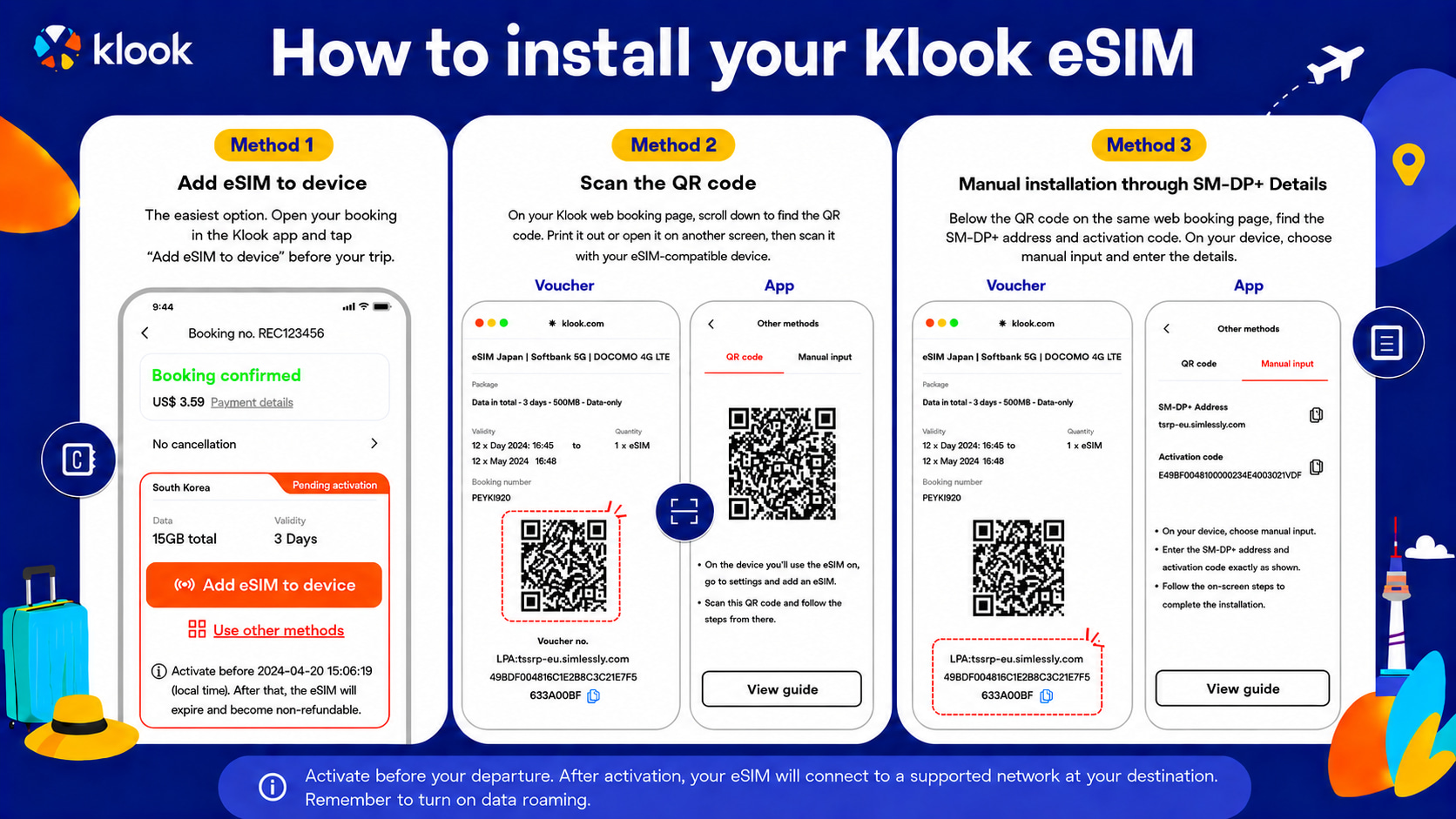
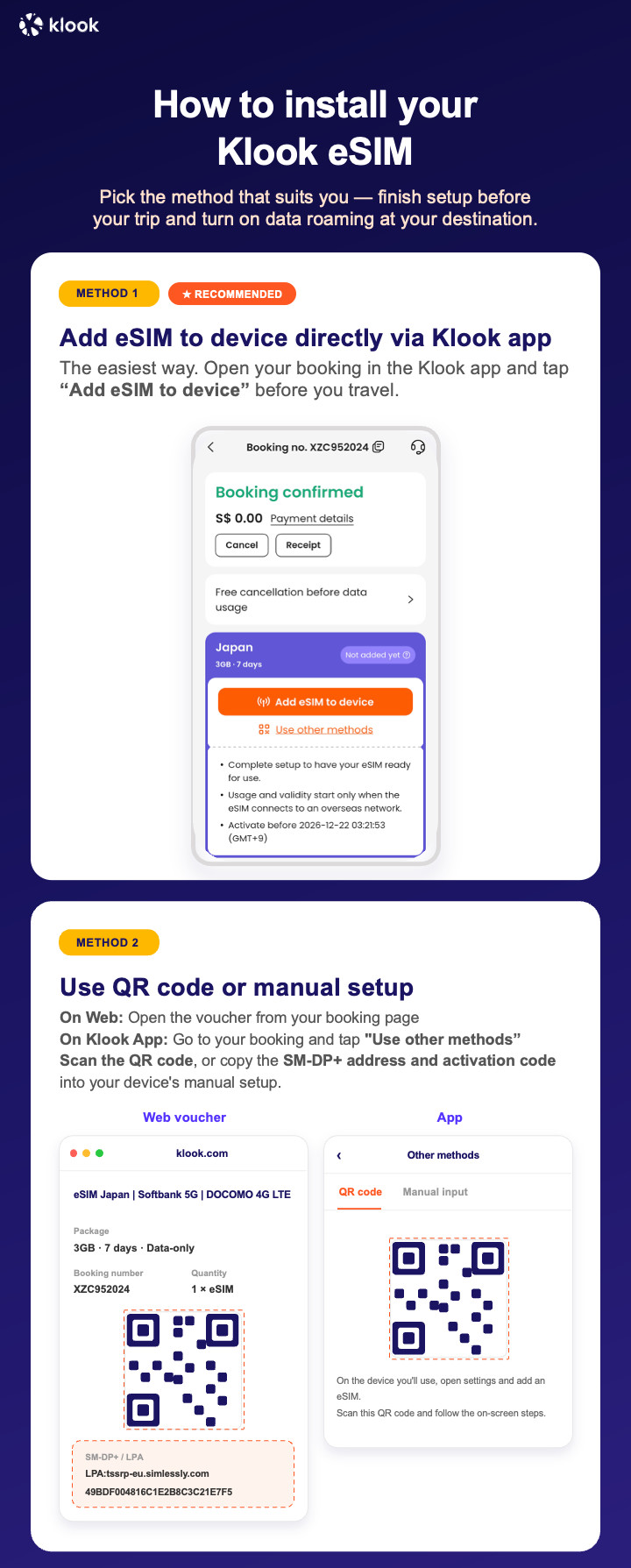
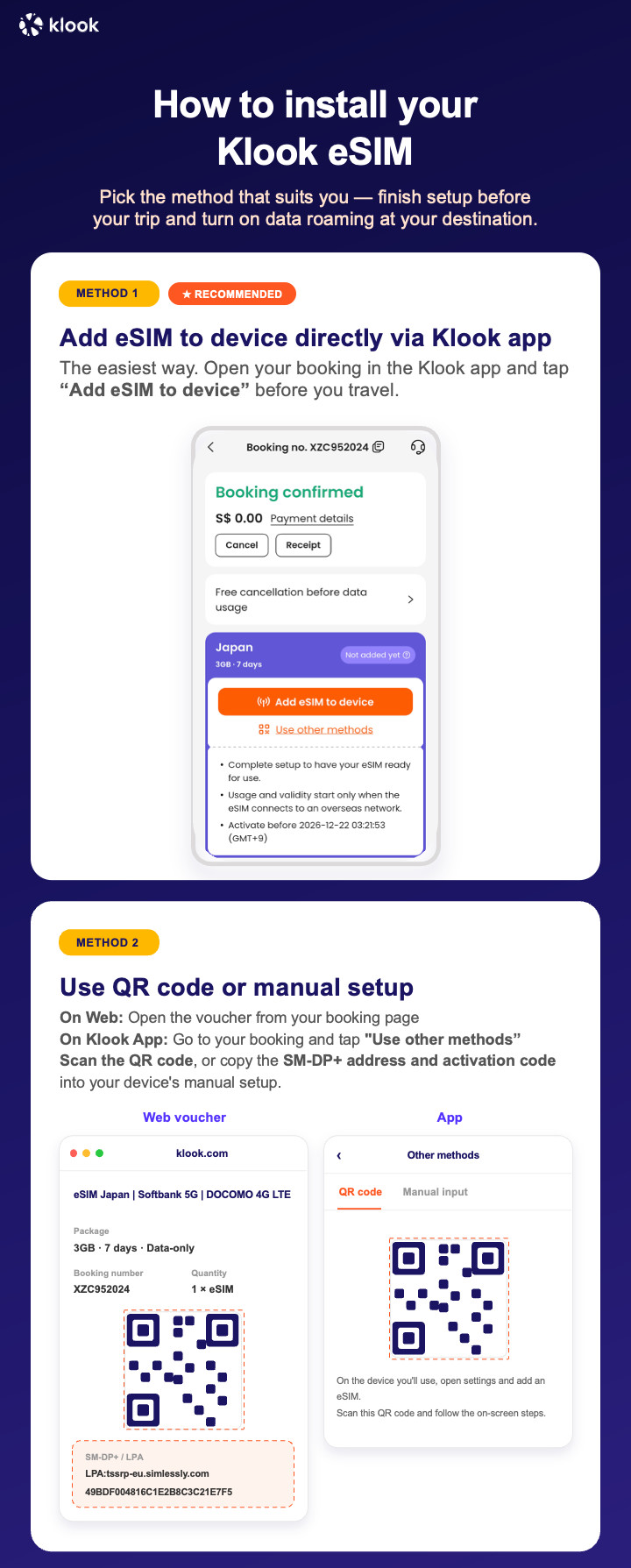
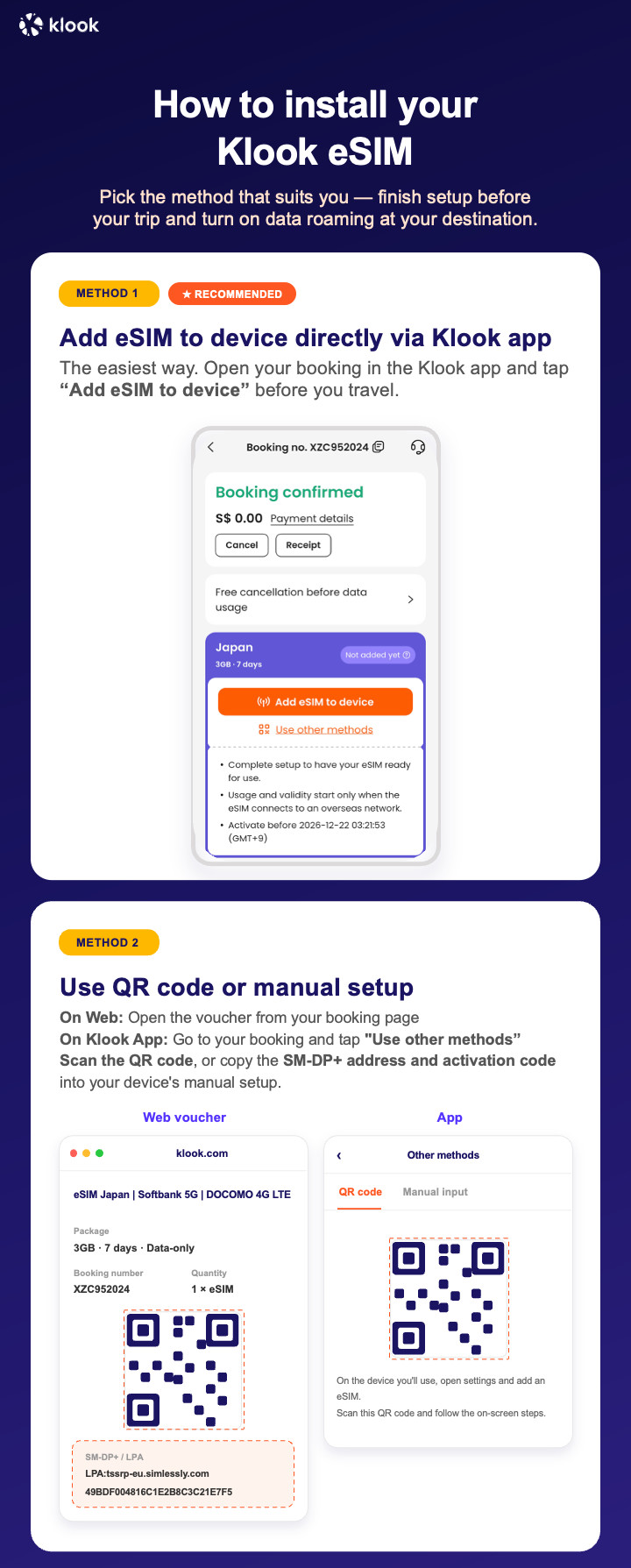
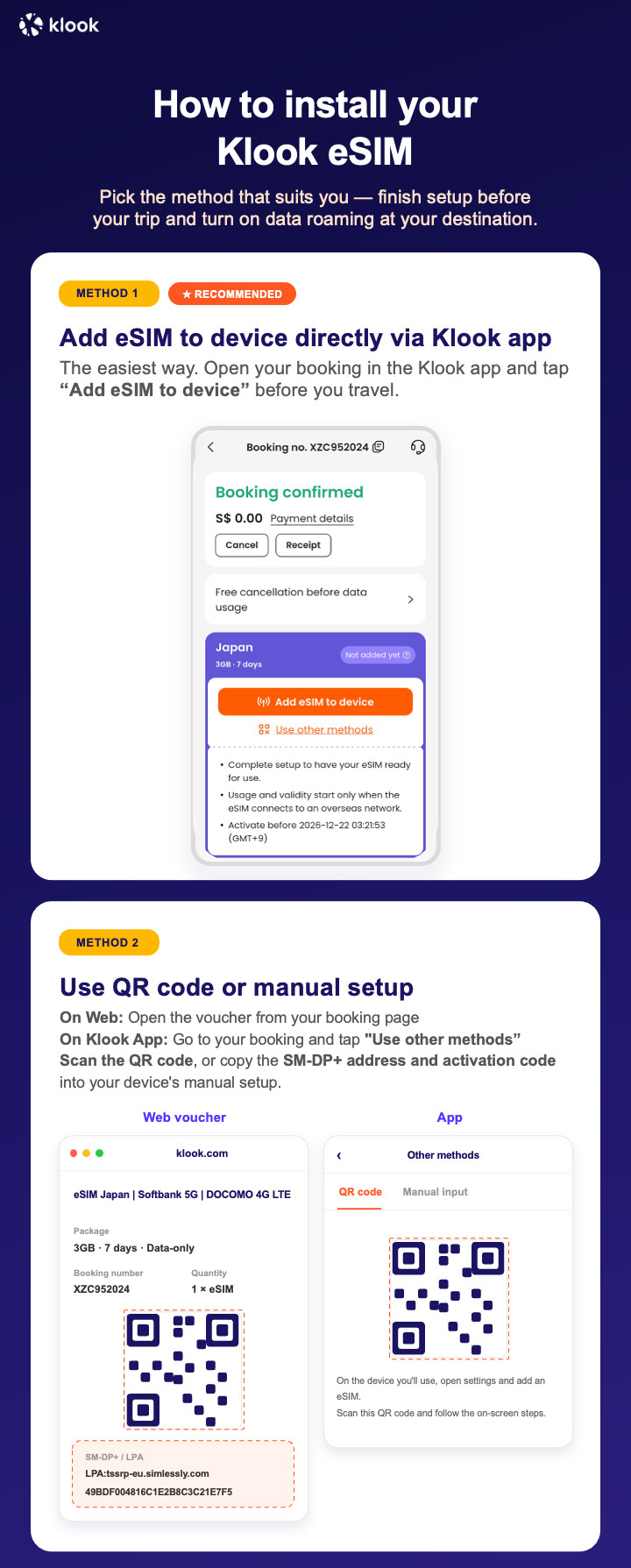
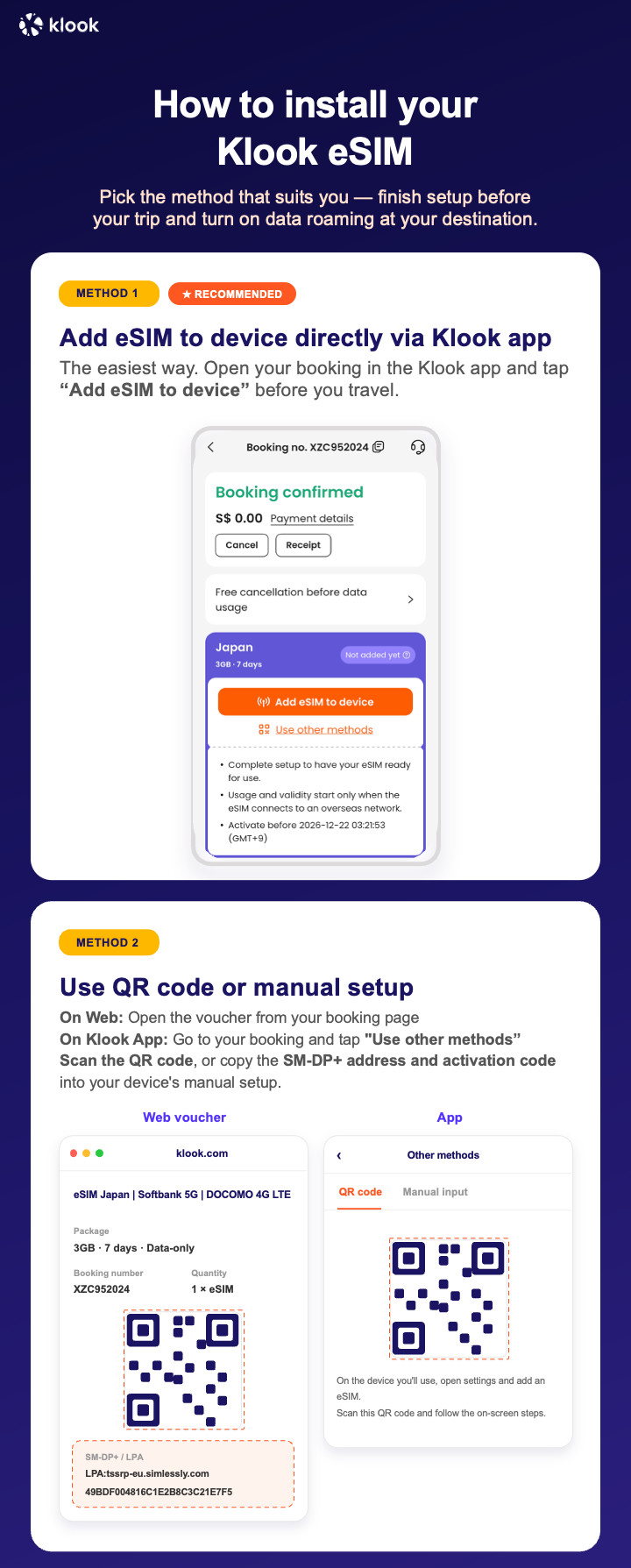
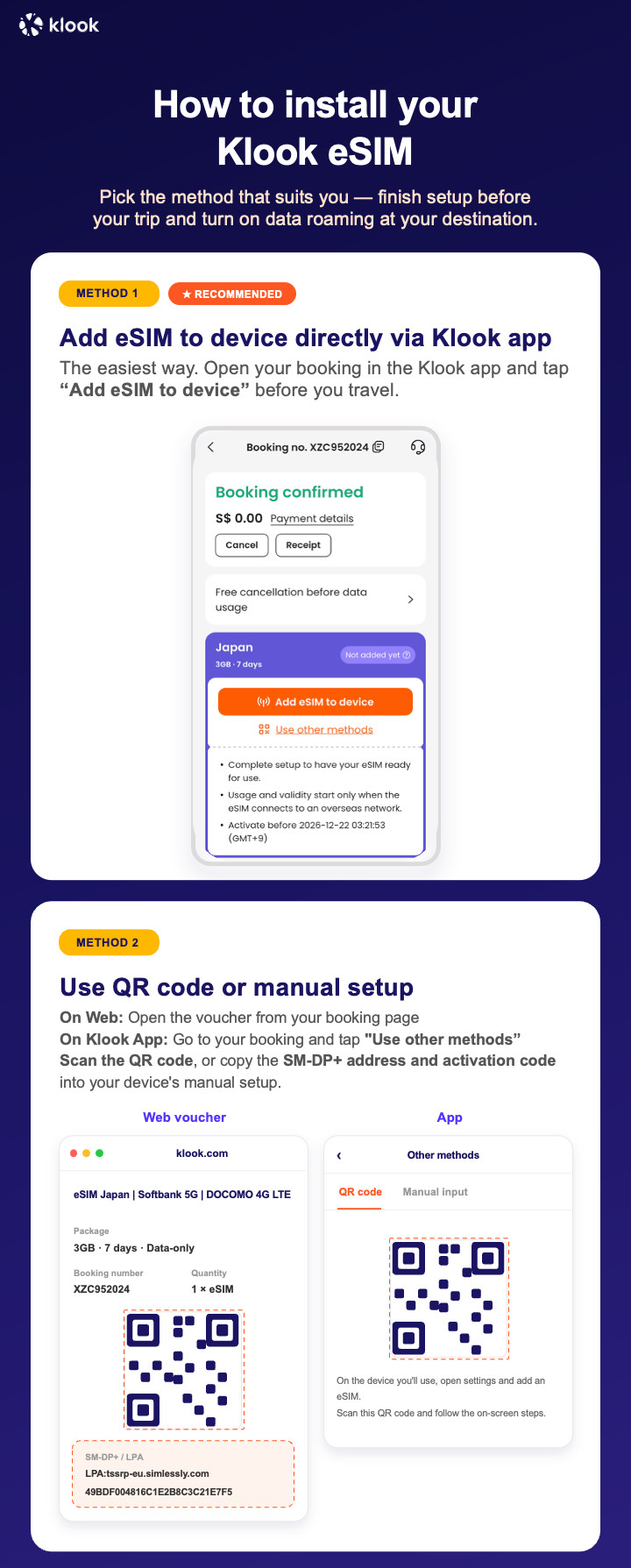
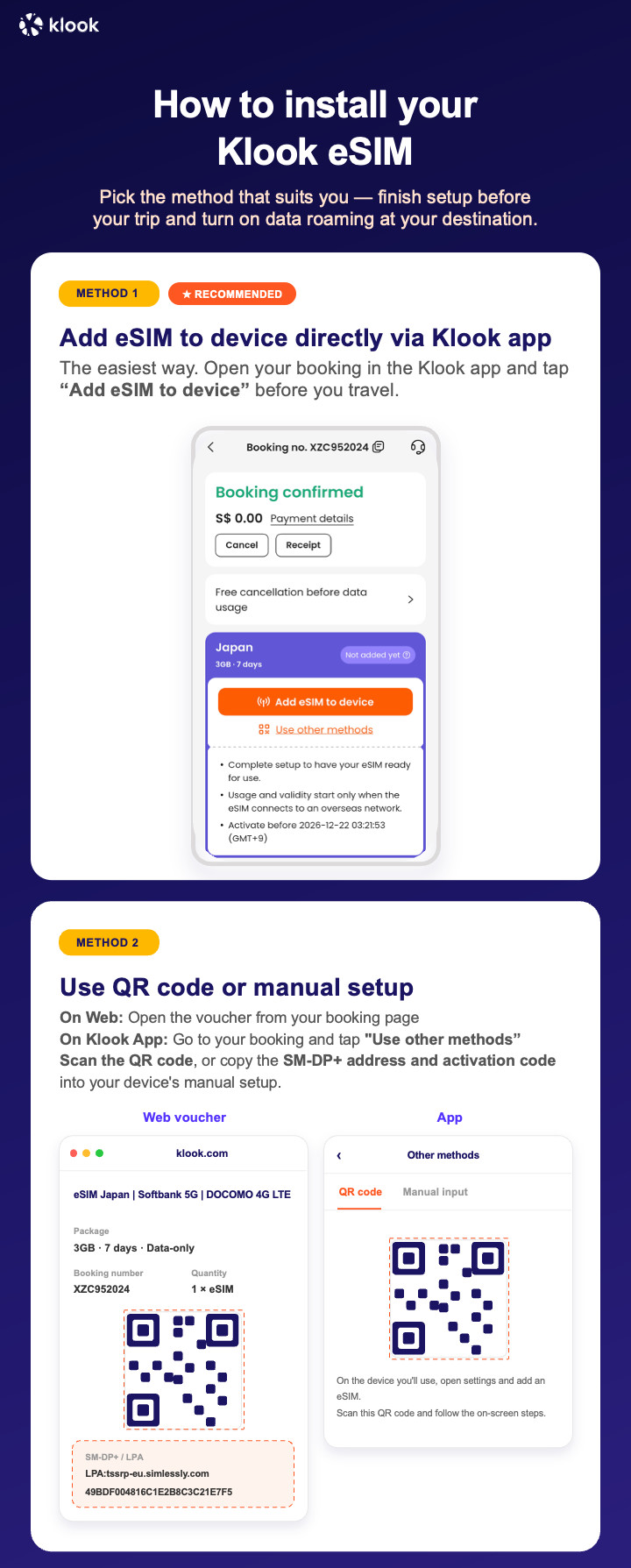
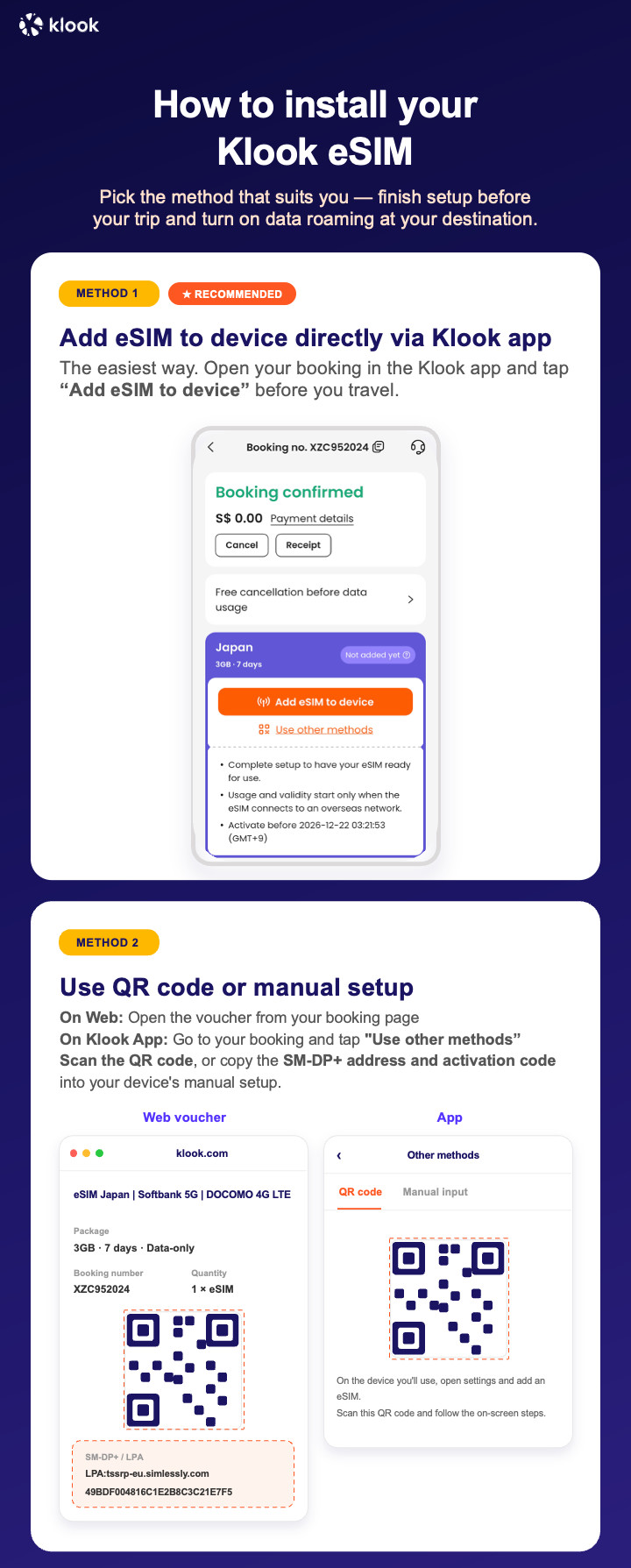
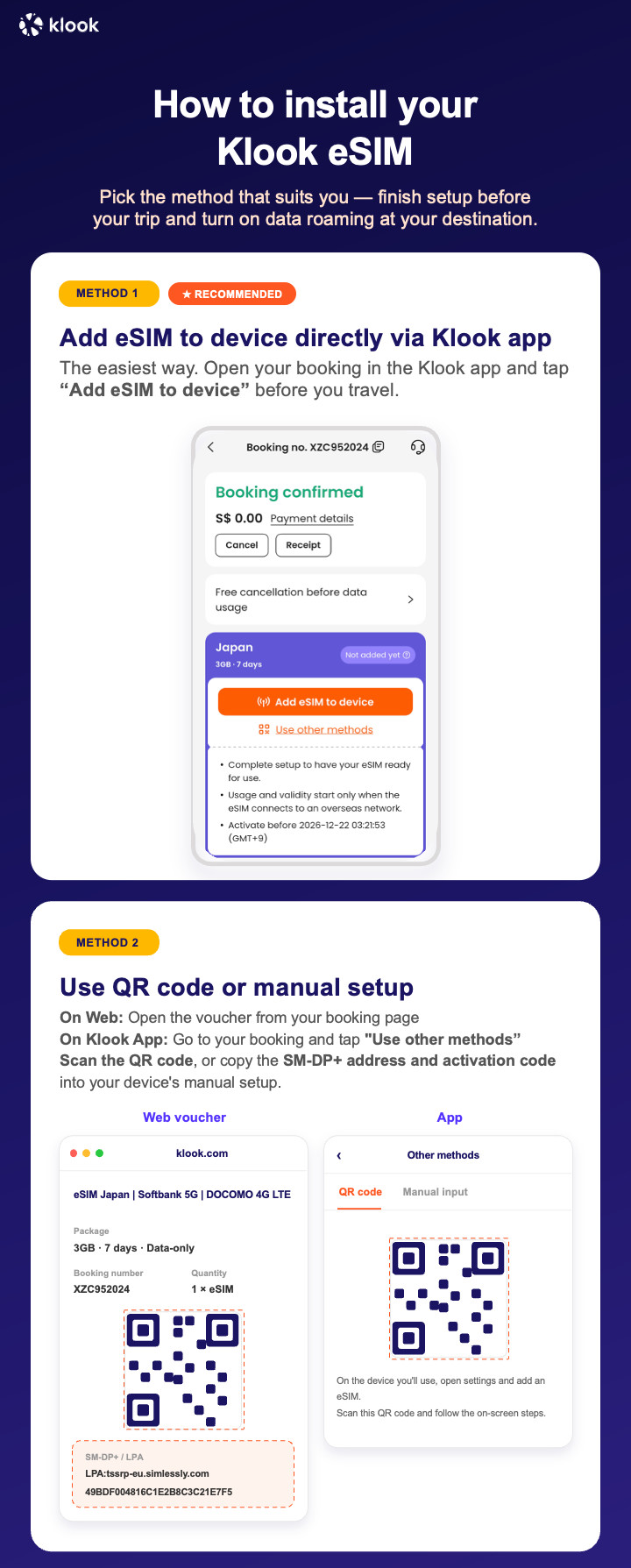
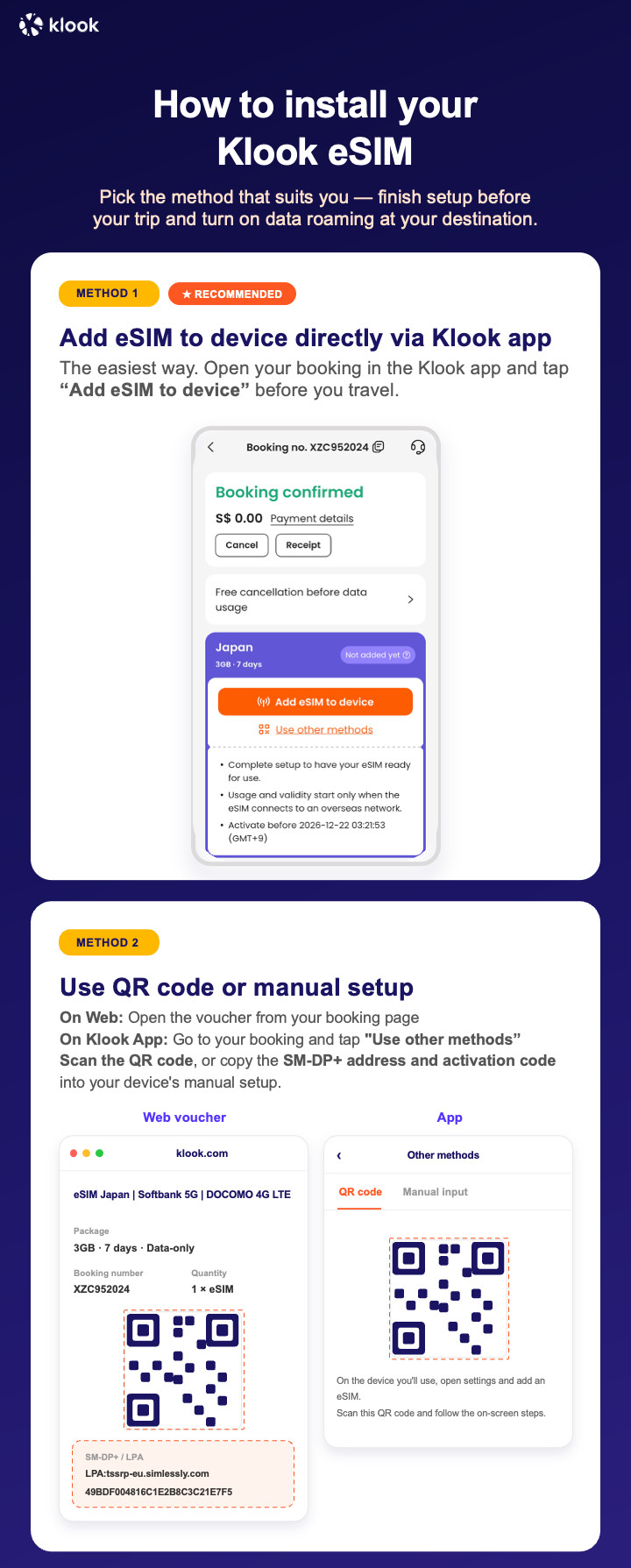
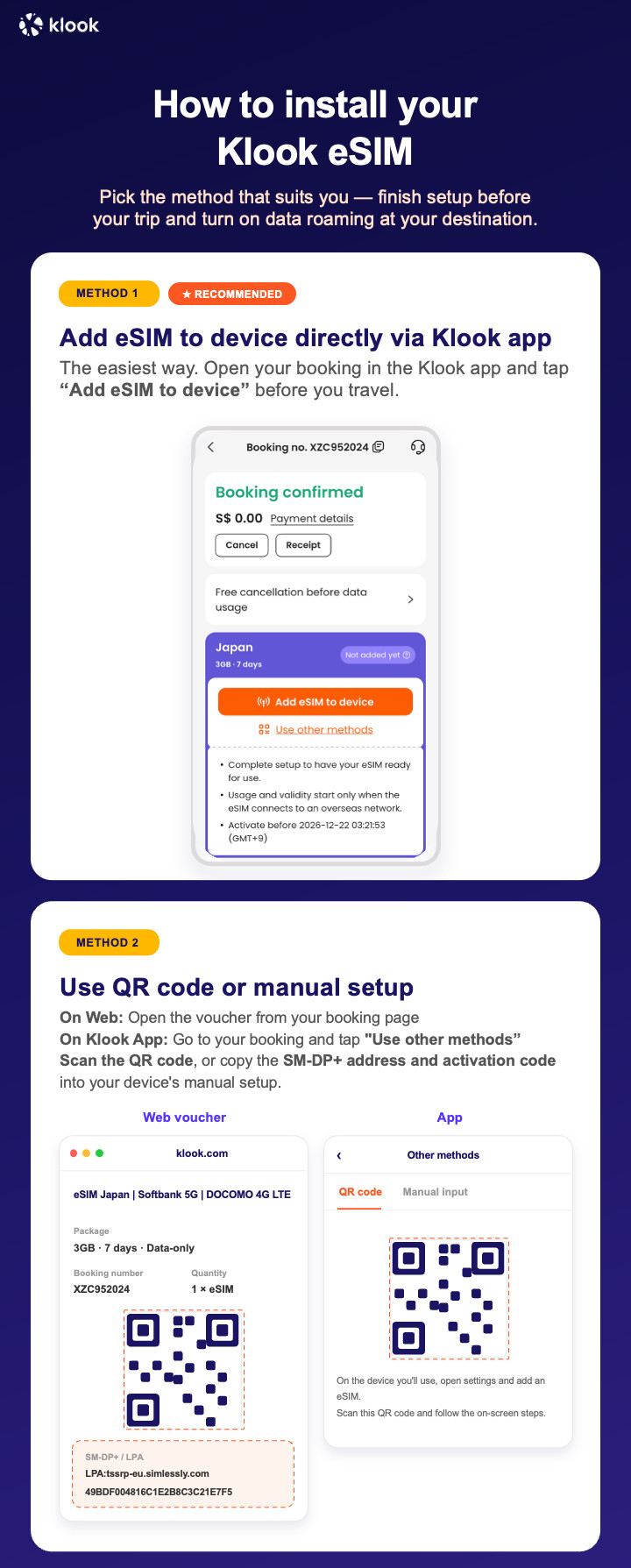
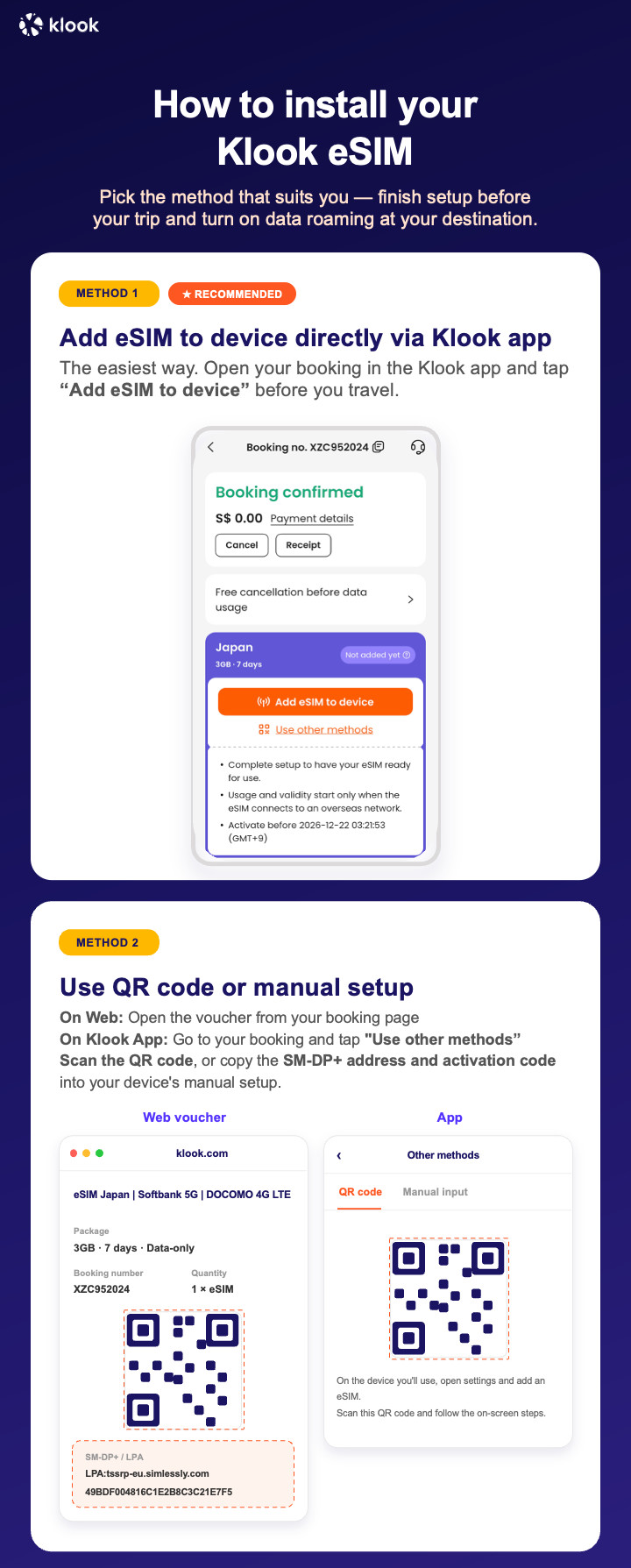
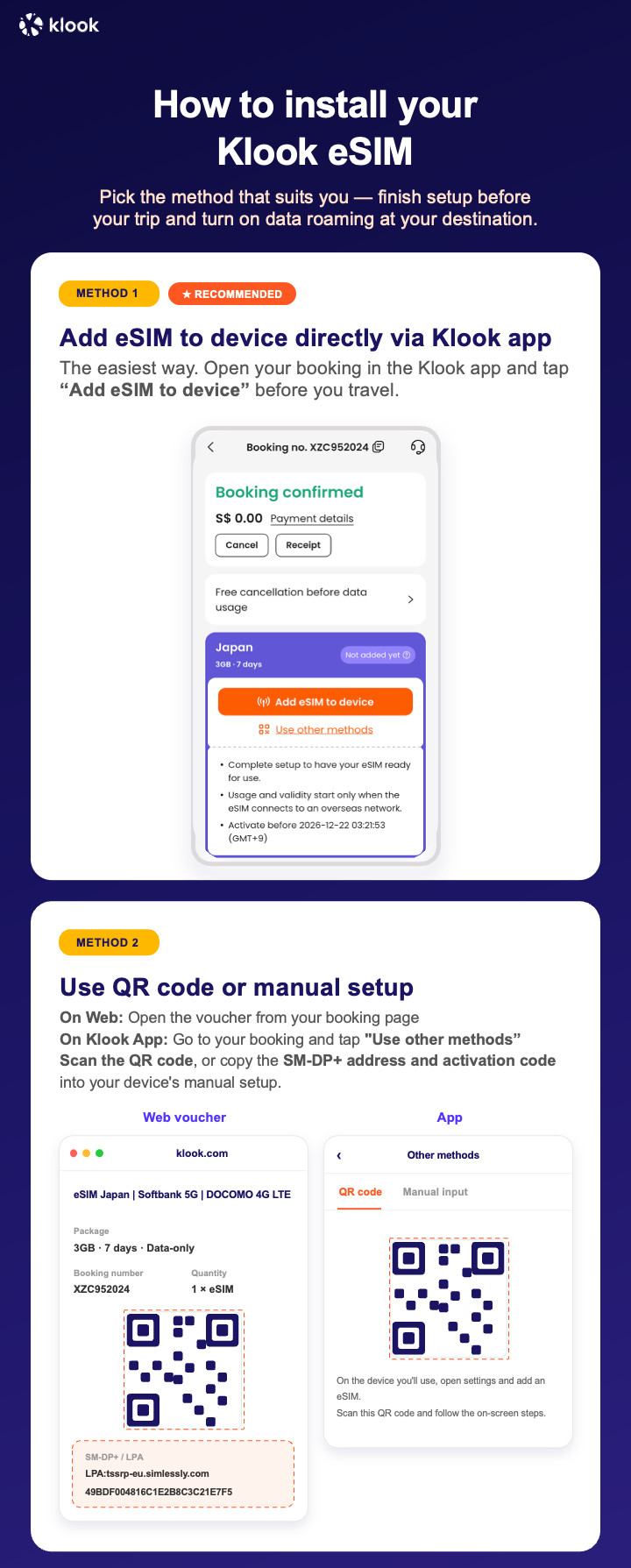
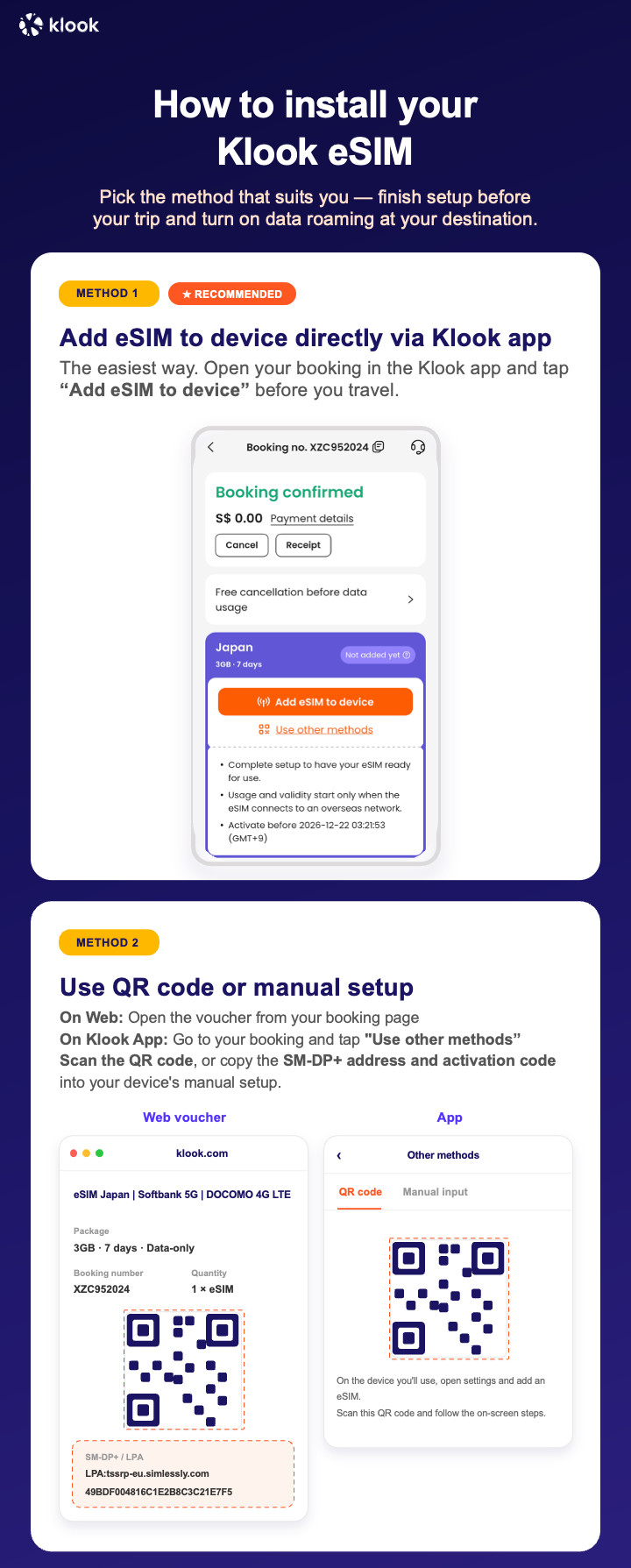
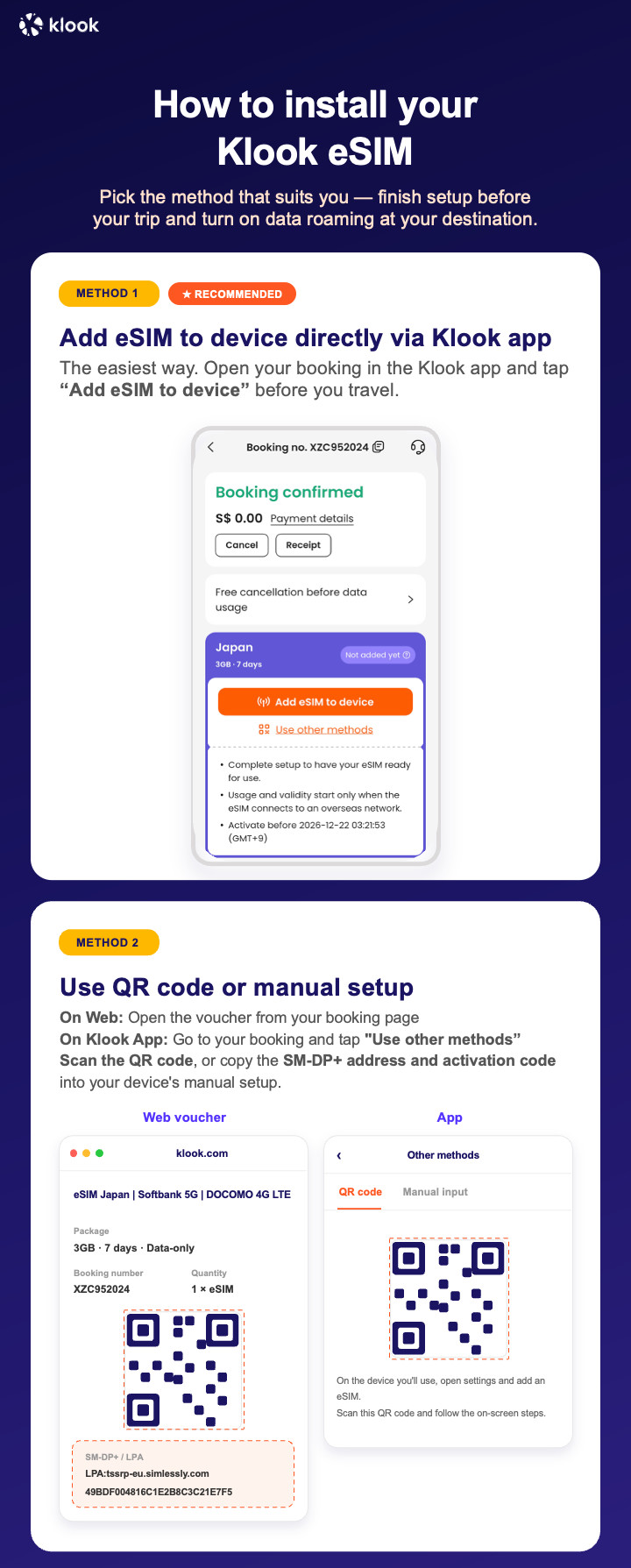
Klook eSIM installation methods
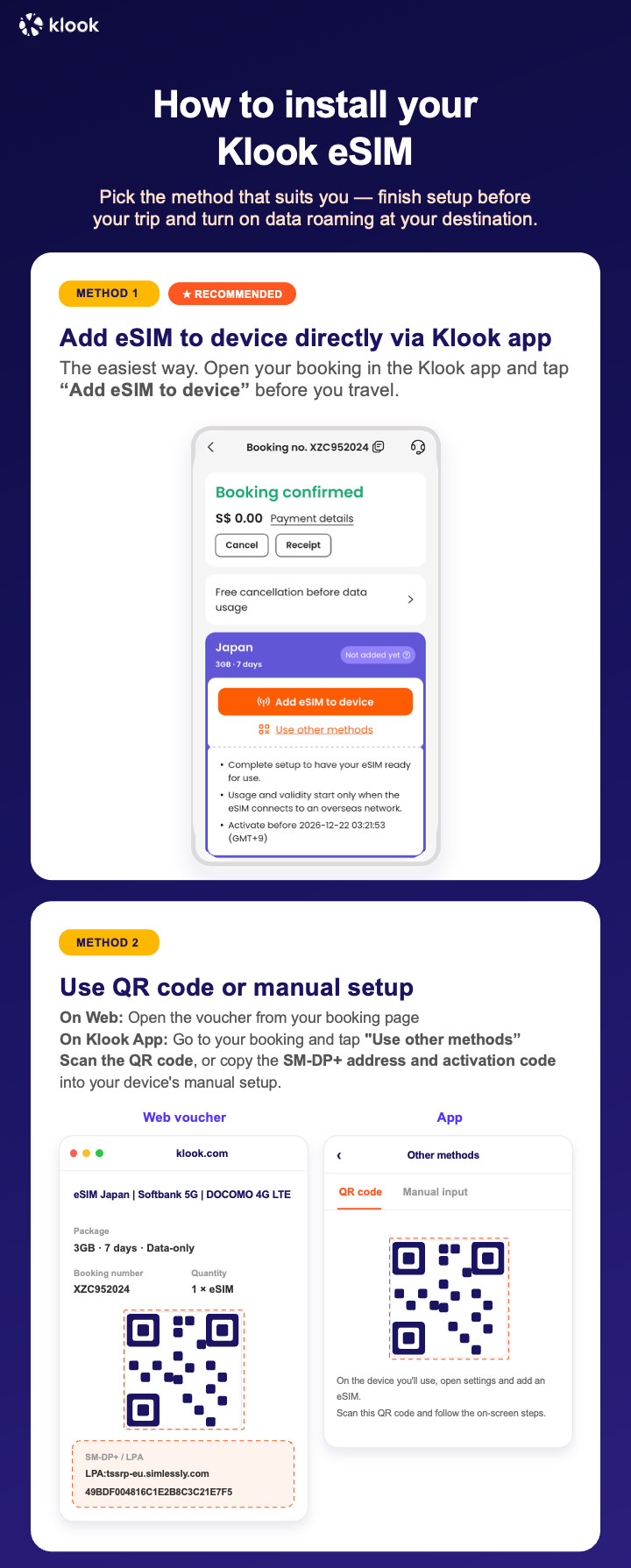
Activate your eSIM via Klook in-app activation, scanning the QR code, or entering the SMDP+ details manually
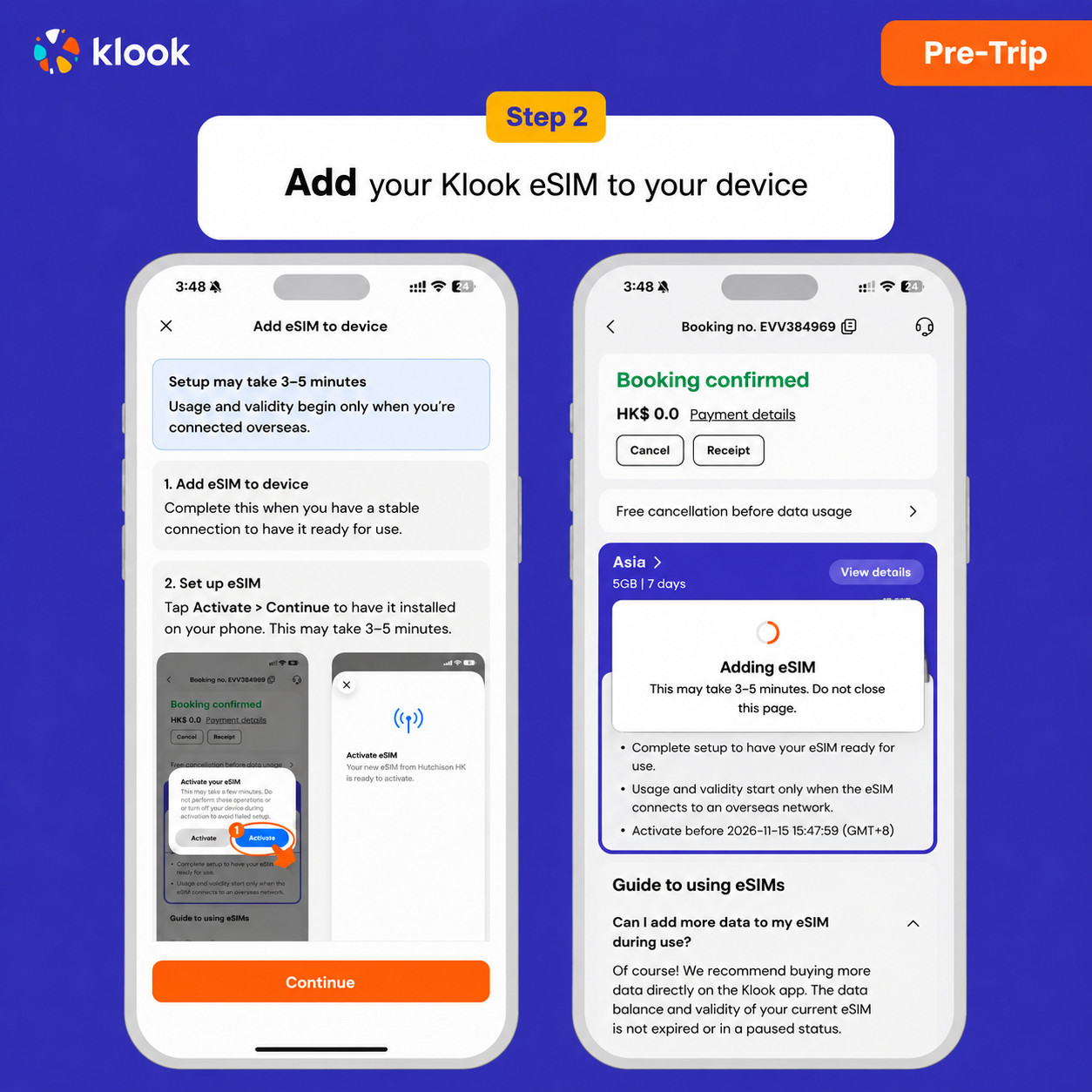
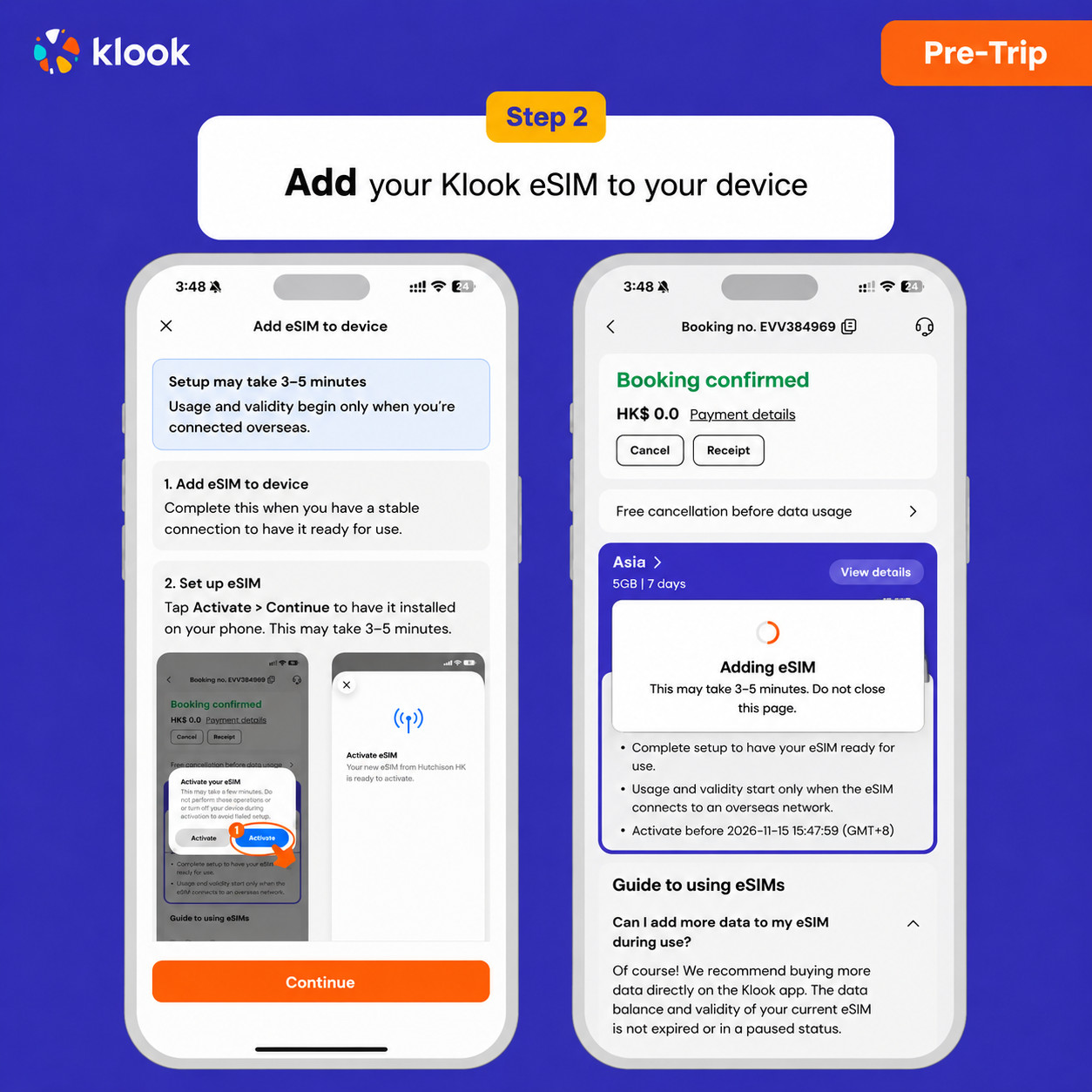
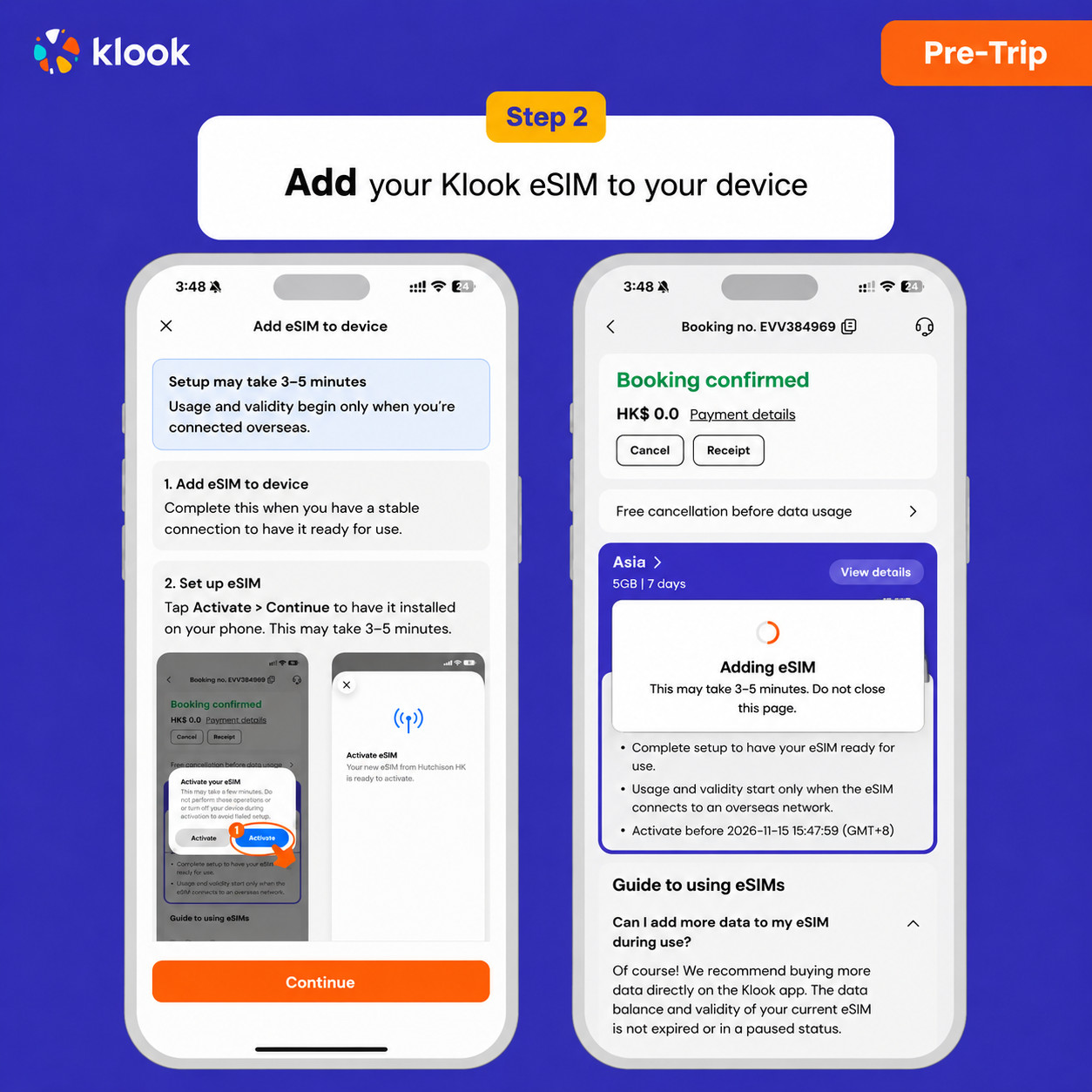
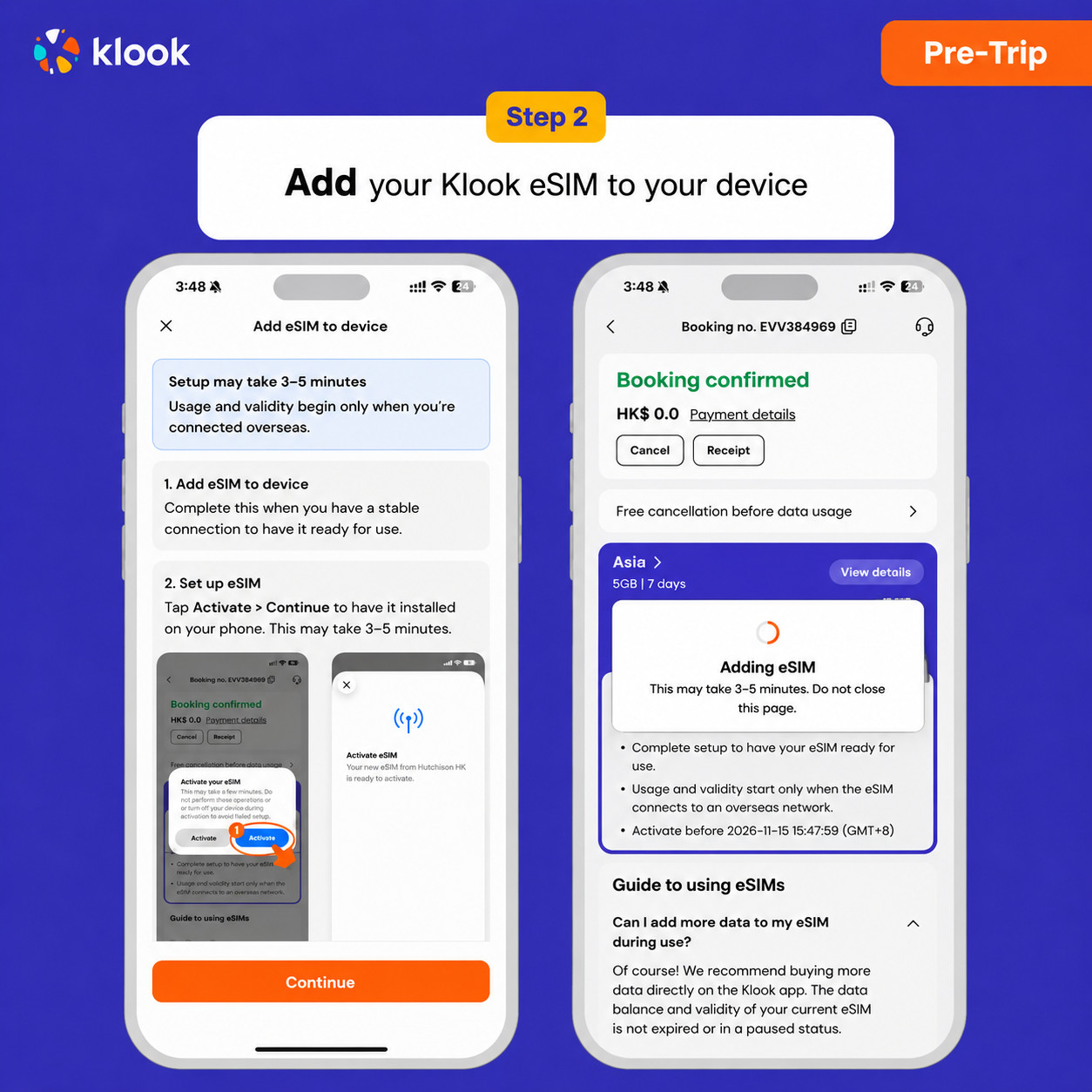
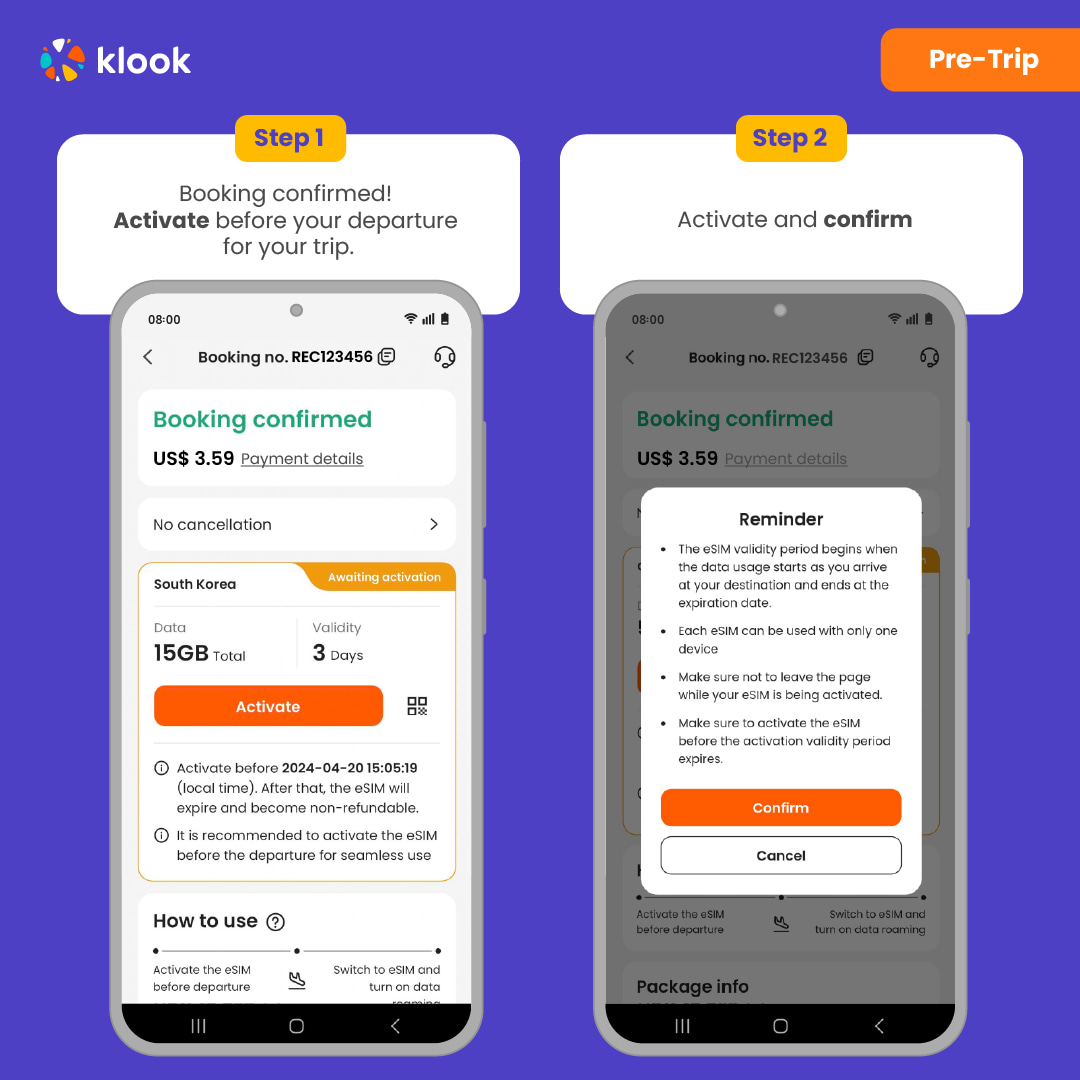
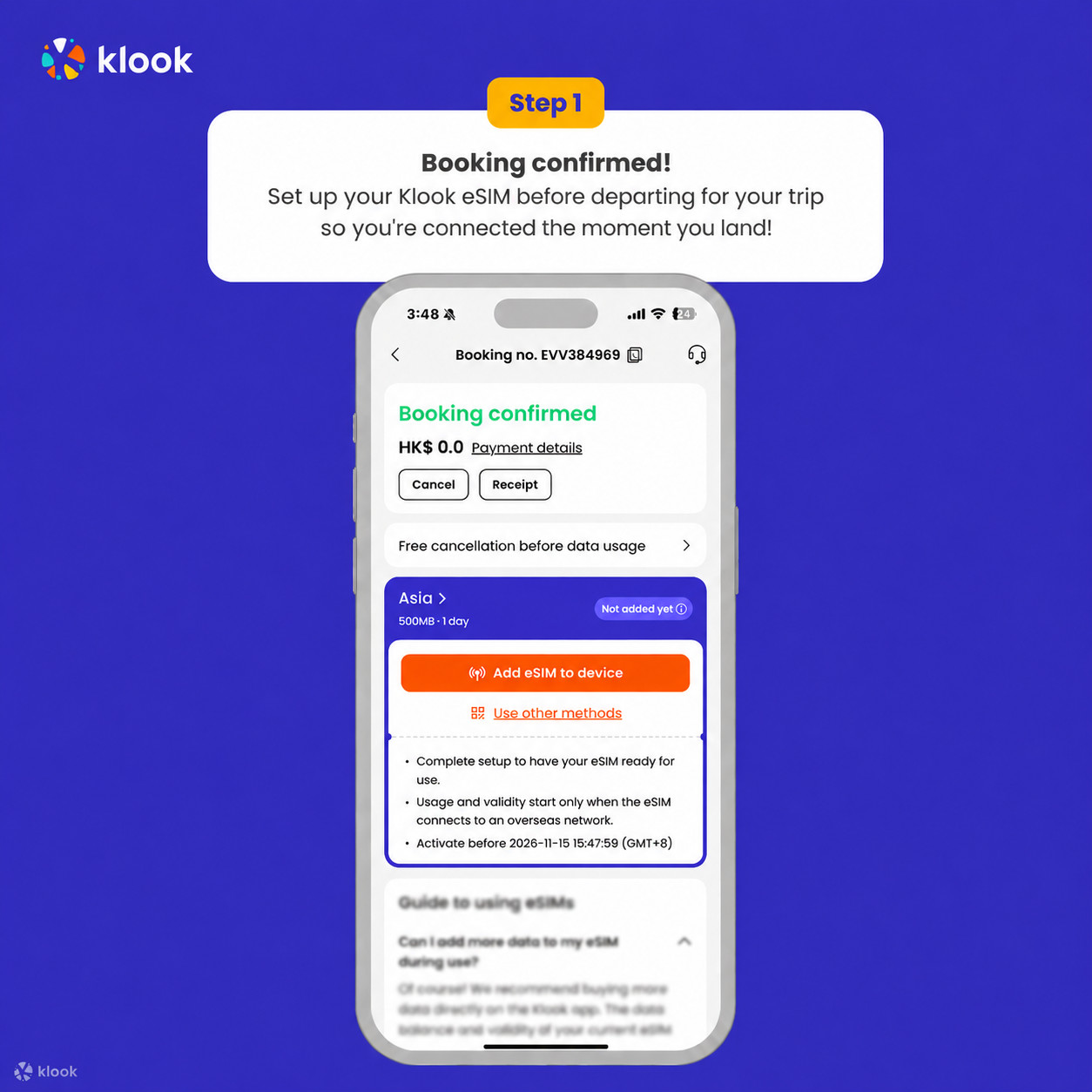
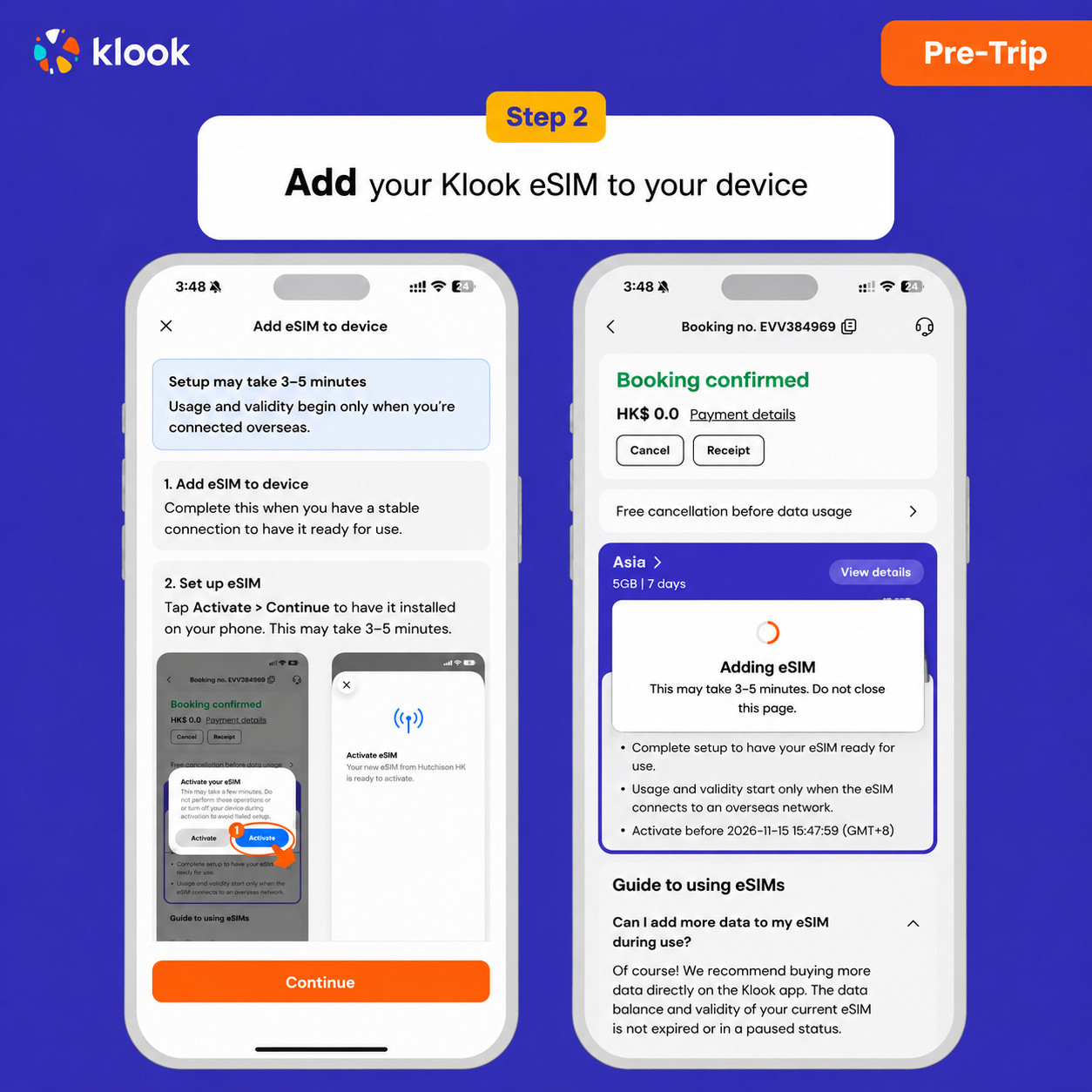
Klook eSIM In-app activation
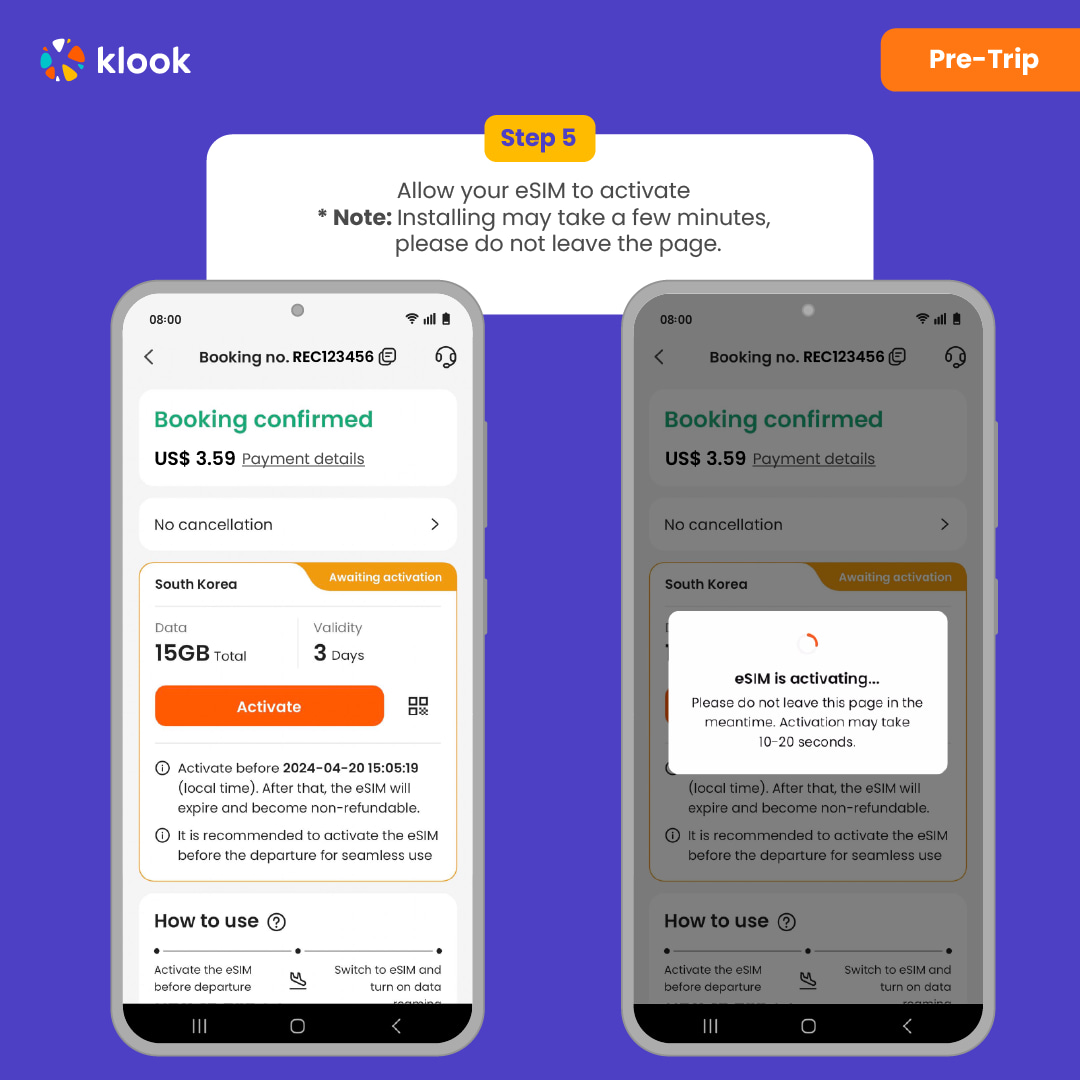
Activate your eSIM just by clicking Add eSIM to device on your booking. Don't worry, data and validity will only commence when you reach your destination
Klook eSIM In-app activation
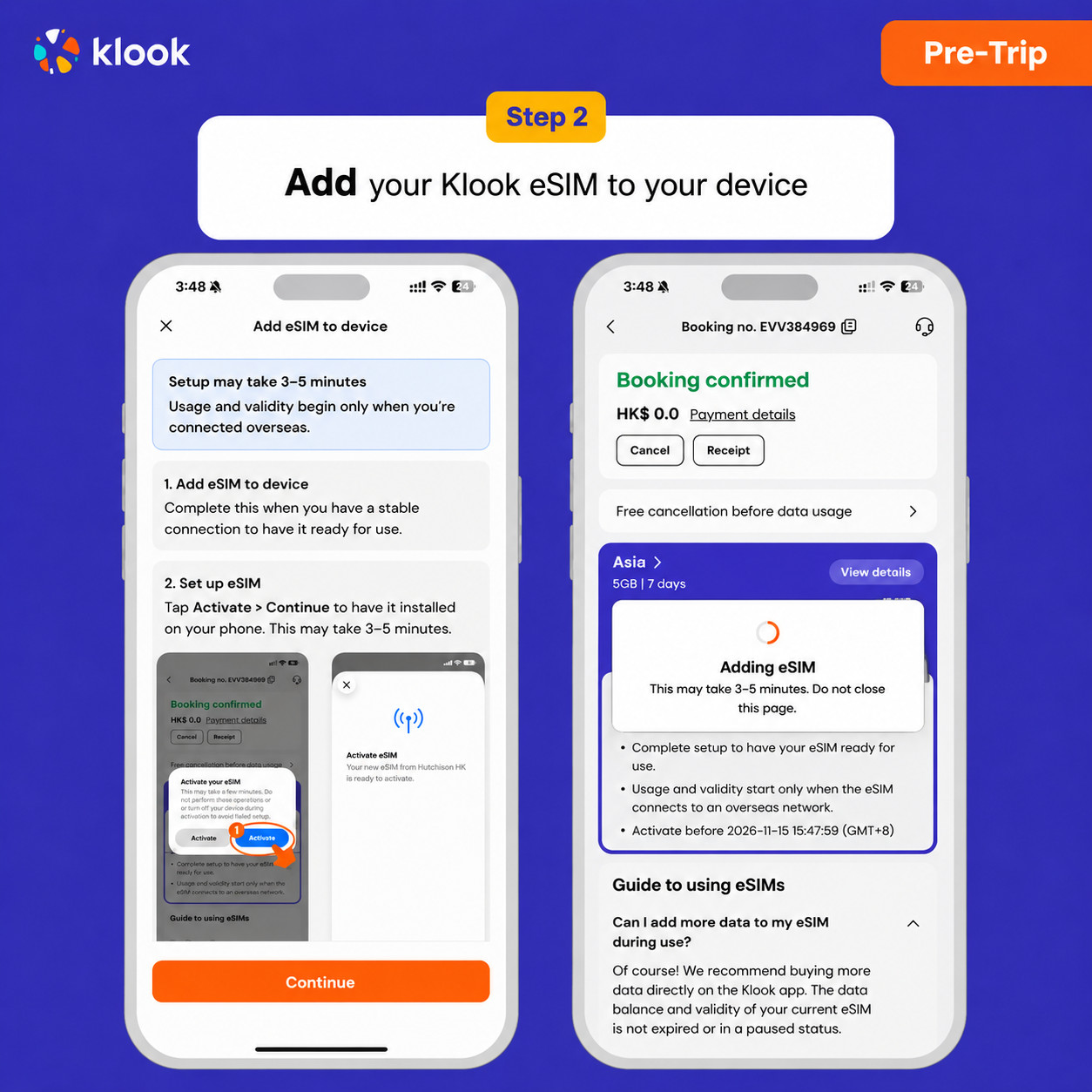
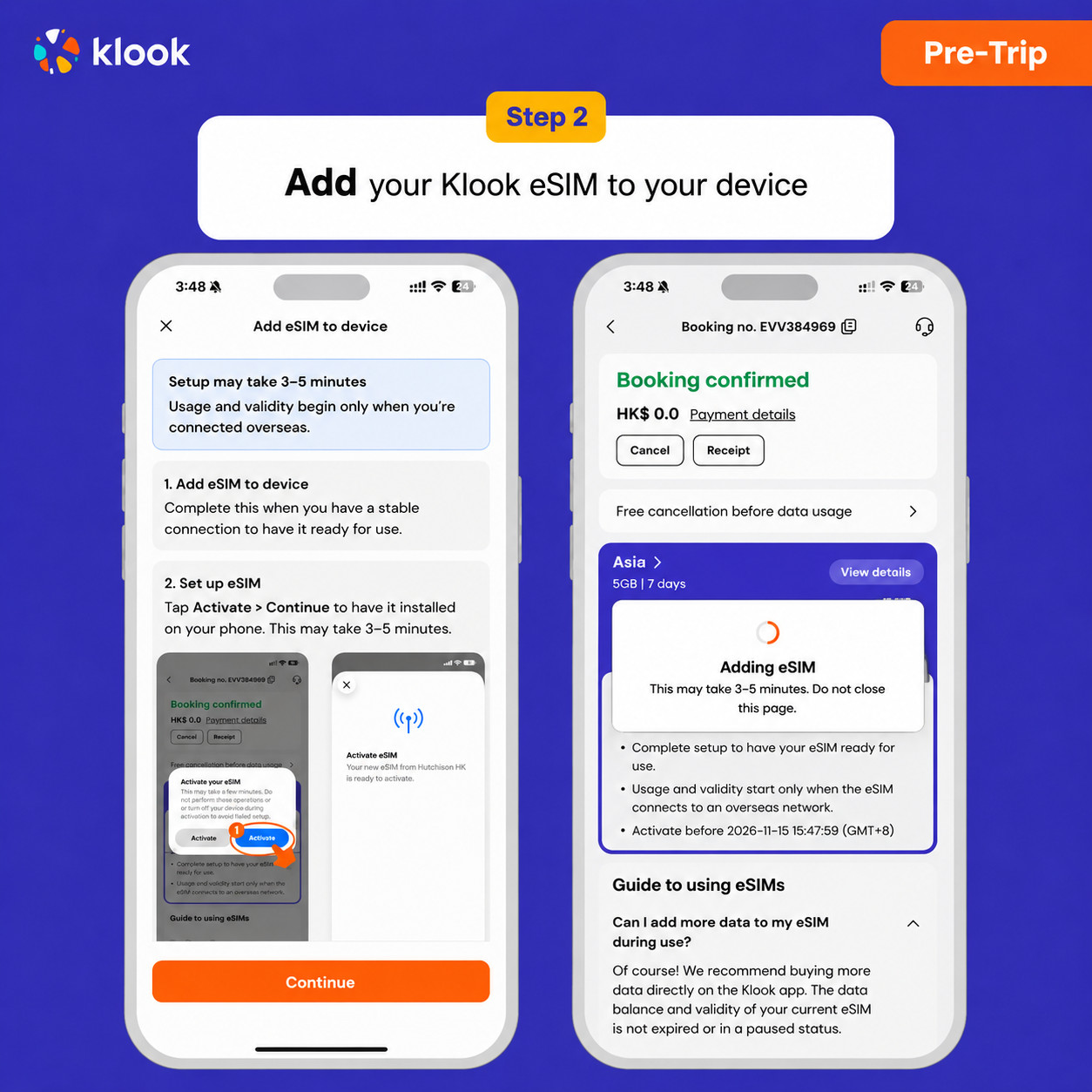
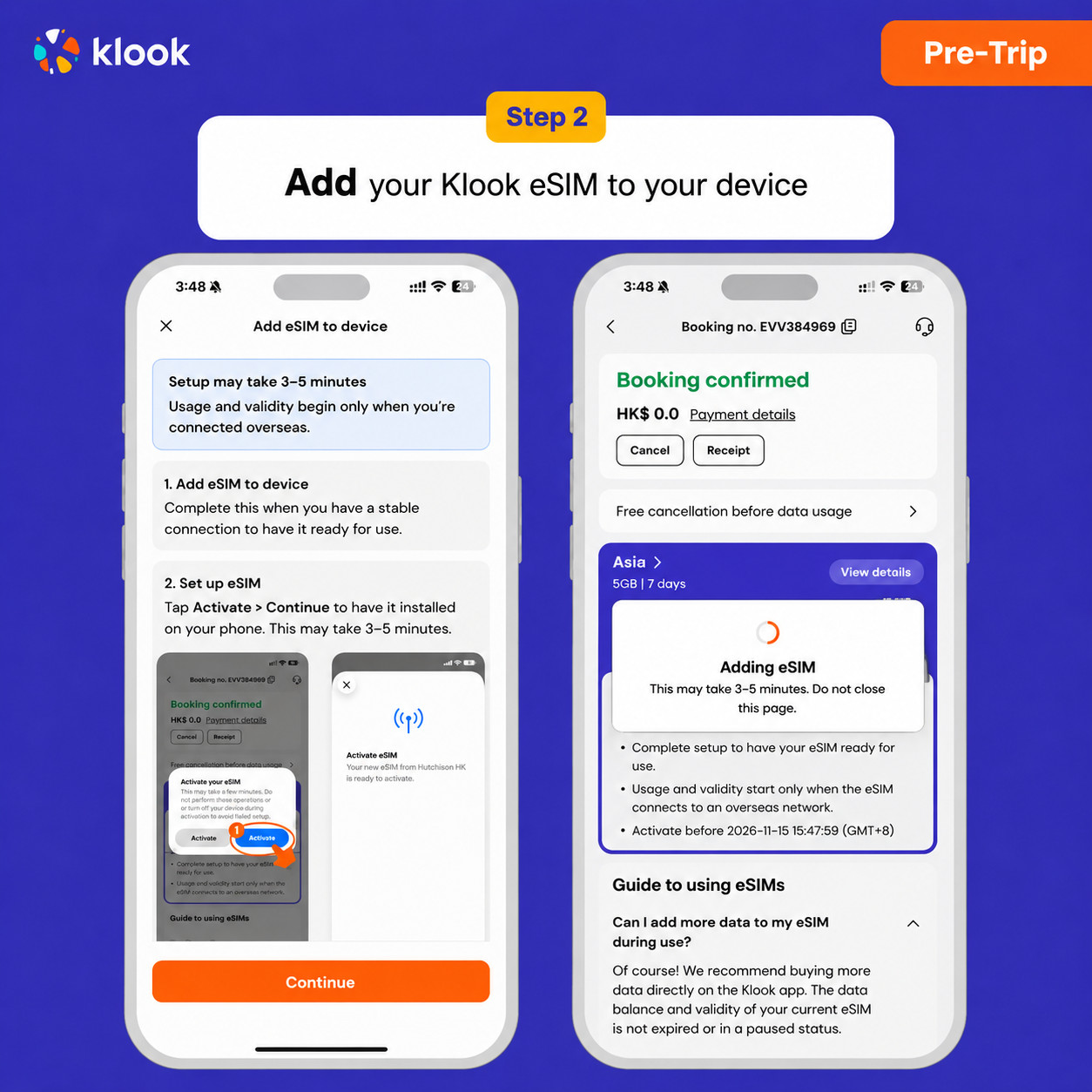
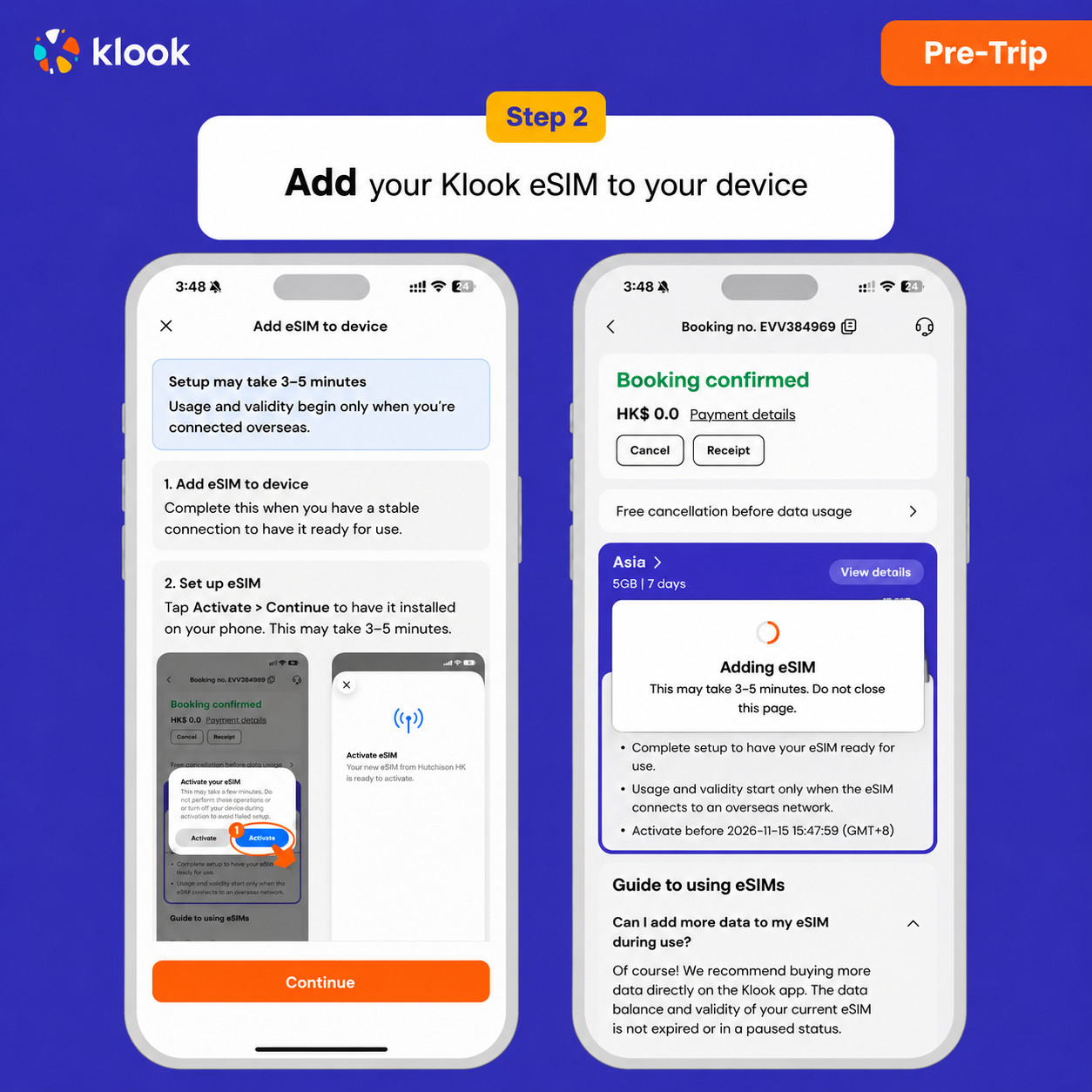
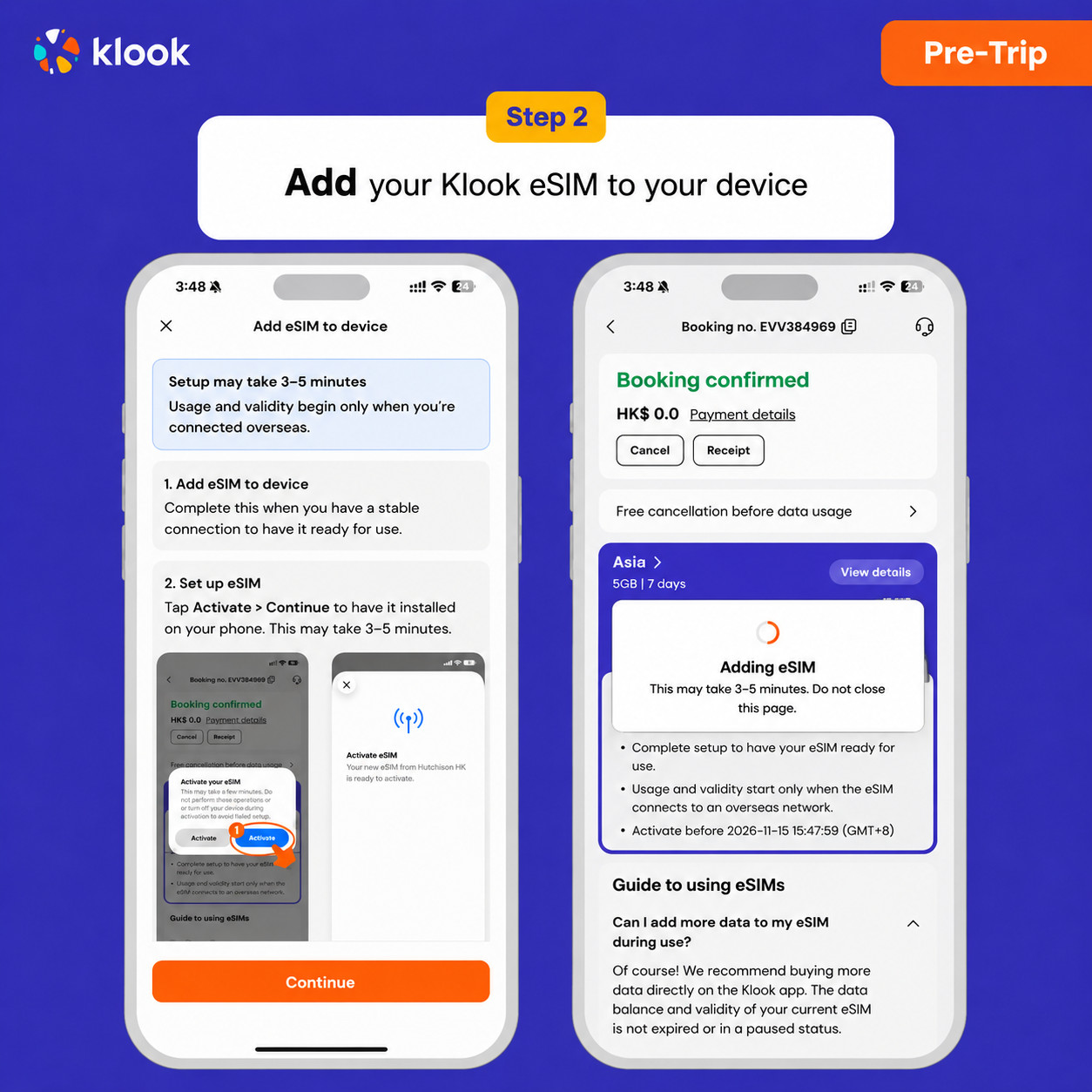
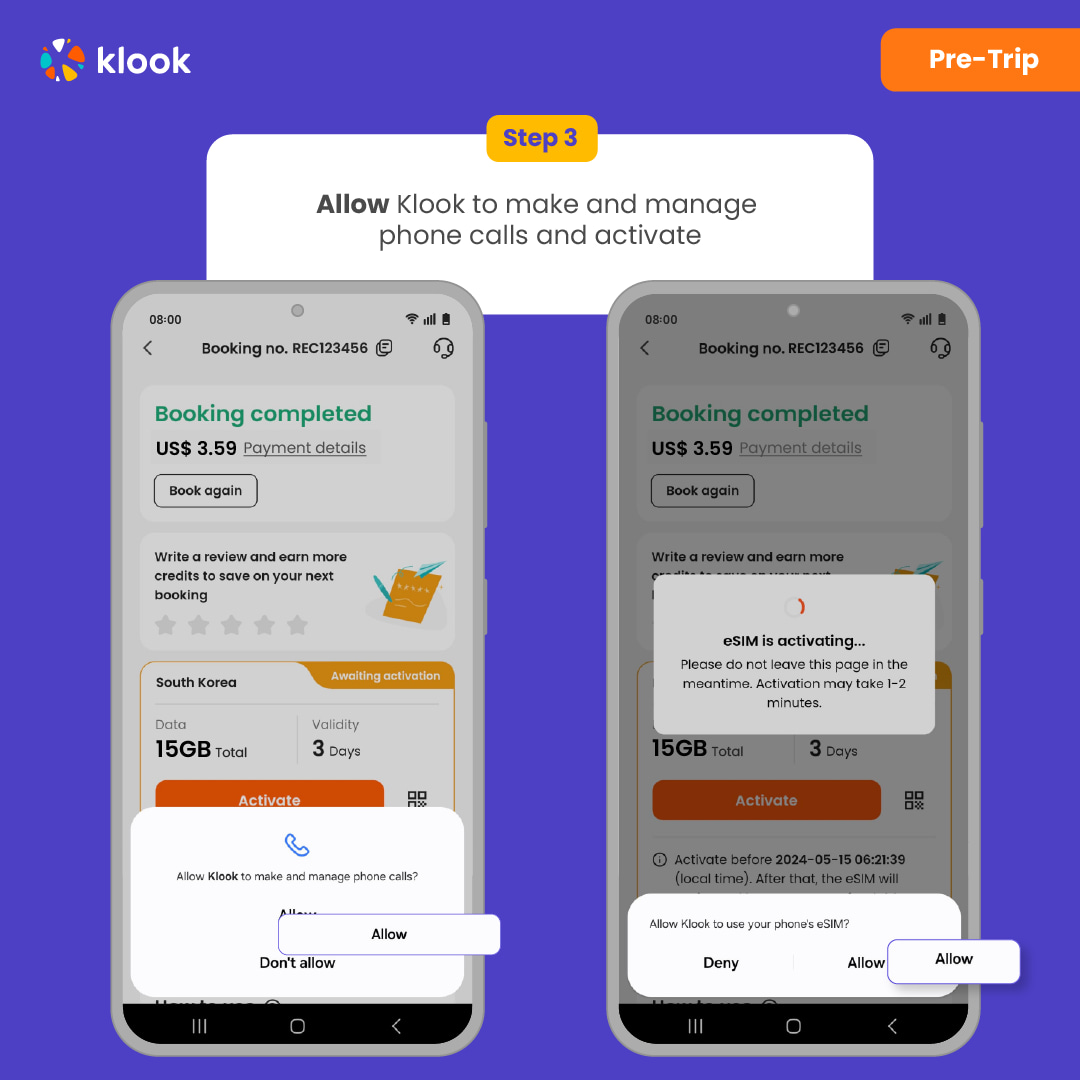
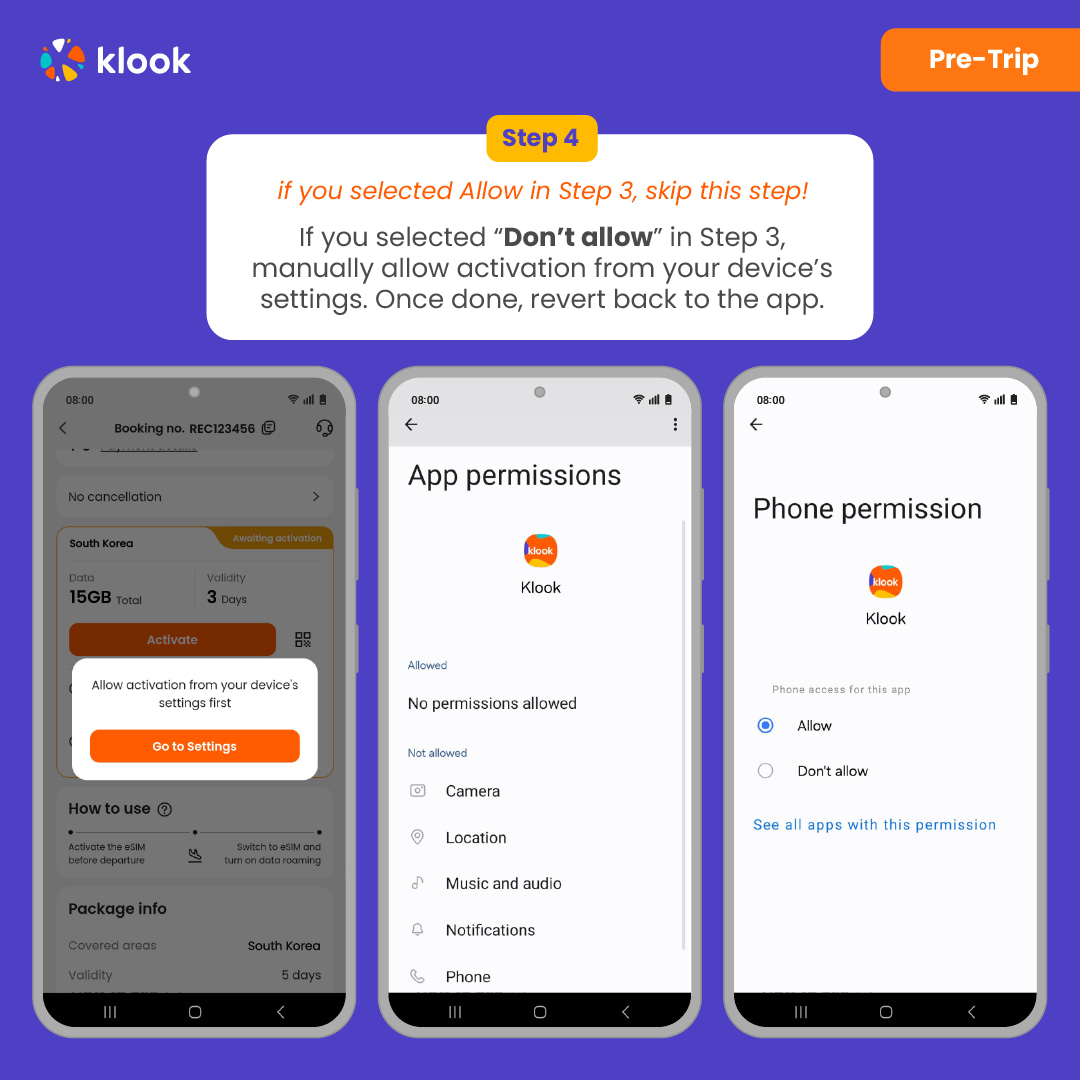
Installation of your eSIM will start automatically
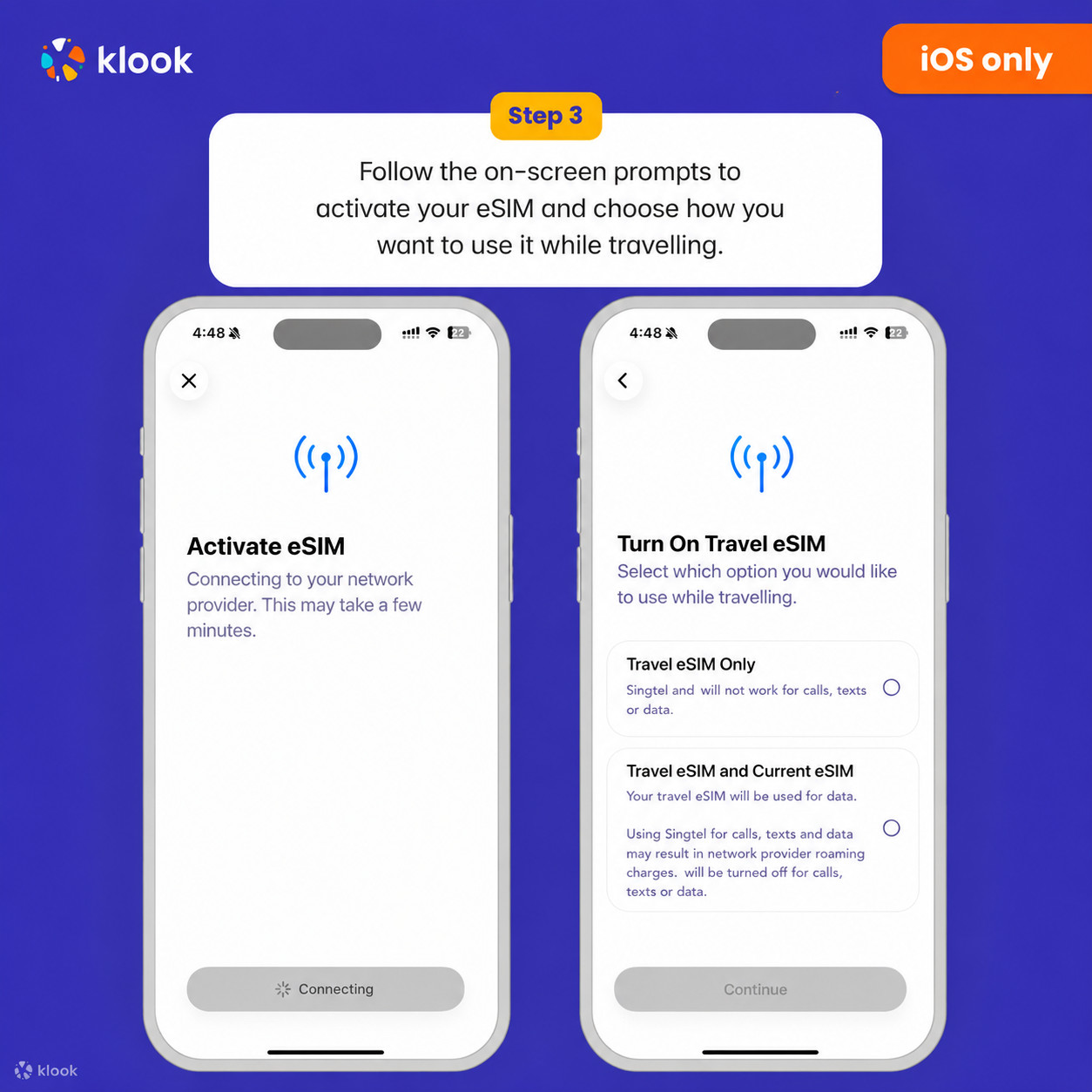
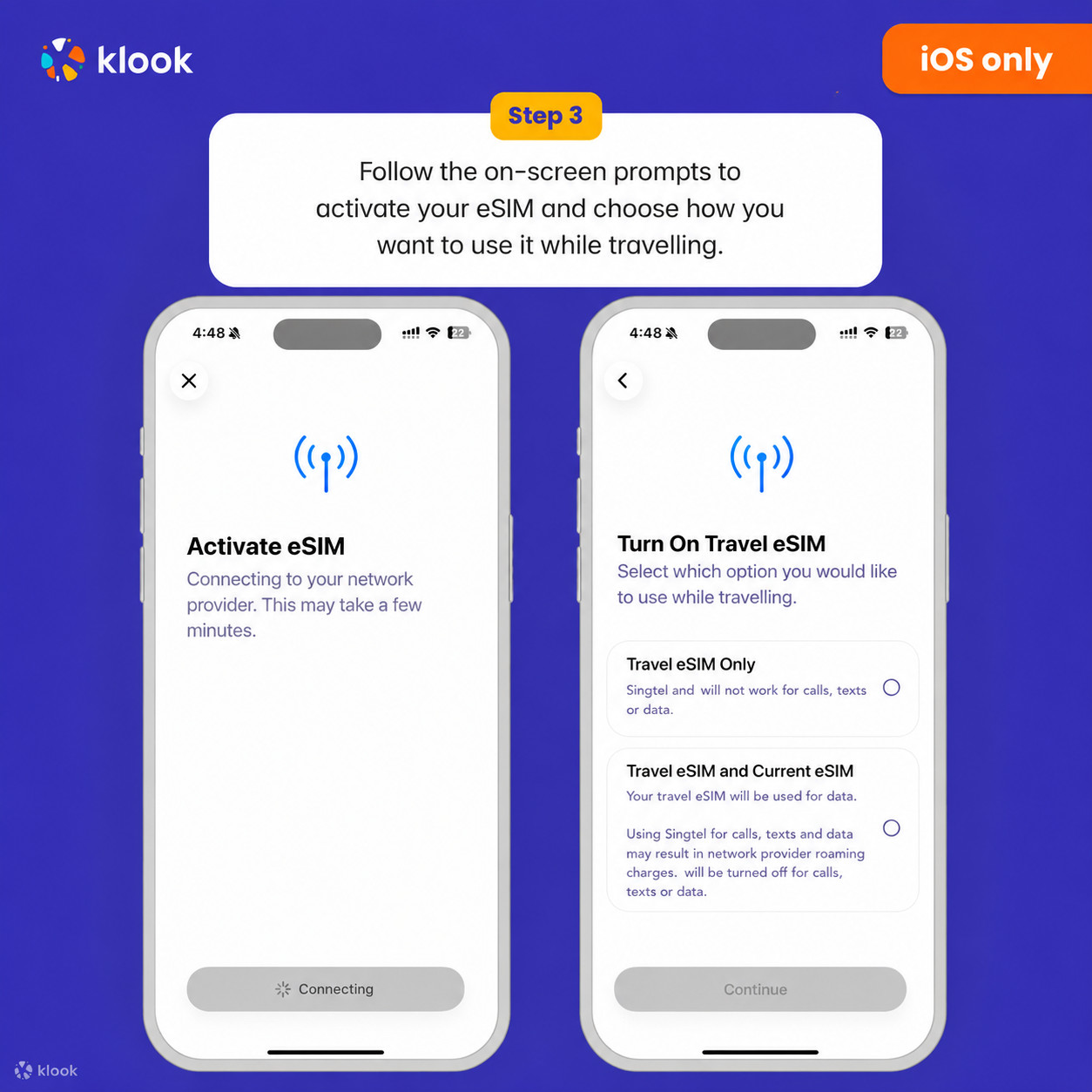
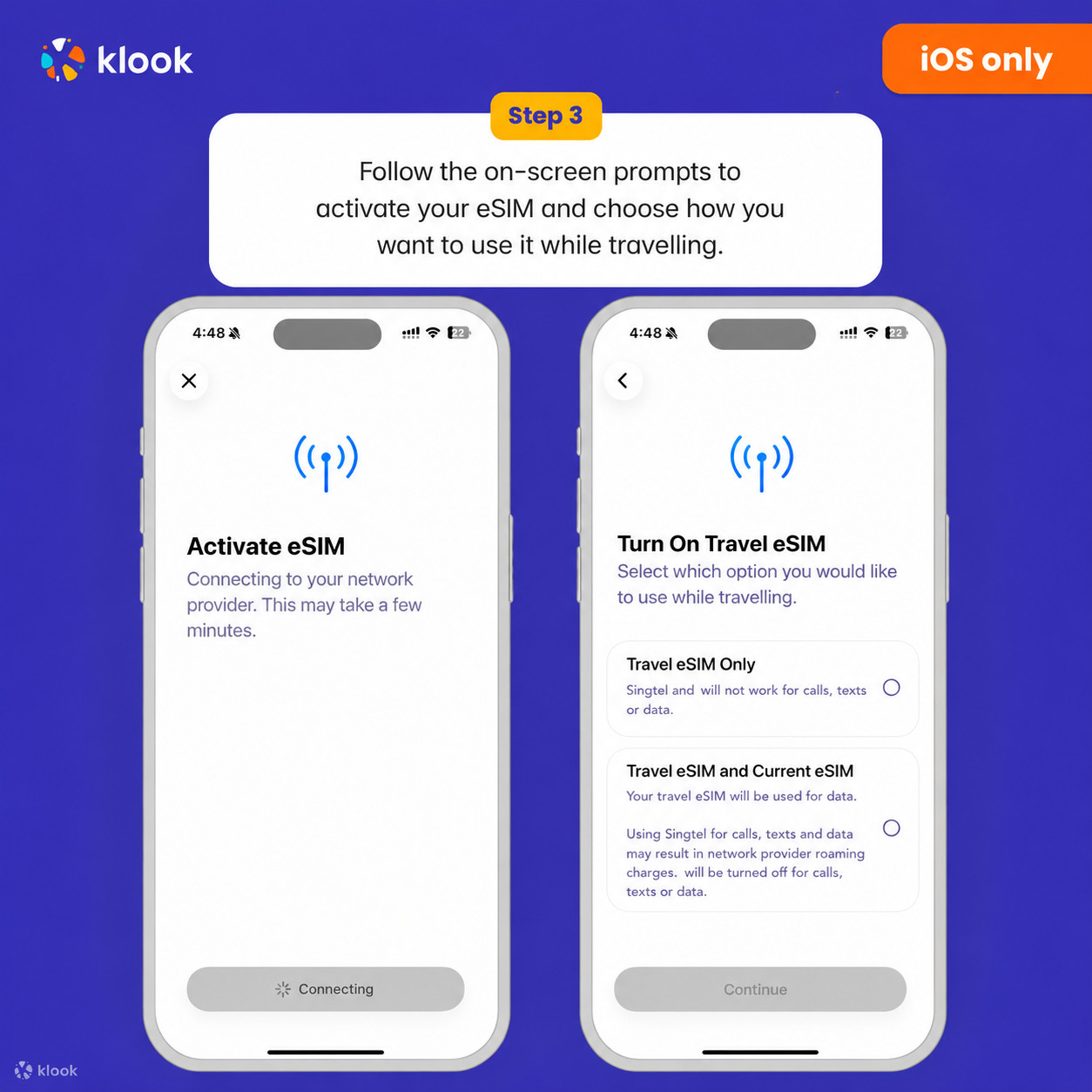
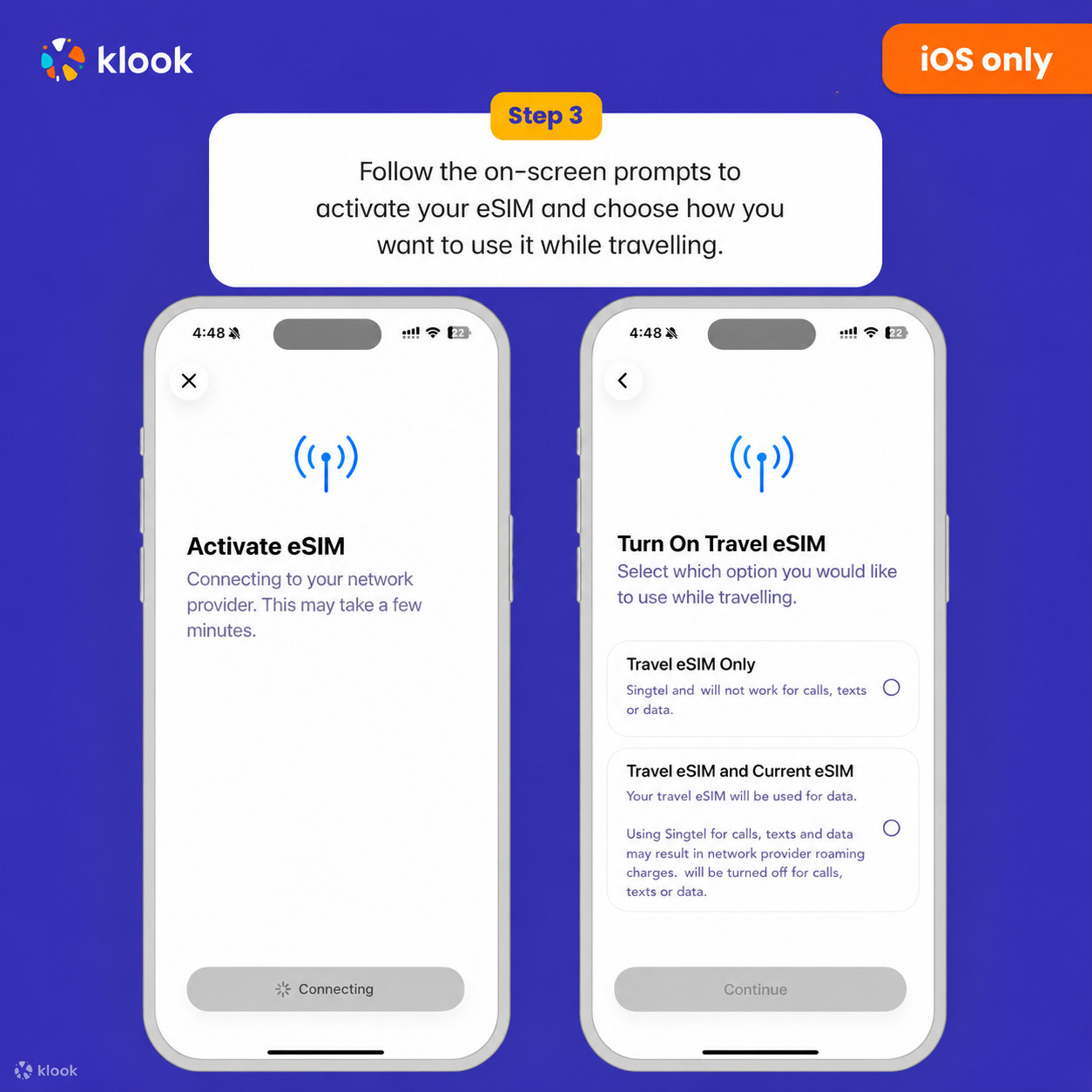
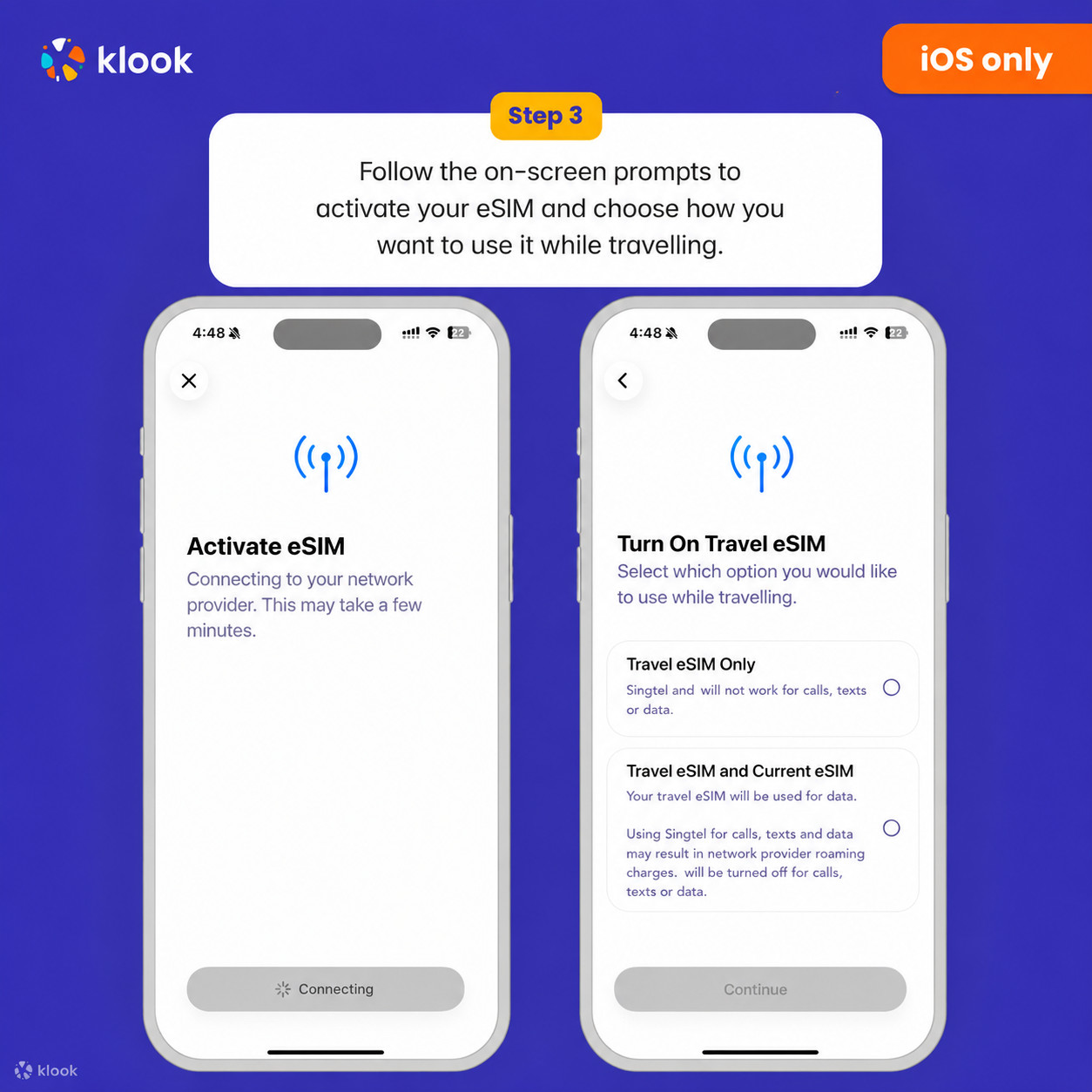
Klook eSIM iOS installation
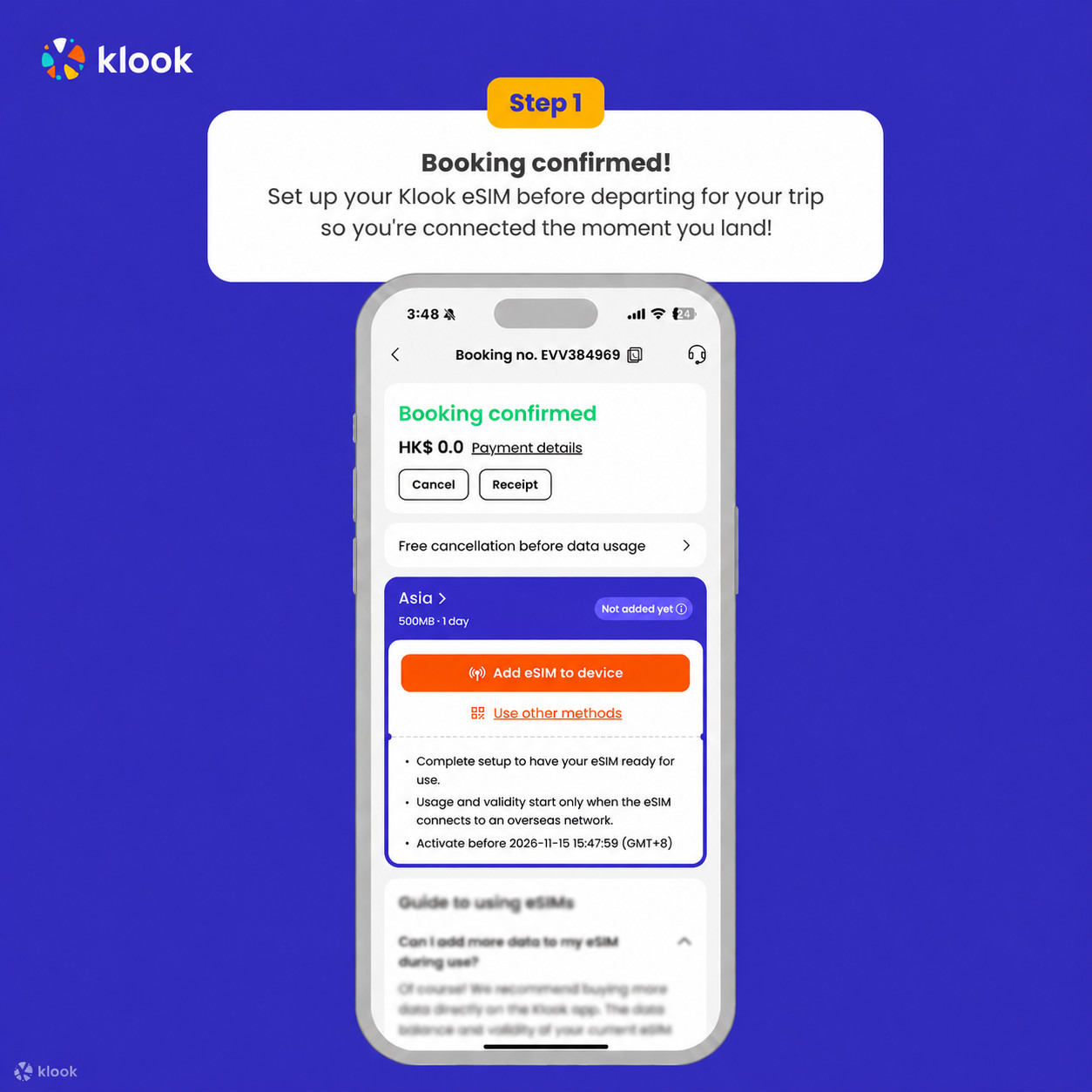
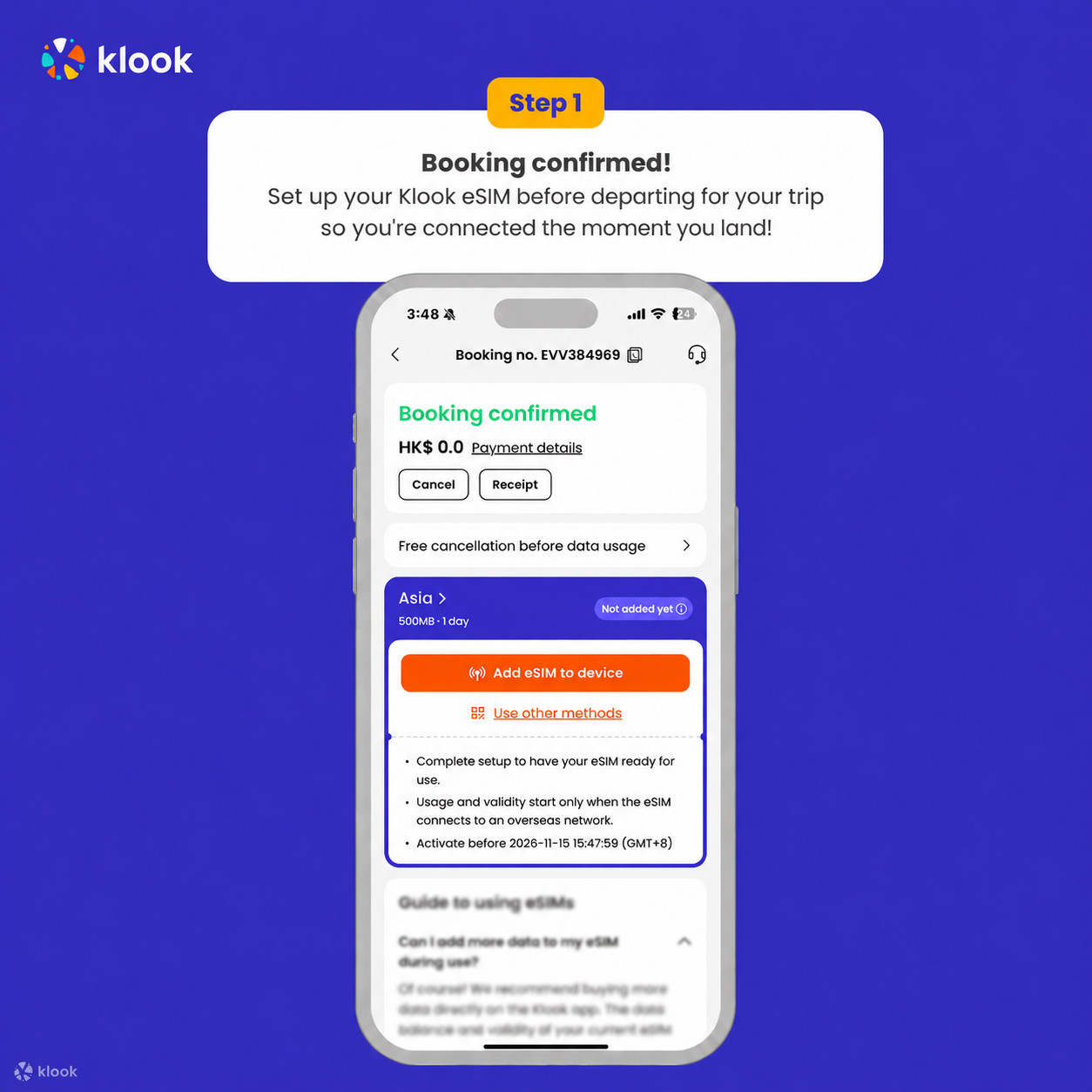
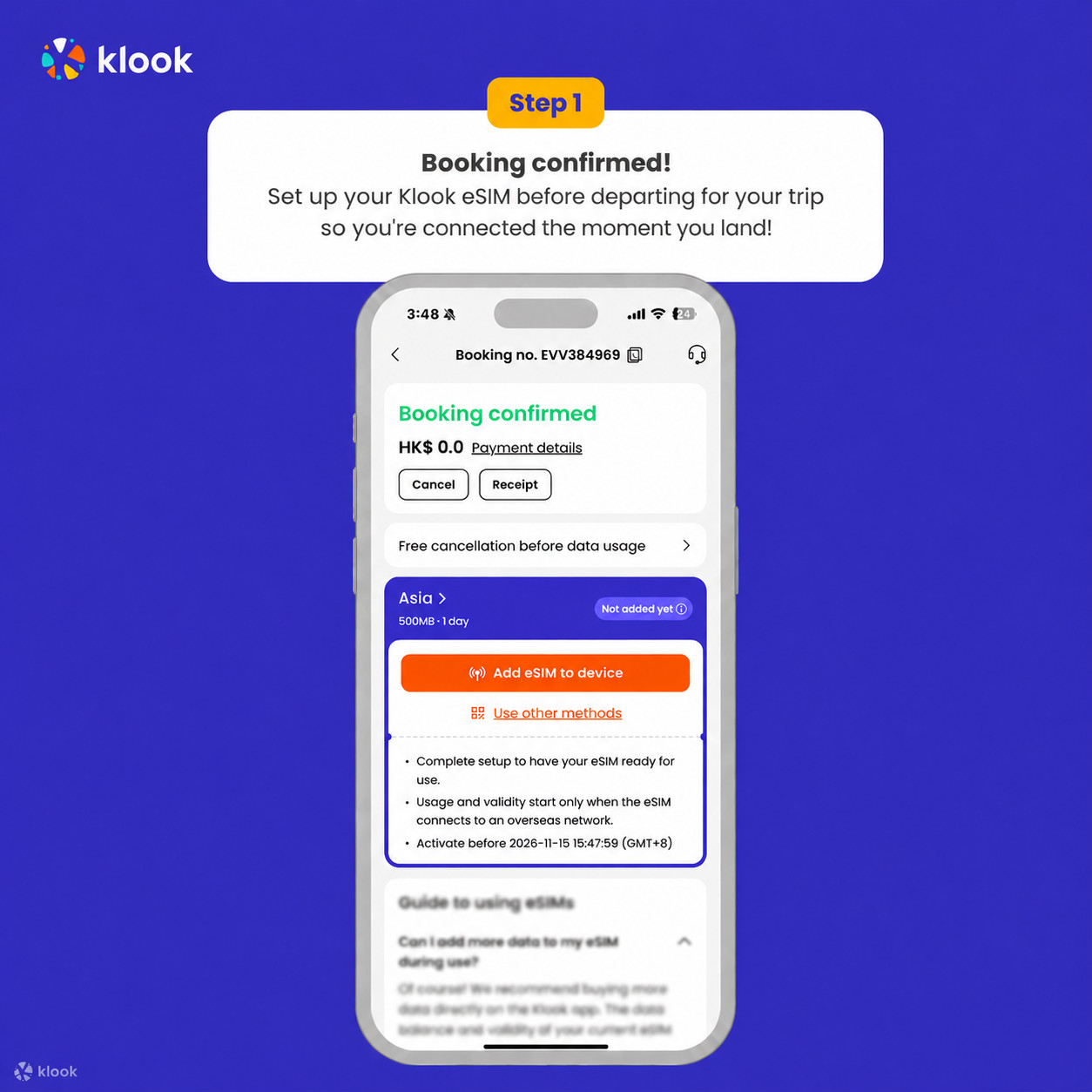
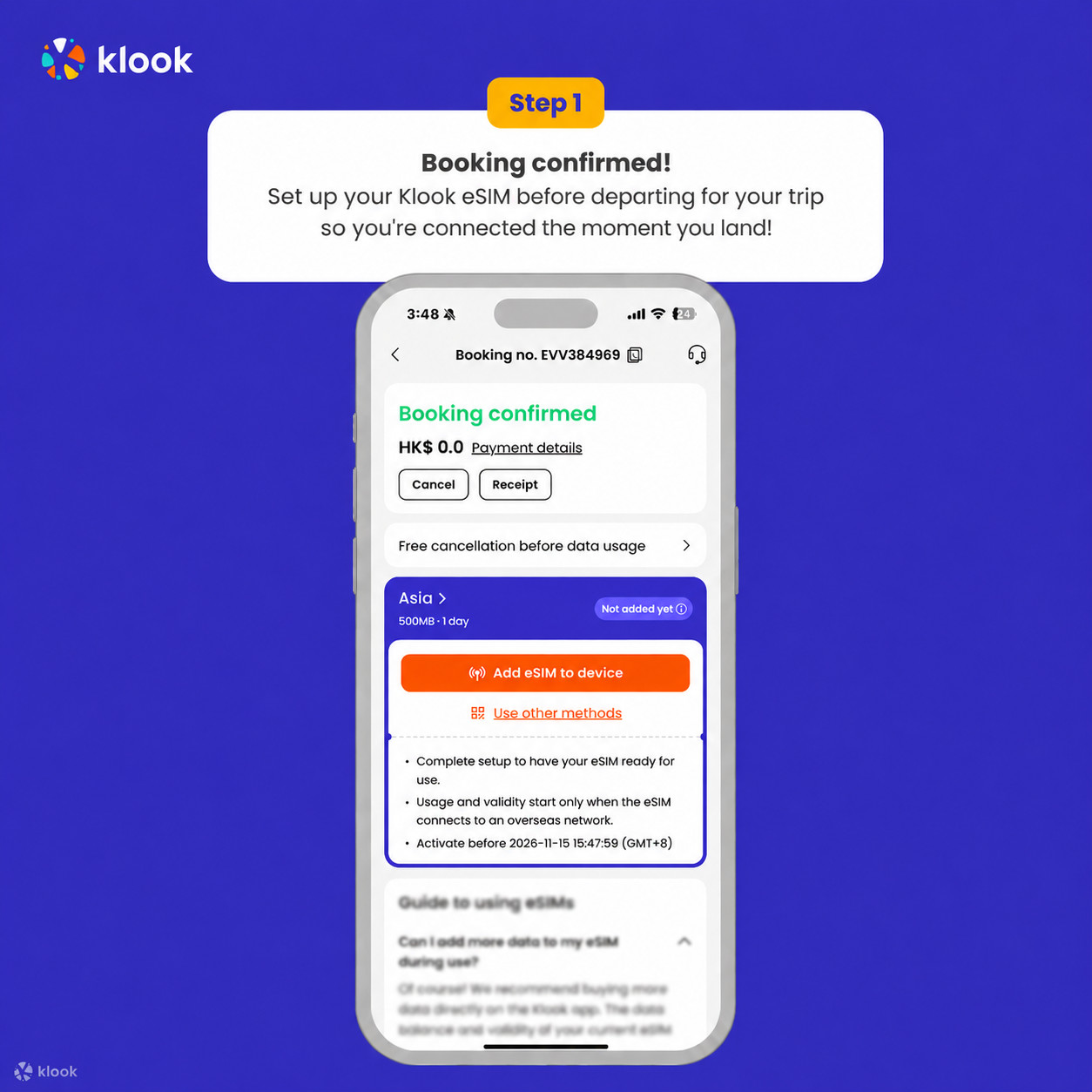
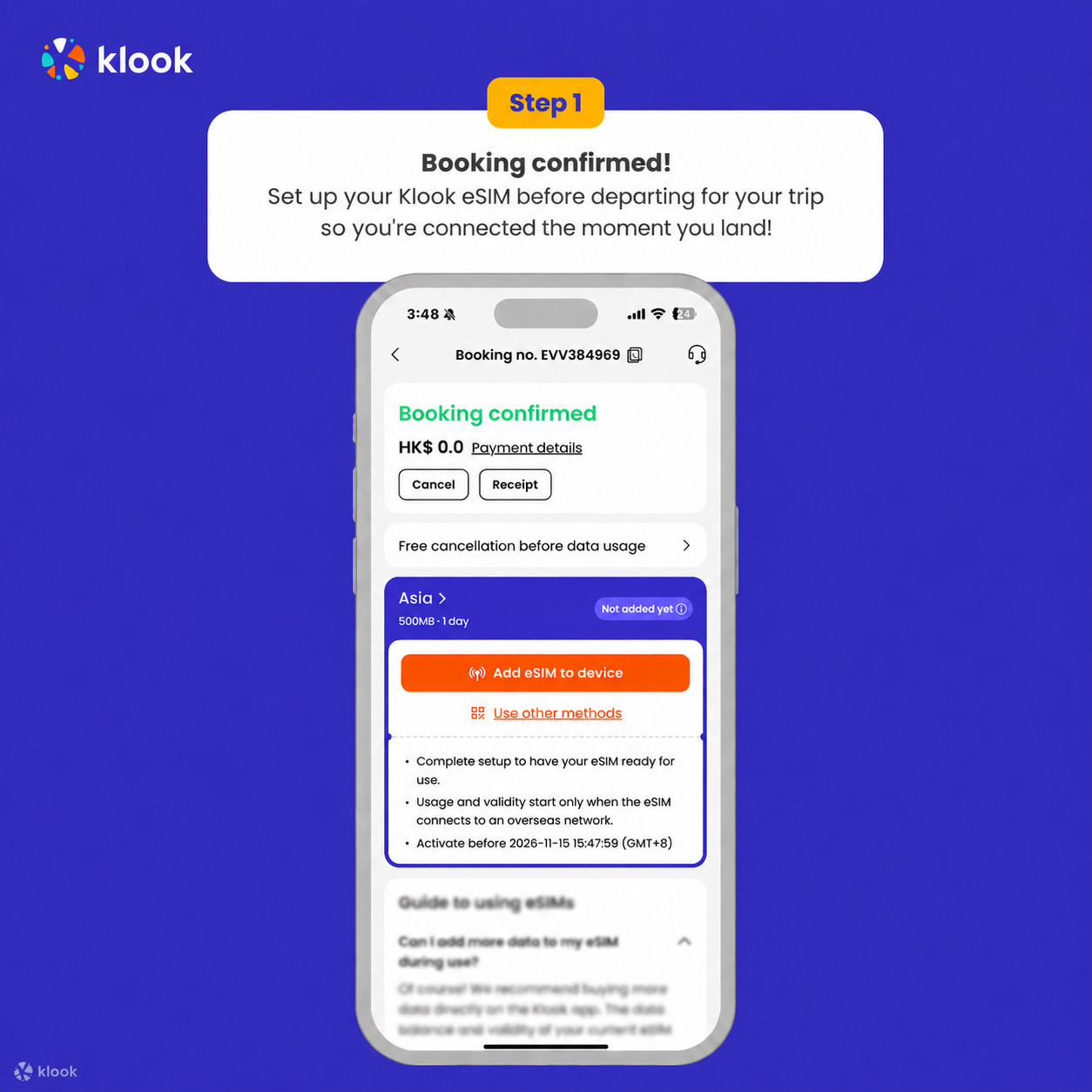
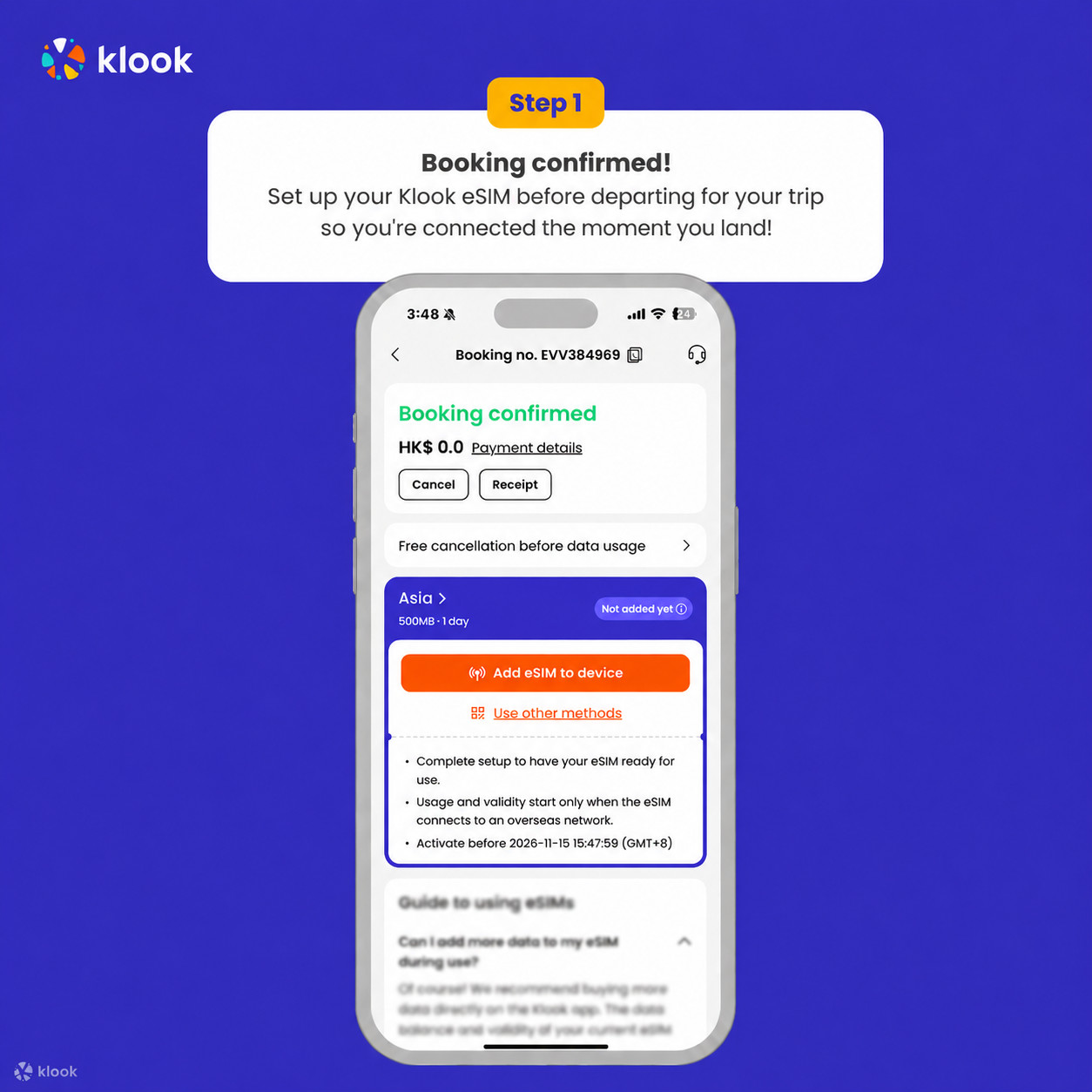
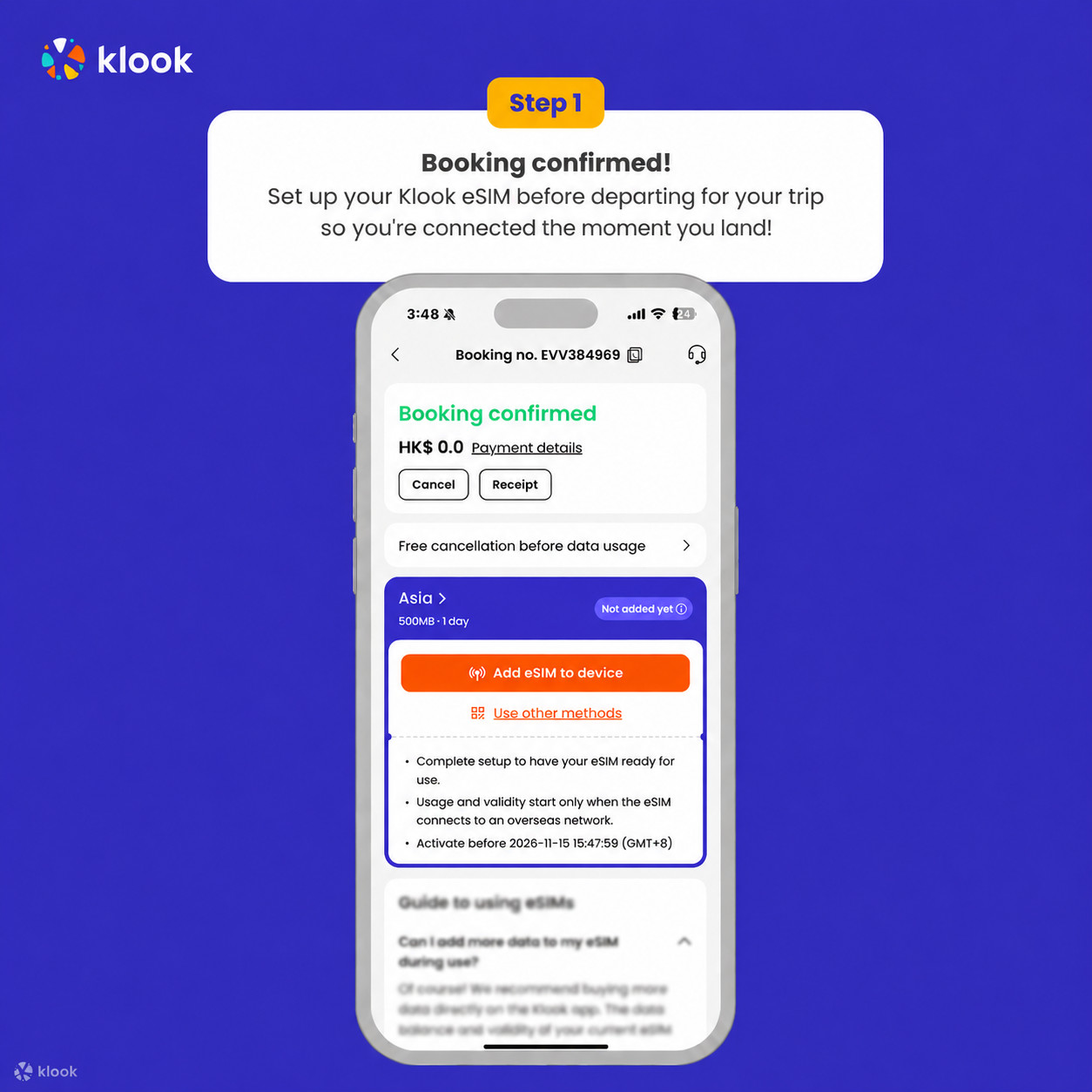
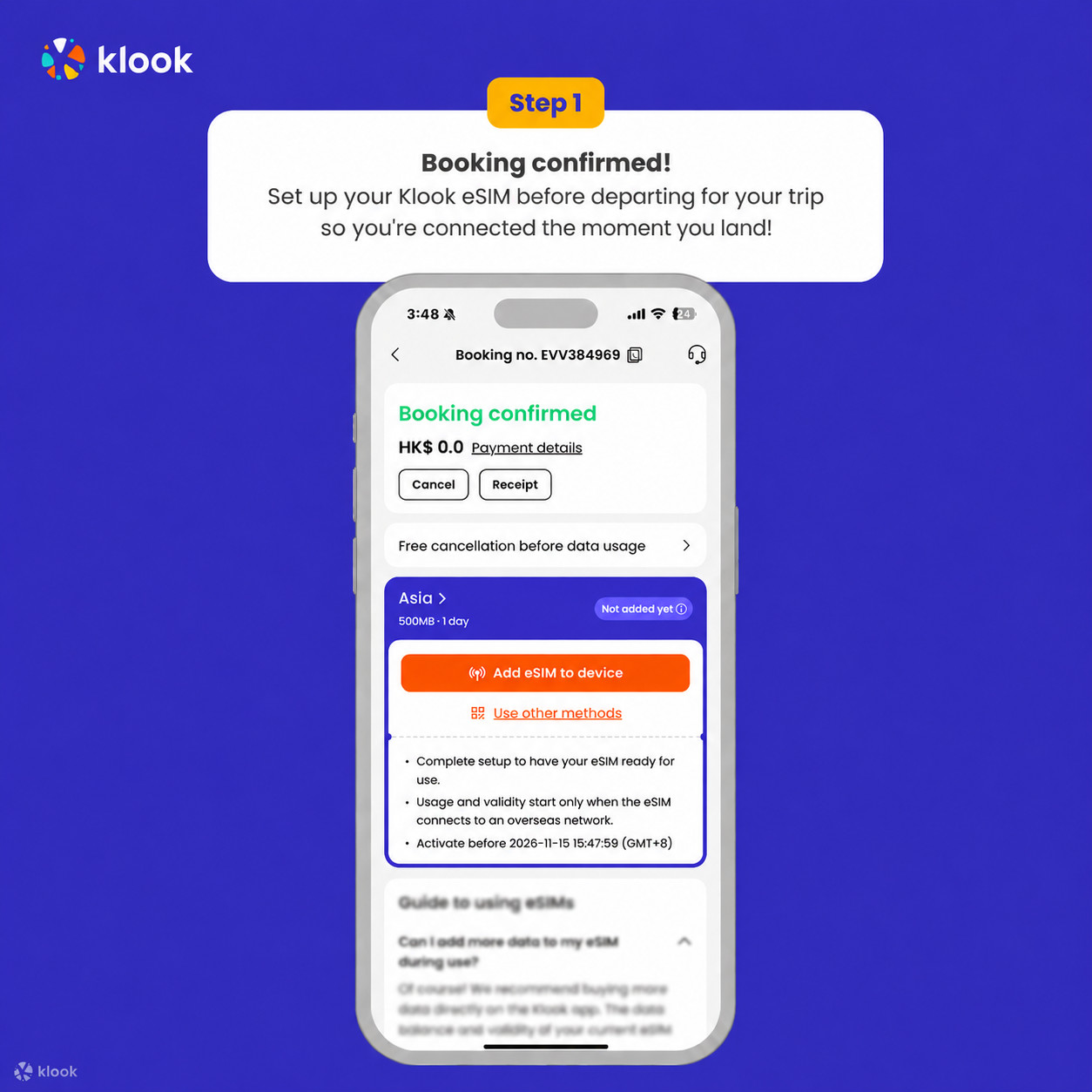
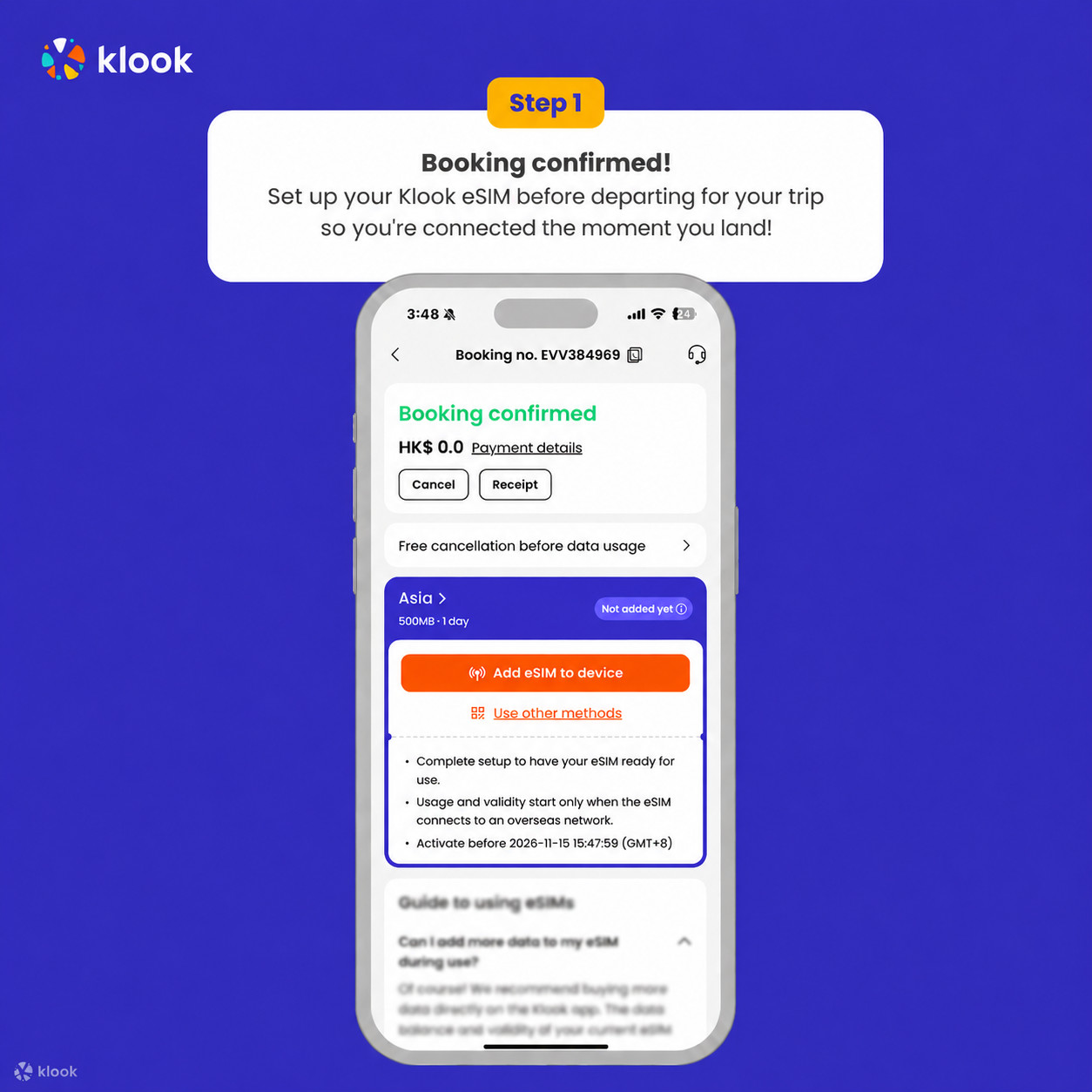
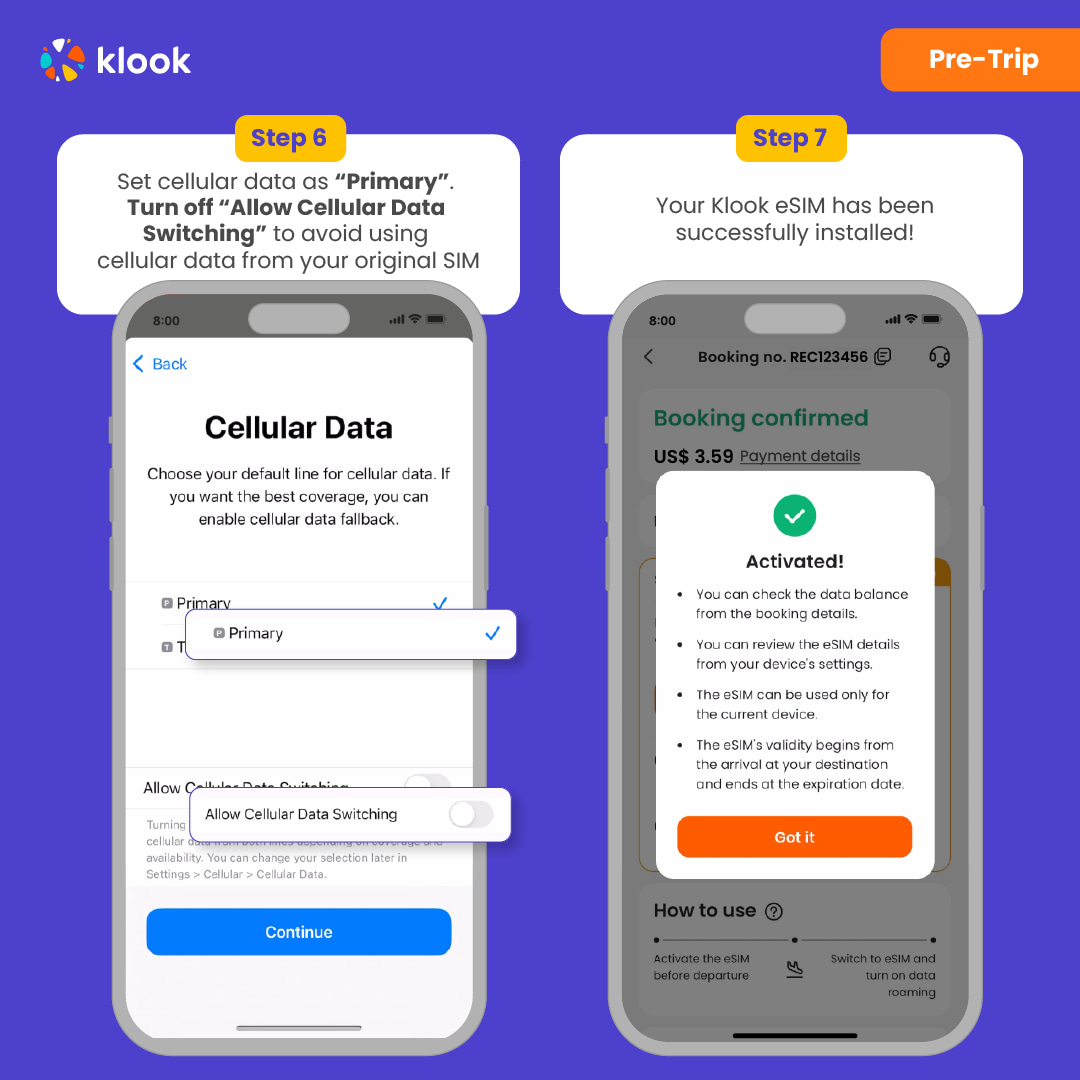
Set up your Klook eSIM for travel
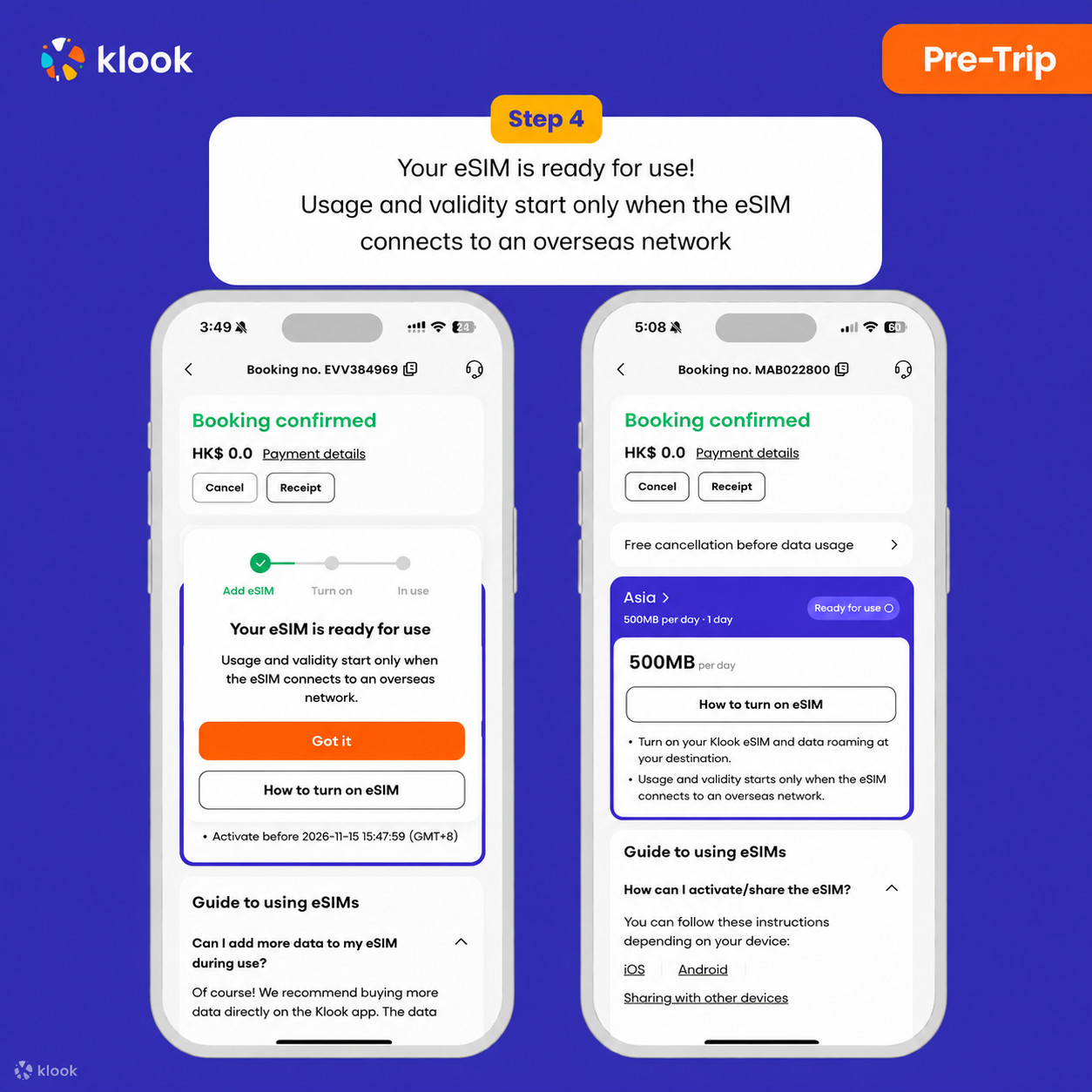
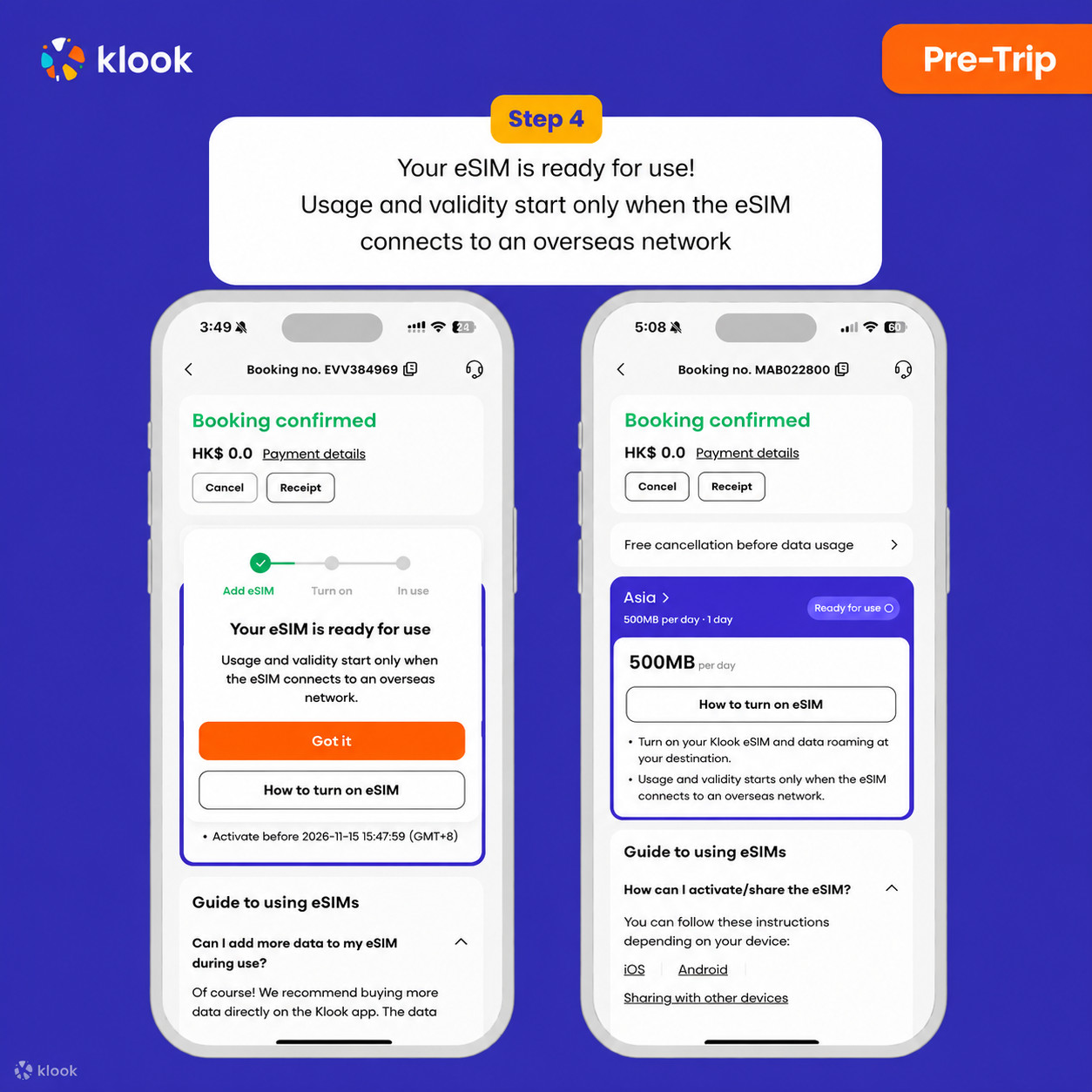
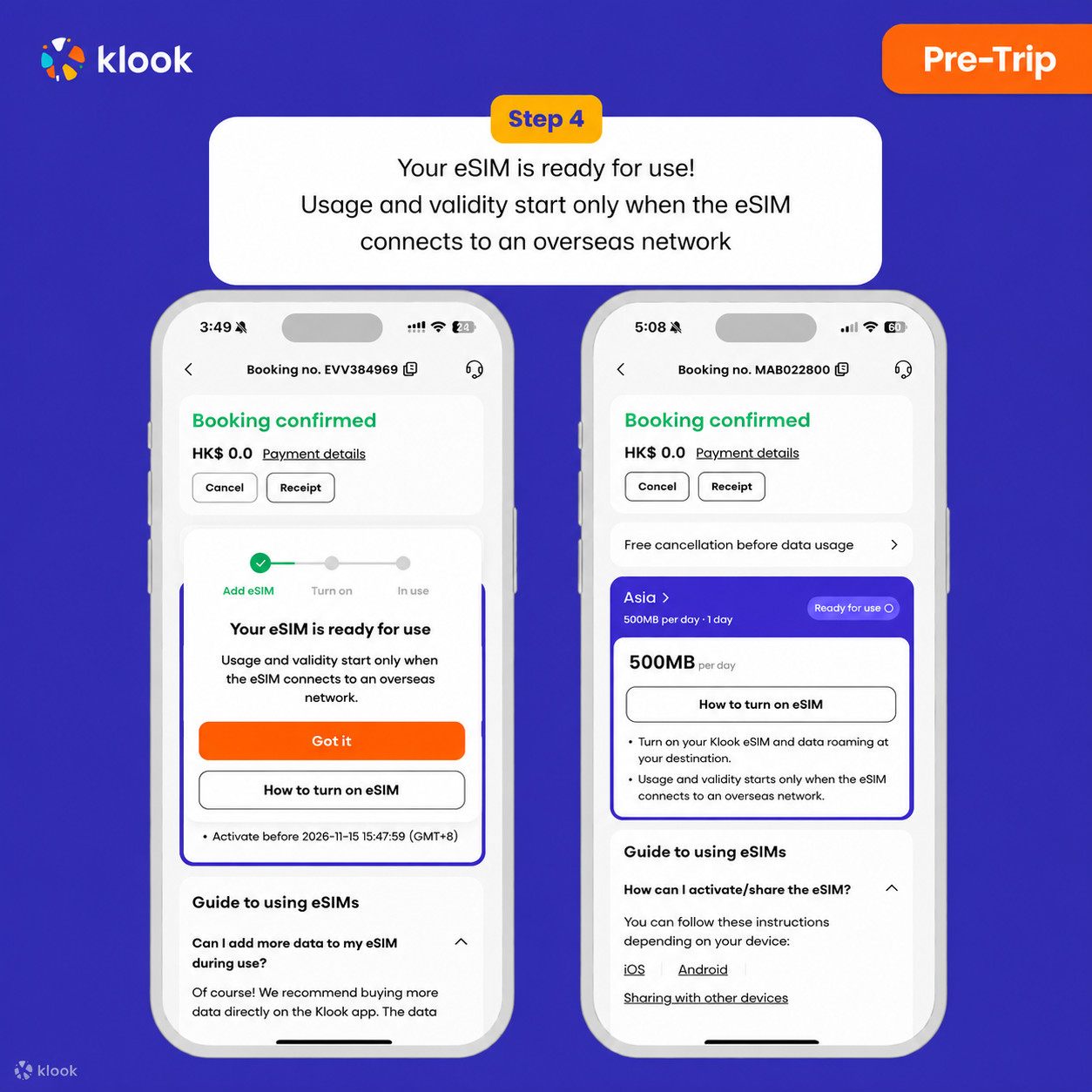
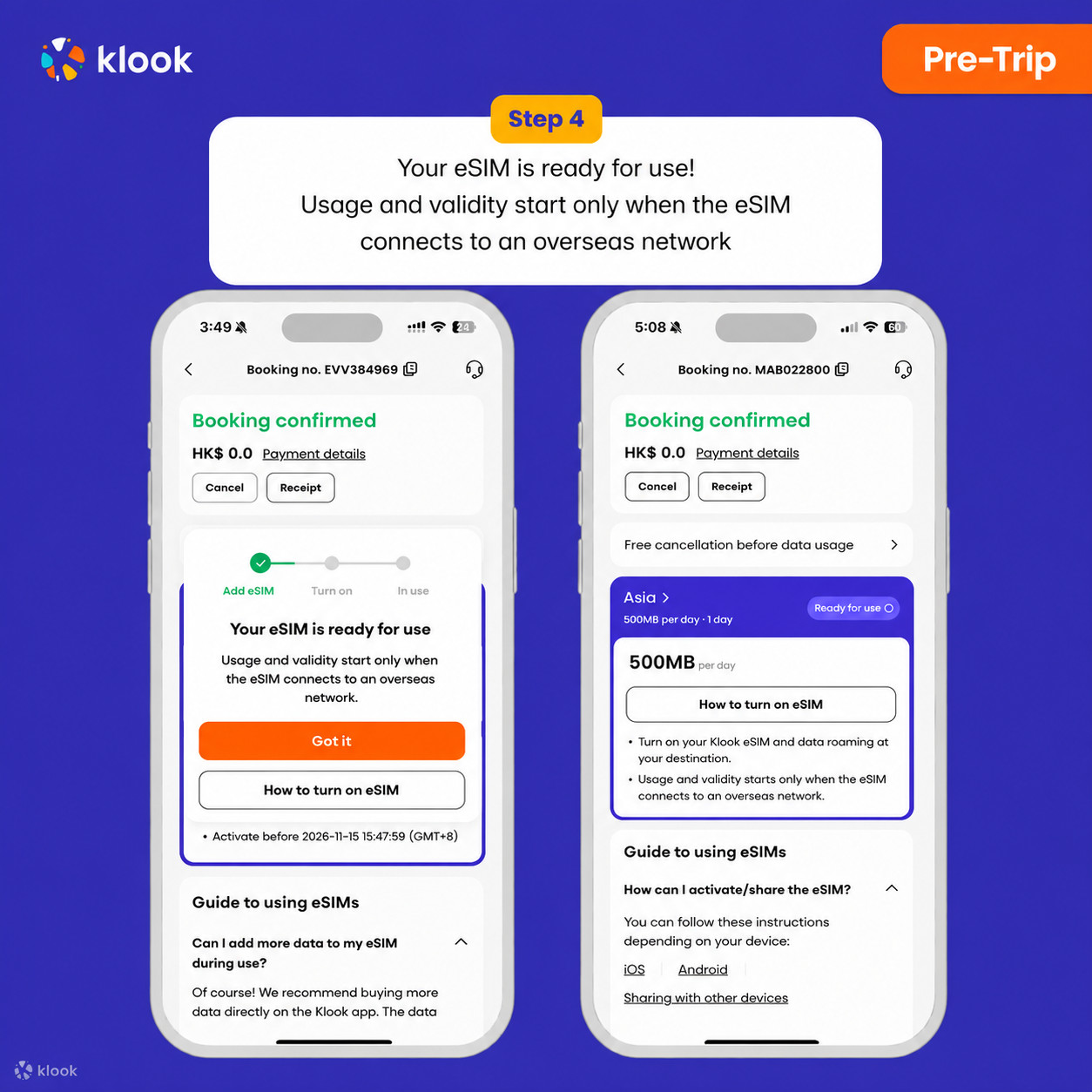
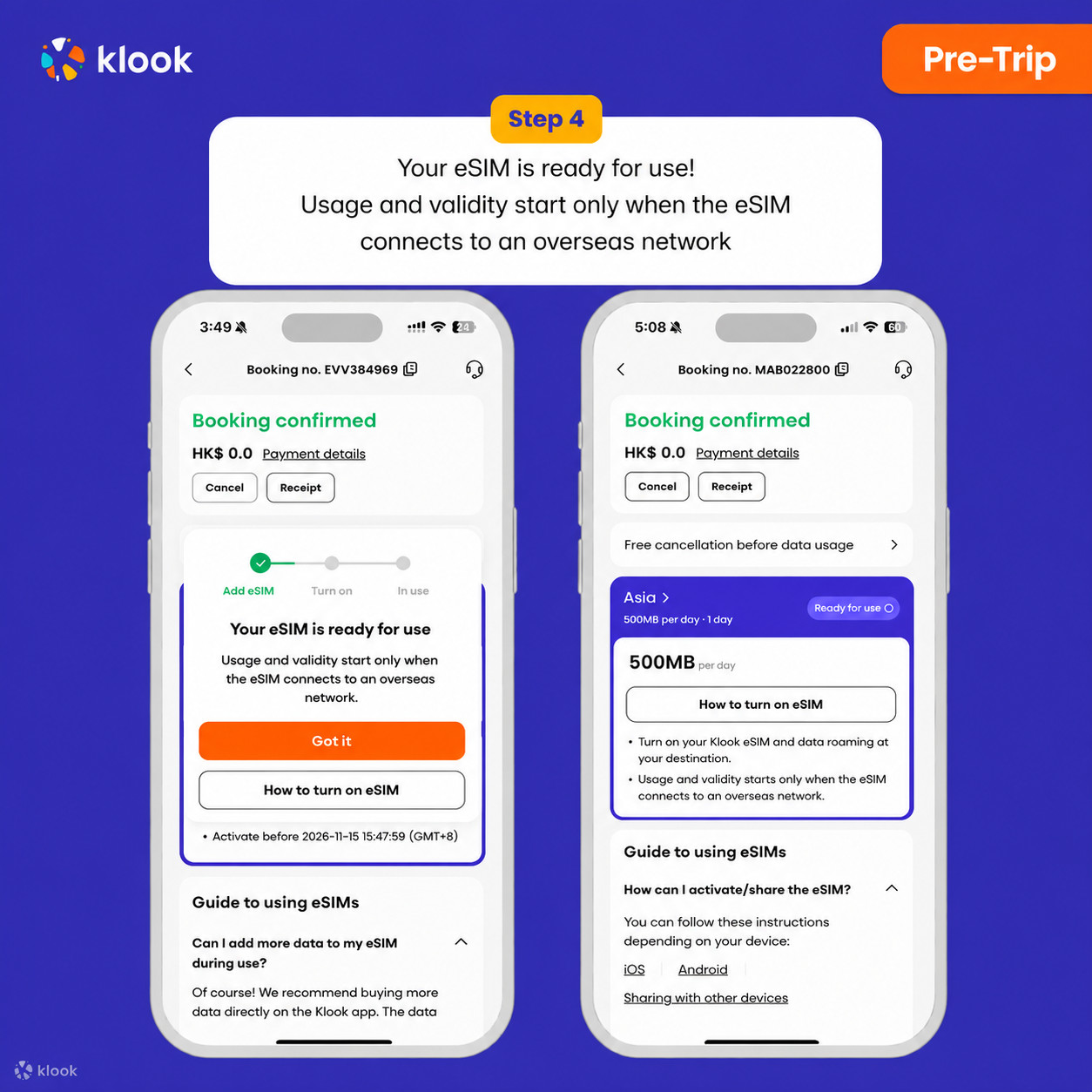
Klook eSIM installed
Your Klook eSIM is now installed! Validity period will start only after connecting to the local network at your destination
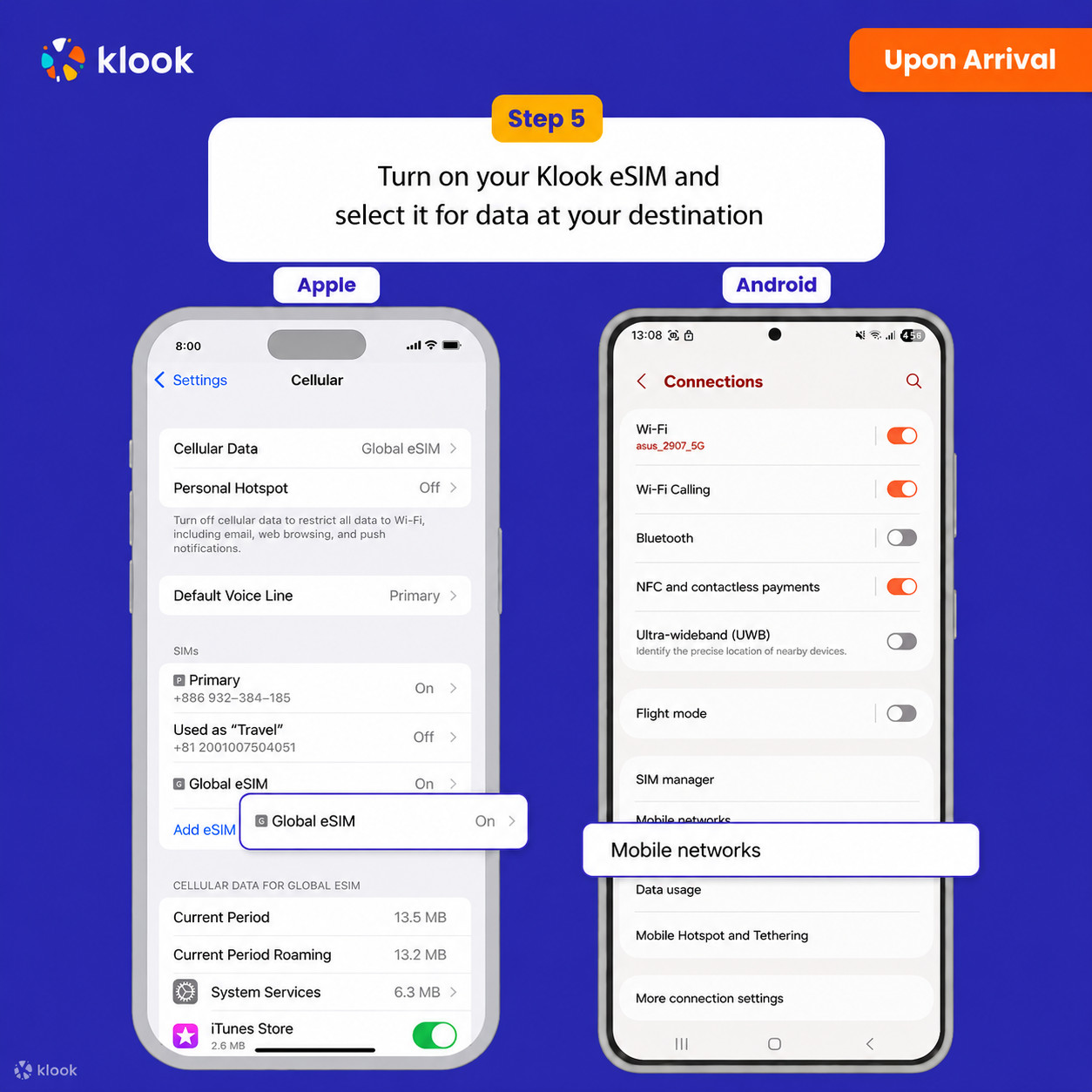
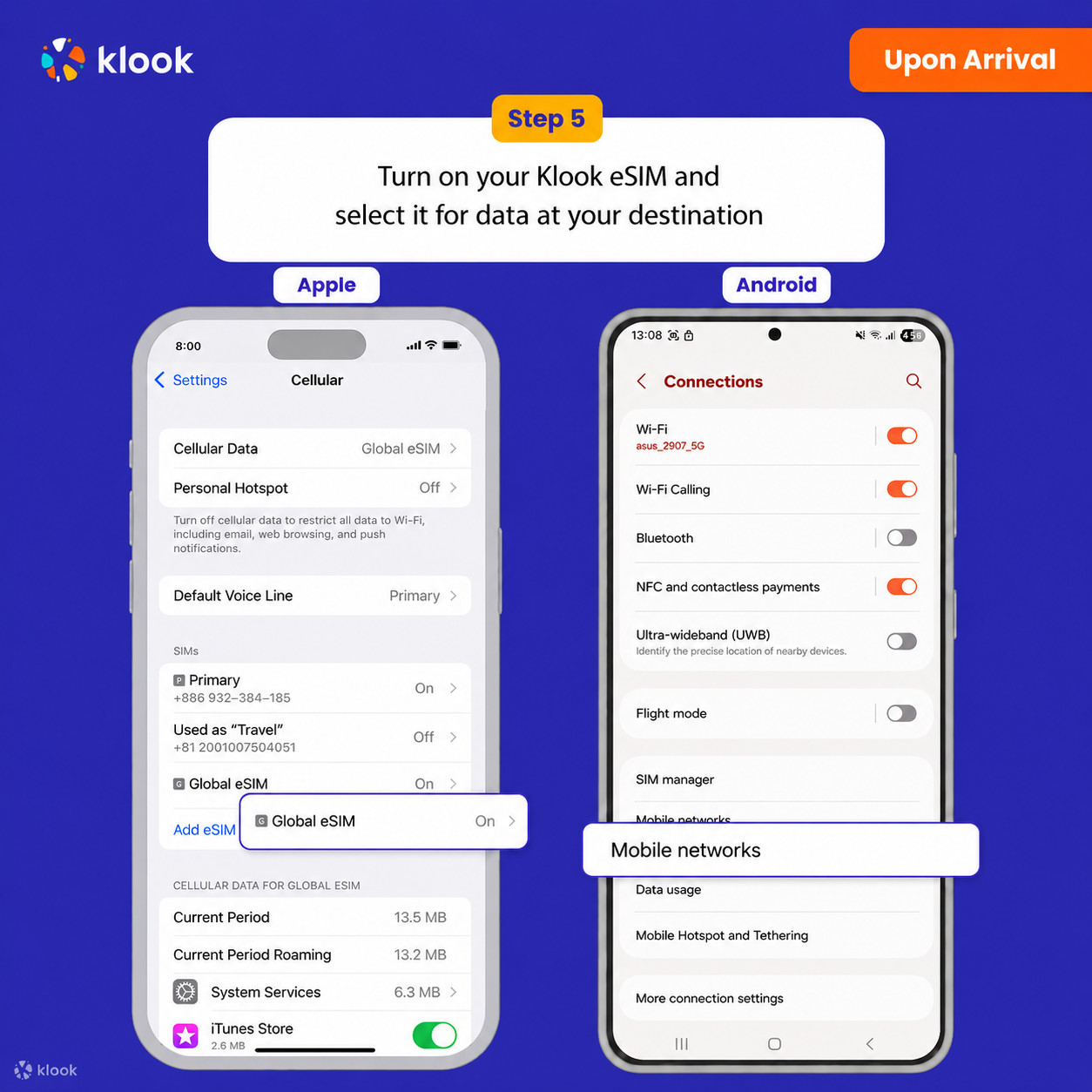
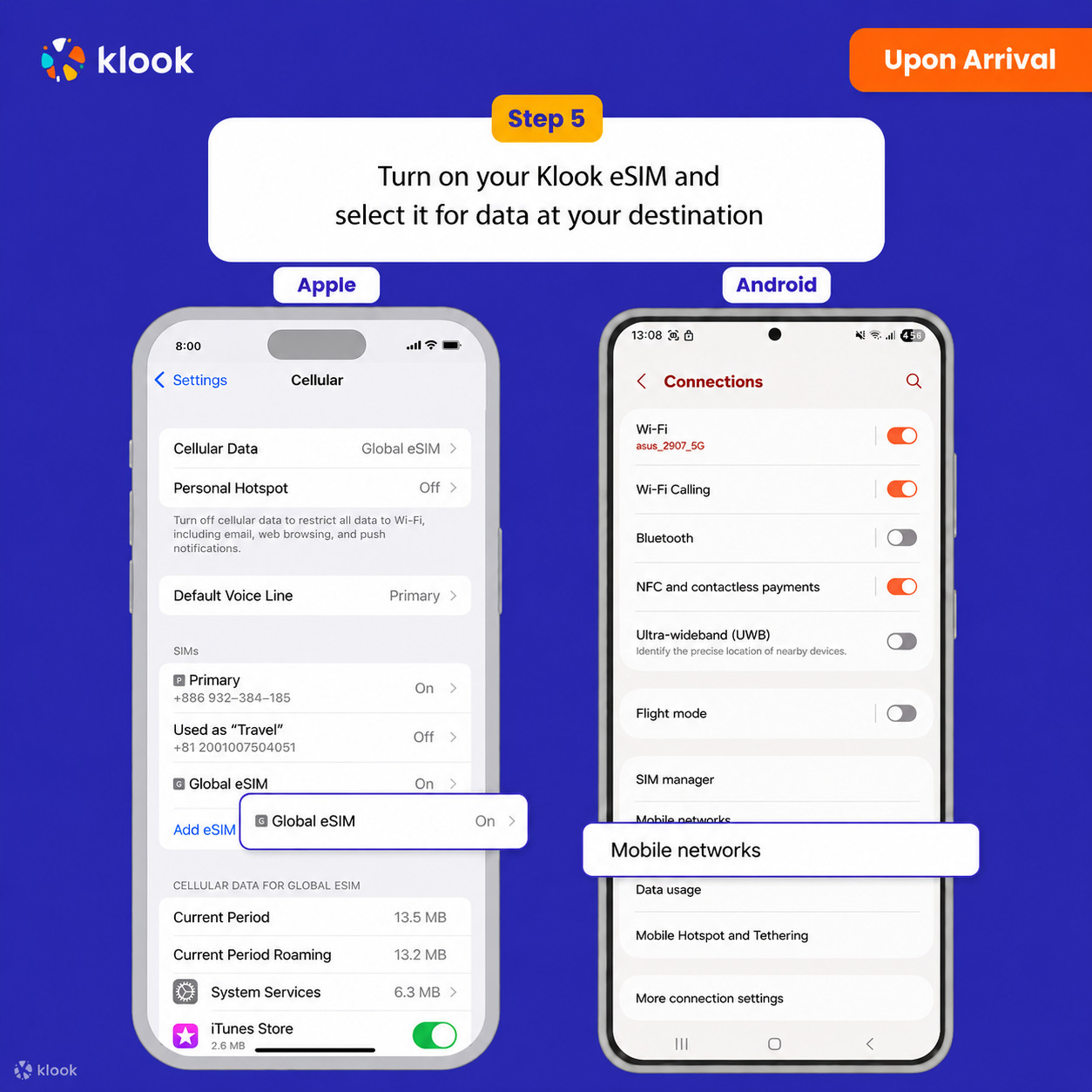
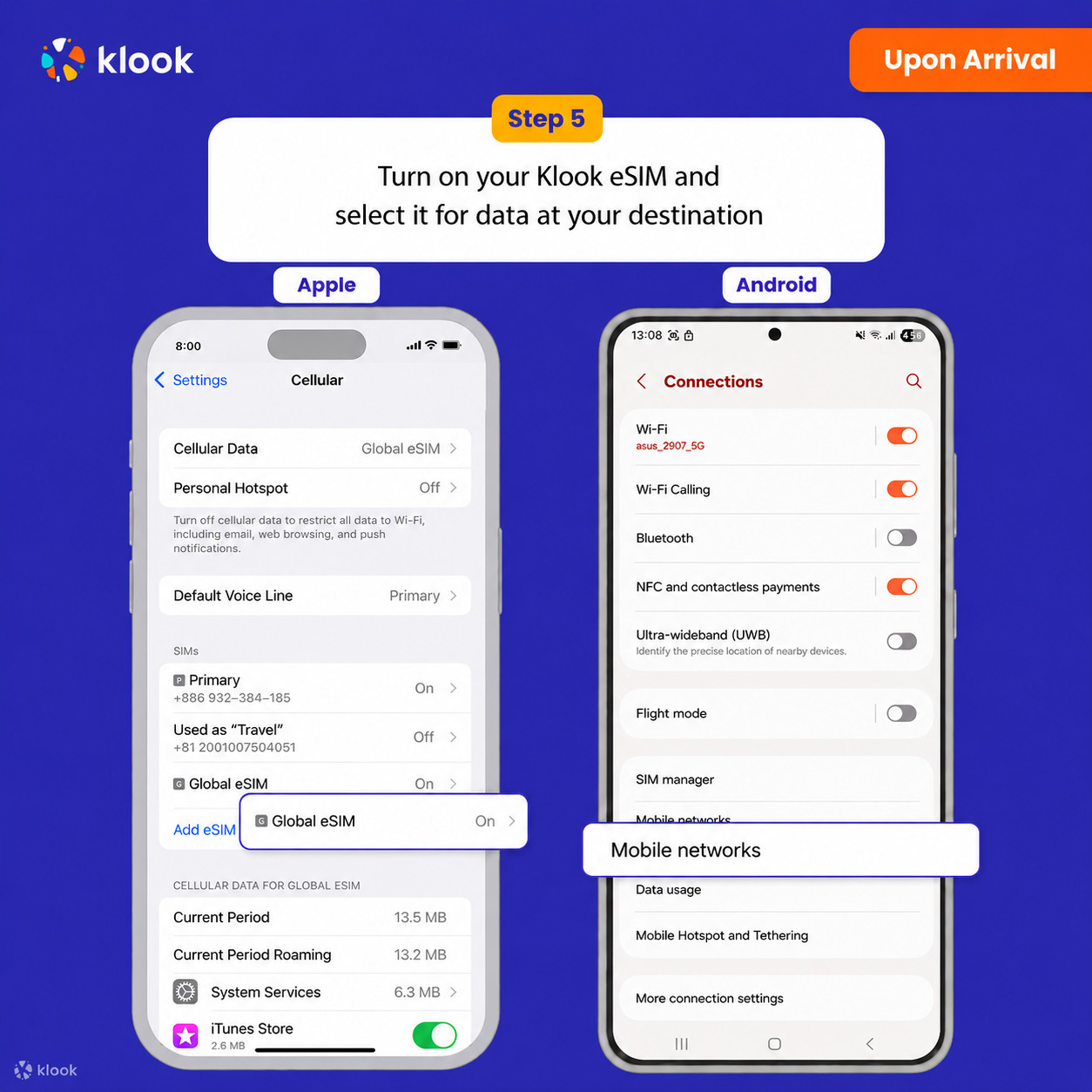
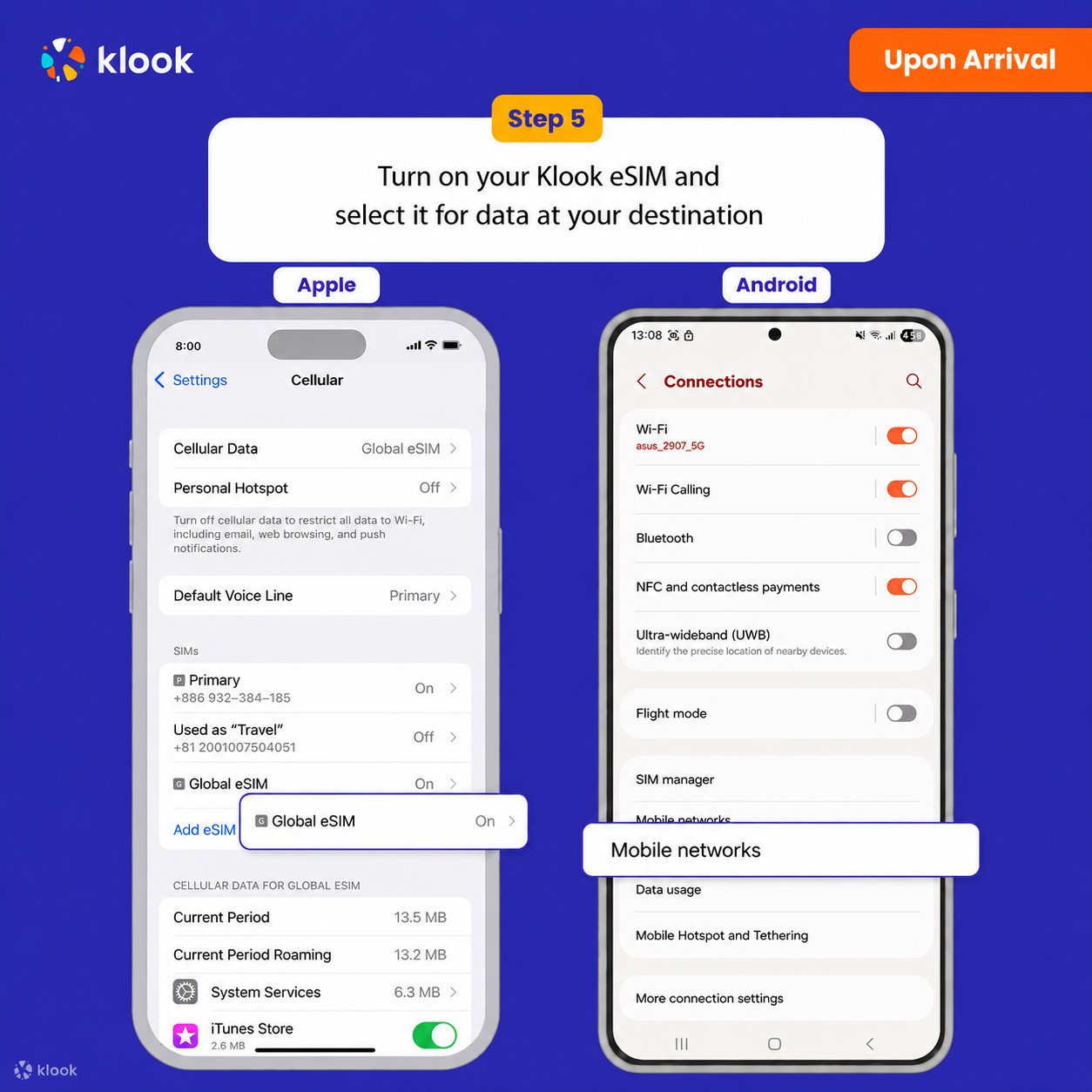
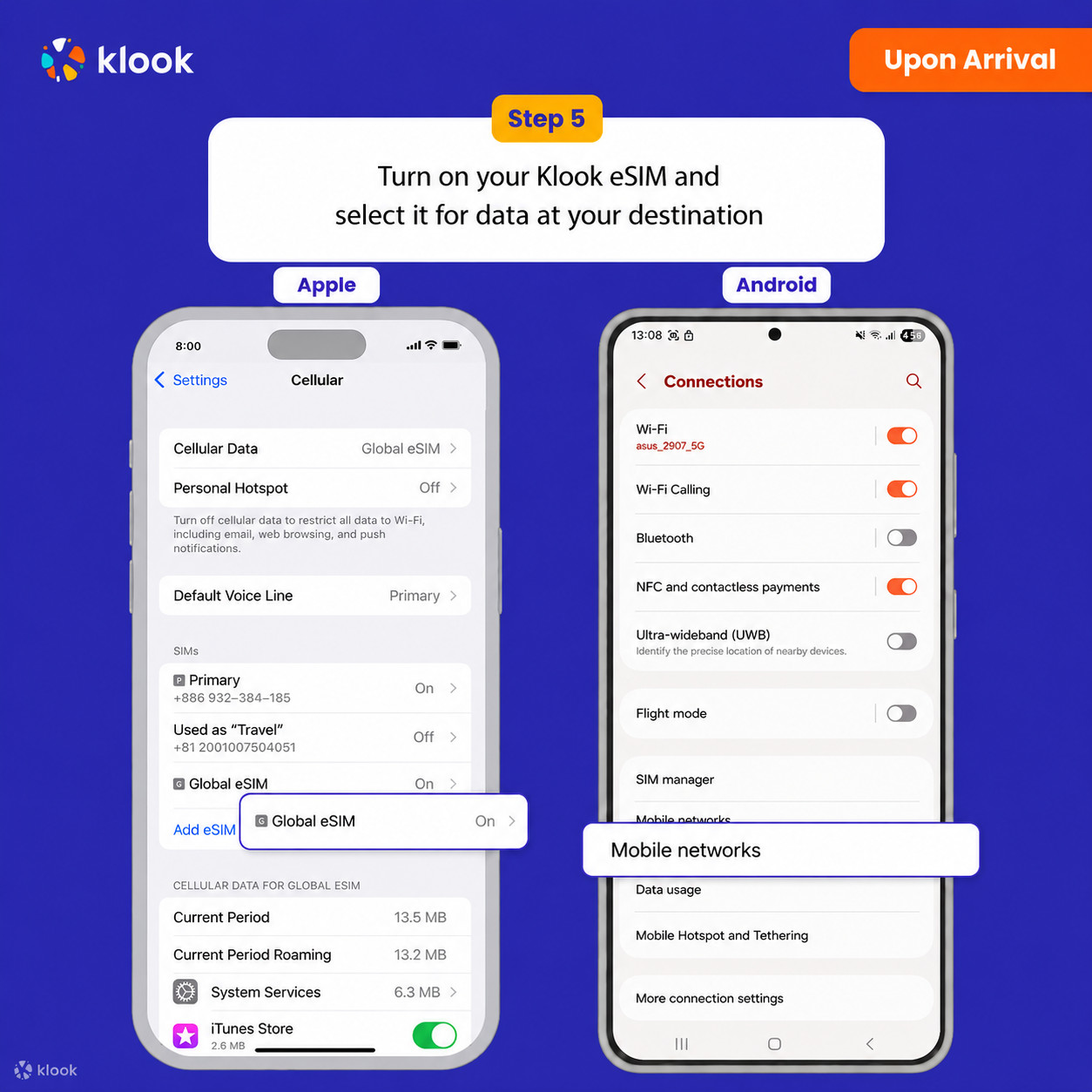
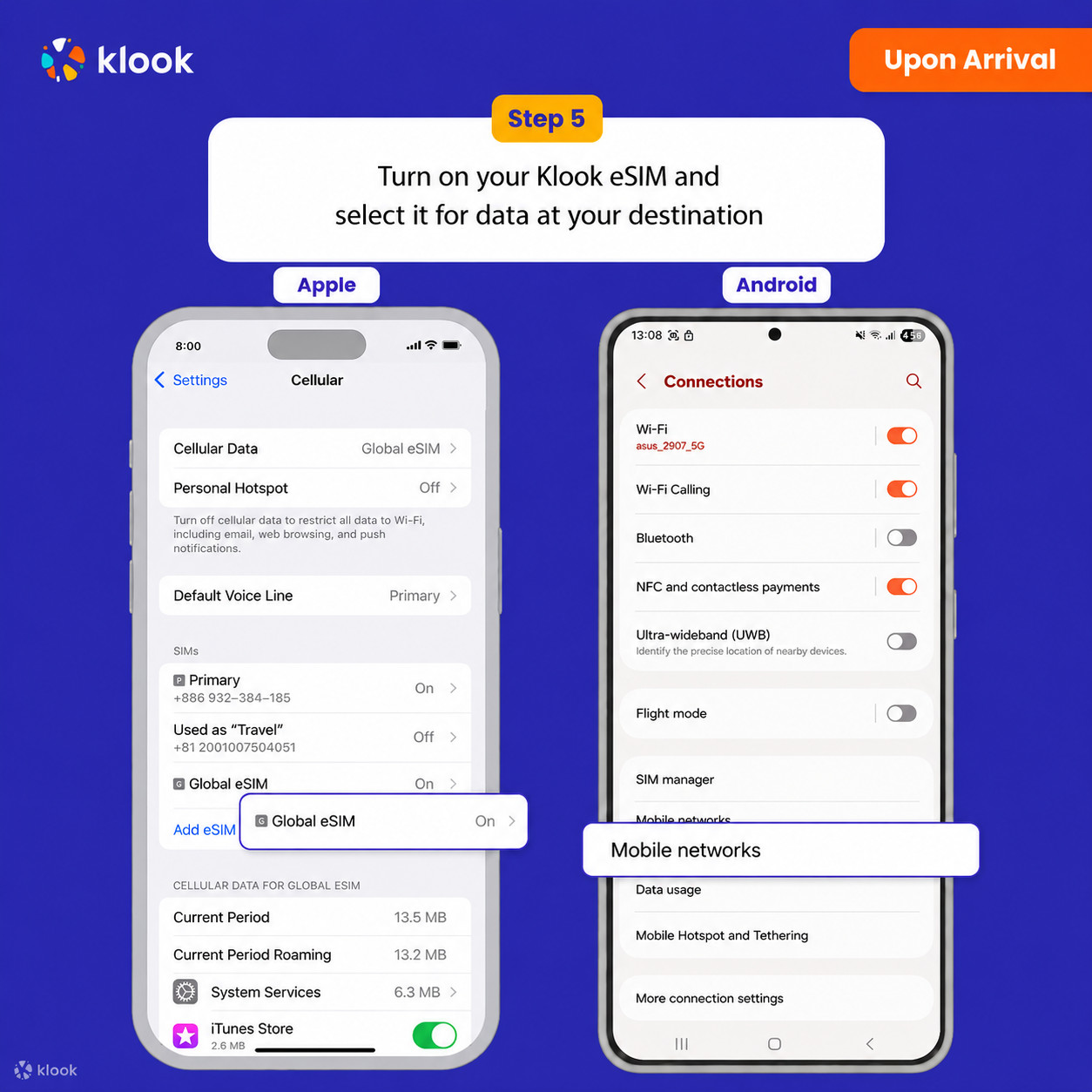
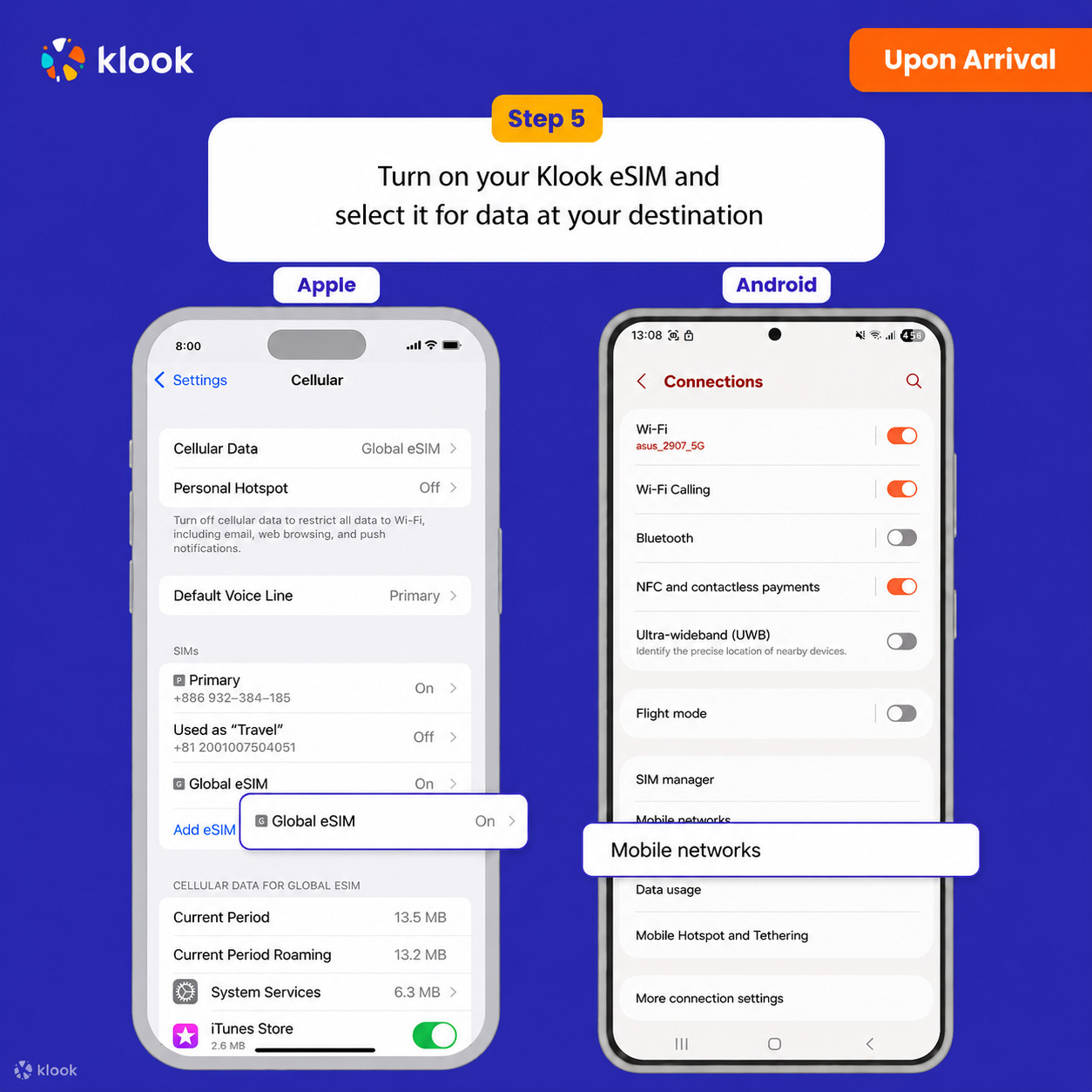
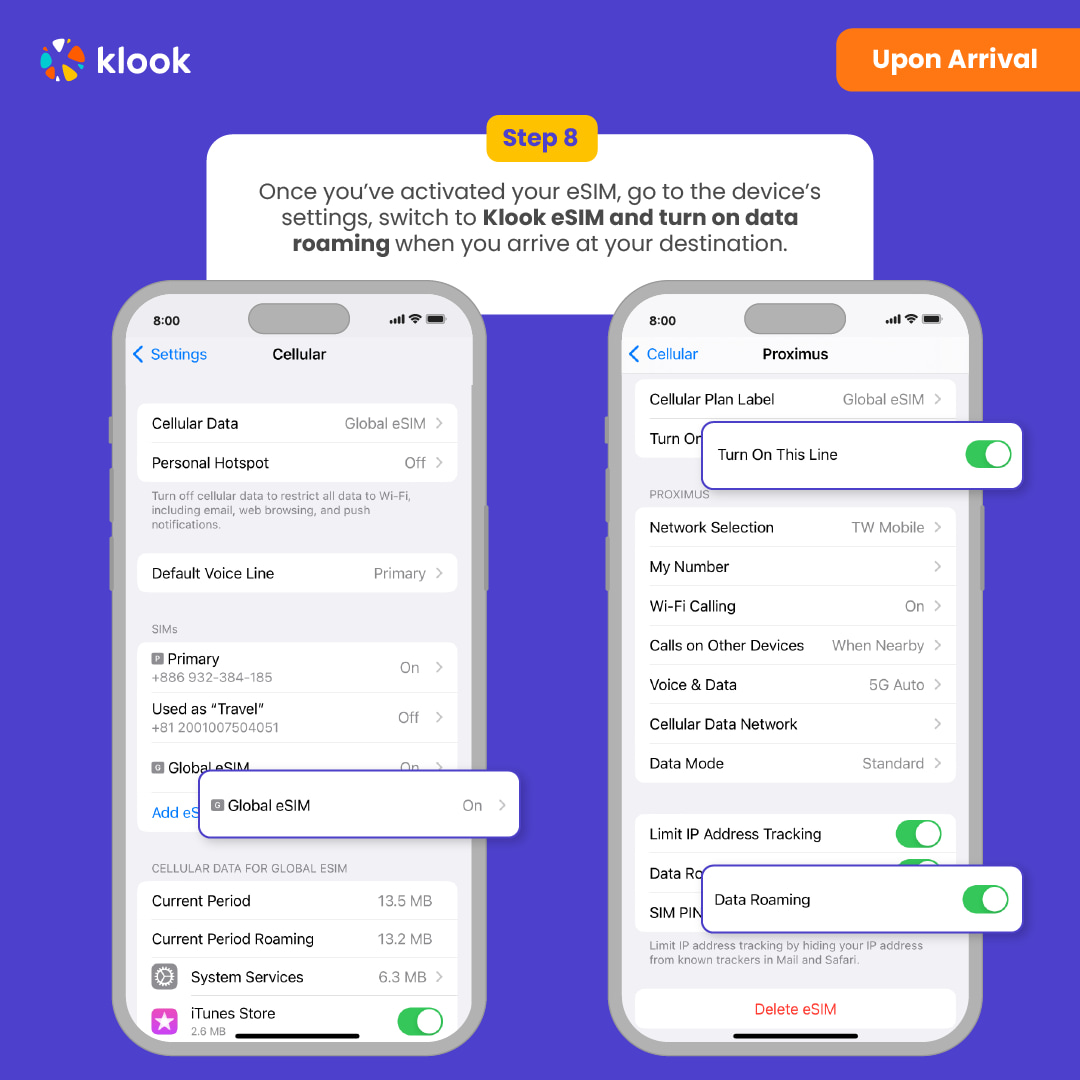
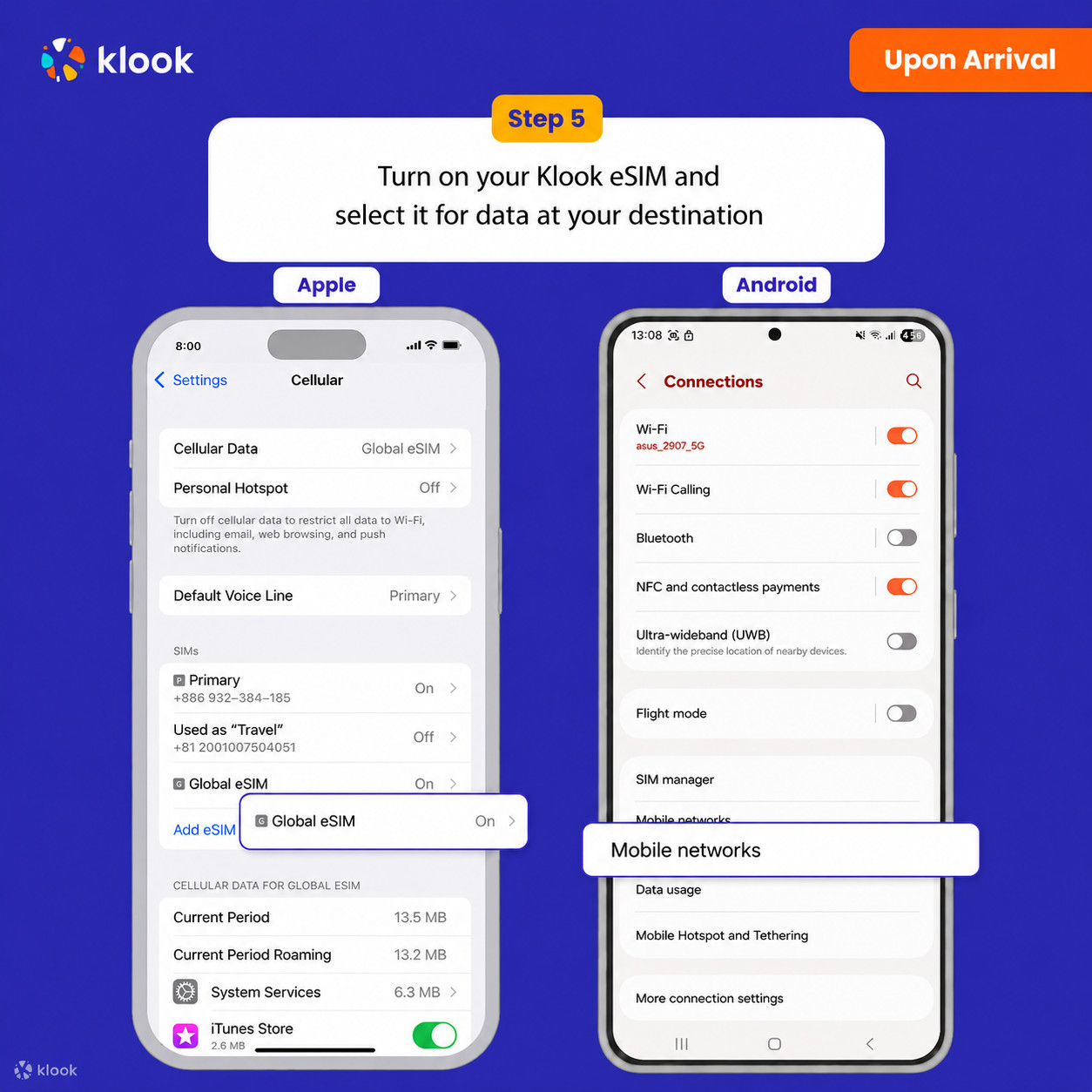
Turn on Klook eSIM
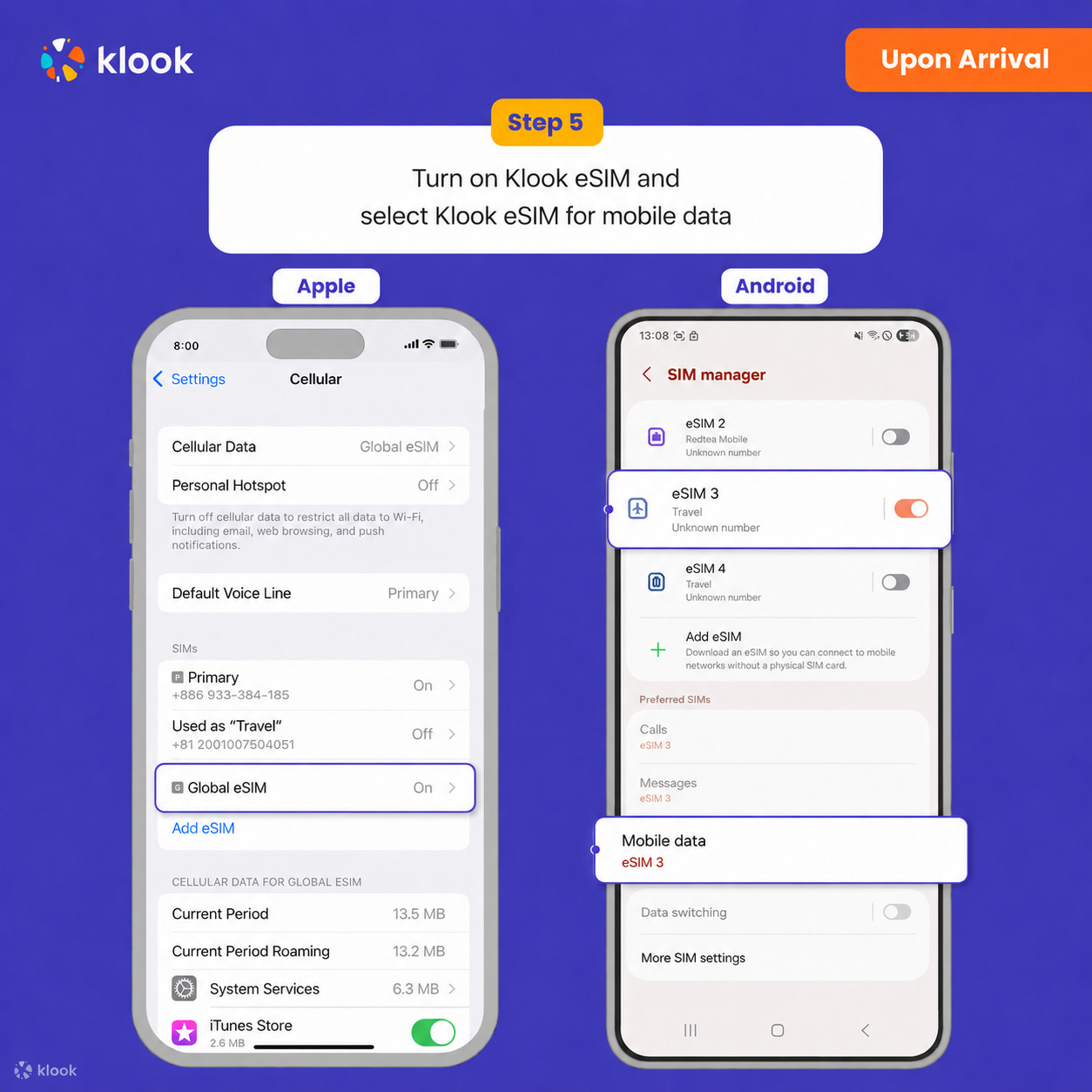
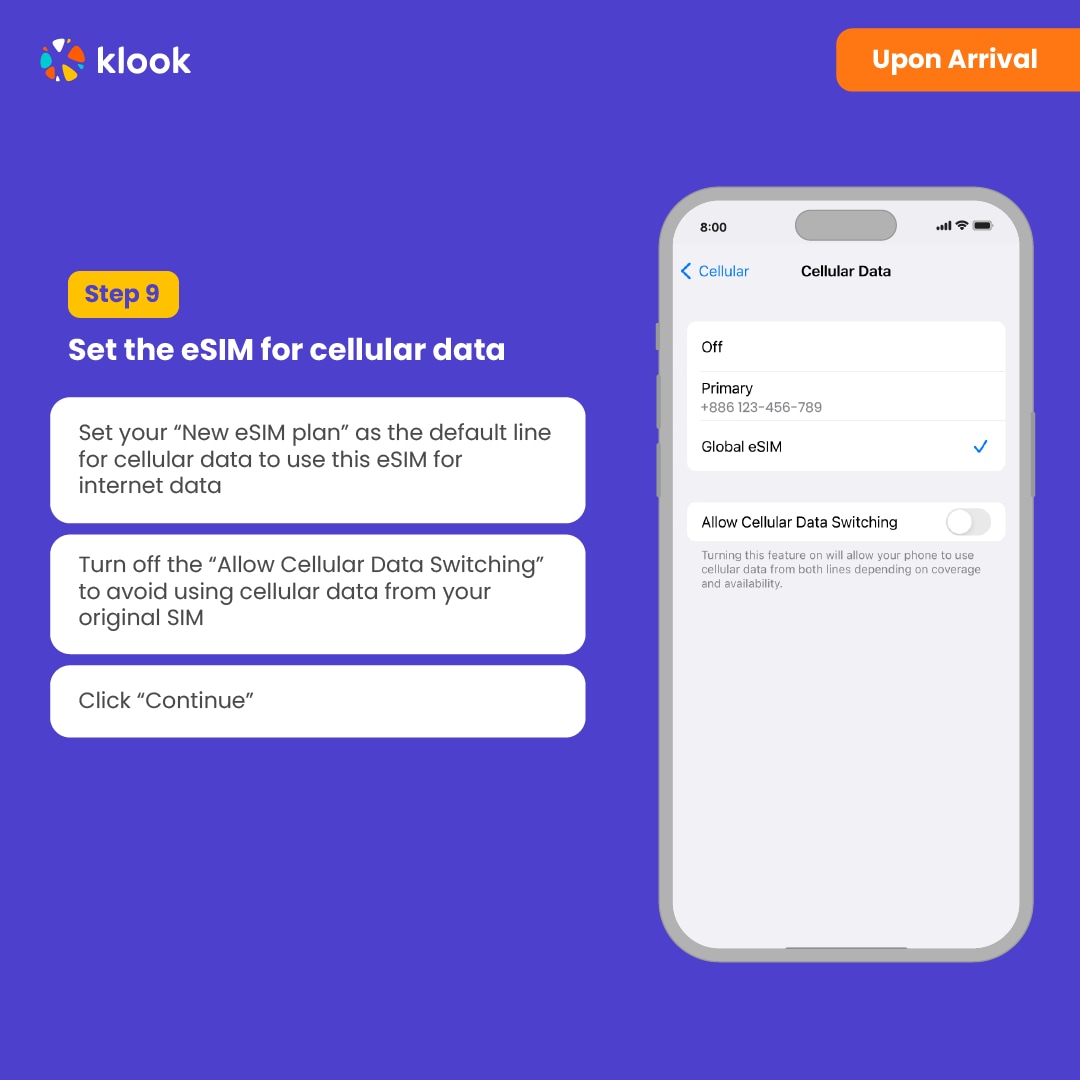
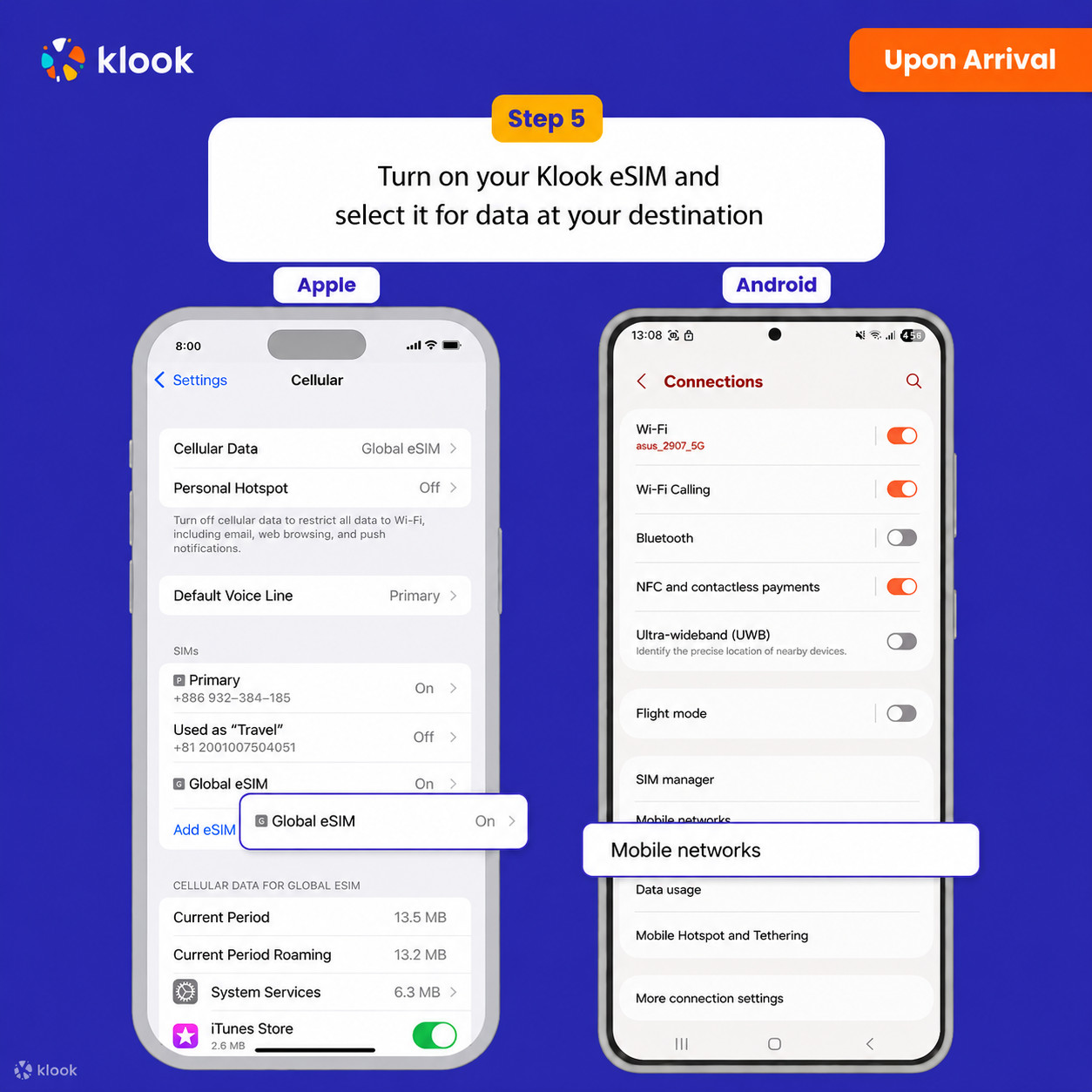
Turn on Klook eSIM and select Klook eSIM for mobile data
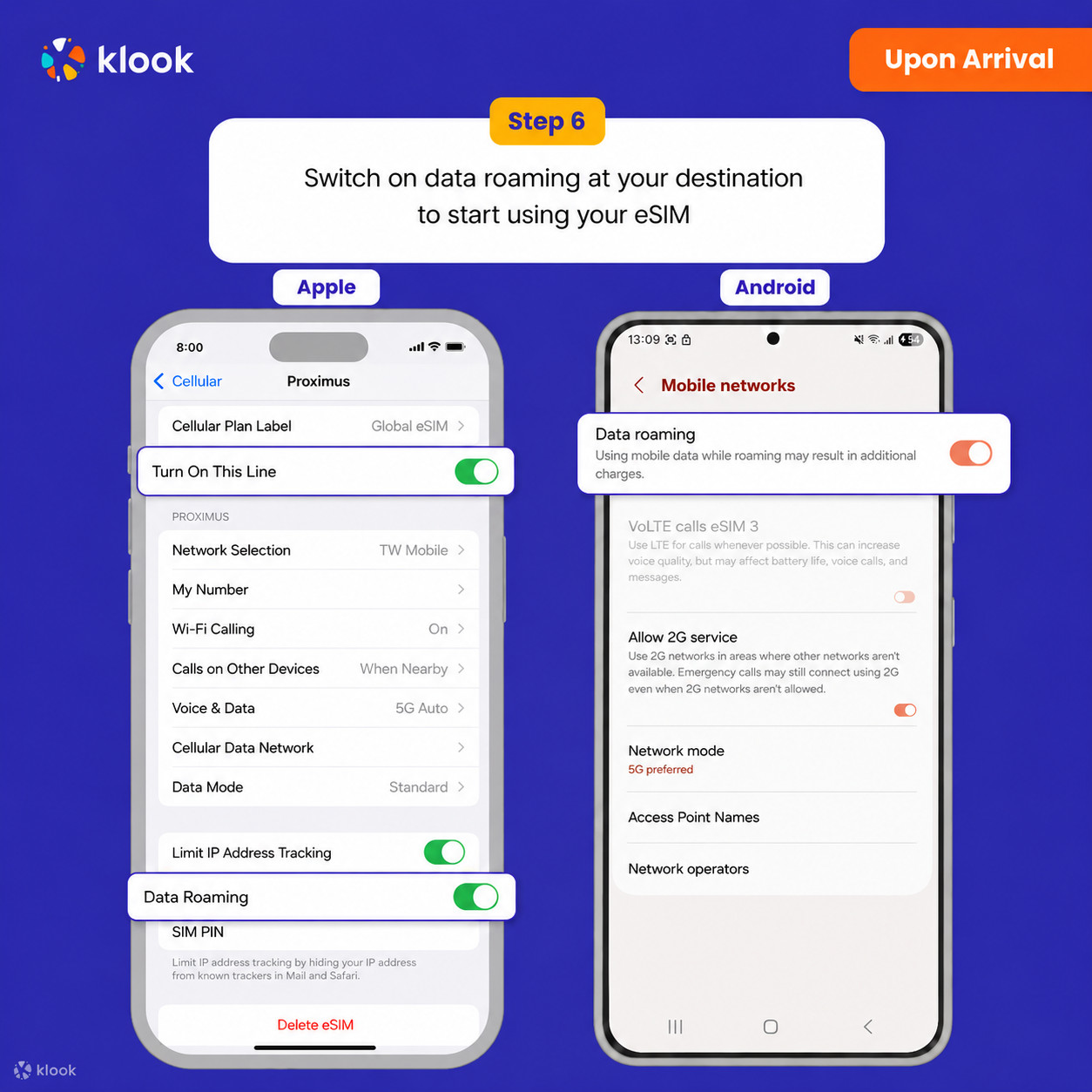
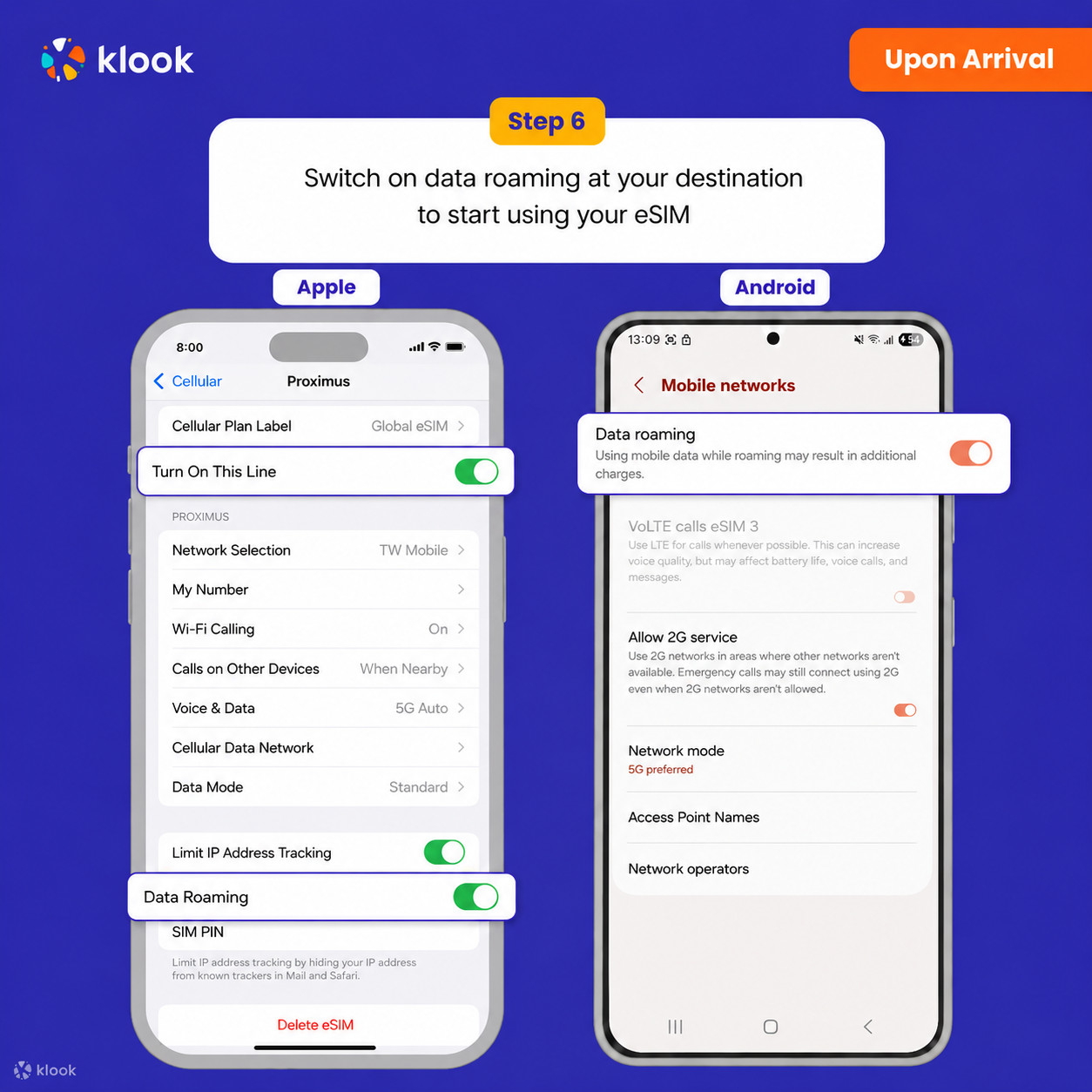
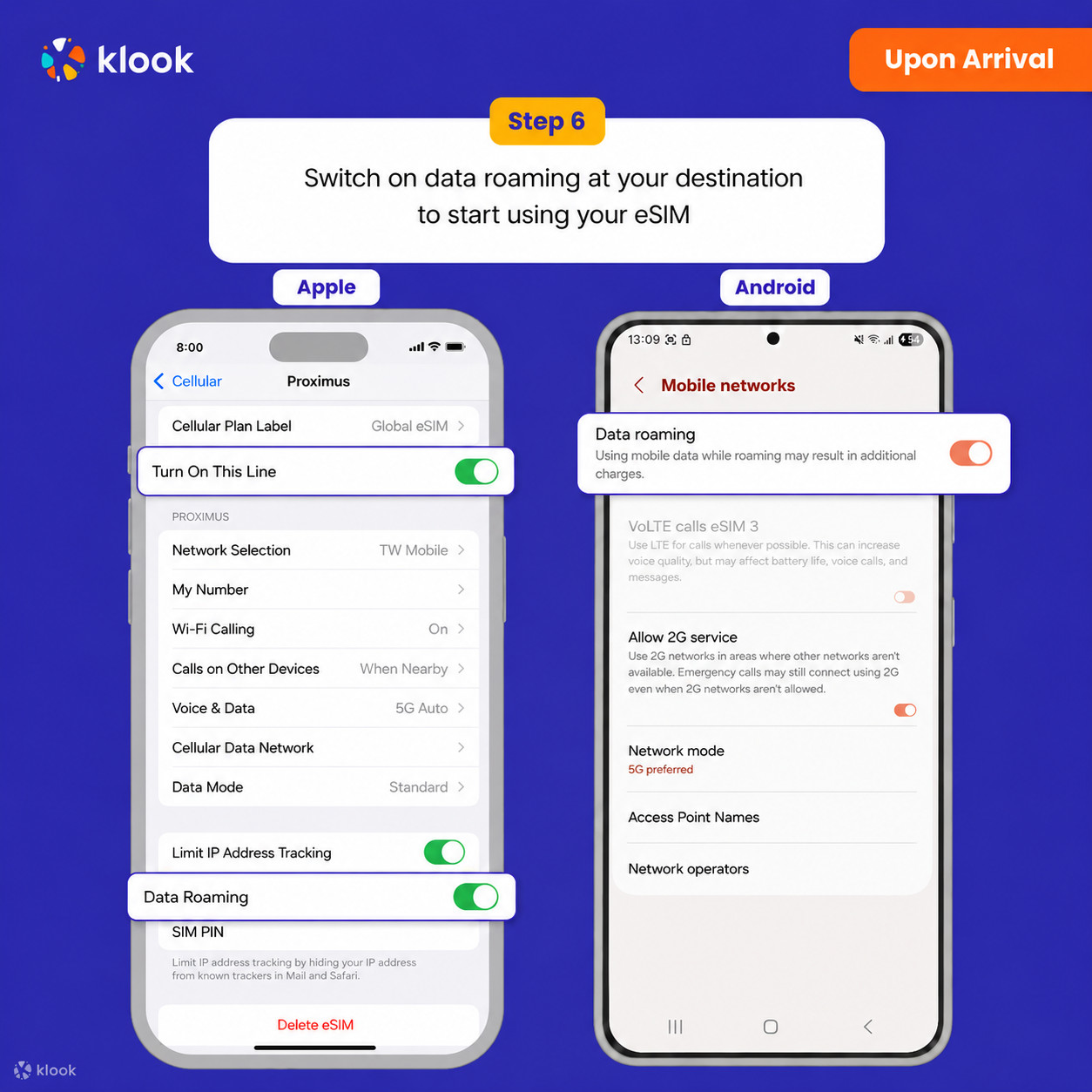
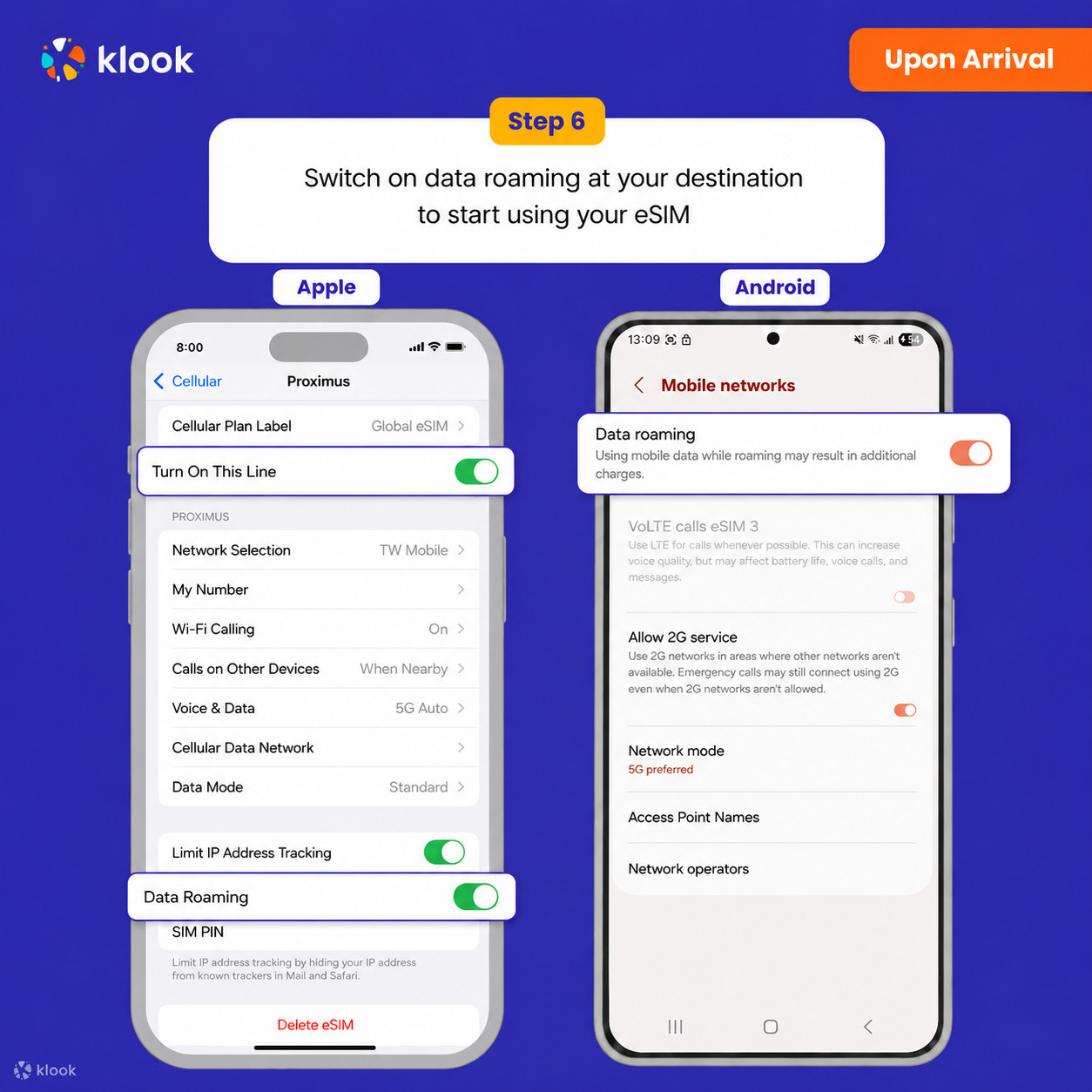
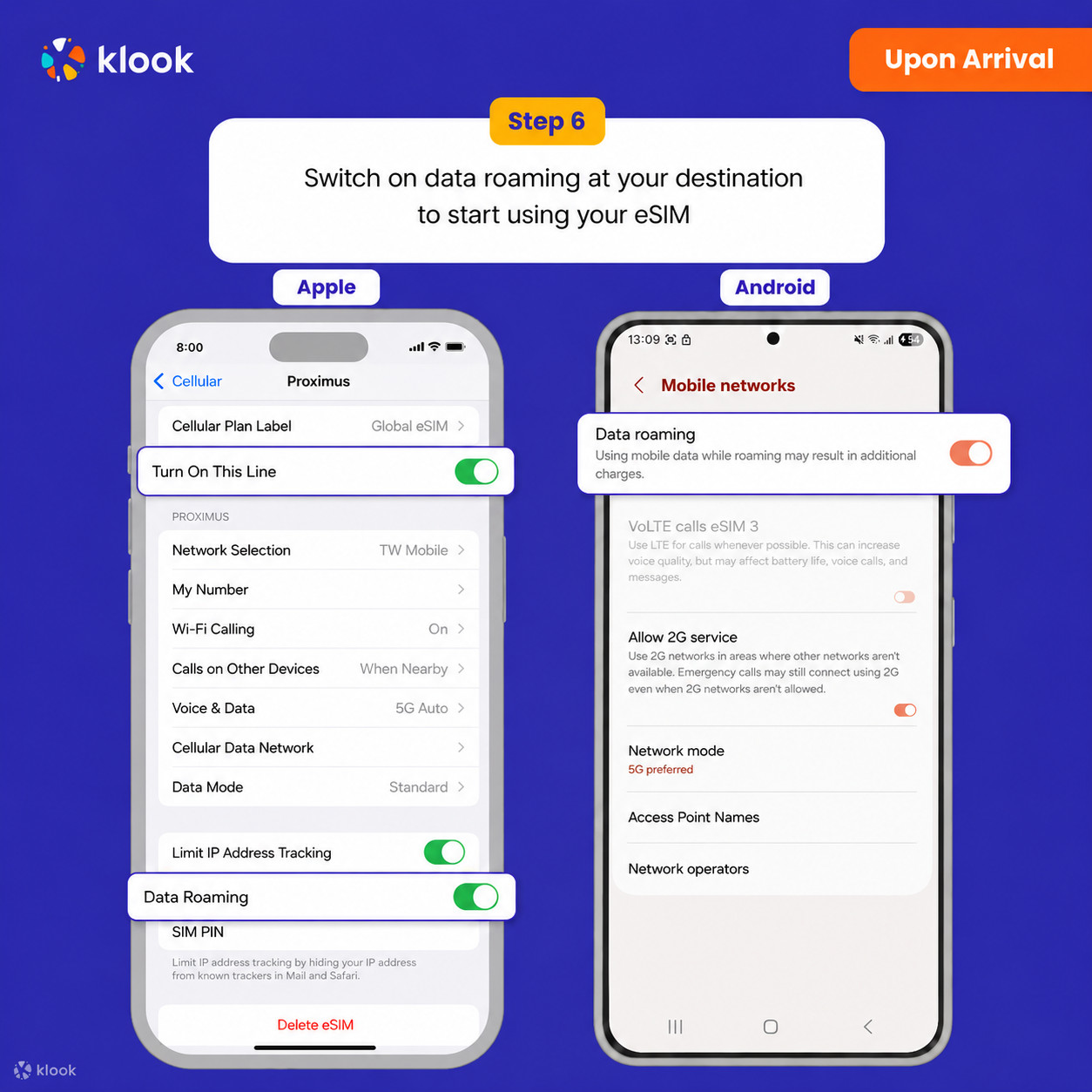
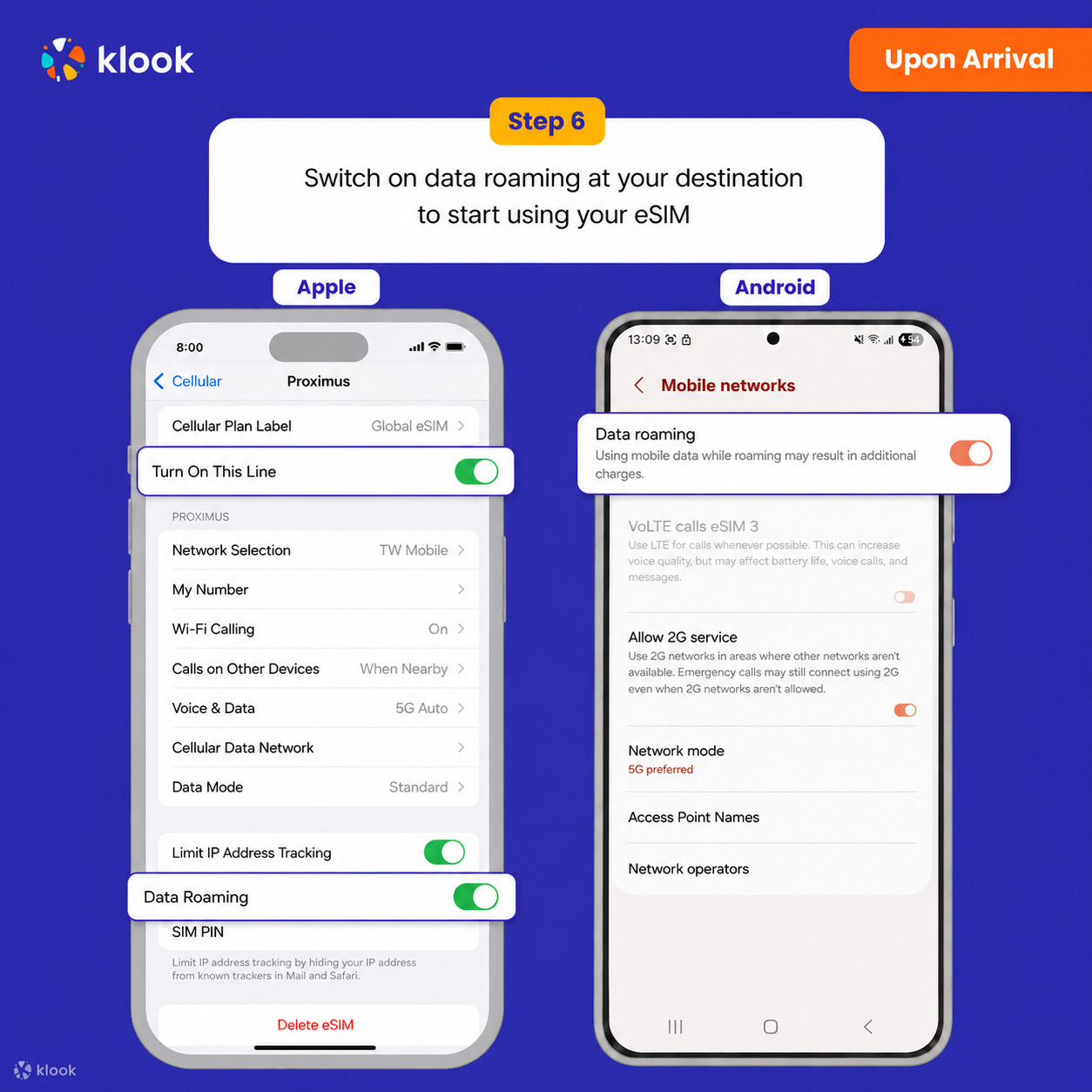
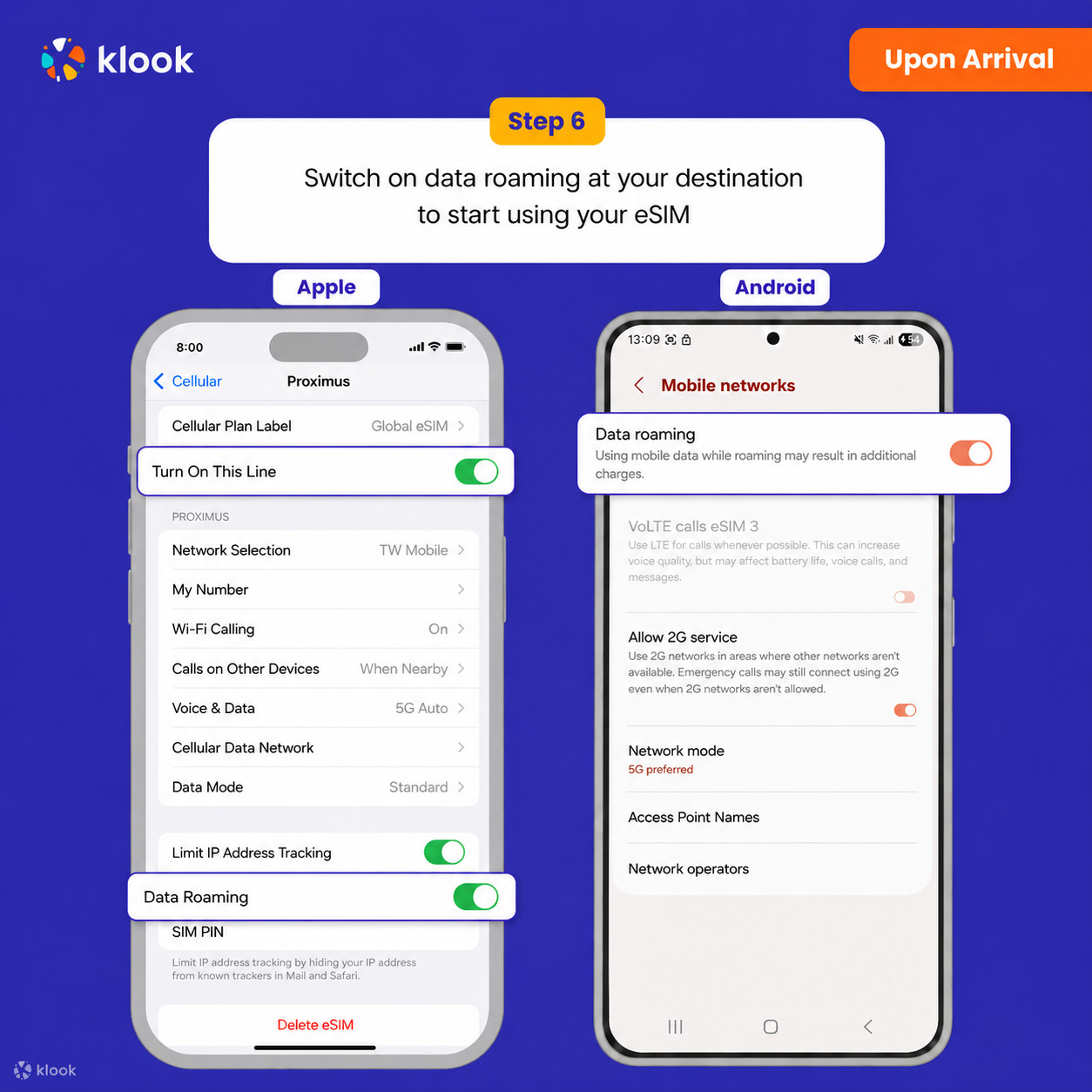
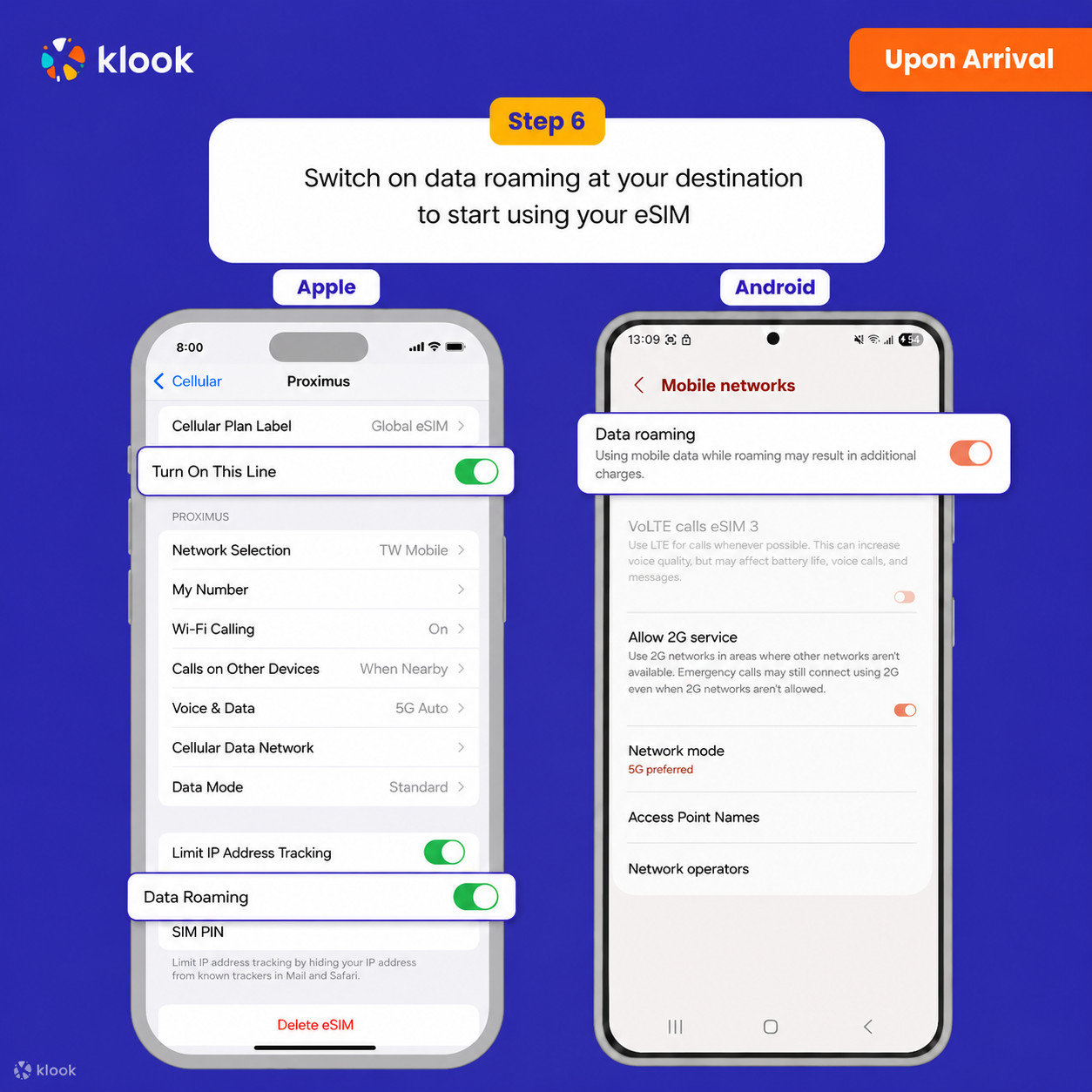
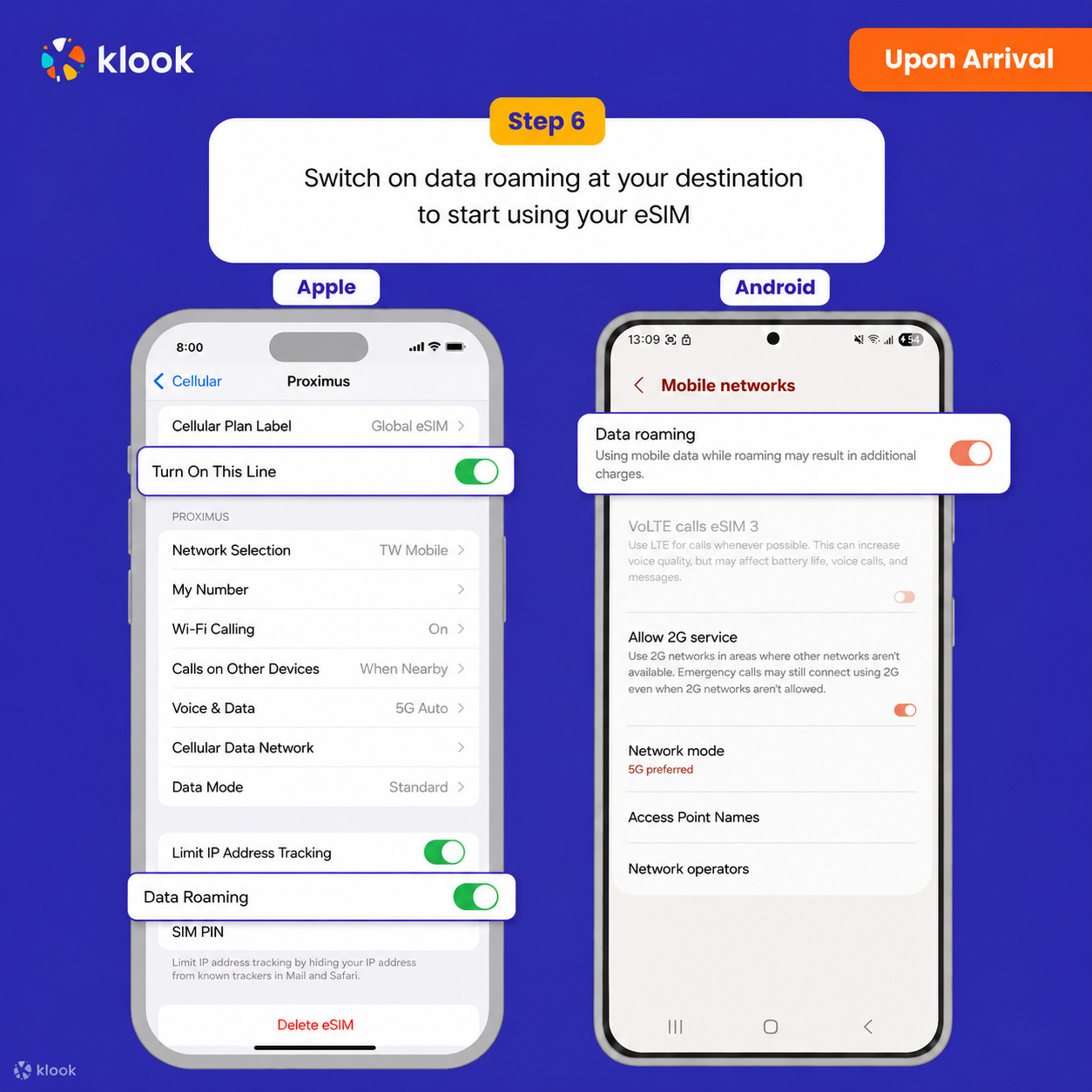
Turn on Data roaming
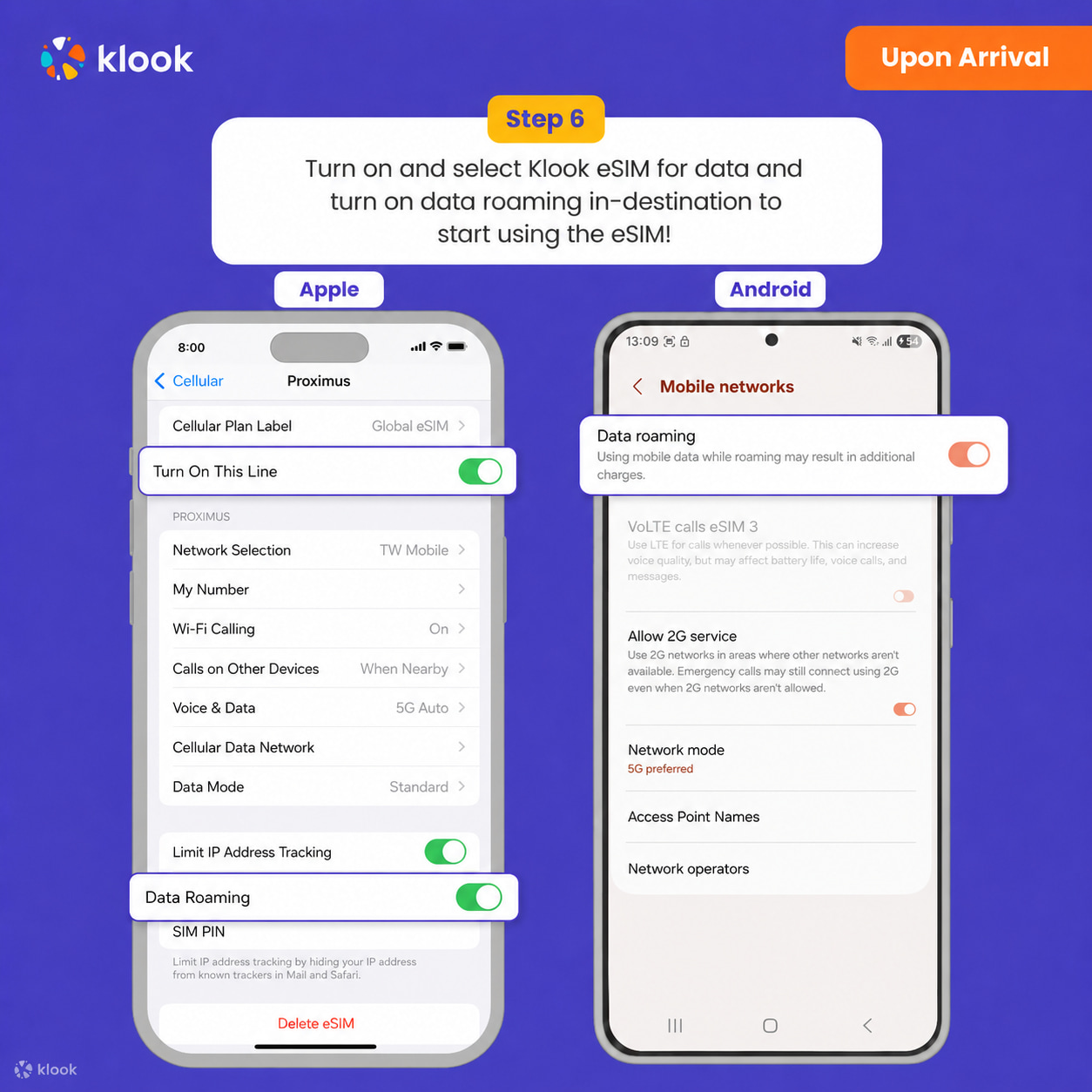
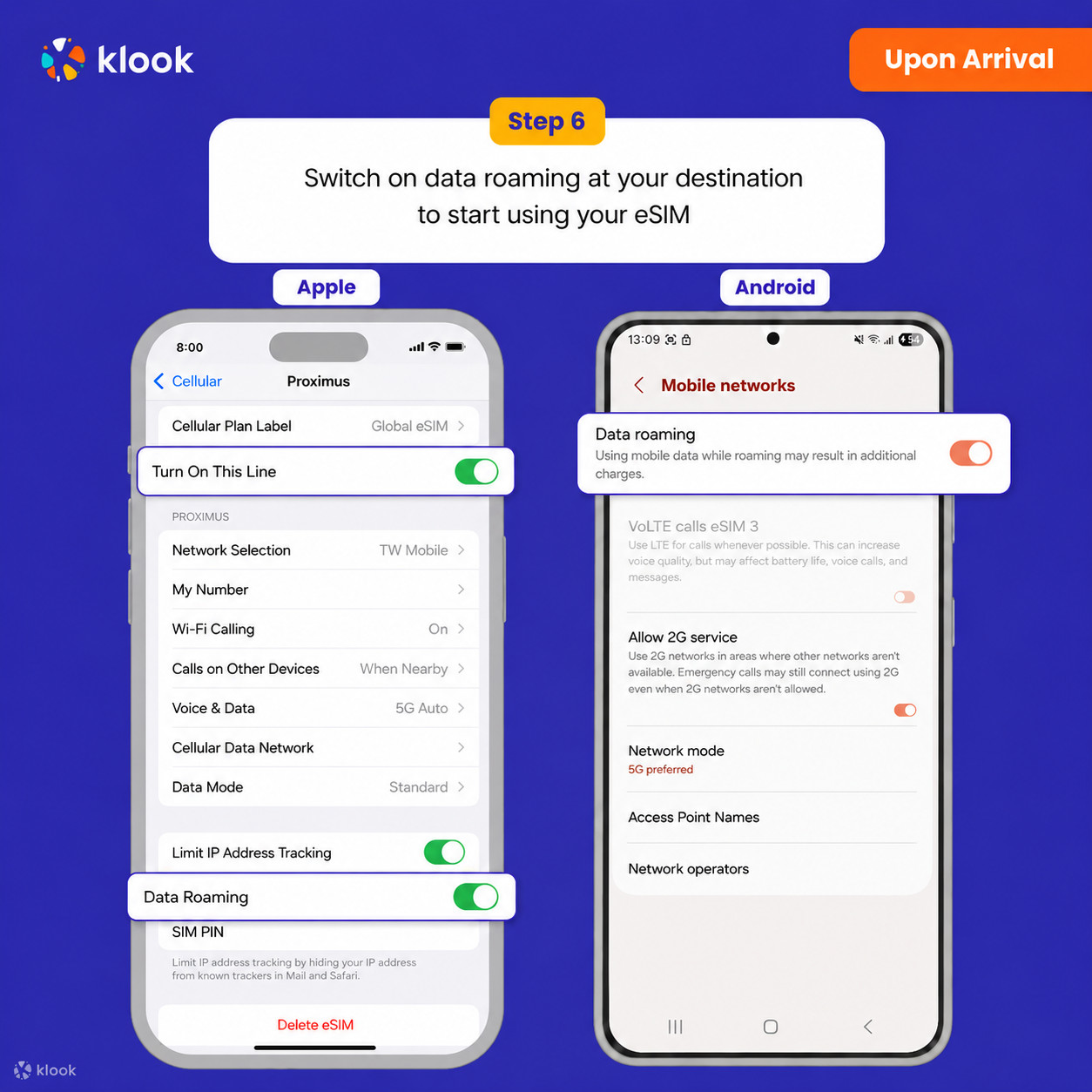
Turn on and select Klook eSIM for data and turn on data roaming in-destination to start using the eSIM!
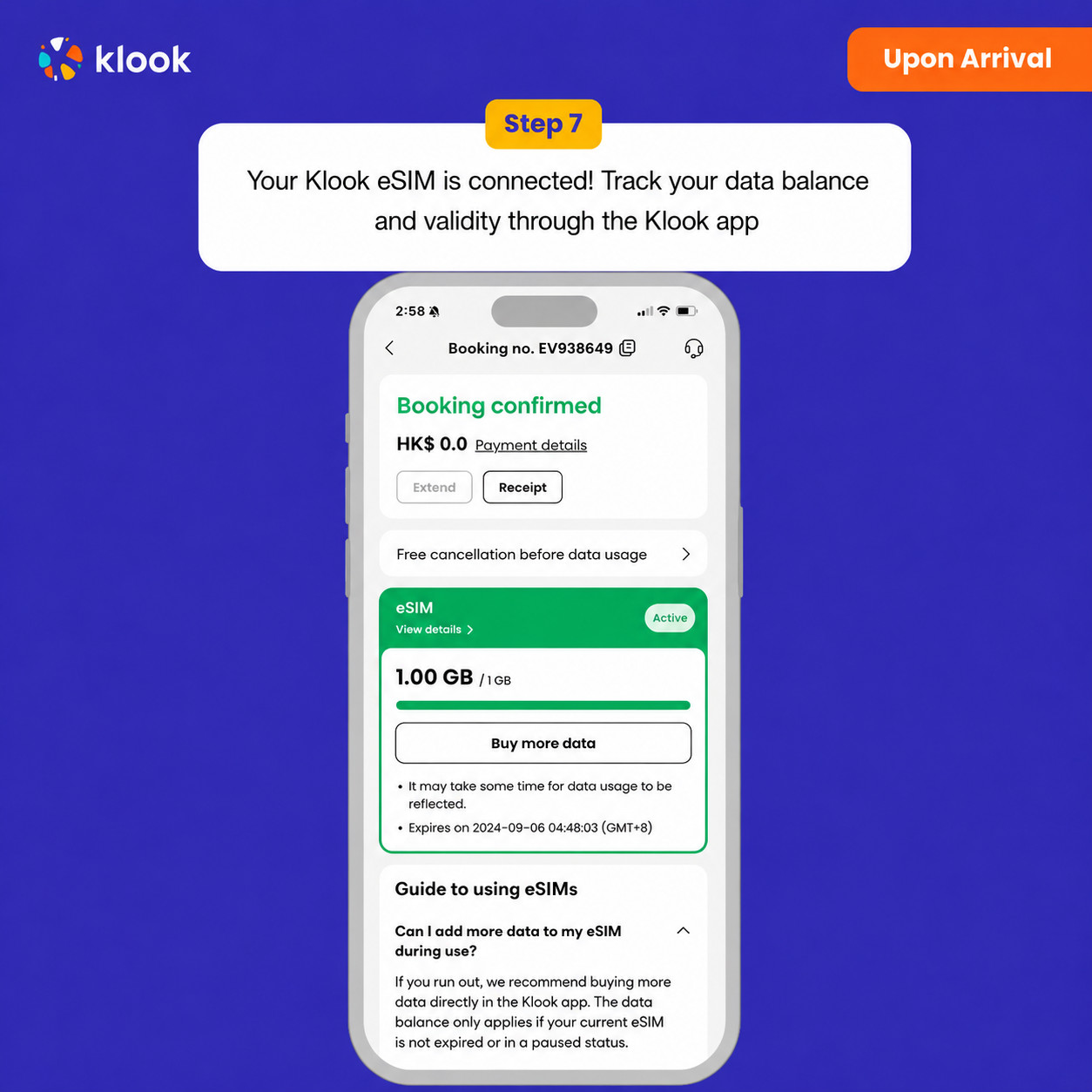
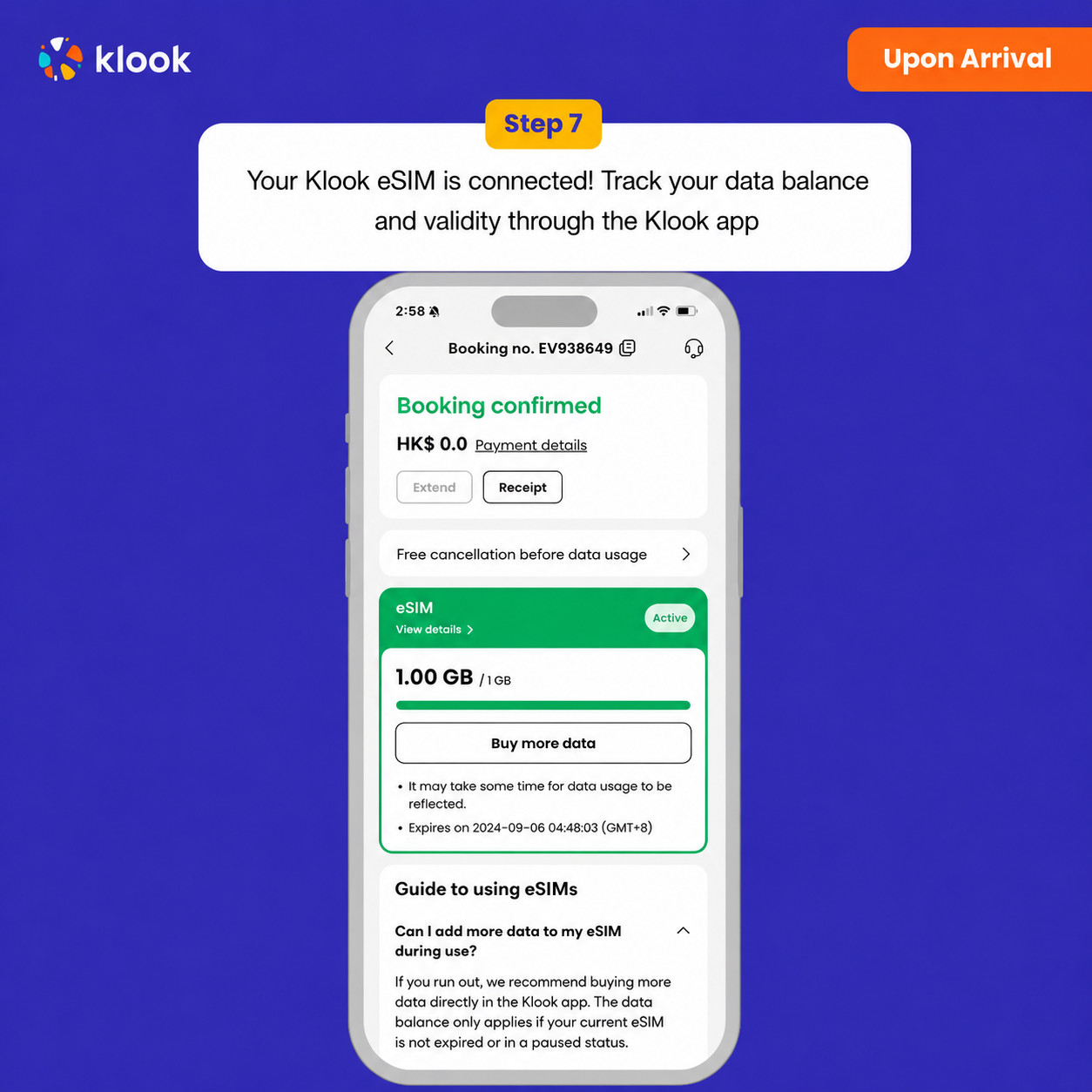
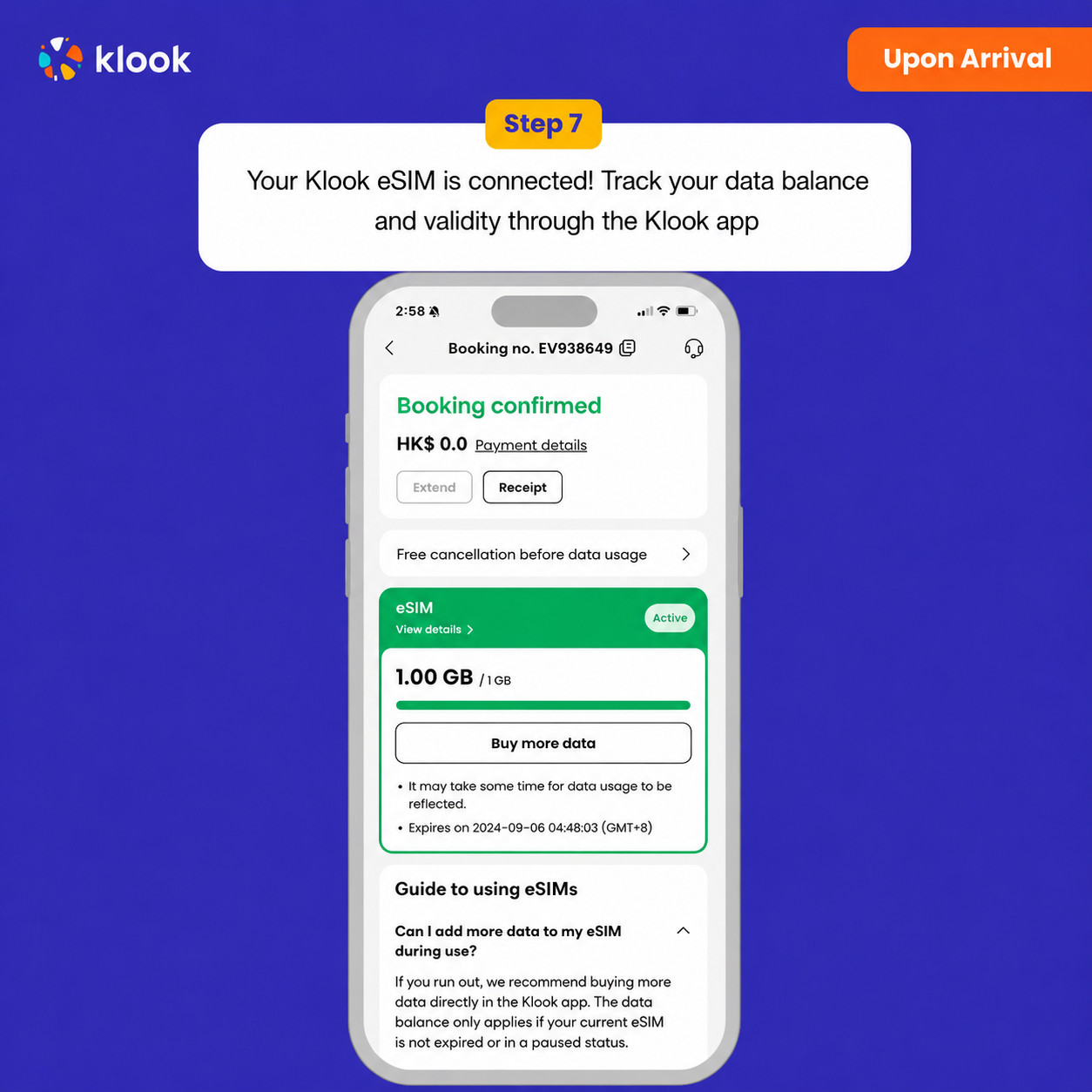
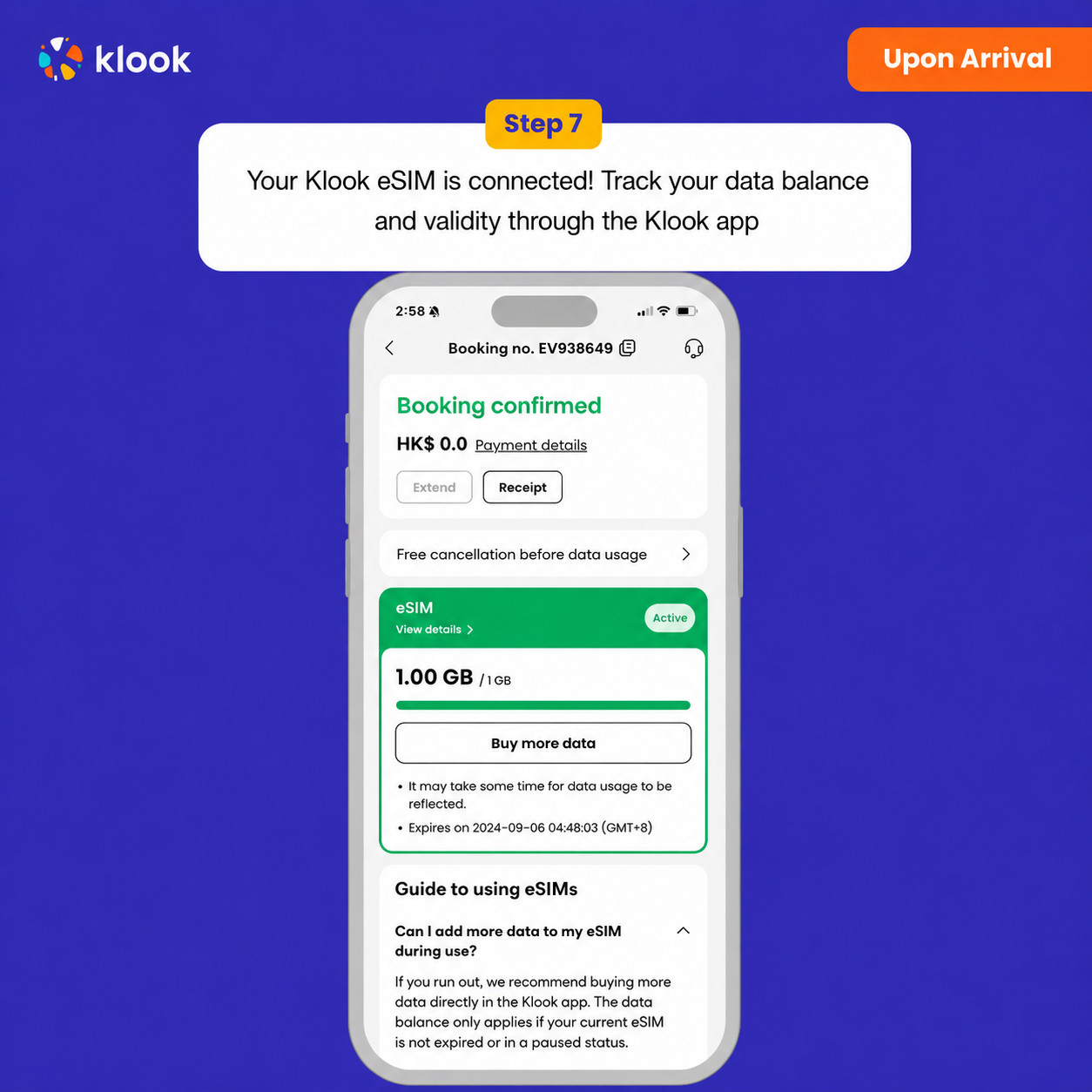
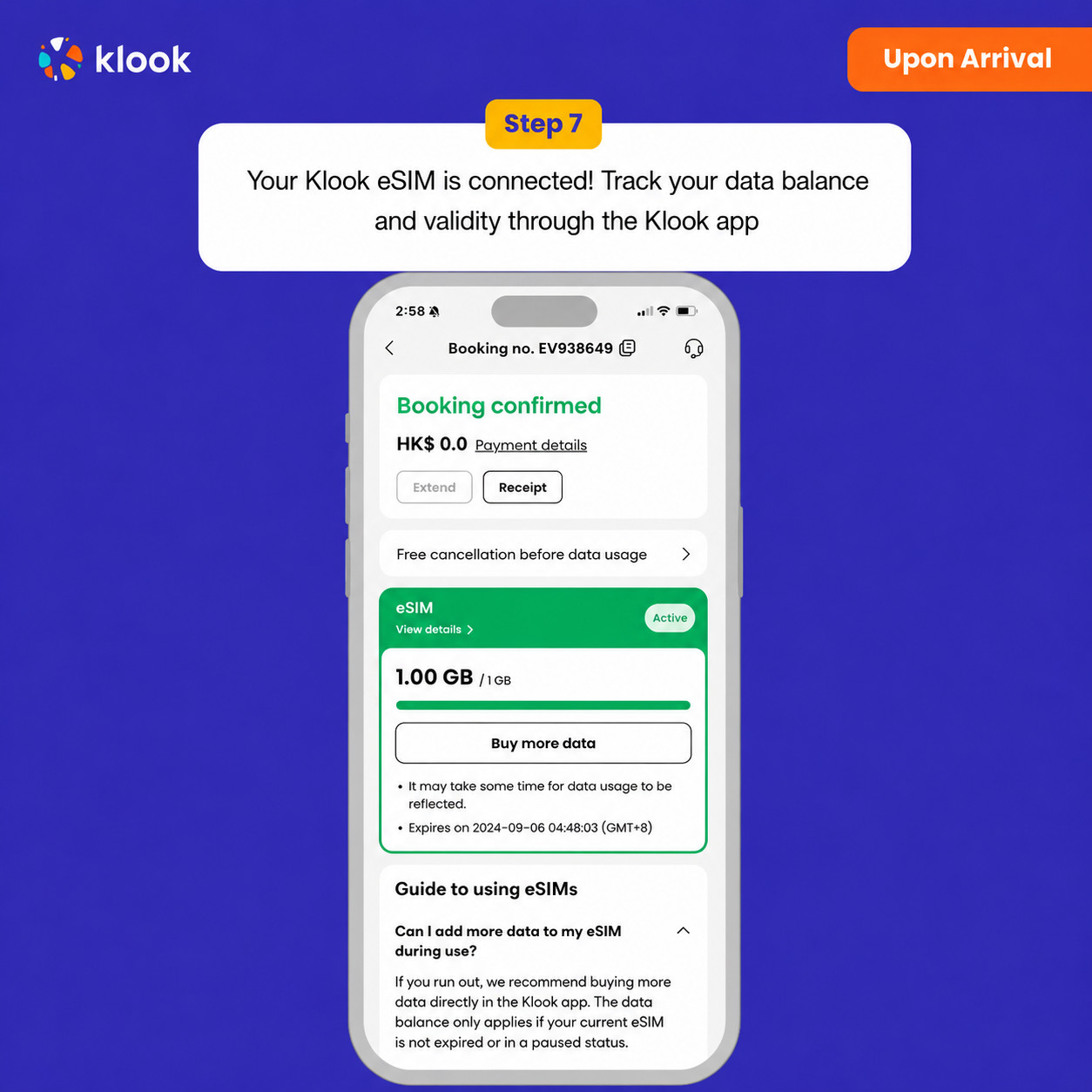
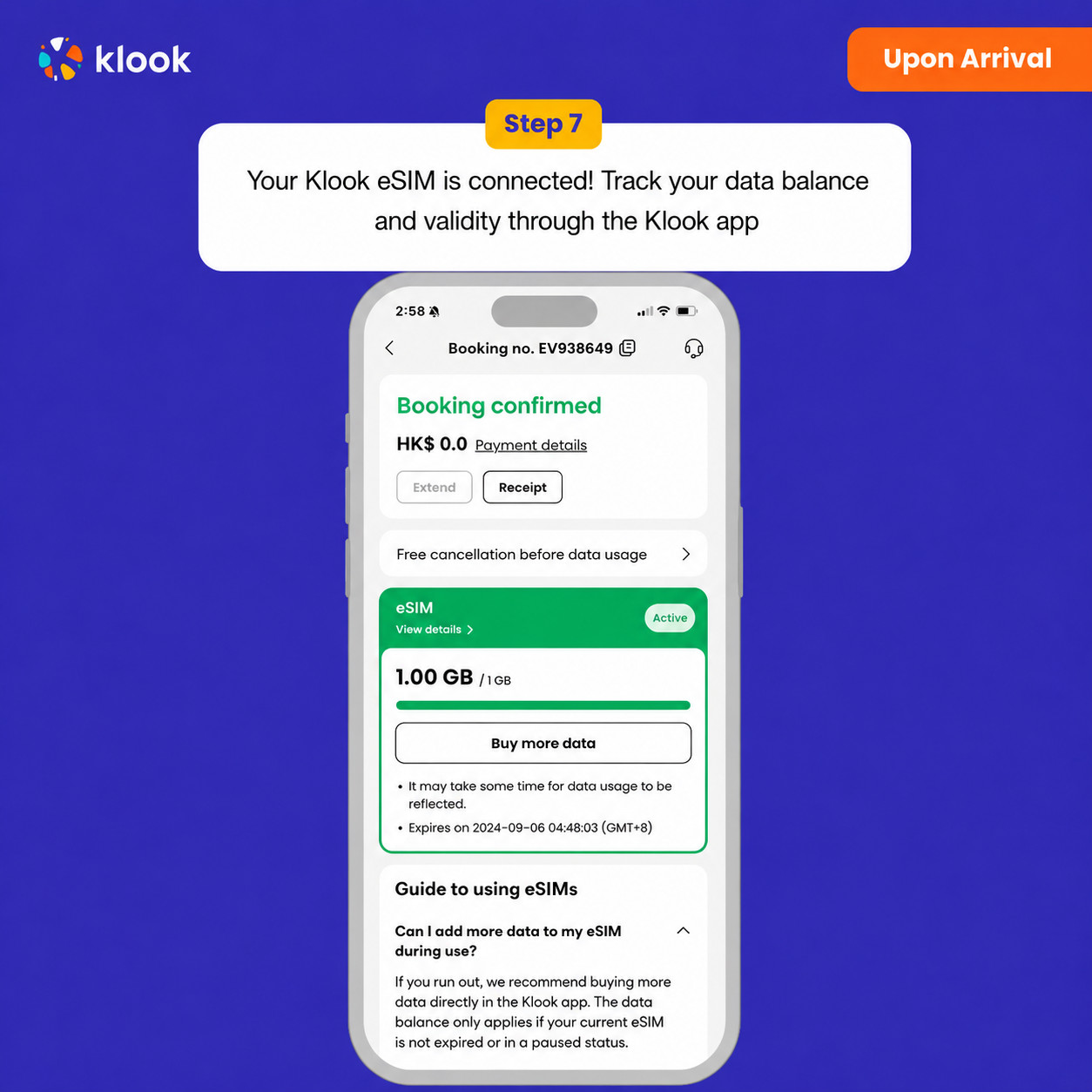
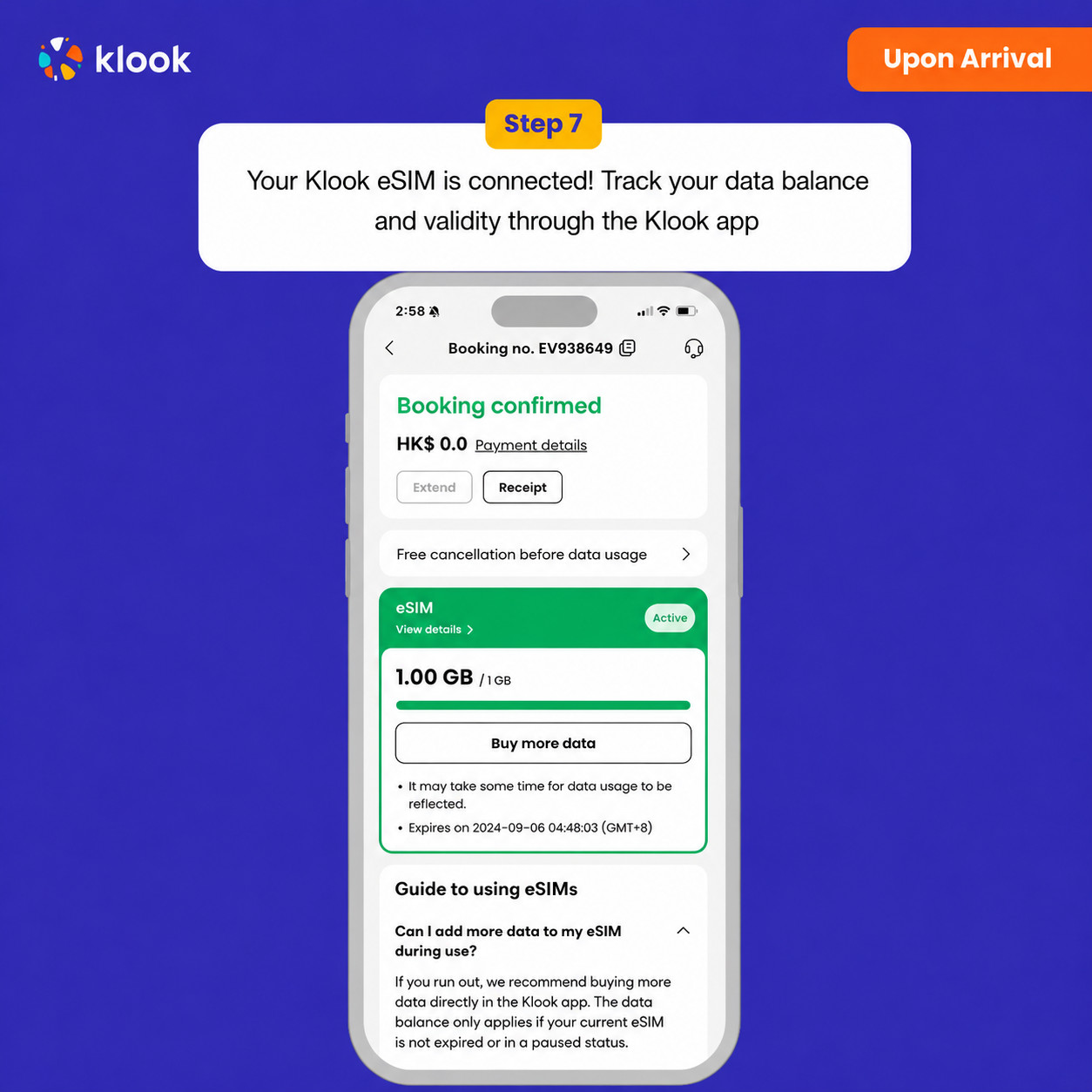
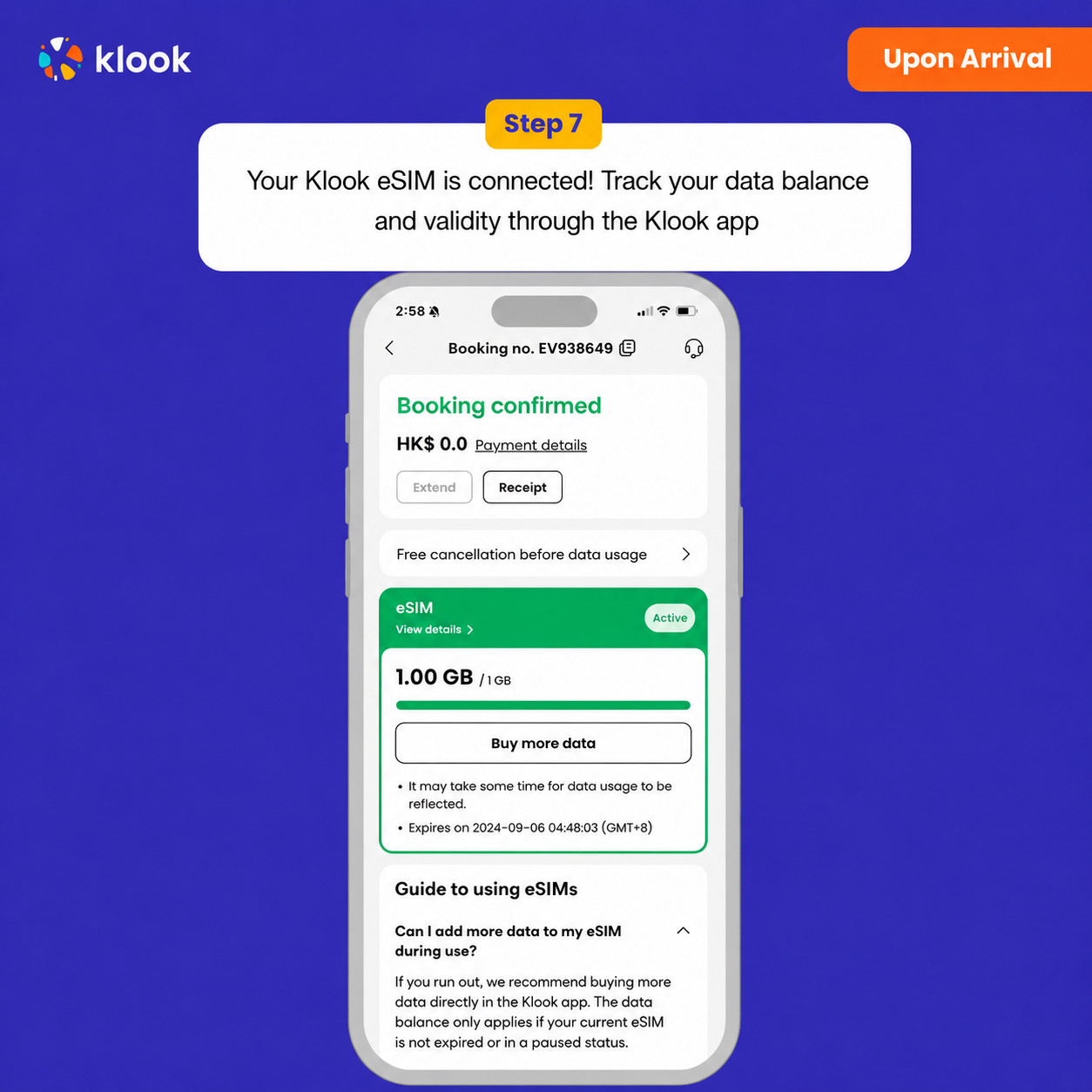
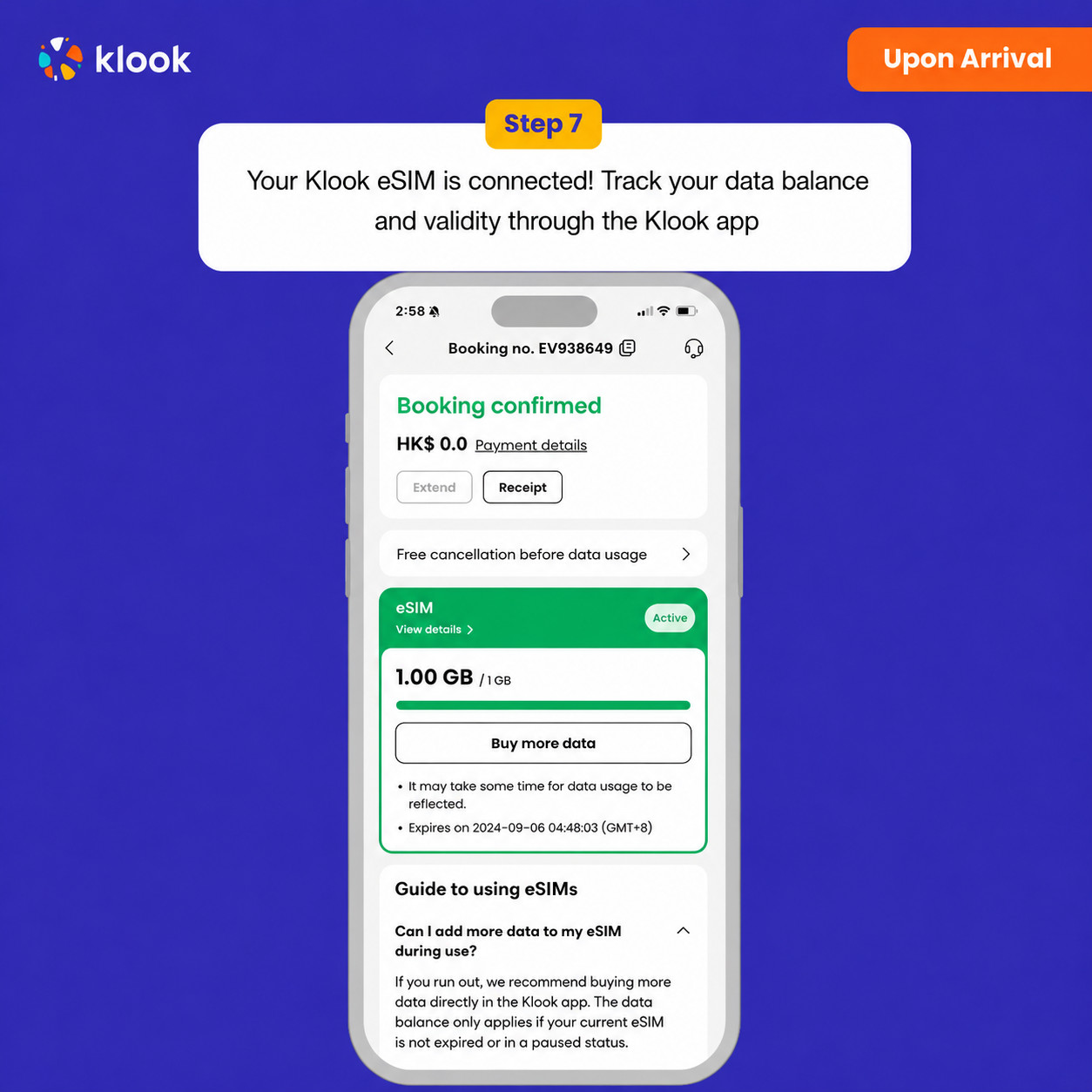
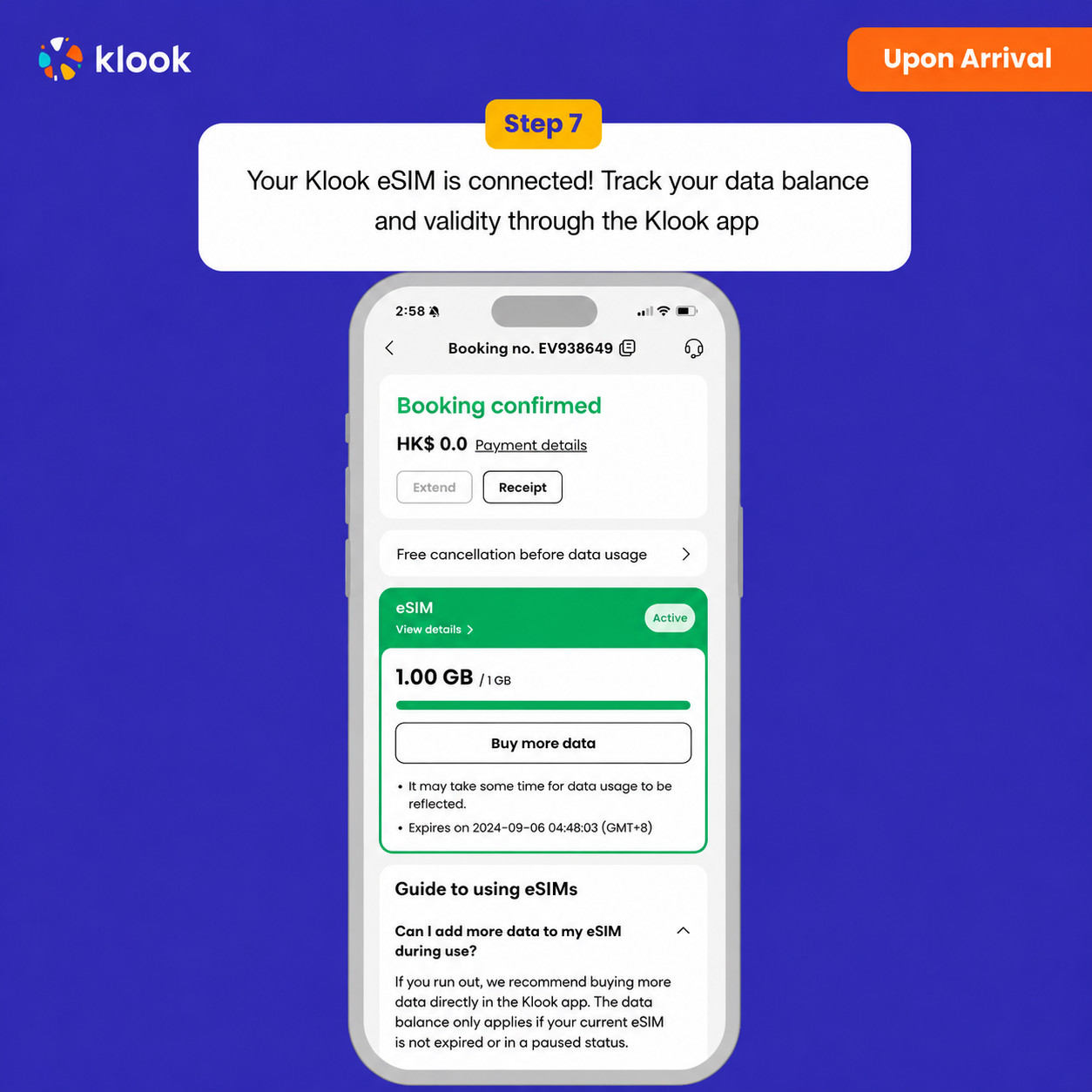
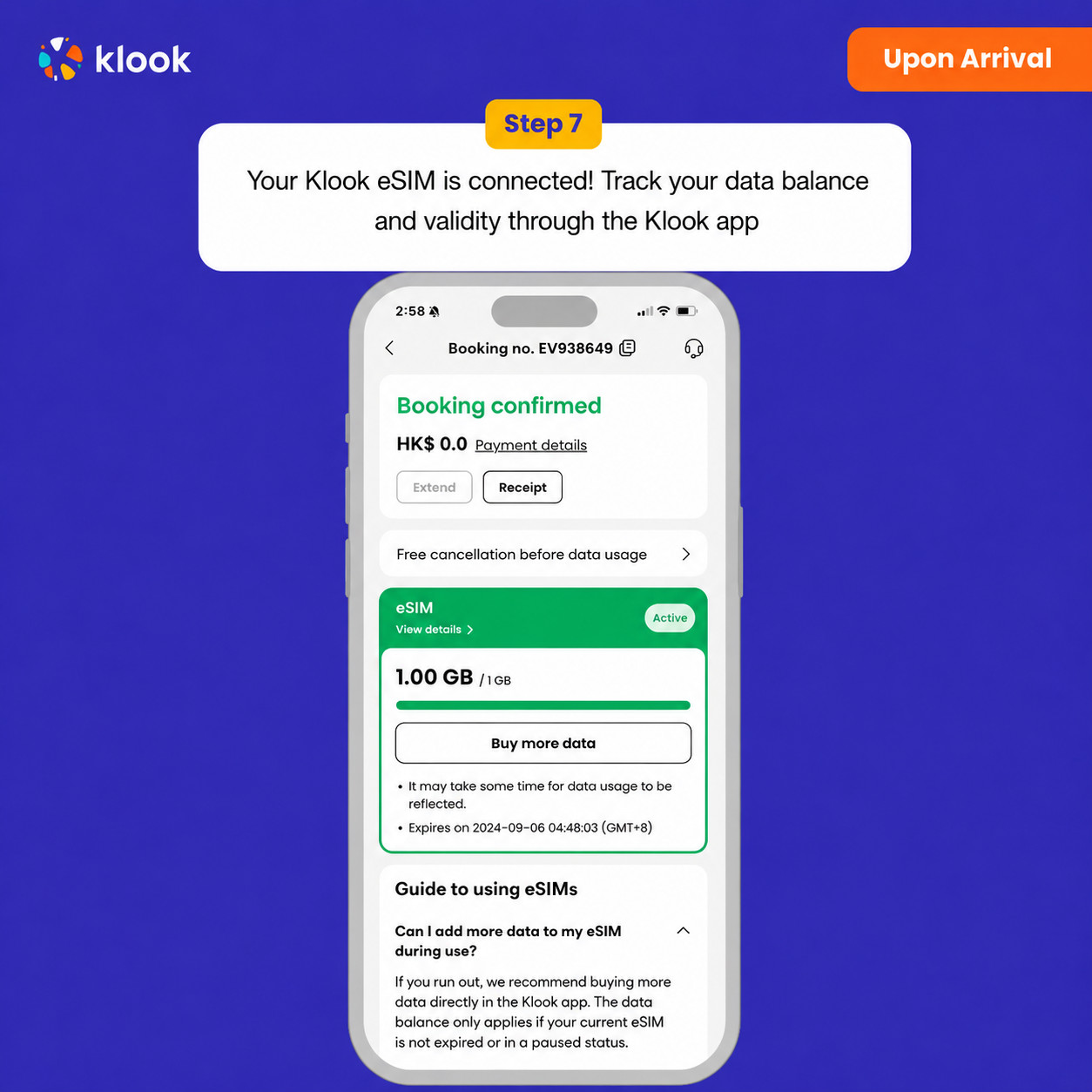
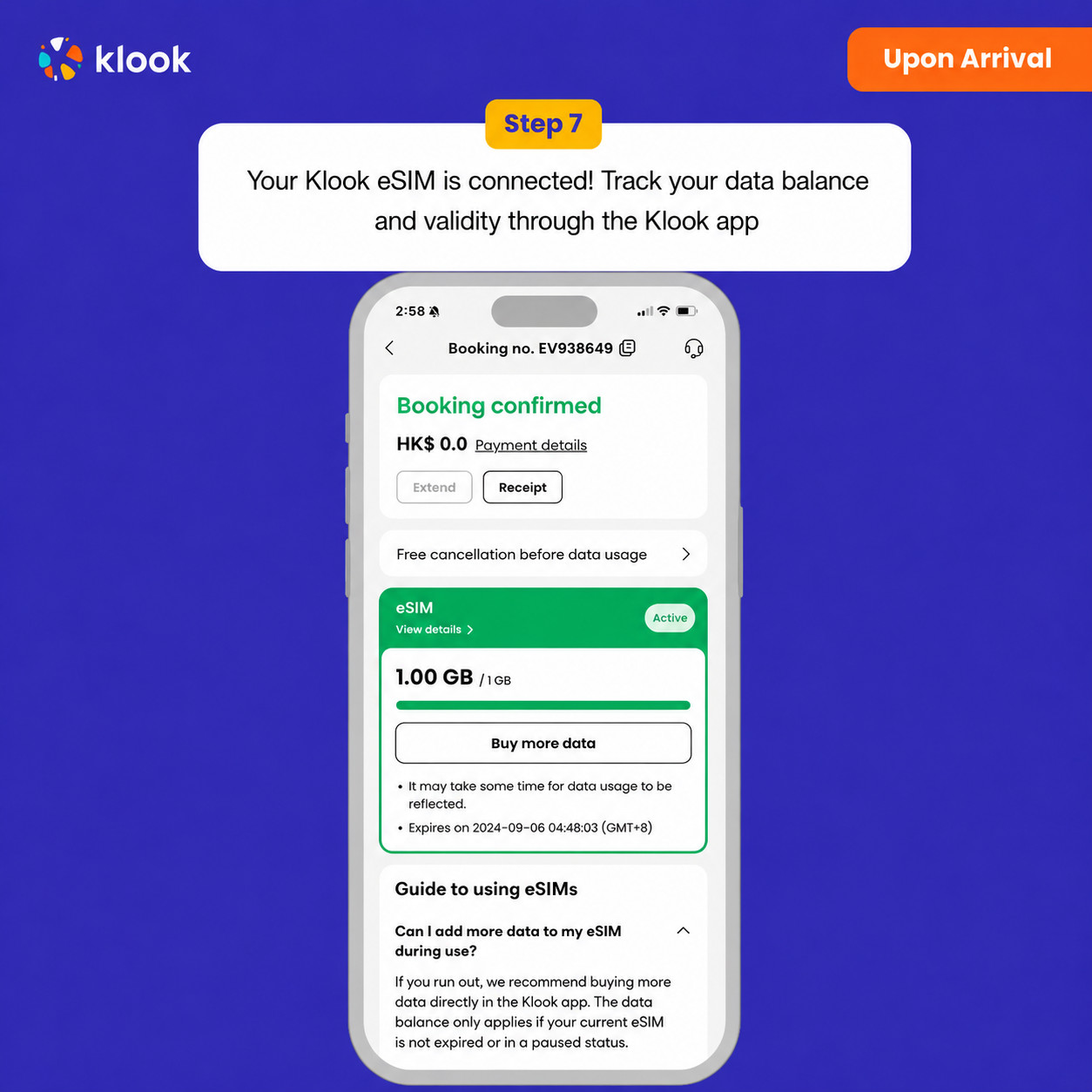
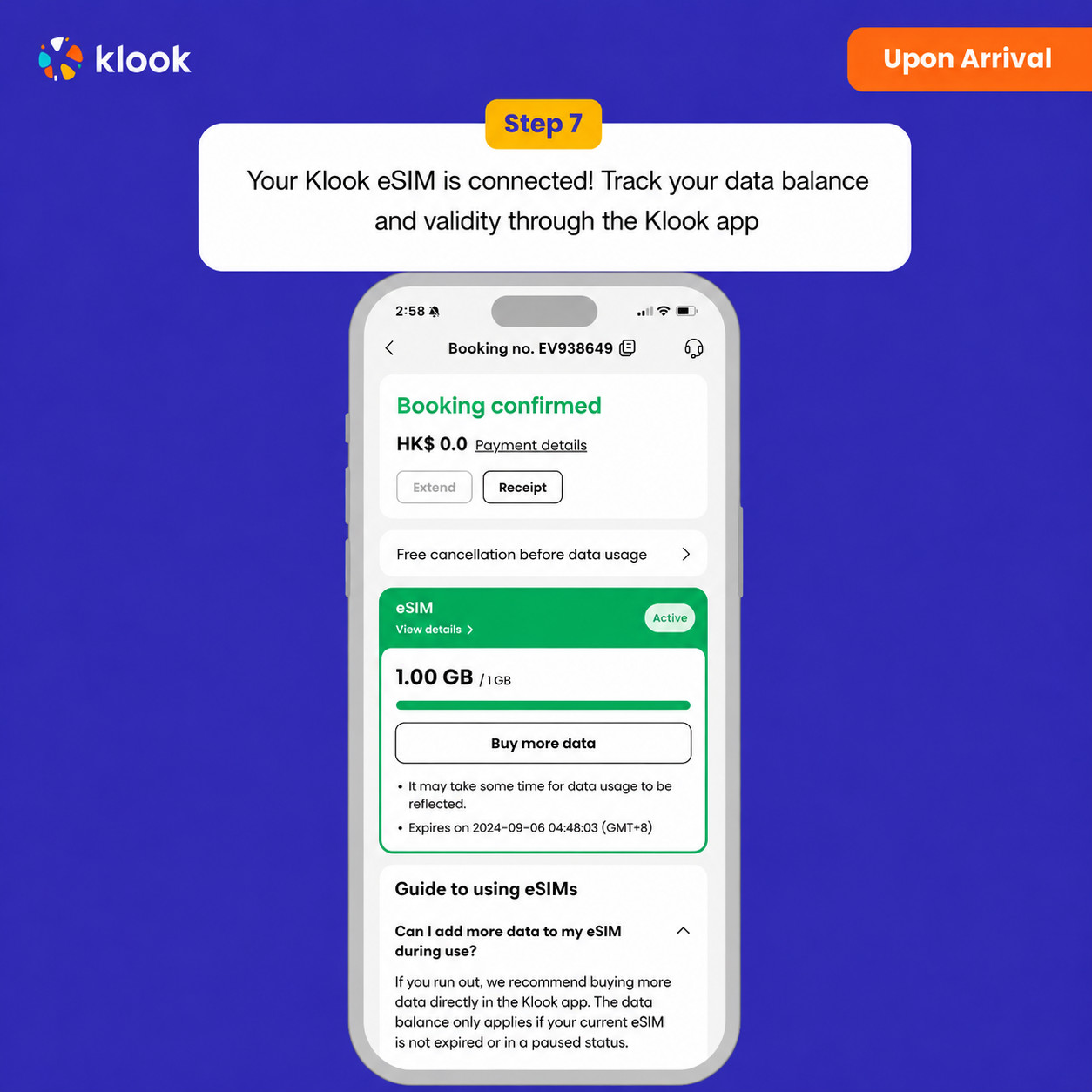
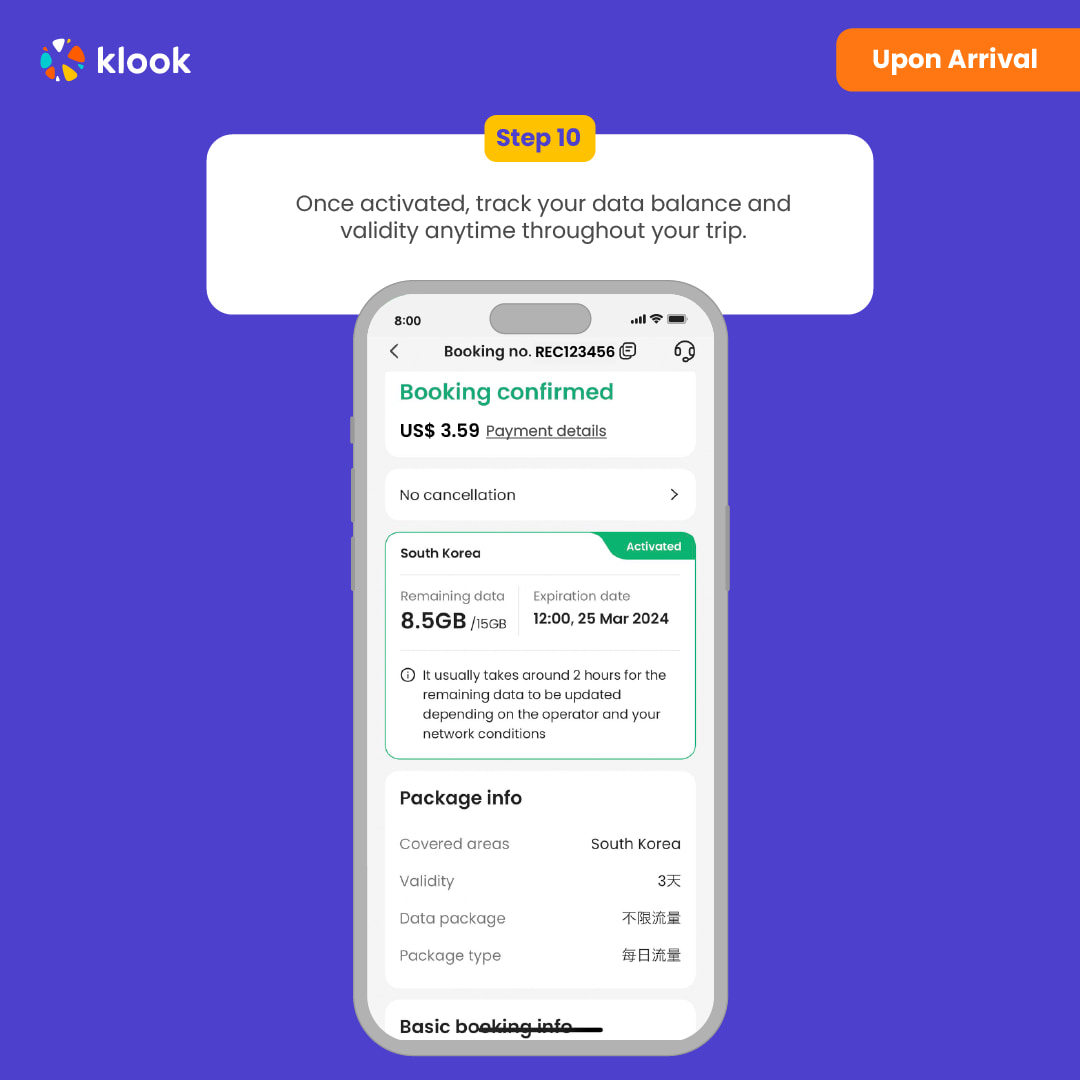
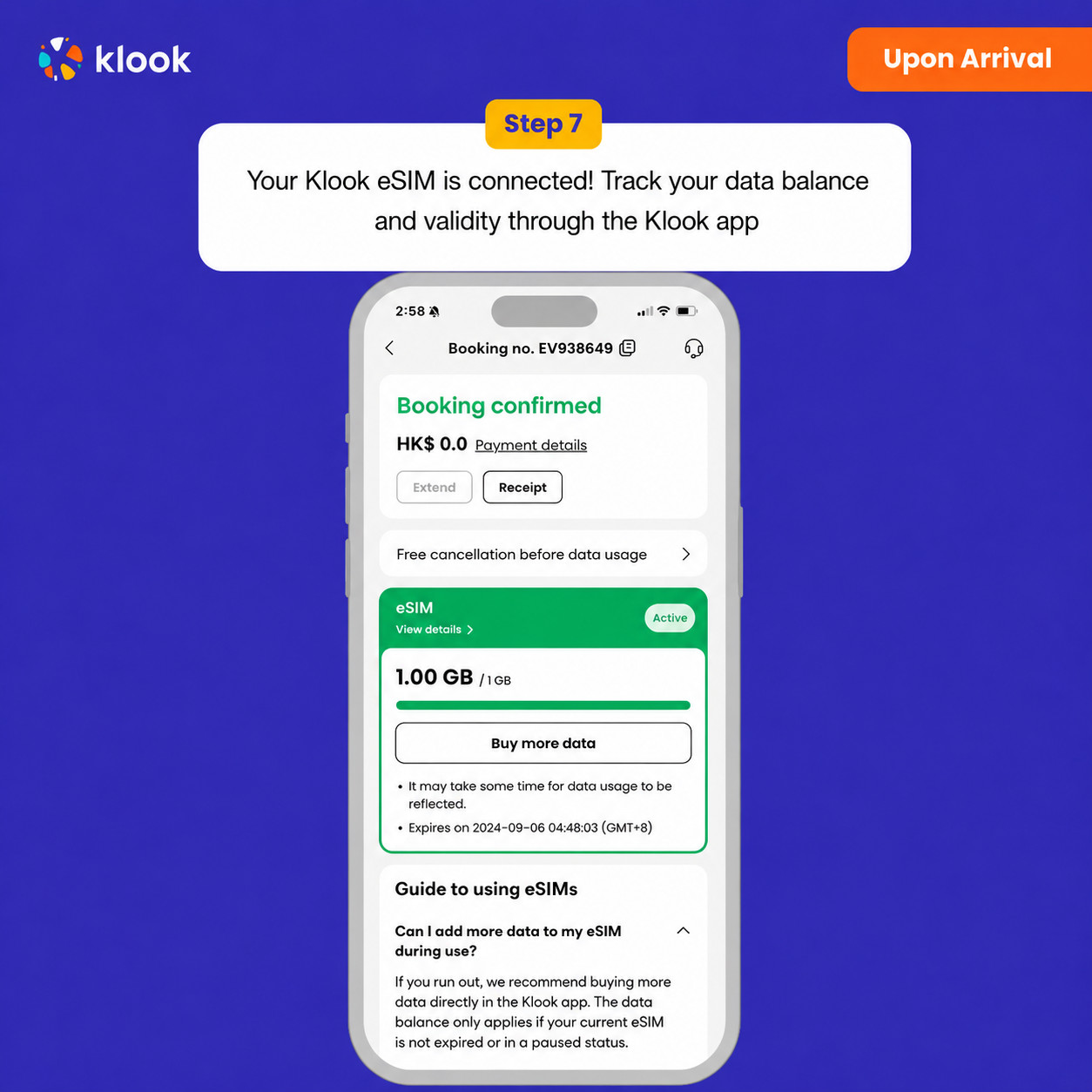
Klook eSIM connected
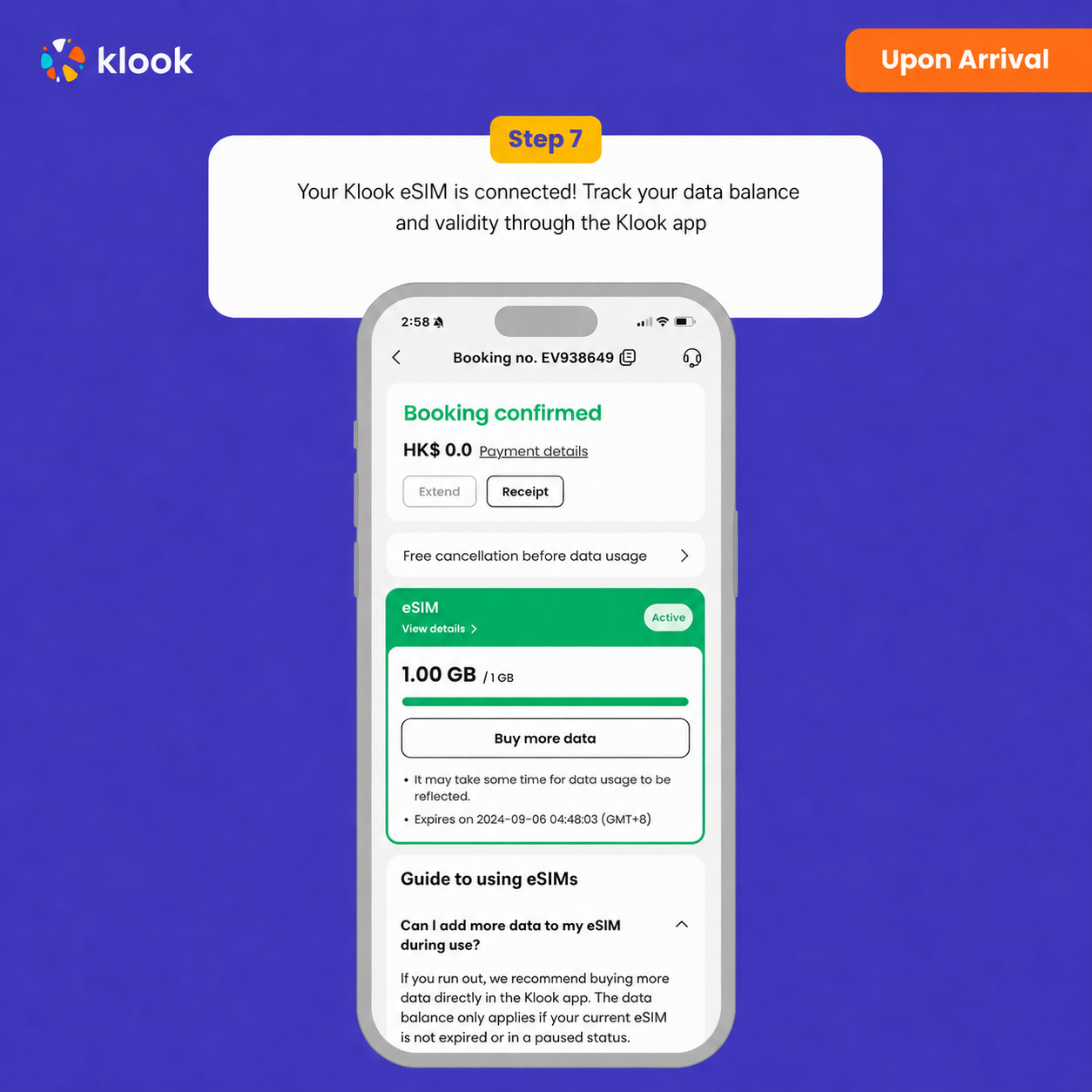
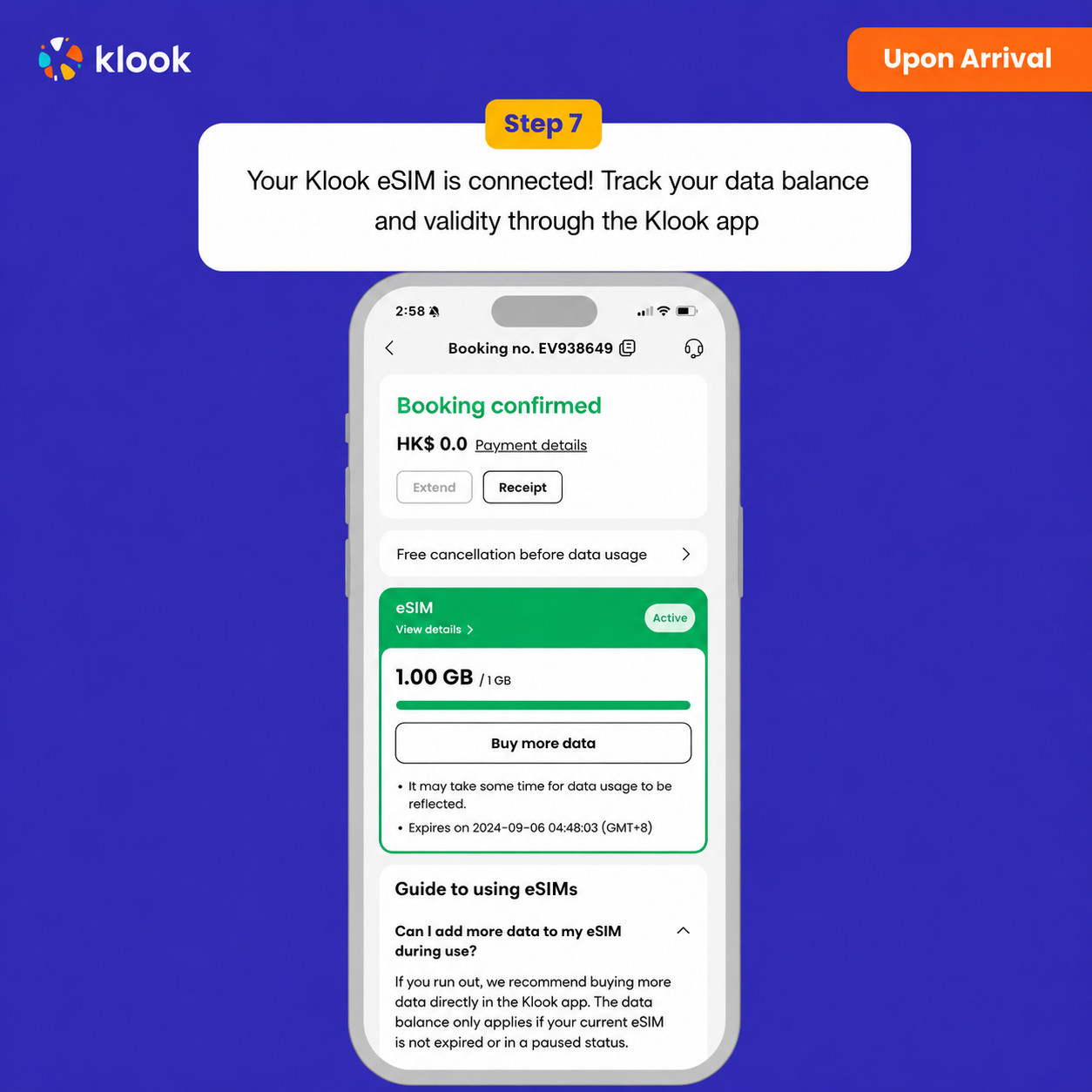
Your klook esim is connected! Track your data balance and validity through the Klook app
Confirmation policy
You'll get confirmation within minutes. If you don't see any confirmation, reach out to our customer support.
Your eSIM plan will begin upon connection to the destination mobile network, according to the time connected. For example, if you activate your 3-day plan at 10:00, it will end 3 days later at 10:00.
Activate in Klook App (Update Klook APP to the latest version)
Klook eSIM installation methods
Activate your eSIM via Klook in-app activation, scanning the QR code, or entering the SMDP+ details manually
Klook eSIM In-app activation
Activate your eSIM just by clicking Add eSIM to device on your booking. Don't worry, data and validity will only commence when you reach your destination
Klook eSIM In-app activation
Installation of your eSIM will start automatically
Klook eSIM iOS installation
Set up your Klook eSIM for travel
Klook eSIM installed
Your Klook eSIM is now installed! Validity period will start only after connecting to the local network at your destination
Turn on Klook eSIM
Turn on Klook eSIM and select Klook eSIM for mobile data
Turn on Data roaming
Turn on and select Klook eSIM for data and turn on data roaming in-destination to start using the eSIM!
Klook eSIM connected
Your klook esim is connected! Track your data balance and validity through the Klook app
Confirmation policy
You'll get confirmation within minutes. If you don't see any confirmation, reach out to our customer support.
Your eSIM plan will begin upon connection to the destination mobile network, according to the time connected. For example, if you activate your 3-day plan at 10:00, it will end 3 days later at 10:00.
Activate in Klook App
Activate in Klook App (Update Klook APP to the latest version)
Klook eSIM installation methods
Activate your eSIM via Klook in-app activation, scanning the QR code, or entering the SMDP+ details manually
Klook eSIM In-app activation
Activate your eSIM just by clicking Add eSIM to device on your booking. Don't worry, data and validity will only commence when you reach your destination
Klook eSIM In-app activation
Installation of your eSIM will start automatically
Klook eSIM iOS installation
Set up your Klook eSIM for travel
Klook eSIM installed
Your Klook eSIM is now installed! Validity period will start only after connecting to the local network at your destination
Turn on Klook eSIM
Turn on Klook eSIM and select Klook eSIM for mobile data
Turn on Data roaming
Turn on and select Klook eSIM for data and turn on data roaming in-destination to start using the eSIM!
Klook eSIM connected
Your klook esim is connected! Track your data balance and validity through the Klook app
Confirmation policy
You'll get confirmation within minutes. If you don't see any confirmation, reach out to our customer support.
Please note that some devices (e.g. iPhones) purchased in Mainland China, Hong Kong, and Macao are incompatible with eSIM. To confirm your device is compatible, dial "*#06#" on your phone. If the EID barcode appears, it means your phone supports the eSIM function. Alternatively, follow the [provided steps]
The connection speed depends on your reception coverage and the local tele company. No refund will be issued for any speed drop
Activate in Klook App
Activate in Klook App (Update Klook APP to the latest version)
Klook eSIM installation methods
Activate your eSIM via Klook in-app activation, scanning the QR code, or entering the SMDP+ details manually
Klook eSIM In-app activation
Activate your eSIM just by clicking Add eSIM to device on your booking. Don't worry, data and validity will only commence when you reach your destination
Klook eSIM In-app activation
Installation of your eSIM will start automatically
Klook eSIM iOS installation
Set up your Klook eSIM for travel
Klook eSIM installed
Your Klook eSIM is now installed! Validity period will start only after connecting to the local network at your destination
Turn on Klook eSIM
Turn on Klook eSIM and select Klook eSIM for mobile data
Turn on Data roaming
Turn on and select Klook eSIM for data and turn on data roaming in-destination to start using the eSIM!
Klook eSIM connected
Your klook esim is connected! Track your data balance and validity through the Klook app
IOS: Please refer to the images below (use the latest version of the Klook App); Android: Please refer to the guide
The SIM card is valid for your selected duration after activation on a 24 hour basis. If you purchased a 3-day SIM card and activated it on 1 Oct at 21:00, it will be valid until 4 Oct 21:00
Please note that some devices (e.g. iPhones) purchased in Mainland China, Hong Kong, and Macao are incompatible with eSIM. To confirm your device is compatible, dial "*#06#" on your phone. If the EID barcode appears, it means your phone supports the eSIM function. Alternatively, follow the [provided steps]
The connection speed depends on your reception coverage and the local tele company. No refund will be issued for any speed drop
IOS: Please refer to the images below (use the latest version of the Klook App); Android: Please refer to the guide
The SIM card is valid for your selected duration after activation on a 24 hour basis. If you purchased a 3-day SIM card and activated it on 1 Oct at 21:00, it will be valid until 4 Oct 21:00
Activate in Klook App
Activate in Klook App (Update Klook APP to the latest version)
Klook eSIM installation methods
Activate your eSIM via Klook in-app activation, scanning the QR code, or entering the SMDP+ details manually
Klook eSIM In-app activation
Activate your eSIM just by clicking Add eSIM to device on your booking. Don't worry, data and validity will only commence when you reach your destination
Klook eSIM In-app activation
Installation of your eSIM will start automatically
Klook eSIM iOS installation
Set up your Klook eSIM for travel
Klook eSIM installed
Your Klook eSIM is now installed! Validity period will start only after connecting to the local network at your destination
Turn on Klook eSIM
Turn on Klook eSIM and select Klook eSIM for mobile data
Turn on Data roaming
Turn on and select Klook eSIM for data and turn on data roaming in-destination to start using the eSIM!
Klook eSIM connected
Your klook esim is connected! Track your data balance and validity through the Klook app
Confirmation policy
You'll get confirmation within minutes. If you don't see any confirmation, reach out to our customer support.
Please note that some devices (e.g. iPhones) purchased in Mainland China, Hong Kong, and Macao are incompatible with eSIM. To confirm your device is compatible, dial "*#06#" on your phone. If the EID barcode appears, it means your phone supports the eSIM function. Alternatively, follow the [provided steps]
The connection speed depends on your reception coverage and the local tele company. No refund will be issued for any speed drop
Activate in Klook App
Activate in Klook App (Update Klook APP to the latest version)
Klook eSIM installation methods
Activate your eSIM via Klook in-app activation, scanning the QR code, or entering the SMDP+ details manually
Klook eSIM In-app activation
Activate your eSIM just by clicking Add eSIM to device on your booking. Don't worry, data and validity will only commence when you reach your destination
Klook eSIM In-app activation
Installation of your eSIM will start automatically
Klook eSIM iOS installation
Set up your Klook eSIM for travel
Klook eSIM installed
Your Klook eSIM is now installed! Validity period will start only after connecting to the local network at your destination
Turn on Klook eSIM
Turn on Klook eSIM and select Klook eSIM for mobile data
Turn on Data roaming
Turn on and select Klook eSIM for data and turn on data roaming in-destination to start using the eSIM!
Klook eSIM connected
Your klook esim is connected! Track your data balance and validity through the Klook app
IOS: Please refer to the images below (use the latest version of the Klook App); Android: Please refer to the guide
The SIM card is valid for your selected duration after activation on a 24 hour basis. If you purchased a 3-day SIM card and activated it on 1 Oct at 21:00, it will be valid until 4 Oct 21:00
Confirmation policy
You'll get confirmation within minutes. If you don't see any confirmation, reach out to our customer support.
Your eSIM plan will begin upon connection to the destination mobile network, according to the time connected. For example, if you activate your 3-day plan at 10:00, it will end 3 days later at 10:00.
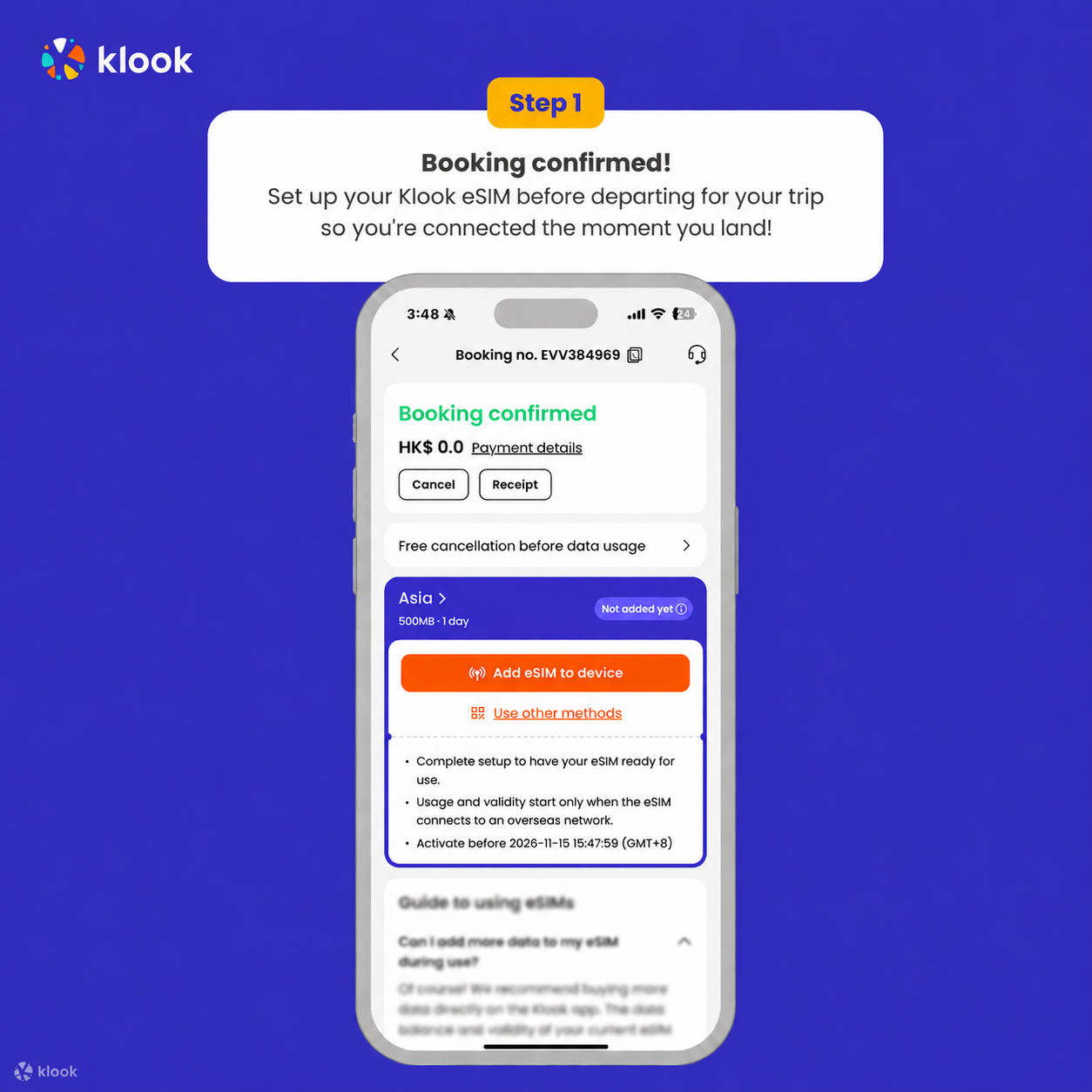
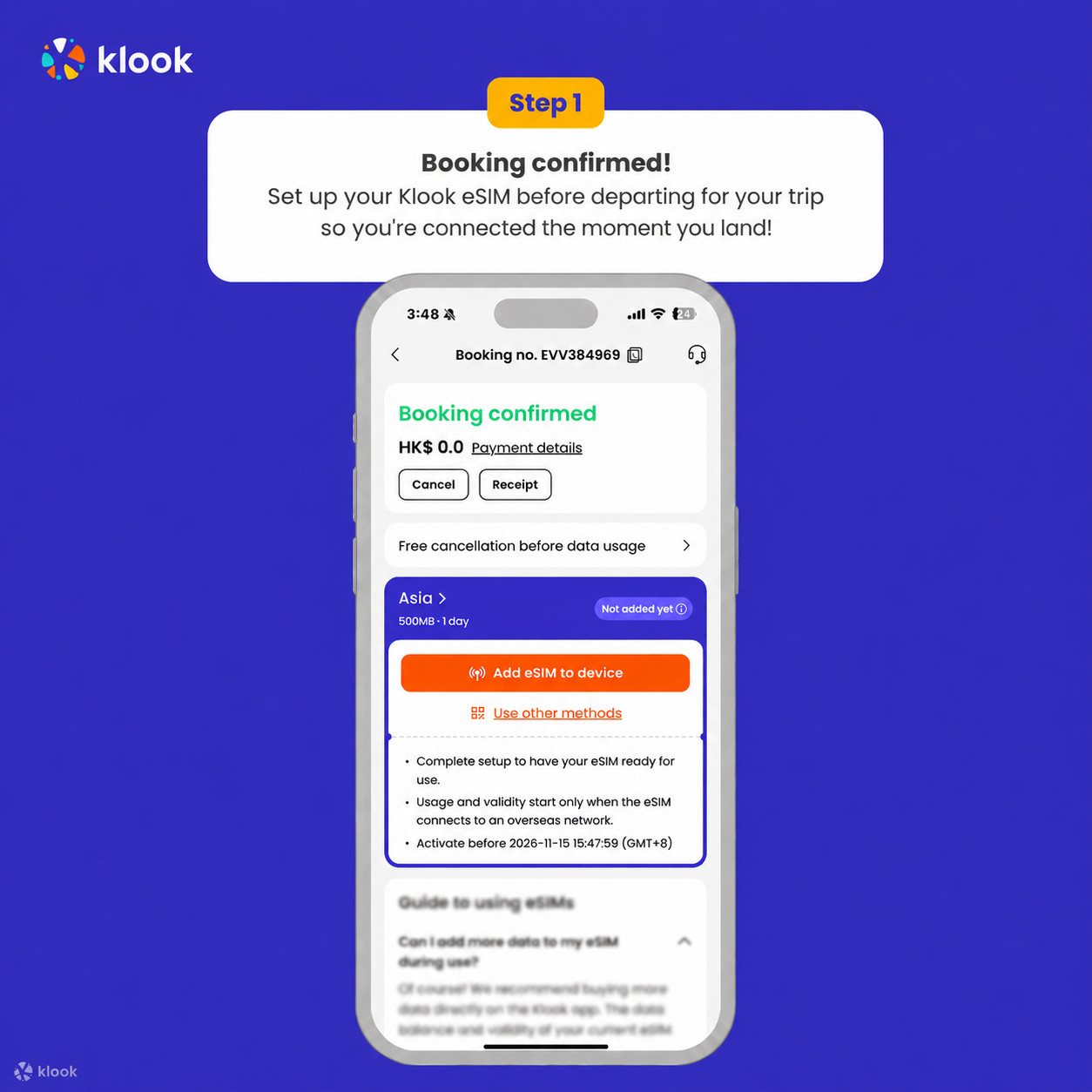
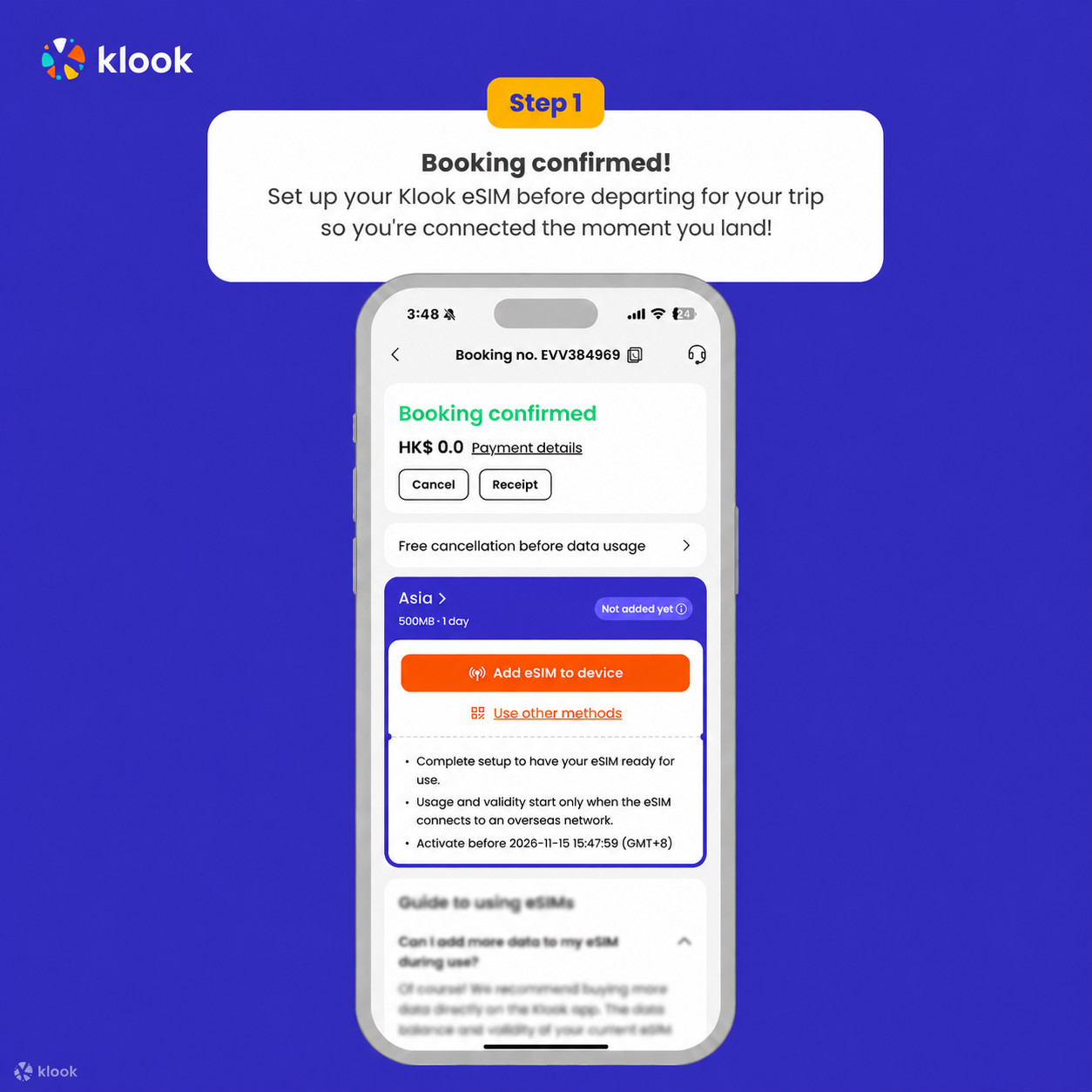
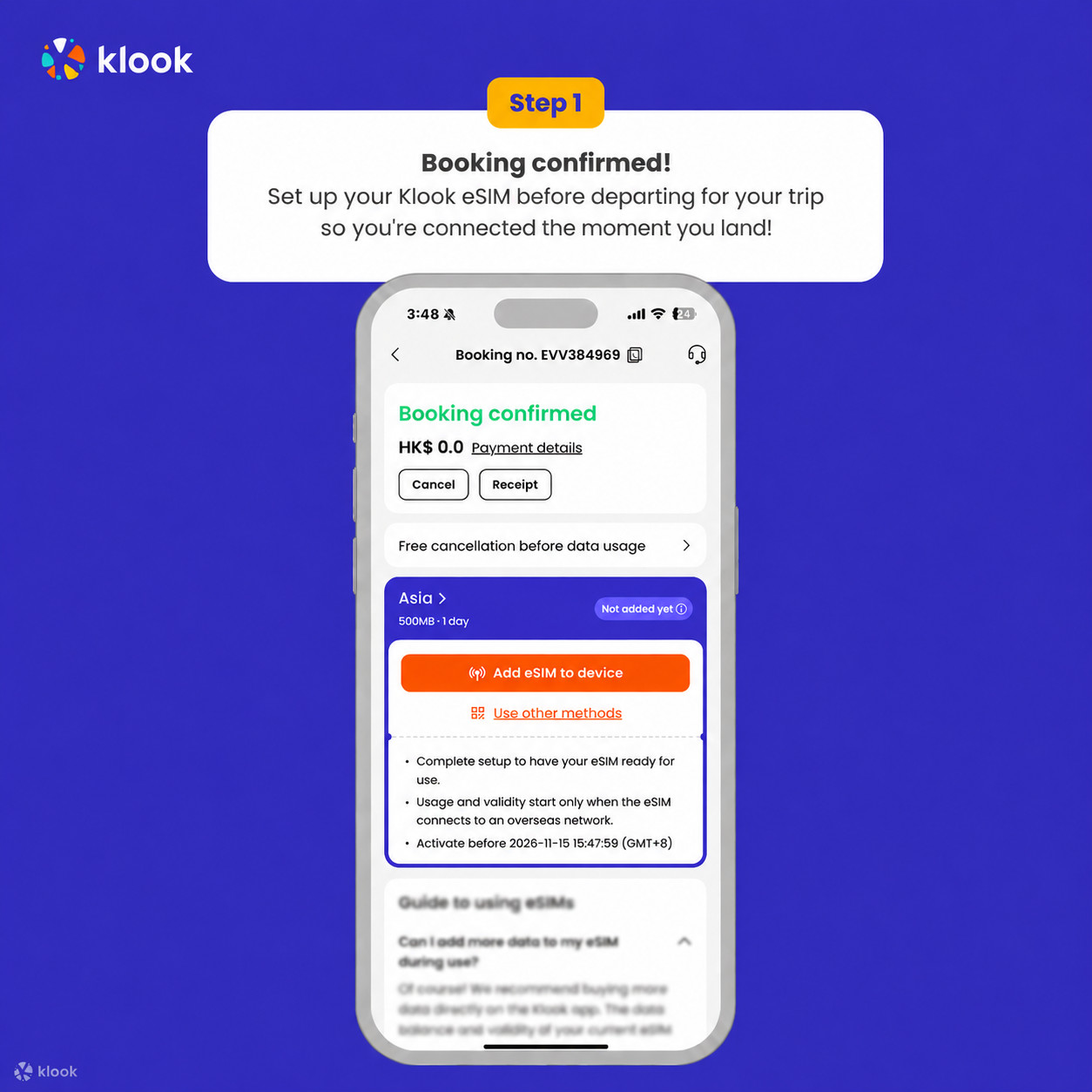
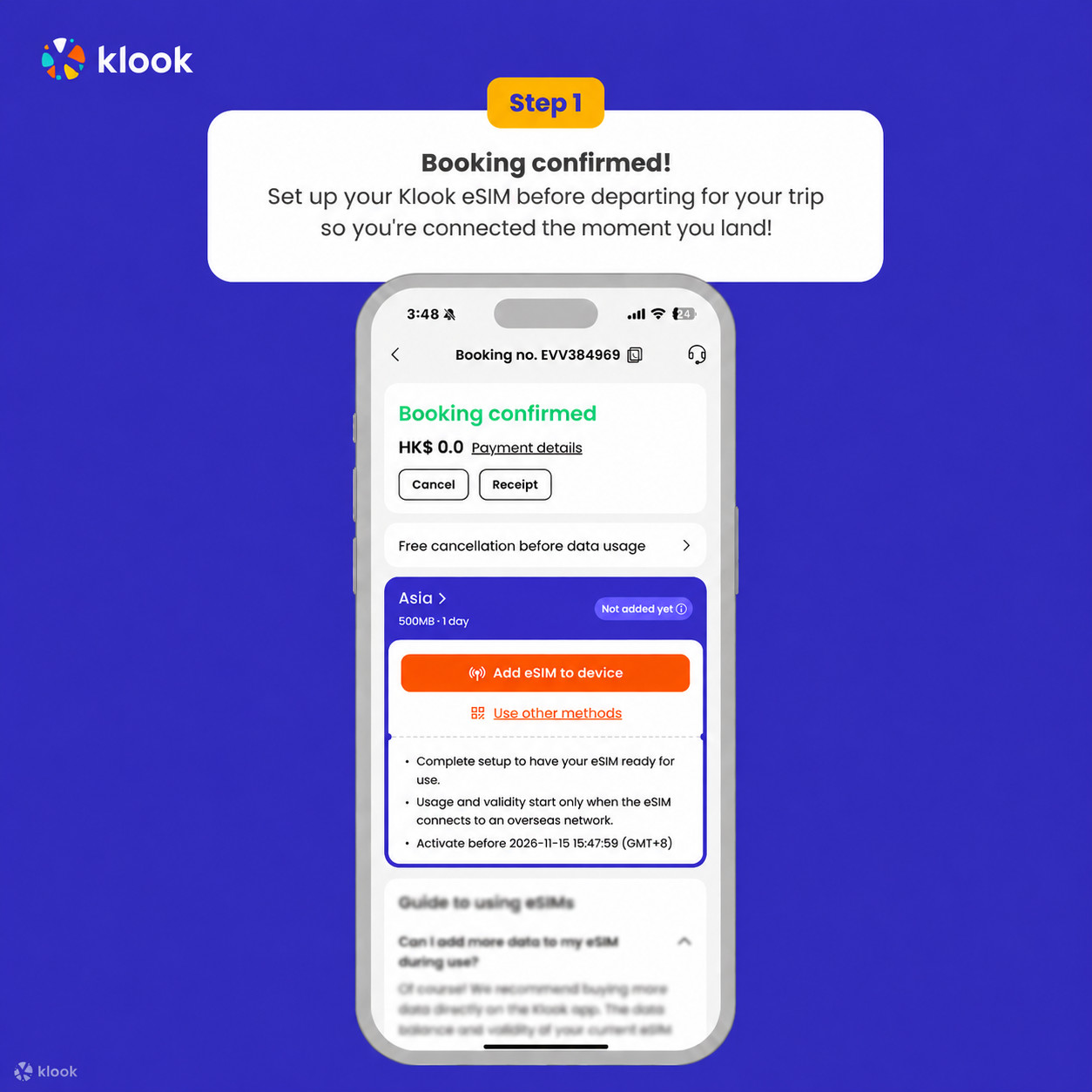
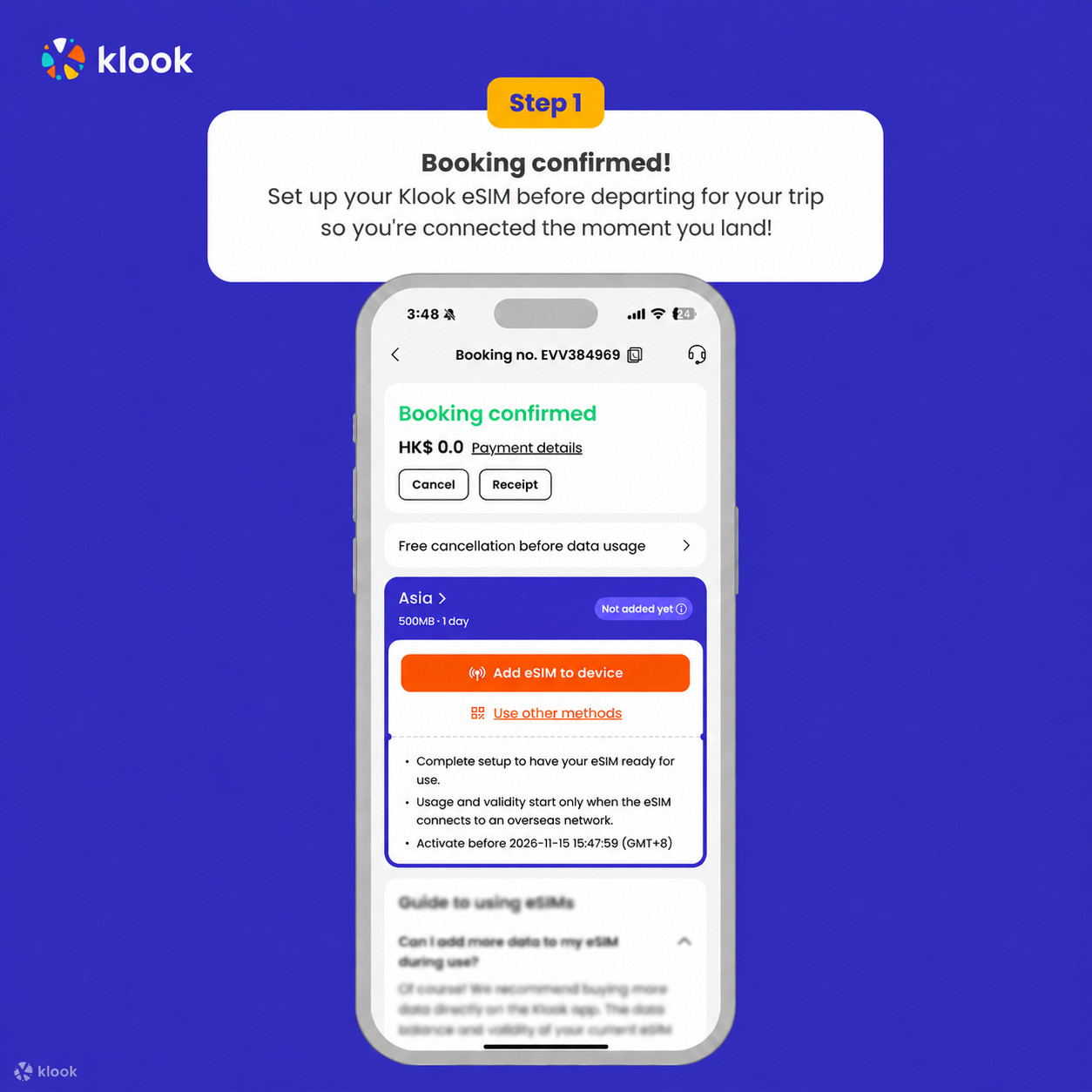
Activate your Klook eSIM before travel
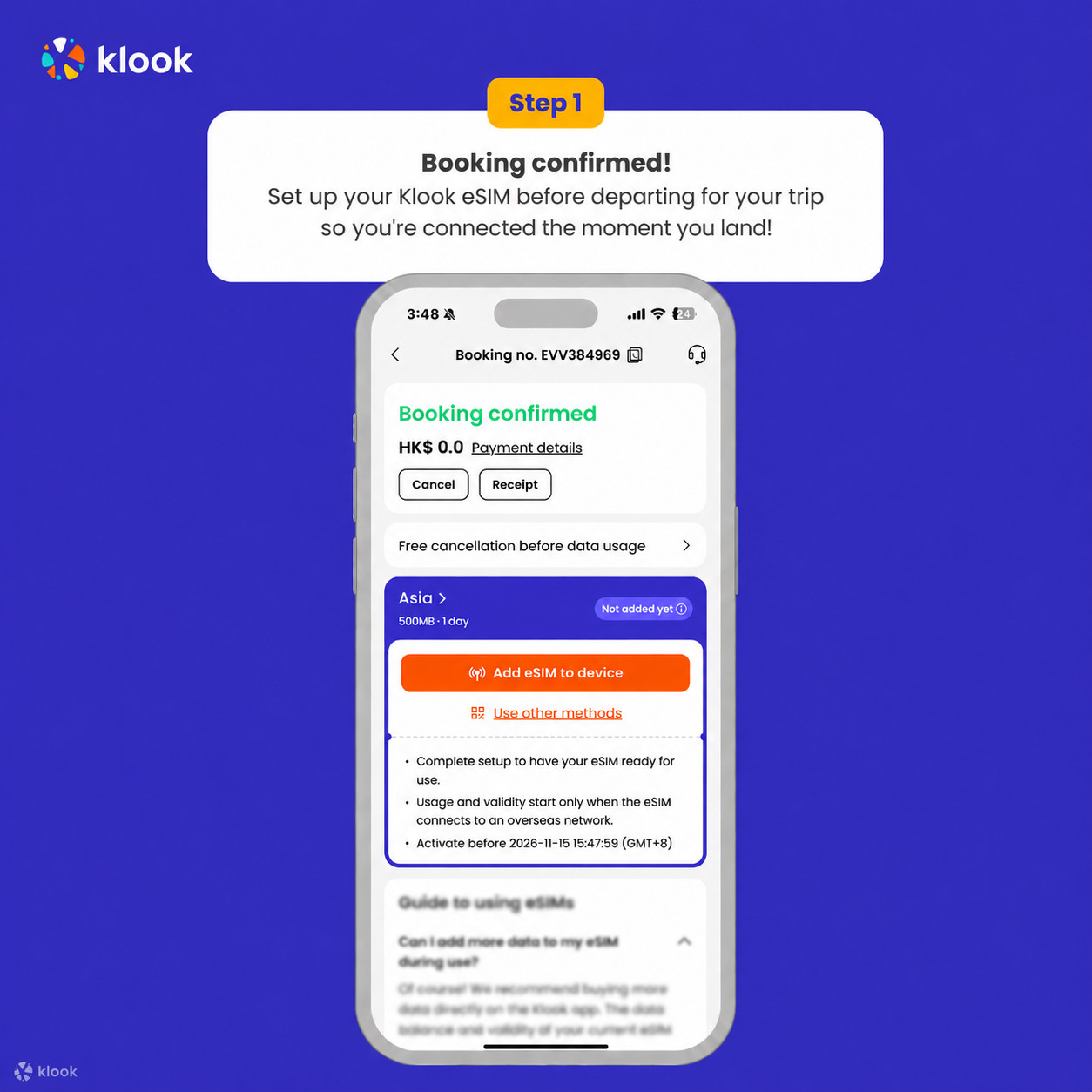
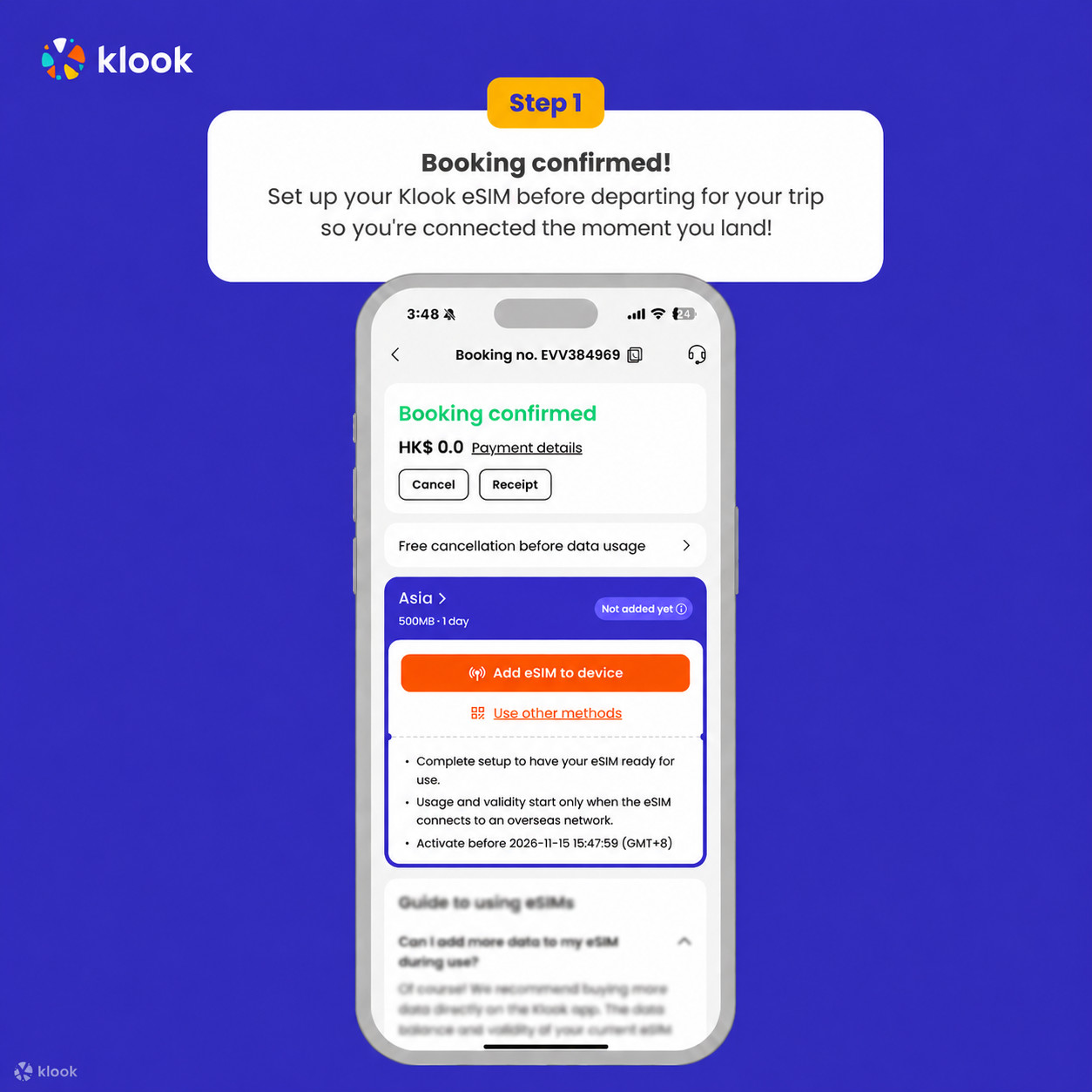
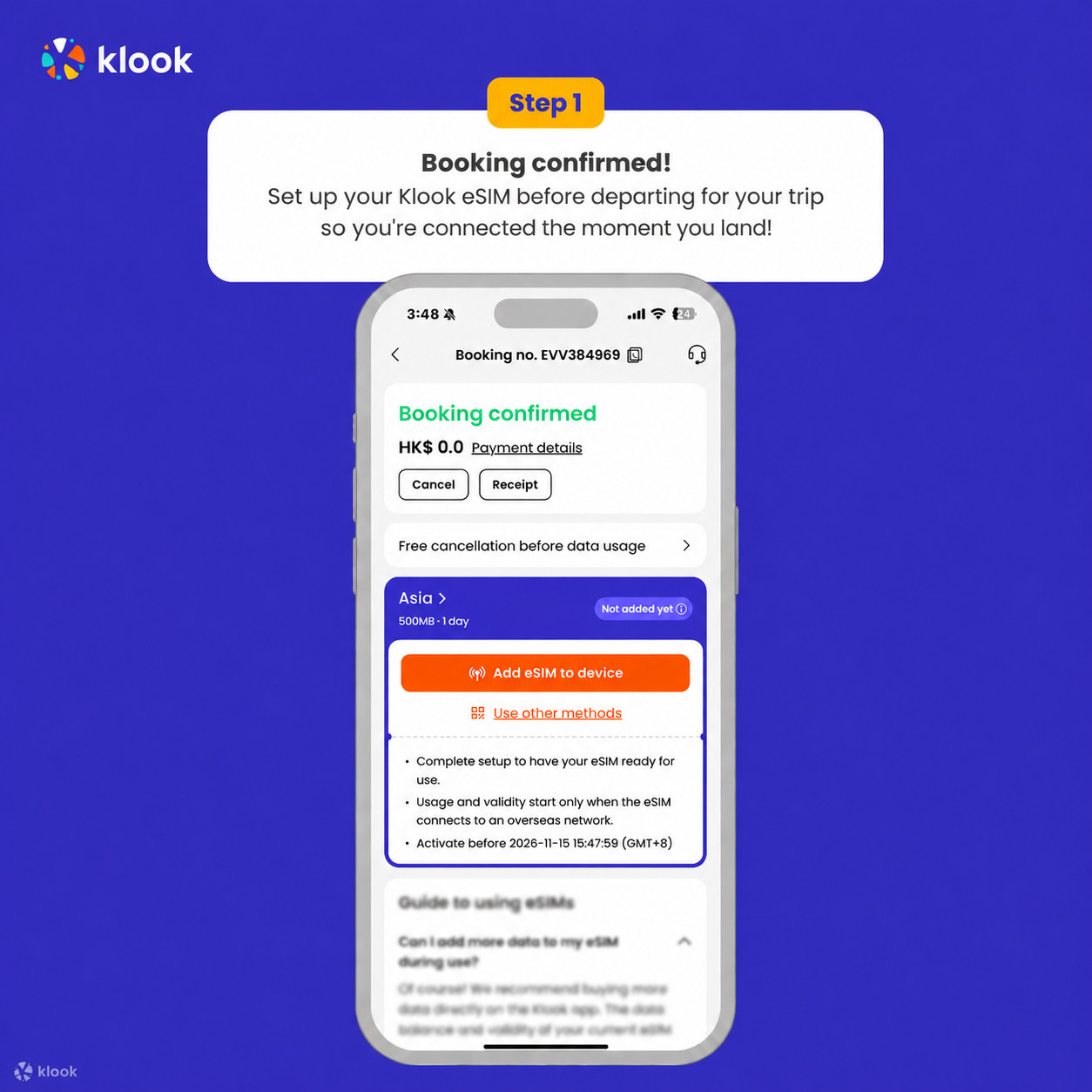
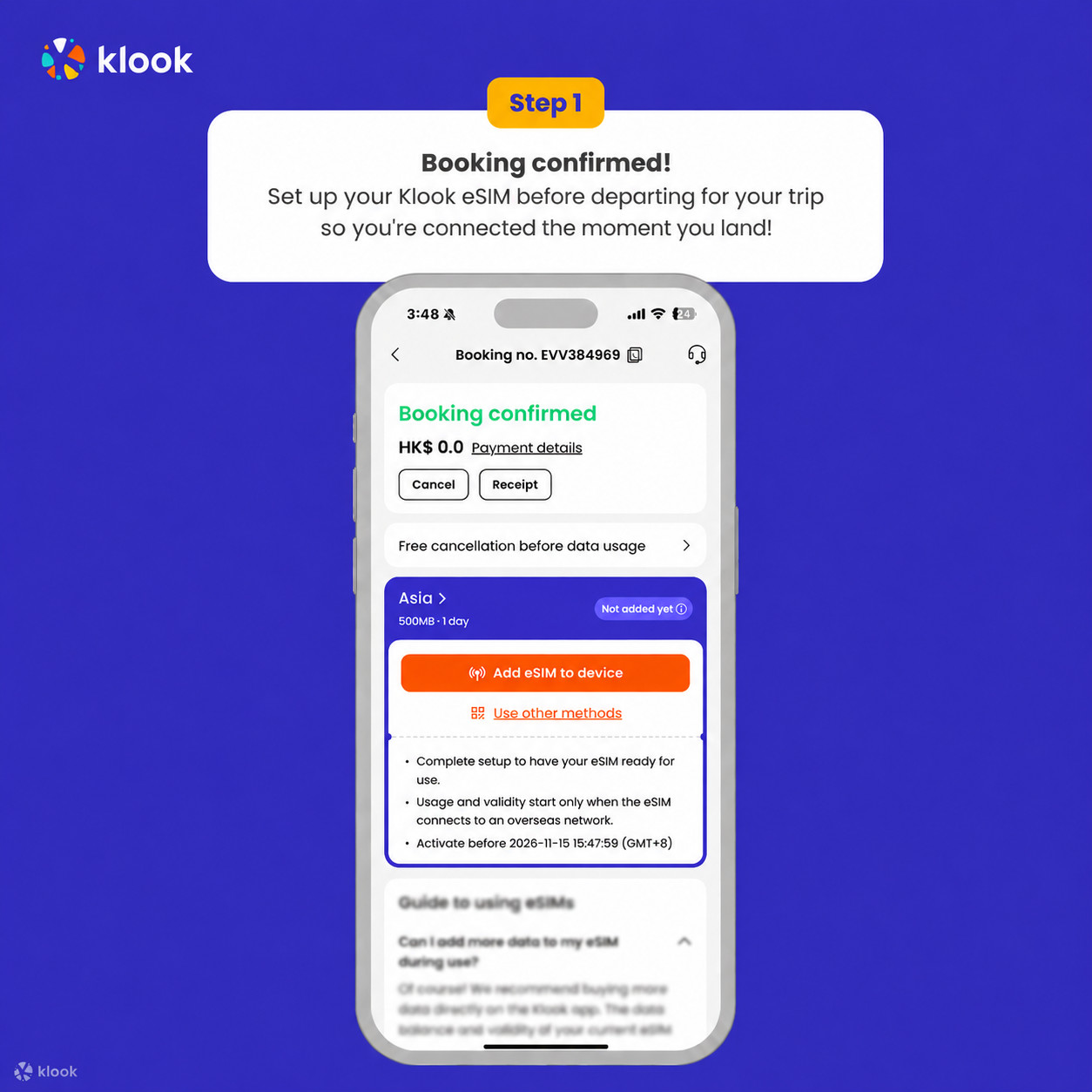
Activate your eSIM before travel
Klook eSIM installation methods
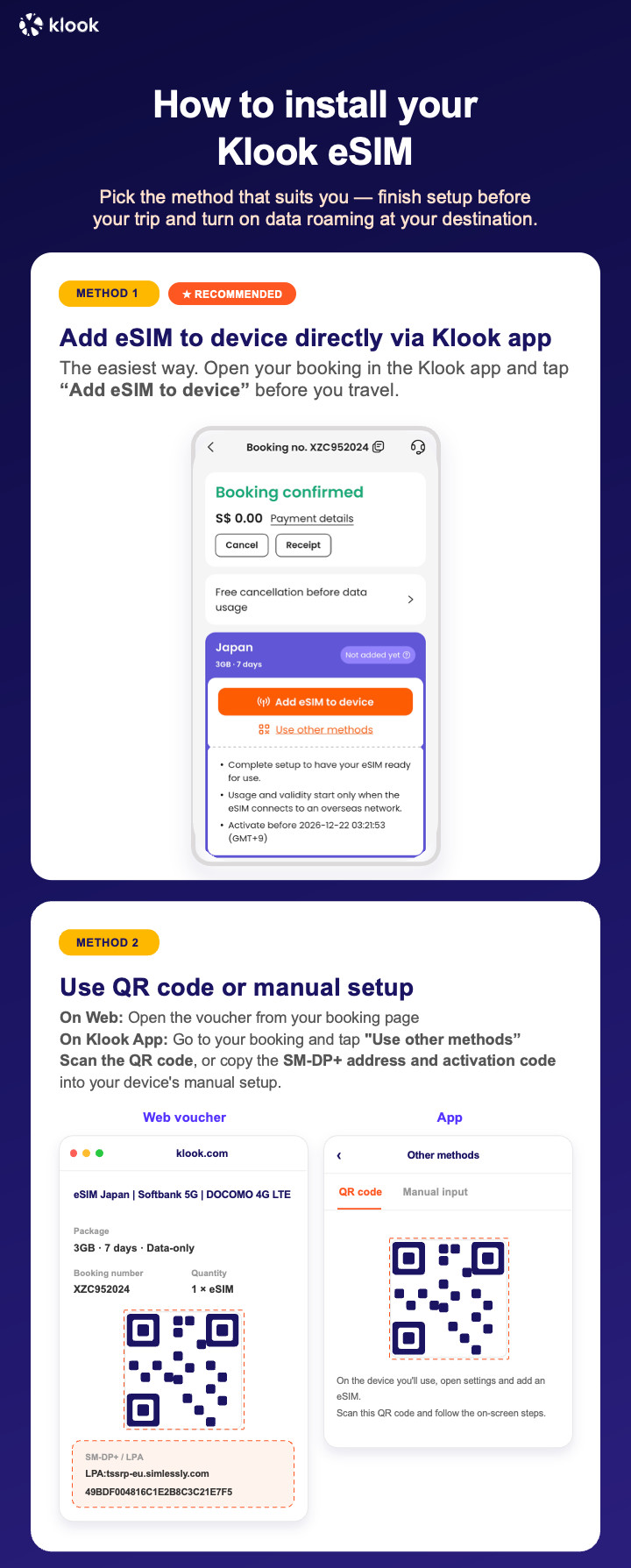
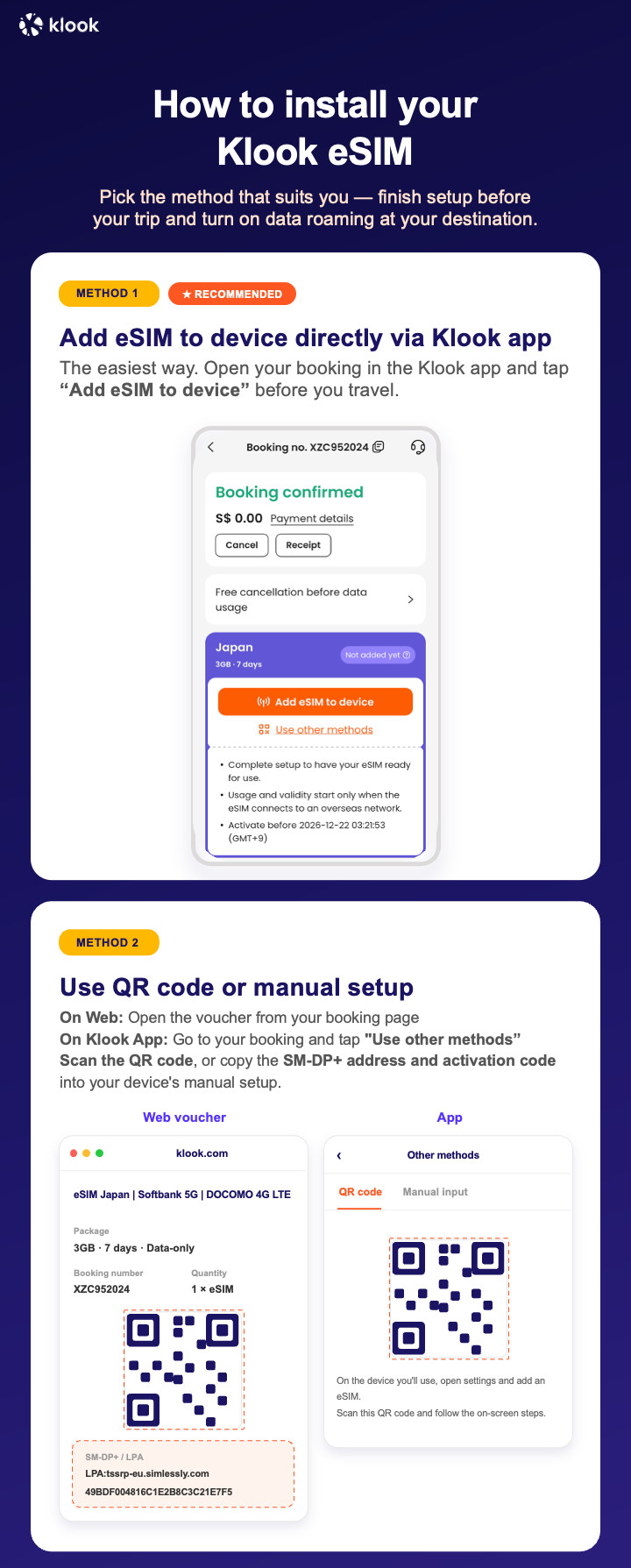
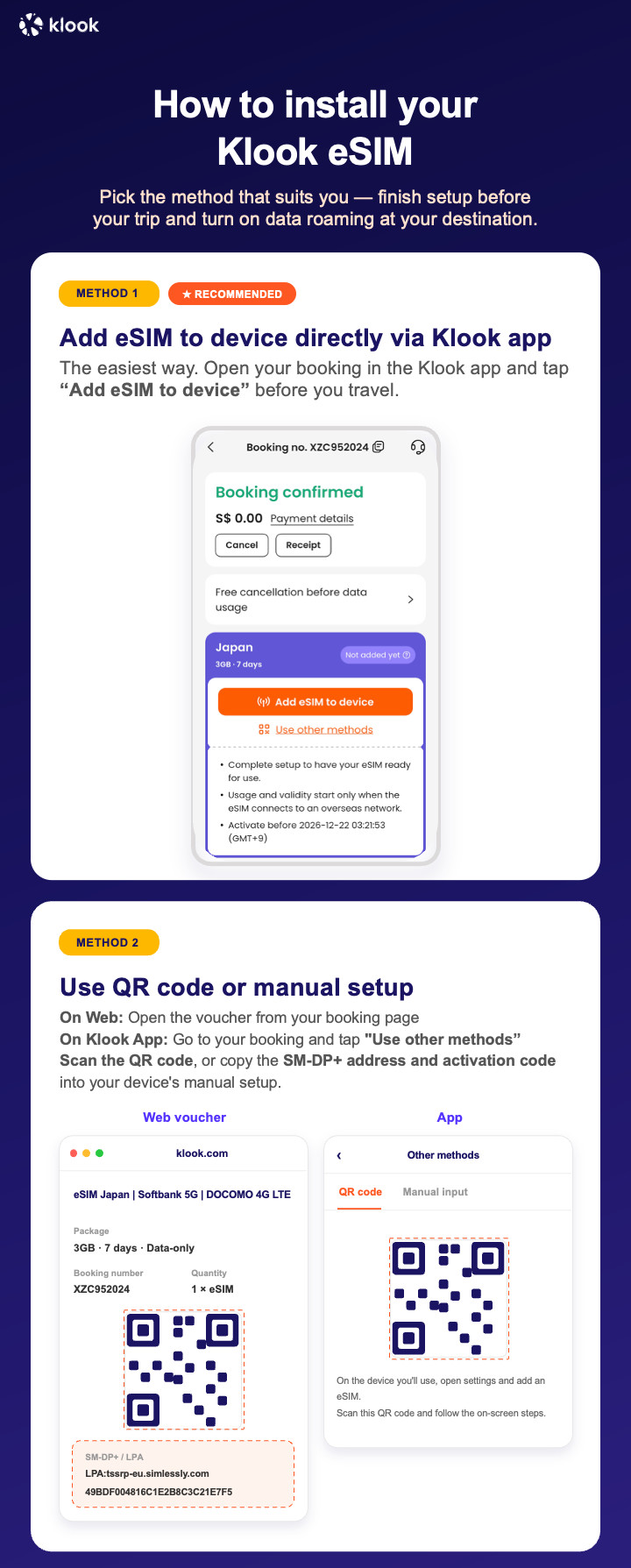
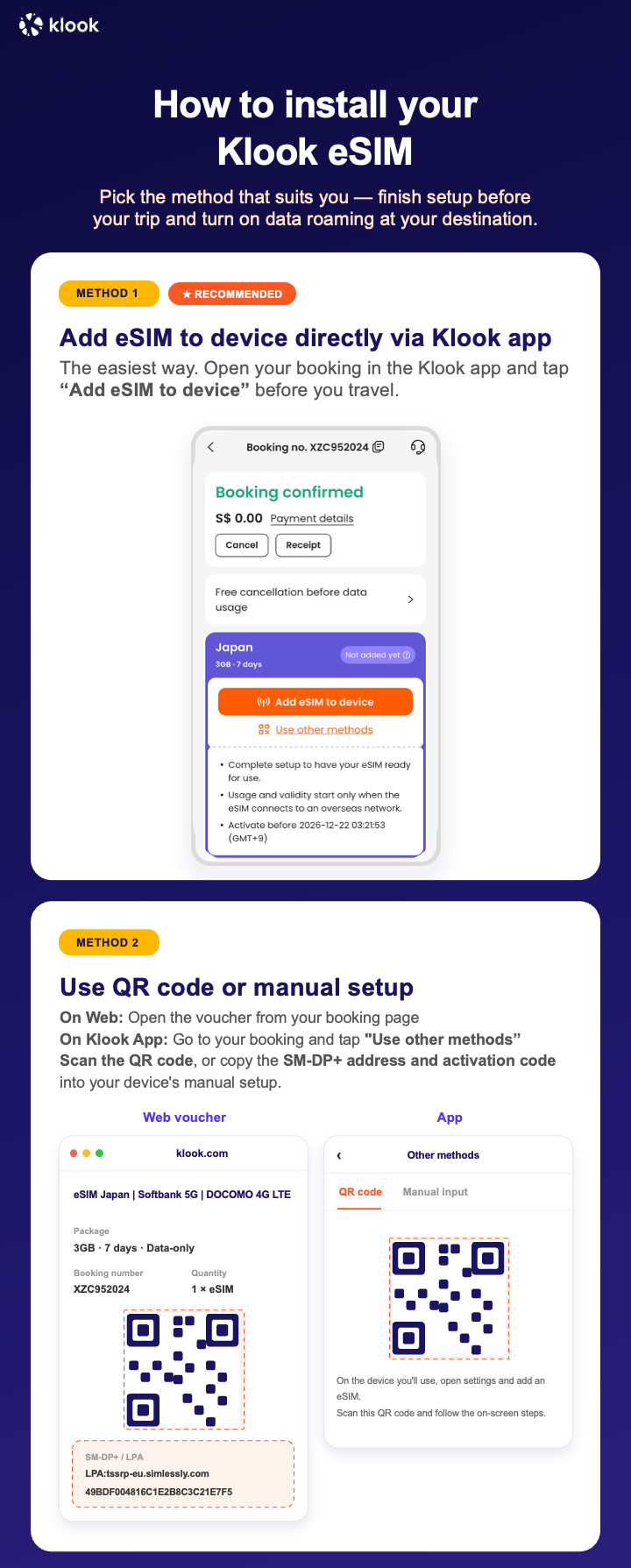
Activate your eSIM via Klook in-app activation, scanning the QR code, or entering the SMDP+ details manually
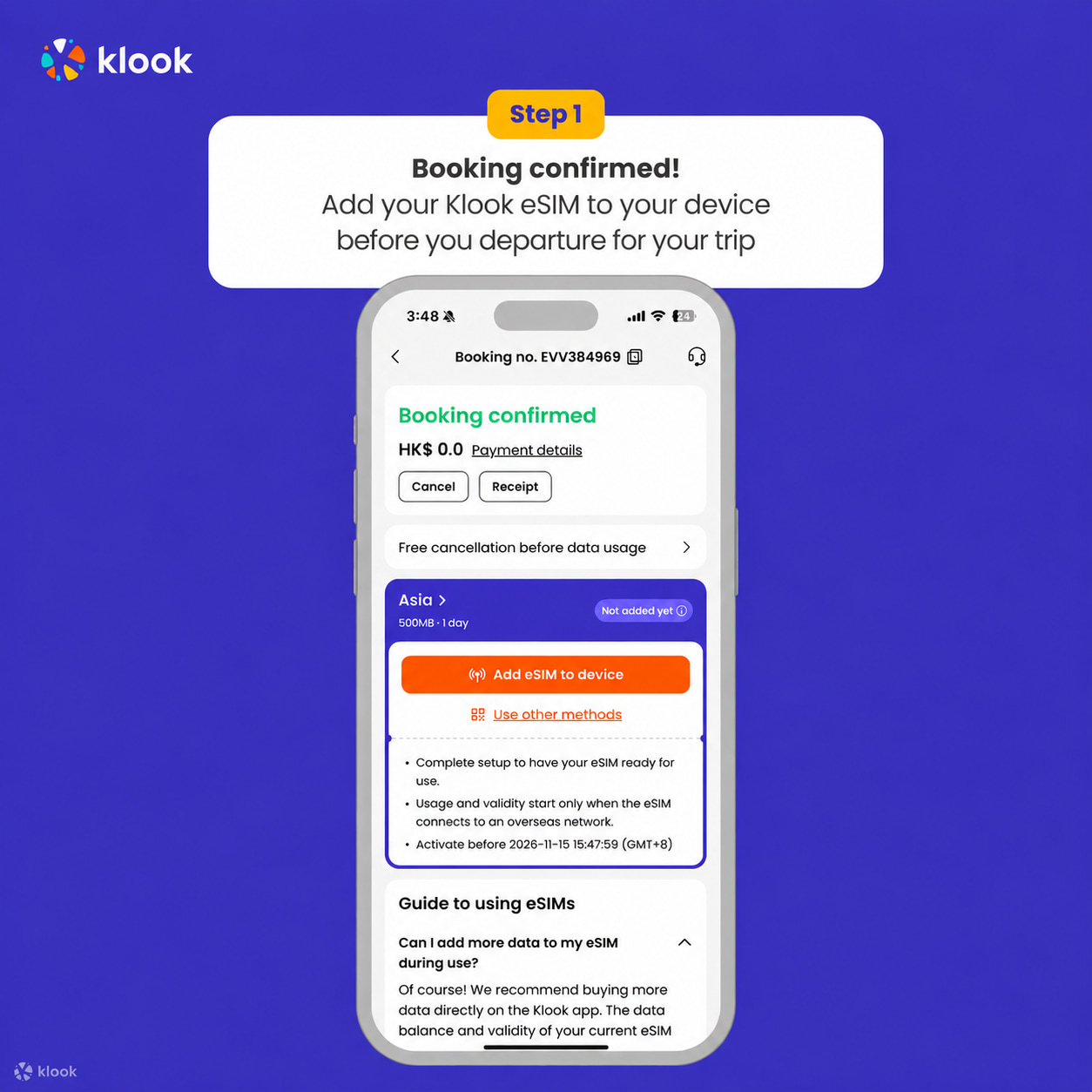
Klook eSIM In-app activation
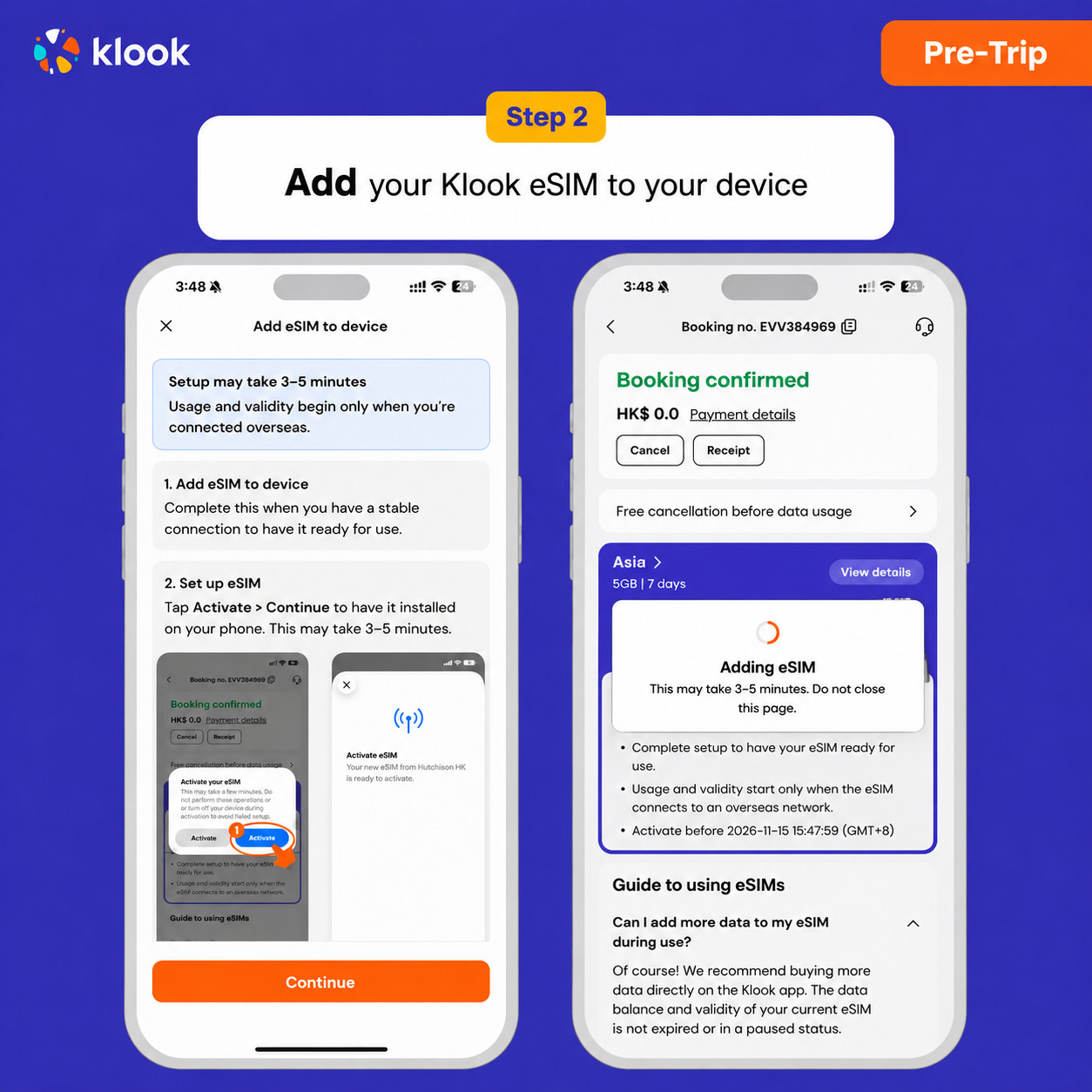
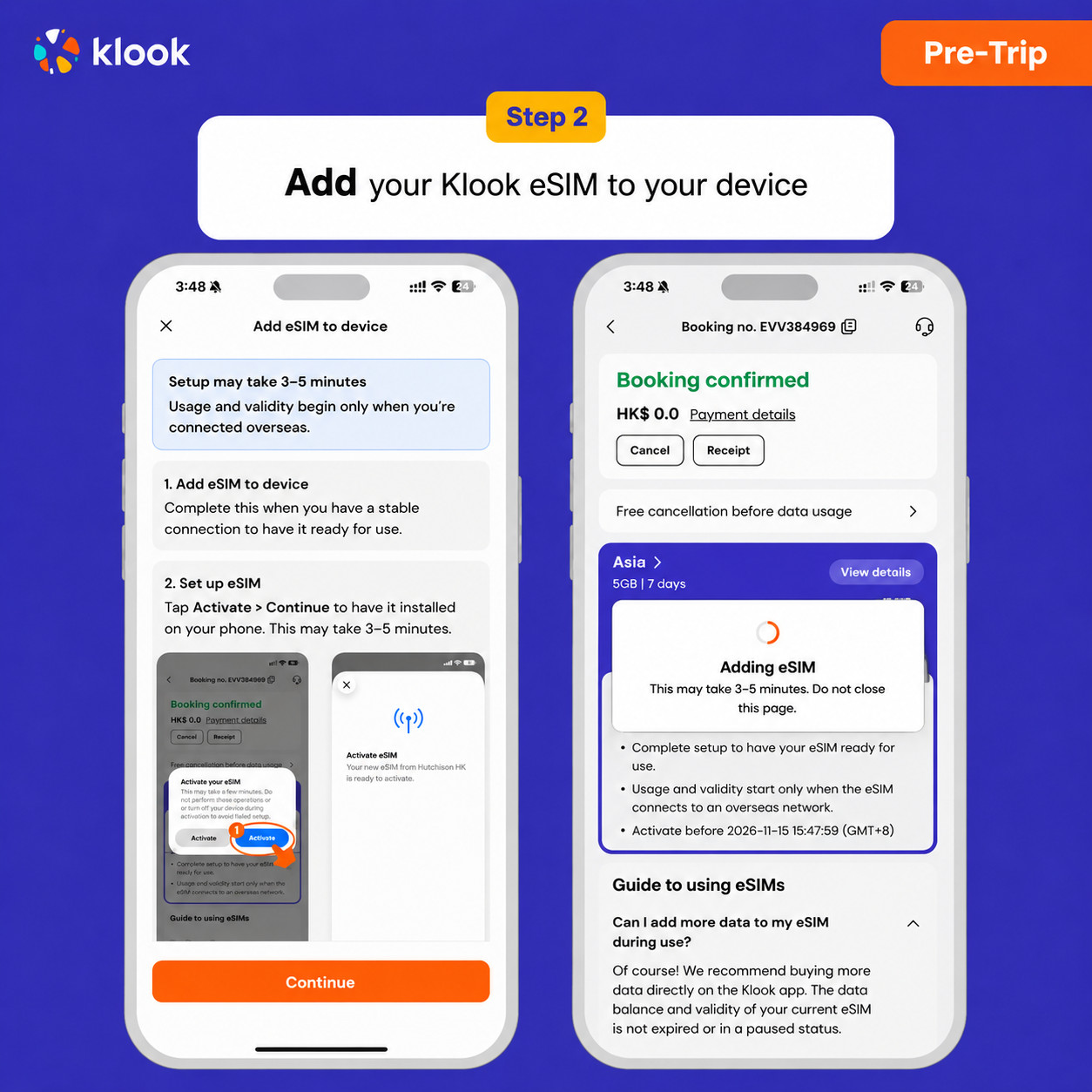
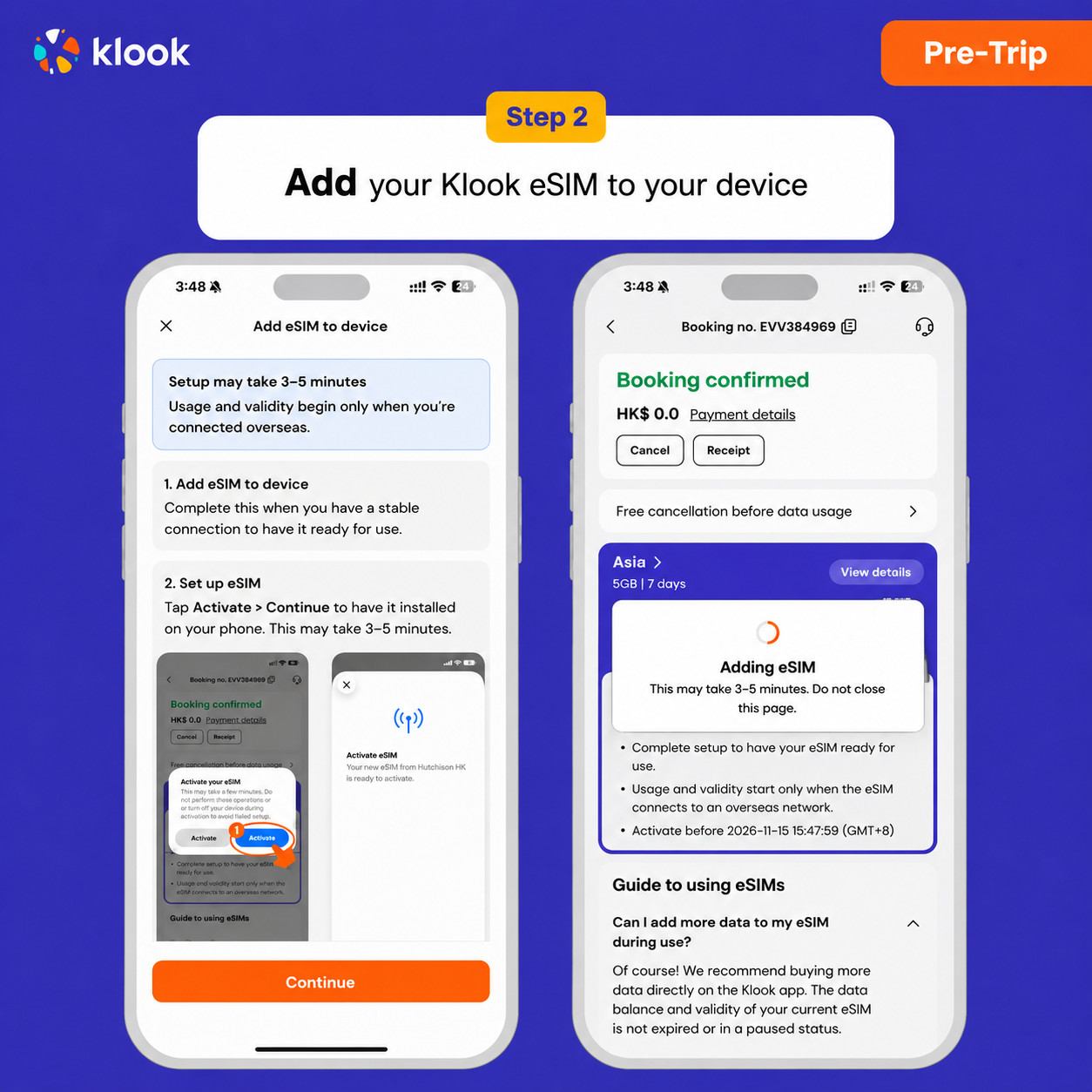
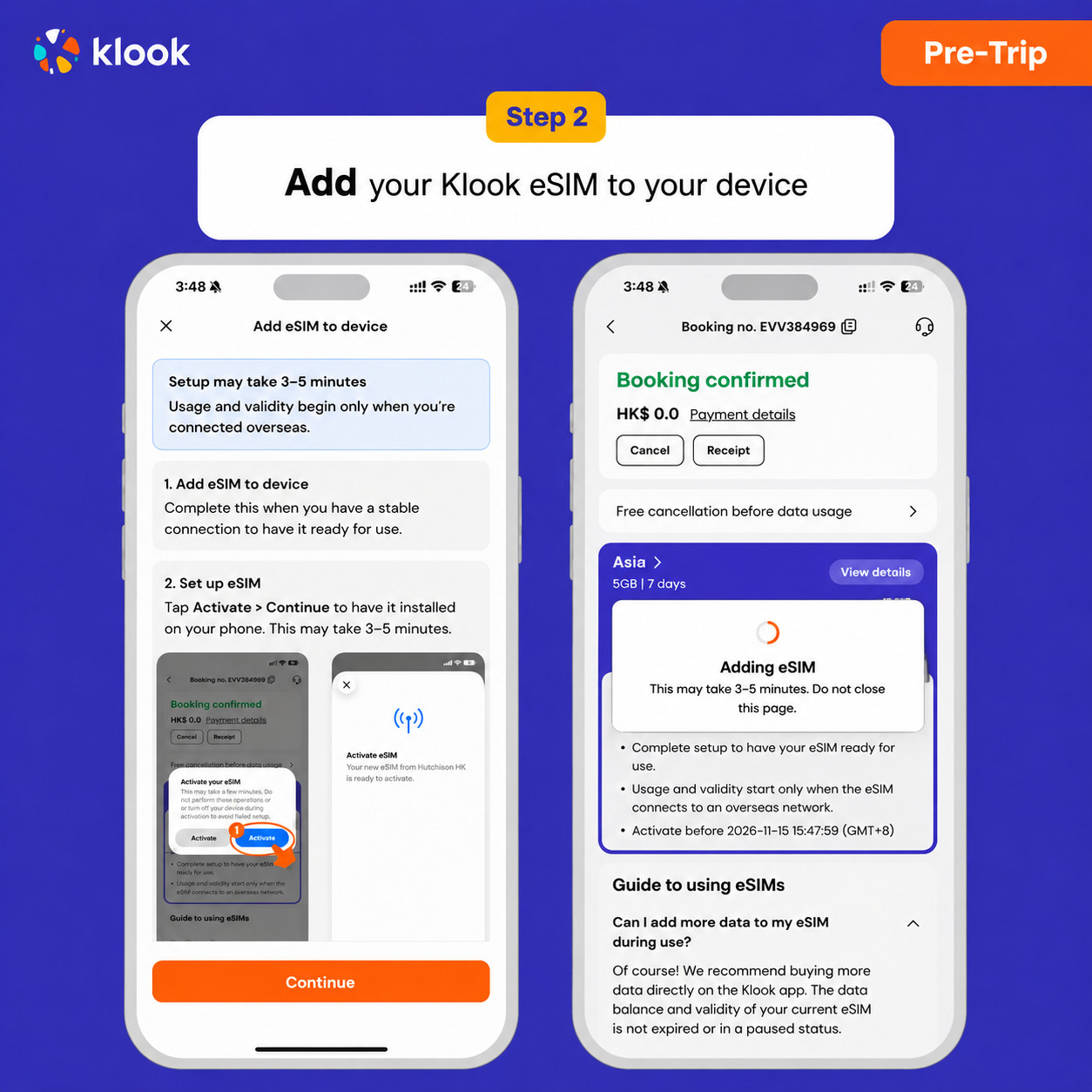
Click Add eSIM to device on your booking to start the installation. Don't worry, data and validity will only commence when you reach your destination
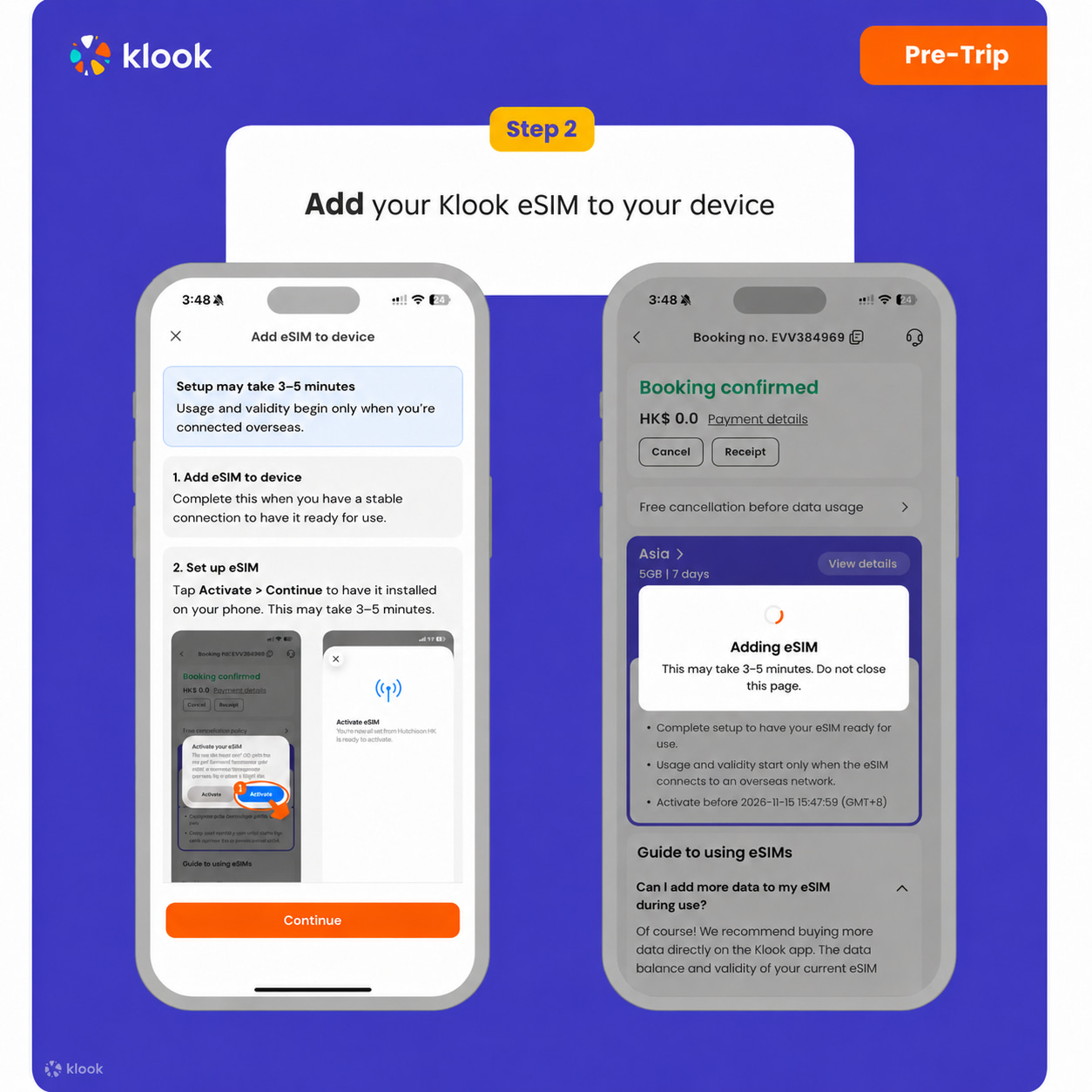
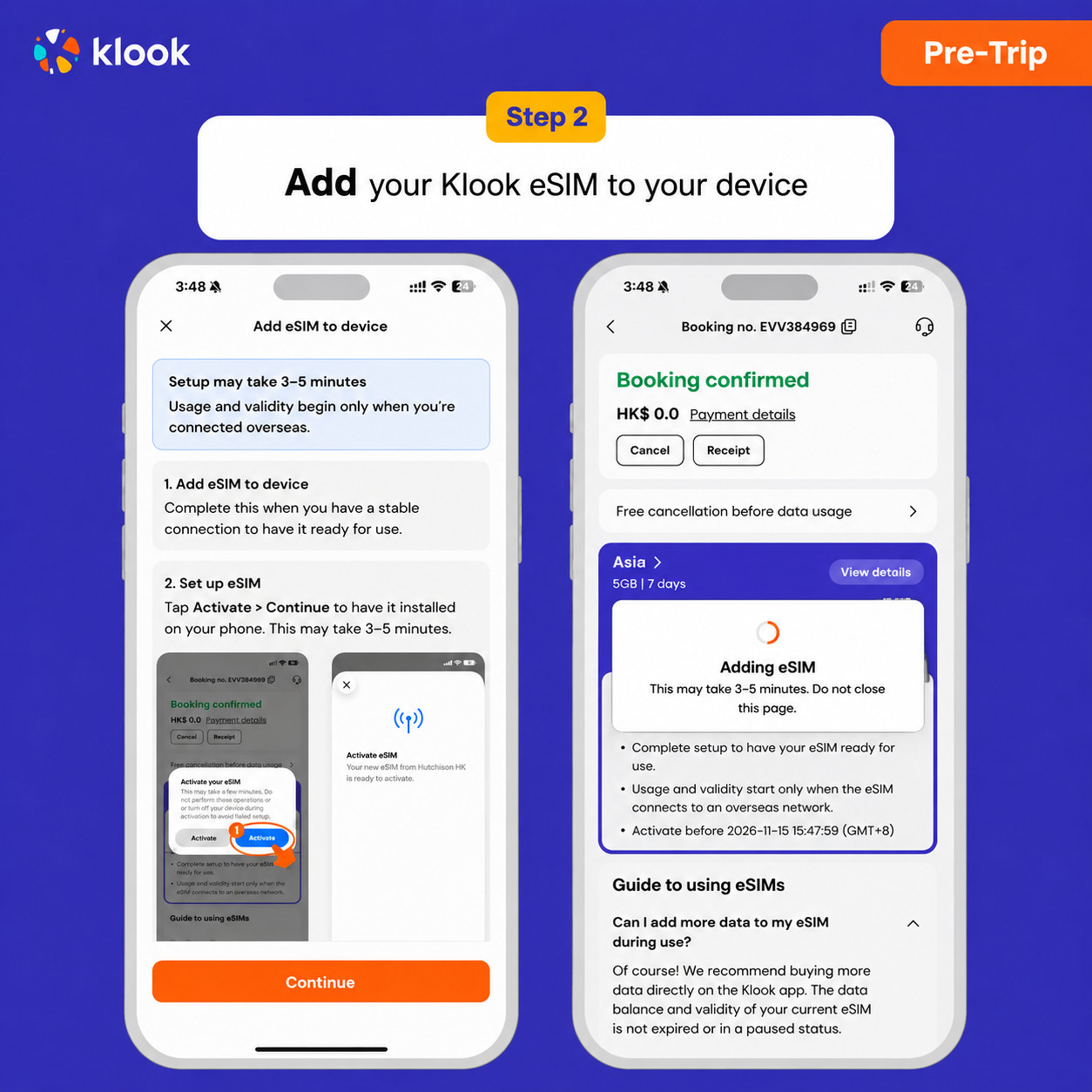
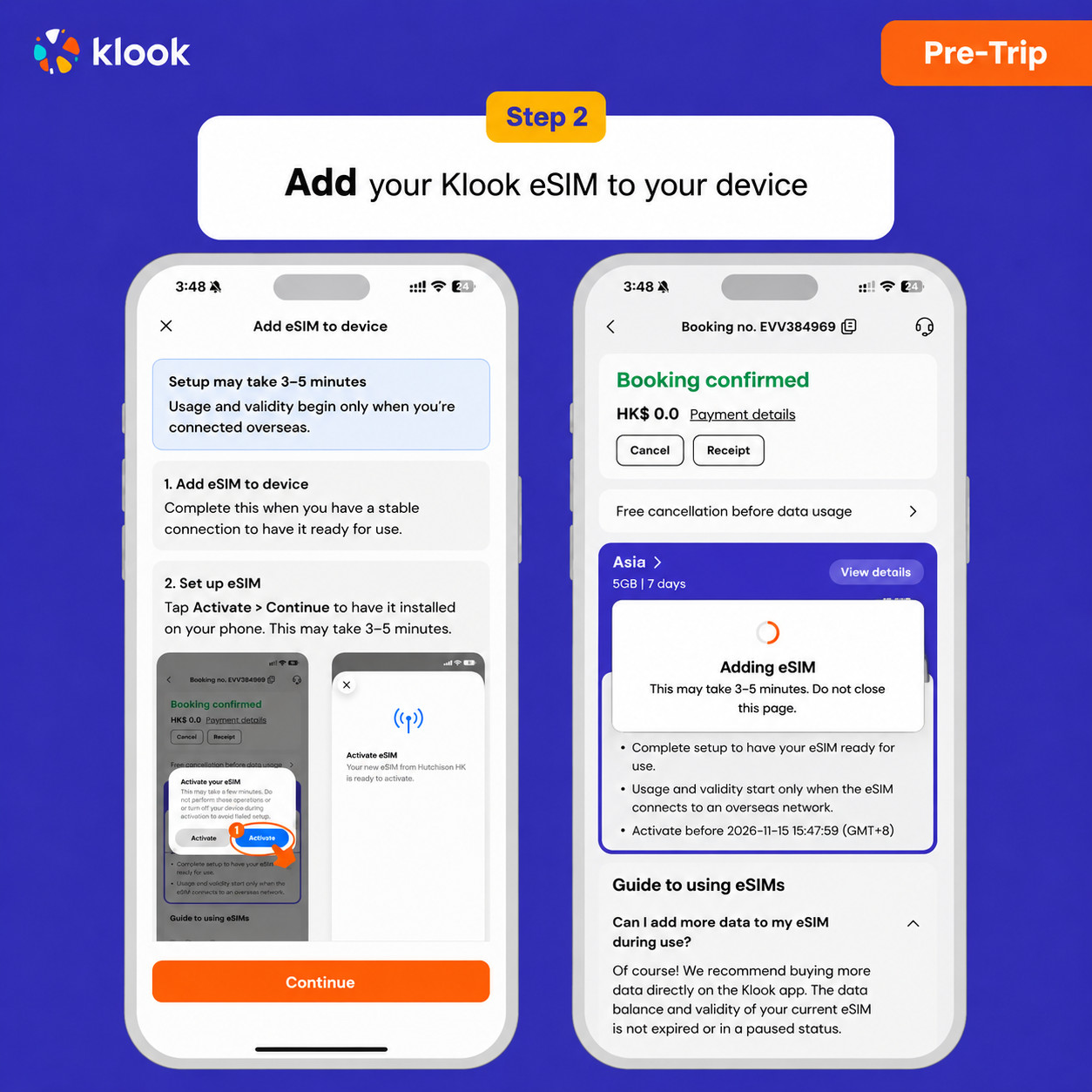
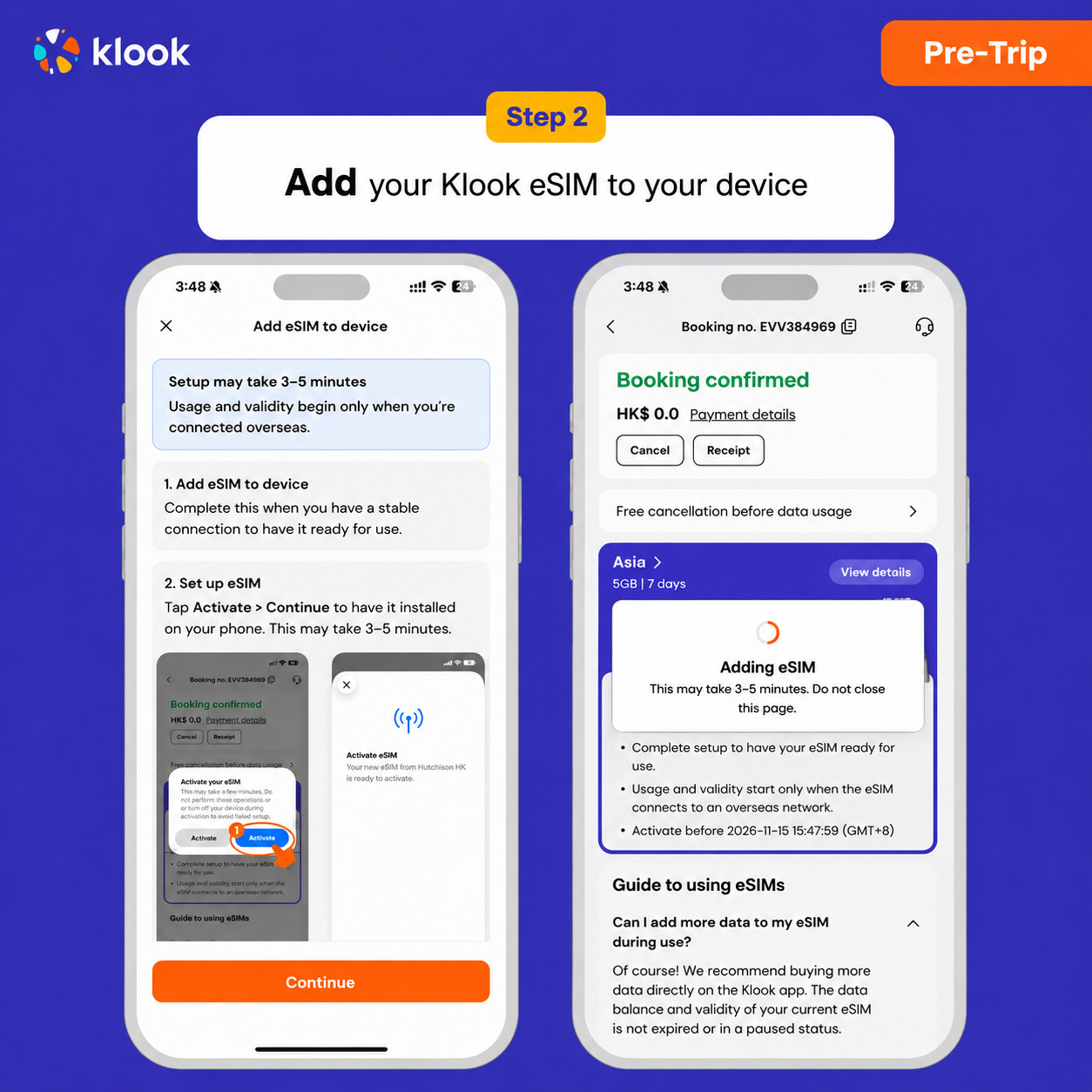
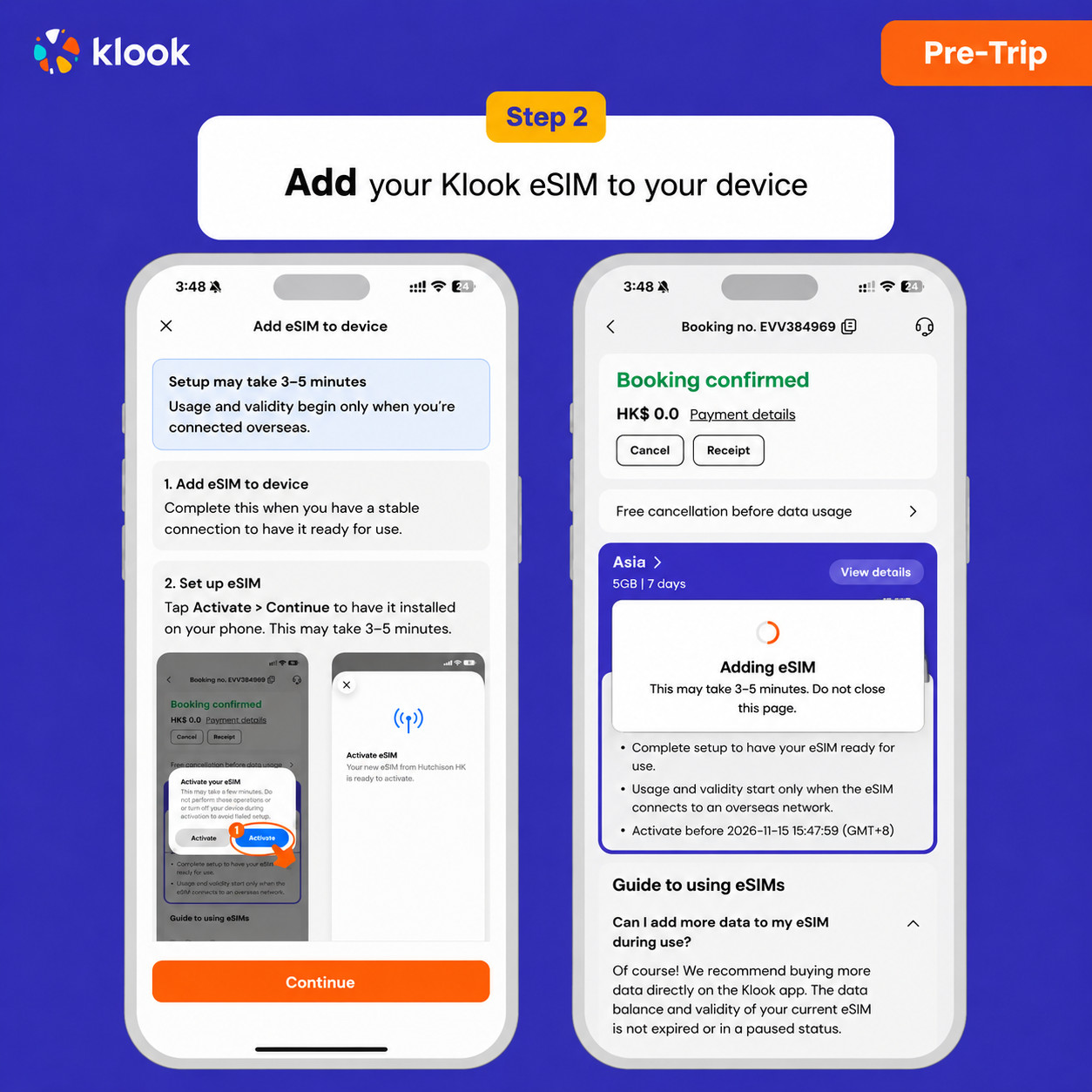
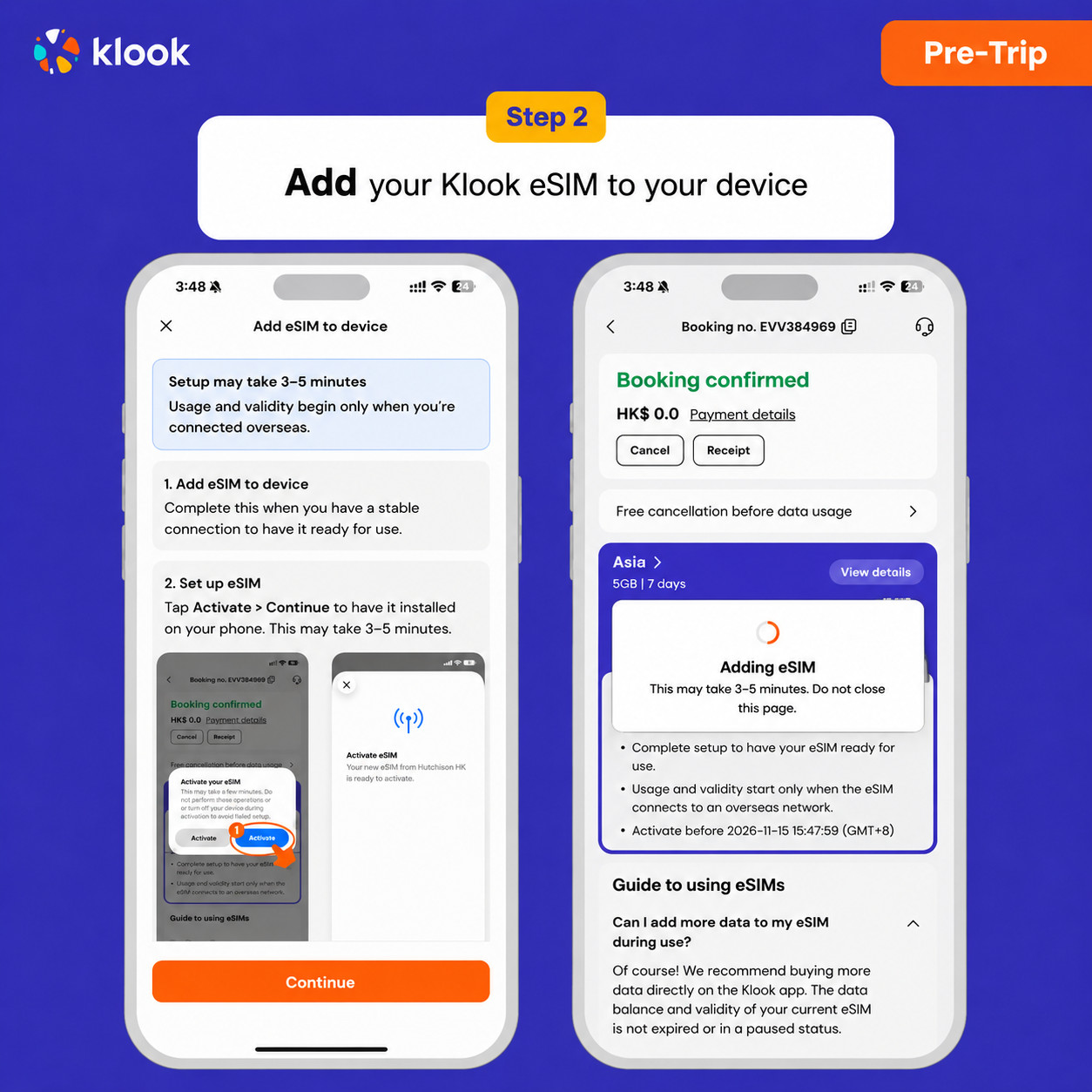
Klook eSIM In-app activation
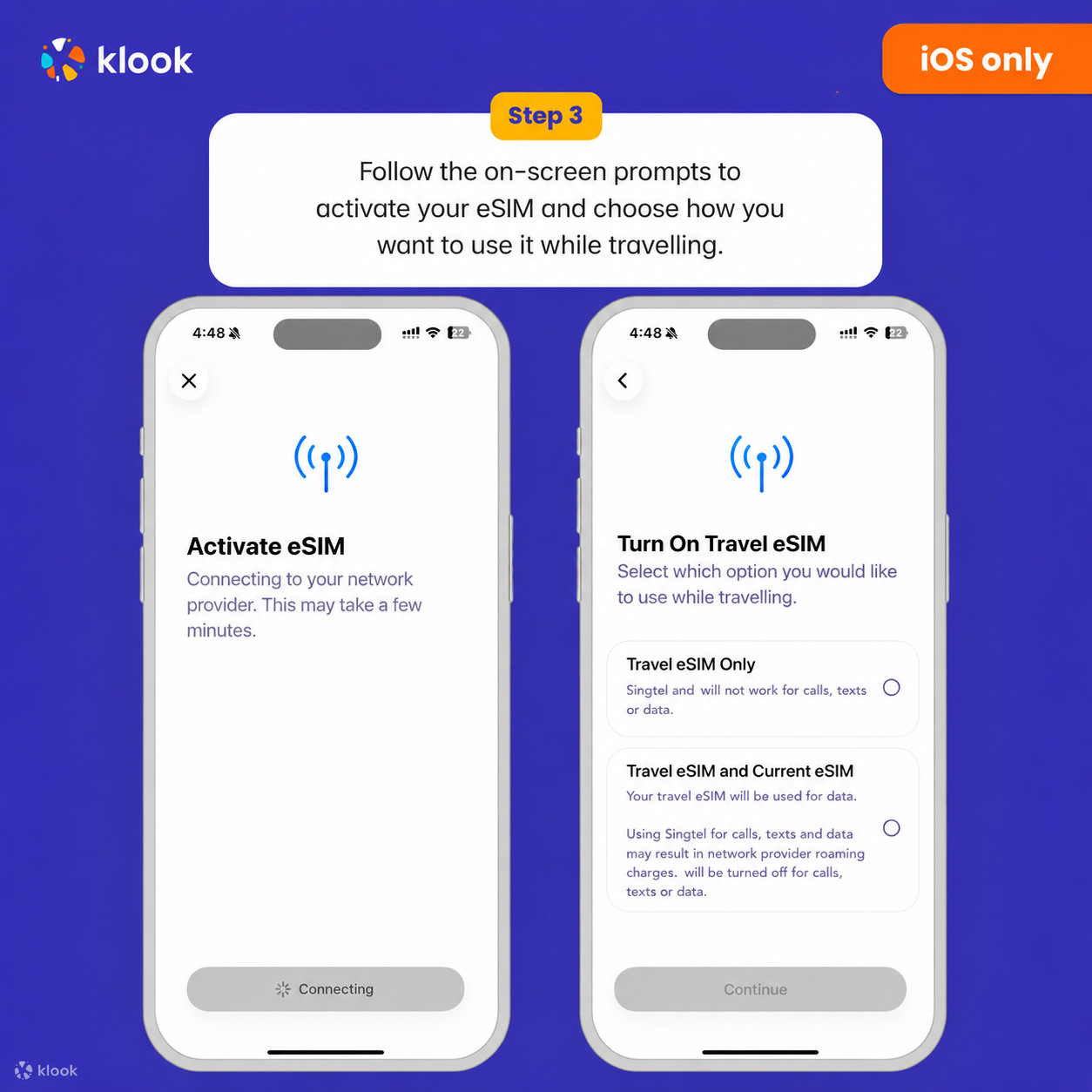
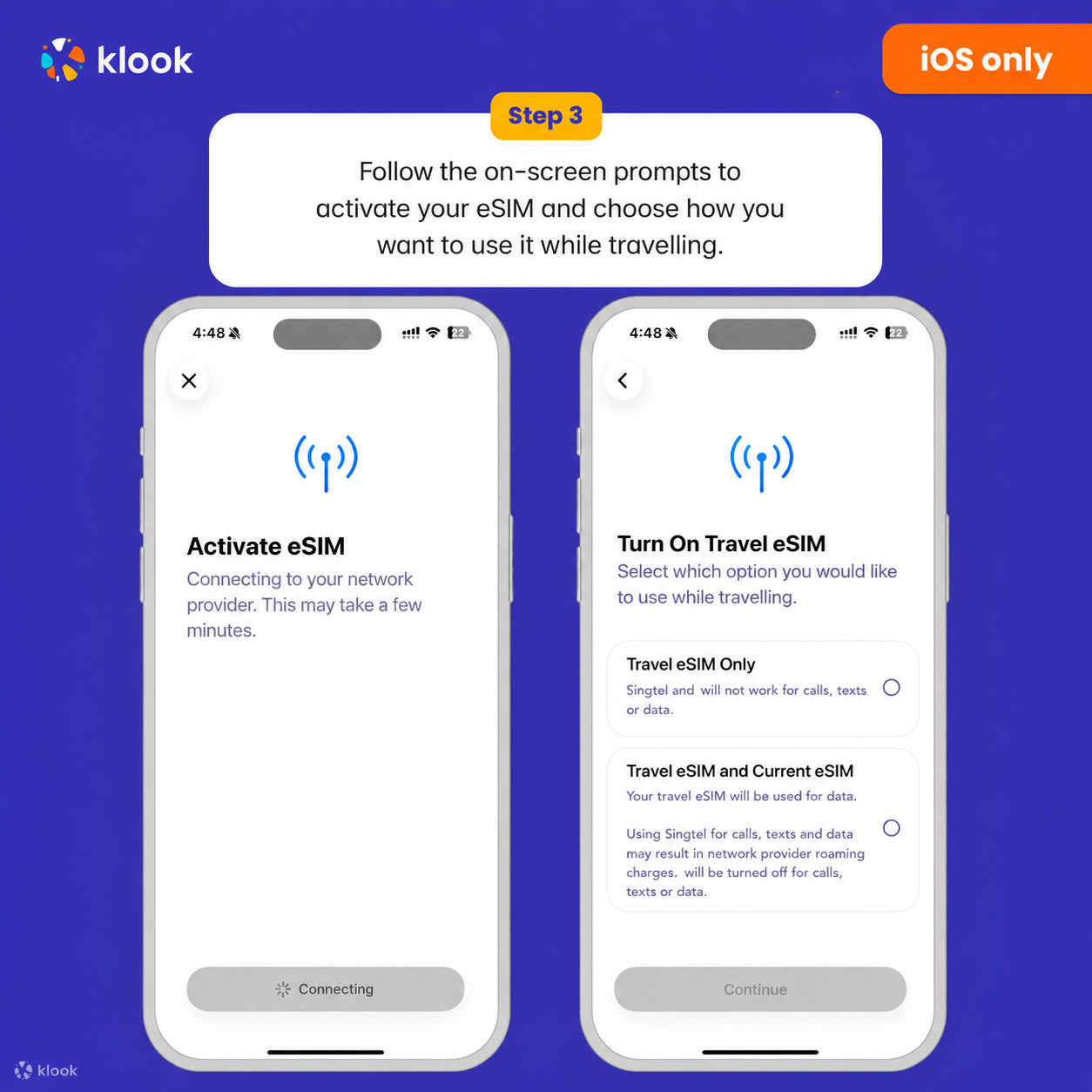
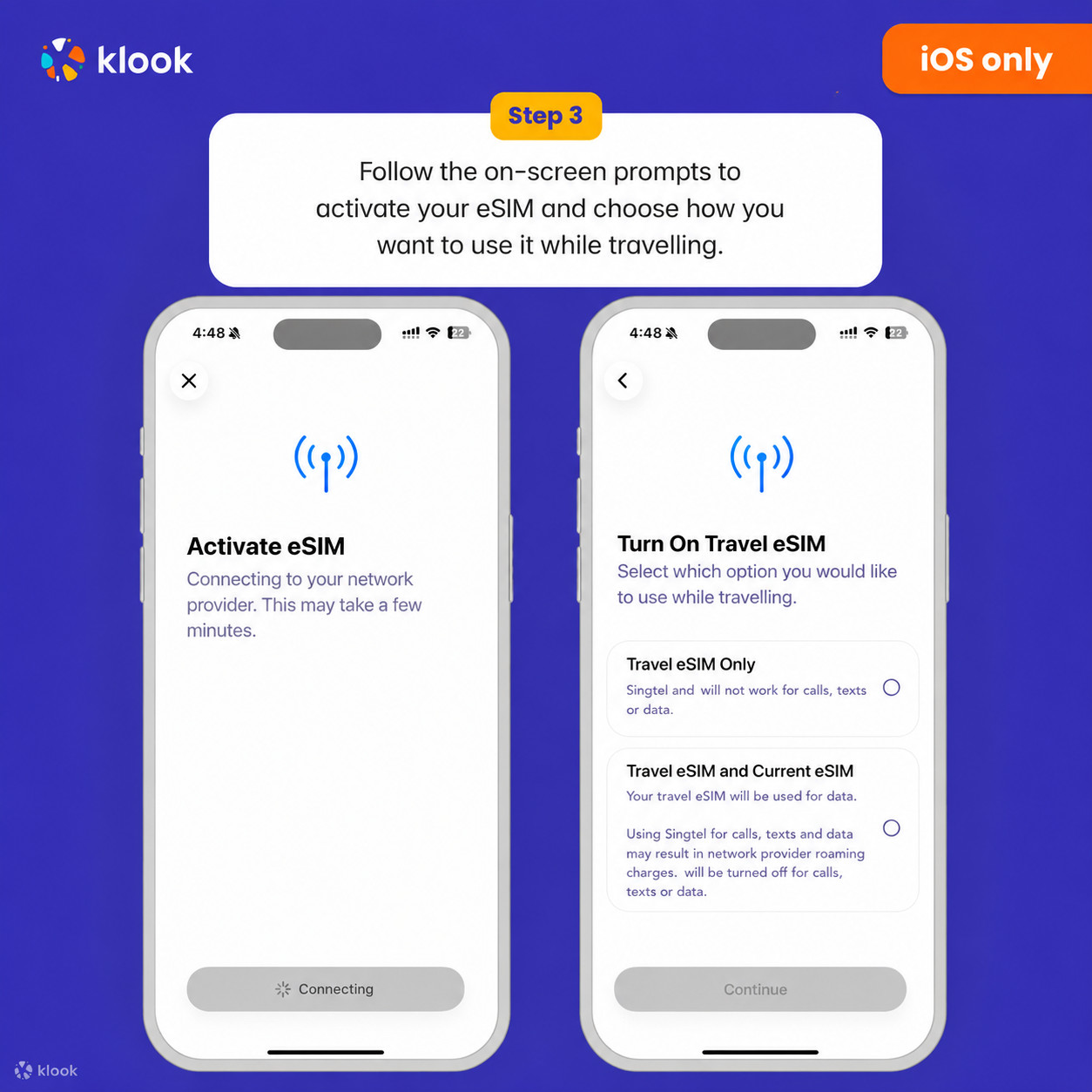
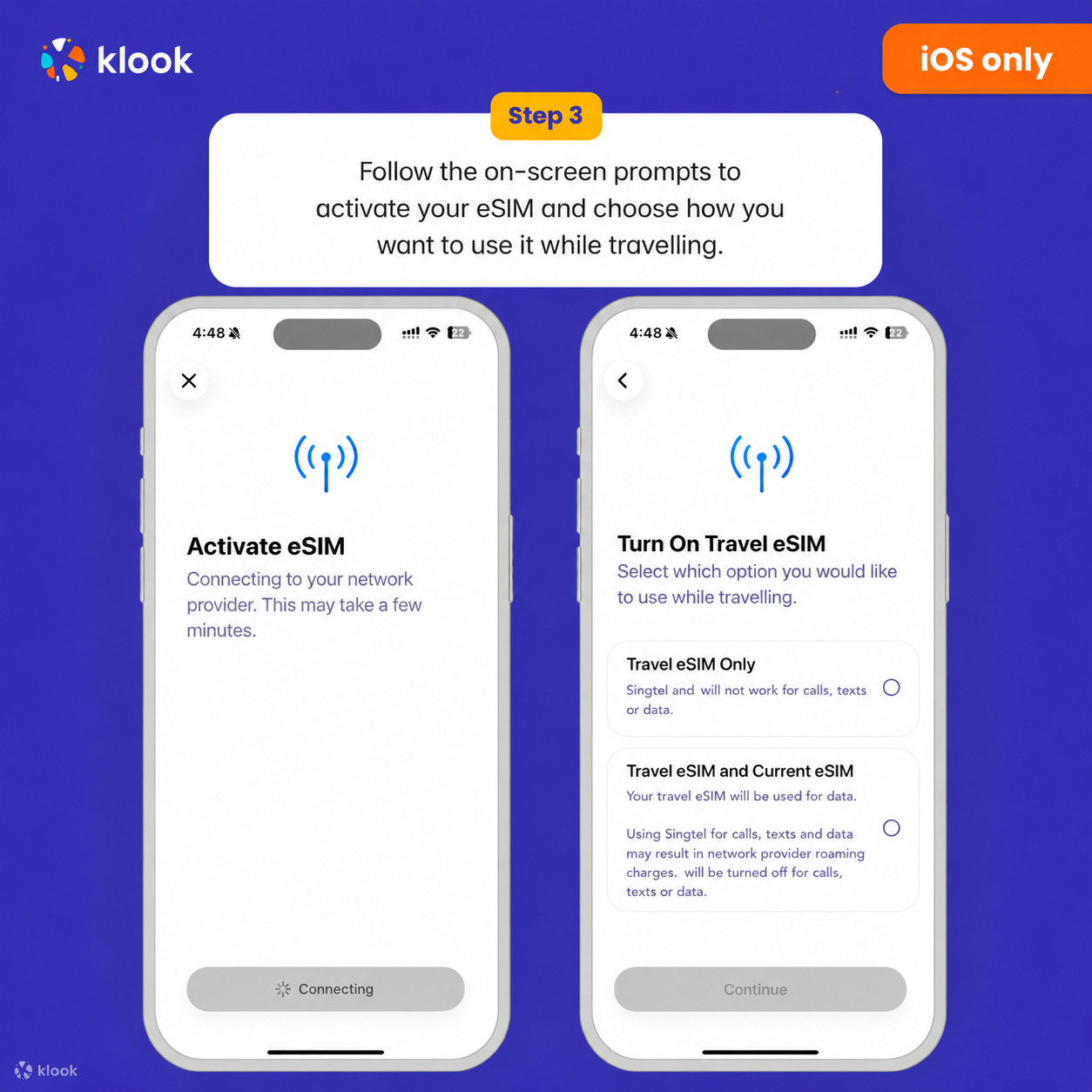
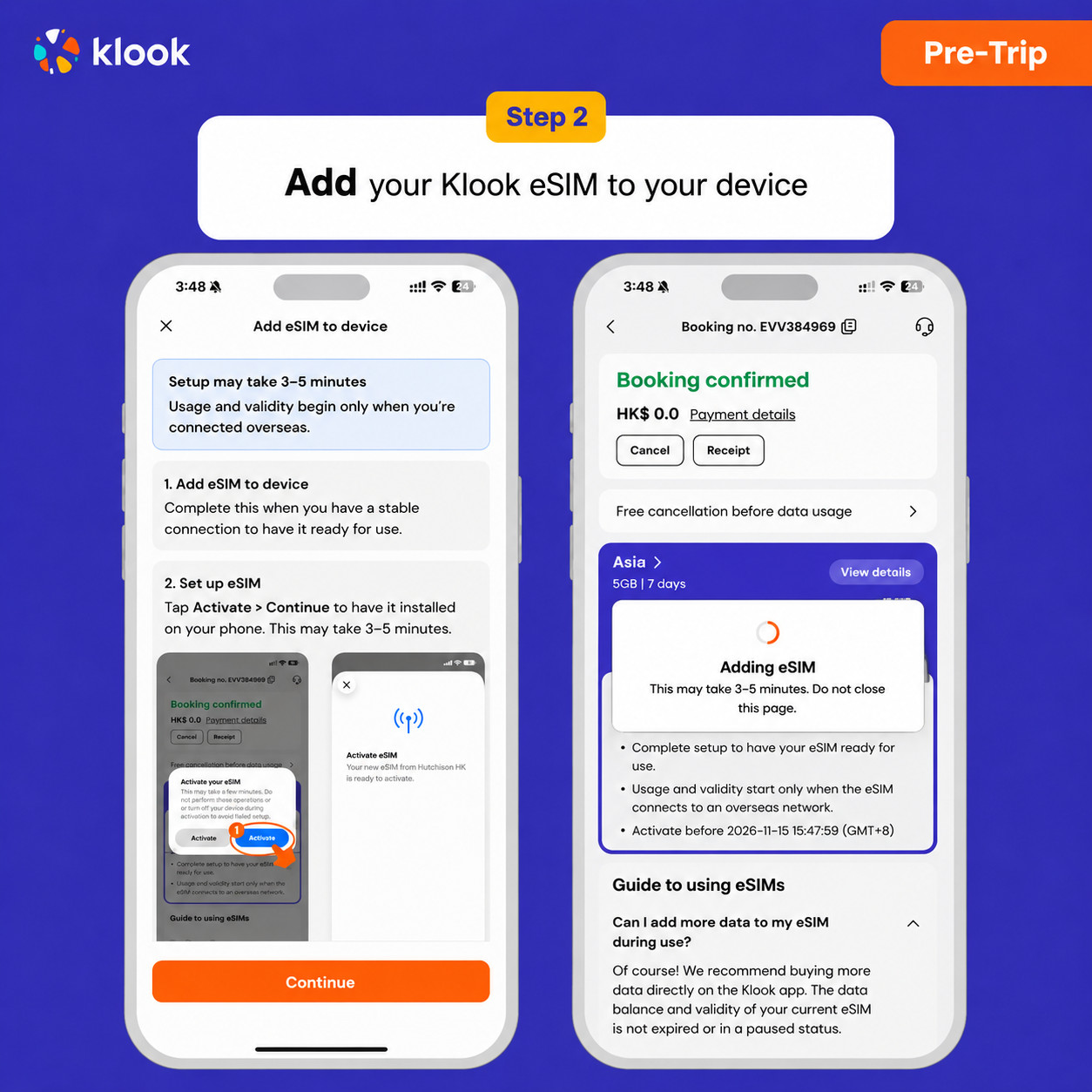
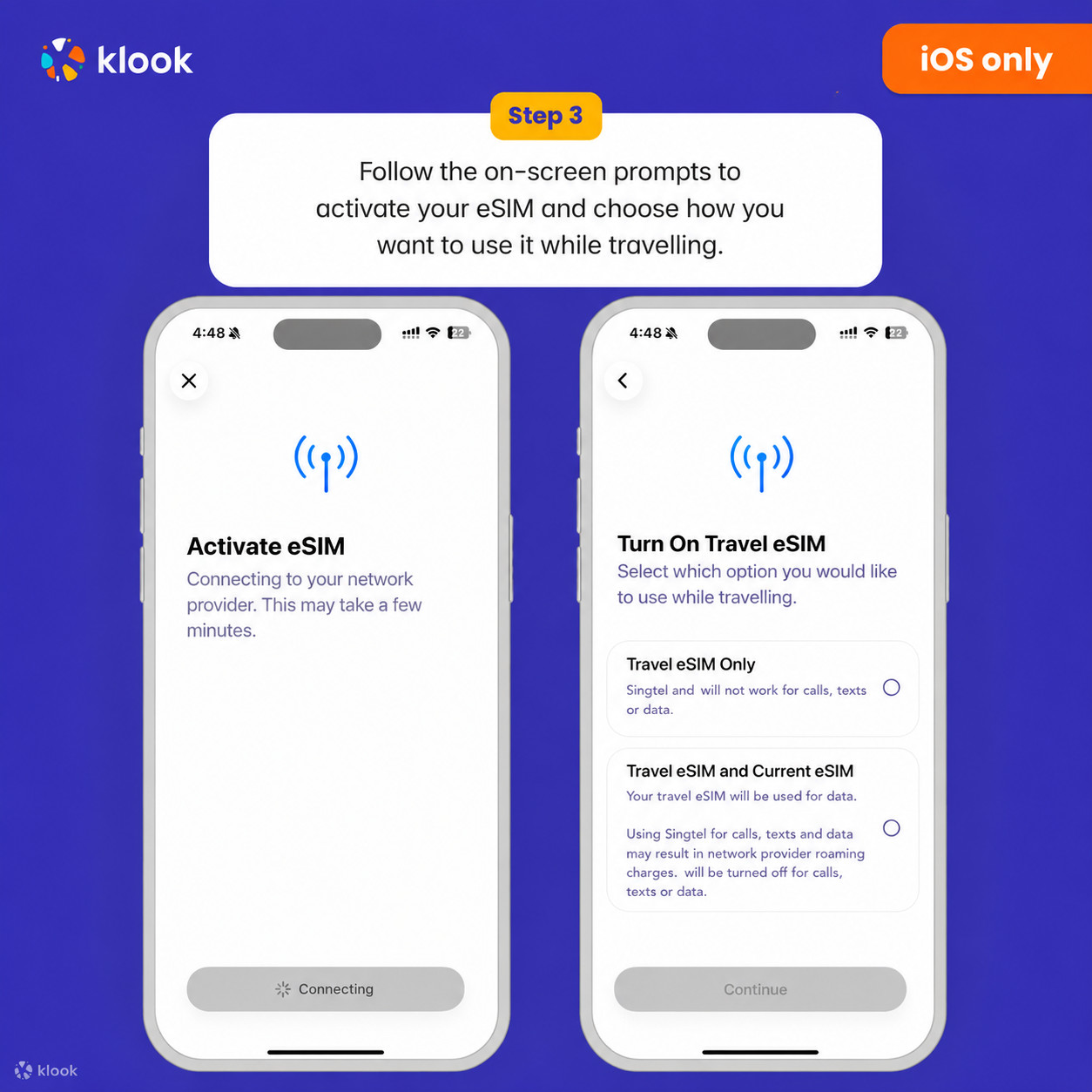
Installation of your eSIM will start automatically
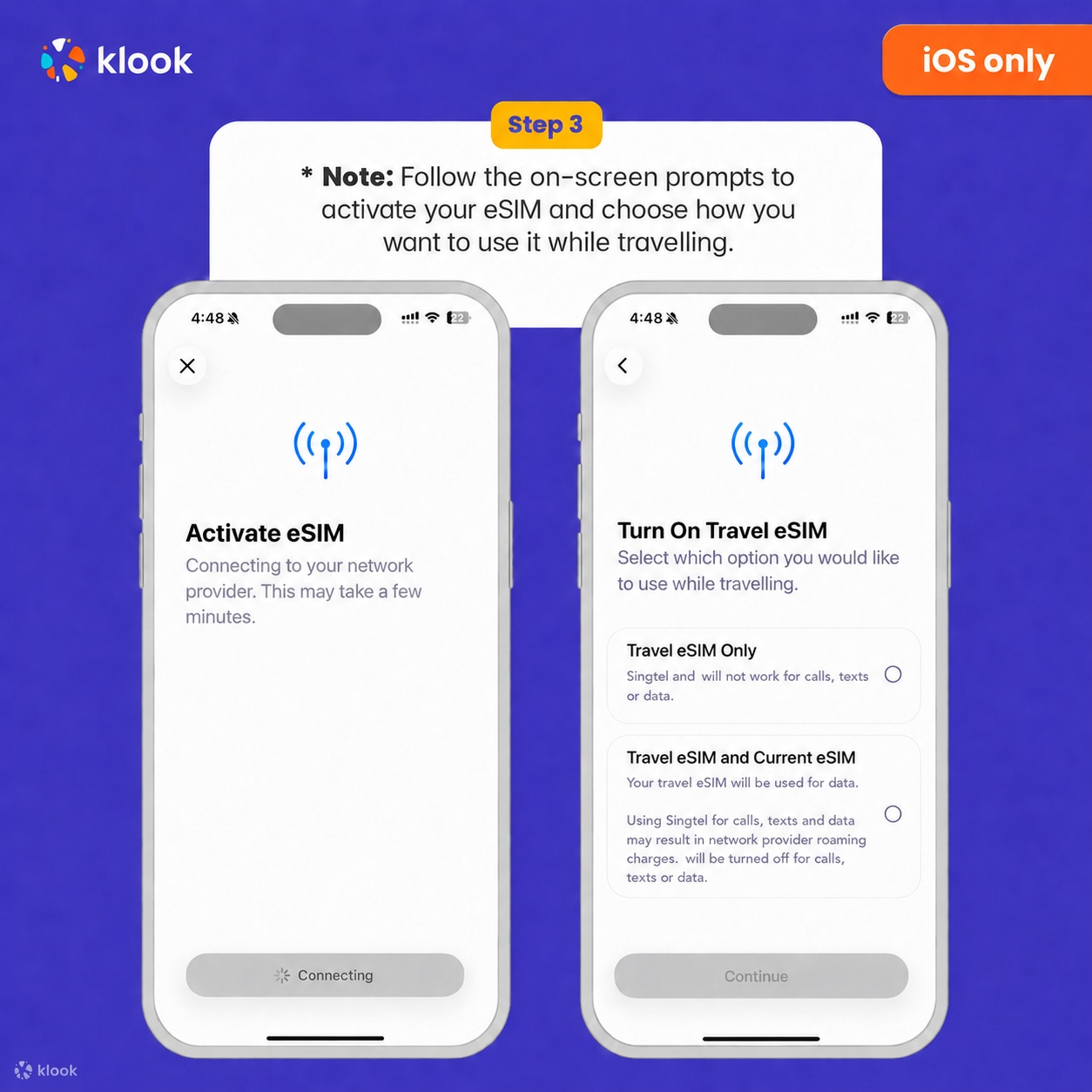
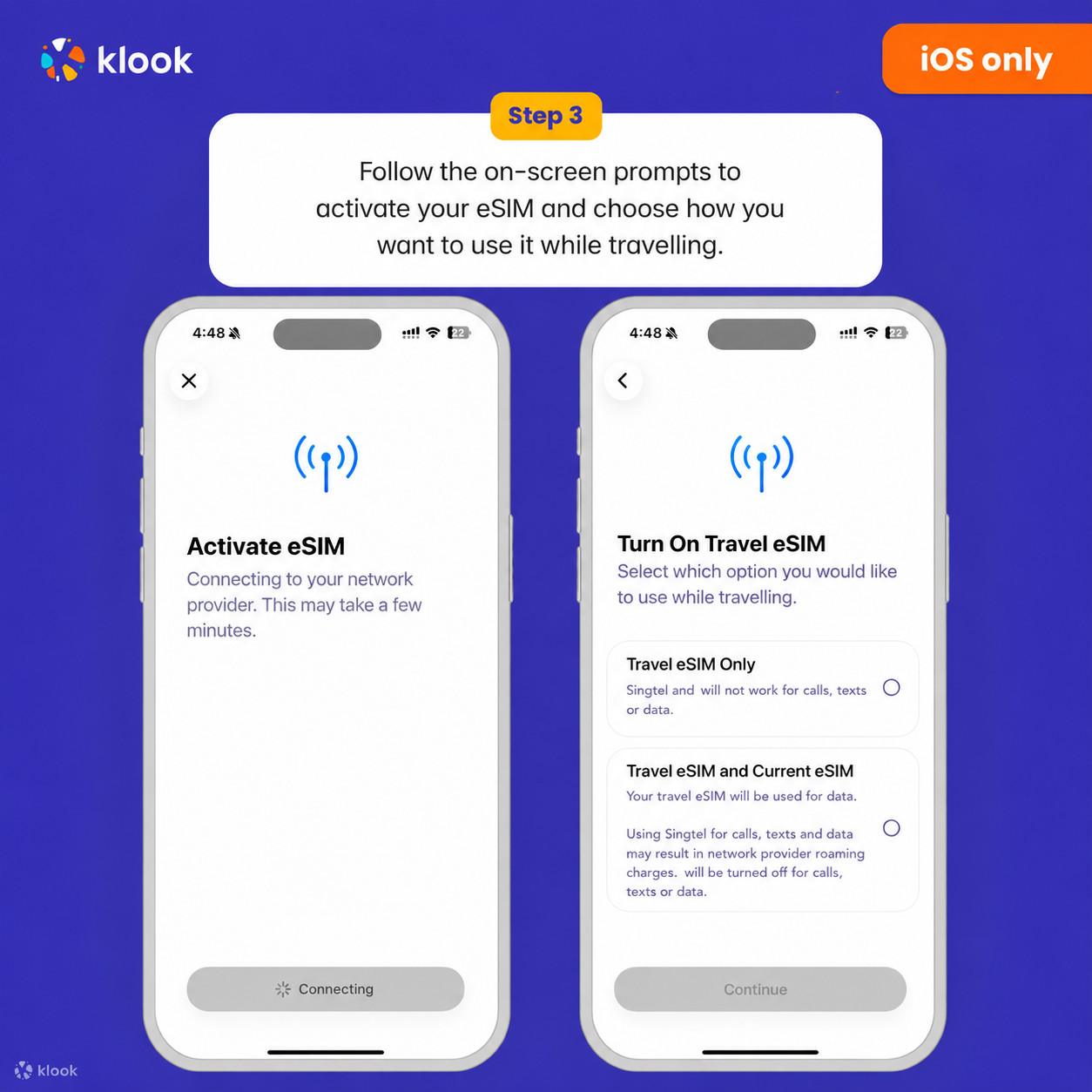
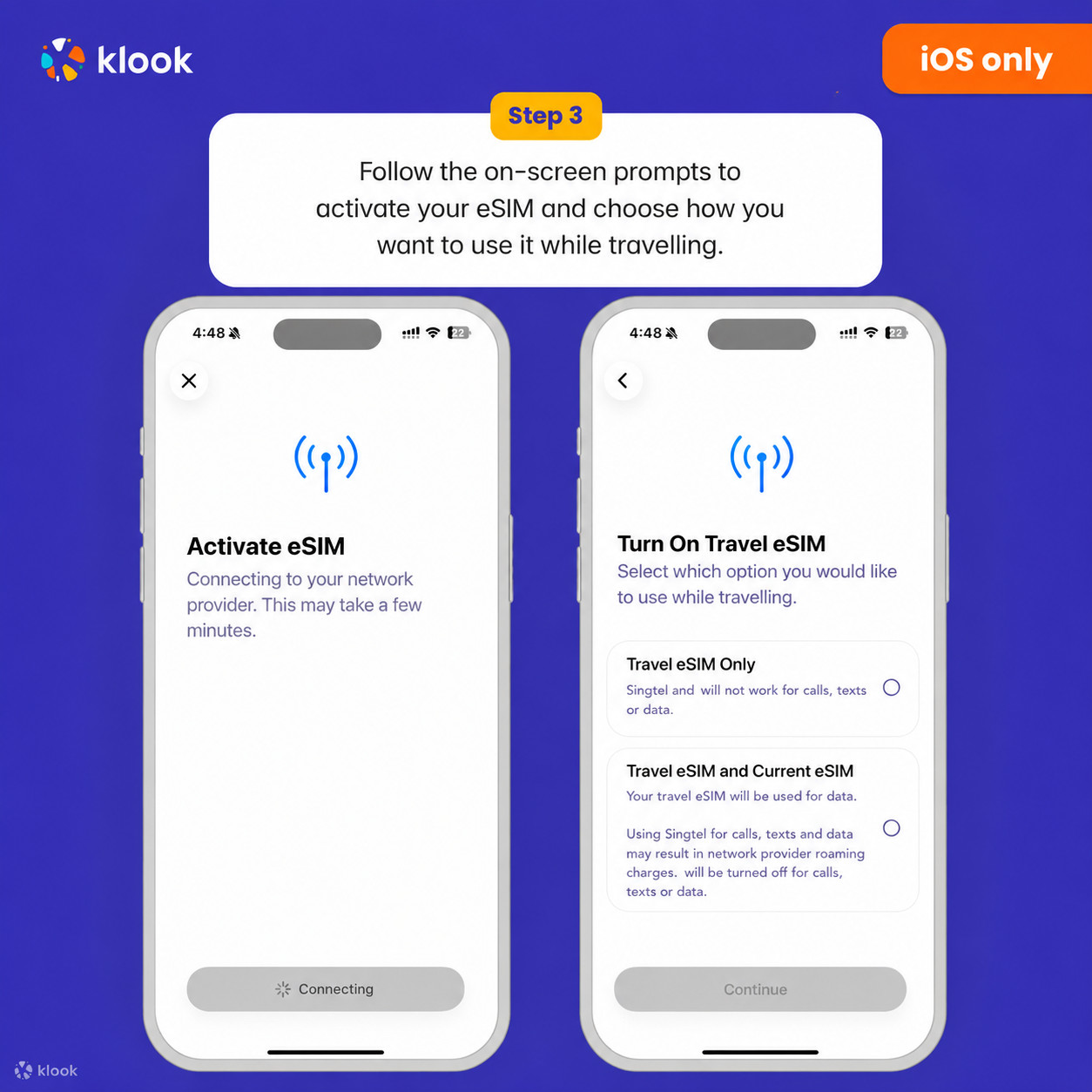
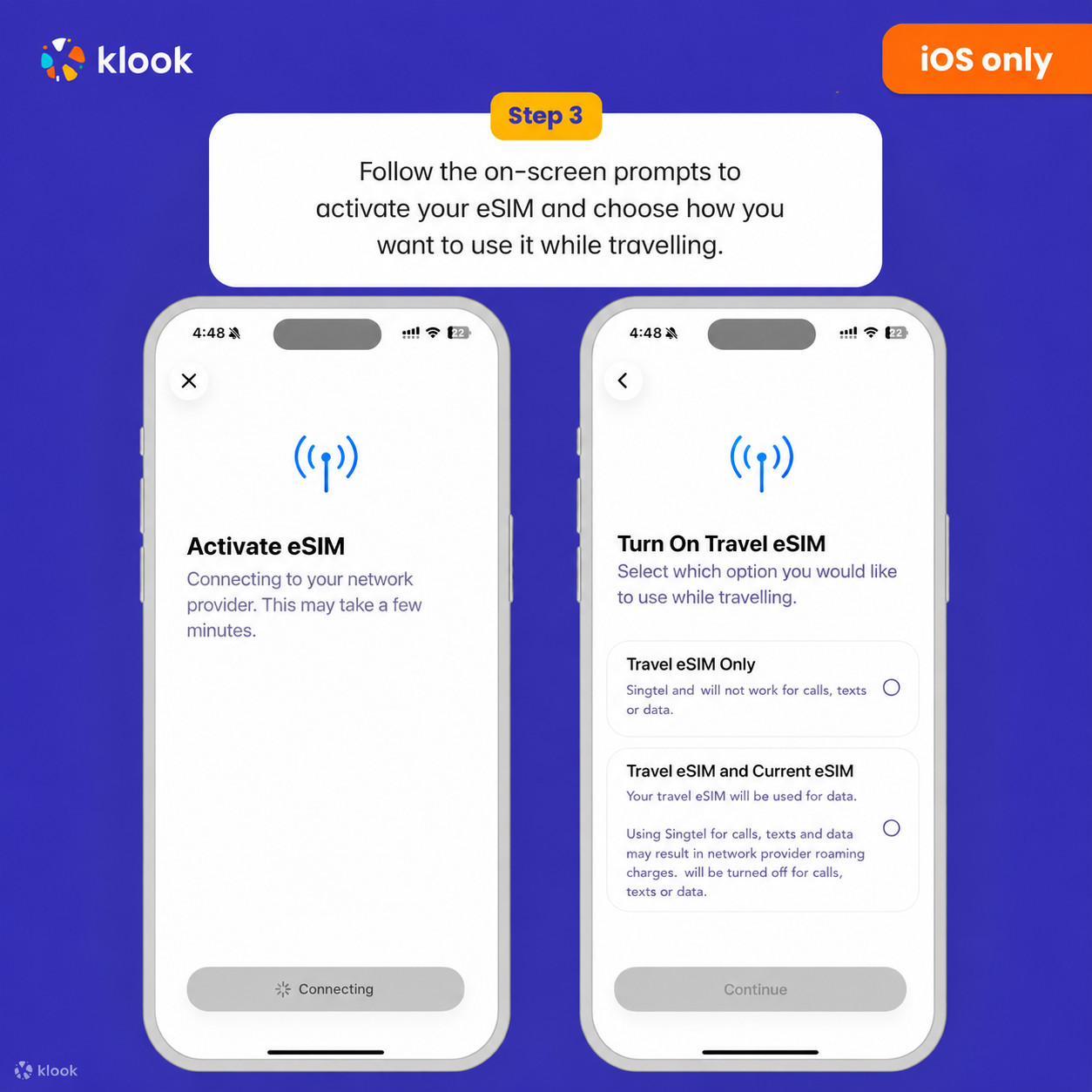
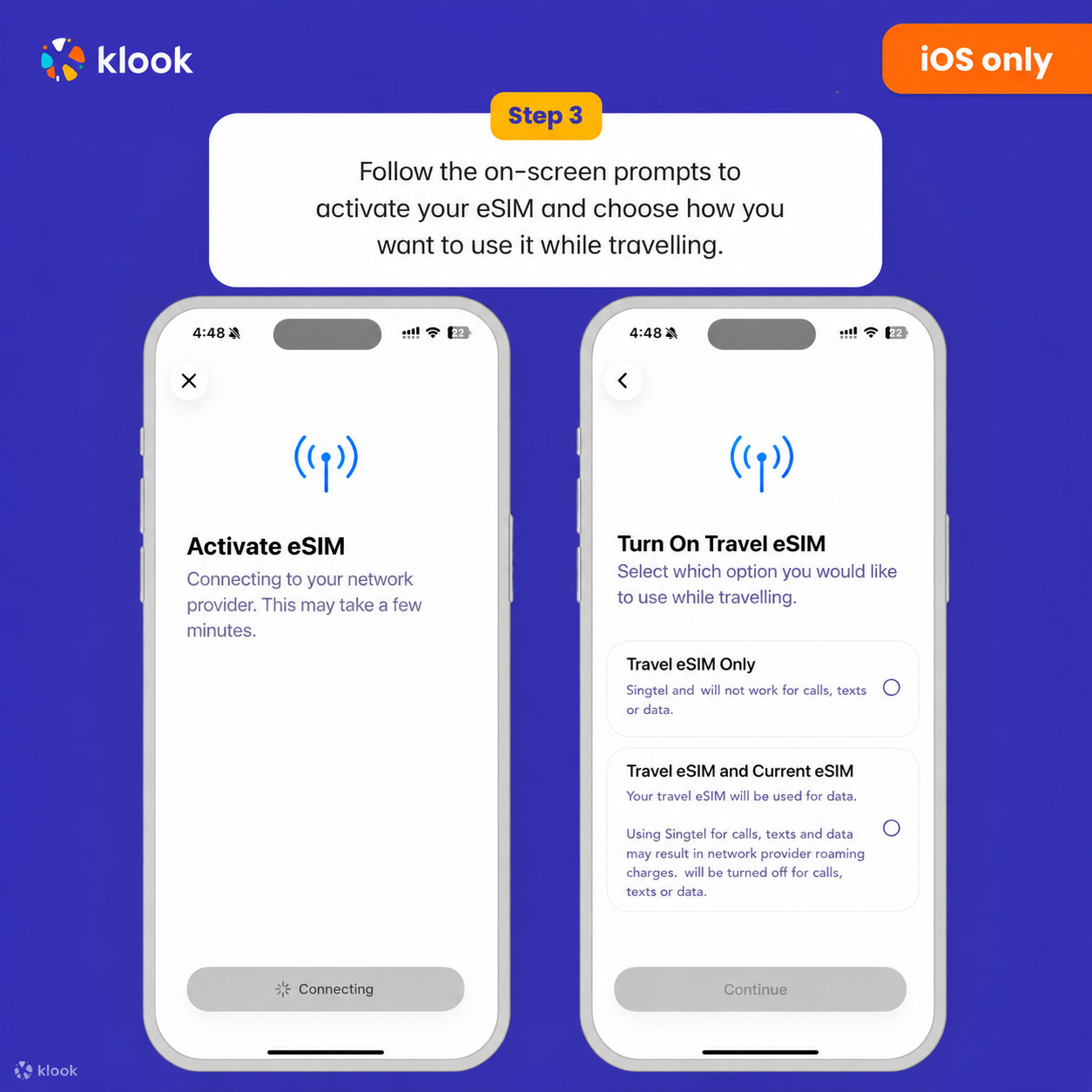
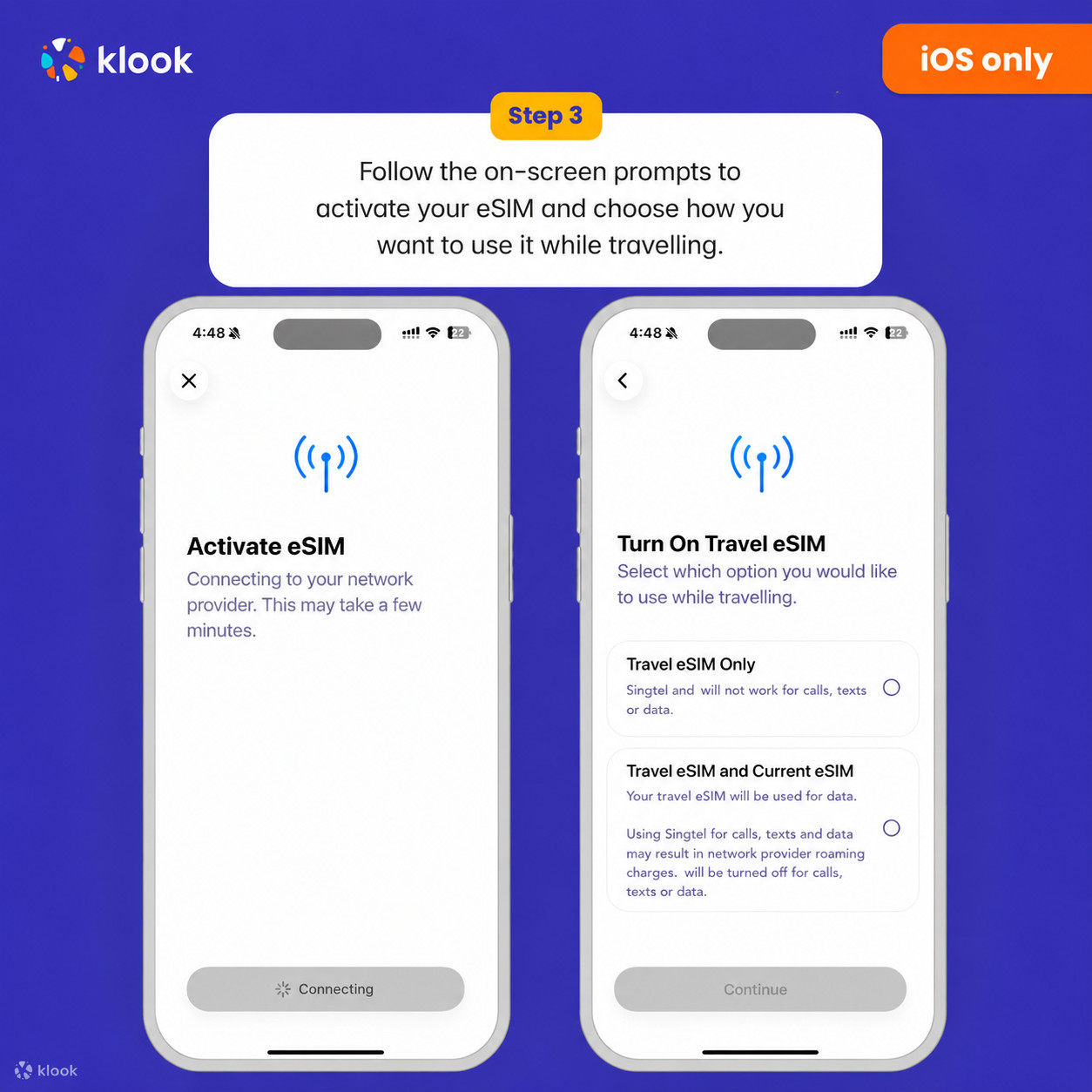
Klook eSIM iOS installation
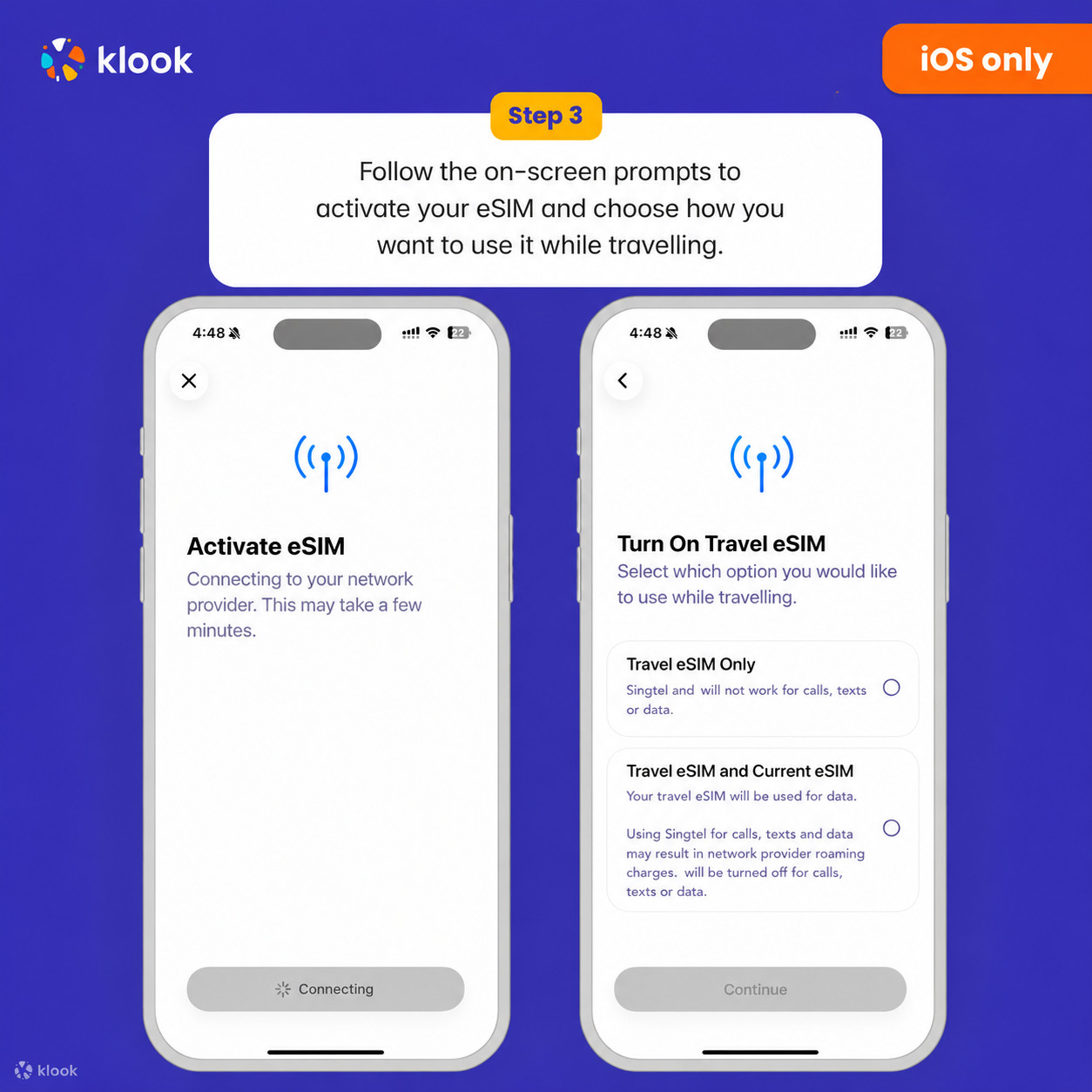
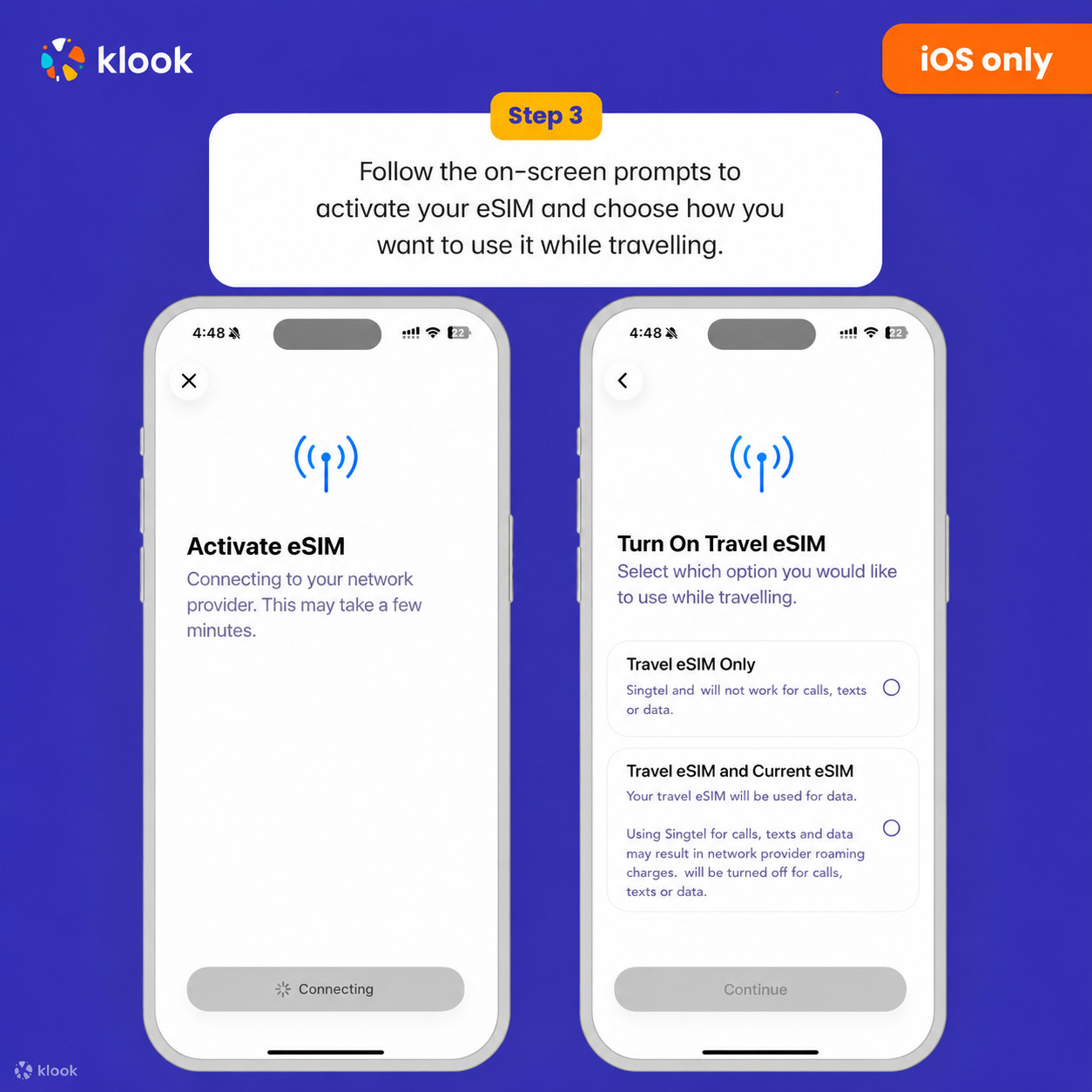
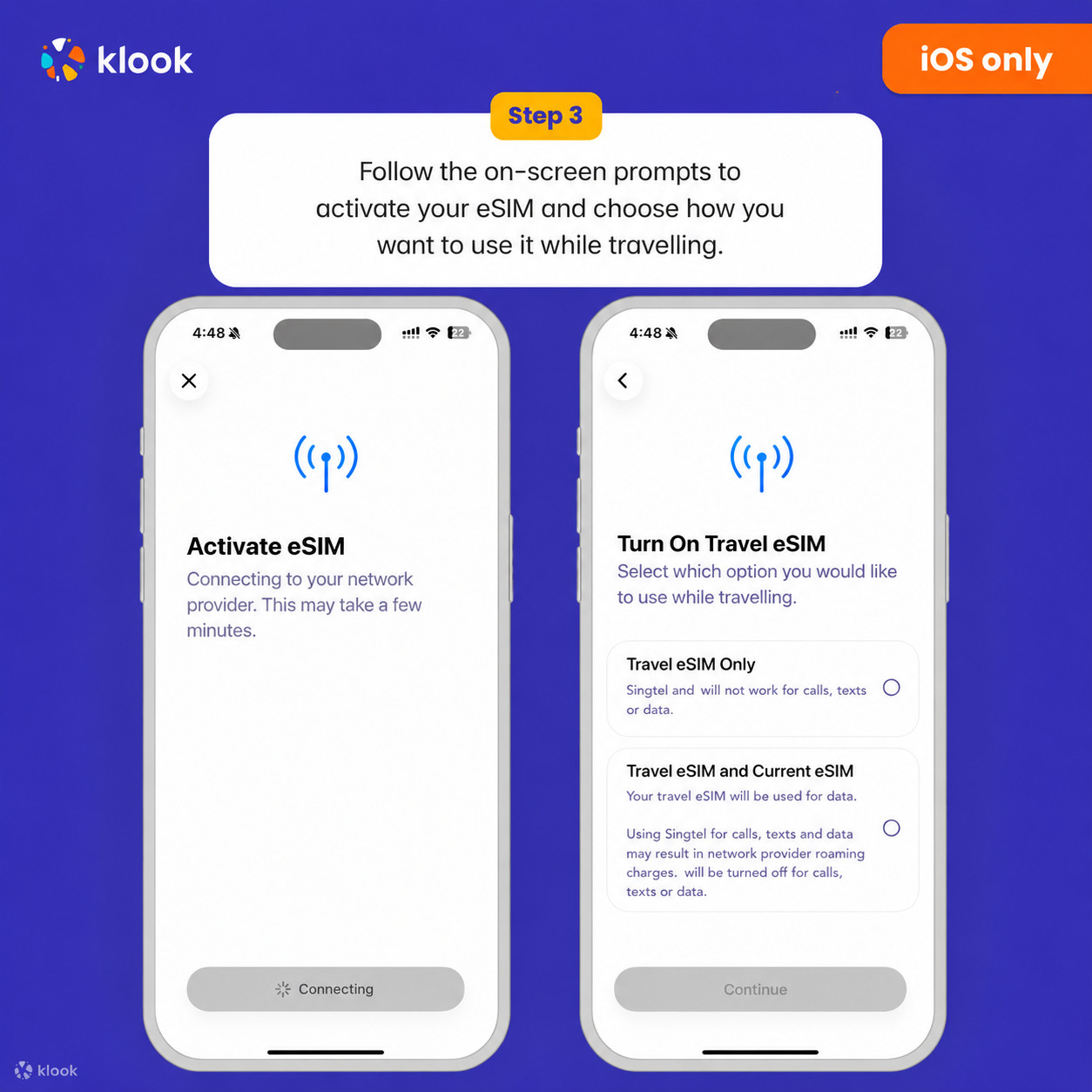
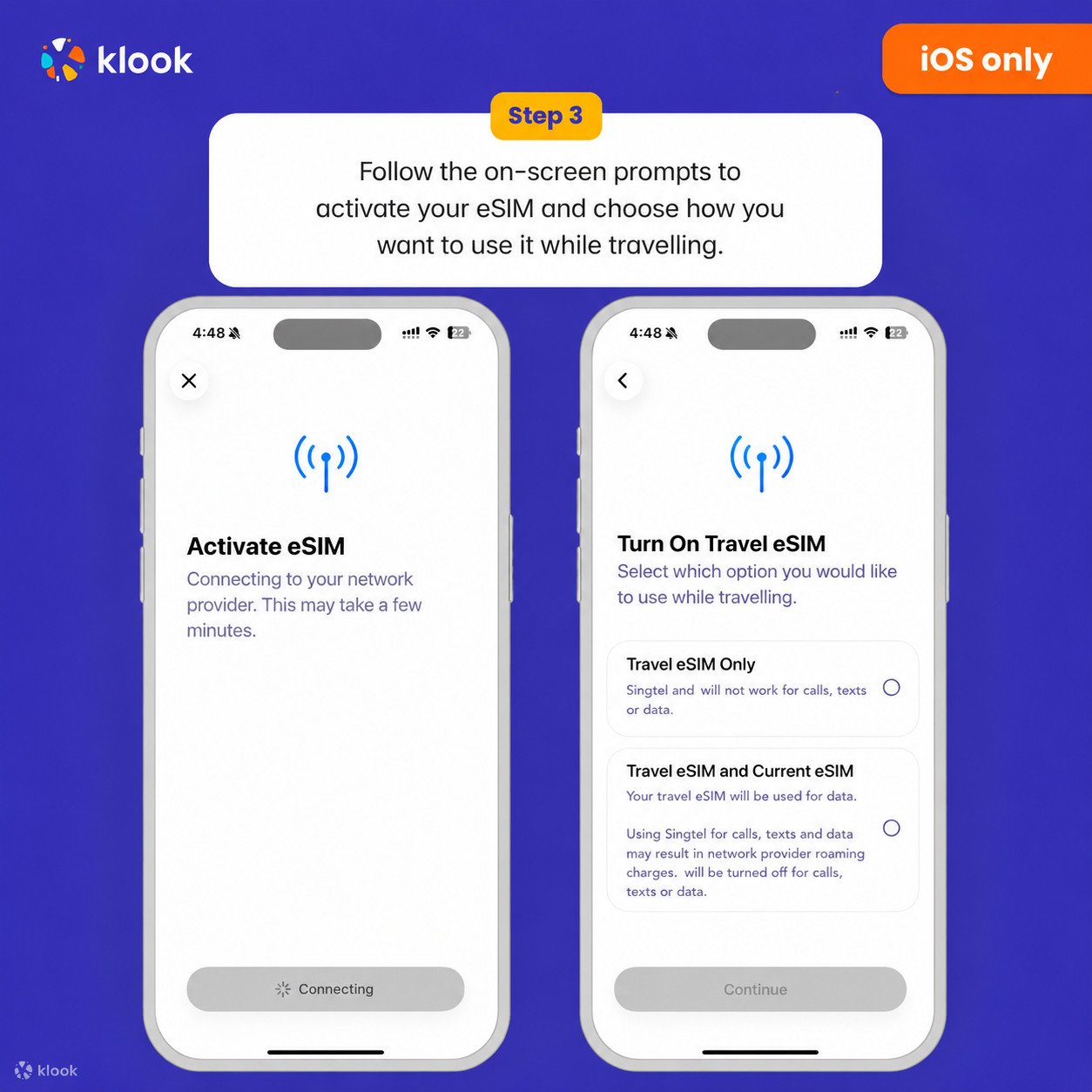
Set up your Klook eSIM for travel on iOS
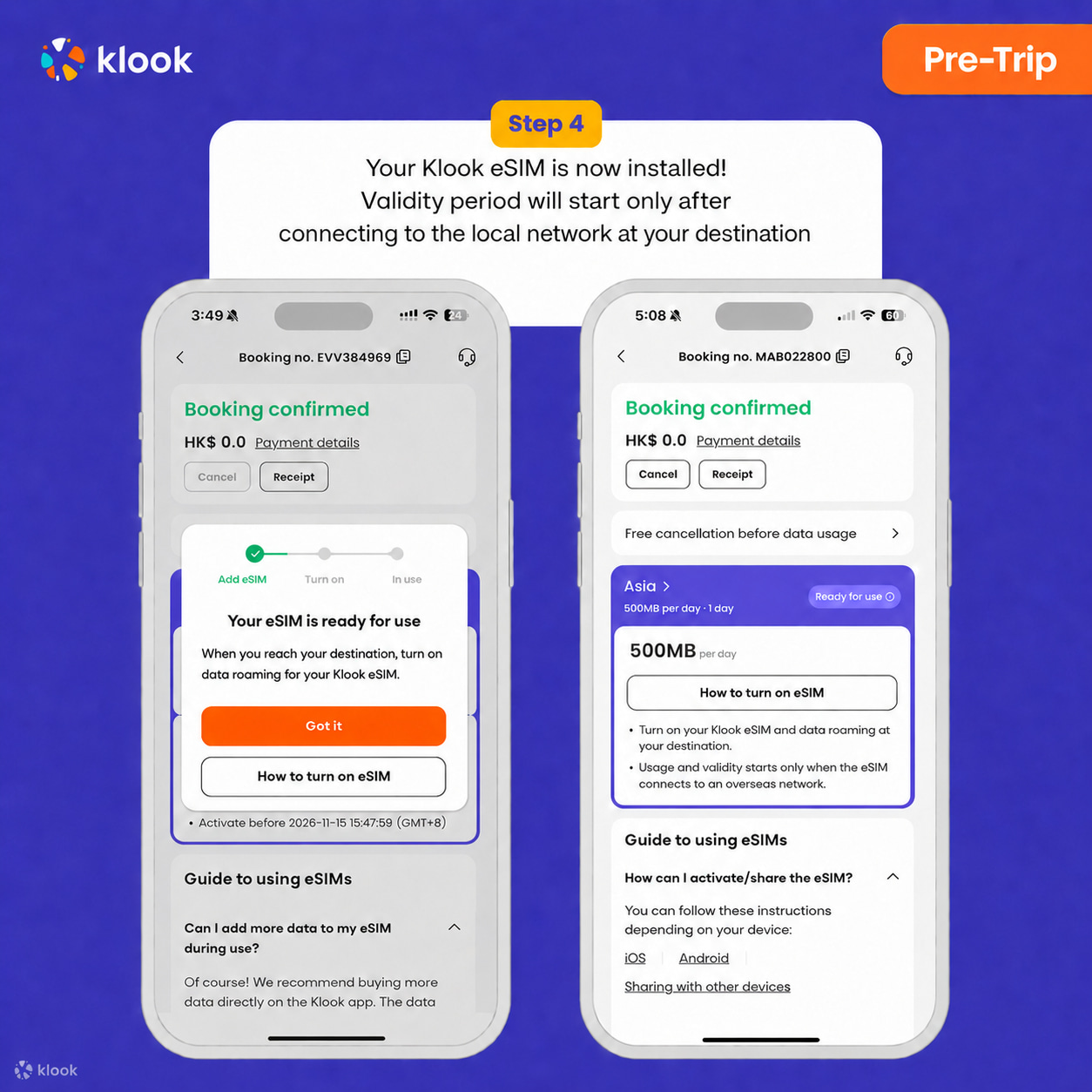
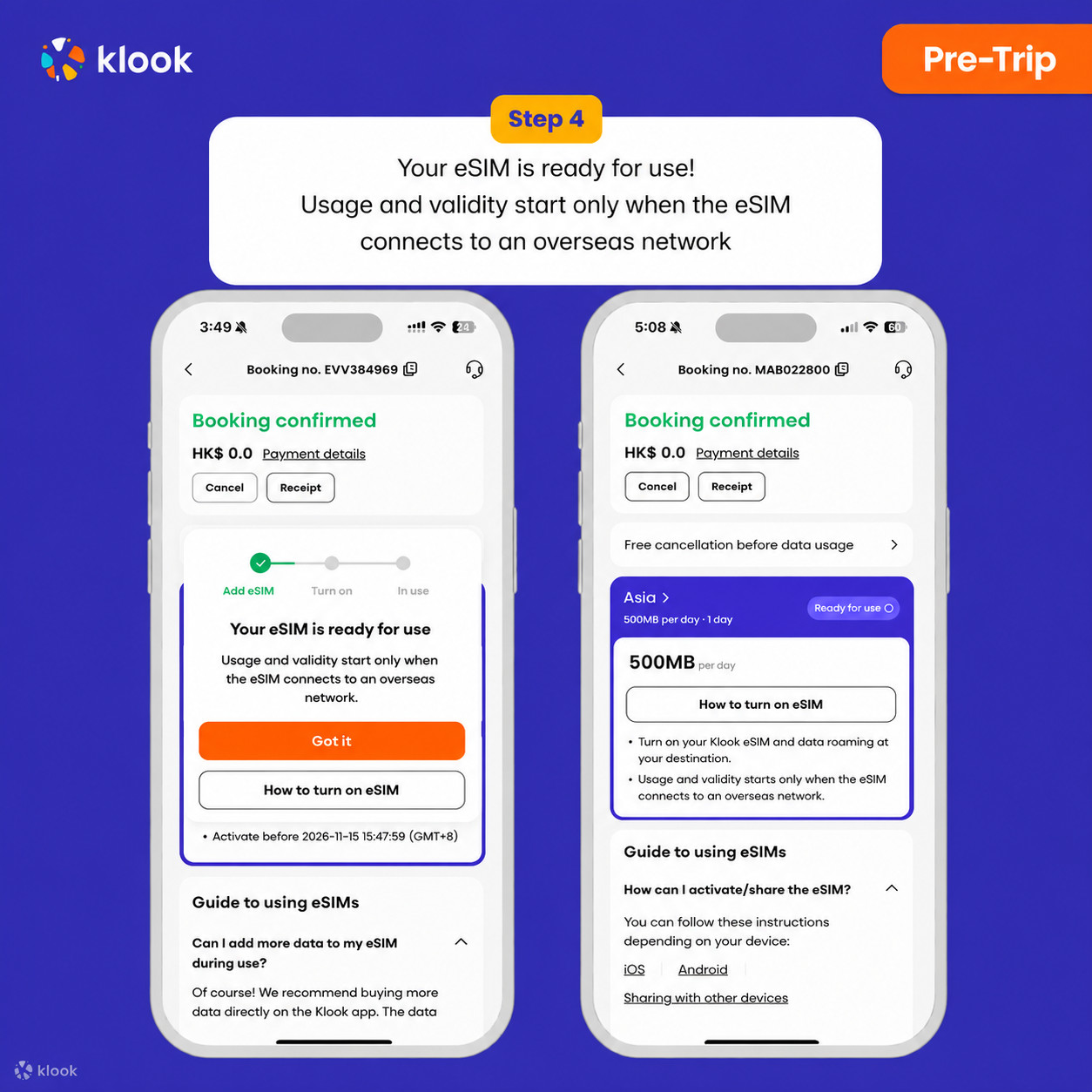
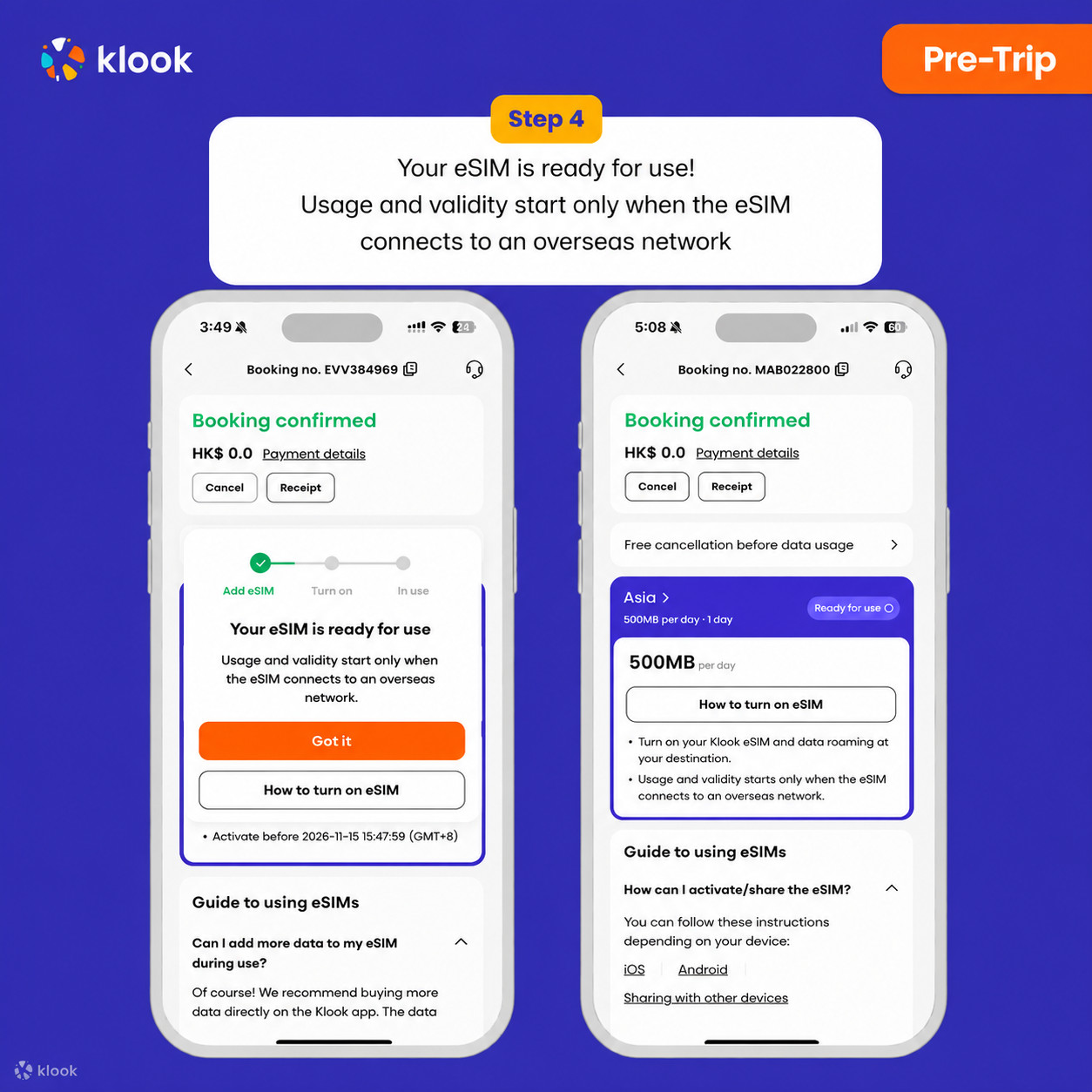
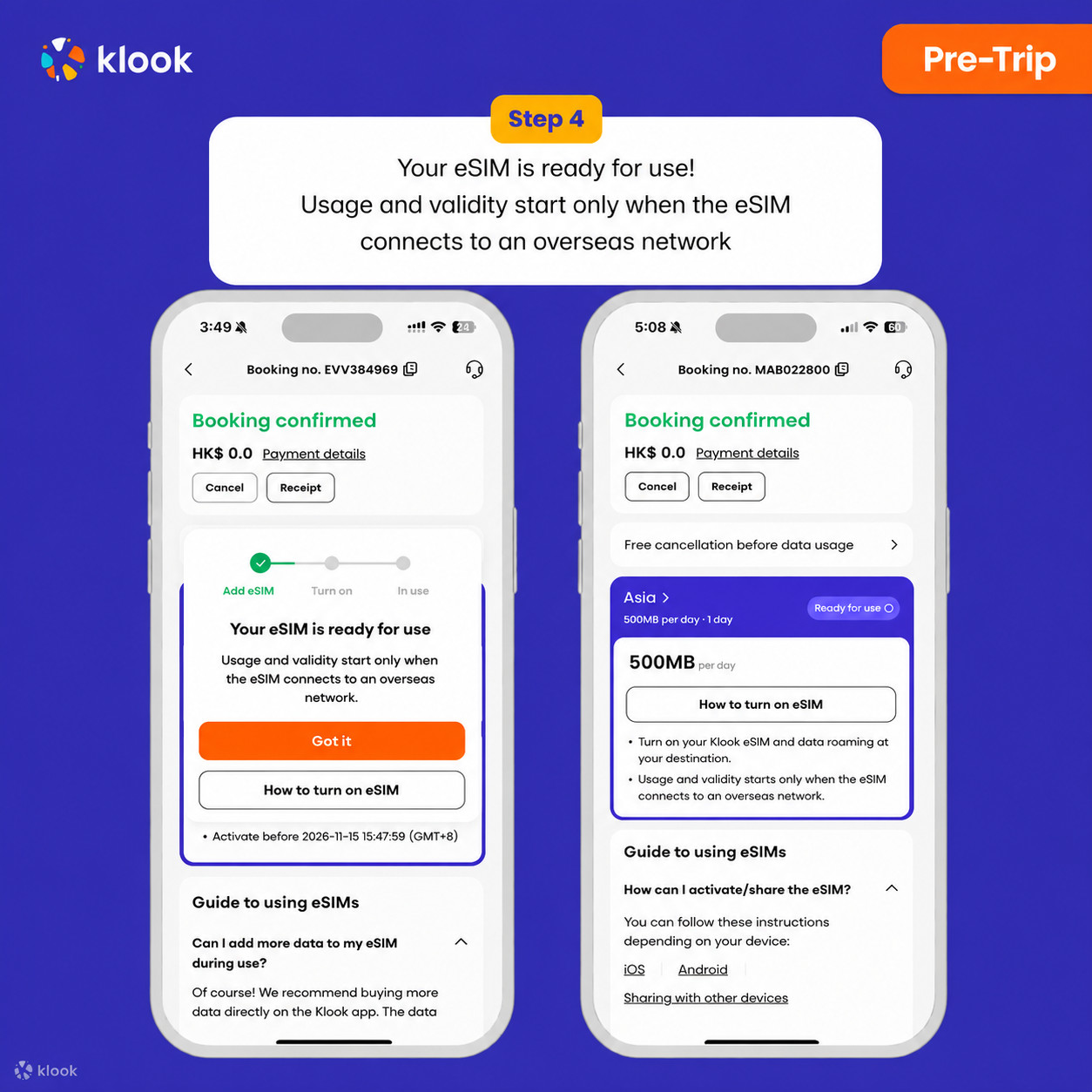
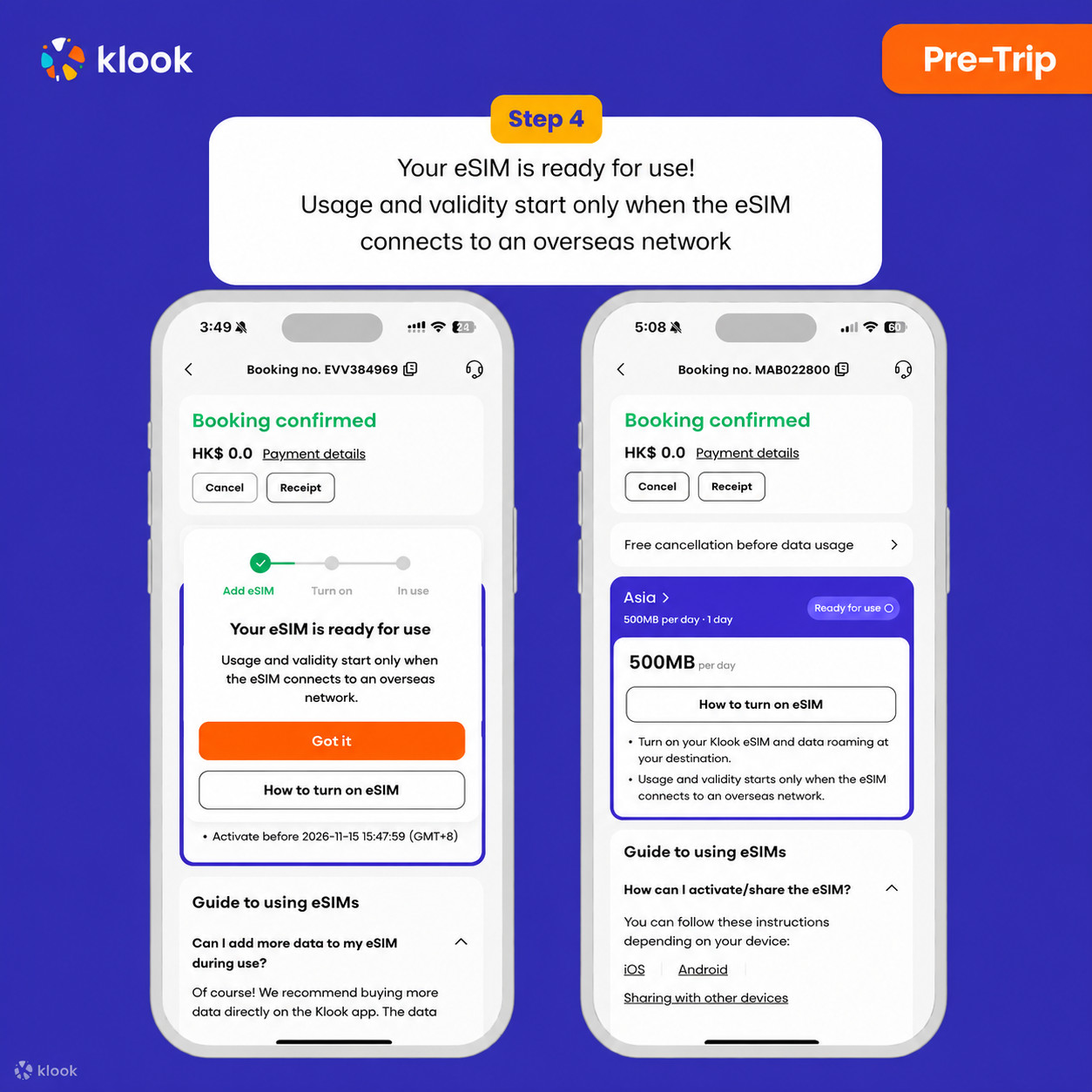
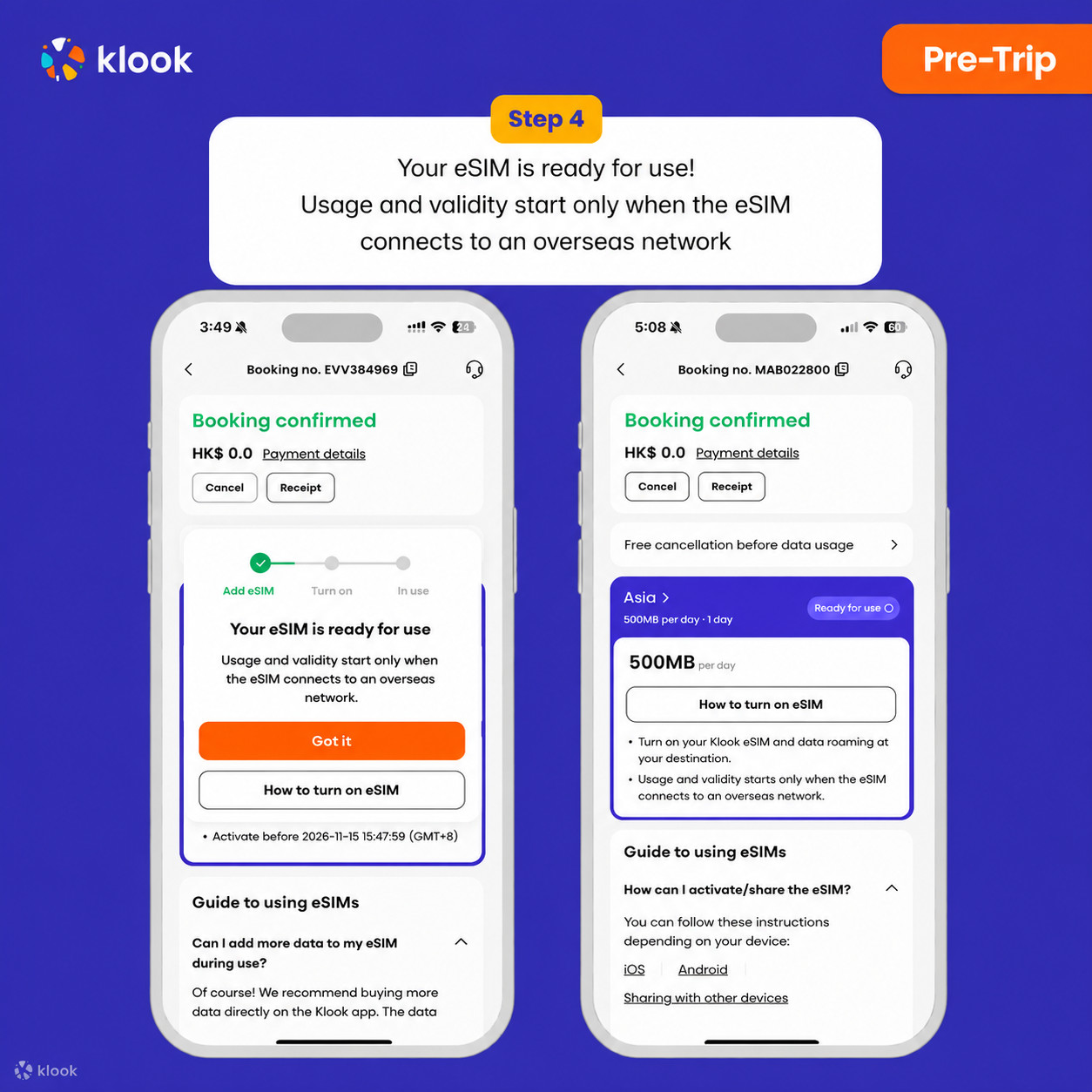
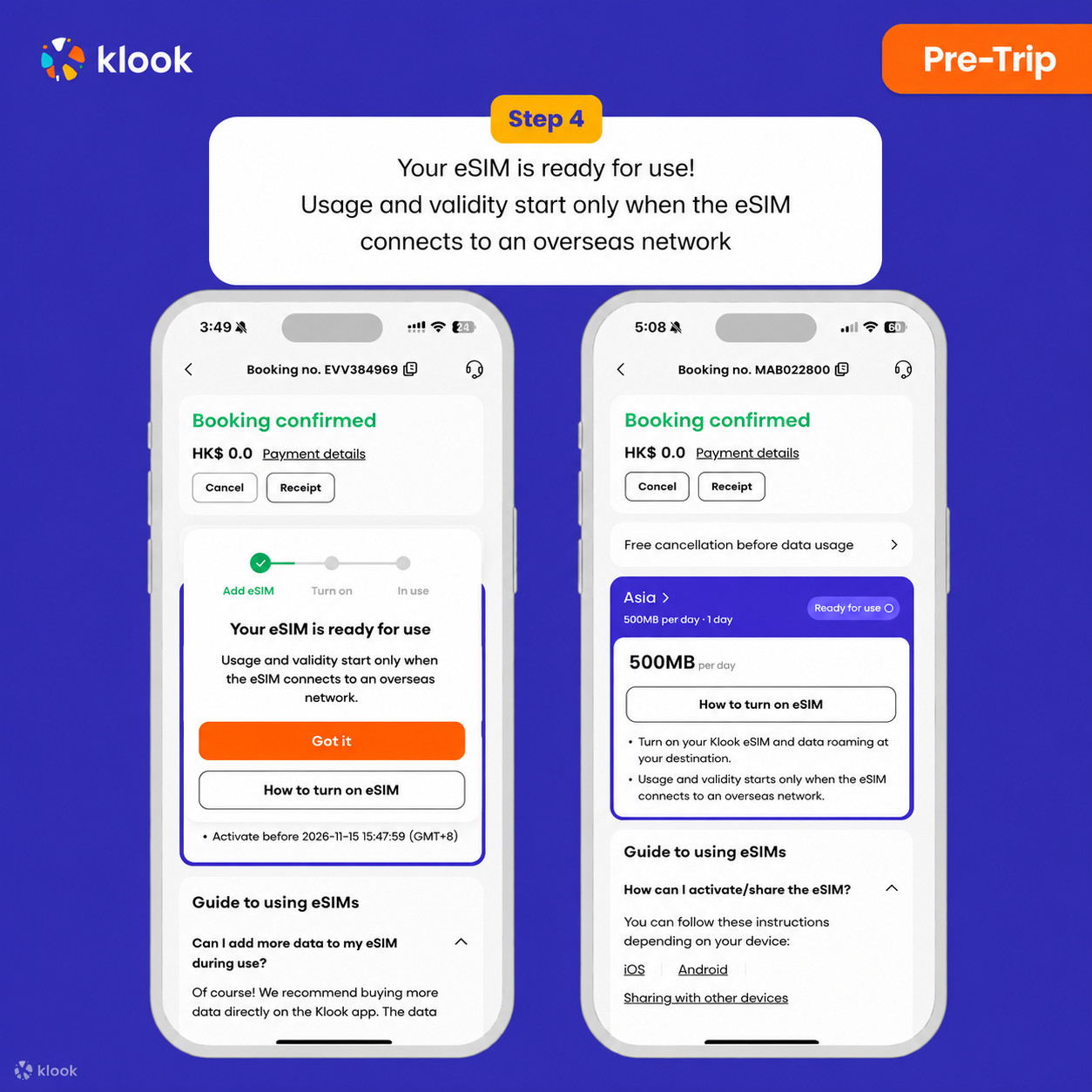
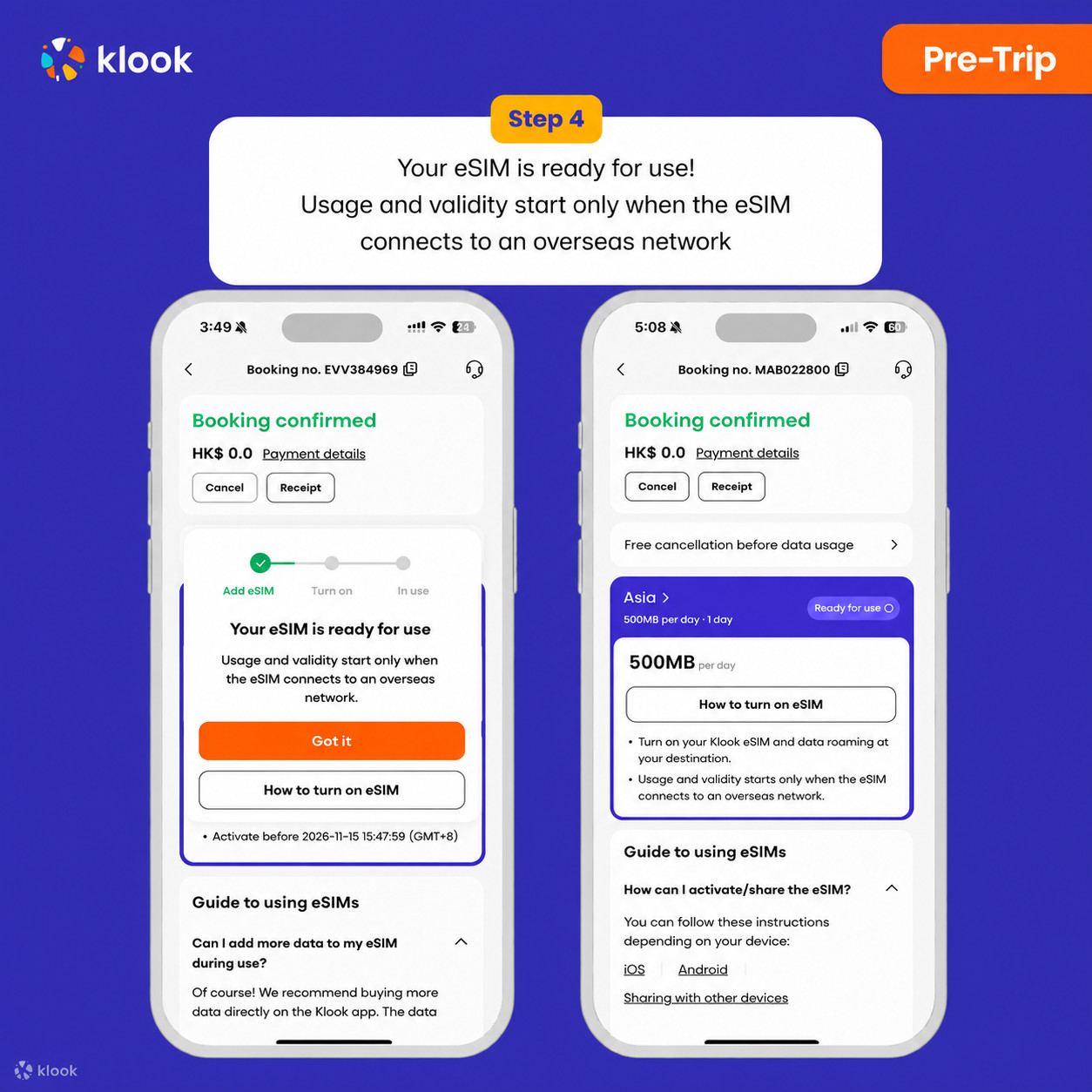
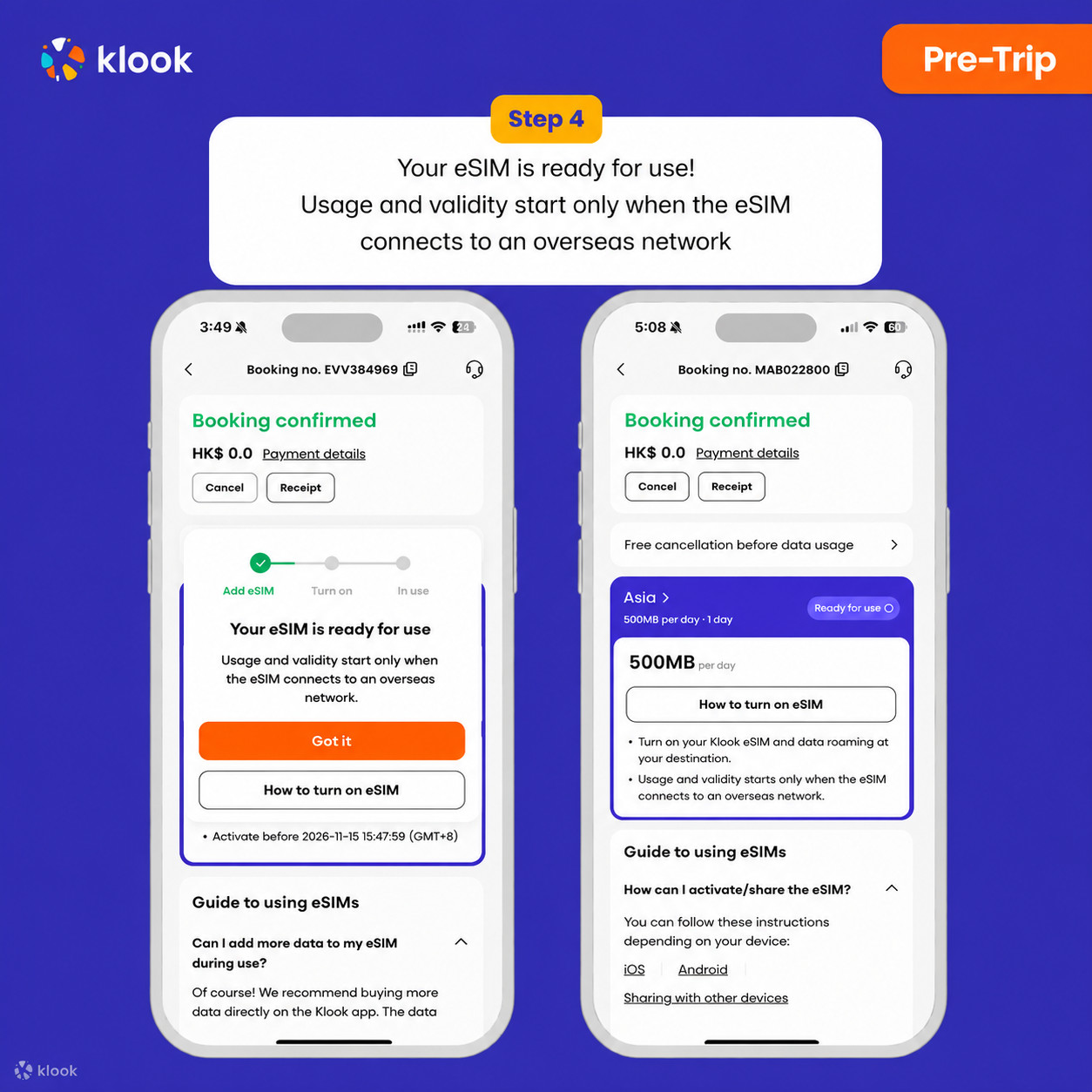
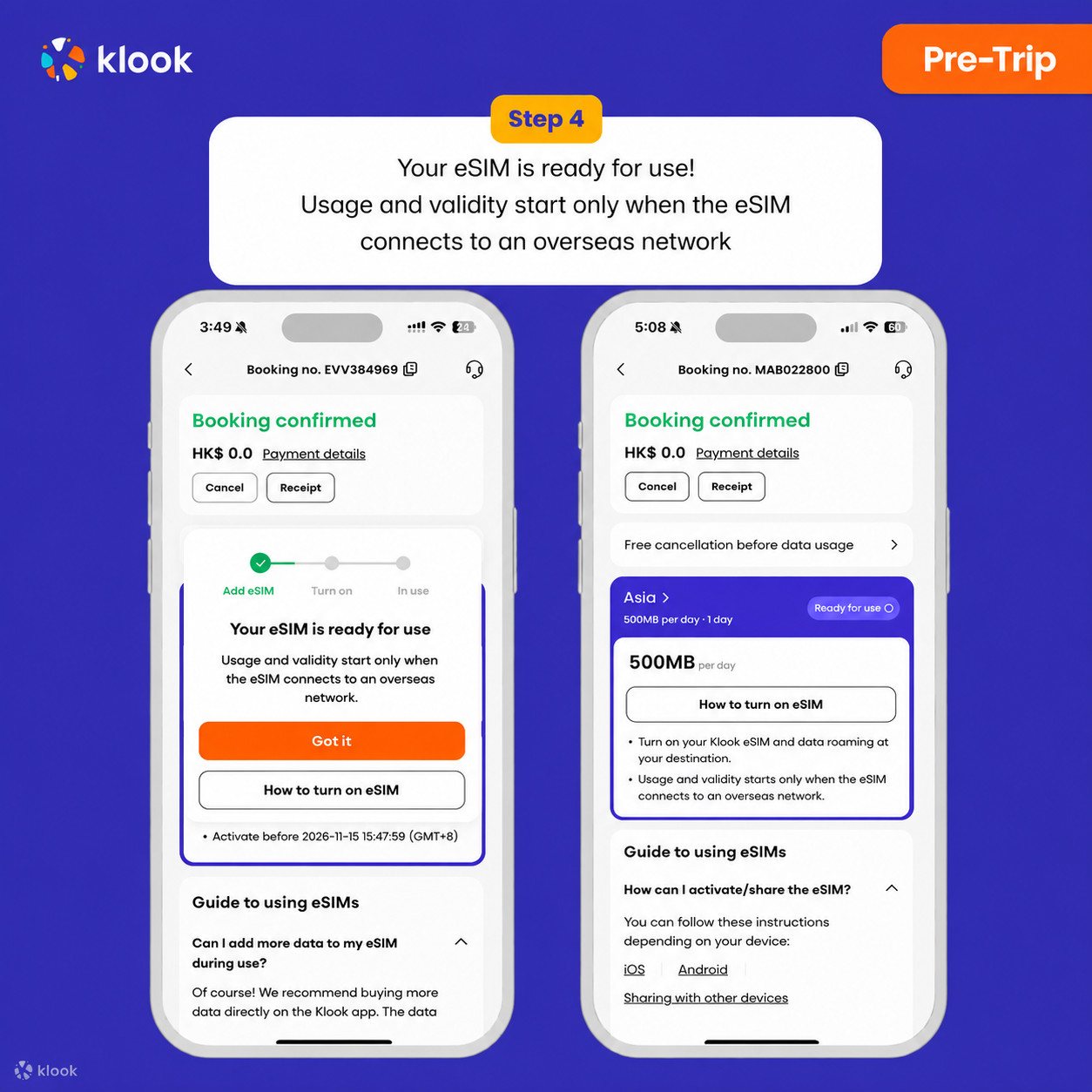
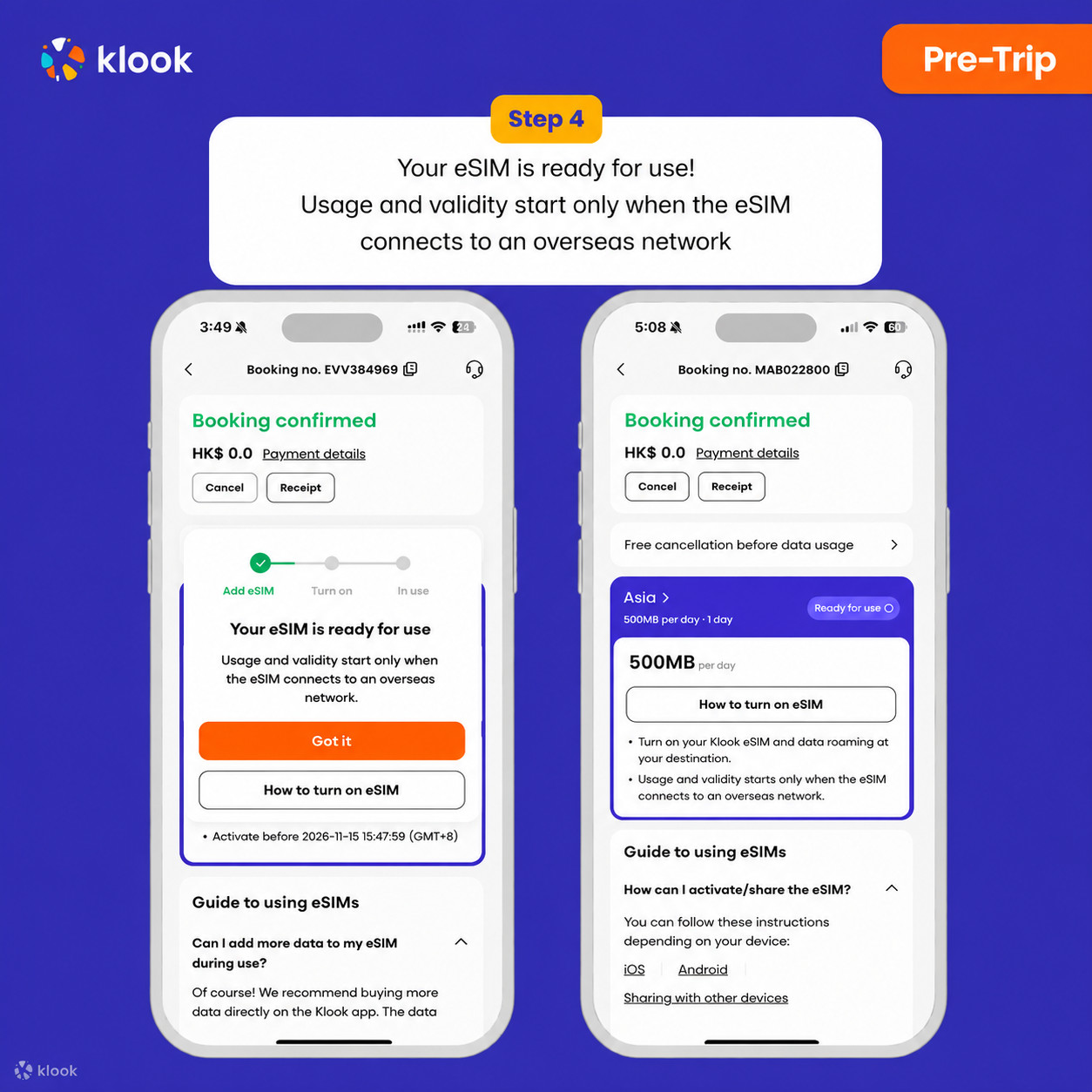
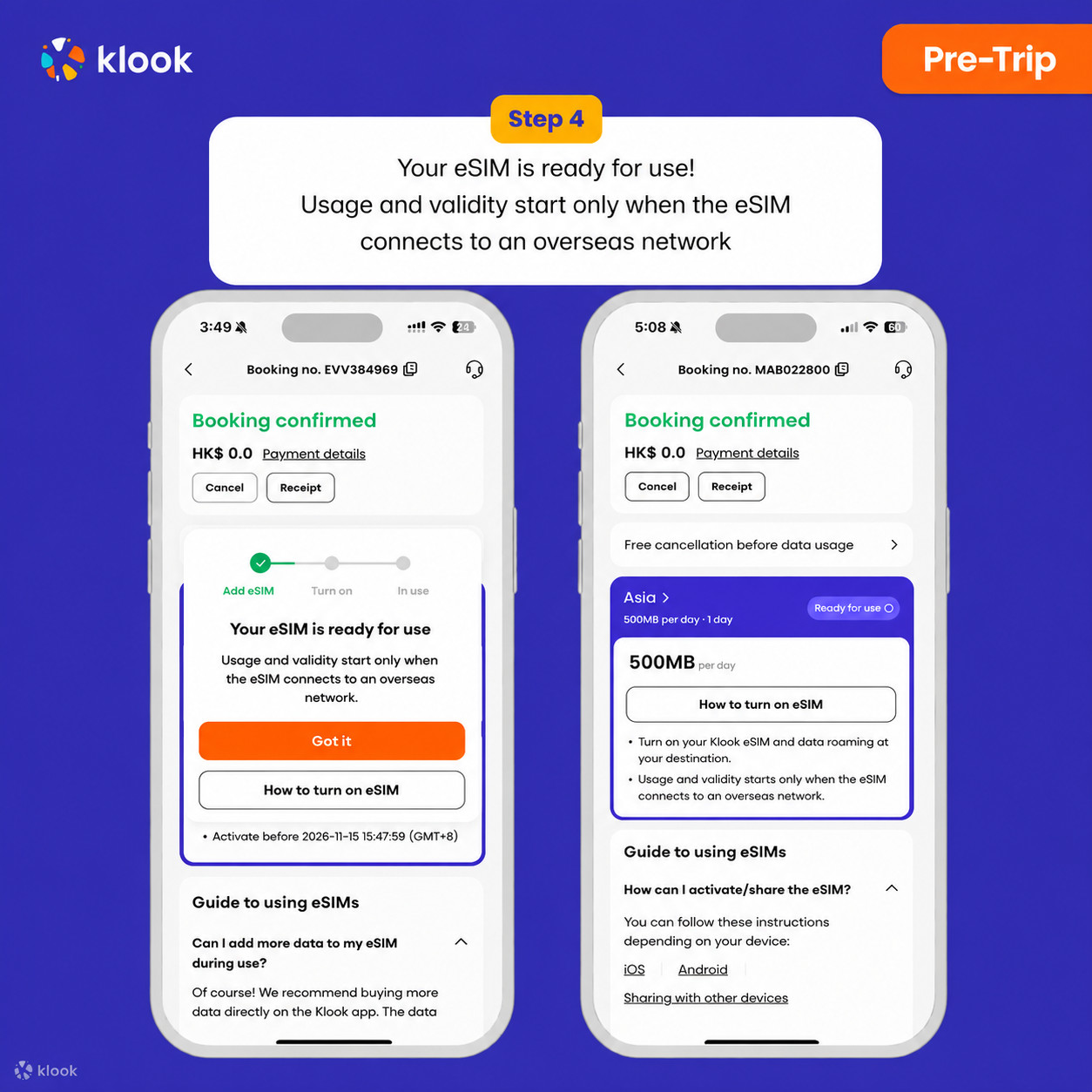
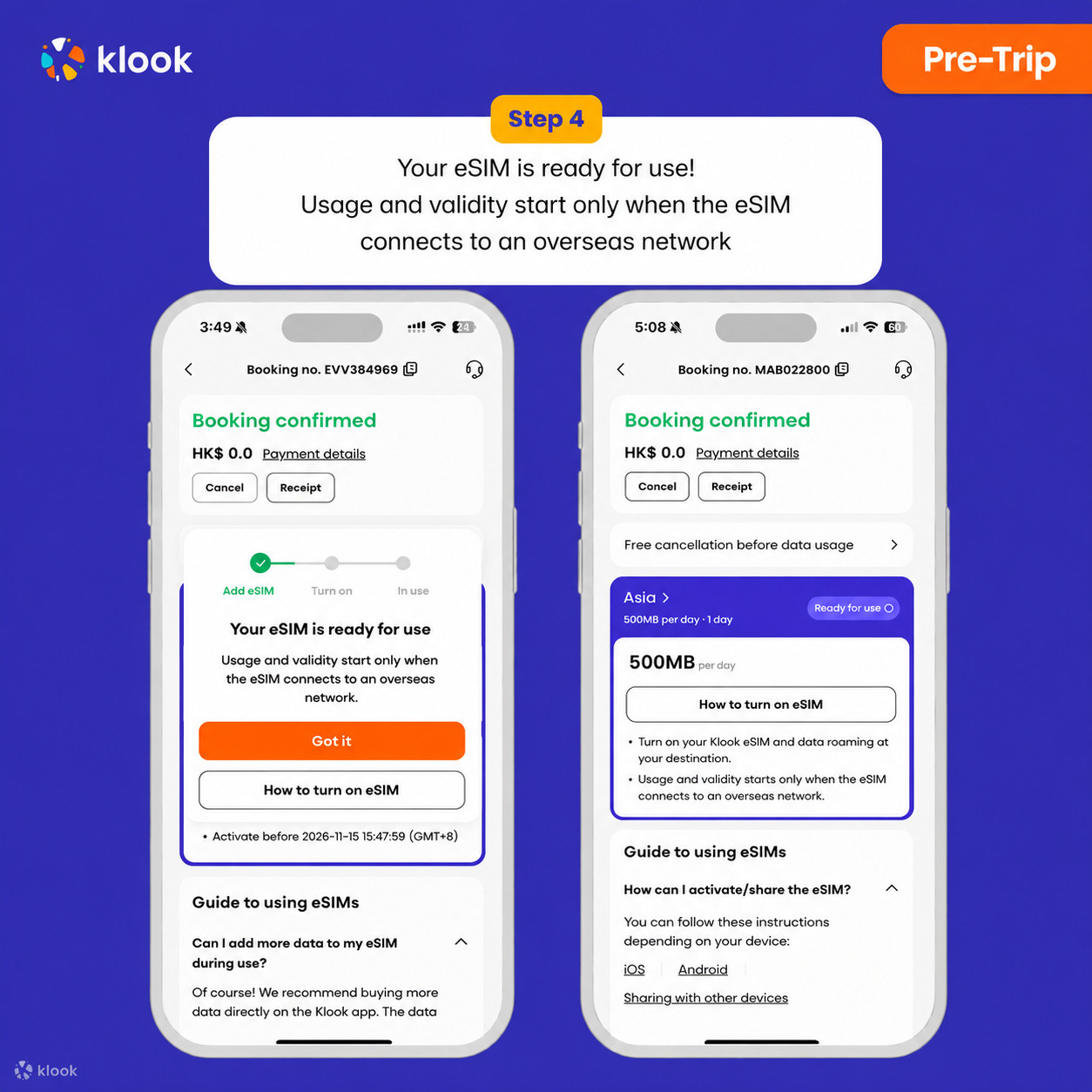
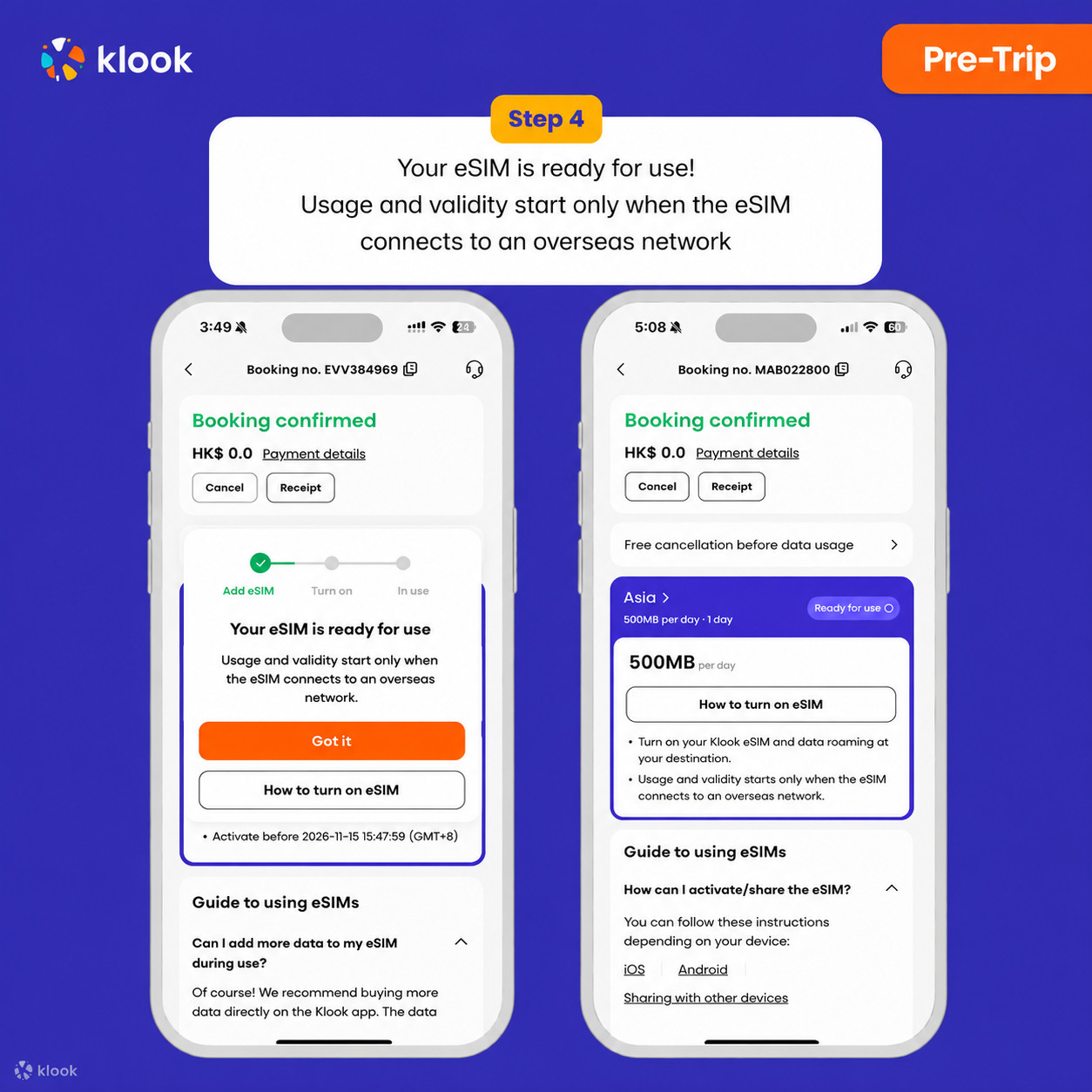
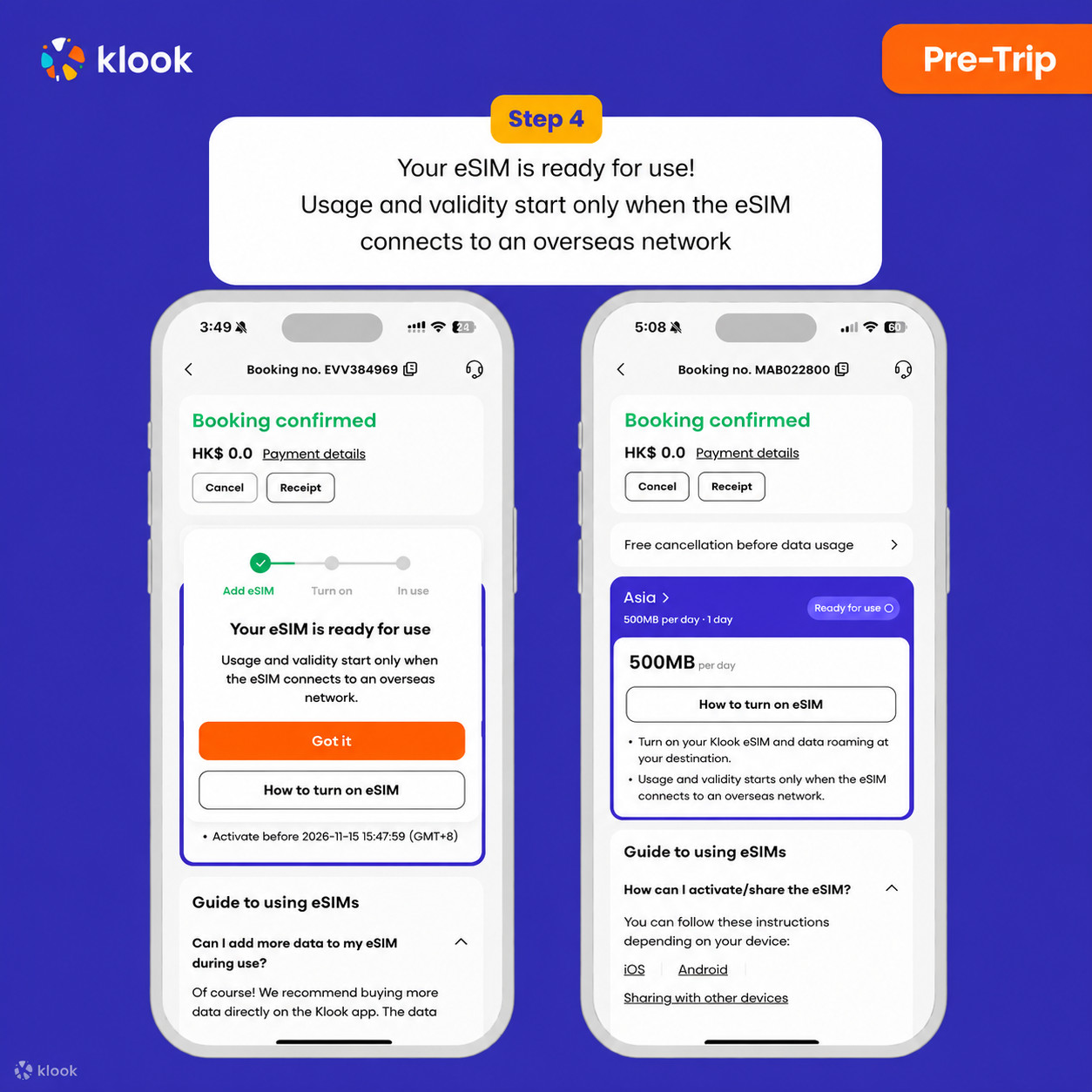
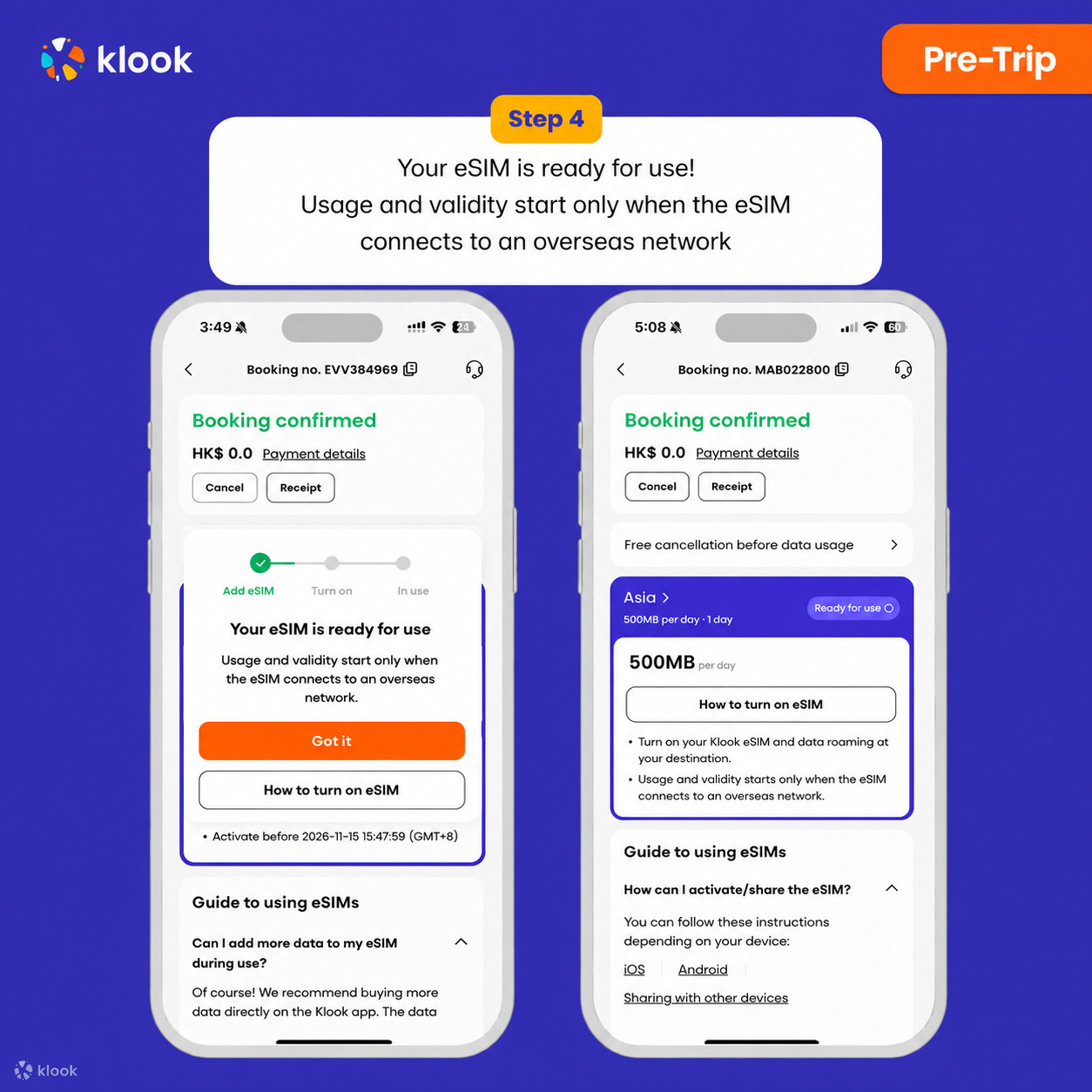
Klook eSIM installed
Your eSIM is ready for use! Usage and validity start only when the eSIM connects to an overseas network
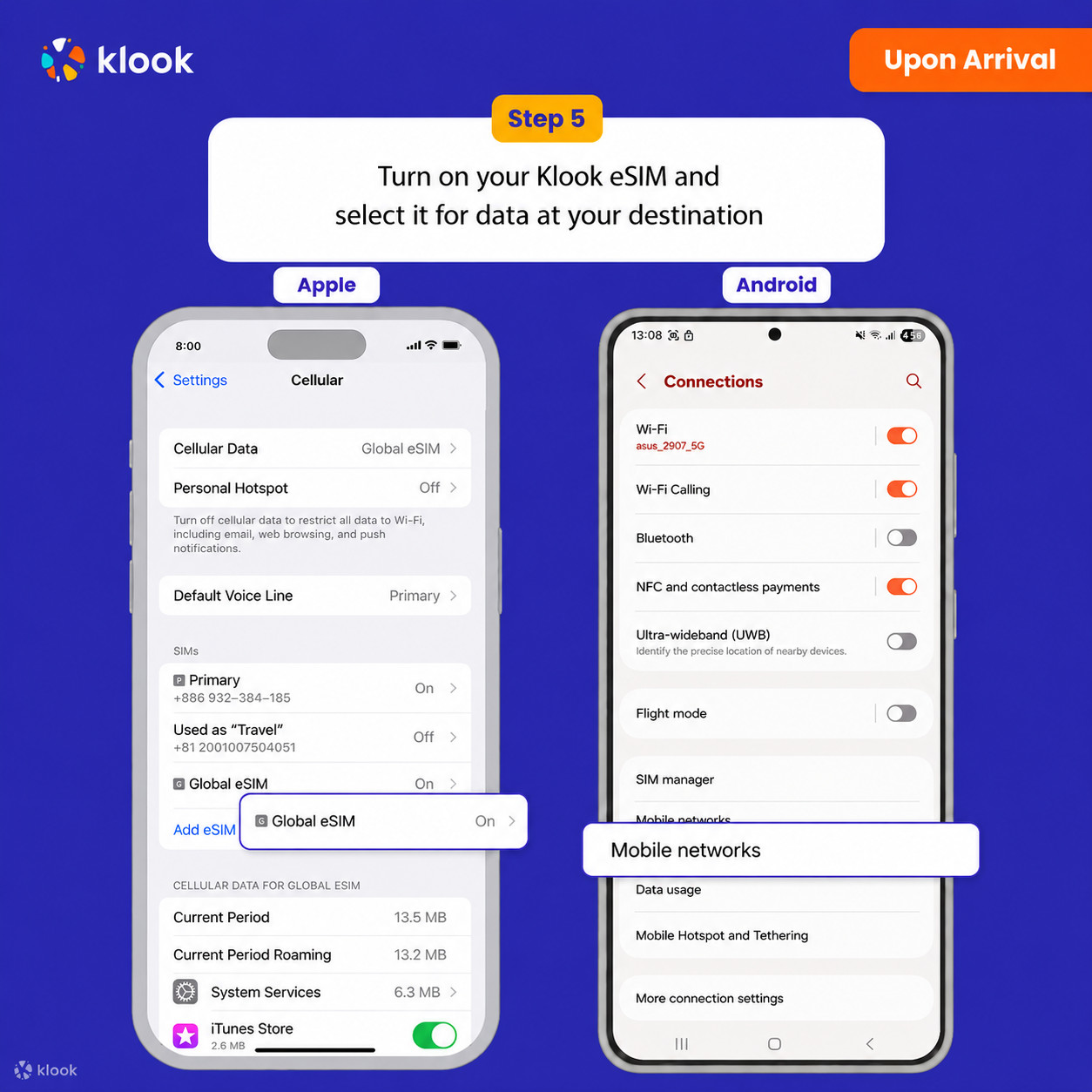
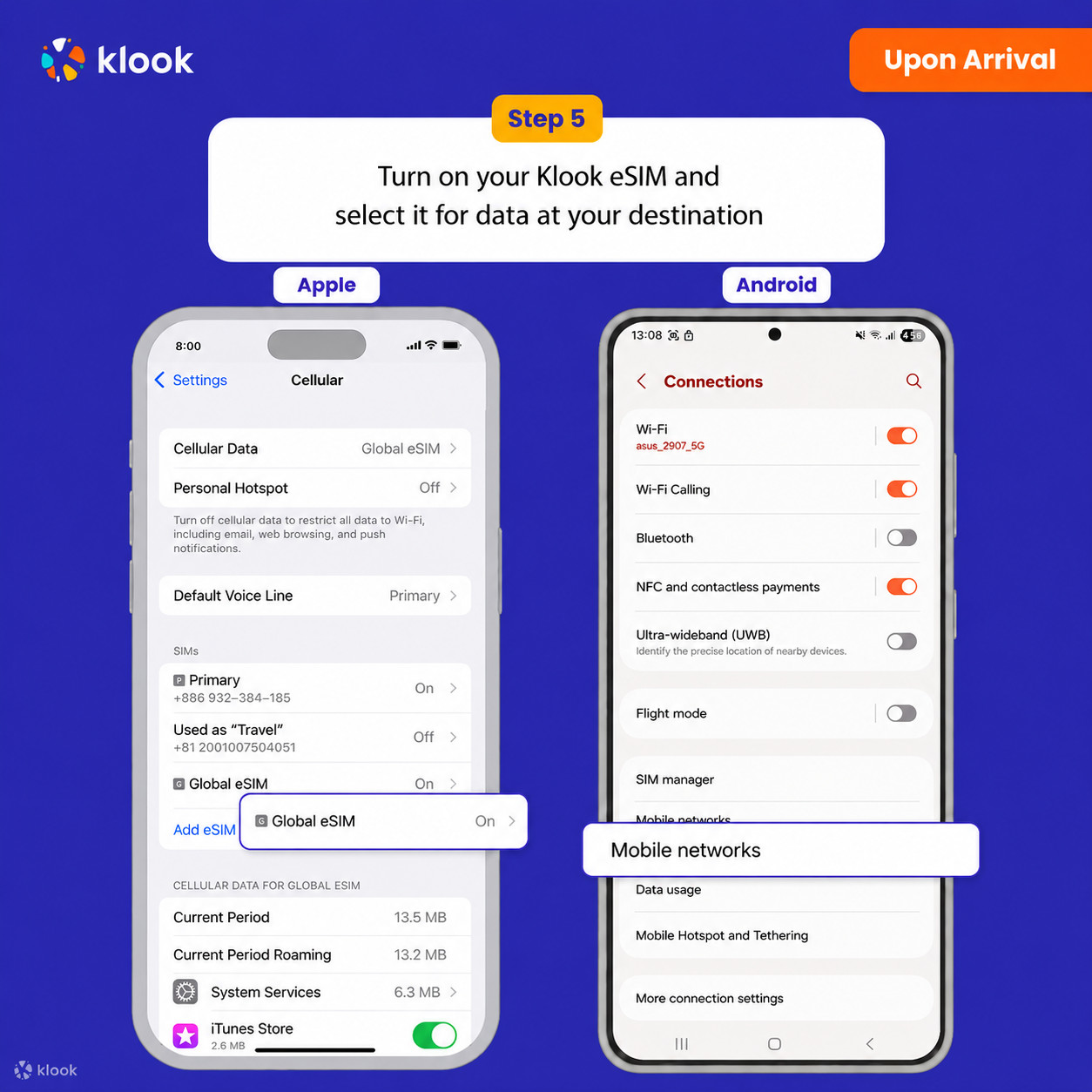
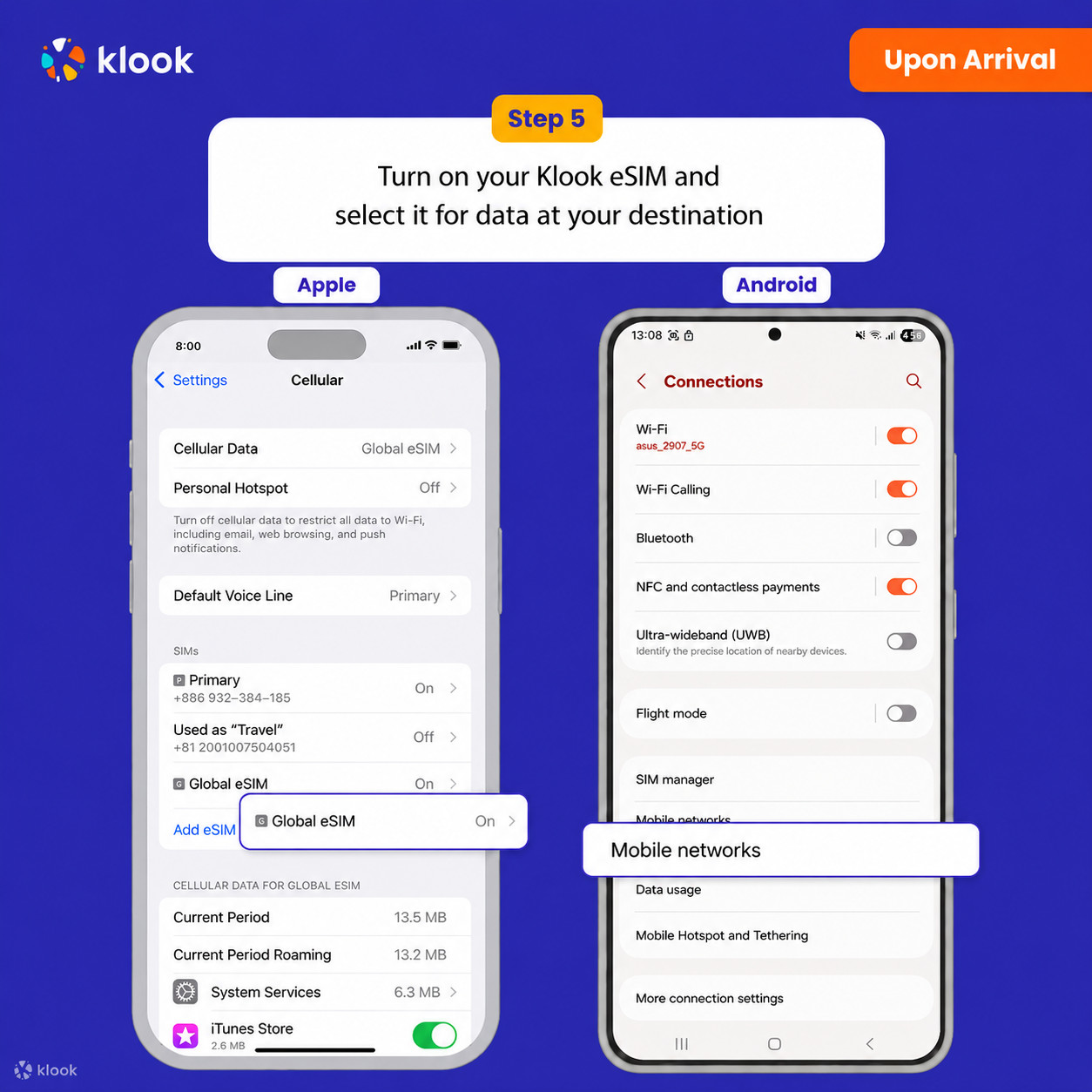
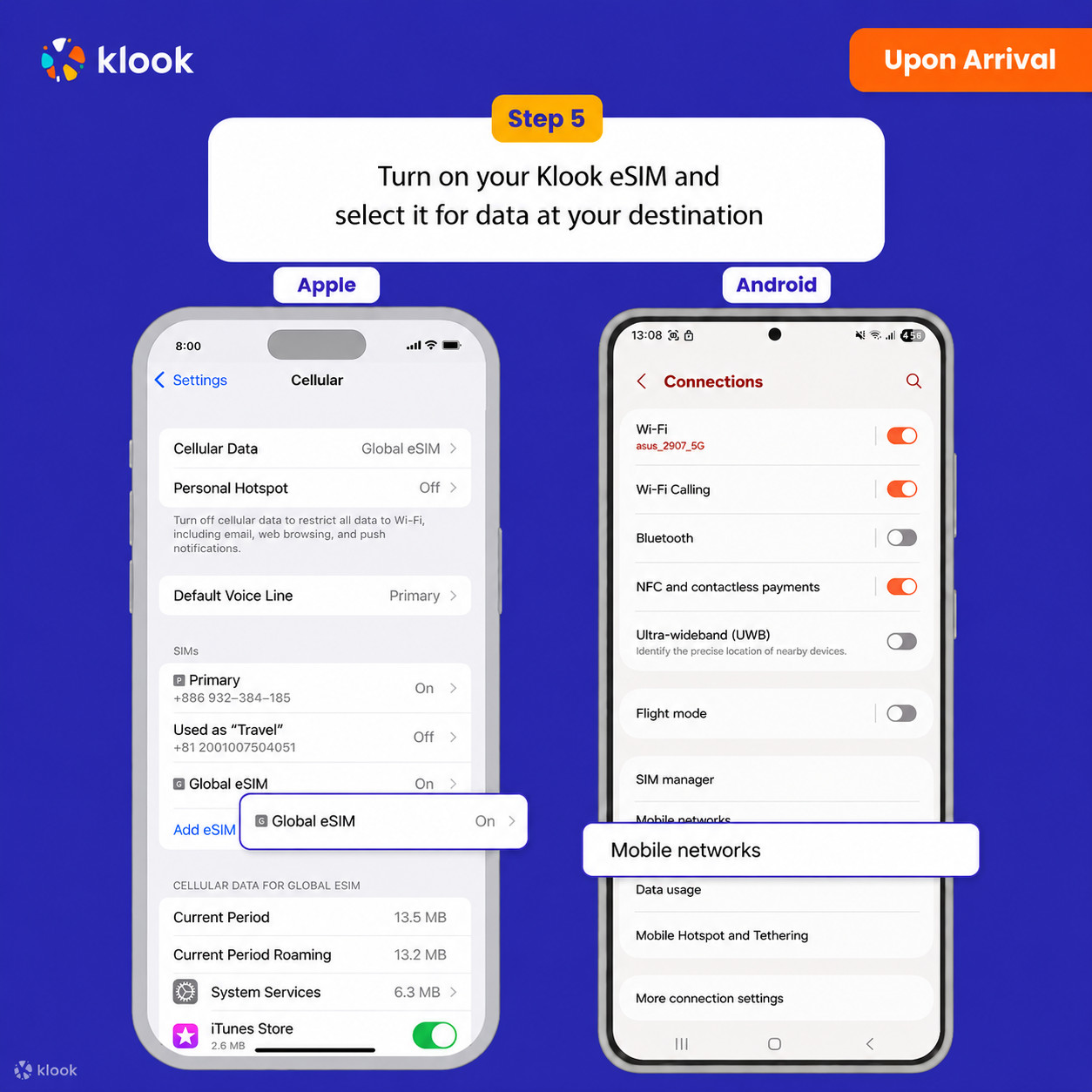
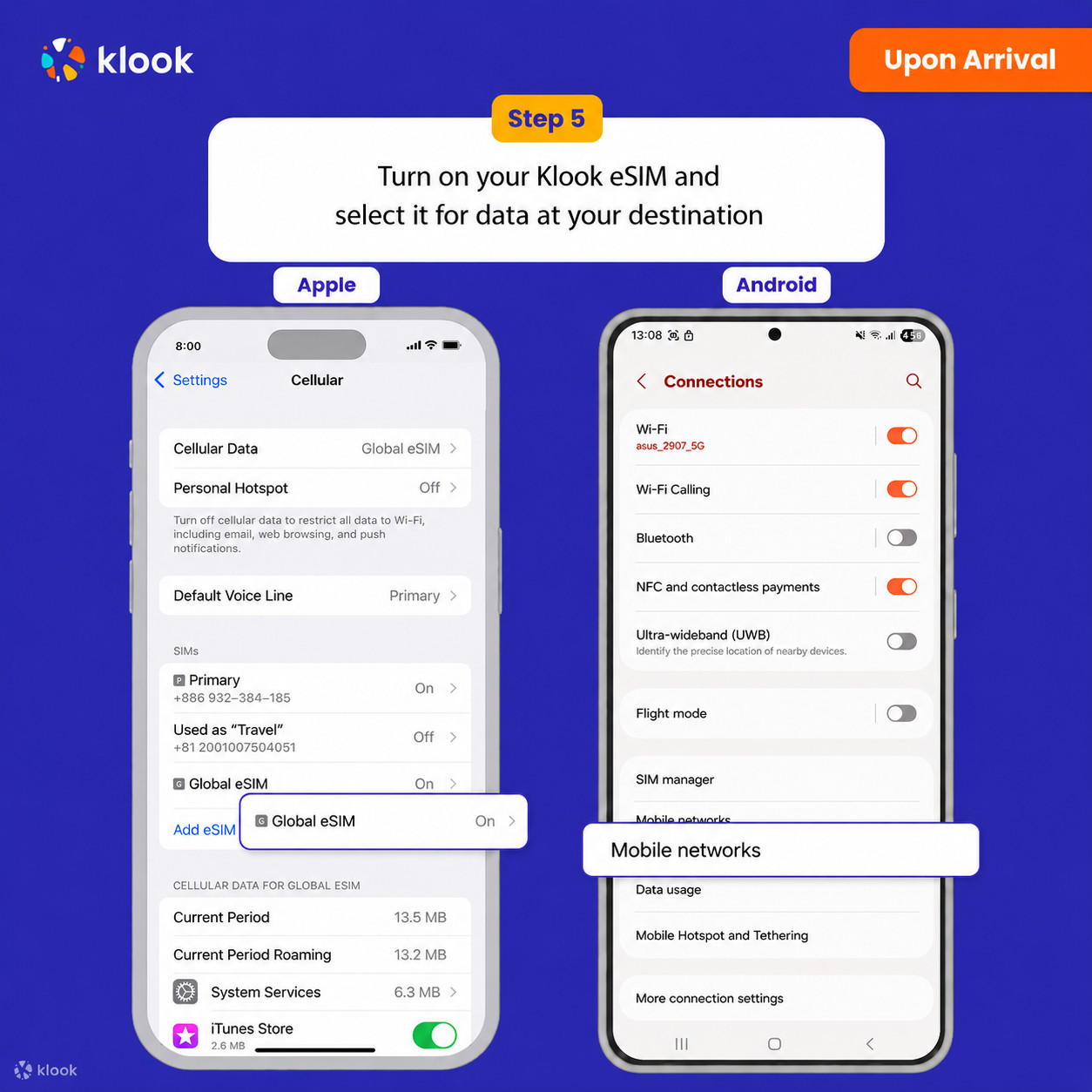
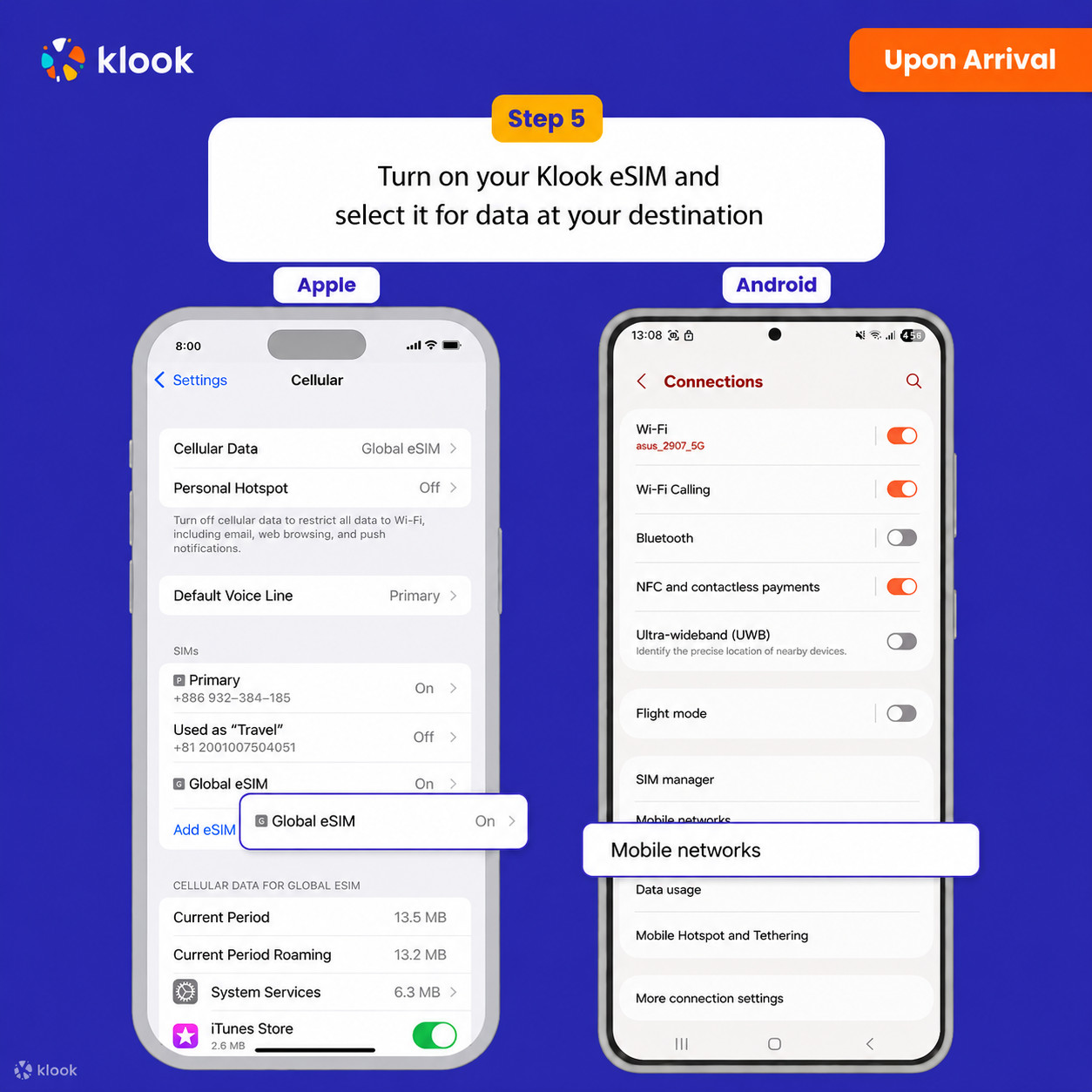
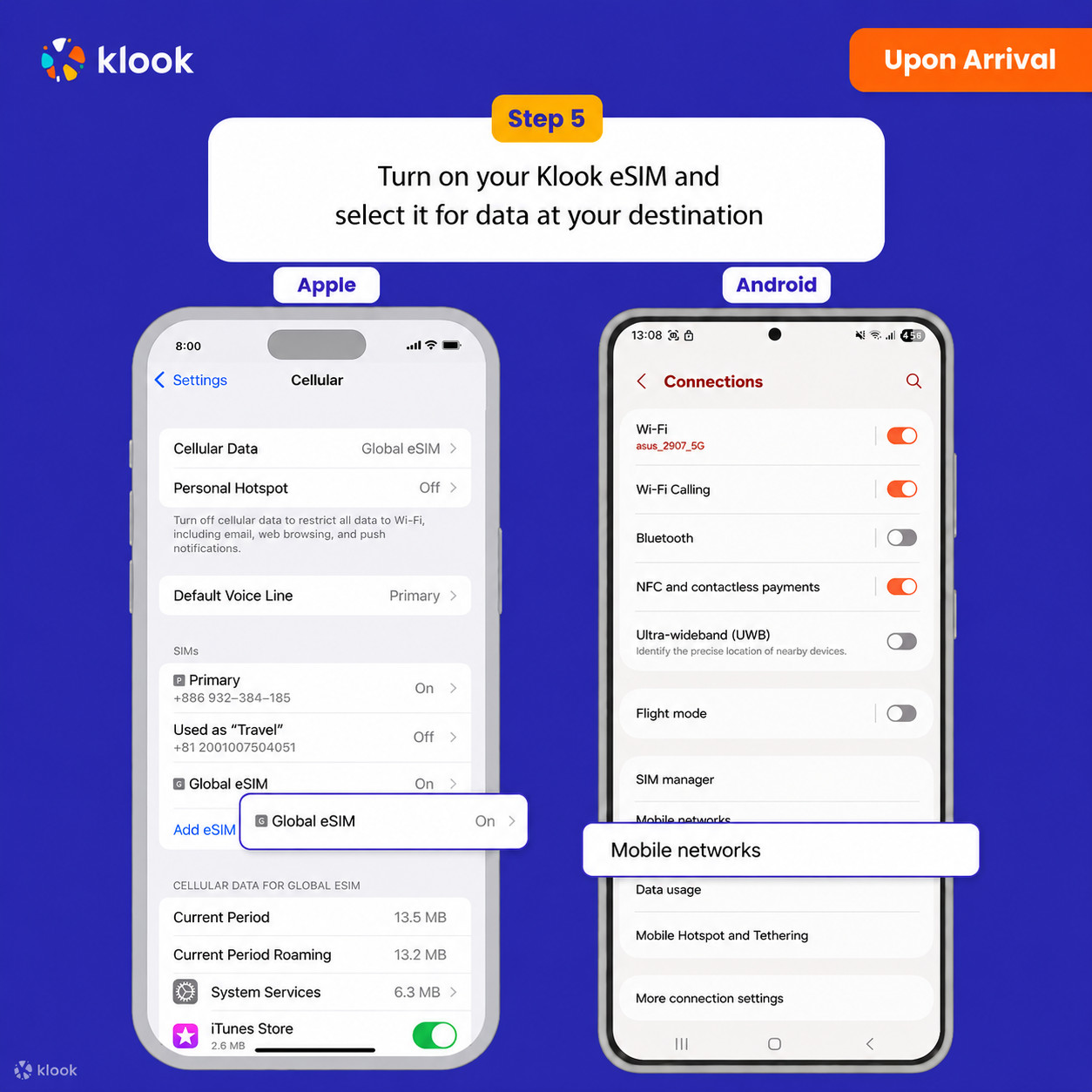
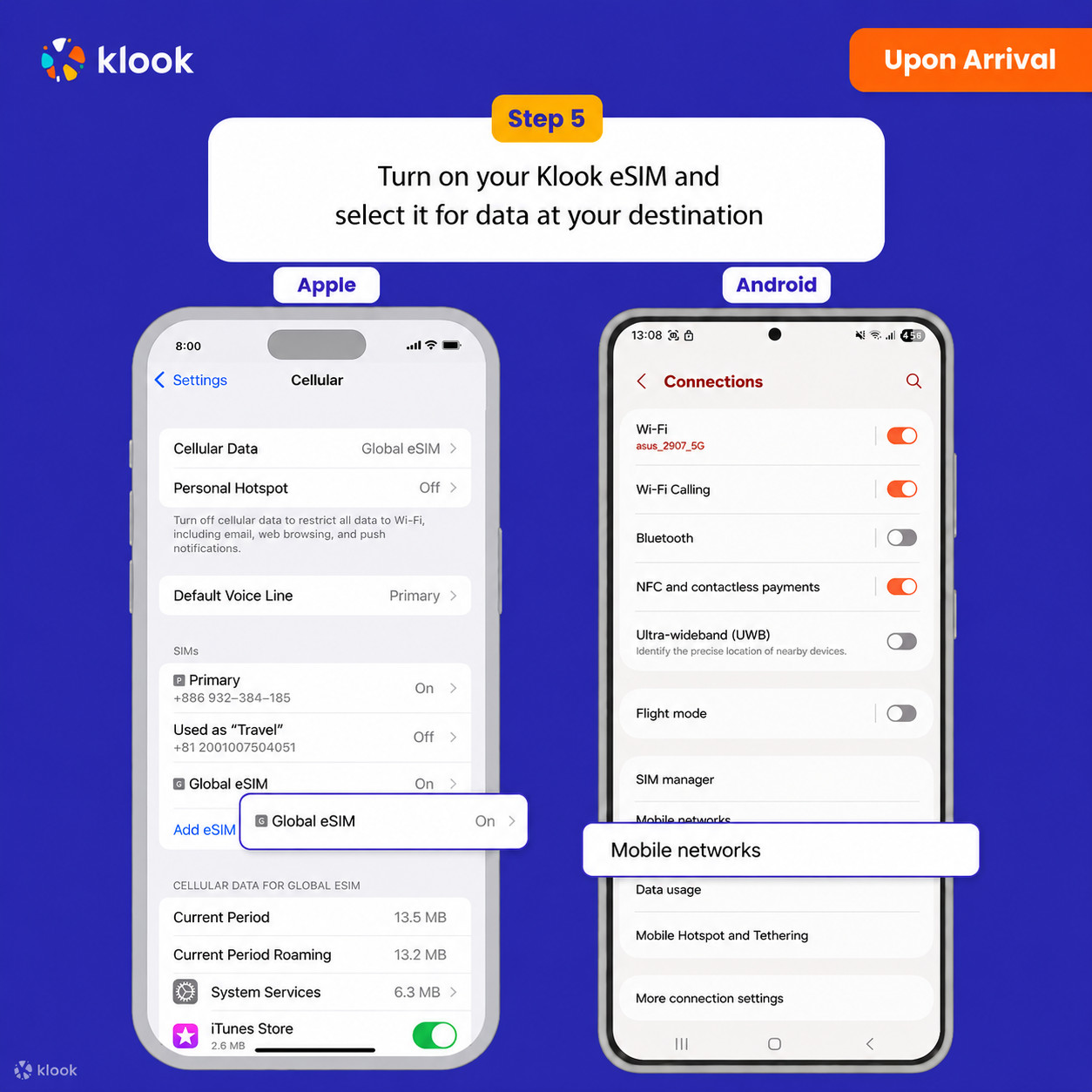
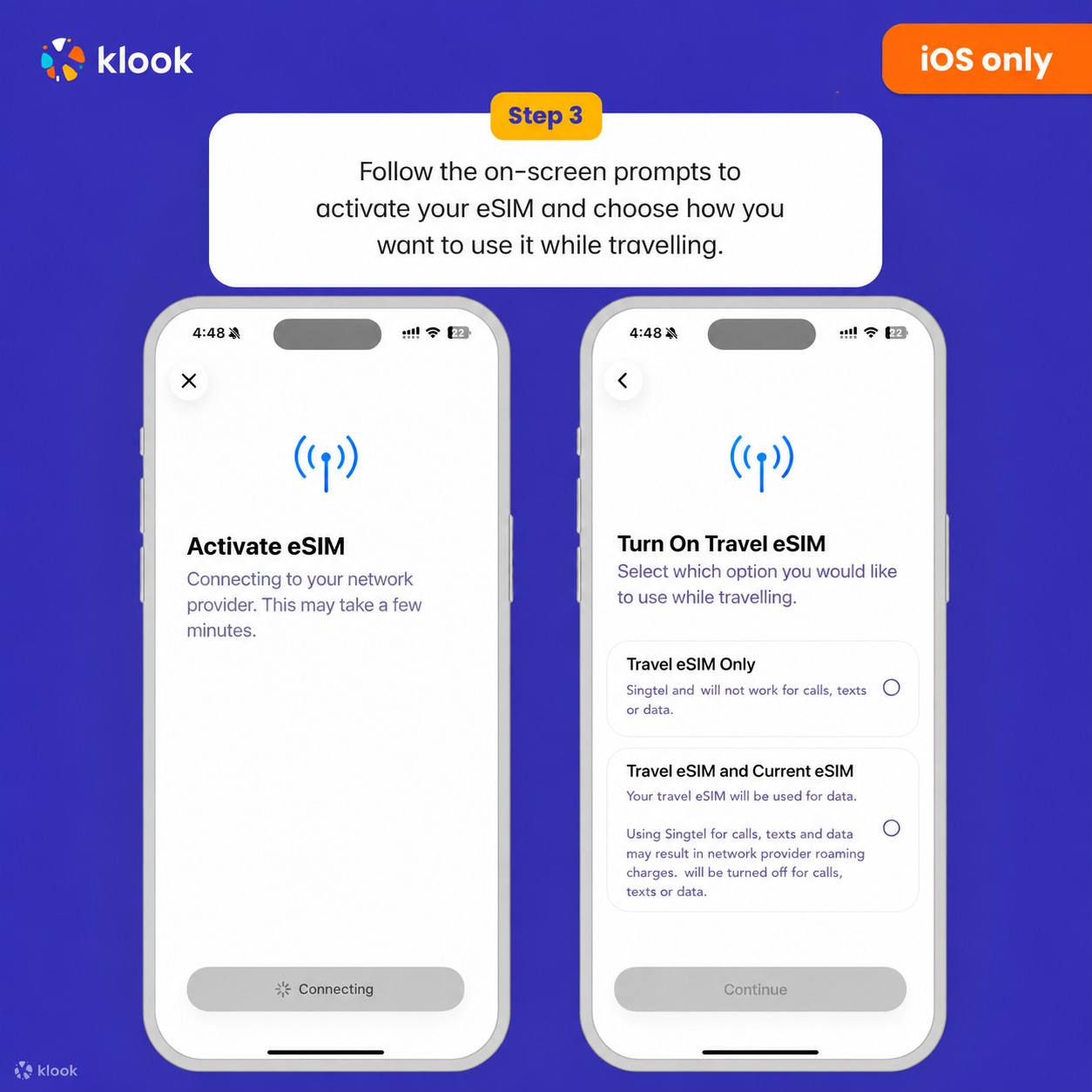
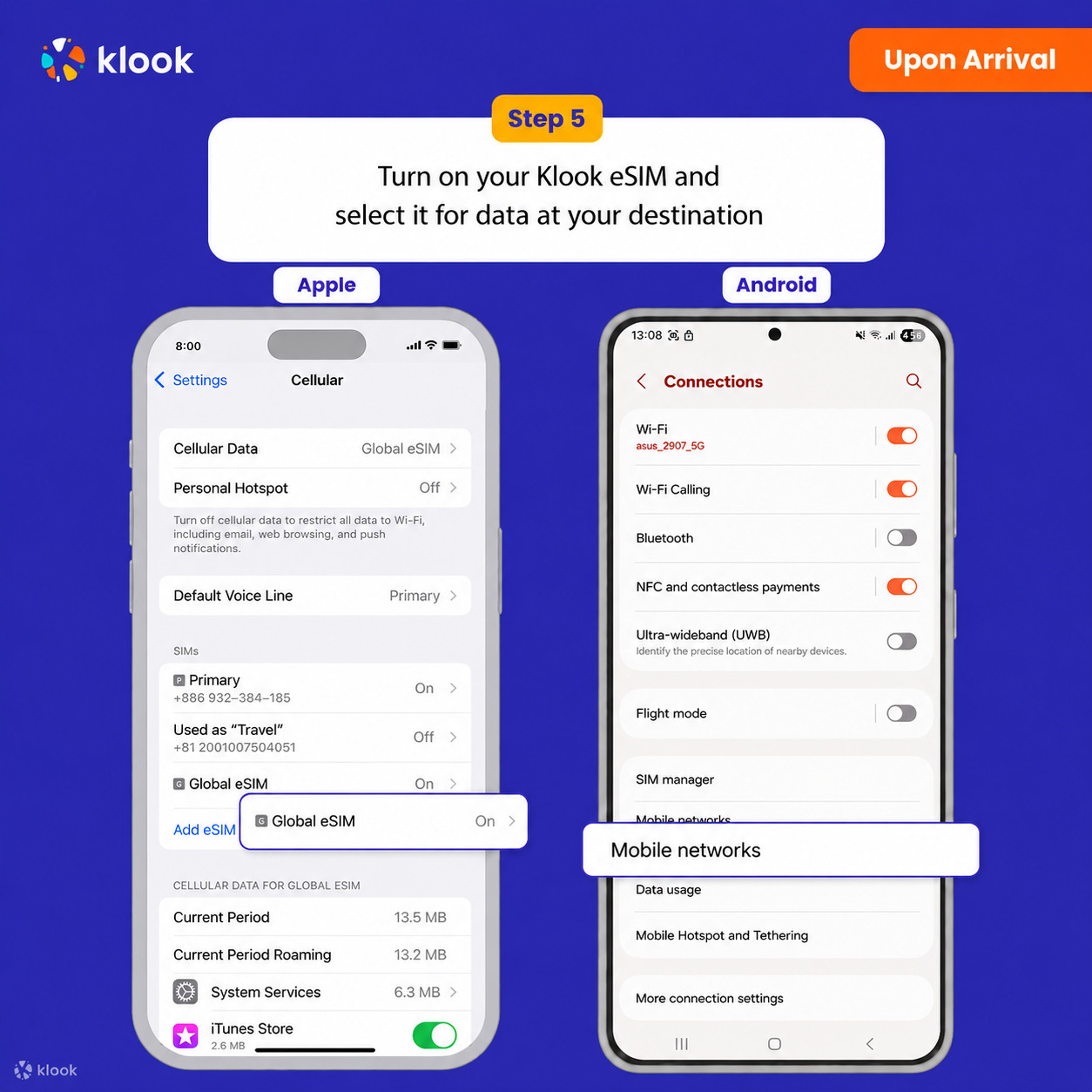
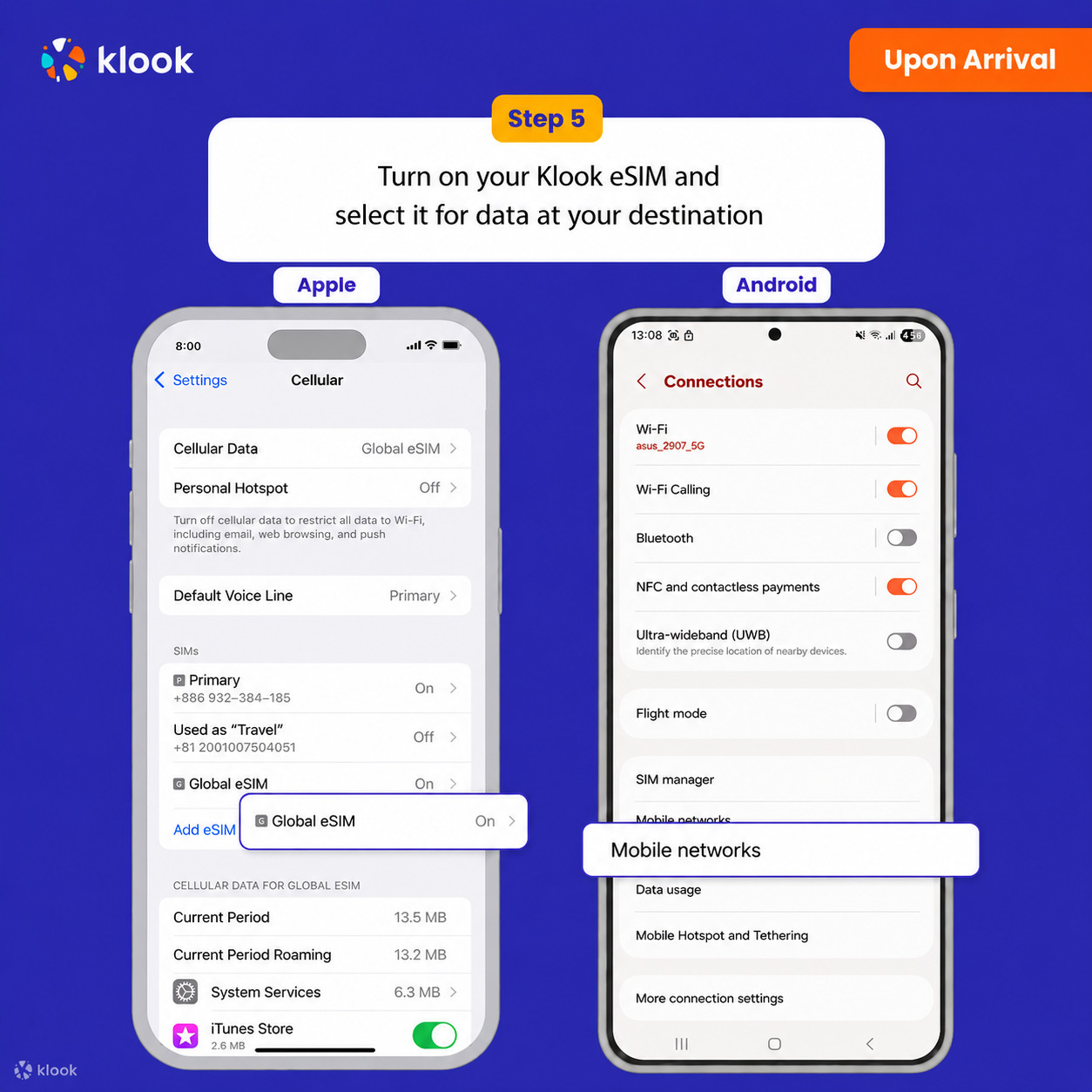
Turn on Klook eSIM
Turn on Klook eSIM and select Klook eSIM for mobile data
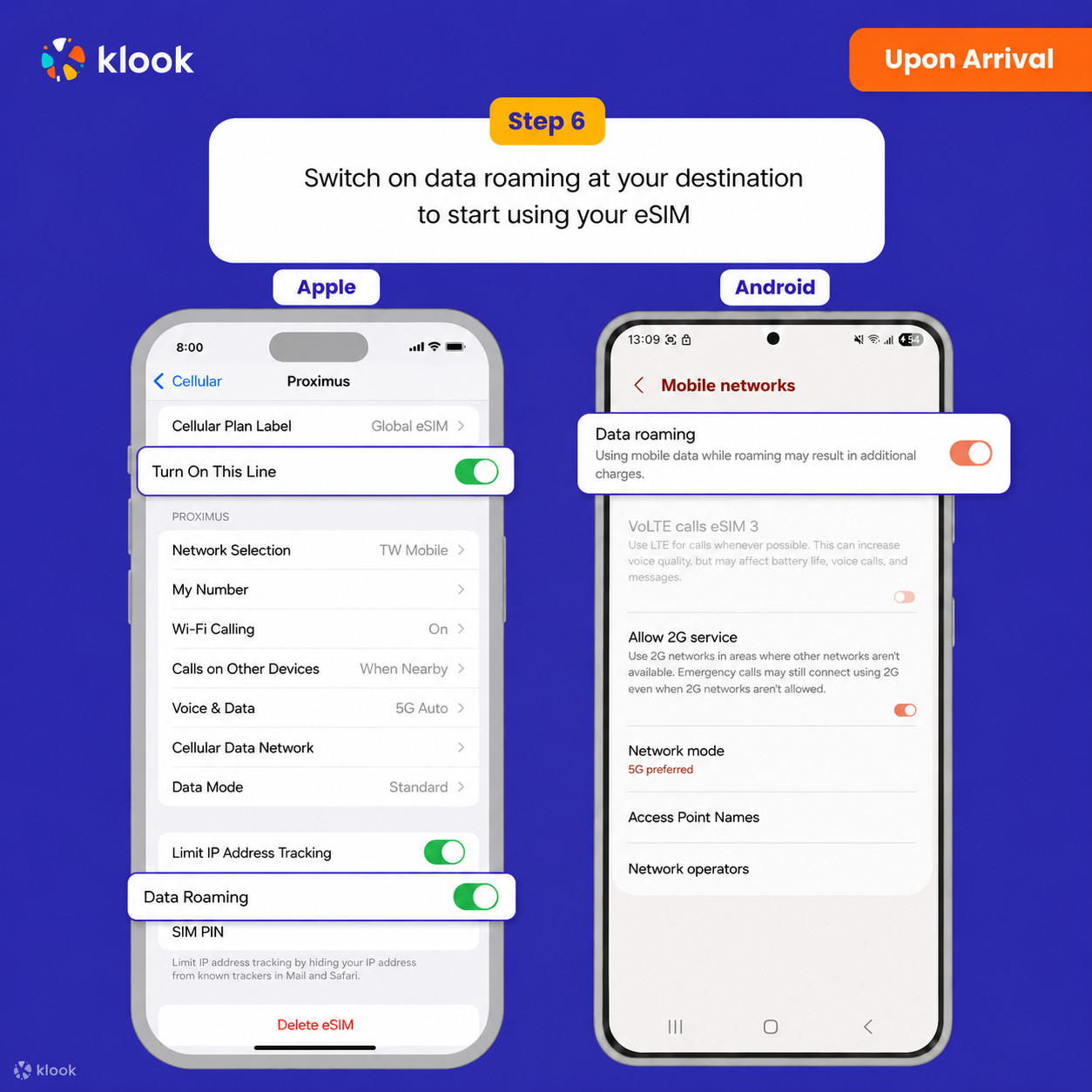
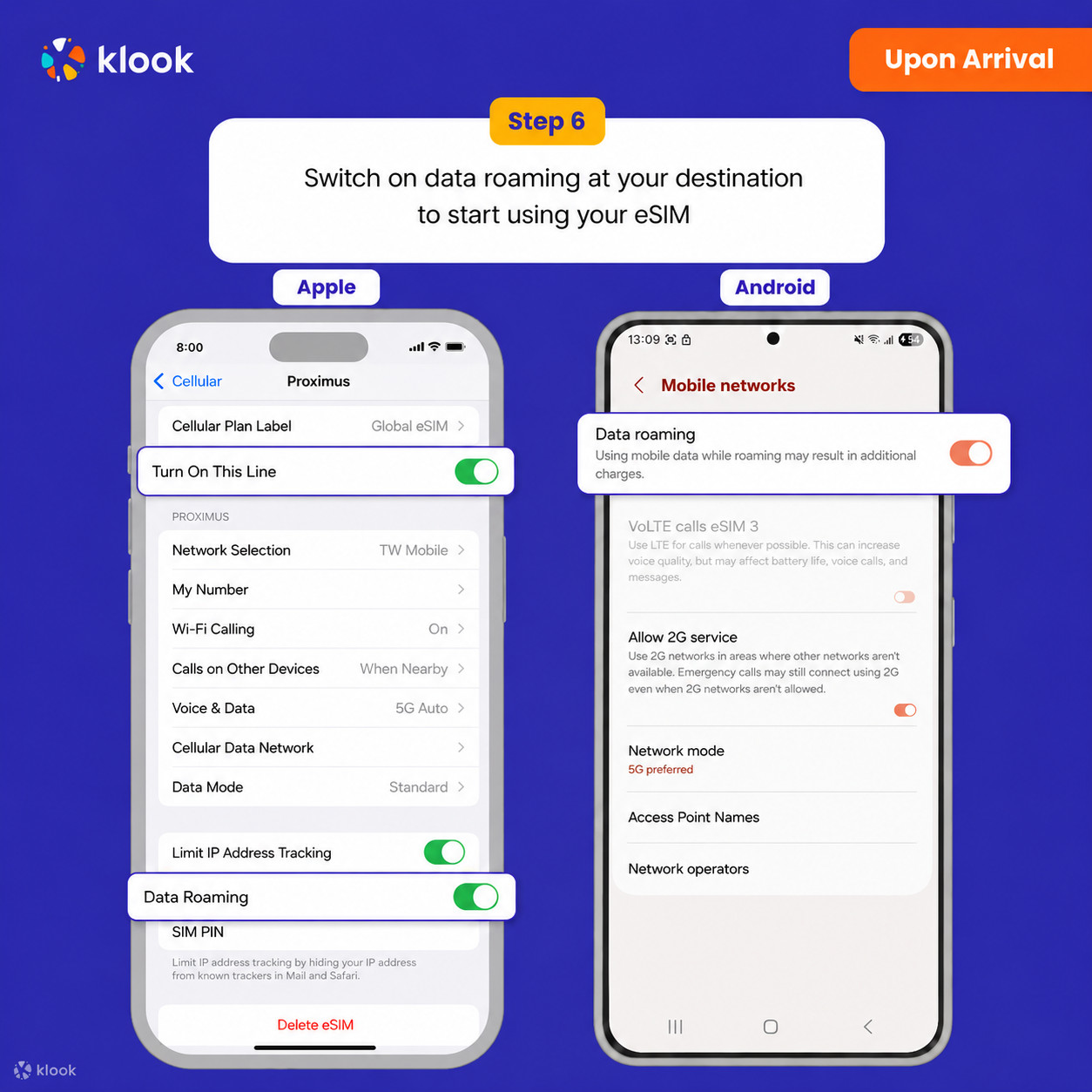
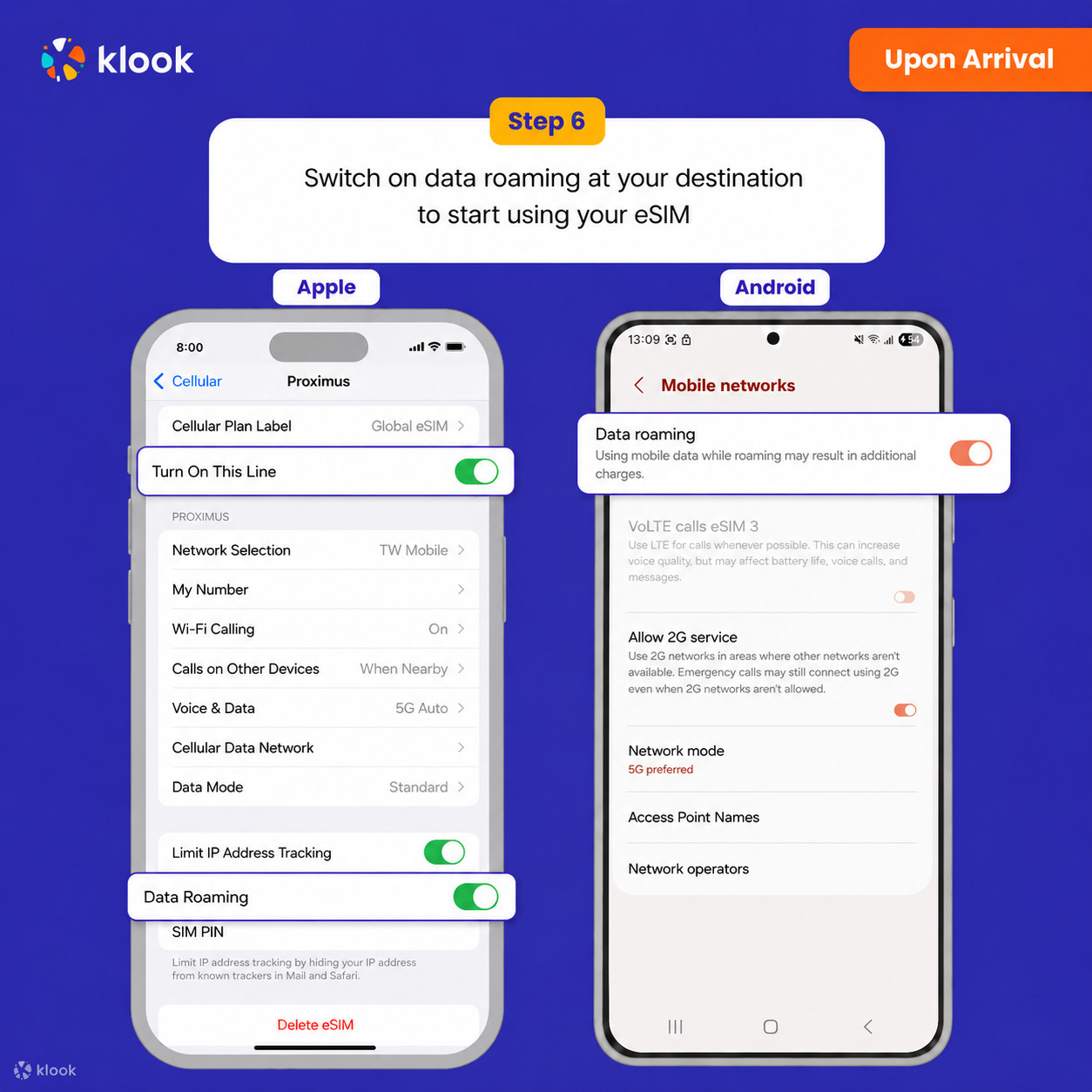
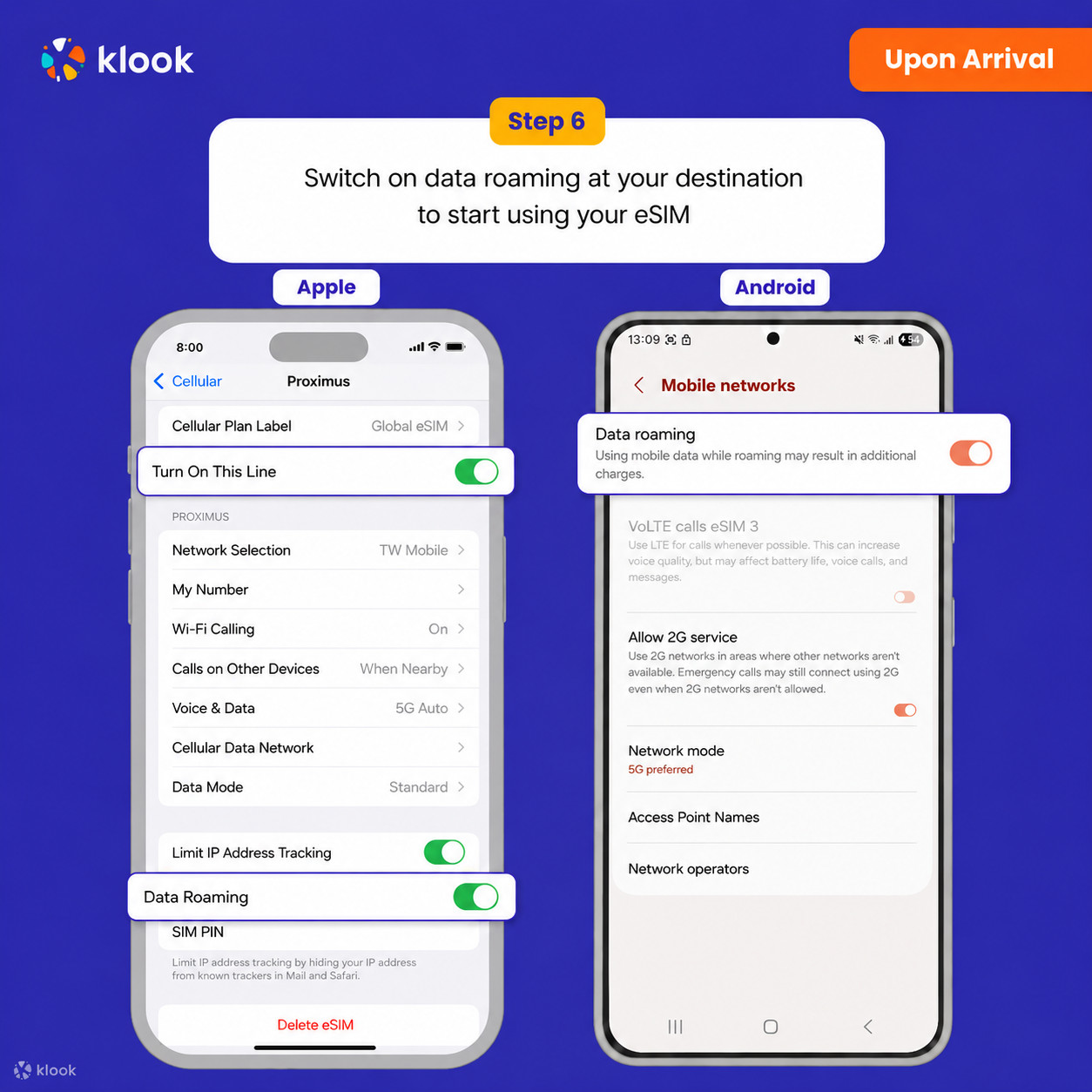
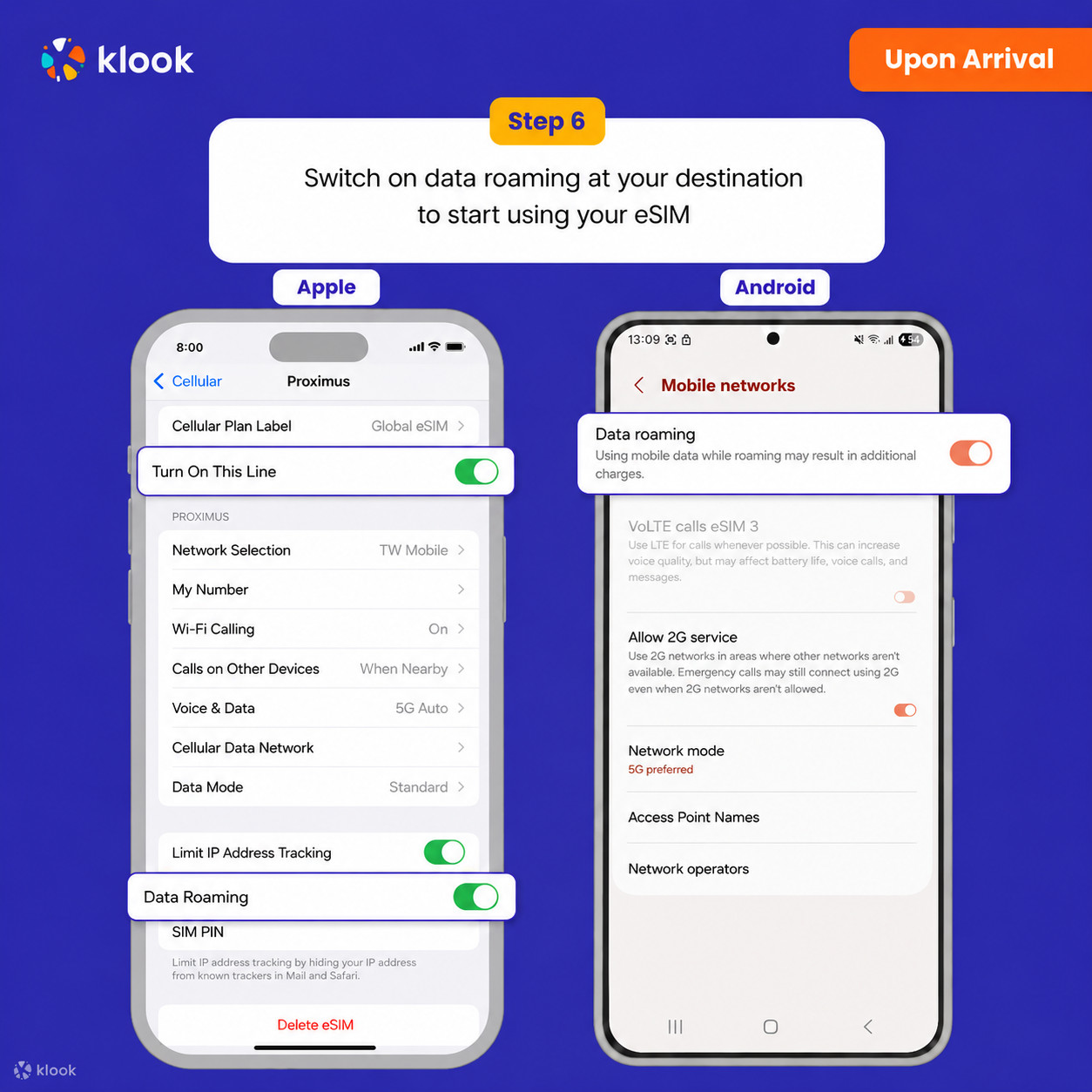
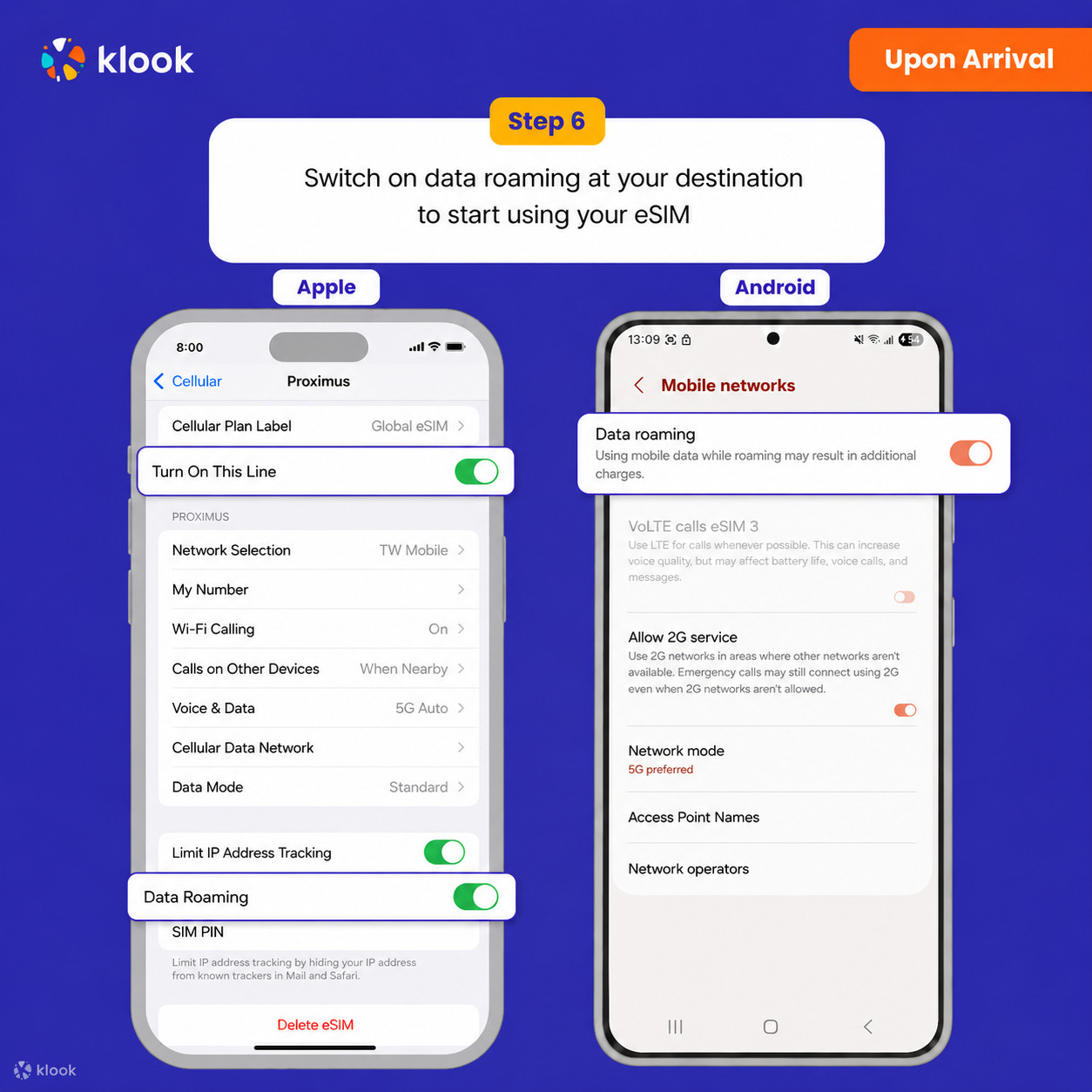
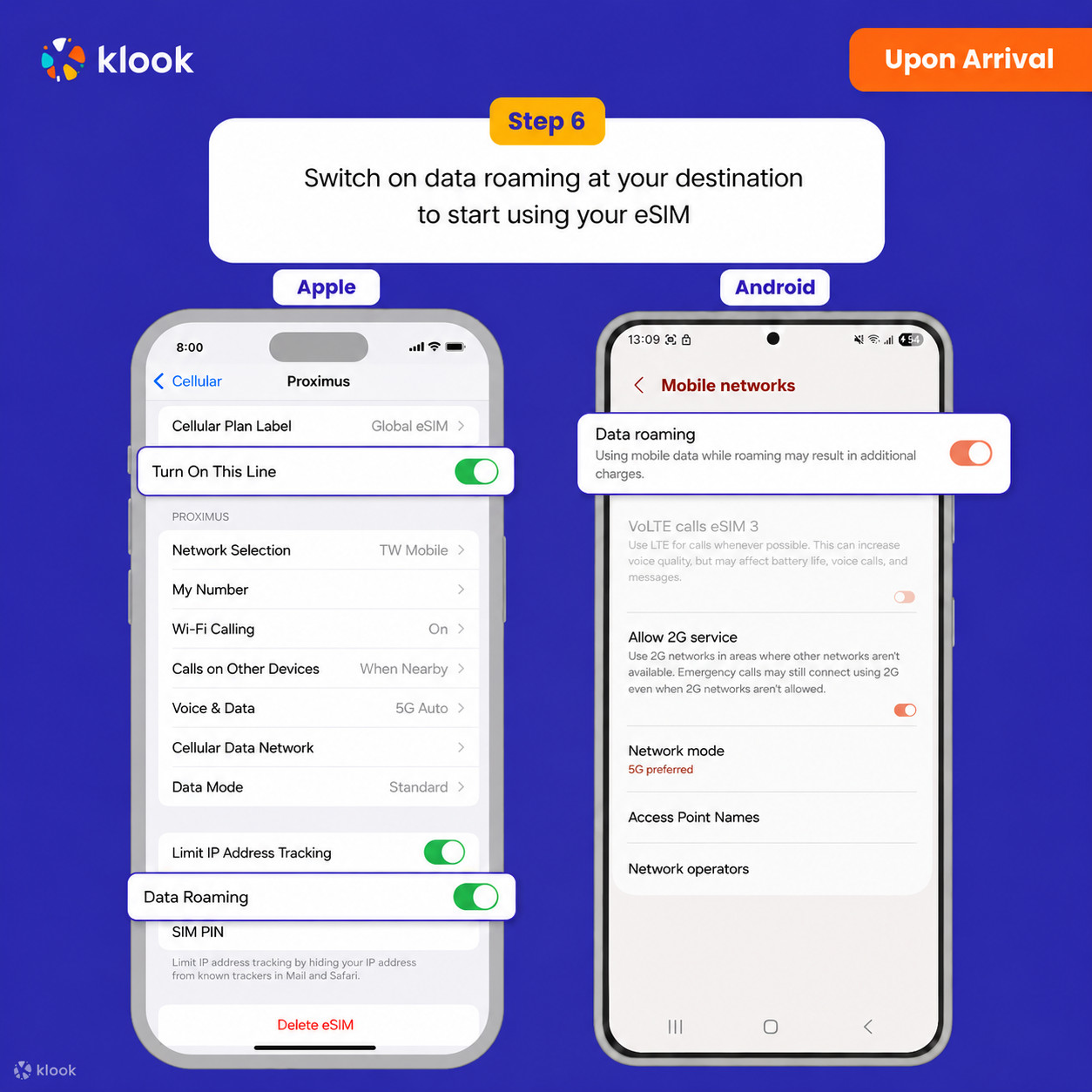
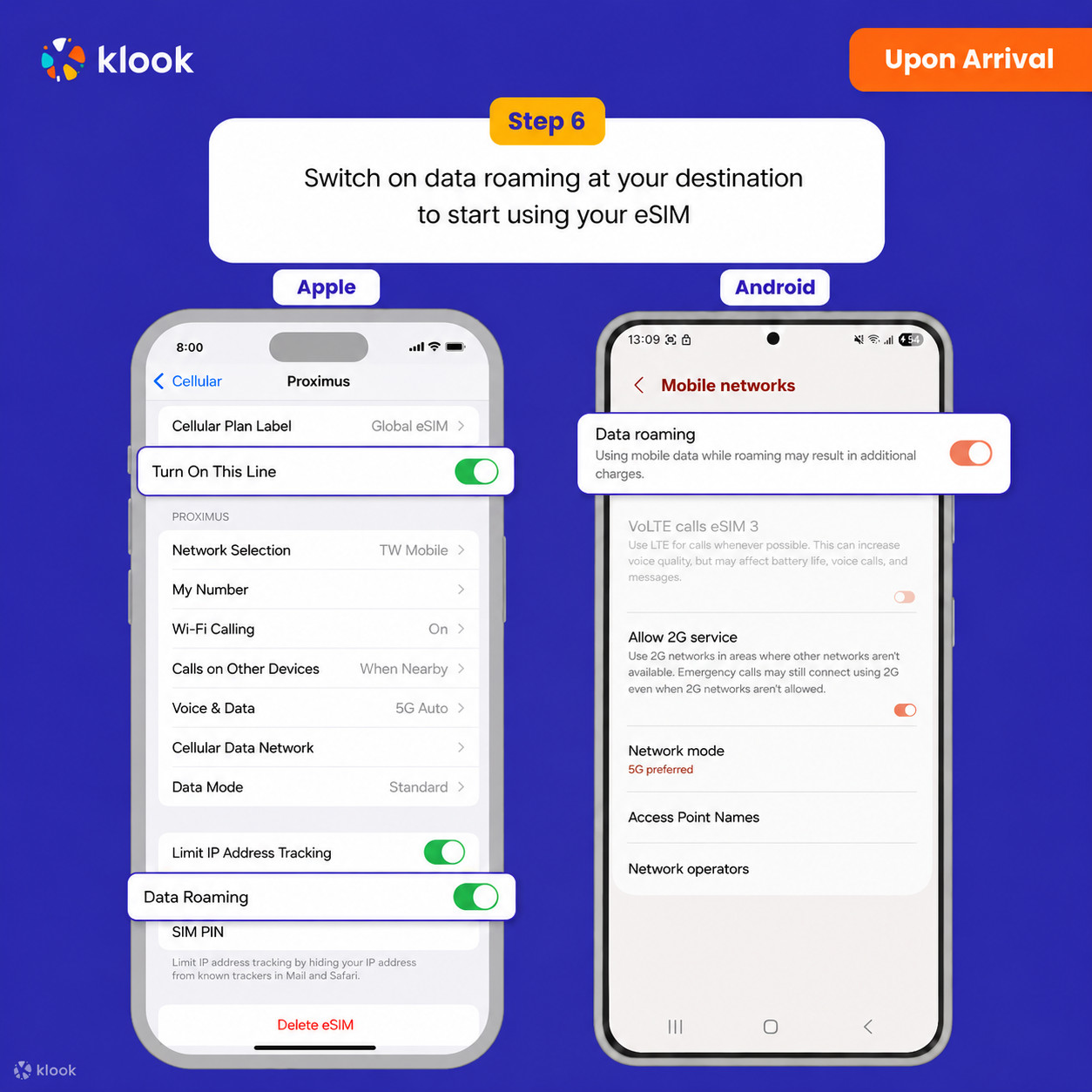
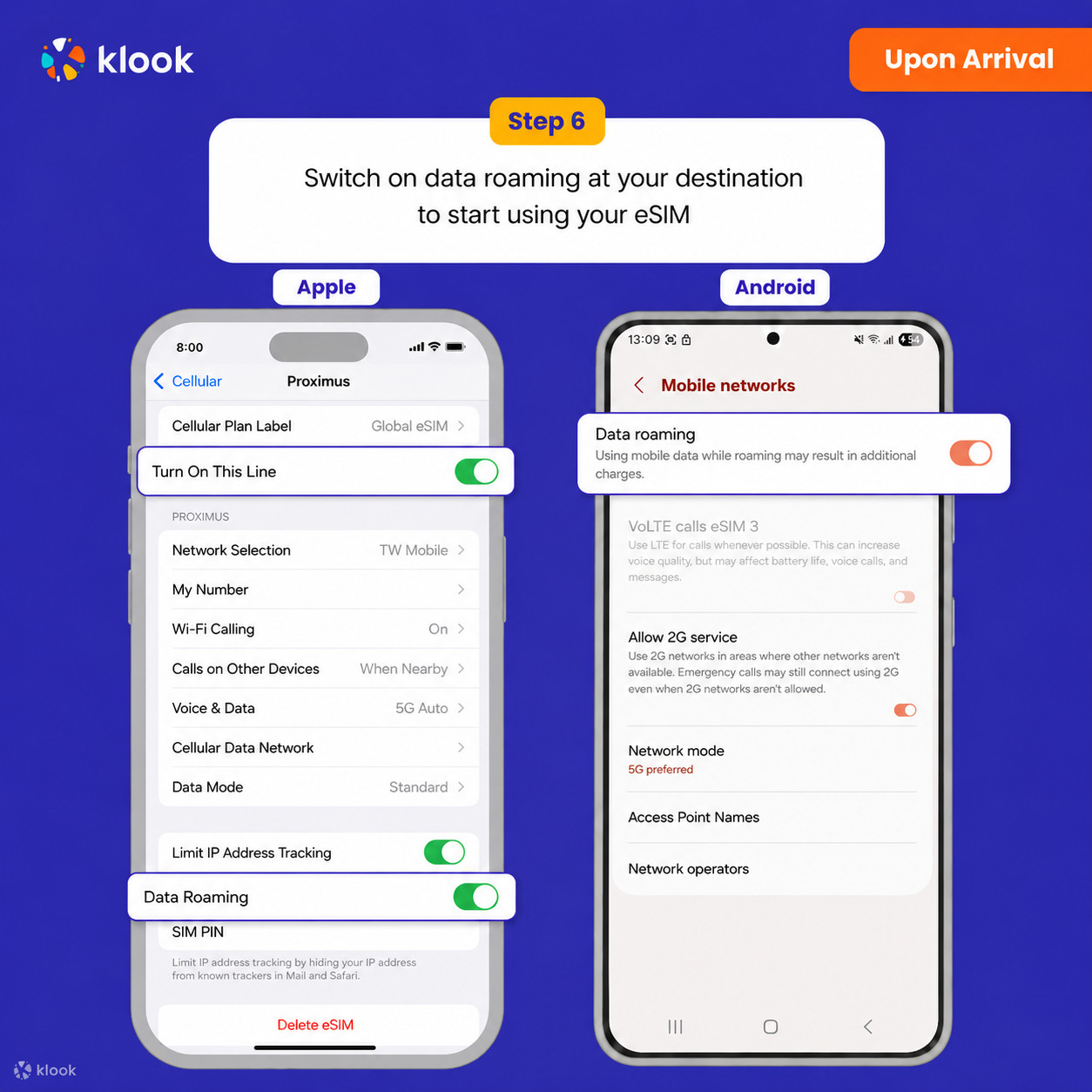
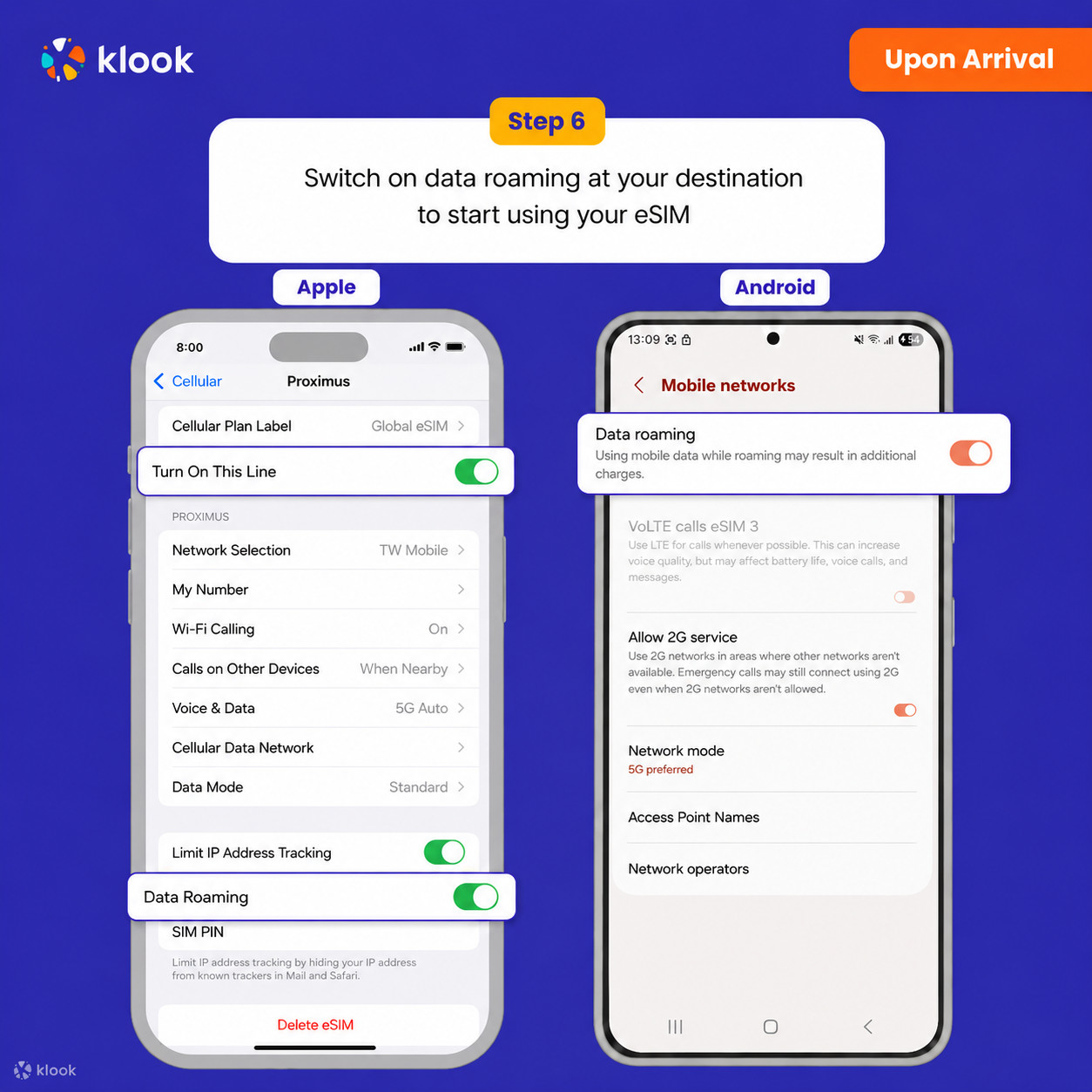
Turn on Data roaming
Switch on data roaming at your destination to start using your eSIM
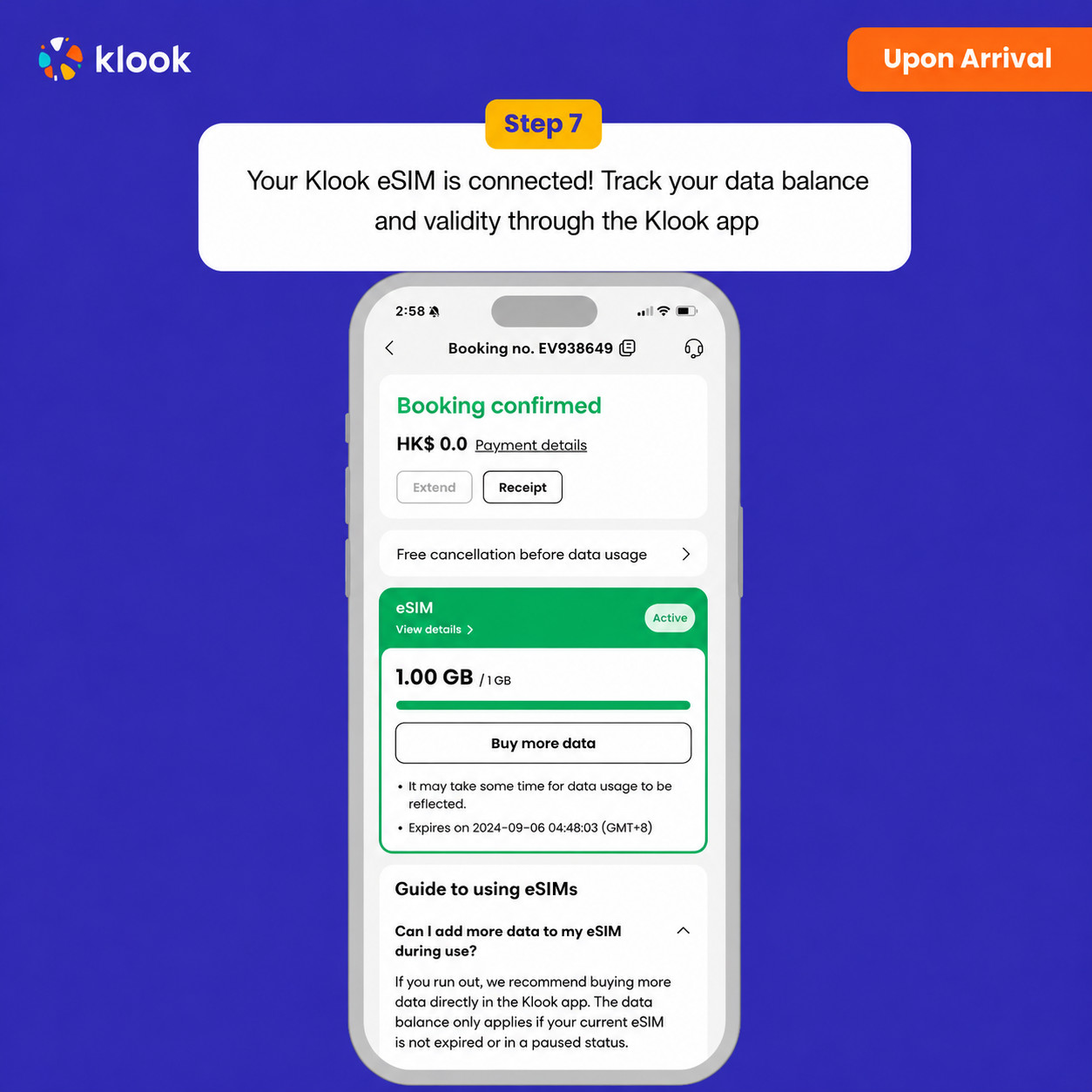
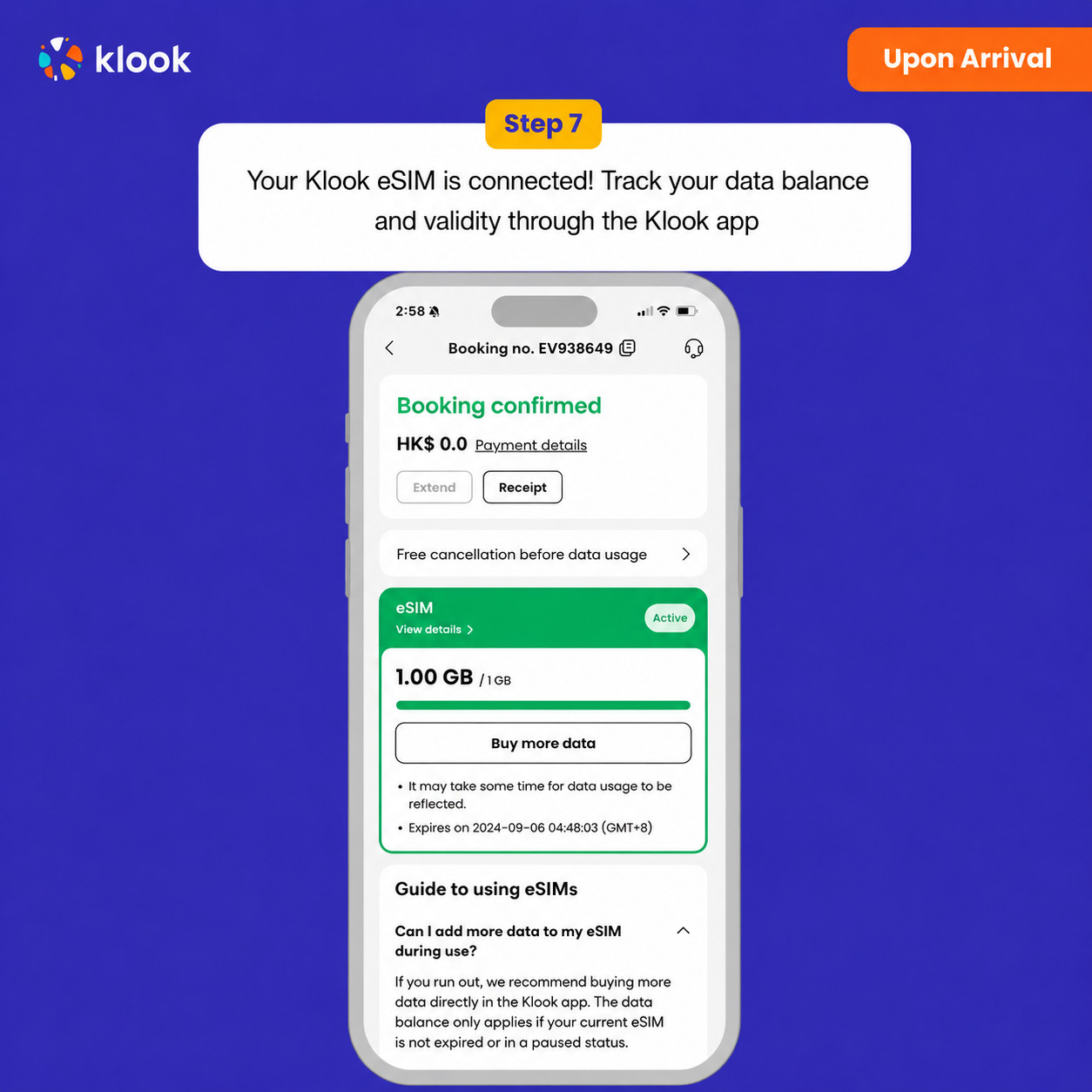
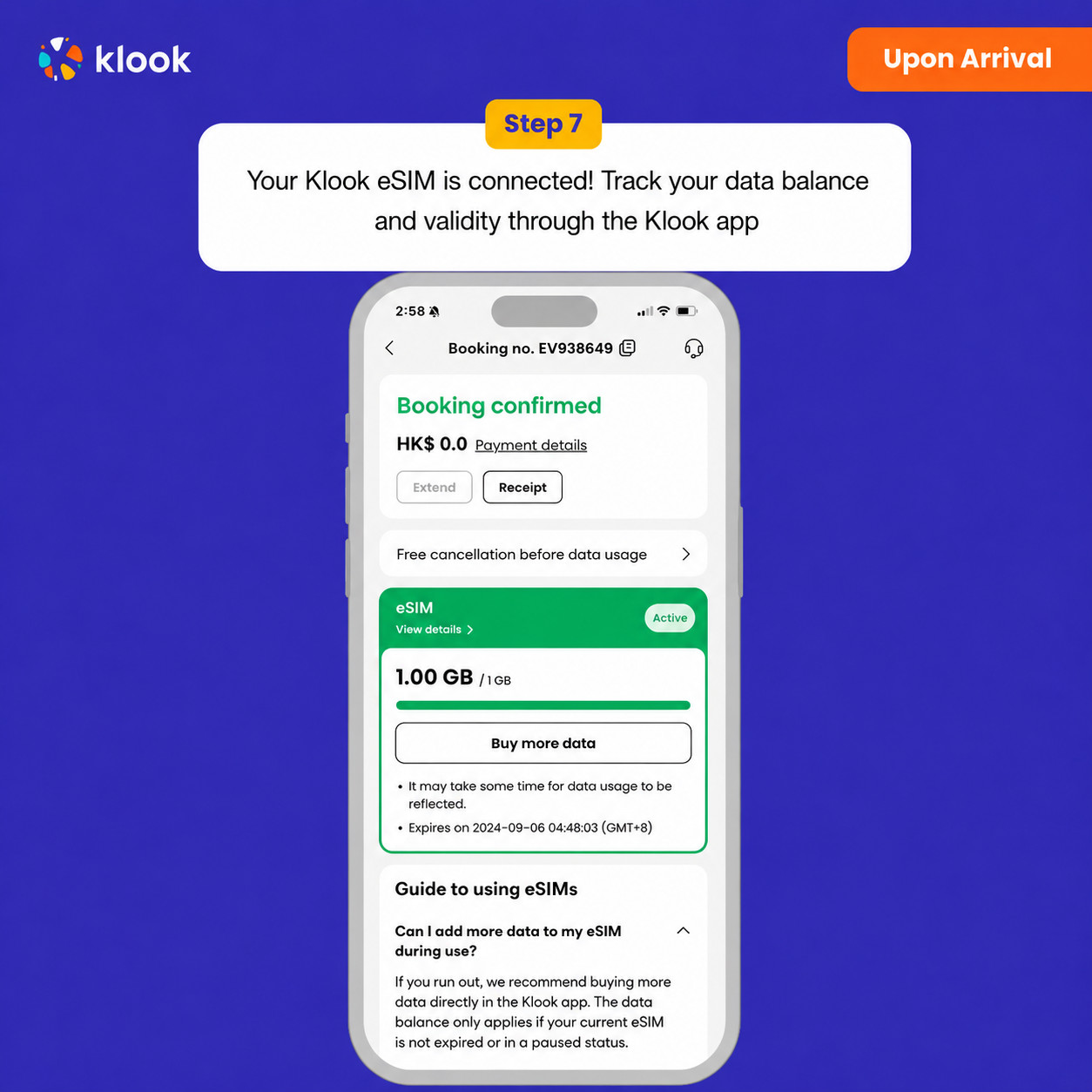
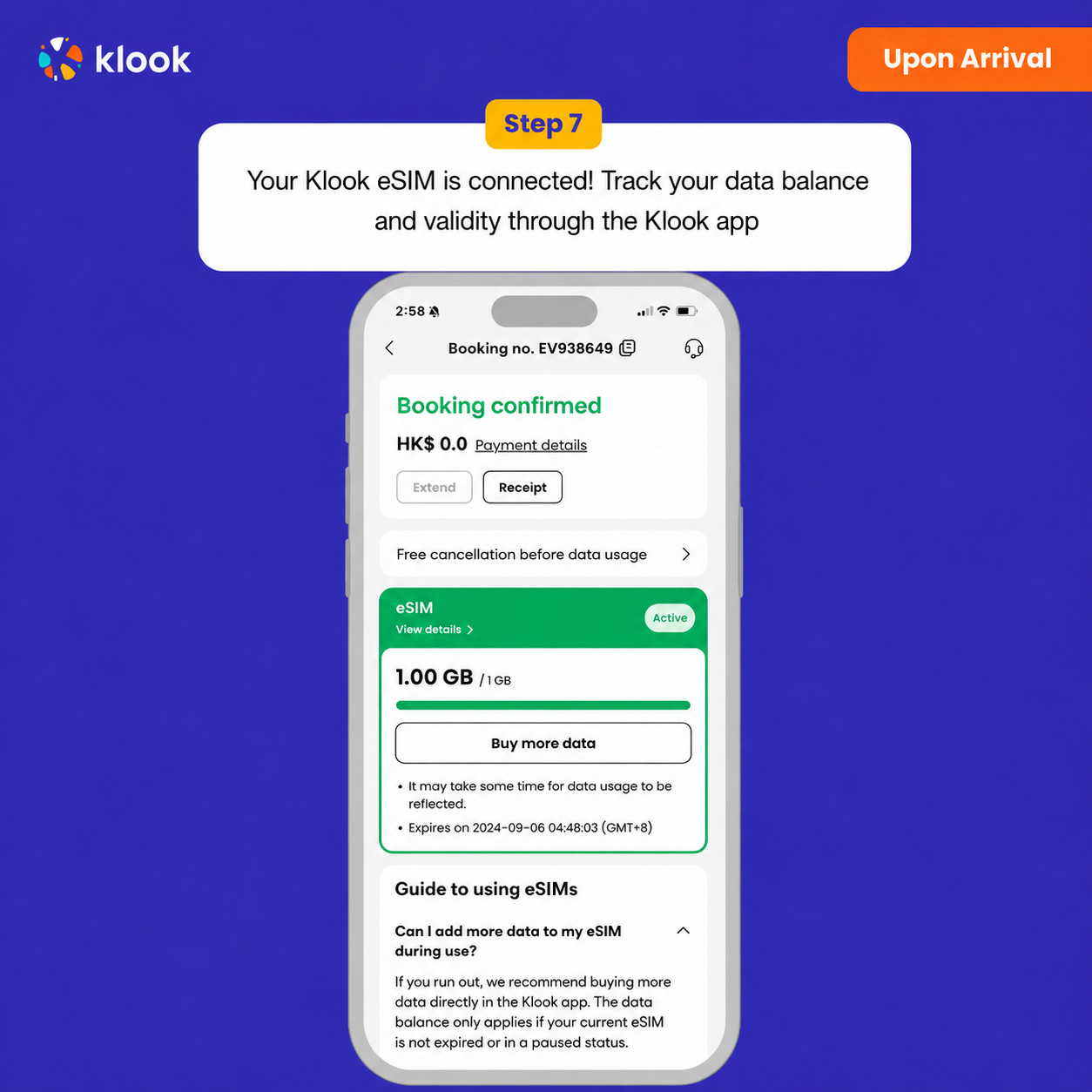
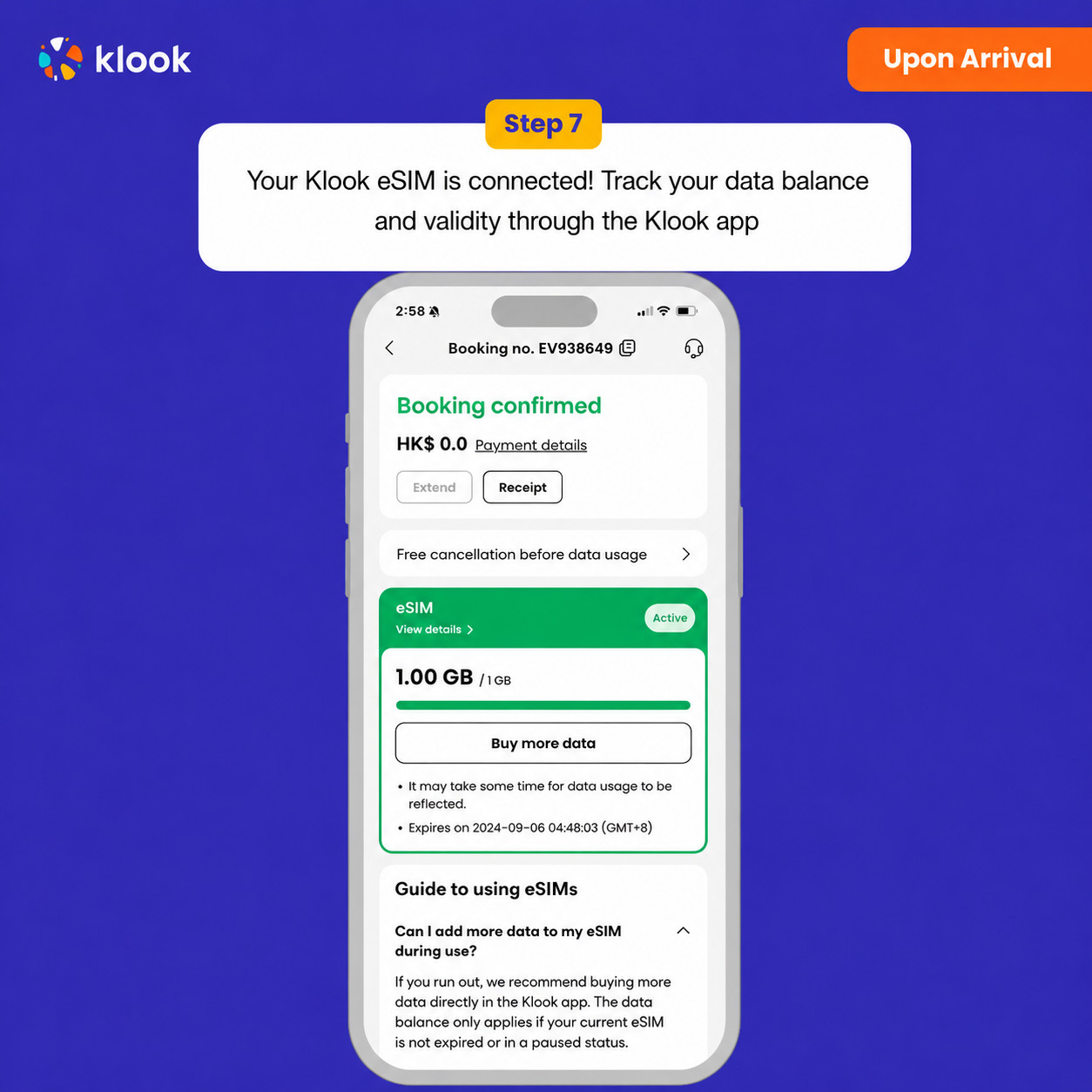
Klook eSIM connected
Your klook esim is connected! Track your data balance and validity through the Klook app
Your eSIM plan will begin upon connection to the destination mobile network, according to the time connected. For example, if you activate your 3-day plan at 10:00, it will end 3 days later at 10:00.
Activate your Klook eSIM before travel
Activate your eSIM before travel
Klook eSIM installation methods
Activate your eSIM via Klook in-app activation, scanning the QR code, or entering the SMDP+ details manually
Klook eSIM In-app activation
Click Add eSIM to device on your booking to start the installation. Don't worry, data and validity will only commence when you reach your destination
Klook eSIM In-app activation
Installation of your eSIM will start automatically
Klook eSIM iOS installation
Set up your Klook eSIM for travel on iOS
Klook eSIM installed
Your eSIM is ready for use! Usage and validity start only when the eSIM connects to an overseas network
Turn on Klook eSIM
Turn on Klook eSIM and select Klook eSIM for mobile data
Turn on Data roaming
Switch on data roaming at your destination to start using your eSIM
Klook eSIM connected
Your klook esim is connected! Track your data balance and validity through the Klook app
Your eSIM plan will begin upon connection to the destination mobile network, according to the time connected. For example, if you activate your 3-day plan at 10:00, it will end 3 days later at 10:00.
Your eSIM plan will begin upon connection to the destination mobile network, according to the time connected. For example, if you activate your 3-day plan at 10:00, it will end 3 days later at 10:00.
Confirmation policy
You'll get confirmation within minutes. If you don't see any confirmation, reach out to our customer support.
Your eSIM plan will begin upon connection to the destination mobile network, according to the time connected. For example, if you activate your 3-day plan at 10:00, it will end 3 days later at 10:00.
Activate your Klook eSIM before travel
Activate your eSIM before travel
Klook eSIM installation methods
Activate your eSIM via Klook in-app activation, scanning the QR code, or entering the SMDP+ details manually
Klook eSIM In-app activation
Click Add eSIM to device on your booking to start the installation. Don't worry, data and validity will only commence when you reach your destination
Klook eSIM In-app activation
Installation of your eSIM will start automatically
Klook eSIM iOS installation
Set up your Klook eSIM for travel on iOS
Klook eSIM installed
Your eSIM is ready for use! Usage and validity start only when the eSIM connects to an overseas network
Turn on Klook eSIM
Turn on Klook eSIM and select Klook eSIM for mobile data
Turn on Data roaming
Switch on data roaming at your destination to start using your eSIM
Klook eSIM connected
Your klook esim is connected! Track your data balance and validity through the Klook app
Confirmation policy
You'll get confirmation within minutes. If you don't see any confirmation, reach out to our customer support.
Your eSIM plan will begin upon connection to the destination mobile network, according to the time connected. For example, if you activate your 3-day plan at 10:00, it will end 3 days later at 10:00.
Your eSIM plan will begin upon connection to the destination mobile network, according to the time connected. For example, if you activate your 3-day plan at 10:00, it will end 3 days later at 10:00.
Activate your Klook eSIM before travel
Activate your eSIM before travel
Klook eSIM installation methods
Activate your eSIM via Klook in-app activation, scanning the QR code, or entering the SMDP+ details manually
Klook eSIM In-app activation
Click Add eSIM to device on your booking to start the installation. Don't worry, data and validity will only commence when you reach your destination
Klook eSIM In-app activation
Installation of your eSIM will start automatically
Klook eSIM iOS installation
Set up your Klook eSIM for travel on iOS
Klook eSIM installed
Your eSIM is ready for use! Usage and validity start only when the eSIM connects to an overseas network
Turn on Klook eSIM
Turn on Klook eSIM and select Klook eSIM for mobile data
Turn on Data roaming
Switch on data roaming at your destination to start using your eSIM
Klook eSIM connected
Your klook esim is connected! Track your data balance and validity through the Klook app
Confirmation policy
You'll get confirmation within minutes. If you don't see any confirmation, reach out to our customer support.
Your eSIM plan will begin upon connection to the destination mobile network, according to the time connected. For example, if you activate your 3-day plan at 10:00, it will end 3 days later at 10:00.
Confirmation policy
You'll get confirmation within minutes. If you don't see any confirmation, reach out to our customer support.
Your eSIM plan will begin upon connection to the destination mobile network, according to the time connected. For example, if you activate your 3-day plan at 10:00, it will end 3 days later at 10:00.
Activate your Klook eSIM before travel
Activate your eSIM before travel
Klook eSIM installation methods
Activate your eSIM via Klook in-app activation, scanning the QR code, or entering the SMDP+ details manually
Klook eSIM In-app activation
Click Add eSIM to device on your booking to start the installation. Don't worry, data and validity will only commence when you reach your destination
Klook eSIM In-app activation
Installation of your eSIM will start automatically
Klook eSIM iOS installation
Set up your Klook eSIM for travel on iOS
Klook eSIM installed
Your eSIM is ready for use! Usage and validity start only when the eSIM connects to an overseas network
Turn on Klook eSIM
Turn on Klook eSIM and select Klook eSIM for mobile data
Turn on Data roaming
Switch on data roaming at your destination to start using your eSIM
Klook eSIM connected
Your klook esim is connected! Track your data balance and validity through the Klook app
Your eSIM plan will begin upon connection to the destination mobile network, according to the time connected. For example, if you activate your 3-day plan at 10:00, it will end 3 days later at 10:00.
Confirmation policy
You'll get confirmation within minutes. If you don't see any confirmation, reach out to our customer support.
Your eSIM plan will begin upon connection to the destination mobile network, according to the time connected. For example, if you activate your 3-day plan at 10:00, it will end 3 days later at 10:00.
Activate your Klook eSIM before travel
Activate your eSIM before travel
Klook eSIM installation methods
Activate your eSIM via Klook in-app activation, scanning the QR code, or entering the SMDP+ details manually
Klook eSIM In-app activation
Click Add eSIM to device on your booking to start the installation. Don't worry, data and validity will only commence when you reach your destination
Klook eSIM In-app activation
Installation of your eSIM will start automatically
Klook eSIM iOS installation
Set up your Klook eSIM for travel on iOS
Klook eSIM installed
Your eSIM is ready for use! Usage and validity start only when the eSIM connects to an overseas network
Turn on Klook eSIM
Turn on Klook eSIM and select Klook eSIM for mobile data
Turn on Data roaming
Switch on data roaming at your destination to start using your eSIM
Klook eSIM connected
Your klook esim is connected! Track your data balance and validity through the Klook app
Your eSIM plan will begin upon connection to the destination mobile network, according to the time connected. For example, if you activate your 3-day plan at 10:00, it will end 3 days later at 10:00.
Activate your Klook eSIM before travel
Activate your eSIM before travel
Klook eSIM installation methods
Activate your eSIM via Klook in-app activation, scanning the QR code, or entering the SMDP+ details manually
Klook eSIM In-app activation
Click Add eSIM to device on your booking to start the installation. Don't worry, data and validity will only commence when you reach your destination
Klook eSIM In-app activation
Installation of your eSIM will start automatically
Klook eSIM iOS installation
Set up your Klook eSIM for travel on iOS
Klook eSIM installed
Your eSIM is ready for use! Usage and validity start only when the eSIM connects to an overseas network
Turn on Klook eSIM
Turn on Klook eSIM and select Klook eSIM for mobile data
Turn on Data roaming
Switch on data roaming at your destination to start using your eSIM
Klook eSIM connected
Your klook esim is connected! Track your data balance and validity through the Klook app
Confirmation policy
You'll get confirmation within minutes. If you don't see any confirmation, reach out to our customer support.
Activate in Klook App (Update Klook APP to the latest version)
Klook eSIM installation methods
Activate your eSIM via Klook in-app activation, scanning the QR code, or entering the SMDP+ details manually
Klook eSIM In-app activation
Activate your eSIM just by clicking Add eSIM to device on your booking. Don't worry, data and validity will only commence when you reach your destination
Klook eSIM In-app activation
Installation of your eSIM will start automatically
Klook eSIM iOS installation
Set up your Klook eSIM for travel
Klook eSIM installed
Your Klook eSIM is now installed! Validity period will start only after connecting to the local network at your destination
Turn on Klook eSIM
Turn on Klook eSIM and select Klook eSIM for mobile data
Turn on Data roaming
Turn on and select Klook eSIM for data and turn on data roaming in-destination to start using the eSIM!
Klook eSIM connected
Your klook esim is connected! Track your data balance and validity through the Klook app
Your eSIM plan will begin upon connection to the destination mobile network, according to the time connected. For example, if you activate your 3-day plan at 10:00, it will end 3 days later at 10:00.
Your eSIM plan will begin upon connection to the destination mobile network, according to the time connected. For example, if you activate your 3-day plan at 10:00, it will end 3 days later at 10:00.
Activate in Klook App
Activate in Klook App (Update Klook APP to the latest version)
Klook eSIM installation methods
Activate your eSIM via Klook in-app activation, scanning the QR code, or entering the SMDP+ details manually
Klook eSIM In-app activation
Activate your eSIM just by clicking Add eSIM to device on your booking. Don't worry, data and validity will only commence when you reach your destination
Klook eSIM In-app activation
Installation of your eSIM will start automatically
Klook eSIM iOS installation
Set up your Klook eSIM for travel
Klook eSIM installed
Your Klook eSIM is now installed! Validity period will start only after connecting to the local network at your destination
Turn on Klook eSIM
Turn on Klook eSIM and select Klook eSIM for mobile data
Turn on Data roaming
Turn on and select Klook eSIM for data and turn on data roaming in-destination to start using the eSIM!
Klook eSIM connected
Your klook esim is connected! Track your data balance and validity through the Klook app
Confirmation policy
You'll get confirmation within minutes. If you don't see any confirmation, reach out to our customer support.
Your eSIM plan will begin upon connection to the destination mobile network, according to the time connected. For example, if you activate your 3-day plan at 10:00, it will end 3 days later at 10:00.
Activate in Klook App
Activate in Klook App (Update Klook APP to the latest version)
Klook eSIM installation methods
Activate your eSIM via Klook in-app activation, scanning the QR code, or entering the SMDP+ details manually
Klook eSIM In-app activation
Activate your eSIM just by clicking Add eSIM to device on your booking. Don't worry, data and validity will only commence when you reach your destination
Klook eSIM In-app activation
Installation of your eSIM will start automatically
Klook eSIM iOS installation
Set up your Klook eSIM for travel
Klook eSIM installed
Your Klook eSIM is now installed! Validity period will start only after connecting to the local network at your destination
Turn on Klook eSIM
Turn on Klook eSIM and select Klook eSIM for mobile data
Turn on Data roaming
Turn on and select Klook eSIM for data and turn on data roaming in-destination to start using the eSIM!
Klook eSIM connected
Your klook esim is connected! Track your data balance and validity through the Klook app
Confirmation policy
You'll get confirmation within minutes. If you don't see any confirmation, reach out to our customer support.
Your eSIM plan will begin upon connection to the destination mobile network, according to the time connected. For example, if you activate your 3-day plan at 10:00, it will end 3 days later at 10:00.
Activate in Klook App
Activate in Klook App (Update Klook APP to the latest version)
Klook eSIM installation methods
Activate your eSIM via Klook in-app activation, scanning the QR code, or entering the SMDP+ details manually
Klook eSIM In-app activation
Activate your eSIM just by clicking Add eSIM to device on your booking. Don't worry, data and validity will only commence when you reach your destination
Klook eSIM In-app activation
Installation of your eSIM will start automatically
Klook eSIM iOS installation
Set up your Klook eSIM for travel
Klook eSIM installed
Your Klook eSIM is now installed! Validity period will start only after connecting to the local network at your destination
Turn on Klook eSIM
Turn on Klook eSIM and select Klook eSIM for mobile data
Turn on Data roaming
Turn on and select Klook eSIM for data and turn on data roaming in-destination to start using the eSIM!
Klook eSIM connected
Your klook esim is connected! Track your data balance and validity through the Klook app
Activate in Klook App (Update Klook APP to the latest version)
Klook eSIM installation methods
Activate your eSIM via Klook in-app activation, scanning the QR code, or entering the SMDP+ details manually
Klook eSIM In-app activation
Activate your eSIM just by clicking Add eSIM to device on your booking. Don't worry, data and validity will only commence when you reach your destination
Klook eSIM In-app activation
Installation of your eSIM will start automatically
Klook eSIM iOS installation
Set up your Klook eSIM for travel
Klook eSIM installed
Your Klook eSIM is now installed! Validity period will start only after connecting to the local network at your destination
Turn on Klook eSIM
Turn on Klook eSIM and select Klook eSIM for mobile data
Turn on Data roaming
Turn on and select Klook eSIM for data and turn on data roaming in-destination to start using the eSIM!
Klook eSIM connected
Your klook esim is connected! Track your data balance and validity through the Klook app
Your eSIM plan will begin upon connection to the destination mobile network, according to the time connected. For example, if you activate your 3-day plan at 10:00, it will end 3 days later at 10:00.
Confirmation policy
You'll get confirmation within minutes. If you don't see any confirmation, reach out to our customer support.
Your eSIM plan will begin upon connection to the destination mobile network, according to the time connected. For example, if you activate your 3-day plan at 10:00, it will end 3 days later at 10:00.
Activate your Klook eSIM before travel
Activate your eSIM before travel
Klook eSIM installation methods
Activate your eSIM via Klook in-app activation, scanning the QR code, or entering the SMDP+ details manually
Klook eSIM In-app activation
Click Add eSIM to device on your booking to start the installation. Don't worry, data and validity will only commence when you reach your destination
Klook eSIM In-app activation
Installation of your eSIM will start automatically
Klook eSIM iOS installation
Set up your Klook eSIM for travel on iOS
Klook eSIM installed
Your eSIM is ready for use! Usage and validity start only when the eSIM connects to an overseas network
Turn on Klook eSIM
Turn on Klook eSIM and select Klook eSIM for mobile data
Turn on Data roaming
Switch on data roaming at your destination to start using your eSIM
Klook eSIM connected
Your klook esim is connected! Track your data balance and validity through the Klook app
Confirmation policy
You'll get confirmation within minutes. If you don't see any confirmation, reach out to our customer support.
Your eSIM plan will begin upon connection to the destination mobile network, according to the time connected. For example, if you activate your 3-day plan at 10:00, it will end 3 days later at 10:00.
Activate your Klook eSIM before travel
Activate your eSIM before travel
Klook eSIM installation methods
Activate your eSIM via Klook in-app activation, scanning the QR code, or entering the SMDP+ details manually
Klook eSIM In-app activation
Click Add eSIM to device on your booking to start the installation. Don't worry, data and validity will only commence when you reach your destination
Klook eSIM In-app activation
Installation of your eSIM will start automatically
Klook eSIM iOS installation
Set up your Klook eSIM for travel on iOS
Klook eSIM installed
Your eSIM is ready for use! Usage and validity start only when the eSIM connects to an overseas network
Turn on Klook eSIM
Turn on Klook eSIM and select Klook eSIM for mobile data
Turn on Data roaming
Switch on data roaming at your destination to start using your eSIM
Klook eSIM connected
Your klook esim is connected! Track your data balance and validity through the Klook app
Confirmation policy
You'll get confirmation within minutes. If you don't see any confirmation, reach out to our customer support.
Your eSIM plan will begin upon connection to the destination mobile network, according to the time connected. For example, if you activate your 3-day plan at 10:00, it will end 3 days later at 10:00.
Activate your Klook eSIM before travel
Activate your eSIM before travel
Klook eSIM installation methods
Activate your eSIM via Klook in-app activation, scanning the QR code, or entering the SMDP+ details manually
Klook eSIM In-app activation
Click Add eSIM to device on your booking to start the installation. Don't worry, data and validity will only commence when you reach your destination
Klook eSIM In-app activation
Installation of your eSIM will start automatically
Klook eSIM iOS installation
Set up your Klook eSIM for travel on iOS
Klook eSIM installed
Your eSIM is ready for use! Usage and validity start only when the eSIM connects to an overseas network
Turn on Klook eSIM
Turn on Klook eSIM and select Klook eSIM for mobile data
Turn on Data roaming
Switch on data roaming at your destination to start using your eSIM
Klook eSIM connected
Your klook esim is connected! Track your data balance and validity through the Klook app
Confirmation policy
You'll get confirmation within minutes. If you don't see any confirmation, reach out to our customer support.
Your eSIM plan will begin upon connection to the destination mobile network, according to the time connected. For example, if you activate your 3-day plan at 10:00, it will end 3 days later at 10:00.
Activate in Klook App
Activate in Klook App (Update Klook APP to the latest version)
Klook eSIM installation methods
Activate your eSIM via Klook in-app activation, scanning the QR code, or entering the SMDP+ details manually
Klook eSIM In-app activation
Activate your eSIM just by clicking Add eSIM to device on your booking. Don't worry, data and validity will only commence when you reach your destination
Klook eSIM In-app activation
Installation of your eSIM will start automatically
Klook eSIM iOS installation
Set up your Klook eSIM for travel
Klook eSIM installed
Your Klook eSIM is now installed! Validity period will start only after connecting to the local network at your destination
Turn on Klook eSIM
Turn on Klook eSIM and select Klook eSIM for mobile data
Turn on Data roaming
Turn on and select Klook eSIM for data and turn on data roaming in-destination to start using the eSIM!
Klook eSIM connected
Your klook esim is connected! Track your data balance and validity through the Klook app
Activate in Klook App (Update Klook APP to the latest version)
Klook eSIM installation methods
Activate your eSIM via Klook in-app activation, scanning the QR code, or entering the SMDP+ details manually
Klook eSIM In-app activation
Activate your eSIM just by clicking Add eSIM to device on your booking. Don't worry, data and validity will only commence when you reach your destination
Klook eSIM In-app activation
Installation of your eSIM will start automatically
Klook eSIM iOS installation
Set up your Klook eSIM for travel
Klook eSIM installed
Your Klook eSIM is now installed! Validity period will start only after connecting to the local network at your destination
Turn on Klook eSIM
Turn on Klook eSIM and select Klook eSIM for mobile data
Turn on Data roaming
Turn on and select Klook eSIM for data and turn on data roaming in-destination to start using the eSIM!
Klook eSIM connected
Your klook esim is connected! Track your data balance and validity through the Klook app
Your eSIM plan will begin upon connection to the destination mobile network, according to the time connected. For example, if you activate your 3-day plan at 10:00, it will end 3 days later at 10:00.
Confirmation policy
You'll get confirmation within minutes. If you don't see any confirmation, reach out to our customer support.
Your eSIM plan will begin upon connection to the destination mobile network, according to the time connected. For example, if you activate your 3-day plan at 10:00, it will end 3 days later at 10:00.
Activate in Klook App
Activate in Klook App (Update Klook APP to the latest version)
Klook eSIM installation methods
Activate your eSIM via Klook in-app activation, scanning the QR code, or entering the SMDP+ details manually
Klook eSIM In-app activation
Activate your eSIM just by clicking Add eSIM to device on your booking. Don't worry, data and validity will only commence when you reach your destination
Klook eSIM In-app activation
Installation of your eSIM will start automatically
Klook eSIM iOS installation
Set up your Klook eSIM for travel
Klook eSIM installed
Your Klook eSIM is now installed! Validity period will start only after connecting to the local network at your destination
Turn on Klook eSIM
Turn on Klook eSIM and select Klook eSIM for mobile data
Turn on Data roaming
Turn on and select Klook eSIM for data and turn on data roaming in-destination to start using the eSIM!
Klook eSIM connected
Your klook esim is connected! Track your data balance and validity through the Klook app
Your eSIM plan will begin upon connection to the destination mobile network, according to the time connected. For example, if you activate your 3-day plan at 10:00, it will end 3 days later at 10:00.
Activate your Klook eSIM before travel
Activate your eSIM before travel
Klook eSIM installation methods
Activate your eSIM via Klook in-app activation, scanning the QR code, or entering the SMDP+ details manually
Klook eSIM In-app activation
Click Add eSIM to device on your booking to start the installation. Don't worry, data and validity will only commence when you reach your destination
Klook eSIM In-app activation
Installation of your eSIM will start automatically
Klook eSIM iOS installation
Set up your Klook eSIM for travel on iOS
Klook eSIM installed
Your eSIM is ready for use! Usage and validity start only when the eSIM connects to an overseas network
Turn on Klook eSIM
Turn on Klook eSIM and select Klook eSIM for mobile data
Turn on Data roaming
Switch on data roaming at your destination to start using your eSIM
Klook eSIM connected
Your klook esim is connected! Track your data balance and validity through the Klook app
Confirmation policy
You'll get confirmation within minutes. If you don't see any confirmation, reach out to our customer support.
Please note that some devices (e.g. iPhones) purchased in Mainland China, Hong Kong, and Macao are incompatible with eSIM. To confirm your device is compatible, dial "*#06#" on your phone. If the EID barcode appears, it means your phone supports the eSIM function. Alternatively, follow the [provided steps]
The connection speed depends on your reception coverage and the local tele company. No refund will be issued for any speed drop
IOS: Please refer to the images below (use the latest version of the Klook App); Android: Please refer to the guide
The SIM card is valid for your selected duration after activation on a 24 hour basis. If you purchased a 3-day SIM card and activated it on 1 Oct at 21:00, it will be valid until 4 Oct 21:00
Activate in Klook App
Activate in Klook App (Update Klook APP to the latest version)
Klook eSIM installation methods
Activate your eSIM via Klook in-app activation, scanning the QR code, or entering the SMDP+ details manually
Klook eSIM In-app activation
Activate your eSIM just by clicking Add eSIM to device on your booking. Don't worry, data and validity will only commence when you reach your destination
Klook eSIM In-app activation
Installation of your eSIM will start automatically
Klook eSIM iOS installation
Set up your Klook eSIM for travel
Klook eSIM installed
Your Klook eSIM is now installed! Validity period will start only after connecting to the local network at your destination
Turn on Klook eSIM
Turn on Klook eSIM and select Klook eSIM for mobile data
Turn on Data roaming
Turn on and select Klook eSIM for data and turn on data roaming in-destination to start using the eSIM!
Klook eSIM connected
Your klook esim is connected! Track your data balance and validity through the Klook app
Your eSIM plan will begin upon connection to the destination mobile network, according to the time connected. For example, if you activate your 3-day plan at 10:00, it will end 3 days later at 10:00.
Activate your Klook eSIM before travel
Activate your eSIM before travel
Klook eSIM installation methods
Activate your eSIM via Klook in-app activation, scanning the QR code, or entering the SMDP+ details manually
Klook eSIM In-app activation
Click Add eSIM to device on your booking to start the installation. Don't worry, data and validity will only commence when you reach your destination
Klook eSIM In-app activation
Installation of your eSIM will start automatically
Klook eSIM iOS installation
Set up your Klook eSIM for travel on iOS
Klook eSIM installed
Your eSIM is ready for use! Usage and validity start only when the eSIM connects to an overseas network
Turn on Klook eSIM
Turn on Klook eSIM and select Klook eSIM for mobile data
Turn on Data roaming
Switch on data roaming at your destination to start using your eSIM
Klook eSIM connected
Your klook esim is connected! Track your data balance and validity through the Klook app
Your eSIM plan will begin upon connection to the destination mobile network, according to the time connected. For example, if you activate your 3-day plan at 10:00, it will end 3 days later at 10:00.
Activate in Klook App
Activate in Klook App (Update Klook APP to the latest version)
Activate in Klook App
Klook App: Account > Bookings > Click activate (You can also find the eSIM QR code in the voucher, Settings > Cellular > SIMs > Tap Add eSIM > scan QR code )
Reminder
Read the reminder and start installing the eSIM (The time and data will not start counting.)
Installation
Suggest install under wifi connection and please do not leave the page (might take some time)
Default settings
Please select "Primary" if you're not in your destination.
Done installation
Turn off cellular switching and the eSIM is installed! (If you failed, can try again.)
Turn on eSIM data roaming
After you arrive the destination: Turn on the eSIM line and turn on the data roaming.
Switch cellular data
After you arrive the destination: Switch the cellular data to the eSIM card.
Checking eSIM status
Check the eSIM status in your bookings in Klook APP (Reach out to us on the top right of the booking if you have any issues!)
Your eSIM plan will begin upon connection to the destination mobile network, according to the time connected. For example, if you activate your 3-day plan at 10:00, it will end 3 days later at 10:00.
Activate your Klook eSIM before travel
Activate your eSIM before travel
Klook eSIM installation methods
Activate your eSIM via Klook in-app activation, scanning the QR code, or entering the SMDP+ details manually
Klook eSIM In-app activation
Click Add eSIM to device on your booking to start the installation. Don't worry, data and validity will only commence when you reach your destination
Klook eSIM In-app activation
Installation of your eSIM will start automatically
Klook eSIM iOS installation
Set up your Klook eSIM for travel on iOS
Klook eSIM installed
Your eSIM is ready for use! Usage and validity start only when the eSIM connects to an overseas network
Turn on Klook eSIM
Turn on Klook eSIM and select Klook eSIM for mobile data
Turn on Data roaming
Switch on data roaming at your destination to start using your eSIM
Klook eSIM connected
Your klook esim is connected! Track your data balance and validity through the Klook app
Confirmation policy
You'll get confirmation within minutes. If you don't see any confirmation, reach out to our customer support.
Your eSIM plan will begin upon connection to the destination mobile network, according to the time connected. For example, if you activate your 3-day plan at 10:00, it will end 3 days later at 10:00.
Activate your Klook eSIM before travel
Activate your eSIM before travel
Klook eSIM installation methods
Activate your eSIM via Klook in-app activation, scanning the QR code, or entering the SMDP+ details manually
Klook eSIM In-app activation
Click Add eSIM to device on your booking to start the installation. Don't worry, data and validity will only commence when you reach your destination
Klook eSIM In-app activation
Installation of your eSIM will start automatically
Klook eSIM iOS installation
Set up your Klook eSIM for travel on iOS
Klook eSIM installed
Your eSIM is ready for use! Usage and validity start only when the eSIM connects to an overseas network
Turn on Klook eSIM
Turn on Klook eSIM and select Klook eSIM for mobile data
Turn on Data roaming
Switch on data roaming at your destination to start using your eSIM
Klook eSIM connected
Your klook esim is connected! Track your data balance and validity through the Klook app
Your eSIM plan will begin upon connection to the destination mobile network, according to the time connected. For example, if you activate your 3-day plan at 10:00, it will end 3 days later at 10:00.
Activate in Klook App
Activate in Klook App (Update Klook APP to the latest version)
Klook eSIM installation methods
Activate your eSIM via Klook in-app activation, scanning the QR code, or entering the SMDP+ details manually
Klook eSIM In-app activation
Activate your eSIM just by clicking Add eSIM to device on your booking. Don't worry, data and validity will only commence when you reach your destination
Klook eSIM In-app activation
Installation of your eSIM will start automatically
Klook eSIM iOS installation
Set up your Klook eSIM for travel
Klook eSIM installed
Your Klook eSIM is now installed! Validity period will start only after connecting to the local network at your destination
Turn on Klook eSIM
Turn on Klook eSIM and select Klook eSIM for mobile data
Turn on Data roaming
Turn on and select Klook eSIM for data and turn on data roaming in-destination to start using the eSIM!
Klook eSIM connected
Your klook esim is connected! Track your data balance and validity through the Klook app
Your eSIM plan will begin upon connection to the destination mobile network, according to the time connected. For example, if you activate your 3-day plan at 10:00, it will end 3 days later at 10:00.
Activate in Klook App
Activate in Klook App (Update Klook APP to the latest version)
Klook eSIM installation methods
Activate your eSIM via Klook in-app activation, scanning the QR code, or entering the SMDP+ details manually
Klook eSIM In-app activation
Activate your eSIM just by clicking Add eSIM to device on your booking. Don't worry, data and validity will only commence when you reach your destination
Klook eSIM In-app activation
Installation of your eSIM will start automatically
Klook eSIM iOS installation
Set up your Klook eSIM for travel
Klook eSIM installed
Your Klook eSIM is now installed! Validity period will start only after connecting to the local network at your destination
Turn on Klook eSIM
Turn on Klook eSIM and select Klook eSIM for mobile data
Turn on Data roaming
Turn on and select Klook eSIM for data and turn on data roaming in-destination to start using the eSIM!
Klook eSIM connected
Your klook esim is connected! Track your data balance and validity through the Klook app
Your eSIM plan will begin upon connection to the destination mobile network, according to the time connected. For example, if you activate your 3-day plan at 10:00, it will end 3 days later at 10:00.
Activate in Klook App
Activate in Klook App (Update Klook APP to the latest version)
Klook eSIM installation methods
Activate your eSIM via Klook in-app activation, scanning the QR code, or entering the SMDP+ details manually
Klook eSIM In-app activation
Activate your eSIM just by clicking Add eSIM to device on your booking. Don't worry, data and validity will only commence when you reach your destination
Klook eSIM In-app activation
Installation of your eSIM will start automatically
Klook eSIM iOS installation
Set up your Klook eSIM for travel
Klook eSIM installed
Your Klook eSIM is now installed! Validity period will start only after connecting to the local network at your destination
Turn on Klook eSIM
Turn on Klook eSIM and select Klook eSIM for mobile data
Turn on Data roaming
Turn on and select Klook eSIM for data and turn on data roaming in-destination to start using the eSIM!
Klook eSIM connected
Your klook esim is connected! Track your data balance and validity through the Klook app
Activate in Klook App (Update Klook APP to the latest version)
Klook eSIM installation methods
Activate your eSIM via Klook in-app activation, scanning the QR code, or entering the SMDP+ details manually
Klook eSIM In-app activation
Activate your eSIM just by clicking Add eSIM to device on your booking. Don't worry, data and validity will only commence when you reach your destination
Klook eSIM In-app activation
Installation of your eSIM will start automatically
Klook eSIM iOS installation
Set up your Klook eSIM for travel
Klook eSIM installed
Your Klook eSIM is now installed! Validity period will start only after connecting to the local network at your destination
Turn on Klook eSIM
Turn on Klook eSIM and select Klook eSIM for mobile data
Turn on Data roaming
Turn on and select Klook eSIM for data and turn on data roaming in-destination to start using the eSIM!
Klook eSIM connected
Your klook esim is connected! Track your data balance and validity through the Klook app
Please note that some devices (e.g. iPhones) purchased in Mainland China, Hong Kong, and Macao are incompatible with eSIM. To confirm your device is compatible, dial "*#06#" on your phone. If the EID barcode appears, it means your phone supports the eSIM function. Alternatively, follow the [provided steps]
The connection speed depends on your reception coverage and the local tele company. No refund will be issued for any speed drop
IOS: Please refer to the images below (use the latest version of the Klook App); Android: Please refer to the guide
The SIM card is valid for your selected duration after activation on a 24 hour basis. If you purchased a 3-day SIM card and activated it on 1 Oct at 21:00, it will be valid until 4 Oct 21:00
Confirmation policy
You'll get confirmation within minutes. If you don't see any confirmation, reach out to our customer support.



 Walking Tour