5G eSIM Guam | IT&E

Guam, Guam
4.9 (294 reviews)
Virtual eSIM
Instant Confirmation
Mobile Voucher

Available Options

Data per day · 5 days · Unlimited · Data only

eSIM
847 000 UZS
≈$70

Additional Information

Activate your eSIM Android / iOS

  • Your eSIM plan will begin upon connection to the destination mobile network, according to the time connected. For example, if you activate your 3-day plan at 10:00, it will end 3 days later at 10:00.

  • Activate your Klook eSIM before travel

Activate your eSIM before travel

Activate your Klook eSIM before travel

  • Klook eSIM installation methods

Activate your eSIM via Klook in-app activation, scanning the QR code, or entering the SMDP+ details manually

Klook eSIM installation methods

  • Klook eSIM In-app activation

Click Add eSIM to device on your booking to start the installation. Don't worry, data and validity will only commence when you reach your destination

Klook eSIM In-app activation

  • Klook eSIM In-app activation

Installation of your eSIM will start automatically

Klook eSIM In-app activation

  • Klook eSIM iOS installation

Set up your Klook eSIM for travel on iOS

Klook eSIM iOS installation

  • Klook eSIM installed

Your eSIM is ready for use! Usage and validity start only when the eSIM connects to an overseas network

Klook eSIM installed

  • Turn on Klook eSIM

Turn on Klook eSIM and select Klook eSIM for mobile data

Turn on Klook eSIM

  • Turn on Data roaming

Switch on data roaming at your destination to start using your eSIM

Turn on Data roaming

  • Klook eSIM connected

Your klook esim is connected! Track your data balance and validity through the Klook app

Klook eSIM connected

Confirmation policy

  • You'll get confirmation within minutes. If you don't see any confirmation, reach out to our customer support.

Select This Option

Data per day · 7 days · 1GB · Data only

eSIM
314 600 UZS
≈$26

Additional Information

  • Activate your Klook eSIM before travel

Activate your eSIM before travel

Activate your Klook eSIM before travel

  • Klook eSIM installation methods

Activate your eSIM via Klook in-app activation, scanning the QR code, or entering the SMDP+ details manually

Klook eSIM installation methods

  • Klook eSIM In-app activation

Click Add eSIM to device on your booking to start the installation. Don't worry, data and validity will only commence when you reach your destination

Klook eSIM In-app activation

  • Klook eSIM In-app activation

Installation of your eSIM will start automatically

Klook eSIM In-app activation

  • Klook eSIM iOS installation

Set up your Klook eSIM for travel on iOS

Klook eSIM iOS installation

  • Klook eSIM installed

Your eSIM is ready for use! Usage and validity start only when the eSIM connects to an overseas network

Klook eSIM installed

  • Turn on Klook eSIM

Turn on Klook eSIM and select Klook eSIM for mobile data

Turn on Klook eSIM

  • Turn on Data roaming

Switch on data roaming at your destination to start using your eSIM

Turn on Data roaming

  • Klook eSIM connected

Your klook esim is connected! Track your data balance and validity through the Klook app

Klook eSIM connected

Activate your eSIM Android / iOS

  • Your eSIM plan will begin upon connection to the destination mobile network, according to the time connected. For example, if you activate your 3-day plan at 10:00, it will end 3 days later at 10:00.

Confirmation policy

  • You'll get confirmation within minutes. If you don't see any confirmation, reach out to our customer support.

Select This Option

Data in total · 5 days · 1GB · Data only

eSIM
36 300 UZS
≈$3

Confirmation policy

  • You'll get confirmation within minutes. If you don't see any confirmation, reach out to our customer support.

Additional Information

Activate your eSIM Android / iOS

  • Your eSIM plan will begin upon connection to the destination mobile network, according to the time connected. For example, if you activate your 3-day plan at 10:00, it will end 3 days later at 10:00.

  • Activate your Klook eSIM before travel

Activate your eSIM before travel

Activate your Klook eSIM before travel

  • Klook eSIM installation methods

Activate your eSIM via Klook in-app activation, scanning the QR code, or entering the SMDP+ details manually

Klook eSIM installation methods

  • Klook eSIM In-app activation

Click Add eSIM to device on your booking to start the installation. Don't worry, data and validity will only commence when you reach your destination

Klook eSIM In-app activation

  • Klook eSIM In-app activation

Installation of your eSIM will start automatically

Klook eSIM In-app activation

  • Klook eSIM iOS installation

Set up your Klook eSIM for travel on iOS

Klook eSIM iOS installation

  • Klook eSIM installed

Your eSIM is ready for use! Usage and validity start only when the eSIM connects to an overseas network

Klook eSIM installed

  • Turn on Klook eSIM

Turn on Klook eSIM and select Klook eSIM for mobile data

Turn on Klook eSIM

  • Turn on Data roaming

Switch on data roaming at your destination to start using your eSIM

Turn on Data roaming

  • Klook eSIM connected

Your klook esim is connected! Track your data balance and validity through the Klook app

Klook eSIM connected

Select This Option

Data in total · 5 days · 3GB · Data only

eSIM
96 800 UZS
≈$8

  • Activate your Klook eSIM before travel

Activate your eSIM before travel

Activate your Klook eSIM before travel

  • Klook eSIM installation methods

Activate your eSIM via Klook in-app activation, scanning the QR code, or entering the SMDP+ details manually

Klook eSIM installation methods

  • Klook eSIM In-app activation

Click Add eSIM to device on your booking to start the installation. Don't worry, data and validity will only commence when you reach your destination

Klook eSIM In-app activation

  • Klook eSIM In-app activation

Installation of your eSIM will start automatically

Klook eSIM In-app activation

  • Klook eSIM iOS installation

Set up your Klook eSIM for travel on iOS

Klook eSIM iOS installation

  • Klook eSIM installed

Your eSIM is ready for use! Usage and validity start only when the eSIM connects to an overseas network

Klook eSIM installed

  • Turn on Klook eSIM

Turn on Klook eSIM and select Klook eSIM for mobile data

Turn on Klook eSIM

  • Turn on Data roaming

Switch on data roaming at your destination to start using your eSIM

Turn on Data roaming

  • Klook eSIM connected

Your klook esim is connected! Track your data balance and validity through the Klook app

Klook eSIM connected

Additional Information

Activate your eSIM Android / iOS

  • Your eSIM plan will begin upon connection to the destination mobile network, according to the time connected. For example, if you activate your 3-day plan at 10:00, it will end 3 days later at 10:00.

Confirmation policy

  • You'll get confirmation within minutes. If you don't see any confirmation, reach out to our customer support.

Select This Option

Data in total · 5 days · 5GB · Data only

eSIM
217 800 UZS
≈$18

Additional Information

Activate your eSIM Android / iOS

  • Your eSIM plan will begin upon connection to the destination mobile network, according to the time connected. For example, if you activate your 3-day plan at 10:00, it will end 3 days later at 10:00.

  • Activate your Klook eSIM before travel

Activate your eSIM before travel

Activate your Klook eSIM before travel

  • Klook eSIM installation methods

Activate your eSIM via Klook in-app activation, scanning the QR code, or entering the SMDP+ details manually

Klook eSIM installation methods

  • Klook eSIM In-app activation

Click Add eSIM to device on your booking to start the installation. Don't worry, data and validity will only commence when you reach your destination

Klook eSIM In-app activation

  • Klook eSIM In-app activation

Installation of your eSIM will start automatically

Klook eSIM In-app activation

  • Klook eSIM iOS installation

Set up your Klook eSIM for travel on iOS

Klook eSIM iOS installation

  • Klook eSIM installed

Your eSIM is ready for use! Usage and validity start only when the eSIM connects to an overseas network

Klook eSIM installed

  • Turn on Klook eSIM

Turn on Klook eSIM and select Klook eSIM for mobile data

Turn on Klook eSIM

  • Turn on Data roaming

Switch on data roaming at your destination to start using your eSIM

Turn on Data roaming

  • Klook eSIM connected

Your klook esim is connected! Track your data balance and validity through the Klook app
Klook eSIM connected

Confirmation policy

  • You'll get confirmation within minutes. If you don't see any confirmation, reach out to our customer support.

Select This Option

Data in total · 5 days · 10GB · Data only

eSIM
447 700 UZS
≈$37

  • Activate your Klook eSIM before travel

Activate your eSIM before travel

Activate your Klook eSIM before travel

  • Klook eSIM installation methods

Activate your eSIM via Klook in-app activation, scanning the QR code, or entering the SMDP+ details manually

Klook eSIM installation methods

  • Klook eSIM In-app activation

Click Add eSIM to device on your booking to start the installation. Don't worry, data and validity will only commence when you reach your destination

Klook eSIM In-app activation

  • Klook eSIM In-app activation

Installation of your eSIM will start automatically

Klook eSIM In-app activation

  • Klook eSIM iOS installation

Set up your Klook eSIM for travel on iOS

Klook eSIM iOS installation

  • Klook eSIM installed

Your eSIM is ready for use! Usage and validity start only when the eSIM connects to an overseas network

Klook eSIM installed

  • Turn on Klook eSIM

Turn on Klook eSIM and select Klook eSIM for mobile data

Turn on Klook eSIM

  • Turn on Data roaming

Switch on data roaming at your destination to start using your eSIM

Turn on Data roaming

  • Klook eSIM connected

Your klook esim is connected! Track your data balance and validity through the Klook app
Klook eSIM connected

Additional Information

Activate your eSIM Android / iOS

  • Your eSIM plan will begin upon connection to the destination mobile network, according to the time connected. For example, if you activate your 3-day plan at 10:00, it will end 3 days later at 10:00.

Confirmation policy

  • You'll get confirmation within minutes. If you don't see any confirmation, reach out to our customer support.

Select This Option

Data in total · 5 days · 20GB · Data only

eSIM
895 400 UZS
≈$74

Additional Information

Activate your eSIM Android / iOS

  • Your eSIM plan will begin upon connection to the destination mobile network, according to the time connected. For example, if you activate your 3-day plan at 10:00, it will end 3 days later at 10:00.

  • Activate your Klook eSIM before travel

Activate your eSIM before travel

Activate your Klook eSIM before travel

  • Klook eSIM installation methods

Activate your eSIM via Klook in-app activation, scanning the QR code, or entering the SMDP+ details manually

Klook eSIM installation methods

  • Klook eSIM In-app activation

Click Add eSIM to device on your booking to start the installation. Don't worry, data and validity will only commence when you reach your destination

Klook eSIM In-app activation

  • Klook eSIM In-app activation

Installation of your eSIM will start automatically

Klook eSIM In-app activation

  • Klook eSIM iOS installation

Set up your Klook eSIM for travel on iOS

Klook eSIM iOS installation

  • Klook eSIM installed

Your eSIM is ready for use! Usage and validity start only when the eSIM connects to an overseas network

Klook eSIM installed

  • Turn on Klook eSIM

Turn on Klook eSIM and select Klook eSIM for mobile data

Turn on Klook eSIM

  • Turn on Data roaming

Switch on data roaming at your destination to start using your eSIM

Turn on Data roaming

  • Klook eSIM connected

Your klook esim is connected! Track your data balance and validity through the Klook app
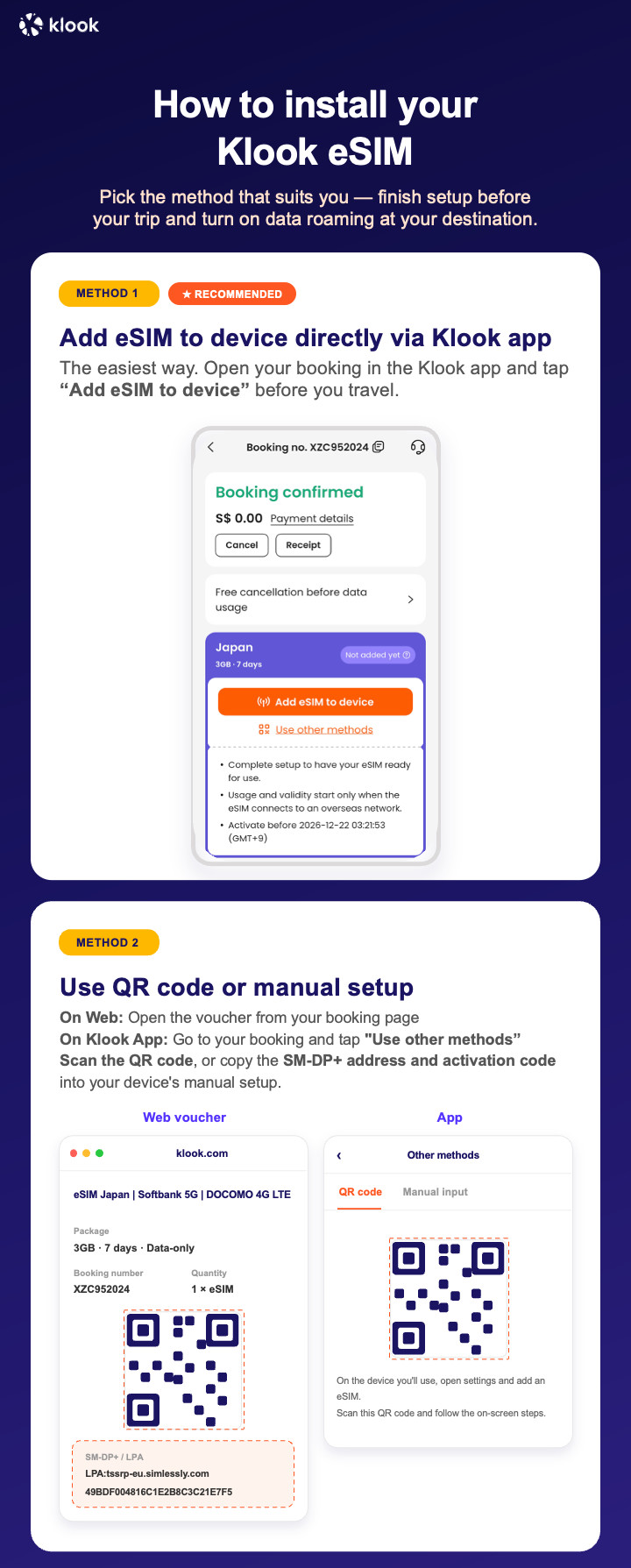
Klook eSIM connected

Confirmation policy

  • You'll get confirmation within minutes. If you don't see any confirmation, reach out to our customer support.

Select This Option

Data in total · 10 days · 3GB · Data only

eSIM
108 900 UZS
≈$9

Additional Information

Activate your eSIM Android / iOS

  • Your eSIM plan will begin upon connection to the destination mobile network, according to the time connected. For example, if you activate your 3-day plan at 10:00, it will end 3 days later at 10:00.

  • Activate your Klook eSIM before travel

Activate your eSIM before travel

Activate your Klook eSIM before travel

  • Klook eSIM installation methods

Activate your eSIM via Klook in-app activation, scanning the QR code, or entering the SMDP+ details manually

Klook eSIM installation methods

  • Klook eSIM In-app activation

Click Add eSIM to device on your booking to start the installation. Don't worry, data and validity will only commence when you reach your destination

Klook eSIM In-app activation

  • Klook eSIM In-app activation

Installation of your eSIM will start automatically

Klook eSIM In-app activation

  • Klook eSIM iOS installation

Set up your Klook eSIM for travel on iOS

Klook eSIM iOS installation

  • Klook eSIM installed

Your eSIM is ready for use! Usage and validity start only when the eSIM connects to an overseas network

Klook eSIM installed

  • Turn on Klook eSIM

Turn on Klook eSIM and select Klook eSIM for mobile data

Turn on Klook eSIM

  • Turn on Data roaming

Switch on data roaming at your destination to start using your eSIM

Turn on Data roaming

  • Klook eSIM connected

Your klook esim is connected! Track your data balance and validity through the Klook app
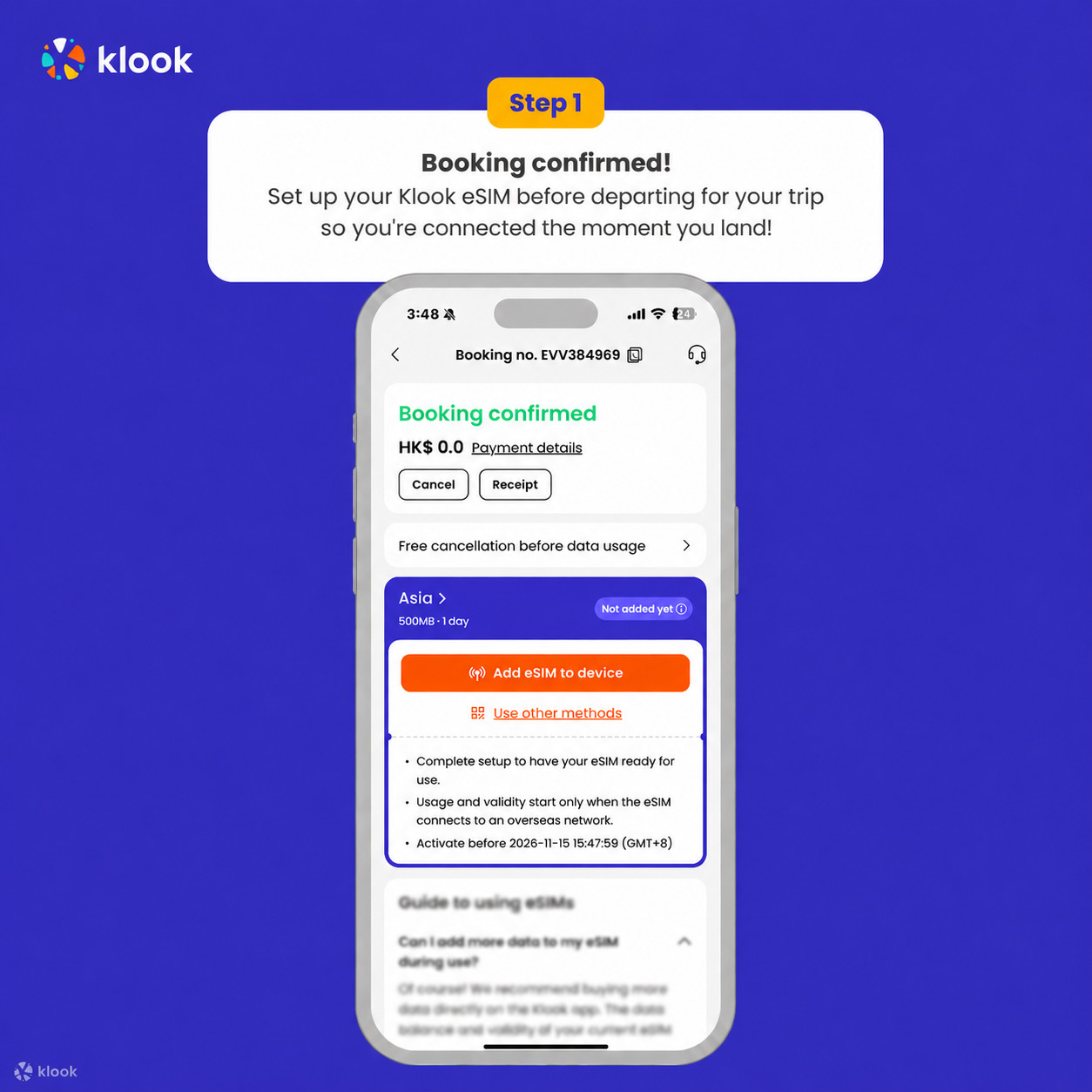
Klook eSIM connected

Confirmation policy

  • You'll get confirmation within minutes. If you don't see any confirmation, reach out to our customer support.

Select This Option

Data in total · 10 days · 5GB · Data only

eSIM
242 000 UZS
≈$20

  • Activate your Klook eSIM before travel

Activate your eSIM before travel

Activate your Klook eSIM before travel

  • Klook eSIM installation methods

Activate your eSIM via Klook in-app activation, scanning the QR code, or entering the SMDP+ details manually

Klook eSIM installation methods

  • Klook eSIM In-app activation

Click Add eSIM to device on your booking to start the installation. Don't worry, data and validity will only commence when you reach your destination

Klook eSIM In-app activation

  • Klook eSIM In-app activation

Installation of your eSIM will start automatically

Klook eSIM In-app activation

  • Klook eSIM iOS installation

Set up your Klook eSIM for travel on iOS

Klook eSIM iOS installation

  • Klook eSIM installed

Your eSIM is ready for use! Usage and validity start only when the eSIM connects to an overseas network

Klook eSIM installed

  • Turn on Klook eSIM

Turn on Klook eSIM and select Klook eSIM for mobile data

Turn on Klook eSIM

  • Turn on Data roaming

Switch on data roaming at your destination to start using your eSIM

Turn on Data roaming

  • Klook eSIM connected

Your klook esim is connected! Track your data balance and validity through the Klook app
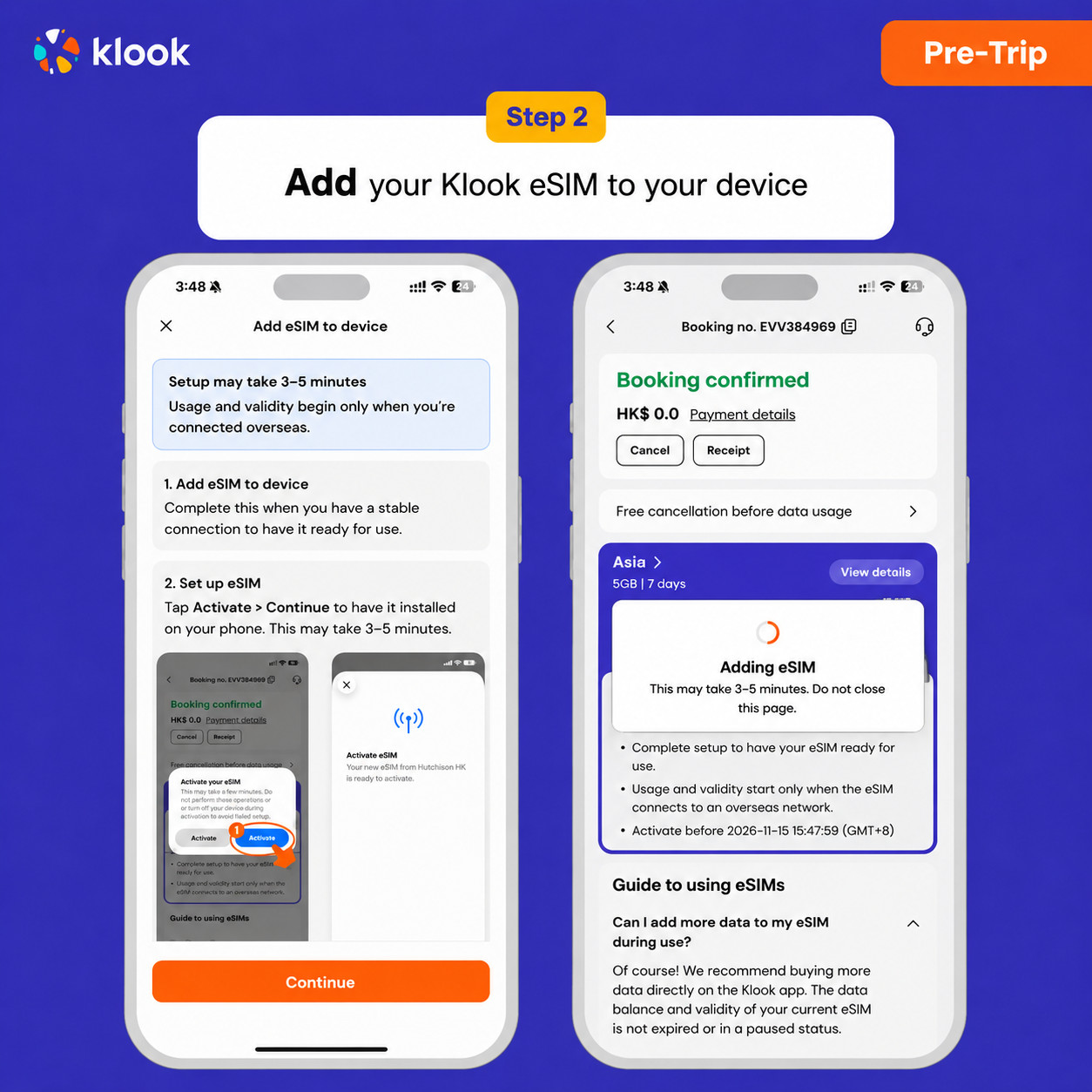
Klook eSIM connected

Activate your eSIM Android / iOS

  • Your eSIM plan will begin upon connection to the destination mobile network, according to the time connected. For example, if you activate your 3-day plan at 10:00, it will end 3 days later at 10:00.

Additional Information

Confirmation policy

  • You'll get confirmation within minutes. If you don't see any confirmation, reach out to our customer support.

Select This Option

Data in total · 10 days · 10GB · Data only

eSIM
471 900 UZS
≈$39

Additional Information

Activate your eSIM Android / iOS

  • Your eSIM plan will begin upon connection to the destination mobile network, according to the time connected. For example, if you activate your 3-day plan at 10:00, it will end 3 days later at 10:00.

  • Activate your Klook eSIM before travel

Activate your eSIM before travel

Activate your Klook eSIM before travel

  • Klook eSIM installation methods

Activate your eSIM via Klook in-app activation, scanning the QR code, or entering the SMDP+ details manually

Klook eSIM installation methods

  • Klook eSIM In-app activation

Click Add eSIM to device on your booking to start the installation. Don't worry, data and validity will only commence when you reach your destination

Klook eSIM In-app activation

  • Klook eSIM In-app activation

Installation of your eSIM will start automatically

Klook eSIM In-app activation

  • Klook eSIM iOS installation

Set up your Klook eSIM for travel on iOS

Klook eSIM iOS installation

  • Klook eSIM installed

Your eSIM is ready for use! Usage and validity start only when the eSIM connects to an overseas network

Klook eSIM installed

  • Turn on Klook eSIM

Turn on Klook eSIM and select Klook eSIM for mobile data

Turn on Klook eSIM

  • Turn on Data roaming

Switch on data roaming at your destination to start using your eSIM

Turn on Data roaming

  • Klook eSIM connected

Your klook esim is connected! Track your data balance and validity through the Klook app
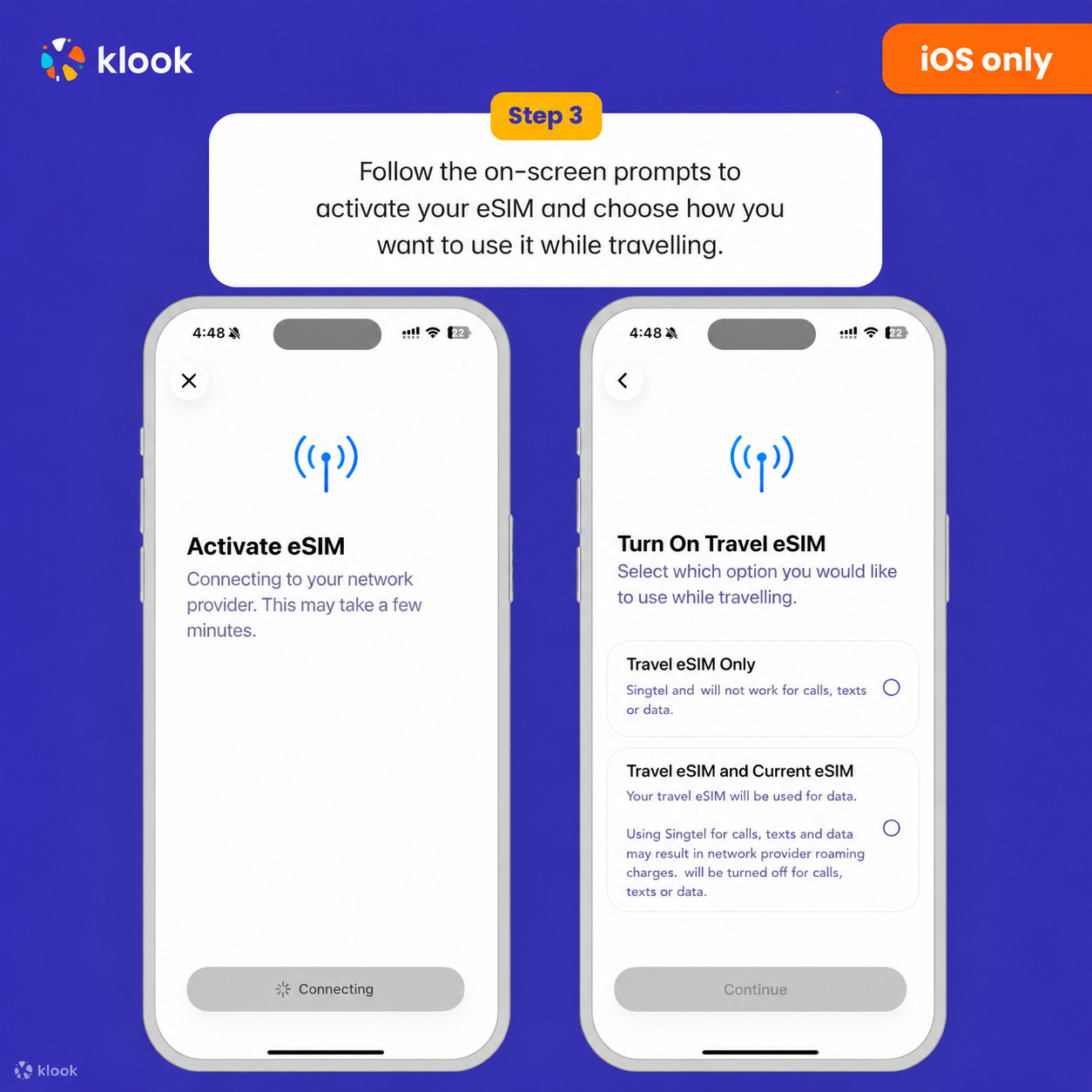
Klook eSIM connected

Confirmation policy

  • You'll get confirmation within minutes. If you don't see any confirmation, reach out to our customer support.

Select This Option

Data in total · 10 days · 20GB · Data only

eSIM
943 800 UZS
≈$78

  • Activate your Klook eSIM before travel

Activate your eSIM before travel

Activate your Klook eSIM before travel

  • Klook eSIM installation methods

Activate your eSIM via Klook in-app activation, scanning the QR code, or entering the SMDP+ details manually

Klook eSIM installation methods

  • Klook eSIM In-app activation

Click Add eSIM to device on your booking to start the installation. Don't worry, data and validity will only commence when you reach your destination

Klook eSIM In-app activation

  • Klook eSIM In-app activation

Installation of your eSIM will start automatically

Klook eSIM In-app activation

  • Klook eSIM iOS installation

Set up your Klook eSIM for travel on iOS

Klook eSIM iOS installation

  • Klook eSIM installed

Your eSIM is ready for use! Usage and validity start only when the eSIM connects to an overseas network

Klook eSIM installed

  • Turn on Klook eSIM

Turn on Klook eSIM and select Klook eSIM for mobile data

Turn on Klook eSIM

  • Turn on Data roaming

Switch on data roaming at your destination to start using your eSIM

Turn on Data roaming

  • Klook eSIM connected

Your klook esim is connected! Track your data balance and validity through the Klook app
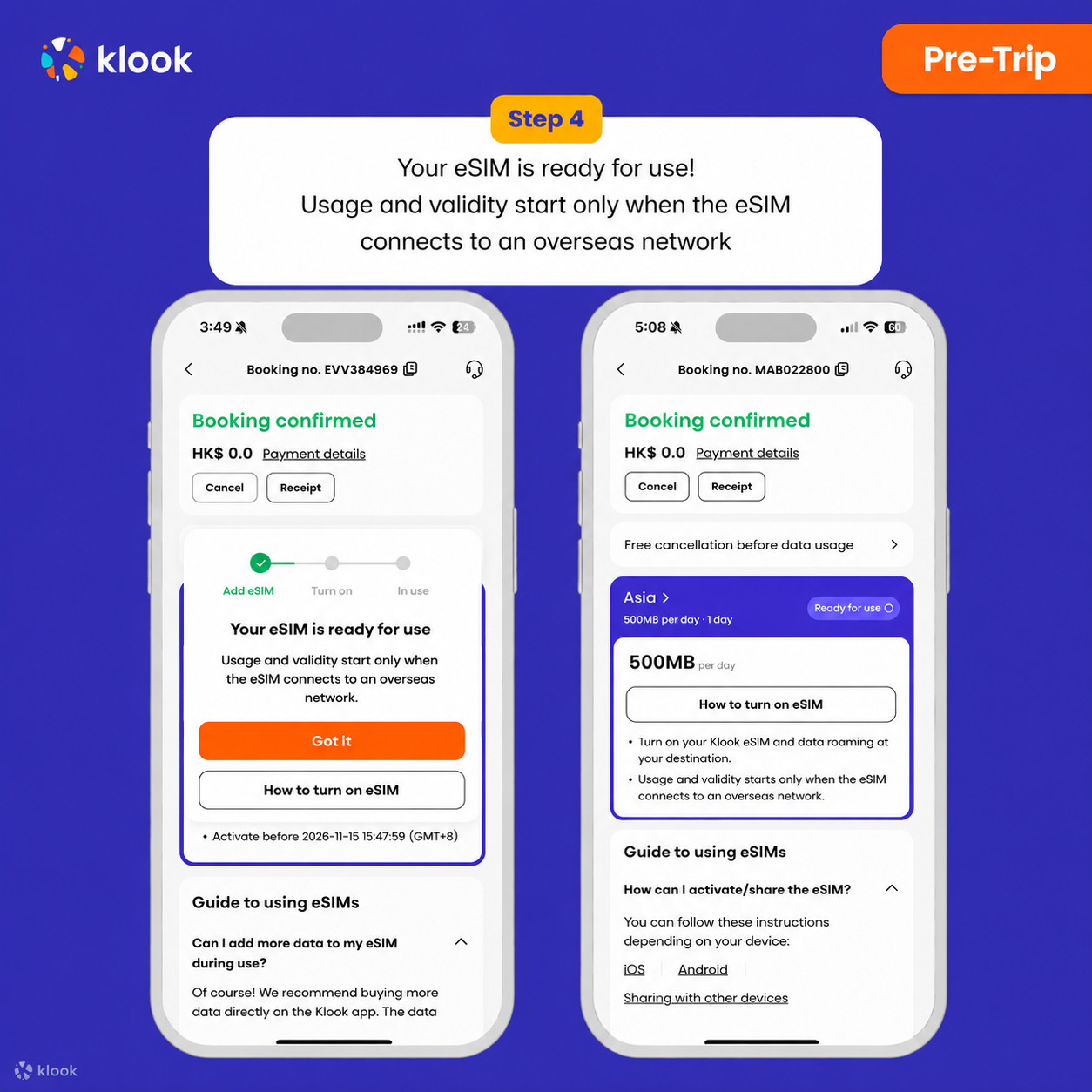
Klook eSIM connected

Additional Information

Activate your eSIM Android / iOS

  • Your eSIM plan will begin upon connection to the destination mobile network, according to the time connected. For example, if you activate your 3-day plan at 10:00, it will end 3 days later at 10:00.

Confirmation policy

  • You'll get confirmation within minutes. If you don't see any confirmation, reach out to our customer support.

Select This Option

Data in total · 20 days · 5GB · Data only

eSIM
278 300 UZS
≈$23

Additional Information

Activate your eSIM Android / iOS

  • Your eSIM plan will begin upon connection to the destination mobile network, according to the time connected. For example, if you activate your 3-day plan at 10:00, it will end 3 days later at 10:00.

  • Activate your Klook eSIM before travel

Activate your eSIM before travel

Activate your Klook eSIM before travel

  • Klook eSIM installation methods

Activate your eSIM via Klook in-app activation, scanning the QR code, or entering the SMDP+ details manually

Klook eSIM installation methods

  • Klook eSIM In-app activation

Click Add eSIM to device on your booking to start the installation. Don't worry, data and validity will only commence when you reach your destination

Klook eSIM In-app activation

  • Klook eSIM In-app activation

Installation of your eSIM will start automatically

Klook eSIM In-app activation

  • Klook eSIM iOS installation

Set up your Klook eSIM for travel on iOS

Klook eSIM iOS installation

  • Klook eSIM installed

Your eSIM is ready for use! Usage and validity start only when the eSIM connects to an overseas network

Klook eSIM installed

  • Turn on Klook eSIM

Turn on Klook eSIM and select Klook eSIM for mobile data

Turn on Klook eSIM

  • Turn on Data roaming

Switch on data roaming at your destination to start using your eSIM

Turn on Data roaming

  • Klook eSIM connected

Your klook esim is connected! Track your data balance and validity through the Klook app
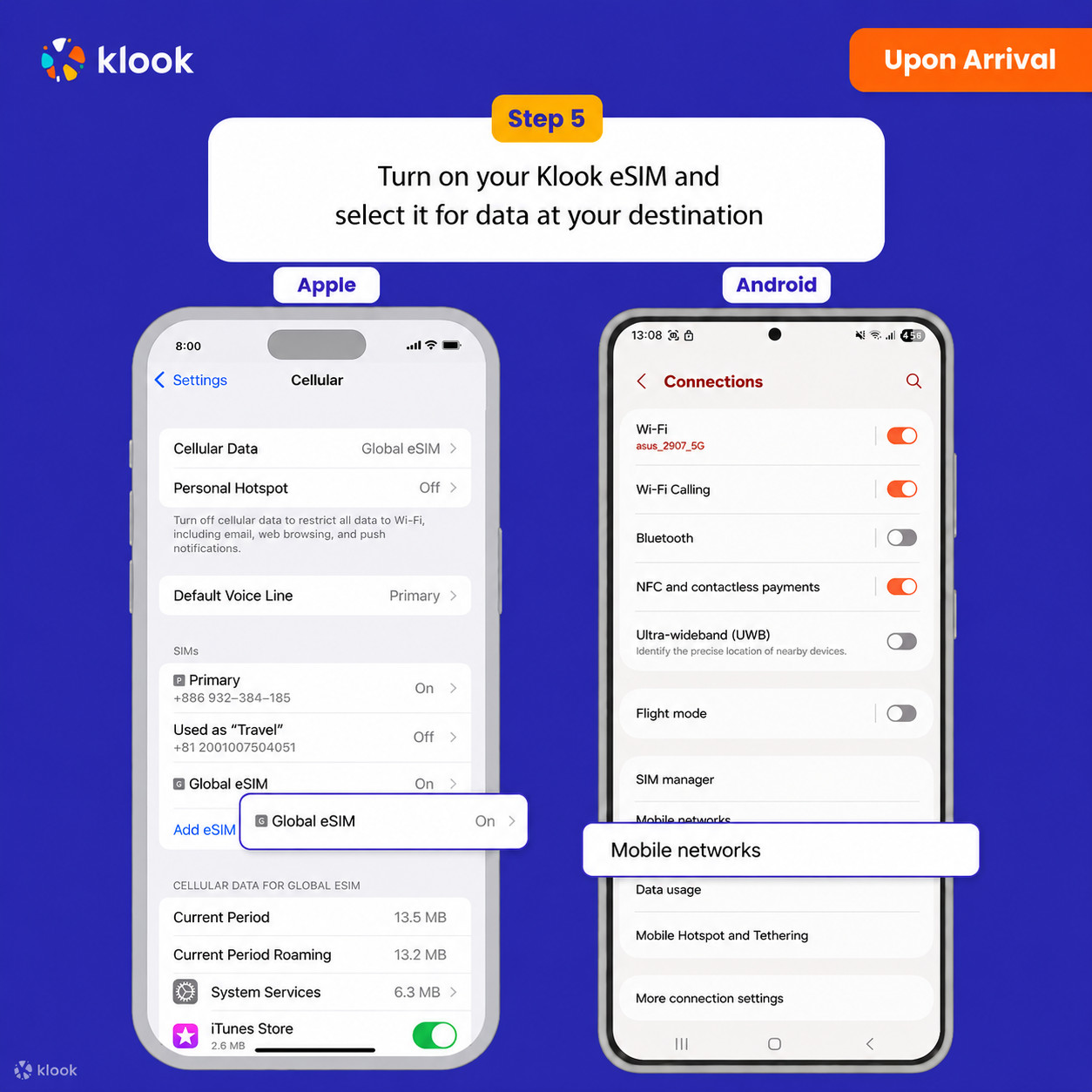
Klook eSIM connected

Confirmation policy

  • You'll get confirmation within minutes. If you don't see any confirmation, reach out to our customer support.

Select This Option

Data in total · 20 days · 10GB · Data only

eSIM
520 300 UZS
≈$43

  • Activate your Klook eSIM before travel

Activate your eSIM before travel

Activate your Klook eSIM before travel

  • Klook eSIM installation methods

Activate your eSIM via Klook in-app activation, scanning the QR code, or entering the SMDP+ details manually

Klook eSIM installation methods

  • Klook eSIM In-app activation

Click Add eSIM to device on your booking to start the installation. Don't worry, data and validity will only commence when you reach your destination

Klook eSIM In-app activation

  • Klook eSIM In-app activation

Installation of your eSIM will start automatically

Klook eSIM In-app activation

  • Klook eSIM iOS installation

Set up your Klook eSIM for travel on iOS

Klook eSIM iOS installation

  • Klook eSIM installed

Your eSIM is ready for use! Usage and validity start only when the eSIM connects to an overseas network

Klook eSIM installed

  • Turn on Klook eSIM

Turn on Klook eSIM and select Klook eSIM for mobile data

Turn on Klook eSIM

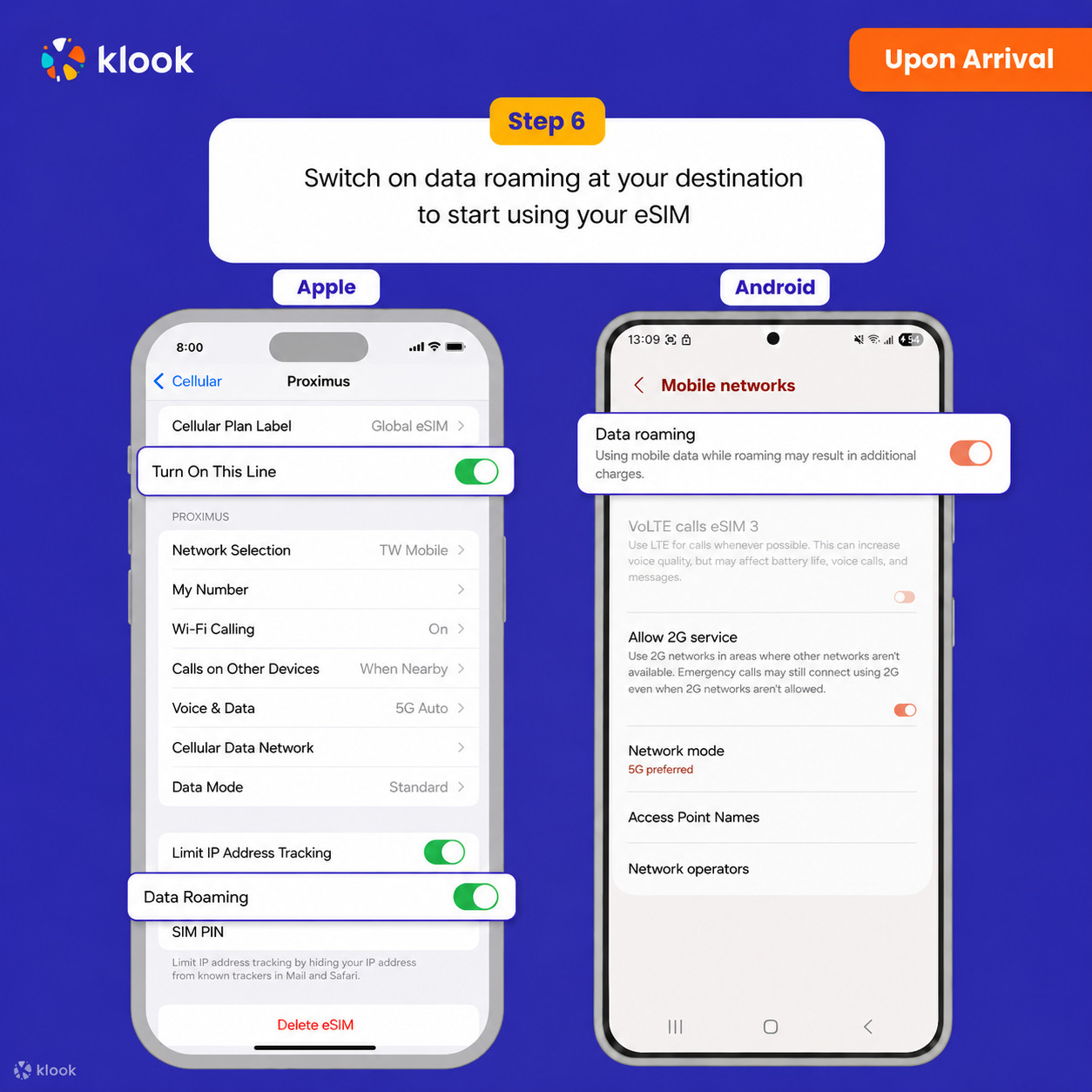
  • Turn on Data roaming

Switch on data roaming at your destination to start using your eSIM

Turn on Data roaming

  • Klook eSIM connected

Your klook esim is connected! Track your data balance and validity through the Klook app
Klook eSIM connected

Additional Information

Activate your eSIM Android / iOS

  • Your eSIM plan will begin upon connection to the destination mobile network, according to the time connected. For example, if you activate your 3-day plan at 10:00, it will end 3 days later at 10:00.

Confirmation policy

  • You'll get confirmation within minutes. If you don't see any confirmation, reach out to our customer support.

Select This Option

Data in total · 20 days · 20GB · Data only

eSIM
1 040 600 UZS
≈$86

  • Activate your Klook eSIM before travel

Activate your eSIM before travel

Activate your Klook eSIM before travel

  • Klook eSIM installation methods

Activate your eSIM via Klook in-app activation, scanning the QR code, or entering the SMDP+ details manually

Klook eSIM installation methods

  • Klook eSIM In-app activation

Click Add eSIM to device on your booking to start the installation. Don't worry, data and validity will only commence when you reach your destination

Klook eSIM In-app activation

  • Klook eSIM In-app activation

Installation of your eSIM will start automatically

Klook eSIM In-app activation

  • Klook eSIM iOS installation

Set up your Klook eSIM for travel on iOS

Klook eSIM iOS installation

  • Klook eSIM installed

Your eSIM is ready for use! Usage and validity start only when the eSIM connects to an overseas network

Klook eSIM installed

  • Turn on Klook eSIM

Turn on Klook eSIM and select Klook eSIM for mobile data

Turn on Klook eSIM

  • Turn on Data roaming

Switch on data roaming at your destination to start using your eSIM

Turn on Data roaming

  • Klook eSIM connected

Your klook esim is connected! Track your data balance and validity through the Klook app
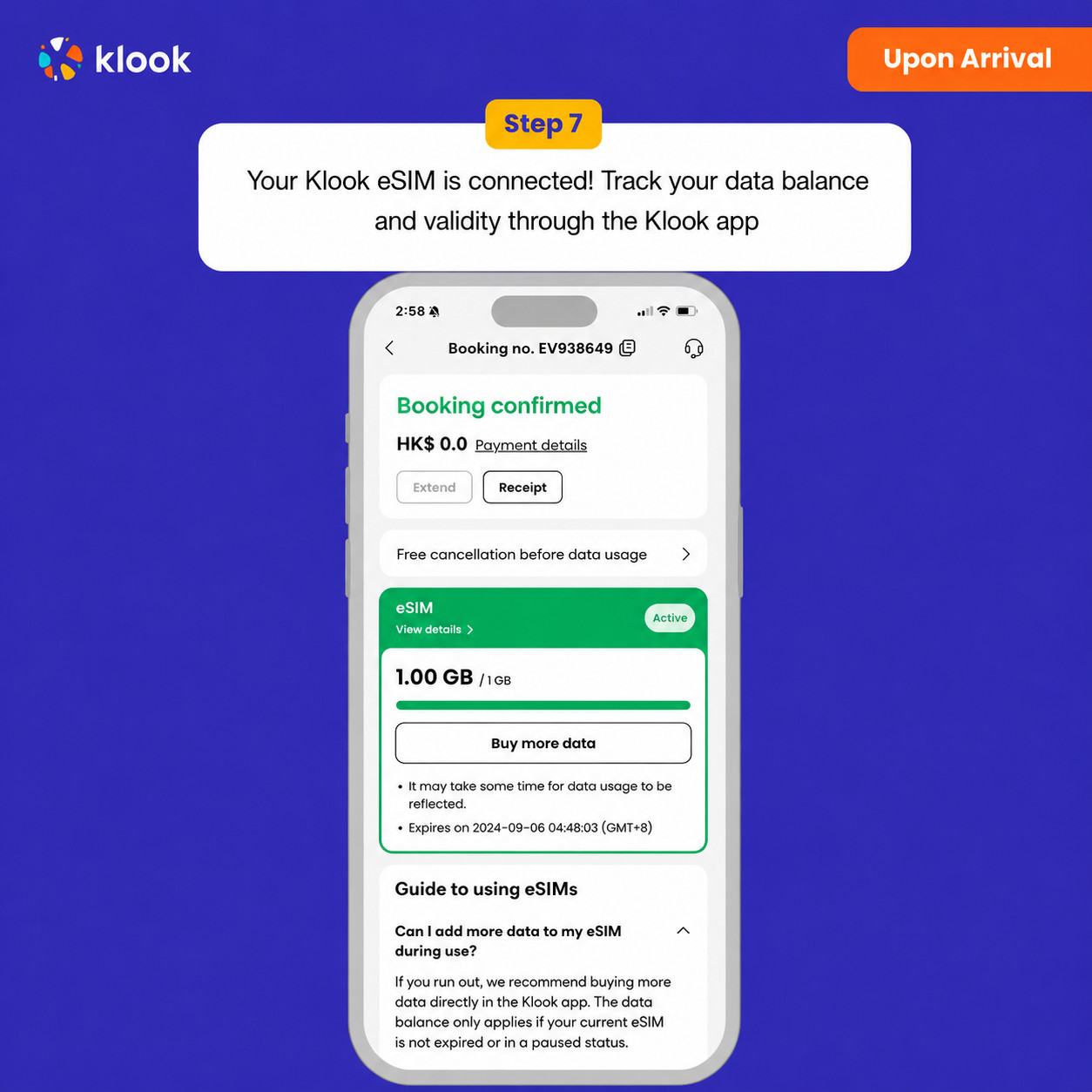
Klook eSIM connected

Additional Information

Activate your eSIM Android / iOS

  • Your eSIM plan will begin upon connection to the destination mobile network, according to the time connected. For example, if you activate your 3-day plan at 10:00, it will end 3 days later at 10:00.

Confirmation policy

  • You'll get confirmation within minutes. If you don't see any confirmation, reach out to our customer support.

Select This Option

Data in total · 20 days · 50GB · Data only

eSIM
1 996 500 UZS
≈$165

Additional Information

Activate your eSIM Android / iOS

  • Your eSIM plan will begin upon connection to the destination mobile network, according to the time connected. For example, if you activate your 3-day plan at 10:00, it will end 3 days later at 10:00.

  • Activate your Klook eSIM before travel

Activate your eSIM before travel

Activate your Klook eSIM before travel

  • Klook eSIM installation methods

Activate your eSIM via Klook in-app activation, scanning the QR code, or entering the SMDP+ details manually

Klook eSIM installation methods

  • Klook eSIM In-app activation

Click Add eSIM to device on your booking to start the installation. Don't worry, data and validity will only commence when you reach your destination

Klook eSIM In-app activation

  • Klook eSIM In-app activation

Installation of your eSIM will start automatically

Klook eSIM In-app activation

  • Klook eSIM iOS installation

Set up your Klook eSIM for travel on iOS

Klook eSIM iOS installation

  • Klook eSIM installed

Your eSIM is ready for use! Usage and validity start only when the eSIM connects to an overseas network

Klook eSIM installed

  • Turn on Klook eSIM

Turn on Klook eSIM and select Klook eSIM for mobile data

Turn on Klook eSIM

  • Turn on Data roaming

Switch on data roaming at your destination to start using your eSIM

Turn on Data roaming

  • Klook eSIM connected

Your klook esim is connected! Track your data balance and validity through the Klook app

Klook eSIM connected

Confirmation policy

  • You'll get confirmation within minutes. If you don't see any confirmation, reach out to our customer support.

Select This Option

Data in total · 25 days · 5GB · Data only

eSIM
290 400 UZS
≈$24

Additional Information

  • Activate your Klook eSIM before travel

Activate your eSIM before travel

Activate your Klook eSIM before travel

  • Klook eSIM installation methods

Activate your eSIM via Klook in-app activation, scanning the QR code, or entering the SMDP+ details manually

Klook eSIM installation methods

  • Klook eSIM In-app activation

Click Add eSIM to device on your booking to start the installation. Don't worry, data and validity will only commence when you reach your destination

Klook eSIM In-app activation

  • Klook eSIM In-app activation

Installation of your eSIM will start automatically

Klook eSIM In-app activation

  • Klook eSIM iOS installation

Set up your Klook eSIM for travel on iOS

Klook eSIM iOS installation

  • Klook eSIM installed

Your eSIM is ready for use! Usage and validity start only when the eSIM connects to an overseas network

Klook eSIM installed

  • Turn on Klook eSIM

Turn on Klook eSIM and select Klook eSIM for mobile data

Turn on Klook eSIM

  • Turn on Data roaming

Switch on data roaming at your destination to start using your eSIM

Turn on Data roaming

  • Klook eSIM connected

Your klook esim is connected! Track your data balance and validity through the Klook app

Klook eSIM connected

Activate your eSIM Android / iOS

  • Your eSIM plan will begin upon connection to the destination mobile network, according to the time connected. For example, if you activate your 3-day plan at 10:00, it will end 3 days later at 10:00.

Confirmation policy

  • You'll get confirmation within minutes. If you don't see any confirmation, reach out to our customer support.

Select This Option

Data in total · 25 days · 10GB · Data only

eSIM
544 500 UZS
≈$45

Additional Information

Activate your eSIM Android / iOS

  • Your eSIM plan will begin upon connection to the destination mobile network, according to the time connected. For example, if you activate your 3-day plan at 10:00, it will end 3 days later at 10:00.

  • Activate your Klook eSIM before travel

Activate your eSIM before travel

Activate your Klook eSIM before travel

  • Klook eSIM installation methods

Activate your eSIM via Klook in-app activation, scanning the QR code, or entering the SMDP+ details manually

Klook eSIM installation methods

  • Klook eSIM In-app activation

Click Add eSIM to device on your booking to start the installation. Don't worry, data and validity will only commence when you reach your destination

Klook eSIM In-app activation

  • Klook eSIM In-app activation

Installation of your eSIM will start automatically

Klook eSIM In-app activation

  • Klook eSIM iOS installation

Set up your Klook eSIM for travel on iOS

Klook eSIM iOS installation

  • Klook eSIM installed

Your eSIM is ready for use! Usage and validity start only when the eSIM connects to an overseas network

Klook eSIM installed

  • Turn on Klook eSIM

Turn on Klook eSIM and select Klook eSIM for mobile data

Turn on Klook eSIM

  • Turn on Data roaming

Switch on data roaming at your destination to start using your eSIM

Turn on Data roaming

  • Klook eSIM connected

Your klook esim is connected! Track your data balance and validity through the Klook app

Klook eSIM connected

Confirmation policy

  • You'll get confirmation within minutes. If you don't see any confirmation, reach out to our customer support.

Select This Option

Data in total · 25 days · 20GB · Data only

eSIM
1 089 000 UZS
≈$90

Additional Information

  • Activate your Klook eSIM before travel

Activate your eSIM before travel

Activate your Klook eSIM before travel

  • Klook eSIM installation methods

Activate your eSIM via Klook in-app activation, scanning the QR code, or entering the SMDP+ details manually

Klook eSIM installation methods

  • Klook eSIM In-app activation

Click Add eSIM to device on your booking to start the installation. Don't worry, data and validity will only commence when you reach your destination

Klook eSIM In-app activation

  • Klook eSIM In-app activation

Installation of your eSIM will start automatically

Klook eSIM In-app activation

  • Klook eSIM iOS installation

Set up your Klook eSIM for travel on iOS

Klook eSIM iOS installation

  • Klook eSIM installed

Your eSIM is ready for use! Usage and validity start only when the eSIM connects to an overseas network

Klook eSIM installed

  • Turn on Klook eSIM

Turn on Klook eSIM and select Klook eSIM for mobile data

Turn on Klook eSIM

  • Turn on Data roaming

Switch on data roaming at your destination to start using your eSIM

Turn on Data roaming

  • Klook eSIM connected

Your klook esim is connected! Track your data balance and validity through the Klook app

Klook eSIM connected

Activate your eSIM Android / iOS

  • Your eSIM plan will begin upon connection to the destination mobile network, according to the time connected. For example, if you activate your 3-day plan at 10:00, it will end 3 days later at 10:00.

Confirmation policy

  • You'll get confirmation within minutes. If you don't see any confirmation, reach out to our customer support.

Select This Option

Data in total · 25 days · 50GB · Data only

eSIM
2 093 300 UZS
≈$173

Additional Information

Activate your eSIM Android / iOS

  • Your eSIM plan will begin upon connection to the destination mobile network, according to the time connected. For example, if you activate your 3-day plan at 10:00, it will end 3 days later at 10:00.

  • Activate your Klook eSIM before travel

Activate your eSIM before travel

Activate your Klook eSIM before travel

  • Klook eSIM installation methods

Activate your eSIM via Klook in-app activation, scanning the QR code, or entering the SMDP+ details manually

Klook eSIM installation methods

  • Klook eSIM In-app activation

Click Add eSIM to device on your booking to start the installation. Don't worry, data and validity will only commence when you reach your destination

Klook eSIM In-app activation

  • Klook eSIM In-app activation

Installation of your eSIM will start automatically

Klook eSIM In-app activation

  • Klook eSIM iOS installation

Set up your Klook eSIM for travel on iOS

Klook eSIM iOS installation

  • Klook eSIM installed

Your eSIM is ready for use! Usage and validity start only when the eSIM connects to an overseas network

Klook eSIM installed

  • Turn on Klook eSIM

Turn on Klook eSIM and select Klook eSIM for mobile data

Turn on Klook eSIM

  • Turn on Data roaming

Switch on data roaming at your destination to start using your eSIM

Turn on Data roaming

  • Klook eSIM connected

Your klook esim is connected! Track your data balance and validity through the Klook app

Klook eSIM connected

Confirmation policy

  • You'll get confirmation within minutes. If you don't see any confirmation, reach out to our customer support.

Select This Option

Data in total · 2 days · 3GB · Data only

eSIM
96 800 UZS
≈$8

Additional Information

Activate your eSIM Android / iOS

  • Your eSIM plan will begin upon connection to the destination mobile network, according to the time connected. For example, if you activate your 3-day plan at 10:00, it will end 3 days later at 10:00.

  • Activate your Klook eSIM before travel

Activate your eSIM before travel

Activate your Klook eSIM before travel

  • Klook eSIM installation methods

Activate your eSIM via Klook in-app activation, scanning the QR code, or entering the SMDP+ details manually

Klook eSIM installation methods

  • Klook eSIM In-app activation

Click Add eSIM to device on your booking to start the installation. Don't worry, data and validity will only commence when you reach your destination

Klook eSIM In-app activation

  • Klook eSIM In-app activation

Installation of your eSIM will start automatically

Klook eSIM In-app activation

  • Klook eSIM iOS installation

Set up your Klook eSIM for travel on iOS

Klook eSIM iOS installation

  • Klook eSIM installed

Your eSIM is ready for use! Usage and validity start only when the eSIM connects to an overseas network

Klook eSIM installed

  • Turn on Klook eSIM

Turn on Klook eSIM and select Klook eSIM for mobile data

Turn on Klook eSIM

  • Turn on Data roaming

Switch on data roaming at your destination to start using your eSIM

Turn on Data roaming

  • Klook eSIM connected

Your klook esim is connected! Track your data balance and validity through the Klook app

Klook eSIM connected

Confirmation policy

  • You'll get confirmation within minutes. If you don't see any confirmation, reach out to our customer support.

Select This Option

Data in total · 2 days · 5GB · Data only

eSIM
205 700 UZS
≈$17

Additional Information

  • Activate your Klook eSIM before travel

Activate your eSIM before travel

Activate your Klook eSIM before travel

  • Klook eSIM installation methods

Activate your eSIM via Klook in-app activation, scanning the QR code, or entering the SMDP+ details manually

Klook eSIM installation methods

  • Klook eSIM In-app activation

Click Add eSIM to device on your booking to start the installation. Don't worry, data and validity will only commence when you reach your destination

Klook eSIM In-app activation

  • Klook eSIM In-app activation

Installation of your eSIM will start automatically

Klook eSIM In-app activation

  • Klook eSIM iOS installation

Set up your Klook eSIM for travel on iOS

Klook eSIM iOS installation

  • Klook eSIM installed

Your eSIM is ready for use! Usage and validity start only when the eSIM connects to an overseas network

Klook eSIM installed

  • Turn on Klook eSIM

Turn on Klook eSIM and select Klook eSIM for mobile data

Turn on Klook eSIM

  • Turn on Data roaming

Switch on data roaming at your destination to start using your eSIM

Turn on Data roaming

  • Klook eSIM connected

Your klook esim is connected! Track your data balance and validity through the Klook app

Klook eSIM connected

Activate your eSIM Android / iOS

  • Your eSIM plan will begin upon connection to the destination mobile network, according to the time connected. For example, if you activate your 3-day plan at 10:00, it will end 3 days later at 10:00.

Confirmation policy

  • You'll get confirmation within minutes. If you don't see any confirmation, reach out to our customer support.

Select This Option

Data per day · 7 days · 3GB · Data only

eSIM
617 100 UZS
≈$51

Confirmation policy

  • You'll get confirmation within minutes. If you don't see any confirmation, reach out to our customer support.

Additional Information

Activate your eSIM Android / iOS

  • Your eSIM plan will begin upon connection to the destination mobile network, according to the time connected. For example, if you activate your 3-day plan at 10:00, it will end 3 days later at 10:00.

  • Activate your Klook eSIM before travel

Activate your eSIM before travel

Activate your Klook eSIM before travel

  • Klook eSIM installation methods

Activate your eSIM via Klook in-app activation, scanning the QR code, or entering the SMDP+ details manually

Klook eSIM installation methods

  • Klook eSIM In-app activation

Click Add eSIM to device on your booking to start the installation. Don't worry, data and validity will only commence when you reach your destination

Klook eSIM In-app activation

  • Klook eSIM In-app activation

Installation of your eSIM will start automatically

Klook eSIM In-app activation

  • Klook eSIM iOS installation

Set up your Klook eSIM for travel on iOS

Klook eSIM iOS installation

  • Klook eSIM installed

Your eSIM is ready for use! Usage and validity start only when the eSIM connects to an overseas network

Klook eSIM installed

  • Turn on Klook eSIM

Turn on Klook eSIM and select Klook eSIM for mobile data

Turn on Klook eSIM

  • Turn on Data roaming

Switch on data roaming at your destination to start using your eSIM

Turn on Data roaming

  • Klook eSIM connected

Your klook esim is connected! Track your data balance and validity through the Klook app

Klook eSIM connected

Select This Option

Data per day · 1 day · 1GB · Data only

eSIM
48 400 UZS
≈$4

Additional Information

Activate your eSIM Android / iOS

  • Your eSIM plan will begin upon connection to the destination mobile network, according to the time connected. For example, if you activate your 3-day plan at 10:00, it will end 3 days later at 10:00.

  • Activate your Klook eSIM before travel

Activate your eSIM before travel

Activate your Klook eSIM before travel

  • Klook eSIM installation methods

Activate your eSIM via Klook in-app activation, scanning the QR code, or entering the SMDP+ details manually

Klook eSIM installation methods

  • Klook eSIM In-app activation

Click Add eSIM to device on your booking to start the installation. Don't worry, data and validity will only commence when you reach your destination

Klook eSIM In-app activation

  • Klook eSIM In-app activation

Installation of your eSIM will start automatically

Klook eSIM In-app activation

  • Klook eSIM iOS installation

Set up your Klook eSIM for travel on iOS

Klook eSIM iOS installation

  • Klook eSIM installed

Your eSIM is ready for use! Usage and validity start only when the eSIM connects to an overseas network

Klook eSIM installed

  • Turn on Klook eSIM

Turn on Klook eSIM and select Klook eSIM for mobile data

Turn on Klook eSIM

  • Turn on Data roaming

Switch on data roaming at your destination to start using your eSIM

Turn on Data roaming

  • Klook eSIM connected

Your klook esim is connected! Track your data balance and validity through the Klook app

Klook eSIM connected

Confirmation policy

  • You'll get confirmation within minutes. If you don't see any confirmation, reach out to our customer support.

Select This Option

Data per day · 1 day · 3GB · Data only

eSIM
96 800 UZS
≈$8

Confirmation policy

  • You'll get confirmation within minutes. If you don't see any confirmation, reach out to our customer support.

Additional Information

Activate your eSIM Android / iOS

  • Your eSIM plan will begin upon connection to the destination mobile network, according to the time connected. For example, if you activate your 3-day plan at 10:00, it will end 3 days later at 10:00.

  • Activate your Klook eSIM before travel

Activate your eSIM before travel

Activate your Klook eSIM before travel

  • Klook eSIM installation methods

Activate your eSIM via Klook in-app activation, scanning the QR code, or entering the SMDP+ details manually

Klook eSIM installation methods

  • Klook eSIM In-app activation

Click Add eSIM to device on your booking to start the installation. Don't worry, data and validity will only commence when you reach your destination

Klook eSIM In-app activation

  • Klook eSIM In-app activation

Installation of your eSIM will start automatically

Klook eSIM In-app activation

  • Klook eSIM iOS installation

Set up your Klook eSIM for travel on iOS

Klook eSIM iOS installation

  • Klook eSIM installed

Your eSIM is ready for use! Usage and validity start only when the eSIM connects to an overseas network

Klook eSIM installed

  • Turn on Klook eSIM

Turn on Klook eSIM and select Klook eSIM for mobile data

Turn on Klook eSIM

  • Turn on Data roaming

Switch on data roaming at your destination to start using your eSIM

Turn on Data roaming

  • Klook eSIM connected

Your klook esim is connected! Track your data balance and validity through the Klook app

Klook eSIM connected

Select This Option

Data per day · 1 day · Unlimited · Data only

eSIM
169 400 UZS
≈$14

Confirmation policy

  • You'll get confirmation within minutes. If you don't see any confirmation, reach out to our customer support.

  • Activate your Klook eSIM before travel

Activate your eSIM before travel

Activate your Klook eSIM before travel

  • Klook eSIM installation methods

Activate your eSIM via Klook in-app activation, scanning the QR code, or entering the SMDP+ details manually

Klook eSIM installation methods

  • Klook eSIM In-app activation

Click Add eSIM to device on your booking to start the installation. Don't worry, data and validity will only commence when you reach your destination

Klook eSIM In-app activation

  • Klook eSIM In-app activation

Installation of your eSIM will start automatically

Klook eSIM In-app activation

  • Klook eSIM iOS installation

Set up your Klook eSIM for travel on iOS

Klook eSIM iOS installation

  • Klook eSIM installed

Your eSIM is ready for use! Usage and validity start only when the eSIM connects to an overseas network

Klook eSIM installed

  • Turn on Klook eSIM

Turn on Klook eSIM and select Klook eSIM for mobile data

Turn on Klook eSIM

  • Turn on Data roaming

Switch on data roaming at your destination to start using your eSIM

Turn on Data roaming

  • Klook eSIM connected

Your klook esim is connected! Track your data balance and validity through the Klook app

Klook eSIM connected

Additional Information

Activate your eSIM Android / iOS

  • Your eSIM plan will begin upon connection to the destination mobile network, according to the time connected. For example, if you activate your 3-day plan at 10:00, it will end 3 days later at 10:00.

Select This Option

Data per day · 2 days · 1GB · Data only

eSIM
96 800 UZS
≈$8

Confirmation policy

  • You'll get confirmation within minutes. If you don't see any confirmation, reach out to our customer support.

  • Activate your Klook eSIM before travel

Activate your eSIM before travel

Activate your Klook eSIM before travel

  • Klook eSIM installation methods

Activate your eSIM via Klook in-app activation, scanning the QR code, or entering the SMDP+ details manually

Klook eSIM installation methods

  • Klook eSIM In-app activation

Click Add eSIM to device on your booking to start the installation. Don't worry, data and validity will only commence when you reach your destination

Klook eSIM In-app activation

  • Klook eSIM In-app activation

Installation of your eSIM will start automatically

Klook eSIM In-app activation

  • Klook eSIM iOS installation

Set up your Klook eSIM for travel on iOS

Klook eSIM iOS installation

  • Klook eSIM installed

Your eSIM is ready for use! Usage and validity start only when the eSIM connects to an overseas network

Klook eSIM installed

  • Turn on Klook eSIM

Turn on Klook eSIM and select Klook eSIM for mobile data

Turn on Klook eSIM

  • Turn on Data roaming

Switch on data roaming at your destination to start using your eSIM

Turn on Data roaming

  • Klook eSIM connected

Your klook esim is connected! Track your data balance and validity through the Klook app

Klook eSIM connected

Additional Information

Activate your eSIM Android / iOS

  • Your eSIM plan will begin upon connection to the destination mobile network, according to the time connected. For example, if you activate your 3-day plan at 10:00, it will end 3 days later at 10:00.

Select This Option

Data per day · 2 days · 3GB · Data only

eSIM
181 500 UZS
≈$15

  • Activate your Klook eSIM before travel

Activate your eSIM before travel

Activate your Klook eSIM before travel

  • Klook eSIM installation methods

Activate your eSIM via Klook in-app activation, scanning the QR code, or entering the SMDP+ details manually

Klook eSIM installation methods

  • Klook eSIM In-app activation

Click Add eSIM to device on your booking to start the installation. Don't worry, data and validity will only commence when you reach your destination

Klook eSIM In-app activation

  • Klook eSIM In-app activation

Installation of your eSIM will start automatically

Klook eSIM In-app activation

  • Klook eSIM iOS installation

Set up your Klook eSIM for travel on iOS

Klook eSIM iOS installation

  • Klook eSIM installed

Your eSIM is ready for use! Usage and validity start only when the eSIM connects to an overseas network

Klook eSIM installed

  • Turn on Klook eSIM

Turn on Klook eSIM and select Klook eSIM for mobile data

Turn on Klook eSIM

  • Turn on Data roaming

Switch on data roaming at your destination to start using your eSIM

Turn on Data roaming

  • Klook eSIM connected

Your klook esim is connected! Track your data balance and validity through the Klook app

Klook eSIM connected

Additional Information

Activate your eSIM Android / iOS

  • Your eSIM plan will begin upon connection to the destination mobile network, according to the time connected. For example, if you activate your 3-day plan at 10:00, it will end 3 days later at 10:00.

Confirmation policy

  • You'll get confirmation within minutes. If you don't see any confirmation, reach out to our customer support.

Select This Option

Data per day · 2 days · Unlimited · Data only

eSIM
338 800 UZS
≈$28

Additional Information

Activate your eSIM Android / iOS

  • Your eSIM plan will begin upon connection to the destination mobile network, according to the time connected. For example, if you activate your 3-day plan at 10:00, it will end 3 days later at 10:00.

  • Activate your Klook eSIM before travel

Activate your eSIM before travel

Activate your Klook eSIM before travel

  • Klook eSIM installation methods

Activate your eSIM via Klook in-app activation, scanning the QR code, or entering the SMDP+ details manually

Klook eSIM installation methods

  • Klook eSIM In-app activation

Click Add eSIM to device on your booking to start the installation. Don't worry, data and validity will only commence when you reach your destination

Klook eSIM In-app activation

  • Klook eSIM In-app activation

Installation of your eSIM will start automatically

Klook eSIM In-app activation

  • Klook eSIM iOS installation

Set up your Klook eSIM for travel on iOS

Klook eSIM iOS installation

  • Klook eSIM installed

Your eSIM is ready for use! Usage and validity start only when the eSIM connects to an overseas network

Klook eSIM installed

  • Turn on Klook eSIM

Turn on Klook eSIM and select Klook eSIM for mobile data

Turn on Klook eSIM

  • Turn on Data roaming

Switch on data roaming at your destination to start using your eSIM

Turn on Data roaming

  • Klook eSIM connected

Your klook esim is connected! Track your data balance and validity through the Klook app

Klook eSIM connected

Confirmation policy

  • You'll get confirmation within minutes. If you don't see any confirmation, reach out to our customer support.

Select This Option

Data per day · 3 days · 1GB · Data only

eSIM
145 200 UZS
≈$12

  • Activate your Klook eSIM before travel

Activate your eSIM before travel

Activate your Klook eSIM before travel

  • Klook eSIM installation methods

Activate your eSIM via Klook in-app activation, scanning the QR code, or entering the SMDP+ details manually

Klook eSIM installation methods

  • Klook eSIM In-app activation

Click Add eSIM to device on your booking to start the installation. Don't worry, data and validity will only commence when you reach your destination

Klook eSIM In-app activation

  • Klook eSIM In-app activation

Installation of your eSIM will start automatically

Klook eSIM In-app activation

  • Klook eSIM iOS installation

Set up your Klook eSIM for travel on iOS

Klook eSIM iOS installation

  • Klook eSIM installed

Your eSIM is ready for use! Usage and validity start only when the eSIM connects to an overseas network

Klook eSIM installed

  • Turn on Klook eSIM

Turn on Klook eSIM and select Klook eSIM for mobile data

Turn on Klook eSIM

  • Turn on Data roaming

Switch on data roaming at your destination to start using your eSIM

Turn on Data roaming

  • Klook eSIM connected

Your klook esim is connected! Track your data balance and validity through the Klook app

Klook eSIM connected

Additional Information

Activate your eSIM Android / iOS

  • Your eSIM plan will begin upon connection to the destination mobile network, according to the time connected. For example, if you activate your 3-day plan at 10:00, it will end 3 days later at 10:00.

Confirmation policy

  • You'll get confirmation within minutes. If you don't see any confirmation, reach out to our customer support.

Select This Option

Data per day · 3 days · 3GB · Data only

eSIM
266 200 UZS
≈$22

Additional Information

Activate your eSIM Android / iOS

  • Your eSIM plan will begin upon connection to the destination mobile network, according to the time connected. For example, if you activate your 3-day plan at 10:00, it will end 3 days later at 10:00.

  • Activate your Klook eSIM before travel

Activate your eSIM before travel

Activate your Klook eSIM before travel

  • Klook eSIM installation methods

Activate your eSIM via Klook in-app activation, scanning the QR code, or entering the SMDP+ details manually

Klook eSIM installation methods

  • Klook eSIM In-app activation

Click Add eSIM to device on your booking to start the installation. Don't worry, data and validity will only commence when you reach your destination

Klook eSIM In-app activation

  • Klook eSIM In-app activation

Installation of your eSIM will start automatically

Klook eSIM In-app activation

  • Klook eSIM iOS installation

Set up your Klook eSIM for travel on iOS

Klook eSIM iOS installation

  • Klook eSIM installed

Your eSIM is ready for use! Usage and validity start only when the eSIM connects to an overseas network

Klook eSIM installed

  • Turn on Klook eSIM

Turn on Klook eSIM and select Klook eSIM for mobile data

Turn on Klook eSIM

  • Turn on Data roaming

Switch on data roaming at your destination to start using your eSIM

Turn on Data roaming

  • Klook eSIM connected

Your klook esim is connected! Track your data balance and validity through the Klook app

Klook eSIM connected

Confirmation policy

  • You'll get confirmation within minutes. If you don't see any confirmation, reach out to our customer support.

Select This Option

Data per day · 3 days · Unlimited · Data only

eSIM
508 200 UZS
≈$42

  • Activate your Klook eSIM before travel

Activate your eSIM before travel

Activate your Klook eSIM before travel

  • Klook eSIM installation methods

Activate your eSIM via Klook in-app activation, scanning the QR code, or entering the SMDP+ details manually

Klook eSIM installation methods

  • Klook eSIM In-app activation

Click Add eSIM to device on your booking to start the installation. Don't worry, data and validity will only commence when you reach your destination

Klook eSIM In-app activation

  • Klook eSIM In-app activation

Installation of your eSIM will start automatically

Klook eSIM In-app activation

  • Klook eSIM iOS installation

Set up your Klook eSIM for travel on iOS

Klook eSIM iOS installation

  • Klook eSIM installed

Your eSIM is ready for use! Usage and validity start only when the eSIM connects to an overseas network

Klook eSIM installed

  • Turn on Klook eSIM

Turn on Klook eSIM and select Klook eSIM for mobile data

Turn on Klook eSIM

  • Turn on Data roaming

Switch on data roaming at your destination to start using your eSIM

Turn on Data roaming

  • Klook eSIM connected

Your klook esim is connected! Track your data balance and validity through the Klook app

Klook eSIM connected

Additional Information

Activate your eSIM Android / iOS

  • Your eSIM plan will begin upon connection to the destination mobile network, according to the time connected. For example, if you activate your 3-day plan at 10:00, it will end 3 days later at 10:00.

Confirmation policy

  • You'll get confirmation within minutes. If you don't see any confirmation, reach out to our customer support.

Select This Option

Data per day · 5 days · 1GB · Data only

eSIM
229 900 UZS
≈$19

Additional Information

Activate your eSIM Android / iOS

  • Your eSIM plan will begin upon connection to the destination mobile network, according to the time connected. For example, if you activate your 3-day plan at 10:00, it will end 3 days later at 10:00.

  • Activate your Klook eSIM before travel

Activate your eSIM before travel

Activate your Klook eSIM before travel

  • Klook eSIM installation methods

Activate your eSIM via Klook in-app activation, scanning the QR code, or entering the SMDP+ details manually

Klook eSIM installation methods

  • Klook eSIM In-app activation

Click Add eSIM to device on your booking to start the installation. Don't worry, data and validity will only commence when you reach your destination

Klook eSIM In-app activation

  • Klook eSIM In-app activation

Installation of your eSIM will start automatically

Klook eSIM In-app activation

  • Klook eSIM iOS installation

Set up your Klook eSIM for travel on iOS

Klook eSIM iOS installation

  • Klook eSIM installed

Your eSIM is ready for use! Usage and validity start only when the eSIM connects to an overseas network

Klook eSIM installed

  • Turn on Klook eSIM

Turn on Klook eSIM and select Klook eSIM for mobile data

Turn on Klook eSIM

  • Turn on Data roaming

Switch on data roaming at your destination to start using your eSIM

Turn on Data roaming

  • Klook eSIM connected

Your klook esim is connected! Track your data balance and validity through the Klook app

Klook eSIM connected

Confirmation policy

  • You'll get confirmation within minutes. If you don't see any confirmation, reach out to our customer support.

Select This Option

Data per day · 5 days · 3GB · Data only

eSIM
435 600 UZS
≈$36

Additional Information

Activate your eSIM Android / iOS

  • Your eSIM plan will begin upon connection to the destination mobile network, according to the time connected. For example, if you activate your 3-day plan at 10:00, it will end 3 days later at 10:00.

  • Activate your Klook eSIM before travel

Activate your eSIM before travel

Activate your Klook eSIM before travel

  • Klook eSIM installation methods

Activate your eSIM via Klook in-app activation, scanning the QR code, or entering the SMDP+ details manually

Klook eSIM installation methods

  • Klook eSIM In-app activation

Click Add eSIM to device on your booking to start the installation. Don't worry, data and validity will only commence when you reach your destination

Klook eSIM In-app activation

  • Klook eSIM In-app activation

Installation of your eSIM will start automatically

Klook eSIM In-app activation

  • Klook eSIM iOS installation

Set up your Klook eSIM for travel on iOS

Klook eSIM iOS installation

  • Klook eSIM installed

Your eSIM is ready for use! Usage and validity start only when the eSIM connects to an overseas network

Klook eSIM installed

  • Turn on Klook eSIM

Turn on Klook eSIM and select Klook eSIM for mobile data

Turn on Klook eSIM

  • Turn on Data roaming

Switch on data roaming at your destination to start using your eSIM

Turn on Data roaming

  • Klook eSIM connected

Your klook esim is connected! Track your data balance and validity through the Klook app

Klook eSIM connected

Confirmation policy

  • You'll get confirmation within minutes. If you don't see any confirmation, reach out to our customer support.

Select This Option

Data per day · 7 days · Unlimited · Data only

eSIM
1 185 800 UZS
≈$98

  • Activate your Klook eSIM before travel

Activate your eSIM before travel

Activate your Klook eSIM before travel

  • Klook eSIM installation methods

Activate your eSIM via Klook in-app activation, scanning the QR code, or entering the SMDP+ details manually

Klook eSIM installation methods

  • Klook eSIM In-app activation

Click Add eSIM to device on your booking to start the installation. Don't worry, data and validity will only commence when you reach your destination

Klook eSIM In-app activation

  • Klook eSIM In-app activation

Installation of your eSIM will start automatically

Klook eSIM In-app activation

  • Klook eSIM iOS installation

Set up your Klook eSIM for travel on iOS

Klook eSIM iOS installation

  • Klook eSIM installed

Your eSIM is ready for use! Usage and validity start only when the eSIM connects to an overseas network

Klook eSIM installed

  • Turn on Klook eSIM

Turn on Klook eSIM and select Klook eSIM for mobile data

Turn on Klook eSIM

  • Turn on Data roaming

Switch on data roaming at your destination to start using your eSIM

Turn on Data roaming

  • Klook eSIM connected

Your klook esim is connected! Track your data balance and validity through the Klook app

Klook eSIM connected

Additional Information

Activate your eSIM Android / iOS

  • Your eSIM plan will begin upon connection to the destination mobile network, according to the time connected. For example, if you activate your 3-day plan at 10:00, it will end 3 days later at 10:00.

Confirmation policy

  • You'll get confirmation within minutes. If you don't see any confirmation, reach out to our customer support.

Select This Option

Data per day · 8 days · 1GB · Data only

eSIM
363 000 UZS
≈$30

  • Activate your Klook eSIM before travel

Activate your eSIM before travel

Activate your Klook eSIM before travel

  • Klook eSIM installation methods

Activate your eSIM via Klook in-app activation, scanning the QR code, or entering the SMDP+ details manually

Klook eSIM installation methods

  • Klook eSIM In-app activation

Click Add eSIM to device on your booking to start the installation. Don't worry, data and validity will only commence when you reach your destination

Klook eSIM In-app activation

  • Klook eSIM In-app activation

Installation of your eSIM will start automatically

Klook eSIM In-app activation

  • Klook eSIM iOS installation

Set up your Klook eSIM for travel on iOS

Klook eSIM iOS installation

  • Klook eSIM installed

Your eSIM is ready for use! Usage and validity start only when the eSIM connects to an overseas network

Klook eSIM installed

  • Turn on Klook eSIM

Turn on Klook eSIM and select Klook eSIM for mobile data

Turn on Klook eSIM

  • Turn on Data roaming

Switch on data roaming at your destination to start using your eSIM

Turn on Data roaming

  • Klook eSIM connected

Your klook esim is connected! Track your data balance and validity through the Klook app

Klook eSIM connected

Additional Information

Activate your eSIM Android / iOS

  • Your eSIM plan will begin upon connection to the destination mobile network, according to the time connected. For example, if you activate your 3-day plan at 10:00, it will end 3 days later at 10:00.

Confirmation policy

  • You'll get confirmation within minutes. If you don't see any confirmation, reach out to our customer support.

Select This Option

Data per day · 8 days · 3GB · Data only

eSIM
701 800 UZS
≈$58

Confirmation policy

  • You'll get confirmation within minutes. If you don't see any confirmation, reach out to our customer support.

  • Activate your Klook eSIM before travel

Activate your eSIM before travel

Activate your Klook eSIM before travel

  • Klook eSIM installation methods

Activate your eSIM via Klook in-app activation, scanning the QR code, or entering the SMDP+ details manually

Klook eSIM installation methods

  • Klook eSIM In-app activation

Click Add eSIM to device on your booking to start the installation. Don't worry, data and validity will only commence when you reach your destination

Klook eSIM In-app activation

  • Klook eSIM In-app activation

Installation of your eSIM will start automatically

Klook eSIM In-app activation

  • Klook eSIM iOS installation

Set up your Klook eSIM for travel on iOS

Klook eSIM iOS installation

  • Klook eSIM installed

Your eSIM is ready for use! Usage and validity start only when the eSIM connects to an overseas network

Klook eSIM installed

  • Turn on Klook eSIM

Turn on Klook eSIM and select Klook eSIM for mobile data

Turn on Klook eSIM

  • Turn on Data roaming

Switch on data roaming at your destination to start using your eSIM

Turn on Data roaming

  • Klook eSIM connected

Your klook esim is connected! Track your data balance and validity through the Klook app

Klook eSIM connected

Additional Information

Activate your eSIM Android / iOS

  • Your eSIM plan will begin upon connection to the destination mobile network, according to the time connected. For example, if you activate your 3-day plan at 10:00, it will end 3 days later at 10:00.

Select This Option

Data per day · 8 days · Unlimited · Data only

eSIM
1 355 200 UZS
≈$112

Additional Information

  • Activate your Klook eSIM before travel

Activate your eSIM before travel

Activate your Klook eSIM before travel

  • Klook eSIM installation methods

Activate your eSIM via Klook in-app activation, scanning the QR code, or entering the SMDP+ details manually

Klook eSIM installation methods

  • Klook eSIM In-app activation

Click Add eSIM to device on your booking to start the installation. Don't worry, data and validity will only commence when you reach your destination

Klook eSIM In-app activation

  • Klook eSIM In-app activation

Installation of your eSIM will start automatically

Klook eSIM In-app activation

  • Klook eSIM iOS installation

Set up your Klook eSIM for travel on iOS

Klook eSIM iOS installation

  • Klook eSIM installed

Your eSIM is ready for use! Usage and validity start only when the eSIM connects to an overseas network

Klook eSIM installed

  • Turn on Klook eSIM

Turn on Klook eSIM and select Klook eSIM for mobile data

Turn on Klook eSIM

  • Turn on Data roaming

Switch on data roaming at your destination to start using your eSIM

Turn on Data roaming

  • Klook eSIM connected

Your klook esim is connected! Track your data balance and validity through the Klook app

Klook eSIM connected

Activate your eSIM Android / iOS

  • Your eSIM plan will begin upon connection to the destination mobile network, according to the time connected. For example, if you activate your 3-day plan at 10:00, it will end 3 days later at 10:00.

Confirmation policy

  • You'll get confirmation within minutes. If you don't see any confirmation, reach out to our customer support.

Select This Option

Data per day · 10 days · 1GB · Data only

eSIM
459 800 UZS
≈$38

  • Activate your Klook eSIM before travel

Activate your eSIM before travel

Activate your Klook eSIM before travel

  • Klook eSIM installation methods

Activate your eSIM via Klook in-app activation, scanning the QR code, or entering the SMDP+ details manually

Klook eSIM installation methods

  • Klook eSIM In-app activation

Click Add eSIM to device on your booking to start the installation. Don't worry, data and validity will only commence when you reach your destination

Klook eSIM In-app activation

  • Klook eSIM In-app activation

Installation of your eSIM will start automatically

Klook eSIM In-app activation

  • Klook eSIM iOS installation

Set up your Klook eSIM for travel on iOS

Klook eSIM iOS installation

  • Klook eSIM installed

Your eSIM is ready for use! Usage and validity start only when the eSIM connects to an overseas network

Klook eSIM installed

  • Turn on Klook eSIM

Turn on Klook eSIM and select Klook eSIM for mobile data

Turn on Klook eSIM

  • Turn on Data roaming

Switch on data roaming at your destination to start using your eSIM

Turn on Data roaming

  • Klook eSIM connected

Your klook esim is connected! Track your data balance and validity through the Klook app

Klook eSIM connected

Additional Information

Activate your eSIM Android / iOS

  • Your eSIM plan will begin upon connection to the destination mobile network, according to the time connected. For example, if you activate your 3-day plan at 10:00, it will end 3 days later at 10:00.

Confirmation policy

  • You'll get confirmation within minutes. If you don't see any confirmation, reach out to our customer support.

Select This Option

Data per day · 10 days · 3GB · Data only

eSIM
871 200 UZS
≈$72

Additional Information

Activate your eSIM Android / iOS

  • Your eSIM plan will begin upon connection to the destination mobile network, according to the time connected. For example, if you activate your 3-day plan at 10:00, it will end 3 days later at 10:00.

  • Activate your Klook eSIM before travel

Activate your eSIM before travel

Activate your Klook eSIM before travel

  • Klook eSIM installation methods

Activate your eSIM via Klook in-app activation, scanning the QR code, or entering the SMDP+ details manually

Klook eSIM installation methods

  • Klook eSIM In-app activation

Click Add eSIM to device on your booking to start the installation. Don't worry, data and validity will only commence when you reach your destination

Klook eSIM In-app activation

  • Klook eSIM In-app activation

Installation of your eSIM will start automatically

Klook eSIM In-app activation

  • Klook eSIM iOS installation

Set up your Klook eSIM for travel on iOS

Klook eSIM iOS installation

  • Klook eSIM installed

Your eSIM is ready for use! Usage and validity start only when the eSIM connects to an overseas network

Klook eSIM installed

  • Turn on Klook eSIM

Turn on Klook eSIM and select Klook eSIM for mobile data

Turn on Klook eSIM

  • Turn on Data roaming

Switch on data roaming at your destination to start using your eSIM

Turn on Data roaming

  • Klook eSIM connected

Your klook esim is connected! Track your data balance and validity through the Klook app

Klook eSIM connected

Confirmation policy

  • You'll get confirmation within minutes. If you don't see any confirmation, reach out to our customer support.

Select This Option

Data per day · 10 days · Unlimited · Data only

eSIM
1 573 000 UZS
≈$130

  • Activate your Klook eSIM before travel

Activate your eSIM before travel

Activate your Klook eSIM before travel

  • Klook eSIM installation methods

Activate your eSIM via Klook in-app activation, scanning the QR code, or entering the SMDP+ details manually

Klook eSIM installation methods

  • Klook eSIM In-app activation

Click Add eSIM to device on your booking to start the installation. Don't worry, data and validity will only commence when you reach your destination

Klook eSIM In-app activation

  • Klook eSIM In-app activation

Installation of your eSIM will start automatically

Klook eSIM In-app activation

  • Klook eSIM iOS installation

Set up your Klook eSIM for travel on iOS

Klook eSIM iOS installation

  • Klook eSIM installed

Your eSIM is ready for use! Usage and validity start only when the eSIM connects to an overseas network

Klook eSIM installed

  • Turn on Klook eSIM

Turn on Klook eSIM and select Klook eSIM for mobile data

Turn on Klook eSIM

  • Turn on Data roaming

Switch on data roaming at your destination to start using your eSIM

Turn on Data roaming

  • Klook eSIM connected

Your klook esim is connected! Track your data balance and validity through the Klook app

Klook eSIM connected

Additional Information

Activate your eSIM Android / iOS

  • Your eSIM plan will begin upon connection to the destination mobile network, according to the time connected. For example, if you activate your 3-day plan at 10:00, it will end 3 days later at 10:00.

Confirmation policy

  • You'll get confirmation within minutes. If you don't see any confirmation, reach out to our customer support.

Select This Option

Data per day · 15 days · 1GB · Data only

eSIM
677 600 UZS
≈$56

Additional Information

Activate your eSIM Android / iOS

  • Your eSIM plan will begin upon connection to the destination mobile network, according to the time connected. For example, if you activate your 3-day plan at 10:00, it will end 3 days later at 10:00.

  • Activate your Klook eSIM before travel

Activate your eSIM before travel

Activate your Klook eSIM before travel

  • Klook eSIM installation methods

Activate your eSIM via Klook in-app activation, scanning the QR code, or entering the SMDP+ details manually

Klook eSIM installation methods

  • Klook eSIM In-app activation

Click Add eSIM to device on your booking to start the installation. Don't worry, data and validity will only commence when you reach your destination

Klook eSIM In-app activation

  • Klook eSIM In-app activation

Installation of your eSIM will start automatically

Klook eSIM In-app activation

  • Klook eSIM iOS installation

Set up your Klook eSIM for travel on iOS

Klook eSIM iOS installation

  • Klook eSIM installed

Your eSIM is ready for use! Usage and validity start only when the eSIM connects to an overseas network

Klook eSIM installed

  • Turn on Klook eSIM

Turn on Klook eSIM and select Klook eSIM for mobile data

Turn on Klook eSIM

  • Turn on Data roaming

Switch on data roaming at your destination to start using your eSIM

Turn on Data roaming

  • Klook eSIM connected

Your klook esim is connected! Track your data balance and validity through the Klook app

Klook eSIM connected

Confirmation policy

  • You'll get confirmation within minutes. If you don't see any confirmation, reach out to our customer support.

Select This Option

Data per day · 15 days · 3GB · Data only

eSIM
1 306 800 UZS
≈$108

  • Activate your Klook eSIM before travel

Activate your eSIM before travel

Activate your Klook eSIM before travel

  • Klook eSIM installation methods

Activate your eSIM via Klook in-app activation, scanning the QR code, or entering the SMDP+ details manually

Klook eSIM installation methods

  • Klook eSIM In-app activation

Click Add eSIM to device on your booking to start the installation. Don't worry, data and validity will only commence when you reach your destination

Klook eSIM In-app activation

  • Klook eSIM In-app activation

Installation of your eSIM will start automatically

Klook eSIM In-app activation

  • Klook eSIM iOS installation

Set up your Klook eSIM for travel on iOS

Klook eSIM iOS installation

  • Klook eSIM installed

Your eSIM is ready for use! Usage and validity start only when the eSIM connects to an overseas network

Klook eSIM installed

  • Turn on Klook eSIM

Turn on Klook eSIM and select Klook eSIM for mobile data

Turn on Klook eSIM

  • Turn on Data roaming

Switch on data roaming at your destination to start using your eSIM

Turn on Data roaming

  • Klook eSIM connected

Your klook esim is connected! Track your data balance and validity through the Klook app

Klook eSIM connected

Additional Information

Activate your eSIM Android / iOS

  • Your eSIM plan will begin upon connection to the destination mobile network, according to the time connected. For example, if you activate your 3-day plan at 10:00, it will end 3 days later at 10:00.

Confirmation policy

  • You'll get confirmation within minutes. If you don't see any confirmation, reach out to our customer support.

Select This Option

Data per day · 15 days · Unlimited · Data only

eSIM
2 347 400 UZS
≈$194

Additional Information

Activate your eSIM Android / iOS

  • Your eSIM plan will begin upon connection to the destination mobile network, according to the time connected. For example, if you activate your 3-day plan at 10:00, it will end 3 days later at 10:00.

  • Activate your Klook eSIM before travel

Activate your eSIM before travel

Activate your Klook eSIM before travel

  • Klook eSIM installation methods

Activate your eSIM via Klook in-app activation, scanning the QR code, or entering the SMDP+ details manually

Klook eSIM installation methods

  • Klook eSIM In-app activation

Click Add eSIM to device on your booking to start the installation. Don't worry, data and validity will only commence when you reach your destination

Klook eSIM In-app activation

  • Klook eSIM In-app activation

Installation of your eSIM will start automatically

Klook eSIM In-app activation

  • Klook eSIM iOS installation

Set up your Klook eSIM for travel on iOS

Klook eSIM iOS installation

  • Klook eSIM installed

Your eSIM is ready for use! Usage and validity start only when the eSIM connects to an overseas network

Klook eSIM installed

  • Turn on Klook eSIM

Turn on Klook eSIM and select Klook eSIM for mobile data

Turn on Klook eSIM

  • Turn on Data roaming

Switch on data roaming at your destination to start using your eSIM

Turn on Data roaming

  • Klook eSIM connected

Your klook esim is connected! Track your data balance and validity through the Klook app

Klook eSIM connected

Confirmation policy

  • You'll get confirmation within minutes. If you don't see any confirmation, reach out to our customer support.

Select This Option

Data per day · 30 days · 1GB · Data only

eSIM
1 355 200 UZS
≈$112

  • Activate your Klook eSIM before travel

Activate your eSIM before travel

Activate your Klook eSIM before travel

  • Klook eSIM installation methods

Activate your eSIM via Klook in-app activation, scanning the QR code, or entering the SMDP+ details manually

Klook eSIM installation methods

  • Klook eSIM In-app activation

Click Add eSIM to device on your booking to start the installation. Don't worry, data and validity will only commence when you reach your destination

Klook eSIM In-app activation

  • Klook eSIM In-app activation

Installation of your eSIM will start automatically

Klook eSIM In-app activation

  • Klook eSIM iOS installation

Set up your Klook eSIM for travel on iOS

Klook eSIM iOS installation

  • Klook eSIM installed

Your eSIM is ready for use! Usage and validity start only when the eSIM connects to an overseas network

Klook eSIM installed

  • Turn on Klook eSIM

Turn on Klook eSIM and select Klook eSIM for mobile data

Turn on Klook eSIM

  • Turn on Data roaming

Switch on data roaming at your destination to start using your eSIM

Turn on Data roaming

  • Klook eSIM connected

Your klook esim is connected! Track your data balance and validity through the Klook app

Klook eSIM connected

Additional Information

Activate your eSIM Android / iOS

  • Your eSIM plan will begin upon connection to the destination mobile network, according to the time connected. For example, if you activate your 3-day plan at 10:00, it will end 3 days later at 10:00.

Confirmation policy

  • You'll get confirmation within minutes. If you don't see any confirmation, reach out to our customer support.

Select This Option

Data per day · 30 days · 3GB · Data only

eSIM
2 407 900 UZS
≈$199

Additional Information

Activate your eSIM Android / iOS

  • Your eSIM plan will begin upon connection to the destination mobile network, according to the time connected. For example, if you activate your 3-day plan at 10:00, it will end 3 days later at 10:00.

  • Activate your Klook eSIM before travel

Activate your eSIM before travel

Activate your Klook eSIM before travel

  • Klook eSIM installation methods

Activate your eSIM via Klook in-app activation, scanning the QR code, or entering the SMDP+ details manually

Klook eSIM installation methods

  • Klook eSIM In-app activation

Click Add eSIM to device on your booking to start the installation. Don't worry, data and validity will only commence when you reach your destination

Klook eSIM In-app activation

  • Klook eSIM In-app activation

Installation of your eSIM will start automatically

Klook eSIM In-app activation

  • Klook eSIM iOS installation

Set up your Klook eSIM for travel on iOS

Klook eSIM iOS installation

  • Klook eSIM installed

Your eSIM is ready for use! Usage and validity start only when the eSIM connects to an overseas network

Klook eSIM installed

  • Turn on Klook eSIM

Turn on Klook eSIM and select Klook eSIM for mobile data

Turn on Klook eSIM

  • Turn on Data roaming

Switch on data roaming at your destination to start using your eSIM

Turn on Data roaming

  • Klook eSIM connected

Your klook esim is connected! Track your data balance and validity through the Klook app

Klook eSIM connected

Confirmation policy

  • You'll get confirmation within minutes. If you don't see any confirmation, reach out to our customer support.

Select This Option

Data per day · 30 days · Unlimited · Data only

eSIM
4 694 800 UZS
≈$388

  • Activate your Klook eSIM before travel

Activate your eSIM before travel

Activate your Klook eSIM before travel

  • Klook eSIM installation methods

Activate your eSIM via Klook in-app activation, scanning the QR code, or entering the SMDP+ details manually

Klook eSIM installation methods

  • Klook eSIM In-app activation

Click Add eSIM to device on your booking to start the installation. Don't worry, data and validity will only commence when you reach your destination

Klook eSIM In-app activation

  • Klook eSIM In-app activation

Installation of your eSIM will start automatically

Klook eSIM In-app activation

  • Klook eSIM iOS installation

Set up your Klook eSIM for travel on iOS

Klook eSIM iOS installation

  • Klook eSIM installed

Your eSIM is ready for use! Usage and validity start only when the eSIM connects to an overseas network

Klook eSIM installed

  • Turn on Klook eSIM

Turn on Klook eSIM and select Klook eSIM for mobile data

Turn on Klook eSIM

  • Turn on Data roaming

Switch on data roaming at your destination to start using your eSIM

Turn on Data roaming

  • Klook eSIM connected

Your klook esim is connected! Track your data balance and validity through the Klook app

Klook eSIM connected

Additional Information

Activate your eSIM Android / iOS

  • Your eSIM plan will begin upon connection to the destination mobile network, according to the time connected. For example, if you activate your 3-day plan at 10:00, it will end 3 days later at 10:00.

Confirmation policy

  • You'll get confirmation within minutes. If you don't see any confirmation, reach out to our customer support.

Select This Option

Data in total · 1 day · 500MB · Data only

eSIM
36 300 UZS
≈$3

Confirmation policy

  • You'll get confirmation within minutes. If you don't see any confirmation, reach out to our customer support.

Additional Information

  • Activate your Klook eSIM before travel

Activate your eSIM before travel

Activate your Klook eSIM before travel

  • Klook eSIM installation methods

Activate your eSIM via Klook in-app activation, scanning the QR code, or entering the SMDP+ details manually

Klook eSIM installation methods

  • Klook eSIM In-app activation

Click Add eSIM to device on your booking to start the installation. Don't worry, data and validity will only commence when you reach your destination

Klook eSIM In-app activation

  • Klook eSIM In-app activation

Installation of your eSIM will start automatically

Klook eSIM In-app activation

  • Klook eSIM iOS installation

Set up your Klook eSIM for travel on iOS

Klook eSIM iOS installation

  • Klook eSIM installed

Your eSIM is ready for use! Usage and validity start only when the eSIM connects to an overseas network

Klook eSIM installed

  • Turn on Klook eSIM

Turn on Klook eSIM and select Klook eSIM for mobile data

Turn on Klook eSIM

  • Turn on Data roaming

Switch on data roaming at your destination to start using your eSIM

Turn on Data roaming

  • Klook eSIM connected

Your klook esim is connected! Track your data balance and validity through the Klook app

Klook eSIM connected

Activate your eSIM Android / iOS

  • Your eSIM plan will begin upon connection to the destination mobile network, according to the time connected. For example, if you activate your 3-day plan at 10:00, it will end 3 days later at 10:00.

Select This Option

Data in total · 1 day · 1GB · Data only

eSIM
36 300 UZS
≈$3

  • Activate your Klook eSIM before travel

Activate your eSIM before travel

Activate your Klook eSIM before travel

  • Klook eSIM installation methods

Activate your eSIM via Klook in-app activation, scanning the QR code, or entering the SMDP+ details manually

Klook eSIM installation methods

  • Klook eSIM In-app activation

Click Add eSIM to device on your booking to start the installation. Don't worry, data and validity will only commence when you reach your destination

Klook eSIM In-app activation

  • Klook eSIM In-app activation

Installation of your eSIM will start automatically

Klook eSIM In-app activation

  • Klook eSIM iOS installation

Set up your Klook eSIM for travel on iOS

Klook eSIM iOS installation

  • Klook eSIM installed

Your eSIM is ready for use! Usage and validity start only when the eSIM connects to an overseas network

Klook eSIM installed

  • Turn on Klook eSIM

Turn on Klook eSIM and select Klook eSIM for mobile data

Turn on Klook eSIM

  • Turn on Data roaming

Switch on data roaming at your destination to start using your eSIM

Turn on Data roaming

  • Klook eSIM connected

Your klook esim is connected! Track your data balance and validity through the Klook app

Klook eSIM connected

Additional Information

Activate your eSIM Android / iOS

  • Your eSIM plan will begin upon connection to the destination mobile network, according to the time connected. For example, if you activate your 3-day plan at 10:00, it will end 3 days later at 10:00.

Confirmation policy

  • You'll get confirmation within minutes. If you don't see any confirmation, reach out to our customer support.

Select This Option

Data in total · 1 day · 3GB · Data only

eSIM
96 800 UZS
≈$8

Additional Information

Activate your eSIM Android / iOS

  • Your eSIM plan will begin upon connection to the destination mobile network, according to the time connected. For example, if you activate your 3-day plan at 10:00, it will end 3 days later at 10:00.

  • Activate your Klook eSIM before travel

Activate your eSIM before travel

Activate your Klook eSIM before travel

  • Klook eSIM installation methods

Activate your eSIM via Klook in-app activation, scanning the QR code, or entering the SMDP+ details manually

Klook eSIM installation methods

  • Klook eSIM In-app activation

Click Add eSIM to device on your booking to start the installation. Don't worry, data and validity will only commence when you reach your destination

Klook eSIM In-app activation

  • Klook eSIM In-app activation

Installation of your eSIM will start automatically

Klook eSIM In-app activation

  • Klook eSIM iOS installation

Set up your Klook eSIM for travel on iOS

Klook eSIM iOS installation

  • Klook eSIM installed

Your eSIM is ready for use! Usage and validity start only when the eSIM connects to an overseas network

Klook eSIM installed

  • Turn on Klook eSIM

Turn on Klook eSIM and select Klook eSIM for mobile data

Turn on Klook eSIM

  • Turn on Data roaming

Switch on data roaming at your destination to start using your eSIM

Turn on Data roaming

  • Klook eSIM connected

Your klook esim is connected! Track your data balance and validity through the Klook app

Klook eSIM connected

Confirmation policy

  • You'll get confirmation within minutes. If you don't see any confirmation, reach out to our customer support.

Select This Option

Data in total · 1 day · 5GB · Data only

eSIM
205 700 UZS
≈$17

  • Activate your Klook eSIM before travel

Activate your eSIM before travel

Activate your Klook eSIM before travel

  • Klook eSIM installation methods

Activate your eSIM via Klook in-app activation, scanning the QR code, or entering the SMDP+ details manually

Klook eSIM installation methods

  • Klook eSIM In-app activation

Click Add eSIM to device on your booking to start the installation. Don't worry, data and validity will only commence when you reach your destination

Klook eSIM In-app activation

  • Klook eSIM In-app activation

Installation of your eSIM will start automatically

Klook eSIM In-app activation

  • Klook eSIM iOS installation

Set up your Klook eSIM for travel on iOS

Klook eSIM iOS installation

  • Klook eSIM installed

Your eSIM is ready for use! Usage and validity start only when the eSIM connects to an overseas network

Klook eSIM installed

  • Turn on Klook eSIM

Turn on Klook eSIM and select Klook eSIM for mobile data

Turn on Klook eSIM

  • Turn on Data roaming

Switch on data roaming at your destination to start using your eSIM

Turn on Data roaming

  • Klook eSIM connected

Your klook esim is connected! Track your data balance and validity through the Klook app

Klook eSIM connected

Additional Information

Activate your eSIM Android / iOS

  • Your eSIM plan will begin upon connection to the destination mobile network, according to the time connected. For example, if you activate your 3-day plan at 10:00, it will end 3 days later at 10:00.

Confirmation policy

  • You'll get confirmation within minutes. If you don't see any confirmation, reach out to our customer support.

Select This Option

Data in total · 1 day · 10GB · Data only

eSIM
435 600 UZS
≈$36

Additional Information

Activate your eSIM Android / iOS

  • Your eSIM plan will begin upon connection to the destination mobile network, according to the time connected. For example, if you activate your 3-day plan at 10:00, it will end 3 days later at 10:00.

  • Activate your Klook eSIM before travel

Activate your eSIM before travel

Activate your Klook eSIM before travel

  • Klook eSIM installation methods

Activate your eSIM via Klook in-app activation, scanning the QR code, or entering the SMDP+ details manually

Klook eSIM installation methods

  • Klook eSIM In-app activation

Click Add eSIM to device on your booking to start the installation. Don't worry, data and validity will only commence when you reach your destination

Klook eSIM In-app activation

  • Klook eSIM In-app activation

Installation of your eSIM will start automatically

Klook eSIM In-app activation

  • Klook eSIM iOS installation

Set up your Klook eSIM for travel on iOS

Klook eSIM iOS installation

  • Klook eSIM installed

Your eSIM is ready for use! Usage and validity start only when the eSIM connects to an overseas network

Klook eSIM installed

  • Turn on Klook eSIM

Turn on Klook eSIM and select Klook eSIM for mobile data

Turn on Klook eSIM

  • Turn on Data roaming

Switch on data roaming at your destination to start using your eSIM

Turn on Data roaming

  • Klook eSIM connected

Your klook esim is connected! Track your data balance and validity through the Klook app

Klook eSIM connected

Confirmation policy

  • You'll get confirmation within minutes. If you don't see any confirmation, reach out to our customer support.

Select This Option

Data in total · 3 days · 1GB · Data only

eSIM
60 500 UZS
≈$5

  • Activate your Klook eSIM before travel

Activate your eSIM before travel

Activate your Klook eSIM before travel

  • Klook eSIM installation methods

Activate your eSIM via Klook in-app activation, scanning the QR code, or entering the SMDP+ details manually

Klook eSIM installation methods

  • Klook eSIM In-app activation

Click Add eSIM to device on your booking to start the installation. Don't worry, data and validity will only commence when you reach your destination

Klook eSIM In-app activation

  • Klook eSIM In-app activation

Installation of your eSIM will start automatically

Klook eSIM In-app activation

  • Klook eSIM iOS installation

Set up your Klook eSIM for travel on iOS

Klook eSIM iOS installation

  • Klook eSIM installed

Your eSIM is ready for use! Usage and validity start only when the eSIM connects to an overseas network

Klook eSIM installed

  • Turn on Klook eSIM

Turn on Klook eSIM and select Klook eSIM for mobile data

Turn on Klook eSIM

  • Turn on Data roaming

Switch on data roaming at your destination to start using your eSIM

Turn on Data roaming

  • Klook eSIM connected

Your klook esim is connected! Track your data balance and validity through the Klook app

Klook eSIM connected

Additional Information

Activate your eSIM Android / iOS

  • Your eSIM plan will begin upon connection to the destination mobile network, according to the time connected. For example, if you activate your 3-day plan at 10:00, it will end 3 days later at 10:00.

Confirmation policy

  • You'll get confirmation within minutes. If you don't see any confirmation, reach out to our customer support.

Select This Option

Data in total · 3 days · 3GB · Data only

eSIM
96 800 UZS
≈$8

Additional Information

  • Activate your Klook eSIM before travel

Activate your eSIM before travel

Activate your Klook eSIM before travel

  • Klook eSIM installation methods

Activate your eSIM via Klook in-app activation, scanning the QR code, or entering the SMDP+ details manually

Klook eSIM installation methods

  • Klook eSIM In-app activation

Click Add eSIM to device on your booking to start the installation. Don't worry, data and validity will only commence when you reach your destination

Klook eSIM In-app activation

  • Klook eSIM In-app activation

Installation of your eSIM will start automatically

Klook eSIM In-app activation

  • Klook eSIM iOS installation

Set up your Klook eSIM for travel on iOS

Klook eSIM iOS installation

  • Klook eSIM installed

Your eSIM is ready for use! Usage and validity start only when the eSIM connects to an overseas network

Klook eSIM installed

  • Turn on Klook eSIM

Turn on Klook eSIM and select Klook eSIM for mobile data

Turn on Klook eSIM

  • Turn on Data roaming

Switch on data roaming at your destination to start using your eSIM

Turn on Data roaming

  • Klook eSIM connected

Your klook esim is connected! Track your data balance and validity through the Klook app

Klook eSIM connected

Activate your eSIM Android / iOS

  • Your eSIM plan will begin upon connection to the destination mobile network, according to the time connected. For example, if you activate your 3-day plan at 10:00, it will end 3 days later at 10:00.

Confirmation policy

  • You'll get confirmation within minutes. If you don't see any confirmation, reach out to our customer support.

Select This Option

Data in total · 3 days · 5GB · Data only

eSIM
217 800 UZS
≈$18

Confirmation policy

  • You'll get confirmation within minutes. If you don't see any confirmation, reach out to our customer support.

  • Activate your Klook eSIM before travel

Activate your eSIM before travel

Activate your Klook eSIM before travel

  • Klook eSIM installation methods

Activate your eSIM via Klook in-app activation, scanning the QR code, or entering the SMDP+ details manually

Klook eSIM installation methods

  • Klook eSIM In-app activation

Click Add eSIM to device on your booking to start the installation. Don't worry, data and validity will only commence when you reach your destination

Klook eSIM In-app activation

  • Klook eSIM In-app activation

Installation of your eSIM will start automatically

Klook eSIM In-app activation

  • Klook eSIM iOS installation

Set up your Klook eSIM for travel on iOS

Klook eSIM iOS installation

  • Klook eSIM installed

Your eSIM is ready for use! Usage and validity start only when the eSIM connects to an overseas network

Klook eSIM installed

  • Turn on Klook eSIM

Turn on Klook eSIM and select Klook eSIM for mobile data

Turn on Klook eSIM

  • Turn on Data roaming

Switch on data roaming at your destination to start using your eSIM

Turn on Data roaming

  • Klook eSIM connected

Your klook esim is connected! Track your data balance and validity through the Klook app

Klook eSIM connected

Additional Information

Activate your eSIM Android / iOS

  • Your eSIM plan will begin upon connection to the destination mobile network, according to the time connected. For example, if you activate your 3-day plan at 10:00, it will end 3 days later at 10:00.

Select This Option

Data in total · 3 days · 10GB · Data only

eSIM
435 600 UZS
≈$36

Additional Information

Activate your eSIM Android / iOS

  • Your eSIM plan will begin upon connection to the destination mobile network, according to the time connected. For example, if you activate your 3-day plan at 10:00, it will end 3 days later at 10:00.

  • Activate your Klook eSIM before travel

Activate your eSIM before travel

Activate your Klook eSIM before travel

  • Klook eSIM installation methods

Activate your eSIM via Klook in-app activation, scanning the QR code, or entering the SMDP+ details manually

Klook eSIM installation methods

  • Klook eSIM In-app activation

Click Add eSIM to device on your booking to start the installation. Don't worry, data and validity will only commence when you reach your destination

Klook eSIM In-app activation

  • Klook eSIM In-app activation

Installation of your eSIM will start automatically

Klook eSIM In-app activation

  • Klook eSIM iOS installation

Set up your Klook eSIM for travel on iOS

Klook eSIM iOS installation

  • Klook eSIM installed

Your eSIM is ready for use! Usage and validity start only when the eSIM connects to an overseas network

Klook eSIM installed

  • Turn on Klook eSIM

Turn on Klook eSIM and select Klook eSIM for mobile data

Turn on Klook eSIM

  • Turn on Data roaming

Switch on data roaming at your destination to start using your eSIM

Turn on Data roaming

  • Klook eSIM connected

Your klook esim is connected! Track your data balance and validity through the Klook app

Klook eSIM connected

Confirmation policy

  • You'll get confirmation within minutes. If you don't see any confirmation, reach out to our customer support.

Select This Option

Data in total · 7 days · 1GB · Data only

eSIM
60 500 UZS
≈$5

  • Activate your Klook eSIM before travel

Activate your eSIM before travel

Activate your Klook eSIM before travel

  • Klook eSIM installation methods

Activate your eSIM via Klook in-app activation, scanning the QR code, or entering the SMDP+ details manually

Klook eSIM installation methods

  • Klook eSIM In-app activation

Click Add eSIM to device on your booking to start the installation. Don't worry, data and validity will only commence when you reach your destination

Klook eSIM In-app activation

  • Klook eSIM In-app activation

Installation of your eSIM will start automatically

Klook eSIM In-app activation

  • Klook eSIM iOS installation

Set up your Klook eSIM for travel on iOS

Klook eSIM iOS installation

  • Klook eSIM installed

Your eSIM is ready for use! Usage and validity start only when the eSIM connects to an overseas network

Klook eSIM installed

  • Turn on Klook eSIM

Turn on Klook eSIM and select Klook eSIM for mobile data

Turn on Klook eSIM

  • Turn on Data roaming

Switch on data roaming at your destination to start using your eSIM

Turn on Data roaming

  • Klook eSIM connected

Your klook esim is connected! Track your data balance and validity through the Klook app

Klook eSIM connected

Additional Information

Activate your eSIM Android / iOS

  • Your eSIM plan will begin upon connection to the destination mobile network, according to the time connected. For example, if you activate your 3-day plan at 10:00, it will end 3 days later at 10:00.

Confirmation policy

  • You'll get confirmation within minutes. If you don't see any confirmation, reach out to our customer support.

Select This Option

Data in total · 7 days · 3GB · Data only

eSIM
157 300 UZS
≈$13

Additional Information

Activate your eSIM Android / iOS

  • Your eSIM plan will begin upon connection to the destination mobile network, according to the time connected. For example, if you activate your 3-day plan at 10:00, it will end 3 days later at 10:00.

  • Activate your Klook eSIM before travel

Activate your eSIM before travel

Activate your Klook eSIM before travel

  • Klook eSIM installation methods

Activate your eSIM via Klook in-app activation, scanning the QR code, or entering the SMDP+ details manually

Klook eSIM installation methods

  • Klook eSIM In-app activation

Click Add eSIM to device on your booking to start the installation. Don't worry, data and validity will only commence when you reach your destination

Klook eSIM In-app activation

  • Klook eSIM In-app activation

Installation of your eSIM will start automatically

Klook eSIM In-app activation

  • Klook eSIM iOS installation

Set up your Klook eSIM for travel on iOS

Klook eSIM iOS installation

  • Klook eSIM installed

Your eSIM is ready for use! Usage and validity start only when the eSIM connects to an overseas network

Klook eSIM installed

  • Turn on Klook eSIM

Turn on Klook eSIM and select Klook eSIM for mobile data

Turn on Klook eSIM

  • Turn on Data roaming

Switch on data roaming at your destination to start using your eSIM

Turn on Data roaming

  • Klook eSIM connected

Your klook esim is connected! Track your data balance and validity through the Klook app

Klook eSIM connected

Confirmation policy

  • You'll get confirmation within minutes. If you don't see any confirmation, reach out to our customer support.

Select This Option

Data in total · 7 days · 5GB · Data only

eSIM
229 900 UZS
≈$19

  • Activate your Klook eSIM before travel

Activate your eSIM before travel

Activate your Klook eSIM before travel

  • Klook eSIM installation methods

Activate your eSIM via Klook in-app activation, scanning the QR code, or entering the SMDP+ details manually

Klook eSIM installation methods

  • Klook eSIM In-app activation

Click Add eSIM to device on your booking to start the installation. Don't worry, data and validity will only commence when you reach your destination

Klook eSIM In-app activation

  • Klook eSIM In-app activation

Installation of your eSIM will start automatically

Klook eSIM In-app activation

  • Klook eSIM iOS installation

Set up your Klook eSIM for travel on iOS

Klook eSIM iOS installation

  • Klook eSIM installed

Your eSIM is ready for use! Usage and validity start only when the eSIM connects to an overseas network

Klook eSIM installed

  • Turn on Klook eSIM

Turn on Klook eSIM and select Klook eSIM for mobile data

Turn on Klook eSIM

  • Turn on Data roaming

Switch on data roaming at your destination to start using your eSIM

Turn on Data roaming

  • Klook eSIM connected

Your klook esim is connected! Track your data balance and validity through the Klook app

Klook eSIM connected

Additional Information

Activate your eSIM Android / iOS

  • Your eSIM plan will begin upon connection to the destination mobile network, according to the time connected. For example, if you activate your 3-day plan at 10:00, it will end 3 days later at 10:00.

Confirmation policy

  • You'll get confirmation within minutes. If you don't see any confirmation, reach out to our customer support.

Select This Option

Data in total · 7 days · 10GB · Data only

eSIM
459 800 UZS
≈$38

Additional Information

Activate your eSIM Android / iOS

  • Your eSIM plan will begin upon connection to the destination mobile network, according to the time connected. For example, if you activate your 3-day plan at 10:00, it will end 3 days later at 10:00.

  • Activate your Klook eSIM before travel

Activate your eSIM before travel

Activate your Klook eSIM before travel

  • Klook eSIM installation methods

Activate your eSIM via Klook in-app activation, scanning the QR code, or entering the SMDP+ details manually

Klook eSIM installation methods

  • Klook eSIM In-app activation

Click Add eSIM to device on your booking to start the installation. Don't worry, data and validity will only commence when you reach your destination

Klook eSIM In-app activation

  • Klook eSIM In-app activation

Installation of your eSIM will start automatically

Klook eSIM In-app activation

  • Klook eSIM iOS installation

Set up your Klook eSIM for travel on iOS

Klook eSIM iOS installation

  • Klook eSIM installed

Your eSIM is ready for use! Usage and validity start only when the eSIM connects to an overseas network

Klook eSIM installed

  • Turn on Klook eSIM

Turn on Klook eSIM and select Klook eSIM for mobile data

Turn on Klook eSIM

  • Turn on Data roaming

Switch on data roaming at your destination to start using your eSIM

Turn on Data roaming

  • Klook eSIM connected

Your klook esim is connected! Track your data balance and validity through the Klook app

Klook eSIM connected

Confirmation policy

  • You'll get confirmation within minutes. If you don't see any confirmation, reach out to our customer support.

Select This Option

Data in total · 7 days · 20GB · Data only

eSIM
919 600 UZS
≈$76

  • Activate your Klook eSIM before travel

Activate your eSIM before travel

Activate your Klook eSIM before travel

  • Klook eSIM installation methods

Activate your eSIM via Klook in-app activation, scanning the QR code, or entering the SMDP+ details manually

Klook eSIM installation methods

  • Klook eSIM In-app activation

Click Add eSIM to device on your booking to start the installation. Don't worry, data and validity will only commence when you reach your destination

Klook eSIM In-app activation

  • Klook eSIM In-app activation

Installation of your eSIM will start automatically

Klook eSIM In-app activation

  • Klook eSIM iOS installation

Set up your Klook eSIM for travel on iOS

Klook eSIM iOS installation

  • Klook eSIM installed

Your eSIM is ready for use! Usage and validity start only when the eSIM connects to an overseas network

Klook eSIM installed

  • Turn on Klook eSIM

Turn on Klook eSIM and select Klook eSIM for mobile data

Turn on Klook eSIM

  • Turn on Data roaming

Switch on data roaming at your destination to start using your eSIM

Turn on Data roaming

  • Klook eSIM connected

Your klook esim is connected! Track your data balance and validity through the Klook app

Klook eSIM connected

Additional Information

Activate your eSIM Android / iOS

  • Your eSIM plan will begin upon connection to the destination mobile network, according to the time connected. For example, if you activate your 3-day plan at 10:00, it will end 3 days later at 10:00.

Confirmation policy

  • You'll get confirmation within minutes. If you don't see any confirmation, reach out to our customer support.

Select This Option

Data in total · 15 days · 5GB · Data only

eSIM
254 100 UZS
≈$21

Additional Information

Activate your eSIM Android / iOS

  • Your eSIM plan will begin upon connection to the destination mobile network, according to the time connected. For example, if you activate your 3-day plan at 10:00, it will end 3 days later at 10:00.

  • Activate your Klook eSIM before travel

Activate your eSIM before travel

Activate your Klook eSIM before travel

  • Klook eSIM installation methods

Activate your eSIM via Klook in-app activation, scanning the QR code, or entering the SMDP+ details manually

Klook eSIM installation methods

  • Klook eSIM In-app activation

Click Add eSIM to device on your booking to start the installation. Don't worry, data and validity will only commence when you reach your destination

Klook eSIM In-app activation

  • Klook eSIM In-app activation

Installation of your eSIM will start automatically

Klook eSIM In-app activation

  • Klook eSIM iOS installation

Set up your Klook eSIM for travel on iOS

Klook eSIM iOS installation

  • Klook eSIM installed

Your eSIM is ready for use! Usage and validity start only when the eSIM connects to an overseas network

Klook eSIM installed

  • Turn on Klook eSIM

Turn on Klook eSIM and select Klook eSIM for mobile data

Turn on Klook eSIM

  • Turn on Data roaming

Switch on data roaming at your destination to start using your eSIM

Turn on Data roaming

  • Klook eSIM connected

Your klook esim is connected! Track your data balance and validity through the Klook app

Klook eSIM connected

Confirmation policy

  • You'll get confirmation within minutes. If you don't see any confirmation, reach out to our customer support.

Select This Option

Data in total · 15 days · 10GB · Data only

eSIM
496 100 UZS
≈$41

  • Activate your Klook eSIM before travel

Activate your eSIM before travel

Activate your Klook eSIM before travel

  • Klook eSIM installation methods

Activate your eSIM via Klook in-app activation, scanning the QR code, or entering the SMDP+ details manually

Klook eSIM installation methods

  • Klook eSIM In-app activation

Click Add eSIM to device on your booking to start the installation. Don't worry, data and validity will only commence when you reach your destination

Klook eSIM In-app activation

  • Klook eSIM In-app activation

Installation of your eSIM will start automatically

Klook eSIM In-app activation

  • Klook eSIM iOS installation

Set up your Klook eSIM for travel on iOS

Klook eSIM iOS installation

  • Klook eSIM installed

Your eSIM is ready for use! Usage and validity start only when the eSIM connects to an overseas network

Klook eSIM installed

  • Turn on Klook eSIM

Turn on Klook eSIM and select Klook eSIM for mobile data

Turn on Klook eSIM

  • Turn on Data roaming

Switch on data roaming at your destination to start using your eSIM

Turn on Data roaming

  • Klook eSIM connected

Your klook esim is connected! Track your data balance and validity through the Klook app

Klook eSIM connected

Additional Information

Activate your eSIM Android / iOS

  • Your eSIM plan will begin upon connection to the destination mobile network, according to the time connected. For example, if you activate your 3-day plan at 10:00, it will end 3 days later at 10:00.

Confirmation policy

  • You'll get confirmation within minutes. If you don't see any confirmation, reach out to our customer support.

Select This Option

Data in total · 15 days · 20GB · Data only

eSIM
992 200 UZS
≈$82

Additional Information

Activate your eSIM Android / iOS

  • Your eSIM plan will begin upon connection to the destination mobile network, according to the time connected. For example, if you activate your 3-day plan at 10:00, it will end 3 days later at 10:00.

  • Activate your Klook eSIM before travel

Activate your eSIM before travel

Activate your Klook eSIM before travel

  • Klook eSIM installation methods

Activate your eSIM via Klook in-app activation, scanning the QR code, or entering the SMDP+ details manually

Klook eSIM installation methods

  • Klook eSIM In-app activation

Click Add eSIM to device on your booking to start the installation. Don't worry, data and validity will only commence when you reach your destination

Klook eSIM In-app activation

  • Klook eSIM In-app activation

Installation of your eSIM will start automatically

Klook eSIM In-app activation

  • Klook eSIM iOS installation

Set up your Klook eSIM for travel on iOS

Klook eSIM iOS installation

  • Klook eSIM installed

Your eSIM is ready for use! Usage and validity start only when the eSIM connects to an overseas network

Klook eSIM installed

  • Turn on Klook eSIM

Turn on Klook eSIM and select Klook eSIM for mobile data

Turn on Klook eSIM

  • Turn on Data roaming

Switch on data roaming at your destination to start using your eSIM

Turn on Data roaming

  • Klook eSIM connected

Your klook esim is connected! Track your data balance and validity through the Klook app

Klook eSIM connected

Confirmation policy

  • You'll get confirmation within minutes. If you don't see any confirmation, reach out to our customer support.

Select This Option

Data in total · 15 days · 50GB · Data only

eSIM
1 899 700 UZS
≈$157

  • Activate your Klook eSIM before travel

Activate your eSIM before travel

Activate your Klook eSIM before travel

  • Klook eSIM installation methods

Activate your eSIM via Klook in-app activation, scanning the QR code, or entering the SMDP+ details manually

Klook eSIM installation methods

  • Klook eSIM In-app activation

Click Add eSIM to device on your booking to start the installation. Don't worry, data and validity will only commence when you reach your destination

Klook eSIM In-app activation

  • Klook eSIM In-app activation

Installation of your eSIM will start automatically

Klook eSIM In-app activation

  • Klook eSIM iOS installation

Set up your Klook eSIM for travel on iOS

Klook eSIM iOS installation

  • Klook eSIM installed

Your eSIM is ready for use! Usage and validity start only when the eSIM connects to an overseas network

Klook eSIM installed

  • Turn on Klook eSIM

Turn on Klook eSIM and select Klook eSIM for mobile data

Turn on Klook eSIM

  • Turn on Data roaming

Switch on data roaming at your destination to start using your eSIM

Turn on Data roaming

  • Klook eSIM connected

Your klook esim is connected! Track your data balance and validity through the Klook app

Klook eSIM connected

Additional Information

Activate your eSIM Android / iOS

  • Your eSIM plan will begin upon connection to the destination mobile network, according to the time connected. For example, if you activate your 3-day plan at 10:00, it will end 3 days later at 10:00.

Confirmation policy

  • You'll get confirmation within minutes. If you don't see any confirmation, reach out to our customer support.

Select This Option

Data in total · 30 days · 5GB · Data only

eSIM
314 600 UZS
≈$26

Additional Information

  • Activate your Klook eSIM before travel

Activate your eSIM before travel

Activate your Klook eSIM before travel

  • Klook eSIM installation methods

Activate your eSIM via Klook in-app activation, scanning the QR code, or entering the SMDP+ details manually

Klook eSIM installation methods

  • Klook eSIM In-app activation

Click Add eSIM to device on your booking to start the installation. Don't worry, data and validity will only commence when you reach your destination

Klook eSIM In-app activation

  • Klook eSIM In-app activation

Installation of your eSIM will start automatically

Klook eSIM In-app activation

  • Klook eSIM iOS installation

Set up your Klook eSIM for travel on iOS

Klook eSIM iOS installation

  • Klook eSIM installed

Your eSIM is ready for use! Usage and validity start only when the eSIM connects to an overseas network

Klook eSIM installed

  • Turn on Klook eSIM

Turn on Klook eSIM and select Klook eSIM for mobile data

Turn on Klook eSIM

  • Turn on Data roaming

Switch on data roaming at your destination to start using your eSIM

Turn on Data roaming

  • Klook eSIM connected

Your klook esim is connected! Track your data balance and validity through the Klook app

Klook eSIM connected

Activate your eSIM Android / iOS

  • Your eSIM plan will begin upon connection to the destination mobile network, according to the time connected. For example, if you activate your 3-day plan at 10:00, it will end 3 days later at 10:00.

Confirmation policy

  • You'll get confirmation within minutes. If you don't see any confirmation, reach out to our customer support.

Select This Option

Data in total · 30 days · 10GB · Data only

eSIM
580 800 UZS
≈$48

  • Activate your Klook eSIM before travel

Activate your eSIM before travel

Activate your Klook eSIM before travel

  • Klook eSIM installation methods

Activate your eSIM via Klook in-app activation, scanning the QR code, or entering the SMDP+ details manually

Klook eSIM installation methods

  • Klook eSIM In-app activation

Click Add eSIM to device on your booking to start the installation. Don't worry, data and validity will only commence when you reach your destination

Klook eSIM In-app activation

  • Klook eSIM In-app activation

Installation of your eSIM will start automatically

Klook eSIM In-app activation

  • Klook eSIM iOS installation

Set up your Klook eSIM for travel on iOS

Klook eSIM iOS installation

  • Klook eSIM installed

Your eSIM is ready for use! Usage and validity start only when the eSIM connects to an overseas network

Klook eSIM installed

  • Turn on Klook eSIM

Turn on Klook eSIM and select Klook eSIM for mobile data

Turn on Klook eSIM

  • Turn on Data roaming

Switch on data roaming at your destination to start using your eSIM

Turn on Data roaming

  • Klook eSIM connected

Your klook esim is connected! Track your data balance and validity through the Klook app

Klook eSIM connected

Additional Information

Activate your eSIM Android / iOS

  • Your eSIM plan will begin upon connection to the destination mobile network, according to the time connected. For example, if you activate your 3-day plan at 10:00, it will end 3 days later at 10:00.

Confirmation policy

  • You'll get confirmation within minutes. If you don't see any confirmation, reach out to our customer support.

Select This Option

Data in total · 30 days · 20GB · Data only

eSIM
1 149 500 UZS
≈$95

Additional Information

Activate your eSIM Android / iOS

  • Your eSIM plan will begin upon connection to the destination mobile network, according to the time connected. For example, if you activate your 3-day plan at 10:00, it will end 3 days later at 10:00.

  • Activate your Klook eSIM before travel

Activate your eSIM before travel

Activate your Klook eSIM before travel

  • Klook eSIM installation methods

Activate your eSIM via Klook in-app activation, scanning the QR code, or entering the SMDP+ details manually

Klook eSIM installation methods

  • Klook eSIM In-app activation

Click Add eSIM to device on your booking to start the installation. Don't worry, data and validity will only commence when you reach your destination

Klook eSIM In-app activation

  • Klook eSIM In-app activation

Installation of your eSIM will start automatically

Klook eSIM In-app activation

  • Klook eSIM iOS installation

Set up your Klook eSIM for travel on iOS

Klook eSIM iOS installation

  • Klook eSIM installed

Your eSIM is ready for use! Usage and validity start only when the eSIM connects to an overseas network

Klook eSIM installed

  • Turn on Klook eSIM

Turn on Klook eSIM and select Klook eSIM for mobile data

Turn on Klook eSIM

  • Turn on Data roaming

Switch on data roaming at your destination to start using your eSIM

Turn on Data roaming

  • Klook eSIM connected

Your klook esim is connected! Track your data balance and validity through the Klook app

Klook eSIM connected

Confirmation policy

  • You'll get confirmation within minutes. If you don't see any confirmation, reach out to our customer support.

Select This Option

Data in total · 30 days · 50GB · Data only

eSIM
2 202 200 UZS
≈$182

  • Activate your Klook eSIM before travel

Activate your eSIM before travel

Activate your Klook eSIM before travel

  • Klook eSIM installation methods

Activate your eSIM via Klook in-app activation, scanning the QR code, or entering the SMDP+ details manually

Klook eSIM installation methods

  • Klook eSIM In-app activation

Click Add eSIM to device on your booking to start the installation. Don't worry, data and validity will only commence when you reach your destination

Klook eSIM In-app activation

  • Klook eSIM In-app activation

Installation of your eSIM will start automatically

Klook eSIM In-app activation

  • Klook eSIM iOS installation

Set up your Klook eSIM for travel on iOS

Klook eSIM iOS installation

  • Klook eSIM installed

Your eSIM is ready for use! Usage and validity start only when the eSIM connects to an overseas network

Klook eSIM installed

  • Turn on Klook eSIM

Turn on Klook eSIM and select Klook eSIM for mobile data

Turn on Klook eSIM

  • Turn on Data roaming

Switch on data roaming at your destination to start using your eSIM

Turn on Data roaming

  • Klook eSIM connected

Your klook esim is connected! Track your data balance and validity through the Klook app

Klook eSIM connected

Additional Information

Activate your eSIM Android / iOS

  • Your eSIM plan will begin upon connection to the destination mobile network, according to the time connected. For example, if you activate your 3-day plan at 10:00, it will end 3 days later at 10:00.

Confirmation policy

  • You'll get confirmation within minutes. If you don't see any confirmation, reach out to our customer support.

Select This Option

Data per day · 4 days · Unlimited · Data only

eSIM
677 600 UZS
≈$56

Additional Information

Activate your eSIM Android / iOS

  • Your eSIM plan will begin upon connection to the destination mobile network, according to the time connected. For example, if you activate your 3-day plan at 10:00, it will end 3 days later at 10:00.

  • Activate your Klook eSIM before travel

Activate your eSIM before travel

Activate your Klook eSIM before travel

  • Klook eSIM installation methods

Activate your eSIM via Klook in-app activation, scanning the QR code, or entering the SMDP+ details manually

Klook eSIM installation methods

  • Klook eSIM In-app activation

Click Add eSIM to device on your booking to start the installation. Don't worry, data and validity will only commence when you reach your destination

Klook eSIM In-app activation

  • Klook eSIM In-app activation

Installation of your eSIM will start automatically

Klook eSIM In-app activation

  • Klook eSIM iOS installation

Set up your Klook eSIM for travel on iOS

Klook eSIM iOS installation

  • Klook eSIM installed

Your eSIM is ready for use! Usage and validity start only when the eSIM connects to an overseas network

Klook eSIM installed

  • Turn on Klook eSIM

Turn on Klook eSIM and select Klook eSIM for mobile data

Turn on Klook eSIM

  • Turn on Data roaming

Switch on data roaming at your destination to start using your eSIM

Turn on Data roaming

  • Klook eSIM connected

Your klook esim is connected! Track your data balance and validity through the Klook app

Klook eSIM connected

Confirmation policy

  • You'll get confirmation within minutes. If you don't see any confirmation, reach out to our customer support.

Select This Option

Data per day · 14 days · Unlimited · Data only

eSIM
2 190 100 UZS
≈$181

Additional Information

Activate your eSIM Android / iOS

  • Your eSIM plan will begin upon connection to the destination mobile network, according to the time connected. For example, if you activate your 3-day plan at 10:00, it will end 3 days later at 10:00.

  • Activate your Klook eSIM before travel

Activate your eSIM before travel

Activate your Klook eSIM before travel

  • Klook eSIM installation methods

Activate your eSIM via Klook in-app activation, scanning the QR code, or entering the SMDP+ details manually

Klook eSIM installation methods

  • Klook eSIM In-app activation

Click Add eSIM to device on your booking to start the installation. Don't worry, data and validity will only commence when you reach your destination

Klook eSIM In-app activation

  • Klook eSIM In-app activation

Installation of your eSIM will start automatically

Klook eSIM In-app activation

  • Klook eSIM iOS installation

Set up your Klook eSIM for travel on iOS

Klook eSIM iOS installation

  • Klook eSIM installed

Your eSIM is ready for use! Usage and validity start only when the eSIM connects to an overseas network

Klook eSIM installed

  • Turn on Klook eSIM

Turn on Klook eSIM and select Klook eSIM for mobile data

Turn on Klook eSIM

  • Turn on Data roaming

Switch on data roaming at your destination to start using your eSIM

Turn on Data roaming

  • Klook eSIM connected

Your klook esim is connected! Track your data balance and validity through the Klook app

Klook eSIM connected

Confirmation policy

  • You'll get confirmation within minutes. If you don't see any confirmation, reach out to our customer support.

Select This Option

Data per day · 6 days · Unlimited · Data only

eSIM
1 016 400 UZS
≈$84

Confirmation policy

  • You'll get confirmation within minutes. If you don't see any confirmation, reach out to our customer support.

  • Activate your Klook eSIM before travel

Activate your eSIM before travel

Activate your Klook eSIM before travel

  • Klook eSIM installation methods

Activate your eSIM via Klook in-app activation, scanning the QR code, or entering the SMDP+ details manually

Klook eSIM installation methods

  • Klook eSIM In-app activation

Click Add eSIM to device on your booking to start the installation. Don't worry, data and validity will only commence when you reach your destination

Klook eSIM In-app activation

  • Klook eSIM In-app activation

Installation of your eSIM will start automatically

Klook eSIM In-app activation

  • Klook eSIM iOS installation

Set up your Klook eSIM for travel on iOS

Klook eSIM iOS installation

  • Klook eSIM installed

Your eSIM is ready for use! Usage and validity start only when the eSIM connects to an overseas network

Klook eSIM installed

  • Turn on Klook eSIM

Turn on Klook eSIM and select Klook eSIM for mobile data

Turn on Klook eSIM

  • Turn on Data roaming

Switch on data roaming at your destination to start using your eSIM

Turn on Data roaming

  • Klook eSIM connected

Your klook esim is connected! Track your data balance and validity through the Klook app

Klook eSIM connected

Additional Information

Activate your eSIM Android / iOS

  • Your eSIM plan will begin upon connection to the destination mobile network, according to the time connected. For example, if you activate your 3-day plan at 10:00, it will end 3 days later at 10:00.

Select This Option

Data per day · 9 days · Unlimited · Data only

eSIM
1 524 600 UZS
≈$126

Additional Information

  • Activate your Klook eSIM before travel

Activate your eSIM before travel

Activate your Klook eSIM before travel

  • Klook eSIM installation methods

Activate your eSIM via Klook in-app activation, scanning the QR code, or entering the SMDP+ details manually

Klook eSIM installation methods

  • Klook eSIM In-app activation

Click Add eSIM to device on your booking to start the installation. Don't worry, data and validity will only commence when you reach your destination

Klook eSIM In-app activation

  • Klook eSIM In-app activation

Installation of your eSIM will start automatically

Klook eSIM In-app activation

  • Klook eSIM iOS installation

Set up your Klook eSIM for travel on iOS

Klook eSIM iOS installation

  • Klook eSIM installed

Your eSIM is ready for use! Usage and validity start only when the eSIM connects to an overseas network

Klook eSIM installed

  • Turn on Klook eSIM

Turn on Klook eSIM and select Klook eSIM for mobile data

Turn on Klook eSIM

  • Turn on Data roaming

Switch on data roaming at your destination to start using your eSIM

Turn on Data roaming

  • Klook eSIM connected

Your klook esim is connected! Track your data balance and validity through the Klook app

Klook eSIM connected

Activate your eSIM Android / iOS

  • Your eSIM plan will begin upon connection to the destination mobile network, according to the time connected. For example, if you activate your 3-day plan at 10:00, it will end 3 days later at 10:00.

Confirmation policy

  • You'll get confirmation within minutes. If you don't see any confirmation, reach out to our customer support.

Select This Option

Data per day · 11 days · Unlimited · Data only

eSIM
1 718 200 UZS
≈$142

  • Activate your Klook eSIM before travel

Activate your eSIM before travel

Activate your Klook eSIM before travel

  • Klook eSIM installation methods

Activate your eSIM via Klook in-app activation, scanning the QR code, or entering the SMDP+ details manually

Klook eSIM installation methods

  • Klook eSIM In-app activation

Click Add eSIM to device on your booking to start the installation. Don't worry, data and validity will only commence when you reach your destination

Klook eSIM In-app activation

  • Klook eSIM In-app activation

Installation of your eSIM will start automatically

Klook eSIM In-app activation

  • Klook eSIM iOS installation

Set up your Klook eSIM for travel on iOS

Klook eSIM iOS installation

  • Klook eSIM installed

Your eSIM is ready for use! Usage and validity start only when the eSIM connects to an overseas network

Klook eSIM installed

  • Turn on Klook eSIM

Turn on Klook eSIM and select Klook eSIM for mobile data

Turn on Klook eSIM

  • Turn on Data roaming

Switch on data roaming at your destination to start using your eSIM

Turn on Data roaming

  • Klook eSIM connected

Your klook esim is connected! Track your data balance and validity through the Klook app

Klook eSIM connected

Additional Information

Activate your eSIM Android / iOS

  • Your eSIM plan will begin upon connection to the destination mobile network, according to the time connected. For example, if you activate your 3-day plan at 10:00, it will end 3 days later at 10:00.

Confirmation policy

  • You'll get confirmation within minutes. If you don't see any confirmation, reach out to our customer support.

Select This Option

Data per day · 12 days · Unlimited · Data only

eSIM
1 875 500 UZS
≈$155

Additional Information

Activate your eSIM Android / iOS

  • Your eSIM plan will begin upon connection to the destination mobile network, according to the time connected. For example, if you activate your 3-day plan at 10:00, it will end 3 days later at 10:00.

  • Activate your Klook eSIM before travel

Activate your eSIM before travel

Activate your Klook eSIM before travel

  • Klook eSIM installation methods

Activate your eSIM via Klook in-app activation, scanning the QR code, or entering the SMDP+ details manually

Klook eSIM installation methods

  • Klook eSIM In-app activation

Click Add eSIM to device on your booking to start the installation. Don't worry, data and validity will only commence when you reach your destination

Klook eSIM In-app activation

  • Klook eSIM In-app activation

Installation of your eSIM will start automatically

Klook eSIM In-app activation

  • Klook eSIM iOS installation

Set up your Klook eSIM for travel on iOS

Klook eSIM iOS installation

  • Klook eSIM installed

Your eSIM is ready for use! Usage and validity start only when the eSIM connects to an overseas network

Klook eSIM installed

  • Turn on Klook eSIM

Turn on Klook eSIM and select Klook eSIM for mobile data

Turn on Klook eSIM

  • Turn on Data roaming

Switch on data roaming at your destination to start using your eSIM

Turn on Data roaming

  • Klook eSIM connected

Your klook esim is connected! Track your data balance and validity through the Klook app

Klook eSIM connected

Confirmation policy

  • You'll get confirmation within minutes. If you don't see any confirmation, reach out to our customer support.

Select This Option

Data per day · 13 days · Unlimited · Data only

eSIM
2 032 800 UZS
≈$168

Additional Information

Activate your eSIM Android / iOS

  • Your eSIM plan will begin upon connection to the destination mobile network, according to the time connected. For example, if you activate your 3-day plan at 10:00, it will end 3 days later at 10:00.

  • Activate your Klook eSIM before travel

Activate your eSIM before travel

Activate your Klook eSIM before travel

  • Klook eSIM installation methods

Activate your eSIM via Klook in-app activation, scanning the QR code, or entering the SMDP+ details manually

Klook eSIM installation methods

  • Klook eSIM In-app activation

Click Add eSIM to device on your booking to start the installation. Don't worry, data and validity will only commence when you reach your destination

Klook eSIM In-app activation

  • Klook eSIM In-app activation

Installation of your eSIM will start automatically

Klook eSIM In-app activation

  • Klook eSIM iOS installation

Set up your Klook eSIM for travel on iOS

Klook eSIM iOS installation

  • Klook eSIM installed

Your eSIM is ready for use! Usage and validity start only when the eSIM connects to an overseas network

Klook eSIM installed

  • Turn on Klook eSIM

Turn on Klook eSIM and select Klook eSIM for mobile data

Turn on Klook eSIM

  • Turn on Data roaming

Switch on data roaming at your destination to start using your eSIM

Turn on Data roaming

  • Klook eSIM connected

Your klook esim is connected! Track your data balance and validity through the Klook app

Klook eSIM connected

Confirmation policy

  • You'll get confirmation within minutes. If you don't see any confirmation, reach out to our customer support.

Select This Option

Data per day · 16 days · Unlimited · Data only

eSIM
2 504 700 UZS
≈$207

  • Activate your Klook eSIM before travel

Activate your eSIM before travel

Activate your Klook eSIM before travel

  • Klook eSIM installation methods

Activate your eSIM via Klook in-app activation, scanning the QR code, or entering the SMDP+ details manually

Klook eSIM installation methods

  • Klook eSIM In-app activation

Click Add eSIM to device on your booking to start the installation. Don't worry, data and validity will only commence when you reach your destination

Klook eSIM In-app activation

  • Klook eSIM In-app activation

Installation of your eSIM will start automatically

Klook eSIM In-app activation

  • Klook eSIM iOS installation

Set up your Klook eSIM for travel on iOS

Klook eSIM iOS installation

  • Klook eSIM installed

Your eSIM is ready for use! Usage and validity start only when the eSIM connects to an overseas network

Klook eSIM installed

  • Turn on Klook eSIM

Turn on Klook eSIM and select Klook eSIM for mobile data

Turn on Klook eSIM

  • Turn on Data roaming

Switch on data roaming at your destination to start using your eSIM

Turn on Data roaming

  • Klook eSIM connected

Your klook esim is connected! Track your data balance and validity through the Klook app

Klook eSIM connected

Additional Information

Activate your eSIM Android / iOS

  • Your eSIM plan will begin upon connection to the destination mobile network, according to the time connected. For example, if you activate your 3-day plan at 10:00, it will end 3 days later at 10:00.

Confirmation policy

  • You'll get confirmation within minutes. If you don't see any confirmation, reach out to our customer support.

Select This Option

Data per day · 17 days · Unlimited · Data only

eSIM
2 662 000 UZS
≈$220

Additional Information

Activate your eSIM Android / iOS

  • Your eSIM plan will begin upon connection to the destination mobile network, according to the time connected. For example, if you activate your 3-day plan at 10:00, it will end 3 days later at 10:00.

  • Activate your Klook eSIM before travel

Activate your eSIM before travel

Activate your Klook eSIM before travel

  • Klook eSIM installation methods

Activate your eSIM via Klook in-app activation, scanning the QR code, or entering the SMDP+ details manually

Klook eSIM installation methods

  • Klook eSIM In-app activation

Click Add eSIM to device on your booking to start the installation. Don't worry, data and validity will only commence when you reach your destination

Klook eSIM In-app activation

  • Klook eSIM In-app activation

Installation of your eSIM will start automatically

Klook eSIM In-app activation

  • Klook eSIM iOS installation

Set up your Klook eSIM for travel on iOS

Klook eSIM iOS installation

  • Klook eSIM installed

Your eSIM is ready for use! Usage and validity start only when the eSIM connects to an overseas network

Klook eSIM installed

  • Turn on Klook eSIM

Turn on Klook eSIM and select Klook eSIM for mobile data

Turn on Klook eSIM

  • Turn on Data roaming

Switch on data roaming at your destination to start using your eSIM

Turn on Data roaming

  • Klook eSIM connected

Your klook esim is connected! Track your data balance and validity through the Klook app

Klook eSIM connected

Confirmation policy

  • You'll get confirmation within minutes. If you don't see any confirmation, reach out to our customer support.

Select This Option

Data per day · 18 days · Unlimited · Data only

eSIM
2 819 300 UZS
≈$233

  • Activate your Klook eSIM before travel

Activate your eSIM before travel

Activate your Klook eSIM before travel

  • Klook eSIM installation methods

Activate your eSIM via Klook in-app activation, scanning the QR code, or entering the SMDP+ details manually

Klook eSIM installation methods

  • Klook eSIM In-app activation

Click Add eSIM to device on your booking to start the installation. Don't worry, data and validity will only commence when you reach your destination

Klook eSIM In-app activation

  • Klook eSIM In-app activation

Installation of your eSIM will start automatically

Klook eSIM In-app activation

  • Klook eSIM iOS installation

Set up your Klook eSIM for travel on iOS

Klook eSIM iOS installation

  • Klook eSIM installed

Your eSIM is ready for use! Usage and validity start only when the eSIM connects to an overseas network

Klook eSIM installed

  • Turn on Klook eSIM

Turn on Klook eSIM and select Klook eSIM for mobile data

Turn on Klook eSIM

  • Turn on Data roaming

Switch on data roaming at your destination to start using your eSIM

Turn on Data roaming

  • Klook eSIM connected

Your klook esim is connected! Track your data balance and validity through the Klook app

Klook eSIM connected

Additional Information

Activate your eSIM Android / iOS

  • Your eSIM plan will begin upon connection to the destination mobile network, according to the time connected. For example, if you activate your 3-day plan at 10:00, it will end 3 days later at 10:00.

Confirmation policy

  • You'll get confirmation within minutes. If you don't see any confirmation, reach out to our customer support.

Select This Option

Data per day · 19 days · Unlimited · Data only

eSIM
2 976 600 UZS
≈$246

Additional Information

Activate your eSIM Android / iOS

  • Your eSIM plan will begin upon connection to the destination mobile network, according to the time connected. For example, if you activate your 3-day plan at 10:00, it will end 3 days later at 10:00.

  • Activate your Klook eSIM before travel

Activate your eSIM before travel

Activate your Klook eSIM before travel

  • Klook eSIM installation methods

Activate your eSIM via Klook in-app activation, scanning the QR code, or entering the SMDP+ details manually

Klook eSIM installation methods

  • Klook eSIM In-app activation

Click Add eSIM to device on your booking to start the installation. Don't worry, data and validity will only commence when you reach your destination

Klook eSIM In-app activation

  • Klook eSIM In-app activation

Installation of your eSIM will start automatically

Klook eSIM In-app activation

  • Klook eSIM iOS installation

Set up your Klook eSIM for travel on iOS

Klook eSIM iOS installation

  • Klook eSIM installed

Your eSIM is ready for use! Usage and validity start only when the eSIM connects to an overseas network

Klook eSIM installed

  • Turn on Klook eSIM

Turn on Klook eSIM and select Klook eSIM for mobile data

Turn on Klook eSIM

  • Turn on Data roaming

Switch on data roaming at your destination to start using your eSIM

Turn on Data roaming

  • Klook eSIM connected

Your klook esim is connected! Track your data balance and validity through the Klook app

Klook eSIM connected

Confirmation policy

  • You'll get confirmation within minutes. If you don't see any confirmation, reach out to our customer support.

Select This Option

Data per day · 20 days · Unlimited · Data only

eSIM
3 133 900 UZS
≈$259

  • Activate your Klook eSIM before travel

Activate your eSIM before travel

Activate your Klook eSIM before travel

  • Klook eSIM installation methods

Activate your eSIM via Klook in-app activation, scanning the QR code, or entering the SMDP+ details manually

Klook eSIM installation methods

  • Klook eSIM In-app activation

Click Add eSIM to device on your booking to start the installation. Don't worry, data and validity will only commence when you reach your destination

Klook eSIM In-app activation

  • Klook eSIM In-app activation

Installation of your eSIM will start automatically

Klook eSIM In-app activation

  • Klook eSIM iOS installation

Set up your Klook eSIM for travel on iOS

Klook eSIM iOS installation

  • Klook eSIM installed

Your eSIM is ready for use! Usage and validity start only when the eSIM connects to an overseas network

Klook eSIM installed

  • Turn on Klook eSIM

Turn on Klook eSIM and select Klook eSIM for mobile data

Turn on Klook eSIM

  • Turn on Data roaming

Switch on data roaming at your destination to start using your eSIM

Turn on Data roaming

  • Klook eSIM connected

Your klook esim is connected! Track your data balance and validity through the Klook app

Klook eSIM connected

Additional Information

Activate your eSIM Android / iOS

  • Your eSIM plan will begin upon connection to the destination mobile network, according to the time connected. For example, if you activate your 3-day plan at 10:00, it will end 3 days later at 10:00.

Confirmation policy

  • You'll get confirmation within minutes. If you don't see any confirmation, reach out to our customer support.

Select This Option

Data per day · 21 days · Unlimited · Data only

eSIM
3 291 200 UZS
≈$272

Additional Information

Activate your eSIM Android / iOS

  • Your eSIM plan will begin upon connection to the destination mobile network, according to the time connected. For example, if you activate your 3-day plan at 10:00, it will end 3 days later at 10:00.

  • Activate your Klook eSIM before travel

Activate your eSIM before travel

Activate your Klook eSIM before travel

  • Klook eSIM installation methods

Activate your eSIM via Klook in-app activation, scanning the QR code, or entering the SMDP+ details manually

Klook eSIM installation methods

  • Klook eSIM In-app activation

Click Add eSIM to device on your booking to start the installation. Don't worry, data and validity will only commence when you reach your destination

Klook eSIM In-app activation

  • Klook eSIM In-app activation

Installation of your eSIM will start automatically

Klook eSIM In-app activation

  • Klook eSIM iOS installation

Set up your Klook eSIM for travel on iOS

Klook eSIM iOS installation

  • Klook eSIM installed

Your eSIM is ready for use! Usage and validity start only when the eSIM connects to an overseas network

Klook eSIM installed

  • Turn on Klook eSIM

Turn on Klook eSIM and select Klook eSIM for mobile data

Turn on Klook eSIM

  • Turn on Data roaming

Switch on data roaming at your destination to start using your eSIM

Turn on Data roaming

  • Klook eSIM connected

Your klook esim is connected! Track your data balance and validity through the Klook app

Klook eSIM connected

Confirmation policy

  • You'll get confirmation within minutes. If you don't see any confirmation, reach out to our customer support.

Select This Option

Data per day · 22 days · Unlimited · Data only

eSIM
3 436 400 UZS
≈$284

  • Activate your Klook eSIM before travel

Activate your eSIM before travel

Activate your Klook eSIM before travel

  • Klook eSIM installation methods

Activate your eSIM via Klook in-app activation, scanning the QR code, or entering the SMDP+ details manually

Klook eSIM installation methods

  • Klook eSIM In-app activation

Click Add eSIM to device on your booking to start the installation. Don't worry, data and validity will only commence when you reach your destination

Klook eSIM In-app activation

  • Klook eSIM In-app activation

Installation of your eSIM will start automatically

Klook eSIM In-app activation

  • Klook eSIM iOS installation

Set up your Klook eSIM for travel on iOS

Klook eSIM iOS installation

  • Klook eSIM installed

Your eSIM is ready for use! Usage and validity start only when the eSIM connects to an overseas network

Klook eSIM installed

  • Turn on Klook eSIM

Turn on Klook eSIM and select Klook eSIM for mobile data

Turn on Klook eSIM

  • Turn on Data roaming

Switch on data roaming at your destination to start using your eSIM

Turn on Data roaming

  • Klook eSIM connected

Your klook esim is connected! Track your data balance and validity through the Klook app

Klook eSIM connected

Additional Information

Activate your eSIM Android / iOS

  • Your eSIM plan will begin upon connection to the destination mobile network, according to the time connected. For example, if you activate your 3-day plan at 10:00, it will end 3 days later at 10:00.

Confirmation policy

  • You'll get confirmation within minutes. If you don't see any confirmation, reach out to our customer support.

Select This Option

Data per day · 23 days · Unlimited · Data only

eSIM
3 593 700 UZS
≈$297

Additional Information

Activate your eSIM Android / iOS

  • Your eSIM plan will begin upon connection to the destination mobile network, according to the time connected. For example, if you activate your 3-day plan at 10:00, it will end 3 days later at 10:00.

  • Activate your Klook eSIM before travel

Activate your eSIM before travel

Activate your Klook eSIM before travel

  • Klook eSIM installation methods

Activate your eSIM via Klook in-app activation, scanning the QR code, or entering the SMDP+ details manually

Klook eSIM installation methods

  • Klook eSIM In-app activation

Click Add eSIM to device on your booking to start the installation. Don't worry, data and validity will only commence when you reach your destination

Klook eSIM In-app activation

  • Klook eSIM In-app activation

Installation of your eSIM will start automatically

Klook eSIM In-app activation

  • Klook eSIM iOS installation

Set up your Klook eSIM for travel on iOS

Klook eSIM iOS installation

  • Klook eSIM installed

Your eSIM is ready for use! Usage and validity start only when the eSIM connects to an overseas network

Klook eSIM installed

  • Turn on Klook eSIM

Turn on Klook eSIM and select Klook eSIM for mobile data

Turn on Klook eSIM

  • Turn on Data roaming

Switch on data roaming at your destination to start using your eSIM

Turn on Data roaming

  • Klook eSIM connected

Your klook esim is connected! Track your data balance and validity through the Klook app

Klook eSIM connected

Confirmation policy

  • You'll get confirmation within minutes. If you don't see any confirmation, reach out to our customer support.

Select This Option

Data per day · 24 days · Unlimited · Data only

eSIM
3 751 000 UZS
≈$310

  • Activate your Klook eSIM before travel

Activate your eSIM before travel

Activate your Klook eSIM before travel

  • Klook eSIM installation methods

Activate your eSIM via Klook in-app activation, scanning the QR code, or entering the SMDP+ details manually

Klook eSIM installation methods

  • Klook eSIM In-app activation

Click Add eSIM to device on your booking to start the installation. Don't worry, data and validity will only commence when you reach your destination

Klook eSIM In-app activation

  • Klook eSIM In-app activation

Installation of your eSIM will start automatically

Klook eSIM In-app activation

  • Klook eSIM iOS installation

Set up your Klook eSIM for travel on iOS

Klook eSIM iOS installation

  • Klook eSIM installed

Your eSIM is ready for use! Usage and validity start only when the eSIM connects to an overseas network

Klook eSIM installed

  • Turn on Klook eSIM

Turn on Klook eSIM and select Klook eSIM for mobile data

Turn on Klook eSIM

  • Turn on Data roaming

Switch on data roaming at your destination to start using your eSIM

Turn on Data roaming

  • Klook eSIM connected

Your klook esim is connected! Track your data balance and validity through the Klook app

Klook eSIM connected

Additional Information

Activate your eSIM Android / iOS

  • Your eSIM plan will begin upon connection to the destination mobile network, according to the time connected. For example, if you activate your 3-day plan at 10:00, it will end 3 days later at 10:00.

Confirmation policy

  • You'll get confirmation within minutes. If you don't see any confirmation, reach out to our customer support.

Select This Option

Data per day · 25 days · Unlimited · Data only

eSIM
3 908 300 UZS
≈$323

Confirmation policy

  • You'll get confirmation within minutes. If you don't see any confirmation, reach out to our customer support.

Additional Information

Activate your eSIM Android / iOS

  • Your eSIM plan will begin upon connection to the destination mobile network, according to the time connected. For example, if you activate your 3-day plan at 10:00, it will end 3 days later at 10:00.

  • Activate your Klook eSIM before travel

Activate your eSIM before travel

Activate your Klook eSIM before travel

  • Klook eSIM installation methods

Activate your eSIM via Klook in-app activation, scanning the QR code, or entering the SMDP+ details manually

Klook eSIM installation methods

  • Klook eSIM In-app activation

Click Add eSIM to device on your booking to start the installation. Don't worry, data and validity will only commence when you reach your destination

Klook eSIM In-app activation

  • Klook eSIM In-app activation

Installation of your eSIM will start automatically

Klook eSIM In-app activation

  • Klook eSIM iOS installation

Set up your Klook eSIM for travel on iOS

Klook eSIM iOS installation

  • Klook eSIM installed

Your eSIM is ready for use! Usage and validity start only when the eSIM connects to an overseas network

Klook eSIM installed

  • Turn on Klook eSIM

Turn on Klook eSIM and select Klook eSIM for mobile data

Turn on Klook eSIM

  • Turn on Data roaming

Switch on data roaming at your destination to start using your eSIM

Turn on Data roaming

  • Klook eSIM connected

Your klook esim is connected! Track your data balance and validity through the Klook app

Klook eSIM connected

Select This Option

Data per day · 26 days · Unlimited · Data only

eSIM
4 065 600 UZS
≈$336

  • Activate your Klook eSIM before travel

Activate your eSIM before travel

Activate your Klook eSIM before travel

  • Klook eSIM installation methods

Activate your eSIM via Klook in-app activation, scanning the QR code, or entering the SMDP+ details manually

Klook eSIM installation methods

  • Klook eSIM In-app activation

Click Add eSIM to device on your booking to start the installation. Don't worry, data and validity will only commence when you reach your destination

Klook eSIM In-app activation

  • Klook eSIM In-app activation

Installation of your eSIM will start automatically

Klook eSIM In-app activation

  • Klook eSIM iOS installation

Set up your Klook eSIM for travel on iOS

Klook eSIM iOS installation

  • Klook eSIM installed

Your eSIM is ready for use! Usage and validity start only when the eSIM connects to an overseas network

Klook eSIM installed

  • Turn on Klook eSIM

Turn on Klook eSIM and select Klook eSIM for mobile data

Turn on Klook eSIM

  • Turn on Data roaming

Switch on data roaming at your destination to start using your eSIM

Turn on Data roaming

  • Klook eSIM connected

Your klook esim is connected! Track your data balance and validity through the Klook app

Klook eSIM connected

Additional Information

Activate your eSIM Android / iOS

  • Your eSIM plan will begin upon connection to the destination mobile network, according to the time connected. For example, if you activate your 3-day plan at 10:00, it will end 3 days later at 10:00.

Confirmation policy

  • You'll get confirmation within minutes. If you don't see any confirmation, reach out to our customer support.

Select This Option

Data per day · 27 days · Unlimited · Data only

eSIM
4 222 900 UZS
≈$349

Additional Information

Activate your eSIM Android / iOS

  • Your eSIM plan will begin upon connection to the destination mobile network, according to the time connected. For example, if you activate your 3-day plan at 10:00, it will end 3 days later at 10:00.

  • Activate your Klook eSIM before travel

Activate your eSIM before travel

Activate your Klook eSIM before travel

  • Klook eSIM installation methods

Activate your eSIM via Klook in-app activation, scanning the QR code, or entering the SMDP+ details manually

Klook eSIM installation methods

  • Klook eSIM In-app activation

Click Add eSIM to device on your booking to start the installation. Don't worry, data and validity will only commence when you reach your destination

Klook eSIM In-app activation

  • Klook eSIM In-app activation

Installation of your eSIM will start automatically

Klook eSIM In-app activation

  • Klook eSIM iOS installation

Set up your Klook eSIM for travel on iOS

Klook eSIM iOS installation

  • Klook eSIM installed

Your eSIM is ready for use! Usage and validity start only when the eSIM connects to an overseas network

Klook eSIM installed

  • Turn on Klook eSIM

Turn on Klook eSIM and select Klook eSIM for mobile data

Turn on Klook eSIM

  • Turn on Data roaming

Switch on data roaming at your destination to start using your eSIM

Turn on Data roaming

  • Klook eSIM connected

Your klook esim is connected! Track your data balance and validity through the Klook app

Klook eSIM connected

Confirmation policy

  • You'll get confirmation within minutes. If you don't see any confirmation, reach out to our customer support.

Select This Option

Data per day · 28 days · Unlimited · Data only

eSIM
4 380 200 UZS
≈$362

  • Activate your Klook eSIM before travel

Activate your eSIM before travel

Activate your Klook eSIM before travel

  • Klook eSIM installation methods

Activate your eSIM via Klook in-app activation, scanning the QR code, or entering the SMDP+ details manually

Klook eSIM installation methods

  • Klook eSIM In-app activation

Click Add eSIM to device on your booking to start the installation. Don't worry, data and validity will only commence when you reach your destination

Klook eSIM In-app activation

  • Klook eSIM In-app activation

Installation of your eSIM will start automatically

Klook eSIM In-app activation

  • Klook eSIM iOS installation

Set up your Klook eSIM for travel on iOS

Klook eSIM iOS installation

  • Klook eSIM installed

Your eSIM is ready for use! Usage and validity start only when the eSIM connects to an overseas network

Klook eSIM installed

  • Turn on Klook eSIM

Turn on Klook eSIM and select Klook eSIM for mobile data

Turn on Klook eSIM

  • Turn on Data roaming

Switch on data roaming at your destination to start using your eSIM

Turn on Data roaming

  • Klook eSIM connected

Your klook esim is connected! Track your data balance and validity through the Klook app

Klook eSIM connected

Additional Information

Activate your eSIM Android / iOS

  • Your eSIM plan will begin upon connection to the destination mobile network, according to the time connected. For example, if you activate your 3-day plan at 10:00, it will end 3 days later at 10:00.

Confirmation policy

  • You'll get confirmation within minutes. If you don't see any confirmation, reach out to our customer support.

Select This Option

Data per day · 29 days · Unlimited · Data only

eSIM
4 537 500 UZS
≈$375

Additional Information

Activate your eSIM Android / iOS

  • Your eSIM plan will begin upon connection to the destination mobile network, according to the time connected. For example, if you activate your 3-day plan at 10:00, it will end 3 days later at 10:00.

  • Activate your Klook eSIM before travel

Activate your eSIM before travel

Activate your Klook eSIM before travel

  • Klook eSIM installation methods

Activate your eSIM via Klook in-app activation, scanning the QR code, or entering the SMDP+ details manually

Klook eSIM installation methods

  • Klook eSIM In-app activation

Click Add eSIM to device on your booking to start the installation. Don't worry, data and validity will only commence when you reach your destination

Klook eSIM In-app activation

  • Klook eSIM In-app activation

Installation of your eSIM will start automatically

Klook eSIM In-app activation

  • Klook eSIM iOS installation

Set up your Klook eSIM for travel on iOS

Klook eSIM iOS installation

  • Klook eSIM installed

Your eSIM is ready for use! Usage and validity start only when the eSIM connects to an overseas network

Klook eSIM installed

  • Turn on Klook eSIM

Turn on Klook eSIM and select Klook eSIM for mobile data

Turn on Klook eSIM

  • Turn on Data roaming

Switch on data roaming at your destination to start using your eSIM

Turn on Data roaming

  • Klook eSIM connected

Your klook esim is connected! Track your data balance and validity through the Klook app

Klook eSIM connected

Confirmation policy

  • You'll get confirmation within minutes. If you don't see any confirmation, reach out to our customer support.

Select This Option

Data per day · 4 days · 1GB · Data only

eSIM
181 500 UZS
≈$15

  • Activate your Klook eSIM before travel

Activate your eSIM before travel

Activate your Klook eSIM before travel

  • Klook eSIM installation methods

Activate your eSIM via Klook in-app activation, scanning the QR code, or entering the SMDP+ details manually

Klook eSIM installation methods

  • Klook eSIM In-app activation

Click Add eSIM to device on your booking to start the installation. Don't worry, data and validity will only commence when you reach your destination

Klook eSIM In-app activation

  • Klook eSIM In-app activation

Installation of your eSIM will start automatically

Klook eSIM In-app activation

  • Klook eSIM iOS installation

Set up your Klook eSIM for travel on iOS

Klook eSIM iOS installation

  • Klook eSIM installed

Your eSIM is ready for use! Usage and validity start only when the eSIM connects to an overseas network

Klook eSIM installed

  • Turn on Klook eSIM

Turn on Klook eSIM and select Klook eSIM for mobile data

Turn on Klook eSIM

  • Turn on Data roaming

Switch on data roaming at your destination to start using your eSIM

Turn on Data roaming

  • Klook eSIM connected

Your klook esim is connected! Track your data balance and validity through the Klook app

Klook eSIM connected

Additional Information

Activate your eSIM Android / iOS

  • Your eSIM plan will begin upon connection to the destination mobile network, according to the time connected. For example, if you activate your 3-day plan at 10:00, it will end 3 days later at 10:00.

Confirmation policy

  • You'll get confirmation within minutes. If you don't see any confirmation, reach out to our customer support.

Select This Option

Data per day · 4 days · 3GB · Data only

eSIM
350 900 UZS
≈$29

Additional Information

Activate your eSIM Android / iOS

  • Your eSIM plan will begin upon connection to the destination mobile network, according to the time connected. For example, if you activate your 3-day plan at 10:00, it will end 3 days later at 10:00.

  • Activate your Klook eSIM before travel

Activate your eSIM before travel

Activate your Klook eSIM before travel

  • Klook eSIM installation methods

Activate your eSIM via Klook in-app activation, scanning the QR code, or entering the SMDP+ details manually

Klook eSIM installation methods

  • Klook eSIM In-app activation

Click Add eSIM to device on your booking to start the installation. Don't worry, data and validity will only commence when you reach your destination

Klook eSIM In-app activation

  • Klook eSIM In-app activation

Installation of your eSIM will start automatically

Klook eSIM In-app activation

  • Klook eSIM iOS installation

Set up your Klook eSIM for travel on iOS

Klook eSIM iOS installation

  • Klook eSIM installed

Your eSIM is ready for use! Usage and validity start only when the eSIM connects to an overseas network

Klook eSIM installed

  • Turn on Klook eSIM

Turn on Klook eSIM and select Klook eSIM for mobile data

Turn on Klook eSIM

  • Turn on Data roaming

Switch on data roaming at your destination to start using your eSIM

Turn on Data roaming

  • Klook eSIM connected

Your klook esim is connected! Track your data balance and validity through the Klook app

Klook eSIM connected

Confirmation policy

  • You'll get confirmation within minutes. If you don't see any confirmation, reach out to our customer support.

Select This Option

Data per day · 6 days · 1GB · Data only

eSIM
278 300 UZS
≈$23

  • Activate your Klook eSIM before travel

Activate your eSIM before travel

Activate your Klook eSIM before travel

  • Klook eSIM installation methods

Activate your eSIM via Klook in-app activation, scanning the QR code, or entering the SMDP+ details manually

Klook eSIM installation methods

  • Klook eSIM In-app activation

Click Add eSIM to device on your booking to start the installation. Don't worry, data and validity will only commence when you reach your destination

Klook eSIM In-app activation

  • Klook eSIM In-app activation

Installation of your eSIM will start automatically

Klook eSIM In-app activation

  • Klook eSIM iOS installation

Set up your Klook eSIM for travel on iOS

Klook eSIM iOS installation

  • Klook eSIM installed

Your eSIM is ready for use! Usage and validity start only when the eSIM connects to an overseas network

Klook eSIM installed

  • Turn on Klook eSIM

Turn on Klook eSIM and select Klook eSIM for mobile data

Turn on Klook eSIM

  • Turn on Data roaming

Switch on data roaming at your destination to start using your eSIM

Turn on Data roaming

  • Klook eSIM connected

Your klook esim is connected! Track your data balance and validity through the Klook app

Klook eSIM connected

Additional Information

Activate your eSIM Android / iOS

  • Your eSIM plan will begin upon connection to the destination mobile network, according to the time connected. For example, if you activate your 3-day plan at 10:00, it will end 3 days later at 10:00.

Confirmation policy

  • You'll get confirmation within minutes. If you don't see any confirmation, reach out to our customer support.

Select This Option

Data per day · 6 days · 3GB · Data only

eSIM
520 300 UZS
≈$43

Additional Information

Activate your eSIM Android / iOS

  • Your eSIM plan will begin upon connection to the destination mobile network, according to the time connected. For example, if you activate your 3-day plan at 10:00, it will end 3 days later at 10:00.

  • Activate your Klook eSIM before travel

Activate your eSIM before travel

Activate your Klook eSIM before travel

  • Klook eSIM installation methods

Activate your eSIM via Klook in-app activation, scanning the QR code, or entering the SMDP+ details manually

Klook eSIM installation methods

  • Klook eSIM In-app activation

Click Add eSIM to device on your booking to start the installation. Don't worry, data and validity will only commence when you reach your destination

Klook eSIM In-app activation

  • Klook eSIM In-app activation

Installation of your eSIM will start automatically

Klook eSIM In-app activation

  • Klook eSIM iOS installation

Set up your Klook eSIM for travel on iOS

Klook eSIM iOS installation

  • Klook eSIM installed

Your eSIM is ready for use! Usage and validity start only when the eSIM connects to an overseas network

Klook eSIM installed

  • Turn on Klook eSIM

Turn on Klook eSIM and select Klook eSIM for mobile data

Turn on Klook eSIM

  • Turn on Data roaming

Switch on data roaming at your destination to start using your eSIM

Turn on Data roaming

  • Klook eSIM connected

Your klook esim is connected! Track your data balance and validity through the Klook app

Klook eSIM connected

Confirmation policy

  • You'll get confirmation within minutes. If you don't see any confirmation, reach out to our customer support.

Select This Option

Data per day · 9 days · 1GB · Data only

eSIM
411 400 UZS
≈$34

  • Activate your Klook eSIM before travel

Activate your eSIM before travel

Activate your Klook eSIM before travel

  • Klook eSIM installation methods

Activate your eSIM via Klook in-app activation, scanning the QR code, or entering the SMDP+ details manually

Klook eSIM installation methods

  • Klook eSIM In-app activation

Click Add eSIM to device on your booking to start the installation. Don't worry, data and validity will only commence when you reach your destination

Klook eSIM In-app activation

  • Klook eSIM In-app activation

Installation of your eSIM will start automatically

Klook eSIM In-app activation

  • Klook eSIM iOS installation

Set up your Klook eSIM for travel on iOS

Klook eSIM iOS installation

  • Klook eSIM installed

Your eSIM is ready for use! Usage and validity start only when the eSIM connects to an overseas network

Klook eSIM installed

  • Turn on Klook eSIM

Turn on Klook eSIM and select Klook eSIM for mobile data

Turn on Klook eSIM

  • Turn on Data roaming

Switch on data roaming at your destination to start using your eSIM

Turn on Data roaming

  • Klook eSIM connected

Your klook esim is connected! Track your data balance and validity through the Klook app

Klook eSIM connected

Additional Information

Activate your eSIM Android / iOS

  • Your eSIM plan will begin upon connection to the destination mobile network, according to the time connected. For example, if you activate your 3-day plan at 10:00, it will end 3 days later at 10:00.

Confirmation policy

  • You'll get confirmation within minutes. If you don't see any confirmation, reach out to our customer support.

Select This Option

Data per day · 9 days · 3GB · Data only

eSIM
786 500 UZS
≈$65

Additional Information

  • Activate your Klook eSIM before travel

Activate your eSIM before travel

Activate your Klook eSIM before travel

  • Klook eSIM installation methods

Activate your eSIM via Klook in-app activation, scanning the QR code, or entering the SMDP+ details manually

Klook eSIM installation methods

  • Klook eSIM In-app activation

Click Add eSIM to device on your booking to start the installation. Don't worry, data and validity will only commence when you reach your destination

Klook eSIM In-app activation

  • Klook eSIM In-app activation

Installation of your eSIM will start automatically

Klook eSIM In-app activation

  • Klook eSIM iOS installation

Set up your Klook eSIM for travel on iOS

Klook eSIM iOS installation

  • Klook eSIM installed

Your eSIM is ready for use! Usage and validity start only when the eSIM connects to an overseas network

Klook eSIM installed

  • Turn on Klook eSIM

Turn on Klook eSIM and select Klook eSIM for mobile data

Turn on Klook eSIM

  • Turn on Data roaming

Switch on data roaming at your destination to start using your eSIM

Turn on Data roaming

  • Klook eSIM connected

Your klook esim is connected! Track your data balance and validity through the Klook app

Klook eSIM connected

Activate your eSIM Android / iOS

  • Your eSIM plan will begin upon connection to the destination mobile network, according to the time connected. For example, if you activate your 3-day plan at 10:00, it will end 3 days later at 10:00.

Confirmation policy

  • You'll get confirmation within minutes. If you don't see any confirmation, reach out to our customer support.

Select This Option

Data per day · 11 days · 1GB · Data only

eSIM
496 100 UZS
≈$41

  • Activate your Klook eSIM before travel

Activate your eSIM before travel

Activate your Klook eSIM before travel

  • Klook eSIM installation methods

Activate your eSIM via Klook in-app activation, scanning the QR code, or entering the SMDP+ details manually

Klook eSIM installation methods

  • Klook eSIM In-app activation

Click Add eSIM to device on your booking to start the installation. Don't worry, data and validity will only commence when you reach your destination

Klook eSIM In-app activation

  • Klook eSIM In-app activation

Installation of your eSIM will start automatically

Klook eSIM In-app activation

  • Klook eSIM iOS installation

Set up your Klook eSIM for travel on iOS

Klook eSIM iOS installation

  • Klook eSIM installed

Your eSIM is ready for use! Usage and validity start only when the eSIM connects to an overseas network

Klook eSIM installed

  • Turn on Klook eSIM

Turn on Klook eSIM and select Klook eSIM for mobile data

Turn on Klook eSIM

  • Turn on Data roaming

Switch on data roaming at your destination to start using your eSIM

Turn on Data roaming

  • Klook eSIM connected

Your klook esim is connected! Track your data balance and validity through the Klook app

Klook eSIM connected

Activate your eSIM Android / iOS

  • Your eSIM plan will begin upon connection to the destination mobile network, according to the time connected. For example, if you activate your 3-day plan at 10:00, it will end 3 days later at 10:00.

Additional Information

Confirmation policy

  • You'll get confirmation within minutes. If you don't see any confirmation, reach out to our customer support.

Select This Option

Data per day · 11 days · 3GB · Data only

eSIM
955 900 UZS
≈$79

Additional Information

  • Activate your Klook eSIM before travel

Activate your eSIM before travel

Activate your Klook eSIM before travel

  • Klook eSIM installation methods

Activate your eSIM via Klook in-app activation, scanning the QR code, or entering the SMDP+ details manually

Klook eSIM installation methods

  • Klook eSIM In-app activation

Click Add eSIM to device on your booking to start the installation. Don't worry, data and validity will only commence when you reach your destination

Klook eSIM In-app activation

  • Klook eSIM In-app activation

Installation of your eSIM will start automatically

Klook eSIM In-app activation

  • Klook eSIM iOS installation

Set up your Klook eSIM for travel on iOS

Klook eSIM iOS installation

  • Klook eSIM installed

Your eSIM is ready for use! Usage and validity start only when the eSIM connects to an overseas network

Klook eSIM installed

  • Turn on Klook eSIM

Turn on Klook eSIM and select Klook eSIM for mobile data

Turn on Klook eSIM

  • Turn on Data roaming

Switch on data roaming at your destination to start using your eSIM

Turn on Data roaming

  • Klook eSIM connected

Your klook esim is connected! Track your data balance and validity through the Klook app

Klook eSIM connected

Activate your eSIM Android / iOS

  • Your eSIM plan will begin upon connection to the destination mobile network, according to the time connected. For example, if you activate your 3-day plan at 10:00, it will end 3 days later at 10:00.

Confirmation policy

  • You'll get confirmation within minutes. If you don't see any confirmation, reach out to our customer support.

Select This Option

Data per day · 12 days · 1GB · Data only

eSIM
544 500 UZS
≈$45

  • Activate your Klook eSIM before travel

Activate your eSIM before travel

Activate your Klook eSIM before travel

  • Klook eSIM installation methods

Activate your eSIM via Klook in-app activation, scanning the QR code, or entering the SMDP+ details manually

Klook eSIM installation methods

  • Klook eSIM In-app activation

Click Add eSIM to device on your booking to start the installation. Don't worry, data and validity will only commence when you reach your destination

Klook eSIM In-app activation

  • Klook eSIM In-app activation

Installation of your eSIM will start automatically

Klook eSIM In-app activation

  • Klook eSIM iOS installation

Set up your Klook eSIM for travel on iOS

Klook eSIM iOS installation

  • Klook eSIM installed

Your eSIM is ready for use! Usage and validity start only when the eSIM connects to an overseas network

Klook eSIM installed

  • Turn on Klook eSIM

Turn on Klook eSIM and select Klook eSIM for mobile data

Turn on Klook eSIM

  • Turn on Data roaming

Switch on data roaming at your destination to start using your eSIM

Turn on Data roaming

  • Klook eSIM connected

Your klook esim is connected! Track your data balance and validity through the Klook app

Klook eSIM connected

Additional Information

Activate your eSIM Android / iOS

  • Your eSIM plan will begin upon connection to the destination mobile network, according to the time connected. For example, if you activate your 3-day plan at 10:00, it will end 3 days later at 10:00.

Confirmation policy

  • You'll get confirmation within minutes. If you don't see any confirmation, reach out to our customer support.

Select This Option

Data per day · 12 days · 3GB · Data only

eSIM
1 040 600 UZS
≈$86

Additional Information

Activate your eSIM Android / iOS

  • Your eSIM plan will begin upon connection to the destination mobile network, according to the time connected. For example, if you activate your 3-day plan at 10:00, it will end 3 days later at 10:00.

  • Activate your Klook eSIM before travel

Activate your eSIM before travel

Activate your Klook eSIM before travel

  • Klook eSIM installation methods

Activate your eSIM via Klook in-app activation, scanning the QR code, or entering the SMDP+ details manually

Klook eSIM installation methods

  • Klook eSIM In-app activation

Click Add eSIM to device on your booking to start the installation. Don't worry, data and validity will only commence when you reach your destination

Klook eSIM In-app activation

  • Klook eSIM In-app activation

Installation of your eSIM will start automatically

Klook eSIM In-app activation

  • Klook eSIM iOS installation

Set up your Klook eSIM for travel on iOS

Klook eSIM iOS installation

  • Klook eSIM installed

Your eSIM is ready for use! Usage and validity start only when the eSIM connects to an overseas network

Klook eSIM installed

  • Turn on Klook eSIM

Turn on Klook eSIM and select Klook eSIM for mobile data

Turn on Klook eSIM

  • Turn on Data roaming

Switch on data roaming at your destination to start using your eSIM

Turn on Data roaming

  • Klook eSIM connected

Your klook esim is connected! Track your data balance and validity through the Klook app

Klook eSIM connected

Confirmation policy

  • You'll get confirmation within minutes. If you don't see any confirmation, reach out to our customer support.

Select This Option

Data per day · 13 days · 1GB · Data only

eSIM
592 900 UZS
≈$49

  • Activate your Klook eSIM before travel

Activate your eSIM before travel

Activate your Klook eSIM before travel

  • Klook eSIM installation methods

Activate your eSIM via Klook in-app activation, scanning the QR code, or entering the SMDP+ details manually

Klook eSIM installation methods

  • Klook eSIM In-app activation

Click Add eSIM to device on your booking to start the installation. Don't worry, data and validity will only commence when you reach your destination

Klook eSIM In-app activation

  • Klook eSIM In-app activation

Installation of your eSIM will start automatically

Klook eSIM In-app activation

  • Klook eSIM iOS installation

Set up your Klook eSIM for travel on iOS

Klook eSIM iOS installation

  • Klook eSIM installed

Your eSIM is ready for use! Usage and validity start only when the eSIM connects to an overseas network

Klook eSIM installed

  • Turn on Klook eSIM

Turn on Klook eSIM and select Klook eSIM for mobile data

Turn on Klook eSIM

  • Turn on Data roaming

Switch on data roaming at your destination to start using your eSIM

Turn on Data roaming

  • Klook eSIM connected

Your klook esim is connected! Track your data balance and validity through the Klook app

Klook eSIM connected

Additional Information

Activate your eSIM Android / iOS

  • Your eSIM plan will begin upon connection to the destination mobile network, according to the time connected. For example, if you activate your 3-day plan at 10:00, it will end 3 days later at 10:00.

Confirmation policy

  • You'll get confirmation within minutes. If you don't see any confirmation, reach out to our customer support.

Select This Option

Data per day · 13 days · 3GB · Data only

eSIM
1 137 400 UZS
≈$94

Additional Information

Activate your eSIM Android / iOS

  • Your eSIM plan will begin upon connection to the destination mobile network, according to the time connected. For example, if you activate your 3-day plan at 10:00, it will end 3 days later at 10:00.

  • Activate your Klook eSIM before travel

Activate your eSIM before travel

Activate your Klook eSIM before travel

  • Klook eSIM installation methods

Activate your eSIM via Klook in-app activation, scanning the QR code, or entering the SMDP+ details manually

Klook eSIM installation methods

  • Klook eSIM In-app activation

Click Add eSIM to device on your booking to start the installation. Don't worry, data and validity will only commence when you reach your destination

Klook eSIM In-app activation

  • Klook eSIM In-app activation

Installation of your eSIM will start automatically

Klook eSIM In-app activation

  • Klook eSIM iOS installation

Set up your Klook eSIM for travel on iOS

Klook eSIM iOS installation

  • Klook eSIM installed

Your eSIM is ready for use! Usage and validity start only when the eSIM connects to an overseas network

Klook eSIM installed

  • Turn on Klook eSIM

Turn on Klook eSIM and select Klook eSIM for mobile data

Turn on Klook eSIM

  • Turn on Data roaming

Switch on data roaming at your destination to start using your eSIM

Turn on Data roaming

  • Klook eSIM connected

Your klook esim is connected! Track your data balance and validity through the Klook app

Klook eSIM connected

Confirmation policy

  • You'll get confirmation within minutes. If you don't see any confirmation, reach out to our customer support.

Select This Option

Data per day · 14 days · 1GB · Data only

eSIM
629 200 UZS
≈$52

  • Activate your Klook eSIM before travel

Activate your eSIM before travel

Activate your Klook eSIM before travel

  • Klook eSIM installation methods

Activate your eSIM via Klook in-app activation, scanning the QR code, or entering the SMDP+ details manually

Klook eSIM installation methods

  • Klook eSIM In-app activation

Click Add eSIM to device on your booking to start the installation. Don't worry, data and validity will only commence when you reach your destination

Klook eSIM In-app activation

  • Klook eSIM In-app activation

Installation of your eSIM will start automatically

Klook eSIM In-app activation

  • Klook eSIM iOS installation

Set up your Klook eSIM for travel on iOS

Klook eSIM iOS installation

  • Klook eSIM installed

Your eSIM is ready for use! Usage and validity start only when the eSIM connects to an overseas network

Klook eSIM installed

  • Turn on Klook eSIM

Turn on Klook eSIM and select Klook eSIM for mobile data

Turn on Klook eSIM

  • Turn on Data roaming

Switch on data roaming at your destination to start using your eSIM

Turn on Data roaming

  • Klook eSIM connected

Your klook esim is connected! Track your data balance and validity through the Klook app

Klook eSIM connected

Additional Information

Activate your eSIM Android / iOS

  • Your eSIM plan will begin upon connection to the destination mobile network, according to the time connected. For example, if you activate your 3-day plan at 10:00, it will end 3 days later at 10:00.

Confirmation policy

  • You'll get confirmation within minutes. If you don't see any confirmation, reach out to our customer support.

Select This Option

Data per day · 14 days · 3GB · Data only

eSIM
1 222 100 UZS
≈$101

Additional Information

Activate your eSIM Android / iOS

  • Your eSIM plan will begin upon connection to the destination mobile network, according to the time connected. For example, if you activate your 3-day plan at 10:00, it will end 3 days later at 10:00.

  • Activate your Klook eSIM before travel

Activate your eSIM before travel

Activate your Klook eSIM before travel

  • Klook eSIM installation methods

Activate your eSIM via Klook in-app activation, scanning the QR code, or entering the SMDP+ details manually

Klook eSIM installation methods

  • Klook eSIM In-app activation

Click Add eSIM to device on your booking to start the installation. Don't worry, data and validity will only commence when you reach your destination

Klook eSIM In-app activation

  • Klook eSIM In-app activation

Installation of your eSIM will start automatically

Klook eSIM In-app activation

  • Klook eSIM iOS installation

Set up your Klook eSIM for travel on iOS

Klook eSIM iOS installation

  • Klook eSIM installed

Your eSIM is ready for use! Usage and validity start only when the eSIM connects to an overseas network

Klook eSIM installed

  • Turn on Klook eSIM

Turn on Klook eSIM and select Klook eSIM for mobile data

Turn on Klook eSIM

  • Turn on Data roaming

Switch on data roaming at your destination to start using your eSIM

Turn on Data roaming

  • Klook eSIM connected

Your klook esim is connected! Track your data balance and validity through the Klook app

Klook eSIM connected

Confirmation policy

  • You'll get confirmation within minutes. If you don't see any confirmation, reach out to our customer support.

Select This Option

Data per day · 16 days · 1GB · Data only

eSIM
726 000 UZS
≈$60

Confirmation policy

  • You'll get confirmation within minutes. If you don't see any confirmation, reach out to our customer support.

  • Activate your Klook eSIM before travel

Activate your eSIM before travel

Activate your Klook eSIM before travel

  • Klook eSIM installation methods

Activate your eSIM via Klook in-app activation, scanning the QR code, or entering the SMDP+ details manually

Klook eSIM installation methods

  • Klook eSIM In-app activation

Click Add eSIM to device on your booking to start the installation. Don't worry, data and validity will only commence when you reach your destination

Klook eSIM In-app activation

  • Klook eSIM In-app activation

Installation of your eSIM will start automatically

Klook eSIM In-app activation

  • Klook eSIM iOS installation

Set up your Klook eSIM for travel on iOS

Klook eSIM iOS installation

  • Klook eSIM installed

Your eSIM is ready for use! Usage and validity start only when the eSIM connects to an overseas network

Klook eSIM installed

  • Turn on Klook eSIM

Turn on Klook eSIM and select Klook eSIM for mobile data

Turn on Klook eSIM

  • Turn on Data roaming

Switch on data roaming at your destination to start using your eSIM

Turn on Data roaming

  • Klook eSIM connected

Your klook esim is connected! Track your data balance and validity through the Klook app

Klook eSIM connected

Additional Information

Activate your eSIM Android / iOS

  • Your eSIM plan will begin upon connection to the destination mobile network, according to the time connected. For example, if you activate your 3-day plan at 10:00, it will end 3 days later at 10:00.

Select This Option

Data per day · 16 days · 3GB · Data only

eSIM
1 391 500 UZS
≈$115

Additional Information

Activate your eSIM Android / iOS

  • Your eSIM plan will begin upon connection to the destination mobile network, according to the time connected. For example, if you activate your 3-day plan at 10:00, it will end 3 days later at 10:00.

  • Activate your Klook eSIM before travel

Activate your eSIM before travel

Activate your Klook eSIM before travel

  • Klook eSIM installation methods

Activate your eSIM via Klook in-app activation, scanning the QR code, or entering the SMDP+ details manually

Klook eSIM installation methods

  • Klook eSIM In-app activation

Click Add eSIM to device on your booking to start the installation. Don't worry, data and validity will only commence when you reach your destination

Klook eSIM In-app activation

  • Klook eSIM In-app activation

Installation of your eSIM will start automatically

Klook eSIM In-app activation

  • Klook eSIM iOS installation

Set up your Klook eSIM for travel on iOS

Klook eSIM iOS installation

  • Klook eSIM installed

Your eSIM is ready for use! Usage and validity start only when the eSIM connects to an overseas network

Klook eSIM installed

  • Turn on Klook eSIM

Turn on Klook eSIM and select Klook eSIM for mobile data

Turn on Klook eSIM

  • Turn on Data roaming

Switch on data roaming at your destination to start using your eSIM

Turn on Data roaming

  • Klook eSIM connected

Your klook esim is connected! Track your data balance and validity through the Klook app

Klook eSIM connected

Confirmation policy

  • You'll get confirmation within minutes. If you don't see any confirmation, reach out to our customer support.

Select This Option

Data per day · 17 days · 1GB · Data only

eSIM
774 400 UZS
≈$64

  • Activate your Klook eSIM before travel

Activate your eSIM before travel

Activate your Klook eSIM before travel

  • Klook eSIM installation methods

Activate your eSIM via Klook in-app activation, scanning the QR code, or entering the SMDP+ details manually

Klook eSIM installation methods

  • Klook eSIM In-app activation

Click Add eSIM to device on your booking to start the installation. Don't worry, data and validity will only commence when you reach your destination

Klook eSIM In-app activation

  • Klook eSIM In-app activation

Installation of your eSIM will start automatically

Klook eSIM In-app activation

  • Klook eSIM iOS installation

Set up your Klook eSIM for travel on iOS

Klook eSIM iOS installation

  • Klook eSIM installed

Your eSIM is ready for use! Usage and validity start only when the eSIM connects to an overseas network

Klook eSIM installed

  • Turn on Klook eSIM

Turn on Klook eSIM and select Klook eSIM for mobile data

Turn on Klook eSIM

  • Turn on Data roaming

Switch on data roaming at your destination to start using your eSIM

Turn on Data roaming

  • Klook eSIM connected

Your klook esim is connected! Track your data balance and validity through the Klook app

Klook eSIM connected

Additional Information

Activate your eSIM Android / iOS

  • Your eSIM plan will begin upon connection to the destination mobile network, according to the time connected. For example, if you activate your 3-day plan at 10:00, it will end 3 days later at 10:00.

Confirmation policy

  • You'll get confirmation within minutes. If you don't see any confirmation, reach out to our customer support.

Select This Option

Data per day · 17 days · 3GB · Data only

eSIM
1 476 200 UZS
≈$122

Additional Information

Activate your eSIM Android / iOS

  • Your eSIM plan will begin upon connection to the destination mobile network, according to the time connected. For example, if you activate your 3-day plan at 10:00, it will end 3 days later at 10:00.

  • Activate your Klook eSIM before travel

Activate your eSIM before travel

Activate your Klook eSIM before travel

  • Klook eSIM installation methods

Activate your eSIM via Klook in-app activation, scanning the QR code, or entering the SMDP+ details manually

Klook eSIM installation methods

  • Klook eSIM In-app activation

Click Add eSIM to device on your booking to start the installation. Don't worry, data and validity will only commence when you reach your destination

Klook eSIM In-app activation

  • Klook eSIM In-app activation

Installation of your eSIM will start automatically

Klook eSIM In-app activation

  • Klook eSIM iOS installation

Set up your Klook eSIM for travel on iOS

Klook eSIM iOS installation

  • Klook eSIM installed

Your eSIM is ready for use! Usage and validity start only when the eSIM connects to an overseas network

Klook eSIM installed

  • Turn on Klook eSIM

Turn on Klook eSIM and select Klook eSIM for mobile data

Turn on Klook eSIM

  • Turn on Data roaming

Switch on data roaming at your destination to start using your eSIM

Turn on Data roaming

  • Klook eSIM connected

Your klook esim is connected! Track your data balance and validity through the Klook app

Klook eSIM connected

Confirmation policy

  • You'll get confirmation within minutes. If you don't see any confirmation, reach out to our customer support.

Select This Option

Data per day · 18 days · 1GB · Data only

eSIM
810 700 UZS
≈$67

  • Activate your Klook eSIM before travel

Activate your eSIM before travel

Activate your Klook eSIM before travel

  • Klook eSIM installation methods

Activate your eSIM via Klook in-app activation, scanning the QR code, or entering the SMDP+ details manually

Klook eSIM installation methods

  • Klook eSIM In-app activation

Click Add eSIM to device on your booking to start the installation. Don't worry, data and validity will only commence when you reach your destination

Klook eSIM In-app activation

  • Klook eSIM In-app activation

Installation of your eSIM will start automatically

Klook eSIM In-app activation

  • Klook eSIM iOS installation

Set up your Klook eSIM for travel on iOS

Klook eSIM iOS installation

  • Klook eSIM installed

Your eSIM is ready for use! Usage and validity start only when the eSIM connects to an overseas network

Klook eSIM installed

  • Turn on Klook eSIM

Turn on Klook eSIM and select Klook eSIM for mobile data

Turn on Klook eSIM

  • Turn on Data roaming

Switch on data roaming at your destination to start using your eSIM

Turn on Data roaming

  • Klook eSIM connected

Your klook esim is connected! Track your data balance and validity through the Klook app

Klook eSIM connected

Additional Information

Activate your eSIM Android / iOS

  • Your eSIM plan will begin upon connection to the destination mobile network, according to the time connected. For example, if you activate your 3-day plan at 10:00, it will end 3 days later at 10:00.

Confirmation policy

  • You'll get confirmation within minutes. If you don't see any confirmation, reach out to our customer support.

Select This Option

Data per day · 18 days · 3GB · Data only

eSIM
1 560 900 UZS
≈$129

Additional Information

Activate your eSIM Android / iOS

  • Your eSIM plan will begin upon connection to the destination mobile network, according to the time connected. For example, if you activate your 3-day plan at 10:00, it will end 3 days later at 10:00.

  • Activate your Klook eSIM before travel

Activate your eSIM before travel

Activate your Klook eSIM before travel

  • Klook eSIM installation methods

Activate your eSIM via Klook in-app activation, scanning the QR code, or entering the SMDP+ details manually

Klook eSIM installation methods

  • Klook eSIM In-app activation

Click Add eSIM to device on your booking to start the installation. Don't worry, data and validity will only commence when you reach your destination

Klook eSIM In-app activation

  • Klook eSIM In-app activation

Installation of your eSIM will start automatically

Klook eSIM In-app activation

  • Klook eSIM iOS installation

Set up your Klook eSIM for travel on iOS

Klook eSIM iOS installation

  • Klook eSIM installed

Your eSIM is ready for use! Usage and validity start only when the eSIM connects to an overseas network

Klook eSIM installed

  • Turn on Klook eSIM

Turn on Klook eSIM and select Klook eSIM for mobile data

Turn on Klook eSIM

  • Turn on Data roaming

Switch on data roaming at your destination to start using your eSIM

Turn on Data roaming

  • Klook eSIM connected

Your klook esim is connected! Track your data balance and validity through the Klook app

Klook eSIM connected

Confirmation policy

  • You'll get confirmation within minutes. If you don't see any confirmation, reach out to our customer support.

Select This Option

Data per day · 19 days · 1GB · Data only

eSIM
859 100 UZS
≈$71

  • Activate your Klook eSIM before travel

Activate your eSIM before travel

Activate your Klook eSIM before travel

  • Klook eSIM installation methods

Activate your eSIM via Klook in-app activation, scanning the QR code, or entering the SMDP+ details manually

Klook eSIM installation methods

  • Klook eSIM In-app activation

Click Add eSIM to device on your booking to start the installation. Don't worry, data and validity will only commence when you reach your destination

Klook eSIM In-app activation

  • Klook eSIM In-app activation

Installation of your eSIM will start automatically

Klook eSIM In-app activation

  • Klook eSIM iOS installation

Set up your Klook eSIM for travel on iOS

Klook eSIM iOS installation

  • Klook eSIM installed

Your eSIM is ready for use! Usage and validity start only when the eSIM connects to an overseas network

Klook eSIM installed

  • Turn on Klook eSIM

Turn on Klook eSIM and select Klook eSIM for mobile data

Turn on Klook eSIM

  • Turn on Data roaming

Switch on data roaming at your destination to start using your eSIM

Turn on Data roaming

  • Klook eSIM connected

Your klook esim is connected! Track your data balance and validity through the Klook app

Klook eSIM connected

Additional Information

Activate your eSIM Android / iOS

  • Your eSIM plan will begin upon connection to the destination mobile network, according to the time connected. For example, if you activate your 3-day plan at 10:00, it will end 3 days later at 10:00.

Confirmation policy

  • You'll get confirmation within minutes. If you don't see any confirmation, reach out to our customer support.

Select This Option

Data per day · 19 days · 3GB · Data only

eSIM
1 524 600 UZS
≈$126

Additional Information

  • Activate your Klook eSIM before travel

Activate your eSIM before travel

Activate your Klook eSIM before travel

  • Klook eSIM installation methods

Activate your eSIM via Klook in-app activation, scanning the QR code, or entering the SMDP+ details manually

Klook eSIM installation methods

  • Klook eSIM In-app activation

Click Add eSIM to device on your booking to start the installation. Don't worry, data and validity will only commence when you reach your destination

Klook eSIM In-app activation

  • Klook eSIM In-app activation

Installation of your eSIM will start automatically

Klook eSIM In-app activation

  • Klook eSIM iOS installation

Set up your Klook eSIM for travel on iOS

Klook eSIM iOS installation

  • Klook eSIM installed

Your eSIM is ready for use! Usage and validity start only when the eSIM connects to an overseas network

Klook eSIM installed

  • Turn on Klook eSIM

Turn on Klook eSIM and select Klook eSIM for mobile data

Turn on Klook eSIM

  • Turn on Data roaming

Switch on data roaming at your destination to start using your eSIM

Turn on Data roaming

  • Klook eSIM connected

Your klook esim is connected! Track your data balance and validity through the Klook app

Klook eSIM connected

Activate your eSIM Android / iOS

  • Your eSIM plan will begin upon connection to the destination mobile network, according to the time connected. For example, if you activate your 3-day plan at 10:00, it will end 3 days later at 10:00.

Confirmation policy

  • You'll get confirmation within minutes. If you don't see any confirmation, reach out to our customer support.

Select This Option

Data per day · 20 days · 1GB · Data only

eSIM
907 500 UZS
≈$75

Activate your eSIM Android / iOS

  • Your eSIM plan will begin upon connection to the destination mobile network, according to the time connected. For example, if you activate your 3-day plan at 10:00, it will end 3 days later at 10:00.

  • Activate your Klook eSIM before travel

Activate your eSIM before travel

Activate your Klook eSIM before travel

  • Klook eSIM installation methods

Activate your eSIM via Klook in-app activation, scanning the QR code, or entering the SMDP+ details manually

Klook eSIM installation methods

  • Klook eSIM In-app activation

Click Add eSIM to device on your booking to start the installation. Don't worry, data and validity will only commence when you reach your destination

Klook eSIM In-app activation

  • Klook eSIM In-app activation

Installation of your eSIM will start automatically

Klook eSIM In-app activation

  • Klook eSIM iOS installation

Set up your Klook eSIM for travel on iOS

Klook eSIM iOS installation

  • Klook eSIM installed

Your eSIM is ready for use! Usage and validity start only when the eSIM connects to an overseas network

Klook eSIM installed

  • Turn on Klook eSIM

Turn on Klook eSIM and select Klook eSIM for mobile data

Turn on Klook eSIM

  • Turn on Data roaming

Switch on data roaming at your destination to start using your eSIM

Turn on Data roaming

  • Klook eSIM connected

Your klook esim is connected! Track your data balance and validity through the Klook app

Klook eSIM connected

Additional Information

Confirmation policy

  • You'll get confirmation within minutes. If you don't see any confirmation, reach out to our customer support.

Select This Option

Data per day · 20 days · 3GB · Data only

eSIM
1 609 300 UZS
≈$133

Activate your eSIM Android / iOS

  • Your eSIM plan will begin upon connection to the destination mobile network, according to the time connected. For example, if you activate your 3-day plan at 10:00, it will end 3 days later at 10:00.

  • Activate your Klook eSIM before travel

Activate your eSIM before travel

Activate your Klook eSIM before travel

  • Klook eSIM installation methods

Activate your eSIM via Klook in-app activation, scanning the QR code, or entering the SMDP+ details manually

Klook eSIM installation methods

  • Klook eSIM In-app activation

Click Add eSIM to device on your booking to start the installation. Don't worry, data and validity will only commence when you reach your destination

Klook eSIM In-app activation

  • Klook eSIM In-app activation

Installation of your eSIM will start automatically

Klook eSIM In-app activation

  • Klook eSIM iOS installation

Set up your Klook eSIM for travel on iOS

Klook eSIM iOS installation

  • Klook eSIM installed

Your eSIM is ready for use! Usage and validity start only when the eSIM connects to an overseas network

Klook eSIM installed

  • Turn on Klook eSIM

Turn on Klook eSIM and select Klook eSIM for mobile data

Turn on Klook eSIM

  • Turn on Data roaming

Switch on data roaming at your destination to start using your eSIM

Turn on Data roaming

  • Klook eSIM connected

Your klook esim is connected! Track your data balance and validity through the Klook app

Klook eSIM connected

Additional Information

Confirmation policy

  • You'll get confirmation within minutes. If you don't see any confirmation, reach out to our customer support.

Select This Option

Data per day · 21 days · 1GB · Data only

eSIM
943 800 UZS
≈$78

Activate your eSIM Android / iOS

  • Your eSIM plan will begin upon connection to the destination mobile network, according to the time connected. For example, if you activate your 3-day plan at 10:00, it will end 3 days later at 10:00.

  • Activate your Klook eSIM before travel

Activate your eSIM before travel

Activate your Klook eSIM before travel

  • Klook eSIM installation methods

Activate your eSIM via Klook in-app activation, scanning the QR code, or entering the SMDP+ details manually

Klook eSIM installation methods

  • Klook eSIM In-app activation

Click Add eSIM to device on your booking to start the installation. Don't worry, data and validity will only commence when you reach your destination

Klook eSIM In-app activation

  • Klook eSIM In-app activation

Installation of your eSIM will start automatically

Klook eSIM In-app activation

  • Klook eSIM iOS installation

Set up your Klook eSIM for travel on iOS

Klook eSIM iOS installation

  • Klook eSIM installed

Your eSIM is ready for use! Usage and validity start only when the eSIM connects to an overseas network

Klook eSIM installed

  • Turn on Klook eSIM

Turn on Klook eSIM and select Klook eSIM for mobile data

Turn on Klook eSIM

  • Turn on Data roaming

Switch on data roaming at your destination to start using your eSIM

Turn on Data roaming

  • Klook eSIM connected

Your klook esim is connected! Track your data balance and validity through the Klook app

Klook eSIM connected

Additional Information

Confirmation policy

  • You'll get confirmation within minutes. If you don't see any confirmation, reach out to our customer support.

Select This Option

Data per day · 21 days · 3GB · Data only

eSIM
1 681 900 UZS
≈$139

Activate your eSIM Android / iOS

  • Your eSIM plan will begin upon connection to the destination mobile network, according to the time connected. For example, if you activate your 3-day plan at 10:00, it will end 3 days later at 10:00.

Additional Information

  • Activate your Klook eSIM before travel

Activate your eSIM before travel

Activate your Klook eSIM before travel

  • Klook eSIM installation methods

Activate your eSIM via Klook in-app activation, scanning the QR code, or entering the SMDP+ details manually

Klook eSIM installation methods

  • Klook eSIM In-app activation

Click Add eSIM to device on your booking to start the installation. Don't worry, data and validity will only commence when you reach your destination

Klook eSIM In-app activation

  • Klook eSIM In-app activation

Installation of your eSIM will start automatically

Klook eSIM In-app activation

  • Klook eSIM iOS installation

Set up your Klook eSIM for travel on iOS

Klook eSIM iOS installation

  • Klook eSIM installed

Your eSIM is ready for use! Usage and validity start only when the eSIM connects to an overseas network

Klook eSIM installed

  • Turn on Klook eSIM

Turn on Klook eSIM and select Klook eSIM for mobile data

Turn on Klook eSIM

  • Turn on Data roaming

Switch on data roaming at your destination to start using your eSIM

Turn on Data roaming

  • Klook eSIM connected

Your klook esim is connected! Track your data balance and validity through the Klook app

Klook eSIM connected

Confirmation policy

  • You'll get confirmation within minutes. If you don't see any confirmation, reach out to our customer support.

Select This Option

Data per day · 22 days · 1GB · Data only

eSIM
992 200 UZS
≈$82

Additional Information

  • Activate your Klook eSIM before travel

Activate your eSIM before travel

Activate your Klook eSIM before travel

  • Klook eSIM installation methods

Activate your eSIM via Klook in-app activation, scanning the QR code, or entering the SMDP+ details manually

Klook eSIM installation methods

  • Klook eSIM In-app activation

Click Add eSIM to device on your booking to start the installation. Don't worry, data and validity will only commence when you reach your destination

Klook eSIM In-app activation

  • Klook eSIM In-app activation

Installation of your eSIM will start automatically

Klook eSIM In-app activation

  • Klook eSIM iOS installation

Set up your Klook eSIM for travel on iOS

Klook eSIM iOS installation

  • Klook eSIM installed

Your eSIM is ready for use! Usage and validity start only when the eSIM connects to an overseas network

Klook eSIM installed

  • Turn on Klook eSIM

Turn on Klook eSIM and select Klook eSIM for mobile data

Turn on Klook eSIM

  • Turn on Data roaming

Switch on data roaming at your destination to start using your eSIM

Turn on Data roaming

  • Klook eSIM connected

Your klook esim is connected! Track your data balance and validity through the Klook app

Klook eSIM connected

Activate your eSIM Android / iOS

  • Your eSIM plan will begin upon connection to the destination mobile network, according to the time connected. For example, if you activate your 3-day plan at 10:00, it will end 3 days later at 10:00.

Confirmation policy

  • You'll get confirmation within minutes. If you don't see any confirmation, reach out to our customer support.

Select This Option

Data per day · 22 days · 3GB · Data only

eSIM
1 766 600 UZS
≈$146

Activate your eSIM Android / iOS

  • Your eSIM plan will begin upon connection to the destination mobile network, according to the time connected. For example, if you activate your 3-day plan at 10:00, it will end 3 days later at 10:00.

Additional Information

  • Activate your Klook eSIM before travel

Activate your eSIM before travel

Activate your Klook eSIM before travel

  • Klook eSIM installation methods

Activate your eSIM via Klook in-app activation, scanning the QR code, or entering the SMDP+ details manually

Klook eSIM installation methods

  • Klook eSIM In-app activation

Click Add eSIM to device on your booking to start the installation. Don't worry, data and validity will only commence when you reach your destination

Klook eSIM In-app activation

  • Klook eSIM In-app activation

Installation of your eSIM will start automatically

Klook eSIM In-app activation

  • Klook eSIM iOS installation

Set up your Klook eSIM for travel on iOS

Klook eSIM iOS installation

  • Klook eSIM installed

Your eSIM is ready for use! Usage and validity start only when the eSIM connects to an overseas network

Klook eSIM installed

  • Turn on Klook eSIM

Turn on Klook eSIM and select Klook eSIM for mobile data

Turn on Klook eSIM

  • Turn on Data roaming

Switch on data roaming at your destination to start using your eSIM

Turn on Data roaming

  • Klook eSIM connected

Your klook esim is connected! Track your data balance and validity through the Klook app

Klook eSIM connected

Confirmation policy

  • You'll get confirmation within minutes. If you don't see any confirmation, reach out to our customer support.

Select This Option

Data per day · 23 days · 1GB · Data only

eSIM
1 040 600 UZS
≈$86

Activate your eSIM Android / iOS

  • Your eSIM plan will begin upon connection to the destination mobile network, according to the time connected. For example, if you activate your 3-day plan at 10:00, it will end 3 days later at 10:00.

Additional Information

  • Activate your Klook eSIM before travel

Activate your eSIM before travel

Activate your Klook eSIM before travel

  • Klook eSIM installation methods

Activate your eSIM via Klook in-app activation, scanning the QR code, or entering the SMDP+ details manually

Klook eSIM installation methods

  • Klook eSIM In-app activation

Click Add eSIM to device on your booking to start the installation. Don't worry, data and validity will only commence when you reach your destination

Klook eSIM In-app activation

  • Klook eSIM In-app activation

Installation of your eSIM will start automatically

Klook eSIM In-app activation

  • Klook eSIM iOS installation

Set up your Klook eSIM for travel on iOS

Klook eSIM iOS installation

  • Klook eSIM installed

Your eSIM is ready for use! Usage and validity start only when the eSIM connects to an overseas network

Klook eSIM installed

  • Turn on Klook eSIM

Turn on Klook eSIM and select Klook eSIM for mobile data

Turn on Klook eSIM

  • Turn on Data roaming

Switch on data roaming at your destination to start using your eSIM

Turn on Data roaming

  • Klook eSIM connected

Your klook esim is connected! Track your data balance and validity through the Klook app

Klook eSIM connected

Confirmation policy

  • You'll get confirmation within minutes. If you don't see any confirmation, reach out to our customer support.

Select This Option

Data per day · 23 days · 3GB · Data only

eSIM
1 839 200 UZS
≈$152

Confirmation policy

  • You'll get confirmation within minutes. If you don't see any confirmation, reach out to our customer support.

  • Activate your Klook eSIM before travel

Activate your eSIM before travel

Activate your Klook eSIM before travel

  • Klook eSIM installation methods

Activate your eSIM via Klook in-app activation, scanning the QR code, or entering the SMDP+ details manually

Klook eSIM installation methods

  • Klook eSIM In-app activation

Click Add eSIM to device on your booking to start the installation. Don't worry, data and validity will only commence when you reach your destination

Klook eSIM In-app activation

  • Klook eSIM In-app activation

Installation of your eSIM will start automatically

Klook eSIM In-app activation

  • Klook eSIM iOS installation

Set up your Klook eSIM for travel on iOS

Klook eSIM iOS installation

  • Klook eSIM installed

Your eSIM is ready for use! Usage and validity start only when the eSIM connects to an overseas network

Klook eSIM installed

  • Turn on Klook eSIM

Turn on Klook eSIM and select Klook eSIM for mobile data

Turn on Klook eSIM

  • Turn on Data roaming

Switch on data roaming at your destination to start using your eSIM

Turn on Data roaming

  • Klook eSIM connected

Your klook esim is connected! Track your data balance and validity through the Klook app

Klook eSIM connected

Additional Information

Activate your eSIM Android / iOS

  • Your eSIM plan will begin upon connection to the destination mobile network, according to the time connected. For example, if you activate your 3-day plan at 10:00, it will end 3 days later at 10:00.

Select This Option

Data per day · 24 days · 1GB · Data only

eSIM
1 089 000 UZS
≈$90

Additional Information

Activate your eSIM Android / iOS

  • Your eSIM plan will begin upon connection to the destination mobile network, according to the time connected. For example, if you activate your 3-day plan at 10:00, it will end 3 days later at 10:00.

  • Activate your Klook eSIM before travel

Activate your eSIM before travel

Activate your Klook eSIM before travel

  • Klook eSIM installation methods

Activate your eSIM via Klook in-app activation, scanning the QR code, or entering the SMDP+ details manually

Klook eSIM installation methods

  • Klook eSIM In-app activation

Click Add eSIM to device on your booking to start the installation. Don't worry, data and validity will only commence when you reach your destination

Klook eSIM In-app activation

  • Klook eSIM In-app activation

Installation of your eSIM will start automatically

Klook eSIM In-app activation

  • Klook eSIM iOS installation

Set up your Klook eSIM for travel on iOS

Klook eSIM iOS installation

  • Klook eSIM installed

Your eSIM is ready for use! Usage and validity start only when the eSIM connects to an overseas network

Klook eSIM installed

  • Turn on Klook eSIM

Turn on Klook eSIM and select Klook eSIM for mobile data

Turn on Klook eSIM

  • Turn on Data roaming

Switch on data roaming at your destination to start using your eSIM

Turn on Data roaming

  • Klook eSIM connected

Your klook esim is connected! Track your data balance and validity through the Klook app

Klook eSIM connected

Confirmation policy

  • You'll get confirmation within minutes. If you don't see any confirmation, reach out to our customer support.

Select This Option

Data per day · 24 days · 3GB · Data only

eSIM
1 923 900 UZS
≈$159

Additional Information

Activate your eSIM Android / iOS

  • Your eSIM plan will begin upon connection to the destination mobile network, according to the time connected. For example, if you activate your 3-day plan at 10:00, it will end 3 days later at 10:00.

  • Activate your Klook eSIM before travel

Activate your eSIM before travel

Activate your Klook eSIM before travel

  • Klook eSIM installation methods

Activate your eSIM via Klook in-app activation, scanning the QR code, or entering the SMDP+ details manually

Klook eSIM installation methods

  • Klook eSIM In-app activation

Click Add eSIM to device on your booking to start the installation. Don't worry, data and validity will only commence when you reach your destination

Klook eSIM In-app activation

  • Klook eSIM In-app activation

Installation of your eSIM will start automatically

Klook eSIM In-app activation

  • Klook eSIM iOS installation

Set up your Klook eSIM for travel on iOS

Klook eSIM iOS installation

  • Klook eSIM installed

Your eSIM is ready for use! Usage and validity start only when the eSIM connects to an overseas network

Klook eSIM installed

  • Turn on Klook eSIM

Turn on Klook eSIM and select Klook eSIM for mobile data

Turn on Klook eSIM

  • Turn on Data roaming

Switch on data roaming at your destination to start using your eSIM

Turn on Data roaming

  • Klook eSIM connected

Your klook esim is connected! Track your data balance and validity through the Klook app

Klook eSIM connected

Confirmation policy

  • You'll get confirmation within minutes. If you don't see any confirmation, reach out to our customer support.

Select This Option

Data per day · 25 days · 1GB · Data only

eSIM
1 125 300 UZS
≈$93

Confirmation policy

  • You'll get confirmation within minutes. If you don't see any confirmation, reach out to our customer support.

  • Activate your Klook eSIM before travel

Activate your eSIM before travel

Activate your Klook eSIM before travel

  • Klook eSIM installation methods

Activate your eSIM via Klook in-app activation, scanning the QR code, or entering the SMDP+ details manually

Klook eSIM installation methods

  • Klook eSIM In-app activation

Click Add eSIM to device on your booking to start the installation. Don't worry, data and validity will only commence when you reach your destination

Klook eSIM In-app activation

  • Klook eSIM In-app activation

Installation of your eSIM will start automatically

Klook eSIM In-app activation

  • Klook eSIM iOS installation

Set up your Klook eSIM for travel on iOS

Klook eSIM iOS installation

  • Klook eSIM installed

Your eSIM is ready for use! Usage and validity start only when the eSIM connects to an overseas network

Klook eSIM installed

  • Turn on Klook eSIM

Turn on Klook eSIM and select Klook eSIM for mobile data

Turn on Klook eSIM

  • Turn on Data roaming

Switch on data roaming at your destination to start using your eSIM

Turn on Data roaming

  • Klook eSIM connected

Your klook esim is connected! Track your data balance and validity through the Klook app

Klook eSIM connected

Additional Information

Activate your eSIM Android / iOS

  • Your eSIM plan will begin upon connection to the destination mobile network, according to the time connected. For example, if you activate your 3-day plan at 10:00, it will end 3 days later at 10:00.

Select This Option

Data per day · 25 days · 3GB · Data only

eSIM
2 008 600 UZS
≈$166

Additional Information

Activate your eSIM Android / iOS

  • Your eSIM plan will begin upon connection to the destination mobile network, according to the time connected. For example, if you activate your 3-day plan at 10:00, it will end 3 days later at 10:00.

  • Activate your Klook eSIM before travel

Activate your eSIM before travel

Activate your Klook eSIM before travel

  • Klook eSIM installation methods

Activate your eSIM via Klook in-app activation, scanning the QR code, or entering the SMDP+ details manually

Klook eSIM installation methods

  • Klook eSIM In-app activation

Click Add eSIM to device on your booking to start the installation. Don't worry, data and validity will only commence when you reach your destination

Klook eSIM In-app activation

  • Klook eSIM In-app activation

Installation of your eSIM will start automatically

Klook eSIM In-app activation

  • Klook eSIM iOS installation

Set up your Klook eSIM for travel on iOS

Klook eSIM iOS installation

  • Klook eSIM installed

Your eSIM is ready for use! Usage and validity start only when the eSIM connects to an overseas network

Klook eSIM installed

  • Turn on Klook eSIM

Turn on Klook eSIM and select Klook eSIM for mobile data

Turn on Klook eSIM

  • Turn on Data roaming

Switch on data roaming at your destination to start using your eSIM

Turn on Data roaming

  • Klook eSIM connected

Your klook esim is connected! Track your data balance and validity through the Klook app

Klook eSIM connected

Confirmation policy

  • You'll get confirmation within minutes. If you don't see any confirmation, reach out to our customer support.

Select This Option

Data per day · 26 days · 1GB · Data only

eSIM
1 173 700 UZS
≈$97

Additional Information

Activate your eSIM Android / iOS

  • Your eSIM plan will begin upon connection to the destination mobile network, according to the time connected. For example, if you activate your 3-day plan at 10:00, it will end 3 days later at 10:00.

  • Activate your Klook eSIM before travel

Activate your eSIM before travel

Activate your Klook eSIM before travel

  • Klook eSIM installation methods

Activate your eSIM via Klook in-app activation, scanning the QR code, or entering the SMDP+ details manually

Klook eSIM installation methods

  • Klook eSIM In-app activation

Click Add eSIM to device on your booking to start the installation. Don't worry, data and validity will only commence when you reach your destination

Klook eSIM In-app activation

  • Klook eSIM In-app activation

Installation of your eSIM will start automatically

Klook eSIM In-app activation

  • Klook eSIM iOS installation

Set up your Klook eSIM for travel on iOS

Klook eSIM iOS installation

  • Klook eSIM installed

Your eSIM is ready for use! Usage and validity start only when the eSIM connects to an overseas network

Klook eSIM installed

  • Turn on Klook eSIM

Turn on Klook eSIM and select Klook eSIM for mobile data

Turn on Klook eSIM

  • Turn on Data roaming

Switch on data roaming at your destination to start using your eSIM

Turn on Data roaming

  • Klook eSIM connected

Your klook esim is connected! Track your data balance and validity through the Klook app

Klook eSIM connected

Confirmation policy

  • You'll get confirmation within minutes. If you don't see any confirmation, reach out to our customer support.

Select This Option

Data per day · 26 days · 3GB · Data only

eSIM
2 081 200 UZS
≈$172

Additional Information

Activate your eSIM Android / iOS

  • Your eSIM plan will begin upon connection to the destination mobile network, according to the time connected. For example, if you activate your 3-day plan at 10:00, it will end 3 days later at 10:00.

  • Activate your Klook eSIM before travel

Activate your eSIM before travel

Activate your Klook eSIM before travel

  • Klook eSIM installation methods

Activate your eSIM via Klook in-app activation, scanning the QR code, or entering the SMDP+ details manually

Klook eSIM installation methods

  • Klook eSIM In-app activation

Click Add eSIM to device on your booking to start the installation. Don't worry, data and validity will only commence when you reach your destination

Klook eSIM In-app activation

  • Klook eSIM In-app activation

Installation of your eSIM will start automatically

Klook eSIM In-app activation

  • Klook eSIM iOS installation

Set up your Klook eSIM for travel on iOS

Klook eSIM iOS installation

  • Klook eSIM installed

Your eSIM is ready for use! Usage and validity start only when the eSIM connects to an overseas network

Klook eSIM installed

  • Turn on Klook eSIM

Turn on Klook eSIM and select Klook eSIM for mobile data

Turn on Klook eSIM

  • Turn on Data roaming

Switch on data roaming at your destination to start using your eSIM

Turn on Data roaming

  • Klook eSIM connected

Your klook esim is connected! Track your data balance and validity through the Klook app

Klook eSIM connected

Confirmation policy

  • You'll get confirmation within minutes. If you don't see any confirmation, reach out to our customer support.

Select This Option

Data per day · 27 days · 1GB · Data only

eSIM
1 222 100 UZS
≈$101

Confirmation policy

  • You'll get confirmation within minutes. If you don't see any confirmation, reach out to our customer support.

Additional Information

Activate your eSIM Android / iOS

  • Your eSIM plan will begin upon connection to the destination mobile network, according to the time connected. For example, if you activate your 3-day plan at 10:00, it will end 3 days later at 10:00.

  • Activate your Klook eSIM before travel

Activate your eSIM before travel

Activate your Klook eSIM before travel

  • Klook eSIM installation methods

Activate your eSIM via Klook in-app activation, scanning the QR code, or entering the SMDP+ details manually

Klook eSIM installation methods

  • Klook eSIM In-app activation

Click Add eSIM to device on your booking to start the installation. Don't worry, data and validity will only commence when you reach your destination

Klook eSIM In-app activation

  • Klook eSIM In-app activation

Installation of your eSIM will start automatically

Klook eSIM In-app activation

  • Klook eSIM iOS installation

Set up your Klook eSIM for travel on iOS

Klook eSIM iOS installation

  • Klook eSIM installed

Your eSIM is ready for use! Usage and validity start only when the eSIM connects to an overseas network

Klook eSIM installed

  • Turn on Klook eSIM

Turn on Klook eSIM and select Klook eSIM for mobile data

Turn on Klook eSIM

  • Turn on Data roaming

Switch on data roaming at your destination to start using your eSIM

Turn on Data roaming

  • Klook eSIM connected

Your klook esim is connected! Track your data balance and validity through the Klook app

Klook eSIM connected

Select This Option

Data per day · 27 days · 3GB · Data only

eSIM
2 165 900 UZS
≈$179

Additional Information

Activate your eSIM Android / iOS

  • Your eSIM plan will begin upon connection to the destination mobile network, according to the time connected. For example, if you activate your 3-day plan at 10:00, it will end 3 days later at 10:00.

  • Activate your Klook eSIM before travel

Activate your eSIM before travel

Activate your Klook eSIM before travel

  • Klook eSIM installation methods

Activate your eSIM via Klook in-app activation, scanning the QR code, or entering the SMDP+ details manually

Klook eSIM installation methods

  • Klook eSIM In-app activation

Click Add eSIM to device on your booking to start the installation. Don't worry, data and validity will only commence when you reach your destination

Klook eSIM In-app activation

  • Klook eSIM In-app activation

Installation of your eSIM will start automatically

Klook eSIM In-app activation

  • Klook eSIM iOS installation

Set up your Klook eSIM for travel on iOS

Klook eSIM iOS installation

  • Klook eSIM installed

Your eSIM is ready for use! Usage and validity start only when the eSIM connects to an overseas network

Klook eSIM installed

  • Turn on Klook eSIM

Turn on Klook eSIM and select Klook eSIM for mobile data

Turn on Klook eSIM

  • Turn on Data roaming

Switch on data roaming at your destination to start using your eSIM

Turn on Data roaming

  • Klook eSIM connected

Your klook esim is connected! Track your data balance and validity through the Klook app

Klook eSIM connected

Confirmation policy

  • You'll get confirmation within minutes. If you don't see any confirmation, reach out to our customer support.

Select This Option

Data per day · 28 days · 1GB · Data only

eSIM
1 258 400 UZS
≈$104

Additional Information

  • Activate your Klook eSIM before travel

Activate your eSIM before travel

Activate your Klook eSIM before travel

  • Klook eSIM installation methods

Activate your eSIM via Klook in-app activation, scanning the QR code, or entering the SMDP+ details manually

Klook eSIM installation methods

  • Klook eSIM In-app activation

Click Add eSIM to device on your booking to start the installation. Don't worry, data and validity will only commence when you reach your destination

Klook eSIM In-app activation

  • Klook eSIM In-app activation

Installation of your eSIM will start automatically

Klook eSIM In-app activation

  • Klook eSIM iOS installation

Set up your Klook eSIM for travel on iOS

Klook eSIM iOS installation

  • Klook eSIM installed

Your eSIM is ready for use! Usage and validity start only when the eSIM connects to an overseas network

Klook eSIM installed

  • Turn on Klook eSIM

Turn on Klook eSIM and select Klook eSIM for mobile data

Turn on Klook eSIM

  • Turn on Data roaming

Switch on data roaming at your destination to start using your eSIM

Turn on Data roaming

  • Klook eSIM connected

Your klook esim is connected! Track your data balance and validity through the Klook app

Klook eSIM connected

Activate your eSIM Android / iOS

  • Your eSIM plan will begin upon connection to the destination mobile network, according to the time connected. For example, if you activate your 3-day plan at 10:00, it will end 3 days later at 10:00.

Confirmation policy

  • You'll get confirmation within minutes. If you don't see any confirmation, reach out to our customer support.

Select This Option

Data per day · 28 days · 3GB · Data only

eSIM
2 250 600 UZS
≈$186

Activate your eSIM Android / iOS

  • Your eSIM plan will begin upon connection to the destination mobile network, according to the time connected. For example, if you activate your 3-day plan at 10:00, it will end 3 days later at 10:00.

Additional Information

  • Activate your Klook eSIM before travel

Activate your eSIM before travel

Activate your Klook eSIM before travel

  • Klook eSIM installation methods

Activate your eSIM via Klook in-app activation, scanning the QR code, or entering the SMDP+ details manually

Klook eSIM installation methods

  • Klook eSIM In-app activation

Click Add eSIM to device on your booking to start the installation. Don't worry, data and validity will only commence when you reach your destination

Klook eSIM In-app activation

  • Klook eSIM In-app activation

Installation of your eSIM will start automatically

Klook eSIM In-app activation

  • Klook eSIM iOS installation

Set up your Klook eSIM for travel on iOS

Klook eSIM iOS installation

  • Klook eSIM installed

Your eSIM is ready for use! Usage and validity start only when the eSIM connects to an overseas network

Klook eSIM installed

  • Turn on Klook eSIM

Turn on Klook eSIM and select Klook eSIM for mobile data

Turn on Klook eSIM

  • Turn on Data roaming

Switch on data roaming at your destination to start using your eSIM

Turn on Data roaming

  • Klook eSIM connected

Your klook esim is connected! Track your data balance and validity through the Klook app

Klook eSIM connected

Confirmation policy

  • You'll get confirmation within minutes. If you don't see any confirmation, reach out to our customer support.

Select This Option

Data per day · 29 days · 1GB · Data only

eSIM
1 306 800 UZS
≈$108

Additional Information

Activate your eSIM Android / iOS

  • Your eSIM plan will begin upon connection to the destination mobile network, according to the time connected. For example, if you activate your 3-day plan at 10:00, it will end 3 days later at 10:00.

  • Activate your Klook eSIM before travel

Activate your eSIM before travel

Activate your Klook eSIM before travel

  • Klook eSIM installation methods

Activate your eSIM via Klook in-app activation, scanning the QR code, or entering the SMDP+ details manually

Klook eSIM installation methods

  • Klook eSIM In-app activation

Click Add eSIM to device on your booking to start the installation. Don't worry, data and validity will only commence when you reach your destination

Klook eSIM In-app activation

  • Klook eSIM In-app activation

Installation of your eSIM will start automatically

Klook eSIM In-app activation

  • Klook eSIM iOS installation

Set up your Klook eSIM for travel on iOS

Klook eSIM iOS installation

  • Klook eSIM installed

Your eSIM is ready for use! Usage and validity start only when the eSIM connects to an overseas network

Klook eSIM installed

  • Turn on Klook eSIM

Turn on Klook eSIM and select Klook eSIM for mobile data

Turn on Klook eSIM

  • Turn on Data roaming

Switch on data roaming at your destination to start using your eSIM

Turn on Data roaming

  • Klook eSIM connected

Your klook esim is connected! Track your data balance and validity through the Klook app

Klook eSIM connected

Confirmation policy

  • You'll get confirmation within minutes. If you don't see any confirmation, reach out to our customer support.

Select This Option

Data per day · 29 days · 3GB · Data only

eSIM
2 323 200 UZS
≈$192

  • Activate your Klook eSIM before travel

Activate your eSIM before travel

Activate your Klook eSIM before travel

  • Klook eSIM installation methods

Activate your eSIM via Klook in-app activation, scanning the QR code, or entering the SMDP+ details manually

Klook eSIM installation methods

  • Klook eSIM In-app activation

Click Add eSIM to device on your booking to start the installation. Don't worry, data and validity will only commence when you reach your destination

Klook eSIM In-app activation

  • Klook eSIM In-app activation

Installation of your eSIM will start automatically

Klook eSIM In-app activation

  • Klook eSIM iOS installation

Set up your Klook eSIM for travel on iOS

Klook eSIM iOS installation

  • Klook eSIM installed

Your eSIM is ready for use! Usage and validity start only when the eSIM connects to an overseas network

Klook eSIM installed

  • Turn on Klook eSIM

Turn on Klook eSIM and select Klook eSIM for mobile data

Turn on Klook eSIM

  • Turn on Data roaming

Switch on data roaming at your destination to start using your eSIM

Turn on Data roaming

  • Klook eSIM connected

Your klook esim is connected! Track your data balance and validity through the Klook app

Klook eSIM connected

Additional Information

Activate your eSIM Android / iOS

  • Your eSIM plan will begin upon connection to the destination mobile network, according to the time connected. For example, if you activate your 3-day plan at 10:00, it will end 3 days later at 10:00.

Confirmation policy

  • You'll get confirmation within minutes. If you don't see any confirmation, reach out to our customer support.

Select This Option

Data in total · 2 days · 500MB · Data only

eSIM
36 300 UZS
≈$3

Activate your eSIM Android / iOS

  • Your eSIM plan will begin upon connection to the destination mobile network, according to the time connected. For example, if you activate your 3-day plan at 10:00, it will end 3 days later at 10:00.

Additional Information

  • Activate your Klook eSIM before travel

Activate your eSIM before travel

Activate your Klook eSIM before travel

  • Klook eSIM installation methods

Activate your eSIM via Klook in-app activation, scanning the QR code, or entering the SMDP+ details manually

Klook eSIM installation methods

  • Klook eSIM In-app activation

Click Add eSIM to device on your booking to start the installation. Don't worry, data and validity will only commence when you reach your destination

Klook eSIM In-app activation

  • Klook eSIM In-app activation

Installation of your eSIM will start automatically

Klook eSIM In-app activation

  • Klook eSIM iOS installation

Set up your Klook eSIM for travel on iOS

Klook eSIM iOS installation

  • Klook eSIM installed

Your eSIM is ready for use! Usage and validity start only when the eSIM connects to an overseas network

Klook eSIM installed

  • Turn on Klook eSIM

Turn on Klook eSIM and select Klook eSIM for mobile data

Turn on Klook eSIM

  • Turn on Data roaming

Switch on data roaming at your destination to start using your eSIM

Turn on Data roaming

  • Klook eSIM connected

Your klook esim is connected! Track your data balance and validity through the Klook app

Klook eSIM connected

Confirmation policy

  • You'll get confirmation within minutes. If you don't see any confirmation, reach out to our customer support.

Select This Option

Data in total · 2 days · 1GB · Data only

eSIM
36 300 UZS
≈$3

Additional Information

Activate your eSIM Android / iOS

  • Your eSIM plan will begin upon connection to the destination mobile network, according to the time connected. For example, if you activate your 3-day plan at 10:00, it will end 3 days later at 10:00.

  • Activate your Klook eSIM before travel

Activate your eSIM before travel

Activate your Klook eSIM before travel

  • Klook eSIM installation methods

Activate your eSIM via Klook in-app activation, scanning the QR code, or entering the SMDP+ details manually

Klook eSIM installation methods

  • Klook eSIM In-app activation

Click Add eSIM to device on your booking to start the installation. Don't worry, data and validity will only commence when you reach your destination

Klook eSIM In-app activation

  • Klook eSIM In-app activation

Installation of your eSIM will start automatically

Klook eSIM In-app activation

  • Klook eSIM iOS installation

Set up your Klook eSIM for travel on iOS

Klook eSIM iOS installation

  • Klook eSIM installed

Your eSIM is ready for use! Usage and validity start only when the eSIM connects to an overseas network

Klook eSIM installed

  • Turn on Klook eSIM

Turn on Klook eSIM and select Klook eSIM for mobile data

Turn on Klook eSIM

  • Turn on Data roaming

Switch on data roaming at your destination to start using your eSIM

Turn on Data roaming

  • Klook eSIM connected

Your klook esim is connected! Track your data balance and validity through the Klook app

Klook eSIM connected

Confirmation policy

  • You'll get confirmation within minutes. If you don't see any confirmation, reach out to our customer support.

Select This Option

Data in total · 2 days · 10GB · Data only

eSIM
435 600 UZS
≈$36

Additional Information

  • Activate your Klook eSIM before travel

Activate your eSIM before travel

Activate your Klook eSIM before travel

  • Klook eSIM installation methods

Activate your eSIM via Klook in-app activation, scanning the QR code, or entering the SMDP+ details manually

Klook eSIM installation methods

  • Klook eSIM In-app activation

Click Add eSIM to device on your booking to start the installation. Don't worry, data and validity will only commence when you reach your destination

Klook eSIM In-app activation

  • Klook eSIM In-app activation

Installation of your eSIM will start automatically

Klook eSIM In-app activation

  • Klook eSIM iOS installation

Set up your Klook eSIM for travel on iOS

Klook eSIM iOS installation

  • Klook eSIM installed

Your eSIM is ready for use! Usage and validity start only when the eSIM connects to an overseas network

Klook eSIM installed

  • Turn on Klook eSIM

Turn on Klook eSIM and select Klook eSIM for mobile data

Turn on Klook eSIM

  • Turn on Data roaming

Switch on data roaming at your destination to start using your eSIM

Turn on Data roaming

  • Klook eSIM connected

Your klook esim is connected! Track your data balance and validity through the Klook app

Klook eSIM connected

Activate your eSIM Android / iOS

  • Your eSIM plan will begin upon connection to the destination mobile network, according to the time connected. For example, if you activate your 3-day plan at 10:00, it will end 3 days later at 10:00.

Confirmation policy

  • You'll get confirmation within minutes. If you don't see any confirmation, reach out to our customer support.

Select This Option

Data in total · 3 days · 500MB · Data only

eSIM
36 300 UZS
≈$3

Activate your eSIM Android / iOS

  • Your eSIM plan will begin upon connection to the destination mobile network, according to the time connected. For example, if you activate your 3-day plan at 10:00, it will end 3 days later at 10:00.

  • Activate your Klook eSIM before travel

Activate your eSIM before travel

Activate your Klook eSIM before travel

  • Klook eSIM installation methods

Activate your eSIM via Klook in-app activation, scanning the QR code, or entering the SMDP+ details manually

Klook eSIM installation methods

  • Klook eSIM In-app activation

Click Add eSIM to device on your booking to start the installation. Don't worry, data and validity will only commence when you reach your destination

Klook eSIM In-app activation

  • Klook eSIM In-app activation

Installation of your eSIM will start automatically

Klook eSIM In-app activation

  • Klook eSIM iOS installation

Set up your Klook eSIM for travel on iOS

Klook eSIM iOS installation

  • Klook eSIM installed

Your eSIM is ready for use! Usage and validity start only when the eSIM connects to an overseas network

Klook eSIM installed

  • Turn on Klook eSIM

Turn on Klook eSIM and select Klook eSIM for mobile data

Turn on Klook eSIM

  • Turn on Data roaming

Switch on data roaming at your destination to start using your eSIM

Turn on Data roaming

  • Klook eSIM connected

Your klook esim is connected! Track your data balance and validity through the Klook app

Klook eSIM connected

Additional Information

Confirmation policy

  • You'll get confirmation within minutes. If you don't see any confirmation, reach out to our customer support.

Select This Option
From
36 300 UZS per person
≈$3
Cashback up to 1 815 so'm
Select Option & Book

Choose from available options above

Secure payment
Instant Confirmation

Similar Activities