


5G eSIM Colombia | movistar
Available Options
Data per day · 1 day · Unlimited · Data only
Activate your eSIM Android / iOS
- Your eSIM plan will begin upon connection to the destination mobile network, according to the time connected. For example, if you activate your 3-day plan at 10:00, it will end 3 days later at 10:00.
- Activate your Klook eSIM before travel
Activate your eSIM before travel
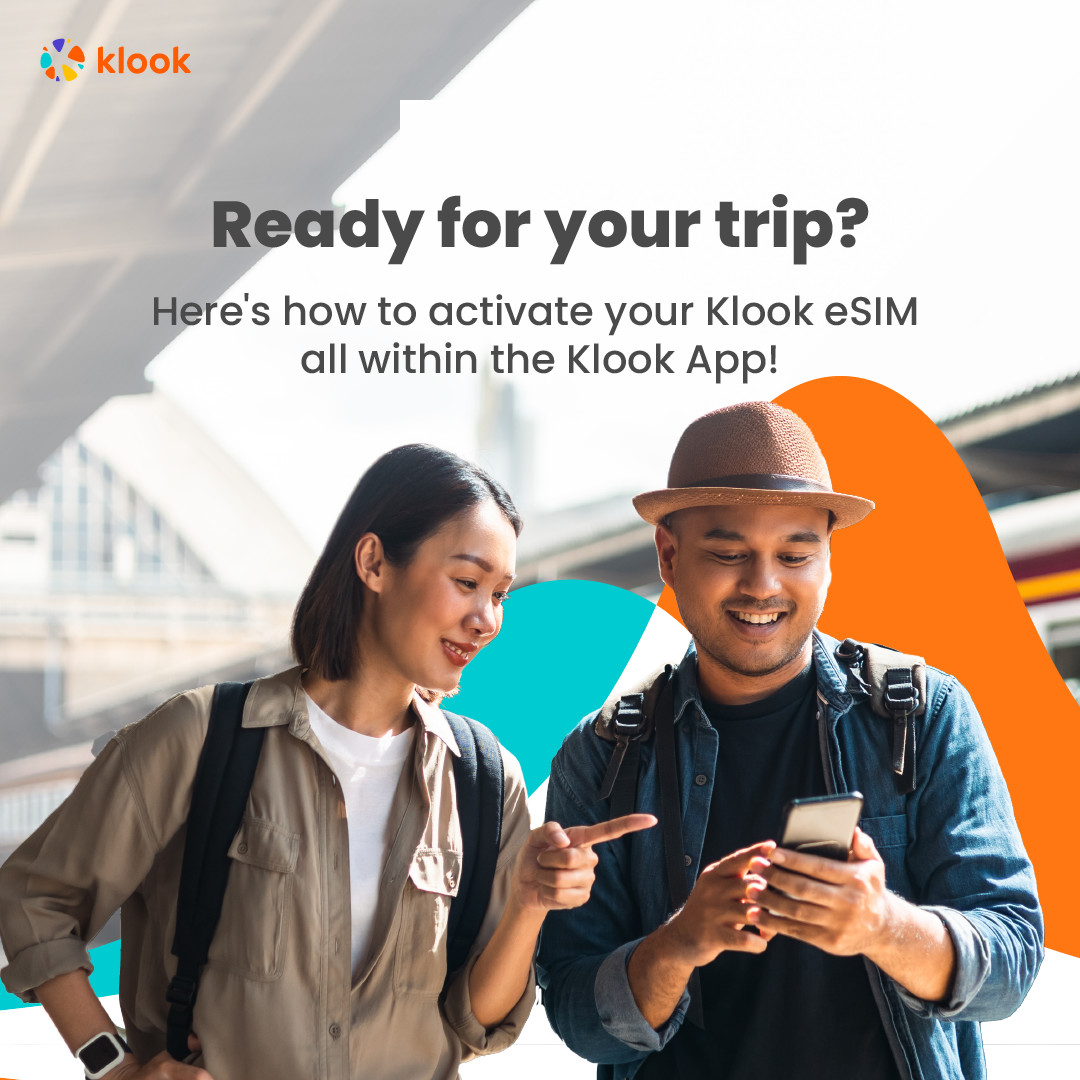
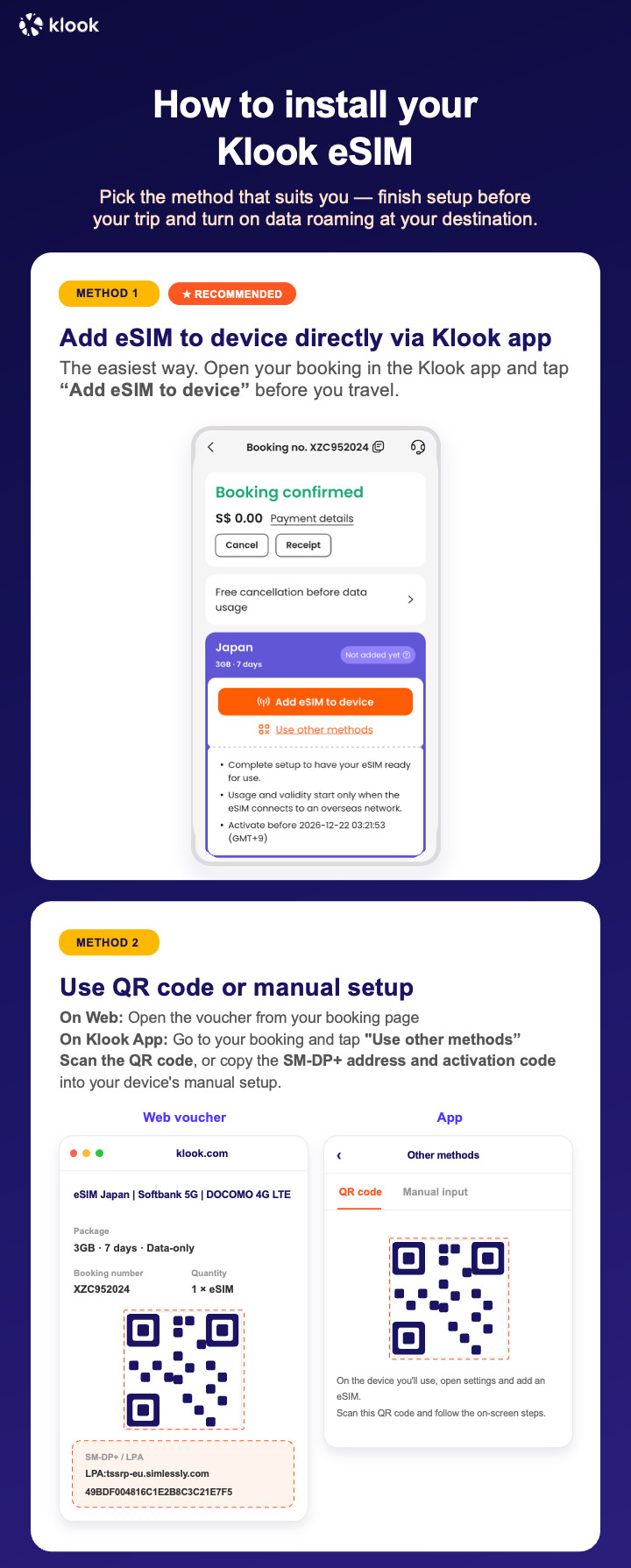
- Klook eSIM installation methods
Activate your eSIM via Klook in-app activation, scanning the QR code, or entering the SMDP+ details manually
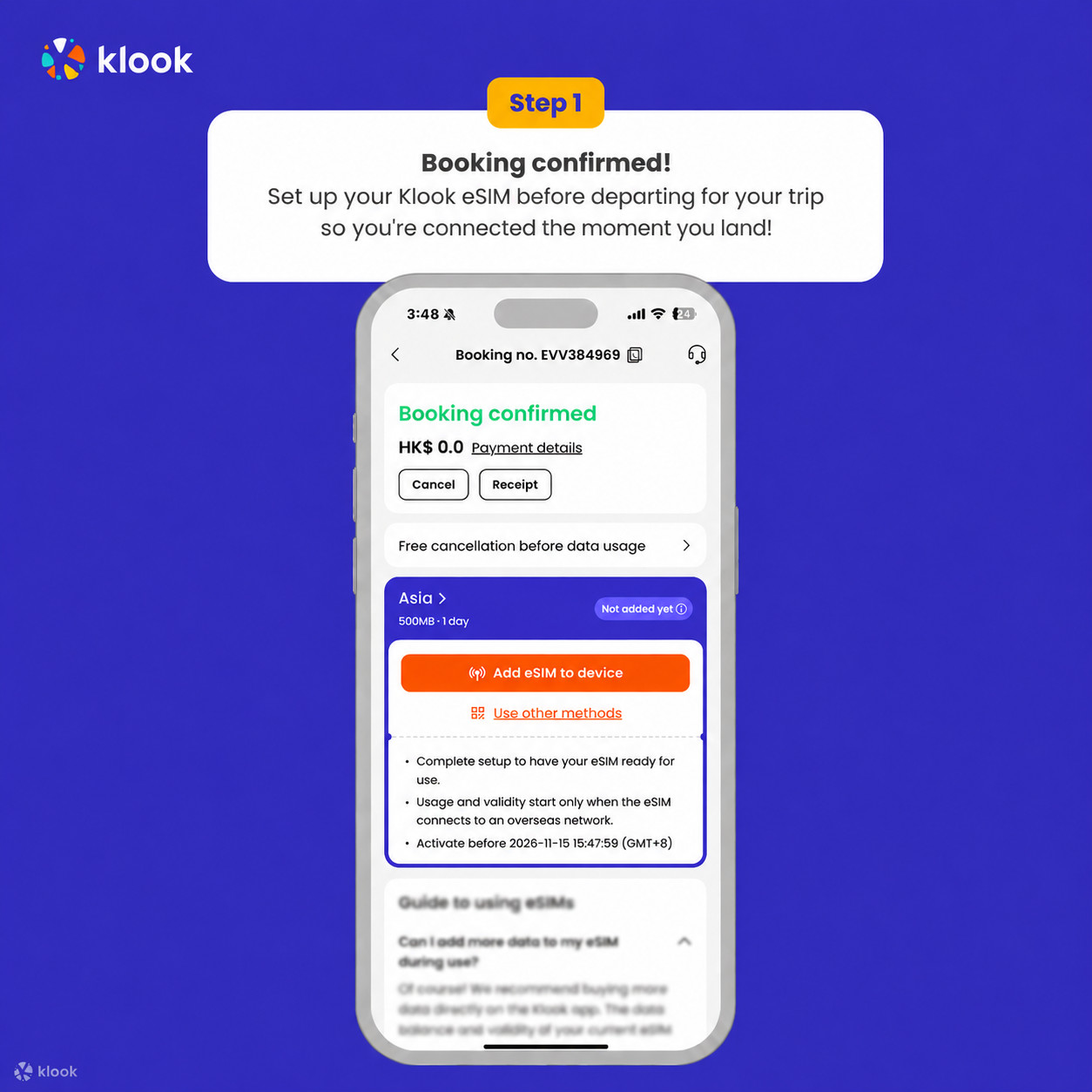
- Klook eSIM In-app activation
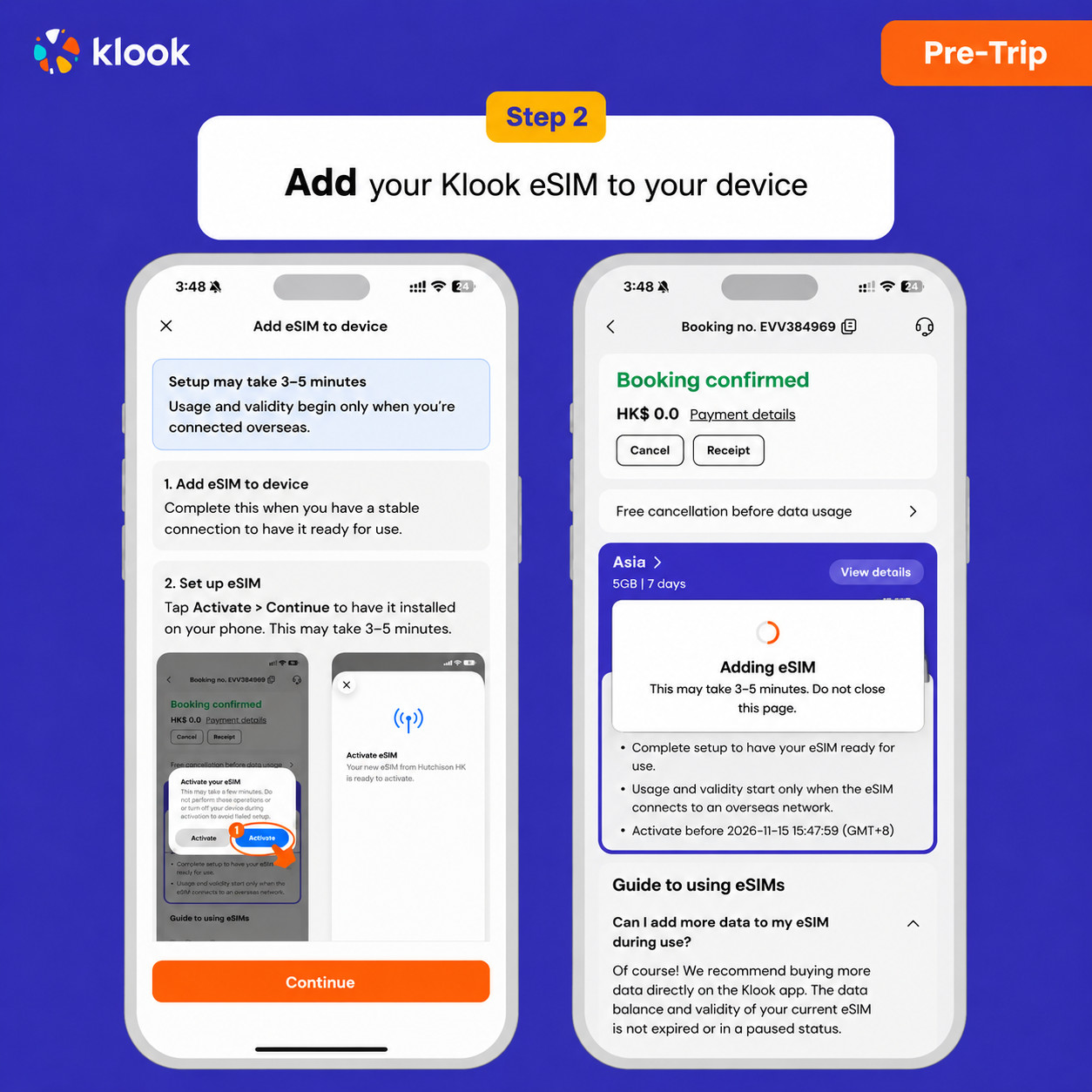
Click Add eSIM to device on your booking to start the installation. Don't worry, data and validity will only commence when you reach your destination
- Klook eSIM In-app activation
Installation of your eSIM will start automatically
- Klook eSIM iOS installation
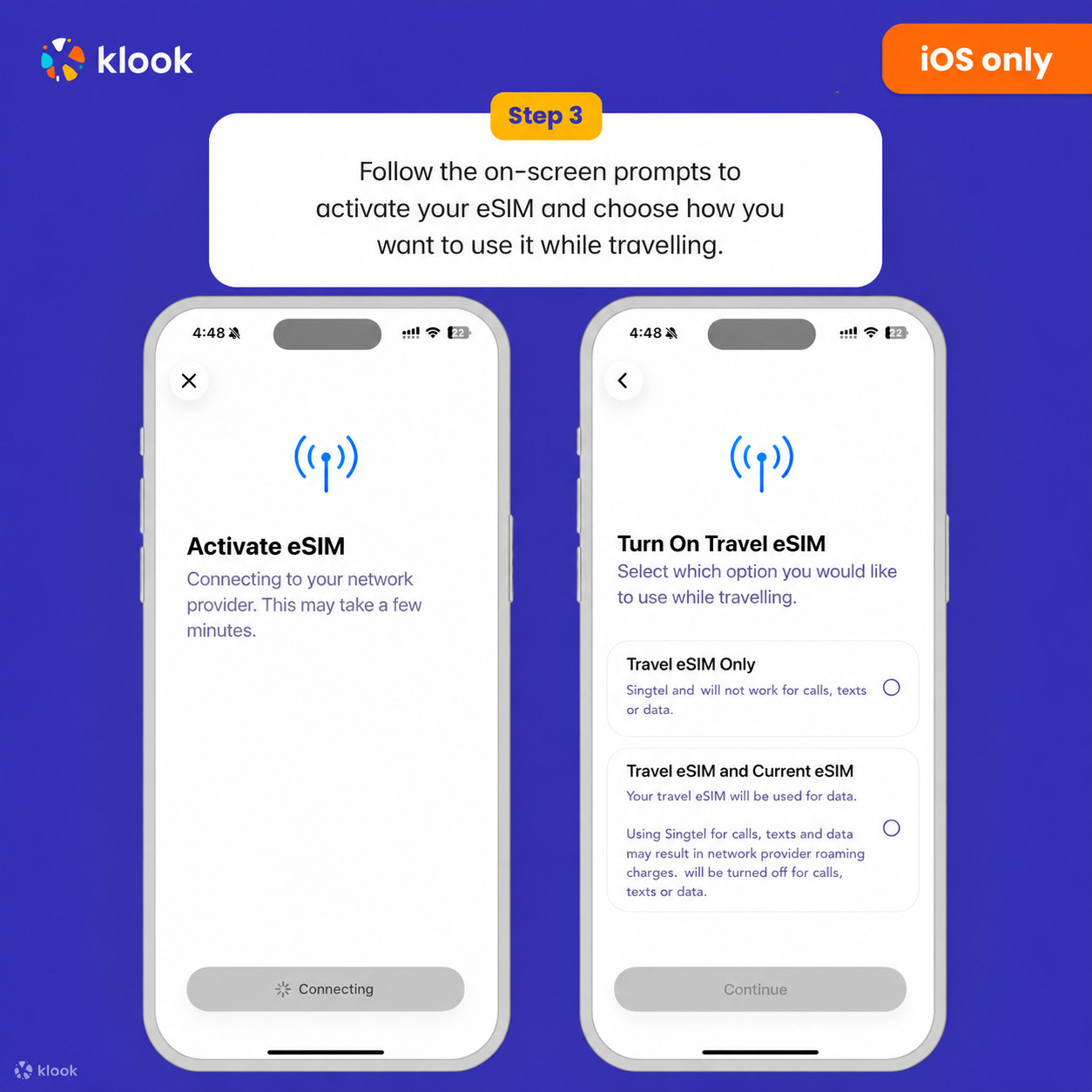
Set up your Klook eSIM for travel on iOS
- Klook eSIM installed
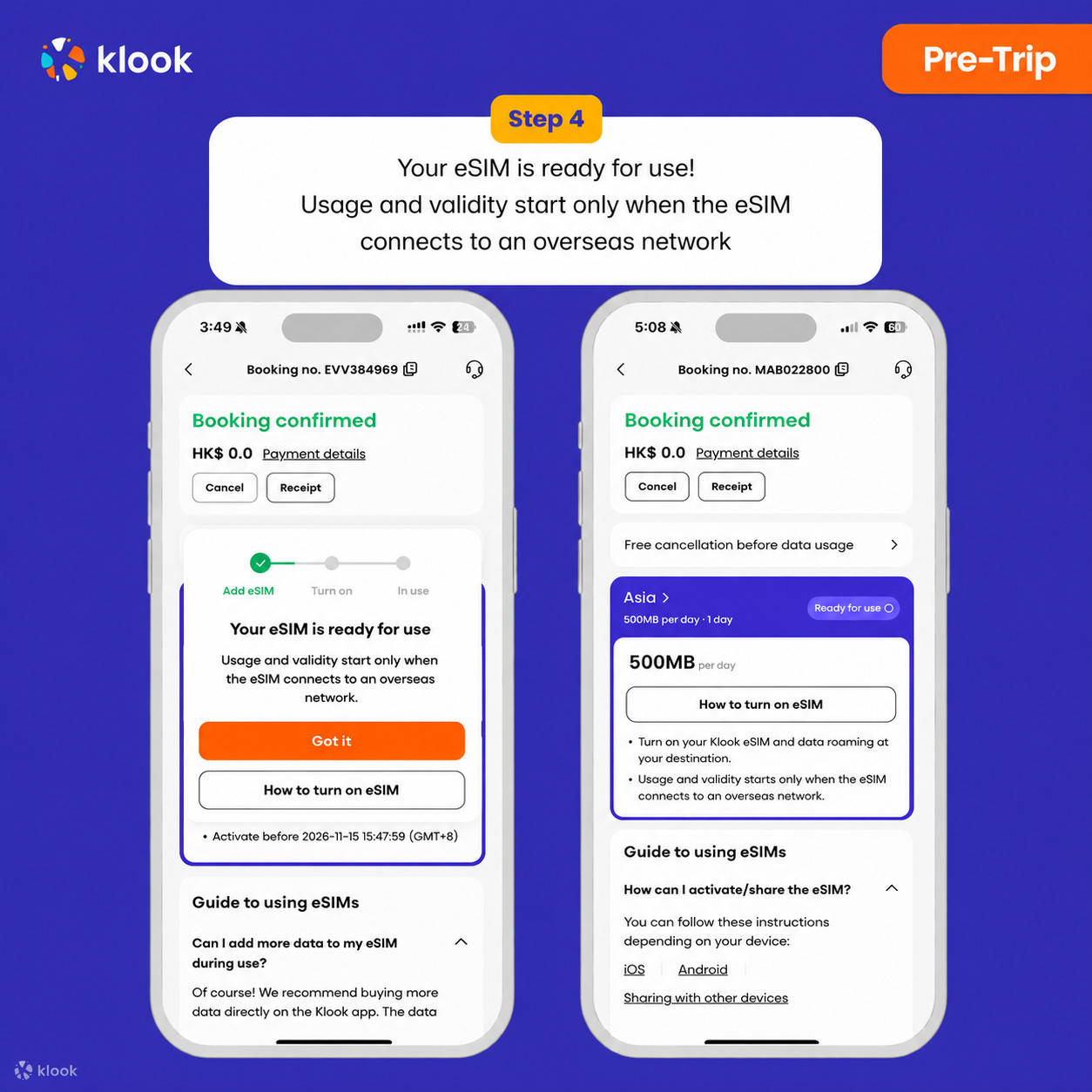
Your eSIM is ready for use! Usage and validity start only when the eSIM connects to an overseas network
- Turn on Klook eSIM
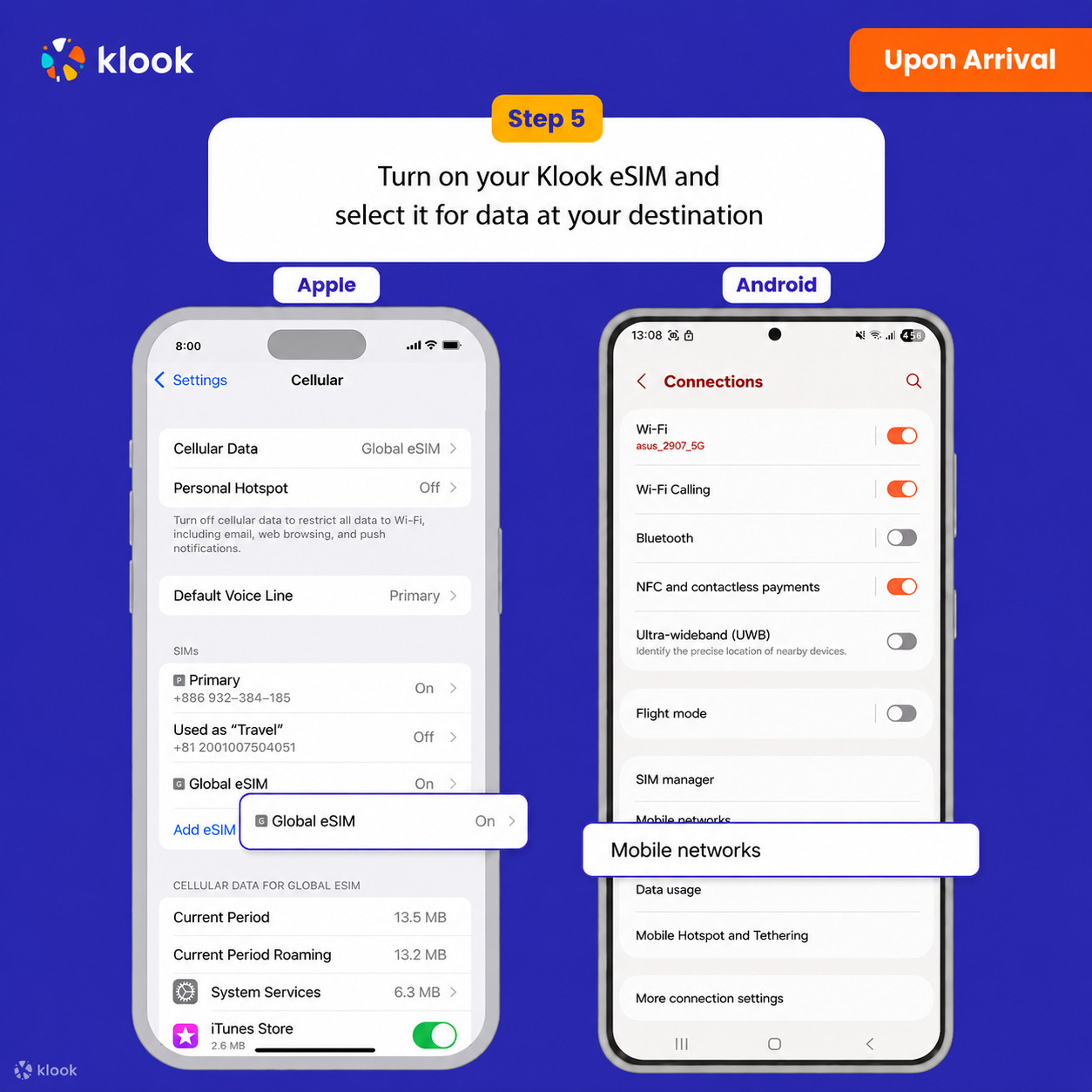
Turn on Klook eSIM and select Klook eSIM for mobile data
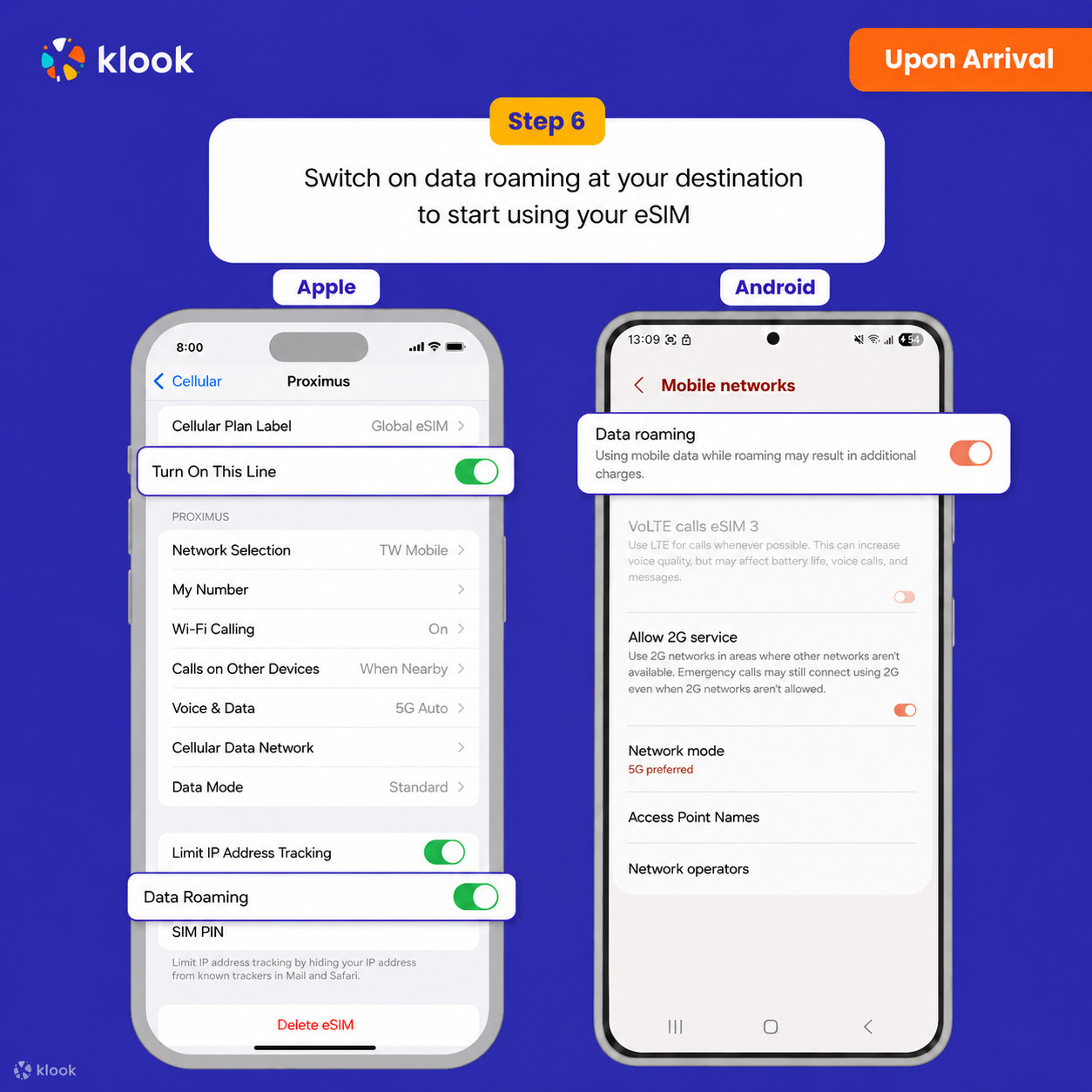
- Turn on Data roaming
Switch on data roaming at your destination to start using your eSIM
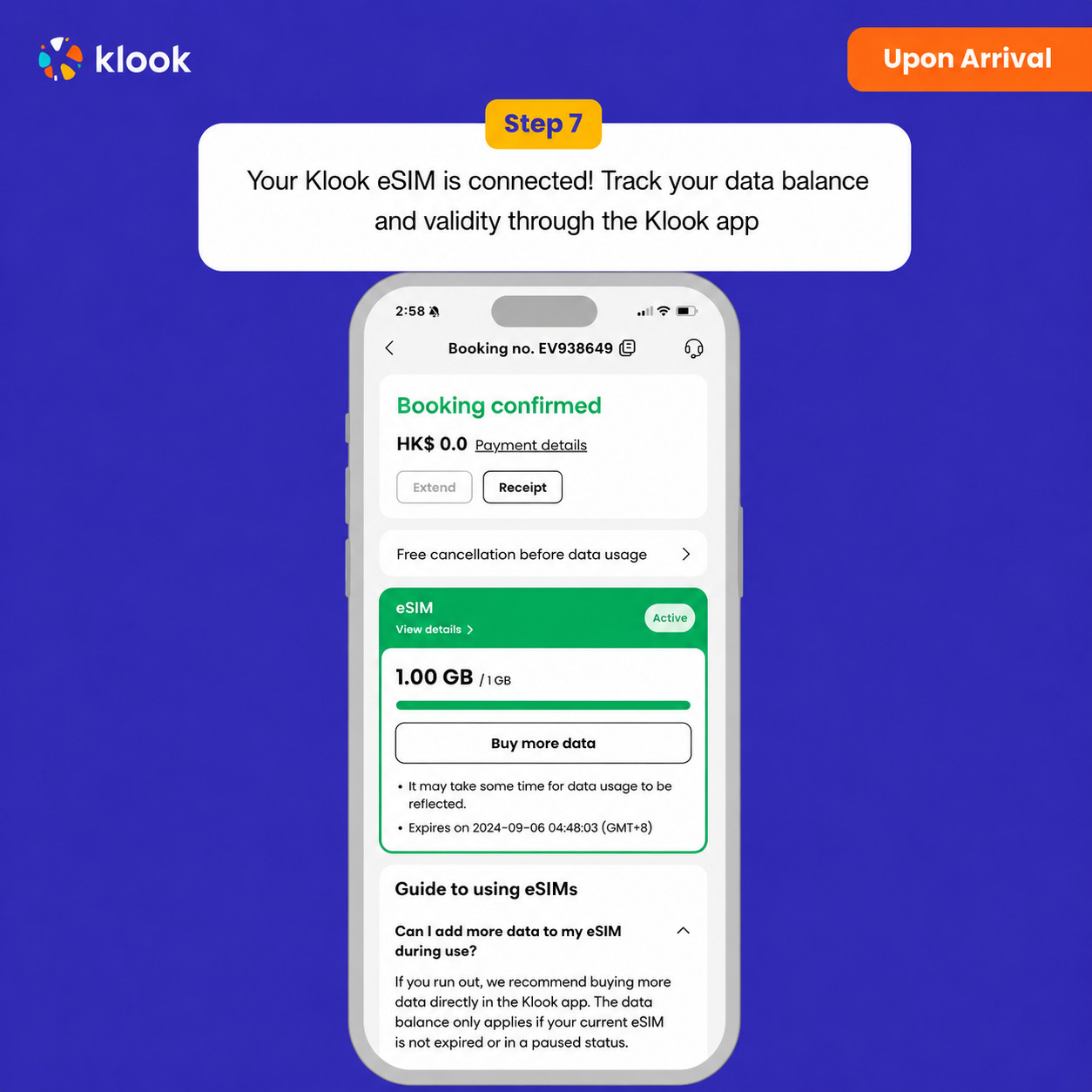
- Klook eSIM connected
Your klook esim is connected! Track your data balance and validity through the Klook app
Confirmation policy
- You'll get confirmation within minutes. If you don't see any confirmation, reach out to our customer support.
Data per day · 2 days · 1GB · Data only
Confirmation policy
- You'll get confirmation within minutes. If you don't see any confirmation, reach out to our customer support.
Activate your eSIM Android / iOS
- Your eSIM plan will begin upon connection to the destination mobile network, according to the time connected. For example, if you activate your 3-day plan at 10:00, it will end 3 days later at 10:00.
- Activate your Klook eSIM before travel
Activate your eSIM before travel
- Klook eSIM installation methods
Activate your eSIM via Klook in-app activation, scanning the QR code, or entering the SMDP+ details manually
- Klook eSIM In-app activation
Click Add eSIM to device on your booking to start the installation. Don't worry, data and validity will only commence when you reach your destination
- Klook eSIM In-app activation
Installation of your eSIM will start automatically
- Klook eSIM iOS installation
Set up your Klook eSIM for travel on iOS
- Klook eSIM installed
Your eSIM is ready for use! Usage and validity start only when the eSIM connects to an overseas network
- Turn on Klook eSIM
Turn on Klook eSIM and select Klook eSIM for mobile data
- Turn on Data roaming
Switch on data roaming at your destination to start using your eSIM
- Klook eSIM connected
Your klook esim is connected! Track your data balance and validity through the Klook app
Data per day · 2 days · 3GB · Data only
Confirmation policy
- You'll get confirmation within minutes. If you don't see any confirmation, reach out to our customer support.
Activate your eSIM Android / iOS
- Your eSIM plan will begin upon connection to the destination mobile network, according to the time connected. For example, if you activate your 3-day plan at 10:00, it will end 3 days later at 10:00.
- Activate your Klook eSIM before travel
Activate your eSIM before travel
- Klook eSIM installation methods
Activate your eSIM via Klook in-app activation, scanning the QR code, or entering the SMDP+ details manually
- Klook eSIM In-app activation
Click Add eSIM to device on your booking to start the installation. Don't worry, data and validity will only commence when you reach your destination
- Klook eSIM In-app activation
Installation of your eSIM will start automatically
- Klook eSIM iOS installation
Set up your Klook eSIM for travel on iOS
- Klook eSIM installed
Your eSIM is ready for use! Usage and validity start only when the eSIM connects to an overseas network
- Turn on Klook eSIM
Turn on Klook eSIM and select Klook eSIM for mobile data
- Turn on Data roaming
Switch on data roaming at your destination to start using your eSIM
- Klook eSIM connected
Your klook esim is connected! Track your data balance and validity through the Klook app
Data per day · 3 days · 1GB · Data only
Activate your eSIM Android / iOS
- Your eSIM plan will begin upon connection to the destination mobile network, according to the time connected. For example, if you activate your 3-day plan at 10:00, it will end 3 days later at 10:00.
- Activate your Klook eSIM before travel
Activate your eSIM before travel
- Klook eSIM installation methods
Activate your eSIM via Klook in-app activation, scanning the QR code, or entering the SMDP+ details manually
- Klook eSIM In-app activation
Click Add eSIM to device on your booking to start the installation. Don't worry, data and validity will only commence when you reach your destination
- Klook eSIM In-app activation
Installation of your eSIM will start automatically
- Klook eSIM iOS installation
Set up your Klook eSIM for travel on iOS
- Klook eSIM installed
Your eSIM is ready for use! Usage and validity start only when the eSIM connects to an overseas network
- Turn on Klook eSIM
Turn on Klook eSIM and select Klook eSIM for mobile data
- Turn on Data roaming
Switch on data roaming at your destination to start using your eSIM
- Klook eSIM connected
Your klook esim is connected! Track your data balance and validity through the Klook app
Confirmation policy
- You'll get confirmation within minutes. If you don't see any confirmation, reach out to our customer support.
Data per day · 3 days · 3GB · Data only
Confirmation policy
- You'll get confirmation within minutes. If you don't see any confirmation, reach out to our customer support.
Activate your eSIM Android / iOS
- Your eSIM plan will begin upon connection to the destination mobile network, according to the time connected. For example, if you activate your 3-day plan at 10:00, it will end 3 days later at 10:00.
- Activate your Klook eSIM before travel
Activate your eSIM before travel
- Klook eSIM installation methods
Activate your eSIM via Klook in-app activation, scanning the QR code, or entering the SMDP+ details manually
- Klook eSIM In-app activation
Click Add eSIM to device on your booking to start the installation. Don't worry, data and validity will only commence when you reach your destination
- Klook eSIM In-app activation
Installation of your eSIM will start automatically
- Klook eSIM iOS installation
Set up your Klook eSIM for travel on iOS
- Klook eSIM installed
Your eSIM is ready for use! Usage and validity start only when the eSIM connects to an overseas network
- Turn on Klook eSIM
Turn on Klook eSIM and select Klook eSIM for mobile data
- Turn on Data roaming
Switch on data roaming at your destination to start using your eSIM
- Klook eSIM connected
Your klook esim is connected! Track your data balance and validity through the Klook app
Data per day · 3 days · Unlimited · Data only
Confirmation policy
- You'll get confirmation within minutes. If you don't see any confirmation, reach out to our customer support.
Activate your eSIM Android / iOS
- Your eSIM plan will begin upon connection to the destination mobile network, according to the time connected. For example, if you activate your 3-day plan at 10:00, it will end 3 days later at 10:00.
- Activate your Klook eSIM before travel
Activate your eSIM before travel
- Klook eSIM installation methods
Activate your eSIM via Klook in-app activation, scanning the QR code, or entering the SMDP+ details manually
- Klook eSIM In-app activation
Click Add eSIM to device on your booking to start the installation. Don't worry, data and validity will only commence when you reach your destination
- Klook eSIM In-app activation
Installation of your eSIM will start automatically
- Klook eSIM iOS installation
Set up your Klook eSIM for travel on iOS
- Klook eSIM installed
Your eSIM is ready for use! Usage and validity start only when the eSIM connects to an overseas network
- Turn on Klook eSIM
Turn on Klook eSIM and select Klook eSIM for mobile data
- Turn on Data roaming
Switch on data roaming at your destination to start using your eSIM
- Klook eSIM connected
Your klook esim is connected! Track your data balance and validity through the Klook app
Data per day · 5 days · 3GB · Data only
Activate your eSIM Android / iOS
- Your eSIM plan will begin upon connection to the destination mobile network, according to the time connected. For example, if you activate your 3-day plan at 10:00, it will end 3 days later at 10:00.
- Activate your Klook eSIM before travel
Activate your eSIM before travel
- Klook eSIM installation methods
Activate your eSIM via Klook in-app activation, scanning the QR code, or entering the SMDP+ details manually
- Klook eSIM In-app activation
Click Add eSIM to device on your booking to start the installation. Don't worry, data and validity will only commence when you reach your destination
- Klook eSIM In-app activation
Installation of your eSIM will start automatically
- Klook eSIM iOS installation
Set up your Klook eSIM for travel on iOS
- Klook eSIM installed
Your eSIM is ready for use! Usage and validity start only when the eSIM connects to an overseas network
- Turn on Klook eSIM
Turn on Klook eSIM and select Klook eSIM for mobile data
- Turn on Data roaming
Switch on data roaming at your destination to start using your eSIM
- Klook eSIM connected
Your klook esim is connected! Track your data balance and validity through the Klook app
Confirmation policy
- You'll get confirmation within minutes. If you don't see any confirmation, reach out to our customer support.
Data per day · 5 days · Unlimited · Data only
- Activate your Klook eSIM before travel
Activate your eSIM before travel
- Klook eSIM installation methods
Activate your eSIM via Klook in-app activation, scanning the QR code, or entering the SMDP+ details manually
- Klook eSIM In-app activation
Click Add eSIM to device on your booking to start the installation. Don't worry, data and validity will only commence when you reach your destination
- Klook eSIM In-app activation
Installation of your eSIM will start automatically
- Klook eSIM iOS installation
Set up your Klook eSIM for travel on iOS
- Klook eSIM installed
Your eSIM is ready for use! Usage and validity start only when the eSIM connects to an overseas network
- Turn on Klook eSIM
Turn on Klook eSIM and select Klook eSIM for mobile data
- Turn on Data roaming
Switch on data roaming at your destination to start using your eSIM
- Klook eSIM connected
Your klook esim is connected! Track your data balance and validity through the Klook app
Activate your eSIM Android / iOS
- Your eSIM plan will begin upon connection to the destination mobile network, according to the time connected. For example, if you activate your 3-day plan at 10:00, it will end 3 days later at 10:00.
Confirmation policy
- You'll get confirmation within minutes. If you don't see any confirmation, reach out to our customer support.
Data per day · 7 days · 1GB · Data only
Confirmation policy
- You'll get confirmation within minutes. If you don't see any confirmation, reach out to our customer support.
Activate your eSIM Android / iOS
- Your eSIM plan will begin upon connection to the destination mobile network, according to the time connected. For example, if you activate your 3-day plan at 10:00, it will end 3 days later at 10:00.
- Activate your Klook eSIM before travel
Activate your eSIM before travel
- Klook eSIM installation methods
Activate your eSIM via Klook in-app activation, scanning the QR code, or entering the SMDP+ details manually
- Klook eSIM In-app activation
Click Add eSIM to device on your booking to start the installation. Don't worry, data and validity will only commence when you reach your destination
- Klook eSIM In-app activation
Installation of your eSIM will start automatically
- Klook eSIM iOS installation
Set up your Klook eSIM for travel on iOS
- Klook eSIM installed
Your eSIM is ready for use! Usage and validity start only when the eSIM connects to an overseas network
- Turn on Klook eSIM
Turn on Klook eSIM and select Klook eSIM for mobile data
- Turn on Data roaming
Switch on data roaming at your destination to start using your eSIM
- Klook eSIM connected
Your klook esim is connected! Track your data balance and validity through the Klook app
Data per day · 7 days · Unlimited · Data only
- Activate your Klook eSIM before travel
Activate your eSIM before travel
- Klook eSIM installation methods
Activate your eSIM via Klook in-app activation, scanning the QR code, or entering the SMDP+ details manually
- Klook eSIM In-app activation
Click Add eSIM to device on your booking to start the installation. Don't worry, data and validity will only commence when you reach your destination
- Klook eSIM In-app activation
Installation of your eSIM will start automatically
- Klook eSIM iOS installation
Set up your Klook eSIM for travel on iOS
- Klook eSIM installed
Your eSIM is ready for use! Usage and validity start only when the eSIM connects to an overseas network
- Turn on Klook eSIM
Turn on Klook eSIM and select Klook eSIM for mobile data
- Turn on Data roaming
Switch on data roaming at your destination to start using your eSIM
- Klook eSIM connected
Your klook esim is connected! Track your data balance and validity through the Klook app
Activate your eSIM Android / iOS
- Your eSIM plan will begin upon connection to the destination mobile network, according to the time connected. For example, if you activate your 3-day plan at 10:00, it will end 3 days later at 10:00.
Confirmation policy
- You'll get confirmation within minutes. If you don't see any confirmation, reach out to our customer support.
Data per day · 8 days · 1GB · Data only
Activate your eSIM Android / iOS
- Your eSIM plan will begin upon connection to the destination mobile network, according to the time connected. For example, if you activate your 3-day plan at 10:00, it will end 3 days later at 10:00.
- Activate your Klook eSIM before travel
Activate your eSIM before travel
- Klook eSIM installation methods
Activate your eSIM via Klook in-app activation, scanning the QR code, or entering the SMDP+ details manually
- Klook eSIM In-app activation
Click Add eSIM to device on your booking to start the installation. Don't worry, data and validity will only commence when you reach your destination
- Klook eSIM In-app activation
Installation of your eSIM will start automatically
- Klook eSIM iOS installation
Set up your Klook eSIM for travel on iOS
- Klook eSIM installed
Your eSIM is ready for use! Usage and validity start only when the eSIM connects to an overseas network
- Turn on Klook eSIM
Turn on Klook eSIM and select Klook eSIM for mobile data
- Turn on Data roaming
Switch on data roaming at your destination to start using your eSIM
- Klook eSIM connected
Your klook esim is connected! Track your data balance and validity through the Klook app
Confirmation policy
- You'll get confirmation within minutes. If you don't see any confirmation, reach out to our customer support.
Data per day · 8 days · Unlimited · Data only
Confirmation policy
- You'll get confirmation within minutes. If you don't see any confirmation, reach out to our customer support.
Activate your eSIM Android / iOS
- Your eSIM plan will begin upon connection to the destination mobile network, according to the time connected. For example, if you activate your 3-day plan at 10:00, it will end 3 days later at 10:00.
- Activate your Klook eSIM before travel
Activate your eSIM before travel
- Klook eSIM installation methods
Activate your eSIM via Klook in-app activation, scanning the QR code, or entering the SMDP+ details manually
- Klook eSIM In-app activation
Click Add eSIM to device on your booking to start the installation. Don't worry, data and validity will only commence when you reach your destination
- Klook eSIM In-app activation
Installation of your eSIM will start automatically
- Klook eSIM iOS installation
Set up your Klook eSIM for travel on iOS
- Klook eSIM installed
Your eSIM is ready for use! Usage and validity start only when the eSIM connects to an overseas network
- Turn on Klook eSIM
Turn on Klook eSIM and select Klook eSIM for mobile data
- Turn on Data roaming
Switch on data roaming at your destination to start using your eSIM
- Klook eSIM connected
Your klook esim is connected! Track your data balance and validity through the Klook app
Data per day · 10 days · 1GB · Data only
Activate your eSIM Android / iOS
- Your eSIM plan will begin upon connection to the destination mobile network, according to the time connected. For example, if you activate your 3-day plan at 10:00, it will end 3 days later at 10:00.
- Activate your Klook eSIM before travel
Activate your eSIM before travel
- Klook eSIM installation methods
Activate your eSIM via Klook in-app activation, scanning the QR code, or entering the SMDP+ details manually
- Klook eSIM In-app activation
Click Add eSIM to device on your booking to start the installation. Don't worry, data and validity will only commence when you reach your destination
- Klook eSIM In-app activation
Installation of your eSIM will start automatically
- Klook eSIM iOS installation
Set up your Klook eSIM for travel on iOS
- Klook eSIM installed
Your eSIM is ready for use! Usage and validity start only when the eSIM connects to an overseas network
- Turn on Klook eSIM
Turn on Klook eSIM and select Klook eSIM for mobile data
- Turn on Data roaming
Switch on data roaming at your destination to start using your eSIM
- Klook eSIM connected
Your klook esim is connected! Track your data balance and validity through the Klook app
Confirmation policy
- You'll get confirmation within minutes. If you don't see any confirmation, reach out to our customer support.
Data per day · 10 days · 3GB · Data only
Activate your eSIM Android / iOS
- Your eSIM plan will begin upon connection to the destination mobile network, according to the time connected. For example, if you activate your 3-day plan at 10:00, it will end 3 days later at 10:00.
- Activate your Klook eSIM before travel
Activate your eSIM before travel
- Klook eSIM installation methods
Activate your eSIM via Klook in-app activation, scanning the QR code, or entering the SMDP+ details manually
- Klook eSIM In-app activation
Click Add eSIM to device on your booking to start the installation. Don't worry, data and validity will only commence when you reach your destination
- Klook eSIM In-app activation
Installation of your eSIM will start automatically
- Klook eSIM iOS installation
Set up your Klook eSIM for travel on iOS
- Klook eSIM installed
Your eSIM is ready for use! Usage and validity start only when the eSIM connects to an overseas network
- Turn on Klook eSIM
Turn on Klook eSIM and select Klook eSIM for mobile data
- Turn on Data roaming
Switch on data roaming at your destination to start using your eSIM
- Klook eSIM connected
Your klook esim is connected! Track your data balance and validity through the Klook app
Confirmation policy
- You'll get confirmation within minutes. If you don't see any confirmation, reach out to our customer support.
Data per day · 15 days · 1GB · Data only
Confirmation policy
- You'll get confirmation within minutes. If you don't see any confirmation, reach out to our customer support.
Activate your eSIM Android / iOS
- Your eSIM plan will begin upon connection to the destination mobile network, according to the time connected. For example, if you activate your 3-day plan at 10:00, it will end 3 days later at 10:00.
- Activate your Klook eSIM before travel
Activate your eSIM before travel
- Klook eSIM installation methods
Activate your eSIM via Klook in-app activation, scanning the QR code, or entering the SMDP+ details manually
- Klook eSIM In-app activation
Click Add eSIM to device on your booking to start the installation. Don't worry, data and validity will only commence when you reach your destination
- Klook eSIM In-app activation
Installation of your eSIM will start automatically
- Klook eSIM iOS installation
Set up your Klook eSIM for travel on iOS
- Klook eSIM installed
Your eSIM is ready for use! Usage and validity start only when the eSIM connects to an overseas network
- Turn on Klook eSIM
Turn on Klook eSIM and select Klook eSIM for mobile data
- Turn on Data roaming
Switch on data roaming at your destination to start using your eSIM
- Klook eSIM connected
Your klook esim is connected! Track your data balance and validity through the Klook app
Data per day · 15 days · 3GB · Data only
Confirmation policy
- You'll get confirmation within minutes. If you don't see any confirmation, reach out to our customer support.
Activate your eSIM Android / iOS
- Your eSIM plan will begin upon connection to the destination mobile network, according to the time connected. For example, if you activate your 3-day plan at 10:00, it will end 3 days later at 10:00.
- Activate your Klook eSIM before travel
Activate your eSIM before travel
- Klook eSIM installation methods
Activate your eSIM via Klook in-app activation, scanning the QR code, or entering the SMDP+ details manually
- Klook eSIM In-app activation
Click Add eSIM to device on your booking to start the installation. Don't worry, data and validity will only commence when you reach your destination
- Klook eSIM In-app activation
Installation of your eSIM will start automatically
- Klook eSIM iOS installation
Set up your Klook eSIM for travel on iOS
- Klook eSIM installed
Your eSIM is ready for use! Usage and validity start only when the eSIM connects to an overseas network
- Turn on Klook eSIM
Turn on Klook eSIM and select Klook eSIM for mobile data
- Turn on Data roaming
Switch on data roaming at your destination to start using your eSIM
- Klook eSIM connected
Your klook esim is connected! Track your data balance and validity through the Klook app
Data per day · 30 days · 1GB · Data only
Confirmation policy
- You'll get confirmation within minutes. If you don't see any confirmation, reach out to our customer support.
Activate your eSIM Android / iOS
- Your eSIM plan will begin upon connection to the destination mobile network, according to the time connected. For example, if you activate your 3-day plan at 10:00, it will end 3 days later at 10:00.
- Activate your Klook eSIM before travel
Activate your eSIM before travel
- Klook eSIM installation methods
Activate your eSIM via Klook in-app activation, scanning the QR code, or entering the SMDP+ details manually
- Klook eSIM In-app activation
Click Add eSIM to device on your booking to start the installation. Don't worry, data and validity will only commence when you reach your destination
- Klook eSIM In-app activation
Installation of your eSIM will start automatically
- Klook eSIM iOS installation
Set up your Klook eSIM for travel on iOS
- Klook eSIM installed
Your eSIM is ready for use! Usage and validity start only when the eSIM connects to an overseas network
- Turn on Klook eSIM
Turn on Klook eSIM and select Klook eSIM for mobile data
- Turn on Data roaming
Switch on data roaming at your destination to start using your eSIM
- Klook eSIM connected
Your klook esim is connected! Track your data balance and validity through the Klook app
Data per day · 30 days · 3GB · Data only
Activate your eSIM Android / iOS
- Your eSIM plan will begin upon connection to the destination mobile network, according to the time connected. For example, if you activate your 3-day plan at 10:00, it will end 3 days later at 10:00.
- Activate your Klook eSIM before travel
Activate your eSIM before travel
- Klook eSIM installation methods
Activate your eSIM via Klook in-app activation, scanning the QR code, or entering the SMDP+ details manually
- Klook eSIM In-app activation
Click Add eSIM to device on your booking to start the installation. Don't worry, data and validity will only commence when you reach your destination
- Klook eSIM In-app activation
Installation of your eSIM will start automatically
- Klook eSIM iOS installation
Set up your Klook eSIM for travel on iOS
- Klook eSIM installed
Your eSIM is ready for use! Usage and validity start only when the eSIM connects to an overseas network
- Turn on Klook eSIM
Turn on Klook eSIM and select Klook eSIM for mobile data
- Turn on Data roaming
Switch on data roaming at your destination to start using your eSIM
- Klook eSIM connected
Your klook esim is connected! Track your data balance and validity through the Klook app
Confirmation policy
- You'll get confirmation within minutes. If you don't see any confirmation, reach out to our customer support.
Data per day · 30 days · Unlimited · Data only
Confirmation policy
- You'll get confirmation within minutes. If you don't see any confirmation, reach out to our customer support.
Activate your eSIM Android / iOS
- Your eSIM plan will begin upon connection to the destination mobile network, according to the time connected. For example, if you activate your 3-day plan at 10:00, it will end 3 days later at 10:00.
- Activate your Klook eSIM before travel
Activate your eSIM before travel
- Klook eSIM installation methods
Activate your eSIM via Klook in-app activation, scanning the QR code, or entering the SMDP+ details manually
- Klook eSIM In-app activation
Click Add eSIM to device on your booking to start the installation. Don't worry, data and validity will only commence when you reach your destination
- Klook eSIM In-app activation
Installation of your eSIM will start automatically
- Klook eSIM iOS installation
Set up your Klook eSIM for travel on iOS
- Klook eSIM installed
Your eSIM is ready for use! Usage and validity start only when the eSIM connects to an overseas network
- Turn on Klook eSIM
Turn on Klook eSIM and select Klook eSIM for mobile data
- Turn on Data roaming
Switch on data roaming at your destination to start using your eSIM
- Klook eSIM connected
Your klook esim is connected! Track your data balance and validity through the Klook app
Data in total · 1 day · 3GB · Data only
Activate your eSIM Android / iOS
- Your eSIM plan will begin upon connection to the destination mobile network, according to the time connected. For example, if you activate your 3-day plan at 10:00, it will end 3 days later at 10:00.
- Activate your Klook eSIM before travel
Activate your eSIM before travel
- Klook eSIM installation methods
Activate your eSIM via Klook in-app activation, scanning the QR code, or entering the SMDP+ details manually
- Klook eSIM In-app activation
Click Add eSIM to device on your booking to start the installation. Don't worry, data and validity will only commence when you reach your destination
- Klook eSIM In-app activation
Installation of your eSIM will start automatically
- Klook eSIM iOS installation
Set up your Klook eSIM for travel on iOS
- Klook eSIM installed
Your eSIM is ready for use! Usage and validity start only when the eSIM connects to an overseas network
- Turn on Klook eSIM
Turn on Klook eSIM and select Klook eSIM for mobile data
- Turn on Data roaming
Switch on data roaming at your destination to start using your eSIM
- Klook eSIM connected
Your klook esim is connected! Track your data balance and validity through the Klook app
Confirmation policy
- You'll get confirmation within minutes. If you don't see any confirmation, reach out to our customer support.
Data in total · 1 day · 500MB · Data only
- Activate your Klook eSIM before travel
Activate your eSIM before travel
- Klook eSIM installation methods
Activate your eSIM via Klook in-app activation, scanning the QR code, or entering the SMDP+ details manually
- Klook eSIM In-app activation
Click Add eSIM to device on your booking to start the installation. Don't worry, data and validity will only commence when you reach your destination
- Klook eSIM In-app activation
Installation of your eSIM will start automatically
- Klook eSIM iOS installation
Set up your Klook eSIM for travel on iOS
- Klook eSIM installed
Your eSIM is ready for use! Usage and validity start only when the eSIM connects to an overseas network
- Turn on Klook eSIM
Turn on Klook eSIM and select Klook eSIM for mobile data
- Turn on Data roaming
Switch on data roaming at your destination to start using your eSIM
- Klook eSIM connected
Your klook esim is connected! Track your data balance and validity through the Klook app
Activate your eSIM Android / iOS
- Your eSIM plan will begin upon connection to the destination mobile network, according to the time connected. For example, if you activate your 3-day plan at 10:00, it will end 3 days later at 10:00.
Confirmation policy
- You'll get confirmation within minutes. If you don't see any confirmation, reach out to our customer support.
Data in total · 3 days · 1GB · Data only
Confirmation policy
- You'll get confirmation within minutes. If you don't see any confirmation, reach out to our customer support.
- Activate your Klook eSIM before travel
Activate your eSIM before travel
- Klook eSIM installation methods
Activate your eSIM via Klook in-app activation, scanning the QR code, or entering the SMDP+ details manually
- Klook eSIM In-app activation
Click Add eSIM to device on your booking to start the installation. Don't worry, data and validity will only commence when you reach your destination
- Klook eSIM In-app activation
Installation of your eSIM will start automatically
- Klook eSIM iOS installation
Set up your Klook eSIM for travel on iOS
- Klook eSIM installed
Your eSIM is ready for use! Usage and validity start only when the eSIM connects to an overseas network
- Turn on Klook eSIM
Turn on Klook eSIM and select Klook eSIM for mobile data
- Turn on Data roaming
Switch on data roaming at your destination to start using your eSIM
- Klook eSIM connected
Your klook esim is connected! Track your data balance and validity through the Klook app
Data in total · 3 days · 5GB · Data only
Activate your eSIM Android / iOS
- Your eSIM plan will begin upon connection to the destination mobile network, according to the time connected. For example, if you activate your 3-day plan at 10:00, it will end 3 days later at 10:00.
- Activate your Klook eSIM before travel
Activate your eSIM before travel
- Klook eSIM installation methods
Activate your eSIM via Klook in-app activation, scanning the QR code, or entering the SMDP+ details manually
- Klook eSIM In-app activation
Click Add eSIM to device on your booking to start the installation. Don't worry, data and validity will only commence when you reach your destination
- Klook eSIM In-app activation
Installation of your eSIM will start automatically
- Klook eSIM iOS installation
Set up your Klook eSIM for travel on iOS
- Klook eSIM installed
Your eSIM is ready for use! Usage and validity start only when the eSIM connects to an overseas network
- Turn on Klook eSIM
Turn on Klook eSIM and select Klook eSIM for mobile data
- Turn on Data roaming
Switch on data roaming at your destination to start using your eSIM
- Klook eSIM connected
Your klook esim is connected! Track your data balance and validity through the Klook app
Confirmation policy
- You'll get confirmation within minutes. If you don't see any confirmation, reach out to our customer support.
Data in total · 7 days · 1GB · Data only
Activate your eSIM Android / iOS
- Your eSIM plan will begin upon connection to the destination mobile network, according to the time connected. For example, if you activate your 3-day plan at 10:00, it will end 3 days later at 10:00.
- Activate your Klook eSIM before travel
Activate your eSIM before travel
- Klook eSIM installation methods
Activate your eSIM via Klook in-app activation, scanning the QR code, or entering the SMDP+ details manually
- Klook eSIM In-app activation
Click Add eSIM to device on your booking to start the installation. Don't worry, data and validity will only commence when you reach your destination
- Klook eSIM In-app activation
Installation of your eSIM will start automatically
- Klook eSIM iOS installation
Set up your Klook eSIM for travel on iOS
- Klook eSIM installed
Your eSIM is ready for use! Usage and validity start only when the eSIM connects to an overseas network
- Turn on Klook eSIM
Turn on Klook eSIM and select Klook eSIM for mobile data
- Turn on Data roaming
Switch on data roaming at your destination to start using your eSIM
- Klook eSIM connected
Your klook esim is connected! Track your data balance and validity through the Klook app
Confirmation policy
- You'll get confirmation within minutes. If you don't see any confirmation, reach out to our customer support.
Data in total · 7 days · 5GB · Data only
Confirmation policy
- You'll get confirmation within minutes. If you don't see any confirmation, reach out to our customer support.
Activate your eSIM Android / iOS
- Your eSIM plan will begin upon connection to the destination mobile network, according to the time connected. For example, if you activate your 3-day plan at 10:00, it will end 3 days later at 10:00.
- Activate your Klook eSIM before travel
Activate your eSIM before travel
- Klook eSIM installation methods
Activate your eSIM via Klook in-app activation, scanning the QR code, or entering the SMDP+ details manually
- Klook eSIM In-app activation
Click Add eSIM to device on your booking to start the installation. Don't worry, data and validity will only commence when you reach your destination
- Klook eSIM In-app activation
Installation of your eSIM will start automatically
- Klook eSIM iOS installation
Set up your Klook eSIM for travel on iOS
- Klook eSIM installed
Your eSIM is ready for use! Usage and validity start only when the eSIM connects to an overseas network
- Turn on Klook eSIM
Turn on Klook eSIM and select Klook eSIM for mobile data
- Turn on Data roaming
Switch on data roaming at your destination to start using your eSIM
- Klook eSIM connected
Your klook esim is connected! Track your data balance and validity through the Klook app
Data in total · 7 days · 20GB · Data only
Activate your eSIM Android / iOS
- Your eSIM plan will begin upon connection to the destination mobile network, according to the time connected. For example, if you activate your 3-day plan at 10:00, it will end 3 days later at 10:00.
- Activate your Klook eSIM before travel
Activate your eSIM before travel
- Klook eSIM installation methods
Activate your eSIM via Klook in-app activation, scanning the QR code, or entering the SMDP+ details manually
- Klook eSIM In-app activation
Click Add eSIM to device on your booking to start the installation. Don't worry, data and validity will only commence when you reach your destination
- Klook eSIM In-app activation
Installation of your eSIM will start automatically
- Klook eSIM iOS installation
Set up your Klook eSIM for travel on iOS
- Klook eSIM installed
Your eSIM is ready for use! Usage and validity start only when the eSIM connects to an overseas network
- Turn on Klook eSIM
Turn on Klook eSIM and select Klook eSIM for mobile data
- Turn on Data roaming
Switch on data roaming at your destination to start using your eSIM
- Klook eSIM connected
Your klook esim is connected! Track your data balance and validity through the Klook app
Confirmation policy
- You'll get confirmation within minutes. If you don't see any confirmation, reach out to our customer support.
Data in total · 15 days · 5GB · Data only
Activate your eSIM Android / iOS
- Your eSIM plan will begin upon connection to the destination mobile network, according to the time connected. For example, if you activate your 3-day plan at 10:00, it will end 3 days later at 10:00.
- Activate your Klook eSIM before travel
Activate your eSIM before travel
- Klook eSIM installation methods
Activate your eSIM via Klook in-app activation, scanning the QR code, or entering the SMDP+ details manually
- Klook eSIM In-app activation
Click Add eSIM to device on your booking to start the installation. Don't worry, data and validity will only commence when you reach your destination
- Klook eSIM In-app activation
Installation of your eSIM will start automatically
- Klook eSIM iOS installation
Set up your Klook eSIM for travel on iOS
- Klook eSIM installed
Your eSIM is ready for use! Usage and validity start only when the eSIM connects to an overseas network
- Turn on Klook eSIM
Turn on Klook eSIM and select Klook eSIM for mobile data
- Turn on Data roaming
Switch on data roaming at your destination to start using your eSIM
- Klook eSIM connected
Your klook esim is connected! Track your data balance and validity through the Klook app
Confirmation policy
- You'll get confirmation within minutes. If you don't see any confirmation, reach out to our customer support.
Data in total · 15 days · 10GB · Data only
Confirmation policy
- You'll get confirmation within minutes. If you don't see any confirmation, reach out to our customer support.
Activate your eSIM Android / iOS
- Your eSIM plan will begin upon connection to the destination mobile network, according to the time connected. For example, if you activate your 3-day plan at 10:00, it will end 3 days later at 10:00.
- Activate your Klook eSIM before travel
Activate your eSIM before travel
- Klook eSIM installation methods
Activate your eSIM via Klook in-app activation, scanning the QR code, or entering the SMDP+ details manually
- Klook eSIM In-app activation
Click Add eSIM to device on your booking to start the installation. Don't worry, data and validity will only commence when you reach your destination
- Klook eSIM In-app activation
Installation of your eSIM will start automatically
- Klook eSIM iOS installation
Set up your Klook eSIM for travel on iOS
- Klook eSIM installed
Your eSIM is ready for use! Usage and validity start only when the eSIM connects to an overseas network
- Turn on Klook eSIM
Turn on Klook eSIM and select Klook eSIM for mobile data
- Turn on Data roaming
Switch on data roaming at your destination to start using your eSIM
- Klook eSIM connected
Your klook esim is connected! Track your data balance and validity through the Klook app
Data in total · 15 days · 50GB · Data only
- Activate your Klook eSIM before travel
Activate your eSIM before travel
- Klook eSIM installation methods
Activate your eSIM via Klook in-app activation, scanning the QR code, or entering the SMDP+ details manually
- Klook eSIM In-app activation
Click Add eSIM to device on your booking to start the installation. Don't worry, data and validity will only commence when you reach your destination
- Klook eSIM In-app activation
Installation of your eSIM will start automatically
- Klook eSIM iOS installation
Set up your Klook eSIM for travel on iOS
- Klook eSIM installed
Your eSIM is ready for use! Usage and validity start only when the eSIM connects to an overseas network
- Turn on Klook eSIM
Turn on Klook eSIM and select Klook eSIM for mobile data
- Turn on Data roaming
Switch on data roaming at your destination to start using your eSIM
- Klook eSIM connected
Your klook esim is connected! Track your data balance and validity through the Klook app
Activate your eSIM Android / iOS
- Your eSIM plan will begin upon connection to the destination mobile network, according to the time connected. For example, if you activate your 3-day plan at 10:00, it will end 3 days later at 10:00.
Confirmation policy
- You'll get confirmation within minutes. If you don't see any confirmation, reach out to our customer support.
Data in total · 30 days · 5GB · Data only
Activate your eSIM Android / iOS
- Your eSIM plan will begin upon connection to the destination mobile network, according to the time connected. For example, if you activate your 3-day plan at 10:00, it will end 3 days later at 10:00.
- Activate your Klook eSIM before travel
Activate your eSIM before travel
- Klook eSIM installation methods
Activate your eSIM via Klook in-app activation, scanning the QR code, or entering the SMDP+ details manually
- Klook eSIM In-app activation
Click Add eSIM to device on your booking to start the installation. Don't worry, data and validity will only commence when you reach your destination
- Klook eSIM In-app activation
Installation of your eSIM will start automatically
- Klook eSIM iOS installation
Set up your Klook eSIM for travel on iOS
- Klook eSIM installed
Your eSIM is ready for use! Usage and validity start only when the eSIM connects to an overseas network
- Turn on Klook eSIM
Turn on Klook eSIM and select Klook eSIM for mobile data
- Turn on Data roaming
Switch on data roaming at your destination to start using your eSIM
- Klook eSIM connected
Your klook esim is connected! Track your data balance and validity through the Klook app
Confirmation policy
- You'll get confirmation within minutes. If you don't see any confirmation, reach out to our customer support.
Data in total · 30 days · 20GB · Data only
Confirmation policy
- You'll get confirmation within minutes. If you don't see any confirmation, reach out to our customer support.
Activate your eSIM Android / iOS
- Your eSIM plan will begin upon connection to the destination mobile network, according to the time connected. For example, if you activate your 3-day plan at 10:00, it will end 3 days later at 10:00.
- Activate your Klook eSIM before travel
Activate your eSIM before travel
- Klook eSIM installation methods
Activate your eSIM via Klook in-app activation, scanning the QR code, or entering the SMDP+ details manually
- Klook eSIM In-app activation
Click Add eSIM to device on your booking to start the installation. Don't worry, data and validity will only commence when you reach your destination
- Klook eSIM In-app activation
Installation of your eSIM will start automatically
- Klook eSIM iOS installation
Set up your Klook eSIM for travel on iOS
- Klook eSIM installed
Your eSIM is ready for use! Usage and validity start only when the eSIM connects to an overseas network
- Turn on Klook eSIM
Turn on Klook eSIM and select Klook eSIM for mobile data
- Turn on Data roaming
Switch on data roaming at your destination to start using your eSIM
- Klook eSIM connected
Your klook esim is connected! Track your data balance and validity through the Klook app
Data in total · 30 days · 50GB · Data only
Activate your eSIM Android / iOS
- Your eSIM plan will begin upon connection to the destination mobile network, according to the time connected. For example, if you activate your 3-day plan at 10:00, it will end 3 days later at 10:00.
- Activate your Klook eSIM before travel
Activate your eSIM before travel
- Klook eSIM installation methods
Activate your eSIM via Klook in-app activation, scanning the QR code, or entering the SMDP+ details manually
- Klook eSIM In-app activation
Click Add eSIM to device on your booking to start the installation. Don't worry, data and validity will only commence when you reach your destination
- Klook eSIM In-app activation
Installation of your eSIM will start automatically
- Klook eSIM iOS installation
Set up your Klook eSIM for travel on iOS
- Klook eSIM installed
Your eSIM is ready for use! Usage and validity start only when the eSIM connects to an overseas network
- Turn on Klook eSIM
Turn on Klook eSIM and select Klook eSIM for mobile data
- Turn on Data roaming
Switch on data roaming at your destination to start using your eSIM
- Klook eSIM connected
Your klook esim is connected! Track your data balance and validity through the Klook app
Confirmation policy
- You'll get confirmation within minutes. If you don't see any confirmation, reach out to our customer support.
Data in total · 1 day · 5GB · Data only
Activate your eSIM Android / iOS
- Your eSIM plan will begin upon connection to the destination mobile network, according to the time connected. For example, if you activate your 3-day plan at 10:00, it will end 3 days later at 10:00.
- Activate your Klook eSIM before travel
Activate your eSIM before travel
- Klook eSIM installation methods
Activate your eSIM via Klook in-app activation, scanning the QR code, or entering the SMDP+ details manually
- Klook eSIM In-app activation
Click Add eSIM to device on your booking to start the installation. Don't worry, data and validity will only commence when you reach your destination
- Klook eSIM In-app activation
Installation of your eSIM will start automatically
- Klook eSIM iOS installation
Set up your Klook eSIM for travel on iOS
- Klook eSIM installed
Your eSIM is ready for use! Usage and validity start only when the eSIM connects to an overseas network
- Turn on Klook eSIM
Turn on Klook eSIM and select Klook eSIM for mobile data
- Turn on Data roaming
Switch on data roaming at your destination to start using your eSIM
- Klook eSIM connected
Your klook esim is connected! Track your data balance and validity through the Klook app
Confirmation policy
- You'll get confirmation within minutes. If you don't see any confirmation, reach out to our customer support.
Data in total · 2 days · 500MB · Data only
Activate your eSIM Android / iOS
- Your eSIM plan will begin upon connection to the destination mobile network, according to the time connected. For example, if you activate your 3-day plan at 10:00, it will end 3 days later at 10:00.
- Activate your Klook eSIM before travel
Activate your eSIM before travel
- Klook eSIM installation methods
Activate your eSIM via Klook in-app activation, scanning the QR code, or entering the SMDP+ details manually
- Klook eSIM In-app activation
Click Add eSIM to device on your booking to start the installation. Don't worry, data and validity will only commence when you reach your destination
- Klook eSIM In-app activation
Installation of your eSIM will start automatically
- Klook eSIM iOS installation
Set up your Klook eSIM for travel on iOS
- Klook eSIM installed
Your eSIM is ready for use! Usage and validity start only when the eSIM connects to an overseas network
- Turn on Klook eSIM
Turn on Klook eSIM and select Klook eSIM for mobile data
- Turn on Data roaming
Switch on data roaming at your destination to start using your eSIM
- Klook eSIM connected
Your klook esim is connected! Track your data balance and validity through the Klook app
Confirmation policy
- You'll get confirmation within minutes. If you don't see any confirmation, reach out to our customer support.
Data in total · 2 days · 1GB · Data only
Activate your eSIM Android / iOS
- Your eSIM plan will begin upon connection to the destination mobile network, according to the time connected. For example, if you activate your 3-day plan at 10:00, it will end 3 days later at 10:00.
- Activate your Klook eSIM before travel
Activate your eSIM before travel
- Klook eSIM installation methods
Activate your eSIM via Klook in-app activation, scanning the QR code, or entering the SMDP+ details manually
- Klook eSIM In-app activation
Click Add eSIM to device on your booking to start the installation. Don't worry, data and validity will only commence when you reach your destination
- Klook eSIM In-app activation
Installation of your eSIM will start automatically
- Klook eSIM iOS installation
Set up your Klook eSIM for travel on iOS
- Klook eSIM installed
Your eSIM is ready for use! Usage and validity start only when the eSIM connects to an overseas network
- Turn on Klook eSIM
Turn on Klook eSIM and select Klook eSIM for mobile data
- Turn on Data roaming
Switch on data roaming at your destination to start using your eSIM
- Klook eSIM connected
Your klook esim is connected! Track your data balance and validity through the Klook app
Confirmation policy
- You'll get confirmation within minutes. If you don't see any confirmation, reach out to our customer support.
Data in total · 2 days · 3GB · Data only
Activate your eSIM Android / iOS
- Your eSIM plan will begin upon connection to the destination mobile network, according to the time connected. For example, if you activate your 3-day plan at 10:00, it will end 3 days later at 10:00.
- Activate your Klook eSIM before travel
Activate your eSIM before travel
- Klook eSIM installation methods
Activate your eSIM via Klook in-app activation, scanning the QR code, or entering the SMDP+ details manually
- Klook eSIM In-app activation
Click Add eSIM to device on your booking to start the installation. Don't worry, data and validity will only commence when you reach your destination
- Klook eSIM In-app activation
Installation of your eSIM will start automatically
- Klook eSIM iOS installation
Set up your Klook eSIM for travel on iOS
- Klook eSIM installed
Your eSIM is ready for use! Usage and validity start only when the eSIM connects to an overseas network
- Turn on Klook eSIM
Turn on Klook eSIM and select Klook eSIM for mobile data
- Turn on Data roaming
Switch on data roaming at your destination to start using your eSIM
- Klook eSIM connected
Your klook esim is connected! Track your data balance and validity through the Klook app
Confirmation policy
- You'll get confirmation within minutes. If you don't see any confirmation, reach out to our customer support.
Data in total · 2 days · 10GB · Data only
Confirmation policy
- You'll get confirmation within minutes. If you don't see any confirmation, reach out to our customer support.
- Activate your Klook eSIM before travel
Activate your eSIM before travel
- Klook eSIM installation methods
Activate your eSIM via Klook in-app activation, scanning the QR code, or entering the SMDP+ details manually
- Klook eSIM In-app activation
Click Add eSIM to device on your booking to start the installation. Don't worry, data and validity will only commence when you reach your destination
- Klook eSIM In-app activation
Installation of your eSIM will start automatically
- Klook eSIM iOS installation
Set up your Klook eSIM for travel on iOS
- Klook eSIM installed
Your eSIM is ready for use! Usage and validity start only when the eSIM connects to an overseas network
- Turn on Klook eSIM
Turn on Klook eSIM and select Klook eSIM for mobile data
- Turn on Data roaming
Switch on data roaming at your destination to start using your eSIM
- Klook eSIM connected
Your klook esim is connected! Track your data balance and validity through the Klook app
Data in total · 3 days · 500MB · Data only
Activate your eSIM Android / iOS
- Your eSIM plan will begin upon connection to the destination mobile network, according to the time connected. For example, if you activate your 3-day plan at 10:00, it will end 3 days later at 10:00.
- Activate your Klook eSIM before travel
Activate your eSIM before travel
- Klook eSIM installation methods
Activate your eSIM via Klook in-app activation, scanning the QR code, or entering the SMDP+ details manually
- Klook eSIM In-app activation
Click Add eSIM to device on your booking to start the installation. Don't worry, data and validity will only commence when you reach your destination
- Klook eSIM In-app activation
Installation of your eSIM will start automatically
- Klook eSIM iOS installation
Set up your Klook eSIM for travel on iOS
- Klook eSIM installed
Your eSIM is ready for use! Usage and validity start only when the eSIM connects to an overseas network
- Turn on Klook eSIM
Turn on Klook eSIM and select Klook eSIM for mobile data
- Turn on Data roaming
Switch on data roaming at your destination to start using your eSIM
- Klook eSIM connected
Your klook esim is connected! Track your data balance and validity through the Klook app
Confirmation policy
- You'll get confirmation within minutes. If you don't see any confirmation, reach out to our customer support.
Data in total · 3 days · 10GB · Data only
Activate your eSIM Android / iOS
- Your eSIM plan will begin upon connection to the destination mobile network, according to the time connected. For example, if you activate your 3-day plan at 10:00, it will end 3 days later at 10:00.
- Activate your Klook eSIM before travel
Activate your eSIM before travel
- Klook eSIM installation methods
Activate your eSIM via Klook in-app activation, scanning the QR code, or entering the SMDP+ details manually
- Klook eSIM In-app activation
Click Add eSIM to device on your booking to start the installation. Don't worry, data and validity will only commence when you reach your destination
- Klook eSIM In-app activation
Installation of your eSIM will start automatically
- Klook eSIM iOS installation
Set up your Klook eSIM for travel on iOS
- Klook eSIM installed
Your eSIM is ready for use! Usage and validity start only when the eSIM connects to an overseas network
- Turn on Klook eSIM
Turn on Klook eSIM and select Klook eSIM for mobile data
- Turn on Data roaming
Switch on data roaming at your destination to start using your eSIM
- Klook eSIM connected
Your klook esim is connected! Track your data balance and validity through the Klook app
Confirmation policy
- You'll get confirmation within minutes. If you don't see any confirmation, reach out to our customer support.
Data in total · 5 days · 3GB · Data only
Activate your eSIM Android / iOS
- Your eSIM plan will begin upon connection to the destination mobile network, according to the time connected. For example, if you activate your 3-day plan at 10:00, it will end 3 days later at 10:00.
- Activate your Klook eSIM before travel
Activate your eSIM before travel
- Klook eSIM installation methods
Activate your eSIM via Klook in-app activation, scanning the QR code, or entering the SMDP+ details manually
- Klook eSIM In-app activation
Click Add eSIM to device on your booking to start the installation. Don't worry, data and validity will only commence when you reach your destination
- Klook eSIM In-app activation
Installation of your eSIM will start automatically
- Klook eSIM iOS installation
Set up your Klook eSIM for travel on iOS
- Klook eSIM installed
Your eSIM is ready for use! Usage and validity start only when the eSIM connects to an overseas network
- Turn on Klook eSIM
Turn on Klook eSIM and select Klook eSIM for mobile data
- Turn on Data roaming
Switch on data roaming at your destination to start using your eSIM
- Klook eSIM connected
Your klook esim is connected! Track your data balance and validity through the Klook app
Confirmation policy
- You'll get confirmation within minutes. If you don't see any confirmation, reach out to our customer support.
Data in total · 5 days · 5GB · Data only
Activate your eSIM Android / iOS
- Your eSIM plan will begin upon connection to the destination mobile network, according to the time connected. For example, if you activate your 3-day plan at 10:00, it will end 3 days later at 10:00.
- Activate your Klook eSIM before travel
Activate your eSIM before travel
- Klook eSIM installation methods
Activate your eSIM via Klook in-app activation, scanning the QR code, or entering the SMDP+ details manually
- Klook eSIM In-app activation
Click Add eSIM to device on your booking to start the installation. Don't worry, data and validity will only commence when you reach your destination
- Klook eSIM In-app activation
Installation of your eSIM will start automatically
- Klook eSIM iOS installation
Set up your Klook eSIM for travel on iOS
- Klook eSIM installed
Your eSIM is ready for use! Usage and validity start only when the eSIM connects to an overseas network
- Turn on Klook eSIM
Turn on Klook eSIM and select Klook eSIM for mobile data
- Turn on Data roaming
Switch on data roaming at your destination to start using your eSIM
- Klook eSIM connected
Your klook esim is connected! Track your data balance and validity through the Klook app
Confirmation policy
- You'll get confirmation within minutes. If you don't see any confirmation, reach out to our customer support.
Data in total · 5 days · 20GB · Data only
Activate your eSIM Android / iOS
- Your eSIM plan will begin upon connection to the destination mobile network, according to the time connected. For example, if you activate your 3-day plan at 10:00, it will end 3 days later at 10:00.
- Activate your Klook eSIM before travel
Activate your eSIM before travel
- Klook eSIM installation methods
Activate your eSIM via Klook in-app activation, scanning the QR code, or entering the SMDP+ details manually
- Klook eSIM In-app activation
Click Add eSIM to device on your booking to start the installation. Don't worry, data and validity will only commence when you reach your destination
- Klook eSIM In-app activation
Installation of your eSIM will start automatically
- Klook eSIM iOS installation
Set up your Klook eSIM for travel on iOS
- Klook eSIM installed
Your eSIM is ready for use! Usage and validity start only when the eSIM connects to an overseas network
- Turn on Klook eSIM
Turn on Klook eSIM and select Klook eSIM for mobile data
- Turn on Data roaming
Switch on data roaming at your destination to start using your eSIM
- Klook eSIM connected
Your klook esim is connected! Track your data balance and validity through the Klook app
Confirmation policy
- You'll get confirmation within minutes. If you don't see any confirmation, reach out to our customer support.
Data in total · 10 days · 3GB · Data only
Activate your eSIM Android / iOS
- Your eSIM plan will begin upon connection to the destination mobile network, according to the time connected. For example, if you activate your 3-day plan at 10:00, it will end 3 days later at 10:00.
- Activate your Klook eSIM before travel
Activate your eSIM before travel
- Klook eSIM installation methods
Activate your eSIM via Klook in-app activation, scanning the QR code, or entering the SMDP+ details manually
- Klook eSIM In-app activation
Click Add eSIM to device on your booking to start the installation. Don't worry, data and validity will only commence when you reach your destination
- Klook eSIM In-app activation
Installation of your eSIM will start automatically
- Klook eSIM iOS installation
Set up your Klook eSIM for travel on iOS
- Klook eSIM installed
Your eSIM is ready for use! Usage and validity start only when the eSIM connects to an overseas network
- Turn on Klook eSIM
Turn on Klook eSIM and select Klook eSIM for mobile data
- Turn on Data roaming
Switch on data roaming at your destination to start using your eSIM
- Klook eSIM connected
Your klook esim is connected! Track your data balance and validity through the Klook app
Confirmation policy
- You'll get confirmation within minutes. If you don't see any confirmation, reach out to our customer support.
Data in total · 10 days · 5GB · Data only
Activate your eSIM Android / iOS
- Your eSIM plan will begin upon connection to the destination mobile network, according to the time connected. For example, if you activate your 3-day plan at 10:00, it will end 3 days later at 10:00.
- Activate your Klook eSIM before travel
Activate your eSIM before travel
- Klook eSIM installation methods
Activate your eSIM via Klook in-app activation, scanning the QR code, or entering the SMDP+ details manually
- Klook eSIM In-app activation
Click Add eSIM to device on your booking to start the installation. Don't worry, data and validity will only commence when you reach your destination
- Klook eSIM In-app activation
Installation of your eSIM will start automatically
- Klook eSIM iOS installation
Set up your Klook eSIM for travel on iOS
- Klook eSIM installed
Your eSIM is ready for use! Usage and validity start only when the eSIM connects to an overseas network
- Turn on Klook eSIM
Turn on Klook eSIM and select Klook eSIM for mobile data
- Turn on Data roaming
Switch on data roaming at your destination to start using your eSIM
- Klook eSIM connected
Your klook esim is connected! Track your data balance and validity through the Klook app
Confirmation policy
- You'll get confirmation within minutes. If you don't see any confirmation, reach out to our customer support.
Data in total · 10 days · 20GB · Data only
Activate your eSIM Android / iOS
- Your eSIM plan will begin upon connection to the destination mobile network, according to the time connected. For example, if you activate your 3-day plan at 10:00, it will end 3 days later at 10:00.
- Activate your Klook eSIM before travel
Activate your eSIM before travel
- Klook eSIM installation methods
Activate your eSIM via Klook in-app activation, scanning the QR code, or entering the SMDP+ details manually
- Klook eSIM In-app activation
Click Add eSIM to device on your booking to start the installation. Don't worry, data and validity will only commence when you reach your destination
- Klook eSIM In-app activation
Installation of your eSIM will start automatically
- Klook eSIM iOS installation
Set up your Klook eSIM for travel on iOS
- Klook eSIM installed
Your eSIM is ready for use! Usage and validity start only when the eSIM connects to an overseas network
- Turn on Klook eSIM
Turn on Klook eSIM and select Klook eSIM for mobile data
- Turn on Data roaming
Switch on data roaming at your destination to start using your eSIM
- Klook eSIM connected
Your klook esim is connected! Track your data balance and validity through the Klook app
Confirmation policy
- You'll get confirmation within minutes. If you don't see any confirmation, reach out to our customer support.
Data per day · 4 days · Unlimited · Data only
Confirmation policy
- You'll get confirmation within minutes. If you don't see any confirmation, reach out to our customer support.
Activate your eSIM Android / iOS
- Your eSIM plan will begin upon connection to the destination mobile network, according to the time connected. For example, if you activate your 3-day plan at 10:00, it will end 3 days later at 10:00.
- Activate your Klook eSIM before travel
Activate your eSIM before travel
- Klook eSIM installation methods
Activate your eSIM via Klook in-app activation, scanning the QR code, or entering the SMDP+ details manually
- Klook eSIM In-app activation
Click Add eSIM to device on your booking to start the installation. Don't worry, data and validity will only commence when you reach your destination
- Klook eSIM In-app activation
Installation of your eSIM will start automatically
- Klook eSIM iOS installation
Set up your Klook eSIM for travel on iOS
- Klook eSIM installed
Your eSIM is ready for use! Usage and validity start only when the eSIM connects to an overseas network
- Turn on Klook eSIM
Turn on Klook eSIM and select Klook eSIM for mobile data
- Turn on Data roaming
Switch on data roaming at your destination to start using your eSIM
- Klook eSIM connected
Your klook esim is connected! Track your data balance and validity through the Klook app
Data per day · 6 days · Unlimited · Data only
Activate your eSIM Android / iOS
- Your eSIM plan will begin upon connection to the destination mobile network, according to the time connected. For example, if you activate your 3-day plan at 10:00, it will end 3 days later at 10:00.
- Activate your Klook eSIM before travel
Activate your eSIM before travel
- Klook eSIM installation methods
Activate your eSIM via Klook in-app activation, scanning the QR code, or entering the SMDP+ details manually
- Klook eSIM In-app activation
Click Add eSIM to device on your booking to start the installation. Don't worry, data and validity will only commence when you reach your destination
- Klook eSIM In-app activation
Installation of your eSIM will start automatically
- Klook eSIM iOS installation
Set up your Klook eSIM for travel on iOS
- Klook eSIM installed
Your eSIM is ready for use! Usage and validity start only when the eSIM connects to an overseas network
- Turn on Klook eSIM
Turn on Klook eSIM and select Klook eSIM for mobile data
- Turn on Data roaming
Switch on data roaming at your destination to start using your eSIM
- Klook eSIM connected
Your klook esim is connected! Track your data balance and validity through the Klook app
Confirmation policy
- You'll get confirmation within minutes. If you don't see any confirmation, reach out to our customer support.
Data per day · 11 days · Unlimited · Data only
Activate your eSIM Android / iOS
- Your eSIM plan will begin upon connection to the destination mobile network, according to the time connected. For example, if you activate your 3-day plan at 10:00, it will end 3 days later at 10:00.
- Activate your Klook eSIM before travel
Activate your eSIM before travel
- Klook eSIM installation methods
Activate your eSIM via Klook in-app activation, scanning the QR code, or entering the SMDP+ details manually
- Klook eSIM In-app activation
Click Add eSIM to device on your booking to start the installation. Don't worry, data and validity will only commence when you reach your destination
- Klook eSIM In-app activation
Installation of your eSIM will start automatically
- Klook eSIM iOS installation
Set up your Klook eSIM for travel on iOS
- Klook eSIM installed
Your eSIM is ready for use! Usage and validity start only when the eSIM connects to an overseas network
- Turn on Klook eSIM
Turn on Klook eSIM and select Klook eSIM for mobile data
- Turn on Data roaming
Switch on data roaming at your destination to start using your eSIM
- Klook eSIM connected
Your klook esim is connected! Track your data balance and validity through the Klook app
Confirmation policy
- You'll get confirmation within minutes. If you don't see any confirmation, reach out to our customer support.
Data per day · 14 days · Unlimited · Data only
Activate your eSIM Android / iOS
- Your eSIM plan will begin upon connection to the destination mobile network, according to the time connected. For example, if you activate your 3-day plan at 10:00, it will end 3 days later at 10:00.
- Activate your Klook eSIM before travel
Activate your eSIM before travel
- Klook eSIM installation methods
Activate your eSIM via Klook in-app activation, scanning the QR code, or entering the SMDP+ details manually
- Klook eSIM In-app activation
Click Add eSIM to device on your booking to start the installation. Don't worry, data and validity will only commence when you reach your destination
- Klook eSIM In-app activation
Installation of your eSIM will start automatically
- Klook eSIM iOS installation
Set up your Klook eSIM for travel on iOS
- Klook eSIM installed
Your eSIM is ready for use! Usage and validity start only when the eSIM connects to an overseas network
- Turn on Klook eSIM
Turn on Klook eSIM and select Klook eSIM for mobile data
- Turn on Data roaming
Switch on data roaming at your destination to start using your eSIM
- Klook eSIM connected
Your klook esim is connected! Track your data balance and validity through the Klook app
Confirmation policy
- You'll get confirmation within minutes. If you don't see any confirmation, reach out to our customer support.
Data per day · 16 days · Unlimited · Data only
Activate your eSIM Android / iOS
- Your eSIM plan will begin upon connection to the destination mobile network, according to the time connected. For example, if you activate your 3-day plan at 10:00, it will end 3 days later at 10:00.
- Activate your Klook eSIM before travel
Activate your eSIM before travel
- Klook eSIM installation methods
Activate your eSIM via Klook in-app activation, scanning the QR code, or entering the SMDP+ details manually
- Klook eSIM In-app activation
Click Add eSIM to device on your booking to start the installation. Don't worry, data and validity will only commence when you reach your destination
- Klook eSIM In-app activation
Installation of your eSIM will start automatically
- Klook eSIM iOS installation
Set up your Klook eSIM for travel on iOS
- Klook eSIM installed
Your eSIM is ready for use! Usage and validity start only when the eSIM connects to an overseas network
- Turn on Klook eSIM
Turn on Klook eSIM and select Klook eSIM for mobile data
- Turn on Data roaming
Switch on data roaming at your destination to start using your eSIM
- Klook eSIM connected
Your klook esim is connected! Track your data balance and validity through the Klook app
Confirmation policy
- You'll get confirmation within minutes. If you don't see any confirmation, reach out to our customer support.
Data per day · 18 days · Unlimited · Data only
Confirmation policy
- You'll get confirmation within minutes. If you don't see any confirmation, reach out to our customer support.
- Activate your Klook eSIM before travel
Activate your eSIM before travel
- Klook eSIM installation methods
Activate your eSIM via Klook in-app activation, scanning the QR code, or entering the SMDP+ details manually
- Klook eSIM In-app activation
Click Add eSIM to device on your booking to start the installation. Don't worry, data and validity will only commence when you reach your destination
- Klook eSIM In-app activation
Installation of your eSIM will start automatically
- Klook eSIM iOS installation
Set up your Klook eSIM for travel on iOS
- Klook eSIM installed
Your eSIM is ready for use! Usage and validity start only when the eSIM connects to an overseas network
- Turn on Klook eSIM
Turn on Klook eSIM and select Klook eSIM for mobile data
- Turn on Data roaming
Switch on data roaming at your destination to start using your eSIM
- Klook eSIM connected
Your klook esim is connected! Track your data balance and validity through the Klook app
Data per day · 19 days · Unlimited · Data only
Confirmation policy
- You'll get confirmation within minutes. If you don't see any confirmation, reach out to our customer support.
Activate your eSIM Android / iOS
- Your eSIM plan will begin upon connection to the destination mobile network, according to the time connected. For example, if you activate your 3-day plan at 10:00, it will end 3 days later at 10:00.
- Activate your Klook eSIM before travel
Activate your eSIM before travel
- Klook eSIM installation methods
Activate your eSIM via Klook in-app activation, scanning the QR code, or entering the SMDP+ details manually
- Klook eSIM In-app activation
Click Add eSIM to device on your booking to start the installation. Don't worry, data and validity will only commence when you reach your destination
- Klook eSIM In-app activation
Installation of your eSIM will start automatically
- Klook eSIM iOS installation
Set up your Klook eSIM for travel on iOS
- Klook eSIM installed
Your eSIM is ready for use! Usage and validity start only when the eSIM connects to an overseas network
- Turn on Klook eSIM
Turn on Klook eSIM and select Klook eSIM for mobile data
- Turn on Data roaming
Switch on data roaming at your destination to start using your eSIM
- Klook eSIM connected
Your klook esim is connected! Track your data balance and validity through the Klook app
Data per day · 21 days · Unlimited · Data only
Activate your eSIM Android / iOS
- Your eSIM plan will begin upon connection to the destination mobile network, according to the time connected. For example, if you activate your 3-day plan at 10:00, it will end 3 days later at 10:00.
- Activate your Klook eSIM before travel
Activate your eSIM before travel
- Klook eSIM installation methods
Activate your eSIM via Klook in-app activation, scanning the QR code, or entering the SMDP+ details manually
- Klook eSIM In-app activation
Click Add eSIM to device on your booking to start the installation. Don't worry, data and validity will only commence when you reach your destination
- Klook eSIM In-app activation
Installation of your eSIM will start automatically
- Klook eSIM iOS installation
Set up your Klook eSIM for travel on iOS
- Klook eSIM installed
Your eSIM is ready for use! Usage and validity start only when the eSIM connects to an overseas network
- Turn on Klook eSIM
Turn on Klook eSIM and select Klook eSIM for mobile data
- Turn on Data roaming
Switch on data roaming at your destination to start using your eSIM
- Klook eSIM connected
Your klook esim is connected! Track your data balance and validity through the Klook app
Confirmation policy
- You'll get confirmation within minutes. If you don't see any confirmation, reach out to our customer support.
Data per day · 22 days · Unlimited · Data only
Confirmation policy
- You'll get confirmation within minutes. If you don't see any confirmation, reach out to our customer support.
Activate your eSIM Android / iOS
- Your eSIM plan will begin upon connection to the destination mobile network, according to the time connected. For example, if you activate your 3-day plan at 10:00, it will end 3 days later at 10:00.
- Activate your Klook eSIM before travel
Activate your eSIM before travel
- Klook eSIM installation methods
Activate your eSIM via Klook in-app activation, scanning the QR code, or entering the SMDP+ details manually
- Klook eSIM In-app activation
Click Add eSIM to device on your booking to start the installation. Don't worry, data and validity will only commence when you reach your destination
- Klook eSIM In-app activation
Installation of your eSIM will start automatically
- Klook eSIM iOS installation
Set up your Klook eSIM for travel on iOS
- Klook eSIM installed
Your eSIM is ready for use! Usage and validity start only when the eSIM connects to an overseas network
- Turn on Klook eSIM
Turn on Klook eSIM and select Klook eSIM for mobile data
- Turn on Data roaming
Switch on data roaming at your destination to start using your eSIM
- Klook eSIM connected
Your klook esim is connected! Track your data balance and validity through the Klook app
Data per day · 23 days · Unlimited · Data only
Confirmation policy
- You'll get confirmation within minutes. If you don't see any confirmation, reach out to our customer support.
- Activate your Klook eSIM before travel
Activate your eSIM before travel
- Klook eSIM installation methods
Activate your eSIM via Klook in-app activation, scanning the QR code, or entering the SMDP+ details manually
- Klook eSIM In-app activation
Click Add eSIM to device on your booking to start the installation. Don't worry, data and validity will only commence when you reach your destination
- Klook eSIM In-app activation
Installation of your eSIM will start automatically
- Klook eSIM iOS installation
Set up your Klook eSIM for travel on iOS
- Klook eSIM installed
Your eSIM is ready for use! Usage and validity start only when the eSIM connects to an overseas network
- Turn on Klook eSIM
Turn on Klook eSIM and select Klook eSIM for mobile data
- Turn on Data roaming
Switch on data roaming at your destination to start using your eSIM
- Klook eSIM connected
Your klook esim is connected! Track your data balance and validity through the Klook app
Data per day · 25 days · Unlimited · Data only
- Activate your Klook eSIM before travel
Activate your eSIM before travel
- Klook eSIM installation methods
Activate your eSIM via Klook in-app activation, scanning the QR code, or entering the SMDP+ details manually
- Klook eSIM In-app activation
Click Add eSIM to device on your booking to start the installation. Don't worry, data and validity will only commence when you reach your destination
- Klook eSIM In-app activation
Installation of your eSIM will start automatically
- Klook eSIM iOS installation
Set up your Klook eSIM for travel on iOS
- Klook eSIM installed
Your eSIM is ready for use! Usage and validity start only when the eSIM connects to an overseas network
- Turn on Klook eSIM
Turn on Klook eSIM and select Klook eSIM for mobile data
- Turn on Data roaming
Switch on data roaming at your destination to start using your eSIM
- Klook eSIM connected
Your klook esim is connected! Track your data balance and validity through the Klook app
Activate your eSIM Android / iOS
- Your eSIM plan will begin upon connection to the destination mobile network, according to the time connected. For example, if you activate your 3-day plan at 10:00, it will end 3 days later at 10:00.
Confirmation policy
- You'll get confirmation within minutes. If you don't see any confirmation, reach out to our customer support.
Data per day · 26 days · Unlimited · Data only
Activate your eSIM Android / iOS
- Your eSIM plan will begin upon connection to the destination mobile network, according to the time connected. For example, if you activate your 3-day plan at 10:00, it will end 3 days later at 10:00.
- Activate your Klook eSIM before travel
Activate your eSIM before travel
- Klook eSIM installation methods
Activate your eSIM via Klook in-app activation, scanning the QR code, or entering the SMDP+ details manually
- Klook eSIM In-app activation
Click Add eSIM to device on your booking to start the installation. Don't worry, data and validity will only commence when you reach your destination
- Klook eSIM In-app activation
Installation of your eSIM will start automatically
- Klook eSIM iOS installation
Set up your Klook eSIM for travel on iOS
- Klook eSIM installed
Your eSIM is ready for use! Usage and validity start only when the eSIM connects to an overseas network
- Turn on Klook eSIM
Turn on Klook eSIM and select Klook eSIM for mobile data
- Turn on Data roaming
Switch on data roaming at your destination to start using your eSIM
- Klook eSIM connected
Your klook esim is connected! Track your data balance and validity through the Klook app
Confirmation policy
- You'll get confirmation within minutes. If you don't see any confirmation, reach out to our customer support.
Data per day · 28 days · Unlimited · Data only
Confirmation policy
- You'll get confirmation within minutes. If you don't see any confirmation, reach out to our customer support.
- Activate your Klook eSIM before travel
Activate your eSIM before travel
- Klook eSIM installation methods
Activate your eSIM via Klook in-app activation, scanning the QR code, or entering the SMDP+ details manually
- Klook eSIM In-app activation
Click Add eSIM to device on your booking to start the installation. Don't worry, data and validity will only commence when you reach your destination
- Klook eSIM In-app activation
Installation of your eSIM will start automatically
- Klook eSIM iOS installation
Set up your Klook eSIM for travel on iOS
- Klook eSIM installed
Your eSIM is ready for use! Usage and validity start only when the eSIM connects to an overseas network
- Turn on Klook eSIM
Turn on Klook eSIM and select Klook eSIM for mobile data
- Turn on Data roaming
Switch on data roaming at your destination to start using your eSIM
- Klook eSIM connected
Your klook esim is connected! Track your data balance and validity through the Klook app
Data per day · 29 days · Unlimited · Data only
- Activate your Klook eSIM before travel
Activate your eSIM before travel
- Klook eSIM installation methods
Activate your eSIM via Klook in-app activation, scanning the QR code, or entering the SMDP+ details manually
- Klook eSIM In-app activation
Click Add eSIM to device on your booking to start the installation. Don't worry, data and validity will only commence when you reach your destination
- Klook eSIM In-app activation
Installation of your eSIM will start automatically
- Klook eSIM iOS installation
Set up your Klook eSIM for travel on iOS
- Klook eSIM installed
Your eSIM is ready for use! Usage and validity start only when the eSIM connects to an overseas network
- Turn on Klook eSIM
Turn on Klook eSIM and select Klook eSIM for mobile data
- Turn on Data roaming
Switch on data roaming at your destination to start using your eSIM
- Klook eSIM connected
Your klook esim is connected! Track your data balance and validity through the Klook app
Activate your eSIM Android / iOS
- Your eSIM plan will begin upon connection to the destination mobile network, according to the time connected. For example, if you activate your 3-day plan at 10:00, it will end 3 days later at 10:00.
Confirmation policy
- You'll get confirmation within minutes. If you don't see any confirmation, reach out to our customer support.
Data per day · 4 days · 1GB · Data only
Activate your eSIM Android / iOS
- Your eSIM plan will begin upon connection to the destination mobile network, according to the time connected. For example, if you activate your 3-day plan at 10:00, it will end 3 days later at 10:00.
- Activate your Klook eSIM before travel
Activate your eSIM before travel
- Klook eSIM installation methods
Activate your eSIM via Klook in-app activation, scanning the QR code, or entering the SMDP+ details manually
- Klook eSIM In-app activation
Click Add eSIM to device on your booking to start the installation. Don't worry, data and validity will only commence when you reach your destination
- Klook eSIM In-app activation
Installation of your eSIM will start automatically
- Klook eSIM iOS installation
Set up your Klook eSIM for travel on iOS
- Klook eSIM installed
Your eSIM is ready for use! Usage and validity start only when the eSIM connects to an overseas network
- Turn on Klook eSIM
Turn on Klook eSIM and select Klook eSIM for mobile data
- Turn on Data roaming
Switch on data roaming at your destination to start using your eSIM
- Klook eSIM connected
Your klook esim is connected! Track your data balance and validity through the Klook app
Confirmation policy
- You'll get confirmation within minutes. If you don't see any confirmation, reach out to our customer support.
Data per day · 6 days · 1GB · Data only
Activate your eSIM Android / iOS
- Your eSIM plan will begin upon connection to the destination mobile network, according to the time connected. For example, if you activate your 3-day plan at 10:00, it will end 3 days later at 10:00.
- Activate your Klook eSIM before travel
Activate your eSIM before travel
- Klook eSIM installation methods
Activate your eSIM via Klook in-app activation, scanning the QR code, or entering the SMDP+ details manually
- Klook eSIM In-app activation
Click Add eSIM to device on your booking to start the installation. Don't worry, data and validity will only commence when you reach your destination
- Klook eSIM In-app activation
Installation of your eSIM will start automatically
- Klook eSIM iOS installation
Set up your Klook eSIM for travel on iOS
- Klook eSIM installed
Your eSIM is ready for use! Usage and validity start only when the eSIM connects to an overseas network
- Turn on Klook eSIM
Turn on Klook eSIM and select Klook eSIM for mobile data
- Turn on Data roaming
Switch on data roaming at your destination to start using your eSIM
- Klook eSIM connected
Your klook esim is connected! Track your data balance and validity through the Klook app
Confirmation policy
- You'll get confirmation within minutes. If you don't see any confirmation, reach out to our customer support.
Data per day · 6 days · 3GB · Data only
Confirmation policy
- You'll get confirmation within minutes. If you don't see any confirmation, reach out to our customer support.
Activate your eSIM Android / iOS
- Your eSIM plan will begin upon connection to the destination mobile network, according to the time connected. For example, if you activate your 3-day plan at 10:00, it will end 3 days later at 10:00.
- Activate your Klook eSIM before travel
Activate your eSIM before travel
- Klook eSIM installation methods
Activate your eSIM via Klook in-app activation, scanning the QR code, or entering the SMDP+ details manually
- Klook eSIM In-app activation
Click Add eSIM to device on your booking to start the installation. Don't worry, data and validity will only commence when you reach your destination
- Klook eSIM In-app activation
Installation of your eSIM will start automatically
- Klook eSIM iOS installation
Set up your Klook eSIM for travel on iOS
- Klook eSIM installed
Your eSIM is ready for use! Usage and validity start only when the eSIM connects to an overseas network
- Turn on Klook eSIM
Turn on Klook eSIM and select Klook eSIM for mobile data
- Turn on Data roaming
Switch on data roaming at your destination to start using your eSIM
- Klook eSIM connected
Your klook esim is connected! Track your data balance and validity through the Klook app
Data per day · 9 days · 1GB · Data only
Activate your eSIM Android / iOS
- Your eSIM plan will begin upon connection to the destination mobile network, according to the time connected. For example, if you activate your 3-day plan at 10:00, it will end 3 days later at 10:00.
- Activate your Klook eSIM before travel
Activate your eSIM before travel
- Klook eSIM installation methods
Activate your eSIM via Klook in-app activation, scanning the QR code, or entering the SMDP+ details manually
- Klook eSIM In-app activation
Click Add eSIM to device on your booking to start the installation. Don't worry, data and validity will only commence when you reach your destination
- Klook eSIM In-app activation
Installation of your eSIM will start automatically
- Klook eSIM iOS installation
Set up your Klook eSIM for travel on iOS
- Klook eSIM installed
Your eSIM is ready for use! Usage and validity start only when the eSIM connects to an overseas network
- Turn on Klook eSIM
Turn on Klook eSIM and select Klook eSIM for mobile data
- Turn on Data roaming
Switch on data roaming at your destination to start using your eSIM
- Klook eSIM connected
Your klook esim is connected! Track your data balance and validity through the Klook app
Confirmation policy
- You'll get confirmation within minutes. If you don't see any confirmation, reach out to our customer support.
Data per day · 11 days · 1GB · Data only
- Activate your Klook eSIM before travel
Activate your eSIM before travel
- Klook eSIM installation methods
Activate your eSIM via Klook in-app activation, scanning the QR code, or entering the SMDP+ details manually
- Klook eSIM In-app activation
Click Add eSIM to device on your booking to start the installation. Don't worry, data and validity will only commence when you reach your destination
- Klook eSIM In-app activation
Installation of your eSIM will start automatically
- Klook eSIM iOS installation
Set up your Klook eSIM for travel on iOS
- Klook eSIM installed
Your eSIM is ready for use! Usage and validity start only when the eSIM connects to an overseas network
- Turn on Klook eSIM
Turn on Klook eSIM and select Klook eSIM for mobile data
- Turn on Data roaming
Switch on data roaming at your destination to start using your eSIM
- Klook eSIM connected
Your klook esim is connected! Track your data balance and validity through the Klook app
Activate your eSIM Android / iOS
- Your eSIM plan will begin upon connection to the destination mobile network, according to the time connected. For example, if you activate your 3-day plan at 10:00, it will end 3 days later at 10:00.
Confirmation policy
- You'll get confirmation within minutes. If you don't see any confirmation, reach out to our customer support.
Data per day · 11 days · 3GB · Data only
Confirmation policy
- You'll get confirmation within minutes. If you don't see any confirmation, reach out to our customer support.
Activate your eSIM Android / iOS
- Your eSIM plan will begin upon connection to the destination mobile network, according to the time connected. For example, if you activate your 3-day plan at 10:00, it will end 3 days later at 10:00.
- Activate your Klook eSIM before travel
Activate your eSIM before travel
- Klook eSIM installation methods
Activate your eSIM via Klook in-app activation, scanning the QR code, or entering the SMDP+ details manually
- Klook eSIM In-app activation
Click Add eSIM to device on your booking to start the installation. Don't worry, data and validity will only commence when you reach your destination
- Klook eSIM In-app activation
Installation of your eSIM will start automatically
- Klook eSIM iOS installation
Set up your Klook eSIM for travel on iOS
- Klook eSIM installed
Your eSIM is ready for use! Usage and validity start only when the eSIM connects to an overseas network
- Turn on Klook eSIM
Turn on Klook eSIM and select Klook eSIM for mobile data
- Turn on Data roaming
Switch on data roaming at your destination to start using your eSIM
- Klook eSIM connected
Your klook esim is connected! Track your data balance and validity through the Klook app
Data per day · 12 days · 1GB · Data only
Confirmation policy
- You'll get confirmation within minutes. If you don't see any confirmation, reach out to our customer support.
- Activate your Klook eSIM before travel
Activate your eSIM before travel
- Klook eSIM installation methods
Activate your eSIM via Klook in-app activation, scanning the QR code, or entering the SMDP+ details manually
- Klook eSIM In-app activation
Click Add eSIM to device on your booking to start the installation. Don't worry, data and validity will only commence when you reach your destination
- Klook eSIM In-app activation
Installation of your eSIM will start automatically
- Klook eSIM iOS installation
Set up your Klook eSIM for travel on iOS
- Klook eSIM installed
Your eSIM is ready for use! Usage and validity start only when the eSIM connects to an overseas network
- Turn on Klook eSIM
Turn on Klook eSIM and select Klook eSIM for mobile data
- Turn on Data roaming
Switch on data roaming at your destination to start using your eSIM
- Klook eSIM connected
Your klook esim is connected! Track your data balance and validity through the Klook app
Data per day · 13 days · 1GB · Data only
Activate your eSIM Android / iOS
- Your eSIM plan will begin upon connection to the destination mobile network, according to the time connected. For example, if you activate your 3-day plan at 10:00, it will end 3 days later at 10:00.
- Activate your Klook eSIM before travel
Activate your eSIM before travel
- Klook eSIM installation methods
Activate your eSIM via Klook in-app activation, scanning the QR code, or entering the SMDP+ details manually
- Klook eSIM In-app activation
Click Add eSIM to device on your booking to start the installation. Don't worry, data and validity will only commence when you reach your destination
- Klook eSIM In-app activation
Installation of your eSIM will start automatically
- Klook eSIM iOS installation
Set up your Klook eSIM for travel on iOS
- Klook eSIM installed
Your eSIM is ready for use! Usage and validity start only when the eSIM connects to an overseas network
- Turn on Klook eSIM
Turn on Klook eSIM and select Klook eSIM for mobile data
- Turn on Data roaming
Switch on data roaming at your destination to start using your eSIM
- Klook eSIM connected
Your klook esim is connected! Track your data balance and validity through the Klook app
Confirmation policy
- You'll get confirmation within minutes. If you don't see any confirmation, reach out to our customer support.
Data per day · 13 days · 3GB · Data only
Activate your eSIM Android / iOS
- Your eSIM plan will begin upon connection to the destination mobile network, according to the time connected. For example, if you activate your 3-day plan at 10:00, it will end 3 days later at 10:00.
- Activate your Klook eSIM before travel
Activate your eSIM before travel
- Klook eSIM installation methods
Activate your eSIM via Klook in-app activation, scanning the QR code, or entering the SMDP+ details manually
- Klook eSIM In-app activation
Click Add eSIM to device on your booking to start the installation. Don't worry, data and validity will only commence when you reach your destination
- Klook eSIM In-app activation
Installation of your eSIM will start automatically
- Klook eSIM iOS installation
Set up your Klook eSIM for travel on iOS
- Klook eSIM installed
Your eSIM is ready for use! Usage and validity start only when the eSIM connects to an overseas network
- Turn on Klook eSIM
Turn on Klook eSIM and select Klook eSIM for mobile data
- Turn on Data roaming
Switch on data roaming at your destination to start using your eSIM
- Klook eSIM connected
Your klook esim is connected! Track your data balance and validity through the Klook app
Confirmation policy
- You'll get confirmation within minutes. If you don't see any confirmation, reach out to our customer support.
Data per day · 14 days · 3GB · Data only
Confirmation policy
- You'll get confirmation within minutes. If you don't see any confirmation, reach out to our customer support.
Activate your eSIM Android / iOS
- Your eSIM plan will begin upon connection to the destination mobile network, according to the time connected. For example, if you activate your 3-day plan at 10:00, it will end 3 days later at 10:00.
- Activate your Klook eSIM before travel
Activate your eSIM before travel
- Klook eSIM installation methods
Activate your eSIM via Klook in-app activation, scanning the QR code, or entering the SMDP+ details manually
- Klook eSIM In-app activation
Click Add eSIM to device on your booking to start the installation. Don't worry, data and validity will only commence when you reach your destination
- Klook eSIM In-app activation
Installation of your eSIM will start automatically
- Klook eSIM iOS installation
Set up your Klook eSIM for travel on iOS
- Klook eSIM installed
Your eSIM is ready for use! Usage and validity start only when the eSIM connects to an overseas network
- Turn on Klook eSIM
Turn on Klook eSIM and select Klook eSIM for mobile data
- Turn on Data roaming
Switch on data roaming at your destination to start using your eSIM
- Klook eSIM connected
Your klook esim is connected! Track your data balance and validity through the Klook app
Data per day · 16 days · 1GB · Data only
- Activate your Klook eSIM before travel
Activate your eSIM before travel
- Klook eSIM installation methods
Activate your eSIM via Klook in-app activation, scanning the QR code, or entering the SMDP+ details manually
- Klook eSIM In-app activation
Click Add eSIM to device on your booking to start the installation. Don't worry, data and validity will only commence when you reach your destination
- Klook eSIM In-app activation
Installation of your eSIM will start automatically
- Klook eSIM iOS installation
Set up your Klook eSIM for travel on iOS
- Klook eSIM installed
Your eSIM is ready for use! Usage and validity start only when the eSIM connects to an overseas network
- Turn on Klook eSIM
Turn on Klook eSIM and select Klook eSIM for mobile data
- Turn on Data roaming
Switch on data roaming at your destination to start using your eSIM
- Klook eSIM connected
Your klook esim is connected! Track your data balance and validity through the Klook app
Activate your eSIM Android / iOS
- Your eSIM plan will begin upon connection to the destination mobile network, according to the time connected. For example, if you activate your 3-day plan at 10:00, it will end 3 days later at 10:00.
Confirmation policy
- You'll get confirmation within minutes. If you don't see any confirmation, reach out to our customer support.
Data per day · 16 days · 3GB · Data only
Activate your eSIM Android / iOS
- Your eSIM plan will begin upon connection to the destination mobile network, according to the time connected. For example, if you activate your 3-day plan at 10:00, it will end 3 days later at 10:00.
- Activate your Klook eSIM before travel
Activate your eSIM before travel
- Klook eSIM installation methods
Activate your eSIM via Klook in-app activation, scanning the QR code, or entering the SMDP+ details manually
- Klook eSIM In-app activation
Click Add eSIM to device on your booking to start the installation. Don't worry, data and validity will only commence when you reach your destination
- Klook eSIM In-app activation
Installation of your eSIM will start automatically
- Klook eSIM iOS installation
Set up your Klook eSIM for travel on iOS
- Klook eSIM installed
Your eSIM is ready for use! Usage and validity start only when the eSIM connects to an overseas network
- Turn on Klook eSIM
Turn on Klook eSIM and select Klook eSIM for mobile data
- Turn on Data roaming
Switch on data roaming at your destination to start using your eSIM
- Klook eSIM connected
Your klook esim is connected! Track your data balance and validity through the Klook app
Confirmation policy
- You'll get confirmation within minutes. If you don't see any confirmation, reach out to our customer support.
Data per day · 18 days · 3GB · Data only
Activate your eSIM Android / iOS
- Your eSIM plan will begin upon connection to the destination mobile network, according to the time connected. For example, if you activate your 3-day plan at 10:00, it will end 3 days later at 10:00.
- Activate your Klook eSIM before travel
Activate your eSIM before travel
- Klook eSIM installation methods
Activate your eSIM via Klook in-app activation, scanning the QR code, or entering the SMDP+ details manually
- Klook eSIM In-app activation
Click Add eSIM to device on your booking to start the installation. Don't worry, data and validity will only commence when you reach your destination
- Klook eSIM In-app activation
Installation of your eSIM will start automatically
- Klook eSIM iOS installation
Set up your Klook eSIM for travel on iOS
- Klook eSIM installed
Your eSIM is ready for use! Usage and validity start only when the eSIM connects to an overseas network
- Turn on Klook eSIM
Turn on Klook eSIM and select Klook eSIM for mobile data
- Turn on Data roaming
Switch on data roaming at your destination to start using your eSIM
- Klook eSIM connected
Your klook esim is connected! Track your data balance and validity through the Klook app
Confirmation policy
- You'll get confirmation within minutes. If you don't see any confirmation, reach out to our customer support.
Data per day · 19 days · 1GB · Data only
Activate your eSIM Android / iOS
- Your eSIM plan will begin upon connection to the destination mobile network, according to the time connected. For example, if you activate your 3-day plan at 10:00, it will end 3 days later at 10:00.
- Activate your Klook eSIM before travel
Activate your eSIM before travel
- Klook eSIM installation methods
Activate your eSIM via Klook in-app activation, scanning the QR code, or entering the SMDP+ details manually
- Klook eSIM In-app activation
Click Add eSIM to device on your booking to start the installation. Don't worry, data and validity will only commence when you reach your destination
- Klook eSIM In-app activation
Installation of your eSIM will start automatically
- Klook eSIM iOS installation
Set up your Klook eSIM for travel on iOS
- Klook eSIM installed
Your eSIM is ready for use! Usage and validity start only when the eSIM connects to an overseas network
- Turn on Klook eSIM
Turn on Klook eSIM and select Klook eSIM for mobile data
- Turn on Data roaming
Switch on data roaming at your destination to start using your eSIM
- Klook eSIM connected
Your klook esim is connected! Track your data balance and validity through the Klook app
Confirmation policy
- You'll get confirmation within minutes. If you don't see any confirmation, reach out to our customer support.
Data per day · 19 days · 3GB · Data only
Confirmation policy
- You'll get confirmation within minutes. If you don't see any confirmation, reach out to our customer support.
Activate your eSIM Android / iOS
- Your eSIM plan will begin upon connection to the destination mobile network, according to the time connected. For example, if you activate your 3-day plan at 10:00, it will end 3 days later at 10:00.
- Activate your Klook eSIM before travel
Activate your eSIM before travel
- Klook eSIM installation methods
Activate your eSIM via Klook in-app activation, scanning the QR code, or entering the SMDP+ details manually
- Klook eSIM In-app activation
Click Add eSIM to device on your booking to start the installation. Don't worry, data and validity will only commence when you reach your destination
- Klook eSIM In-app activation
Installation of your eSIM will start automatically
- Klook eSIM iOS installation
Set up your Klook eSIM for travel on iOS
- Klook eSIM installed
Your eSIM is ready for use! Usage and validity start only when the eSIM connects to an overseas network
- Turn on Klook eSIM
Turn on Klook eSIM and select Klook eSIM for mobile data
- Turn on Data roaming
Switch on data roaming at your destination to start using your eSIM
- Klook eSIM connected
Your klook esim is connected! Track your data balance and validity through the Klook app
Data per day · 20 days · 3GB · Data only
- Activate your Klook eSIM before travel
Activate your eSIM before travel
- Klook eSIM installation methods
Activate your eSIM via Klook in-app activation, scanning the QR code, or entering the SMDP+ details manually
- Klook eSIM In-app activation
Click Add eSIM to device on your booking to start the installation. Don't worry, data and validity will only commence when you reach your destination
- Klook eSIM In-app activation
Installation of your eSIM will start automatically
- Klook eSIM iOS installation
Set up your Klook eSIM for travel on iOS
- Klook eSIM installed
Your eSIM is ready for use! Usage and validity start only when the eSIM connects to an overseas network
- Turn on Klook eSIM
Turn on Klook eSIM and select Klook eSIM for mobile data
- Turn on Data roaming
Switch on data roaming at your destination to start using your eSIM
- Klook eSIM connected
Your klook esim is connected! Track your data balance and validity through the Klook app
Activate your eSIM Android / iOS
- Your eSIM plan will begin upon connection to the destination mobile network, according to the time connected. For example, if you activate your 3-day plan at 10:00, it will end 3 days later at 10:00.
Confirmation policy
- You'll get confirmation within minutes. If you don't see any confirmation, reach out to our customer support.
Data per day · 21 days · 1GB · Data only
- Activate your Klook eSIM before travel
Activate your eSIM before travel
- Klook eSIM installation methods
Activate your eSIM via Klook in-app activation, scanning the QR code, or entering the SMDP+ details manually
- Klook eSIM In-app activation
Click Add eSIM to device on your booking to start the installation. Don't worry, data and validity will only commence when you reach your destination
- Klook eSIM In-app activation
Installation of your eSIM will start automatically
- Klook eSIM iOS installation
Set up your Klook eSIM for travel on iOS
- Klook eSIM installed
Your eSIM is ready for use! Usage and validity start only when the eSIM connects to an overseas network
- Turn on Klook eSIM
Turn on Klook eSIM and select Klook eSIM for mobile data
- Turn on Data roaming
Switch on data roaming at your destination to start using your eSIM
- Klook eSIM connected
Your klook esim is connected! Track your data balance and validity through the Klook app
Activate your eSIM Android / iOS
- Your eSIM plan will begin upon connection to the destination mobile network, according to the time connected. For example, if you activate your 3-day plan at 10:00, it will end 3 days later at 10:00.
Confirmation policy
- You'll get confirmation within minutes. If you don't see any confirmation, reach out to our customer support.
Data per day · 22 days · 1GB · Data only
Confirmation policy
- You'll get confirmation within minutes. If you don't see any confirmation, reach out to our customer support.
Activate your eSIM Android / iOS
- Your eSIM plan will begin upon connection to the destination mobile network, according to the time connected. For example, if you activate your 3-day plan at 10:00, it will end 3 days later at 10:00.
- Activate your Klook eSIM before travel
Activate your eSIM before travel
- Klook eSIM installation methods
Activate your eSIM via Klook in-app activation, scanning the QR code, or entering the SMDP+ details manually
- Klook eSIM In-app activation
Click Add eSIM to device on your booking to start the installation. Don't worry, data and validity will only commence when you reach your destination
- Klook eSIM In-app activation
Installation of your eSIM will start automatically
- Klook eSIM iOS installation
Set up your Klook eSIM for travel on iOS
- Klook eSIM installed
Your eSIM is ready for use! Usage and validity start only when the eSIM connects to an overseas network
- Turn on Klook eSIM
Turn on Klook eSIM and select Klook eSIM for mobile data
- Turn on Data roaming
Switch on data roaming at your destination to start using your eSIM
- Klook eSIM connected
Your klook esim is connected! Track your data balance and validity through the Klook app
Data per day · 22 days · 3GB · Data only
Confirmation policy
- You'll get confirmation within minutes. If you don't see any confirmation, reach out to our customer support.
Activate your eSIM Android / iOS
- Your eSIM plan will begin upon connection to the destination mobile network, according to the time connected. For example, if you activate your 3-day plan at 10:00, it will end 3 days later at 10:00.
- Activate your Klook eSIM before travel
Activate your eSIM before travel
- Klook eSIM installation methods
Activate your eSIM via Klook in-app activation, scanning the QR code, or entering the SMDP+ details manually
- Klook eSIM In-app activation
Click Add eSIM to device on your booking to start the installation. Don't worry, data and validity will only commence when you reach your destination
- Klook eSIM In-app activation
Installation of your eSIM will start automatically
- Klook eSIM iOS installation
Set up your Klook eSIM for travel on iOS
- Klook eSIM installed
Your eSIM is ready for use! Usage and validity start only when the eSIM connects to an overseas network
- Turn on Klook eSIM
Turn on Klook eSIM and select Klook eSIM for mobile data
- Turn on Data roaming
Switch on data roaming at your destination to start using your eSIM
- Klook eSIM connected
Your klook esim is connected! Track your data balance and validity through the Klook app
Data per day · 23 days · 1GB · Data only
Activate your eSIM Android / iOS
- Your eSIM plan will begin upon connection to the destination mobile network, according to the time connected. For example, if you activate your 3-day plan at 10:00, it will end 3 days later at 10:00.
- Activate your Klook eSIM before travel
Activate your eSIM before travel
- Klook eSIM installation methods
Activate your eSIM via Klook in-app activation, scanning the QR code, or entering the SMDP+ details manually
- Klook eSIM In-app activation
Click Add eSIM to device on your booking to start the installation. Don't worry, data and validity will only commence when you reach your destination
- Klook eSIM In-app activation
Installation of your eSIM will start automatically
- Klook eSIM iOS installation
Set up your Klook eSIM for travel on iOS
- Klook eSIM installed
Your eSIM is ready for use! Usage and validity start only when the eSIM connects to an overseas network
- Turn on Klook eSIM
Turn on Klook eSIM and select Klook eSIM for mobile data
- Turn on Data roaming
Switch on data roaming at your destination to start using your eSIM
- Klook eSIM connected
Your klook esim is connected! Track your data balance and validity through the Klook app
Confirmation policy
- You'll get confirmation within minutes. If you don't see any confirmation, reach out to our customer support.
Data per day · 24 days · 1GB · Data only
Confirmation policy
- You'll get confirmation within minutes. If you don't see any confirmation, reach out to our customer support.
Activate your eSIM Android / iOS
- Your eSIM plan will begin upon connection to the destination mobile network, according to the time connected. For example, if you activate your 3-day plan at 10:00, it will end 3 days later at 10:00.
- Activate your Klook eSIM before travel
Activate your eSIM before travel
- Klook eSIM installation methods
Activate your eSIM via Klook in-app activation, scanning the QR code, or entering the SMDP+ details manually
- Klook eSIM In-app activation
Click Add eSIM to device on your booking to start the installation. Don't worry, data and validity will only commence when you reach your destination
- Klook eSIM In-app activation
Installation of your eSIM will start automatically
- Klook eSIM iOS installation
Set up your Klook eSIM for travel on iOS
- Klook eSIM installed
Your eSIM is ready for use! Usage and validity start only when the eSIM connects to an overseas network
- Turn on Klook eSIM
Turn on Klook eSIM and select Klook eSIM for mobile data
- Turn on Data roaming
Switch on data roaming at your destination to start using your eSIM
- Klook eSIM connected
Your klook esim is connected! Track your data balance and validity through the Klook app
Data per day · 24 days · 3GB · Data only
Activate your eSIM Android / iOS
- Your eSIM plan will begin upon connection to the destination mobile network, according to the time connected. For example, if you activate your 3-day plan at 10:00, it will end 3 days later at 10:00.
- Activate your Klook eSIM before travel
Activate your eSIM before travel
- Klook eSIM installation methods
Activate your eSIM via Klook in-app activation, scanning the QR code, or entering the SMDP+ details manually
- Klook eSIM In-app activation
Click Add eSIM to device on your booking to start the installation. Don't worry, data and validity will only commence when you reach your destination
- Klook eSIM In-app activation
Installation of your eSIM will start automatically
- Klook eSIM iOS installation
Set up your Klook eSIM for travel on iOS
- Klook eSIM installed
Your eSIM is ready for use! Usage and validity start only when the eSIM connects to an overseas network
- Turn on Klook eSIM
Turn on Klook eSIM and select Klook eSIM for mobile data
- Turn on Data roaming
Switch on data roaming at your destination to start using your eSIM
- Klook eSIM connected
Your klook esim is connected! Track your data balance and validity through the Klook app
Confirmation policy
- You'll get confirmation within minutes. If you don't see any confirmation, reach out to our customer support.
Data per day · 25 days · 1GB · Data only
Activate your eSIM Android / iOS
- Your eSIM plan will begin upon connection to the destination mobile network, according to the time connected. For example, if you activate your 3-day plan at 10:00, it will end 3 days later at 10:00.
- Activate your Klook eSIM before travel
Activate your eSIM before travel
- Klook eSIM installation methods
Activate your eSIM via Klook in-app activation, scanning the QR code, or entering the SMDP+ details manually
- Klook eSIM In-app activation
Click Add eSIM to device on your booking to start the installation. Don't worry, data and validity will only commence when you reach your destination
- Klook eSIM In-app activation
Installation of your eSIM will start automatically
- Klook eSIM iOS installation
Set up your Klook eSIM for travel on iOS
- Klook eSIM installed
Your eSIM is ready for use! Usage and validity start only when the eSIM connects to an overseas network
- Turn on Klook eSIM
Turn on Klook eSIM and select Klook eSIM for mobile data
- Turn on Data roaming
Switch on data roaming at your destination to start using your eSIM
- Klook eSIM connected
Your klook esim is connected! Track your data balance and validity through the Klook app
Confirmation policy
- You'll get confirmation within minutes. If you don't see any confirmation, reach out to our customer support.
Data per day · 26 days · 1GB · Data only
Activate your eSIM Android / iOS
- Your eSIM plan will begin upon connection to the destination mobile network, according to the time connected. For example, if you activate your 3-day plan at 10:00, it will end 3 days later at 10:00.
- Activate your Klook eSIM before travel
Activate your eSIM before travel
- Klook eSIM installation methods
Activate your eSIM via Klook in-app activation, scanning the QR code, or entering the SMDP+ details manually
- Klook eSIM In-app activation
Click Add eSIM to device on your booking to start the installation. Don't worry, data and validity will only commence when you reach your destination
- Klook eSIM In-app activation
Installation of your eSIM will start automatically
- Klook eSIM iOS installation
Set up your Klook eSIM for travel on iOS
- Klook eSIM installed
Your eSIM is ready for use! Usage and validity start only when the eSIM connects to an overseas network
- Turn on Klook eSIM
Turn on Klook eSIM and select Klook eSIM for mobile data
- Turn on Data roaming
Switch on data roaming at your destination to start using your eSIM
- Klook eSIM connected
Your klook esim is connected! Track your data balance and validity through the Klook app
Confirmation policy
- You'll get confirmation within minutes. If you don't see any confirmation, reach out to our customer support.
Data per day · 26 days · 3GB · Data only
Activate your eSIM Android / iOS
- Your eSIM plan will begin upon connection to the destination mobile network, according to the time connected. For example, if you activate your 3-day plan at 10:00, it will end 3 days later at 10:00.
- Activate your Klook eSIM before travel
Activate your eSIM before travel
- Klook eSIM installation methods
Activate your eSIM via Klook in-app activation, scanning the QR code, or entering the SMDP+ details manually
- Klook eSIM In-app activation
Click Add eSIM to device on your booking to start the installation. Don't worry, data and validity will only commence when you reach your destination
- Klook eSIM In-app activation
Installation of your eSIM will start automatically
- Klook eSIM iOS installation
Set up your Klook eSIM for travel on iOS
- Klook eSIM installed
Your eSIM is ready for use! Usage and validity start only when the eSIM connects to an overseas network
- Turn on Klook eSIM
Turn on Klook eSIM and select Klook eSIM for mobile data
- Turn on Data roaming
Switch on data roaming at your destination to start using your eSIM
- Klook eSIM connected
Your klook esim is connected! Track your data balance and validity through the Klook app
Confirmation policy
- You'll get confirmation within minutes. If you don't see any confirmation, reach out to our customer support.
Data per day · 27 days · 1GB · Data only
Activate your eSIM Android / iOS
- Your eSIM plan will begin upon connection to the destination mobile network, according to the time connected. For example, if you activate your 3-day plan at 10:00, it will end 3 days later at 10:00.
- Activate your Klook eSIM before travel
Activate your eSIM before travel
- Klook eSIM installation methods
Activate your eSIM via Klook in-app activation, scanning the QR code, or entering the SMDP+ details manually
- Klook eSIM In-app activation
Click Add eSIM to device on your booking to start the installation. Don't worry, data and validity will only commence when you reach your destination
- Klook eSIM In-app activation
Installation of your eSIM will start automatically
- Klook eSIM iOS installation
Set up your Klook eSIM for travel on iOS
- Klook eSIM installed
Your eSIM is ready for use! Usage and validity start only when the eSIM connects to an overseas network
- Turn on Klook eSIM
Turn on Klook eSIM and select Klook eSIM for mobile data
- Turn on Data roaming
Switch on data roaming at your destination to start using your eSIM
- Klook eSIM connected
Your klook esim is connected! Track your data balance and validity through the Klook app
Confirmation policy
- You'll get confirmation within minutes. If you don't see any confirmation, reach out to our customer support.
Data per day · 28 days · 1GB · Data only
Activate your eSIM Android / iOS
- Your eSIM plan will begin upon connection to the destination mobile network, according to the time connected. For example, if you activate your 3-day plan at 10:00, it will end 3 days later at 10:00.
- Activate your Klook eSIM before travel
Activate your eSIM before travel
- Klook eSIM installation methods
Activate your eSIM via Klook in-app activation, scanning the QR code, or entering the SMDP+ details manually
- Klook eSIM In-app activation
Click Add eSIM to device on your booking to start the installation. Don't worry, data and validity will only commence when you reach your destination
- Klook eSIM In-app activation
Installation of your eSIM will start automatically
- Klook eSIM iOS installation
Set up your Klook eSIM for travel on iOS
- Klook eSIM installed
Your eSIM is ready for use! Usage and validity start only when the eSIM connects to an overseas network
- Turn on Klook eSIM
Turn on Klook eSIM and select Klook eSIM for mobile data
- Turn on Data roaming
Switch on data roaming at your destination to start using your eSIM
- Klook eSIM connected
Your klook esim is connected! Track your data balance and validity through the Klook app
Confirmation policy
- You'll get confirmation within minutes. If you don't see any confirmation, reach out to our customer support.
Data per day · 28 days · 3GB · Data only
Confirmation policy
- You'll get confirmation within minutes. If you don't see any confirmation, reach out to our customer support.
Activate your eSIM Android / iOS
- Your eSIM plan will begin upon connection to the destination mobile network, according to the time connected. For example, if you activate your 3-day plan at 10:00, it will end 3 days later at 10:00.
- Activate your Klook eSIM before travel
Activate your eSIM before travel
- Klook eSIM installation methods
Activate your eSIM via Klook in-app activation, scanning the QR code, or entering the SMDP+ details manually
- Klook eSIM In-app activation
Click Add eSIM to device on your booking to start the installation. Don't worry, data and validity will only commence when you reach your destination
- Klook eSIM In-app activation
Installation of your eSIM will start automatically
- Klook eSIM iOS installation
Set up your Klook eSIM for travel on iOS
- Klook eSIM installed
Your eSIM is ready for use! Usage and validity start only when the eSIM connects to an overseas network
- Turn on Klook eSIM
Turn on Klook eSIM and select Klook eSIM for mobile data
- Turn on Data roaming
Switch on data roaming at your destination to start using your eSIM
- Klook eSIM connected
Your klook esim is connected! Track your data balance and validity through the Klook app
Data per day · 29 days · 3GB · Data only
Activate your eSIM Android / iOS
- Your eSIM plan will begin upon connection to the destination mobile network, according to the time connected. For example, if you activate your 3-day plan at 10:00, it will end 3 days later at 10:00.
- Activate your Klook eSIM before travel
Activate your eSIM before travel
- Klook eSIM installation methods
Activate your eSIM via Klook in-app activation, scanning the QR code, or entering the SMDP+ details manually
- Klook eSIM In-app activation
Click Add eSIM to device on your booking to start the installation. Don't worry, data and validity will only commence when you reach your destination
- Klook eSIM In-app activation
Installation of your eSIM will start automatically
- Klook eSIM iOS installation
Set up your Klook eSIM for travel on iOS
- Klook eSIM installed
Your eSIM is ready for use! Usage and validity start only when the eSIM connects to an overseas network
- Turn on Klook eSIM
Turn on Klook eSIM and select Klook eSIM for mobile data
- Turn on Data roaming
Switch on data roaming at your destination to start using your eSIM
- Klook eSIM connected
Your klook esim is connected! Track your data balance and validity through the Klook app
Confirmation policy
- You'll get confirmation within minutes. If you don't see any confirmation, reach out to our customer support.
Data in total · 20 days · 5GB · Data only
Activate your eSIM Android / iOS
- Your eSIM plan will begin upon connection to the destination mobile network, according to the time connected. For example, if you activate your 3-day plan at 10:00, it will end 3 days later at 10:00.
- Activate your Klook eSIM before travel
Activate your eSIM before travel
- Klook eSIM installation methods
Activate your eSIM via Klook in-app activation, scanning the QR code, or entering the SMDP+ details manually
- Klook eSIM In-app activation
Click Add eSIM to device on your booking to start the installation. Don't worry, data and validity will only commence when you reach your destination
- Klook eSIM In-app activation
Installation of your eSIM will start automatically
- Klook eSIM iOS installation
Set up your Klook eSIM for travel on iOS
- Klook eSIM installed
Your eSIM is ready for use! Usage and validity start only when the eSIM connects to an overseas network
- Turn on Klook eSIM
Turn on Klook eSIM and select Klook eSIM for mobile data
- Turn on Data roaming
Switch on data roaming at your destination to start using your eSIM
- Klook eSIM connected
Your klook esim is connected! Track your data balance and validity through the Klook app
Confirmation policy
- You'll get confirmation within minutes. If you don't see any confirmation, reach out to our customer support.
Data in total · 20 days · 10GB · Data only
Activate your eSIM Android / iOS
- Your eSIM plan will begin upon connection to the destination mobile network, according to the time connected. For example, if you activate your 3-day plan at 10:00, it will end 3 days later at 10:00.
- Activate your Klook eSIM before travel
Activate your eSIM before travel
- Klook eSIM installation methods
Activate your eSIM via Klook in-app activation, scanning the QR code, or entering the SMDP+ details manually
- Klook eSIM In-app activation
Click Add eSIM to device on your booking to start the installation. Don't worry, data and validity will only commence when you reach your destination
- Klook eSIM In-app activation
Installation of your eSIM will start automatically
- Klook eSIM iOS installation
Set up your Klook eSIM for travel on iOS
- Klook eSIM installed
Your eSIM is ready for use! Usage and validity start only when the eSIM connects to an overseas network
- Turn on Klook eSIM
Turn on Klook eSIM and select Klook eSIM for mobile data
- Turn on Data roaming
Switch on data roaming at your destination to start using your eSIM
- Klook eSIM connected
Your klook esim is connected! Track your data balance and validity through the Klook app
Confirmation policy
- You'll get confirmation within minutes. If you don't see any confirmation, reach out to our customer support.
Data in total · 20 days · 50GB · Data only
Confirmation policy
- You'll get confirmation within minutes. If you don't see any confirmation, reach out to our customer support.
Activate your eSIM Android / iOS
- Your eSIM plan will begin upon connection to the destination mobile network, according to the time connected. For example, if you activate your 3-day plan at 10:00, it will end 3 days later at 10:00.
- Activate your Klook eSIM before travel
Activate your eSIM before travel
- Klook eSIM installation methods
Activate your eSIM via Klook in-app activation, scanning the QR code, or entering the SMDP+ details manually
- Klook eSIM In-app activation
Click Add eSIM to device on your booking to start the installation. Don't worry, data and validity will only commence when you reach your destination
- Klook eSIM In-app activation
Installation of your eSIM will start automatically
- Klook eSIM iOS installation
Set up your Klook eSIM for travel on iOS
- Klook eSIM installed
Your eSIM is ready for use! Usage and validity start only when the eSIM connects to an overseas network
- Turn on Klook eSIM
Turn on Klook eSIM and select Klook eSIM for mobile data
- Turn on Data roaming
Switch on data roaming at your destination to start using your eSIM
- Klook eSIM connected
Your klook esim is connected! Track your data balance and validity through the Klook app
Data in total · 25 days · 5GB · Data only
Activate your eSIM Android / iOS
- Your eSIM plan will begin upon connection to the destination mobile network, according to the time connected. For example, if you activate your 3-day plan at 10:00, it will end 3 days later at 10:00.
- Activate your Klook eSIM before travel
Activate your eSIM before travel
- Klook eSIM installation methods
Activate your eSIM via Klook in-app activation, scanning the QR code, or entering the SMDP+ details manually
- Klook eSIM In-app activation
Click Add eSIM to device on your booking to start the installation. Don't worry, data and validity will only commence when you reach your destination
- Klook eSIM In-app activation
Installation of your eSIM will start automatically
- Klook eSIM iOS installation
Set up your Klook eSIM for travel on iOS
- Klook eSIM installed
Your eSIM is ready for use! Usage and validity start only when the eSIM connects to an overseas network
- Turn on Klook eSIM
Turn on Klook eSIM and select Klook eSIM for mobile data
- Turn on Data roaming
Switch on data roaming at your destination to start using your eSIM
- Klook eSIM connected
Your klook esim is connected! Track your data balance and validity through the Klook app
Confirmation policy
- You'll get confirmation within minutes. If you don't see any confirmation, reach out to our customer support.
Data in total · 25 days · 10GB · Data only
Activate your eSIM Android / iOS
- Your eSIM plan will begin upon connection to the destination mobile network, according to the time connected. For example, if you activate your 3-day plan at 10:00, it will end 3 days later at 10:00.
- Activate your Klook eSIM before travel
Activate your eSIM before travel
- Klook eSIM installation methods
Activate your eSIM via Klook in-app activation, scanning the QR code, or entering the SMDP+ details manually
- Klook eSIM In-app activation
Click Add eSIM to device on your booking to start the installation. Don't worry, data and validity will only commence when you reach your destination
- Klook eSIM In-app activation
Installation of your eSIM will start automatically
- Klook eSIM iOS installation
Set up your Klook eSIM for travel on iOS
- Klook eSIM installed
Your eSIM is ready for use! Usage and validity start only when the eSIM connects to an overseas network
- Turn on Klook eSIM
Turn on Klook eSIM and select Klook eSIM for mobile data
- Turn on Data roaming
Switch on data roaming at your destination to start using your eSIM
- Klook eSIM connected
Your klook esim is connected! Track your data balance and validity through the Klook app
Confirmation policy
- You'll get confirmation within minutes. If you don't see any confirmation, reach out to our customer support.
Data in total · 25 days · 50GB · Data only
Confirmation policy
- You'll get confirmation within minutes. If you don't see any confirmation, reach out to our customer support.
- Activate your Klook eSIM before travel
Activate your eSIM before travel
- Klook eSIM installation methods
Activate your eSIM via Klook in-app activation, scanning the QR code, or entering the SMDP+ details manually
- Klook eSIM In-app activation
Click Add eSIM to device on your booking to start the installation. Don't worry, data and validity will only commence when you reach your destination
- Klook eSIM In-app activation
Installation of your eSIM will start automatically
- Klook eSIM iOS installation
Set up your Klook eSIM for travel on iOS
- Klook eSIM installed
Your eSIM is ready for use! Usage and validity start only when the eSIM connects to an overseas network
- Turn on Klook eSIM
Turn on Klook eSIM and select Klook eSIM for mobile data
- Turn on Data roaming
Switch on data roaming at your destination to start using your eSIM
- Klook eSIM connected
Your klook esim is connected! Track your data balance and validity through the Klook app
Data per day · 1 day · 1GB · Data only
Activate your eSIM Android / iOS
- Your eSIM plan will begin upon connection to the destination mobile network, according to the time connected. For example, if you activate your 3-day plan at 10:00, it will end 3 days later at 10:00.
- Activate your Klook eSIM before travel
Activate your eSIM before travel
- Klook eSIM installation methods
Activate your eSIM via Klook in-app activation, scanning the QR code, or entering the SMDP+ details manually
- Klook eSIM In-app activation
Click Add eSIM to device on your booking to start the installation. Don't worry, data and validity will only commence when you reach your destination
- Klook eSIM In-app activation
Installation of your eSIM will start automatically
- Klook eSIM iOS installation
Set up your Klook eSIM for travel on iOS
- Klook eSIM installed
Your eSIM is ready for use! Usage and validity start only when the eSIM connects to an overseas network
- Turn on Klook eSIM
Turn on Klook eSIM and select Klook eSIM for mobile data
- Turn on Data roaming
Switch on data roaming at your destination to start using your eSIM
- Klook eSIM connected
Your klook esim is connected! Track your data balance and validity through the Klook app
Confirmation policy
- You'll get confirmation within minutes. If you don't see any confirmation, reach out to our customer support.
Data per day · 1 day · 3GB · Data only
Activate your eSIM Android / iOS
- Your eSIM plan will begin upon connection to the destination mobile network, according to the time connected. For example, if you activate your 3-day plan at 10:00, it will end 3 days later at 10:00.
- Activate your Klook eSIM before travel
Activate your eSIM before travel
- Klook eSIM installation methods
Activate your eSIM via Klook in-app activation, scanning the QR code, or entering the SMDP+ details manually
- Klook eSIM In-app activation
Click Add eSIM to device on your booking to start the installation. Don't worry, data and validity will only commence when you reach your destination
- Klook eSIM In-app activation
Installation of your eSIM will start automatically
- Klook eSIM iOS installation
Set up your Klook eSIM for travel on iOS
- Klook eSIM installed
Your eSIM is ready for use! Usage and validity start only when the eSIM connects to an overseas network
- Turn on Klook eSIM
Turn on Klook eSIM and select Klook eSIM for mobile data
- Turn on Data roaming
Switch on data roaming at your destination to start using your eSIM
- Klook eSIM connected
Your klook esim is connected! Track your data balance and validity through the Klook app
Confirmation policy
- You'll get confirmation within minutes. If you don't see any confirmation, reach out to our customer support.
Data per day · 2 days · Unlimited · Data only
Activate your eSIM Android / iOS
- Your eSIM plan will begin upon connection to the destination mobile network, according to the time connected. For example, if you activate your 3-day plan at 10:00, it will end 3 days later at 10:00.
- Activate your Klook eSIM before travel
Activate your eSIM before travel
- Klook eSIM installation methods
Activate your eSIM via Klook in-app activation, scanning the QR code, or entering the SMDP+ details manually
- Klook eSIM In-app activation
Click Add eSIM to device on your booking to start the installation. Don't worry, data and validity will only commence when you reach your destination
- Klook eSIM In-app activation
Installation of your eSIM will start automatically
- Klook eSIM iOS installation
Set up your Klook eSIM for travel on iOS
- Klook eSIM installed
Your eSIM is ready for use! Usage and validity start only when the eSIM connects to an overseas network
- Turn on Klook eSIM
Turn on Klook eSIM and select Klook eSIM for mobile data
- Turn on Data roaming
Switch on data roaming at your destination to start using your eSIM
- Klook eSIM connected
Your klook esim is connected! Track your data balance and validity through the Klook app
Confirmation policy
- You'll get confirmation within minutes. If you don't see any confirmation, reach out to our customer support.
Data per day · 5 days · 1GB · Data only
Activate your eSIM Android / iOS
- Your eSIM plan will begin upon connection to the destination mobile network, according to the time connected. For example, if you activate your 3-day plan at 10:00, it will end 3 days later at 10:00.
- Activate your Klook eSIM before travel
Activate your eSIM before travel
- Klook eSIM installation methods
Activate your eSIM via Klook in-app activation, scanning the QR code, or entering the SMDP+ details manually
- Klook eSIM In-app activation
Click Add eSIM to device on your booking to start the installation. Don't worry, data and validity will only commence when you reach your destination
- Klook eSIM In-app activation
Installation of your eSIM will start automatically
- Klook eSIM iOS installation
Set up your Klook eSIM for travel on iOS
- Klook eSIM installed
Your eSIM is ready for use! Usage and validity start only when the eSIM connects to an overseas network
- Turn on Klook eSIM
Turn on Klook eSIM and select Klook eSIM for mobile data
- Turn on Data roaming
Switch on data roaming at your destination to start using your eSIM
- Klook eSIM connected
Your klook esim is connected! Track your data balance and validity through the Klook app
Confirmation policy
- You'll get confirmation within minutes. If you don't see any confirmation, reach out to our customer support.
Data per day · 7 days · 3GB · Data only
Confirmation policy
- You'll get confirmation within minutes. If you don't see any confirmation, reach out to our customer support.
- Activate your Klook eSIM before travel
Activate your eSIM before travel
- Klook eSIM installation methods
Activate your eSIM via Klook in-app activation, scanning the QR code, or entering the SMDP+ details manually
- Klook eSIM In-app activation
Click Add eSIM to device on your booking to start the installation. Don't worry, data and validity will only commence when you reach your destination
- Klook eSIM In-app activation
Installation of your eSIM will start automatically
- Klook eSIM iOS installation
Set up your Klook eSIM for travel on iOS
- Klook eSIM installed
Your eSIM is ready for use! Usage and validity start only when the eSIM connects to an overseas network
- Turn on Klook eSIM
Turn on Klook eSIM and select Klook eSIM for mobile data
- Turn on Data roaming
Switch on data roaming at your destination to start using your eSIM
- Klook eSIM connected
Your klook esim is connected! Track your data balance and validity through the Klook app
Data per day · 8 days · 3GB · Data only
Confirmation policy
- You'll get confirmation within minutes. If you don't see any confirmation, reach out to our customer support.
Activate your eSIM Android / iOS
- Your eSIM plan will begin upon connection to the destination mobile network, according to the time connected. For example, if you activate your 3-day plan at 10:00, it will end 3 days later at 10:00.
- Activate your Klook eSIM before travel
Activate your eSIM before travel
- Klook eSIM installation methods
Activate your eSIM via Klook in-app activation, scanning the QR code, or entering the SMDP+ details manually
- Klook eSIM In-app activation
Click Add eSIM to device on your booking to start the installation. Don't worry, data and validity will only commence when you reach your destination
- Klook eSIM In-app activation
Installation of your eSIM will start automatically
- Klook eSIM iOS installation
Set up your Klook eSIM for travel on iOS
- Klook eSIM installed
Your eSIM is ready for use! Usage and validity start only when the eSIM connects to an overseas network
- Turn on Klook eSIM
Turn on Klook eSIM and select Klook eSIM for mobile data
- Turn on Data roaming
Switch on data roaming at your destination to start using your eSIM
- Klook eSIM connected
Your klook esim is connected! Track your data balance and validity through the Klook app
Data per day · 10 days · Unlimited · Data only
Activate your eSIM Android / iOS
- Your eSIM plan will begin upon connection to the destination mobile network, according to the time connected. For example, if you activate your 3-day plan at 10:00, it will end 3 days later at 10:00.
- Activate your Klook eSIM before travel
Activate your eSIM before travel
- Klook eSIM installation methods
Activate your eSIM via Klook in-app activation, scanning the QR code, or entering the SMDP+ details manually
- Klook eSIM In-app activation
Click Add eSIM to device on your booking to start the installation. Don't worry, data and validity will only commence when you reach your destination
- Klook eSIM In-app activation
Installation of your eSIM will start automatically
- Klook eSIM iOS installation
Set up your Klook eSIM for travel on iOS
- Klook eSIM installed
Your eSIM is ready for use! Usage and validity start only when the eSIM connects to an overseas network
- Turn on Klook eSIM
Turn on Klook eSIM and select Klook eSIM for mobile data
- Turn on Data roaming
Switch on data roaming at your destination to start using your eSIM
- Klook eSIM connected
Your klook esim is connected! Track your data balance and validity through the Klook app
Confirmation policy
- You'll get confirmation within minutes. If you don't see any confirmation, reach out to our customer support.
Data per day · 15 days · Unlimited · Data only
Activate your eSIM Android / iOS
- Your eSIM plan will begin upon connection to the destination mobile network, according to the time connected. For example, if you activate your 3-day plan at 10:00, it will end 3 days later at 10:00.
- Activate your Klook eSIM before travel
Activate your eSIM before travel
- Klook eSIM installation methods
Activate your eSIM via Klook in-app activation, scanning the QR code, or entering the SMDP+ details manually
- Klook eSIM In-app activation
Click Add eSIM to device on your booking to start the installation. Don't worry, data and validity will only commence when you reach your destination
- Klook eSIM In-app activation
Installation of your eSIM will start automatically
- Klook eSIM iOS installation
Set up your Klook eSIM for travel on iOS
- Klook eSIM installed
Your eSIM is ready for use! Usage and validity start only when the eSIM connects to an overseas network
- Turn on Klook eSIM
Turn on Klook eSIM and select Klook eSIM for mobile data
- Turn on Data roaming
Switch on data roaming at your destination to start using your eSIM
- Klook eSIM connected
Your klook esim is connected! Track your data balance and validity through the Klook app
Confirmation policy
- You'll get confirmation within minutes. If you don't see any confirmation, reach out to our customer support.
Data in total · 1 day · 1GB · Data only
- Activate your Klook eSIM before travel
Activate your eSIM before travel
- Klook eSIM installation methods
Activate your eSIM via Klook in-app activation, scanning the QR code, or entering the SMDP+ details manually
- Klook eSIM In-app activation
Click Add eSIM to device on your booking to start the installation. Don't worry, data and validity will only commence when you reach your destination
- Klook eSIM In-app activation
Installation of your eSIM will start automatically
- Klook eSIM iOS installation
Set up your Klook eSIM for travel on iOS
- Klook eSIM installed
Your eSIM is ready for use! Usage and validity start only when the eSIM connects to an overseas network
- Turn on Klook eSIM
Turn on Klook eSIM and select Klook eSIM for mobile data
- Turn on Data roaming
Switch on data roaming at your destination to start using your eSIM
- Klook eSIM connected
Your klook esim is connected! Track your data balance and validity through the Klook app
Activate your eSIM Android / iOS
- Your eSIM plan will begin upon connection to the destination mobile network, according to the time connected. For example, if you activate your 3-day plan at 10:00, it will end 3 days later at 10:00.
Confirmation policy
- You'll get confirmation within minutes. If you don't see any confirmation, reach out to our customer support.
Data in total · 3 days · 3GB · Data only
Confirmation policy
- You'll get confirmation within minutes. If you don't see any confirmation, reach out to our customer support.
Activate your eSIM Android / iOS
- Your eSIM plan will begin upon connection to the destination mobile network, according to the time connected. For example, if you activate your 3-day plan at 10:00, it will end 3 days later at 10:00.
- Activate your Klook eSIM before travel
Activate your eSIM before travel
- Klook eSIM installation methods
Activate your eSIM via Klook in-app activation, scanning the QR code, or entering the SMDP+ details manually
- Klook eSIM In-app activation
Click Add eSIM to device on your booking to start the installation. Don't worry, data and validity will only commence when you reach your destination
- Klook eSIM In-app activation
Installation of your eSIM will start automatically
- Klook eSIM iOS installation
Set up your Klook eSIM for travel on iOS
- Klook eSIM installed
Your eSIM is ready for use! Usage and validity start only when the eSIM connects to an overseas network
- Turn on Klook eSIM
Turn on Klook eSIM and select Klook eSIM for mobile data
- Turn on Data roaming
Switch on data roaming at your destination to start using your eSIM
- Klook eSIM connected
Your klook esim is connected! Track your data balance and validity through the Klook app
Data in total · 7 days · 3GB · Data only
Activate your eSIM Android / iOS
- Your eSIM plan will begin upon connection to the destination mobile network, according to the time connected. For example, if you activate your 3-day plan at 10:00, it will end 3 days later at 10:00.
- Activate your Klook eSIM before travel
Activate your eSIM before travel
- Klook eSIM installation methods
Activate your eSIM via Klook in-app activation, scanning the QR code, or entering the SMDP+ details manually
- Klook eSIM In-app activation
Click Add eSIM to device on your booking to start the installation. Don't worry, data and validity will only commence when you reach your destination
- Klook eSIM In-app activation
Installation of your eSIM will start automatically
- Klook eSIM iOS installation
Set up your Klook eSIM for travel on iOS
- Klook eSIM installed
Your eSIM is ready for use! Usage and validity start only when the eSIM connects to an overseas network
- Turn on Klook eSIM
Turn on Klook eSIM and select Klook eSIM for mobile data
- Turn on Data roaming
Switch on data roaming at your destination to start using your eSIM
- Klook eSIM connected
Your klook esim is connected! Track your data balance and validity through the Klook app
Confirmation policy
- You'll get confirmation within minutes. If you don't see any confirmation, reach out to our customer support.
Data in total · 7 days · 10GB · Data only
Confirmation policy
- You'll get confirmation within minutes. If you don't see any confirmation, reach out to our customer support.
Activate your eSIM Android / iOS
- Your eSIM plan will begin upon connection to the destination mobile network, according to the time connected. For example, if you activate your 3-day plan at 10:00, it will end 3 days later at 10:00.
- Activate your Klook eSIM before travel
Activate your eSIM before travel
- Klook eSIM installation methods
Activate your eSIM via Klook in-app activation, scanning the QR code, or entering the SMDP+ details manually
- Klook eSIM In-app activation
Click Add eSIM to device on your booking to start the installation. Don't worry, data and validity will only commence when you reach your destination
- Klook eSIM In-app activation
Installation of your eSIM will start automatically
- Klook eSIM iOS installation
Set up your Klook eSIM for travel on iOS
- Klook eSIM installed
Your eSIM is ready for use! Usage and validity start only when the eSIM connects to an overseas network
- Turn on Klook eSIM
Turn on Klook eSIM and select Klook eSIM for mobile data
- Turn on Data roaming
Switch on data roaming at your destination to start using your eSIM
- Klook eSIM connected
Your klook esim is connected! Track your data balance and validity through the Klook app
Data in total · 15 days · 20GB · Data only
Confirmation policy
- You'll get confirmation within minutes. If you don't see any confirmation, reach out to our customer support.
Activate your eSIM Android / iOS
- Your eSIM plan will begin upon connection to the destination mobile network, according to the time connected. For example, if you activate your 3-day plan at 10:00, it will end 3 days later at 10:00.
- Activate your Klook eSIM before travel
Activate your eSIM before travel
- Klook eSIM installation methods
Activate your eSIM via Klook in-app activation, scanning the QR code, or entering the SMDP+ details manually
- Klook eSIM In-app activation
Click Add eSIM to device on your booking to start the installation. Don't worry, data and validity will only commence when you reach your destination
- Klook eSIM In-app activation
Installation of your eSIM will start automatically
- Klook eSIM iOS installation
Set up your Klook eSIM for travel on iOS
- Klook eSIM installed
Your eSIM is ready for use! Usage and validity start only when the eSIM connects to an overseas network
- Turn on Klook eSIM
Turn on Klook eSIM and select Klook eSIM for mobile data
- Turn on Data roaming
Switch on data roaming at your destination to start using your eSIM
- Klook eSIM connected
Your klook esim is connected! Track your data balance and validity through the Klook app
Data in total · 30 days · 10GB · Data only
Confirmation policy
- You'll get confirmation within minutes. If you don't see any confirmation, reach out to our customer support.
- Activate your Klook eSIM before travel
Activate your eSIM before travel
- Klook eSIM installation methods
Activate your eSIM via Klook in-app activation, scanning the QR code, or entering the SMDP+ details manually
- Klook eSIM In-app activation
Click Add eSIM to device on your booking to start the installation. Don't worry, data and validity will only commence when you reach your destination
- Klook eSIM In-app activation
Installation of your eSIM will start automatically
- Klook eSIM iOS installation
Set up your Klook eSIM for travel on iOS
- Klook eSIM installed
Your eSIM is ready for use! Usage and validity start only when the eSIM connects to an overseas network
- Turn on Klook eSIM
Turn on Klook eSIM and select Klook eSIM for mobile data
- Turn on Data roaming
Switch on data roaming at your destination to start using your eSIM
- Klook eSIM connected
Your klook esim is connected! Track your data balance and validity through the Klook app
Data in total · 1 day · 10GB · Data only
Confirmation policy
- You'll get confirmation within minutes. If you don't see any confirmation, reach out to our customer support.
- Activate your Klook eSIM before travel
Activate your eSIM before travel
- Klook eSIM installation methods
Activate your eSIM via Klook in-app activation, scanning the QR code, or entering the SMDP+ details manually
- Klook eSIM In-app activation
Click Add eSIM to device on your booking to start the installation. Don't worry, data and validity will only commence when you reach your destination
- Klook eSIM In-app activation
Installation of your eSIM will start automatically
- Klook eSIM iOS installation
Set up your Klook eSIM for travel on iOS
- Klook eSIM installed
Your eSIM is ready for use! Usage and validity start only when the eSIM connects to an overseas network
- Turn on Klook eSIM
Turn on Klook eSIM and select Klook eSIM for mobile data
- Turn on Data roaming
Switch on data roaming at your destination to start using your eSIM
- Klook eSIM connected
Your klook esim is connected! Track your data balance and validity through the Klook app
Data in total · 2 days · 5GB · Data only
Confirmation policy
- You'll get confirmation within minutes. If you don't see any confirmation, reach out to our customer support.
Activate your eSIM Android / iOS
- Your eSIM plan will begin upon connection to the destination mobile network, according to the time connected. For example, if you activate your 3-day plan at 10:00, it will end 3 days later at 10:00.
- Activate your Klook eSIM before travel
Activate your eSIM before travel
- Klook eSIM installation methods
Activate your eSIM via Klook in-app activation, scanning the QR code, or entering the SMDP+ details manually
- Klook eSIM In-app activation
Click Add eSIM to device on your booking to start the installation. Don't worry, data and validity will only commence when you reach your destination
- Klook eSIM In-app activation
Installation of your eSIM will start automatically
- Klook eSIM iOS installation
Set up your Klook eSIM for travel on iOS
- Klook eSIM installed
Your eSIM is ready for use! Usage and validity start only when the eSIM connects to an overseas network
- Turn on Klook eSIM
Turn on Klook eSIM and select Klook eSIM for mobile data
- Turn on Data roaming
Switch on data roaming at your destination to start using your eSIM
- Klook eSIM connected
Your klook esim is connected! Track your data balance and validity through the Klook app
Data in total · 5 days · 1GB · Data only
Confirmation policy
- You'll get confirmation within minutes. If you don't see any confirmation, reach out to our customer support.
Activate your eSIM Android / iOS
- Your eSIM plan will begin upon connection to the destination mobile network, according to the time connected. For example, if you activate your 3-day plan at 10:00, it will end 3 days later at 10:00.
- Activate your Klook eSIM before travel
Activate your eSIM before travel
- Klook eSIM installation methods
Activate your eSIM via Klook in-app activation, scanning the QR code, or entering the SMDP+ details manually
- Klook eSIM In-app activation
Click Add eSIM to device on your booking to start the installation. Don't worry, data and validity will only commence when you reach your destination
- Klook eSIM In-app activation
Installation of your eSIM will start automatically
- Klook eSIM iOS installation
Set up your Klook eSIM for travel on iOS
- Klook eSIM installed
Your eSIM is ready for use! Usage and validity start only when the eSIM connects to an overseas network
- Turn on Klook eSIM
Turn on Klook eSIM and select Klook eSIM for mobile data
- Turn on Data roaming
Switch on data roaming at your destination to start using your eSIM
- Klook eSIM connected
Your klook esim is connected! Track your data balance and validity through the Klook app
Data in total · 5 days · 10GB · Data only
- Activate your Klook eSIM before travel
Activate your eSIM before travel
- Klook eSIM installation methods
Activate your eSIM via Klook in-app activation, scanning the QR code, or entering the SMDP+ details manually
- Klook eSIM In-app activation
Click Add eSIM to device on your booking to start the installation. Don't worry, data and validity will only commence when you reach your destination
- Klook eSIM In-app activation
Installation of your eSIM will start automatically
- Klook eSIM iOS installation
Set up your Klook eSIM for travel on iOS
- Klook eSIM installed
Your eSIM is ready for use! Usage and validity start only when the eSIM connects to an overseas network
- Turn on Klook eSIM
Turn on Klook eSIM and select Klook eSIM for mobile data
- Turn on Data roaming
Switch on data roaming at your destination to start using your eSIM
- Klook eSIM connected
Your klook esim is connected! Track your data balance and validity through the Klook app
Activate your eSIM Android / iOS
- Your eSIM plan will begin upon connection to the destination mobile network, according to the time connected. For example, if you activate your 3-day plan at 10:00, it will end 3 days later at 10:00.
Confirmation policy
- You'll get confirmation within minutes. If you don't see any confirmation, reach out to our customer support.
Data in total · 10 days · 10GB · Data only
Activate your eSIM Android / iOS
- Your eSIM plan will begin upon connection to the destination mobile network, according to the time connected. For example, if you activate your 3-day plan at 10:00, it will end 3 days later at 10:00.
- Activate your Klook eSIM before travel
Activate your eSIM before travel
- Klook eSIM installation methods
Activate your eSIM via Klook in-app activation, scanning the QR code, or entering the SMDP+ details manually
- Klook eSIM In-app activation
Click Add eSIM to device on your booking to start the installation. Don't worry, data and validity will only commence when you reach your destination
- Klook eSIM In-app activation
Installation of your eSIM will start automatically
- Klook eSIM iOS installation
Set up your Klook eSIM for travel on iOS
- Klook eSIM installed
Your eSIM is ready for use! Usage and validity start only when the eSIM connects to an overseas network
- Turn on Klook eSIM
Turn on Klook eSIM and select Klook eSIM for mobile data
- Turn on Data roaming
Switch on data roaming at your destination to start using your eSIM
- Klook eSIM connected
Your klook esim is connected! Track your data balance and validity through the Klook app
Confirmation policy
- You'll get confirmation within minutes. If you don't see any confirmation, reach out to our customer support.
Data per day · 9 days · Unlimited · Data only
Activate your eSIM Android / iOS
- Your eSIM plan will begin upon connection to the destination mobile network, according to the time connected. For example, if you activate your 3-day plan at 10:00, it will end 3 days later at 10:00.
- Activate your Klook eSIM before travel
Activate your eSIM before travel
- Klook eSIM installation methods
Activate your eSIM via Klook in-app activation, scanning the QR code, or entering the SMDP+ details manually
- Klook eSIM In-app activation
Click Add eSIM to device on your booking to start the installation. Don't worry, data and validity will only commence when you reach your destination
- Klook eSIM In-app activation
Installation of your eSIM will start automatically
- Klook eSIM iOS installation
Set up your Klook eSIM for travel on iOS
- Klook eSIM installed
Your eSIM is ready for use! Usage and validity start only when the eSIM connects to an overseas network
- Turn on Klook eSIM
Turn on Klook eSIM and select Klook eSIM for mobile data
- Turn on Data roaming
Switch on data roaming at your destination to start using your eSIM
- Klook eSIM connected
Your klook esim is connected! Track your data balance and validity through the Klook app
Confirmation policy
- You'll get confirmation within minutes. If you don't see any confirmation, reach out to our customer support.
Data per day · 12 days · Unlimited · Data only
Confirmation policy
- You'll get confirmation within minutes. If you don't see any confirmation, reach out to our customer support.
- Activate your Klook eSIM before travel
Activate your eSIM before travel
- Klook eSIM installation methods
Activate your eSIM via Klook in-app activation, scanning the QR code, or entering the SMDP+ details manually
- Klook eSIM In-app activation
Click Add eSIM to device on your booking to start the installation. Don't worry, data and validity will only commence when you reach your destination
- Klook eSIM In-app activation
Installation of your eSIM will start automatically
- Klook eSIM iOS installation
Set up your Klook eSIM for travel on iOS
- Klook eSIM installed
Your eSIM is ready for use! Usage and validity start only when the eSIM connects to an overseas network
- Turn on Klook eSIM
Turn on Klook eSIM and select Klook eSIM for mobile data
- Turn on Data roaming
Switch on data roaming at your destination to start using your eSIM
- Klook eSIM connected
Your klook esim is connected! Track your data balance and validity through the Klook app
Data per day · 13 days · Unlimited · Data only
Confirmation policy
- You'll get confirmation within minutes. If you don't see any confirmation, reach out to our customer support.
Activate your eSIM Android / iOS
- Your eSIM plan will begin upon connection to the destination mobile network, according to the time connected. For example, if you activate your 3-day plan at 10:00, it will end 3 days later at 10:00.
- Activate your Klook eSIM before travel
Activate your eSIM before travel
- Klook eSIM installation methods
Activate your eSIM via Klook in-app activation, scanning the QR code, or entering the SMDP+ details manually
- Klook eSIM In-app activation
Click Add eSIM to device on your booking to start the installation. Don't worry, data and validity will only commence when you reach your destination
- Klook eSIM In-app activation
Installation of your eSIM will start automatically
- Klook eSIM iOS installation
Set up your Klook eSIM for travel on iOS
- Klook eSIM installed
Your eSIM is ready for use! Usage and validity start only when the eSIM connects to an overseas network
- Turn on Klook eSIM
Turn on Klook eSIM and select Klook eSIM for mobile data
- Turn on Data roaming
Switch on data roaming at your destination to start using your eSIM
- Klook eSIM connected
Your klook esim is connected! Track your data balance and validity through the Klook app
Data per day · 17 days · Unlimited · Data only
Activate your eSIM Android / iOS
- Your eSIM plan will begin upon connection to the destination mobile network, according to the time connected. For example, if you activate your 3-day plan at 10:00, it will end 3 days later at 10:00.
- Activate your Klook eSIM before travel
Activate your eSIM before travel
- Klook eSIM installation methods
Activate your eSIM via Klook in-app activation, scanning the QR code, or entering the SMDP+ details manually
- Klook eSIM In-app activation
Click Add eSIM to device on your booking to start the installation. Don't worry, data and validity will only commence when you reach your destination
- Klook eSIM In-app activation
Installation of your eSIM will start automatically
- Klook eSIM iOS installation
Set up your Klook eSIM for travel on iOS
- Klook eSIM installed
Your eSIM is ready for use! Usage and validity start only when the eSIM connects to an overseas network
- Turn on Klook eSIM
Turn on Klook eSIM and select Klook eSIM for mobile data
- Turn on Data roaming
Switch on data roaming at your destination to start using your eSIM
- Klook eSIM connected
Your klook esim is connected! Track your data balance and validity through the Klook app
Confirmation policy
- You'll get confirmation within minutes. If you don't see any confirmation, reach out to our customer support.
Data per day · 20 days · Unlimited · Data only
Activate your eSIM Android / iOS
- Your eSIM plan will begin upon connection to the destination mobile network, according to the time connected. For example, if you activate your 3-day plan at 10:00, it will end 3 days later at 10:00.
- Activate your Klook eSIM before travel
Activate your eSIM before travel
- Klook eSIM installation methods
Activate your eSIM via Klook in-app activation, scanning the QR code, or entering the SMDP+ details manually
- Klook eSIM In-app activation
Click Add eSIM to device on your booking to start the installation. Don't worry, data and validity will only commence when you reach your destination
- Klook eSIM In-app activation
Installation of your eSIM will start automatically
- Klook eSIM iOS installation
Set up your Klook eSIM for travel on iOS
- Klook eSIM installed
Your eSIM is ready for use! Usage and validity start only when the eSIM connects to an overseas network
- Turn on Klook eSIM
Turn on Klook eSIM and select Klook eSIM for mobile data
- Turn on Data roaming
Switch on data roaming at your destination to start using your eSIM
- Klook eSIM connected
Your klook esim is connected! Track your data balance and validity through the Klook app
Confirmation policy
- You'll get confirmation within minutes. If you don't see any confirmation, reach out to our customer support.
Data per day · 24 days · Unlimited · Data only
Activate your eSIM Android / iOS
- Your eSIM plan will begin upon connection to the destination mobile network, according to the time connected. For example, if you activate your 3-day plan at 10:00, it will end 3 days later at 10:00.
- Activate your Klook eSIM before travel
Activate your eSIM before travel
- Klook eSIM installation methods
Activate your eSIM via Klook in-app activation, scanning the QR code, or entering the SMDP+ details manually
- Klook eSIM In-app activation
Click Add eSIM to device on your booking to start the installation. Don't worry, data and validity will only commence when you reach your destination
- Klook eSIM In-app activation
Installation of your eSIM will start automatically
- Klook eSIM iOS installation
Set up your Klook eSIM for travel on iOS
- Klook eSIM installed
Your eSIM is ready for use! Usage and validity start only when the eSIM connects to an overseas network
- Turn on Klook eSIM
Turn on Klook eSIM and select Klook eSIM for mobile data
- Turn on Data roaming
Switch on data roaming at your destination to start using your eSIM
- Klook eSIM connected
Your klook esim is connected! Track your data balance and validity through the Klook app
Confirmation policy
- You'll get confirmation within minutes. If you don't see any confirmation, reach out to our customer support.
Data per day · 27 days · Unlimited · Data only
Confirmation policy
- You'll get confirmation within minutes. If you don't see any confirmation, reach out to our customer support.
Activate your eSIM Android / iOS
- Your eSIM plan will begin upon connection to the destination mobile network, according to the time connected. For example, if you activate your 3-day plan at 10:00, it will end 3 days later at 10:00.
- Activate your Klook eSIM before travel
Activate your eSIM before travel
- Klook eSIM installation methods
Activate your eSIM via Klook in-app activation, scanning the QR code, or entering the SMDP+ details manually
- Klook eSIM In-app activation
Click Add eSIM to device on your booking to start the installation. Don't worry, data and validity will only commence when you reach your destination
- Klook eSIM In-app activation
Installation of your eSIM will start automatically
- Klook eSIM iOS installation
Set up your Klook eSIM for travel on iOS
- Klook eSIM installed
Your eSIM is ready for use! Usage and validity start only when the eSIM connects to an overseas network
- Turn on Klook eSIM
Turn on Klook eSIM and select Klook eSIM for mobile data
- Turn on Data roaming
Switch on data roaming at your destination to start using your eSIM
- Klook eSIM connected
Your klook esim is connected! Track your data balance and validity through the Klook app
Data per day · 4 days · 3GB · Data only
Activate your eSIM Android / iOS
- Your eSIM plan will begin upon connection to the destination mobile network, according to the time connected. For example, if you activate your 3-day plan at 10:00, it will end 3 days later at 10:00.
- Activate your Klook eSIM before travel
Activate your eSIM before travel
- Klook eSIM installation methods
Activate your eSIM via Klook in-app activation, scanning the QR code, or entering the SMDP+ details manually
- Klook eSIM In-app activation
Click Add eSIM to device on your booking to start the installation. Don't worry, data and validity will only commence when you reach your destination
- Klook eSIM In-app activation
Installation of your eSIM will start automatically
- Klook eSIM iOS installation
Set up your Klook eSIM for travel on iOS
- Klook eSIM installed
Your eSIM is ready for use! Usage and validity start only when the eSIM connects to an overseas network
- Turn on Klook eSIM
Turn on Klook eSIM and select Klook eSIM for mobile data
- Turn on Data roaming
Switch on data roaming at your destination to start using your eSIM
- Klook eSIM connected
Your klook esim is connected! Track your data balance and validity through the Klook app
Confirmation policy
- You'll get confirmation within minutes. If you don't see any confirmation, reach out to our customer support.
Data per day · 9 days · 3GB · Data only
Activate your eSIM Android / iOS
- Your eSIM plan will begin upon connection to the destination mobile network, according to the time connected. For example, if you activate your 3-day plan at 10:00, it will end 3 days later at 10:00.
- Activate your Klook eSIM before travel
Activate your eSIM before travel
- Klook eSIM installation methods
Activate your eSIM via Klook in-app activation, scanning the QR code, or entering the SMDP+ details manually
- Klook eSIM In-app activation
Click Add eSIM to device on your booking to start the installation. Don't worry, data and validity will only commence when you reach your destination
- Klook eSIM In-app activation
Installation of your eSIM will start automatically
- Klook eSIM iOS installation
Set up your Klook eSIM for travel on iOS
- Klook eSIM installed
Your eSIM is ready for use! Usage and validity start only when the eSIM connects to an overseas network
- Turn on Klook eSIM
Turn on Klook eSIM and select Klook eSIM for mobile data
- Turn on Data roaming
Switch on data roaming at your destination to start using your eSIM
- Klook eSIM connected
Your klook esim is connected! Track your data balance and validity through the Klook app
Confirmation policy
- You'll get confirmation within minutes. If you don't see any confirmation, reach out to our customer support.
Data per day · 12 days · 3GB · Data only
Activate your eSIM Android / iOS
- Your eSIM plan will begin upon connection to the destination mobile network, according to the time connected. For example, if you activate your 3-day plan at 10:00, it will end 3 days later at 10:00.
- Activate your Klook eSIM before travel
Activate your eSIM before travel
- Klook eSIM installation methods
Activate your eSIM via Klook in-app activation, scanning the QR code, or entering the SMDP+ details manually
- Klook eSIM In-app activation
Click Add eSIM to device on your booking to start the installation. Don't worry, data and validity will only commence when you reach your destination
- Klook eSIM In-app activation
Installation of your eSIM will start automatically
- Klook eSIM iOS installation
Set up your Klook eSIM for travel on iOS
- Klook eSIM installed
Your eSIM is ready for use! Usage and validity start only when the eSIM connects to an overseas network
- Turn on Klook eSIM
Turn on Klook eSIM and select Klook eSIM for mobile data
- Turn on Data roaming
Switch on data roaming at your destination to start using your eSIM
- Klook eSIM connected
Your klook esim is connected! Track your data balance and validity through the Klook app
Confirmation policy
- You'll get confirmation within minutes. If you don't see any confirmation, reach out to our customer support.
Data per day · 14 days · 1GB · Data only
Confirmation policy
- You'll get confirmation within minutes. If you don't see any confirmation, reach out to our customer support.
Activate your eSIM Android / iOS
- Your eSIM plan will begin upon connection to the destination mobile network, according to the time connected. For example, if you activate your 3-day plan at 10:00, it will end 3 days later at 10:00.
- Activate your Klook eSIM before travel
Activate your eSIM before travel
- Klook eSIM installation methods
Activate your eSIM via Klook in-app activation, scanning the QR code, or entering the SMDP+ details manually
- Klook eSIM In-app activation
Click Add eSIM to device on your booking to start the installation. Don't worry, data and validity will only commence when you reach your destination
- Klook eSIM In-app activation
Installation of your eSIM will start automatically
- Klook eSIM iOS installation
Set up your Klook eSIM for travel on iOS
- Klook eSIM installed
Your eSIM is ready for use! Usage and validity start only when the eSIM connects to an overseas network
- Turn on Klook eSIM
Turn on Klook eSIM and select Klook eSIM for mobile data
- Turn on Data roaming
Switch on data roaming at your destination to start using your eSIM
- Klook eSIM connected
Your klook esim is connected! Track your data balance and validity through the Klook app
Data per day · 17 days · 1GB · Data only
- Activate your Klook eSIM before travel
Activate your eSIM before travel
- Klook eSIM installation methods
Activate your eSIM via Klook in-app activation, scanning the QR code, or entering the SMDP+ details manually
- Klook eSIM In-app activation
Click Add eSIM to device on your booking to start the installation. Don't worry, data and validity will only commence when you reach your destination
- Klook eSIM In-app activation
Installation of your eSIM will start automatically
- Klook eSIM iOS installation
Set up your Klook eSIM for travel on iOS
- Klook eSIM installed
Your eSIM is ready for use! Usage and validity start only when the eSIM connects to an overseas network
- Turn on Klook eSIM
Turn on Klook eSIM and select Klook eSIM for mobile data
- Turn on Data roaming
Switch on data roaming at your destination to start using your eSIM
- Klook eSIM connected
Your klook esim is connected! Track your data balance and validity through the Klook app
Activate your eSIM Android / iOS
- Your eSIM plan will begin upon connection to the destination mobile network, according to the time connected. For example, if you activate your 3-day plan at 10:00, it will end 3 days later at 10:00.
Confirmation policy
- You'll get confirmation within minutes. If you don't see any confirmation, reach out to our customer support.
Data per day · 17 days · 3GB · Data only
Confirmation policy
- You'll get confirmation within minutes. If you don't see any confirmation, reach out to our customer support.
Activate your eSIM Android / iOS
- Your eSIM plan will begin upon connection to the destination mobile network, according to the time connected. For example, if you activate your 3-day plan at 10:00, it will end 3 days later at 10:00.
- Activate your Klook eSIM before travel
Activate your eSIM before travel
- Klook eSIM installation methods
Activate your eSIM via Klook in-app activation, scanning the QR code, or entering the SMDP+ details manually
- Klook eSIM In-app activation
Click Add eSIM to device on your booking to start the installation. Don't worry, data and validity will only commence when you reach your destination
- Klook eSIM In-app activation
Installation of your eSIM will start automatically
- Klook eSIM iOS installation
Set up your Klook eSIM for travel on iOS
- Klook eSIM installed
Your eSIM is ready for use! Usage and validity start only when the eSIM connects to an overseas network
- Turn on Klook eSIM
Turn on Klook eSIM and select Klook eSIM for mobile data
- Turn on Data roaming
Switch on data roaming at your destination to start using your eSIM
- Klook eSIM connected
Your klook esim is connected! Track your data balance and validity through the Klook app
Data per day · 18 days · 1GB · Data only
Confirmation policy
- You'll get confirmation within minutes. If you don't see any confirmation, reach out to our customer support.
Activate your eSIM Android / iOS
- Your eSIM plan will begin upon connection to the destination mobile network, according to the time connected. For example, if you activate your 3-day plan at 10:00, it will end 3 days later at 10:00.
- Activate your Klook eSIM before travel
Activate your eSIM before travel
- Klook eSIM installation methods
Activate your eSIM via Klook in-app activation, scanning the QR code, or entering the SMDP+ details manually
- Klook eSIM In-app activation
Click Add eSIM to device on your booking to start the installation. Don't worry, data and validity will only commence when you reach your destination
- Klook eSIM In-app activation
Installation of your eSIM will start automatically
- Klook eSIM iOS installation
Set up your Klook eSIM for travel on iOS
- Klook eSIM installed
Your eSIM is ready for use! Usage and validity start only when the eSIM connects to an overseas network
- Turn on Klook eSIM
Turn on Klook eSIM and select Klook eSIM for mobile data
- Turn on Data roaming
Switch on data roaming at your destination to start using your eSIM
- Klook eSIM connected
Your klook esim is connected! Track your data balance and validity through the Klook app
Data per day · 20 days · 1GB · Data only
Confirmation policy
- You'll get confirmation within minutes. If you don't see any confirmation, reach out to our customer support.
Activate your eSIM Android / iOS
- Your eSIM plan will begin upon connection to the destination mobile network, according to the time connected. For example, if you activate your 3-day plan at 10:00, it will end 3 days later at 10:00.
- Activate your Klook eSIM before travel
Activate your eSIM before travel
- Klook eSIM installation methods
Activate your eSIM via Klook in-app activation, scanning the QR code, or entering the SMDP+ details manually
- Klook eSIM In-app activation
Click Add eSIM to device on your booking to start the installation. Don't worry, data and validity will only commence when you reach your destination
- Klook eSIM In-app activation
Installation of your eSIM will start automatically
- Klook eSIM iOS installation
Set up your Klook eSIM for travel on iOS
- Klook eSIM installed
Your eSIM is ready for use! Usage and validity start only when the eSIM connects to an overseas network
- Turn on Klook eSIM
Turn on Klook eSIM and select Klook eSIM for mobile data
- Turn on Data roaming
Switch on data roaming at your destination to start using your eSIM
- Klook eSIM connected
Your klook esim is connected! Track your data balance and validity through the Klook app
Data per day · 21 days · 3GB · Data only
Activate your eSIM Android / iOS
- Your eSIM plan will begin upon connection to the destination mobile network, according to the time connected. For example, if you activate your 3-day plan at 10:00, it will end 3 days later at 10:00.
- Activate your Klook eSIM before travel
Activate your eSIM before travel
- Klook eSIM installation methods
Activate your eSIM via Klook in-app activation, scanning the QR code, or entering the SMDP+ details manually
- Klook eSIM In-app activation
Click Add eSIM to device on your booking to start the installation. Don't worry, data and validity will only commence when you reach your destination
- Klook eSIM In-app activation
Installation of your eSIM will start automatically
- Klook eSIM iOS installation
Set up your Klook eSIM for travel on iOS
- Klook eSIM installed
Your eSIM is ready for use! Usage and validity start only when the eSIM connects to an overseas network
- Turn on Klook eSIM
Turn on Klook eSIM and select Klook eSIM for mobile data
- Turn on Data roaming
Switch on data roaming at your destination to start using your eSIM
- Klook eSIM connected
Your klook esim is connected! Track your data balance and validity through the Klook app
Confirmation policy
- You'll get confirmation within minutes. If you don't see any confirmation, reach out to our customer support.
Data per day · 23 days · 3GB · Data only
Activate your eSIM Android / iOS
- Your eSIM plan will begin upon connection to the destination mobile network, according to the time connected. For example, if you activate your 3-day plan at 10:00, it will end 3 days later at 10:00.
- Activate your Klook eSIM before travel
Activate your eSIM before travel
- Klook eSIM installation methods
Activate your eSIM via Klook in-app activation, scanning the QR code, or entering the SMDP+ details manually
- Klook eSIM In-app activation
Click Add eSIM to device on your booking to start the installation. Don't worry, data and validity will only commence when you reach your destination
- Klook eSIM In-app activation
Installation of your eSIM will start automatically
- Klook eSIM iOS installation
Set up your Klook eSIM for travel on iOS
- Klook eSIM installed
Your eSIM is ready for use! Usage and validity start only when the eSIM connects to an overseas network
- Turn on Klook eSIM
Turn on Klook eSIM and select Klook eSIM for mobile data
- Turn on Data roaming
Switch on data roaming at your destination to start using your eSIM
- Klook eSIM connected
Your klook esim is connected! Track your data balance and validity through the Klook app
Confirmation policy
- You'll get confirmation within minutes. If you don't see any confirmation, reach out to our customer support.
Data per day · 25 days · 3GB · Data only
Activate your eSIM Android / iOS
- Your eSIM plan will begin upon connection to the destination mobile network, according to the time connected. For example, if you activate your 3-day plan at 10:00, it will end 3 days later at 10:00.
- Activate your Klook eSIM before travel
Activate your eSIM before travel
- Klook eSIM installation methods
Activate your eSIM via Klook in-app activation, scanning the QR code, or entering the SMDP+ details manually
- Klook eSIM In-app activation
Click Add eSIM to device on your booking to start the installation. Don't worry, data and validity will only commence when you reach your destination
- Klook eSIM In-app activation
Installation of your eSIM will start automatically
- Klook eSIM iOS installation
Set up your Klook eSIM for travel on iOS
- Klook eSIM installed
Your eSIM is ready for use! Usage and validity start only when the eSIM connects to an overseas network
- Turn on Klook eSIM
Turn on Klook eSIM and select Klook eSIM for mobile data
- Turn on Data roaming
Switch on data roaming at your destination to start using your eSIM
- Klook eSIM connected
Your klook esim is connected! Track your data balance and validity through the Klook app
Confirmation policy
- You'll get confirmation within minutes. If you don't see any confirmation, reach out to our customer support.
Data per day · 27 days · 3GB · Data only
Activate your eSIM Android / iOS
- Your eSIM plan will begin upon connection to the destination mobile network, according to the time connected. For example, if you activate your 3-day plan at 10:00, it will end 3 days later at 10:00.
- Activate your Klook eSIM before travel
Activate your eSIM before travel
- Klook eSIM installation methods
Activate your eSIM via Klook in-app activation, scanning the QR code, or entering the SMDP+ details manually
- Klook eSIM In-app activation
Click Add eSIM to device on your booking to start the installation. Don't worry, data and validity will only commence when you reach your destination
- Klook eSIM In-app activation
Installation of your eSIM will start automatically
- Klook eSIM iOS installation
Set up your Klook eSIM for travel on iOS
- Klook eSIM installed
Your eSIM is ready for use! Usage and validity start only when the eSIM connects to an overseas network
- Turn on Klook eSIM
Turn on Klook eSIM and select Klook eSIM for mobile data
- Turn on Data roaming
Switch on data roaming at your destination to start using your eSIM
- Klook eSIM connected
Your klook esim is connected! Track your data balance and validity through the Klook app
Confirmation policy
- You'll get confirmation within minutes. If you don't see any confirmation, reach out to our customer support.
Data per day · 29 days · 1GB · Data only
Confirmation policy
- You'll get confirmation within minutes. If you don't see any confirmation, reach out to our customer support.
Activate your eSIM Android / iOS
- Your eSIM plan will begin upon connection to the destination mobile network, according to the time connected. For example, if you activate your 3-day plan at 10:00, it will end 3 days later at 10:00.
- Activate your Klook eSIM before travel
Activate your eSIM before travel
- Klook eSIM installation methods
Activate your eSIM via Klook in-app activation, scanning the QR code, or entering the SMDP+ details manually
- Klook eSIM In-app activation
Click Add eSIM to device on your booking to start the installation. Don't worry, data and validity will only commence when you reach your destination
- Klook eSIM In-app activation
Installation of your eSIM will start automatically
- Klook eSIM iOS installation
Set up your Klook eSIM for travel on iOS
- Klook eSIM installed
Your eSIM is ready for use! Usage and validity start only when the eSIM connects to an overseas network
- Turn on Klook eSIM
Turn on Klook eSIM and select Klook eSIM for mobile data
- Turn on Data roaming
Switch on data roaming at your destination to start using your eSIM
- Klook eSIM connected
Your klook esim is connected! Track your data balance and validity through the Klook app
Data in total · 20 days · 20GB · Data only
Confirmation policy
- You'll get confirmation within minutes. If you don't see any confirmation, reach out to our customer support.
Activate your eSIM Android / iOS
- Your eSIM plan will begin upon connection to the destination mobile network, according to the time connected. For example, if you activate your 3-day plan at 10:00, it will end 3 days later at 10:00.
- Activate your Klook eSIM before travel
Activate your eSIM before travel
- Klook eSIM installation methods
Activate your eSIM via Klook in-app activation, scanning the QR code, or entering the SMDP+ details manually
- Klook eSIM In-app activation
Click Add eSIM to device on your booking to start the installation. Don't worry, data and validity will only commence when you reach your destination
- Klook eSIM In-app activation
Installation of your eSIM will start automatically
- Klook eSIM iOS installation
Set up your Klook eSIM for travel on iOS
- Klook eSIM installed
Your eSIM is ready for use! Usage and validity start only when the eSIM connects to an overseas network
- Turn on Klook eSIM
Turn on Klook eSIM and select Klook eSIM for mobile data
- Turn on Data roaming
Switch on data roaming at your destination to start using your eSIM
- Klook eSIM connected
Your klook esim is connected! Track your data balance and validity through the Klook app
Data in total · 25 days · 20GB · Data only
Confirmation policy
- You'll get confirmation within minutes. If you don't see any confirmation, reach out to our customer support.
Activate your eSIM Android / iOS
- Your eSIM plan will begin upon connection to the destination mobile network, according to the time connected. For example, if you activate your 3-day plan at 10:00, it will end 3 days later at 10:00.
- Activate your Klook eSIM before travel
Activate your eSIM before travel
- Klook eSIM installation methods
Activate your eSIM via Klook in-app activation, scanning the QR code, or entering the SMDP+ details manually
- Klook eSIM In-app activation
Click Add eSIM to device on your booking to start the installation. Don't worry, data and validity will only commence when you reach your destination
- Klook eSIM In-app activation
Installation of your eSIM will start automatically
- Klook eSIM iOS installation
Set up your Klook eSIM for travel on iOS
- Klook eSIM installed
Your eSIM is ready for use! Usage and validity start only when the eSIM connects to an overseas network
- Turn on Klook eSIM
Turn on Klook eSIM and select Klook eSIM for mobile data
- Turn on Data roaming
Switch on data roaming at your destination to start using your eSIM
- Klook eSIM connected
Your klook esim is connected! Track your data balance and validity through the Klook app
Choose from available options above